Author Archives: TIMMCMIC

Entra / Azure: Searching for Microsoft IP Addresses

In a previous post I outlined a script that allows administrators to search for Microsoft 365 IP and URLs. As with Microsoft 365, Entra services also publish a list of IP addresses, and their service descriptions associated with each IP space.

Unlike Microsoft 365 the JSON files that contain this information are not made available through a web service. The files are made available through the Microsoft download catalog.

I have recently published a PowerShell module to the PowerShell gallery that automates the downloading of the Entra JSON files. Once the files have been downloaded, they may be utilized with the Office365IPAddresses script to locate an IP address within Entra services.

The AzureIPAddress script requires PowerShell 5.1. This is due to the methods utilized to capture the JSON files. To utilize the script open PowerShell 5.1 and run the following commands:

Install-Script AzureIPAddress
AzureIPAddress.ps1 -logFolderPath c:\temp

The script will locate the downloads for both Public and Government clouds and download the associated JSON files. They are placed in the logging directory in a folder called AzureIPAddress. In this example the folder is c:\temp\AzureIPAddress. (NOTE: The same log folder path must be utilized with the Office365IPAddress script in order to locate the Azure json files.)

To search for an IP address the Office365IPAddress script is utilized. Why is this not just included in the AzureIPAddress script? The ability to parse IPv4 and IPv6 addresses is more easily achieved with PowerShell 7. The same commands utilized in Office365IPAddress are not available in PowerShell 5.1. The commands in AzureIPAddress to download and parse the HTML files necessary to locate the JSON files are not available in PowerShell 7. I could have gotten creative and try to call PowerShell 7 from PowerShell 5.1 or vice versa, but that just adds potential complications. Keeping the script command separate but creating a dependency between them simplifies the process.

To search for the IP address run the following commands:

Install-Script Office365IPAddress
Install-Module PSWriteHTML
Office365IPAddress.ps1 -IPAddressToTest "52.247.151.193" -logFolderPath c:\temp -IncludeAzureSearch:$TRUE

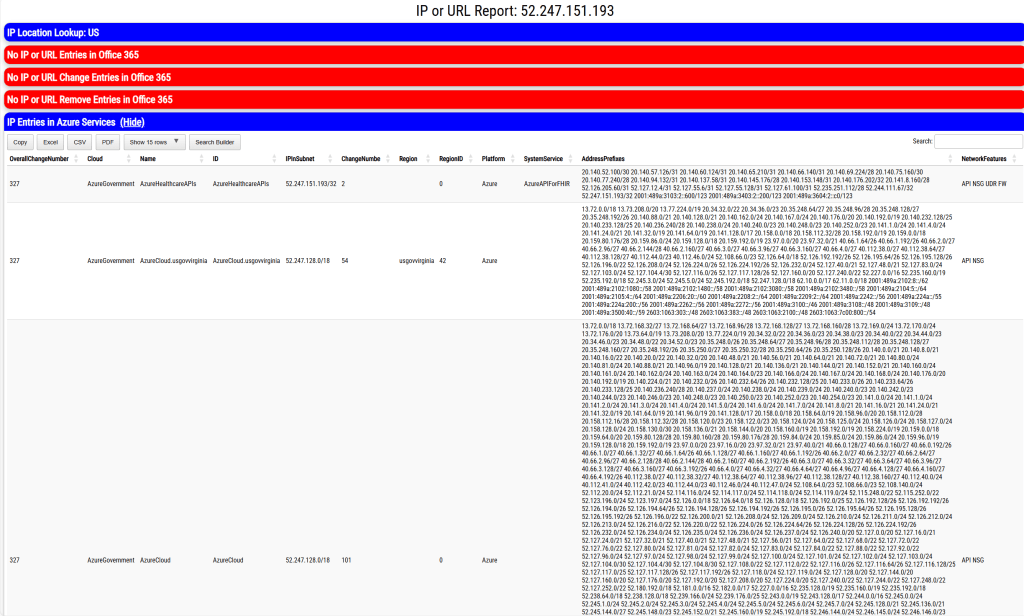
During command execution all IP spaces associated with all Entra services in Public and Government cloud are searched. If the IP address is located in any service, the service information is logged and exported to XML. The log and XML file are contained in the specified log directory. An HTML file is also generated and displayed that provides the same information graphically for review.

If the IP address specified co-exists in any Microsoft 365 services, the service information is also displayed in the output.

This script should allow administrators to map IP addresses to Entra services.

Office 365 – Distribution List Migrations – Part 42

Increasing the success of Distribution List Migrations

When migrating a distribution list to Office 365 the DLConversionV2 module implements a normalization process for all recipients that are members of the distribution list.

The normalization process attempts to convert the recipient from an Active Directory object to an Exchange Online object. The goal of the normalization process is to ensure that we locate the correct recipient in Exchange Online when creating the distribution list and eliminate ambiguous recipient discovery. If an ambiguous recipient is located in Exchange Online this can lead to a migration failure and require the administrator to correct the condition post migration.

When a user is encountered on the properties of a distribution list being migrated the user is normalized by using the attribute msDS-ExternalDirectoryObjectID. In an Entra Connect Sync environment the msDS-ExternalDirectoryObjectID is populated with the value User_ExternalDirectoryObjectID. The ExternalDirectoryObjectID is the objectID associated with the user in EntraID. This same value is also stamped on all Exchange Online objects in the attribute ExternalDirectoryObjectID.

msDS-ExternalDirectoryObjectID = Entra ObjectID = Exchange Online ExternalDirectoryObjectID

PS C:\> Get-ADUser "DistinguishedName" -Properties msDS-ExternalDirectoryObjectID


DistinguishedName              : DistinguishedName
Enabled                        : False
GivenName                      :
msDS-ExternalDirectoryObjectID : User_8ac654f2-2125-4252-b9b0-d2219b9bb395
Name                           : Name
ObjectClass                    : user
ObjectGUID                     : ObjectGUID
SamAccountName                 : SamAccountName
SID                            : SID
Surname                        :
UserPrincipalName              : UserPrincipalName

When searching Exchange Online using the get-recipient command (or any similar get command) the ExternalDirectoryObjectID can be utilized as a recipient identifier.

In a default Entra Connect installation the attribute msDS-ExternalDirectoryObjectID is written back to Active Directory only on User object types. Groups and Contacts do not have the same attribute written back. When performing a migration if a Contact or Group is encountered the recipients are normalized to their Exchange Online counterparts through the object PrimarySMTPAddress. When locating recipients in Exchange Online get-recipient returns results for all objects that match the identifier specified. If a group has the PrimarySMTPAddress of group@contoso.com and a contact has a target address of group@contoso.com get-recipient will return two objects when specifying get-recipient -identity group@contoso.com. During a migration this can lead to a failure as more than object is returned when attempting to perform normalization.

To increase the efficiency of migrations and eliminate possible failures it is possible to enable writeback of the attribute msDS-ExternalDirectoryObjectID to both Contacts and Groups. Why is this not the default? When the writeback rules were created the goal was to optimize the number of changes written back to Active Directory. A decision was made to only populate this value on User objects as that is where it would most commonly be practical to have it. When writing back the same attribute to Groups and Contacts this allows the normalization process to extract the exact matching recipient in Exchange Online.

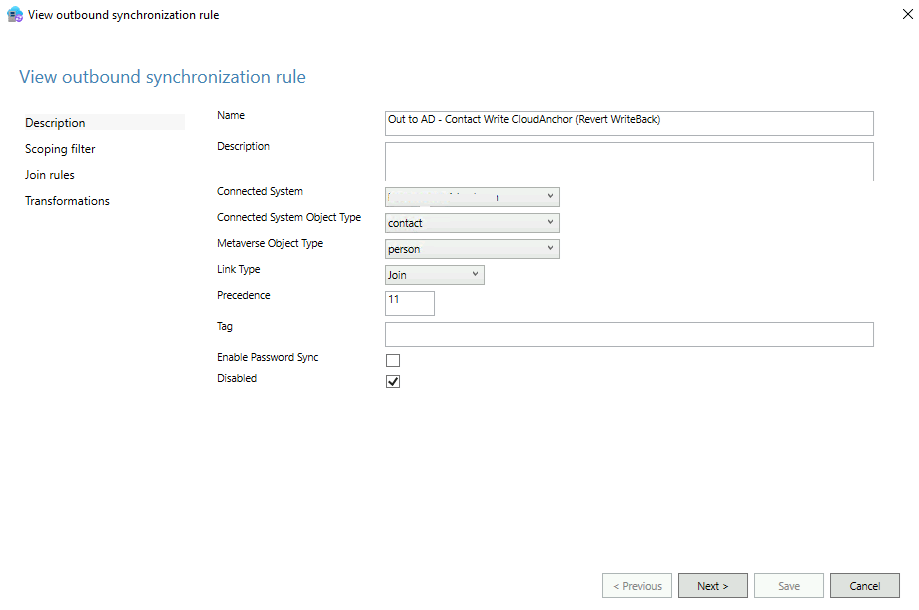
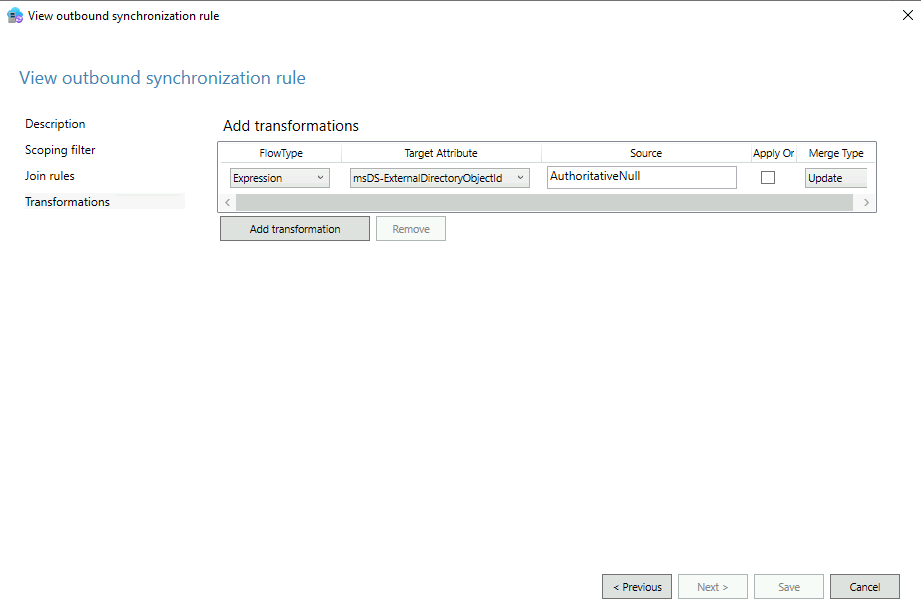
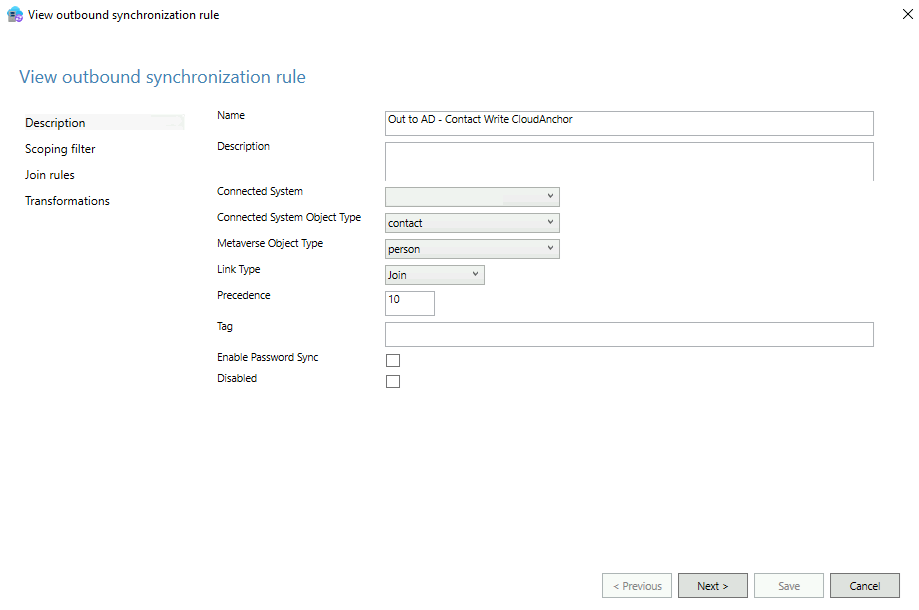
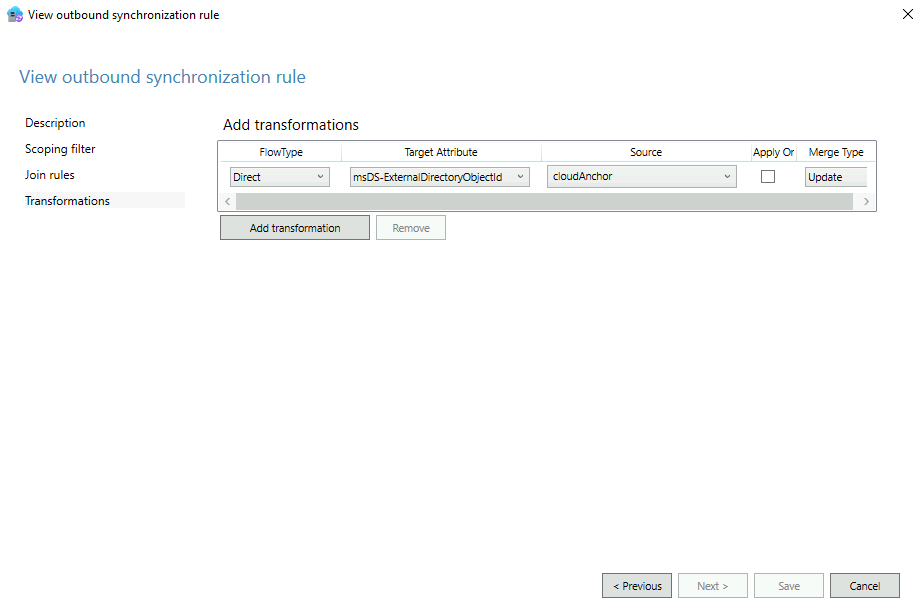
Migrators wishing to implement this efficiency may refer to a script published to the Powershell Gallery -> EnableCloudAnchor. This script allows administrators to create the necessary writeback rules in Entra Connect Sync to enable msDS-ExternalDirectoryObjectID on Contacts and Groups. When the script is executed two rules are created for each object type. The first rule is enabled and translates the EntraID value CloudAnchor to the msDS-ExternalDirectoryObjectID attribute. The second rule is created disabled and enables undoing all attributes written back by the script. This ensures that an undo operation is pre-staged should a rollback be necessary.

The script has several parameters to be specified:

  • ForestRootFQDN: This is the Active Directory forest root FQDN. This is utilized to locate the connector to enable writeback on.
  • StartingPrecedence: This is the starting precedence value for rule creation and must be specified as a value 0 – 99. For example, specifying a value of 25 will create the writeback rule at precedence 25 and the undo rule at precedence 26. This value is option. If not specified, the script will automatically locate the least two precedence available and automatically use them.
  • EnableContactProcessing: This enables rule creation for contacts and is the default for script execution. If enabling the rules for groups this value must be set to false.
  • EnableGroupProcessing: This enables rule creation for groups and by default is disabled. If this feature is enabled enableContactProcessing must be set to false.
  • LogFolderPath: The location of where script logging should occur.

To utilize the script on the Entra Connect server:

Install-Script EnableCloudAnchor

To create the rules for contacts utilizing auto discovered precedence:

EnableCloudAnchor.ps1 -forestRootFQDN contoso.local -logFolderPath c:\temp

To create the rules for contacts utilizing an administrator provided precedence:

EnableCloudAnchor.ps1 -forestRootFQDN contoso.local -startingPrecedence 24 -logFolderPath c:\temp

To create the rules for groups utilizing an auto discovered precedence:

EnableCloudAnchor.ps1 -forestRootFQDN contoso.local -enableContactProcessing:$FALSE -enableGroupProcessing:$TRUE -logFolderPath c:\temp

In Entra Connect the following rule is created to enable writeback of the cloud anchor attribute (only the relevant screens are displayed):

The following rule is also created in a disabled state to allow undoing the writeback operations:

If the need arises to undo the writeback the first rule would be deleted or placed into a disabled state. The disabled state flag would be unchecked on the second rule. The AuthoritativeNull value is utilized to clear an attribute entirely.

NOTE: Any modification to the rules in Entra Connect Sync will require a full synchronization to occur on the connector associated with the forest specified. This may add significant time to a synchronization option.

When the rules have successfully processed on an object the value Contact_ExternalDirectoryObjectID or Group_ExternalDirectoryObjectID may be found on the objects.

PS C:\> Get-ADObject DistinguishedName


DistinguishedName              : DistinguishedName
msDS-ExternalDirectoryObjectID : Contact_76b9cf05-510c-4fcc-a1f8-58e4cada17a6
Name                           : Name
ObjectClass                    : contact
ObjectGUID                     : ObjectGUID

When adding the msDS-ExternalDirectoryObjectID to Active Directory objects the normalization process may more accurately identify recipients in Exchange Online increasing the efficiency and success of migrations.

Microsoft 365: Tracking changes to groups…

In Microsoft 365 group changes may originate from multiple administrative interfaces. Group may be modified in EntraID, Exchange Online, synchronized from on premises Active Directory, or through multiple different Powershell interfaces.

When modifications to a group are made audit event entries are created in the EntraID audit logs. In general, the information provided in these events include the properties changed and the user that initiated the change. There are some instances though where this information may not be as helpful as it may seem. Let us explore one such scenario and look at how to track down the actor that originated the change.

When a group is a cloud only group meaning that it was created directly in Microsoft 365 the attributes of the group can be modified using Microsoft 365 administrative interfaces. For example, and administrator with Exchange rights may utilize the Exchange Powershell to create a new distribution group. When this operation is performed an EntraID audit log entry Add Group is generated that resembles the following:

Activity
Date (UTC)
8/27/2024, 3:57 PM
Activity Type
Add group
Correlation ID
597328d9-9acb-4255-9662-29f55cbe5a95
Category
GroupManagement
Status
success
Status reason
User Agent
Initiated by (actor)
Type
Application
Display Name
Microsoft Substrate Management
App ID
Service principal ID
abd7b61e-df48-45d6-920a-2f22ab1f273d
Service principal name
Target
Type
Group
Id
1a87c12f-7a6a-40bd-9709-e8e3e1559148
Display Name
AuditTest
User Principal Name

Group Type
unknownFutureValue

Note that the above audit log entry is in UTC. This is done by changing the audit log search from local time to UTC display.

When reviewing the audit log entry the actor that performed the operation is “Microsoft Substrate Management”. In this case “Microsoft Substrate Management” is an internal service principal that is utilized by the dual write process between Exchange Online and EntraID. The dual write process is responsible for taking changes that originate in Exchange Online and simultaneously writing them to both the object in EntraID and the object in Exchange Online. From a security standpoint this confirms that the group was added and that it was added outside of EntraiD in Exchange Online but fails to indicate who added the group.

To make the determination of who created the group the Unified Audit logs must be consulted. To search the Unified Audit logs Exchange Online Powershell may be utilized. In this case we know that all group creation in Exchange Online starts with the new-distributionGroup command. The date range specified in the command maybe correlated to the EntraID audit log event timestamp.

Search-UnifiedAuditLog -StartDate "8/27/2024 00:00" -EndDate "8/27/2024 23:59" -Operations "New-DistributionGroup" -ResultSize 5000 -SessionCommand ReturnLargeSet | export-csv -path "c:\temp\group.csv" -NoTypeinformation

The resulting CSV file contains all invocations of the new-DistributionGroup command. This CSV file can be imported into a Powershell array for further analysis.

$audit =@()
$audit += import-csv c:\temp\group.csv
For($i = 0; $i -lt $audit.Count; $i++) {"{0}) {1}" -f ($i),$audit[$i].CreationDate}

This will generate a list of each array entry ID and the creation date timestamp. This date time stamp is also in UTC and should match (or be close to) the EntraID audit log entry.

0) 8/27/2024 3:57:11 PM

In my example there is only one entry. Using the array entry ID we can extract information regarding the unified audit log entry.

$audit[0].creationDate;$audit[0].userIDs;(ConvertFrom-Json $audit[0].auditData).objectID

8/27/2024 3:57:11 PM
globalAdmin@domain.onmicrosoft.com
NAMPR04A010.PROD.OUTLOOK.COM/Microsoft Exchange Hosted Organizations/domain.onmicrosoft.com/AuditTest

In this case the group AuditTest was created by the user GlobalAdmin at 8/27/2024 3:57:11 pm UTC.

There are also multiple other operations that you might filter the Unified Audit logs on that correlate to EntraID audit log entries.

  • Set-DistributionGroup when updating the properties of a distribution group.
  • Remove-DistributionGroup when removing a distribution group.
  • Add-DistributionGroupMember when adding a distribution group member.
  • Remove-DistributionGroupMember when removing a distribution group member.

To capture these items from the Unified Audit logs change the commandlet in the search command.

Search-UnifiedAuditLog -StartDate "8/27/2024 00:00" -EndDate "8/27/2024 23:59" -Operations "Add-DistributionGroupMember" -ResultSize 5000 -SessionCommand ReturnLargeSet | export-csv -path "c:\temp\group.csv" -NoTypeinformation

Administrators may combine the entries from the EntraID audit logs with their counterparts from the Unified Audit Logs to determine changes to groups that occur outside the EntraID administrative interfaces.

Microsoft 365: Searching for Microsoft 365 IP Addresses

Microsoft publishes network guidance monthly for all Microsoft 365 URLs and IP addresses that are optional or required for Microsoft 365 service adoption.

As the service has grown so has the number of IP ranges and the scops of the subnets they contain. When reviewing the documentation is may not always be intuitive or easily discovered if the IP address that you are referencing is located in a Microsoft 365 data center.

I have published a script to the Powershell gallery -> Office365IPAddress.ps1. This script will download all published IP spaces for M365 services from our web services and parse all subjects and services associated with them. If the IP address provided is found within one of our published IP spaces the service information is returned. The script works across all M365 hosted services including China, GCC High, and Department of Defense.

To utilize the script run Powershell 5.1 from your workstation or server. Run install-Script Office365IPAddress.

PS C:\> Install-Script Office365IPAddress

The script installs in Powershell 5.1 but requires Powershell 7.x in order to run. Install or update Powershell 7.x from here. Once installed open a Powershell 7.x window. If you attempt to run the script from an unsupported version of Powershell an error is returned.

[8/18/2024 3:22:54 PM] - Powershell 7 and higher is required to run this script.
[8/18/2024 3:22:54 PM] - Please run module from Powershell 7.x

The script accepts three parameters:

  • IPAddressToTest: This is the IP address to search the web services for.
  • LogDirectory: A directory where log files from the command may be stored.
  • AllowQueryIPLocationInformationFromThirdParty: Boolean value that specifies if a third party geo-location api may be queried to return the public location associated with the IPAddressToTest.

The following command tests the IP address 52.109.45.45:

PS C:\> Office365IPAddress.ps1 -IPAddressToTest "52.109.45.43" -logFolderPath "c:\temp" -allowQueryIPLocationInformationFromThirdParty:$TRUE

If the IP address to test is found within any of our web services published files the results are returned to the window. The information provided includes:

  • ID: The ID of the service description contained in the web services json file.
  • M365Instance: The M365 service instance json file the IP address was located in.
  • ServiceAreaDisplayName: The service area the IP address / subnet are associated with.
  • IPInSubnet: Which subnet in the service description contains the IPAddressToTest.

In the following example the IP address is associated with the Microsoft 365 Command Offline Online service description for our Microsoft 365 WorldWide (+GCC) service instance.

[8/18/2024 3:26:58 PM] - *
[8/18/2024 3:26:58 PM] - **
[8/18/2024 3:26:58 PM] - ******************************************************
[8/18/2024 3:26:58 PM] - The IP Address: 52.109.45.43 was located in the following Office 365 Services:
[8/18/2024 3:26:58 PM] - The IP Address geo-location is: KR

ID                     : 46
M365Instance           : Microsoft 365 Worldwide (+GCC)
TCPPorts               : 80,443
Required               : True
URLs                   : {*.officeapps.live.com, *.online.office.com, office.live.com}
IPs                    : {13.107.6.171/32, 13.107.18.15/32, 13.107.140.6/32, 52.108.0.0/14…}
ExpressRoute           : True
ServiceAreaDisplayName : Microsoft 365 Common and Office Online
IPInSubnet             : 52.108.0.0/14

ID                     : 64
M365Instance           : Microsoft 365 Worldwide (+GCC)
TCPPorts               : 443
Required               : True
URLs                   : {*.compliance.microsoft.com, *.protection.office.com, *.security.microsoft.com,
                         compliance.microsoft.com…}
IPs                    : {13.107.6.192/32, 13.107.9.192/32, 52.108.0.0/14, 2620:1ec:4::192/128…}
ExpressRoute           : True
ServiceAreaDisplayName : Microsoft 365 Common and Office Online
IPInSubnet             : 52.108.0.0/14

[8/18/2024 3:26:58 PM] - A XML file containing the above entries is available in the log directory.
[8/18/2024 3:26:58 PM] - ******************************************************
[8/18/2024 3:26:58 PM] - **
[8/18/2024 3:26:58 PM] - *

In the following example the IP address specified does not exist in any M365 service instance.

PS C:\> Office365IPAddress.ps1 -IPAddressToTest "59.3.2.1" -logFolderPath "c:\temp" -allowQueryIPLocationInformationFromThirdParty:$TRUE
[8/18/2024 3:31:27 PM] - ******************************************************
[8/18/2024 3:31:27 PM] - The IP Address: 59.3.2.1 was located in any Office 365 Services.
[8/18/2024 3:31:27 PM] - ******************************************************

In addition to the active endpoint information the web service also publishes change information. The change information dates back to 2018. If the IP address is found in an M365 service, the change information is queried to display any additions that contained the IP address.

IPInSubnet             : 52.108.0.0/14
Version                : 2019012800
Disposition            : Change
IPsAdded               : {52.108.0.0/14}
M365Instance           : Microsoft 365 Worldwide (+GCC)
ServiceAreaDisplayName : 
ChangeID               : 307
EndpointSetID          : 65

IPInSubnet             : 52.108.0.0/14
Version                : 2019012800
Disposition            : Change
IPsAdded               : {52.108.0.0/14}
M365Instance           : Microsoft 365 Worldwide (+GCC)
ServiceAreaDisplayName : Microsoft 365 Common and Office Online
ChangeID               : 309
EndpointSetID          : 64

If the IP address is not found in any M365 service, the change files are searched for any remove operations.

IPInSubnet             : 23.103.144.0/20
Version                : 2018072800
Disposition            : Change
M365Instance           : Microsoft 365 Worldwide (+GCC)
ServiceAreaDisplayName : Exchange Online
ChangeID               : 3
EndpointSetID          : 9
IPsRemove              : {23.103.144.0/20, 23.103.212.0/22, 40.107.128.0/18}

IPInSubnet             : 23.103.144.0/20
Version                : 2018072800
Disposition            : Change
M365Instance           : Microsoft 365 Worldwide (+GCC)
ServiceAreaDisplayName : Exchange Online
ChangeID               : 5
EndpointSetID          : 10
IPsRemove              : {23.103.144.0/20, 23.103.212.0/22, 40.107.128.0/18}

IPInSubnet             : 23.103.144.0/20
Version                : 2019022800
Disposition            : Change
M365Instance           : Microsoft 365 Worldwide (+GCC)
ServiceAreaDisplayName : Exchange Online
ChangeID               : 327
EndpointSetID          : 9
IPsRemove              : {23.103.132.0/22, 23.103.136.0/21, 23.103.144.0/20, 23.103.198.0/23…}

IPInSubnet             : 23.103.144.0/20
Version                : 2019022800
Disposition            : Change
M365Instance           : Microsoft 365 Worldwide (+GCC)
ServiceAreaDisplayName : Exchange Online
ChangeID               : 334
EndpointSetID          : 10
IPsRemove              : {23.103.132.0/22, 23.103.136.0/21, 23.103.144.0/20, 23.103.198.0/23…}

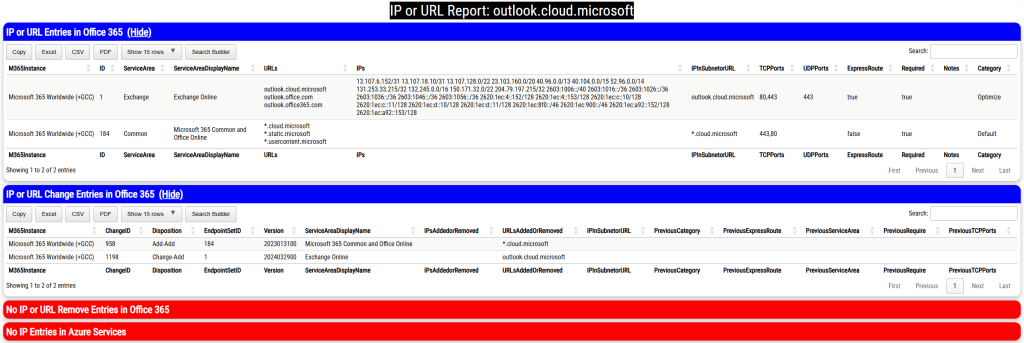
When the script has completed and html file containing the information found is displayed. The report includes four sections

  • IP or URL Entries in Office 365
    • These are the active URL and IP entries currently utilized by Office 365.
  • IP or URL Change Entries in Office 365
    • These are the changes for modifications or additions since 2018
  • No IP or URL Entries in Office 365
    • These are the URLs and IPs that were removed from Office 365.
    • If the URL requested cannot be located the removals are searched.
  • No IP Entries in Azure Services
    • These are IP addresses found using the optional feature to search Azure Services.

The log file directory contains XML exports of all files tested and all results. The HTML file displaying the results is also stored within the same directory.

This script should allow you to efficiently identify if a specified IP address belongs to a Microsoft 365 service instance.

EntraID: Microsoft 365 Groups and Entra Role Assignments

Microsoft 365 Groups is a modern group type designed to enable collaboration across multiple Microsoft 365 platforms. Microsoft 365 Groups maybe provisioned in multiple administrative interfaces and in some cases created by end users themselves.

For more information on Microsoft 365 Groups follow this link.

Entra roles may be assigned to Microsoft 365 Groups to provide permissions and management rights. When planning to assign roles to Microsoft 365 Groups the interface or method that the group is created dictates if the group may be assigned roles.

In order to a Microsoft 365 Group to be assigned Entra roles there are two pre-requisites that must exist:

  • The group must be created in an interface that supports enabling the role assignment flag.
  • The group must also have the security flag enabled.

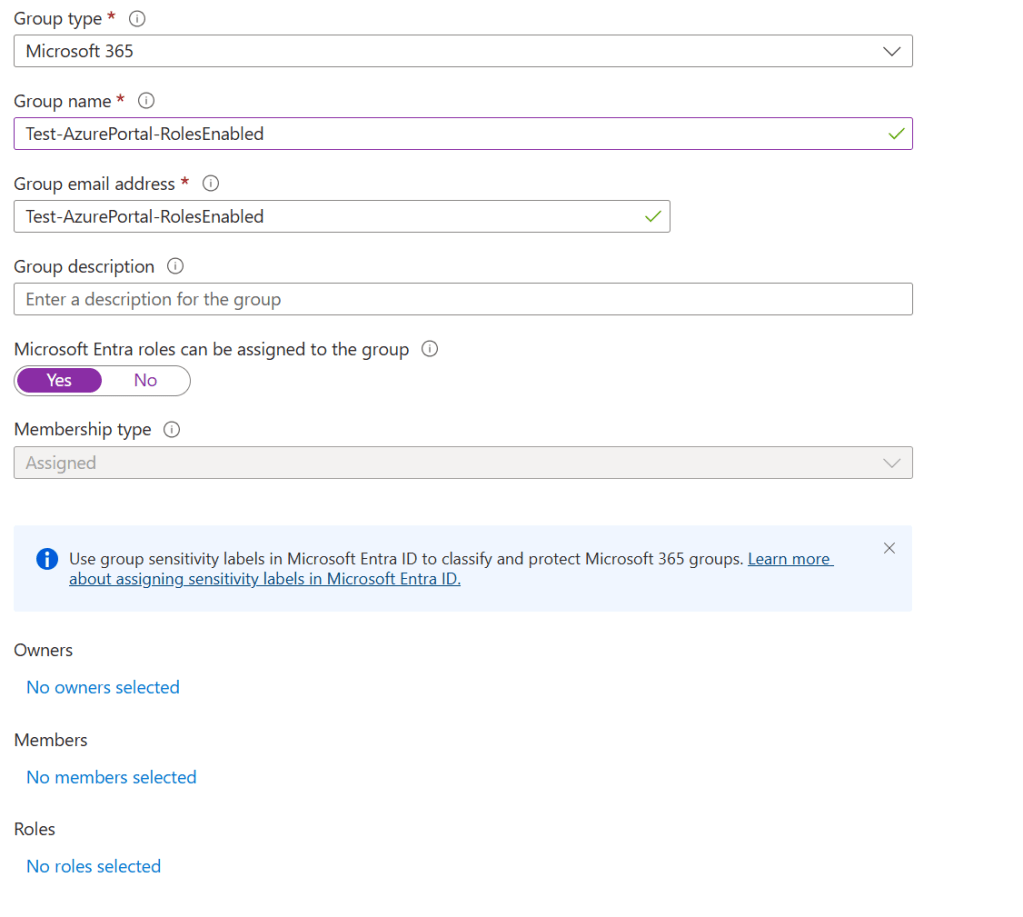
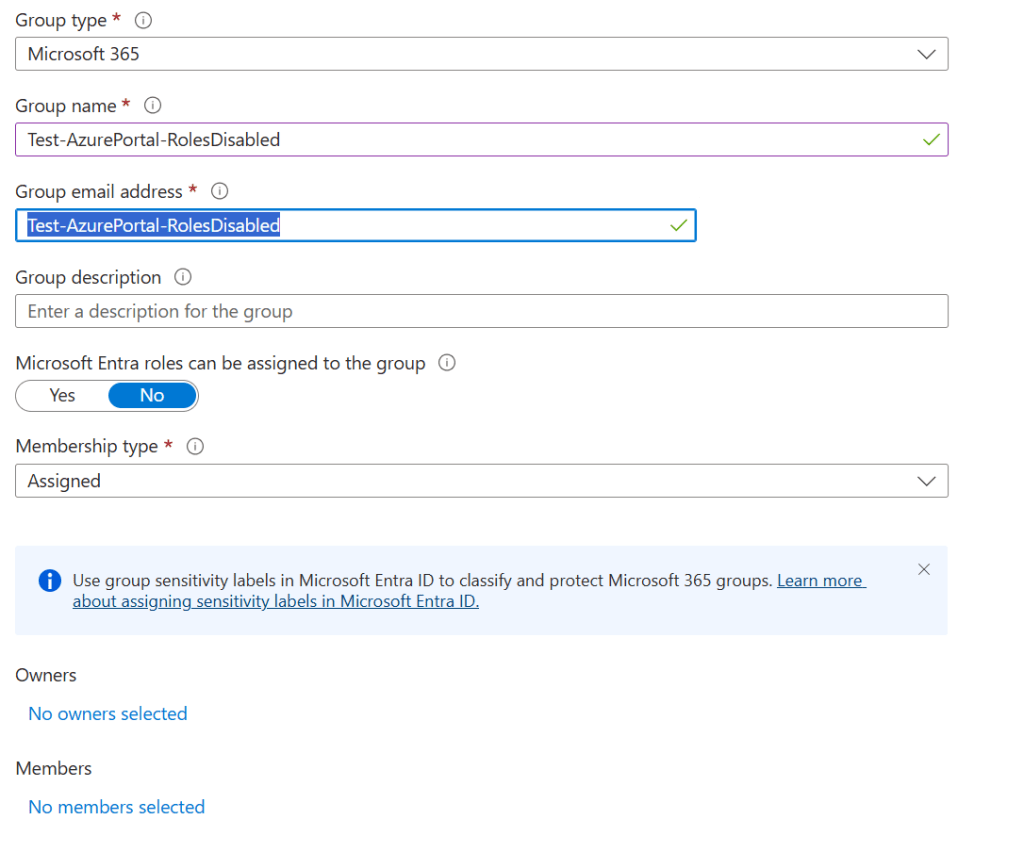
When utilizing the EntraID portal to create a Microsoft 365 Group there is an option presented to enable Entra role assignment.

When the “Microsoft Entra roles can be assigned to this group” option is enabled the Roles dialog appears at the lower portion of the group creation window. Evaluating this setting at group creation is important as the setting is immutable. Once the flag is either set to Yes or No it cannot be changed after group creation.

For more information on Entra role assignments and groups see the following documentation.

If the Microsoft 365 Group is created without the role assignment option an additional confirmation dialog is not present and the roles option does not appear.

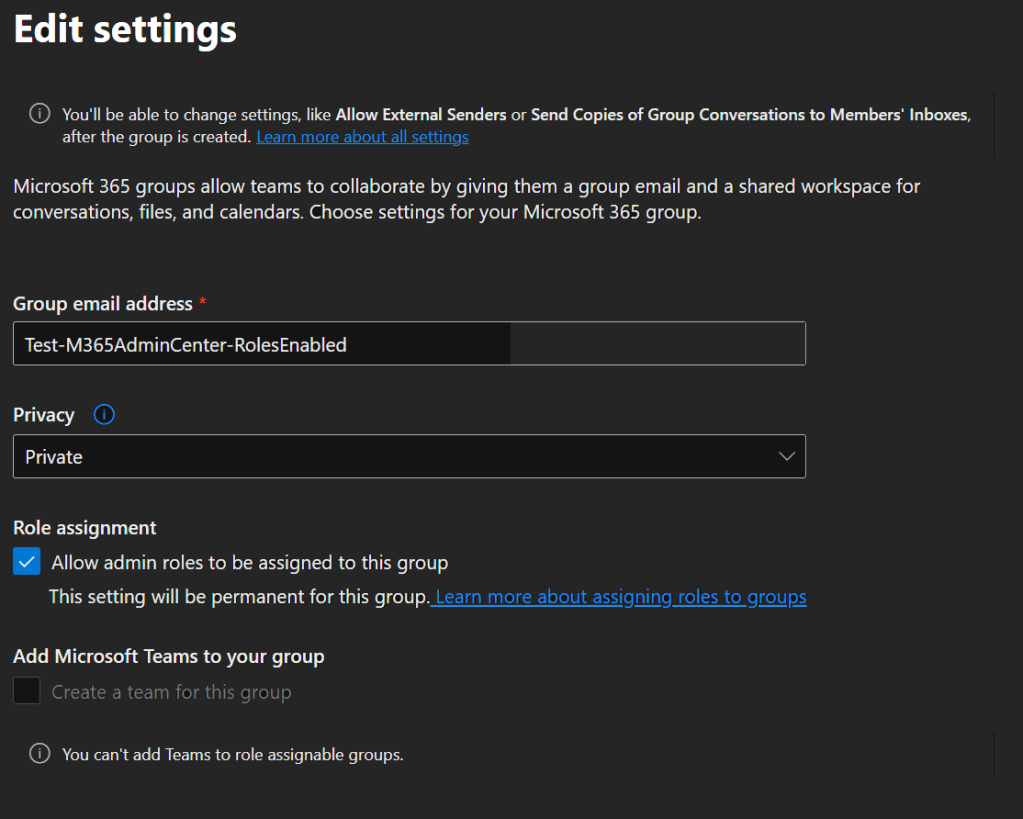
Microsoft 365 Groups can be created across multiple Microsoft 365 administration interfaces including the M365 Admin Center and Exchange Online. The option to enable the group for role assignment is present but only enabled if the group privacy setting is set to “Private”

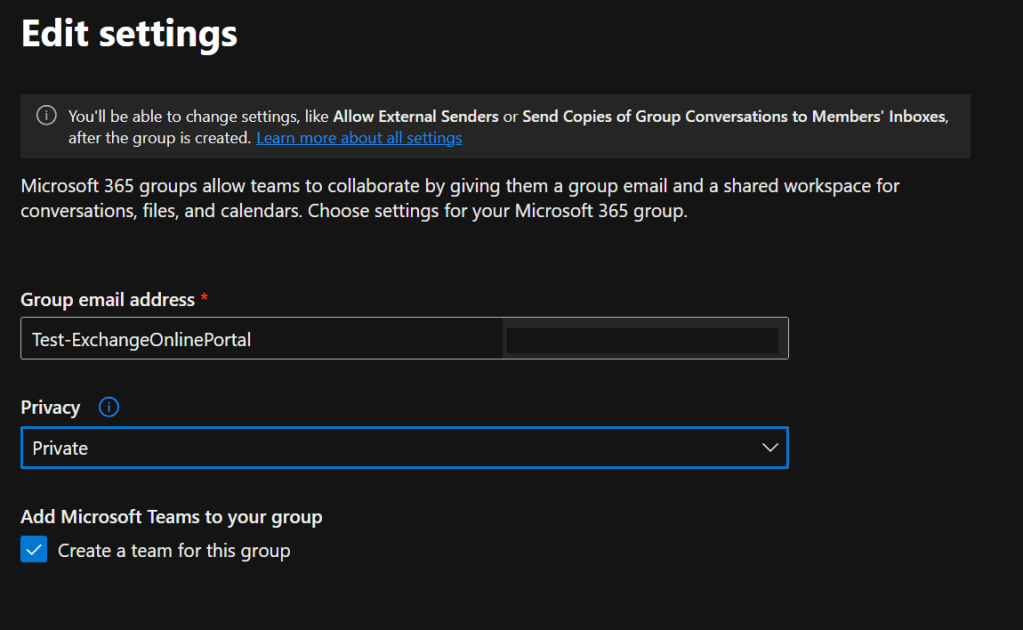
In the Exchange Online Admin Center when creating a Microsoft 365 Group there is no role assignment flag.

Is there a programmatic way of determining if a group is eligible for role assignments? Using the Microsoft Graph get-MGGroup command we can review the flags that are necessary to determine if a group is eligible for a role assignment.

DisplayName                        IsAssignableToRole SecurityEnabled
-----------                        ------------------ ---------------
Test-M365AdminCenter-RolesEnabled                True            True
Test-M365AdminCenter-RolesDisabled              False           False
Test-AzurePortal-RolesEnabled                    True            True
Test-ExchangeOnlinePortal                       False           False
Test-AzurePortal-RolesDisabled                                   True

When a Microsoft 365 group is eligible for role assignment the IsAssignableToRole flag and SecurityEnabled flag are set to TRUE. When a group is not eligible for role assignment the IsAssignableToRole is either False or NULL.

It is important that when creating Microsoft 365 groups where the desire to assign roles is required that an administrative interface supporting group role assignment is utilized and the option enabled at group creation.

EntraID Group Owners and Exchange Online ManagedBy

In the EntraID Portal groups that are created directly in Microsoft 365 or synchronized from Active Directory are displayed. One of the attributes that is present on groups in EntraID is the Owners attribute. A common question I receive from customers is that the owners attribute synchronized from Active Directory does not match the owners attribute of the same group in EntraID.

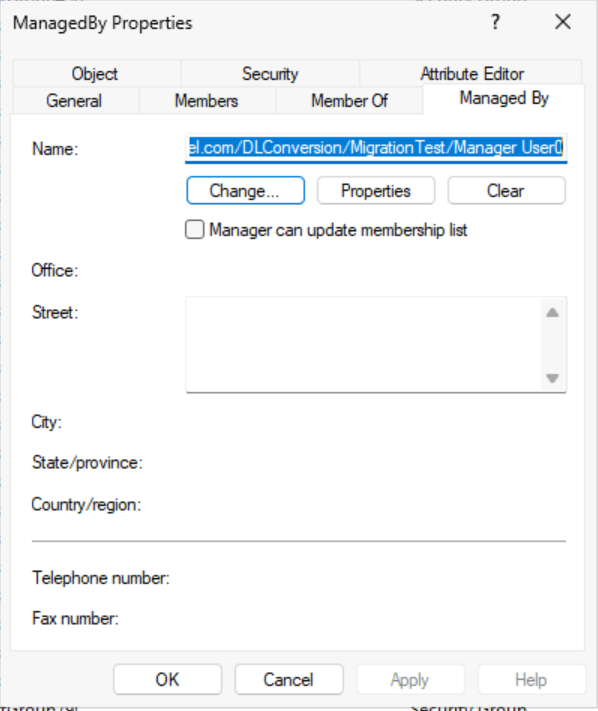
Managers for groups in Active Directory can be established either by setting the Manager field in Active Directory Users and Computers or by using the Exchange Management Shell / Exchange Control Panel. When in ADUC and on the Managed By tab, the name field displays the distinguished name of the manager and is represented in the LDAP attribute managedBy.

In Exchange on-premises installations groups often have more than one manager. Exchange achieves this by writing the first manager to the LDAP attribute managedBy and all subsequent managers to the LDAP attribute msExchCoManagedByLink. ADUC has no knowledge of the additional attributes. The Exchange Management Shell and Exchange Control Panel include managers from both LDAP fields when displaying the managedBy representation.

Get-DistributionGroup ManagedBy | fl managedBy


ManagedBy : {home.domain.com/DLConversion/MigrationTest/Manager User0,
            home.domain.com/DLConversion/MigrationTest/Manager User1,
            home.domain.com/DLConversion/MigrationTest/ManagerGroup}

The managers of an object in Active Directory can be any valid security principal, for example, a user or security group. In the above example the group is managed by two users and a security group. Here is the same representation from Active Directory:

PS C:\> Get-ADGroup -Identity "CN=ManagedBy,OU=MigrationTest,OU=DLConversion,DC=home,DC=domain,DC=com" -Properties managedBy,msExchCoManagedByLink


DistinguishedName     : CN=ManagedBy,OU=MigrationTest,OU=DLConversion,DC=home,DC=domain,DC=com
GroupCategory         : Security
GroupScope            : Universal
ManagedBy             : CN=Manager User0,OU=MigrationTest,OU=DLConversion,DC=home,DC=domain,DC=com
msExchCoManagedByLink : {CN=Manager User1,OU=MigrationTest,OU=DLConversion,DC=home,DC=e-domain,DC=com,
                        CN=ManagerGroup,OU=MigrationTest,OU=DLConversion,DC=home,DC=domain,DC=com}
Name                  : ManagedBy
ObjectClass           : group
ObjectGUID            : c0e9ed6c-22f4-4305-a69a-aee56f0c53b1
SamAccountName        : ManagedBy
SID                   : S-1-5-21-278042269-1514808692-1118015945-448669

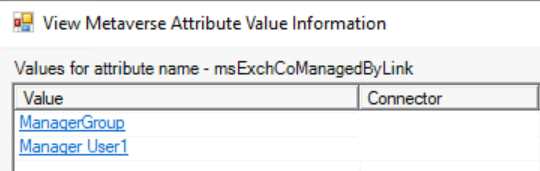
In EntraID Connect when an object is synchronized the managedBy and msExchCoManagedByLink attributes are included in the synchronization attribute set. You can observe this by performing a metaverse search on the group and reviewing the attributes discovered during the synchronization process.

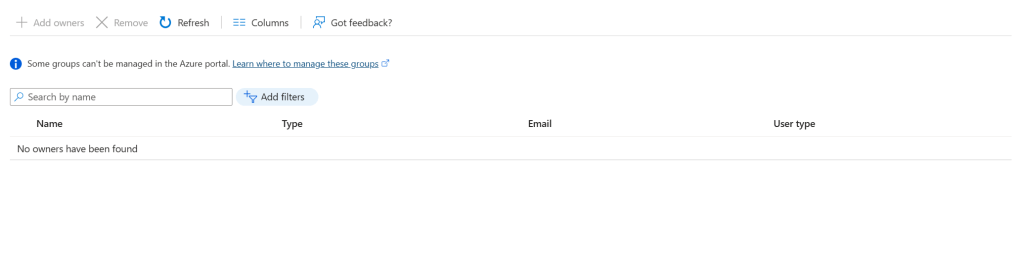
A synchronized group is available in the EntraID Portal under groups. When reviewing the group properties a owners field is displayed. The owners field in this case appears empty and no owners are displayed.

If the managers are synchronized, then why is the owners field empty? Owners is not equal to managers. Active Directory Groups or legacy distribution and security groups created in Exchange Online do not have owners they have managers. Managers are not the same as owners at the directory level therefore the owners field is not populated with managers.

In order to review the managers of a group you have to review the properties of the group within Exchange Online.

PS C:\> Get-DistributionGroup ManagedBy | fl managedBy


ManagedBy : {04cfbcd4-42a0-4c60-8220-4488a6af4431, f7aff7bf-3036-4e26-a193-75a28de751f3}

In this instance the managers are represented by the externalDirectoryObjectID of the recipients. If the recipients existed prior to setting the name attribute to externalDirectoryObjectID the name of the user may be displayed.

PS C:\> Get-Recipient 04cfbcd4-42a0-4c60-8220-4488a6af4431 | fl displayName


DisplayName : Manager User0


PS C:\> Get-Recipient f7aff7bf-3036-4e26-a193-75a28de751f3 | fl displayName


DisplayName : Manager User1

In this example both of the USERS that have manager rights on the group are represented in Exchange Online. Earlier though there were three managers, two were users and the remaining a security group. Unfortunately, Exchange Online does not forward sync any other manager except for user types. The group is synchronized to Entra ID as a manager, but will not be represented on the group in Exchange Online. There is no workaround for this behavior except adding individual members to a manager field in Active Directory.

If the owners field in EntraID does not match the managers then why does the owners field exist? The owners field is utilized to display owners of the Microsoft 365 Group type. These groups are often referred to as modern or universal groups. Setting the owners attribute in EntraID or Exchange Online subsequently adjusts the owners across all Microsoft 365 services.

PS C:\> Get-UnifiedGroupLinks -Identity ManagedBy-M365Group -LinkType Owners

Name                                 RecipientType
----                                 -------------
04cfbcd4-42a0-4c60-8220-4488a6af4431 MailUser
f7aff7bf-3036-4e26-a193-75a28de751f3 MailUser

Synchronized groups or distribution / security groups created in Exchange Online do not have owners in EntraID.

EntraID / Office 365: Using Graph Powershell to list domain DNS records…

In the Microsoft 365 Administration center administrators can review the domains they have verified and added to Microsoft 365 services. When a domain is validated and provisioned, the domain name services (DNS) records that are provisioned in Microsoft 365 are displayed for the administrator. This may include records such as the MX record for Exchange Online or the device management records for Intune support.

If the domains blade is not available to you in the Microsoft 365 Administration Center, it is possible to obtain these same records through Microsoft Graph. To obtain the DNS records the command Get-MGDomainServiceConfigurationRecord can be utilized. For API permissions necessary to utilize this command reference the following API permissions guidance.

Whenever utilizing Microsoft Graph commands I always recommend ensuring that the graph commands are running the latest non-preview version. To accomplish this task administrators may run:

Get-InstalledModule Microsoft.Graph.* | update-Module

If you have not yet installed any of the graph modules there are only two modules that are required in order to execute these commands.

Install-Module Microsoft.Graph.Authentication
Install-Module Microsoft.Graph.Identity.DirectoryManagement

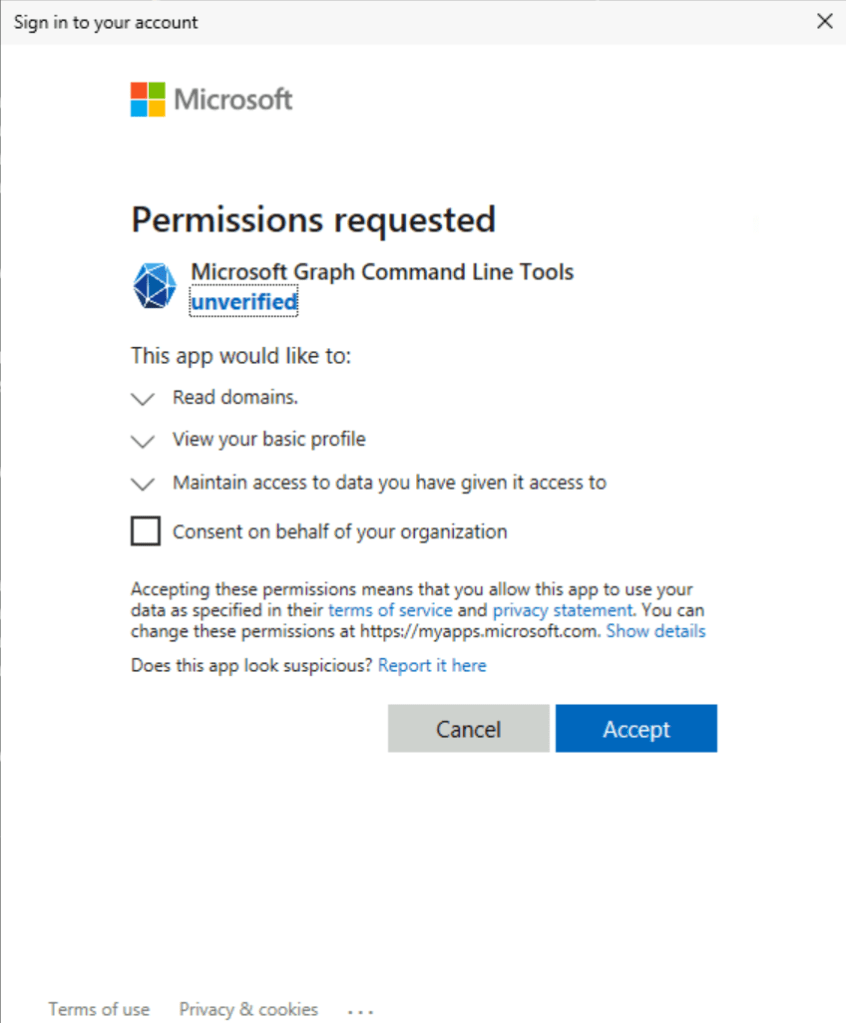
Once the necessary modules have been installed or updated a connection to the Microsoft Graph endpoints must be established. In this example interactive authentication is utilized to establish the connection and prompt the user for credentials. The scopes parameter requests the least restrictive permissions to perform this operation. When connecting with graph command if a scope is not consented to for the particular user either consent can be granted by the user (assuming appropriate rights) or an administrator will be required to grant consent. I also provide the tenantID as a part of the connection. The tenantID can be obtained from the Entra ID portal associated with the domain. This ensures that the connection is made with the appropriate tenant.

connect-MGGraph -scopes "Domain.Read.All" -tenantID "00000000-0000-0000-0000-000000000000"

This is a sample consent screen

The command can then be issued using the domain name.

$records = Get-MgDomainServiceConfigurationRecord -DomainId domain.net

The information of particular interest is stored within the additionalProperties of each entry. The following command will help organize and interpret the information:

PS C:\> foreach ($record in $records) { $record.label ; $record.AdditionalProperties | ft}
domain.net

Key          Value
---          -----
@odata.type  #microsoft.graph.domainDnsMxRecord
mailExchange domain-net0c.mail.protection.outlook.com
preference   0


domain.net

Key         Value
---         -----
@odata.type #microsoft.graph.domainDnsTxtRecord
text        v=spf1 include:spf.protection.outlook.com -all


autodiscover.domain.net

Key           Value
---           -----
@odata.type   #microsoft.graph.domainDnsCnameRecord
canonicalName autodiscover.outlook.com


_sip._tls.domain.net

Key         Value
---         -----
@odata.type #microsoft.graph.domainDnsSrvRecord
nameTarget  sipdir.online.lync.com
port        443
priority    100
protocol    _tls
service     _sip
weight      1


sip.domain.net

Key           Value
---           -----
@odata.type   #microsoft.graph.domainDnsCnameRecord
canonicalName sipdir.online.lync.com


lyncdiscover.domain.net

Key           Value
---           -----
@odata.type   #microsoft.graph.domainDnsCnameRecord
canonicalName webdir.online.lync.com


_sipfederationtls._tcp.domain.net

Key         Value
---         -----
@odata.type #microsoft.graph.domainDnsSrvRecord
nameTarget  sipfed.online.lync.com
port        5061
priority    100
protocol    _tcp
service     _sipfederationtls
weight      1


domain.net

Key           Value
---           -----
@odata.type   #microsoft.graph.domainDnsCnameRecord
canonicalName domain.sharepoint.com


msoid.domain.net

Key           Value
---           -----
@odata.type   #microsoft.graph.domainDnsCnameRecord
canonicalName clientconfig.microsoftonline-p.net


enterpriseregistration.domain.net

Key           Value
---           -----
@odata.type   #microsoft.graph.domainDnsCnameRecord
canonicalName enterpriseregistration.windows.net


enterpriseenrollment.domain.net

Key           Value
---           -----
@odata.type   #microsoft.graph.domainDnsCnameRecord
canonicalName enterpriseenrollment-s.manage.microsoft.com

If the DNS record contains a name within the domain this is represented by the label. The @odata.type provides the type of DNS record expected and the value column lists the value of that record.

enterpriseenrollment.domain.net

Key           Value
---           -----
@odata.type   #microsoft.graph.domainDnsCnameRecord
canonicalName enterpriseenrollment-s.manage.microsoft.com

The previous example would be interpreted as:

DNS Record Name = enterpriseenrollment.domain.net

DNS Record Type = CNAME

DNS Record Value = enterpriseenrollment-s.manage.microsoft.com

domain.net

Key          Value
---          -----
@odata.type  #microsoft.graph.domainDnsMxRecord
mailExchange domain-net0c.mail.protection.outlook.com
preference   0

The previous example would be interpreted as:

DNS Domain = domain.net

DNS Record Type = MX

DNS Record Value = domain-net0c.mail.protection.outlook.com

DNS Record Preference = 0

In this case an MX record does not have a specific DNS host name unlike other records.

These commands should unblock scenarios where the domains blade is unavailable to you and you need to know the appropriate DNS records to create for your Office 365 integration.

Visualizing group hierarchy and membership – a new PowerShell module…

Groups allow administrators to organize users and contacts that share something in common. This may be a security group providing permissions or a distribution group providing a common email. Groups support any level of nesting allowing for a tree of groups with many branches. The depth and breadth that can be present in the hierarchy sometimes create challenges in locating members or understanding the scope of the group’s use. In addition to groups where membership is static, some groups support dynamic membership or the ability to add and remove users based off their attributes. This adds an additional layer of complexity when looking at group hierarchy and membership.

We often receive requests in support to assist in mapping out group membership. Customers may be preparing to migrate distribution lists from on-premises to Exchange Online and need to understand the parent / child relationship between groups. Other customers are investigating why a conditional access policy applied to a user, why a contact received an email addressed to a group, or who has access to a particular resource based on group membership. Answering these questions often requires an understanding of how groups and users are organized.

There have been several potential solutions to this inquiry. In Active Directory, administrators have access to a command get-adGroupMember -recursive. This command will walk a group hierarchy and provide information on the specific members that are discovered. The Get-ADGroupMember -recursive does an excellent job of highlighting the users that are discovered. Additional object classes, such as groups and contacts, are not displayed in the return. This limits the feasibility of such a command as a solution to this question.

PS C:\Repository\DLTestSuite> Get-ADGroupMember -Identity “A0-Group” -Recursive
distinguishedName : CN=C2-MailUserB,OU=DLHierarchy,DC=home,DC=domain,DC=com
name : C2-MailUserB
objectClass : user
objectGUID : 09779231-71e3-45bb-98ed-2f22be96f606
SamAccountName : C2MailuserB
SID : S-1-5-21-278042269-1514808692-1118015945-447265
distinguishedName : CN=C2-MailUserA,OU=DLHierarchy,DC=home,DC=domain,DC=com
name : C2-MailUserA
objectClass : user
objectGUID : 390d0f3e-502d-42a1-8d25-cdccdd497c6f
SamAccountName : C2MailuserA
SID : S-1-5-21-278042269-1514808692-1118015945-447264
distinguishedName : CN=C1-MailboxB,OU=DLHierarchy,DC=home,DC=domain,DC=com
name : C1-MailboxB
objectClass : user
objectGUID : 0081b0f0-ab04-4245-8049-35601dac51ef
SamAccountName : C1MailboxB
SID : S-1-5-21-278042269-1514808692-1118015945-447263

In Exchange Online get-distributionGroupMember will provide a list of all members of a group but does not operate recursively. The equivalent graph command get-MGGroupMember does the same but also does not operate recursively. This often requires additional work to determine the nested hierarchy and gather all potential objects included in scope.

In a synchronized directory users may reside in multiple locations. A user may reside in Active Directory, Entra ID, and Exchange Online. Although the same object is represented, each directory is independent, therefore an object may exist in one and not the other. This allows for the potential of group membership and hierarchy to be different depending on which directory is queried. Take the example of a parent group that has a child that is a dynamic distribution group. A dynamic distribution group is not replicated through Entra ID Connect, therefore the membership of the group in Active Directory is different than that of Entra ID or Exchange Online. You may also have differences as objects are intentionally excluded from synchronization. An example of this is a custom EntraID Connect rule that no longer synchronizes accounts that have been disabled. When disabling an account, it is present in all groups in Active Directory but subsequently would not be present in those same groups in EntraID or Exchange Online as the user is deleted when no longer synchronized.

DLHierarchy PowerShell Module

In the PowerShell Gallery is a new module, DLHierarchy. This PowerShell module allows administrators to query Active Directory, EntraID, or Exchange Online to build a complete group hierarchy and membership table. Administrators may select to have the hierarchy presented to them in text format, html format, or have both formats generated. In addition to handling static group membership, if enabled, a dynamic groups membership is expanded and included in the output. This allows for the most complete view of hierarchy and membership.

When the text option is enabled, a file is generated that contains a text-based tree. The tree contains the object display name, the unique object identifier from the directory queried, and any recipient type information that may be available. (Note: This information varies depending on the directory queried.)

Group Hierarchy for Group ID: 40bda585-832a-410a-a514-fdc443a9e877

A0-Group (ObjectGUID:40bda585-832a-410a-a514-fdc443a9e877) (group)

–B0-Group (ObjectGUID:cbab0378-84bd-4432-8ea6-910c1784af6a) (group)

—-C0-Group (ObjectGUID:81650155-3d68-4d26-b946-7960f72a4959) (group)

——C0 EquipmentMailbox (ObjectGUID:fcf71a4d-ad75-49d1-baff-ce081a18e1d4) (user)

——C0 RoomMaibox (ObjectGUID:4f4e0288-de33-402f-92b8-533fe4896ae9) (user)

——C0 ShareMailbox (ObjectGUID:855ab450-7d9c-4f13-bc09-ab8f65b84fac) (user)

—-C1-Group (ObjectGUID:b1b9823a-76d6-46ba-9f24-9f5b85450ac3) (group)

——C1 MailboxA (ObjectGUID:09c3a516-ee7e-4e0c-bdf7-f3b3add92e5e) (user)

——C1 MailboxB (ObjectGUID:0081b0f0-ab04-4245-8049-35601dac51ef) (user)

–B1-Group (ObjectGUID:3d434170-fa3a-4b40-ae08-ba823bfdccf5) (group)

—-C2-Group (ObjectGUID:96b01f6a-fb54-4c55-b294-fdaf0e2fc95a) (group)

——C2 MailUserA (ObjectGUID:390d0f3e-502d-42a1-8d25-cdccdd497c6f) (user)

——C2 MailUserB (ObjectGUID:09779231-71e3-45bb-98ed-2f22be96f606) (user)

—-C3-Group (ObjectGUID:d174ae4b-3df9-406c-8d04-0b91fd8c53d1) (group)

——C3MailContactA (ObjectGUID:8e6cf394-7661-452d-a0cf-b480e7b8f061) (contact)

——C3-MailContactB (ObjectGUID:fdea52a8-e067-4612-82ac-610e1a3afa5c) (contact)

——B1-Group (Circular Membership) (ObjectGUID:3d434170-fa3a-4b40-ae08-ba823bfdccf5) (group)

——D0-Dynamic (ObjectGUID:63e7cb1e-8cb6-41ad-bbf9-ab36d0a96b23) (msExchDynamicDistributionList)

——–D0-Group (ObjectGUID:d496c8c0-59b1-472c-b3c0-6e696f2f9f47) (group)

———-D0 MailboxC (ObjectGUID:ab01e00d-d87b-46c1-8ee4-2af3d17644b3) (user)

———-D0 MailboxD (ObjectGUID:0e35a8bb-3386-4ff8-9ff9-973177f932f2) (user)

——–D0 MailboxA (ObjectGUID:2fdbf8db-5738-4f31-8371-118e57a095cd) (user)

——–D0 MailboxB (ObjectGUID:be679478-96bc-4ecd-9ea1-57caab6924e0) (user)

——–D0 MailboxC (ObjectGUID:ab01e00d-d87b-46c1-8ee4-2af3d17644b3) (user)

——–D0 MailboxD (ObjectGUID:0e35a8bb-3386-4ff8-9ff9-973177f932f2) (user)

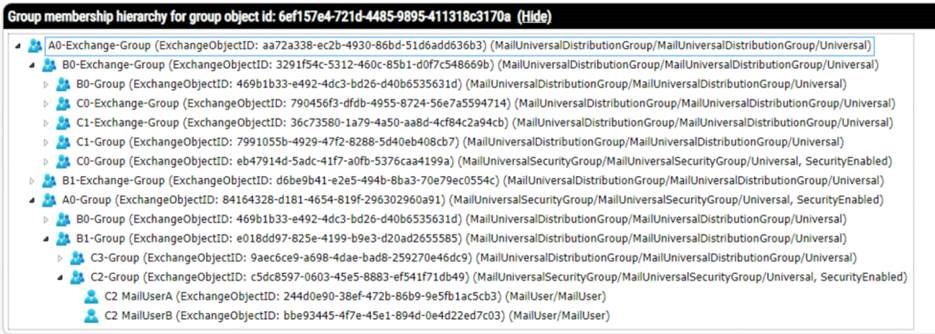
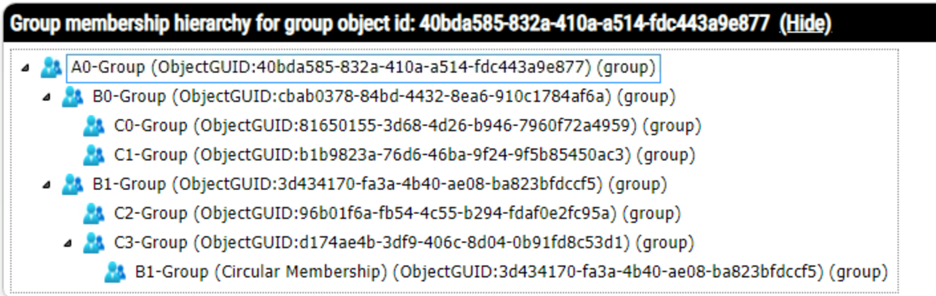
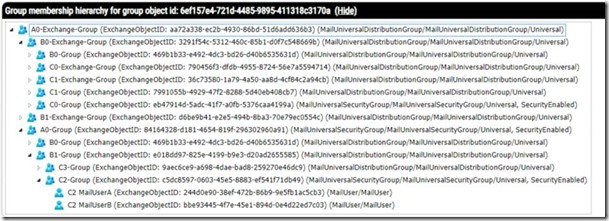
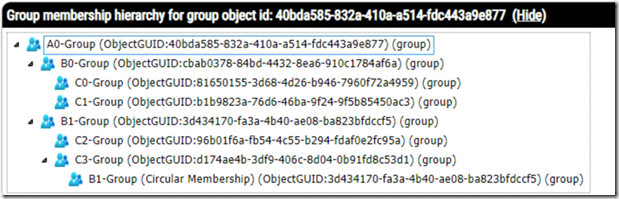
When the HTML option is enabled, an HTML file is automatically generated. The file is broken into three separate sections. The first section provides and interactive expandable tree outlining the group hierarchy and membership. Groups may be collapsed and expanded to walk the tree.
clip_image002

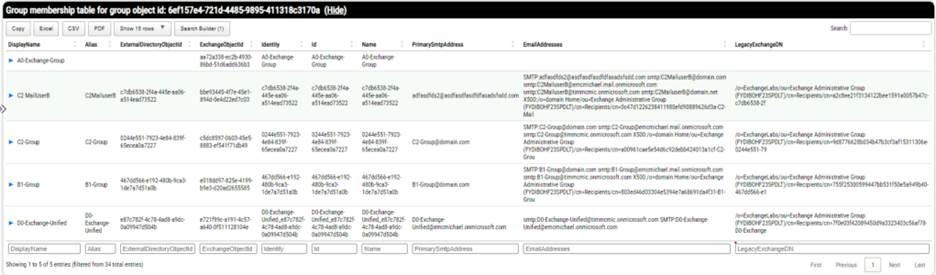
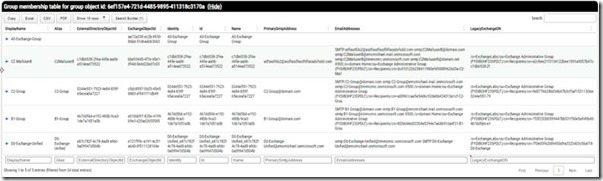
The second section lists a table of all unique objects discovered during the query. The table provides basic object information and a search function. The search function can be utilized to filter the table and locate a specific object.
clip_image004

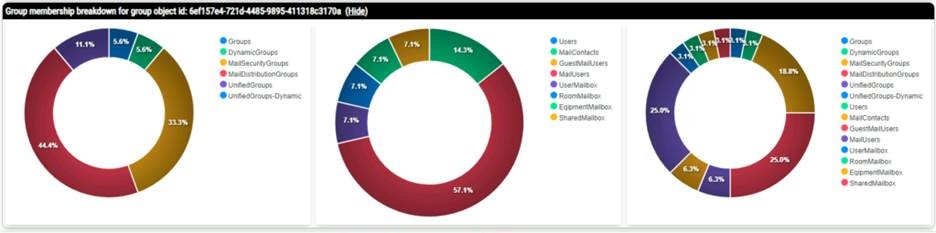
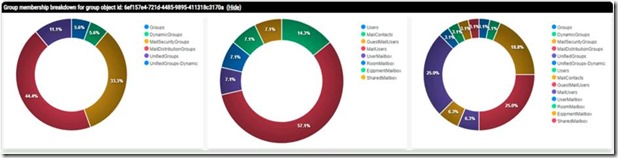
The last section provides a visual representation of the object classes within the group queried. This section contains three sub-sections. The first sub-section shows the breakdown of groups contained within the parent group, the second sub-section shows the object classes for users or contacts contained within the group, and the last sub-section shows a total summary of all object classes within the group. This provides a quick visual representation of the types of objects contained within the group.
clip_image006

The default parameter set expands group membership and dynamic group membership for any group that is encountered. Optionally administrators may disable either of these operations. This allows flexibility to obtain the simple hierarchy without expanding the actual members of any group. This also cuts down on the overall time it takes to enumerate the group and member hierarchy.
clip_image008

Using the DLHierarchy PowerShell Module

The DLHierarchy PowerShell module contains three commands:

· Get-DLHierarchyFromGraph

· Get-DLHierarchyFromLDAP

· Get-DLHierarchyFromExchangeOnline

As the name of each function would suggest, this is the directory that is utilized to source.

When a client or server is identified to run the module the Remote Server Administration Tools for Active Directory must be installed. The module may be installed from the PowerShell gallery using Install-Module DLHierarchy.

Get-DLHierarchyFromLDAP

This function allows group collection from Active Directory. The user executing the command must have the permission to read all properties associated with groups and members.

To obtain the group object ID required for the command run get-ADGroup -identity NAME and note the objectGUID supplied in the output.

Get-ADGroup A0-Group

DistinguishedName : CN=A0-Group,OU=DLHierarchy,DC=home,DC=domain,DC=com

GroupCategory : Security

GroupScope : Universal

Name : A0-Group

ObjectClass : group

ObjectGUID : 40bda585-832a-410a-a514-fdc443a9e877

SamAccountName : A0-Group

SID : S-1-5-21-278042269-1514808692-1118015945-447253

Required Parameters:

· -GlobalCatalogServer which is the global catalog to perform the discovery operation.

· -GroupObjectID which is the objectGUID from Active Directory for the group.

· -LogFolderPath which is path where the log files and output files will be stored.

Optional Parameters:

· -ActiveDirectoryCredential a pre-gathered psCredential object. For example, $activeDirectoryCredential = get-credential. When a credential is not specified the user will be interactively prompted.

· -AllowTelemetryCollection which when enabled allows telemetry collection from the command.

· -ExpandGroupMembership which when enabled provides details not only regarding the group hierarchy but also the members contained within the group.

· -ExpandDynamicGroupMembership which when enabled if a dynamic group is discovered the recipient filter is expanded and the individual users included in the hierarchy report.

· -EnableTextOutput which when set to true includes text-based output for the group hierarchy in the log file directory.

· -EnableHTMLOutput which when set to true includes HTML based output for the group hierarchy in the log file directory.

Sample Commands:

· Get-DLHierarchyFromLDAP -groupObjectID 40bda585-832a-410a-a514-fdc443a9e877 -globalCatalogServer gc.domain.com -logFolderPath c:\temp

o This command prompts the user for interactive credentials and creates a hierarchy report for the provided objectID.

· Get-DLHierarchyFromLDAP -groupObjectID 40bda585-832a-410a-a514-fdc443a9e877 -globalCatalogServer gc.domain.com -activeDirectoryCredential $cred -logFolderPath c:\temp

o This command prompts the user for interactive credentials and creates a hierarchy report for the provided objectID.

· Get-DLHierarchyFromLDAP -groupObjectID 40bda585-832a-410a-a514-fdc443a9e877 -globalCatalogServer gc.domain.com -activeDirectoryCredential $cred -logFolderPath c:\temp -enableDynamicGroupMembership $FALSE -enableGroupMembership:$FALSE

o This command prompts the user for interactive credentials and creates a hierarchy report for the provided objectID that includes only groups.

Get-DLHierarchyFromGraph

This function allows group collection from EntraID utilizing Microsoft Graph. The following graph commands are utilized as a part of this collection.

Get-MGUser

Get-MgUser (Microsoft.Graph.Users) | Microsoft Learn

Get-MGGroup

Get-MgGroup (Microsoft.Graph.Groups) | Microsoft Learn

Get-MGGroupMember

Get-MgGroupMember (Microsoft.Graph.Groups) | Microsoft Learn

This command is currently set to require the scope Directory.Read.All. The command supports both interactive user authentication and certificate-based authentication. It is recommended to manually establish the connection using the credentials and specifying that the scope is available and consented to prior to executing the command.

·Certificate Authentication

Connect-MGGraph -scopes “Directory.Read.All” -clientID ID -tenantID ID -certificateThumbPrint thumbprint

Interactive Authentication

Connect-MGGraph -scopes “Directory.Read.All”

If the permissions are not currently assigned to the application registration or user credentials supplied, you will be prompted to consent to the necessary credentials. This may require additional administrator approval or interaction.

For a good reference on establishing certificate authentication, application registrations, and graph integration refer to: Using Certificate-based Authentication with the Microsoft Graph PowerShell SDK | Practical365

To obtain the group object ID utilize the get-MGGroup command and reference the ID attribute.

PS C:\> Get-MgGroup -filter “displayname eq ‘A0-Group'”

DisplayName Id MailNickname Description GroupTypes

———– — ———— ———– ———-

A0-Group 199c0b78-34f5-41d1-a9c7-40a173dfeee8 A0-Group {}

Required Parameters:

· -GroupObjectID which is the objectGUID from Active Directory for the group.

· -msGraphTenantID which is tenant ID associated with the EntraID instance hosting the group and users.

· -LogFolderPath which is path where the log files and output files will be stored.

Optional Parameters:

· -msGraphEnvironmentName when specified determines the cloud instance for graph connections.

· -msGraphCertificateThumbprint is required for certificate authentication and specifies the certificate thumbprint in the user certificate store that matches the certificate enabled on the EntraID application registration.

· -msGraphApplicationID is required for certificate authentication and specifies the EntraID application registration that has the required graph permissions enabled.

· -AllowTelemetryCollection which when enabled allows telemetry collection from the command.

· -ExpandGroupMembership which when enabled provides details not only regarding the group hierarchy but also the members contained within the group.

· -ExpandDynamicGroupMembership is not utilized with MS Graph based groups.

· -EnableTextOutput which when set to true includes text-based output for the group hierarchy in the log file directory.

· -EnableHTMLOutput which when set to true includes HTML based output for the group hierarchy in the log file directory.

Sample Commands:

· Get-DLHierarchyFromGraph -groupObjectID 199c0b78-34f5-41d1-a9c7-40a173dfeee8 -logFolderPath c:\temp -msGraphTenantID “TenantID”

o This command prompts the user for interactive credentials and creates a hierarchy report for the provided objectID.

· Get-DLHierarchyFromgGraph -groupObjectID 40bda585-832a-410a-a514-fdc443a9e877 -msGraphTeanantID “TenantID” -msGraphCertificateThumbprint “Thumbprint” -msGraphApplicationID “ApplicationID” -logFolderPath c:\temp

o This command utilizes certificate authentication credentials and creates a hierarchy report for the provided objectID.

· Get-DLHierarchyFromgGraph -groupObjectID 40bda585-832a-410a-a514-fdc443a9e877 -msGraphTeanantID “TenantID” -msGraphCertificateThumbprint “Thumbprint” -msGraphApplicationID “ApplicationID” -logFolderPath c:\temp -enableGroupMembership:$FALSE

o This command utilizes certificate authentication credentials and creates a hierarchy report for the provided objectID that includes groups only.
Get-DLHierarchyFromExchangeOnline

This function allows group collection from Exchange Online using Exchange Online Powershell. The following Exchange Online commands are utilized as part of this collection.

Get-Group

Get-Group (ExchangePowerShell) | Microsoft Learn

Get-User

Get-User (ExchangePowerShell) | Microsoft Learn

Get-DistributionGroup

Get-DistributionGroup (ExchangePowerShell) | Microsoft Learn

Get-DistributionGroupMember

Get-DynamicDistributionGroupMember (ExchangePowerShell) | Microsoft Learn

Get-DynamicDistributionGroup

Get-DynamicDistributionGroup (ExchangePowerShell) | Microsoft Learn

Get-UnifiedGroup

Get-UnifiedGroup (ExchangePowerShell) | Microsoft Learn

Get-Mailbox

Get-Mailbox (ExchangePowerShell) | Microsoft Learn

Get-MailUser

Get-MailUser (ExchangePowerShell) | Microsoft Learn

Get-Contact

Get-Contact (ExchangePowerShell) | Microsoft Learn

When utilizing interactive credentials, the user executing the function must be able to execute the prior commands and have a scope of all recipients objects included in the groups discovered. Alternatively, certificate authentication is available and may be utilized with the command. For references on establishing app only authentication to Exchange Online reference App-only authentication in Exchange Online PowerShell and Security & Compliance PowerShell | Microsoft Learn.

To obtain the group object ID utilize the get-recipient command and reference the ExchangeObjectID attribute.

PS C:\> Get-Recipient A0-Group | fl ExchangeObjectID

ExchangeObjectId : 84164328-d181-4654-819f-296302960a91

Required Parameters:

· -GroupObjectID which is the objectGUID from Active Directory for the group.

· -LogFolderPath which is path where the log files and output files will be stored.

Optional Parameters:

· -exchangeOnlineCredential when specified provides the stored credential for Exchange Online connection. Note: This does not support interactive authentication for multi-factor authentication.

· -exchangeOnlineCertificateThumbprint is required for certificate authentication and specifies the certificate thumbprint in the user certificate store that matches the certificate enabled on the EntraID application registration for Exchange Online app-based access permissions.

· -exchangeOnlineAppID is required for certificate authentication and specifies the EntraID application registration that has the required Exchange Online app-based access permissions.

· -exchangeOnlineOrganizationName is the domain.onmicrosoft.com name associated with the Exchange Online organization and is required for certificate authentication.

· -exchangeOnlineEnvironmentName is the environment name for Exchange Online PowerShell connections when not utilizing a commercial tenant.

· -AllowTelemetryCollection which when enabled allows telemetry collection from the command.

· -ExpandGroupMembership which when enabled provides details not only regarding the group hierarchy but also the members contained within the group.

· -ExpandDynamicGroupMembership is not utilized with MS Graph based groups.

· -EnableTextOutput which when set to true includes text-based output for the group hierarchy in the log file directory.

· -EnableHTMLOutput which when set to true includes HTML based output for the group hierarchy in the log file directory.

Sample Commands:

· Get-DLHierarchyFromExchangeOnline -groupObjectID 84164328-d181-4654-819f-296302960a91 -logFolderPath c:\temp

o This command prompts the user for interactive credentials and creates a hierarchy report for the provided objectID. Interactive authentication with Multi-factor authentication is supported in this command.

· Get-DLHierarchyFromExchangeOnline -groupObjectID 84164328-d181-4654-819f-296302960a91 -exchangeOnlineCredential $cred -logFolderPath c:\temp

o This command utilizes credentials stored as a psCredential and creates a hierarchy report for the provided objectID.

· Get-DLHierarchyFromExchangeOnline -groupObjectID 84164328-d181-4654-819f-296302960a91 -exchangeOnlineOrganizationName “domain.onmicrosoft.com” -exchangeOnlineCertificateThumbprint “CertificateThumbprint” -exchangeOnlineAppID “ApplicationID” -logFolderPath c:\temp

o This command utilizes certificate authentication credentials and creates a hierarchy report for the provided objectID.

· Get-DLHierarchyFromExchangeOnline -groupObjectID 84164328-d181-4654-819f-296302960a91 -exchangeOnlineOrganizationName “domain.onmicrosoft.com” -exchangeOnlineCertificateThumbprint “CertificateThumbprint” -exchangeOnlineAppID “ApplicationID” -logFolderPath c:\temp -enableGroupMembership:$FALSE

o This command utilizes certificate authentication credentials and creates a hierarchy report for the provided objectID that includes groups only.
Microsoft account unusual sign-in activity

Microsoft offers a variety of consumer services that end users may sign up for. For example, Xbox accounts, personal OneDrive accounts, and personal office subscriptions. Users may elect to create an account using a Microsoft owned domain (live.com / outlook.com) or through another domain (gmail.com, etc). 

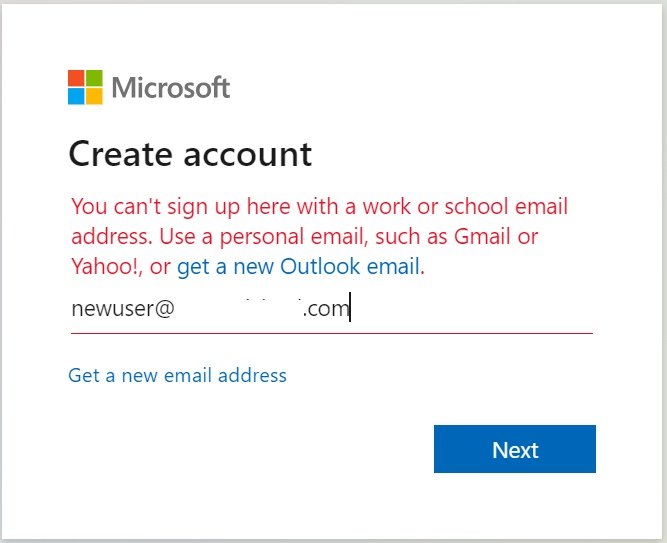
At one time it was possible for users to utilize addresses that were also registered in Office 365. This would essentially allow a user to take their corporate email address and utilize it as an account both in our commercial services and our consumer services. This ability is now blocked once a domain has been added and registered to an Office 365 tenant.

If a user has both an Office 365 and consumer account registered to the same address this generally means:

  • The user established the account prior to when the domain was registered in Office 365.
  • The user established the account prior to the block demonstrated above.

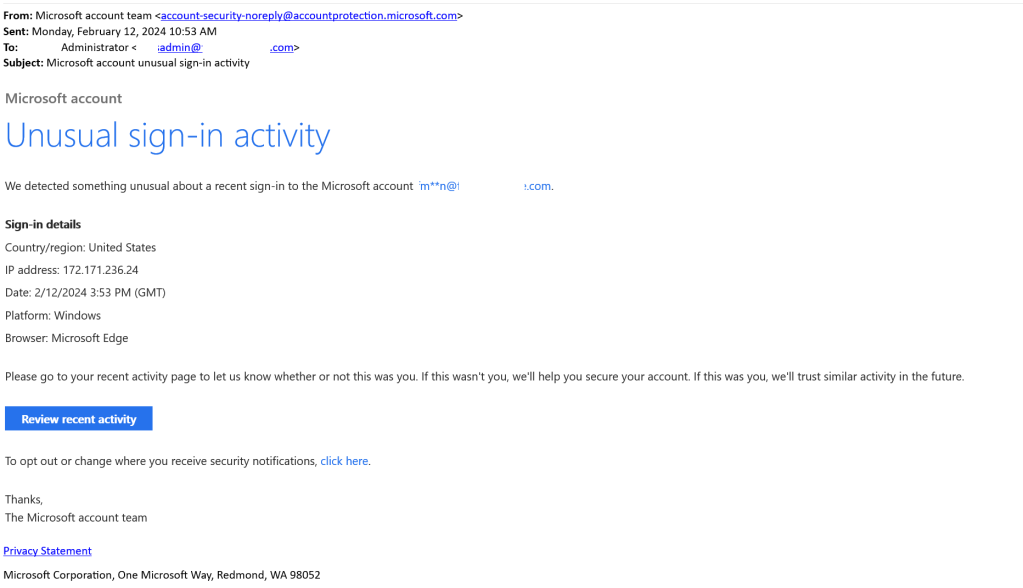
In recent weeks I have spoked with several customers that have raised escalations regarding “Microsoft Account Unusual Sign-in Activity”. In each of these cases the user received an email to their Office 365 email address indicating that unusual sign on activity occurred. When administrators of the tenant were engaged, they were unable to locate any evidence of abnormal sign-ons. The emails originate from “account-security-noreply@accountprotection.microsoft.com” and are addressed to the Office 365 recipient.

In most cases the email address in the TO: line also matches the email address that is obscured. 

When examining the email there are some methods to determine that this event is related to a consumer account. The first method involves reviewing the links contained in the email. In this case there are two links and in each case the links point to accessing consumer services:

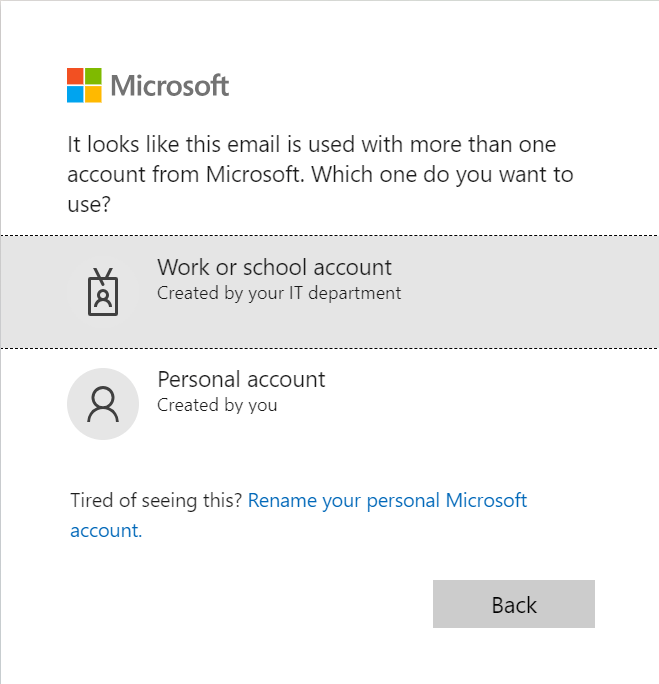
Another easy method of confirming if the user has both an Office 365 and consumer account is to launch a browser in in-private mode. Access https://portal.office.com and specify the account email address. If the user is prompted to access either a “Work or School” and a “Personal Account” the user has both.

The last method of verify that a user has both an Office 365 account and a personal account is for administrators to utilize Powershell and our identity tools module. The command has the ability to extract for administrators the presence of a consumer account associated with an Office 365 identity.

Install-Module -Name MSIdentityTools 
Get-MsIdHasMicrosoftAccount -Mail "use@e-domain.com"
True

In this case the return value of TRUE confirms that the user has a consumer identity. 

The user that owns the consumer account should be advised to access the account and review the sign on activity. Administrators may also recommend that the user disassociate their corporate identity from the consumer account using the following instructions: Change the email address or phone number for your Microsoft account (Opens in new window or tab)

Administrators may also find the following information helpful regarding commercial and consumer account overlap.

Unable to apply the F5 Security + Compliance Add-On in GCC Tenants

In 2021 Microsoft introduced a security and compliance add-on license for front line workers. 

Information regarding the add-on may be found here:

https://www.microsoft.com/en-us/licensing/news/new_f5_security_and_compliance_offer_for_frontline_workers

In GCC tenants when administrators attempt to assign this license to users an error maybe encountered.

"This user won't be able to have license assigned because you need to assign more additional services. Please re-assign license in this user's property page."

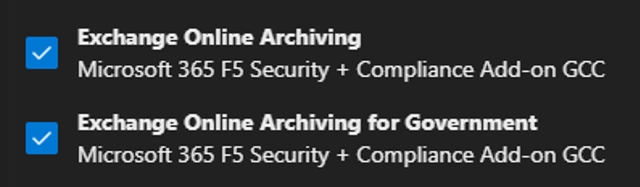
When the F5 Security and Compliance add-on was released to GCC the Exchange Online Archiving component was incorrectly included. The plan originally included was for non-GCC tenants. To correct this issue the correct Exchange Online Archiving for Government plan was introduced into the F5 Security + Compliance sku. When pulling the sku properties and reviewing plans the following may be noted:

When selecting the entire license to be applied to the user both the Exchange Online Archiving and Exchange Online Archiving for Government plans are automatically selected. It is the attempt to apply the Exchange Online Archiving plan that causes the license assignment to fail.

To assign the license administrators must manually unselect the plan Exchange Online Archiving leaving only the Exchange Online Archiving for Government selected.