I recently worked a customer escalation where when executing set-MGUserLicense the following error was noted:
Authorization_RequestDenied,Microsoft.Graph.PowerShell.Cmdlets.SetMgUserLicense_AssignExpanded
Set-MgUserLicense : Insufficient privileges to complete the operation.

Status: 403 (Forbidden)
ErrorCode: Authorization_RequestDenied
When Microsoft Graph returns an insufficient privileges error message this generally means that the permissions scopes required either do not exist on the user or graph application registration running the command. According to the user:AssignLicense interface documentation the minimum required permission is LicenseAssignment.ReadWrite.All and the maximum permissions are User.ReadWrite.All and Directory.ReadWrite.All.
The maximum scopes required are present for the graph connection, yet the insufficient privileges error continues. The following command was being utilized to set the users licenses:
When reviewing the SKU ID this SKU ID is associated with a Visio Plan 2 sku. (https://learn.microsoft.com/en-us/entra/identity/users/licensing-service-plan-reference). If you pay close attention to the table, you will see that the product name is Visio Plan 2, but the String ID is Visio_Plan2_Dept. The insufficient privileges is actually a red herring in terms of how we would normally interpret this error. In this case the insufficient privileges are not derived from lacking graph scopes but rather from the fact that this sku cannot be directly assigned to a user. A department sku can only be assigned by the Microsoft License Manager which is a self-service license acquisition process by the user.
To correct the insufficient privileges error the correct Visio Plan 2 sku was specified.
Microsoft 365 provides a Government Community Cloud High offering for the U.S Government, contractors, and other organizations that qualify. As with our commercial or worldwide tenants many customers elect to add a vanity or custom domain to their M365 GCC-H tenant.
In the M365 Admin Center for GCC-H tenants the domains tab is missing. This is currently by design. When adding, verifying, or removing domains in a GCC-H tenant Microsoft Graph must be utilized. In this post I want to outline the manual steps for adding and verifying a domain in a GCC-H tenant.
Graph commands often span multiple PowerShell modules in order to achieve their work. Prior to running any graph commands, I recommend that all associated graph PowerShell modules be updated. This ensures that you do not have a mismatch, for example, between the authentication module and the identity module. Note: This process can take a long time depending on the number of graph modules you have installed.
If you are new to graph or to ensure that you have the module necessary to perform domain work, the Microsoft.Graph.Identity.DirectoryManagement module must be installed.
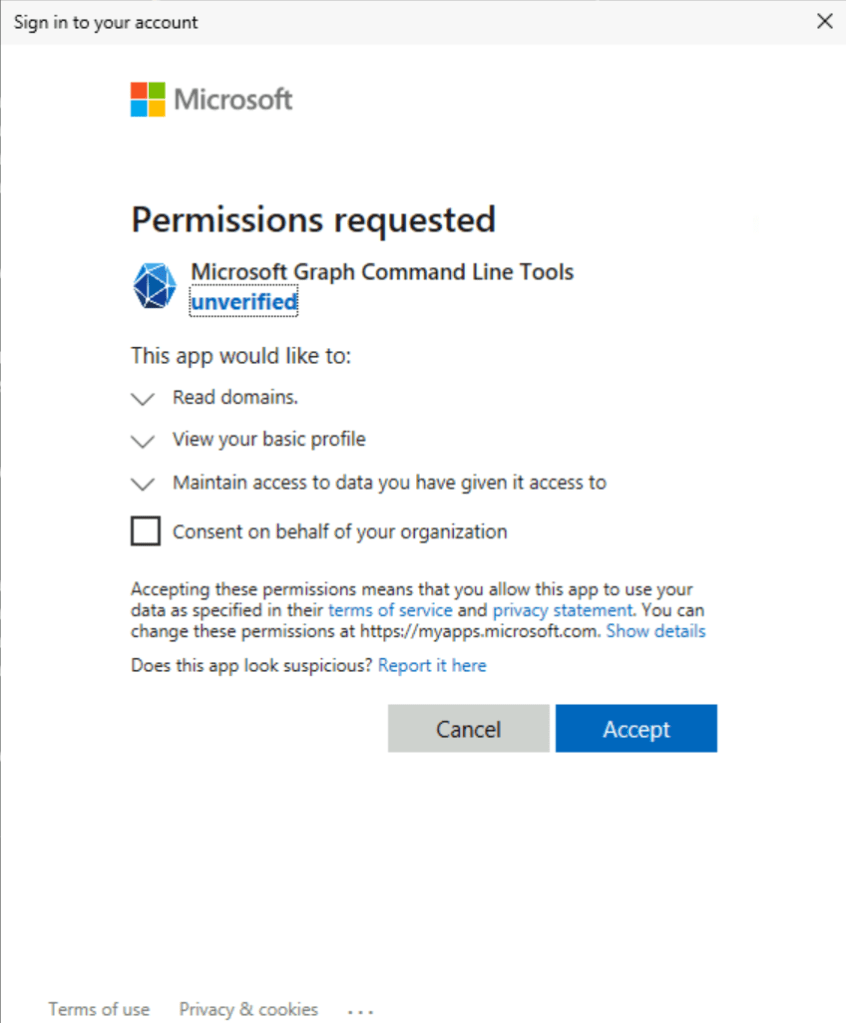
In order to run the following commands, the graph permission Domain.ReadWrite.All must either be consented to on the individual account or for the entire organization. Note: If you do not have global administrator privileges you will not be able to provide consent for graph scopes. It may be necessary for another administrator to perform the consent on your behalf.
The process to add a domain via graph:
$tenantID = "Entra Tenant ID for the GCC H" organization" #User Supplied
$scopes = "Domain.ReadWrite.All"
$environment = "USGov"

Connect-MgGraph -Environment $environment -TenantId $tenantID -Scopes $scopes
If the new-MGDomain command is successful the following return is expected.
Id          AuthenticationType AvailabilityStatus IsAdminManaged IsDefault IsInitial IsRoot IsVerified Manufacturer Mod
                                                                                                                    el
--          ------------------ ------------------ -------------- --------- --------- ------ ---------- ------------ ---
contoso.com Managed                               True           False     False     False  False
Once the domain has been added with new-MGDomain the DNS verification records are obtained. In the below example for the record type TXT you would use the value MS=ms41165256 or for the record type MX you would use ms41165256.msv1.invalid with preference 32767.
These records are inserted into your commercial DNS provider for the domain you are adding. Please note that it can take several minutes for your new public DNS records to be accessible. You may consider using a third party tool or nslookup to validate that the DNS records are available prior to proceeding with the next step.
confirm-MGDomain -domainID $domainID
If the confirm is successful, the domain will be validated and available in the M365 GCC-H tenant.
In Microsoft 365 users may be assigned the same license both direct and through group-based licensing. For organizations that are converting to group-based licensing this is not an uncommon scenario to ensure that users do not lose access to the service during the transition to group-based assignments. When a license is assigned to user both direct and through group-based licensing only a single license is consumed.
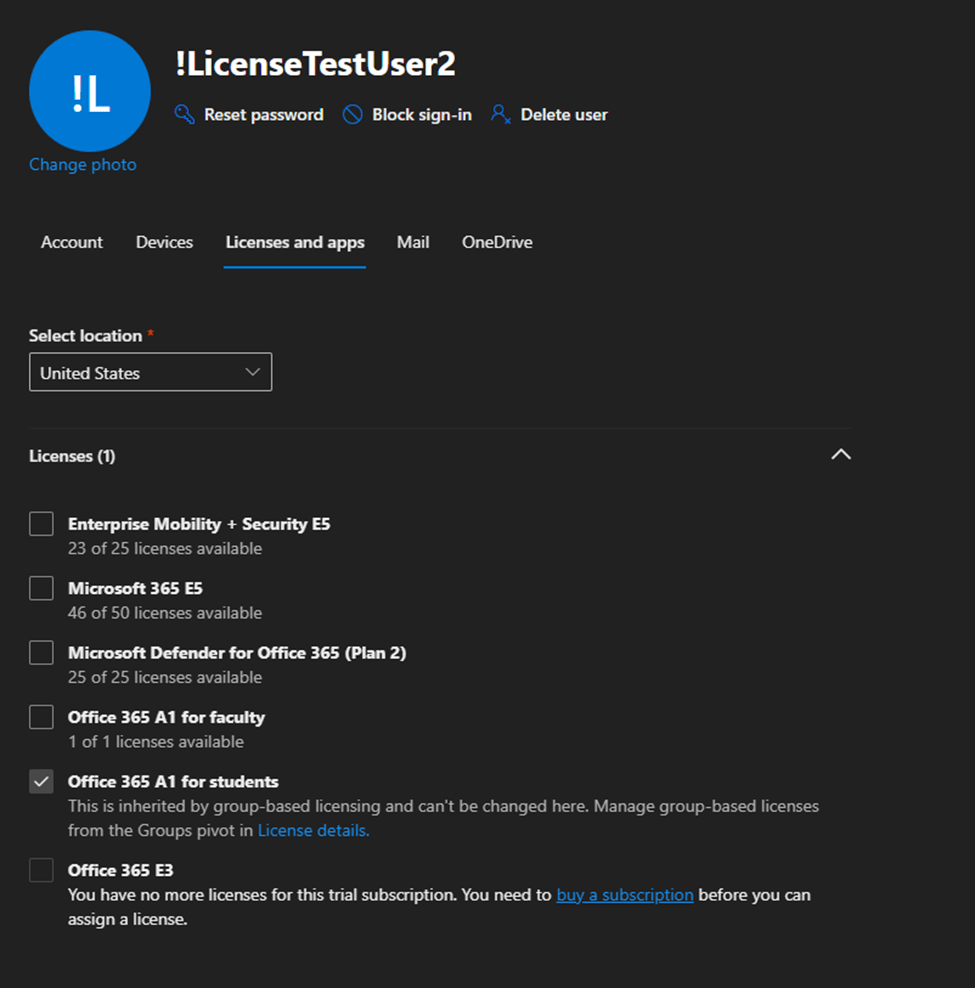
Managing direct and group based license assignment in the M365 Admin Center…
In the M365 Admin Center if a group-based license is assigned to the user the option to manage that individual license is greyed out. A note is displayed “this is inherited by group-based licensing and can’t be changed here. Manage group-based licenses from the Groups pivot in license details.” If the user also had a direct assigned license this prevents the removal of the direct assigned license from the users’ properties.
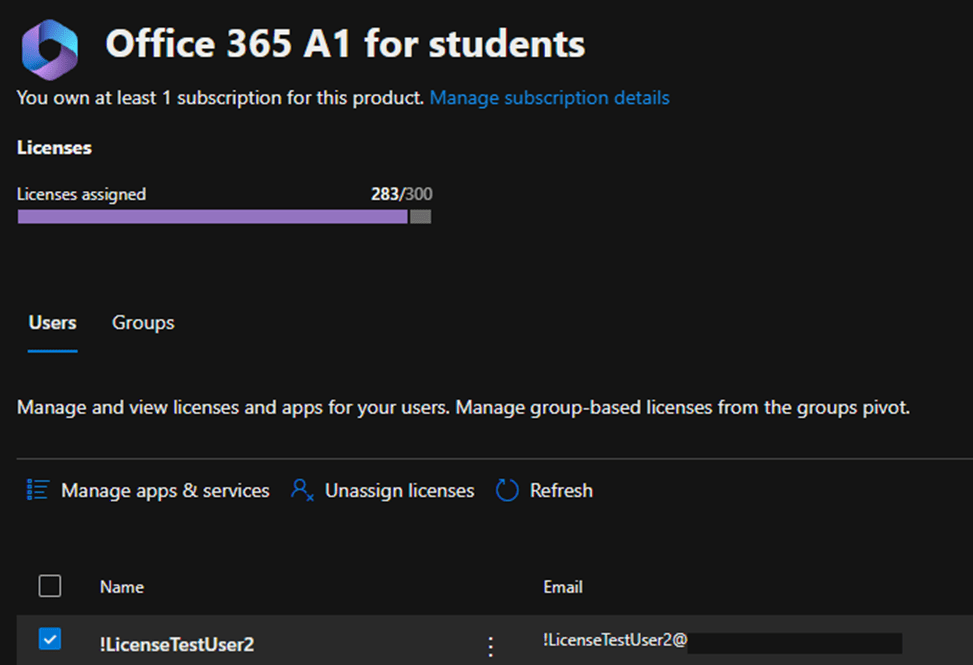
The M365 Admin Center also allows expansion of individual licenses and displaying the users that have the license assigned. Administrators also have the ability to assign and unassign licenses from this view.
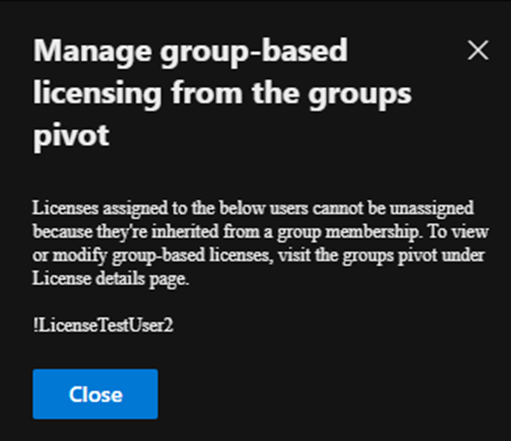
If you select the user that has both a direct and group-based license assignment and select unassign license an error is displayed.
When a user has both a direct and group-based license assignment the directly assigned license cannot be managed in the M365 Admin Center.
Using Graph to Manage Direct License Assignment
Get-MGUser provides the properties AssignedLicenses and LicenseAssignmentStates. The license assignment states provides information regarding the licenses assigned to the user and how those licenses are assigned.
In this case the user has two license assignments for the license 314c4481-f395-4525-be8b-2ec4bb1e9d91. The first state has AssignedByGroup 519fe352-6f2d-4022-973e-ad72c5bcf63d and the second state shows no AssignedByGroup. This demonstrates that the user has both a group and direct license assignment.
With the inability to manage the direct assigned license in the M365 Admin Center if the desire is to remove the direct assigned license graph must be utilized. Here is an example of removing the direct assigned license. (See Using graph to modify group based licenses… | TIMMCMIC for how to build the body parameters section.)
This output confirms that the user has a single license assignment state and that the license is assigned by a group.
Summary
When a direct and group-based license exists on the user the direct license assignment cannot be managed in the M365 Admin Center. To migrate to group-based licensing the direct assigned license can be removed using Microsoft Graph.
In a previous post I outlined a script that allows administrators to search for Microsoft 365 IP and URLs. As with Microsoft 365, Entra services also publish a list of IP addresses, and their service descriptions associated with each IP space.
Unlike Microsoft 365 the JSON files that contain this information are not made available through a web service. The files are made available through the Microsoft download catalog.
I have recently published a PowerShell module to the PowerShell gallery that automates the downloading of the Entra JSON files. Once the files have been downloaded, they may be utilized with the Office365IPAddresses script to locate an IP address within Entra services.
The AzureIPAddress script requires PowerShell 5.1. This is due to the methods utilized to capture the JSON files. To utilize the script open PowerShell 5.1 and run the following commands:
Install-Script AzureIPAddress
AzureIPAddress.ps1 -logFolderPath c:\temp
The script will locate the downloads for both Public and Government clouds and download the associated JSON files. They are placed in the logging directory in a folder called AzureIPAddress. In this example the folder is c:\temp\AzureIPAddress. (NOTE: The same log folder path must be utilized with the Office365IPAddress script in order to locate the Azure json files.)
To search for an IP address the Office365IPAddress script is utilized. Why is this not just included in the AzureIPAddress script? The ability to parse IPv4 and IPv6 addresses is more easily achieved with PowerShell 7. The same commands utilized in Office365IPAddress are not available in PowerShell 5.1. The commands in AzureIPAddress to download and parse the HTML files necessary to locate the JSON files are not available in PowerShell 7. I could have gotten creative and try to call PowerShell 7 from PowerShell 5.1 or vice versa, but that just adds potential complications. Keeping the script command separate but creating a dependency between them simplifies the process.
To search for the IP address run the following commands:
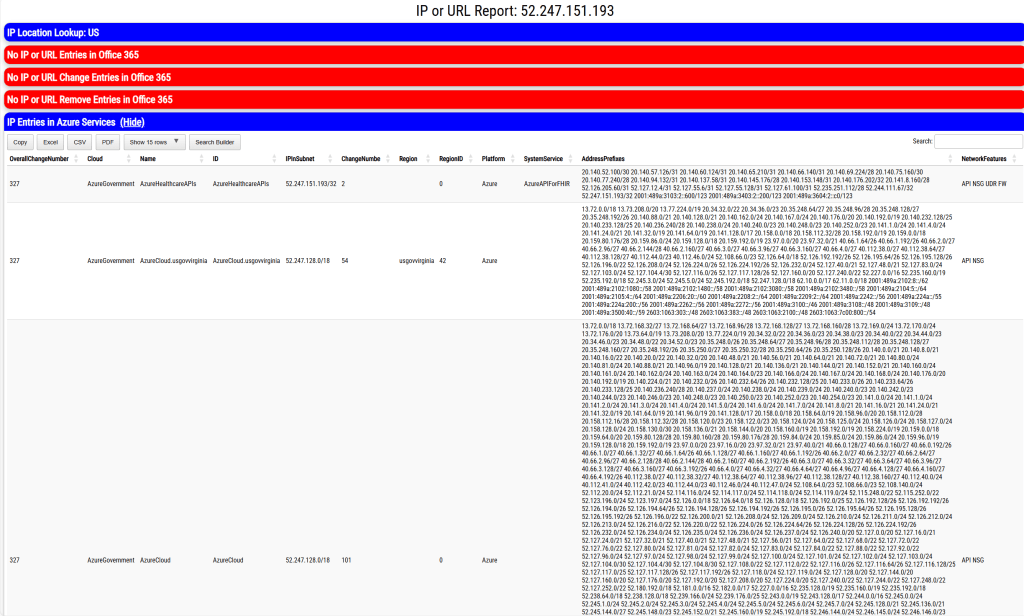
During command execution all IP spaces associated with all Entra services in Public and Government cloud are searched. If the IP address is located in any service, the service information is logged and exported to XML. The log and XML file are contained in the specified log directory. An HTML file is also generated and displayed that provides the same information graphically for review.
If the IP address specified co-exists in any Microsoft 365 services, the service information is also displayed in the output.
This script should allow administrators to map IP addresses to Entra services.
Increasing the success of Distribution List Migrations
When migrating a distribution list to Office 365 the DLConversionV2 module implements a normalization process for all recipients that are members of the distribution list.
The normalization process attempts to convert the recipient from an Active Directory object to an Exchange Online object. The goal of the normalization process is to ensure that we locate the correct recipient in Exchange Online when creating the distribution list and eliminate ambiguous recipient discovery. If an ambiguous recipient is located in Exchange Online this can lead to a migration failure and require the administrator to correct the condition post migration.
When a user is encountered on the properties of a distribution list being migrated the user is normalized by using the attribute msDS-ExternalDirectoryObjectID. In an Entra Connect Sync environment the msDS-ExternalDirectoryObjectID is populated with the value User_ExternalDirectoryObjectID. The ExternalDirectoryObjectID is the objectID associated with the user in EntraID. This same value is also stamped on all Exchange Online objects in the attribute ExternalDirectoryObjectID.
When searching Exchange Online using the get-recipient command (or any similar get command) the ExternalDirectoryObjectID can be utilized as a recipient identifier.
In a default Entra Connect installation the attribute msDS-ExternalDirectoryObjectID is written back to Active Directory only on User object types. Groups and Contacts do not have the same attribute written back. When performing a migration if a Contact or Group is encountered the recipients are normalized to their Exchange Online counterparts through the object PrimarySMTPAddress. When locating recipients in Exchange Online get-recipient returns results for all objects that match the identifier specified. If a group has the PrimarySMTPAddress of group@contoso.com and a contact has a target address of group@contoso.com get-recipient will return two objects when specifying get-recipient -identity group@contoso.com. During a migration this can lead to a failure as more than object is returned when attempting to perform normalization.
To increase the efficiency of migrations and eliminate possible failures it is possible to enable writeback of the attribute msDS-ExternalDirectoryObjectID to both Contacts and Groups. Why is this not the default? When the writeback rules were created the goal was to optimize the number of changes written back to Active Directory. A decision was made to only populate this value on User objects as that is where it would most commonly be practical to have it. When writing back the same attribute to Groups and Contacts this allows the normalization process to extract the exact matching recipient in Exchange Online.
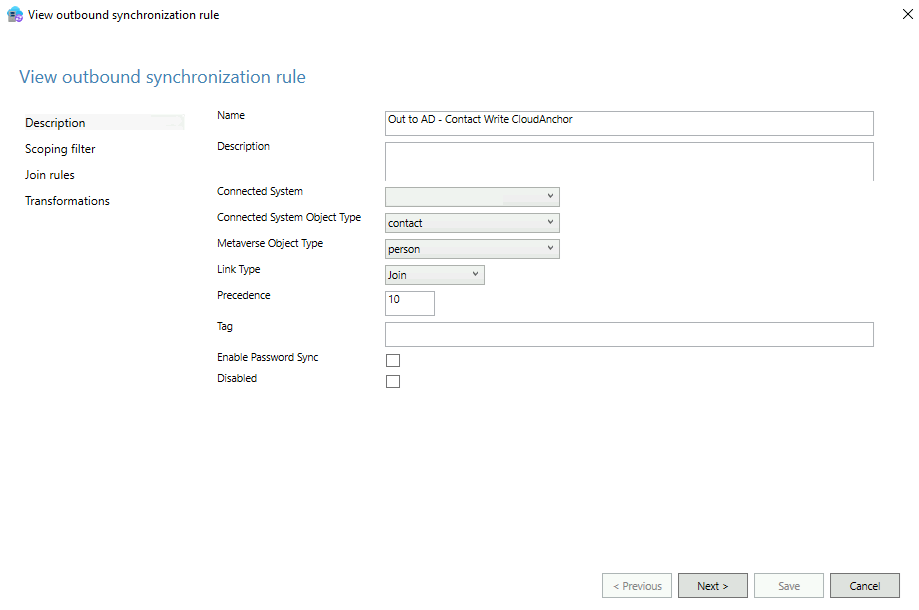
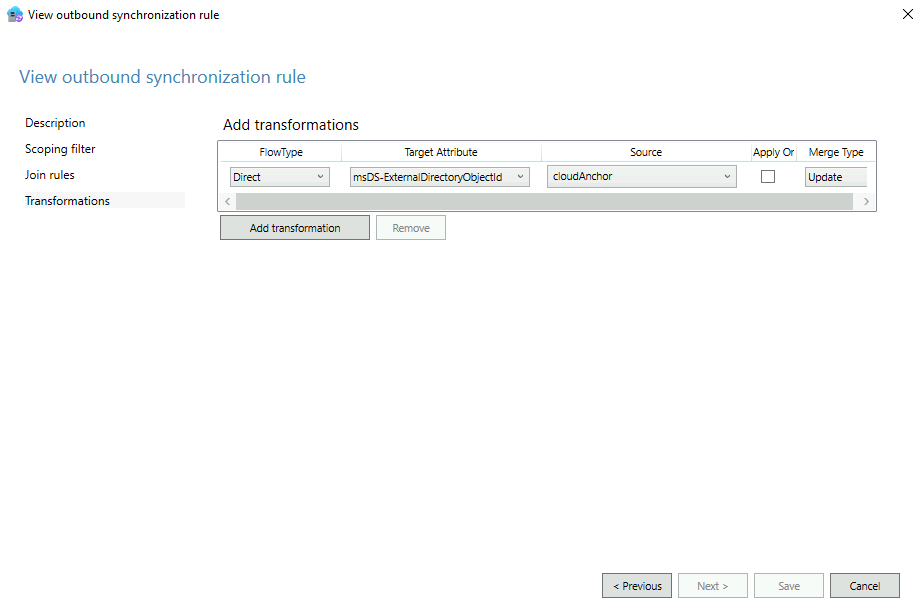
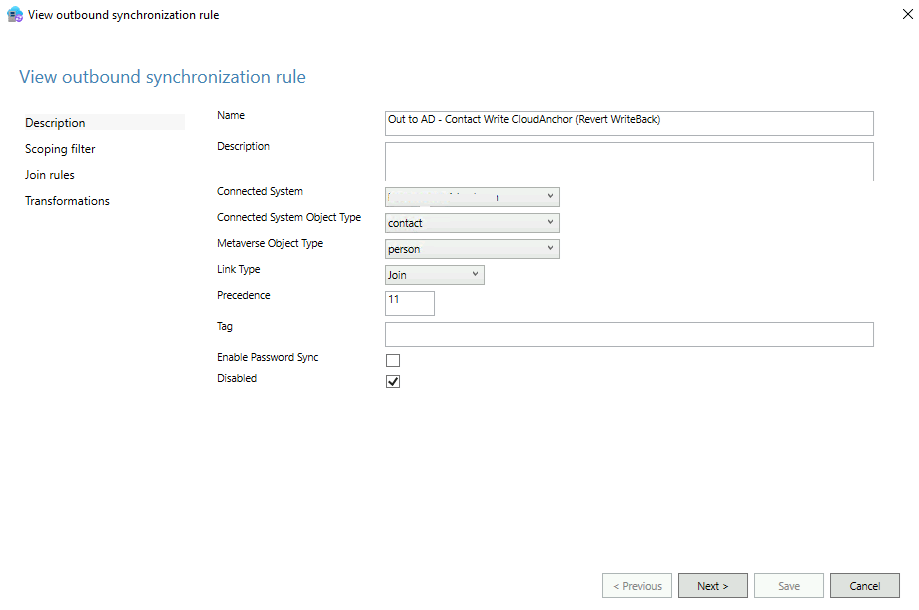
Migrators wishing to implement this efficiency may refer to a script published to the Powershell Gallery -> EnableCloudAnchor. This script allows administrators to create the necessary writeback rules in Entra Connect Sync to enable msDS-ExternalDirectoryObjectID on Contacts and Groups. When the script is executed two rules are created for each object type. The first rule is enabled and translates the EntraID value CloudAnchor to the msDS-ExternalDirectoryObjectID attribute. The second rule is created disabled and enables undoing all attributes written back by the script. This ensures that an undo operation is pre-staged should a rollback be necessary.
The script has several parameters to be specified:
ForestRootFQDN: This is the Active Directory forest root FQDN. This is utilized to locate the connector to enable writeback on.
StartingPrecedence: This is the starting precedence value for rule creation and must be specified as a value 0 – 99. For example, specifying a value of 25 will create the writeback rule at precedence 25 and the undo rule at precedence 26. This value is option. If not specified, the script will automatically locate the least two precedence available and automatically use them.
EnableContactProcessing: This enables rule creation for contacts and is the default for script execution. If enabling the rules for groups this value must be set to false.
EnableGroupProcessing: This enables rule creation for groups and by default is disabled. If this feature is enabled enableContactProcessing must be set to false.
LogFolderPath: The location of where script logging should occur.
To utilize the script on the Entra Connect server:
Install-Script EnableCloudAnchor
To create the rules for contacts utilizing auto discovered precedence:
In Entra Connect the following rule is created to enable writeback of the cloud anchor attribute (only the relevant screens are displayed):
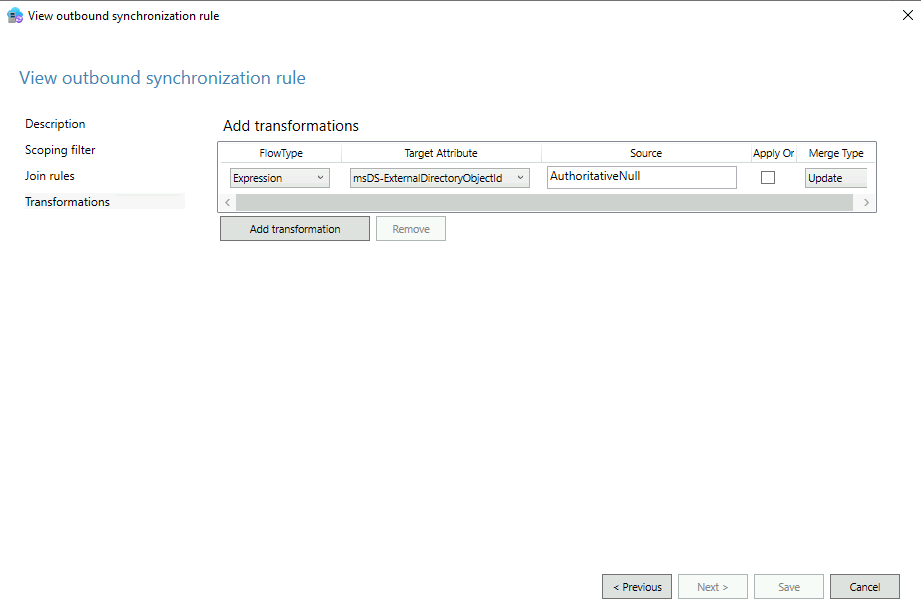
The following rule is also created in a disabled state to allow undoing the writeback operations:
If the need arises to undo the writeback the first rule would be deleted or placed into a disabled state. The disabled state flag would be unchecked on the second rule. The AuthoritativeNull value is utilized to clear an attribute entirely.
NOTE: Any modification to the rules in Entra Connect Sync will require a full synchronization to occur on the connector associated with the forest specified. This may add significant time to a synchronization option.
When the rules have successfully processed on an object the value Contact_ExternalDirectoryObjectID or Group_ExternalDirectoryObjectID may be found on the objects.
PS C:\> Get-ADObject DistinguishedName


DistinguishedName              : DistinguishedName
msDS-ExternalDirectoryObjectID : Contact_76b9cf05-510c-4fcc-a1f8-58e4cada17a6
Name                           : Name
ObjectClass                    : contact
ObjectGUID                     : ObjectGUID
When adding the msDS-ExternalDirectoryObjectID to Active Directory objects the normalization process may more accurately identify recipients in Exchange Online increasing the efficiency and success of migrations.
In the Microsoft 365 Administration center administrators can review the domains they have verified and added to Microsoft 365 services. When a domain is validated and provisioned, the domain name services (DNS) records that are provisioned in Microsoft 365 are displayed for the administrator. This may include records such as the MX record for Exchange Online or the device management records for Intune support.
If the domains blade is not available to you in the Microsoft 365 Administration Center, it is possible to obtain these same records through Microsoft Graph. To obtain the DNS records the command Get-MGDomainServiceConfigurationRecord can be utilized. For API permissions necessary to utilize this command reference the following API permissions guidance.
Whenever utilizing Microsoft Graph commands I always recommend ensuring that the graph commands are running the latest non-preview version. To accomplish this task administrators may run:
Once the necessary modules have been installed or updated a connection to the Microsoft Graph endpoints must be established. In this example interactive authentication is utilized to establish the connection and prompt the user for credentials. The scopes parameter requests the least restrictive permissions to perform this operation. When connecting with graph command if a scope is not consented to for the particular user either consent can be granted by the user (assuming appropriate rights) or an administrator will be required to grant consent. I also provide the tenantID as a part of the connection. The tenantID can be obtained from the Entra ID portal associated with the domain. This ensures that the connection is made with the appropriate tenant.
The information of particular interest is stored within the additionalProperties of each entry. The following command will help organize and interpret the information:
PS C:\> foreach ($record in $records) { $record.label ; $record.AdditionalProperties | ft}
domain.net

Key          Value
---          -----
@odata.type  #microsoft.graph.domainDnsMxRecord
mailExchange domain-net0c.mail.protection.outlook.com
preference   0


domain.net

Key         Value
---         -----
@odata.type #microsoft.graph.domainDnsTxtRecord
text        v=spf1 include:spf.protection.outlook.com -all


autodiscover.domain.net

Key           Value
---           -----
@odata.type   #microsoft.graph.domainDnsCnameRecord
canonicalName autodiscover.outlook.com


_sip._tls.domain.net

Key         Value
---         -----
@odata.type #microsoft.graph.domainDnsSrvRecord
nameTarget  sipdir.online.lync.com
port        443
priority    100
protocol    _tls
service     _sip
weight      1


sip.domain.net

Key           Value
---           -----
@odata.type   #microsoft.graph.domainDnsCnameRecord
canonicalName sipdir.online.lync.com


lyncdiscover.domain.net

Key           Value
---           -----
@odata.type   #microsoft.graph.domainDnsCnameRecord
canonicalName webdir.online.lync.com


_sipfederationtls._tcp.domain.net

Key         Value
---         -----
@odata.type #microsoft.graph.domainDnsSrvRecord
nameTarget  sipfed.online.lync.com
port        5061
priority    100
protocol    _tcp
service     _sipfederationtls
weight      1


domain.net

Key           Value
---           -----
@odata.type   #microsoft.graph.domainDnsCnameRecord
canonicalName domain.sharepoint.com


msoid.domain.net

Key           Value
---           -----
@odata.type   #microsoft.graph.domainDnsCnameRecord
canonicalName clientconfig.microsoftonline-p.net


enterpriseregistration.domain.net

Key           Value
---           -----
@odata.type   #microsoft.graph.domainDnsCnameRecord
canonicalName enterpriseregistration.windows.net


enterpriseenrollment.domain.net

Key           Value
---           -----
@odata.type   #microsoft.graph.domainDnsCnameRecord
canonicalName enterpriseenrollment-s.manage.microsoft.com
If the DNS record contains a name within the domain this is represented by the label. The @odata.type provides the type of DNS record expected and the value column lists the value of that record.
enterpriseenrollment.domain.net

Key           Value
---           -----
@odata.type   #microsoft.graph.domainDnsCnameRecord
canonicalName enterpriseenrollment-s.manage.microsoft.com
The previous example would be interpreted as:
DNS Record Name = enterpriseenrollment.domain.net
DNS Record Type = CNAME
DNS Record Value = enterpriseenrollment-s.manage.microsoft.com
DNS Record Value = domain-net0c.mail.protection.outlook.com
DNS Record Preference = 0
In this case an MX record does not have a specific DNS host name unlike other records.
These commands should unblock scenarios where the domains blade is unavailable to you and you need to know the appropriate DNS records to create for your Office 365 integration.
 TIMMCMIC