In Azure Active Directory tenants that have purchased Azure AD Premium have access to dynamic azure groups and group based licensing. When combined, the two technologies offer administrators a great deal of flexibility in managing license assignments without having to manage group membership.
Azure dynamic groups allow administrators to create groups directly in Azure Active Directory where the membership is calculated off attribute values present in Azure AD. Unlike Exchange Online dynamic distribution groups which do not have any actual membership, their members are are calculated only at the time that the group is utilized through an LDAP query, Azure dynamic groups have true members. When an Azure dynamic group is provisioned, the query is utilized to add members to the group. The groups are represented in other Office 365 applications as groups with static membership, even though the membership may dynamically change in Azure AD as user properties change. Within Azure AD there is an asynchronous process that runs in the background as users are provisioned or changed which reprocesses the dynamic group membership.
Group based licensing allows administrators to then add licensing templates to each of the groups they provision. An administrator may add a Office 365 E3 license with a subset of plans to a particular group. As members are added or removed from the groups – the licenses are subsequently added and removed from the users. Within Azure AD there is an asynchronous process that runs that is responsible for the initial application of licenses as well as the reprocessing of any failures that may occur. It is important with group based licensing you do not overlap common plans with different SKUs. For example, if a user is assigned an Exchange Online Plan 2 through an Office 365 E3 an error will occur if you attempt to assign an Exchange Plan 1 through an Office 365 F3 –> this would cause a collision. A collision does not occur if multiple groups apply the same items, for example one group may apply an Office 365 E3 with Exchange Online Plan 2 and Team while another group applies an Office 365 E3 with Exchange Online Plan 2 and One Drive for Business. In this case – the common plan Exchange Online Plan 2 – comes from the same sku Office 365 E3 so there is no collision, and all license would be accumulated and applied.
When combined – dynamic groups with group based licensing allow administrators great flexibility in applying licenses and plans based off user attributes. For example, everyone in the main office may get a full E3 license – so creating a dynamic group based off the office attribute would allow this application to occur automatically without managing group membership. Additionally those members that work in the office and in engineering may have additional licenses applied – a dynamic group based off office and department would allow for a different template to be applied to the groups of users. As the users attribute change – someone moves from engineering to marketing – their licenses would dynamically change with their attributes relieving the administrators of the responsibility for managing static group membership or directly assigning licenses.
In recent weeks I’ve worked with customers that wanted to use the combination of these two technologies to migrate users licenses either due to renewal or the desire to change the SKUs applied to the users. For some users – the transition was seamless – for other users the change resulted in a loss of licensing and access to Office 365. Let’s take a look at how this could happen when the two technologies are combined – and what can be done about it.
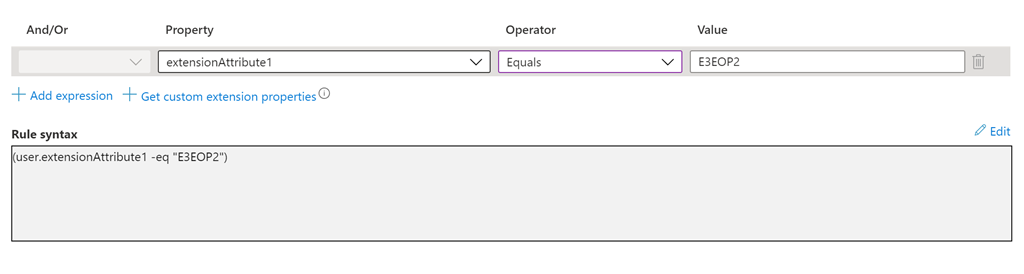
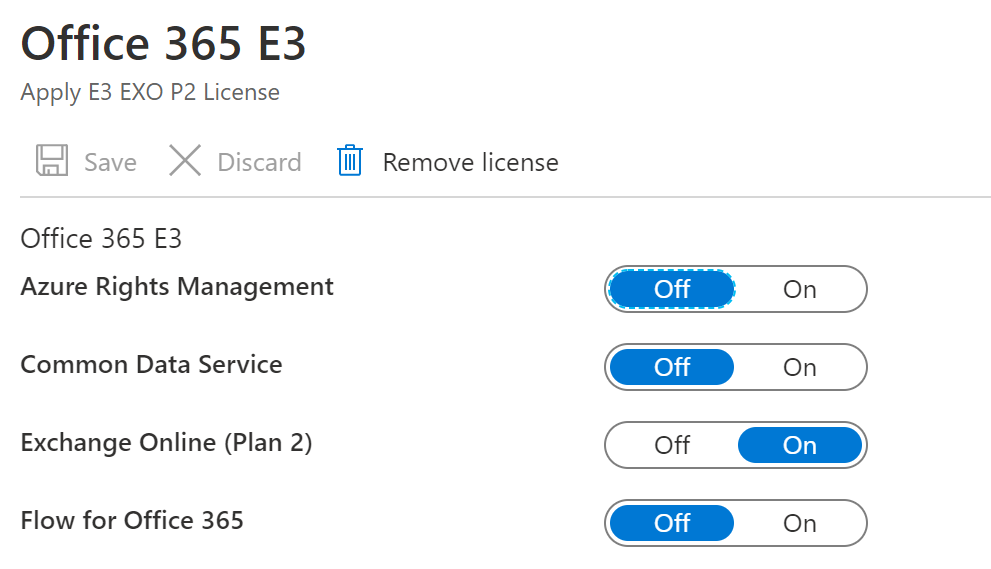
In this example we have two dynamic groups. The first group “Apply E3 EXO P2” is a dynamic groups where members are based off extensionAttribute1 equaling the value “E3EOP2”. This group has group based licensing configured and applies the Office 365 E3 with Exchange Online Plan 2 automatically to all members of the group.
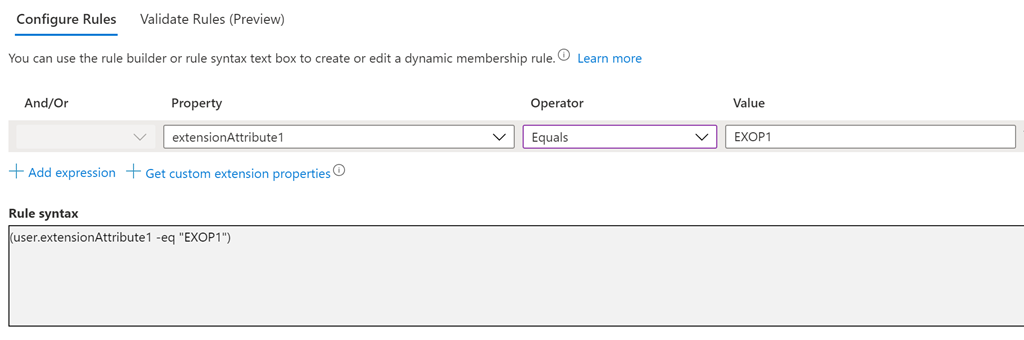
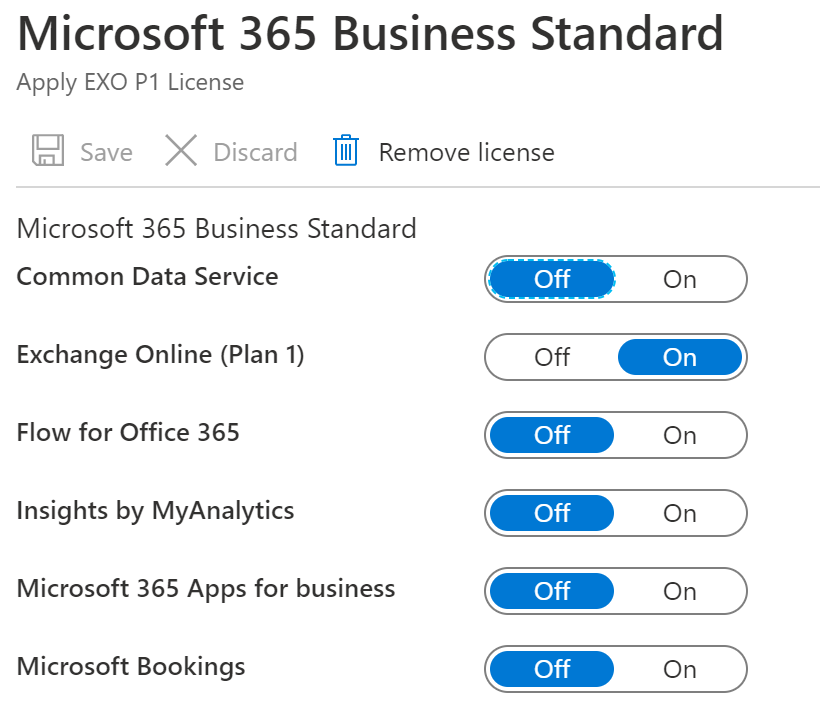
The second group “Apply EXO P1” is a dynamic group where members are based off extensionAttirbute1 equaling the value “EXOP1”. This group has group based licensing configured and applies the Office 365 E5 with Exchange Online Plan 1 automatically to all members of the group.
In this customers scenario all of the members started with an Office 365 E3 and Exchange Online Plan 2. This was accomplished by setting extensionAttribute1 on the users to E3EOP2. Here is an example:
[PS] C:\>Get-RemoteMailbox -Identity 1 | fl customAttribute1
CustomAttribute1 : E3EOP2
In Azure AD the dynamic group membership is automatically updated.
PS C:\> Get-AzureADGroupMember -ObjectId 0e9a5089-df1d-42ff-98e7-d1abf44002c5 | Select-Object objectID,userType
ObjectId UserType
——– ——–
c83a1498-4d48-4bda-a9e3-228b87fd8bdf Member
c2e09366-2b8c-4ac3-92a6-5eb6f4e0fe6b Member
597c1869-3319-4575-9d85-27ba0708b401 Member
0bf733c0-eaea-4486-b4c1-09f753c8a1cf Member
7551cea4-dcf1-4709-99f7-4ef62ae79057 Member
0cc2637d-e391-4f27-8581-963e807971a1 Member
c3d456bb-a8a7-4a5b-848d-197e7743a88d Member
8741d05c-d11d-4769-af01-3da61114073c Member
e50696ed-12fc-4648-a779-7312bf233d9b Member
fbde5d23-6d02-4f3d-9391-02d11d1109e3 Member
184622f1-b7ee-4b22-9929-0cffb5efa10e Member
e9e813b9-455c-473e-a3ab-e563cdf555e9 Member
1c01114c-5502-4659-9617-0f57b4e5cb3e Member
6d5db76d-69a0-4b58-b3d0-51c4e68f18e1 Member
f79bedaf-4a42-49e4-ae03-97323d8b6ff8 Member
This results in 15 users that were dynamically added to the group having the Office 365 E3 license applied.

In this particular scenario the customer determined that a subset of users – not the entire list of users – needed to move to Exchange Online Plan 1. To a accomplish this task the administrator took the subset of users and updated the customAttribute1 to EXOP1. This is where the issue started. Remembering that dynamic group membership calculation is asynchronous, and this means that members could be added and removed from the dynamic group in any order.
The desired outcome in this configuration:
- User configured with E3 through customAttribute1.
- Customattribute1 is changed to apply Exchange Online Plan 1.
- Change synchronizes to Azure AD.
- User is removes from the E3 group and the E3 license is removed.
- User is added to the Exchange Online Plan 1 group and the Exchange Online Plan 1 license is applied.
- The user retains access to the services under the new plan guidelines.
For the majority of users that were moved – this was the exact scenario that occured. The users plans were adjusted without any issue. There were though several users that experienced a complete loss of their license and subsequently a loss of access to Office 365 resources.
Upon investigation when looking at the Exchange Plan 1 group we noted the following error for a user on the license assignment tab:

Why does this user have a conflicting service plan error? Here is what happened…
- User configured with E3 through customAttribute1.
- Customattribute1 is changed to apply Exchange Online Plan 1.
- Change synchronizes into Azure AD.
- User is added to the Exchange Online Plan 1 group and an attempt to assign the Exchange Online Plan 1 license was made.
- The license assignment fails. Exchange Online Plan 1 conflicts with Exchange Online Plan 2 already assigned.
- User is removed from the E3 dynamic group and the E3 license is removed.
- The user has lost access to Office 365.
This is an example of async group processing. In this particular case the user was added to the Exchange Online Plan 1 group BEFORE being removed from the E3 group. This caused a conflicting license plan issue. When a conflict occurs – the user is not immediately re-evaluated again. The administrator must reprocess the group <or> the user will eventually be re-evaluated – but it could take several hours for the re-evaluation to occur. It is NOT immediate. For users that were successful their timing fell in line with expectations – for users that were not successful their processing fell outside of expectations.
With dynamic groups there is no guaranteed control on processing therefore there is no specific way to handle this using them. Is there a viable workaround? Yes – with some work license plan changes can occur with group basic licensing that provides consistent results and eliminates the potential loss of licenses. Let’s outline the plan.
- In Azure AD we create a new group –> License Transitions.
- The group type is STATIC membership.
- On the License Transitions group we apply group based licensing that mirrors the configuration of the E3 group.
- In this instance it would be the Office 365 E3 and Exchange Online Plan 2.
- For all users that will be transitioned add them statically to the group.
- In this case the group will apply the same licenses as the dynamic group.
- There is no collision since the plans match –> Office 365 E3 with Exchange Online Plan 2.
- NULL customattribute1 on premises.
- This will sync into Azure AD and remove the user from the dynamic group for Office 365 E3.
- On the License Transition group remove the Office 365 E3 license and add the Exchange Online Plan 1 license.
- This reassigns the users to Exchange Online Plan 1.
- Change customAttribute1 on premises to the attribute for Exchange Online Plan 1.
- This will sync into Azure AD and add the user to the Exchange Online Plan 1 dynamic group.
- When license processing has been validated remove the static group.
- The user retains the Exchange Online Plan 1 license through the dynamic group.
Let us examine an example of this process. To start the users are in the expected group with the E3 license applied.
PS C:\> Get-AzureADGroupMember -ObjectId 0e9a5089-df1d-42ff-98e7-d1abf44002c5 | Select-Object objectID,userType
ObjectId UserType
——– ——–
c83a1498-4d48-4bda-a9e3-228b87fd8bdf Member
c2e09366-2b8c-4ac3-92a6-5eb6f4e0fe6b Member
597c1869-3319-4575-9d85-27ba0708b401 Member
0bf733c0-eaea-4486-b4c1-09f753c8a1cf Member
7551cea4-dcf1-4709-99f7-4ef62ae79057 Member
0cc2637d-e391-4f27-8581-963e807971a1 Member
c3d456bb-a8a7-4a5b-848d-197e7743a88d Member
8741d05c-d11d-4769-af01-3da61114073c Member
e50696ed-12fc-4648-a779-7312bf233d9b Member
fbde5d23-6d02-4f3d-9391-02d11d1109e3 Member
184622f1-b7ee-4b22-9929-0cffb5efa10e Member
e9e813b9-455c-473e-a3ab-e563cdf555e9 Member
1c01114c-5502-4659-9617-0f57b4e5cb3e Member
6d5db76d-69a0-4b58-b3d0-51c4e68f18e1 Member
f79bedaf-4a42-49e4-ae03-97323d8b6ff8 Member
The license processing through the current E3 group is completed with no errors.

The static group will be created and the members assigned to the group.
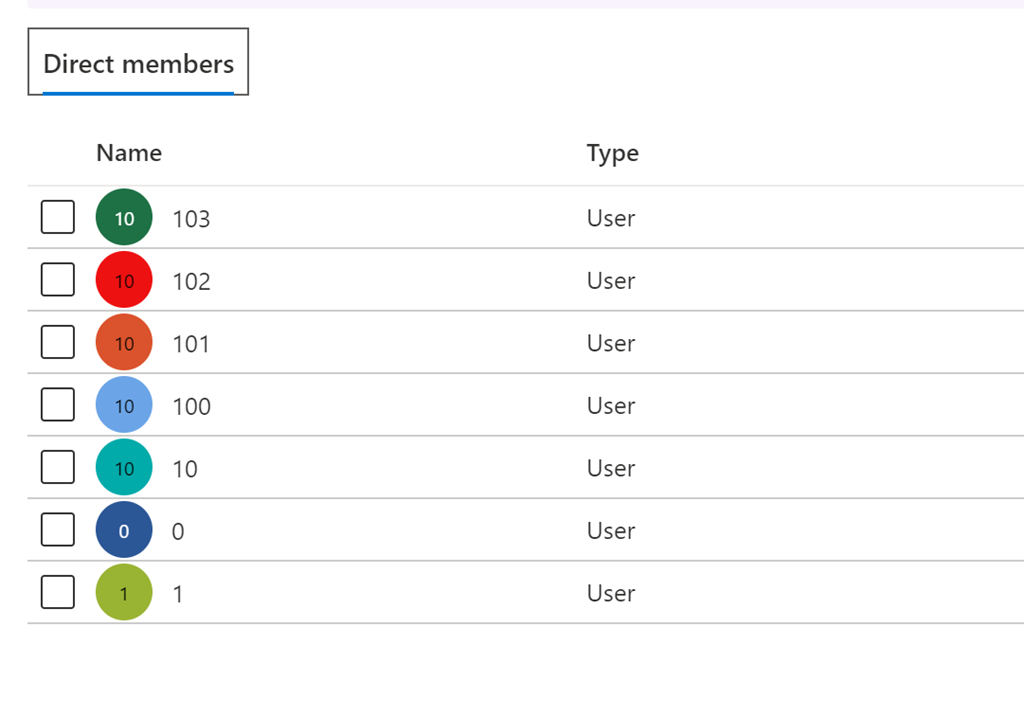

With the license transition group created the custom attribute will be removed on premises. The dynamic group membership can be validated to ensure the users in the transition group were removed.
Members of the license transition group:
PS C:\> Get-AzureADGroupMember -ObjectId 3e9c8f36-45b5-4aaa-80c2-467b1a6cc158 | Select-Object objectID
ObjectId
——–
e50696ed-12fc-4648-a779-7312bf233d9b
fbde5d23-6d02-4f3d-9391-02d11d1109e3
184622f1-b7ee-4b22-9929-0cffb5efa10e
e9e813b9-455c-473e-a3ab-e563cdf555e9
1c01114c-5502-4659-9617-0f57b4e5cb3e
6d5db76d-69a0-4b58-b3d0-51c4e68f18e1
f79bedaf-4a42-49e4-ae03-97323d8b6ff8
Members of the E3 dynamic group:
PS C:\> Get-AzureADGroupMember -ObjectId 0e9a5089-df1d-42ff-98e7-d1abf44002c5 | Select-Object objectID
ObjectId
——–
c83a1498-4d48-4bda-a9e3-228b87fd8bdf
c2e09366-2b8c-4ac3-92a6-5eb6f4e0fe6b
597c1869-3319-4575-9d85-27ba0708b401
0bf733c0-eaea-4486-b4c1-09f753c8a1cf
7551cea4-dcf1-4709-99f7-4ef62ae79057
0cc2637d-e391-4f27-8581-963e807971a1
c3d456bb-a8a7-4a5b-848d-197e7743a88d
8741d05c-d11d-4769-af01-3da61114073c
This validates that the users were removed successfully and that there is no overlap. A quick validation of an individual user shows that licenses are still assigned as expected and the licenses are inherited from the license transition group.

With these changes in place the licenses on the license transition group can now be updated. In this case we will remove the E3 and assign the Business Standard / Exchange Online Plan 1. When we make the license transition we will select the ASSIGNMENTS button and remove the Office 365 E3 and add the Business Standard in a SINGLE STEP. If you remove the Office 365 E3 and apply and then subsquently add the Business Standard / Exchange Online Plan 1 and apply this case be interpreted by the system as a de-provision and re-provision rather than a license SWAP.
Changing the licenses puts the group into a pending application state.

This is followed by a notification that license assignment is complete if no assignment issues occurred.

A quick verification of a user shows that the user is inheriting the business standard license from the license transition group.

In this example the dynamic group for Exchange Online Plan 1 shows no membership.
PS C:\> Get-AzureADGroupMember -ObjectId c505a6d2-8ca3-4408-90f1-d69682cd784a | Select-Object objectID
PS C:\>
The customAttribute1 on premises can now be updated to move the users into the Exchange Online Plan 1 dynamic group. Using powershell we can validate that the members match the license transition group.
PS C:\> Get-AzureADGroupMember -ObjectId c505a6d2-8ca3-4408-90f1-d69682cd784a | Select-Object objectID
ObjectId
——–
e50696ed-12fc-4648-a779-7312bf233d9b
fbde5d23-6d02-4f3d-9391-02d11d1109e3
184622f1-b7ee-4b22-9929-0cffb5efa10e
e9e813b9-455c-473e-a3ab-e563cdf555e9
1c01114c-5502-4659-9617-0f57b4e5cb3e
6d5db76d-69a0-4b58-b3d0-51c4e68f18e1
f79bedaf-4a42-49e4-ae03-97323d8b6ff8
A quick review of the user shows licenses inherited from both groups a this time.

A review of the dynamic group shows that licensing application completed successfully for the Exchange Online Plan 1.

To complete the process the licenses can be removed from the license transition group.

When the license transition group shows that processing is complete the group should be safe to delete.

The final review of the user shows that the licenses are not transition to and applying from the dynamic group only.

Although more steps are required – this method allows for a graceful transition to a different plan for the same product while utilizing dynamic groups as the main assignment method pre and post transition.
 TIMMCMIC