Implementing multi-factor authentication as a part of securing your environment is a wise decision. For implementing multi-factor authentication in Azure, I would recommend reviewing the following resources:
Providing a default level of security in Azure Active Directory – Microsoft Entra | Microsoft Learn
Turn on MFA with security defaults or Conditional Access – Microsoft 365 Business Premium | Microsoft Learn
Enable Azure AD Multi-Factor Authentication – Microsoft Entra | Microsoft Learn
I recently worked with a customer that was implementing an organization wide multi-factor authentication conditional access policy. As a part of this implementation, users were advised to register strong authentication methods using Microsoft Authenticator prior to the enablement of the conditional access policy. The goal was to have all end users prepared for policy enablement and not have interactive authentication interrupted by multi-factor registration.
Users were provided instructions that directed to them to access https://myaccount.microsoft.com. Once authentication was successful to my account portal selecting security info directs the users to the location where they can self service register a strong authentication method. At this point users were instructed to add an authentication method utilizing Microsoft Authenticator as the default application for multi-factor authentication. In this example I have two users MFATest1 and MFATest2 that both followed the directions.
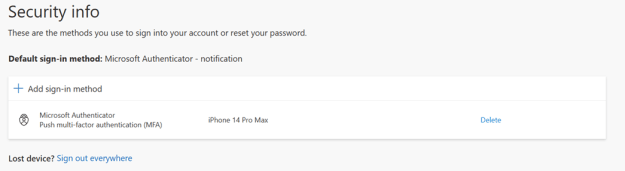
MFATest1
MFATest2
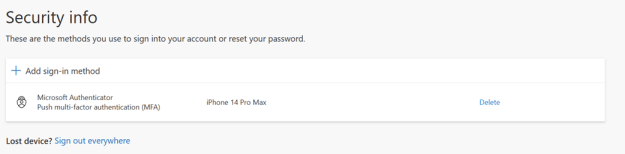
In the case of user MFATest1 and MFATest2 each user was showing a Microsoft Authenticator registration with push multi-factor authentication.
In addition to providing end users with instructions on enabling strong authentication methods administrators were creating reports using the Microsoft Graph API. The reports detailed the strong authentication methods enabled for the users. When administratively determining who is enabled for multi-factor authentication capturing the strong authentication methods of the users is often utilized for this purpose.
Here is an example for MFATest1.
Capture the authentication methods for the user.
$mfaTest1=Get-MgBetaUserAuthenticationMethod -UserId mfatest1@domain.com
List the authentication methods for the user.
$mfaTest1
Id
—
28c10230-6103-485e-b985-444c60001490
a5c2ef35-1db2-49c3-8631-e12a5025859e
List the details of the authentication methods for the user.
PS C:\> $mfatest1 | Select-Object id,additionalProperties -ExpandProperty additionalProperties
Key Value
— —–
@odata.type #microsoft.graph.passwordAuthenticationMethod
createdDateTime 2023-08-08T12:23:33Z
@odata.type #microsoft.graph.microsoftAuthenticatorAuthenticationMethod
displayName iPhone 14 Pro Max
deviceTag SoftwareTokenActivated
phoneAppVersion 6.7.12
clientAppName microsoftAuthenticator
Here is an example for MFATest2
Capture the authentication methods for the user.
$mfaTest2=Get-MgBetaUserAuthenticationMethod -UserId mfatest2@domain.com
List the authentication methods for the user.
$mfaTest2
Id
—
28c10230-6103-485e-b985-444c60001490
6ce10fca-fb88-4109-95e4-66d27c3e9f6d
List the details of the authentication methods for the user.
PS C:\> $mfatest2 | Select-Object id,additionalProperties -ExpandProperty additionalProperties
Key Value
— —–
@odata.type #microsoft.graph.passwordAuthenticationMethod
createdDateTime 2023-08-08T12:23:33Z
@odata.type #microsoft.graph.microsoftAuthenticatorAuthenticationMethod
displayName iPhone 14 Pro Max
deviceTag SoftwareTokenActivated
phoneAppVersion 6.7.12
clientAppName microsoftAuthenticator
When reviewing a user that has not registered a strong authentication method the additional identifier is missing when listing the authentication method details.
PS C:\> Get-MgBetaUserAuthenticationMethod -UserId 9ee2446b-f4c9-41cb-a73b-66a1937b45bb
Id
—
28c10230-6103-485e-b985-444c60001490
The identifier 28c10230-6103-485e-b985-444c60001490 is present on all users as all users have a password authentication method.
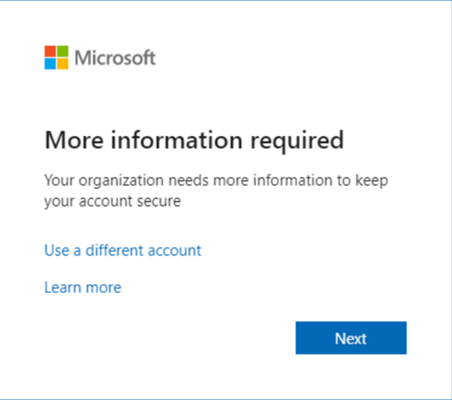
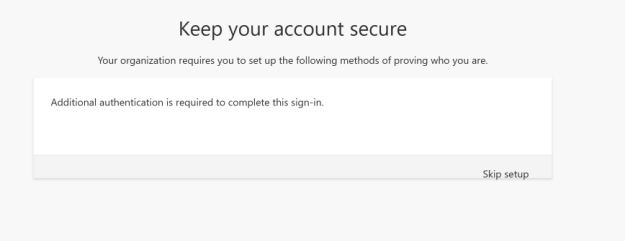
With the end users showing an MFA capable device and administrative reports indicating users had registered strong authentication methods the conditional access policy requiring multi-factor authentication was enabled. When the policy was enabled some users were experiencing the following dialog when signing in.
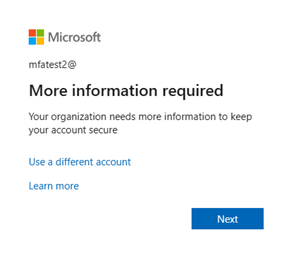
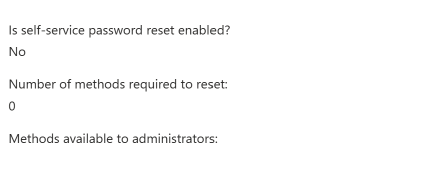
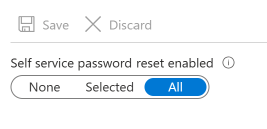
Typically, this dialog is presented to user when MFA registration, self service password reset registration, or combined registration is enabled or required. In this case self service password reset was disabled and the registration was to enroll a device for multi-factor authentication. The user MFATest2 already has a strong authentication method stamped on their account and should not be required to register for multi-factor authentication.
In the Azure Portal we reviewed the authentication methods assigned to the account MFATest2.
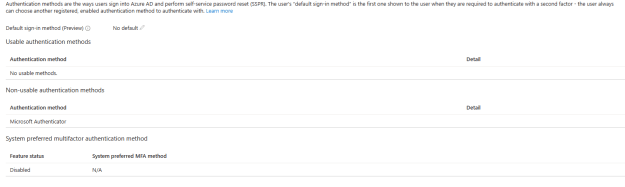
Why is Microsoft Authenticator listed under non-usable authentication methods? Is this the same for other accounts that are working? In this instance account MFATest1 is not showing the same issue. When reviewing the authentication methods assigned to MFATest1 the following is found:
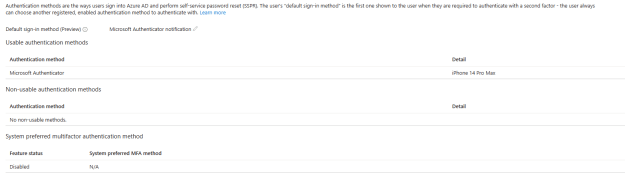
In the case of user MFATest1 Microsoft Authenticator is showing as a usable authentication method.
The work to enable multi-factor authentication and register strong authentication methods was performed within the last 30 days. This allows us to query the audit logs in Azure and determine the flow of steps taken. For account MFATest2 this is the audit log flow associated with the addition of a strong authentication method and multi-factor authentication enablement. There are entries for “Azure MFA StringAuthenticationService” with an activity of “Update User”.
|
8/8/2023, 12:38:54 PM
|
Core Directory
|
UserManagement
|
Update user
|
Success
|
|
MFATest2@domain.com.com
|
Azure MFA StrongAuthenticationService
|
When reviewing the properties of the audit log entry the following information is present:
Activity
Date (UTC)
8/8/2023, 12:38 PM
Activity Type
Update user
Correlation ID
c653c0e4-91d1-454d-ade9-dd076c6a975f
Category
UserManagement
Status
success
Status reason
User Agent
Initiated by (actor)
Type
Application
Display Name
Azure MFA StrongAuthenticationService
App ID
Service principal ID
797b413b-1b35-45ad-a30a-11c0eb96fa8f
Service principal name
Additional Details
UserType
Member
Target
Type
User
Id
d1bec8bc-cfcd-4b1a-9038-205b9435a5ae
Display Name
User Principal Name
MFATest2@domain.com
MFATest2@e-mcmichael.com
StrongAuthenticationPhoneAppDetail
[]
[{“DeviceName”:”iPhone 14 Pro Max”,”DeviceToken”:”apns2-41a5642b6047a6ceb39c327a26c9147b4c8b58f7d7f824f879b04e9c23677f19″,”DeviceTag”:”SoftwareTokenActivated”,”PhoneAppVersion”:”6.7.12″,”OathTokenTimeDrift”:0,”DeviceId”:”00000000-0000-0000-0000-000000000000″,”Id”:”6ce10fca-fb88-4109-95e4-66d27c3e9f6d”,”TimeInterval”:0,”AuthenticationType”:3,”NotificationType”:2,”LastAuthenticatedTimestamp”:”2023-08-08T12:38:24.2254241Z”,”AuthenticatorFlavor”:null,”HashFunction”:null,”TenantDeviceId”:null,”SecuredPartitionId”:0,”SecuredKeyId”:0}]
MFATest2@e-mcmichael.com
Included Updated Properties
“StrongAuthenticationPhoneAppDetail”
MFATest2@e-mcmichael.com
TargetId.UserType
“Member”
The information highlighted in red reflects the old value of NULL for strong authentication methods and the new value of the Microsoft Authenticator registration.
For account MFATest1 this is the audit log flow associated with the addition of a strong authentication method and multi-factor authentication enablement. There are entries for “Azure MFA StringAuthenticationService” with an activity of “Update User”. We also see events indicating User started security info registration and user registered security info.
|
Date (UTC)
|
Service
|
Category
|
Activity
|
Status
|
Status reason
|
Target(s)
|
Initiated by (actor)
|
|
8/8/2023, 12:35:46 PM
|
Authentication Methods
|
UserManagement
|
User registered security info
|
Success
|
User registered Authenticator App with Notification and Code
|
MFA Test1
|
MFATest1@domain.com
|
|
8/8/2023, 12:35:46 PM
|
Core Directory
|
UserManagement
|
Update user
|
Success
|
|
MFATest1@domain.com
|
MFATest1@domain.com
|
|
8/8/2023, 12:35:40 PM
|
Authentication Methods
|
UserManagement
|
User started security info registration
|
Success
|
User started the registration for Authenticator App with Notification and Code
|
MFA Test1
|
MFATest1@domain.com
|
|
8/8/2023, 12:35:33 PM
|
Core Directory
|
UserManagement
|
Update user
|
Success
|
|
MFATest1@domain.com
|
Azure MFA StrongAuthenticationService
|
This sequence of events lists extremely important details about the registration of a strong authentication method and then it’s subsequent use for MFA. What we observe in the case of the users that are working:
-
StrongAuthenticationPhoneAppDetail
[]
[{“DeviceName”:”iPhone 14 Pro Max”,”DeviceToken”:”apns2-41a5642b6047a6ceb39c327a26c9147b4c8b58f7d7f824f879b04e9c23677f19″,”DeviceTag”:”SoftwareTokenActivated”,”PhoneAppVersion”:”6.7.12″,”OathTokenTimeDrift”:0,”DeviceId”:”00000000-0000-0000-0000-000000000000″,”Id”:”a5c2ef35-1db2-49c3-8631-e12a5025859e”,”TimeInterval”:0,”AuthenticationType”:3,”NotificationType”:2,”LastAuthenticatedTimestamp”:”2023-08-08T12:35:33.183712Z”,”AuthenticatorFlavor”:null,”HashFunction”:null,”TenantDeviceId”:null,”SecuredPartitionId”:0,”SecuredKeyId”:0}]
-
The user starts security info registration. (The user scans the QR code for adding the account and selects next to begin validation)
Date (UTC)
8/8/2023, 12:35 PM
Activity Type
User started security info registration
Correlation ID
730563f2-3031-4a65-aa00-13fbc17910eb
Category
UserManagement
Status
success
Status reason
User started the registration for Authenticator App with Notification and Code
User Agent
Initiated by (actor)
Type
User
Display Name
Object ID
d4bf89ba-ef39-4858-99c5-d0a44acfe8d2
IP address
N/A
User Principal Name
MFATest1@domain.com
- The default type is changed to Microsoft Authenticator (The user responds to the MFA prompt on the phone providing the correct number matching code)
MFATest1@e-mcmichael.com
StrongAuthenticationMethod
[]
[{“MethodType”:6,”Default”:true},{“MethodType”:7,”Default”:false}]
MFATest1@e-mcmichael.com
Included Updated Properties
“StrongAuthenticationMethod”
MFATest1@e-mcmichael.com
TargetId.UserType
“Member”
- The user finishes registration of security information. (Authenticator is now a usable method for multi-factor authentication)
Activity
Date (UTC)
8/8/2023, 12:35 PM
Activity Type
User registered security info
Correlation ID
faf9110a-7088-49b2-9efe-75cec7aea6af
Category
UserManagement
Status
success
Status reason
User registered Authenticator App with Notification and Code
User Agent
Initiated by (actor)
Type
User
Display Name
Object ID
d4bf89ba-ef39-4858-99c5-d0a44acfe8d2
IP address
N/A
User Principal Name
MFATest1@domain.com
When looking at the Microsoft Authenticator installations on MFATest1 and MFATest2 there are accounts present on the devices.
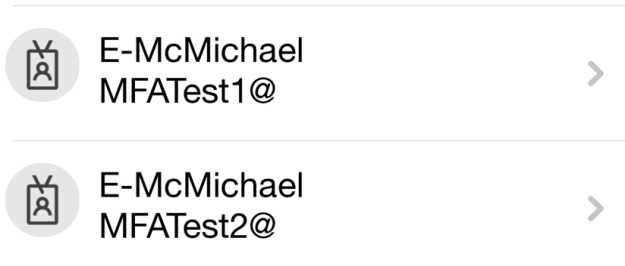
If both users MFATest1 and MFATest2 followed the same directions to register security information and enable multi-factor authentication, then why are we seeing a difference? In the case of MFATest2 the user successfully scanned the QR code and registered the strong authentication method but closed the browser windows before completing the verification. For a strong authentication method to be registered and usable the user must complete the verification by entering the code provided. In the case of MFATest1 the full procedure was followed, and the strong authentication method was added and verified.
This scenario has exposed two particular challenges.
- The https://myaccount.microsoft.com page showed that a valid MFA device was registered in both user cases but could only actually be utilized by one of the users.
- Administratively the presence of a strong authentication method does not provide insight in the ability to use that method to satisfy multifactor authentication.
Our product engineering team is aware of both scenarios. There are active work items to allow end users to not only see what authentication methods are registered but also provide feedback to the end user regarding their ability to be utilized for multifactor authentication. On the administrative side work continues in our graph and powershell integration to not only display the strong authentication methods but provide the same insight that the Azure portal does when making a determination of the users strong authentication methods and their ability to satisfy multi-factor authentication.
With this scenario there was little that could be done to mitigate the outcome other than ensuring that users followed the directions as published. When configuring conditional access the policy could have been rolled out over time by using group membership thereby lessoning the overall impact to the organization. As our product engineering engagements finish and our interfaces evolve more information allowing the accurate assessment of this situation will be available.
 TIMMCMIC