Monthly Archives: September 2021

Office 365 – Distribution List Migration Version 2.0 – Part 10

Improvements and code fixes in version 2.4.

This week, version 2.4 of the Distribution Migration Version 2 module was released to the PowerShell gallery. This release includes several quality improvements based on customer feedback. I want to personally thank those of you who provided feedback.

Here are some of the highlights in this release.

Corrected retention of sender authentication required

In prior versions of the module, the migration failed to retain the require sender authentication setting of the on-premises distribution group. When using Exchange Management Shell, the sender authentication value is displayed as false while the actual Active Directory attribute may be NULL. The only time the sender authentication attribute is not NULL is when the property has been explicitly set on the group to either TRUE of FALSE. Correct code was introduced that automatically interprets NULL as FALSE (the default value) or retains the customizations if the property has been set on the group.


Corrected a code condition leading to the abnormal termination of the start-collect functions

When administrators would use the pre-collection functions to gather recipient permissions, the commands would abnormally stop and terminate their associated PowerShell sessions. This issue is now fixed, and PowerShell sessions are terminated only at the conclusion of collection.


When using enable hybrid mail flow the search for the routing contact may fail if the distinguished name contains escape characters / special characters

Some distribution lists contain special characters (for example, # in the name of the list). When the distinguished name of the group is provisioned these characters become \# in the distinguished name. To locate objects during migration, get-ADObject is used to filter objects based on the distinguished name value. Unfortunately, this is extremely literal, and the search is performed for \# rather than replacing the character with just #. This routinely resulted in the search for the mail contact failing when using the enable hybrid mail flow option. The mail address of the contact is the original address including -MigratedByScript. This creates an easy query to find the object based on mail address rather than distinguished name. Modifications were made to calculate the mail address and locate it by this address rather than distinguished name.


Migrations failing with group cannot be found in local Active Directory when using bulk migrations.

In migration examples for bulk migrations the input file examples are a list of email addresses with each line terminating in a new line character. In some instances, these lists are generated from Exchange. For example:

Get-distributionGroup MigrateTest* | select-object PrimarySMTPAddress | out-file c:\groups.txt.

When the file is created there was often an additional space at the end of the line before the new line. When the file was imported, the query against Active Directory would occur with the address including the space, resulting in “object not found.” The script now checks all user input strings to ensure that any trailing or leading spaces are removed.


Migrations would fail when creating the Office 365 distribution list of a proxy address contained a domain not present in Office 365

It is possible (depending on implementation) that an accepted domain exists on-premises but was not added to the Office 365 tenant where the distribution list is being migrated. Earlier versions did not test for accepted domain creation and if the group to be migrated contained one of these accepted domains, attempts to update the proxy addresses failed. The code now checks all accepted domains on the group being migrated, and if none are found in Office 365, it skips the group and logs the event. This allows the administrator to evaluate if the proxy address should be functional in Office 365 or removed from on-premises to allow the migration to proceed.


Improved handling if the group is a co-manager of another object

ManagedBy is a single valued attribute in Active Directory. It is possible in Exchange to establish multiple managers of a group. When multiple managers are specified – the first manager is placed in the managedBy attribute, and the remaining are added to the msExchCoManagedBy attribute. Prior to version 2.4, the co-managed attribute of other objects was not filtered. The new version filters for co-managers and ensures that the mail contact used to track migrated resources is replaced on that list thereby preserving managed by for migrations of other lists.


Handling other managed-by scenarios that do not involve groups

The managed by attribute also applies to machine accounts within Active Directory. It is possible to specify a security group as a manager of a computer object. The script looks at the managed by backlink and attempts to update all objects with the mail contact that was migrated. In this instance, this will not work for machine accounts (especially machine accounts that are domain controllers). The script now filters all objects out of the managed by list that are not groups. If a found object is not a group, the retain group override is automatically set to TRUE, ensuring that the original group is kept. This ensures that any security permissions assigned to the group are not lost in this known case.


Improved handling of send as permissions

On a distribution list, send as permissions are an extension of the Active Directory access control list (ACL) entry sendAs. This right is assigned as an ACL entry within the directory. As with many ACLS, when a user or object is added with permissions, the SID of the object is added to the ACL. Tools that manage Active Directory convert the ACL into a display name (usually domain\samAccountName for display purposes). If the user on the ACL is deleted, there is no process that removes these entries from the ACL. This means that the entry is orphaned and the domain\samAccountName no longer resolves to the SID; therefore, the SID is displayed as the entry. The script originally assumed that the identity reference was always in the format of domain\samAccountName. When the script encountered a SID, it was unable to locate the AD configuration for that object (since it was deleted). Windows SIDs start with S-1-5. The script now looks at the identity references on the access control list and if a SID is discovered, it is ignored. It is safe to ignore the SID since the ACL was not valid anyway due to the account not being present in the directory.
Office 365 – Distribution List Migrations Version 2.0 – Part 9

A common request from customers using the distribution list migration module is the ability to batch migrations together. When doing multiple individual distribution list migrations each thread invokes Active Directory replication and Azure Active Directory Connect operations separately. We’re thrilled to announce that version 2.3.4, can now perform multiple batched distribution list migrations!

Originally, the main functions of the module worked on a single object, and of course PowerShell is not known for being easily multi-threaded. This presented challenges when creating a module that allows both for single distribution list migrations and multiple distribution list migrations. To overcome these challenges, we added a controller function that is responsible for collecting the primary parameters and SMTP addresses to be processed. The controller then breaks the list of SMTP addresses into groups of no more than five simultaneous migrations (we chose five to manage memory overhead on the host and to prevent overloading or throttling).

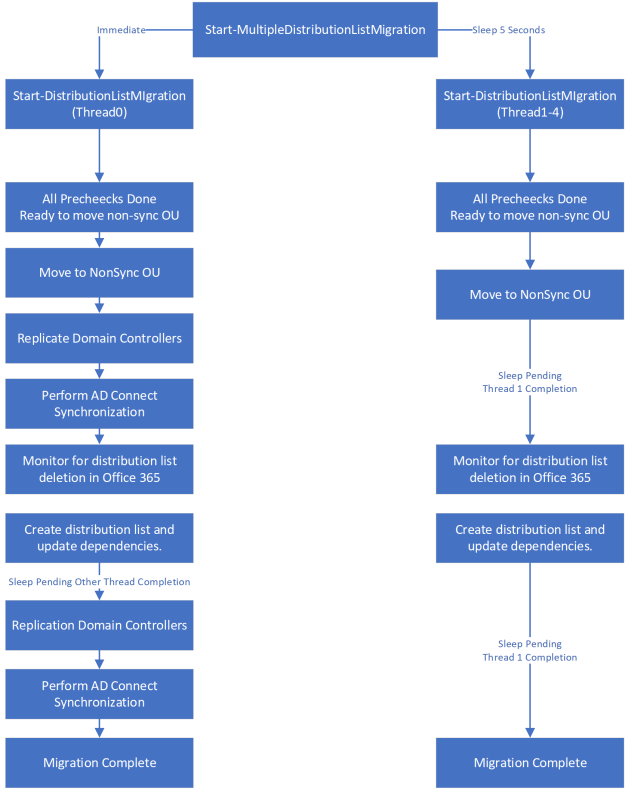
The controller uses PowerShell jobs, and each job provisioned is a single instance of the distribution list migration. In an effort to ensure repeated directory replication and Azure replication does not occur, we added new code that monitors a central file directory for status files. Each thread writes status files to the directory when the migration process reaches certain points. When all threads have acknowledged reaching the designated points in the migration flow, the controller script continues with certain functions. For example, during the migration, distribution lists need to move to an organizational unit (OU) that does not sync. This process deletes the distribution list from Office 365. We would not want a small list moved earlier than others, as this can result in the distribution list being unavailable for a longer period of time. Therefore, the threads wait until all are ready to move to the non-syncing OU, at which time the migration process moves all groups. The following flow chart shows an example of thread coordination between individual migration instances.

The controller is also responsible for monitoring job completion. Job completion does not mean the distribution group successfully migrated; it means the job attached to the individual migration is not in a running state. For example, if the migration fails for any reason, the process considers the job as failed. If the migration completes successfully, the process considers the job as completed. When the controller detects that all provisioned threads are no longer running, the process deletes the jobs. If more than five distribution lists are in the array, the controller continues to provision jobs in batches of no more than five until all jobs have been attempted.

When running individual migrations, administrators can choose to keep folder permissions or Send As rights, and the discovery of these permissions can occur during the migration. This can be a long and memory-intensive process. If an admin wants to scan for and retain options like full mailbox access, folder permissions, and Send As rights, you must first run the collection scripts. The collection scripts create offline files that can be imported and scanned as a part of the bulk migration process. The script does not support live collection of this data as a part of each individual migration.

How do I perform a multi-distribution list migration?

The first step to performing a migration of multiple distribution lists is building the list of distribution lists to be migrated. For ease of testing, I created a text file and saved it as bulk.txt. The text file contains the SMTP address of each group to be migrated, which is then imported into a variable.

For example:

TestGroup0@contoso.com
TestGroup1@contoso.com
TestGroup2@contoso.com
TestGroup3@contoso.com
TestGroup4@contoso.com
TestGroup5@contoso.com
TestGroup6@contoso.com
TestGroup7@contoso.com

$groups = get-content c:\data\bulk.txt

With the groups stored in a variable, I can define the rest of the variables for migration, including machine names, permissions, and file storage locations. The following command is used to invoke a sample multi-distribution list migration.

Sample command for performing pre-collection:

Start-MultipleDistributionListMigration -groupSMTPAddresses $groups -globalCatalogServer GC.domain.com -activeDirectoryCredential $onpremcred -logFolderPath c:\temp -aadConnectServer aadConnect.domain.com -aadConnectCredential $onpremcred -exchangeServer exchange.domain.com -exchangeCredential $onpremcred -exchangeOnlineCredential $cloudCred –azureADCredential $cloudCred -useCollectedFullMailboxAccessOnPrem:$TRUE -useCollectedFullMailboxAccessOffice365:$TRUE -useCollectedSendAsOnPrem:$TRUE -useCollectedFolderPermissionsOnPrem:$TRUE -useCollectedFolderPermissionsOffice365:$TRUE -triggerUpgradeToOffice365Group:$TRUE -enableHybridMailflow:$TRUE -dnNoSyncOU “OU=DoNotSync,DC=domain,DC=com”

Sample command for performing migration and enabling hybrid mail flow for the group:

Start-MultipleDistributionListMigration -groupSMTPAddresses $groups -globalCatalogServer GC.domain.com -activeDirectoryCredential $onpremcred -logFolderPath c:\temp -aadConnectServer aadConnect.domain.com -aadConnectCredential $onpremcred -exchangeServer exchange.domain.com -exchangeCredential $onpremcred -exchangeOnlineCredential $cloudCred –azureADCredential $cloudCred  -enableHybridMailflow:$TRUE -dnNoSyncOU “OU=DoNotSync,DC=domain,DC=com”

Sample command for performing migration:

Start-MultipleDistributionListMigration -groupSMTPAddresses $groups -globalCatalogServer GC.domain.com -activeDirectoryCredential $onpremcred -logFolderPath c:\temp -aadConnectServer aadConnect.domain.com -aadConnectCredential $onpremcred -exchangeOnlineCredential $cloudCred –azureADCredential $cloudCred -dnNoSyncOU “OU=DoNotSync,DC=domain,DC=com”

The log directory specified in the above command serves as the location for the storage of all logs and thread tracking files. In the specified directory is the Master directory which contains the log file associated with the controller responsible for provisioning the jobs and monitoring job status. Each thread has a separate thread folder created with the thread number. It is in this folder that the individual threads create a logging directory for each distribution list being migrated. This is where administrators may locate the folders for each migration indicating success or failure of the individual distribution lists. The status directory created in this folder is where each thread logs the thread status as each migration progresses. A file created in this directory indicates that the individual threads migration have reached a pre-determined location in code and are waiting for all other threads to remember the same place. The audit data directory may also exist if pre-collection was performed. This is the fixed directory where the offline storage files are located and will be read during the migration process.

In summary, this change now allows administrators to migrate distribution lists faster and with the same efficiency as individual migrations.

Office 365 – Distribution List Migration Version 2.0 – Part 8

Over the last several weeks, I have had the pleasure of speaking with multiple customers that have tested and deployed the Distribution List Migration Module V2. The feedback I received has been very helpful and based on it, I’ve made several changes and improvements to the module. I want to take an opportunity to explore some of the changes I made.

Improved migration experience for versions of Exchange older than Exchange 2016

The Exchange 2016 schema added some attributes to Active Directory that may be stamped on distribution lists. These attributes do not exist in the Exchange 2010 or Exchange 2013 schema. My original code defined the group of Active Directory attributes to be cleared based on Exchange 2016. For older versions of Exchange (or when an Exchange server was specified for use during the migration) distribution lists would be disabled using Disable-DistributionGroup. This proved on several occasions to be unreliable and resulted in a failure to disable the distribution group. New code was introduced that scans Active Directory for the schema version of Exchange in use – and adjusts the Active Directory attributes to be cleared accordingly. To ensure a more reliable experience disabling the distribution group, Active Directory PowerShell commands using the appropriate Exchange version attributes are used to disable the group.

Elimination of pro-active sleeps in response to occasional timing failures

During testing, it was noted that attempts to gather information for newly created objects would often fail when the object was created and then immediately queried. For example, when the new distribution list is created in Office 365, the code would immediately search for it, and in almost all circumstances, it would not be found, resulting in an error. Earlier versions of the module handled this by implementing proactive sleeps in between the creation and recording functions. In some cases, the sleep was not long enough and in other cases it was unnecessary, but either way they increased the overall migration time. The sleeps have been eliminated and replaced with a retry logic that allows the migration to immediately proceed if the sleep is not required.

Enhanced retry logic to handle expected failures and retry operations before hard failing the migration

New logic was introduced surrounding main functions within the script to allow the script to retry operations in the event a single function call fails. For example, if the script tries to locate an object in the directory immediately after creation and fails, a sleep is invoked. The script then tries for a pre-designated number of times to retry the operation before considering the operation as failed. This has improved the migration efficiency and success in larger environments where there may be additional factors outside the migration that caused commands to fail.

Improved sleep status

When a sleep was invoked a single line was written to the screen. Depending on the duration this could give the appearance that the script was hung or not proceeding. A new sleep function was introduced to provide a count down of the sleep operation so that visual feedback is available to the administrator.


Improved handling of multi-valued attributes

There are several multi-valued attributes that exist on a distribution group. For example, membership, accept messages from, and reject messages from. In older versions of the module, logic was used to step through each individual member and add them to their respective multi-valued attribute. For example, if there were 100 members, each member was evaluated individually and added to the group. New logic was introduced in newer versions that pre-creates the arrays of users to add and then adds them to their respective multi-valued attributes in a single operation. This improves the efficiency of the script. It also acts as a reset operation for the value, so when the group is created and the administrator creating it is automatically added as a member or manager, these are overwritten with only the values that existed on the on-premises group.

Improved memory utilization

In order to perform evaluations and recording of object permissions such as Send As and Full Mailbox Access the script has to discover and record all recipients either on-premises or in Office 365. Older versions of the module used large get commands to record the set of objects for evaluation by other functions. PowerShell by default returns all attributes with a given object which resulted in a significant amount of overhead for recording recipients, even though all that was required for future evaluation as the recipients identity and primary SMTP address. The module continues to utilize broad get commands but scopes the objects return values to just those necessary for further evaluation. By comparison, in older versions of the module for 10,000 Exchange Online recipients, a single migration took roughly 1.5 GB of memory. With the scoped changes, the same 10,000 recipients now consume only around 300 MB of memory for a single migration.

Improved status for collection and audit commands

The PowerShell module contains several functions to allow administrators to pre-audit data that is expensive to get during an interactive migration. For example, collecting all Send As permissions for all objects in Office 365 and storing them for evaluation during each distribution list migration. The collection commands use the PowerShell status function to keep the administrator notified of progress. The status function now includes the recipient number currently being processed, as well as the total number of expected recipients to process in the notification (e.g., “processing mailbox 100 of 499“). This small improvement allows for a better understanding of collection status.

Improved performance for collection and audit commands

The collection and audit commands are documented and expected to be long-running commands due to the nature of evaluating each object. Performance improvements were introduced to the Exchange Online Management Shell v2 command that’s used to do work that takes advantage of root hints. This prevents the command endpoint from having to proxy the command to another location. This has produced almost a fourfold improvement in data collection and resulted in no retry operations for the duration of the collection. Processing around 13,000 Exchange Online recipients for mailbox folder permissions now takes approximately 19 hours; in previous releases, it took over two days.

New handling for dynamic distribution groups

As with standard distribution groups, dynamic distribution groups in both Exchange Online and Exchange on-premises can have restrictions set on them. For example, accept messages from, reject messages from, and managed by. Updated versions of the module now evaluate dynamic distribution groups in both environments and track any dependencies that need to be replaced by the migrated distribution group.