Monthly Archives: January 2024

Office 365 – Distribution List Migration Version 2.0 – Part 40

Offering a new alternative for nested group migrations…

Distribution lists offer administrators the opportunity to nest within each other. As a part of distribution list migrations all child groups must be migrated prior to the parent group being migrated.

In the case of a single migration, if the parent is selected for migration and contains children, the migration will fail and the logs will indicate that a child group was found and must be migrated first.

In the case of multiple migrations, if the parent is attempted first before a child for migration, the parent will be scheduled for retry. After a migration pass has been attempted against each group, the parent distribution lists are retried if the child was included in the migration batch. 

I recently had a customer that presented an interesting scenario. They have a parent distribution list that contains multiple children. The children lists membership is managed by another product that only has on-premises integration. In this customer instance they desired to migrate the parent distribution list but retain the children on premises. The child distribution lists would continue to be managed through their third party system. Both the parent and child distribution lists were synchronized to Office 365 and available in Exchange Online.

They proposed a solution where they would remove the children distribution lists and then migrate the parent. Post migration, in Exchange Online, they would add the children distribution lists back as members. This is not blocked, synchronized distribution lists can be added as members of a cloud only distribution group. 

This obviously is a manual process and could lead to things being missed. Plus, what fun is a manual process when we could easily code a solution to support it 🙂

In version 2.9.8.24 a new switch has been introduced to SINGLE distribution list migrations. The switch is not available in multiple or multiple machine migrations. The switch is “-skipNestedGroupCheck”. When this switch is specified as a part of a migration if a mail enabled child group is found as a member of the distribution list to be migrated the migration is allowed to proceed. Instead of logging an error the mail enabled child distribution list is added as a valid recipient and as long as the recipient can be located in Office 365 the migration will proceed. At the end of the migration the synchronized child distribution lists are added as members of the migrated cloud distribution lists. 

At the conclusion of the migration the mail disabled group remains on premises. The membership of the mail disabled group remains the same. If at a later time a child distribution list is migrated the module already supports reviewing all cloud only distribution groups for membership. This group will be found as a member of the previously migrated group and the group membership should be retained.

Are there any mail flow considerations when doing this? The answer is yes! If you are not utilizing the -enableHybridMailFlow switch on premises Exchange Servers will continue to receive email at all child distribution lists. The parent distribution lists address will no longer be available on premises, therefore any email that relied on the expansion of the parent distribution list would fail.

If -enableHybridMailFlow is utilized the following mail flow route ensures that all group, including the non-migrated child distribution lists, receive the message.

  • The email is received by the on premises Exchange Server (parent@contoso.com).
  • Parent@contoso.com resolves to the dynamic distribution list created by -enableHybridMailFlow.
  • Dynamic distribution list expansion occurs and resolves to the single mail contact parent-migratedByScript@contoso.com
  • The mail contact parent-migratedByScript@contoso.com has a target address parent@contoso.mail.onmicrosoft.com. This address is resolved.
  • Mail flows through the hybrid connector and arrives in Office 365.
  • Parent@contoso.mail.onmicrosoft.com resolves to the migrated distribution list parent@contoso.com.
  • The migrated distribution list parent@contoso.com is expanded and includes child distribution lists.
  • The child distribution lists are now expanded.

I hope this new switch adds some additional flexibility and opens new scenarios for migration!
Office 365: Provisioning Exchange Online mailboxes with only a mail attribute…

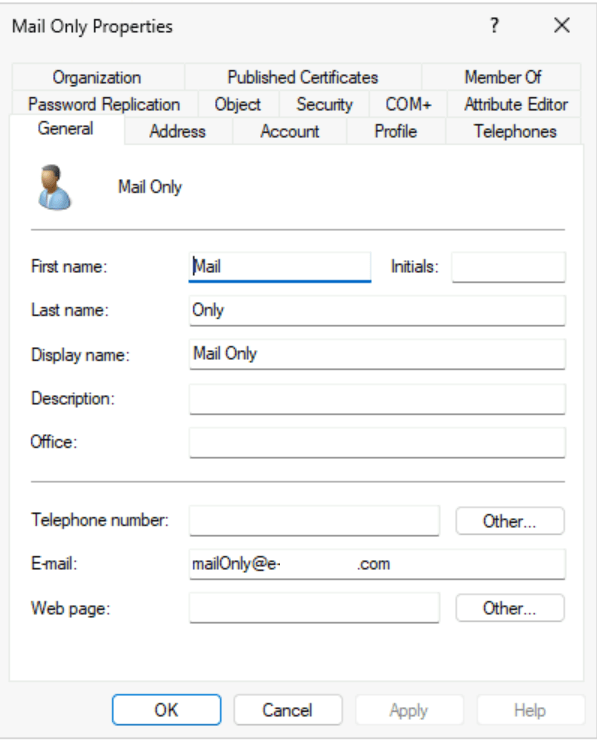
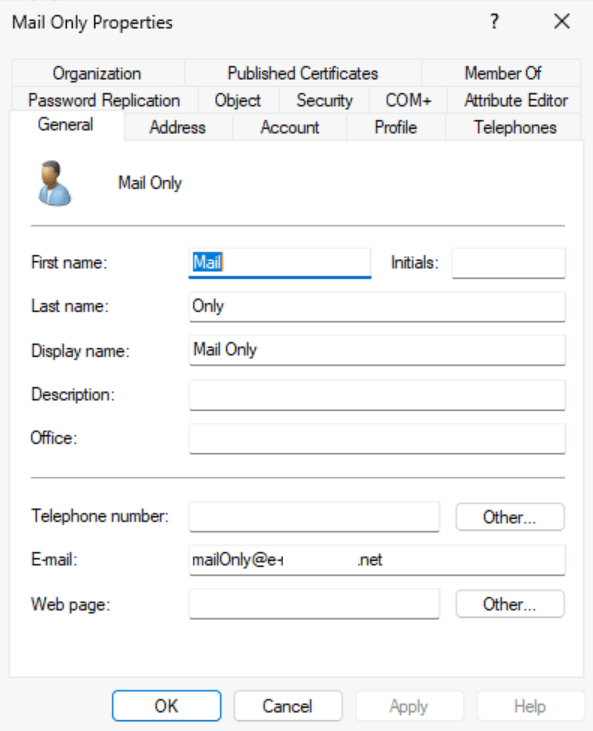
As customers stop deploying Exchange on premises installations recipients are being provisioned without enabling a remote mailbox. A common scenario that I see is where administrators create users but only stamp the windows mail property on the object. 

When an initial synchronization of this user occurs to Entra Active Directory and then Exchange Online the user is not mail enabled. As with all user object synchronized it is represented in Exchange Online as a user. 

PS C:\> Get-User mailonly@e-domain.net


Name RecipientType
---- -------------
eed81dfa-2492-4a9d-a757-d06f4e1d92d7 User

PS C:\> Get-Recipient mailonly@e-domain.net

Write-ErrorMessage : Ex6F9304|Microsoft.Exchange.Configuration.Tasks.ManagementObjectNotFoundException|The operation
couldn't be performed because object 'mailonly@e-domain.net' couldn't be found on
'CY4PR04A10DC003.NAMPR04A010.PROD.OUTLOOK.COM'.
At C:\Users\timmcmic\AppData\Local\Temp\tmpEXO_py0m5z5k.qxt\tmpEXO_py0m5z5k.qxt.psm1:1192 char:13
+ Write-ErrorMessage $ErrorObject
+ ~~~~~~~~~~~~~~~~~~~~~~~~~~~~~~~
+ CategoryInfo : NotSpecified: (:) [Get-Recipient], ManagementObjectNotFoundException
+ FullyQualifiedErrorId : [Server=SJ0PR04MB8325,RequestId=0bf40c30-2584-9980-e501-7659b045e73a,TimeStamp=Tue, 30 J
an 2024 20:36:37 GMT],Write-ErrorMessage

To mail enable the object a license is required that contains an Exchange Online plan. When the license is assigned, the object will be converted from USER to USERMAILBOX. This is confirmed when get-recipient returns a valid user mailbox.

PS C:\> Get-Recipient mailonly@e-domain.net


Name RecipientType
---- -------------
eed81dfa-2492-4a9d-a757-d06f4e1d92d7 UserMailbox

The primary smtp address on the object reflects the mail attribute set in Active Directory.

PS C:\> Get-Recipient mailonly@e-mcmichael.net | fl primarySMTPAddress,emailAddresses


PrimarySmtpAddress : mailOnly@e-domain.net
EmailAddresses : {SMTP:mailOnly@e-domain.net, smtp:mailOnly@timmcmic.domain.com,
SIP:mailonly@e-domain.net}

To change the primary SMTP address of the user the mail attribute may be adjusted in Active Directory. In this case the domain is changed from .net to .com.

When the change successfully replicates to Entra Active Directory and then Exchange Online the primary smtp address of the user will be updated to reflect this change.

PS C:\> Get-Recipient mailonly@e-domain.net | fl primarySMTPAddress,emailAddresses


PrimarySmtpAddress : mailOnly@e-domain.com
EmailAddresses : {SMTP:mailOnly@e-domain.com, smtp:MailOnly@e-domain.net,
smtp:mailOnly@domain.onmicrosoft.com, SIP:mailonly@e-domain.net}

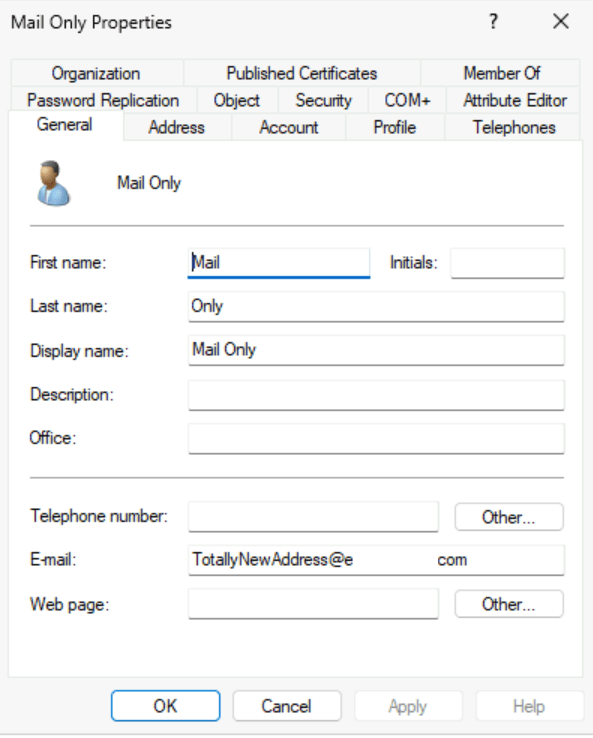
In recent weeks I have spoken with some customers that have opened support cases where updates to the mail attribute is not resulting in a change in Exchange Online. In this example the mail attribute was updated to a completely different address. 

We were able to confirm that the mail address was successfully replicated to Entra Active Directory by Entra Connect. When waiting several hours, it was observed the address did not change in Exchange Online.

PS C:\> Get-Recipient mailonly@e-domain.net | fl primarySMTPAddress,emailAddresses


PrimarySmtpAddress : MailOnly@e-domain.net
EmailAddresses : {SMTP:MailOnly@e-domain.net, smtp:mailOnly@domain.onmicrosoft.com,
SIP:mailonly@e-domain.net}

Why did the address not change? When reviewing the properties of the object in Active Directory it was noted that these users had the proxyAddresses attribute stamped.

Get-ADObject "CN=Mail Only,OU=Users,OU=Objects,DC=home,DC=e-domain,DC=com" -Properties Mail,ProxyAddresses


DistinguishedName : CN=Mail Only,OU=Users,OU=Objects,DC=home,DC=e-domain,DC=com
Mail : TotallyNewAddress@e-domain.com
Name : Mail Only
ObjectClass : user
ObjectGUID : f0bc7fcd-a31e-4f7a-9c71-be9d948c3f6d
ProxyAddresses : {x500:/o=ExchangeLabs/ou=Exchange Administrative Group
(FYDIBOHF23SPDLT)/cn=Recipients/cn=233c7693141f41d2b6ad1a2e24a5bf63-eed81dfa-24}

If the objects in Active Directory are not fully mail enabled, then why is the proxyAddresses populated? When a license is assigned to an object that had only a mail address set an X500 address is generated in Exchange Online. In this installation the Entra Connect configuration had Exchange Hybrid enabled. With this feature enabled the X500 address from Exchange Online is written to Active Directory. Once the proxyAddresses attribute is present on the object this is the attribute that controls the addresses that will be utilized for proxy calc in Entra Active Directory and then subsequently synchronized into Exchange Online. 

For users that had a proxyAddress field stamped this attribute will need to be adjusted in Active Directory in order for the address change to occur in Exchange Online. 

Get-ADObject "CN=Mail Only,OU=Users,OU=Objects,DC=home,DC=e-domain,DC=com" -Properties Mail,ProxyAddresses


DistinguishedName : CN=Mail Only,OU=Users,OU=Objects,DC=home,DC=e-domain,DC=com
Mail : TotallyNewAddress@e-mcmichael.com
Name : Mail Only
ObjectClass : user
ObjectGUID : f0bc7fcd-a31e-4f7a-9c71-be9d948c3f6d
ProxyAddresses : {SMTP:totallyDifferentAddress@e-domain.com, x500:/o=ExchangeLabs/ou=Exchange Administrative
Group (FYDIBOHF23SPDLT)/cn=Recipients/cn=233c7693141f41d2b6ad1a2e24a5bf63-eed81dfa-24}

The get-recipient command verifies that the attribute updated successfully.

PS C:\> Get-Recipient mailonly@e-domain.net | fl primarySMTPAddress,emailAddresses


PrimarySmtpAddress : totallyDifferentAddress@e-domain.com
EmailAddresses : {SMTP:totallyDifferentAddress@e-domain.com, smtp:MailOnly@e-mcmichael.net,
smtp:mailOnly@domain.onmicrosoft.com, SIP:mailonly@e-domain.net}

If the Exchange Hybrid feature remains enabled in Entra Connect you can expect to have to continue to modify the proxyAddresses attribute if address changes are necessary. If your provisioning model does not include fully mail enabled objects, you might consider disabling the Exchange Hybrid feature in Entra Connect. Disabling this feature will not impact users that already have the proxyAddresses attribute set but it will impact new objects where Exchange Online licenses are assigned.

Office 365: Complex Identity Migrations & Microsoft using PowerShell: The Practical 365 Podcast S4 E11Office 365:

Last week I had the privilege of speaking with Steve Goodman and Paul Robichaux hosts of the Practical 365 Podcast.  We discussed identity management and techniques for migrating distribution lists to Office 365.  You can find the podcast here.

Podcast

I want to extend my thanks to both for their time and having me as a guest!