Monthly Archives: January 2018

Office 365: ADConnect synchronization interval changed automatically…

In Azure AD Connect, the default synchronization interval is set to 30 minutes during installation.  In the majority of cases, 30 minutes is an appropriate balance between getting changes to Office 365 in a timely fashion, keeping the export set small enough to be effectively transmitted, and not overloading the on premises directories or Azure Active Directory. 


The configuration of the Azure AD Connect synchronization schedule can be viewed using Get-ADSyncScheduler


PS C:> Get-ADSyncScheduler

AllowedSyncCycleInterval            : 00:30:00
CurrentlyEffectiveSyncCycleInterval : 00:30:00
CustomizedSyncCycleInterval         :
NextSyncCyclePolicyType             : Delta
NextSyncCycleStartTimeInUTC         : 1/23/2018 2:58:30 PM
PurgeRunHistoryInterval             : 7.00:00:00
SyncCycleEnabled                    : True
MaintenanceEnabled                  : True
StagingModeEnabled                  : False
SchedulerSuspended                  : False
SyncCycleInProgress                 : False


Administrators may adjust the synchronization interval using Set-ADSyncScheduler.  When administrators adjust the schedule manually this is reflected in the CustomizedSyncCycleInterval. 


PS C:> Set-ADSyncScheduler -CustomizedSyncCycleInterval 02:00:00
WARNING: The sync interval you provided will only become effective after a sync cycle.You can choose to wait for the
automatic sync cycle to happen in next 30.00 minutes, or you can manually start a sync cyle by running
Start-ADSyncSyncCycle cmdlet.


PS C:> Get-ADSyncScheduler

AllowedSyncCycleInterval            : 00:30:00
CurrentlyEffectiveSyncCycleInterval : 00:30:00
CustomizedSyncCycleInterval         : 02:00:00
NextSyncCyclePolicyType             : Delta
NextSyncCycleStartTimeInUTC         : 1/23/2018 2:58:30 PM
PurgeRunHistoryInterval             : 7.00:00:00
SyncCycleEnabled                    : True
MaintenanceEnabled                  : True
StagingModeEnabled                  : False
SchedulerSuspended                  : False
SyncCycleInProgress                 : False


When a synchronization cycle is administratively configured the value that is configured must be greater than the AllowedSyncCycleInterval.  In our example, the AllowedSyncCycleInterval is 30 minutes, therefore any customization must be greater than 30 minutes or it will be ignored.  A customized schedule cannot be created less than the AllowedSyncCycleInterval.


PS C:> Set-ADSyncScheduler -CustomizedSyncCycleInterval 00:15:00

The value for the customized sync interval is lower than the allowed value.
Requested new interval = 00:15:00  Allowed interval = 00:30:00
Scheduler will still run at the allowed sync interval even after successful execution of this cmdlet.

Are you sure you want to continue?
[Y] Yes  [N] No  [S] Suspend  [?] Help (default is “Y”): y
WARNING: The sync interval you provided will only become effective after a sync cycle.You can choose to wait for the
automatic sync cycle to happen in next 30.00 minutes, or you can manually start a sync cyle by running
Start-ADSyncSyncCycle cmdlet.


In recent days, some customers have reported that the AllowedSyncCycleInterval was set to 2 hours even though the default should be 30 minutes.  Here is an example…


AllowedSyncCycleInterval            : 02:00:00
CurrentlyEffectiveSyncCycleInterval : 02:00:00

CustomizedSyncCycleInterval         :
NextSyncCyclePolicyType             : Delta
NextSyncCycleStartTimeInUTC         :
PurgeRunHistoryInterval             : 7.00:00:00
SyncCycleEnabled                    : True
MaintenanceEnabled                  : True
StagingModeEnabled                  : False
SchedulerSuspended                  : False
SyncCycleInProgress                 : False


The AllowedSyncCycleInterval is not administratively configured.  If this value is not administratively configured then how did the value automatically change? 


Azure AD Connect is a client of Azure Active Directory.  The AllowedSyncCycleInterval is determined through the clients connection with Azure Active Directory.  There could be some instances where this value may change.  For example, if an Azure AD replication partition becomes behind the service may back off the synchronization interval of Azure AD Connect.  In this instance, the value was adjusted through the server side policies controlling sync intervals.  When any service issues are rectified, the value automatically reverted to default.


The effective sync cycle is determined as a combination of the AllowedSyncCycle and the CustomerizedSyncCycle.  For example if the CustomerizedSyncCycle is greater than AllowedSyncCycle, the CustomizedSyncCycle will take precedence.  In this instance, most customers noted that the AllowedSyncCycle was greater than the default and any attempts to set CustomerizedSyncCycle to default were ignored since the value was lower than allowed.


When the allowed changes, you are encouraged to open a case with customer support services for review and confirmation.  Should the administrator require synchronization at intervals lower than the allowed, it would have to be accomplished through manual synchronization. 


Information regarding the AD Connect sync scheduler and manual synchronization can be found here – https://docs.microsoft.com/en-us/azure/active-directory/connect/active-directory-aadconnectsync-feature-scheduler.
Office 365: Office 365 Groups and domain removals…

When customers desire to move a domain from one tenant to another or decommission a domain within a tenant all dependencies on that domain must be removed.  The domain removal process relies on the information contained within Azure Active Directory in order to determine if a domain is safe to be removed.  One of the most common dependencies are email addresses on mail enabled objects.  The removal of the email address dependencies may occur either on premises and be replicated through Azure AD Connect or directly in Exchange Online. 


When Office 365 groups are utilized in the environment we have to take a different approach to domain removals.  Proxy addresses for Office 365 groups are managed directly in Exchange Online.   This includes the addition, removal, or adjustment of these proxy addresses.  When a proxy address is modified on an Office 365 group in Exchange Online – this change does not back sync to Azure Active Directory.  Therefore when administrators attempt to process a domain removal they are presented with errors indicating that groups with a  domain dependency exist. 


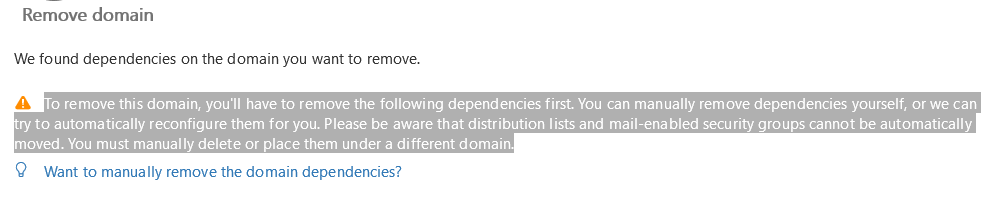
To remove this domain, you’ll have to remove the following dependencies first. You can manually remove dependencies yourself, or we can try to automatically reconfigure them for you. Please be aware that distribution lists and mail-enabled security groups cannot be automatically moved. You must manually delete or place them under a different domain.


image


If address removal does not sync to Azure Active Directory, and Azure Active Directory is the source of domain removals, then how do we process a domain removal when Office 365 Groups are utilized.  Let’s review a typical scenario.


I have an Office 365 Group TestDomainRemove0. 


PS C:> Get-UnifiedGroup TestDomainRemove0

Name                      Alias                ServerName       AccessType
—-                      —–                ———-       ———-
TestDomainRemove0_cfd5… TestDomainRemove0    dm5pr06mb2377    Public


The proxy addresses on the group can be verified using the following command:


PS C:> $addresses=Get-UnifiedGroup TestDomainRemove0
PS C:> $addresses.EmailAddresses
smtp:TestDomainRemove0@domain2.org
smtp:TestDomainRemove0@domain.com
smtp:TestDomainRemove0@domain.onmicrosoft.com
SMTP:TestDomainRemove0@domain.org


Post configuration I added several other email addresses to the Office 365 Group using powershell. 


As with many mail enabled objects the Exchange Online Object is mirrored by a corresponding object in Azure Active Directory.  Using the get-MSOLGroup command we can locate the group.


PS C:> Get-MsolGroup -SearchString TestDomainRemove0

ObjectId                               DisplayName                GroupType                  Description
——–                               ———–                ———                  ———–
992878ca-89e5-43fd-a2bf-3c9eb4d6feba   TestDomainRemove0          DistributionList


The original primary email address stamped on the group is now present on the object in Azure AD.  NOTE that none of the additional addresses I added are present in Azure Active Directory.


PS C:> $msolAddresses.EmailAddress
TestDomainRemove0@domain.org


This example highlights the core issues at this time –> proxy address changes DO NOT propagate from Exchange Online to Azure Active Directory. 


OPTION #1:  Delete the group in Exchange Online.


In option 1 we are not worried about retaining any of the data associated with the Office 365 Group.  Therefore we can remove the address dependency by removing the group.  The group can be removed using the remove-unifiedGroup command. 


Remove-UnifiedGroup TestDomainRemove4 -Confirm:$FALSE


When removing the group in Exchange Online this operation should successfully synchronize into Azure Active Directory.  Using the get-msolGroup command and finding no group returned to the query confirms this.


PS C:> Get-MsolGroup -SearchString TestDomainRemove4
PS C:>


Removing the group has successfully removed the dependency on the address.  The removal operation is not reversible.  THE DATA IS NOT RECOVERABLE ONCE THE REMOVAL HAS SUCCEEDED.


Option #2:  Delete the group in Azure Active Directory using Azure Active Directory Shell v1 (Microsoft Online Services Shell).


In option 2 we are not removing the group in Exchange Online but rather removing it through Azure Active Directory using the MSOL commands provided in the v1 Azure Active Directory powershell.  In order to prevent any administrative mistakes I prefer to search for the group first and locate it’s object id.


PS C:> Get-MsolGroup -SearchString TestDomainRemove2

ObjectId                               DisplayName                GroupType                  Description
——–                               ———–                ———                  ———–
d6e64513-f601-4731-9e17-a1160c022f46   TestDomainRemove2          DistributionList


When the object ID has been located it can be combined with the Remove-MSOLGroup command to remove the group from Azure Active Directory.

PS C:> Remove-MsolGroup -ObjectId d6e64513-f601-4731-9e17-a1160c022f46 –Force


The group removal will replicate into Exchange Online.


PS C:> Get-UnifiedGroup TestDomainRemove2
The operation couldn’t be performed because object ‘TestDomainRemove2’ couldn’t be found on
‘CO1PR06A002DC06.NAMPR06A002.prod.outlook.com’.
    + CategoryInfo          : NotSpecified: (:) [Get-UnifiedGroup], ManagementObjectNotFoundException
    + FullyQualifiedErrorId : [Server=BY1PR0601MB1402,RequestId=687793e0-65a9-43b0-a4db-ed34f4a2eb89,TimeStamp=1/17/20
   18 4:08:52 PM] [FailureCategory=Cmdlet-ManagementObjectNotFoundException] 7FF5681F,Microsoft.Exchange.Management.R
  ecipientTasks.GetUnifiedGroup
    + PSComputerName        : ps.outlook.com


Removing the group has successfully removed the dependency on the address.  The removal operation is not reversible.  THE DATA IS NOT RECOVERABLE ONCE THE REMOVAL HAS SUCCEEDED.


When considering options both Option 1 and Option 2 do not provide any form of data preservation.  In many cases it is desired to retain the original data until it can be migrated or it has been determined after the domain removal that it is no longer necessary.  There are also other cases where the domain removal is not tied to the deletion or migration of data – it’s simply just being administratively removed.  Are there any options that allow us to preserve the data.


Option #3:  Remove and restore the groups using Azure Active Directory Shell v2 Preview:


In order to restore Office 365 Groups the Azure Active Directory Preview modules must be utilized.  These modules can be installed online using an administrator initiated powershell session.


PS C:> Install-Module AzureADPreview

Untrusted repository
You are installing the modules from an untrusted repository. If you trust this repository, change its
InstallationPolicy value by running the Set-PSRepository cmdlet. Are you sure you want to install the modules from
‘PSGallery’?
[Y] Yes  [A] Yes to All  [N] No  [L] No to All  [S] Suspend  [?] Help (default is “N”): y


Once the powershell module has been installed a connection to Azure Active Directory can be established.


PS C:> Connect-AzureAD -Credential $cred

Account                                       Environment TenantId                             TenantDomain    AccountT
                                                                                                               ype
——-                                       ———– ——–                             ————    ——–
account@domain.onmicrosoft.com                AzureCloud  eefdeca8-5850-4ca5-a160-0716f2d8496e domain.org      User


In order to perform a recoverable deletion of a group we need the object IDs of the groups to be removed.  I find that it’s less likely to make a mistake of the object IDs are obtained from Exchange Online. 


PS C:> Get-UnifiedGroup | where{$_.name -like “TestDomain*”} | Select-Object name,externalDirectoryObjectID

Name                         ExternalDirectoryObjectId
—-                         ————————-
TestDomainRemove0_cfd54e2557 992878ca-89e5-43fd-a2bf-3c9eb4d6feba
TestDomainRemove1_d49d89822c 931c9e3b-3f27-4304-b13b-a3289d6b2b42


The external directory object ID attribute represents the GUID of the object in Azure AD.  Using these object IDs we can remove the groups from Azure Active Directory.


PS C:> Remove-AzureADMSGroup -Id 992878ca-89e5-43fd-a2bf-3c9eb4d6feba -Verbose
PS C:> Remove-AzureADMSGroup -Id 931c9e3b-3f27-4304-b13b-a3289d6b2b42 –Verbose


The above command removes from the group Azure Active Directory and places the group in a soft deleted state. 


PS C:> Get-AzureADMSDeletedDirectoryObject -Id 992878ca-89e5-43fd-a2bf-3c9eb4d6feba

Id                                   DisplayName       Description
—                                   ———–       ———–
992878ca-89e5-43fd-a2bf-3c9eb4d6feba TestDomainRemove0


The group deletion will propagate into Exchange Online and the other Office 365 properties that offer group services.


PS C:> Get-UnifiedGroup TestDomainRemove0
The operation couldn’t be performed because object ‘TestDomainRemove0’ couldn’t be found on
‘CO1PR06A002DC06.NAMPR06A002.prod.outlook.com’.
    + CategoryInfo          : NotSpecified: (:) [Get-UnifiedGroup], ManagementObjectNotFoundException
    + FullyQualifiedErrorId : [Server=BY1PR0601MB1402,RequestId=d041eaa4-b364-4848-a144-2727b01a367d,TimeStamp=1/17/20
   18 4:24:43 PM] [FailureCategory=Cmdlet-ManagementObjectNotFoundException] 7FF5681D,Microsoft.Exchange.Management.R
  ecipientTasks.GetUnifiedGroup
    + PSComputerName        : ps.outlook.com


When the Office 365 Groups are in a soft deleted state their proxy addresses do not count against the domain removal dependency.  Assuming that all other pre-requisites were met the domain should now remove without issue.  When the domain removal has proceeded successfully the groups can be restored.  The restoration starts in Azure Active Directory.


PS C:> Restore-AzureADMSDeletedDirectoryObject -Id 992878ca-89e5-43fd-a2bf-3c9eb4d6feba

Id                                   DisplayName       Description
—                                   ———–       ———–
992878ca-89e5-43fd-a2bf-3c9eb4d6feba TestDomainRemove0

PS C:> Restore-AzureADMSDeletedDirectoryObject -Id 931c9e3b-3f27-4304-b13b-a3289d6b2b42

Id                                   DisplayName       Description
—                                   ———–       ———–
931c9e3b-3f27-4304-b13b-a3289d6b2b42 TestDomainRemove1


When the groups have been restored the restored objects can be viewed in Azure Active Directory.


PS C:> Get-AzureADMSGroup -Id 992878ca-89e5-43fd-a2bf-3c9eb4d6feba

Id                                   DisplayName       Description
—                                   ———–       ———–
992878ca-89e5-43fd-a2bf-3c9eb4d6feba TestDomainRemove0


The restoration will propagate into Exchange Online and the other related Office 365 properties where group services are offered.


PS C:> Get-UnifiedGroup TestDomainRemove0

Name                      Alias                ServerName       AccessType
—-                      —–                ———-       ———-
TestDomainRemove0_cfd5… TestDomainRemove0    dm5pr06mb2377    Public


Using this method the domain dependencies were removed and the restoration process retained the data associated with the groups after domain removal.