Monthly Archives: July 2018

Office 365: Correcting users who have had a mailbox in the cloud and on-premises…

In some previous blog posts I have outlined conditions where users may have inadvertently had a mailbox both on premises and in the cloud at the same time.  The following links outline these scenarios and how to attempt to proactively identity users that may fall in this condition.

https://blogs.technet.microsoft.com/timmcmic/2018/04/10/office-365-detecting-and-preventing-duplicate-mailboxes-between-on-premises-and-exchange-online/

https://blogs.technet.microsoft.com/timmcmic/2017/09/10/office-365-users-have-both-a-cloud-and-on-premises-mailbox/

https://blogs.technet.microsoft.com/timmcmic/2018/04/09/office-365-licensing-mail-users-results-in-mailbox-objects/

With an understanding of the scenarios that lead to this and how to proactively identity users administrators can quickly identify the conditions that lead to this occurring and work to prevent it for other accounts moving forward.  How do we handle an account though that has encountered this condition?

There are two methods to handle accounts that have had mailboxes both on premises and in the cloud.  I will outline the options below for administrators to consider – as each has benefits and drawbacks.

OPTION #0:  Delete the existing Azure Active Directory Account

The Exchange Online mailbox object is linked to an Azure Active Directory account.  When the azure active directory account is removed and subsequently purged from the recycle bin the Exchange Online mailbox is placed in a soft deleted state.  During the next Azure Active Directory Connect synchronization cycle the user will be resynchronized to Azure Active Directory as new and will carry forward the Exchange attribute from on premises.  This should result in a mail user created in Exchange Online and not a mailbox object.  The mailbox object can now be migrated from on premises and the associated soft deleted mailbox merged into the original to retain data.

There are several benefits to this approach:

  • Deleting and purging an account from Azure Active Directory is generally a simple process.
  • The mailbox can be immediately migrated from on-premises once the mail user object is provisioned.
  • Exchange Online supports the administrator merging mailbox contents.  The soft deleted mailbox belonging to the user can be merged into the migrated mailbox allowing for no messages to be lost.

There are several potential drawbacks to this approach:

  • This is a complete Azure Active Directory account reset.
  • All permissions granted to this account within the service – for example Sharepoint site ownership / OneDrive / and any other services will be lost.
  • Any membership in cloud only distribution lists – for example Office 365 groups – will be lost.
  • There may be a brief interruption in mail flow to this account while the deletion and recreation of the Exchange Online object occurs.

In Exchange Online we can verify the presence of a mailbox that matches an on premises account.

Exchange Online:

PS C:> Get-Mailbox testduplicate


Name                      Alias           Database                       ProhibitSendQuota    ExternalDirectoryObjectId
—-                      —–           ——–                       —————–    ————————-
testduplicate             testduplicate   NAMPR06DG282-db128             49.5 GB (53,150,2… e3eaf6c1-f012-42e9-a54…

On-Premises Exchange:

[PS] C:>Get-Mailbox testduplicate


Name                      Alias                ServerName       ProhibitSendQuota
—-                      —–                ———-       —————–
Test Duplicate            testduplicate        azure-mbx        Unlimited

In the portal we can verify that the account is synchronized from the on-premises active directory.

image

The synchronized user has now been verified to have both a mailbox in the cloud and on-premises.

To begin the recovery the administrator should capture the Exchange Online mailbox information – specifically the Exchange GUID of the mailbox.  This GUID will be utilized in the recovery of the soft deleted mailbox.

PS C:> Get-Mailbox testduplicate | select-object ExchangeGUID


ExchangeGuid
————
fa38094d-cbfd-46b7-82f6-8a3022e39a66

Using Azure Active Directory powershell the account can be removed and purged from the recycle bin.

PS C:> Remove-MsolUser -UserPrincipalName testduplicate@domain.com -Force
PS C:> Remove-MsolUser -UserPrincipalName testduplicate@domain.com -Force –RemoveFromRecycleBin

The deletion can be verified using powershell.  The user cannot be found in either the active users list or the recycle bin – this indicates a successful deletion.

PS C:> Get-MsolUser -UserPrincipalName testduplicate@domain.com
Get-MsolUser : User Not Found.  User: testduplicate@domain.com.
At line:1 char:1
+ Get-MsolUser -UserPrincipalName testduplicate@domain.com
+ ~~~~~~~~~~~~~~~~~~~~~~~~~~~~~~~~~~~~~~~~~~~~~~~~~~~~~~~~~~~~~
     + CategoryInfo          : OperationStopped: (:) [Get-MsolUser], MicrosoftOnlineException
     + FullyQualifiedErrorId : Microsoft.Online.Administration.Automation.UserNotFoundException,Microsoft.Online.Administration.Automation.GetUser


PS C:> Get-MsolUser -UserPrincipalName testduplicate@domain.com -ReturnDeletedUsers
Get-MsolUser : User Not Found.  User:
testduplicate@domain.com.
At line:1 char:1
+ Get-MsolUser -UserPrincipalName testduplicate@domain.com -Return …
+ ~~~~~~~~~~~~~~~~~~~~~~~~~~~~~~~~~~~~~~~~~~~~~~~~~~~~~~~~~~~~~~~~~~~~~
     + CategoryInfo          : OperationStopped: (:) [Get-MsolUser], MicrosoftOnlineException
     + FullyQualifiedErrorId : Microsoft.Online.Administration.Automation.UserNotFoundException,Microsoft.Online.Administration.Automation.GetUser

In Exchange Online we can confirm that the mailbox object is no longer present.

PS C:> Get-Mailbox testduplicate
The operation couldn’t be performed because object ‘testduplicate’ couldn’t be found on
‘CO1PR06A002DC02.NAMPR06A002.prod.outlook.com’.
     + CategoryInfo          : NotSpecified: (:) [Get-Mailbox], ManagementObjectNotFoundException
     + FullyQualifiedErrorId : [Server=DM6PR06MB4026,RequestId=76d78567-e257-4608-a175-2dc3cd8658c2,TimeStamp=7/15/2018
     3:51:45 PM] [FailureCategory=Cmdlet-ManagementObjectNotFoundException] 260B3828,Microsoft.Exchange.Management.Rec
   ipientTasks.GetMailbox
     + PSComputerName        : ps.outlook.com

The duplicate online mailbox should now be in a soft deleted state.

PS C:> Get-Mailbox testduplicate -SoftDeletedMailbox


Name                      Alias           Database                       ProhibitSendQuota    ExternalDirectoryObjectId
—-                      —–           ——–                       —————–    ————————-
Test Duplicate            testduplicate   NAMPR06DG282-db128             49.5 GB (53,150,2…

At this time the online portion of the accounts have been cleaned up.  Azure Active Directory Connect synchronization can be performed and the object should be reprovisioned from the on-premises directory.

PS C:> Get-MsolUser -UserPrincipalName testduplicate@domain.com


UserPrincipalName             DisplayName    isLicensed
—————–             ———–    ———-
testduplicate@domain.com      Test Duplicate False

The object should now be successfully provisioned as a mail user within Exchange Online.  This is the expected recipient type for an on premises mailbox.

PS C:> Get-MailUser testduplicate


Name                                     RecipientType
—-                                     ————-
Test Duplicate                           MailUser

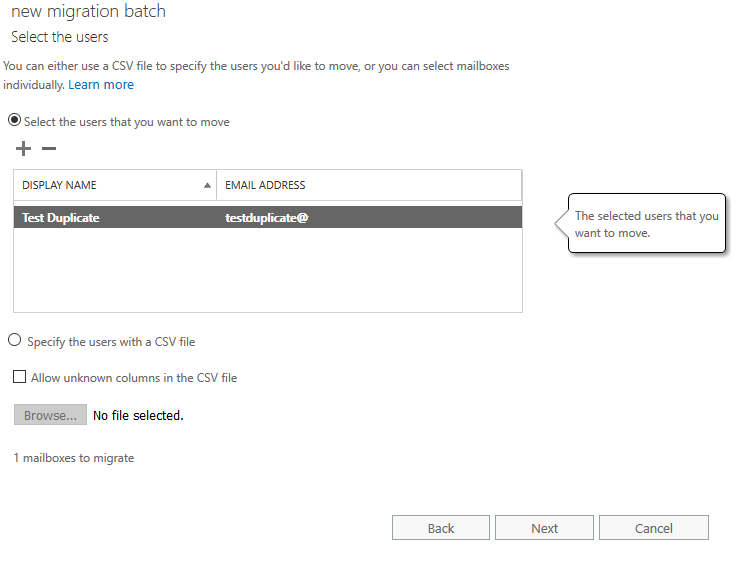
At this time the on-premises mailbox can be migrated to Office 365.  This is an optional step – but would be required in order to perform the merge of any data contained within the service at this time.
image

When the migration has completed successfully the object will become a mailbox object within Exchange Online.

PS C:> Get-Mailbox testduplicate


Name                      Alias           Database                       ProhibitSendQuota    ExternalDirectoryObjectId
—-                      —–           ——–                       —————–    ————————-
Test Duplicate            testduplicate   NAMPR06DG143-db051             99 GB (106,300,44… 7ba2fffc-e3ce-4d65-b350-d0a3763e5ffa

To complete our recovery the mailbox restoration can be processed.  To begin we need the Exchange GUID of the migrated mailbox.

PS C:> Get-Mailbox testduplicate | Select-Object exchangeGUID


ExchangeGuid
————
e683f1ee-4c85-4b99-b4bc-7511572a361d

The Exchange GUID for the soft deleted mailbox was previously recorded.  Using this information we can begin the merge process.

New-MailboxRestoreRequest -SourceMailbox fa38094d-cbfd-46b7-82f6-8a3022e39a66 -TargetMailbox e683f1ee-4c85-4b99-b4bc-7511572a361d –AllowLegacyDNMismatch

Name           TargetMailbox Status
—-           ————- ——
MailboxRestore testduplicate Queued

The merge can be monitored with get-mailboxRestoreRequest. 

PS C:Userstimmcmic> Get-MailboxRestoreRequest


Name           TargetMailbox Status
—-           ————- ——
MailboxRestore testduplicate InProgress

PS C:Userstimmcmic> Get-MailboxRestoreRequest

Name           TargetMailbox Status
—-           ————- ——
MailboxRestore testduplicate Completed

At this time this option has completed.

OPTION #1:  Remove the Exchange Online License

The Exchange Online mailbox object is linked to an Azure Active Directory account.  When the Exchange Online license is removed from the object the associated mailbox will be made unavailable.  This should result in a mail user created in Exchange Online and not a mailbox object.  The mailbox object can now be migrated from on premises and the associated soft deleted mailbox merged into the original to retain data.

There are several benefits to this approach:

  • The existing Azure Active Directory account is preserved.
  • All permissions assigned to the object are preserved across Sharepoint and OneDrive etc.  (This assumes ONLY the Exchange Online license is removed…)

There are several potential drawbacks to this approach:

  • The Exchange Online mailbox is not recoverable.  Any data contained will be lost.
  • There may be a brief interruption in mail flow to this account while the deletion and recreation of the Exchange Online object occurs.

To begin the mailbox can be confirmed in Exchange Online and On-Premises.

Exchange Online:

PS C:> Get-Mailbox testlicense


Name                      Alias           Database                       ProhibitSendQuota    ExternalDirectoryObjectId
—-                      —–           ——–                       —————–    ————————-
TestLicense               TestLicense     NAMPR06DG103-db019             49.5 GB (53,150,2… c686dfd9-aa4a-4b54-8680-cc0d4c9b0a62

On-Premise Exchange:

[PS] C:>Get-Mailbox testlicense


Name                      Alias                ServerName       ProhibitSendQuota
—-                      —–                ———-       —————–
Test License              testlicense          azure-mbx        Unlimited

In the portal we can confirm that the account is synchronized from the on-premises Active Directory.

image

The synchronized user has now been verified to have both a mailbox in the cloud and on-premises.

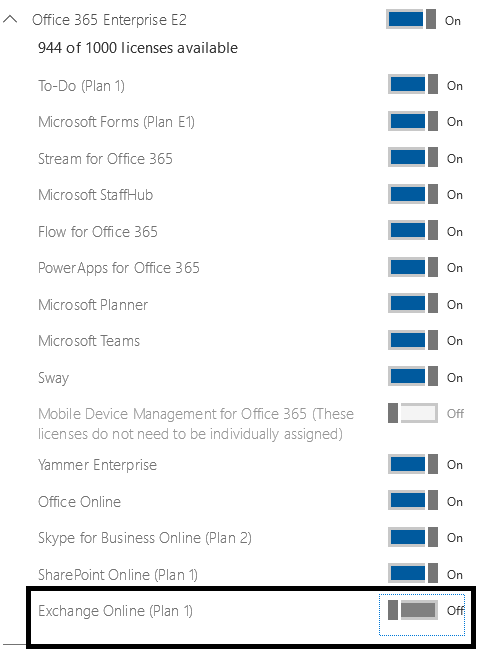
The Exchange Online license can now be removed through the portal.
image

When the license removal has synchronized into Exchange Online the mailbox will be converted to a mail user.

PS C:> Get-MailUser testLicense


Name                                     RecipientType
—-                                     ————-
Test License                             MailUser

When the conversion to a mail user has occurred the mailbox can be migrated from on premises.  If the license is re-assigned the object will convert back to a mailbox.  Assigning an Exchange Online license should be withheld until the mailbox is migrated (or the previous recipient type is changed – reference the previously attached blogs) allowing it to be safe to apply a license.

OPTION #3:  The user has no license but has an error with correlation ID in Azure Active Directory

I recently worked with a customer where we were looking at pursuing Option #2 as documented in this article.  With Option #2 our plan was to remove licenses, migrate the mailboxes, and forgo any ability to recover data that might be contained within the Office 365 mailbox. 

When reviewing the properties of the user in the Office 365 Portal (Azure Active Directory) the user had no Exchange license currently assigned.  When reviewing the object within Exchange Online the mailbox object existed as a User Mailbox type.

PS C:> Get-Mailbox testlicense

Name                      Alias           Database                       ProhibitSendQuota    ExternalDirectoryObjectId
—-                      —–           ——–                       —————–    ————————-
TestLicense               TestLicense     NAMPR06DG103-db019             49.5 GB (53,150,2… c686dfd9-aa4a-4b54-8680-cc0d4c9b0a62


One issue that we noted in the properties of the user account within the Office 365 portal was an error condition and a correlation ID.

image

In addition executing get-msolUser –userPrincipalName testLicense@domain.com shows the errors field populated and validation status error.

Errors                                 : {Microsoft.Online.Administration.ValidationError, Microsoft.Online.Administration.ValidationError}

ValidationStatus                       : Error


The presence of a correlation ID and error indicates that there are synchronization and object validation issues between Exchange Online and Azure Active Directory.  Due to the fact that there are multiple reasons this could occur – especially for accounts that are in this state – my recommendation is we fail back to Option #1 for the recovery of these types of accounts.

Office 365: Exchange Migrations and the data migrated information…

In Office 365 migration batches are the preferred method of establishing mailbox migrations to Office 365.  When a migration batch is established the users included in the batch are represented as migration users within the service. 

Within the context of each migration user is where we track the migration process.  One of the data points contained within the migration process is the DATA MIGRATED tab.  When enumerating the users within a migration batch, and selecting a migration user, this information is visible within the portal.

USER@domain.com

Status: Synced

USER@domain.com Skipped item details

Data migrated: 1.4 GB ‎(1,503,707,494 bytes)‎
Migration rate: 0 B ‎(0 bytes)‎
Error:
Report: USER@domain.com Download the report for this user

Last successful sync date: 7/2/2018 6:12:47 PM

Status:

Queued duration: 00:00:09.5015268
In-progress duration: 6.04:36:17.0329441
Synced duration: 36.10:02:28.6166962
Stalled duration: 02:12:43.4040899

One of the common questions and comments that I receive is that the DATA MIGRATED field may often reflect sizes that are slightly more to drastically more than the mailbox being migrated.  This on occasion leads to confusion about the migration process and the data that was migrated.  Here’s an example.

I recently migrated a mailbox from an on premises Exchange 2010 installation.  With Exchange 2010 being the source we can already expect that the data migrated to the service to be more than the reported mailbox size due to the inconsistencies in the methods Exchange 2010 reports mailbox sizes.  At the time that the mailbox migration completed the following was reported within the migration portal.

user@domain.com

Status: Completed

user@domain.com Skipped item details

Data migrated: 2.485 GB ‎(2,668,722,884 bytes)‎
Migration rate: 0 B ‎(0 bytes)‎
Error:
Report: user@domain.com
Download the report for this user

Last successful sync date: 7/3/2018 3:14:56 PM

Status:

Queued duration: 00:00:08.5213717
In-progress duration: 01:01:30.1987283
Synced duration: 00:00:00
Stalled duration: 01:21:09.3851867

In this example the data migrated field shows 2.485 GB migrated.  If we review the migration statistics associated with the mailbox we can get an idea of the reported mailbox size to be migrated. 

PS C:> Get-MigrationUserStatistics user@domain.com -IncludeReport | Export-Clixml -Path c:tempmigration.xml


PS C:> $stats=Import-Clixml -Path C:tempmigration.xml


PS C:> $stats.EstimatedTotalTransferSize

1.501 GB (1,612,092,317 bytes)

In this particular instance the estimated mailbox transfer size was 1.5 GB.  If we look at the data migrated verses the estimated data transfer size the difference is almost 1 GB difference.  Even accounting for reporting inconsistencies from Exchange 2010 mailbox size estimates 1 GB is a significant difference.  Why has this happened?

The data migrated field is a summary counter of all data transmissions between Office 365 and the on premises Exchange environment.  It is NOT a reflection of the data migrated verses the estimated mailbox size.  In this particular instance the mailbox move process was interrupted several times.  The interruptions may be the result of throttling, connection problems, or other migration interruptions. 

7/3/2018 2:22:35 PM [CO2PR07MB2711] The job has been paused temporarily due to unfavorable server health, with request throttling state: ‘StalledDueToTarget_DiskLatency’. It will automatically resume after ‘7/3/2018 2:23:35 PM’.
7/3/2018 2:28:38 PM [CO2PR07MB2711] The Microsoft Exchange Mailbox Replication service ‘CO2PR07MB2711.namprd07.prod.outlook.com’ (15.20.930.16 ServerCaps:FFFFFF, ProxyCaps:0FFFC7FD6DFDBF5FFFFFCB07FFFF, MailboxCaps:, legacyCaps:FFFFFF) is examining the request.
7/3/2018 2:28:38 PM [CO2PR07MB2711] Content from the Shard mailbox (Mailbox Guid: 6021ac05-d3f5-4bf4-ad03-f749aa02a1e4, Database: 545e461d-55da-4037-9c3e-d57a539e5e43) will be merged into the target mailbox.
7/3/2018 2:28:38 PM [CO2PR07MB2711] Connected to target mailbox ‘live.domain.comf28fad8a-546d-4965-8bcd-94806d53967d (Primary)’, database ‘NAMPR07DG170-db053’, Mailbox server ‘CO2PR07MB2711.namprd07.prod.outlook.com’ Version 15.20 (Build 930.0).
7/3/2018 2:28:45 PM [CO2PR07MB2711] Connected to source mailbox ‘live.domain.comf28fad8a-546d-4965-8bcd-94806d53967d (Primary)’, database ‘DAG-Administration’, Mailbox server ‘MICHAEL.domain.com’ Version 14.3 (Build 382.0), proxy server ‘PROXY.domain.com’ 15.1.1531.3 ServerCaps:, ProxyCaps:, MailboxCaps:, legacyCaps:0FFD6FFFBF5FFFFFCB07FFFF.

7/3/2018 2:28:47 PM [CO2PR07MB2711] Request processing continued, stage LoadingMessages.

7/3/2018 2:28:47 PM [CO2PR07MB2711] Stage: LoadingMessages. Percent complete: 20.
7/3/2018 2:41:04 PM [CO2PR07MB2711] Stage: CopyingMessages. Percent complete: 85.
7/3/2018 2:41:04 PM [CO2PR07MB2711] Copy progress: 17097/21426 messages, 1.299 GB (1,394,743,256 bytes)/1.501 GB (1,611,958,891 bytes), 30/67 folders completed.

7/3/2018 2:41:04 PM [CO2PR07MB2711] The job has been paused temporarily due to unfavorable server health, with request throttling state: ‘StalledDueToTarget_DiskLatency’. It will automatically resume after ‘7/3/2018 2:42:04 PM’.

7/3/2018 2:49:49 PM [CO2PR07MB2711] The Microsoft Exchange Mailbox Replication service ‘CO2PR07MB2711.namprd07.prod.outlook.com’ (15.20.930.16 ServerCaps:FFFFFF, ProxyCaps:0FFFC7FD6DFDBF5FFFFFCB07FFFF, MailboxCaps:, legacyCaps:FFFFFF) is examining the request.
7/3/2018 2:49:55 PM [CO2PR07MB2711] Content from the Shard mailbox (Mailbox Guid: 6021ac05-d3f5-4bf4-ad03-f749aa02a1e4, Database: 545e461d-55da-4037-9c3e-d57a539e5e43) will be merged into the target mailbox.
7/3/2018 2:49:55 PM [CO2PR07MB2711] Connected to target mailbox ‘live.domain.comf28fad8a-546d-4965-8bcd-94806d53967d (Primary)’, database ‘NAMPR07DG170-db053’, Mailbox server ‘CO2PR07MB2711.namprd07.prod.outlook.com’ Version 15.20 (Build 930.0).
7/3/2018 2:50:02 PM [CO2PR07MB2711] Connected to source mailbox ‘live.domain.comf28fad8a-546d-4965-8bcd-94806d53967d (Primary)’, database ‘DAG-Administration’, Mailbox server ‘MICHAEL.domain.com’ Version 14.3 (Build 382.0), proxy server ‘PROXY.domain.com’ 15.1.1531.3 ServerCaps:, ProxyCaps:, MailboxCaps:, legacyCaps:0FFD6FFFBF5FFFFFCB07FFFF.

7/3/2018 2:50:04 PM [CO2PR07MB2711] Request processing continued, stage LoadingMessages.

7/3/2018 2:50:04 PM [CO2PR07MB2711] Stage: LoadingMessages. Percent complete: 20.
7/3/2018 3:00:05 PM [CO2PR07MB2711] Stage: CopyingMessages. Percent complete: 89.

In this example the move request was stalled several times.  Each time after the stall the migration request is picked back up – and message loading occurs.  This would be an example of additional data added to the transfer set that was not mailbox level items that would have been accounted for in the mailbox size. 

If I was curious about the status of the migration and understanding the full migration status – how can I ensure the data was moved.  When a move enters the finalization phase the source mailbox and target mailbox are locked.  We have a mailbox folder verification process that is executed.  The mailbox folder verification process iterates through each folder in the source mailbox and compares it to the target mailbox.  Item counts and sizes are compared in real time.  If there are any discrepancies identified the move will be placed into a failed state.  The mailbox verification is logged into the migration log file and can be viewed by the administrator.

PS C:> Get-MigrationUserStatistics user@domain.com -IncludeReport | Export-Clixml -Path c:tempmigration.xml


PS C:> $stats=Import-Clixml -Path C:tempmigration.xml


PS C:> $stats.Report.MailboxVerification

Source                                         : 10188 [1.152 GB (1,237,342,091 bytes)]
SourceFAI                                      : 27 [1.203 MB (1,261,537 bytes)]
Target                                         : 10188 [1.464 GB (1,571,440,111 bytes)]
TargetFAI                                      : 27 [1.227 MB (1,286,579 bytes)]
Corrupt                                        : 0 [0 B (0 bytes)]
Large                                          : 0 [0 B (0 bytes)]
Skipped                                        : 0 [0 B (0 bytes)]
FolderSourcePath                               : /Top of Information Store/Inbox
FolderTargetPath                               : /Top of Information Store/Inbox
FolderSourceID                                 : {0, 0, 0, 0…}
FolderTargetID                                 : {0, 0, 0, 0…}
ParentSourceID                                 : {0, 0, 0, 0…}
ParentTargetID                                 : {0, 0, 0, 0…}
WKFType                                        : Inbox
WKFTypeInt                                     : 10
FolderIsMissing                                : False
FolderIsMisplaced                              : False
MismatchedFlagsCount                           : 0
MissingItemsInTargetBucket                     : 0 [0 B (0 bytes)]
MismatchedFlagsSample                          : {}
DuplicatedItemsInTargetBucket                  : 0 [0 B (0 bytes)]
MissingInSourceExtraItemsInTargetBucket        : 0 [0 B (0 bytes)]
MismatchedSyncFolderIdExtraItemsInTargetBucket : 0 [0 B (0 bytes)]
NonMRSSyncedExtraItemsInTargetBucket           : 0 [0 B (0 bytes)]
FolderExclusionExtraItemsInTargetBucket        : 0 [0 B (0 bytes)]
MailboxGuid                                    : f28fad8a-546d-4965-8bcd-94806d53967d
UnknownElements                                :
UnknownAttributes                              :
XmlSchemaType                                  :


Source                                         : 5129 [247.9 MB (259,986,587 bytes)]
SourceFAI                                      : 3 [5.91 KB (6,052 bytes)]
Target                                         : 5129 [500 MB (524,288,275 bytes)]
TargetFAI                                      : 3 [8.085 KB (8,279 bytes)]
Corrupt                                        : 0 [0 B (0 bytes)]
Large                                          : 0 [0 B (0 bytes)]
Skipped                                        : 0 [0 B (0 bytes)]
FolderSourcePath                               : /Top of Information Store/Deleted Items
FolderTargetPath                               : /Top of Information Store/Deleted Items
FolderSourceID                                 : {0, 0, 0, 0…}
FolderTargetID                                 : {0, 0, 0, 0…}
ParentSourceID                                 : {0, 0, 0, 0…}
ParentTargetID                                 : {0, 0, 0, 0…}
WKFType                                        : DeletedItems
WKFTypeInt                                     : 14
FolderIsMissing                                : False
FolderIsMisplaced                              : False
MismatchedFlagsCount                           : 0
MissingItemsInTargetBucket                     : 0 [0 B (0 bytes)]
MismatchedFlagsSample                          : {}
DuplicatedItemsInTargetBucket                  : 0 [0 B (0 bytes)]
MissingInSourceExtraItemsInTargetBucket        : 0 [0 B (0 bytes)]
MismatchedSyncFolderIdExtraItemsInTargetBucket : 0 [0 B (0 bytes)]
NonMRSSyncedExtraItemsInTargetBucket           : 0 [0 B (0 bytes)]
FolderExclusionExtraItemsInTargetBucket        : 0 [0 B (0 bytes)]
MailboxGuid                                    : f28fad8a-546d-4965-8bcd-94806d53967d
UnknownElements                                :
UnknownAttributes                              :
XmlSchemaType                                  :

In summary – the DATA MIGRATED field cannot be used as a measure of migration success or failure.  Only in cases where the move is started and almost immediately finalized with no errors, stalls, or interruptions will the value be near or close to the mailbox size being migrated.

Office 365: The mystery of mobile phone…

In the last few weeks I have worked several escalations from customers inquiring about inconsistencies with the mobile phone attribute.  In almost all cases inconsistencies were noticed in the Exchange Online contact card where mobile phone listed did not match on premises.

When directory synchronization is enabled on an Office 365 tenant a set of attributes are locked with a source of authority flag establishing on premises as the SOA.  The implications here are that changes to these attributes should only be accepted through the Azure Active Directory Synchronization software.  Administrators and end users can see this behavior when attempting to change – for example – first name.

PS C:> Set-MsolUser -UserPrincipalName tim.mcmichael@domain.com -FirstName Test
Set-MsolUser : Unable to update parameter. Parameter name: FIRSTNAME.
At line:1 char:1
+ Set-MsolUser -UserPrincipalName tim.mcmichael@domain.com -FirstName  …
+ ~~~~~~~~~~~~~~~~~~~~~~~~~~~~~~~~~~~~~~~~~~~~~~~~~~~~~~~~~~~~~~~~~~~~~
     + CategoryInfo          : OperationStopped: (:) [Set-MsolUser], MicrosoftOnlineException
     + FullyQualifiedErrorId : Microsoft.Online.Administration.Automation.PropertyNotSettableException,Microsoft.Online.Administration.Automation.SetUser

As with other attributes mobile phone is initially setup with the expectation that it will be provided through the Azure Active Directory Synchronization software.  Let us review a sample user:

The remote mailbox object is provisioned on-premises and a mobile number set.

[PS] C:>Get-User testmobile | fl *mobile*


MobilePhone : 8035551212

The recipient is successfully replicated to Azure Active Directory and the mobile number from on premises is retained.

PS C:> Get-MsolUser -UserPrincipalName testmobile@fortmillems.org | fl *mobile*


AlternateMobilePhones : {}

MobilePhone           : 8035551212

At anytime the mobile number may change on premises to a different value.

[PS] C:>Set-User testmobile -MobilePhone 9991112222
[PS] C:>Get-User testmobile | fl *mobile*


MobilePhone : 9991112222

The recipient is again successfully replicated to Azure Active Directory and the mobile number from on premises is again retained.

PS C:> Get-MsolUser -UserPrincipalName testmobile@domain.com | fl *mobile*


AlternateMobilePhones : {}

MobilePhone           : 9991112222

In Office 365 there are several self service options for attributes.  For example users can enroll themselves in Multi-Factor Authentication or potentially manage some of their personal attributes.  One of these attribute is mobile phone.  This allows the end user to set their own mobile phone number.  In addition administrators have access to user attribute both via the portal and powershell where mobile phone can also be adjusted. 

PS C:> Get-MsolUser -UserPrincipalName testmobile@domain.com | fl *mobile*


AlternateMobilePhones : {}

MobilePhone           : 1234567890

So wait – mobile phone was previously accepted from on premises when directory synchronization was enabled but is now also taking updates from Azure Active Directory directly?  That’s correct – mobile phone is a unique attribute.  When directory synchronization is enabled mobile phone will continue to be populated from on premises through the sync process.  Although this occurs – the mobile phone can be updated through any number of cloud interfaces.   What happens now if the mobile number changes on premises.

[PS] C:>Set-User testmobile -MobilePhone 0987654321
[PS] C:>Get-User testmobile | fl *mobile*


MobilePhone : 0987654321

Synchronization is now allowed to complete and reviewing the attributes of mobile number in Azure Active Directory we note the attribute HAS NOT updated.

PS C:> Get-MsolUser -UserPrincipalName testmobile@domain.com | fl *mobile*


AlternateMobilePhones : {}

MobilePhone           : 1234567890

This is by design.  When the mobile phone number was adjusted in Azure Active Directory the source of authority was changed from on premises to Azure Active Directory.  When Azure Active Directory Sync pushes any changes of the mobile attribute from on premises to Office 365 – Azure Active Directory ignores the change. 

So what about Exchange Online – what will display in the users contact card.  Exchange Online takes all of the information as provided by Azure Active Directory.  Regardless where the source of authority lies – the value stamped on the object in Azure Active Directory will be the value of the attribute on the mail enabled object in Exchange Online and what will subsequently appear in the global address list.  Here is a sample get-user from Exchange Online:

PS C:> Get-User testMobile | fl *mobile*


MobilePhone : 1234567890

If you have mobile phone attributes that you need populated from on premises to Office 365 and are encountering this issue a support case can be utilized to discuss options with product support services.