Monthly Archives: October 2024

Using graph to modify group based licenses…

Microsoft Graph provides the ability to modify licenses assigned to groups when implementing group-based licensing. The command set-MGGroupLicenses is utilized to modify the license template assigned to a group.

Set-MGGroupLicense

When creating a license template to apply or modify on the group a bodyParameters switch is utilized. Building the bodyParameters by hand can often be tricky. In this post I want to break down the structure of the bodyParameters and demonstrate how this can be built easily with Powershell.

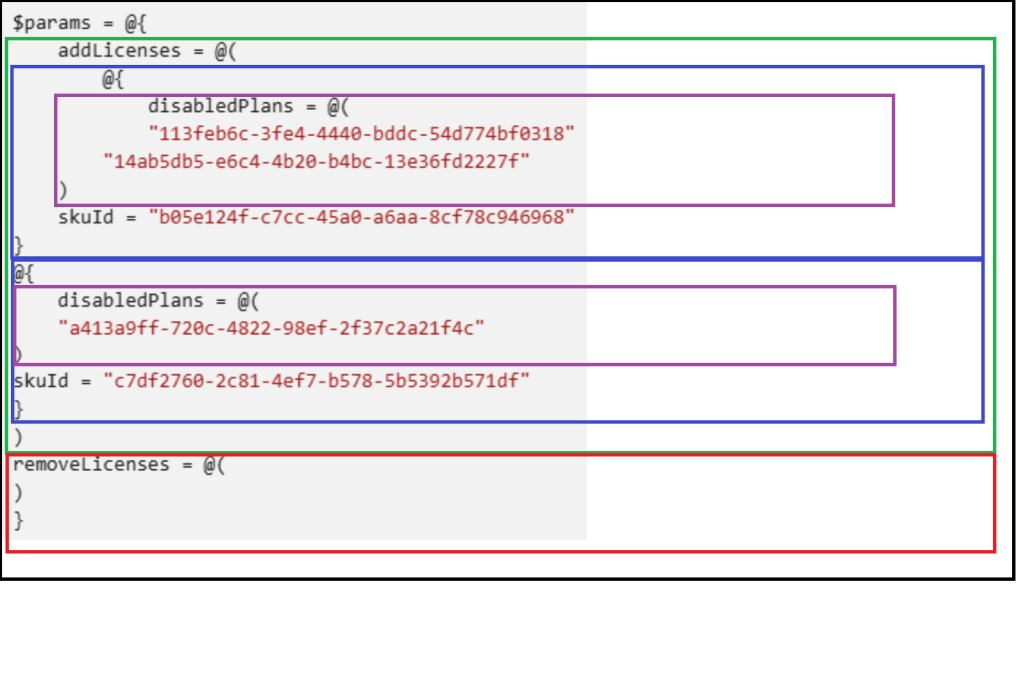
The bodyParameters starts with a hash table that contains two array entries. The add licenses array and the remove licenses array. (Black box in figure below).

The add licenses array is an array of hash tables. (Green Box). Each hash table entry in the array is a combination of an array of plans to disable (Purple Box) and the skuID associated with those plans (Blue Box).

The remove licenses array is an array of skuIDs to remove from the group. (Red Box).

This is what the structure looks like in Microsoft’s sample documentation.
On the current group is the Office 365 A1 for Students License. This license needs to be replaced with the Microsoft 365 E5 licenses with the Information Barries and Microsoft 365 Phone System plans disabled. I also want to add the entire Microsoft 365 Defender for Office 365 (Plan 2) license.

To recap

  • Remove Licenses
    • Office 365 A1 for Students = 314c4481-f395-4525-be8b-2ec4bb1e9d91
  • Add Licenses
    • Microsoft 365 E5 = 06ebc4ee-1bb5-47dd-8120-11324bc54e06
      • Disable Microsoft 365 Phone System = 4828c8ec-dc2e-4779-b502-87ac9ce28ab7
      • Disable Information Barriers = c4801e8a-cb58-4c35-aca6-f2dcc106f287
    • Microsoft Defender for Office 365 (Plan 2) = 3dd6cf57-d688-4eed-ba52-9e40b5468c3e

To build the body parameters utilize in the set-MGGroupLicenseCommand:

#Establish the body parameters hash table.
$params = @{}

#Build the add licenses array
$addLicenses = @()

#Build the remove licenses array
$removeLicenses = @()

#************************************************************************

#Build the disabled plans for the first license to be added.

$disabledPlans = @()
$disabledPlans += "4828c8ec-dc2e-4779-b502-87ac9ce28ab7"
$disabledPlans += "c4801e8a-cb58-4c35-aca6-f2dcc106f287"

#Set the skuID for the first license.

$skuID = "06ebc4ee-1bb5-47dd-8120-11324bc54e06"

#Build the hash value for the added licenses.

$skuHash = @{"DisabledPlans" = $disabledPlans ; "SkuID" = $skuID}

#Add the skuHash to the array of licenses to add.

$addLicenses += $skuHash

#************************************************************************

#Build the second entry to the add licenses.

#Build the disabled plans for the second license to be added.

$disabledPlans = @()

#Set the skuID for the first license.

$skuID = "3dd6cf57-d688-4eed-ba52-9e40b5468c3e"

#Build the hash value for the added licenses.

$skuHash = @{"DisabledPlans" = $disabledPlans ; "SkuID" = $skuID}

#Add the skuHash to the array of licenses to add.

$addLicenses += $skuHash

#************************************************************************

#***********************
#At this time all licenses to be added have been built and added to the addArray.
#***********************

#Update the licenses to remove with the decomissioned plan.

$removeLicenses += "314c4481-f395-4525-be8b-2ec4bb1e9d91"

#***********************
#Complete the params has table.
#***********************

$params = @{"AddLicenses" = $addLicenses ; "RemoveLicenses" = $removeLicenses}

In some instances, discovering the SKU and PLAN ids utilized in the body parameters configuration can also be challenging. One of the methods I like to use to simplify process is to create a standard user in Microsoft 365 and apply the license template to the user. The license template would be the same as the template I want to assign to the group. The user can then be utilized as a template for completing the body parameters build.

#Obtain the user that has the license template to be applied.

$licenseTemplateUser = get-mgUser -userID licenseTest@domain.onmicrosoft.com -Property AssignedLicenses

#Establish the body parameters hash table.
$params = @{}

#Build the add licenses array
$addLicenses = @()

#Build the remove licenses array
$removeLicenses = @()

#************************************************************************

#Build the licenses to be added.

foreach ($sku in $licenseTemplateUser.AssignedLicenses)
{
    write-host ("Processing skuID: "+$sku.skuID)

    #Set the SKUID

    $skuID = $sku.skuID

    if ($sku.disabledPlans.count -gt 0)
    {
        write-host "The sku has disabled plans - creating disabled plans."

        foreach ($plan in $sku.disabledPlans)
        {
            write-host $plan
            $disabledPlans+=$plan
        }
    }
    else
    {
        $disabledPlans=@()
    }

    #Build the hash for the sku.

    $skuHash = @{"DisabledPlans" = $disabledPlans ; "SkuID" = $skuID}

    #Add the has to the add licenses array.

    $addLicenses += $skuHash
}

#Set any licenses to be removed.

$removeLicenses += "314c4481-f395-4525-be8b-2ec4bb1e9d91"

#***********************
#Complete the params has table.
#***********************

$params = @{"AddLicenses" = $addLicenses ; "RemoveLicenses" = $removeLicenses}

I hope that outlining the structure of the bodyParameters simplifies utilizing graph for group based license administration.
Request to change a users password…

EntraID provides methods for administrators to enable end users to manage and reset their passwords utilizing Microsoft cloud services. This feature is known as Self Service Password Reset.

Users may begin the password reset process by directly accessing the password reset URL. Microsoft Online Password Reset

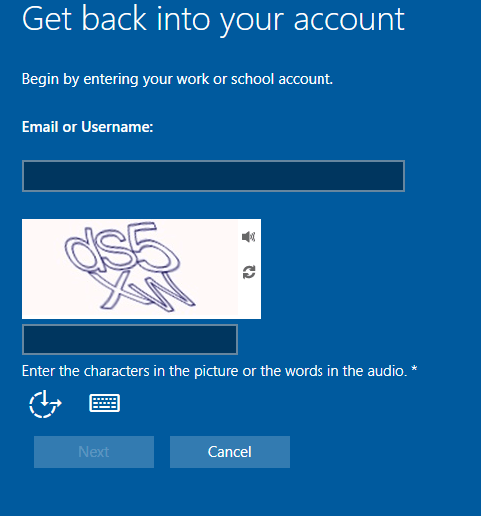
The password reset process starts by requesting the user provide their sign on name and complete a character validation.

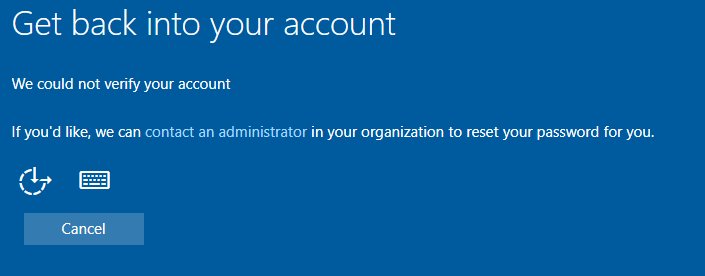
When the form is completed the next button allows the user to proceed with the process. If the account is valid, enabled for self-service password reset, and meets the authentication methods requirements for the feature the process will continue. If for some reason the users account information cannot be validated, for example they are not enabled for self-service password reset or the user has not proofed up authentication methods that would allow for self-service password reset, the following screen is displayed.

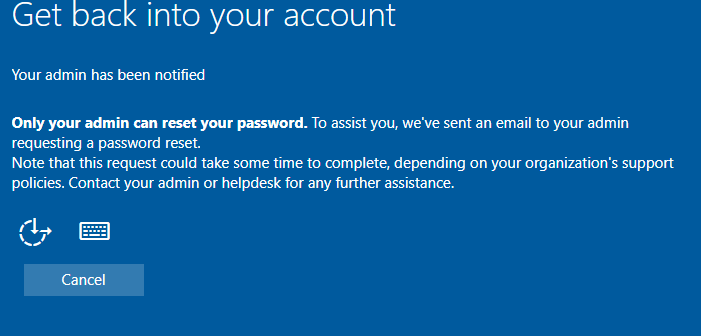
In this dialog the user has the option to “contact an administrator”. When this option is selected the process concludes with the following dialog.

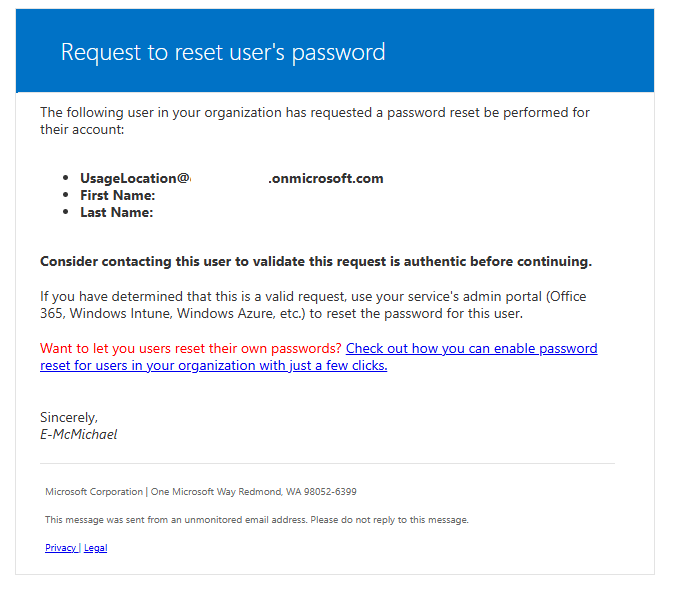
When this option is selected, an email is generated to administrators of the tenant informing them of the request to reset the password. On the surface this email looks highly suspicous.

When the email is received by administrators there are often questions regarding the validity and authenticity. Here are some methods to review the email for ligitimacy.

Review the message header for basic antispam evaluation. For example, errors in the SPF record evaluation or DKIM signing of the message.

4Authentication-Resultsspf=pass (sender IP is 40.93.12.1) smtp.mailfrom=microsoftonline.com; dkim=pass (signature was verified) header.d=microsoftonline.com;dmarc=pass action=none header.from=microsoftonline.com;compauth=pass reason=100

See Anti-spam message headers in Microsoft 365 for more information on interpreting message headers in Microsoft 365.

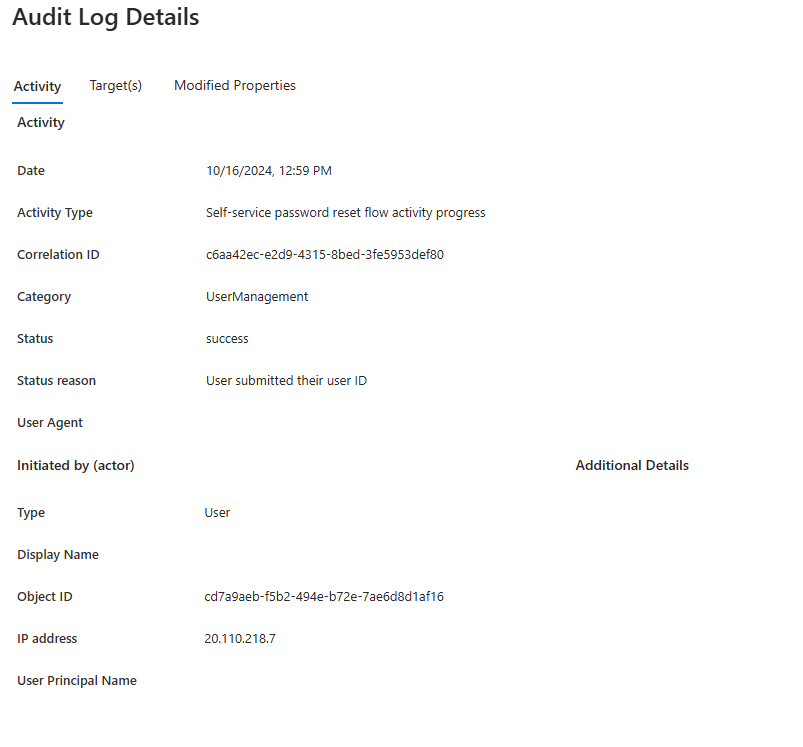
The EntraID audit logs for the user account may also shed light into the validity of this email. When a user enters the password reset process, if the username is valid, entries are generated in the EntraID audit log.

This entry provides information that the user entered the flow and provided a user name.

Date10/16/2024, 12:59 PM
Activity TypeSelf-service password reset flow activity progress
Correlation IDc6aa42ec-e2d9-4315-8bed-3fe5953def80
CategoryUserManagement
Statussuccess
Status reasonUser submitted their user ID
User Agent
TypeUser
Display Name
Object IDcd7a9aeb-f5b2-494e-b72e-7ae6d8d1af16
IP address20.110.218.7
User Principal NameUPN

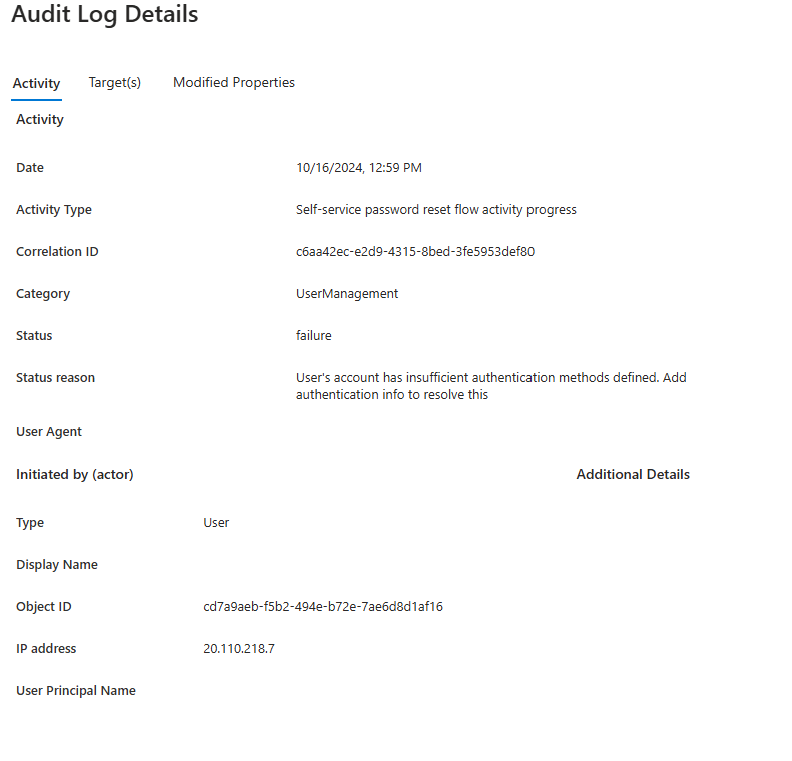
The next event in the audit log shows the source of the contact administrator dialog. In this case the user account had insufficient authentication methods to allow the user to perform their own reset. There could be other failure categories here that lead to the contact administrator dialog – this is just one.

Date10/16/2024, 12:59 PM
Activity TypeSelf-service password reset flow activity progress
Correlation IDc6aa42ec-e2d9-4315-8bed-3fe5953def80
CategoryUserManagement
Statusfailure
Status reasonUser’s account has insufficient authentication methods defined. Add authentication info to resolve this
User Agent
TypeUser
Display Name
Object IDcd7a9aeb-f5b2-494e-b72e-7ae6d8d1af16
IP address20.110.218.7
User Principal NameUPN

The audit log information should be helpful in determining not only if the email received is legitimate but also if the end user themselves triggered the password reset workflow.

If the information in the audit log and the message header checks out the legitimacy of the message maybe verified.

==================

Entire email contents below for parsing.

==================

Request to reset user’s password

The following user in your organization has requested a password reset be performed for their account:

  • UsageLocation@domain.onmicrosoft.com
  • First Name:
  • Last Name:

Consider contacting this user to validate this request is authentic before continuing.

If you have determined that this is a valid request, use your service’s admin portal (Office 365, Windows Intune, Windows Azure, etc.) to reset the password for this user.

Want to let you users reset their own passwords? Check out how you can enable password reset for users in your organization with just a few clicks.

Sincerely,

E-McMichael

==================

Entra / Azure: Searching for Microsoft IP Addresses

In a previous post I outlined a script that allows administrators to search for Microsoft 365 IP and URLs. As with Microsoft 365, Entra services also publish a list of IP addresses, and their service descriptions associated with each IP space.

Unlike Microsoft 365 the JSON files that contain this information are not made available through a web service. The files are made available through the Microsoft download catalog.

I have recently published a PowerShell module to the PowerShell gallery that automates the downloading of the Entra JSON files. Once the files have been downloaded, they may be utilized with the Office365IPAddresses script to locate an IP address within Entra services.

The AzureIPAddress script requires PowerShell 5.1. This is due to the methods utilized to capture the JSON files. To utilize the script open PowerShell 5.1 and run the following commands:

Install-Script AzureIPAddress
AzureIPAddress.ps1 -logFolderPath c:\temp

The script will locate the downloads for both Public and Government clouds and download the associated JSON files. They are placed in the logging directory in a folder called AzureIPAddress. In this example the folder is c:\temp\AzureIPAddress. (NOTE: The same log folder path must be utilized with the Office365IPAddress script in order to locate the Azure json files.)

To search for an IP address the Office365IPAddress script is utilized. Why is this not just included in the AzureIPAddress script? The ability to parse IPv4 and IPv6 addresses is more easily achieved with PowerShell 7. The same commands utilized in Office365IPAddress are not available in PowerShell 5.1. The commands in AzureIPAddress to download and parse the HTML files necessary to locate the JSON files are not available in PowerShell 7. I could have gotten creative and try to call PowerShell 7 from PowerShell 5.1 or vice versa, but that just adds potential complications. Keeping the script command separate but creating a dependency between them simplifies the process.

To search for the IP address run the following commands:

Install-Script Office365IPAddress
Install-Module PSWriteHTML
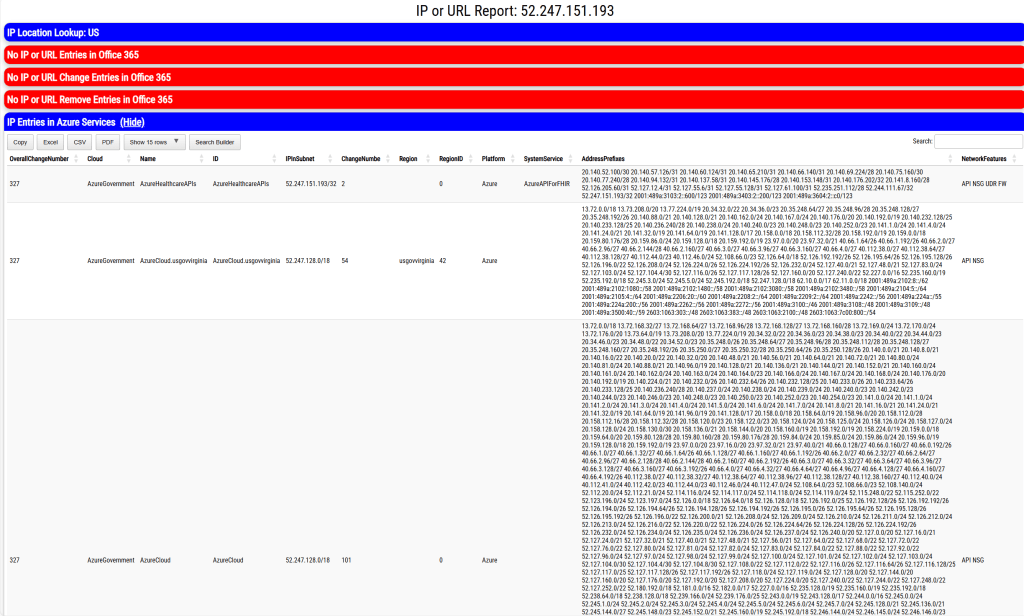
Office365IPAddress.ps1 -IPAddressToTest "52.247.151.193" -logFolderPath c:\temp -IncludeAzureSearch:$TRUE

During command execution all IP spaces associated with all Entra services in Public and Government cloud are searched. If the IP address is located in any service, the service information is logged and exported to XML. The log and XML file are contained in the specified log directory. An HTML file is also generated and displayed that provides the same information graphically for review.

If the IP address specified co-exists in any Microsoft 365 services, the service information is also displayed in the output.

This script should allow administrators to map IP addresses to Entra services.

Office 365 – Distribution List Migrations – Part 42

Increasing the success of Distribution List Migrations

When migrating a distribution list to Office 365 the DLConversionV2 module implements a normalization process for all recipients that are members of the distribution list.

The normalization process attempts to convert the recipient from an Active Directory object to an Exchange Online object. The goal of the normalization process is to ensure that we locate the correct recipient in Exchange Online when creating the distribution list and eliminate ambiguous recipient discovery. If an ambiguous recipient is located in Exchange Online this can lead to a migration failure and require the administrator to correct the condition post migration.

When a user is encountered on the properties of a distribution list being migrated the user is normalized by using the attribute msDS-ExternalDirectoryObjectID. In an Entra Connect Sync environment the msDS-ExternalDirectoryObjectID is populated with the value User_ExternalDirectoryObjectID. The ExternalDirectoryObjectID is the objectID associated with the user in EntraID. This same value is also stamped on all Exchange Online objects in the attribute ExternalDirectoryObjectID.

msDS-ExternalDirectoryObjectID = Entra ObjectID = Exchange Online ExternalDirectoryObjectID

PS C:\> Get-ADUser "DistinguishedName" -Properties msDS-ExternalDirectoryObjectID


DistinguishedName              : DistinguishedName
Enabled                        : False
GivenName                      :
msDS-ExternalDirectoryObjectID : User_8ac654f2-2125-4252-b9b0-d2219b9bb395
Name                           : Name
ObjectClass                    : user
ObjectGUID                     : ObjectGUID
SamAccountName                 : SamAccountName
SID                            : SID
Surname                        :
UserPrincipalName              : UserPrincipalName

When searching Exchange Online using the get-recipient command (or any similar get command) the ExternalDirectoryObjectID can be utilized as a recipient identifier.

In a default Entra Connect installation the attribute msDS-ExternalDirectoryObjectID is written back to Active Directory only on User object types. Groups and Contacts do not have the same attribute written back. When performing a migration if a Contact or Group is encountered the recipients are normalized to their Exchange Online counterparts through the object PrimarySMTPAddress. When locating recipients in Exchange Online get-recipient returns results for all objects that match the identifier specified. If a group has the PrimarySMTPAddress of group@contoso.com and a contact has a target address of group@contoso.com get-recipient will return two objects when specifying get-recipient -identity group@contoso.com. During a migration this can lead to a failure as more than object is returned when attempting to perform normalization.

To increase the efficiency of migrations and eliminate possible failures it is possible to enable writeback of the attribute msDS-ExternalDirectoryObjectID to both Contacts and Groups. Why is this not the default? When the writeback rules were created the goal was to optimize the number of changes written back to Active Directory. A decision was made to only populate this value on User objects as that is where it would most commonly be practical to have it. When writing back the same attribute to Groups and Contacts this allows the normalization process to extract the exact matching recipient in Exchange Online.

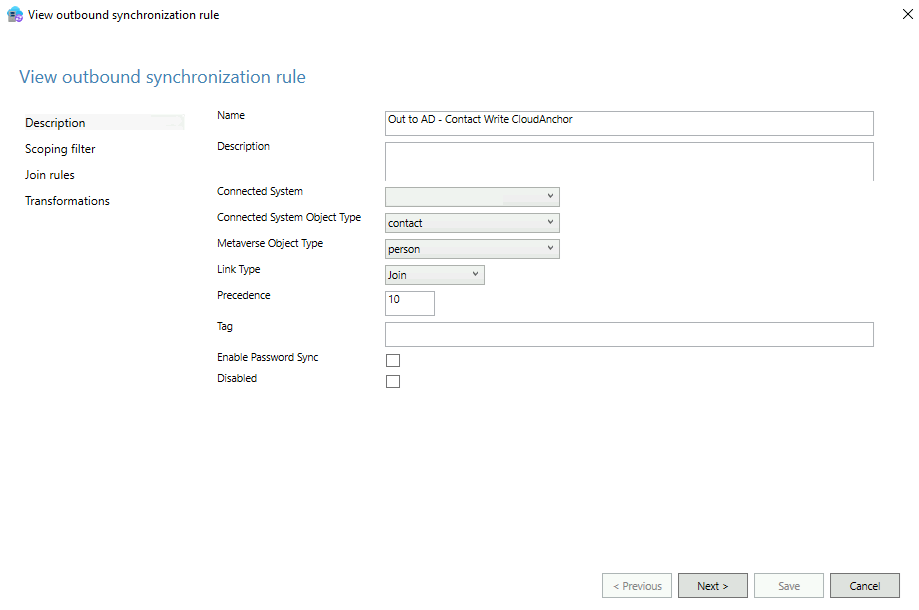
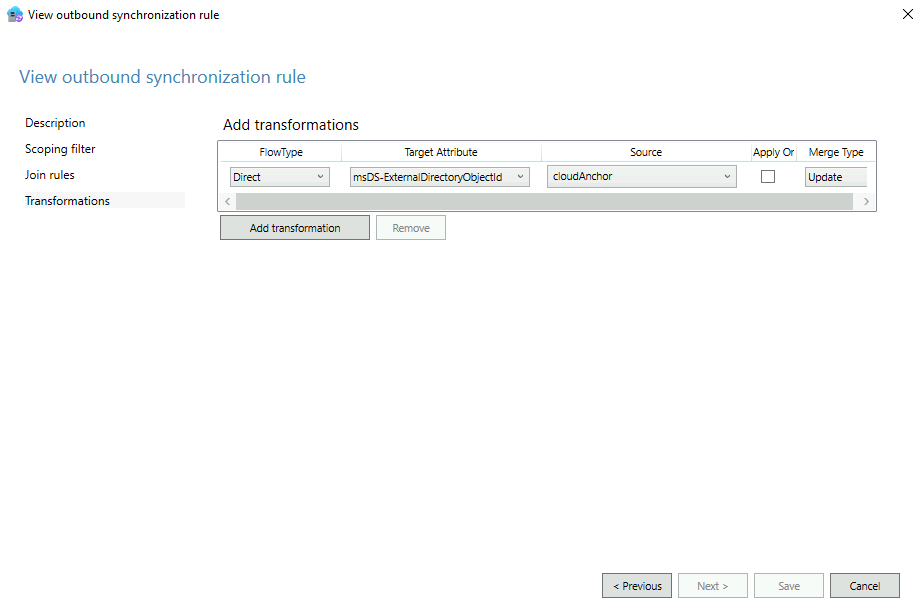
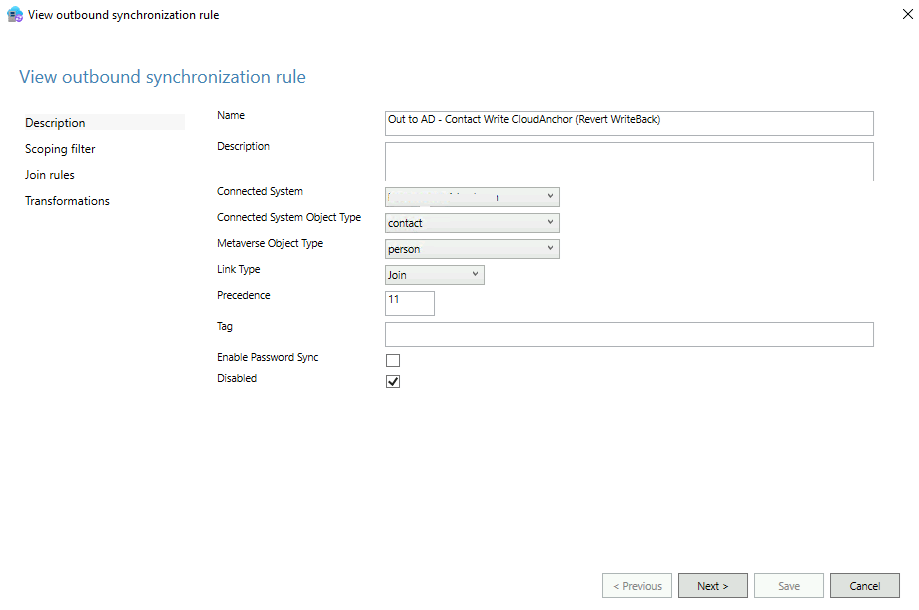
Migrators wishing to implement this efficiency may refer to a script published to the Powershell Gallery -> EnableCloudAnchor. This script allows administrators to create the necessary writeback rules in Entra Connect Sync to enable msDS-ExternalDirectoryObjectID on Contacts and Groups. When the script is executed two rules are created for each object type. The first rule is enabled and translates the EntraID value CloudAnchor to the msDS-ExternalDirectoryObjectID attribute. The second rule is created disabled and enables undoing all attributes written back by the script. This ensures that an undo operation is pre-staged should a rollback be necessary.

The script has several parameters to be specified:

  • ForestRootFQDN: This is the Active Directory forest root FQDN. This is utilized to locate the connector to enable writeback on.
  • StartingPrecedence: This is the starting precedence value for rule creation and must be specified as a value 0 – 99. For example, specifying a value of 25 will create the writeback rule at precedence 25 and the undo rule at precedence 26. This value is option. If not specified, the script will automatically locate the least two precedence available and automatically use them.
  • EnableContactProcessing: This enables rule creation for contacts and is the default for script execution. If enabling the rules for groups this value must be set to false.
  • EnableGroupProcessing: This enables rule creation for groups and by default is disabled. If this feature is enabled enableContactProcessing must be set to false.
  • LogFolderPath: The location of where script logging should occur.

To utilize the script on the Entra Connect server:

Install-Script EnableCloudAnchor

To create the rules for contacts utilizing auto discovered precedence:

EnableCloudAnchor.ps1 -forestRootFQDN contoso.local -logFolderPath c:\temp

To create the rules for contacts utilizing an administrator provided precedence:

EnableCloudAnchor.ps1 -forestRootFQDN contoso.local -startingPrecedence 24 -logFolderPath c:\temp

To create the rules for groups utilizing an auto discovered precedence:

EnableCloudAnchor.ps1 -forestRootFQDN contoso.local -enableContactProcessing:$FALSE -enableGroupProcessing:$TRUE -logFolderPath c:\temp

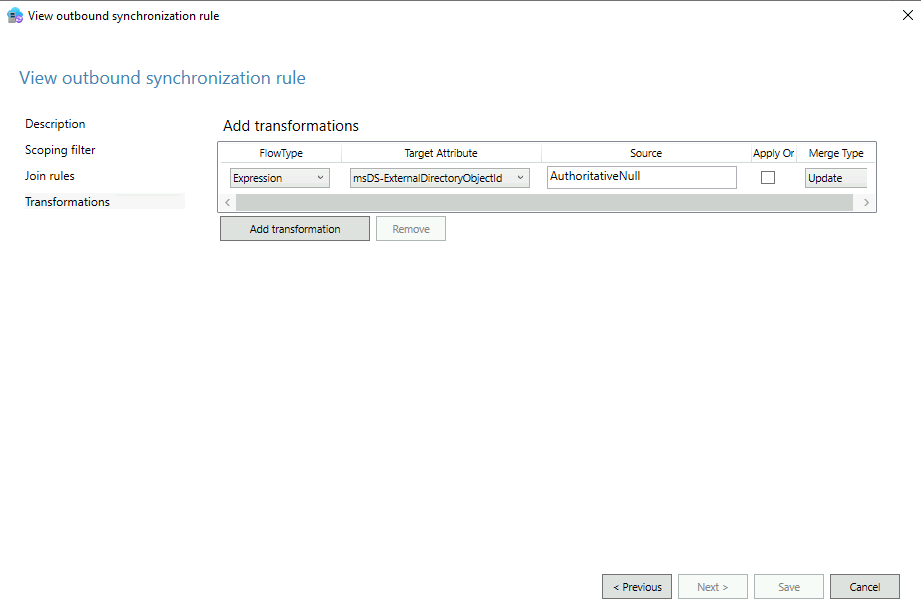
In Entra Connect the following rule is created to enable writeback of the cloud anchor attribute (only the relevant screens are displayed):

The following rule is also created in a disabled state to allow undoing the writeback operations:

If the need arises to undo the writeback the first rule would be deleted or placed into a disabled state. The disabled state flag would be unchecked on the second rule. The AuthoritativeNull value is utilized to clear an attribute entirely.

NOTE: Any modification to the rules in Entra Connect Sync will require a full synchronization to occur on the connector associated with the forest specified. This may add significant time to a synchronization option.

When the rules have successfully processed on an object the value Contact_ExternalDirectoryObjectID or Group_ExternalDirectoryObjectID may be found on the objects.

PS C:\> Get-ADObject DistinguishedName


DistinguishedName              : DistinguishedName
msDS-ExternalDirectoryObjectID : Contact_76b9cf05-510c-4fcc-a1f8-58e4cada17a6
Name                           : Name
ObjectClass                    : contact
ObjectGUID                     : ObjectGUID

When adding the msDS-ExternalDirectoryObjectID to Active Directory objects the normalization process may more accurately identify recipients in Exchange Online increasing the efficiency and success of migrations.