Monthly Archives: May 2024

EntraID Group Owners and Exchange Online ManagedBy

In the EntraID Portal groups that are created directly in Microsoft 365 or synchronized from Active Directory are displayed. One of the attributes that is present on groups in EntraID is the Owners attribute. A common question I receive from customers is that the owners attribute synchronized from Active Directory does not match the owners attribute of the same group in EntraID.

Managers for groups in Active Directory can be established either by setting the Manager field in Active Directory Users and Computers or by using the Exchange Management Shell / Exchange Control Panel. When in ADUC and on the Managed By tab, the name field displays the distinguished name of the manager and is represented in the LDAP attribute managedBy.
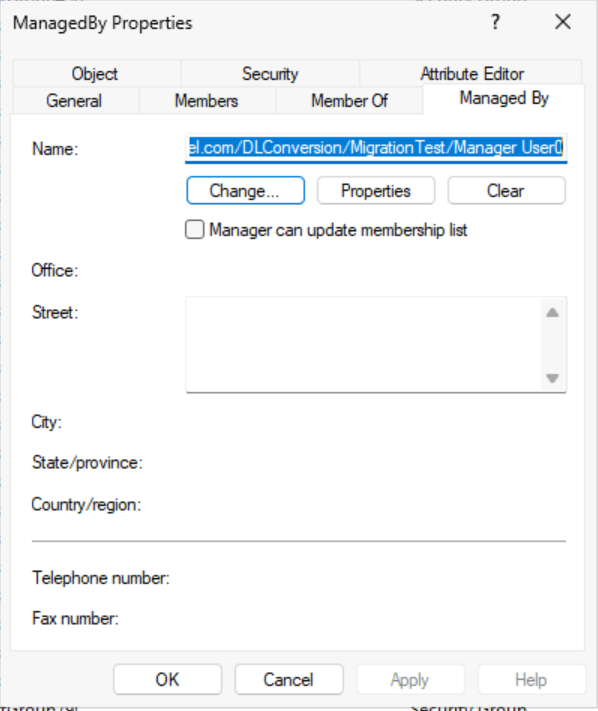
In Exchange on-premises installations groups often have more than one manager. Exchange achieves this by writing the first manager to the LDAP attribute managedBy and all subsequent managers to the LDAP attribute msExchCoManagedByLink. ADUC has no knowledge of the additional attributes. The Exchange Management Shell and Exchange Control Panel include managers from both LDAP fields when displaying the managedBy representation.

Get-DistributionGroup ManagedBy | fl managedBy


ManagedBy : {home.domain.com/DLConversion/MigrationTest/Manager User0,
            home.domain.com/DLConversion/MigrationTest/Manager User1,
            home.domain.com/DLConversion/MigrationTest/ManagerGroup}

The managers of an object in Active Directory can be any valid security principal, for example, a user or security group. In the above example the group is managed by two users and a security group. Here is the same representation from Active Directory:

PS C:\> Get-ADGroup -Identity "CN=ManagedBy,OU=MigrationTest,OU=DLConversion,DC=home,DC=domain,DC=com" -Properties managedBy,msExchCoManagedByLink


DistinguishedName     : CN=ManagedBy,OU=MigrationTest,OU=DLConversion,DC=home,DC=domain,DC=com
GroupCategory         : Security
GroupScope            : Universal
ManagedBy             : CN=Manager User0,OU=MigrationTest,OU=DLConversion,DC=home,DC=domain,DC=com
msExchCoManagedByLink : {CN=Manager User1,OU=MigrationTest,OU=DLConversion,DC=home,DC=e-domain,DC=com,
                        CN=ManagerGroup,OU=MigrationTest,OU=DLConversion,DC=home,DC=domain,DC=com}
Name                  : ManagedBy
ObjectClass           : group
ObjectGUID            : c0e9ed6c-22f4-4305-a69a-aee56f0c53b1
SamAccountName        : ManagedBy
SID                   : S-1-5-21-278042269-1514808692-1118015945-448669

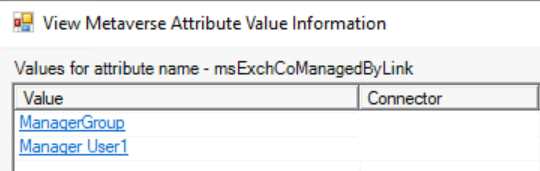
In EntraID Connect when an object is synchronized the managedBy and msExchCoManagedByLink attributes are included in the synchronization attribute set. You can observe this by performing a metaverse search on the group and reviewing the attributes discovered during the synchronization process.


A synchronized group is available in the EntraID Portal under groups. When reviewing the group properties a owners field is displayed. The owners field in this case appears empty and no owners are displayed.
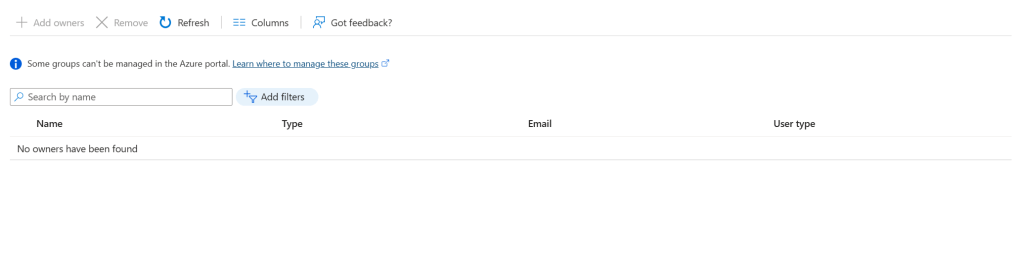
If the managers are synchronized, then why is the owners field empty? Owners is not equal to managers. Active Directory Groups or legacy distribution and security groups created in Exchange Online do not have owners they have managers. Managers are not the same as owners at the directory level therefore the owners field is not populated with managers.

In order to review the managers of a group you have to review the properties of the group within Exchange Online.

PS C:\> Get-DistributionGroup ManagedBy | fl managedBy


ManagedBy : {04cfbcd4-42a0-4c60-8220-4488a6af4431, f7aff7bf-3036-4e26-a193-75a28de751f3}

In this instance the managers are represented by the externalDirectoryObjectID of the recipients. If the recipients existed prior to setting the name attribute to externalDirectoryObjectID the name of the user may be displayed.

PS C:\> Get-Recipient 04cfbcd4-42a0-4c60-8220-4488a6af4431 | fl displayName


DisplayName : Manager User0


PS C:\> Get-Recipient f7aff7bf-3036-4e26-a193-75a28de751f3 | fl displayName


DisplayName : Manager User1

In this example both of the USERS that have manager rights on the group are represented in Exchange Online. Earlier though there were three managers, two were users and the remaining a security group. Unfortunately, Exchange Online does not forward sync any other manager except for user types. The group is synchronized to Entra ID as a manager, but will not be represented on the group in Exchange Online. There is no workaround for this behavior except adding individual members to a manager field in Active Directory.

If the owners field in EntraID does not match the managers then why does the owners field exist? The owners field is utilized to display owners of the Microsoft 365 Group type. These groups are often referred to as modern or universal groups. Setting the owners attribute in EntraID or Exchange Online subsequently adjusts the owners across all Microsoft 365 services.

PS C:\> Get-UnifiedGroupLinks -Identity ManagedBy-M365Group -LinkType Owners

Name                                 RecipientType
----                                 -------------
04cfbcd4-42a0-4c60-8220-4488a6af4431 MailUser
f7aff7bf-3036-4e26-a193-75a28de751f3 MailUser

Synchronized groups or distribution / security groups created in Exchange Online do not have owners in EntraID.
EntraID / Office 365: Using Graph Powershell to list domain DNS records…

In the Microsoft 365 Administration center administrators can review the domains they have verified and added to Microsoft 365 services. When a domain is validated and provisioned, the domain name services (DNS) records that are provisioned in Microsoft 365 are displayed for the administrator. This may include records such as the MX record for Exchange Online or the device management records for Intune support.

If the domains blade is not available to you in the Microsoft 365 Administration Center, it is possible to obtain these same records through Microsoft Graph. To obtain the DNS records the command Get-MGDomainServiceConfigurationRecord can be utilized. For API permissions necessary to utilize this command reference the following API permissions guidance.

Whenever utilizing Microsoft Graph commands I always recommend ensuring that the graph commands are running the latest non-preview version. To accomplish this task administrators may run:

Get-InstalledModule Microsoft.Graph.* | update-Module

If you have not yet installed any of the graph modules there are only two modules that are required in order to execute these commands.

Install-Module Microsoft.Graph.Authentication
Install-Module Microsoft.Graph.Identity.DirectoryManagement

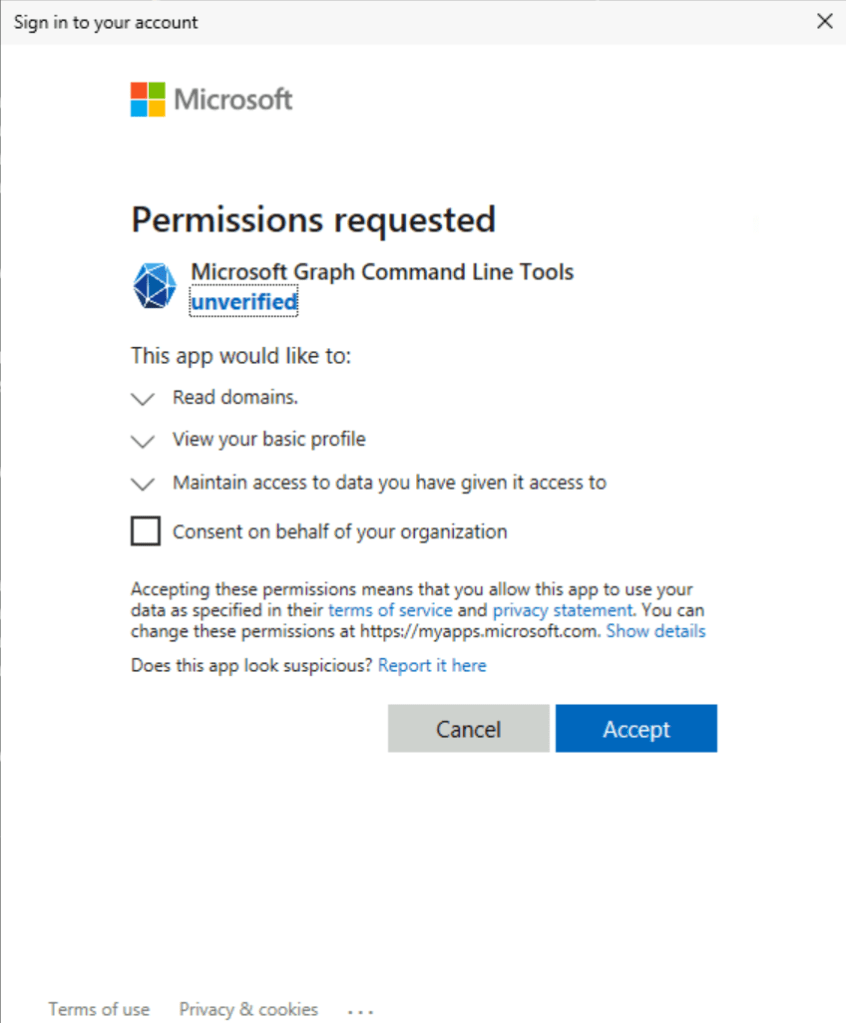
Once the necessary modules have been installed or updated a connection to the Microsoft Graph endpoints must be established. In this example interactive authentication is utilized to establish the connection and prompt the user for credentials. The scopes parameter requests the least restrictive permissions to perform this operation. When connecting with graph command if a scope is not consented to for the particular user either consent can be granted by the user (assuming appropriate rights) or an administrator will be required to grant consent. I also provide the tenantID as a part of the connection. The tenantID can be obtained from the Entra ID portal associated with the domain. This ensures that the connection is made with the appropriate tenant.

connect-MGGraph -scopes "Domain.Read.All" -tenantID "00000000-0000-0000-0000-000000000000"

This is a sample consent screen

The command can then be issued using the domain name.

$records = Get-MgDomainServiceConfigurationRecord -DomainId domain.net

The information of particular interest is stored within the additionalProperties of each entry. The following command will help organize and interpret the information:

PS C:\> foreach ($record in $records) { $record.label ; $record.AdditionalProperties | ft}
domain.net

Key          Value
---          -----
@odata.type  #microsoft.graph.domainDnsMxRecord
mailExchange domain-net0c.mail.protection.outlook.com
preference   0


domain.net

Key         Value
---         -----
@odata.type #microsoft.graph.domainDnsTxtRecord
text        v=spf1 include:spf.protection.outlook.com -all


autodiscover.domain.net

Key           Value
---           -----
@odata.type   #microsoft.graph.domainDnsCnameRecord
canonicalName autodiscover.outlook.com


_sip._tls.domain.net

Key         Value
---         -----
@odata.type #microsoft.graph.domainDnsSrvRecord
nameTarget  sipdir.online.lync.com
port        443
priority    100
protocol    _tls
service     _sip
weight      1


sip.domain.net

Key           Value
---           -----
@odata.type   #microsoft.graph.domainDnsCnameRecord
canonicalName sipdir.online.lync.com


lyncdiscover.domain.net

Key           Value
---           -----
@odata.type   #microsoft.graph.domainDnsCnameRecord
canonicalName webdir.online.lync.com


_sipfederationtls._tcp.domain.net

Key         Value
---         -----
@odata.type #microsoft.graph.domainDnsSrvRecord
nameTarget  sipfed.online.lync.com
port        5061
priority    100
protocol    _tcp
service     _sipfederationtls
weight      1


domain.net

Key           Value
---           -----
@odata.type   #microsoft.graph.domainDnsCnameRecord
canonicalName domain.sharepoint.com


msoid.domain.net

Key           Value
---           -----
@odata.type   #microsoft.graph.domainDnsCnameRecord
canonicalName clientconfig.microsoftonline-p.net


enterpriseregistration.domain.net

Key           Value
---           -----
@odata.type   #microsoft.graph.domainDnsCnameRecord
canonicalName enterpriseregistration.windows.net


enterpriseenrollment.domain.net

Key           Value
---           -----
@odata.type   #microsoft.graph.domainDnsCnameRecord
canonicalName enterpriseenrollment-s.manage.microsoft.com

If the DNS record contains a name within the domain this is represented by the label. The @odata.type provides the type of DNS record expected and the value column lists the value of that record.

enterpriseenrollment.domain.net

Key           Value
---           -----
@odata.type   #microsoft.graph.domainDnsCnameRecord
canonicalName enterpriseenrollment-s.manage.microsoft.com

The previous example would be interpreted as:

DNS Record Name = enterpriseenrollment.domain.net

DNS Record Type = CNAME

DNS Record Value = enterpriseenrollment-s.manage.microsoft.com

domain.net

Key          Value
---          -----
@odata.type  #microsoft.graph.domainDnsMxRecord
mailExchange domain-net0c.mail.protection.outlook.com
preference   0

The previous example would be interpreted as:

DNS Domain = domain.net

DNS Record Type = MX

DNS Record Value = domain-net0c.mail.protection.outlook.com

DNS Record Preference = 0

In this case an MX record does not have a specific DNS host name unlike other records.

These commands should unblock scenarios where the domains blade is unavailable to you and you need to know the appropriate DNS records to create for your Office 365 integration.