Monthly Archives: January 2023

Office 365 – Distribution List Migration Version 2.0 – Part 30

Converting a cloud only distribution list to an Office 365 Unified Group

Office 365 administrators have the ability to create distribution lists directly in Office 365. As the service evolves and service adoption continues administrators may desire to preserve the groups they have created in Office 365 directly but covert them to the new Office 365 Unified Group experience.


In Exchange Online administrators had the ability to process a conversion of a cloud only distribution list to a modern Office 365 Unified Group. This feature is documented at the following location:


Upgrade distribution lists to Microsoft 365 Groups in Exchange Online – Microsoft 365 admin | Microsoft Learn


This feature is being deprecated and will no longer be available within Office 365. The ability to convert cloud only distribution lists to Office 365 Unified Groups is now available in the DLConversionV2 migration module. Administrators now have access to the command convert-Office365DLToUnifiedGroup.


The conversion command captures the settings of the Office 365 distribution list and uses them as the basis for deleting and recreating the group as an Office 365 Unified Group. There are some pre-requisites that must be met before a distribution list can be converted. These include:

  • The group cannot have any rights on itself or other groups that require a security principle. For example, the group may not have full mailbox access rights, send as rights, mailbox folder permissions, or group manager rights on itself or any other object.
  • The group must have at least one manager but no more than 100 managers.
  • All managers must be members of the group.
  • The group may not contain any mail enabled groups or contacts. Only mailbox and mail user objects are supported for membership.
  • The group being migrated may not be a room distribution list type.
  • The group being migrated may not have any bypassModerationFromSendersOrMembers properties specified on-premises as this attribute is not supported on Office 365 Unified Groups.


To perform a group conversion, use the following command:

Convert-Office365DLtoUnifiedGroup -groupSMTPAddress address@domain.com -exchangeOnlineCredential $cred -azureADCredential $cred -logFolderPath c:\temp -overrideSecurityGroupCheck:$TRUE -addManagersAsMembers:$TRUE


The command also supports the utilization of data precollection commands for permissions evaluation. If you encounter any issues with this new feature please open an issue on GitHub or contact me at dlconversionV2@service.microsoft.com.

Office 365 – Distribution List Migration Version 2.0 – Part 29

Implementing the ability to migrate directly from on-premises distribution lists to Office 365 Unified Groups

When the Distribution List Migration Version 2.0 module was initially released a feature was included that allowed administrators during the migration process to trigger an upgrade to an Office 365 Unified Group. The code leveraged a special command included in Office 365 that took a cloud only distribution list and performed a migration in the background to an Office 365 Unified Group. I often found that the upgrade command would fail an was not always very specific in the nature or reasons for the failure. This is why the module would do a best effort trigger to allow the upgrade to be performed but continue moving on if a failure code was returned.


For information on the upgrade process please see: Upgrade distribution lists to Microsoft 365 Groups in Exchange Online – Microsoft 365 admin | Microsoft Learn


The features outlined in the above post are being deprecated over time. This necessitated taking a new approach to migrating distribution lists from the on-premises environment to Office 365 Unified Groups if the desire was to convert the group type. Version 2.9.6 of the DLConversionV2 powershell module now introduces the ability to migrate directly from an on-premises distribution group to an Office 365 Unified Group without the need to first perform a standard migration and upgrade.


To migrate to an Office 365 Unified Group from an on-premises distribution list the start-Office365GroupMigration command is utilized. This command follows the same structure as the traditional start-distributionListMigration command and supports the same parameters. In addition to the standard parameter set there is an additional parameter -addManagersAsMembers. This switch automatically takes any user in the managedBy or msExchCoManagedBy attribute and adds them as members of the group. It is a requirement that all owners be members of the group in Office 365.


When migrating from an on-premises distribution list to an Office 365 Unified groups there are some additional restrictions that are not found when performing a standard distribution list migration. These restrictions include:

  • The group cannot have any rights on itself or other groups that require a security principle. For example, the group may not have full mailbox access rights, send as rights, mailbox folder permissions, or group manager rights on itself or any other object.
  • The group must have at least one manager but no more than 100 managers.
  • All managers must be members of the group.
  • The group may not contain any mail enabled groups or contacts. Only mailbox and mail user objects are supported for membership.
  • The group being migrated may not be a room distribution list type.
  • The group being migrated may not have any bypassModerationFromSendersOrMembers properties specified on-premises as this attribute is not supported on Office 365 Unified Groups.


The DLConversionV2 module has been modified to perform these additional checks prior to migration and provide the administrator with a list of exceptions found. When the migration is complete the result will be an Office 365 Unified Group that mirrors all the settings of the on-premises distribution list. This will allow users to take advantage of the new features associated with the modern group experience.


Here is a sample command for migrating an on-premsies distribution list to an Office 365 Unified Group:


Start-Office365GroupMigration -groupSMTPAddress address@domain.com -globalCatalogServer dc.domain.com -activeDirectoryCredential $cred -aadConnectServer aadconnect.domain.com -aadConnectCredential $cred -exchangeServer exchange.domain.com -exchangeCredential $cred -exchangeOnlineCredential $cred -azureADCredential $cred -enableHybridMailFlow:$TRUE -dnNoSyncOU “DN” -logFolderPath c:\temp -overrideSecurityGroupCheck:$TRUE


The command also supports certificate authentication as well as pre-collected permissions evaluations using the additional switches present in the module.


If you encounter any issues with this new feature please open an issue on GitHub or contact me at dlconversionV2@service.microsoft.com.


Office 365 – Distribution List Migration Version 2.0 – Part 28

Implementing exception codes…

Throughout the distribution list migration process it is possible that exceptions may occur. The module is designed to capture most exceptions and provide feedback to administrators regarding what process failed during the migration. The goal is to allow migrations to complete while addressing any one-off issues later. The following are exception codes that administrators may reference to understand the circumstances of individual failures.


  • GROUP_NO_LONGER_SECURITY_EXCEPTION
    • This exception is thrown when a group is found on the managedBy or msExchCoManagedBy attribute but the group is no longer security enabled.
    • The managedBy property of a distribution group must only contains security enabled objects.
    • The group in error either needs to be security enabled <or> removed from the managedBy property of the distribution group.


  • GROUP_OVERRIDE_MANAGER_NOT_ALLOWED
    • The group specified for migration was found on its own managedBy or msExchCoManagedBy attribute.
    • The administrator has specified to override the group migration type from Security to Distribution. Groups on the managedBy attribute must be of a security type.
    • The migration needs to be redone not overriding the group security type <or> the group must be removed from the managedBy attribute.


  • NESTED_GROUP_EXCEPTION
    • The distribution list specified for migration has members that are mail enabled groups.
    • All child distribution lists must be migrated before the parent distribution list migration can be completed.
    • The migration needs to be redone either removing the child distribution lists from the group specified <or> after the child distribution lists have been migrated.


  • OBJECT_NOT_MAIL_ENABLED_EXCEPTION
    • A non-mail enabled object was discovered on the properties of the group.
    • The non-mail enabled object will not exist in Office 365 and therefore cannot be migrated with the distribution group.
    • Refer to the Active Directory property in the exception and locate the object referenced as non-mail enabled.
    • To complete the migration the object must either be mail enabled or removed from the Active Directory property.


  • OFFICE_365_DEPENDENCY_NOT_FOUND_EXCEPTION
    • A pre-requisite for migration is that all recipients on properties of the distribution list being migrated may be located in Office 365.
    • This exception indicates that one of those dependencies was not successfully located in Office 365.
    • Refer to the exception for the Active Directory attribute and the object missing.
    • Ensure that the object is appropriately found in Office 365 <or> remove the dependency from the on premises object / attribute.


  • CIRCULAR_REFERENCE_EXCEPTION
    • A multiple distribution list migration is being performed and the groups contained in the migration set have references to each other.
    • For example GroupA contains GroupB and GroupB contains GroupA.
    • The nested group migration update cannot process circular references.
    • Administrators must remove the circular reference, migration the groups individually, and manually reestablish membership <or> not migrate the lists.


  • CHILD_GROUP_MIGRATION_EXCEPTION
    • A multiple distribution list migration is being performed and a parent distribution list failed due to having a child distribution list as a member.
    • During the retry phase of multiple list migrations it was determined that the child distribution list was not included in the original migration set.
    • Administrators must include the child list in the migration set <or> remove the child list from membership of the parent distribution list to complete the migration.


  • UNIFIED_GROUP_MIGRATION_MANAGER_NOT_MEMBER_EXCEPTION
    • A distribution list to Office 365 Unified Group migration is performed.
    • The managedBy and msExchCoManagedBy attributes of the group are used as owners in the migration process.
    • All owners must be members of the group.
    • A user in managedBy or msExchCoManagedBy was not found as a member of the group.
    • Administrators must either add all managers as members of the group <or> remove the manager from managedBy or msExchCoManagedBy.


  • UNIFIED_GROUP_MIGRATION_MIGRATED_CONTACT_MANAGEDBY_EXCEPTION
    • A distribution list to Office 365 Unified Gorup migration is performed.
    • The managedBy or msExchCoManagedByAttribute contains a mail enabled contact representing a previously migrated distribution list.
    • Office 365 Unified Groups cannot be managed by other mail enabled groups.
    • The contact must be removed from the managedBy or msExchCoManagedBy attribute in order to complete the migration.


  • UNIFIED_GROUP_MIGRATION_MIGRATED_CONTACT_MEMBERSHIP_EXCEPTION
    • A distribution list to Office 365 Unified Gorup migration is performed.
    • The membership contains a mail enabled contact representing a previously migrated distribution list.
    • Office 365 Unified Group may not have mail enabled contacts or other distribution groups as members.
    • The contact must be removed from the membership attribute in order to complete the migration.


  • UNIFIED_GROUP_MIGRATION_MIGRATED_CONTACT_MANAGEDBY_EXCEPTION
    • A distribution list to Office 365 Unified Gorup migration is performed.
    • The managedBy or msExchCoManagedByAttribute contains a mail enabled contact.
    • Office 365 Unified Groups cannot be managed by other mail enabled groups or contacts..
    • The contact must be removed from the managedBy or msExchCoManagedBy attribute in order to complete the migration.


  • UNIFIED_GROUP_MIGRATION_CONTACT_MEMBERSHIP_EXCEPTION
    • A distribution list to Office 365 Unified Gorup migration is performed.
    • The membership contains a mail enabled contact.
    • Office 365 Unified Group may not have mail enabled contacts or other distribution groups as members.
    • The contact must be removed from the membership attribute in order to complete the migration.


  • UNIFIED_GROUP_MIGRATION_GROUP_MEMBERSHIP_EXCEPTION
    • A distribution list to Office 365 Unified Gorup migration is performed.
    • The membership contains a mail enabled group.
    • Office 365 Unified Group may not have mail enabled contacts or other distribution groups as members.
    • The group must be removed from the membership attribute in order to complete the migration.


  • UNIFIED_GROUP_MIGRATION_GROUP_MANAGEDBY_EXCEPTION
    • A distribution list to Office 365 Unified Gorup migration is performed.
    • The managedBY or msExchCoManagedBy contains a mail enabled group.
    • Office 365 Unified Group may not have mail enabled contacts or other distribution groups as members.
    • The group must be removed from the managedBy or msExchCoManagedBy attribute in order to complete the migration.


  • UNIFIED_GROUP_MIGRATION_BYPASS_MODERATION_FROM_SENDERS_OR_MEMBERS_EXCEPTION
    • A distribution list to Office 365 Unified Group migration is performed.
    • The distribution list has bypassModerationFromSendersOrMembers specified.
    • Office 365 Unified Group do not support the use of this attribute.
    • This attribute must be cleared to complete the migration <or> a standard distribution list migration performed.


  • UNIFIED_GROUP_MIGRATION_DYNAMIC_MEMBERSHIP_EXCEPTION
    • A distribution list to Office 365 Unified Group migration is performed.
    • The membership of the distribution list contains a dynamic distribution group.
    • Office 365 Unified Groups do not support any group types as members.
    • The dynamic distribution group must be removed from membership <or> a standard distribution list migration performed.


  • UNIFIED_GROUP_MIGRATION_ROOM_LIST_EXCEPTION
    • A distribution list migration to Office 365 Unified Group migration is being performed and the distribution list is a room list.
    • Room lists cannot be converted to Office 365 Unified Groups.


  • UNIFIED_GROUP_MIGRATION_NO_MANAGERS_EXCEPTION
    • A distribution list migration to Office 365 Unified Group migration is being performed.
    • The distribution list specified for migration has no managedBy or msExchCoManagedBy specified.
    • The managedBy attribute of the group is the source of the owners attribute for the Office 365 Unified Group.
    • Add a manager to the distribution list in order to complete the migration.


  • UNIFIED_GROUP_TOO_MANY_MANAGERS_EXCEPTION
    • A distribution list migration to Office 365 Unified Gorup migration is being performed.
    • The managedBy and msExchCoManagedBY attribute contains over 100 objects specified.
    • An Office 365 Unified Group may not have more than 100 managers.
    • Remove managers from managedBy and msExchCoManagedBy in order to complete the migration.


  • UNIFIED_GROUP_MIGRATION_MANAGEDBY_ON_OTHER_OBJECTS_EXCEPTION
    • A distribution list migration to Office 365 Unified Group migration is being performed.
    • The distribution list has managedBy rights on other distribution lists which require a mail enabled security group.
    • To complete the migration, remove the managedBy rights from other groups <or> perform a standard distribution list migration.


  • UNIFIED_GROUP_MIGRATION_SENDAS_FOUND_EXCEPTION
    • A distribution list migration to Office 365 Unified Group migration is being performed.
    • The distribution list has sendAs rights either to itself or other mail enabled objects requiring a mail enabled security group.
    • To complete the migration remove the sendAs rights <or> perform a standard distribution list migration.


  • UNIFIED_GROUP_MIGRATION_FULL_MAILBOX_ACCESS_EXCEPTION
    • A distribution list migration to Office 365 Unified Group migration is being performed.
    • The distribution list has full mailbox access rights to other mail enabled objects requiring a mail enabled security group.
    • To complete the migration, remove the full mailbox access rights <or> perform a standard distribution list migration.


  • UNIFIED_GROUP_MIGRATION_MAILBOX_FOLDER_PERMISSION_EXCEPTION
    • A distribution list migration to Office 365 Unified Group migration is being performed.
    • The distribution list has mailbox folder permissions to folders within mailboxes requiring a mail enabled security group.
    • To complete the migration, remove the mailbox folder permissions <or> perform a standard distribution list migration.


  • UNIFIED_GROUP_MIGRATION_GROUP_IS_SECURITY_EXCEPTION
    • A distribution list migration to Office 365 Unified Group migration is being performed.
    • The distribution list is a mail enabled security group on premises.
    • To complete the migration the administrator must specify the overrideSecurityGroupCheck to acknowledge that permissions assigned to the group may be lost in Office 365 as a result of deleting and recreating the group.

Office 365 – Distribution List Migration Version 2.0 – Part 27

Increasing the performance of multiple distribution list migrations.

In the following blog post I outlined how the multiple distribution list migration process works.


Office 365 – Distribution List Migrations Version 2.0 – Part 9 | TIMMCMIC (wordpress.com)


In a multiple migration scenario each distribution list in a batch is assigned to a PowerShell job that performs a single distribution list migration. There are certain operations that it is desirable to only perform one time across the migration batch of five groups the main one being Azure Active Directory Connect delta synchronization. The individual distribution list migrations are designed so that all migrations reach a certain point before triggering the operations that we only want performed one time. The first migration thread one is responsible for triggering these operations once threads two through five are ready.


There could be any number of issues that cause the distribution list assigned to thread one to fail migration. For example, if a distribution list member is not present in Office 365 the migration of the distribution list will fail as a perquisite exists that all members exist in Office 365 before performing a migration. Originally when thread one failed the performance of the other distribution list migrations were negatively impacted specifically by the lack of triggering of Azure Active Directory Connect delta synchronization. In Azure Active Directory Connect the default sync cycle runs every 30 minutes. If thread one fails and cannot trigger the delta synchronization it could be up to 30 minutes before it would automatically run. This would add 30 minutes to the overall migration time.


In version 2.9.5 thread two through five now track the lack of removal of the distribution group from Office 365. If the distribution group is not removed from Office 365 in 5 minutes thread two through five will now attempt a delta synchronization in Azure Active Directory Connect. This cycle repeats itself for every 5 minutes that expire waiting for deletion. It is important to note that there could be service side sync delays which contribute to the amount of time waiting for the distribution list to be deleted from Exchange Online. The assumption is made that if the group is there after 5 minutes it was due to a thread one failure and Azure Active Directory Connect should be triggered.


Does this lead to multiple delta sync cycles being run by multiple threads? Generally, not – since each thread has reached the same point in the migration process prior to monitoring Office 365 for the group deletion they will all attempt to trigger Azure Active Directory Connect around the same time. Only one synchronization cycle can proceed at a time therefore one thread will receive a success message that synchronization was triggered, and other threads will receive an error that synchronization is busy. Threads two through 5 do not retry their sync operations but rather simple call the sync process one time. Thread one does have retry logic and always enforces that Azure Active Directory Connect delta sync was triggered one time in the migration process.

By assuming that there is a thread one failure when the distribution list deletion does not occur in a timely fashion and triggering Azure Active Directory Connect we can eliminate undesirable delays in multiple distribution list migrations.


Office 365 – Distribution List Migrations Version 2.0 – Part 26

New handling of nested distribution groups in multiple distribution group migrations…

A question that is often asked is how to handle nested distribution list when considering a migration. When performing a single distribution list migration a recipient normalization process scans each member for attributes and object classes. If a group object class is found and is mail enabled the single group migration fails with an exception. The administrator must either first migrate the child distribution group or remove the mail enabled group. Here is a sample exception:


ParentGroupSMTPAddress : atestgroup27@domain.com

Alias : aTestGroup270

RecipientOrUser : Recipient

isError : True

isErrorMessage : NestedGroupException – A mail enabled group is a child member of the migrated list. The

child group must be migrated first or removed from group membership.

Name : aTestGroup270

GUID :

OnPremADAttribute : member

GroupType : -2147483640

isAlreadyMigrated : False

ExternalDirectoryObjectID :

DN : CN=aTestGroup270,OU=MigrationTest,OU=DLConversion,DC=home,DC=domain,DC=com

RecipientType :

OnPremADAttributeCommonName : Member

PrimarySMTPAddressOrUPN : aTestGroup270@domain.com


For customers that were evaluating options of migration distribution lists in bulk my original advice was to generate the list of primary SMTP addresses for migration. This list would then be run through the multiple migration process. In the end any group that could be migrated was migrated and any group left had an exception. The same set of addresses would be processed multiple times until no more migrations completed. The lists that were left required administrative intervention. The process overall was highly inefficient and sorting through the errors could be complicated. For some customers it was easier to iterate through the list rather than try to outline the dependencies and perform the migrations in order.

For customers that were able to map nested group membership the addresses would be sorted in correct order. The multiple migration process was called on the list and as long as there were no overlap in how the addresses were batched into groups of 5 the migrations would proceed successfully. Nested DLs were migrated first and the parent DLs later in the batch. If there was any overlap, for example a parent and child included in the same batch of simultaneous migrations, the parent would fail with the exception above.

For a review of how the module tracks nested membership and groups that have already been migrated see the following post. Office 365 – Distribution List Migrations Version 2.0 – Part 6 | TIMMCMIC (wordpress.com)

In version 2.9.5 new code is implemented in start-multipleDistributionListMigration that no longer requires the administrator to iterate through the list multiple times or pre-sort the list to account for nesting. The new code implements the following process:

  • Iterate through the list and attempt to migrate each distribution list specified.
  • If the start-DistributionListMigration encounters a nested group exception add the groups normalized information to a CSV file.
  • At the end of the first pass start-MultipleDistributionListMigration tests for the csv file presence.
    • If the CSV file is present:
      • The recipient objects are imported.
      • The child distribution list primary SMTP address is searched in the array of recipients initially migrated.
      • If the child primary SMTP address is found the parent list is added again for migration.
      • If the child primary SMTP address is not found the parent is ignore with a permanent exception. The child was not originally included in the migration set.
      • Scan all groups to ensure there are no cross dependencies. If a cross dependency is found fail the group migration.
    • If the CSV file is not present the migration is complete.
  • If the recipient array is populated with parent group SMTP addresses the multiple list migration is restarted using the concatenated list.
  • The process continues to repeat until there are no more groups to retry.


Let examine a practical example of this using the following structure.
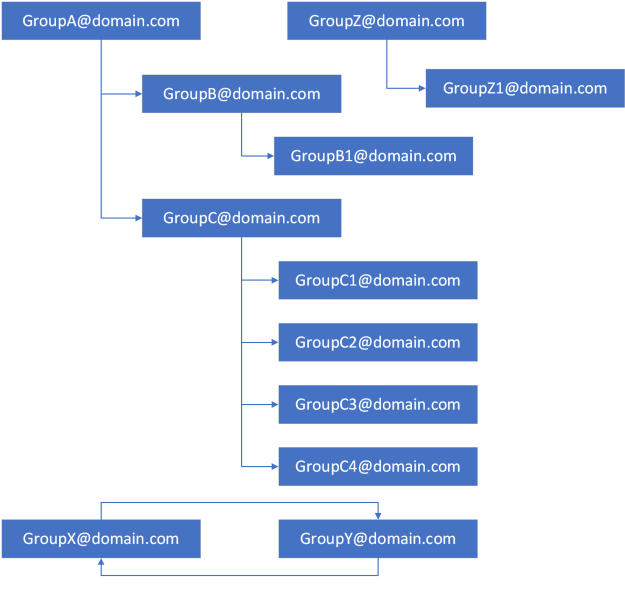
 

The array of SMTP addresses that the administrator specified for migration:

GroupA

GroupZ

GroupB

GroupC

GroupB1

GroupC1

GroupC2

GroupC3

GroupC4

GroupX

GroupY


The start-MultipleDistributionListMigration code breaks the groups down into the maximum number of threads a single host can migrate. The batch size is 5 groups per batch. The first batch of groups for migration includes:


GroupA

GroupZ

GroupB

GroupC

GroupB1


At the end of the first batch of migrations GroupB1 migrates successfully as it has no child group dependencies. GroupA, GroupZ, GroupB, and GroupC all fail with nested child groups. These groups are added to the retry list.


The next batch of groups includes:


GroupC1

GroupC2

GroupC3

GroupC4

GroupX


At the end of the second batch of migrations GroupC1, GroupC2, GroupC3, and GroupC4 all migrate successfully as they have no child group dependencies. GroupX fails with a nested child group exception and is added to the retry list.


The final batch is a single group – GroupY. GroupY will fail to migrate with a nested child group exception and will be added to the retry list.


At the conclusion of all first attempts the retry list contains the following groups:


GroupA

GroupZ

GroupB

GroupC

GroupX

GroupY


The groups are now scanned to determine if they are eligible for retry.


The first can searches the list for circular dependencies. A circular dependency is when two groups are members of each other. In this instance GroupX is a member of GroupY and GroupY is a member of GroupX. This is a cross dependency that cannot be reconciled. These groups hard fail and are added to the failure list for manual administrator intervention.


The second scan searches the list of exceptions. Each exception contains the ChildDL primary SMTP address and the ParentDL primary SMTP address. The list of original SMTP addresses is scanned and if the child groups primary SMTP address was present in the list to be migrated then the group is added for retry. Here is an example using our calculated retry list.


GroupA@domain.com -> GroupB@domain.com (GroupB@domain.com was originally included add GroupA to the retry list).

GroupA@domain.com -> GroupC@domain.com (GroupC@domain.com was originally included add GroupA to the retry list).

GroupZ@domain.com -> GroupZ1@domain.com (GroupZ1@domain.com was NOT originally included. GroupZ will fail and be added to the failure list for manual administrator intervention).

GroupB@domain.com -> GroupB1@domain.com (GroupB1@domain.com was originally included add GroupB to the retry list).

GroupC@domain.com -> GroupC1@domain.com (GroupC1@domain.com was originally included add GroupC to the retry list).

GroupC@domain.com -> GroupC2@domain.com (GroupC2@domain.com was originally included add GroupC to the retry list).

GroupC@domain.com -> GroupC3@domain.com (GroupC3@domain.com was originally included add GroupC to the retry list).

GroupC@domain.com -> GroupC4@domain.com (GroupC4@domain.com was originally included add GroupC to the retry list).


At the end of child validation scanning the list is as follows:


GroupA

GroupA

GroupB

GroupC

GroupC

GroupC

GroupC


The results are trimmed into a unique list to retry:


GroupA

GroupB

GroupC


The code then retries the migration using the updated list of addresses to retry. The list contains less than 5 members only a single batch is created. At the conclusion of this second attempt GroupB and GroupC migrate successfully as there are no nested child lists in the group any longer. GroupA fails since at the time of the retry GroupB and GroupC were both members. The process now repeats itself using the new nested exception list.


GroupA@domain.com -> GroupB@domain.com (GroupB@domain.com was originally included add GroupA to the retry list).

GroupA@domain.com -> GroupC@domain.com (GroupC@domain.com was originally included add GroupA to the retry list).


This results in the following retry list:


GroupA

GroupA


The results are then trimmed into a unique list to retry.


The code then retries the migration using the updated addresses to retry. The list in this case contains only one address so a single batch is created. At the conclusion GroupA now migrates successfully as there are no nested child group dependencies.


The migration is concluded at this time.


GroupZ will not migrate due to a child group not included in the migration set. Here is an example of an exception for this reason:


[1/6/2023 12:20:56 AM] – =====

[1/6/2023 12:20:56 AM] – Alias: a300

[1/6/2023 12:20:56 AM] – Name: a300

[1/6/2023 12:20:56 AM] – PrimarySMTPAddressOrUPN: a300@domain.com

[1/6/2023 12:20:56 AM] – RecipientType: group

[1/6/2023 12:20:56 AM] – GroupType: -2147483640

[1/6/2023 12:20:56 AM] – RecipientOrUser: Recipient

[1/6/2023 12:20:56 AM] – ExternalDirectoryObjectID:

[1/6/2023 12:20:56 AM] – OnPremADAttribute: member

[1/6/2023 12:20:56 AM] – DN: CN=a300,OU=DoNotSync,OU=MigrationTest,OU=DLConversion,DC=home,DC=domain,DC=com

[1/6/2023 12:20:56 AM] – ParentGroupSMTPAddress: aTopZ@domain.com

[1/6/2023 12:20:56 AM] – isAlreadyMigrated: False

[1/6/2023 12:20:56 AM] – isError: True

[1/6/2023 12:20:56 AM] – isErrorMessage: ChildGroupMirationException: The groupt to be migrated has a child group not included in the migration set.

[1/6/2023 12:20:56 AM] – =====


GroupX and GroupY will fail to migrate due to a circular dependency. Here is an example of an exception for this reason:


[1/6/2023 12:20:56 AM] – =====

[1/6/2023 12:20:56 AM] – Alias: aTopY

[1/6/2023 12:20:56 AM] – Name: aTopY

[1/6/2023 12:20:56 AM] – PrimarySMTPAddressOrUPN: aTopY@domain.com

[1/6/2023 12:20:56 AM] – RecipientType: group

[1/6/2023 12:20:56 AM] – GroupType: -2147483640

[1/6/2023 12:20:56 AM] – RecipientOrUser: Recipient

[1/6/2023 12:20:56 AM] – ExternalDirectoryObjectID:

[1/6/2023 12:20:56 AM] – OnPremADAttribute: member

[1/6/2023 12:20:56 AM] – DN: CN=aTopY,OU=RecursionTest,OU=MigrationTest,OU=DLConversion,DC=home,DC=domain,DC=com

[1/6/2023 12:20:56 AM] – ParentGroupSMTPAddress: aTopX@domain.com

[1/6/2023 12:20:56 AM] – isAlreadyMigrated: False

[1/6/2023 12:20:56 AM] – isError: True

[1/6/2023 12:20:56 AM] – isErrorMessage: CircularReferenceException: This group has a child distribution list that also has this group as a member. This creates a circular dependency which cannot be handeled automatically.

[1/6/2023 12:20:56 AM] – =====


What happens if a group fails to migrate for another reason? If a child group fails to migrate due to another error besides a nested group exception the group is not written to the CSV file. This means that when the pass is completed and the CSV file is analyzed – the child DL will no longer be found as included in the migration set. This yields an error that the child group was not present in the migration set. It is quite confusing because it was included in the migration set but unfortunately errored for another reason.

I hope this change allows mass migrations to proceed with greater success and less administrator intervention. Happy migrating!
Office 365 – Distribution List Migrations Version 2.0 – Part 25

Large distribution list migrations and code enhancements to increase performance and reliability.

In part 24 of my blog series, I outlined some of the performance challenges with creating or migrating distribution groups that had large member counts. For testing purposes, I started testing group migrations of 65,000 users. In this post I will review the performance implications associated with migrating or creating groups of this size in Office 365.

In versions of the DLConversionV2 module prior to 2.9.5 the distribution list migration process followed this basic outline:

  • Gather all properties of the distribution list.
  • Normalize all recipients contained in the group or on the properties of the group to their Office 365 identity.
  • Validate that all recipients contained in the group or on the properties of the group were valid in Office 365.
  • Move the group to a non-sync OU, trigger Active Directory replication, and trigger Azure Active Directory connect synchronization.
  • Upon deletion of the group from Office 365 re-create the group.
  • Update all multivalued properties of the group including membership.
  • Update all single valued properties of the group.
  • Conclude with additional mail flow and group updates on premises.

This process works very well for smaller more common groups but introduces several issues with larger groups.

The first challenge was the overall time of the distribution list migration. For a distribution group of 65,000 users the overall migration time was over two days.

Days : 2

Hours : 8

Minutes : 58

Seconds : 9

Milliseconds : 0

Ticks : 2050890000000

TotalDays : 2.37371527777778

TotalHours : 56.9691666666667

TotalMinutes : 3418.15

TotalSeconds : 205089

TotalMilliseconds : 205089000


The DLConversionV2 module leverages the Update-DistributionGroupMember commandlet in order to attempt a bulk update. If this command fails for any reason the code automatically reverts to adding each user individually. Knowing that any group of over 2,000 users generally fails the Update-DistributionGroupMember process you can expect large groups to fail the individual member add process. In the case of the group with 65,000 users it took 1.9 days to add all the users to the group.

Days : 1

Hours : 23

Minutes : 40

Seconds : 26

Milliseconds : 0

Ticks : 1716260000000

TotalDays : 1.98641203703704

TotalHours : 47.6738888888889

TotalMinutes : 2860.43333333333

TotalSeconds : 171626

TotalMilliseconds : 171626000


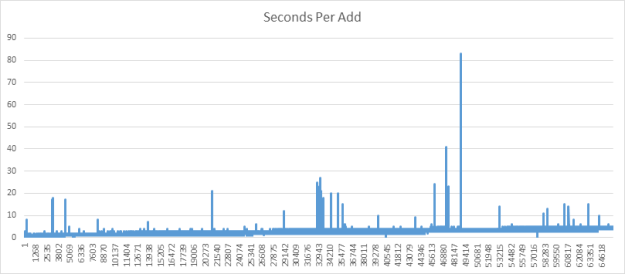
I wanted to take a look at the performance of adding an individual member. My observations were that as the migration progressed the time to add a member continued to increase. In early individual user additions the time was between 0 – 2 seconds on each addition and as the migration progressed that time increased to 4 – 5 second per user addition to the group. Here is a sample chart showing the increase over time.


The average add was 2.590528 seconds.

The normalization time of converting the users to an Office 365 identity for 65,000 users took slightly under two hours to complete.

Days : 0

Hours : 1

Minutes : 56

Seconds : 58

Milliseconds : 0

Ticks : 70180000000

TotalDays : 0.0812268518518518

TotalHours : 1.94944444444444

TotalMinutes : 116.966666666667

TotalSeconds : 7018

TotalMilliseconds : 7018000


The health checking and validation of all group dependencies in Office 365 for 65,000 users took slightly under six hours to complete.

Days : 0

Hours : 5

Minutes : 49

Seconds : 45

Milliseconds : 0

Ticks : 209850000000

TotalDays : 0.242881944444444

TotalHours : 5.82916666666667

TotalMinutes : 349.75

TotalSeconds : 20985

TotalMilliseconds : 20985000


The concerning time with the large groups was the amount of time to add the members to the group. In the workflow prior to version 2.9.5 it would be almost two days until the group was fully populated and available to users in Office 365. As the group was populating any mail that was received would only be transmitted to those users that were already added resulting in the potential for information to not reach the intended audience.

With these performance characteristics – how has the code improved in version 2.9.5.

In version 2.9.5 changes were made to optimize the total time the group was not wholly available to the users. The overall migration time cannot really be adjusted through code considering the factors outlined previously and in part 24 of my blog series.

In a previous code revision, a change was made to create a new distribution group with a random name as part of the migration process. This group was then renamed and updated as the migration proceeded. This was done to avoid recipient caching that would sometimes cause the creation of the group with the same name to collide with the group that was just removed and fail the migration process. If the random group is the actual target of operations why can we not update the membership of this group prior to removing the original group? There is no reason this cannot be done and this is exactly the change that was made. In version 2.9.5 and newer any changes that are not unique or colliding with the original group are made on this new randomly created group. This allows us to take the operations that take the bulk of time to wholly migrate the group and do them PRIOR to deleting the original group from Exchange Online. The new migration process follows this outline:

  • Gather all properties of the distribution list.
  • Normalize all recipients contained in the group or on the properties of the group to their Office 365 identity.
  • Validate that all recipients contained in the group or on the properties of the group were valid in Office 365.
  • Create the group in Office 365 with a random name.
  • Update all group attributes including membership that do not conflict with the existing group in Exchange Online.
  • Move the group to a non-sync OU, trigger Active Directory replication, and trigger Azure Active Directory connect synchronization.
  • Monitor for deletion of the group from Office 365.
  • Update all remaining multivalued group properties – for example SMTP proxy addresses.
  • Update all single valued properties of the group not previously updated.
  • Conclude with additional mail flow and group updates on premises.

By adjusting the group creation process into two steps instead of one the time that the group is wholly unavailable has been taken from 1.9 days for a group of 65,000 users to 6 minutes!

Days : 0

Hours : 0

Minutes : 6

Seconds : 12

Milliseconds : 0

Ticks : 3720000000

TotalDays : 0.00430555555555556

TotalHours : 0.103333333333333

TotalMinutes : 6.2

TotalSeconds : 372

TotalMilliseconds : 372000


When adding users individually it was not uncommon in testing to encounter either a timeout error adding the individual user, or a server return 503 error. A new code change was introduced to capture the error on the first addition attempt and sleep for 15 seconds. At the end of the 15 second sleep a second attempt is made to add the user to the group. If the second attempt fails the user is added to the post creation error tracking and feedback is provided to the administrator that the user must manually be rectified. With a delay implemented and retry logic available this increases the likely hood of success when adding the user. Here is a sample of this new code flow as it is logged.

[1/8/2023 10:37:46 PM] – Attempting to add recipient: 4406ee0c-a2a6-47ab-b6c1-6b08d271da26

[1/8/2023 10:37:47 PM] – Error on individual recipient add.

[1/8/2023 10:37:47 PM] – It is possible that the operation times out or server returns busy – sleep 15 and retry

[1/8/2023 10:37:47 PM] – ********************************************************************************

@{ParameterName=sleepString; Bound=True; ParameterValue=Sleeping due to error on individual add to retry.} @{ParameterName=sleepSeconds; Bound=True; ParameterValue=15} @{ParameterName=sleepParentID; Bound=False; ParameterValue=0} @{ParameterName=sleepID; Bound=False; ParameterValue=0} @{ParameterName=Verbose; Bound=False; ParameterValue=} @{ParameterName=Debug; Bound=False; ParameterValue=} @{ParameterName=ErrorAction; Bound=False; ParameterValue=} @{ParameterName=WarningAction; Bound=False; ParameterValue=} @{ParameterName=InformationAction; Bound=False; ParameterValue=} @{ParameterName=ErrorVariable; Bound=False; ParameterValue=} @{ParameterName=WarningVariable; Bound=False; ParameterValue=} @{ParameterName=InformationVariable; Bound=False; ParameterValue=} @{ParameterName=OutVariable; Bound=False; ParameterValue=} @{ParameterName=OutBuffer; Bound=False; ParameterValue=} @{ParameterName=PipelineVariable; Bound=False; ParameterValue=}

[1/8/2023 10:37:47 PM] – ********************************************************************************

[1/8/2023 10:37:47 PM] – ********************************************************************************

[1/8/2023 10:37:47 PM] – BEGIN start-sleepProgess

[1/8/2023 10:37:47 PM] – ********************************************************************************

[1/8/2023 10:38:02 PM] – END start-sleepProgess

[1/8/2023 10:38:02 PM] – ********************************************************************************

[1/8/2023 10:38:02 PM] – Error procesing recipient: 4406ee0c-a2a6-47ab-b6c1-6b08d271da26

Ex94914C|Microsoft.Exchange.Configuration.Tasks.ManagementObjectNotFoundException|Couldn’t find object “4406ee0c-a2a6-47ab-b6c1-6b08d271da26”. Please make sure that it was spelled correctly or specify a different object.

@{Name=aTestGroup383; Alias=aTestGroup383; PrimarySMTPAddressorUPN=aTestGroup383@e-mcmichael.com; ExternalDirectoryObjectID=49781059-af43-45e1-877c-6bee00a41af4; ErrorMessageDetail=Ex94914C|Microsoft.Exchange.Configuration.Tasks.ManagementObjectNotFoundException|Couldn’t find object “4406ee0c-a2a6-47ab-b6c1-6b08d271da26”. Please make sure that it was spelled correctly or specify a different object.; Attribute=Cloud Distribution Group Member; ErrorMessage=Member 4406ee0c-a2a6-47ab-b6c1-6b08d271da26 unable to add to cloud distribution group. Manual addition required.}

In this example the recipient was deleted prior to the membership addition and the failure is accurate both on the first and second add. The operation is aborted and the administrator is notified.

Overall, the changes implemented in 2.9.5 increase not only the performance and reliability of large group migrations but also smaller group migrations.


Office 365 – Distribution List Migrations Version 2.0 – Part 24

Issues encountered with large distribution list migrations…

I recently had a conversation with a customer that was looking at options for migrating distribution lists to Office 365. In many cases they had several distribution lists that had well over 20,000 members and some with over 100,000 members. These lists were quite large by comparison to many of the customers I’ve worked with as well as my test cases. With this request I hit up the lab and started doing some testing.

A common method for updating distribution group membership is using the Update-DistributionGroupMember commandlet. This commandlet takes an array of user objects and overwrites the existing group membership of the specified group. There is convenience in using this command in that administrators do not have to iterate though a group of members in order to reset a groups membership. In my testing I observed some interesting results as it pertained to large distribution groups.

When using Update-DistributionGroupMember to reset group membership there was a high success rate using recipient array sizes of 0 – 2000. When you started hitting recipient counts greater than 2000 the success of the operation was mixed at best. For example, in testing groups 0 – 2000 the command would complete with a success return. When using recipient array sizes of 2000 – 4000 the result would be a timeout error, yet the membership addition was successful. Any attempts to update membership with arrays greater than 4000 resulted in the command timing out and no membership updates occurred. In essence any attempt to modify the membership using this commandlet above 2000 recipients required validation of success and / or iterating through the recipient array and adding the user individually. Unfortunately, the Update-DistributionGroupMember command is not a add command, therefore recipient arrays cannot be batched and the command called more than one.

The success or failure of Update-DistributionGroupMember is directly tied to the time of processing within the service. When the service is attempting to process these membership operations there is a 15 minute timeout. Anytime it takes greater than 15 minutes to process the membership array the service will abort and timeout the command. It is not uncommon with larger group modifications you hit this limit. In the scenario where a portion of the users were processed we hit a different timeout. In this instance the service was in the midst of processing the operation and the client itself timed out the session. The client times out a request after 16 minutes. In this case the service did not respond back with an affirmative processing of all the users and the client timed out the operation. As indicated above the sweet spot seemed to be around the 4000 user mark for overall success and 2000 for absolute success.

Contributing to the 15 minute timeout are Active Directory lookups in the Exchange Online directories for each recipient passed either individually or in the Update-DistributionGroupMember commandlet. When calling Update-DistributionGroupMember each member passed has an individual lookup on them validating their existence and other information necessary to complete the membership update.

The other factor that contributes to the migration performance is the dual write aspects within Exchange Online. In the new architecture when a recipient operation occurs though the Exchange Online Powershell or Exchange Online control panel the operation is simultaneously written to both the Exchange Online directory and Azure Active Directory at the same time. This process is known as dual write. Overall, this is a good thing. In the past when there was both a forward sync and backsync process sometimes changes were not efficiently transmitted to both directories in a timely fashion. Dual write largely eliminates this issue but also adds additional overhead of performing simultaneous operations in two locations. The benefits far outweigh the additional time in this author’s opinion but it does add overhead to not only the Update-DistributionGroupMember process but also the individual recipient addition process.

In part 25 of my blog series I’ll look at the migration performance of a group of 65,000 users and the code changes taken to improve this experience.

Office 365 – Distribution List Migration – Version 2.0 – Table of Contents

Interested in content regarding Office 365 and Distribution List Migrations. The following table of contents links to relevant articles regarding the Distribution List Migration Module Version 2.

Office 365 – Distribution List Migrations Version 2.0 – Part 2

Preparing to use the distribution list migration v2 module.

The distribution list migration module version 2 is now a published module in the PowerShell gallery. The module has several external dependencies required for it to complete a migration. These dependencies include the Exchange Online Management Module V3, the Azure Active Directory PowerShell Module, the TelemetryHelper PowerShell Module, and the Remote Server Administration Tools for Active Directory.


Administrator rights to the workstation or server where the migrations will be performed are also required to establish the initial pre-requisites.


The DLConversionV2 PowerShell Module now includes the necessary modules in the manifest file. When the DLConversionV2 module is installed all of the dependent modules available from the PowerShell Gallery are also installed. The script ensures the minimum tested versions of the modules are present.


RequiredModules = @(

    @{ModuleName = ‘ExchangeOnlineManagement’; ModuleVersion = ‘3.0.0’ },

    @{ModuleName = ‘AzureAD’; ModuleVersion = ‘2.0.2.140’},

    @{ModuleName = ‘TelemetryHelper’; ModuleVersion = ‘1.5.1’}

    ‘ActiveDirectory’

)


Administrators should use the UPDATE-MODULE command to ensure that each of the dependent modules are up to date. The DLConversionV2 module is tested and released using the latest versions of dependent modules.


To begin preparing to utilize the module open PowerShell as an administrator. The execution policy must be relaxed in order to allow the utilization of unsigned modules.


SET-EXECUTIONPOLICY UNRESTRICTED


The installation of the Exchange Online Management Module V2 is performed through PowerShell.

About the Exchange Online PowerShell V2 module | Microsoft Docs


INSTALL-MODULE EXCHANGEONLINEMANAGEMENT

OR

UPDATE-MODULE EXCHANGEONLINEMANAGEMENT


As of the time of publishing, the script was tested with Exchange Online Management Module v 2.4.


In order to interact with Active Directory, the Remote Server Administration Tools for Active Directory are required. If your client is a Windows Server the tools can be installed through PowerShell.


INSTALL-WINDOWSFEATURE RSAT-ADDS


If your client is a Windows 10 workstation, see the following to determine the correct installation instructions for your version of Windows 10.

Remote Server Administration Tools | Microsoft Docs


The final step is to install the DLConversionV2 PowerShell module. As with the Exchange module this module can either be installed of updated.


INSTALL-MODULE DLCONVERSIONV2

OR

UPDATE-MODULE DLCONVERSIONV2


With the module and pre-requisites installed, you are now ready to explore the commands for migrating distribution groups.


Command included with the module can be viewed with:


GET-COMMAND -MODULE DLCONVERSIONV2


Help for commands within the module can be viewed with:


GET-HELP START-DISTRIBUTIONLISTMIGRATION (OR OTHER COMMAND)