Microsoft Graph supports multiple methods to authenticate to EntraID to perform graph functions. One method of connecting is to utilize client secret authentication. This process is a little different than interactive authentication or certificate authentication.
The client secret authentication process begins with creating an app registration in Entra ID. To create the app registration:
- Access either https://portal.azure.com (Global / World Wide Tenant) or https://portal.azure.us (GCC High Tenant).
- Select the EntraID blade.
- Select Manage -> App Registrations
To create the app registration:
- Select New registration
- In the name field I recommend something intuitive – for example MicrosoftGraphClientSecretAuth
- Do not change any other fields.
- Select the register button to complete creating the app registration.

When the application registration has been completed successfully you are automatically taken to the app registration. At this time copy the Application (Client) ID as this will be required for further operations.
To enable the application registration to perform work API permissions for Microsoft Graph must be added. To add api permissions:
- Under Manage -> API Permissions
- Select the add permission button.
- Select Microsoft Graph
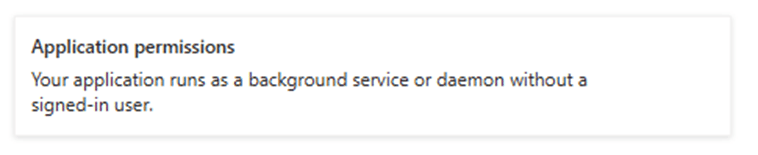
- Select Application Permissions for the application permission type
- In the search box type the permission that you are looking for.
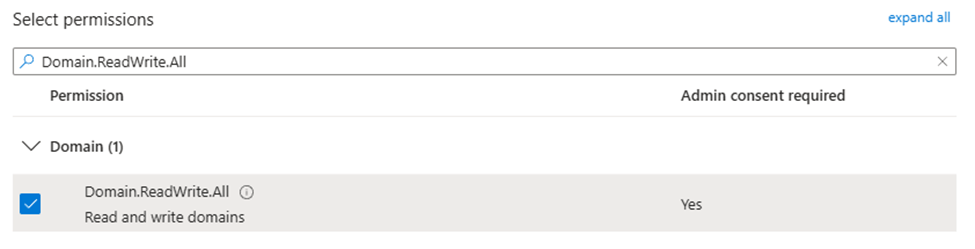
- For example, if modifying a domain type Domain.ReadWrite.All
- In the permissions list this searches for all relevant permissions.
- In this example you would expand domains and select Domain.ReadWrite.All
- Select the add permission button when all of the permissions have been added that are required for your graph work.

When permissions have been added to an app registration, they do not become active until someone with permissions to grant consent provides consent. On the API permissions page is an option “Grant Consent for TenantName”. It is important that after assigning API permissions this option is selected to grant consent and active the permissions.

The final step in the process is to create the client secret. To create the client secret:
- Select Manage -> Certificates & Secrets
- Select New client secret
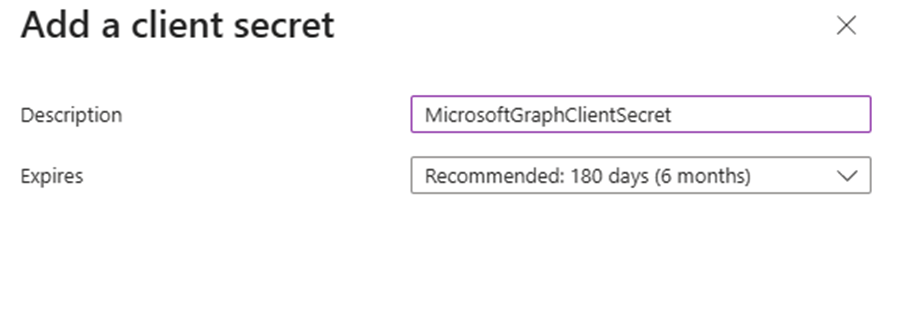
- In the description I recommend something intuitive – for example – “MicrosoftGraphClientSecret”
- Adjust the expiration to an acceptable time limit – I recommend the default of 180 days.
- Select the Add button to complete the client secret.
The client secret is now displayed. There is a copy button to the right of the VALUE field. Select copy and save this value in another location. This will be your only opportunity to see the value of the secret created.
***WARNING*** Treat this value as you would any privileged account password. This value combined with the application ID will allow any administrator access to this application and all permissions assigned.
To connect to Microsoft Graph utilizing client secret authentication:
#Ensure that all graph modules are up to date.#Note that this process can take an extended period of time depending on the number of graph modules installedGet-InstalledModule Microosft.Graph.* | update-Module -force -confirm:$FALSE
#The variables referenced below will require you to fill in the blanks with information obtained in previous steps.#Define the environment you are connecting to.#Global / World Wide = Global#GCC High = USGov#DOD = USGovDOD#China = China$environmentName = Global#Obtain the azure tenant ID where you will be authentication and use it here.$tenantID = "AzureTenantIDGUID"#Set the application ID of the app registration that was copied earlier.$appID = "YourAppRegistrationID"#Set the client secret$clientSecret = "YourAppClientSecret"#Establish the client secret password.$securePassword = ConvertTo-SecureString -string $clientSecret -asPlainText -force#Establih the secret credential.$clientSecretCredential = New-Object -typeName System.Management.Automation.PSCredential -argumentList $appID,$securePassword #Create the connection to Microsoft Graphconnect-MGGraph -environmentName $environmentName -tenantID $tenantID -clientSecretCredential $clientSecretCredential
If the connection is successful, you are now using Microsoft Graph with client secret authentication and with the permissions granted to the app registration utilized.
 TIMMCMIC