Monthly Archives: August 2024

Microsoft 365: Tracking changes to groups…

In Microsoft 365 group changes may originate from multiple administrative interfaces. Group may be modified in EntraID, Exchange Online, synchronized from on premises Active Directory, or through multiple different Powershell interfaces.

When modifications to a group are made audit event entries are created in the EntraID audit logs. In general, the information provided in these events include the properties changed and the user that initiated the change. There are some instances though where this information may not be as helpful as it may seem. Let us explore one such scenario and look at how to track down the actor that originated the change.

When a group is a cloud only group meaning that it was created directly in Microsoft 365 the attributes of the group can be modified using Microsoft 365 administrative interfaces. For example, and administrator with Exchange rights may utilize the Exchange Powershell to create a new distribution group. When this operation is performed an EntraID audit log entry Add Group is generated that resembles the following:

Activity
Date (UTC)
8/27/2024, 3:57 PM
Activity Type
Add group
Correlation ID
597328d9-9acb-4255-9662-29f55cbe5a95
Category
GroupManagement
Status
success
Status reason
User Agent
Initiated by (actor)
Type
Application
Display Name
Microsoft Substrate Management
App ID
Service principal ID
abd7b61e-df48-45d6-920a-2f22ab1f273d
Service principal name
Target
Type
Group
Id
1a87c12f-7a6a-40bd-9709-e8e3e1559148
Display Name
AuditTest
User Principal Name

Group Type
unknownFutureValue

Note that the above audit log entry is in UTC. This is done by changing the audit log search from local time to UTC display.

When reviewing the audit log entry the actor that performed the operation is “Microsoft Substrate Management”. In this case “Microsoft Substrate Management” is an internal service principal that is utilized by the dual write process between Exchange Online and EntraID. The dual write process is responsible for taking changes that originate in Exchange Online and simultaneously writing them to both the object in EntraID and the object in Exchange Online. From a security standpoint this confirms that the group was added and that it was added outside of EntraiD in Exchange Online but fails to indicate who added the group.

To make the determination of who created the group the Unified Audit logs must be consulted. To search the Unified Audit logs Exchange Online Powershell may be utilized. In this case we know that all group creation in Exchange Online starts with the new-distributionGroup command. The date range specified in the command maybe correlated to the EntraID audit log event timestamp.

Search-UnifiedAuditLog -StartDate "8/27/2024 00:00" -EndDate "8/27/2024 23:59" -Operations "New-DistributionGroup" -ResultSize 5000 -SessionCommand ReturnLargeSet | export-csv -path "c:\temp\group.csv" -NoTypeinformation

The resulting CSV file contains all invocations of the new-DistributionGroup command. This CSV file can be imported into a Powershell array for further analysis.

$audit =@()
$audit += import-csv c:\temp\group.csv
For($i = 0; $i -lt $audit.Count; $i++) {"{0}) {1}" -f ($i),$audit[$i].CreationDate}

This will generate a list of each array entry ID and the creation date timestamp. This date time stamp is also in UTC and should match (or be close to) the EntraID audit log entry.

0) 8/27/2024 3:57:11 PM

In my example there is only one entry. Using the array entry ID we can extract information regarding the unified audit log entry.

$audit[0].creationDate;$audit[0].userIDs;(ConvertFrom-Json $audit[0].auditData).objectID

8/27/2024 3:57:11 PM
globalAdmin@domain.onmicrosoft.com
NAMPR04A010.PROD.OUTLOOK.COM/Microsoft Exchange Hosted Organizations/domain.onmicrosoft.com/AuditTest

In this case the group AuditTest was created by the user GlobalAdmin at 8/27/2024 3:57:11 pm UTC.

There are also multiple other operations that you might filter the Unified Audit logs on that correlate to EntraID audit log entries.

  • Set-DistributionGroup when updating the properties of a distribution group.
  • Remove-DistributionGroup when removing a distribution group.
  • Add-DistributionGroupMember when adding a distribution group member.
  • Remove-DistributionGroupMember when removing a distribution group member.

To capture these items from the Unified Audit logs change the commandlet in the search command.

Search-UnifiedAuditLog -StartDate "8/27/2024 00:00" -EndDate "8/27/2024 23:59" -Operations "Add-DistributionGroupMember" -ResultSize 5000 -SessionCommand ReturnLargeSet | export-csv -path "c:\temp\group.csv" -NoTypeinformation

Administrators may combine the entries from the EntraID audit logs with their counterparts from the Unified Audit Logs to determine changes to groups that occur outside the EntraID administrative interfaces.
Microsoft 365: Searching for Microsoft 365 IP Addresses

Microsoft publishes network guidance monthly for all Microsoft 365 URLs and IP addresses that are optional or required for Microsoft 365 service adoption.

As the service has grown so has the number of IP ranges and the scops of the subnets they contain. When reviewing the documentation is may not always be intuitive or easily discovered if the IP address that you are referencing is located in a Microsoft 365 data center.

I have published a script to the Powershell gallery -> Office365IPAddress.ps1. This script will download all published IP spaces for M365 services from our web services and parse all subjects and services associated with them. If the IP address provided is found within one of our published IP spaces the service information is returned. The script works across all M365 hosted services including China, GCC High, and Department of Defense.

To utilize the script run Powershell 5.1 from your workstation or server. Run install-Script Office365IPAddress.

PS C:\> Install-Script Office365IPAddress

The script installs in Powershell 5.1 but requires Powershell 7.x in order to run. Install or update Powershell 7.x from here. Once installed open a Powershell 7.x window. If you attempt to run the script from an unsupported version of Powershell an error is returned.

[8/18/2024 3:22:54 PM] - Powershell 7 and higher is required to run this script.
[8/18/2024 3:22:54 PM] - Please run module from Powershell 7.x

The script accepts three parameters:

  • IPAddressToTest: This is the IP address to search the web services for.
  • LogDirectory: A directory where log files from the command may be stored.
  • AllowQueryIPLocationInformationFromThirdParty: Boolean value that specifies if a third party geo-location api may be queried to return the public location associated with the IPAddressToTest.

The following command tests the IP address 52.109.45.45:

PS C:\> Office365IPAddress.ps1 -IPAddressToTest "52.109.45.43" -logFolderPath "c:\temp" -allowQueryIPLocationInformationFromThirdParty:$TRUE

If the IP address to test is found within any of our web services published files the results are returned to the window. The information provided includes:

  • ID: The ID of the service description contained in the web services json file.
  • M365Instance: The M365 service instance json file the IP address was located in.
  • ServiceAreaDisplayName: The service area the IP address / subnet are associated with.
  • IPInSubnet: Which subnet in the service description contains the IPAddressToTest.

In the following example the IP address is associated with the Microsoft 365 Command Offline Online service description for our Microsoft 365 WorldWide (+GCC) service instance.

[8/18/2024 3:26:58 PM] - *
[8/18/2024 3:26:58 PM] - **
[8/18/2024 3:26:58 PM] - ******************************************************
[8/18/2024 3:26:58 PM] - The IP Address: 52.109.45.43 was located in the following Office 365 Services:
[8/18/2024 3:26:58 PM] - The IP Address geo-location is: KR

ID                     : 46
M365Instance           : Microsoft 365 Worldwide (+GCC)
TCPPorts               : 80,443
Required               : True
URLs                   : {*.officeapps.live.com, *.online.office.com, office.live.com}
IPs                    : {13.107.6.171/32, 13.107.18.15/32, 13.107.140.6/32, 52.108.0.0/14…}
ExpressRoute           : True
ServiceAreaDisplayName : Microsoft 365 Common and Office Online
IPInSubnet             : 52.108.0.0/14

ID                     : 64
M365Instance           : Microsoft 365 Worldwide (+GCC)
TCPPorts               : 443
Required               : True
URLs                   : {*.compliance.microsoft.com, *.protection.office.com, *.security.microsoft.com,
                         compliance.microsoft.com…}
IPs                    : {13.107.6.192/32, 13.107.9.192/32, 52.108.0.0/14, 2620:1ec:4::192/128…}
ExpressRoute           : True
ServiceAreaDisplayName : Microsoft 365 Common and Office Online
IPInSubnet             : 52.108.0.0/14

[8/18/2024 3:26:58 PM] - A XML file containing the above entries is available in the log directory.
[8/18/2024 3:26:58 PM] - ******************************************************
[8/18/2024 3:26:58 PM] - **
[8/18/2024 3:26:58 PM] - *

In the following example the IP address specified does not exist in any M365 service instance.

PS C:\> Office365IPAddress.ps1 -IPAddressToTest "59.3.2.1" -logFolderPath "c:\temp" -allowQueryIPLocationInformationFromThirdParty:$TRUE
[8/18/2024 3:31:27 PM] - ******************************************************
[8/18/2024 3:31:27 PM] - The IP Address: 59.3.2.1 was located in any Office 365 Services.
[8/18/2024 3:31:27 PM] - ******************************************************

In addition to the active endpoint information the web service also publishes change information. The change information dates back to 2018. If the IP address is found in an M365 service, the change information is queried to display any additions that contained the IP address.

IPInSubnet             : 52.108.0.0/14
Version                : 2019012800
Disposition            : Change
IPsAdded               : {52.108.0.0/14}
M365Instance           : Microsoft 365 Worldwide (+GCC)
ServiceAreaDisplayName : 
ChangeID               : 307
EndpointSetID          : 65

IPInSubnet             : 52.108.0.0/14
Version                : 2019012800
Disposition            : Change
IPsAdded               : {52.108.0.0/14}
M365Instance           : Microsoft 365 Worldwide (+GCC)
ServiceAreaDisplayName : Microsoft 365 Common and Office Online
ChangeID               : 309
EndpointSetID          : 64

If the IP address is not found in any M365 service, the change files are searched for any remove operations.

IPInSubnet             : 23.103.144.0/20
Version                : 2018072800
Disposition            : Change
M365Instance           : Microsoft 365 Worldwide (+GCC)
ServiceAreaDisplayName : Exchange Online
ChangeID               : 3
EndpointSetID          : 9
IPsRemove              : {23.103.144.0/20, 23.103.212.0/22, 40.107.128.0/18}

IPInSubnet             : 23.103.144.0/20
Version                : 2018072800
Disposition            : Change
M365Instance           : Microsoft 365 Worldwide (+GCC)
ServiceAreaDisplayName : Exchange Online
ChangeID               : 5
EndpointSetID          : 10
IPsRemove              : {23.103.144.0/20, 23.103.212.0/22, 40.107.128.0/18}

IPInSubnet             : 23.103.144.0/20
Version                : 2019022800
Disposition            : Change
M365Instance           : Microsoft 365 Worldwide (+GCC)
ServiceAreaDisplayName : Exchange Online
ChangeID               : 327
EndpointSetID          : 9
IPsRemove              : {23.103.132.0/22, 23.103.136.0/21, 23.103.144.0/20, 23.103.198.0/23…}

IPInSubnet             : 23.103.144.0/20
Version                : 2019022800
Disposition            : Change
M365Instance           : Microsoft 365 Worldwide (+GCC)
ServiceAreaDisplayName : Exchange Online
ChangeID               : 334
EndpointSetID          : 10
IPsRemove              : {23.103.132.0/22, 23.103.136.0/21, 23.103.144.0/20, 23.103.198.0/23…}

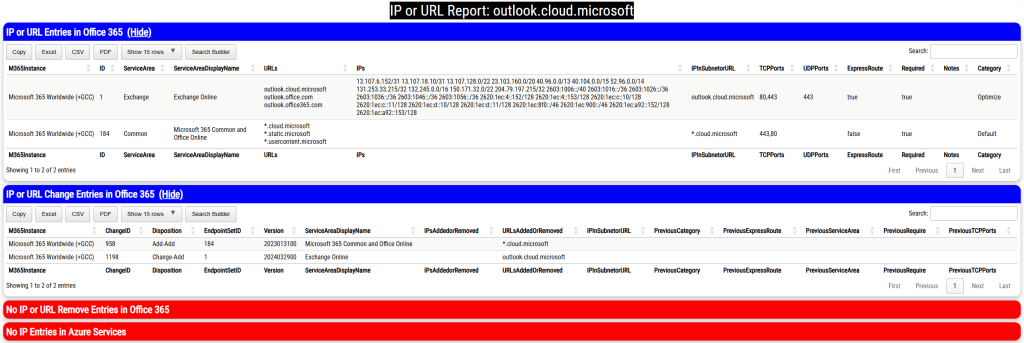
When the script has completed and html file containing the information found is displayed. The report includes four sections

  • IP or URL Entries in Office 365
    • These are the active URL and IP entries currently utilized by Office 365.
  • IP or URL Change Entries in Office 365
    • These are the changes for modifications or additions since 2018
  • No IP or URL Entries in Office 365
    • These are the URLs and IPs that were removed from Office 365.
    • If the URL requested cannot be located the removals are searched.
  • No IP Entries in Azure Services
    • These are IP addresses found using the optional feature to search Azure Services.

The log file directory contains XML exports of all files tested and all results. The HTML file displaying the results is also stored within the same directory.

This script should allow you to efficiently identify if a specified IP address belongs to a Microsoft 365 service instance.