Monthly Archives: November 2017

Office 365: Domain verification by email validation…

In Office 365 domain verification was traditionally only available through DNS record validation.  When adding a domain to Office 365 a domain verification text record or mx record was provided.  This record would be added to your external DNS provider and after replication and global availability our queries would detect the presence of the record.  When the record was detected the domain would be verified.


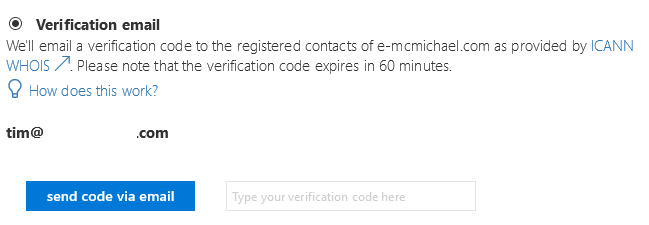
A new validation experience is available to administrators in the portal.  We now allow domain validation to occur by receiving a validation code via email.  This option is present on the “verify domain” tab when adding a new domain to Office 365.


image


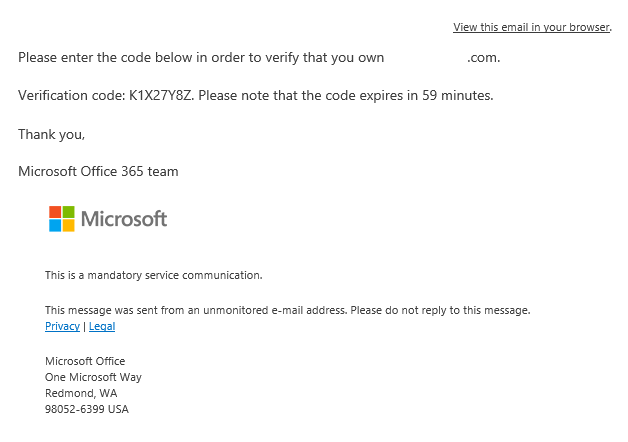
To determine the email address that is utilized for the verification code we leverage the registered contact on the domain as provided by ICANN WHOIS.  If the address displayed is accurate selecting send code via email will generate the validation email.  Here is a sample email received.


image


When the validation email has been received the code can be provided in the portal and the domain validated.


In order to generate the email address displayed Microsoft has worked with third party providers to query the ICANN WHOIS information.  The query occurs against a cached copy of this information.  If administrators have recently transferred domain ownership or updated domain information – it is very possible that the email address we have access to in cache is not valid or out of date. 


If the email address provided in the portal is incorrect – what are the options?  The exact caching period is not disclosed – in theory one option would be to wait and continue until the portal displays the correct information.  If you have access to the email address defined in the portal you can obtain the validation code.  The last option is to select a different method of verification as we will not be able to force a cache update in order to service the verification email if the address is incorrect.

Office 365: Create a report of distribution group usage…

Occasionally we receive customer requests for generation of report data.  Today I received a request where the customer wanted to generate a report of distribution list utilization.  In essence they wanted to understand which distribution lists in their environment were in use.  It sounds like the goal would be to eventually clean up those distribution lists that were not actually being utilized while retaining distribution lists that are in use.


I’m all in favor of a clean GAL – I work with plenty of customers who still seem to have objects around from Exchange 4.0 – so anything I can do to help with the cleanup effort I’m all for.


We do not have a precanned report that allows you to analyze distribution list utilization.  So any form of analysis would force us to get creative.  My idea for solving this particular question was to utilize the message tracking logs.  Since the live message tracking logs contain the last three days worth of message tracing events within Office 365 – we could potentially scan the logs for recipients that were distribution lists and see what we find.  A historical search would probably not be particularly useful since the number of searches were throttled.


In full disclosure I ran this in my lab – which only has a few distribution lists and a few message tracking events.  Your success in a larger environment may vary.


The first step is to gather the groups into a variable.


$groups=Get-DistributionGroup -ResultSize unlimited


This should result in the $groups variable containing a list of groups to process.


$groups

Name                  DisplayName           GroupType PrimarySmtpAddress
—-                  ———–           ——— ——————
All                   All                   Universal All@contoso.com
Board Members         Board Members         Universal Board@contoso.com
Employees             Employees             Universal Employees@contoso.com
EOC-Alert             EOC-Alert             Universal EOC-Alert@contoso.com
TestDL                MigratedDl-TestDL     Universal MigratedDl_8cace652-98f1-4ca9-a2d9-f30f29abffe1_@domain
Office365Notification Office365Notification Universal Office365Notification@contoso.com


Once we have the groups in a variable we can begin the process of searching the message tracking logs. 


PS C:> $groups | %{Get-MessageTrace -RecipientAddress $_.primarysmtpaddress ; write-host (“Processed Group:  ” + $_.primarySMTPAddress) ; Start-Sleep -Milliseconds 500} | export-csv -Path C:Tempoutput.csv –Append


Note that I have incorporated a sleep into our get command to help throttle the request for message tracing data and hopefully relieve some stress on our powershell throttling budget.  In addition I have utilize the append parameter with the CSV file.  I did this assuming that you’d run this maybe once a week for a month to gather some relevant data over 30 days.  This allows that data to be appended to the CSV file.  The write host will provide output to the console on the group being processed to provide some form of process tracking.


PS C:> $groups | %{Get-MessageTrace -RecipientAddress $_.primarysmtpaddress -Verbose; write-host (“Processed Group:  ” + $_.primarySMTPAddress) ; Start-Sleep -Milliseconds 500} | export-csv -Path C:Tempoutput.csv -Append
Processing Group + All@contoso.com
Processing Group + Board@contoso.com
Processing Group + Employees@contoso.com
Processing Group + EOC-Alert@contoso.com
Processing Group + MigratedDl_8cace652-98f1-4ca9-a2d9-f30f29abffe1_@contoso.onmicrosoft.com
Processing Group + Office365Notification@contoso.com


Opening the CSV file in notepad we can validate that information is contained for each of the recipients.


#TYPE Deserialized.Microsoft.Exchange.Management.FfoReporting.MessageTrace
“PSComputerName”,”RunspaceId”,”PSShowComputerName”,”Organization”,”MessageId”,”Received”,”SenderAddress”,”RecipientAddress”,”Subject”,”Status”,”ToIP”,”FromIP”,”Size”,”MessageTraceId”,”StartDate”,”EndDate”,”Index”
“ps.outlook.com”,”e55f3262-ed9d-4d6a-8894-6754f34dc22b”,”False”,”contoso.onmicrosoft.com”,”<FEA02074-3006-4AEA-A0E2-43D47593713B@contoso.com>”,”11/6/2017 2:52:00 PM”,”bmoran@contoso.com.org”,”all@contoso.com.org”,”Tuesday & Wednesday Night Driver”,”Expanded”,,”74.126.52.144″,”19398″,”7731ffda-9297-461a-a0e3-08d52525ef68″,”11/5/2017 1:00:27 AM”,”11/7/2017 1:00:27 AM”,”0″
“ps.outlook.com”,”e55f3262-ed9d-4d6a-8894-6754f34dc22b”,”False”,”contoso.onmicrosoft.com”,”<BN6PR06MB3491B192326AE8CFC6BAC738C3530@BN6PR06MB3491.namprd06.prod.outlook.com>”,”11/5/2017 8:16:40 PM”,”tmcmichael@contoso.com.org”,”all@contoso.com.org”,”Monday, Tuesday, and Wednesday”,”Expanded”,,”2001:4898:8010:1::1ef”,”37249″,”067dc5b4-c38f-4c29-2a1b-08d5248a200a”,”11/5/2017 1:00:27 AM”,”11/7/2017 1:00:27 AM”,”1″
“ps.outlook.com”,”e55f3262-ed9d-4d6a-8894-6754f34dc22b”,”False”,”contoso.onmicrosoft.com”,”<CAPq5dUQaYMxzSZuryF6-T9P0aBipxkWEj0CfzeEd6Wv-O8gQkA@mail.gmail.com>”,”11/6/2017 3:59:42 PM”,”brian@contoso.com”,”board@contoso.com.org”,”Board Meeting Reminder at Station 1″,”Expanded”,,”209.85.128.180″,”31479″,”9eeb9375-7128-452c-0909-08d5252f646a”,”11/5/2017 1:00:28 AM”,”11/7/2017 1:00:28 AM”,”0″


Now that we have the information regarding the DLs that have been sent to – it would be helpful if this data was in a more usable format.


We can import the CSV file into a working variable.


$data=Import-Csv -Path C:Tempoutput.csv


The variable now holds the data to manipulate moving forward.


PS C:> $data

PSComputerName   : ps.outlook.com
RunspaceId       : e55f3262-ed9d-4d6a-8894-6754f34dc22b
Organization     : contoso.onmicrosoft.com
MessageId        : <FEA02074-3006-4AEA-A0E2-43D47593713B@contoso.com>
Received         : 11/6/2017 2:52:00 PM
SenderAddress    : bmoran@contoso.com
RecipientAddress : all@contoso.com
Subject          : Tuesday & Wednesday Night Driver
Status           : Expanded
ToIP             :
FromIP           : 74.126.52.144
Size             : 19398
MessageTraceId   : 7731ffda-9297-461a-a0e3-08d52525ef68
StartDate        : 11/5/2017 1:00:27 AM
EndDate          : 11/7/2017 1:00:27 AM
Index            : 0

PSComputerName   : ps.outlook.com
RunspaceId       : e55f3262-ed9d-4d6a-8894-6754f34dc22b
Organization     : contoso.onmicrosoft.com
MessageId        : <BN6PR06MB3491B192326AE8CFC6BAC738C3530@BN6PR06MB3491.namprd06.prod.outlook.com>
Received         : 11/5/2017 8:16:40 PM
SenderAddress    : tmcmichael@contoso.com
RecipientAddress : all@contoso.com
Subject          : Monday, Tuesday, and Wednesday
Status           : Expanded
ToIP             :
FromIP           : 2001:4898:8010:1::1ef
Size             : 37249
MessageTraceId   : 067dc5b4-c38f-4c29-2a1b-08d5248a200a
StartDate        : 11/5/2017 1:00:27 AM
EndDate          : 11/7/2017 1:00:27 AM
Index            : 1


With the data in a variable – we can utilize the sort method to generate a list of the unique recipients found.


PS C:> $data | select-object recipientaddress -Unique

RecipientAddress
—————-
all@contoso.org
board@contoso.org
eoc-alert@contoso.org
office365notification@contoso.org


This data can also be exported to CSV file for further analysis using the export-csv command.


This may serve as a method to attempt to report on the distribution lists that are in use within an Office 365 tenant.  You can also use the same process for modern groups by replacing get-distributionGroup with get-unifiedGroup.


======================


Edited 11/11/2017


Syntax of powershell command for searching message tracking logs updated.  Processing group was changed to processed group – since the notification comes after the group was processed.  Corrected syntax in write-host so that it displayed feedback accurately.


======================
Office 365: Mail flow delays through third party SPAM gateways…

This week I had a customer present with an interesting issue.  They have a partner company they work with that users a third party spam filtering gateway prior to allowing mail into their on premises environment.  They were observing that emails to this partner company were often delayed.  When engaging with the partner company it was determined that their mail was being greylisted by the third party device.  The reason for the grey listing was due to the fact that the server advertised in the EHLO did not match the name of the server making the underlying connection.


It is not uncommon that the server name listed in the EHLO string does not match the server that is making the underlying outbound connection.  If we were to compare this to on premises concepts I would have a series of servers that act as my mail bridgeheads.  These servers would be subscribed to an outbound send connector – and that send connector would have a fully qualified domain name on it.  Regardless of which outbound bridge head was utilized it would always connect to the remote host and advertise the same EHLO name that would apply to the group through the send connector configuration.


In Office 365 we have a very similar concept.  Our array of bridgeheads each have individual server names and publically routable IP addresses assigned to them.  The names also are available in reverse DNS such that performing a reverse DNS query against the connections IP address would return the name of the individual bridge head making the connection.  When the individual bridgehead connects to a remote SMTP service it issues an EHLO command that represents a namespace that is assigned to a group of servers.  This namespace is resolvable also and also has it’s own corresponding DNS entries.  Let’s take a look at a sample.


I have addressed an email to a user at hotmail.com.  The bridge head that has picked up the connection is NAM01BR5.protection.outlook.com with IP address 192.168.200.1.  When connecting to the MX record for hotmail.com an EHLO is issued.  In this case EHLO NAM01.protection.outlook.com 172.16.16.1.  Notice that NAM01.protection.outlook.com is not NAM01BR5.protection.outlook.com.  In this case the third party gateway performs a reverse DNS lookup on the connecting IP address 192.168.200.1 and discovers that the host connecting is NAM01BR5 and not NAM01.  When this discover is made the solution determines that a SPAM rule has been violated – and bans the connection for 15 minutes then allowing the mail to go through.


Given that it is not uncommon that the EHLO domain advertised does not match the underlying connection this type of checking may be slightly aggressive.  Unfortunately on the Office 365 side the administrator cannot control this therefore all of their email will be delayed by 15 minutes until the third party addresses this configuration.

Office 365: Bulk enabling auditing on Exchange Online Mailboxes

Auditing of mailbox operations are not enabled by default in Exchange Online.  It is the responsibility of the administrator to choose which mailboxes should have auditing enabled and then subsequently enable auditing on the mailboxes.  We have documented the process of enabling auditing on mailboxes in bulk at the following link:


https://support.office.com/en-us/article/Enable-mailbox-auditing-in-Office-365-aaca8987-5b62-458b-9882-c28476a66918


I recently had a customer inquire if there were alternatives to having the client process the majority of this work.  It is possible to invoke commands and allow for service processing – the issue is that the commands must be basic.  For example, you cannot craft an invocation command that would attempt to filter users <or> implement a sleep during each set as the invocation syntax would be too large and complex.  For example…


PS C:> Invoke-Command -Session (Get-PSSession) -ScriptBlock {Get-Mailbox -ResultSize unlimited -RecipientTypeDetails UserMailbox | where{$_.auditingEnabled -ne $FALSE} | Set-Mailbox -AuditEnabled:$TRUE -Verbose}
The syntax is not supported by this runspace. This can occur if the runspace is in no-language mode.
    + CategoryInfo          : ParserError: (Get-Mailbox -Re…:$TRUE -Verbose:String) [], ParseException
    + FullyQualifiedErrorId : ScriptsNotAllowed
    + PSComputerName        : ps.outlook.com


PS C:> Invoke-Command -Session (Get-PSSession) -ScriptBlock {Get-Mailbox -ResultSize unlimited -RecipientTypeDetails UserMailbox | Set-Mailbox -AuditEnabled:$TRUE -Verbose;Start-Sleep -Milliseconds 500}
The syntax is not supported by this runspace. This can occur if the runspace is in no-language mode.
    + CategoryInfo          : ParserError: (Get-Mailbox -Re…illiseconds 500:String) [], ParseException
    + FullyQualifiedErrorId : ScriptsNotAllowed
    + PSComputerName        : ps.outlook.com


Depending on the tenants size the following command may work – shifting the processing logic from the client to the service.


Invoke-Command -Session (Get-PSSession) -ScriptBlock {Get-Mailbox -ResultSize unlimited -RecipientTypeDetails UserMailbox | Set-Mailbox -AuditEnabled:$TRUE -Verbose}


If any throttling is encountered you may have to refer to the commands as outlined within the support article.


*Thanks to Matt Byrd for reviewing and commenting on these methods.