In Office 365 administrators may discover issues with distribution lists and distribution list membership. In this article I wanted to walk through some of the common issues that I have seen and how we worked through them.
When working with distribution lists and distribution list membership we must review the locations where this information is stored. The information in this post starts assumes distribution lists that are source on premises.
Any distribution list analysis starts with looking at the distribution list on premises and its membership. This is then picked up by AAD Connect where an entry is placed into the metaverse. The list and its membership is then exported to Azure Active Directory. Once in Azure Active Directory the list is made available through a synchronization process into the individual workloads such as Exchange Online. By looking for data at each of these points we can identify the issues with our distribution lists and memberships and implement corrective action.
Symptom Scenario #1: My distribution list is not present in Exchange Online.
Scenario Summary: The distribution list is not within an organizational unit synchronized by Azure AD Connect.
In this scenario a user has reported that a distribution list is not available to them in Exchange Online. It has been confirmed that the group does not appear in the global address list in any client. Starting our analysis in Exchange Online we attempt to pull properties of the distribution list.
PS C:> Get-Recipient TestUsers
The operation couldn’t be performed because object ‘TestUsers’ couldn’t be found on ‘CO1PR06A002DC02.NAMPR06A002.prod.outlook.com’.
+ CategoryInfo : NotSpecified: (:) [Get-Recipient], ManagementObjectNotFoundException
+ FullyQualifiedErrorId : [Server=BY1PR0601MB1402,RequestId=756ebc52-32b4-49af-9825-4c024e435f47,TimeStamp=11/12/2017 7:55:46 PM] [FailureCategory=Cmdlet-ManagementObjectNotFoundException] 47F81C4,Microsoft.Exchange.Management.RecipientTasks.GetRecipient
+ PSComputerName : ps.outlook.com
This error confirms no recipient exists in Exchange Online. Knowing that distribution lists within Exchange Online have to be represented in Azure Active Directory we can attempt to search there.
PS C:> Get-MsolGroup -SearchString TestUsers
PS C:>
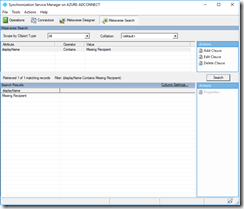
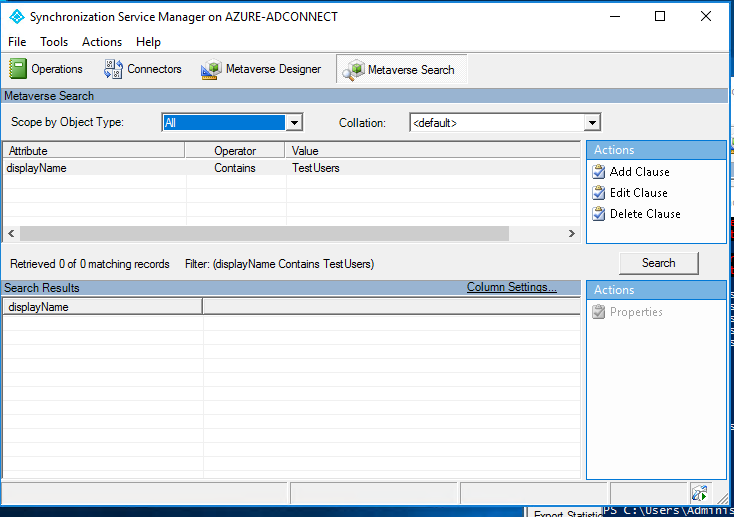
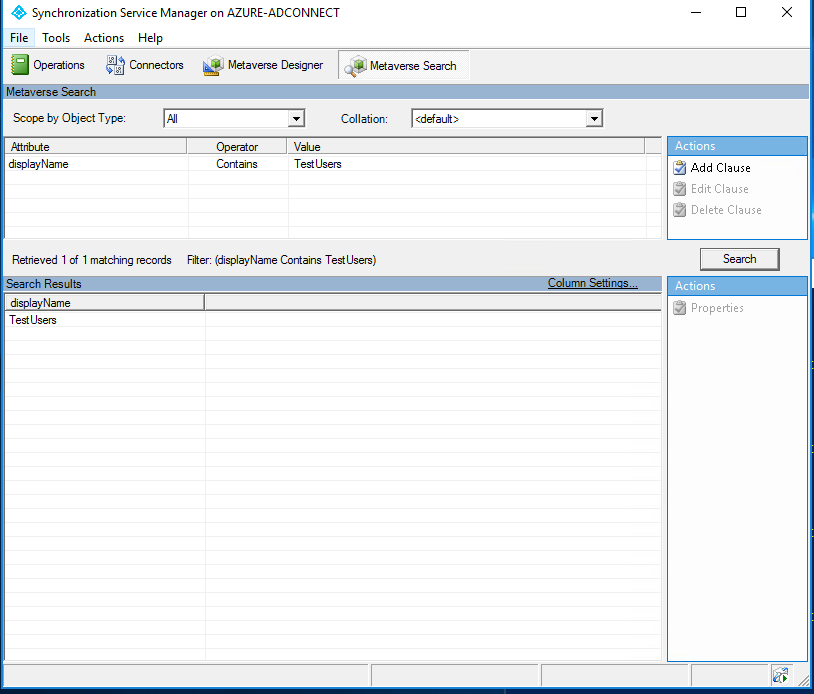
In this case the lack of any returned object indicates that the group does not exist within Azure Active Directory. This would imply either an issue with Azure Active Directory Connect <or> the on premises object. We can utilize the synchronization services manager installed with AAD Connect to perform a metaverse search. In this case we are searching for the missing distribution list.
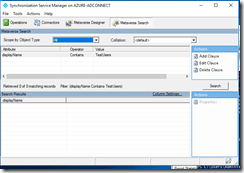
The group does not exist in the metaverse. If the group has not been processed by AAD Connect – it will not be available in Azure Active Directory or Exchange Online. Continuing to back track through we can review the Exchange options on the local group.
[PS] C:>Get-Recipient TestUsers
Name RecipientType
—- ————-
TestUsers MailUniversalDistributionGroup
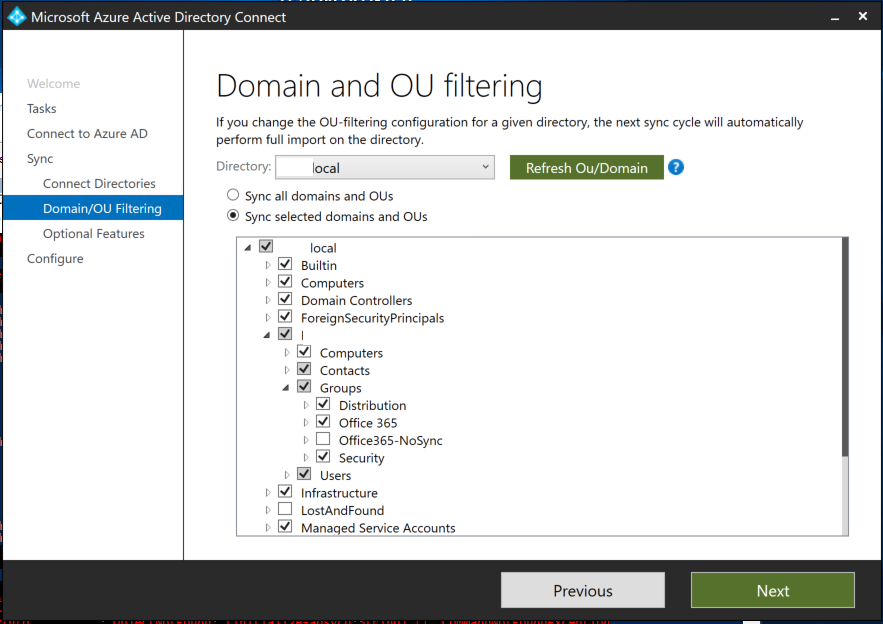
The group is present in on premises Exchange and is a valid recipient. If the group is present and valid in Exchange On Premises – why is it not being processed by AAD Connect. One of the most common reasons for this is that the group is not within the sync scope of AAD Connect. We can launch the configuration wizard for AAD Connect using the short cut on the desktop of the AAD Connect server. When validating domain / ou filtering in this instance it is observed that “sync selected domains and OUs” is the option. We can expand the different organizational units to determine what is and what is not within sync scope. Here is an example.
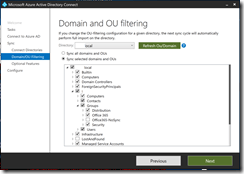
Using get-Group we can dump the organizational unit that the group is stored in.
[PS] C:>Get-Group TestUsers | Select-Object organizationalUnit
OrganizationalUnit
——————
contoso.local/Contoso/Groups/Office365-NoSync
In this instance the group does exist in an organizational unit that is not included in sync scope. If we move the group to an OU that is within sync scope it should eventually become available to us within Office 365. For example:
[PS] C:>Get-Group TestUsers | Select-Object organizationalUnit
OrganizationalUnit
——————
contoso.local/Consoto/Groups/Distribution
When a delta synchronization has completed the group should now be found within the AAD Connect metaverse.
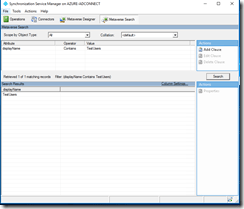
When the export has completed successfully the group should be visible in Azure AD.
PS C:> Get-MsolGroup -SearchString TestUsers
ObjectId DisplayName GroupType Description
——– ———– ——— ———–
81e58cc5-9f48-41d3-a9d3-b500c8ebc6dc TestUsers DistributionList
And finally the group should be available within Exchange Online.
PS C:> Get-Recipient TestUsers
Name RecipientType
—- ————-
TestUsers MailUniversalDistributionGroup
In this situation and scenario our group failed to be represented in Exchange Online because it was not in an organizational unit covered by the AAD Connect sync scope. Moving it to an appropriate organizational unit or adding the organization unit to be within sync scope would correct this condition.
Symptom Scenario #2: A member of my distribution list did not receive an email.
Scenario Summary: The user does not exist in Azure AD or Exchange Online but is a member of the distribution list on premises. The user does not exist in Office 365 because it resides in an organization unit not synchronized to Office 365.
In this scenario a user has reported that a member of this distribution list has not received an email that they sent. Using a similar method as the first scenario we will start by reviewing the properties of the distribution list in Exchange Online. In this case the missing user is MissingRecipient@contoso.com. Using get-recipient we can verify that the distribution list is present within the service.
PS C:> Get-Recipient TestUsers
Name RecipientType
—- ————-
TestUsers MailUniversalDistributionGroup
The distribution list membership can also then be validated in Exchange Online.
PS C:> Get-DistributionGroupMember -Identity TestUsers | ft
Name RecipientType
—- ————-
Timothy McMichael UserMailbox
Bill Moran UserMailbox
This output confirms that the recipient is not a member of the distribution group in Exchange Online.
In order for a recipient to be a member of a distribution list it too must be represented in Exchange Online. Using get-recipient we can determine if the missing user is also in Exchange Online.
PS C:> Get-Recipient MissingRecipient
The operation couldn’t be performed because object ‘MissingRecipient’ couldn’t be found on ‘CO1PR06A002DC02.NAMPR06A002.prod.outlook.com’.
+ CategoryInfo : NotSpecified: (:) [Get-Recipient], ManagementObjectNotFoundException
+ FullyQualifiedErrorId : [Server=BY1PR0601MB1402,RequestId=8f7fdfd1-274a-4622-b3a6-b45aff678120,TimeStamp=11/12/2017 9:20:24 PM] [FailureCategory=Cmdlet-ManagementObjectNotFoundException] 5DAE93AD,Microsoft.Exchange.Management.RecipientTasks.GetRecipient
+ PSComputerName : ps.outlook.com
The output of this command confirms the recipient is not available in Exchange Online. Knowing that the source of information in this scenario is Azure AD we can continue our investigation there.
The group in this instance is successfully found in Azure AD.
PS C:> Get-MsolGroup -SearchString TestUsers
ObjectId DisplayName GroupType Description
——– ———– ——— ———–
81e58cc5-9f48-41d3-a9d3-b500c8ebc6dc TestUsers DistributionList
Using the object ID of the group we can determine the group membership within Azure AD.
PS C:> Get-MsolGroupMember -GroupObjectId 81e58cc5-9f48-41d3-a9d3-b500c8ebc6dc
GroupMemberType EmailAddress DisplayName
————— ———— ———–
User tmcmichael@contoso.org Timothy McMichael
User bmoran@contoso.org Bill Moran
This confirms that the representation of the group in Exchange Online matches that of Azure AD. Does the recipient exist in azure AD?
PS C:> Get-MsolUser -SearchString MissingRecipient
PS C:>
In this case the lack of any return suggests that the object is not within Azure AD. This would indicate either an issue with Azure AD Connect <or> with the on premises user object.
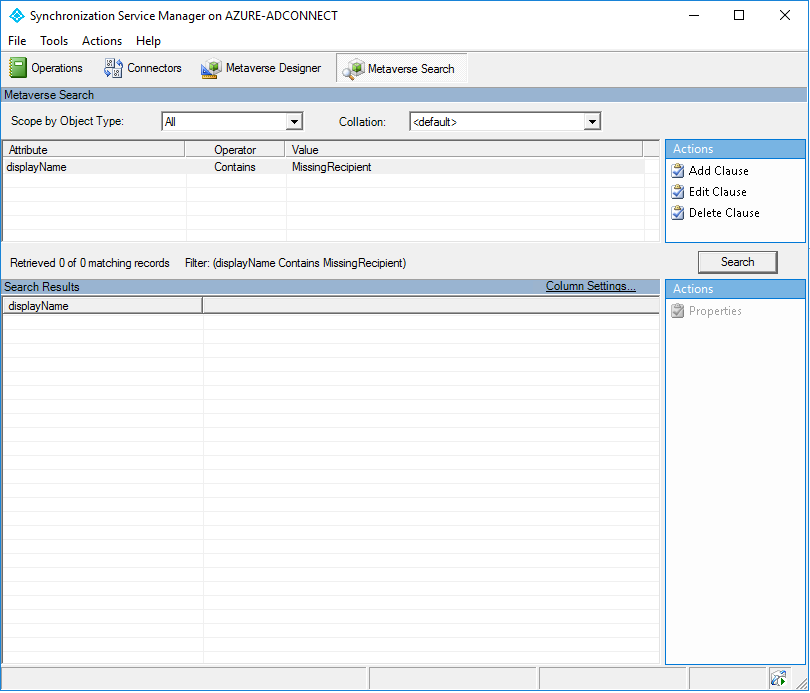
Using the synchronization service manager we can perform am metaverse search for the object.
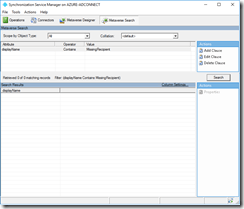
The user does not exist in the metaverse. If the user has not been processed by AAD Connect – it will not be available in Azure Active Directory or Exchange Online. Continuing to back track through we can review the Exchange options on the local user.
[PS] C:>Get-Recipient MissingRecipient
Name RecipientType
—- ————-
Missing Recipient UserMailbox
The recipient on premises is valid. Is it a member of the given group?
[PS] C:>Get-DistributionGroupMember -Identity TestUsers | ft
Name RecipientType
—- ————-
Timothy McMichael MailUser
Bill Moran MailUser
Missing Recipient UserMailbox
In this case the user is a member of the distribution list on premises. Looking at the properties of the user – is there any reason it would not be processed via AD connect?
[PS] C:>Get-User MissingRecipient | Select-Object organizationalUnit
OrganizationalUnit
——————
contoso.local/Contoso/Users/Office365-NoSync
Very similar to the issue in scenario #1 this user is in an organizational unit not covered under the synchronization scope of Azure AD Connect. The user therefore is not replicate to Azure AD and is then not available in Exchange Online. Regardless of the membership of the distribution list on premises if the object is not available in Azure AD it will not be eligible to be a member of the distribution group in Exchange Online.
To fix this we will move the user to an organizational unit covered under the AD Connect synchronization scope.
[PS] C:>Get-User MissingRecipient | Select-Object organizationalUnit
OrganizationalUnit
——————
contoso.local/Contoso/Users/Members
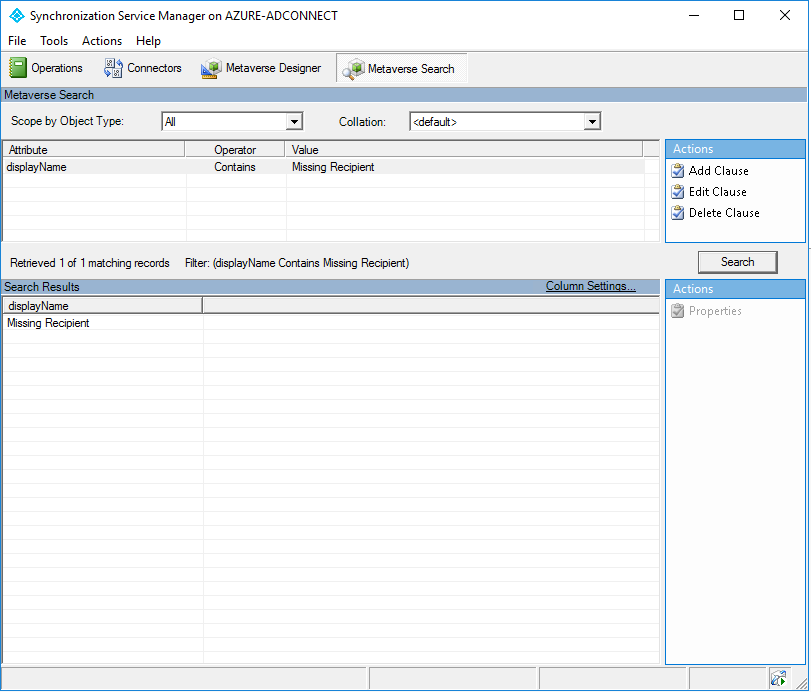
When the next delta synchronization cycle processes the user should be able to be located in the metaverse.
Once the user has been successfully exported it should be able to be located in Azure AD.
PS C:> Get-MsolUser -SearchString MissingRecipient
UserPrincipalName DisplayName isLicensed
—————– ———– ———-
MissingRecipient@contoso.org Missing Recipient False
The user should now show as a member of the group in Azure AD.
PS C:> Get-MsolGroupMember -GroupObjectId 81e58cc5-9f48-41d3-a9d3-b500c8ebc6dc
GroupMemberType EmailAddress DisplayName
————— ———— ———–
User tmcmichael@contoso.org Timothy McMichael
User bmoran@contoso.org Bill Moran
User MissingRecipient@contoso.org Missing Recipient
With the Azure AD object now appearing as expected the recipient and list should be reconciled in Exchange Online.
PS C:> Get-Recipient MissingRecipient
Name RecipientType
—- ————-
Missing Recipient MailUser
PS C:> Get-DistributionGroupMember -Identity TestUsers | ft
Name RecipientType
—- ————-
Timothy McMichael UserMailbox
Bill Moran UserMailbox
Missing Recipient MailUser
The missing user is now corrected and the distribution list will function as expected.
In this instance the user failed to be a member of the distribution group because the user on premises was not in the AD Connect organizational unit synchronization scope.
Symptom Scenario #3: A member of my distribution list did not receive an email.
Scenario Summary: The distribution list is a security group on premises allowed to contain non-mail enabled objects. In this instance the user is not a mail enabled object, and therefore is not seen as a recipient during DL expansion in Office 365.
In this symptom scenario a user reports that a distribution list member did not receive an email addressed to the list. As we have in other scenarios we will begin the analysis by looking at the Exchange Online group and validating it is present.
PS C:> Get-Recipient TestUsers
Name RecipientType
—- ————-
TestUsers MailUniversalDistributionGroup
The membership of the group can also be validated in Exchange Online.
PS C:> Get-DistributionGroupMember -Identity TestUsers | ft
Name RecipientType
—- ————-
Timothy McMichael UserMailbox
Bill Moran UserMailbox
Missing Recipient MailUser
NoMailbox User User
In this instance the user that did not receive the email NoMailbox User. It is interesting to note in this stage that the recipient type is User. Running get-recipient we can determine that the user, although they appear in the distribution list, are not appearing as a recipient.
PS C:> Get-Recipient NoMailboxUser
The operation couldn’t be performed because object ‘NoMailboxUser’ couldn’t be found on ‘CO1PR06A002DC02.NAMPR06A002.prod.outlook.com’.
+ CategoryInfo : NotSpecified: (:) [Get-Recipient], ManagementObjectNotFoundException
+ FullyQualifiedErrorId : [Server=BY1PR0601MB1402,RequestId=756ebc52-32b4-49af-9825-4c024e435f47,TimeStamp=11/12/2017 9:57:40 PM] [FailureCategory=Cmdlet-ManagementObjectNotFoundException]CBC02122,Microsoft.Exchange.Management.RecipientTasks.GetRecipient
+ PSComputerName : ps.outlook.com
In this instance since the Exchange Online information is accurate the Azure AD information should also be accurate.
PS C:> Get-MsolUser -SearchString NoMailbox
UserPrincipalName DisplayName isLicensed
—————– ———– ———-
NoMailboxUser@contoso.org NoMailbox User False
PS C:> Get-MsolGroupMember -GroupObjectId 81e58cc5-9f48-41d3-a9d3-b500c8ebc6dc
GroupMemberType EmailAddress DisplayName
————— ———— ———–
User tmcmichael@contoso.org Timothy McMichael
User bmoran@contoso.org Bill Moran
User MissingRecipient@contoso.org Missing Recipient
User NoMailboxUser@contoso.org NoMailbox User
Knowing that the Azure AD information is accurate there is no indication that an AD Connect problem exists. Why though is the recipient only showing as a user? Is it a valid recipient on premises? We can validate this with get-recipient.
[PS] C:>Get-Recipient NoMailboxUser
The operation couldn’t be performed because object ‘NoMailboxUser’ couldn’t be found on ‘Azure-Dc.domain.local’.
+ CategoryInfo : NotSpecified: (:) [Get-Recipient], ManagementObjectNotFoundException
+ FullyQualifiedErrorId : [Server=AZURE-MBX,RequestId=b0e9dc63-f0b5-41d4-86bb-df31adfa0a4e,TimeStamp=11/12/2017 10:06:12 PM] [FailureCategory=Cmdlet-ManagementObjectNotFoundException] 34C958E5,Microsoft.Exchange.Management.RecipientTasks.GetRecipient
+ PSComputerName : azure-mbx.fmrs.local
In this case the recipient is not a mail enabled object. The group in question is a security group and therefore can contain non-recipient objects. When replicated into Azure AD and subsequently into Exchange Online the users will appear as group members but only as a USER – not an Exchange recipient type. Mail enabling the object as a mailbox, remote mailbox, or mail user should rectify the issue.
PS C:> Get-Recipient NoMailboxUser
Name RecipientType
—- ————-
NoMailbox User MailUser
PS C:> Get-DistributionGroupMember -Identity TestUsers | ft
Name RecipientType
—- ————-
Timothy McMichael UserMailbox
Bill Moran UserMailbox
Missing Recipient MailUser
NoMailbox User MailUser
The recipient will now receive email addressed to the distribution list.
Symptom Scenario #4: The Exchange Online distribution group membership is incorrect.
Scenario Summary: The distribution list membership on premises and within Azure Active Directory is correct. The membership is not correct within Exchange Online.
In this scenario an administrator has discovered that the membership of the distribution list within Exchange Online is not accurate. As with our other scenarios we will begin our investigation in Exchange Online.
The first step is to determine if the distribution list is present in Exchange Online.
PS C:> Get-Recipient TestUsers
Name RecipientType
—- ————-
TestUsers MailUniversalDistributionGroup
In this example the distribution list is present in Exchange Online. The next step is to review the membership of the distribution list.
PS C:> Get-DistributionGroupMember -Identity TestUsers | ft
Name RecipientType
—- ————-
Timothy McMichael UserMailbox
Bill Moran UserMailbox
Missing Recipient MailUser
The Exchange Online distribution list contains three members. The next step is to review the membership of the distribution list in Azure Active Directory.
PS C:> Get-MsolGroup -SearchString TestUsers
ObjectId DisplayName GroupType Description
——– ———– ——— ———–
81e58cc5-9f48-41d3-a9d3-b500c8ebc6dc TestUsers DistributionList
PS C:> Get-MsolGroupMember -GroupObjectId 81e58cc5-9f48-41d3-a9d3-b500c8ebc6dc
GroupMemberType EmailAddress DisplayName
————— ———— ———–
User tmcmichael@contoso.org Timothy McMichael
User bmoran@contoso.org Bill Moran
User MissingRecipient@contoso.org Missing Recipient
User MissingUser@contoso.org Missing User
In this instance the membership of the group within Azure Active Directory is 4 members where the membership in Exchange Online is 3 members. This clearly indicates a difference between the information replicated from Azure AD to Exchange Online.
As we have discovered in our previous examples the last thing we need to know is does the recipient exist in Exchange Online. If the recipient is mail enabled in Exchange Online – it should be eligible to be a member of the distribution list in Exchange Online.
PS C:> Get-Recipient MissingUser
Name RecipientType
—- ————-
Missing User MailUser
In this instance the recipient is valid within Exchange Online.
To correct this condition a support case should be opened with product support services. Product support services has methods to assist customers in resynchronizing membership between Azure AD and Exchange Online.


 TIMMCMIC