I had a customer present an inquiry to us on the management and communication of release release settings and changes. The customers goal was to:
- Manage first release settings through PowerShell to enable and disable users in bulk.
- Create a mail enabled security group for mail distribution and permissions to other applications in the service.
- Create a method to add and remove users to the distribution group based on their first release settings.
The challenges here were immediately noted. At this time first release settings cannot be managed through the azure ad PowerShell either version 1 or version 2. Our only options are to manage the user addition through the portal GUI. In addition to managing powershell settings the ability to create mail enabled security groups is only available within the Exchange Online portal – you cannot at this time use Exchange Online PowerShell to provision a mail enabled security group. Even though there are some challenges present I believe they are not insurmountable – let us take a look….
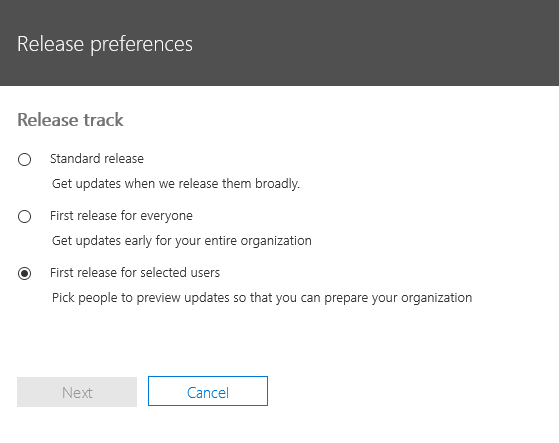
To begin we must ensure that the first release settings of the tenant are established correctly. You can utilize this reference for first release settings in Office 365. https://support.office.com/en-us/article/Set-up-the-Standard-or-First-Release-options-in-Office-365-3B3ADFA4-1777-4FF0-B606-FB8732101F47. In our instance we are going to enable the first release option only on a subset of users chosen. This will allow us to control who sees first release options while letting the other user population on standard release.

Please note that it may take a while for the portal wizard to complete this transformation.
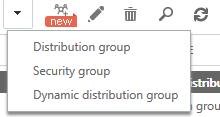
The next step is the process is the creation of the mail enabled security group. Logging into the Exchange Online portal we can select the groups management option. Here we will find the option to create a mail enabled security group. I am recommending that this group be a cloud only group and have assigned a domain.onmicrosoft.com address – although this concept could be modified for a group that has directory synchronization. A cloud only group will allow us to modify and manage membership directly through Office 365. If the group is sourced on premises you would have to modify where you execute the group management commands to occur on premises.
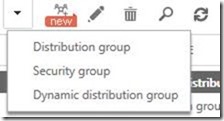
In our example I am creating a mail enabled security group called FirstRelease.
PS C:> Get-DistributionGroup FirstRelease
Name DisplayName GroupType PrimarySmtpAddress
—- ———– ——— ——————
FirstRelease FirstRelease Universal, SecurityEnabled FirstRelease@contoso.onmicrosoft.com
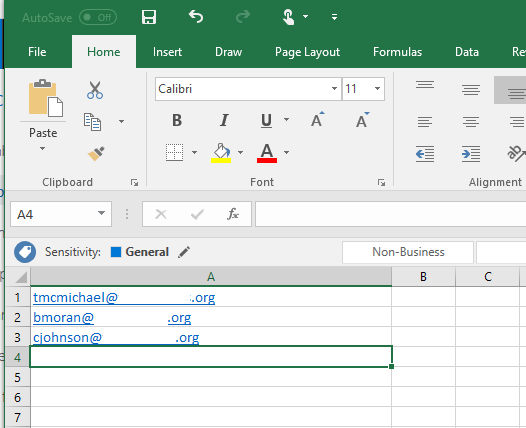
With the first release settings adjusted and the mail enabled security group in place we can begin the process of populating the first release settings for our first user set. The first release settings allow for a BULK ADD option utilize a CSV file. The CSV file contains a list of user principal names where we want to apply the first release settings to. The CSV file row has no header – the first entry is the first user to add.
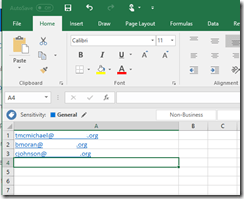
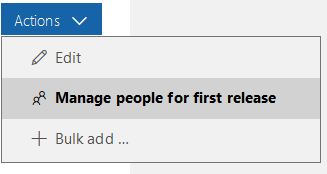
With the CSV file created and populated with the initial user set the portal can be utilized to load the file. Under our first release settings we can select ACTIONS –> + BULK ADD.
![clip_image002[4]](https://timmcmic.blog/wp-content/uploads/2017/12/clip_image0024_thumb.jpg?w=244&h=125 "clip_image002[4]")
The BULK ADD wizard will start.
![clip_image002[6]](https://timmcmic.blog/wp-content/uploads/2017/12/clip_image0026_thumb.jpg?w=244&h=223 "clip_image002[6]")
The browse button can be utilized to select and locate the CSV file to import.
![clip_image002[8]](https://timmcmic.blog/wp-content/uploads/2017/12/clip_image0028_thumb.jpg?w=244&h=228 "clip_image002[8]")
Once the CSV file has been selected the verify option can be utilized to identity any potential errors.
![clip_image002[10]](https://timmcmic.blog/wp-content/uploads/2017/12/clip_image00210_thumb.jpg?w=240&h=244 "clip_image002[10]")
With conformation that no errors have been found the next button will complete the changes.
![clip_image002[12]](https://timmcmic.blog/wp-content/uploads/2017/12/clip_image00212_thumb.jpg?w=244&h=203 "clip_image002[12]")
The wizard in this case has updated three users to have first release applied.
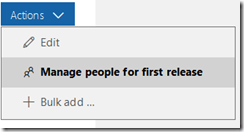
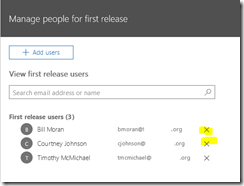
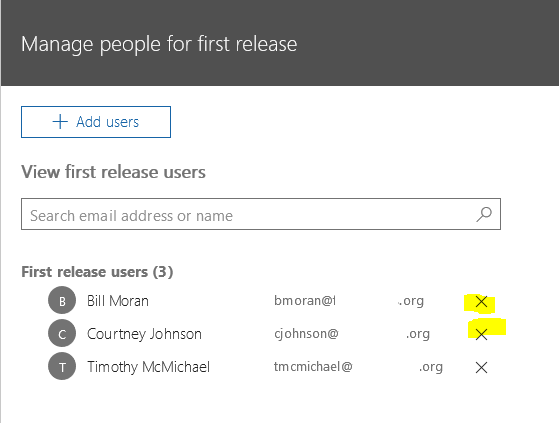
It is important to note at this point that there is no BULK REMOVE option. If you need to remove users it must be done via the portal and selecting ACTIONS –> MANAGE PEOPLE FOR FIRST RELEASE. Users can be removed from the first release option by selecting the X next to their name.
![clip_image002[16]](https://msdnshared.blob.core.windows.net/media/2017/12/clip_image00216_thumb.jpg "clip_image002[16]")
It may take sometime for the first release settings to provision to users. I recommend allowing an hour to ensure that the changes are appropriately applied and replicated prior to proceeding.
With the first release settings established on the users the initial distribution list population can begin. The files created in this process will be important to the maintenance process I will outline below.
To begin the distribution list population we will create a file of all users with the first release setting set and their objectIDs.
PS C:> $firstReleaseUsers=Get-MsolUser -All | where {$_.releasetrack -eq “StagedRolloutOne”} | Select-Object userPrincipalName,objectID
PS C:> $firstReleaseUsers
UserPrincipalName ObjectId
—————– ——–
bmoran@contoso.org 2f7416c5-682c-46b4-b8f8-40b8ee03079e
cjohnson@contoso.org 3b5a9963-7fa1-4094-8a0b-f4219d8ecfe0
tmcmichael@contoso.org 61425db0-7812-49dd-b6aa-1a732bdec569
The users proxy addresses are then gathered from their objectIDs. Using this method we can remove any ambiguity about the recipients class – for example mailbox within the service verses a mailbox that has yet to be migrated (mail user).
PS C:> $firstReleaseSMTP=$firstReleaseUsers | % { $recipientID=$_.objectID.toString() ; Get-Recipient -Identity $recipientID } | Select-Object primarySMTPAddress
PS C:> $firstReleaseSMTP
PrimarySmtpAddress
——————
bmoran@domain.org
cjohnson@domain.org
tmcmichael@domain.org
With the list of proxy addresses we should have the appropriate recipients to add to the distribution list.
PS C:> $firstReleaseSMTP | % { Add-DistributionGroupMember -Identity FirstRelease@domain.onmicrosoft.com -Member $_.primarySMTPAddress -Verbose }
VERBOSE: Adding distribution group member “bmoran@domain.org” on distribution group “FirstRelease@domain.onmicrosoft.com”.
VERBOSE: Adding distribution group member “cjohnson@domain.org” on distribution group “FirstRelease@domain.onmicrosoft.com”.
VERBOSE: Adding distribution group member “tmcmichael@domain.org” on distribution group “FirstRelease@domain.onmicrosoft.com”.
The new distribution list has now been populated with our first set of first release users.
PS C:> Get-DistributionGroupMember -Identity FirstRelease@domain.onmicrosoft.com
Name RecipientType
—- ————-
Timothy McMichael UserMailbox
Bill Moran UserMailbox
Courtney Johnson UserMailbox
The final step of this process is to establish the list of proxy addresses that served as the original population of the distribution list. This CSV file will service as the basis of comparison for automated management moving forward.
$firstReleaseSMTP | Export-Csv -Path z:FirstReleaseMembers.CSV
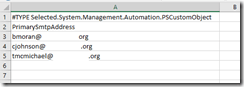
The CSV file should be populated with the addresses previously contained in the variable.
==========================================================================================================================
I am going to make an assumption that the list of first release users will change over time. What I wanted to try to address here was a method where we could automate the updating of the distribution list associated with first release. We have already covered that the first release settings in the portal for removing users can only be done manually – we cannot utilize a CSV file to remove a user. The bulk add option could be utilized if multiple additions were required. The script outlined below will:
- Take a CSV file that represents the users that were previously first released enabled and digest it.
- Take a CSV file that represents the newly enabled and currently enabled users and digest it.
- Remove the users from the distribution group that were removed.
- Add the users to the distribution group that were removed.
- Save the updated user state to the CSV file that will serve as comparison moving forward.
In the example above we had bmoran and cjohnson that were enabled for first release. They currently exist in the FirstReleaseMembers.csv file that was populated from the initial load of the distribution group above. Using the portal we will remove bmoran and cjohnson. We will then add Heather and Ray. This should generate the following actions in the script:
- Remove two users.
- Add two users.
Let’s take a look.
Here is the distribution group membership before modifying the list and running the script.
PS C:> Get-DistributionGroupMember -Identity FirstRelease@domain.onmicrosoft.com
Name RecipientType
—- ————-
Timothy McMichael UserMailbox
Bill Moran UserMailbox
Courtney Johnson UserMailbox
Here is the distribution list membership after running the script.
PS C:> Get-DistributionGroupMember -Identity FirstRelease@domain.onmicrosoft.com
Name RecipientType
—- ————-
Timothy McMichael UserMailbox
Ray Bleau UserMailbox
Heather Egner UserMailbox
In this case the distribution list now reflects the updates that were performed via the portal.
==========================================================================================================================
The script can be found below for your reference.
#===========================================================
#
# Script to automate some management of first release.
#
# Timothy McMichael
# Microsoft
#
# The script assumes that a CSV file of users was initially created to load the first release settings.
# Once the intial first release settings are loaded – the script will dump first release users and compare to previous.
# The users are then added to a distribution list for communications purposes and colloaboration on first release settings.
#
#===========================================================
#Set the variables to their values.
$firstReleaseOriginalPath=”z:” #Path where the original users CSV file is stored.
$firstReleaseNewPath=”z:” #Path where the new users CSV file is stored.
$firstReleaseOriginalFile=”FirstReleaseMembers.csv” #File name for the original users CSV file.
$firstReleaseNewFile=”FirstReleaseNewMembers.csv” #File name for the updated users CSV file.
$firstReleaseOriginalCSV=$firstReleaseOriginalPath+$firstReleaseOriginalFile #Full file path to original users CSV file.
$firstReleaseNewCSV=$firstReleaseNewPath+$firstReleaseNewFile #Full path to the updated users CSV File.
$logFilePath=”z:” #Path where the log file for the script should go.
$logFileName=”ChangeLog.txt” #Name of log file for the script.
$logFile=$logFilePath+$logFileName #Full path of log file.
$firstReleaseDistributionGroupName=”FirstRelease@domain.onmicrosoft.com” #Name of distribution group expressed as primary SMTP address of the group.
$currentDate=get-date #Variable of current date.
$currentDate=$currentDate.tostring(‘MM-dd-yyyy_hh-mm-ss’) #Current date converted to a formate usable for file names.
$firstReleaseOriginalCSVRename=($currentDate+”_Original.csv”) #New file name to rename the original file to to preserve information.
#Begin creation of log file and write out all initial variable states
Add-Content -Path $logFile -Value “=======================================================================================”
Add-Content -Path $logFile -Value $currentDate
Add-Content -Path $logFile -Value (“First Release Original Path: “+$firstReleaseOriginalPath)
Add-Content -Path $logFile -Value (“First Release New Path: “+$firstReleaseNewPath)
Add-Content -Path $logFile -Value (“First Release Original File Name: “+$firstReleaseOriginalFile)
Add-Content -Path $logFile -Value (“First Release New File Name: “+$firstReleaseNewFile)
Add-Content -Path $logFile -Value (“First Release Original CSV: “+$firstReleaseOriginalCSV)
Add-Content -Path $logFile -Value (“First Release New CSV: “+$firstReleaseNewCSV)
Add-Content -Path $logFile -Value (“Log File Path: “+$logFilePath)
Add-Content -Path $logfile -Value (“Log File Name: “+$logFileName)
add-content -Path $logFile -Value (“Log File: “+$logFile)
#Begin Processing by capturing all users that are now enabled for first release.
#Users with release track StagedRolloutOne are enabled for first release.
$firstReleaseUsers = Get-msolUser -all | where {$_.releaseTrack -eq “StagedRolloutOne”} | select-object userprincipalName,ObjectID
Add-Content -Path $logFile -Value “+++++++++++++++++++++++++++++++++++++++++++”
Add-Content -Path $logFile -Value “The following users were returned as enabled for first release:”
Add-Content -Path $logFile -Value $firstReleaseUsers
Add-Content -Path $logFile -Value “+++++++++++++++++++++++++++++++++++++++++++”
#Capture the SMTP addresses of all users that are now enabled for first release.
$firstReleaseSMTP = $firstReleaseUsers | % { $recipientID=$_.objectID.tostring() ; get-recipient -Identity $recipientID } | Select-Object primarySMTPAddress
#Export the SMTP addresses of all users that are now enabled for first release.
$firstReleaseSMTP | Export-Csv -Path $firstReleaseNewCSV
Add-Content -Path $logFile -Value “+++++++++++++++++++++++++++++++++++++++++++”
Add-Content -Path $logFile -Value “The following users were returned as enabled for first release (proxy addresses):”
Add-Content -Path $logFile -Value $firstReleaseSMTP
Add-Content -Path $logFile -Value “+++++++++++++++++++++++++++++++++++++++++++”
#Import the CSV files generated into working variables.
$firstReleaseOriginalSMTP=Import-Csv -Path $firstReleaseOriginalCSV
$firstReleaseNewSMTP=import-csv -Path $firstReleaseNewCSV
#Perform file compares.
#For each user removed compare-object will log side indicator <= as it appears int he left file not the right file.
#For each user added compare-object will log side indicator => as it appears in the right file not the left file.
$firstReleaseChanges=Compare-Object $firstReleaseOriginalSMTP $firstReleaseNewSMTP -Property PrimarySMTPAddress –includeEqual
Add-Content -Path $logFile -Value “+++++++++++++++++++++++++++++++++++++++++++”
Add-Content -Path $logFile -Value “The following is the change matrix: “
Add-Content -Path $logFile -Value $firstReleaseChanges
Add-Content -Path $logFile -Value “+++++++++++++++++++++++++++++++++++++++++++”
$firstReleasedRemoved = $firstreleasechanges | where {$_.sideindicator -eq “<=”}
Add-Content -Path $logFile -Value “+++++++++++++++++++++++++++++++++++++++++++”
Add-Content -Path $logFile -Value “The following users are to be removed: “
Add-Content -Path $logFile -Value $firstReleasedRemoved
Add-Content -Path $logFile -Value “+++++++++++++++++++++++++++++++++++++++++++”
$firstReleasedAdded = $firstreleasechanges | where {$_.sideindicator -eq “=>”}
Add-Content -Path $logFile -Value “+++++++++++++++++++++++++++++++++++++++++++”
Add-Content -Path $logFile -Value “The following users are to be added: “
Add-Content -Path $logFile -Value $firstReleasedAdded
Add-Content -Path $logFile -Value “+++++++++++++++++++++++++++++++++++++++++++”
#Record distribution group members.
$members=Get-DistributionGroupMember -Identity $firstReleaseDistributionGroupName
Add-Content -Path $logFile -Value “+++++++++++++++++++++++++++++++++++++++++++”
Add-Content -Path $logFile -Value $members
Add-Content -Path $logFile -Value “+++++++++++++++++++++++++++++++++++++++++++”
#Begin processing the distribution list removes.
Add-Content -Path $logFile -Value “+++++++++++++++++++++++++++++++++++++++++++”
Add-Content -Path $logFile -Value “BEGIN REMOVING USERS: “
$firstReleasedRemoved | % { Remove-DistributionGroupMember -Identity $firstReleaseDistributionGroupName -Member $_.primarySMTPAddress -Confirm:$FALSE -Verbose ; Add-Content -path $logFile -Value (“Removed User: “+$_.primarySMTPAddress) }
Add-Content -Path $logFile -Value “+++++++++++++++++++++++++++++++++++++++++++”
#Begin processing the distribution list adds.
Add-Content -Path $logFile -Value “+++++++++++++++++++++++++++++++++++++++++++”
Add-Content -Path $logFile -Value “BEGIN REMOVING USERS: “
$firstReleasedAdded | % { Add-DistributionGroupMember -Identity $firstReleaseDistributionGroupName -Member $_.primarySMTPAddress -Confirm:$FALSE -Verbose ; Add-Content -path $logFile -Value (“Added User: “+$_.primarySMTPAddress) }
Add-Content -Path $logFile -Value “+++++++++++++++++++++++++++++++++++++++++++”
#Record distribution group members.
$members=Get-DistributionGroupMember -Identity $firstReleaseDistributionGroupName
Add-Content -Path $logFile -Value “+++++++++++++++++++++++++++++++++++++++++++”
Add-Content -Path $logFile -Value $members
Add-Content -Path $logFile -Value “+++++++++++++++++++++++++++++++++++++++++++”
Rename-Item $firstReleaseOriginalCSV -NewName $firstReleaseOriginalCSVRename
Rename-Item $firstReleaseNewCSV -NewName $firstReleaseOriginalFile
#===========================================================
==========================================================================================================================
![clip_image002[4]](https://timmcmic.blog/wp-content/uploads/2017/12/clip_image0024.jpg "clip_image002[4]")
![clip_image002[6]](https://timmcmic.blog/wp-content/uploads/2017/12/clip_image0026.jpg "clip_image002[6]")
![clip_image002[8]](https://timmcmic.blog/wp-content/uploads/2017/12/clip_image0028.jpg "clip_image002[8]")
![clip_image002[10]](https://timmcmic.blog/wp-content/uploads/2017/12/clip_image00210.jpg "clip_image002[10]")
![clip_image002[12]](https://timmcmic.blog/wp-content/uploads/2017/12/clip_image00212.jpg "clip_image002[12]")
![clip_image002[16]](https://timmcmic.blog/wp-content/uploads/2017/12/clip_image00216.jpg "clip_image002[16]")

 TIMMCMIC