PasswordPolicies in Microsoft EntraID allow administrators to control the application of password expiration or strong password requirements across their M365 tenant. In this article I want to explore PasswordPolicies configurations and how settings interact with authentication types, domains, and individual users.
Background – PasswordPolices Management and Domains
Microsoft Entra ID password expiration is a per domain setting. Each registered and verified root domain can have unique password expiration policies applied to them, while sub-domains will inherit the password policy from its parent. The settings that control password expiration are PasswordNotificationWindowInDays and PasswordValidityPeriodInDays.
Tenant Defaults
In Microsoft 365 the default settings for all domains are that the PasswordNotificationWindowInDays and PasswordValidityPeriodInDays is NULL meaning password expiration is not enabled for tenants created after 2021.
As the admin, you can make user passwords expire after a certain number of days, or set passwords to never expire. By default, passwords are set to never expire for your organization.Using Get-MGDomain the password expiration settings can be verified:
PS C:\> get-mgDomain -DomainId domain.net | select-object PasswordNotificationWindowInDays,PasswordValidityPeriodInDays | fl


PasswordNotificationWindowInDays :
PasswordValidityPeriodInDays     :
This also corresponds to the password expiration settings in the Microsoft 365 Admin Center showing NULL values.
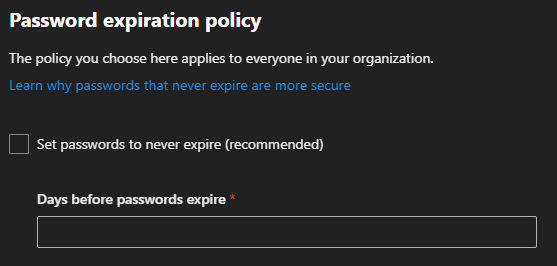
If your tenant was created prior to 2021 your password expiration period by default is 90 days. Tenants created after 2021 have passwords set to never expire by default regardless of the checkbox in the M365 Admin Center password expiration policy user interface.

Default value: No expiration. If the tenant was created before 2021, it has a 90 day expiration value by default. You can check current policy with Get-MgDomain.
The value is configurable by using the Update-MgDomain cmdlet from the Microsoft Graph module for PowerShell.
Enabling password expiration in the M365 Admin Center
The M365 admin center has a single setting to manage the password expiration policy. This setting does not distinguish between domains and modification of these settings triggers changes across all domains registered in Microsoft 365.
Setting the property “days before passwords expire” adjusts the PasswordValidityPeriodInDays across all eligable domains.
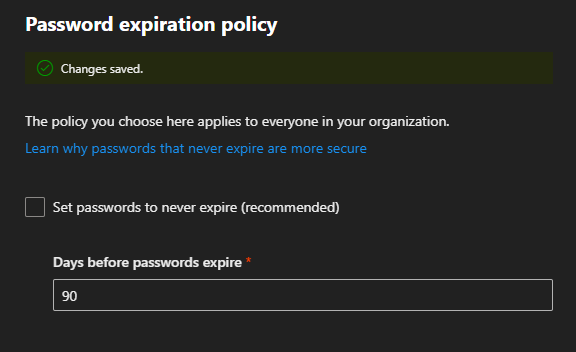
Using Get-MGDomain the password expiration settings can be verified.
Id                               : domain.com
AuthenticationType               : Federated
IsDefault                        : False
PasswordNotificationWindowInDays :
PasswordValidityPeriodInDays     :

Id                               : domain.onmicrosoft.com
AuthenticationType               : Managed
IsDefault                        : True
PasswordNotificationWindowInDays :
PasswordValidityPeriodInDays     :

Id                               : domain.net
AuthenticationType               : Managed
IsDefault                        : False
PasswordNotificationWindowInDays : 30
PasswordValidityPeriodInDays     : 90

Id                               : subdomain.domain.net
AuthenticationType               : Managed
IsDefault                        : False
PasswordNotificationWindowInDays :
PasswordValidityPeriodInDays     :

Id                               : domain2.onmicrosoft.com
AuthenticationType               : Managed
IsDefault                        : False
PasswordNotificationWindowInDays : 30
PasswordValidityPeriodInDays     : 90

Id                               : domain.mail.onmicrosoft.com
AuthenticationType               : Managed
IsDefault                        : False
PasswordNotificationWindowInDays : 30
PasswordValidityPeriodInDays     : 90
Enabling password expiration in the M365 Admin Center – Domain Exceptions
When setting a password expiration window in the M365 Admin Center certain domains are excluded from having their settings automatically set. These include
- Domains that are Federated for authentication
- Any domains with the default flag set
- Any sub domains where the root domain property is set
- New domains added after the password expiration policy was enabled
- Domains converted from federated to managed authentication
Federated Domain
Domains that are federated for authentication do not support password expiration in Microsoft 365. All determinants for password expiration are made through the federated authentication process. For example, users federated through Active Directory Federation Services and utilizing Active Directory for authentication would have their passwords expired by on-premises Active Directory and rely on ADFS to handle the password expiration.
Get-MGDomain -domainID domain.com | select-object ID,AuthenticationType,IsDefault,PasswordNotificationWindowInDays,PasswordValidityPeriodInDays

Id                               : domain.com
AuthenticationType               : Federated
IsDefault                        : False
PasswordNotificationWindowInDays :
PasswordValidityPeriodInDays     :
Default Domain
The default domain serves as the domain name utilized on Microsoft 365 objects when no domain is specified or no custom domain is registered.
Get-MGDomain -domainID domain.onmicrosoft.com | select-object ID,AuthenticationType,IsDefault,PasswordNotificationWindowInDays,PasswordValidityPeriodInDays

Id                               : domain.onmicrosoft.com
AuthenticationType               : Managed
IsDefault                        : True
PasswordNotificationWindowInDays :
PasswordValidityPeriodInDays     :
Root Domain
When a subdomain is added to Microsoft 365 where the root domain is already present and registered, a property on the sub-domain is automatically set called root domain. This automatically inherits authentication and password expiration settings that are set on the root domain. If custom authentication or password expiration settings are required for child domains, the root domain property must be cleared.
Get-MGDomain -domainID subdomain.domain.net | select-object ID,AuthenticationType,IsDefault,PasswordNotificationWindowInDays,PasswordValidityPeriodInDays

Id                               : subdomain.domain.net
AuthenticationType               : Managed
IsDefault                        : False
PasswordNotificationWindowInDays :
PasswordValidityPeriodInDays     :

Get-MgDomainRootDomain -DomainId subdomain.domain.net | select-object ID,AuthenticationType,IsDefault,PasswordNotificationWindowInDays,PasswordValidityPeriodInDays | fl

Id                               : domain.net
AuthenticationType               : Managed
IsDefault                        : False
PasswordNotificationWindowInDays : 30
PasswordValidityPeriodInDays     : 90
Domains Added after adjusting settings in the M365 Admin Center
If a domain is added after the expiration period is established in the M365 Admin Center, these domains do not get the PasswordNotificationWindowInDays automatically set.
new-mgDomain -Id newdomain.net

Get-MgDomain -DomainId newdomain.net | select-object ID,AuthenticationType,IsDefault,PasswordNotificationWindowInDays,PasswordValidityPeriodInDays | fl


Id                               : newdomain.net
AuthenticationType               : Managed
IsDefault                        : False
PasswordNotificationWindowInDays :
PasswordValidityPeriodInDays     :
Domains Converted from Federated Authentication to Managed Authentication
In M365 we allow administrators to change the authentication type of a domain from Federated Authentication to Managed Authentication. When setting the password expiration time in the M365 Admin Center any domains that are federated are skipped and the settings are not applied. Additionally, when a domain authentication type is converted from Federated back to Managed, the password expiration settings are not automatically applied.
Get-MGDomain -domainID domain.com | select-object ID,AuthenticationType,IsDefault,PasswordNotificationWindowInDays,PasswordValidityPeriodInDays

Id                               : domain.com
AuthenticationType               : Federated
IsDefault                        : False
PasswordNotificationWindowInDays :
PasswordValidityPeriodInDays     :

Update-MgDomain -DomainId domain.com -AuthenticationType Managed

Get-MgDomain -DomainId domain.com | select-object ID,AuthenticationType,IsDefault,PasswordNotificationWindowInDays,PasswordValidityPeriodInDays | fl


Id                               : domain.com
AuthenticationType               : Managed
IsDefault                        : False
PasswordNotificationWindowInDays :
PasswordValidityPeriodInDays     :
Setting passwords to never expire in the M365 Admin Center
It is Microsoft’s recommendation that customers disable password expiration in Microsoft 365.
Current research strongly indicates that mandated password changes do more harm than good. They drive users to choose weaker passwords, reuse passwords, or update old passwords in ways that are easily guessed by hackers. We recommend enabling multi-factor authentication. To learn more about password policy, check out Password policy recommendations.If a tenant is in the default state, the PasswordValidityPeriodInDays is NULL demonstrating that password expiration is disabled. When selecting the option “Set password to never expire (recommended)” the value 2147483647 is stamped on each domain where password expiration may be enabled. The value 2147483647 is 5883516.8410959 years, effectively disabling any password expiration prompts. (This also happens to be the max value that PasswordValidityPeriodInDays can be set to.)
Get-MgDomain -DomainId domain.net | select-object ID,AuthenticationType,IsDefault,PasswordNotificationWindowInDays,PasswordValidityPeriodInDays | fl


Id                               : domain.net
AuthenticationType               : Managed
IsDefault                        : False
PasswordNotificationWindowInDays : 30
PasswordValidityPeriodInDays     : 2147483647
Setting password expiration using Microsoft Graph
Microsoft Graph provides administrators with the ability to manage password expiration at a more granular level. The command Update-MGDomain allows specifying a custom expiration period on an individual domain.
#Note:  Password notification window in days currently does not do anything but must be specified when running the command.  Users are no longer notified of pending password expiration in Microsoft 365 interfaces.

Update-MgDomain -DomainId domain.net -PasswordValidityPeriodInDays "45" -PasswordNotificationWindowInDays "15"
Microsoft Graph does not allow you to update the settings on domain that is enabled for federated authentication following the same rules as the M365 Admin Center.
Update-MgDomain -DomainId domain.com -PasswordValidityPeriodInDays "45" -PasswordNotificationWindowInDays "15"
Update-MgDomain : Domain operation is not allowed.
Microsoft graph will not allow you to update the password expiration days on a subdomain where root domain is populated.
Update-MgDomain -DomainId subdomain.e-domain.net -PasswordValidityPeriodInDays "45" -PasswordNotificationWindowInDays "15"
Update-MgDomain : Domain operation is not allowed.
Microsoft graph will allow you to set a password expiration days on the default domain even though the M365 Admin Center skips this domain.
Background – Password Policies Management and Users
In the previous section we introduced the settings on domains for password expiration. Every user that is provisioned in Microsoft 365 has a user principal name which incorporates one of the verified domains. The user’s domain settings determine the password policy that is applied to the user in conjunctions with the user’s individual password policy setting.
It may become necessary to manage the password policies of individual users. For example, you may have a service account tied to a domain where password expiration is enabled but you do not want the password to expire on that account. Microsoft Graph provides administrators with the ability to manage a user’s password policy settings through the Update-MGUser command. The ability to run this command on an individual user depends on the domain’s authentication type. Let’s explore how a domain’s authentication type influences the ability to manage a user’s password policies.
CloudPasswordPolicyForPasswordSyncedUsersEnabled
In some installations administrators wish to have the Microsoft 365 password expire at or near the same time as the on-premises Active Directory password expires. By default, the password expiration time is not a value that synchronizes between Active Directory and Microsoft 365.
Directory synchronization provides an optional feature that administrators may enabled named CloudPasswordPolicyForPasswordSyncedUsersEnabled.
When the CloudPasswordPolicyForPasswordSyncedUsersEnabled is set to false, any directory synchronized user automatically has their password policies set to DisablePasswordExpiration. We will explore later how this can be modified for individual users based on the domain’s authentication type.
When this feature is enabled, the following changes occur:
New Users
- All new users synchronized after the feature is enabled will have the PasswordPolicies attribute not set. (NULL = NONE).
Previously Synchronized Users
- The user changes their password on premises due to password expiration or another password change requirement.
- Password hash synchronization writes the password hash to Entra ID.
- The users default value of DisablePasswordExpiration is now re-written to None
- Note: Enabling this feature does not convert all users to expire passwords, the conversion only occurs as a result of on-premises password change.
- Microsoft 365 will not evaluate the last password change timestamp and the expiration period and prompt the user for password changes when the passwords have expired.
It is extremely important to note that the password expiration period in Microsoft 365 is always evaluated against the last password change timestamp. There are several operations that could occur at any time that may reset user’s password in EntraID without any password change operation occuring on premises. For example, if a new Entra Connect server is introduced and password hash synchronization is enabled, all password hashes are synchronized effectively changing the expiration date between Active Directory and EntraID.
Default State: Password Policies Attribute
The password polices attribute may have a different default state depending on whether the user is a cloud only user or if the user is directory synchronized. Additionally, if the user is directory synchronized the default password policies state may change depending on the dir sync features enabled.
The password policies attribute has a value of NULL, None, or DisablePasswordExpiration. NULL or NONE are equivalent and will result in the cloud password expiring for managed domains based on the domains settings. The value DisablePasswordExpiration will prevent the users account from expiring the password based on the managed domains settings. If a password policy is set to DisablePasswordExpiration and later the password should expire, setting the password policies to NONE will expire the user’s password.
It may be possible that a user’s password policies attribute differs from the states outlined below. If the domain was managed, password policies were adjusted on users, and then the domain was converted to federated the password policies do not change. If the user was utilizing a federated domain UPN suffix and was then changed to a managed domain suffix the password policies attribute could be edited. This value will not change states as the user’s UPN suffix changes between federated and managed domains or managed domains to federated domains.
Cloud Only User / Managed Domain
PS C:\> get-mgUser -UserId CloudOnlyManaged@domain.net -Property PasswordPolicies | select -ExpandProperty PasswordPolicies
PS C:\>
Directory Synchronized User / CloudPasswordPolicyForPasswordSyncedUsersEnabled FALSE / Federated Domain
get-mgUser -UserId FederatedUser1@domain.com -Property PasswordPolicies | select -ExpandProperty PasswordPolicies
DisablePasswordExpiration
Directory Synchronized User / CloudPasswordPolicyForPasswordSyncedUsersEnabled FALSE / Managed Domain
get-mgUser -UserId ManagedUser1@e-mcmichael.net -Property PasswordPolicies | select -ExpandProperty PasswordPolicies
DisablePasswordExpiration
Directory Synchronized User / CloudPasswordPolicyForPasswordSyncedUsersEnabled TRUE / Federated Domain (Post Password Change)
get-mgUser -UserId FederatedUser1@domain.com -Property PasswordPolicies | select -ExpandProperty PasswordPolicies
None
Directory Synchronized User / CloudPasswordPolicyForPasswordSynchronizedUsersEnabled TRUE / Managed Domain (Post Password Change)
get-mgUser -UserId ManagedUser1@domain.net -Property PasswordPolicies | select -ExpandProperty PasswordPolicies
None
Directory Synchronized NEW User / CloudPasswordPolicyForPasswordSynchronizedUsersEnabled TRUE / Managed Domain
get-mgUser -UserId ManagedUser3@e-mcmichael.net -Property PasswordPolicies | select -ExpandProperty PasswordPolicies
PS C:\>
Directory Synchronized NEW User / CloudPasswordPolicyForPasswordSynchronizedUsersEnabled TRUE / Federated Domain
get-mgUser -UserId FederatedUser3@e-mcmichael.com -Property PasswordPolicies | select -ExpandProperty PasswordPolicies
PS C:\>
Setting PasswordPolicies and Federated Domain Authentication (CloudPasswordPolicyForPasswordSyncedUsersEnabled FALSE)
When a user is created with a domain that utilizes federated authentication the ability to manage the PasswordPolicies attribute is limited.
When using Update-MGUser to set the PasswordPolicies attribute to NONE an error is encountered:
Update-MgUser -UserId FederatedUser1@domain.com -PasswordPolicies None
Update-MgUser : Unable to update the specified properties for on-premises mastered Directory Sync objects or objects
currently undergoing migration.
We note that update-MGUser is not supported on federated domains in the following article.

 Note

The Update-MgUser PowerShell command doesn't work on federated domains.
The error returned though is misleading. Based on the error provided one would believe that the passwordPolicies attributes is locked because the object is enabled for directory synchronization. This is not correct the actual error is because the user is set with a domain that is enabled for federated authentication. At the time of publishing our internal engineering groups are reviewing this error and working to make it more accurately reflect the underlying reason.
When using Update-MGUser to set the PasswordPolicies attribute to DisablePasswordExpiration the command completes successfully although in this example it is setting a value that already exists therefore performing no actions on the user object. (See Why did certain scenarios for the federated users work if the commands if update-MGUser does not work on federated domains? below for further explanation.)
Update-MgUser -UserId FederatedUser1@domain.com -PasswordPolicies DisablePasswordExpirationSetting Password Policies, Federated Domain Authentication, with Managed Authentication Staged Rollout (CloudPasswordPolicyForPasswordSyncedUsersEnabled FALSE)
EntraID allows administrators to test managed authentication without fully converting a federated domain. This feature is known as Managed Authentication Staged Rollout. For more information on managed authentication staged rollout please review: https://learn.microsoft.com/en-us/entra/identity/hybrid/connect/how-to-connect-staged-rollout
When a user is enabled for staged rollout certain password expiration policies apply to the user. Attempting to use Update-MGUser to set the password policies to NONE fails for the same reason as a Federated user.
Update-MgUser -UserId FederatedUser2@domain.com -PasswordPolicies None
Update-MgUser : Unable to update the specified properties for on-premises mastered Directory Sync objects or objects
currently undergoing migration.
Setting Password Policies and Managed Domain Authentication (CloudPasswordPolicyForPasswordSyncedUsersEnabled FALSE)
When a user is created with a domain that utilizes managed authentication the password policies attribute can be fully managed. Here are some examples:
Cloud Only User / Managed Authentication
get-mgUser -UserId CloudOnlyManaged@domain.net -Property PasswordPolicies | select -ExpandProperty PasswordPolicies

#Null Return#

update-mgUser -UserId CloudOnlyManaged@domain.net -PasswordPolicies "DisablePasswordExpiration"

get-mgUser -UserId CloudOnlyManaged@domain.net -Property PasswordPolicies | select -ExpandProperty PasswordPolicies
DisablePasswordExpiration
Directory Synchronized User / CloudPasswordPolicyForPasswordSyncedUsersEnabled FALSE/ Managed Authentication
get-mgUser -UserId ManagedUser1@domain.net -Property PasswordPolicies | select -ExpandProperty PasswordPolicies
DisablePasswordExpiration

update-mgUser -UserId ManagedUser1@domain.net -PasswordPolicies None

get-mgUser -UserId ManagedUser1@domain.net -Property PasswordPolicies | select -ExpandProperty PasswordPolicies
None
Setting PasswordPolicies and Federated Domain Authentication (CloudPasswordPolicyForPasswordSyncedUsersEnabled TRUE)
The results are the same as CloudPasswordPolicyForPasswordSyncedUsersEnabled FALSE.
If attempting to set the value to NONE the command succeeds as the value was already set to NONE as a result of the feature enablement and subsequent password reset.
Update-MgUser -UserId FederatedUser1@domain.com -PasswordPolicies NoneIf attempting to set the value to DisablePasswordExpiration the command fails.
Update-MgUser -UserId FederatedUser1@domain.com -PasswordPolicies DisablePasswordExpiration
Update-MgUser : Unable to update the specified properties for on-premises mastered Directory Sync objects or objects
currently undergoing migration.
Setting Password Policies, Federated Domain Authentication, with Managed Authentication Staged Rollout (CloudPasswordPolicyForPasswordSyncedUsersEnabled TRUE)
The results are the same as “Setting PasswordPolicies and Federated Domain Authentication (CloudPasswordPolicyForPasswordSyncedUsersEnabled TRUE)” outlined in the previous section.
Setting Password Policies and Managed Domain Authentication (CloudPasswordPolicyForPasswordSyncedUsersEnabled TRUE)
The results are the same as “Setting Password Policies and Managed Domain Authentication (CloudPasswordPolicyForPasswordSyncedUsersEnabled FALSE)” outlined in a previous section.
get-mgUser -UserId ManagedUser3@domain.net -Property PasswordPolicies | select -ExpandProperty PasswordPolicies

update-MGUser -UserId ManagedUser3@domain.net -PasswordPolicies "DisablePasswordExpiration"

get-mgUser -UserId ManagedUser3@domain.net -Property PasswordPolicies | select -ExpandProperty PasswordPolicies
DisablePasswordExpiration

update-MGUser -UserId ManagedUser3@domain.net -PasswordPolicies "None"

get-mgUser -UserId ManagedUser3@domain.net -Property PasswordPolicies | select -ExpandProperty PasswordPolicies
None
Why did certain scenarios for the federated users work if the commands if update-MGUser does not work on federated domains?
In the federated scenario the only time that the command did not error was when it was setting a value that already existed on the object. For example, DisablePasswordExpiration was already set to running Update-MGUser -passwordPolicies DisablePasswordExpiration succeeded. When a graph call is made to set an attribute that already exists on the object with the same value the underlying API is not invoked. The call is then “successful” even though no attempt to change the value occurred.
Quick Reference Table
- Cloud Only User
- Managed Authentication
- Default Value: NULL
- Update-MGUser Accepted Values: DisablePasswordExpiration or NONE
- Managed Authentication
- Directory Synchronized User
- CloudPasswordPolicyForPasswordSyncedUsersEnabled FALSE
- Managed Authentication
- Default Value: DisablePasswordExpiration
- Update-MGUser Accepted Values: DisablePasswordExpiration or NONE
- Default Value: DisablePasswordExpiration
- Federated Authentication
- Default Value: DisablePasswordExpiration
- Update-MGUser Accepted Values: No accepted values
- Managed Authentication
- CloudPasswordPolicyForPasswordSyncedUsersEnabled TRUE
- Default Values All Authentication Types
- Prior to password hash synchronization: DisablePasswordExpiration or NONE
- Post password hash synchronization: None
- New account creation post enablement: NULL
- Managed Authentication
- Update-MGUser Accepted Values: DisablePasswordExpiration or None
- Federated Authentication
- Update-MGUser Accepted Values: No accepted values
- Default Values All Authentication Types
- CloudPasswordPolicyForPasswordSyncedUsersEnabled FALSE
References
https://docs.azure.cn/en-us/entra/identity/authentication/concept-password-ban-bad-combined-policy
 TIMMCMIC