A mail user is a user security principle that is extended with mail attributes. These accounts typically are utilized when there is a need to access Active Directory but email for the account should be sent to another mail system. Mail routing to the foreign mail system occurs by setting the externalEmailAddress property (targetAddress Active Directory property) on the mail user object.
The externalEmailAddress that is defined on the mail user does not have to be external. There are circumstances were administrators may want to define the externalEmailAddress as an internal address assigned to a mailbox. I recently worked with some organizations that were provisioning administrator accounts within Active Directory. The organizations wanted to have the administrator accounts be mail enabled objects, have unique email addresses, and have the email arrive in the primary mailbox assigned to the same administrators standard account. This resulted in the extenralEmailAddress property being an internal address. It was after enabling these accounts with an internal email address that a duplicate proxy address error occurred.
Let us explore the circumstances of this scenario.
In Active Directory an account exists that is synchronized to Azure Active Directory and Exchange Online. Executing get-User in the on-premises Exchange Management Shell shows that the object is a user object.
[PS] C:\>Get-User UserAdmin0
Name RecipientType
—- ————-
User Admin0 User
The same command in Exchange Online confirms that the object is not mail enabled and appears as a user object.
PS C:\> Get-User “User Admin0” | fl Name,RecipientType,DisplayName
Name : 3f15d3d8-4cbd-4457-bb9c-5a5fe58535eb
RecipientType : User
DisplayName : User Admin0
The administrator executes enable-mailUser with an externalEmailAddress that exists on an object within the directory.
[PS] C:\>Enable-MailUser UserAdmin0 -ExternalEmailAddress sharon@domain.com
The proxy address “SMTP:sharon@domain.com” is already being used by the proxy addresses or LegacyExchangeDN of
“home.domain.com/E-McMichael Objects/Users/Sharon User”. Please choose another proxy address.
+ CategoryInfo : NotSpecified: (home.domain…est/User Admin0:ADObjectId) [Enable-MailUser], ProxyAdd
ressExistsException
+ FullyQualifiedErrorId : [Server=Azure-Mail-0,RequestId=eebf023a-54ce-45eb-be36-c0b498bfe065,TimeStamp=3/14/2023
2:33:35 PM] [FailureCategory=Cmdlet-ProxyAddressExistsException] 35F8ADFF,Microsoft.Exchange.Management.RecipientT
asks.EnableMailUser
+ PSComputerName : azure-mail-0.home.domain.com
In this case an error is immediately returned. This is expected and by design. Enable-MailUser expects to set the externalEmailAddress specified as a primary proxy on the account. It is unable to do so since this primary SMTP address already exists on a mailbox object within the directory. To get around this behavior the enable-MailUser command is executed with the -primarySMTPAddress switch. When specifying the primary SMTP address the logic to add the users externalEmailAddress is bypassed.
[PS] C:\>Enable-MailUser UserAdmin0 -ExternalEmailAddress sharon@domain.com -PrimarySmtpAddress useradmin0@domain.com
Name RecipientType
—- ————-
User Admin0 MailUser
A review of the users properties shows a correct proxy address and external email address set based on the command executed.
[PS] C:\>get-mailUser UserAdmin0 | fl emailAddresses,externalEmailAddress
EmailAddresses : {SMTP:useradmin0@domain.com}
ExternalEmailAddress : SMTP:sharon@domain.com
When synchronization has completed an error in the portal is noted indicating that a duplicate proxy address collision exists. This is viewed on the error record of the object using get-msolUser.
The proxy address “SMTP:sharon@domain.com” is already being used by the proxy addresses or LegacyExchangeDN of “Sharon”. Please choose another proxy address.
Reviewing the output of the user on premises does not show a proxyAddress collision. Why then do we have a collision in Office 365? In this instance the user account existed prior to enabling the mail user. When enabling a mail user if the user object does not already have a primary SMTP address assigned the externaEmaillAddress is set as the primary SMTP address. This is very similar to executing the same command on premises and not using -primarySMTPAddress as we demonstrated initially. In summary if the user already exists as a user object in Exchange Online, the user is later mail enabled as a mail user, the externalAddress exists on another object in Exchange Online, the user will enter a validation failure state and the mail user will not provision.
What are some potential solutions to this scenario?
Provision the user and mail user at the same time.
When a new user object is created in Active Directory and immediately mail enabled the synchorinization into the service provisions the object with both a primarySMTPAddress and and externalEmailAddress at the same time. In this instance there is no address collision as the object did not already exist in Exchange Online.
New-MailUser -Name “InitialTest” -DisplayName “InitialTest” -FirstName “Initial” -LastName “Test” -UserPrincipalName “initialtest@domain.com” -ExternalEmailAddress “sharon@domain.com” -OrganizationalUnit “OU=MigrationTest,OU=DLConversion,DC=home,DC=domain.com,DC=com” -PrimarySmtpAddress “initialtest@domain.com”
WARNING: A script or application on the remote computer AZURE-MAIL-0.HOME.domain.com is sending a prompt request.
When you are prompted, enter sensitive information, such as credentials or passwords, only if you trust the remote
computer and the application or script that is requesting the data.
cmdlet New-MailUser at command pipeline position 1
Supply values for the following parameters:
Password: ***********
Name RecipientType
—- ————-
InitialTest MailUser
When synchronization is completed the object will be represented in Exchange Online as a mail user.
PS C:\> Get-MailUser InitialTest | fl emailAddresses,externalEmailAddress
EmailAddresses : {SMTP:initialtest@domain.com, smtp:initialtest@tenant.onmicrosoft.com,
X500:/o=domain Home/ou=Exchange Administrative Group
(FYDIBOHF23SPDLT)/cn=Recipients/cn=05ae6f37202b4fad96247c32875a3565-Initial}
ExternalEmailAddress : SMTP:sharon@domain.com
Provision the existing user account as a mail user with a temporary external email address.
If the user account already exists in Exchange Online as a user the object can be converted to a mail user by specifying a temporary target address that does not exist in Exchange Online. When this occurs Exchange Online will provision a primary SMTP for the object. Once the primary SMTP address has provisioned the target address can be updated on-premises to the desired value. Updating the value does not trigger logic to re-evaluate the primarySMTPAddress since the address is already present.
To being validate that the user object exists in Exchange Online as a USER.
PS C:\> Get-User “User Admin1”
Name RecipientType
—- ————-
50075348-a3e5-4a2d-a142-5ec9fd9a72ee User
Using the Exchange Management tools the object may be mail enabled as a user. An external email address that is temporary is utilized.
[PS] C:\>Enable-MailUser “UserAdmin1” -ExternalEmailAddress totallyNotAnAddress@contoso.com
Name RecipientType
—- ————-
User Admin1 MailUser
Using Exchange Online Powershell the object conversion from user to mail user is validated using get-mailUser. The proxy addresses is populated and the external email address reflects the temporary address specified in the enable command.
PS C:\> Get-MailUser “User Admin1” | fl DisplayName,RecipientType,EmailAddresses,ExternalEmailAddress
DisplayName : User Admin1
RecipientType : MailUser
EmailAddresses : {smtp:UserAdmin1@domain.com, smtp:UserAdmin1@domain.mail.onmicrosoft.com,
smtp:UserAdmin1@timmcmic.onmicrosoft.com, X500:/o=domain Home/ou=Exchange Administrative
Group (FYDIBOHF23SPDLT)/cn=Recipients/cn=328ebabf60834005be26d5a28e4ba850-User Ad…}
ExternalEmailAddress : SMTP:totallyNotAnAddress@contoso.com
Using the Exchange Management Tools the user is mail disabled and re-enabled using the desired external address. This is necessary as set-Mailuser -externalEmailAddress checks for uniqueness of the external address and an error is returned. This disable / enable needs to be done within a single sync cycle.
[PS] C:\>Disable-MailUser UserAdmin1
Confirm
Are you sure you want to perform this action?
Disabling mail user “UserAdmin1” will remove the Exchange properties from the Windows user object.
[Y] Yes [A] Yes to All [N] No [L] No to All [?] Help (default is “Y”): a
[PS] C:\>Enable-MailUser “UserAdmin1” -ExternalEmailAddress sharon@domain.com -PrimarySmtpAddress useradmin1@domain.com
Name RecipientType
—- ————-
User Admin1 MailUser
The change is validated in Exchange Online using get-mailUser.
PS C:\> Get-MailUser “User Admin1” | fl DisplayName,RecipientType,EmailAddresses,ExternalEmailAddress
DisplayName : User Admin1
RecipientType : MailUser
EmailAddresses : {SMTP:useradmin1@domain.com, X500:/o=domain Home/ou=Exchange Administrative Group
(FYDIBOHF23SPDLT)/cn=Recipients/cn=4ced80a1c0b04fe89c04c84fa1e53ca0-User Ad,
smtp:UserAdmin1@timmcmic.onmicrosoft.com}
ExternalEmailAddress : SMTP:sharon@domain.com
If you are comfortable with Active Directory Users and Computers attribute editor an alternative is to locate the object and modify the property directly. The targetAddress attribute of the object holds the externalEmailAddress.
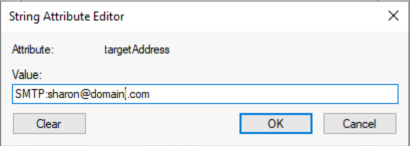
Updating this address in the correct format will result in the same change in Exchange Online without disabling and re-enabling the mail user object.
What if I already have the duplicate proxy failure?
If the duplicate proxy failure already exists the object must be mail disabled and the synchronization allowed to complete. Once the sync has completed the option outlined above to mail enable an existing user account may be performed.
The workarounds described here should allow administrators to create mail user objects where the external email address specified exists in Exchange Online.
 TIMMCMIC