Monthly Archives: May 2021

Azure AD Connect: Sync Error 113

In Azure Active Directory a popular feature is leveraging groups in order to assign license to users. In many cases customers apply group based licenses to groups that are synchronized from Active Directory on premises. This allows administrators the flexibility maintain group membership in a centralized directory and the flexibility to assign licenses without a second operation in a different directory.

To establish group based licenses – a licensing policy is assigned to the group within Azure Active Directory. The following is an example:

I have recently had customer open cases for synchronization errors. These errors are viewable in the portal and may come in an email summary of directory synchronization errors that are detected. This is sample error from the azure portal.
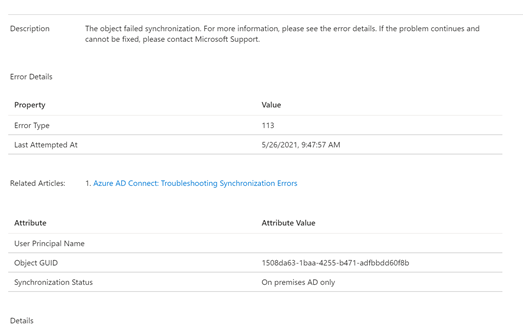


In this case the error is 113 and simply shows the object GUID of the object in the on premises directory.

When a sync error is listed in the Azure Portal and there is no additional information – a good place to look is the Azure Active Directory Connect server. In many cases the health agent on the server is sending up errors encountered in the sync or export process. In this particular example when reviewing the export to Azure Active Directory the same error is noted.




When selecting group from the export errors section the administrator has access to the export errors tab.
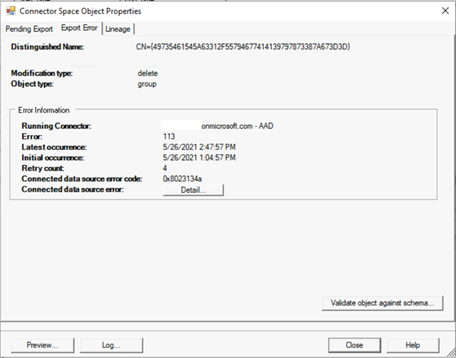


The first thing that is noticed is that the operation that is generating the error is a Delete operation. We already know that it is a group based on the previous information from Azure Active Directory and the sync error. Click on the details tab we discover the full information regarding the failure.
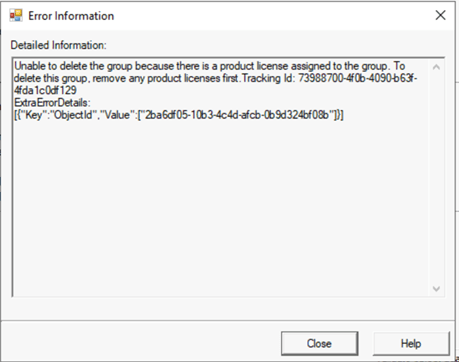


Unable to delete the group because there is a product license assigned to the group. To delete this group, remove any product licenses first.


Tracking Id: 73988700-4f0b-4090-b63f-4fda1c0df129

ExtraErrorDetails:

[{“Key”:”ObjectId”,”Value”:[“2ba6df05-10b3-4c4d-afcb-0b9d324bf08b”]}]


The error text pinpoints the exact issue – a deletion is being attempted on a group that has group based licenses applied. The delete operation is blocked and an error is logged. This makes sense – imagine what problem could occur if we allowed a group to be deleted that had license applied – and resulted in those licenses being removed.

To correct this condition the administrator must remove the licenses from the group. Once the licenses are removed from the group the next sync cycle will successfully delete the group. The error 113 will clear after the next health submission update.
Look out – Office 365 URL and IP Address changes…

It is a common implementation for customers to control the resources that employees can access. To that end, Office 365 publishes the IP addresses and URLs that are necessary for a successful Office 365 deployment. In addition to publishing the list, a JSON file is made available for services that can automatically digest this information for automatic rules creation. Rules are generally split into two categories: (1) endpoints accessible via an IP address and (2) endpoints accessible via a URL. There was occasionally some overlap where certain URL-based endpoints had IP address ranges published. For URL-based endpoints, the ports required for access are also published and it is expected that any IP address for that URL is accessible. The documentation on this is at Office 365 URLs and IP address ranges – Microsoft 365 Enterprise | Microsoft Docs.

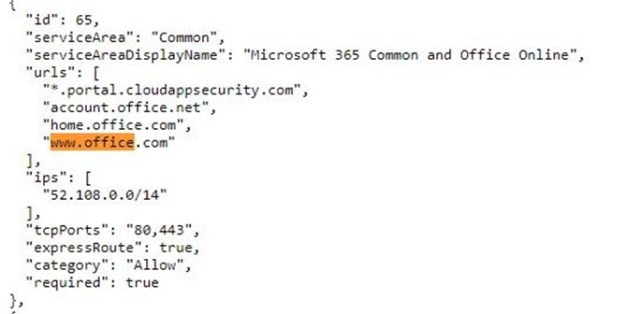
Recently I worked a customer escalation where the customer was being denied access to http://www.office.com. When reviewing the documentation http://www.office.com was published to use an IP address space of 52.108.0.0/14.

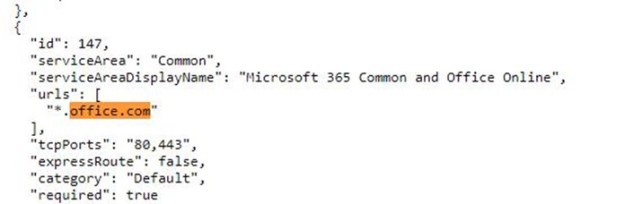
We observed that http://www.office.com would routinely be redirected to IP addresses in the 13.X.X.X subnets, and when reviewing the documentation, we noticed the following:

In this case, there is an explicit IP range published and then an open URL-based exception. For this customer, the more specific scenario was applied, resulting in users being unable to access http://www.office.com. In consultation with our engineering group, we determined that URL-based IP publishing is being phased out in favor of simple URL publishing. Therefore, in this instance, the new scheme is expected and any access to anything *.office.com should be allowed to any endpoint. The ultimate resolution was to remove the URL and IP address combination associated with http://www.office.com.

If you are ingesting the JSON file, you may want to start ensuring your environment is ready. The network devices that you use will require interpretation of URL-based filtering and will not be able to rely solely on IP / URL-based filtering to ensure a successful Office 365 deployment.

Azure Active Directory and Country Codes

In Azure Active Directory the default country for user objects that are provisioned from on-premises is the region where the tenant was created. For many companies that are multi-national they expect the region in Azure Active Directory to reflect the region that the user resides in.


Account attributes are determined by the attribute set replicated through Azure Active Directory Connect. The country attribute is no exception – in order for a directory synchronized object to reflect the correct country it must be accurately set in the on-premises Active Directory.


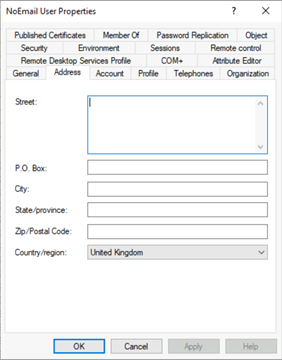
In Active Directory Users and Computers, on the address tab, the administrator may specify the country of the user.


The result of completing this operation is setting three attributes in Active Directory. These attributes are C, CO, and Country Code.


PS C:\> Get-ADUser NoEmailUser -Properties “c”,”co”,”countrycode”


c : GB

co : United Kingdom

countrycode : 826

DistinguishedName : CN=NoEmail User,OU=User,OU=DLMembers,OU=DLConversion,DC=home,DC=domain,DC=com

Enabled : True

GivenName : NoEmail

Name : NoEmail User

ObjectClass : user

ObjectGUID : 4ab27bae-d02c-48cd-88eb-4ba6fd430ce6

SamAccountName : NoEmailUser

SID : S-1-5-21-278042269-1514808692-1118015945-42988

Surname : User

UserPrincipalName : NoEmailUser@e-domain.com


Many organizations do not utilize native tools to provision users in AD. In these environments users are provisioned through connections to human resource systems or other third party directories. In many instances these third party systems flow the country into the attribute C.


PS C:\> Get-ADUser NoEmailUser1 -Properties “c”,”co”,”countrycode”


c : GB

countrycode : 0

DistinguishedName : CN=NoEmailUser1,OU=User,OU=DLMembers,OU=DLConversion,DC=home,DC=domain,DC=com

Enabled : True

GivenName :

Name : NoEmailUser1

ObjectClass : user

ObjectGUID : 1ce0caf2-1982-45d3-9db7-a49878953d22

SamAccountName : NoEmailUser1

SID : S-1-5-21-278042269-1514808692-1118015945-43637

Surname :

UserPrincipalName : NoEmailUser1@domain.com


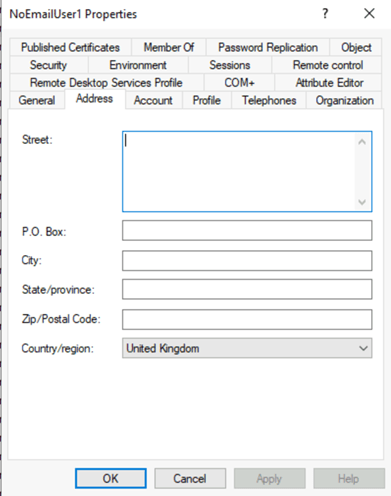
When reviewing the user in AD Users and Computers the country does appear to be set.


This can lead to some confusion – for the country to be complete set the C, CN, and Country Code should be set.


Many customers who utilize third party provisioning systems will discover that the country code does not reflect in Azure AD whereas when adjusting the country code via ADUC or resetting it on a provisioned account in ADUC it successfully reflects.


Azure AD Connect is responsible for evaluating the attribute set on premises and replicating the changes to Azure Active Directory. The attributes replicated are based on a set of rules. The population of county occurs through the rule “In from AD – User Common”.


In the “In from AD – User Common” rule the attributes C and CO are imported into the metaverse.


Once in the metaverse – the attributes need to be mapped as to what is exported to Azure AD. In this case country is exported through “Out to AAD – User ExchangeOnline”. The metaverse attribute CO is mapped to the country field in Azure AD.


This demonstrates the issues associated with third party directories and only setting the C values. If the CO value is not also set – even though the C value is set (and the GUI shows a country) there will be no country replicated to Azure AD.


To fully provision the country for a user the C, CO, and CountryCode values should be set. Standards for the country codes utilized and background information maybe found here.