Monthly Archives: August 2017

Handling Migrations – StalledDueToTarget_MdbFull or TargetDatabaseFullPermanentException

When an administrator provisions a migration batch to Office 365 and adds users, objects known as migration users are created, which you can view using Get-MigrationUser. When migration users and the corresponding move requests (Get-MoveRequest) are created an Exchange Online mailbox database is assigned to each mailbox that will be migrated.  Exchange Online uses an algorithm to review available databases within the service and subsequently select the best target database. Among other data points, one of the criteria considered in the algorithm is the amount of available free space the database file is allowed to consume.


Some customers have recently reported that during the mailbox finalization process, the mailbox move may stall with the following error: StalledDueToTarget_MDBFull or TargetDatabaseFullPermanentException.


Why does this stall occur?


As mailbox data is migrated into the database space within the database file. Exchange Online servers cap the size of mailbox database files to ensure that sufficient free space exists in the database to process mail and client transactions, and to prevent a single database file from consuming more disk space than expected.


StalledDueToTarget_MDBFull is our way of notifying the administrator that we have reached the threshold for the minimum free space remaining in the database, or that the database file has reached its maximum allowable size. 


TargetDatabaseFullPermanentException is similar in nature.  Often the move reports will include space information regarding the state of the target database.  Here is an example:


Message           : Target database GUID cannot be used:
                    Current database file size: 1464986501120
                    Current space available inside database: 1743781888
                    Allowed database growth percentage: 90
                    Maximum database file size limit: 1622722691784
                    Is database excluded from provisioning: ‘False’.


The service will allow a database to grow to 90% space utilization.  The reserve ensures that users already utilizing the database are safe and further database operations would not impact the stability of the service.  In this case 146498956501120 / 1622722691784 = 90.2% (therefore greater than the 90% limit imposed).


How does the administrator handle this scenario?


There are three options available for an administrator to deal with this scenario.


The first option is to do nothing.  Within Exchange Online, there are service processes that dynamically move mailboxes to redistribute load across multiple databases. Exchange Online is aware of pending migrations and in the background, redistributes mailboxes to allow the free space to decline below the stalled threshold.  When the free space has increased to a level that would safely allow for migrations to complete – the stall condition will be resolved, and the migration will complete. This could take several hours or days between when the stall is first encountered and when free space is below the threshold to allow for continued moves.


The second option that may help is to lower the amount of time between the initial synchronization of the mailbox and the finalization of the mailbox move.  In most customer engagements there were several days to weeks between the initial synchronization of the mailbox and when the administrator issued the finalization of the mailbox move.  The stall is then encountered in the incremental synchronization process that attempts to finalize the move and copy the remaining data.  When shortening the time between the initial synchronization and the finalization, you decrease the likelihood that the space has been consumed by other migration and client activity, thereby increasing the success rate of mailbox move finalizations. 


The third option is to delete and recreate the move.  In this case, all previously migrated data is deleted, and the migration starts over again.  This can be time-consuming and does not guarantee that you will not see this issue again should you have a longer delay between initial synchronization and finalization.
DNS Errors and Warnings in the Office 365 Portal


The Office 365 portal often offers information regarding the status and health of your services. 


The DNS checks are not performed on each administrator logon to the portal.  The checks are performed by our Azure DNS infrastructure determining the Source of Authority (SOA) records for the registered domains.  This will return the list of name servers responsible for hosting the domain.  You can utilize NSLookup to determine the same for your domain.


C:>nslookup
Default Server:  internalDNSServer.internal.contoso.com
Address:  10.10.1.10

> set type=soa
> contoso.com
Server:  internalDNSServer.internal.contoso.com
Address:  10.10.1.10

Non-authoritative answer:
contoso.com

        primary name server = ns29.domaincontrol.com
        responsible mail addr = dns.jomax.net
        serial  = 2017100901
        refresh = 28800 (8 hours)
        retry   = 7200 (2 hours)
        expire  = 604800 (7 days)
        default TTL = 600 (10 mins)

ns29.domaincontrol.com  internet address = 216.69.185.15
ns29.domaincontrol.com  AAAA IPv6 address = 2607:f208:206::f


In this example only a single SOA server is returned – ns29.domaincontrol.com.  When the list of SOA servers has been determined we will begin a DNS query against each of those servers.  The DNS library utilized for this operation allows for a 12 second timeout before the next server in the list is attempted.  If all servers fail and timeout – the DNS error will be reported in the portal.


Once a responding SOA server has been determined – the DNS query issued against the server is based off of the domain capabilities of the domain in Office 365.  With previous revisions of our management portal administrators could add a domain and select the capabilities.  For example, the domain contoso.org will only serve email – therefore that would be the only capability in the portal.  With the current portal when a domain is registered it is automatically registered for all services.  We do not provide a method to only enable or disable selected services at this time.  You can utilize the get-msolDomain command to view the capabilities associated with a given domain.


PS C:> Get-MsolDomain -DomainName contoso.org| fl

ExtensionData      : System.Runtime.Serialization.ExtensionDataObject
Authentication     : Managed
Capabilities       : Email, OfficeCommunicationsOnline, OrgIdAuthentication, Intune
IsDefault          : True
IsInitial          : False
Name               : contoso.org
RootDomain         :
Status             : Verified
VerificationMethod : DnsRecord


In this example we will query the SOA server for all records associated with all of the services provided.  If the capabilities were just EMAIL for example, we would only query for the email records necessary for the service.  Mobile device management and Skype for Business would not be queried even though the records are provided through the portal.


You can observe this health reporting by accessing setup –> Domains.


image


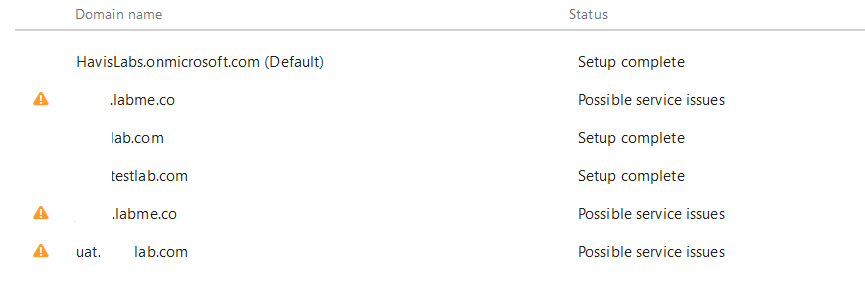
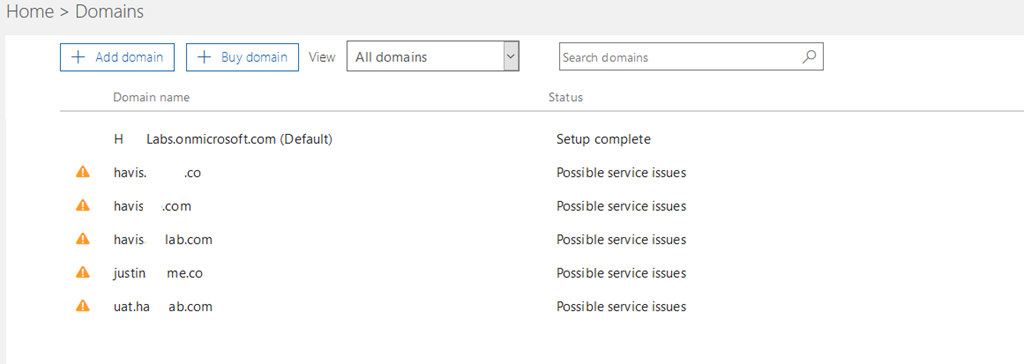
Your domains will be listed and domains that are currently flagged for issues display a warning symbol and are flagged for possible service issues.


image


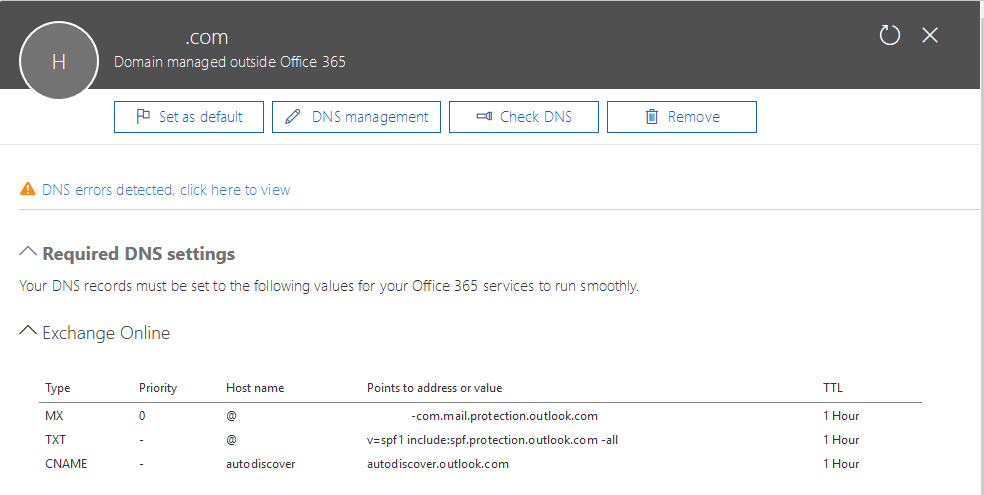
To review the individual issues identified the domain can selected in the previous screen.  The next screen displays the individual DNS associated with the domain selected.


image


With the DNS records displayed we can select DNS Errors detected, click here to view.


image


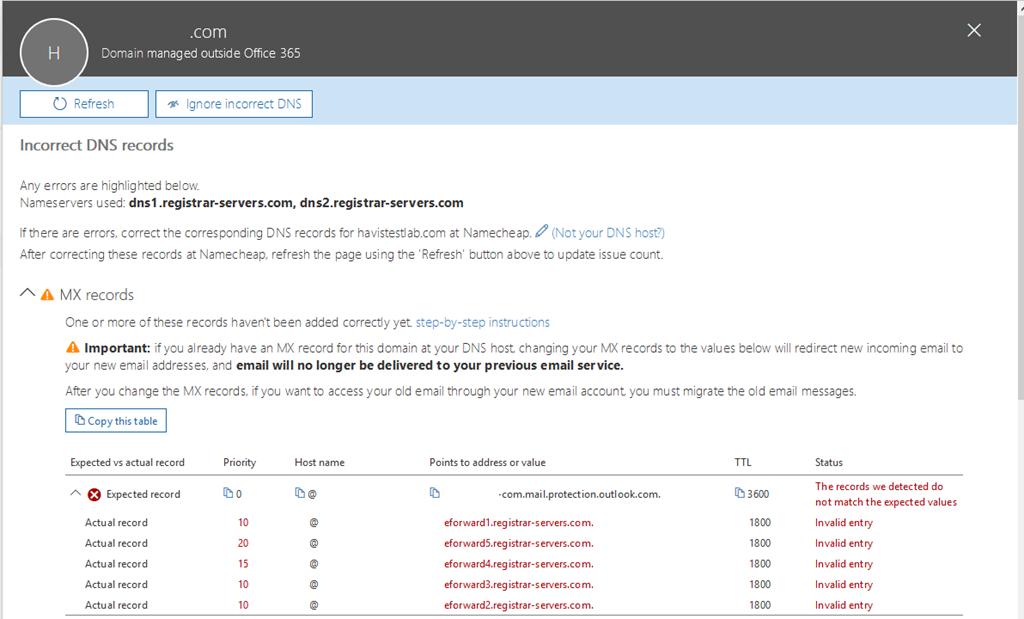
With this option selected we will see the individual DNS errors that were detected for the domain selected.  Here is a sample for the MX records.


image


In this example our health logic has queried DNS and determined that the MX record provisioned for your domain is not the MX record found in the DNS registrations. 


There are situations where this is perfectly acceptable.  The DNS health checking mechanism does not know the specifics of your installation and any customizations that may be present.  For example, it is not uncommon in a hybrid configuration to have your autodiscover record pointing to an on premises Exchange environment.  This would trigger a health check failure on the CNAME records as autodiscover does not point to the Office 365 service.  It is also not uncommon to have inbound mail flow for your MX record point to a solution other than Office 365 – for example a third party gateway device <or> an on premises email environment.  This would produce a DNS health check failure on the MX record similar to the errors seen above.


When the health check has found an error it is important that the records be manually reviewed and an understanding of any discrepancies explained.  If they are due to customizations the errors can be safely ignored.  If they are due to legitimate DNS errors it would be recommended to fix the discrepancies as soon as possible to prevent any forms of service outage.


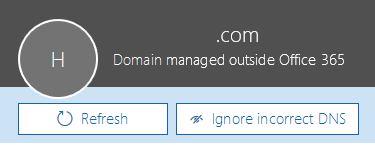
If you analysis has determined that the DNS errors are benign you can discontinue warning about them by selecting the ignore incorrect dns button.  This is found on the same page where the individual DNS record errors are displayed.


image


If the administrator has selected the ignore incorrect dns option the domain will no longer appear with a warning symbol on the domains page and the status will show setup complete verses possible service issues.


image


It is important to note that the ignore function is only good for the current administrator session.  DNS is evaluated on every administrator logon – therefore the DNS errors may appear on the next logon even if ignored.  This is a departure from previous versions of the portal where the ignore function would ignore DNS errors for up to 7 days before the status was reset and tested again.


If at a later time you decide you want to have DNS re-evaluated for any reason you can select the specific domain and utilize the CHECK DNS button to initiate a DNS health check.  This will issue an immediate re-evaluation of the DNS records associated with the domain. 


image


With an understanding of your DNS implementation and a review of the service issues identified administrators and make an accurate determination if the errors are safe to ignore or if actionable steps need to be taken.


What happens when I keep getting recurring errors but everything is established to my satisfaction?  Unfortunately the only remedy is to ignore the errors in the portal once an understanding of why the domain has been flagged has been established.

Configure Auto Reply for a Mailbox

Administrators can view and configure auto reply settings for an Exchange Online mailbox using the Set-MailboxAutoReplyConfiguration and Get-MailboxAutoReplyConfiguration PowerShell cmdlets.


Using Set-MailboxAutoReplyConfiguration, you can schedule an automated reply to start at a specific time.  For example, to create a scheduled auto reply that starts at 6:00 pm Eastern Daylight Time (EDT) on August 16 and ends at 6:00 pm EDT on August 17, I would run the following command: 


Set-MailboxAutoReplyConfiguration -Identity tmcmichael -AutoReplyState Scheduled -StartTime “18:00 8/16/2017” –EndTime “18:00 8/17/2017”


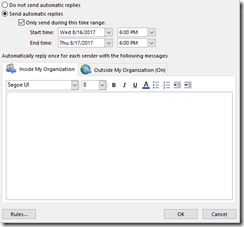
When the command has completed successfully, you can verify the settings in Outlook, as shown below. 


image


Interestingly, Outlook indicates a start and end time of 2:00 pm, not 18:00 (6:00 pm).  Get-MailboxAutoReplyConfiguration also shows 2:00 pm as the configured start/stop times.


PS C:> Get-MailboxAutoReplyConfiguration -Identity tmcmichael

RunspaceId                       : 1a9aa7f0-e144-4b66-b799-ef1bb329a4c5
AutoDeclineFutureRequestsWhenOOF : False
AutoReplyState                   : Scheduled
CreateOOFEvent                   : False
DeclineAllEventsForScheduledOOF  : False
DeclineEventsForScheduledOOF     : False
EventsToDeleteIDs                :
EndTime                          : 8/17/2017 2:00:00 PM
ExternalAudience                 : All
ExternalMessage                  :
InternalMessage                  :
DeclineMeetingMessage            :
OOFEventSubject                  :
StartTime                        : 8/16/2017 2:00:00 PM
MailboxOwnerId                   : Timothy McMichael
Identity                         : Timothy McMichael
IsValid                          : True
ObjectState                      : Unchanged


Both Outlook and the PowerShell output are correct. This is because Set-MailboxAutoReplyConfiguration uses the time zone on the Exchange server.  All Exchange Online servers use GMT for their time zone settings. 18:00 GMT is 14:00 EDT.


So how do I get the auto reply to start and stop at 6:00pm?  The easiest way is to simply convert the desired time to GMT.  In my example, the user is in EDT which is GMT-4.  Since I want to have the auto reply start and stop at 18:00 EDT, I add 4 hours to get the time in GMT (in this case, 22:00 GMT):


Set-MailboxAutoReplyConfiguration -Identity tmcmichael -AutoReplyState Scheduled -StartTime “22:00 8/16/2017” –EndTime “22:00 8/17/2017”


Outlook now shows 6:00pm: 


image


And so does Get-MailboxAutoReplyConfiguration: 


PS C:> Get-MailboxAutoReplyConfiguration -Identity tmcmichael

RunspaceId                       : 1a9aa7f0-e144-4b66-b799-ef1bb329a4c5
AutoDeclineFutureRequestsWhenOOF : False
AutoReplyState                   : Scheduled
CreateOOFEvent                   : False
DeclineAllEventsForScheduledOOF  : False
DeclineEventsForScheduledOOF     : False
EventsToDeleteIDs                :
EndTime                          : 8/17/2017 6:00:00 PM
ExternalAudience                 : All
ExternalMessage                  :
InternalMessage                  :
DeclineMeetingMessage            :
OOFEventSubject                  :
StartTime                        : 8/16/2017 6:00:00 PM
MailboxOwnerId                   : Timothy McMichael
Identity                         : Timothy McMichael
IsValid                          : True
ObjectState                      : Unchanged


One last note…Get-MailboxAutoReplyConfiguration will always show the time converted to the time zone of the machine used to run the command.  In this example, the management session was established from a machine in EDT, thereby displaying the time in EDT.  If the machine was in Mountain Standard Time (MST) the time would be converted to MST.