There could be several reasons that administrators would want to allow a distribution list to appear in the global address list or receive email but not expose the actual membership to the organization. For example, there could be certain compliance purposes or confidentiality agreements where exposing group membership is prevented.
In the on-premises Exchange installations administrators had access to an active directory attribute of a group called hideDLMembership. When this flag was set to true the clients would not display group membership with the exception of the primary group owner. We removed the ability to set this directly in the graphical user interface with Exchange 2007. The ability was further diluted with the introduction with RBAC in Exchange 2010.
Information on this specific attribute can be found here: https://docs.microsoft.com/en-us/previous-versions/office/developer/exchange-server-2003/aa487435(v%3Dexchg.65)
In Azure Active Directory Connect the hideDlMembership flag is not included in any of the default rule sets of attributes replicated to Azure Active Directory. If the rules were capable of being modified and the attribute synchronized – it is not included in the set of attribute forward synchronized into the Exchange Online Active Directory. This essentially means that administrator who relied on this method no longer have it available to them in Office 365 / Exchange Online.
In working several escalations I have proposed the following solutions to hiding DL membership.
Solution #1: Hide the distribution list from the global address list.
The hide from address list property can be set on premises for distribution lists synchronized through Azure AD Connect or directly in Exchange Online if a distribution list is created as cloud only. When the hide from address list flag is set – the distribution list will not appear in any online or offline address book. When the distribution list is entirely hidden the distribution list membership is also hidden.
The distribution list continues to have smtp proxy addresses. This allows anyone in possession of the email address to send email directly to it. The email address for the distribution list can be published and emails successfully sent to it. This requires the user in the TO:, CC:, or BCC: field to utilize the full smtp address –> DL@contoso.com for example.
When utilizing the address in any of the recipient fields it will not resolve to a global address entry. This prevents the user from selecting the + sign next to the distribution list and expanding the distribution groups membership. The lack of entry in the global address list also prevents the user from locating the address card and reviewing distribution group membership.
The lack of presence of the distribution list in the global address list may prevent certain people from participating in collaboration scenarios if they are unaware of the smtp address for the group.
Solution #2: Utilize a dynamic distribution group.
In Exchange On-Premises and Exchange Online we have the ability to create dynamic distribution groups. Dynamic distribution groups are an excellent method to allow group membership to change based on attributes of certain users.
Dynamic distribution groups are not replicated through Azure Active Directory Connect. To utilize a dynamic distribution group it must be created directly in Exchange Online.
Dynamic distribution groups utilize properties of the user object to determine group membership. Therefore there must be some unique attribute of each user object that can be set on premises or directly on the user in Exchange Online. For example – custom attributes tend to work very well for this purpose as they can be set in both locations and are synchronized through Azure Active Directory Connect.
If your distribution group needs are complex – it may become particularly challenging to find enough unique attributes across all of the users to create large numbers of dynamic distribution groups.
Dynamic distribution groups give you the benefits of having a global address book entry. This allows the users to see the distribution group in the global address list, add it to the To: / Cc: / Bcc: line of a message by display name, view the contact card attributes, and have an easier collaboration experience.
When the list is selected users are unable to expand the membership using the + next to the distribution group. The address book entry also does not expose the individual members of the group.
This distribution list also has standard proxy addresses and can have messages directly addressed to this proxy address.
Solution #3: Utilize a distribution group hidden from the global address list and a dynamic distribution group.
In this solution we combine the benefits of both Solution #1 and Solution #2 to create a solution that gives us the sum of both.
For each distribution list we desire to have have the membership hidden we will create a standard distribution or security group. This groups can be created either on premises and synchronized through Azure AD Connect or created directly in Exchange Online. It is my recommendation that we utilize attributes that are similar but are not and cannot be the same as the actual distribution group. This will allow us to create the dynamic distribution groups with the names and email addresses we would like to have in the global address list.
The membership of the distribution group would be set to the desired members list for the recipients that should receive the messages. The distribution list will be hidden from the global address list.
Utilizing this group as the basis of this solution gives us the benefits outlined in Solution #1.
The second part of the solution is to combine the hidden distribution list with a dynamic distribution group. The dynamic distribution group would be created directly in Office 365. The distribution list would be set to filter off the memberOf and reference the group created directly in the cloud or synchronized from on premises. When the distribution group is selected from the global address list, added to a recipient line, or have an email addressed directly to the proxy address the list would be expanded to the members of the hidden group. This results in the messages being delivered to the group members without exposing the group membership. Administrators get the benefits of Solution #2.
Let us take a look at an example. We have an education institution that creates distribution groups for each class that is scheduled each semester. The groups are created in the on-premises active directory and are then mail enabled. In our example we will utilize the class Biology 101. The distribution group name is Biology101-Hidden. (This is the attribute randomization I previously discussed).
[PS] C:\>Get-DistributionGroup Biology101-Hidden
Name DisplayName GroupType PrimarySmtpAddress
—- ———– ——— ——————
Biology101-Hidden Biology101-Hidden Universal Biology101-Hidden@domain.com
The distribution group membership is then updated on premises to match the desired recipients.
[PS] C:\>Get-DistributionGroupMember -Identity Biology101-Hidden
Name RecipientType
—- ————-
Tim UserMailbox
Amy UserMailbox
The distribution group is then hidden from the address list on premises.
[PS] C:\>Set-DistributionGroup Biology101-Hidden -HiddenFromAddressListsEnabled:$TRUE
Azure AD Connect will then replicate the distribution list to Azure AD and then Exchange Online. The properties of the group can be obtained with Exchange Online Powershell.
PS C:\> Get-DistributionGroup Biology101-Hidden
Name DisplayName GroupType PrimarySmtpAddress
—- ———– ——— ——————
Biology101-Hidden Biology101-Hidden Universal Biology101-Hidden@domain.com
Using outlook web access we can verify the group does not appear in the global address list.
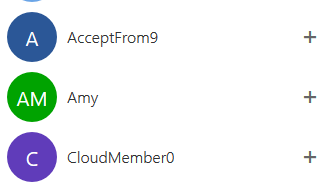
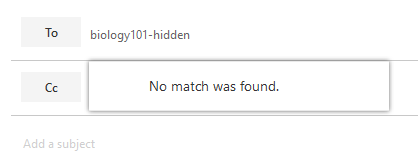
With the distribution list provisioned successfully we can move onto creating the dynamic distribution group. To create the dynamic distribution group we must locate the identity property of the cloud distribution group. The member of syntax cannot be based off any specific properties of the group on premises – it must be based off the cloud version of the distribution group. Using Exchange Online Powershell:
PS C:\> $group=Get-DistributionGroup Biology101-Hidden
PS C:\> $group.DistinguishedName
CN=Biology101-Hidden,OU=domain.onmicrosoft.com,OU=Microsoft Exchange Hosted Organizations,DC=NAMPR04A004,DC=prod,DC=outlook,DC=com
The new dynamic distribution group can then be created and utilize this filter.
PS C:\> New-DynamicDistributionGroup Biology101 -RecipientFilter {(MemberOfGroup -eq “CN=Biology101-Hidden,OU=domain.onmicrosoft.com,OU=Microsoft Exchange Hosted Organizations,DC=NAMPR04A004,DC=prod,DC=outlook,DC=com”)}
Name ManagedBy
—- ———
Biology101
The recipient filter can be tested using the following syntax.
PS C:\> $filter=Get-DynamicDistributionGroup Biology101
PS C:\> Get-Recipient -RecipientPreviewFilter $filter.RecipientFilter
Name RecipientType
—- ————-
Amy MailUser
Tim MailUser
With the dynamic distribution group created we can review the presence in the gal using Outlook Web Access.
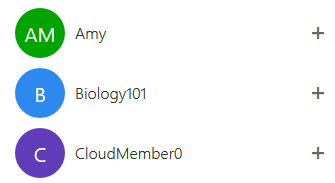
Utilizing the SMTP address or display name successfully resolves the recipient to the global address list entry.
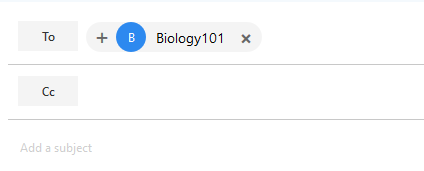
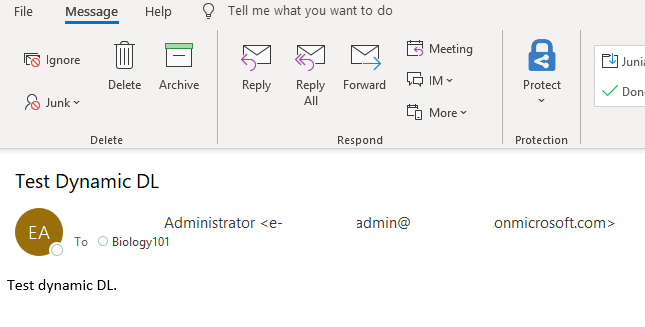
A message can be address by either selecting the group or utilizing the groups primary SMTP address. When the message is addressed and sent it arrives in the inbox of the members. When the member reviews the message, the TO address appears as the dynamic distribution group. The name of the hidden DL that provided the membership is not displayed to the recipient.
Solution #3 adds the additional step of provisioning a dynamic distribution group – but combines the benefits of Solution #1 and Solution #2 to achieve hiding DL membership and retaining the collaborative global address list experience.
 TIMMCMIC