Microsoft provides a variety of consumer services that are accessed through a “Microsoft Account”. It is possible for a Microsoft 365 customer to have utilized their email address to sign up for Microsoft consumer services.
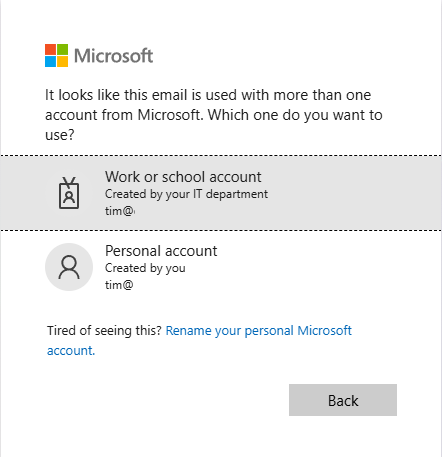
When a user has both a Microsoft 365 Identity and a Microsoft consumer identity, they are prompted to select a work or school account or personal account when signing into Microsoft services.
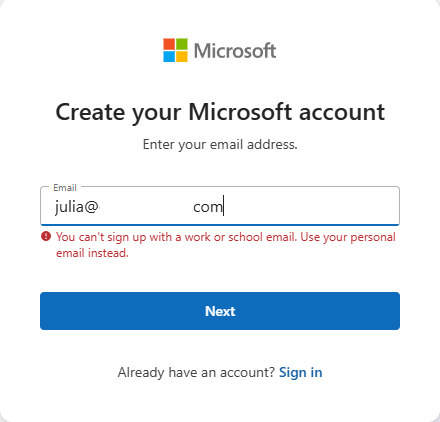
Creating a consumer or personal account using a domain that is registered in Microsoft 365 is now blocked and has been for several years. In many cases if a Microsoft 365 customer has both a personal and work or school account, they set it up prior to when this block was put in place. Here is a sample error that someone receives today when trying to utilize a domain registered in Microsoft 365 to establish a consumer account:
Microsoft does not provide the ability for administrators to compel a user to change the identity of a consumer account. We do provide guidance for users that want to change their personal account identity to either stop being prompted to select an account or to simply disconnect the relationship between the two identities. Change the email address or phone number for your Microsoft account – Microsoft Support
In general, users that have both a personal and Microsoft 365 account do not have issues utilizing both services with the same address. I have seen some issues though that cause concern, such as users receiving unusual sign in activity notices in their corporate mailboxes when the activity is actually related to their consumer identity. Microsoft account unusual sign-in activity | TIMMCMIC
I have worked on several escalations recently where customers have asked to quantify the number of consumer accounts that are related to Microsoft 365 identities. The goal of the project is to proactively reach out to these users and provide them guidance on how to follow the account rename process.
To provide administrators with an option to audit their consumer accounts I have published AuditConsumerAccounts to the PowerShell Gallery. Audit consumer accounts is a PowerShell module that allows administrators to gather all identities and addresses from EntraID and perform an audit against Microsoft consumer account information. At the conclusion of the audit a report is generated that lists any consumer accounts discovered as well as any accounts that an error was encountered.
AuditConsumerAccounts supports a variety of graph authentication methods. If the account list to be audited is greater than 50 members it is recommended to utilize a graph connection method that relies on an app registration within the tenant. This allows the module to batch users into smaller groups for testing rather than iterate through users sequentially.
Administrators also have the flexibility to define the scope of addresses they would like to test for consumer identities. By default, the objects user principal name is always included for testing. The module also supports the ability to add just primary SMTP addresses for testing or add all user proxy addresses for testing. In most environments the user principal name and primary smtp address are the same resulting in only a single address being verified. The module also supports testing only for a specific domain across the address set based on a list of domains provided at runtime. Note: The domains must be registered as domains within the tenant to utilize this feature.
AuditConsumerAccounts tests the entire organization by default. The command also supports providing a graph filter to scope a query of objects against EntraID or allows administrators to specify a list of user identities to specifically test. This is helpful if you are only interested in auditing a subset of your users.
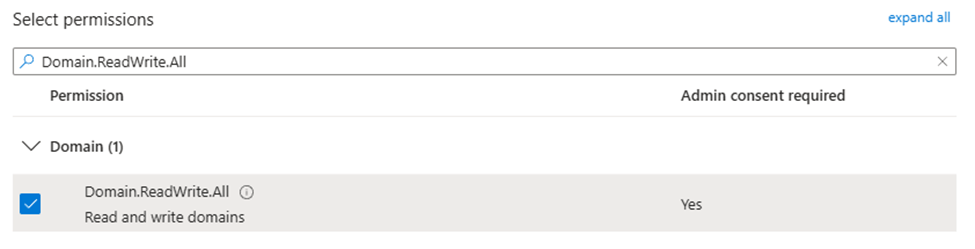
AuditConsumerAccounts provides additional security flexibility by allowing the caller to specify the permissions required to both read domains and read user information. For information on the permissions set required for domains see Get domain – Microsoft Graph v1.0 | Microsoft Learn and for permissions sets required for users see Get user – Microsoft Graph v1.0 | Microsoft Learn
To start using AuditConsumerAccounts run PowerShell 7.6.1 as administrator and run the following command:
Install-Module AuditConsumerAccounts
When the module has been successfully installed the start-AuditConsumerAccounts command is utilized to begin the audit process. Here are some examples:
Start an audit of all accounts and all proxy addresses using graph interactive authentication.
$logFolderPath = "c:\temp"$tenantID = "EntraTenantID" #This is your Entra Tenant ID$environment = "Global" #Acceptable values Global,USGov,USDOD,China$userPermission = "Directory.ReadWrite.All" #Acceptable values User.Read.All,User.ReadWrite.All,Directory.Read.All,Directory.ReadWrite.All$domainPermission = "Domain.ReadWrite.All" #Acceptable values Domain.Read.All,Domain.ReadWrite.Allstart-auditConsumerAccounts -logFolderPath $logFolderPath -msGraphTenantID $tenantID -msGraphEnvironment $environment -msGraphDomainPermissions $domainPermission -msGraphUserPermissions $userPermission
Start an audit of all accounts and all proxy addresses using graph client secret authentication.
$logFolderPath = "c:\temp"$tenantID = "EntraTenantID" #This is your Entra Tenant ID$appID = "App registration ID"$clientSecret = "Client secret assigned to app registration"$environment = "Global" #Acceptable values Global,USGov,USDOD,China$userPermission = "Directory.ReadWrite.All" #Acceptable values User.Read.All,User.ReadWrite.All,Directory.Read.All,Directory.ReadWrite.All$domainPermission = "Domain.ReadWrite.All" #Acceptable values Domain.Read.All,Domain.ReadWrite.Allstart-auditConsumerAccounts -logFolderPath $logFolderPath -msGraphTenantID $tenantID -msGraphEnvironment $environment -msGraphDomainPermissions $domainPermission -msGraphUserPermissions $userPermission -msGraphClientSecret $clientSecret -msGraphApplicationID $appID
Start an audit of all accounts and all proxy addresses using graph certificate authentication.
$logFolderPath = "c:\temp"$tenantID = "EntraTenantID" #This is your Entra Tenant ID$appID = "App registration ID"$certificateThumpprint = "Cert thumbprint assigned to app registration"$environment = "Global" #Acceptable values Global,USGov,USDOD,China$userPermission = "Directory.ReadWrite.All" #Acceptable values User.Read.All,User.ReadWrite.All,Directory.Read.All,Directory.ReadWrite.All$domainPermission = "Domain.ReadWrite.All" #Acceptable values Domain.Read.All,Domain.ReadWrite.Allstart-auditConsumerAccounts -logFolderPath $logFolderPath -msGraphTenantID $tenantID -msGraphEnvironment $environment -msGraphDomainPermissions $domainPermission -msGraphUserPermissions $userPermission -msGraphCertificateThumbprint $certificateThumbprint -msGraphApplicationID $appID
Start an audit of all accounts and only primary proxy addresses using graph client secret authentication. This is just one example, -testPrimarySMTPOnly:$TRUE can be added to any command using any authentication type.
$logFolderPath = "c:\temp"$tenantID = "EntraTenantID" #This is your Entra Tenant ID$appID = "App registration ID"$clientSecret = "Client secret assigned to app registration"$environment = "Global" #Acceptable values Global,USGov,USDOD,China$userPermission = "Directory.ReadWrite.All" #Acceptable values User.Read.All,User.ReadWrite.All,Directory.Read.All,Directory.ReadWrite.All$domainPermission = "Domain.ReadWrite.All" #Acceptable values Domain.Read.All,Domain.ReadWrite.Allstart-auditConsumerAccounts -logFolderPath $logFolderPath -msGraphTenantID $tenantID -msGraphEnvironment $environment -msGraphDomainPermissions $domainPermission -msGraphUserPermissions $userPermission -msGraphClientSecret $clientSecret -msGraphApplicationID $appID -testPrimarySMTPOnly:$TRUE
Start an audit of select accounts using a graph filter and using graph client secret authentication. This is just one example, -msGraphRecipientFilter can be added to any command using any authentication type.
$logFolderPath = "c:\temp"$tenantID = "EntraTenantID" #This is your Entra Tenant ID$appID = "App registration ID"$clientSecret = "Client secret assigned to app registration"$environment = "Global" #Acceptable values Global,USGov,USDOD,China$userPermission = "Directory.ReadWrite.All" #Acceptable values User.Read.All,User.ReadWrite.All,Directory.Read.All,Directory.ReadWrite.All$domainPermission = "Domain.ReadWrite.All" #Acceptable values Domain.Read.All,Domain.ReadWrite.All$graphFilter = "startsWith(DisplayName, 'a')"start-auditConsumerAccounts -logFolderPath $logFolderPath -msGraphTenantID $tenantID -msGraphEnvironment $environment -msGraphDomainPermissions $domainPermission -msGraphUserPermissions $userPermission -msGraphClientSecret $clientSecret -msGraphApplicationID $appID -msGraphRecipientFilter $graphFilter
Start an audit of select accounts by providing an array of user identities in the format of Azure Object IDs or User Principal Names. -bringYourOwnAddresses can be utilized with any graph authentication type and will test all addresses on the user by default unless -testPrimarySMTPOnly:$TRUE is also specified. This example uses graph client secret authentication.
#Define an array of addresses$addressesToTest=@()#Add users to the array to test either manually or through some other export / import.$addressesToTest += "user1@domain.com"$addressesToTest += "user2@domain.com"$addressesToTest += "user3@domain.com"$logFolderPath = "c:\temp"$tenantID = "EntraTenantID" #This is your Entra Tenant ID$appID = "App registration ID"$clientSecret = "Client secret assigned to app registration"$environment = "Global" #Acceptable values Global,USGov,USDOD,China$userPermission = "Directory.ReadWrite.All" #Acceptable values User.Read.All,User.ReadWrite.All,Directory.Read.All,Directory.ReadWrite.All$domainPermission = "Domain.ReadWrite.All" #Acceptable values Domain.Read.All,Domain.ReadWrite.Allstart-auditConsumerAccounts -logFolderPath $logFolderPath -msGraphTenantID $tenantID -msGraphEnvironment $environment -msGraphDomainPermissions $domainPermission -msGraphUserPermissions $userPermission -msGraphClientSecret $clientSecret -msGraphApplicationID $appID -bringYourOwnAddresses $addressesToTest
Start an audit of select domains by providing an array of domains. -bringYourOwnDomains can be utilized with any graph authentication type and will test all addresses that match the domain by default unlesss -testPrimarySMTPOnly:$TRUE is also specified.
#Define an array of domains.$domainsToTest = @()#Add domains to the array to test. #These domains must be registered in the tenant that you are authenticating to.$domainsToTest += "domain.com"$domainsToTest += "domain2.com"$logFolderPath = "c:\temp"$tenantID = "EntraTenantID" #This is your Entra Tenant ID$appID = "App registration ID"$clientSecret = "Client secret assigned to app registration"$environment = "Global" #Acceptable values Global,USGov,USDOD,China$userPermission = "Directory.ReadWrite.All" #Acceptable values User.Read.All,User.ReadWrite.All,Directory.Read.All,Directory.ReadWrite.All$domainPermission = "Domain.ReadWrite.All" #Acceptable values Domain.Read.All,Domain.ReadWrite.Allstart-auditConsumerAccounts -logFolderPath $logFolderPath -msGraphTenantID $tenantID -msGraphEnvironment $environment -msGraphDomainPermissions $domainPermission -msGraphUserPermissions $userPermission -msGraphClientSecret $clientSecret -msGraphApplicationID $appID -bringYourOwnDomains $domainsToTest
When the command is executed a graph connection using the specified authentication type is automatically performed. The scopes specified in the execution are verified as present after the connection has successfully been made. If the connection is unsuccessful or the scopes are not present the command will fail.
Once the graph connection is established, a call is made to extract all domain information from the tenant. If a custom domains list is provided, the list is validated to ensure the domains are registered in the tenant.
When the domains have been validated, the next step is to pull the users from EntraID. By default, all users are pulled unless a filter is specified or a list of addresses is specified. Guest accounts are automatically excluded from testing.
When the list of users has been gathered the command starts creating objects representing address combinations to test. As indicated user principal names are always included for testing as well as all proxy addresses on the user unless -testPrimarySMTPOnly:$TRUE is specified. The script automatically removes any addresses on a user that are not at domains registered in Microsoft 365. At the conclusion of list generation, the list is filtered to remove duplicates from being tested.
At this time further testing depends on the graph authentication type and number of objects to test. If the authentication type is not interactive and the number of users to test is greater than 50, the list of addresses is broken up into groups of 50. The script will then recursively create jobs to test users in batches of 50, with 5 concurrent jobs running at any one time. Each job sleeps for 1 second after each user validation with the entire job sleeping randomly between 5 – 10 minutes at the conclusion of testing 50 users. This is required to avoid service side throttling when attempting bulk user evaluation. A new job is created as jobs finish until all jobs representing all of the users have completed. If interactive authentication is utilized or the user count is less than 50 the list of users is iterated through sequentially until all testing has completed.
When the command finishes auditing all details of the audit are exported to an XML file located in the log file directory. An HTML report is also created and displayed to the administrator. The report contains three sections. The first section is the list of consumer accounts identified, the second section is a list of account test errors, and the last section is the timeline of testing.
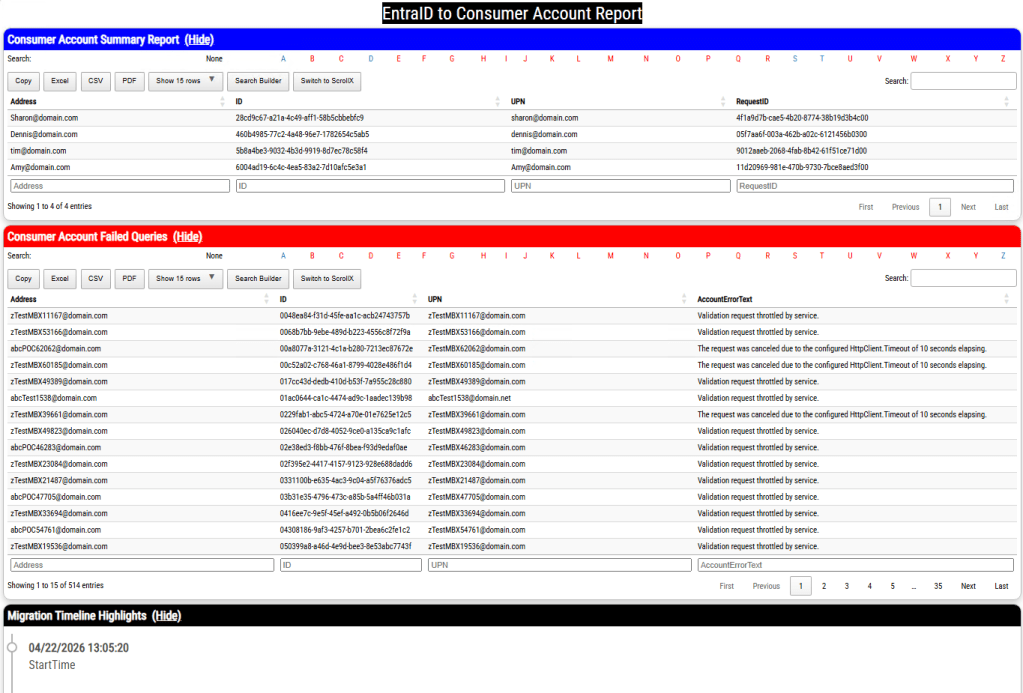
It is expected to have a list of accounts that fail to audit either due to HTTP call timeouts or an audit backoff from the service. The command exports all failed accounts to a separate file that allows administrators to retry the reporting operations on these accounts. Here is an example using graph client secret authentication:
#Import the list of failed accounts from the first run.$failedAccounts = import-cliXML -path "c:\temp\AuditConsumerAccounts\AuditConsumerAccounts-ConsumerAccountsErrors.xml"$logFolderPath = "c:\temp2" #USE A DIFFERENT LOG DIRECTORY TO NOT OVERWRITE ALREADY GATHERED DATA$tenantID = "EntraTenantID" #This is your Entra Tenant ID$appID = "App registration ID"$clientSecret = "Client secret assigned to app registration"$environment = "Global" #Acceptable values Global,USGov,USDOD,China$userPermission = "Directory.ReadWrite.All" #Acceptable values User.Read.All,User.ReadWrite.All,Directory.Read.All,Directory.ReadWrite.All$domainPermission = "Domain.ReadWrite.All" #Acceptable values Domain.Read.All,Domain.ReadWrite.Allstart-auditConsumerAccounts -logFolderPath $logFolderPath -msGraphTenantID $tenantID -msGraphEnvironment $environment -msGraphDomainPermissions $domainPermission -msGraphUserPermissions $userPermission -msGraphClientSecret $clientSecret -msGraphApplicationID $appID -bringYourOwnAddresses $failedAccounts
The auditing process can take a long time to complete, and this is expected. In testing to complete 140,000 address tests took 3 days 6 hours to complete. The list of throttled or failed HTTP calls averaged 500 in these repeated tests.
With the auditing process complete administrators may now understand the scope of commercial accounts present and if they desire to do so develop a targeted communications campaign to assist these users in updating their identities to no longer have a relationship to registered addresses in Microsoft 365.






 TIMMCMIC