In Microsoft 365 users may be assigned the same license both direct and through group-based licensing. For organizations that are converting to group-based licensing this is not an uncommon scenario to ensure that users do not lose access to the service during the transition to group-based assignments. When a license is assigned to user both direct and through group-based licensing only a single license is consumed.
Managing direct and group based license assignment in the M365 Admin Center…
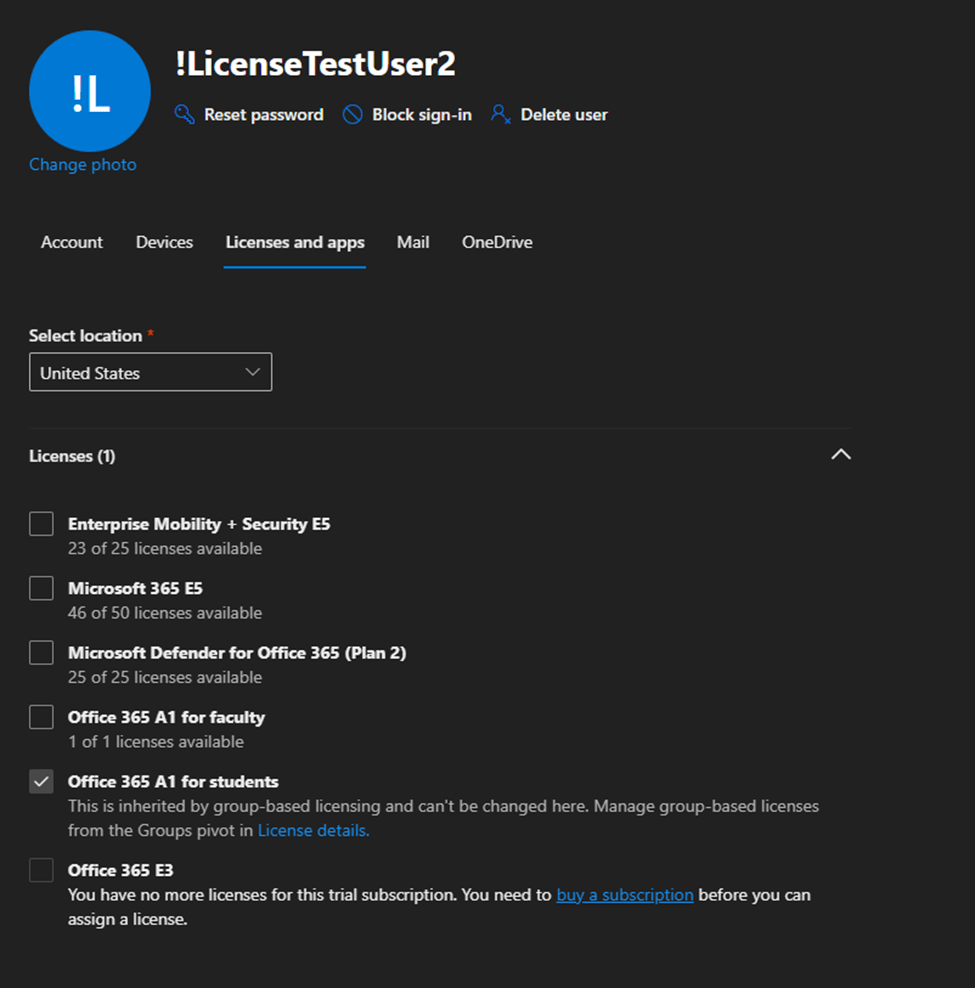
In the M365 Admin Center if a group-based license is assigned to the user the option to manage that individual license is greyed out. A note is displayed “this is inherited by group-based licensing and can’t be changed here. Manage group-based licenses from the Groups pivot in license details.” If the user also had a direct assigned license this prevents the removal of the direct assigned license from the users’ properties.
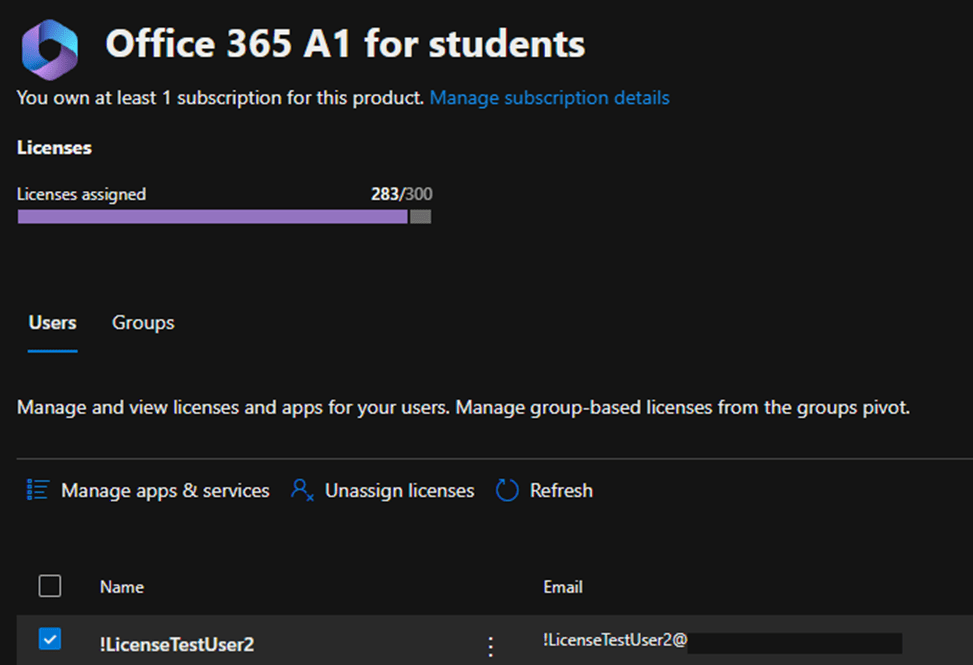
The M365 Admin Center also allows expansion of individual licenses and displaying the users that have the license assigned. Administrators also have the ability to assign and unassign licenses from this view.
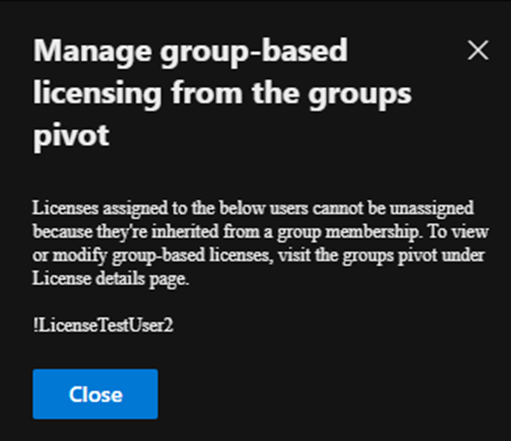
If you select the user that has both a direct and group-based license assignment and select unassign license an error is displayed.
When a user has both a direct and group-based license assignment the directly assigned license cannot be managed in the M365 Admin Center.
Using Graph to Manage Direct License Assignment
Get-MGUser provides the properties AssignedLicenses and LicenseAssignmentStates. The license assignment states provides information regarding the licenses assigned to the user and how those licenses are assigned.
PS C:\> Get-MgUser -UserId "!LicenseTestUser2@domain" -Property AssignedLicenses, LicenseAssignmentStates, DisplayName | Select-Object DisplayName, AssignedLicenses -ExpandProperty LicenseAssignmentStates  | fl


DisplayName          : !LicenseTestUser2
AssignedLicenses     : {314c4481-f395-4525-be8b-2ec4bb1e9d91}
AssignedByGroup      : 519fe352-6f2d-4022-973e-ad72c5bcf63d
DisabledPlans        : {882e1d05-acd1-4ccb-8708-6ee03664b117}
Error                : None
LastUpdatedDateTime  : 2/3/2025 1:08:24 PM
SkuId                : 314c4481-f395-4525-be8b-2ec4bb1e9d91
State                : Active
AdditionalProperties : {}

DisplayName          : !LicenseTestUser2
AssignedLicenses     : {314c4481-f395-4525-be8b-2ec4bb1e9d91}
AssignedByGroup      :
DisabledPlans        : {}
Error                : None
LastUpdatedDateTime  : 2/3/2025 1:05:23 PM
SkuId                : 314c4481-f395-4525-be8b-2ec4bb1e9d91
State                : Active
AdditionalProperties : {}
In this case the user has two license assignments for the license 314c4481-f395-4525-be8b-2ec4bb1e9d91. The first state has AssignedByGroup 519fe352-6f2d-4022-973e-ad72c5bcf63d and the second state shows no AssignedByGroup. This demonstrates that the user has both a group and direct license assignment.
With the inability to manage the direct assigned license in the M365 Admin Center if the desire is to remove the direct assigned license graph must be utilized. Here is an example of removing the direct assigned license. (See Using graph to modify group based licenses… | TIMMCMIC for how to build the body parameters section.)
#Establish the body parameters hash table.
$params = @{}
#Build the add licenses array
$addLicenses = @()

#Build the remove licenses array
$removeLicenses = @()
$disabledPlans = @()
$removeLicenses += "314c4481-f395-4525-be8b-2ec4bb1e9d91"
$params = @{"AddLicenses" = $addLicenses ; "RemoveLicenses" = $removeLicenses}
Set-MgUserLicense -UserId "!LicenseTestUser2@domain" -BodyParameter $params
When the command completes successfully repeating the get displays the following results.
PS C:\> Get-MgUser -UserId "!LicenseTestUser2@domain" -Property AssignedLicenses, LicenseAssignmentStates, DisplayName | Select-Object DisplayName, AssignedLicenses -ExpandProperty LicenseAssignmentStates  | fl


DisplayName          : !LicenseTestUser2
AssignedLicenses     : {314c4481-f395-4525-be8b-2ec4bb1e9d91}
AssignedByGroup      : 519fe352-6f2d-4022-973e-ad72c5bcf63d
DisabledPlans        : {882e1d05-acd1-4ccb-8708-6ee03664b117}
Error                : None
LastUpdatedDateTime  : 2/3/2025 1:08:24 PM
SkuId                : 314c4481-f395-4525-be8b-2ec4bb1e9d91
State                : Active
AdditionalProperties : {}
This output confirms that the user has a single license assignment state and that the license is assigned by a group.
Summary
When a direct and group-based license exists on the user the direct license assignment cannot be managed in the M365 Admin Center. To migrate to group-based licensing the direct assigned license can be removed using Microsoft Graph.
 TIMMCMIC