Group based licensing provides a great deal of flexibility for administrators to automate the license assignment process. The move from utilizing the Entra portal to the Microsoft 365 Admin Center for group based licensing has brought about several changes not only in the way license are assigned but also the backend technologies utilized to apply the licenses.
Assigning licenses to groups…
The Microsoft 365 Admin Center enables the application of groups to licenses. Groups can be assigned to multiple licenses at the same time. I would like to refer to this as a license template and think about it these are the licenses that this group needs to apply in order for the application to be successful.
In this example I have a group !LicenseTest that applies two licenses, the Office 365 A1 for Students and Office 365 A1 for Faculty. (Note: In practical terms it would make no sense to use a group to assign both of these licenses but it served the purpose of this blog.) The license template was created in the M365 Admin Center by adding the group to the licenses.
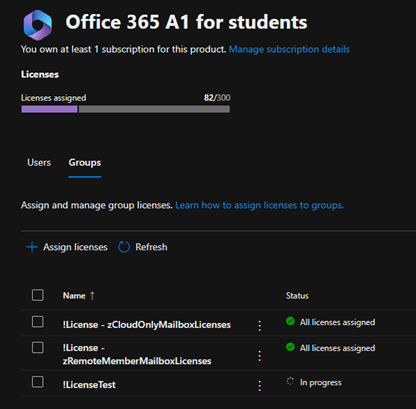
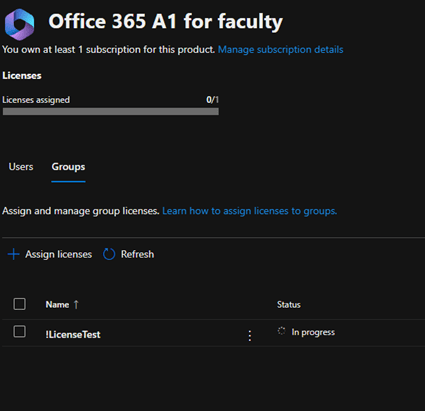
The same information is available through Microsoft Graph.
PS C:\> Get-MgGroup -GroupId cb974e33-9030-4dcb-b3e0-8f5ef57f3462 -Property AssignedLicenses | fl AssignedLicenses


AssignedLicenses : {94763226-9b3c-4e75-a931-5c89701abe66, 314c4481-f395-4525-be8b-2ec4bb1e9d91}
Success or Failure…
As users are added to the group an asynchronous process within Microsoft 365 is responsible for processing all of the group based licensing. Each license in the M365 Admin center shows the groups assigning the license and the group processing state. In the example of our test group reviewing the license status shows the following in the M365 Admin Center.
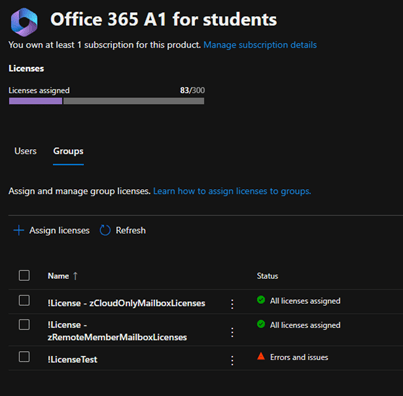
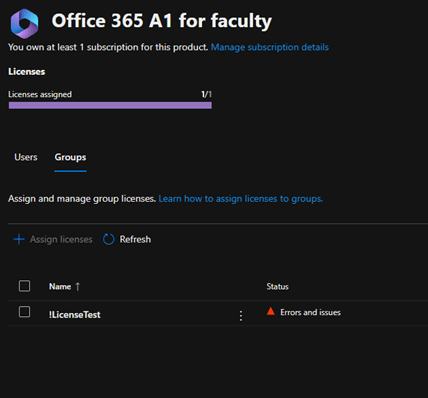
The group processing status shows license assignment failures for both licenses. To review the errors the group is selected under the license. For the Office 365 A1 for Students, when selecting the group and reviewing errors, the following is displayed:
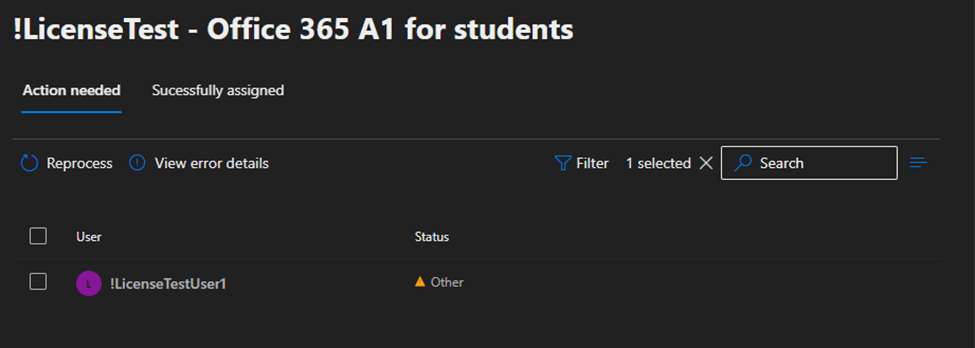
The status of the license assignment is “Other” with no further details. For the Office 365 A1 for Faculty, when selecting the group and reviewing the errors, the following is displayed:
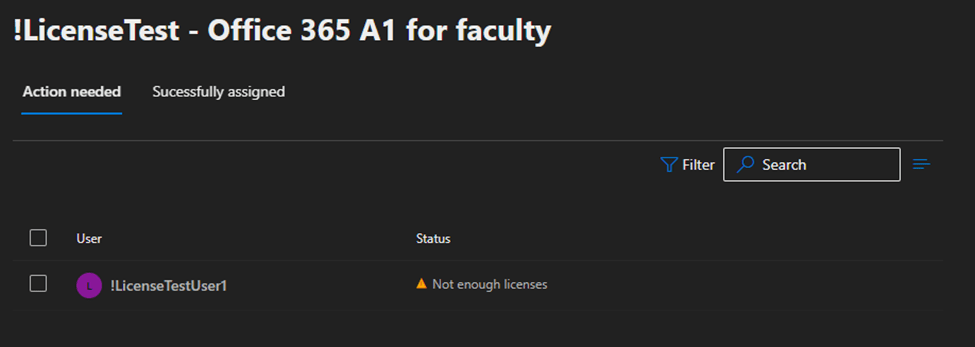
The status of the license assignment is “Not Enough Licenses”. This error is generally self-explanatory. At the time the license assignment was attempted there were not enough licenses to apply this license to the user.
When reviewing license assignment failures, the Entra audit logs is also extremely helpful. Here is a sample audit log entry:
Activity
Date 1/29/2025, 11:59 AM
Activity Type Change user license
Correlation ID c71dad7e-a6e0-46b2-897c-065022231dbb
Category UserManagement
Status failure
Status reason
Microsoft.Online.Provisioning.SubscriptionManagement.SubscriptionFullException
User Agent
Initiated by (actor)
Type Application
Display Name Microsoft Azure AD Group-Based Licensing
App ID
Service principal ID
Service principal name
Additional Details
Licensing Error Message
Not enough licenses are available to complete this operation. Purchase more licenses or remove unneeded licenses from users and groups for SKU [94763226-9b3c-4e75-a931-5c89701abe66]. Licenses being added: [94763226-9b3c-4e75-a931-5c89701abe66]
Remember earlier when I referred to putting multiple licenses on the group as a “template” this template did not apply successfully. Under the new architecture if all the licenses that the group covers cannot be applied then no licenses are applied to the users.
All or none…why?
There are several architectural reasons that this makes sense as well as some practical reasons. From a practical standpoint customers very often apply licenses together so that users have a consistent functionality and experience. For example, I recently worked with a customer that applies an F3 license to their users but also adds Exchange Plan 2 standalone for additional mailbox capacity. If the F3 was provisioned without the associated Exchange Plan 2 the user would not receive the desired mailbox size.
From an architectural perspective there are now more licenses that have cross dependencies on each other. Take the example of having a Teams Audio Conferencing Standalone license that requires a teams plan from a Microsoft E3 license. If the Microsoft E3 failed to apply this would subsequently generate a failure of the Teams Audio Conferencing license.
The main architectural change though that is driving this is the migration of license assignment functions to the graph interface. When graph attempts to assign the licenses, it does so not individually but rather overall. This can be reproduced by attempting to assign the licenses with Microsoft Graph. Here is an example:
#Establish the body parameters hash table.
$params = @{}

#Build the add licenses array
$addLicenses = @()

#Build the remove licenses array
$removeLicenses = @()

#************************************************************************

#Build the disabled plans for the first license to be added.

$disabledPlans = @()

#Set the skuID for the first license.

$skuID = "94763226-9b3c-4e75-a931-5c89701abe66"

#Build the hash value for the added licenses.

$skuHash = @{"DisabledPlans" = $disabledPlans ; "SkuID" = $skuID}

#Add the skuHash to the array of licenses to add.

$addLicenses += $skuHash

#************************************************************************

#Build the second entry to the add licenses.

#Build the disabled plans for the second license to be added.

$disabledPlans = @()

#Set the skuID for the first license.

$skuID = "314c4481-f395-4525-be8b-2ec4bb1e9d91"

#Build the hash value for the added licenses.

$skuHash = @{"DisabledPlans" = $disabledPlans ; "SkuID" = $skuID}

#Add the skuHash to the array of licenses to add.

$addLicenses += $skuHash

#************************************************************************

#***********************
#Complete the params has table.
#***********************

$params = @{"AddLicenses" = $addLicenses ; "RemoveLicenses" = $removeLicenses}

#***********************
#Set the license on the user.
#***********************

set-mgUserLicense -userID 95b87c6b-680d-4942-8ca9-7dd25cd0c3ed -bodyParameter $params

set-mgUserLicense : Subscription with SKU 94763226-9b3c-4e75-a931-5c89701abe66 does not have any available licenses.
Status: 400 (BadRequest)
ErrorCode: Request_BadRequest
Date: 2025-01-29T17:19:56
Headers:
Transfer-Encoding             : chunked
Vary                          : Accept-Encoding
Strict-Transport-Security     : max-age=31536000
request-id                    : 9f334bdd-c0b6-44e0-a67d-de157e2b69b6
client-request-id             : 6e2f76c8-8b7a-4998-91c9-6986cad1e09d
x-ms-ags-diagnostic           : {"ServerInfo":{"DataCenter":"East
US","Slice":"E","Ring":"5","ScaleUnit":"002","RoleInstance":"BL02EPF0001DE6C"}}
x-ms-resource-unit            : 1
Cache-Control                 : no-cache
Date                          : Wed, 29 Jan 2025 17:19:56 GMT
At line:1 char:1
+ set-mgUserLicense -userID 95b87c6b-680d-4942-8ca9-7dd25cd0c3ed -bodyP ...
+ ~~~~~~~~~~~~~~~~~~~~~~~~~~~~~~~~~~~~~~~~~~~~~~~~~~~~~~~~~~~~~~~~~~~~~
    + CategoryInfo          : InvalidOperation: ({ UserId = 95b8...ionJsonSchema }:<>f__AnonymousType3`3) [Set-MgUserL
   icense_Assign], Exception
    + FullyQualifiedErrorId : Request_BadRequest,Microsoft.Graph.PowerShell.Cmdlets.SetMgUserLicense_Assign
The attempt to directly assign both licenses at the same time in a single operation failed resulting in the user having no licenses assigned. If the license assignment attempts are performed individually one will succeed and the other will fail resulting in the user having one of the two desired licenses.
The “other” status…
I often receive calls from customers regarding group based license failures and the “other” status. The other status generally means that the group is assigning more than one license and another license has failed to apply. This is sometimes hard to track down in the Microsoft 365 Admin Center as you must select each license that you have and then review the groups assigning those licenses. There is no interface within the Microsoft 365 Admin Center that shows you all of the licenses assigned to a single group. The GraphLicenseManager may assist in determining the source of failures.
Using Graph License Manager to review license assignment failures…
The GraphLicenseManager does have the ability to assist in tracking this down without looking at each license. For more information on installing and using the GraphLicenseManager see the following references:
Using GraphLicenseManager to view group members and reprocess users… | TIMMCMIC
When the graph license manager is installed and configured selecting the “Group License Manager” allows you to visualize the licenses that are assigned to a group.
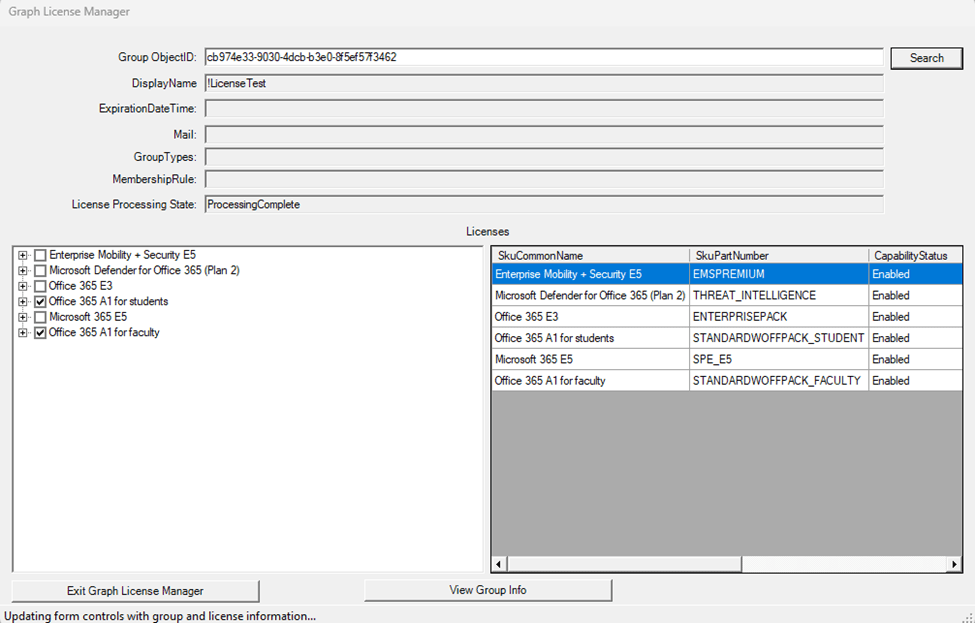
The “View Group Info” button displays information about the members of the group as well as any licensing errors associated with the users.
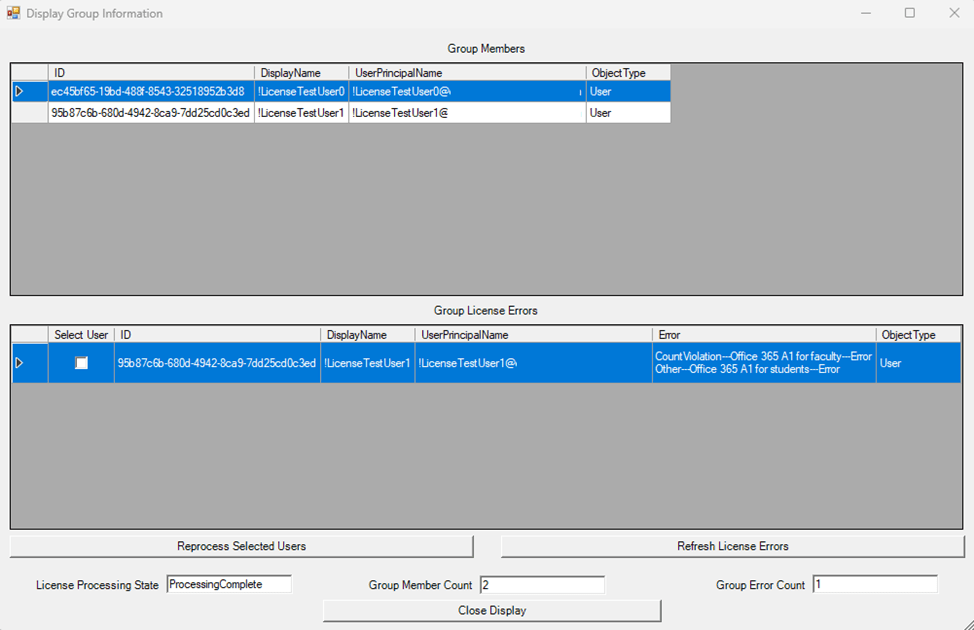
The errors column summarizes all the errors that are preventing the license assignment to the user and converts the GUIDs associated with Microsoft 365 SKUs to user readable formats.
•	CountViolation---Office 365 A1 for Faculty---Error
•	Other---Office 365 A1 For Students---Error
Collecting all the errors preventing license assignment makes it efficient for administrators to identify the root cause of the license assignment failure and being a reconciliation.
How to prevent a single license assignment failure from stopping other license assignment…
With the shift in architecture, it is no longer possible to have portions of the group based license apply to a user. If the group processing the user has four licenses applied to it, all four must be successful. This was a departure from Entra and legacy processing where a group could assign some of the licenses specified and error on others. Is there any way to resolve this?
Resolving this is a matter of rethinking how license assignments are done. One solution I have utilized uses a single group to start the license assignment but where the licenses are individually applied by other groups. To keep the single group concept, I encourage the use of Entra dynamic groups utilizing the memberOf filter.
Using the example that I have used previously a single license group is created !LicenseTest. This group is where the members will be placed to receive a license. In the EntraID Portal two dynamic groups are created, one to apply the Office 365 A1 for Faculty and the other to apply the Office 365 A1 for Students.
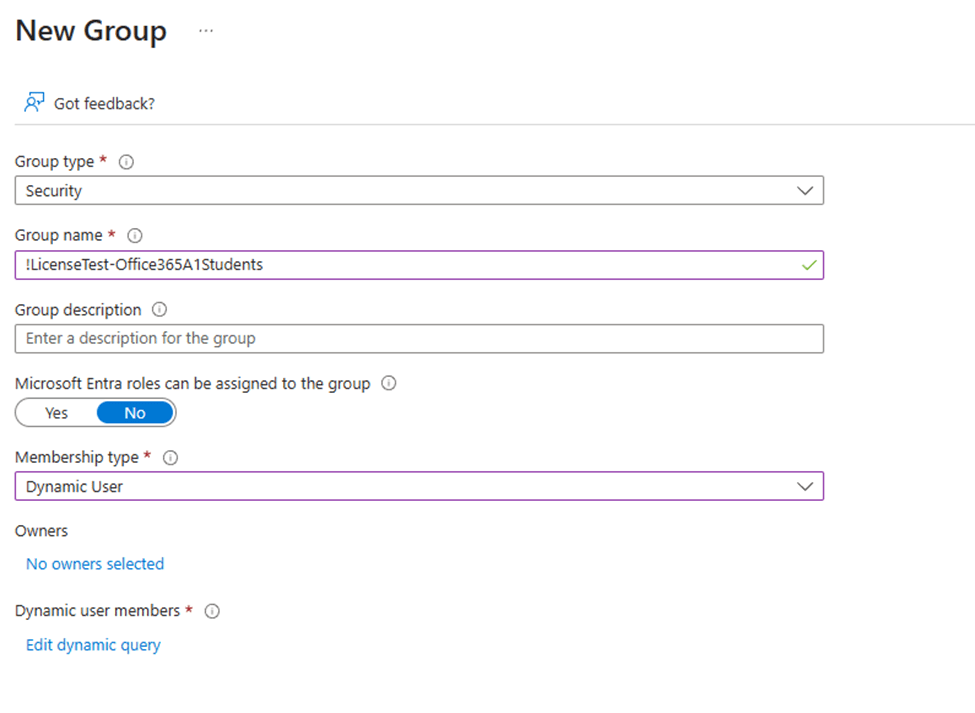
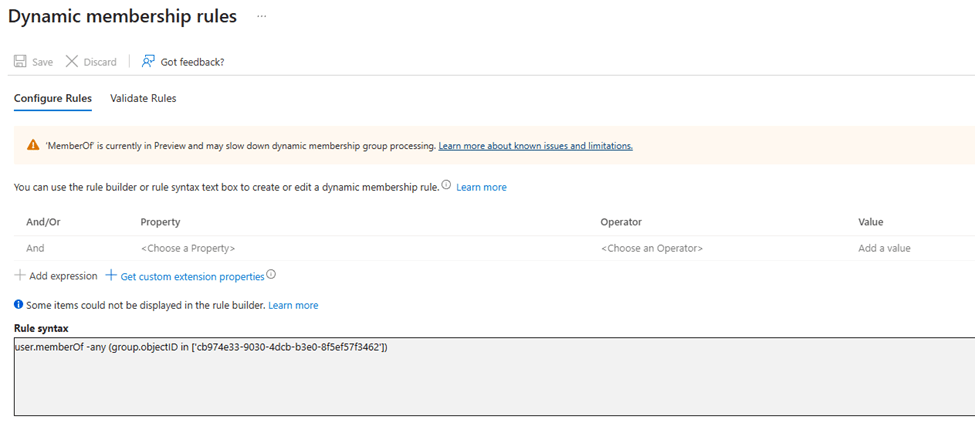
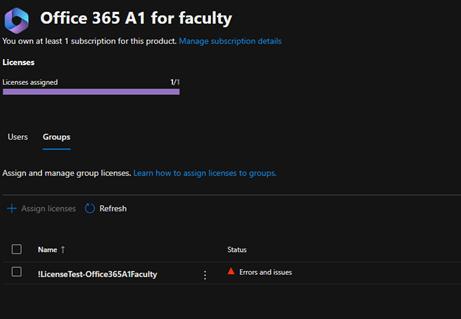
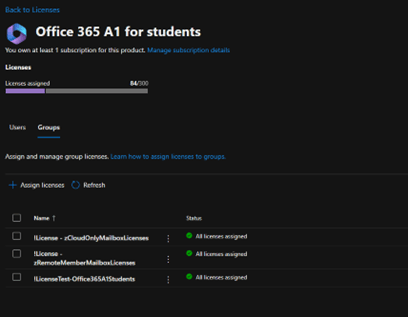
Once the dynamic groups have processed their membership, they can be added to the licenses in the M365 Admin Center. With each of the dynamic groups processing licenses individually any errors that are encountered are limited to just those groups.
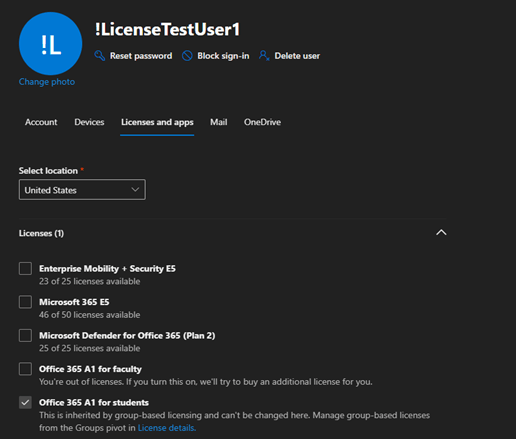
The properties of the individual user that was previously in error confirm the license successfully assigned.
Summary
Group based licensing offers a great deal of flexibility to ensure that users receive the licenses that they should. When a group assigns multiple licenses all the licenses attached to that group must be assigned successfully in order for any licenses to be assigned. If it becomes necessary to allow partial license assignment multiple dynamic groups can be utilized to assign individual licenses while using a single group to trigger license assignment.
 TIMMCMIC