Large distribution list migrations and code enhancements to increase performance and reliability.
In part 24 of my blog series, I outlined some of the performance challenges with creating or migrating distribution groups that had large member counts. For testing purposes, I started testing group migrations of 65,000 users. In this post I will review the performance implications associated with migrating or creating groups of this size in Office 365.
In versions of the DLConversionV2 module prior to 2.9.5 the distribution list migration process followed this basic outline:
- Gather all properties of the distribution list.
- Normalize all recipients contained in the group or on the properties of the group to their Office 365 identity.
- Validate that all recipients contained in the group or on the properties of the group were valid in Office 365.
- Move the group to a non-sync OU, trigger Active Directory replication, and trigger Azure Active Directory connect synchronization.
- Upon deletion of the group from Office 365 re-create the group.
- Update all multivalued properties of the group including membership.
- Update all single valued properties of the group.
- Conclude with additional mail flow and group updates on premises.
This process works very well for smaller more common groups but introduces several issues with larger groups.
The first challenge was the overall time of the distribution list migration. For a distribution group of 65,000 users the overall migration time was over two days.
Days : 2
Hours : 8
Minutes : 58
Seconds : 9
Milliseconds : 0
Ticks : 2050890000000
TotalDays : 2.37371527777778
TotalHours : 56.9691666666667
TotalMinutes : 3418.15
TotalSeconds : 205089
TotalMilliseconds : 205089000
The DLConversionV2 module leverages the Update-DistributionGroupMember commandlet in order to attempt a bulk update. If this command fails for any reason the code automatically reverts to adding each user individually. Knowing that any group of over 2,000 users generally fails the Update-DistributionGroupMember process you can expect large groups to fail the individual member add process. In the case of the group with 65,000 users it took 1.9 days to add all the users to the group.
Days : 1
Hours : 23
Minutes : 40
Seconds : 26
Milliseconds : 0
Ticks : 1716260000000
TotalDays : 1.98641203703704
TotalHours : 47.6738888888889
TotalMinutes : 2860.43333333333
TotalSeconds : 171626
TotalMilliseconds : 171626000
I wanted to take a look at the performance of adding an individual member. My observations were that as the migration progressed the time to add a member continued to increase. In early individual user additions the time was between 0 – 2 seconds on each addition and as the migration progressed that time increased to 4 – 5 second per user addition to the group. Here is a sample chart showing the increase over time.
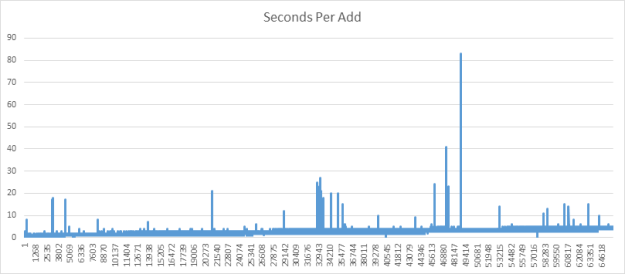
The average add was 2.590528 seconds.
The normalization time of converting the users to an Office 365 identity for 65,000 users took slightly under two hours to complete.
Days : 0
Hours : 1
Minutes : 56
Seconds : 58
Milliseconds : 0
Ticks : 70180000000
TotalDays : 0.0812268518518518
TotalHours : 1.94944444444444
TotalMinutes : 116.966666666667
TotalSeconds : 7018
TotalMilliseconds : 7018000
The health checking and validation of all group dependencies in Office 365 for 65,000 users took slightly under six hours to complete.
Days : 0
Hours : 5
Minutes : 49
Seconds : 45
Milliseconds : 0
Ticks : 209850000000
TotalDays : 0.242881944444444
TotalHours : 5.82916666666667
TotalMinutes : 349.75
TotalSeconds : 20985
TotalMilliseconds : 20985000
The concerning time with the large groups was the amount of time to add the members to the group. In the workflow prior to version 2.9.5 it would be almost two days until the group was fully populated and available to users in Office 365. As the group was populating any mail that was received would only be transmitted to those users that were already added resulting in the potential for information to not reach the intended audience.
With these performance characteristics – how has the code improved in version 2.9.5.
In version 2.9.5 changes were made to optimize the total time the group was not wholly available to the users. The overall migration time cannot really be adjusted through code considering the factors outlined previously and in part 24 of my blog series.
In a previous code revision, a change was made to create a new distribution group with a random name as part of the migration process. This group was then renamed and updated as the migration proceeded. This was done to avoid recipient caching that would sometimes cause the creation of the group with the same name to collide with the group that was just removed and fail the migration process. If the random group is the actual target of operations why can we not update the membership of this group prior to removing the original group? There is no reason this cannot be done and this is exactly the change that was made. In version 2.9.5 and newer any changes that are not unique or colliding with the original group are made on this new randomly created group. This allows us to take the operations that take the bulk of time to wholly migrate the group and do them PRIOR to deleting the original group from Exchange Online. The new migration process follows this outline:
- Gather all properties of the distribution list.
- Normalize all recipients contained in the group or on the properties of the group to their Office 365 identity.
- Validate that all recipients contained in the group or on the properties of the group were valid in Office 365.
- Create the group in Office 365 with a random name.
- Update all group attributes including membership that do not conflict with the existing group in Exchange Online.
- Move the group to a non-sync OU, trigger Active Directory replication, and trigger Azure Active Directory connect synchronization.
- Monitor for deletion of the group from Office 365.
- Update all remaining multivalued group properties – for example SMTP proxy addresses.
- Update all single valued properties of the group not previously updated.
- Conclude with additional mail flow and group updates on premises.
By adjusting the group creation process into two steps instead of one the time that the group is wholly unavailable has been taken from 1.9 days for a group of 65,000 users to 6 minutes!
Days : 0
Hours : 0
Minutes : 6
Seconds : 12
Milliseconds : 0
Ticks : 3720000000
TotalDays : 0.00430555555555556
TotalHours : 0.103333333333333
TotalMinutes : 6.2
TotalSeconds : 372
TotalMilliseconds : 372000
When adding users individually it was not uncommon in testing to encounter either a timeout error adding the individual user, or a server return 503 error. A new code change was introduced to capture the error on the first addition attempt and sleep for 15 seconds. At the end of the 15 second sleep a second attempt is made to add the user to the group. If the second attempt fails the user is added to the post creation error tracking and feedback is provided to the administrator that the user must manually be rectified. With a delay implemented and retry logic available this increases the likely hood of success when adding the user. Here is a sample of this new code flow as it is logged.
[1/8/2023 10:37:46 PM] – Attempting to add recipient: 4406ee0c-a2a6-47ab-b6c1-6b08d271da26
[1/8/2023 10:37:47 PM] – Error on individual recipient add.
[1/8/2023 10:37:47 PM] – It is possible that the operation times out or server returns busy – sleep 15 and retry
[1/8/2023 10:37:47 PM] – ********************************************************************************
@{ParameterName=sleepString; Bound=True; ParameterValue=Sleeping due to error on individual add to retry.} @{ParameterName=sleepSeconds; Bound=True; ParameterValue=15} @{ParameterName=sleepParentID; Bound=False; ParameterValue=0} @{ParameterName=sleepID; Bound=False; ParameterValue=0} @{ParameterName=Verbose; Bound=False; ParameterValue=} @{ParameterName=Debug; Bound=False; ParameterValue=} @{ParameterName=ErrorAction; Bound=False; ParameterValue=} @{ParameterName=WarningAction; Bound=False; ParameterValue=} @{ParameterName=InformationAction; Bound=False; ParameterValue=} @{ParameterName=ErrorVariable; Bound=False; ParameterValue=} @{ParameterName=WarningVariable; Bound=False; ParameterValue=} @{ParameterName=InformationVariable; Bound=False; ParameterValue=} @{ParameterName=OutVariable; Bound=False; ParameterValue=} @{ParameterName=OutBuffer; Bound=False; ParameterValue=} @{ParameterName=PipelineVariable; Bound=False; ParameterValue=}
[1/8/2023 10:37:47 PM] – ********************************************************************************
[1/8/2023 10:37:47 PM] – ********************************************************************************
[1/8/2023 10:37:47 PM] – BEGIN start-sleepProgess
[1/8/2023 10:37:47 PM] – ********************************************************************************
[1/8/2023 10:38:02 PM] – END start-sleepProgess
[1/8/2023 10:38:02 PM] – ********************************************************************************
[1/8/2023 10:38:02 PM] – Error procesing recipient: 4406ee0c-a2a6-47ab-b6c1-6b08d271da26
Ex94914C|Microsoft.Exchange.Configuration.Tasks.ManagementObjectNotFoundException|Couldn’t find object “4406ee0c-a2a6-47ab-b6c1-6b08d271da26”. Please make sure that it was spelled correctly or specify a different object.
@{Name=aTestGroup383; Alias=aTestGroup383; PrimarySMTPAddressorUPN=aTestGroup383@e-mcmichael.com; ExternalDirectoryObjectID=49781059-af43-45e1-877c-6bee00a41af4; ErrorMessageDetail=Ex94914C|Microsoft.Exchange.Configuration.Tasks.ManagementObjectNotFoundException|Couldn’t find object “4406ee0c-a2a6-47ab-b6c1-6b08d271da26”. Please make sure that it was spelled correctly or specify a different object.; Attribute=Cloud Distribution Group Member; ErrorMessage=Member 4406ee0c-a2a6-47ab-b6c1-6b08d271da26 unable to add to cloud distribution group. Manual addition required.}
In this example the recipient was deleted prior to the membership addition and the failure is accurate both on the first and second add. The operation is aborted and the administrator is notified.
Overall, the changes implemented in 2.9.5 increase not only the performance and reliability of large group migrations but also smaller group migrations.
 TIMMCMIC
Pingback: Office 365 – Distribution List Migration – Version 2.0 | TIMMCMIC