Tag Archives: active-directory

EntraID Group Owners and Exchange Online ManagedBy

In the EntraID Portal groups that are created directly in Microsoft 365 or synchronized from Active Directory are displayed. One of the attributes that is present on groups in EntraID is the Owners attribute. A common question I receive from customers is that the owners attribute synchronized from Active Directory does not match the owners attribute of the same group in EntraID.

Managers for groups in Active Directory can be established either by setting the Manager field in Active Directory Users and Computers or by using the Exchange Management Shell / Exchange Control Panel. When in ADUC and on the Managed By tab, the name field displays the distinguished name of the manager and is represented in the LDAP attribute managedBy.
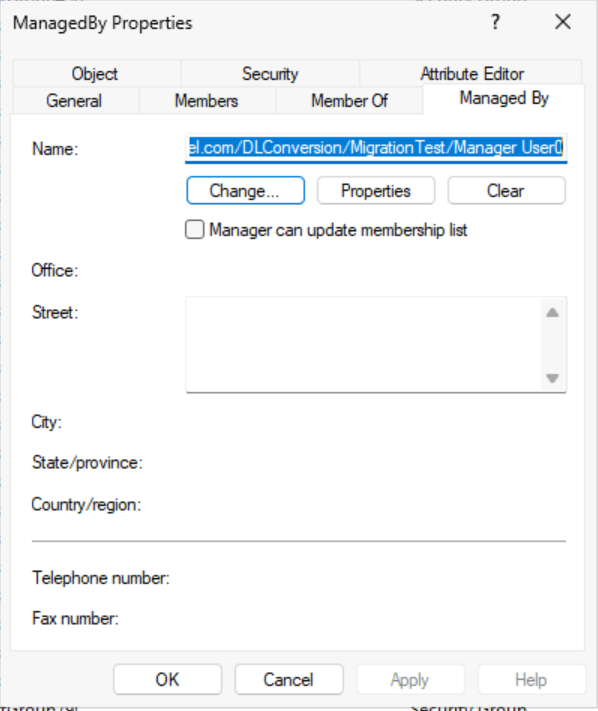
In Exchange on-premises installations groups often have more than one manager. Exchange achieves this by writing the first manager to the LDAP attribute managedBy and all subsequent managers to the LDAP attribute msExchCoManagedByLink. ADUC has no knowledge of the additional attributes. The Exchange Management Shell and Exchange Control Panel include managers from both LDAP fields when displaying the managedBy representation.

Get-DistributionGroup ManagedBy | fl managedBy


ManagedBy : {home.domain.com/DLConversion/MigrationTest/Manager User0,
            home.domain.com/DLConversion/MigrationTest/Manager User1,
            home.domain.com/DLConversion/MigrationTest/ManagerGroup}

The managers of an object in Active Directory can be any valid security principal, for example, a user or security group. In the above example the group is managed by two users and a security group. Here is the same representation from Active Directory:

PS C:\> Get-ADGroup -Identity "CN=ManagedBy,OU=MigrationTest,OU=DLConversion,DC=home,DC=domain,DC=com" -Properties managedBy,msExchCoManagedByLink


DistinguishedName     : CN=ManagedBy,OU=MigrationTest,OU=DLConversion,DC=home,DC=domain,DC=com
GroupCategory         : Security
GroupScope            : Universal
ManagedBy             : CN=Manager User0,OU=MigrationTest,OU=DLConversion,DC=home,DC=domain,DC=com
msExchCoManagedByLink : {CN=Manager User1,OU=MigrationTest,OU=DLConversion,DC=home,DC=e-domain,DC=com,
                        CN=ManagerGroup,OU=MigrationTest,OU=DLConversion,DC=home,DC=domain,DC=com}
Name                  : ManagedBy
ObjectClass           : group
ObjectGUID            : c0e9ed6c-22f4-4305-a69a-aee56f0c53b1
SamAccountName        : ManagedBy
SID                   : S-1-5-21-278042269-1514808692-1118015945-448669

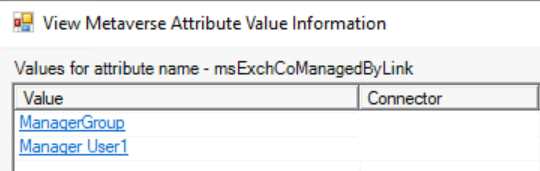
In EntraID Connect when an object is synchronized the managedBy and msExchCoManagedByLink attributes are included in the synchronization attribute set. You can observe this by performing a metaverse search on the group and reviewing the attributes discovered during the synchronization process.


A synchronized group is available in the EntraID Portal under groups. When reviewing the group properties a owners field is displayed. The owners field in this case appears empty and no owners are displayed.
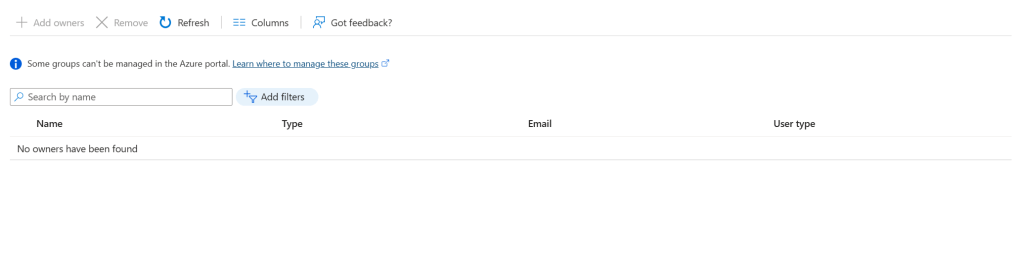
If the managers are synchronized, then why is the owners field empty? Owners is not equal to managers. Active Directory Groups or legacy distribution and security groups created in Exchange Online do not have owners they have managers. Managers are not the same as owners at the directory level therefore the owners field is not populated with managers.

In order to review the managers of a group you have to review the properties of the group within Exchange Online.

PS C:\> Get-DistributionGroup ManagedBy | fl managedBy


ManagedBy : {04cfbcd4-42a0-4c60-8220-4488a6af4431, f7aff7bf-3036-4e26-a193-75a28de751f3}

In this instance the managers are represented by the externalDirectoryObjectID of the recipients. If the recipients existed prior to setting the name attribute to externalDirectoryObjectID the name of the user may be displayed.

PS C:\> Get-Recipient 04cfbcd4-42a0-4c60-8220-4488a6af4431 | fl displayName


DisplayName : Manager User0


PS C:\> Get-Recipient f7aff7bf-3036-4e26-a193-75a28de751f3 | fl displayName


DisplayName : Manager User1

In this example both of the USERS that have manager rights on the group are represented in Exchange Online. Earlier though there were three managers, two were users and the remaining a security group. Unfortunately, Exchange Online does not forward sync any other manager except for user types. The group is synchronized to Entra ID as a manager, but will not be represented on the group in Exchange Online. There is no workaround for this behavior except adding individual members to a manager field in Active Directory.

If the owners field in EntraID does not match the managers then why does the owners field exist? The owners field is utilized to display owners of the Microsoft 365 Group type. These groups are often referred to as modern or universal groups. Setting the owners attribute in EntraID or Exchange Online subsequently adjusts the owners across all Microsoft 365 services.

PS C:\> Get-UnifiedGroupLinks -Identity ManagedBy-M365Group -LinkType Owners

Name                                 RecipientType
----                                 -------------
04cfbcd4-42a0-4c60-8220-4488a6af4431 MailUser
f7aff7bf-3036-4e26-a193-75a28de751f3 MailUser

Synchronized groups or distribution / security groups created in Exchange Online do not have owners in EntraID.

Entra Connect and Single Object Deletion

It may become necessary to purge an object an Entra Connect connector space. A connector space exists for each directory that is added to an Entra Connect installation. Typical installations have two connector spaces, one for the local Active Directory and the other for Entra ID. More complex installations may have more than one connector space for Active Director.

When a user object is synchronized to Entra ID the Active Directory attributes are read into the Active Directory connector space. When the object is successfully written to Entra ID, the Entra ID attributes are read into the Entra ID connector space.

In some instances, it becomes necessary to purge the information within a connector space in order to fix a synchronization issue. Purging an object from a connector space allows the Entra Connect process to re-read the objects properties from the directory where the deletion occurred. For example, purging an object from the Active Directory and Entra ID connector spaces will force the object to be re-read from both directories and sync operation performed on the refreshed attributes. It is also possible to remove an object from either of the connector spaces without removing it from both.

To facilitate this process, I have released a script to the Powershell Gallery that automates the remove of the object from one or both connector spaces. The script offers several options to execute.

To save this script to your entra connect server perform the following:

Install-Script Reset-EntraConnectObject

This saves the scripts to the local path. 

The script provides a variety of options for execution each performing slightly different functions. 

Option 1:

This option is used when the Active Directory and Entra Connect distinguished names are both known. This information is generally obtained from a metaverse search and copying the respective distinguished names from the connector spaces. When executed the connector space objects are extracted by distinguished name and a deletion from the connector spaces is processed. A single item synchronization is automatically triggered to refresh each connector space with the objects properies.

reset-EntraConnectObject.ps1 -logFolderPath c:\temp -EntraDN "CN={4272736E37395A7742456D3474535578366A746558413D3D}" -ADObjectDN "CN=Tim McMichael,OU=Users,OU=Objects,DC=home,DC=domain,DC=com"

Option 2

This option is used when only Active Directory information is known, and an object deletion should occur from both the Active Directory and Entra connector spaces. When executed an Active Directory call is made to locate the user by either distinguished name, objectGUID, or mail attribute. This call is made using the specified domain controller and credentials. When the user is located the sourceAnchor for the Entra Connect installation is determined and the Entra ID distinguished name is automatically calculated. A deletion from each connector space is processed. A single item synchronization is automatically triggered to refresh each connector space with the object properties. This is helpful if you only have access to the Active Directory information or are unable to perform a metaverse search to determine distinguished name values.

#If get-credential returns an error message "Get-Credential : Cannot process command because of one or more missing mandatory parameters: Credential" do the following:

Set-ItemProperty "HKLM:\SOFTWARE\Microsoft\PowerShell\1\ShellIds" -Name "ConsolePrompting" -Value $True

Option 2A: Remove object by Active Directory Distinguished Name

#The following instructions locate the object by Active Directory Distinguished Name

$cred = get-credential #Provide credential of person with rights to read attributes from active directory

$globalCatalogServer = "DC.domain.com" #FQDN of a global catalog server

$DN = "CN=Tim McMichael,OU=Users,OU=Objects,DC=home,DC=domain,DC=com"

reset-EntraConnectObject.ps1 -logFolderPath c:\temp -ADObjectDN $dn -globalCatalogServer $globalCatalogServer -activeDirectoryCredential $cred

Option 2B: Remove object by Active Directory Mail Attribute

#The following instructions locate the object by Active Directory Mail Attribute 

$cred = get-credential #Provide credential of person with rights to read attributes from active directory

$mail = "tim@domain.com" #Active directory mail attribute

$globalCatalogServer = "DC.Domain.com"

reset-EntraConnectObject.ps1 -logFolderPath c:\temp -ADObjectmail $mail -activeDirectoryCredential $cred -globalCatalogServer $globalCatalogServer

Option 2C: Remove object by Active Directory ObjectGUID

#The following instructions locate the object by Active Directory objectGUID

$cred = get-credential #Provide credential of person with rights to read attributes from active directory

$globalCatalogServer = "DC.domain.com" #FQDN of a global catalog server

$objectGUID = "ef27bb06-70d6-4904-b8b5-2531ea3b5e5c"

reset-EntraConnectObject.ps1 -logFolderPath c:\temp -ADObjectGUID $objectGUID -activeDirectoryCredential $cred -globalCatalogServer $globalCatalogServer

Option 3

This option is utilized when you only want to purge information from the Active Directory connector space. Generally, this is reserved for specific scenarios under the guidance of support. It functions in the same manner as Option 2 with the exception that no Entra ID distinguished name is calculated.

Option 3A: Remove object by Active Directory Distinguished Name

#The following instructions locate the object by Active Directory Distinguished Name

$cred = get-credential #Provide credential of person with rights to read attributes from active directory

$globalCatalogServer = "DC.domain.com" #FQDN of a global catalog server

$DN = "CN=Tim McMichael,OU=Users,OU=Objects,DC=home,DC=domain,DC=com"

reset-EntraConnectObject.ps1 -logFolderPath c:\temp -ADObjectDN $dn -globalCatalogServer $globalCatalogServer -activeDirectoryCredential $cred -calculateEntraDN:$FALSE

Option 3B: Remove object by Active Directory Mail Attribute

#The following instructions locate the object by Active Directory Mail Attribute 

$cred = get-credential #Provide credential of person with rights to read attributes from active directory

$mail = "tim@domain.com" #Active directory mail attribute

$globalCatalogServer = "DC.Domain.com"

reset-EntraConnectObject.ps1 -logFolderPath c:\temp -ADObjectmail $mail -activeDirectoryCredential $cred -globalCatalogServer $globalCatalogServer -calculateEntraDN:$FALSE

Option 3C: Remove object by Active Directory ObjectGUID

#The following instructions locate the object by Active Directory objectGUID

$cred = get-credential #Provide credential of person with rights to read attributes from active directory

$globalCatalogServer = "DC.domain.com" #FQDN of a global catalog server

$objectGUID = "ef27bb06-70d6-4904-b8b5-2531ea3b5e5c"

reset-EntraConnectObject.ps1 -logFolderPath c:\temp -ADObjectGUID $objectGUID -activeDirectoryCredential $cred -globalCatalogServer $globalCatalogServer -calculateEntraDN:$FALSE

Option 4

This option is utilized when you only want to purge information from the Entra ID connector space. Generally, this is reserved for specific scenarios under the guidance of support. The Entra ID distinguished name is determined by locating the object in the connector space and copying the distinguished name value. Note that this option triggers a delta synchronization when the process is complete.

$dn = "CN={4272736E37395A7742456D3474535578366A746558413D3D}"
reset-EntraConnectObject.ps1 -logFolderPath c:\temp -EntraDN $dn

Option 5

This option is utilized when more than one Active Directory connector space is present. If the script detects the presence of more than on Active Directory connector space an error is returned. The connector space name must be specified when running the command to ensure that the desired object is deleted. Depending on the scenario it may be necessary to not perform the single item sync until an object is deleted from all connector spaces.

In this example the user exists in the Active Directory home.domain.com and domain.local. (This is typical for example in a resource forest scenario). To complete purge this object the object must be purged from three connector spaces. The distinguished names were obtained through a metaverse search.

The first command purges the object from one Active Directory connector space and the Entra ID connector space. Note that single object sync is not performed as the object still exists in the second Active Directory connector space.

The second command purges the object from the second Active Directory connector space. At the conclusion of this command the full object sync should be allowed to run (which is the default).

I recommend running these as a single code block to eliminate the possibility that a sync cycle could occur inbetween.

#Establish the DN for the first forest.
$adDN = "CN=Tim McMichael,OU=Users,OU=Objects,DC=home,DC=domain,DC=com"

#Establish the DN for the second forest.
$otherADDN = "CN=Tim McMichael,OU=Users,OU=Objects,DC=domain,DC=local"

#Establish the EntraDN from the metaverse search.
$entraDN = "CN={4272736E37395A7742456D3474535578366A746558413D3D}"

#Provide the connector name for the first forest.
$adConnectorName = "domain.com"

#Provide the connector name for the second forest.
$otherADConnectorName = "domain.local"

#Remove the object from the entra connector space
reset-EntraConnectObject.ps1 -logFolderPath c:\temp -entraDN $entraDN

#Remove the object from the first active directory forest.
reset-EntraConnectObject.ps1 -logFolderPath c:\temp -ADObjectDN $adDN -skipSingleItemSync:$TRUE -ADConnectorName $adConnectorName -calculateEntraDN:$FALSE

#Remove the object from the second active directory forest and perform a single object sync.
reset-EntraConnectObject.ps1 -logFolderPath c:\temp -ADObjectDN $otherADDN -CalculateEntraDN:$FALSE -ADConnectorName $otherADConnectorName

Other information…

For each operation run a folder is created in the log path directory specified. The folder is a file date time stamp. Inside this folder is the operation log file and XML file extractions of all objects discovered during the connector space deletions. If a full single item sync was executed a JSONsummary file of the sync operation is also included in this directory.

I hope this script allows administrators to purge objects from connector spaces for troubleshooting or issue resolution easily.