Increasing the success of Distribution List Migrations
When migrating a distribution list to Office 365 the DLConversionV2 module implements a normalization process for all recipients that are members of the distribution list.
The normalization process attempts to convert the recipient from an Active Directory object to an Exchange Online object. The goal of the normalization process is to ensure that we locate the correct recipient in Exchange Online when creating the distribution list and eliminate ambiguous recipient discovery. If an ambiguous recipient is located in Exchange Online this can lead to a migration failure and require the administrator to correct the condition post migration.
When a user is encountered on the properties of a distribution list being migrated the user is normalized by using the attribute msDS-ExternalDirectoryObjectID. In an Entra Connect Sync environment the msDS-ExternalDirectoryObjectID is populated with the value User_ExternalDirectoryObjectID. The ExternalDirectoryObjectID is the objectID associated with the user in EntraID. This same value is also stamped on all Exchange Online objects in the attribute ExternalDirectoryObjectID.
msDS-ExternalDirectoryObjectID = Entra ObjectID = Exchange Online ExternalDirectoryObjectID
PS C:\> Get-ADUser "DistinguishedName" -Properties msDS-ExternalDirectoryObjectID


DistinguishedName              : DistinguishedName
Enabled                        : False
GivenName                      :
msDS-ExternalDirectoryObjectID : User_8ac654f2-2125-4252-b9b0-d2219b9bb395
Name                           : Name
ObjectClass                    : user
ObjectGUID                     : ObjectGUID
SamAccountName                 : SamAccountName
SID                            : SID
Surname                        :
UserPrincipalName              : UserPrincipalName
When searching Exchange Online using the get-recipient command (or any similar get command) the ExternalDirectoryObjectID can be utilized as a recipient identifier.
In a default Entra Connect installation the attribute msDS-ExternalDirectoryObjectID is written back to Active Directory only on User object types. Groups and Contacts do not have the same attribute written back. When performing a migration if a Contact or Group is encountered the recipients are normalized to their Exchange Online counterparts through the object PrimarySMTPAddress. When locating recipients in Exchange Online get-recipient returns results for all objects that match the identifier specified. If a group has the PrimarySMTPAddress of group@contoso.com and a contact has a target address of group@contoso.com get-recipient will return two objects when specifying get-recipient -identity group@contoso.com. During a migration this can lead to a failure as more than object is returned when attempting to perform normalization.
To increase the efficiency of migrations and eliminate possible failures it is possible to enable writeback of the attribute msDS-ExternalDirectoryObjectID to both Contacts and Groups. Why is this not the default? When the writeback rules were created the goal was to optimize the number of changes written back to Active Directory. A decision was made to only populate this value on User objects as that is where it would most commonly be practical to have it. When writing back the same attribute to Groups and Contacts this allows the normalization process to extract the exact matching recipient in Exchange Online.
Migrators wishing to implement this efficiency may refer to a script published to the Powershell Gallery -> EnableCloudAnchor. This script allows administrators to create the necessary writeback rules in Entra Connect Sync to enable msDS-ExternalDirectoryObjectID on Contacts and Groups. When the script is executed two rules are created for each object type. The first rule is enabled and translates the EntraID value CloudAnchor to the msDS-ExternalDirectoryObjectID attribute. The second rule is created disabled and enables undoing all attributes written back by the script. This ensures that an undo operation is pre-staged should a rollback be necessary.
The script has several parameters to be specified:
- ForestRootFQDN: This is the Active Directory forest root FQDN. This is utilized to locate the connector to enable writeback on.
- StartingPrecedence: This is the starting precedence value for rule creation and must be specified as a value 0 – 99. For example, specifying a value of 25 will create the writeback rule at precedence 25 and the undo rule at precedence 26. This value is option. If not specified, the script will automatically locate the least two precedence available and automatically use them.
- EnableContactProcessing: This enables rule creation for contacts and is the default for script execution. If enabling the rules for groups this value must be set to false.
- EnableGroupProcessing: This enables rule creation for groups and by default is disabled. If this feature is enabled enableContactProcessing must be set to false.
- LogFolderPath: The location of where script logging should occur.
To utilize the script on the Entra Connect server:
Install-Script EnableCloudAnchorTo create the rules for contacts utilizing auto discovered precedence:
EnableCloudAnchor.ps1 -forestRootFQDN contoso.local -logFolderPath c:\tempTo create the rules for contacts utilizing an administrator provided precedence:
EnableCloudAnchor.ps1 -forestRootFQDN contoso.local -startingPrecedence 24 -logFolderPath c:\tempTo create the rules for groups utilizing an auto discovered precedence:
EnableCloudAnchor.ps1 -forestRootFQDN contoso.local -enableContactProcessing:$FALSE -enableGroupProcessing:$TRUE -logFolderPath c:\tempIn Entra Connect the following rule is created to enable writeback of the cloud anchor attribute (only the relevant screens are displayed):
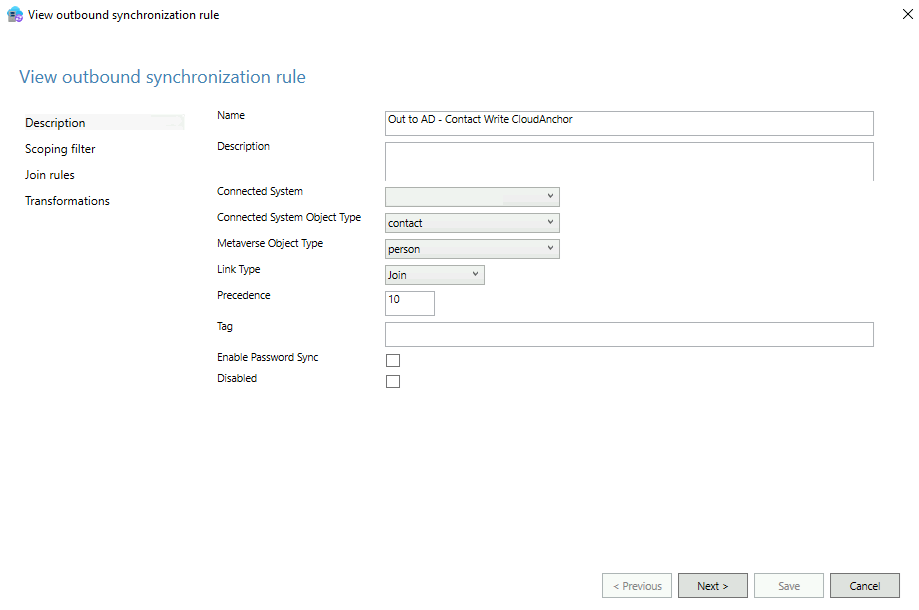
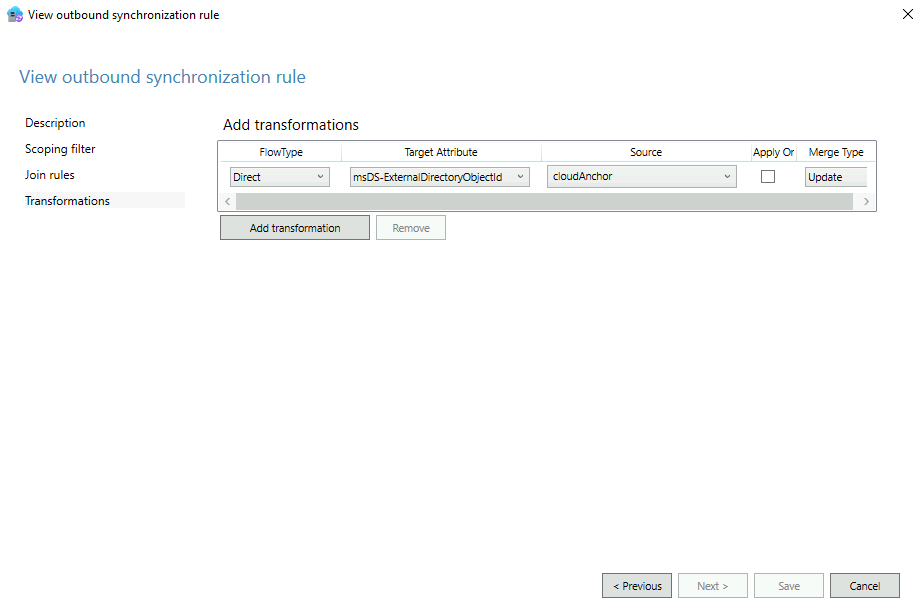
The following rule is also created in a disabled state to allow undoing the writeback operations:
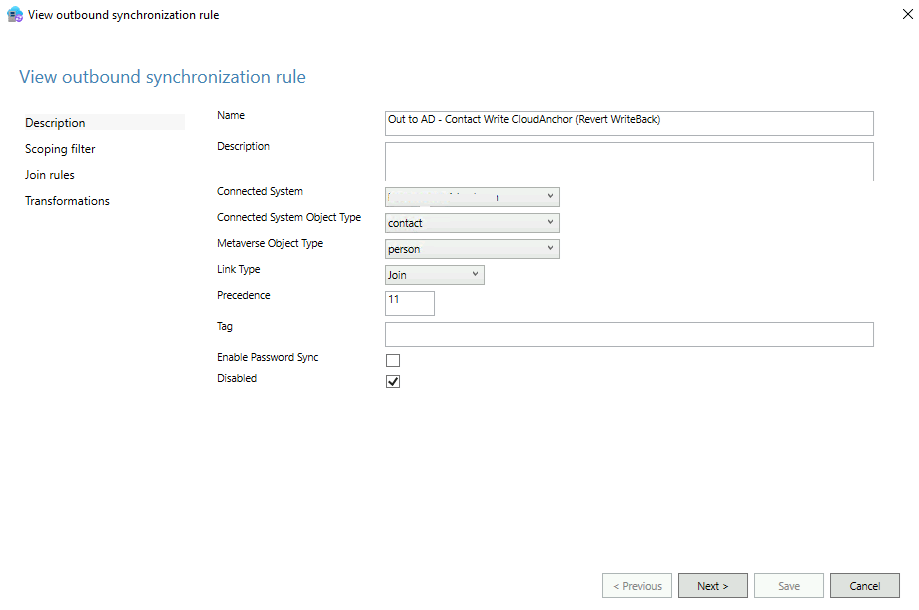
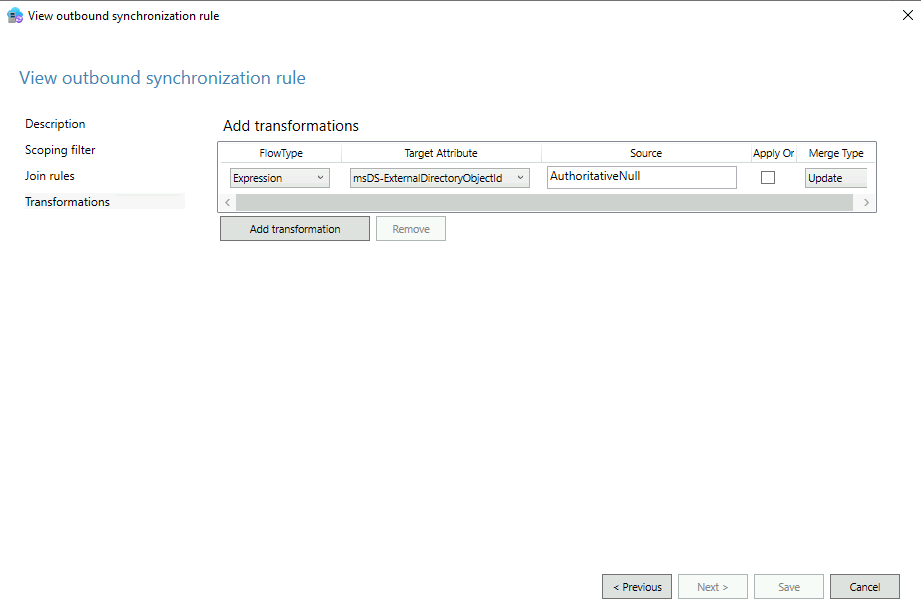
If the need arises to undo the writeback the first rule would be deleted or placed into a disabled state. The disabled state flag would be unchecked on the second rule. The AuthoritativeNull value is utilized to clear an attribute entirely.
NOTE: Any modification to the rules in Entra Connect Sync will require a full synchronization to occur on the connector associated with the forest specified. This may add significant time to a synchronization option.
When the rules have successfully processed on an object the value Contact_ExternalDirectoryObjectID or Group_ExternalDirectoryObjectID may be found on the objects.
PS C:\> Get-ADObject DistinguishedName


DistinguishedName              : DistinguishedName
msDS-ExternalDirectoryObjectID : Contact_76b9cf05-510c-4fcc-a1f8-58e4cada17a6
Name                           : Name
ObjectClass                    : contact
ObjectGUID                     : ObjectGUID
When adding the msDS-ExternalDirectoryObjectID to Active Directory objects the normalization process may more accurately identify recipients in Exchange Online increasing the efficiency and success of migrations.
 TIMMCMIC