Microsoft 365 administrators utilize a variety of tools to manage and monitor license usage and assignments. In the Microsoft 365 Admin Center administrators often review and export a list of users assigned to the different SKUs within their tenant. This is done by selecting Billing -> Licenses -> and selecting a license.
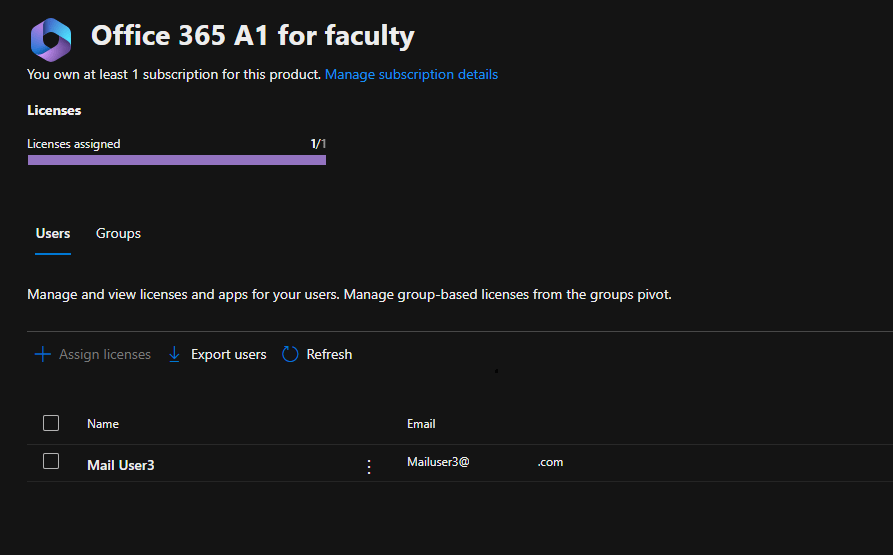
The export button allows the administrator to export to CSV the list of users assigned the license. I have recently spoken with several customers that have noticed that the export has changed the information provided. For example, in prior releases of the Microsoft 365 Admin Center the export contained the field Blocked Users (Account Enabled). This field, along with many others, are no longer present in the download offered through the portal.
With the evolving changes in the Microsoft 365 Admin Center surrounding license management and assignment the interfaces previously responsible for providing this data have been deprecated. With this deprecation arose the need to change the fields contained in the download. Unfortunately, this is not something that is administratively configured.
In order to generate the data previously available I have added functions to the GraphLicenseManager to generate the CSV files. In addition to providing some of the missing fields, I have provided an interface that allows administrators to select all single value attributes returned by get-MGUser.
To begin utilizing the GraphLicenseManager:
Set-ExecutionPolicy Unrestricted

Install-Module GraphLicenseManager
When the graph license manager is installed, the process starts with:
Start-GraphLicenseManager -logFolderPath c:\tempThe graph license manager is a combination of PowerShell and Windows Forms. When the start command is executed the login screen is displayed.
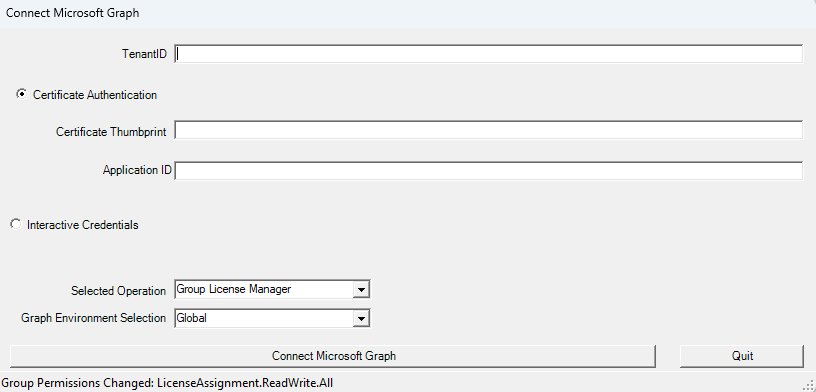
On the logon screen a TenantID is required to establish the graph connection. This can easily be obtained from the EntraID properties in the Entra Portal. To establish permissions either certificate authentication or interactive credentials may be utilized. For those interested in setting up certificate-based authentication for Microsoft Graph see:
Use Certificate Authentication for Microsoft Graph
In the selected operation drop down select “License Assignment Report”. If you are a customer in a different graph environment, use the graph environment selection dropdown to select the environment.

The license report requires a minimum of two permissions:
- Directory Permission: Organization.Read.All
- User Permission: User.Read
When using interactive credentials, the user may select any of the roles they qualify for. It is important to note that when establishing the graph connection if the permissions requested are not already assigned to the user an administrator may be required to provide consent to the permissions.
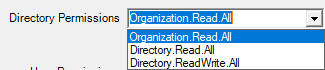
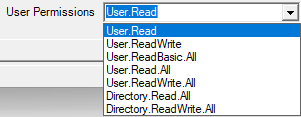
After selecting the authentication method, operation type, and required permissions the Connect Microsoft Graph button completes the connection.
When the connection has completed successfully the License Assignment Report wizard is displayed.
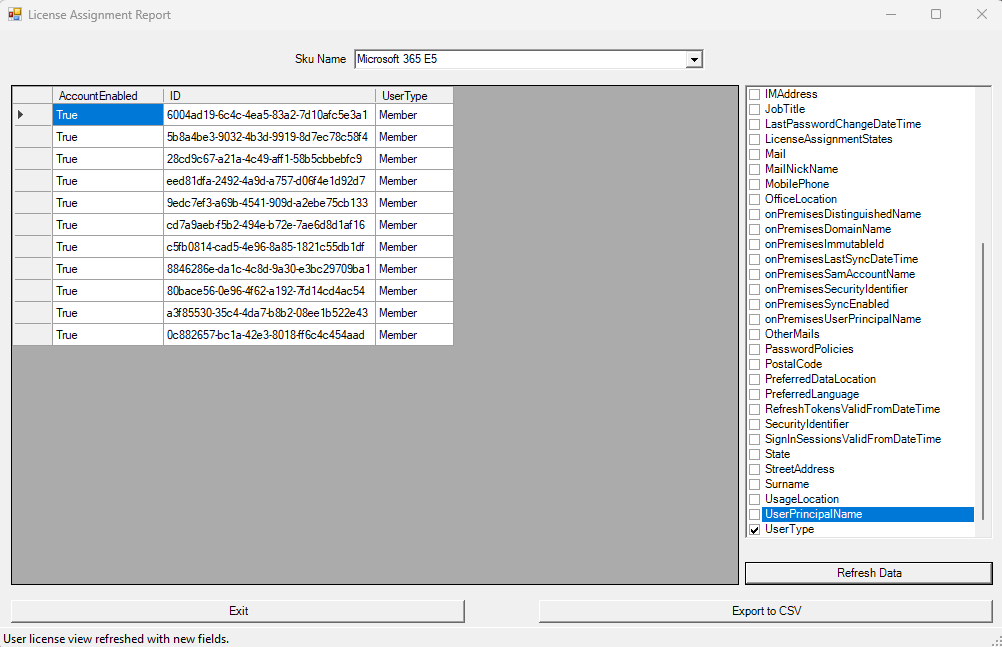
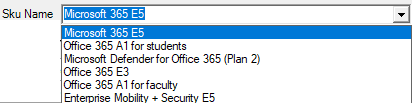
Selecting the Sku Name drop down allows the administrator to view all license assignments associated with all user skus in the tenant. The list updates dynamically with each SKU selected.
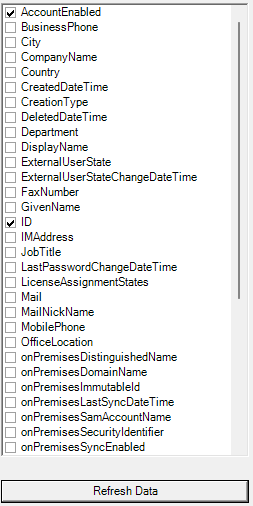
The properties dialog allows the administrator to select properties. The refresh button applies the administrator selections to the information displayed for each user.
To retain the data displayed the Export to CSV button may be utilized. When selected all data shown in the users view is exported to a CSV file within the log file directory. If exporting multiple SKUs a CSV file is created for each sku selected. NOTE: If exporting the same sku with different values any previous export for the same sku is overwritten.

When completed the exit button closes the Graph License Manager.
Using the Graph License Manager administrators can produce a variety of customized reports expanding on the information previously offered in the Microsoft 365 Admin Center.
 TIMMCMIC