Microsoft 365 provides a Government Community Cloud High offering for the U.S Government, contractors, and other organizations that qualify. As with our commercial or worldwide tenants many customers elect to add a vanity or custom domain to their M365 GCC-H tenant.
In the M365 Admin Center for GCC-H tenants the domains tab is missing. This is currently by design. When adding, verifying, or removing domains in a GCC-H tenant Microsoft Graph must be utilized. In this post I want to outline the manual steps for adding and verifying a domain in a GCC-H tenant.
Graph commands often span multiple PowerShell modules in order to achieve their work. Prior to running any graph commands, I recommend that all associated graph PowerShell modules be updated. This ensures that you do not have a mismatch, for example, between the authentication module and the identity module. Note: This process can take a long time depending on the number of graph modules you have installed.
If you are new to graph or to ensure that you have the module necessary to perform domain work, the Microsoft.Graph.Identity.DirectoryManagement module must be installed.
In order to run the following commands, the graph permission Domain.ReadWrite.All must either be consented to on the individual account or for the entire organization. Note: If you do not have global administrator privileges you will not be able to provide consent for graph scopes. It may be necessary for another administrator to perform the consent on your behalf.
The process to add a domain via graph:
$tenantID = "Entra Tenant ID for the GCC H" organization" #User Supplied
$scopes = "Domain.ReadWrite.All"
$environment = "USGov"

Connect-MgGraph -Environment $environment -TenantId $tenantID -Scopes $scopes
If the new-MGDomain command is successful the following return is expected.
Id          AuthenticationType AvailabilityStatus IsAdminManaged IsDefault IsInitial IsRoot IsVerified Manufacturer Mod
                                                                                                                    el
--          ------------------ ------------------ -------------- --------- --------- ------ ---------- ------------ ---
contoso.com Managed                               True           False     False     False  False
Once the domain has been added with new-MGDomain the DNS verification records are obtained. In the below example for the record type TXT you would use the value MS=ms41165256 or for the record type MX you would use ms41165256.msv1.invalid with preference 32767.
These records are inserted into your commercial DNS provider for the domain you are adding. Please note that it can take several minutes for your new public DNS records to be accessible. You may consider using a third party tool or nslookup to validate that the DNS records are available prior to proceeding with the next step.
confirm-MGDomain -domainID $domainID
If the confirm is successful, the domain will be validated and available in the M365 GCC-H tenant.
In Microsoft 365 users may be assigned the same license both direct and through group-based licensing. For organizations that are converting to group-based licensing this is not an uncommon scenario to ensure that users do not lose access to the service during the transition to group-based assignments. When a license is assigned to user both direct and through group-based licensing only a single license is consumed.
Managing direct and group based license assignment in the M365 Admin Center…
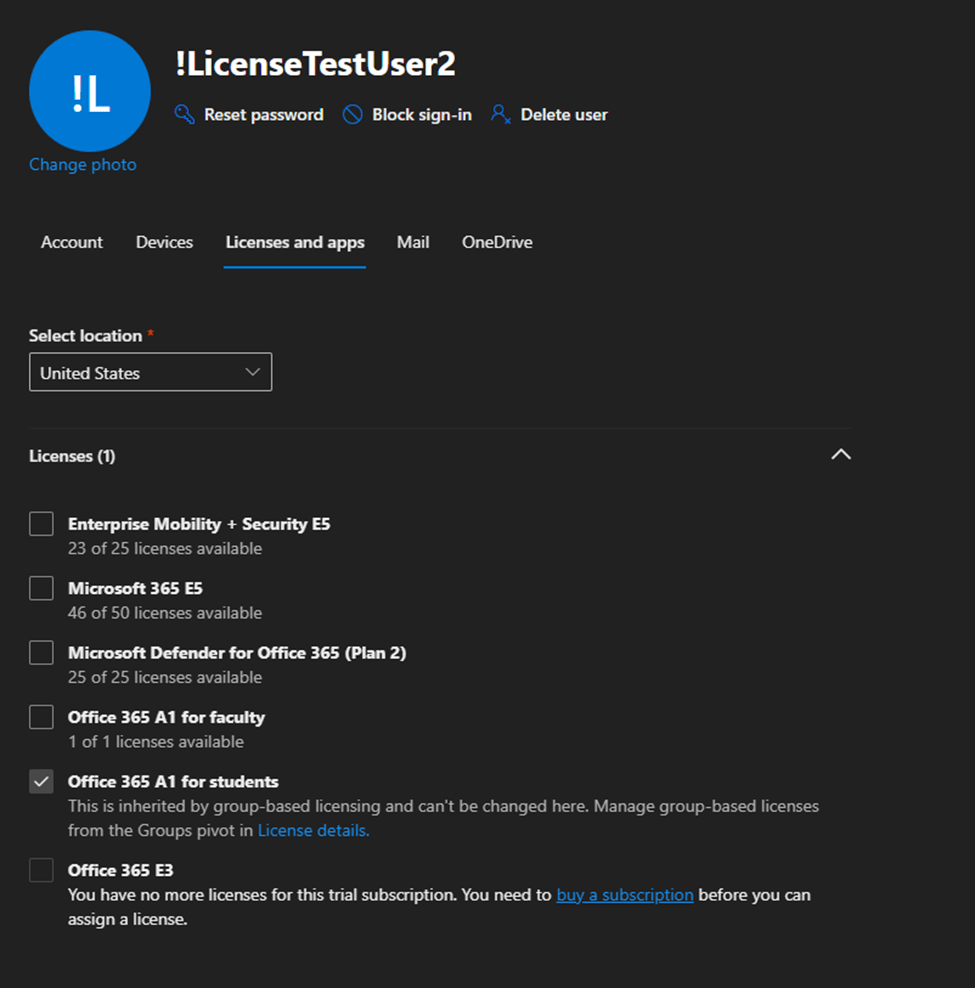
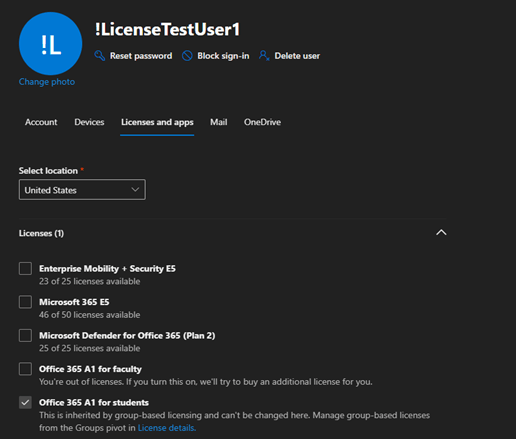
In the M365 Admin Center if a group-based license is assigned to the user the option to manage that individual license is greyed out. A note is displayed “this is inherited by group-based licensing and can’t be changed here. Manage group-based licenses from the Groups pivot in license details.” If the user also had a direct assigned license this prevents the removal of the direct assigned license from the users’ properties.
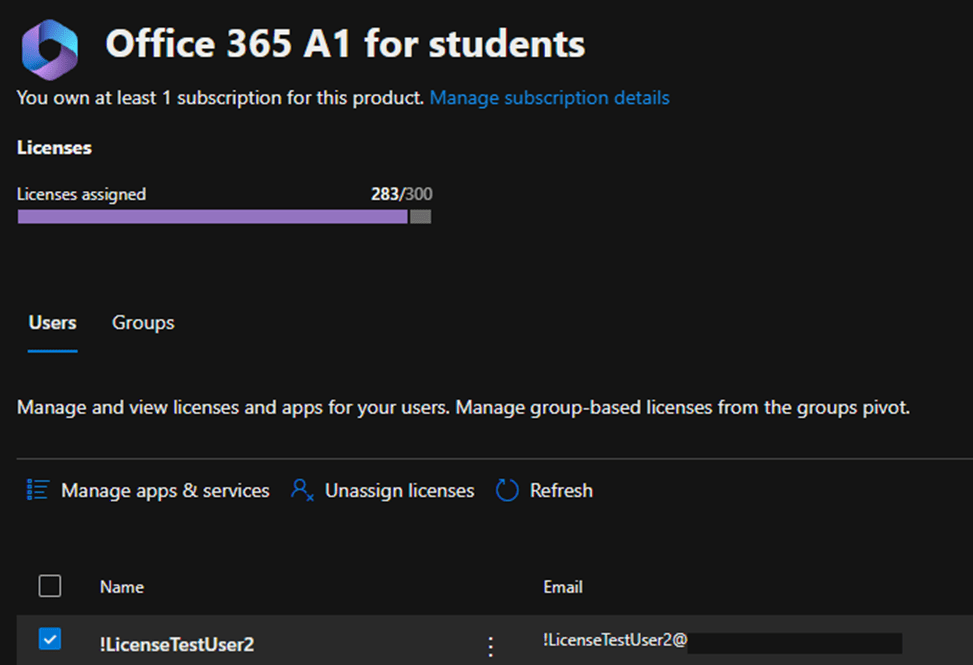
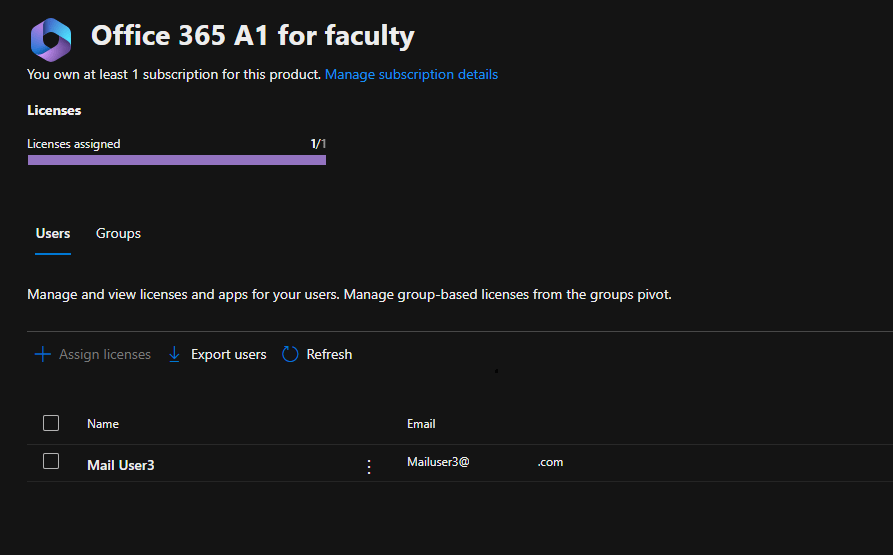
The M365 Admin Center also allows expansion of individual licenses and displaying the users that have the license assigned. Administrators also have the ability to assign and unassign licenses from this view.
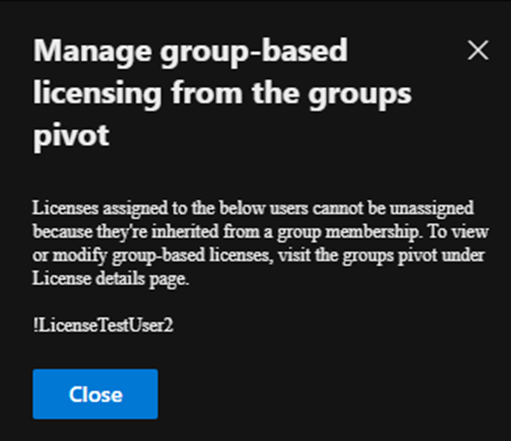
If you select the user that has both a direct and group-based license assignment and select unassign license an error is displayed.
When a user has both a direct and group-based license assignment the directly assigned license cannot be managed in the M365 Admin Center.
Using Graph to Manage Direct License Assignment
Get-MGUser provides the properties AssignedLicenses and LicenseAssignmentStates. The license assignment states provides information regarding the licenses assigned to the user and how those licenses are assigned.
In this case the user has two license assignments for the license 314c4481-f395-4525-be8b-2ec4bb1e9d91. The first state has AssignedByGroup 519fe352-6f2d-4022-973e-ad72c5bcf63d and the second state shows no AssignedByGroup. This demonstrates that the user has both a group and direct license assignment.
With the inability to manage the direct assigned license in the M365 Admin Center if the desire is to remove the direct assigned license graph must be utilized. Here is an example of removing the direct assigned license. (See Using graph to modify group based licenses… | TIMMCMIC for how to build the body parameters section.)
This output confirms that the user has a single license assignment state and that the license is assigned by a group.
Summary
When a direct and group-based license exists on the user the direct license assignment cannot be managed in the M365 Admin Center. To migrate to group-based licensing the direct assigned license can be removed using Microsoft Graph.
Group based licensing provides a great deal of flexibility for administrators to automate the license assignment process. The move from utilizing the Entra portal to the Microsoft 365 Admin Center for group based licensing has brought about several changes not only in the way license are assigned but also the backend technologies utilized to apply the licenses.
Assigning licenses to groups…
The Microsoft 365 Admin Center enables the application of groups to licenses. Groups can be assigned to multiple licenses at the same time. I would like to refer to this as a license template and think about it these are the licenses that this group needs to apply in order for the application to be successful.
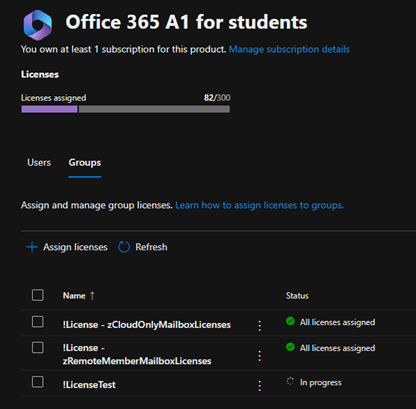
In this example I have a group !LicenseTest that applies two licenses, the Office 365 A1 for Students and Office 365 A1 for Faculty. (Note: In practical terms it would make no sense to use a group to assign both of these licenses but it served the purpose of this blog.) The license template was created in the M365 Admin Center by adding the group to the licenses.
The same information is available through Microsoft Graph.
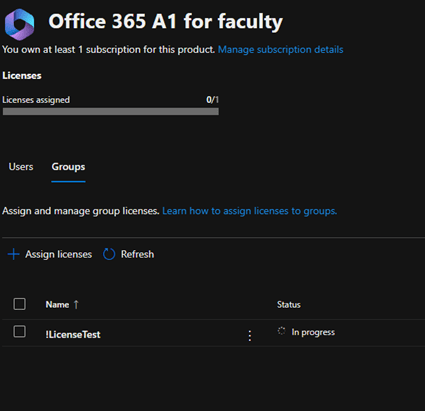
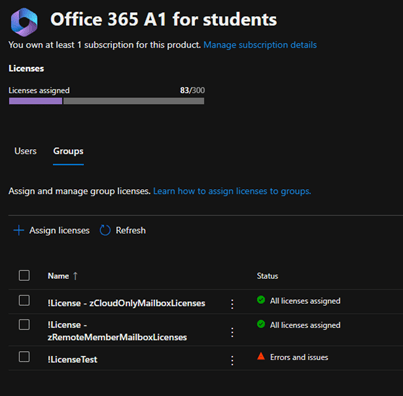
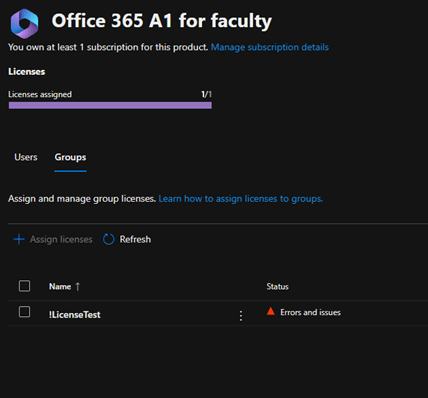
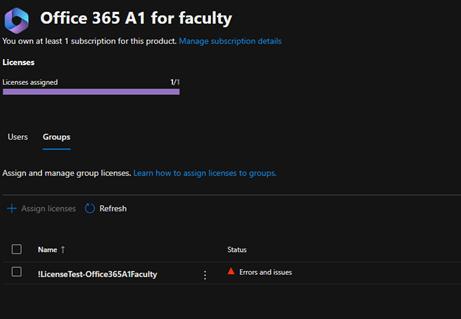
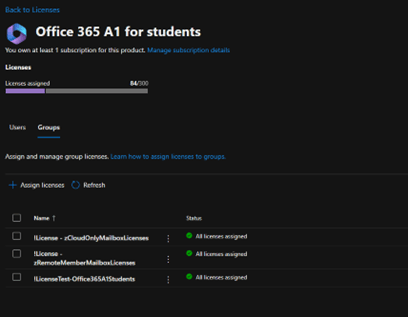
As users are added to the group an asynchronous process within Microsoft 365 is responsible for processing all of the group based licensing. Each license in the M365 Admin center shows the groups assigning the license and the group processing state. In the example of our test group reviewing the license status shows the following in the M365 Admin Center.
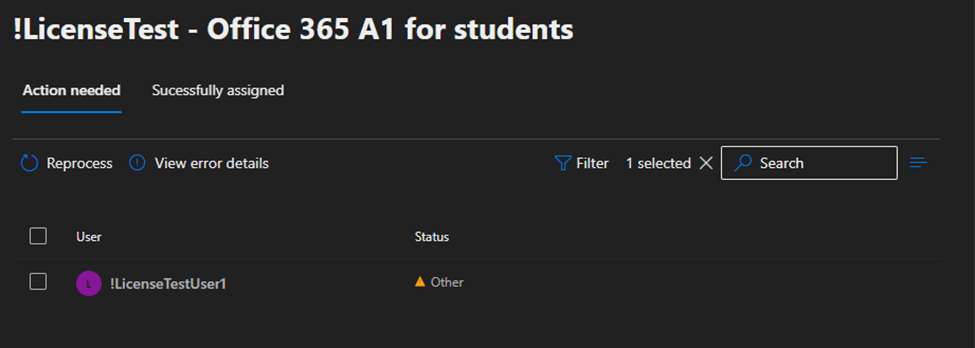
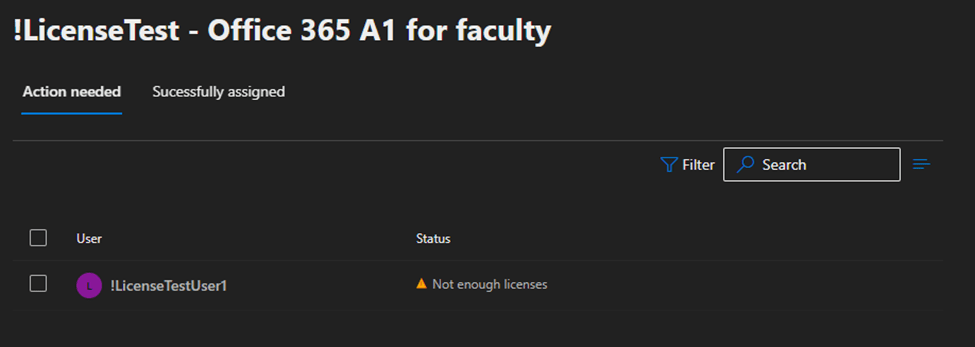
The group processing status shows license assignment failures for both licenses. To review the errors the group is selected under the license. For the Office 365 A1 for Students, when selecting the group and reviewing errors, the following is displayed:
The status of the license assignment is “Other” with no further details. For the Office 365 A1 for Faculty, when selecting the group and reviewing the errors, the following is displayed:
The status of the license assignment is “Not Enough Licenses”. This error is generally self-explanatory. At the time the license assignment was attempted there were not enough licenses to apply this license to the user.
When reviewing license assignment failures, the Entra audit logs is also extremely helpful. Here is a sample audit log entry:
Activity
Date 1/29/2025, 11:59 AM
Activity Type Change user license
Correlation ID c71dad7e-a6e0-46b2-897c-065022231dbb
Category UserManagement
Status failure
Status reason
Microsoft.Online.Provisioning.SubscriptionManagement.SubscriptionFullException
User Agent
Initiated by (actor)
Type Application
Display Name Microsoft Azure AD Group-Based Licensing
App ID
Service principal ID
Service principal name
Additional Details
Licensing Error Message
Not enough licenses are available to complete this operation. Purchase more licenses or remove unneeded licenses from users and groups for SKU [94763226-9b3c-4e75-a931-5c89701abe66]. Licenses being added: [94763226-9b3c-4e75-a931-5c89701abe66]
Remember earlier when I referred to putting multiple licenses on the group as a “template” this template did not apply successfully. Under the new architecture if all the licenses that the group covers cannot be applied then no licenses are applied to the users.
All or none…why?
There are several architectural reasons that this makes sense as well as some practical reasons. From a practical standpoint customers very often apply licenses together so that users have a consistent functionality and experience. For example, I recently worked with a customer that applies an F3 license to their users but also adds Exchange Plan 2 standalone for additional mailbox capacity. If the F3 was provisioned without the associated Exchange Plan 2 the user would not receive the desired mailbox size.
From an architectural perspective there are now more licenses that have cross dependencies on each other. Take the example of having a Teams Audio Conferencing Standalone license that requires a teams plan from a Microsoft E3 license. If the Microsoft E3 failed to apply this would subsequently generate a failure of the Teams Audio Conferencing license.
The main architectural change though that is driving this is the migration of license assignment functions to the graph interface. When graph attempts to assign the licenses, it does so not individually but rather overall. This can be reproduced by attempting to assign the licenses with Microsoft Graph. Here is an example:
#Establish the body parameters hash table.
$params = @{}

#Build the add licenses array
$addLicenses = @()

#Build the remove licenses array
$removeLicenses = @()

#************************************************************************

#Build the disabled plans for the first license to be added.

$disabledPlans = @()

#Set the skuID for the first license.

$skuID = "94763226-9b3c-4e75-a931-5c89701abe66"

#Build the hash value for the added licenses.

$skuHash = @{"DisabledPlans" = $disabledPlans ; "SkuID" = $skuID}

#Add the skuHash to the array of licenses to add.

$addLicenses += $skuHash

#************************************************************************

#Build the second entry to the add licenses.

#Build the disabled plans for the second license to be added.

$disabledPlans = @()

#Set the skuID for the first license.

$skuID = "314c4481-f395-4525-be8b-2ec4bb1e9d91"

#Build the hash value for the added licenses.

$skuHash = @{"DisabledPlans" = $disabledPlans ; "SkuID" = $skuID}

#Add the skuHash to the array of licenses to add.

$addLicenses += $skuHash

#************************************************************************

#***********************
#Complete the params has table.
#***********************

$params = @{"AddLicenses" = $addLicenses ; "RemoveLicenses" = $removeLicenses}

#***********************
#Set the license on the user.
#***********************

set-mgUserLicense -userID 95b87c6b-680d-4942-8ca9-7dd25cd0c3ed -bodyParameter $params

set-mgUserLicense : Subscription with SKU 94763226-9b3c-4e75-a931-5c89701abe66 does not have any available licenses.
Status: 400 (BadRequest)
ErrorCode: Request_BadRequest
Date: 2025-01-29T17:19:56
Headers:
Transfer-Encoding             : chunked
Vary                          : Accept-Encoding
Strict-Transport-Security     : max-age=31536000
request-id                    : 9f334bdd-c0b6-44e0-a67d-de157e2b69b6
client-request-id             : 6e2f76c8-8b7a-4998-91c9-6986cad1e09d
x-ms-ags-diagnostic           : {"ServerInfo":{"DataCenter":"East
US","Slice":"E","Ring":"5","ScaleUnit":"002","RoleInstance":"BL02EPF0001DE6C"}}
x-ms-resource-unit            : 1
Cache-Control                 : no-cache
Date                          : Wed, 29 Jan 2025 17:19:56 GMT
At line:1 char:1
+ set-mgUserLicense -userID 95b87c6b-680d-4942-8ca9-7dd25cd0c3ed -bodyP ...
+ ~~~~~~~~~~~~~~~~~~~~~~~~~~~~~~~~~~~~~~~~~~~~~~~~~~~~~~~~~~~~~~~~~~~~~
    + CategoryInfo          : InvalidOperation: ({ UserId = 95b8...ionJsonSchema }:<>f__AnonymousType3`3) [Set-MgUserL
   icense_Assign], Exception
    + FullyQualifiedErrorId : Request_BadRequest,Microsoft.Graph.PowerShell.Cmdlets.SetMgUserLicense_Assign
The attempt to directly assign both licenses at the same time in a single operation failed resulting in the user having no licenses assigned. If the license assignment attempts are performed individually one will succeed and the other will fail resulting in the user having one of the two desired licenses.
The “other” status…
I often receive calls from customers regarding group based license failures and the “other” status. The other status generally means that the group is assigning more than one license and another license has failed to apply. This is sometimes hard to track down in the Microsoft 365 Admin Center as you must select each license that you have and then review the groups assigning those licenses. There is no interface within the Microsoft 365 Admin Center that shows you all of the licenses assigned to a single group. The GraphLicenseManager may assist in determining the source of failures.
Using Graph License Manager to review license assignment failures…
The GraphLicenseManager does have the ability to assist in tracking this down without looking at each license. For more information on installing and using the GraphLicenseManager see the following references:
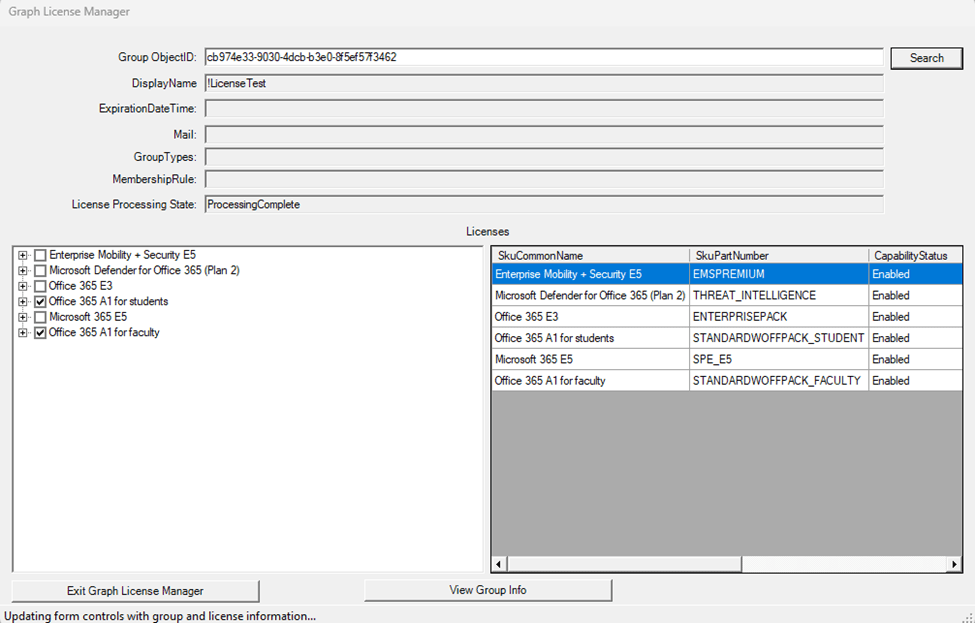
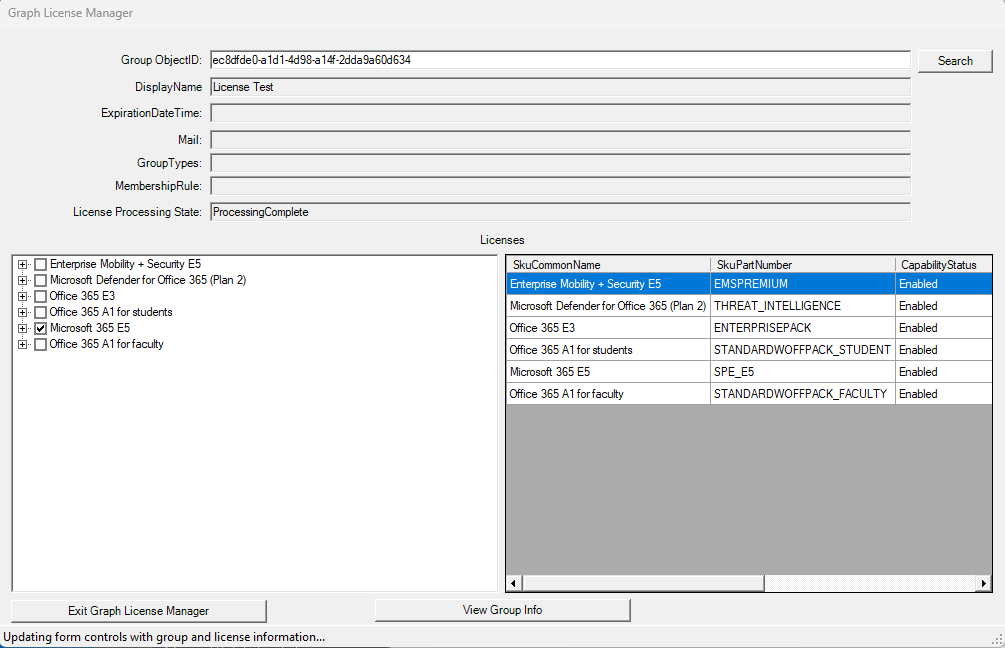
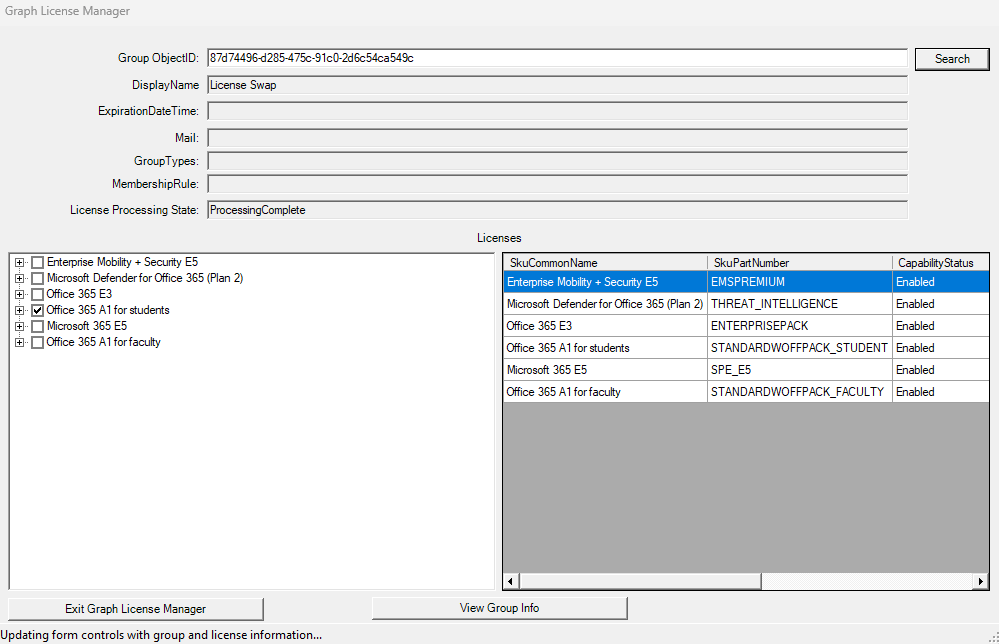
When the graph license manager is installed and configured selecting the “Group License Manager” allows you to visualize the licenses that are assigned to a group.
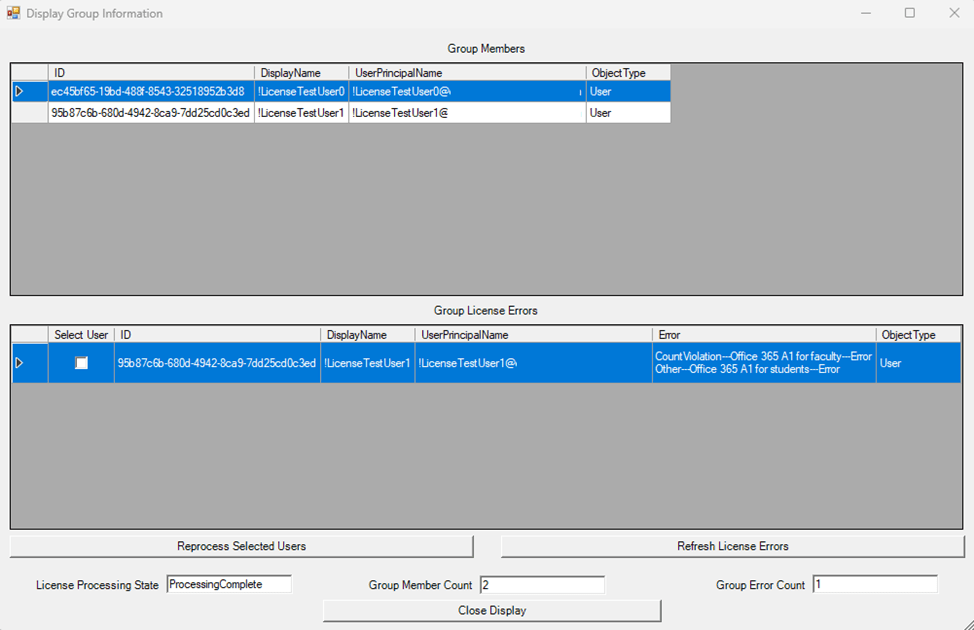
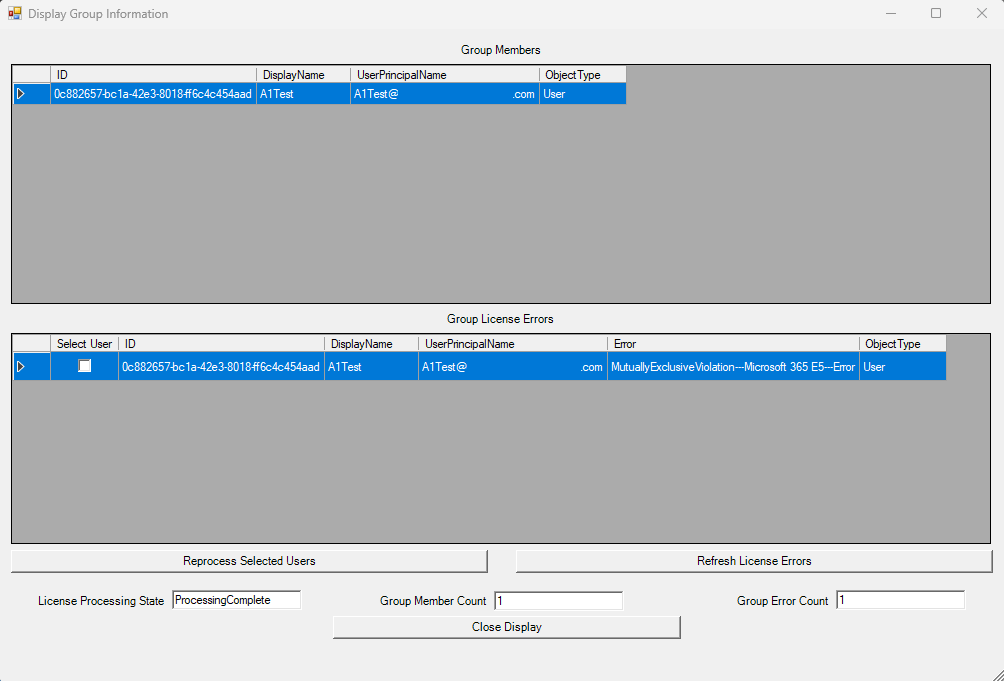
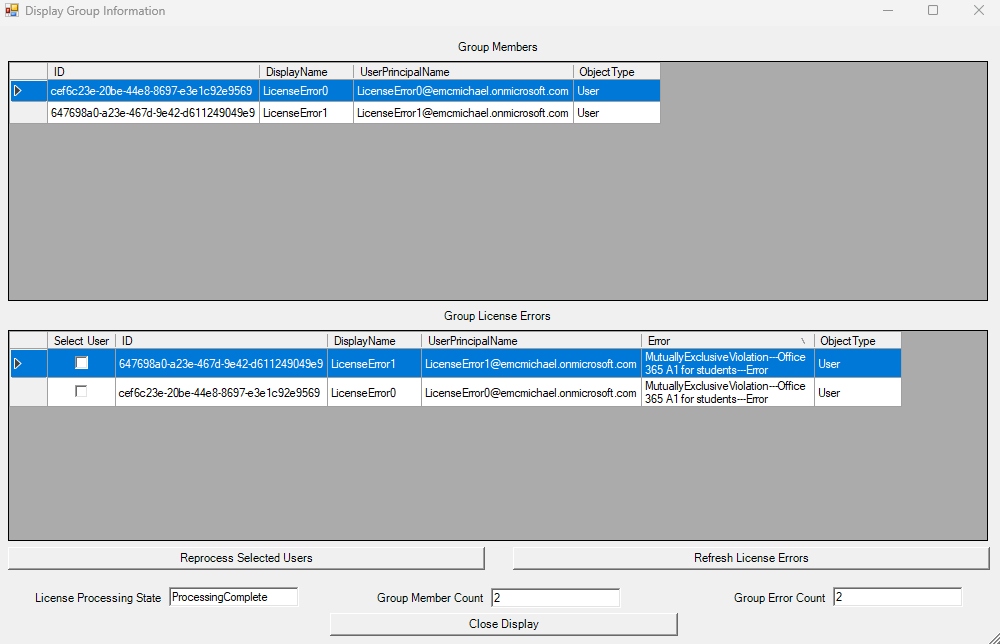
The “View Group Info” button displays information about the members of the group as well as any licensing errors associated with the users.
The errors column summarizes all the errors that are preventing the license assignment to the user and converts the GUIDs associated with Microsoft 365 SKUs to user readable formats.
•	CountViolation---Office 365 A1 for Faculty---Error
•	Other---Office 365 A1 For Students---Error
Collecting all the errors preventing license assignment makes it efficient for administrators to identify the root cause of the license assignment failure and being a reconciliation.
How to prevent a single license assignment failure from stopping other license assignment…
With the shift in architecture, it is no longer possible to have portions of the group based license apply to a user. If the group processing the user has four licenses applied to it, all four must be successful. This was a departure from Entra and legacy processing where a group could assign some of the licenses specified and error on others. Is there any way to resolve this?
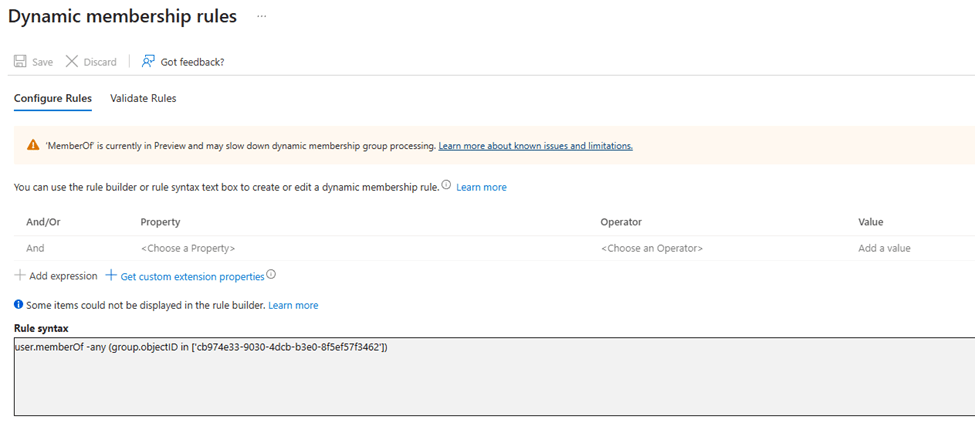
Resolving this is a matter of rethinking how license assignments are done. One solution I have utilized uses a single group to start the license assignment but where the licenses are individually applied by other groups. To keep the single group concept, I encourage the use of Entra dynamic groups utilizing the memberOf filter.
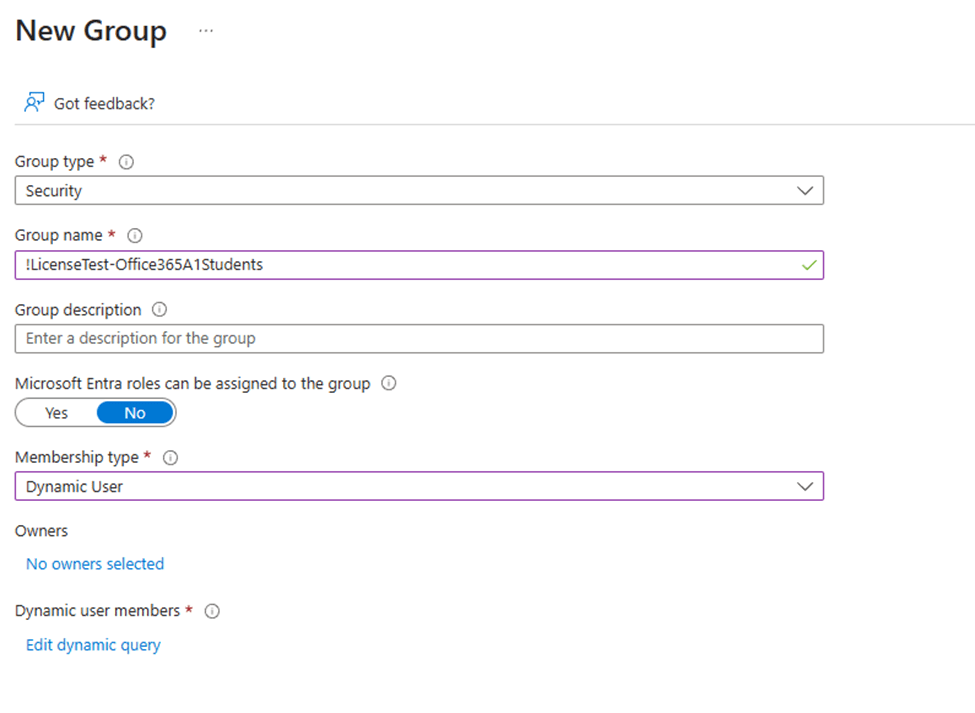
Using the example that I have used previously a single license group is created !LicenseTest. This group is where the members will be placed to receive a license. In the EntraID Portal two dynamic groups are created, one to apply the Office 365 A1 for Faculty and the other to apply the Office 365 A1 for Students.
Once the dynamic groups have processed their membership, they can be added to the licenses in the M365 Admin Center. With each of the dynamic groups processing licenses individually any errors that are encountered are limited to just those groups.
The properties of the individual user that was previously in error confirm the license successfully assigned.
Summary
Group based licensing offers a great deal of flexibility to ensure that users receive the licenses that they should. When a group assigns multiple licenses all the licenses attached to that group must be assigned successfully in order for any licenses to be assigned. If it becomes necessary to allow partial license assignment multiple dynamic groups can be utilized to assign individual licenses while using a single group to trigger license assignment.
I recently released version 1.1.9 of GraphLicenseManager. The following features and fixes were implemented:
Corrected a NULL string condition when connecting to graph and utilizing the graph license manager option.
Corrected a condition where if the first license discovered was a single SKU + single PLAN attempting to change the licenses to a different SKU failed.
Provide support for client secret in addition to certificate based authentication.
When group based license management was available in the EntraID portal administrators had access to a variety of views for reviewing groups with licenses, their associated errors, and reprocessing users. With the move of group based licensing to the Microsoft 365 Administration Center these views have changed.
In the Microsoft 365 Administration Center there is not a single management console that shows all groups where licenses are assigned or a single summary point for group licensing errors. To review groups that assign licenses and their associated errors each SKU (License) is selected and the groups option displayed. A list of errors for each group assigning licenses is present in this view. To review the errors the group must be selected.
In version 1.1.4 of GraphLicenseManager the selected operation “Group Assignment Report” is now available.
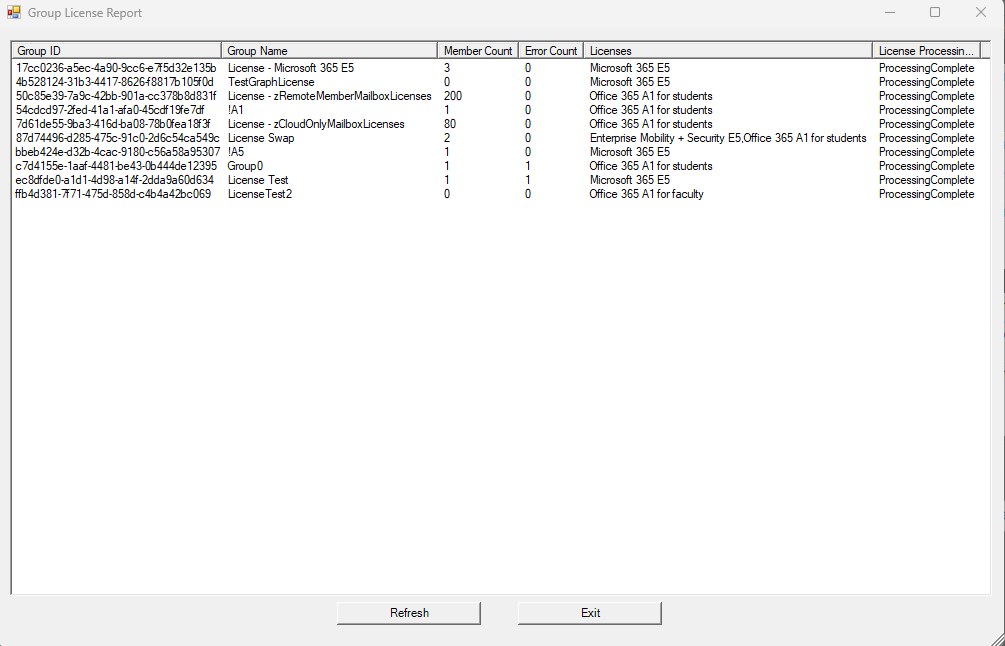
When selecting the option Group Assignment Report the license manager will search EntraID for all groups that apply licenses. Note: This process may take some time to complete. There are no inbox filters for groups with skus assigned and all groups are enumerated. When the search has completed the group information is displayed.
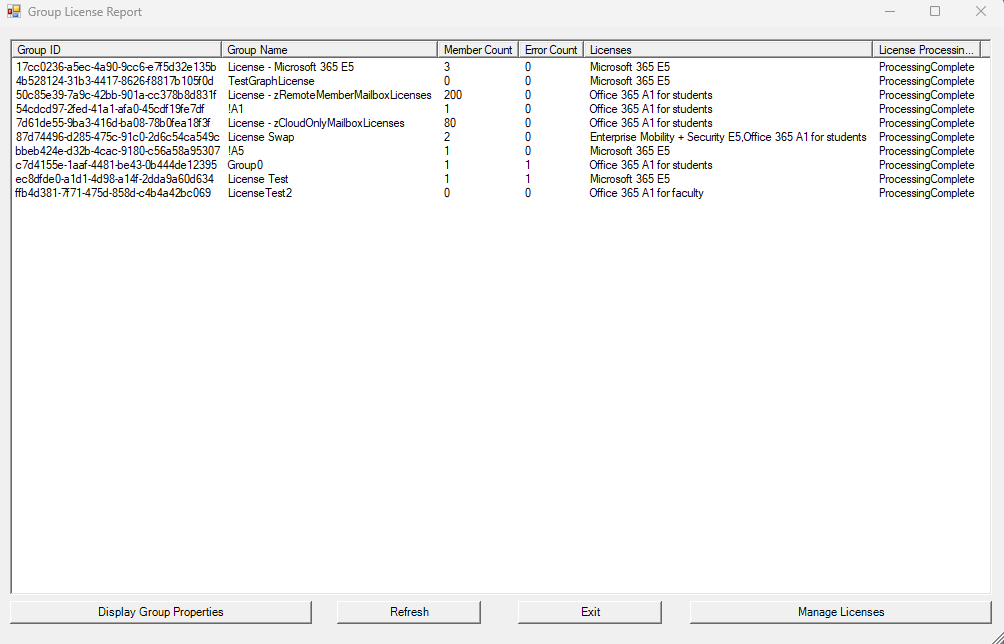
The group summary view lists the group object IDs, display names, member count, any error count if users are in a license assignment error state, the friendly names of any licenses assigned, and what the group processing status is.
Selecting a group from the table enables additional options to Display Group Properties or Manage Licenses.
The display group properties selection displays the group membership and any users that are in a license assignment error state. If appropriate user permissions were selected when connecting to the license manager administrators have the ability to reprocess users that are in an error state.
The manage licenses selection displays the license management wizard. This allows you to review the licenses assigned to the group, modify license assignment on the group, and view the overall license utilization status within the organization.
When manage licenses or display group properties is selected, exiting these features returns you to the Group License Report. If changes were made the refresh button will close and re-launch the Group License Report display.
The Group License Report should give administrators a snapshot of all groups that assign licenses, their status, and easily locate groups that have license assignments to modify those assignments or review group properties and reconcile user license assignment errors.
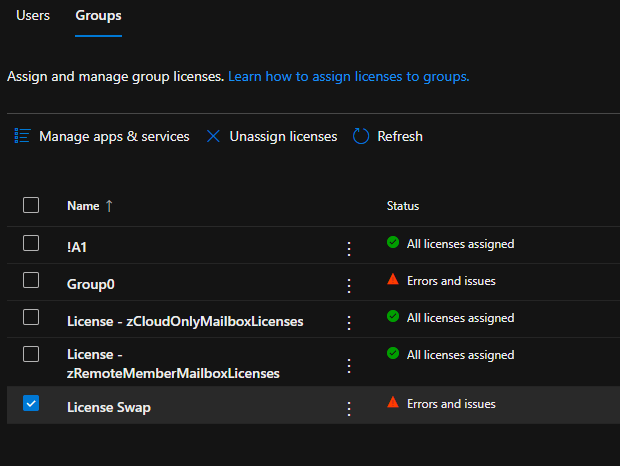
When using group based licensing errors may arise in the license assignment process. In the Microsoft 365 Administrative Center when selecting a license, expanding groups, the list of groups assigning that license are displayed along with the groups processing status.
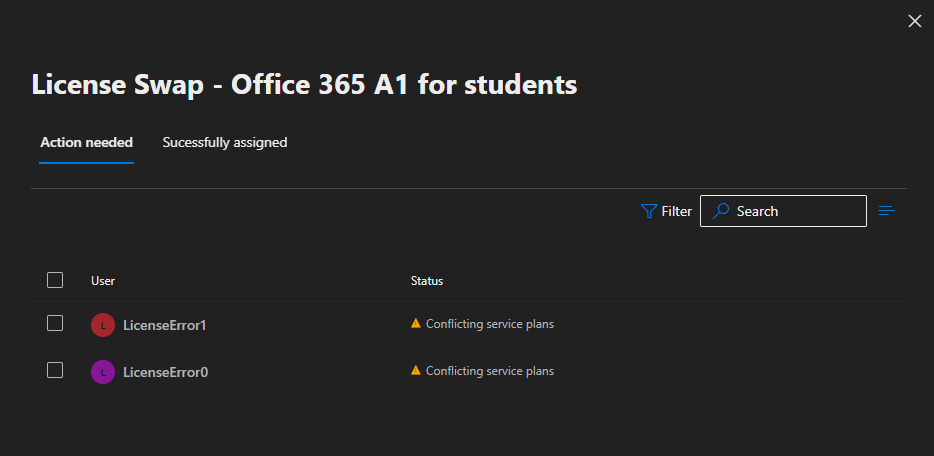
To review the errors associated with the license assignment the group may be selected from this view. This will display the list of users that require action and provide information regarding the failure status.
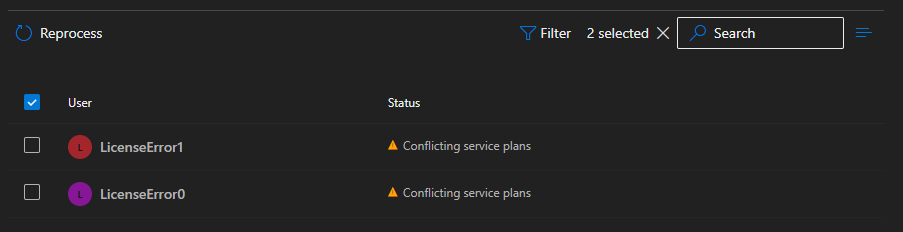
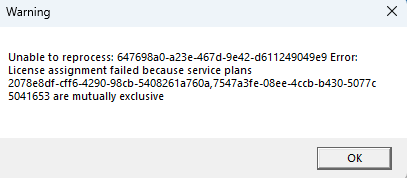
In this example the license assignment is failing due to conflicting service plans. As discussed in other articles this is a common error when two license assignments are occurring and each license contains a plan that conflicts with one another. To reprocess a license assignment the users may be selected in bulk or individually and the reprocess button selected.
When reprocessing is successful the user will be removed from the actions needed dialog. If reprocessing of a user fails a red error banner is displayed.
In the M365 Admin Center when an error is encountered during reprocessing there is little diagnostic information provided as to the cause of the failure. To discover the cause of the failure the audit log entries in the Entra portal for the users must be reviewed.
In the audit log when reviewing the “change user license” activity the license error message provides the feedback necessary to understand the error.
The license can't be assigned because the user has licensed service plans that conflict with plans in the new license. Resolve these conflicting service plan pairs to solve this problem: [7547a3fe-08ee-4ccb-b430-5077c5041653, 2078e8df-cff6-4290-98cb-5408261a760a]. Licenses being added: [314c4481-f395-4525-be8b-2ec4bb1e9d91]
The current design of the M365 Admin Center does not include this verbose information requiring the administrator to utilize multiple tools to understand the nature of the failure.
In version 1.1.3 of the GraphLicenseManager the ability to review group members and reprocess individual license assignments has been added. In addition, any reprocessing failures are presented to the administrator at reprocessing time combining both reprocessing and failure assessment into the same tool.
To utilize the GraphLicenseManager to perform this work:
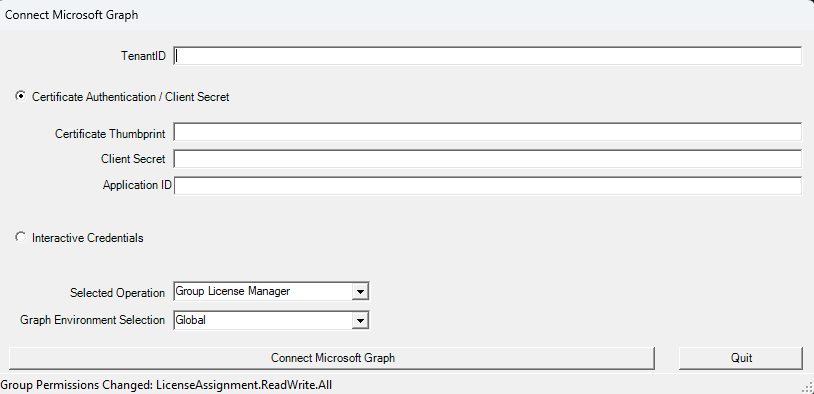
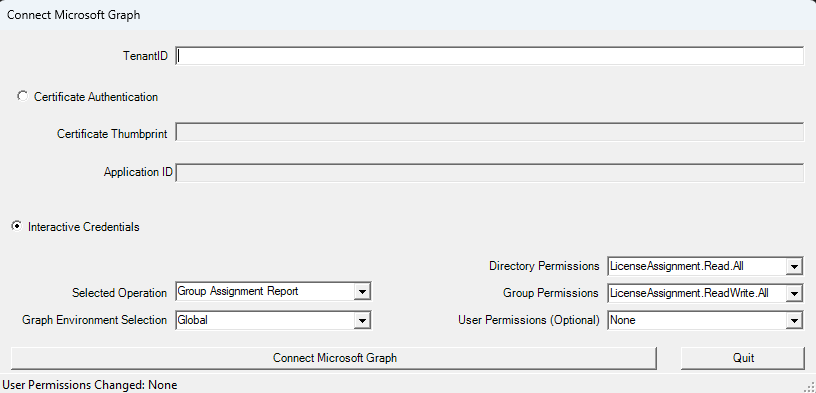
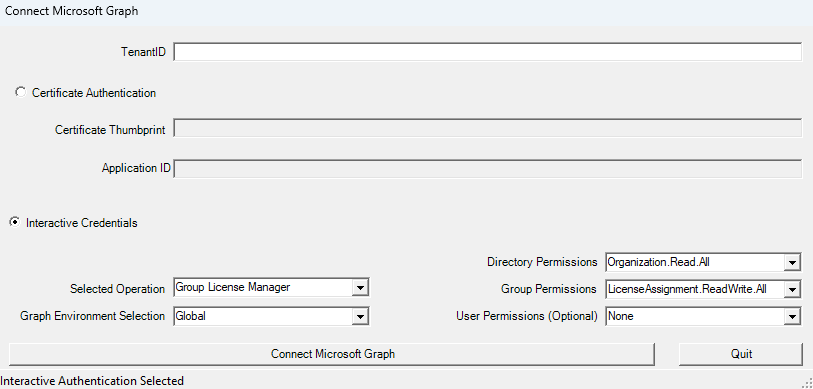
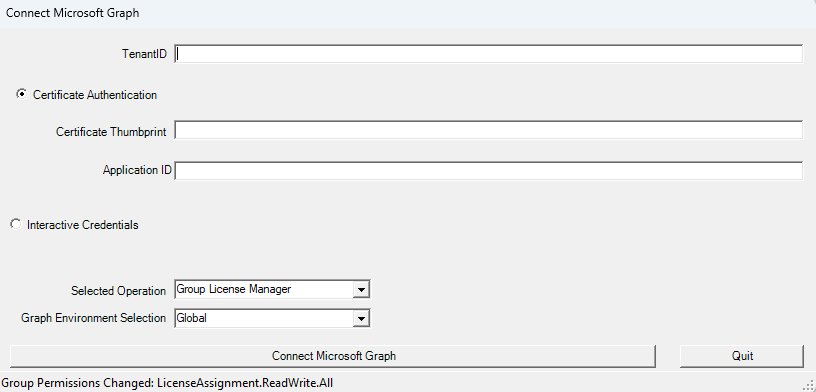
When the GraphLicenseManager starts a logon screen is displayed to connect to Microsoft Graph. The module supports either interactive authentication or certificate based authentication.
When selecting interactive authentication, the administrator may select the scopes required to perform functions in the license manager. The default settings are the least permissions required to perform functions. When using the GraphLicenseManager to view group members, group member errors, and reprocess users the optional user permissions must be specified. Setting any user permissions will enable the option to view group membership and group processing errors. Setting user permissions to Directory.ReadWrite.All or User.ReadWrite.All will enable the reprocessing option in the group members view.
When using certificate authentication, the appropriate permissions must be assigned to the app registration created in Entra. The same permissions for interactive authentication are required for the app registration.
If no user permissions are selected the module will examine all scopes returned in the graph connection. If the scopes returned contain the necessary permissions to view group members and / or reprocess group errors those options are automatically enabled.
After completing the connection to Microsoft Graph the Group License Manager is displayed. Searching a group object id displays the licenses assigned to the group and a table of all license information within the tenant. If the necessary graph scopes are available the “View Group Info” button is enabled in the center of the manager.
Selecting the “View Group Info” button displays the “Group Information Page” Note: As this page enumerates a table of all members for review it can take some time to render the information.
The group information display shows all the members of the group, all group license errors, and basic information regarding the processing status and group statistics. In the “Group License Errors” table a user may be elected for reprocessing. If the necessary graph scopes are abled the “Reprocess Selected Users” and “Refresh License Errors” buttons are enabled.
To reprocess a user select one or more users and the reprocess selected users button.
In this example selecting a user and the reprocess option shows an error message.
This is expected since the users are in error, and nothing has been done to correct the condition. The error message provides information regarding the license plans in conflict. The guids can be searched to determine which plan and sku are generating the conflict. In this example the plans in conflict are the Yammer plans. There are multiple potential methods to resolve this issue but for the sake of this example I will simply remove the offending license.
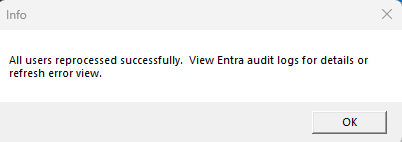
With the conflict resolve the reprocess option may be utilized. If the license reprocessing is now successful for all users selected a success message is displayed.
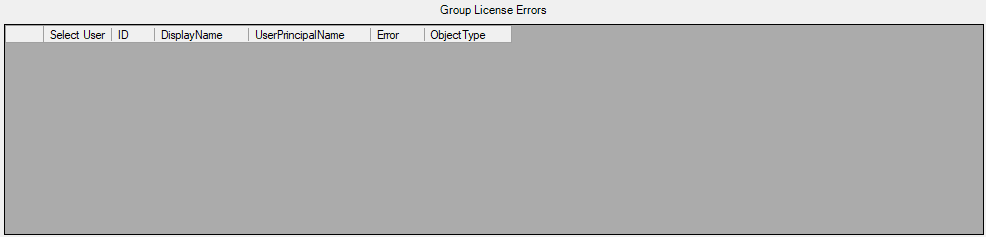
To confirm that all errors on the group have been rectified the “Refresh License Errors” button is selected. This refreshes the group license errors. In this example all license errors are now clear.
I hope that by bringing together the ability to manage group licenses and group license errors into a single tool we can make the adoption and management of group-based licensing simpler and more efficient.
Microsoft 365 administrators utilize a variety of tools to manage and monitor license usage and assignments. In the Microsoft 365 Admin Center administrators often review and export a list of users assigned to the different SKUs within their tenant. This is done by selecting Billing -> Licenses -> and selecting a license.
The export button allows the administrator to export to CSV the list of users assigned the license. I have recently spoken with several customers that have noticed that the export has changed the information provided. For example, in prior releases of the Microsoft 365 Admin Center the export contained the field Blocked Users (Account Enabled). This field, along with many others, are no longer present in the download offered through the portal.
With the evolving changes in the Microsoft 365 Admin Center surrounding license management and assignment the interfaces previously responsible for providing this data have been deprecated. With this deprecation arose the need to change the fields contained in the download. Unfortunately, this is not something that is administratively configured.
In order to generate the data previously available I have added functions to the GraphLicenseManager to generate the CSV files. In addition to providing some of the missing fields, I have provided an interface that allows administrators to select all single value attributes returned by get-MGUser.
When the graph license manager is installed, the process starts with:
Start-GraphLicenseManager -logFolderPath c:\temp
The graph license manager is a combination of PowerShell and Windows Forms. When the start command is executed the login screen is displayed.
On the logon screen a TenantID is required to establish the graph connection. This can easily be obtained from the EntraID properties in the Entra Portal. To establish permissions either certificate authentication or interactive credentials may be utilized. For those interested in setting up certificate-based authentication for Microsoft Graph see:
In the selected operation drop down select “License Assignment Report”. If you are a customer in a different graph environment, use the graph environment selection dropdown to select the environment.
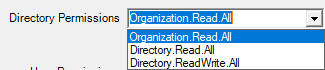
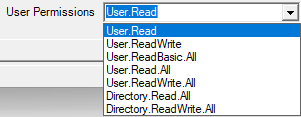
The license report requires a minimum of two permissions:
Directory Permission: Organization.Read.All
User Permission: User.Read
When using interactive credentials, the user may select any of the roles they qualify for. It is important to note that when establishing the graph connection if the permissions requested are not already assigned to the user an administrator may be required to provide consent to the permissions.
After selecting the authentication method, operation type, and required permissions the Connect Microsoft Graph button completes the connection.
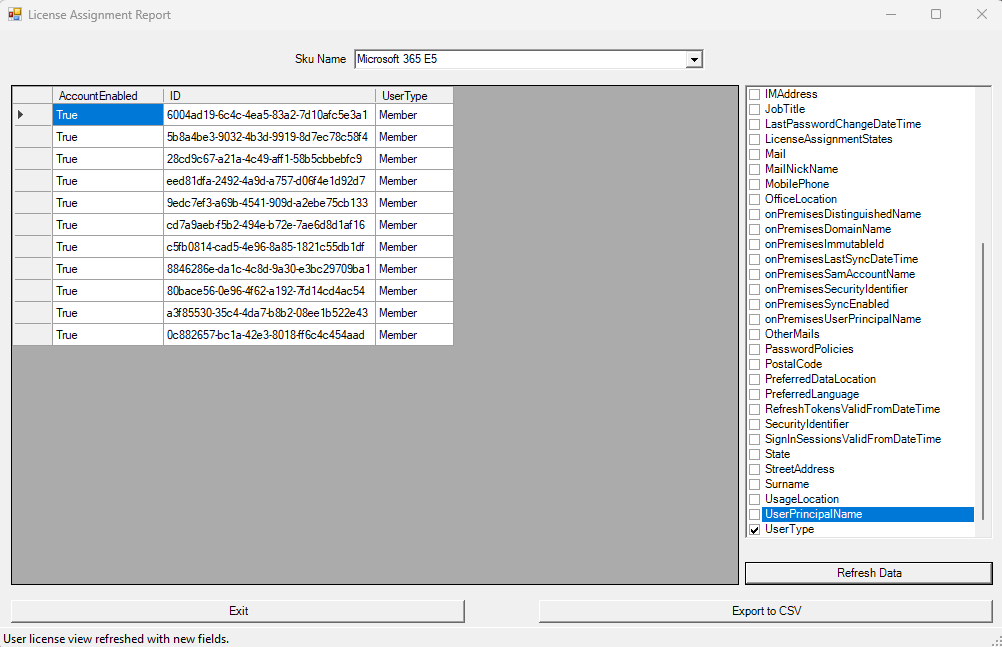
When the connection has completed successfully the License Assignment Report wizard is displayed.
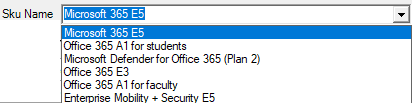
Selecting the Sku Name drop down allows the administrator to view all license assignments associated with all user skus in the tenant. The list updates dynamically with each SKU selected.
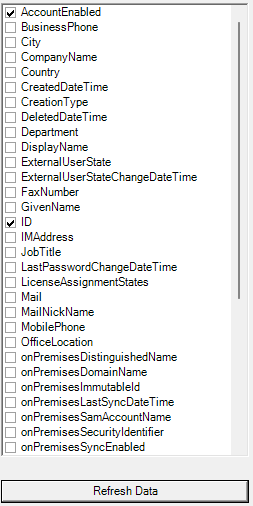
The properties dialog allows the administrator to select properties. The refresh button applies the administrator selections to the information displayed for each user.
To retain the data displayed the Export to CSV button may be utilized. When selected all data shown in the users view is exported to a CSV file within the log file directory. If exporting multiple SKUs a CSV file is created for each sku selected. NOTE: If exporting the same sku with different values any previous export for the same sku is overwritten.
When completed the exit button closes the Graph License Manager.
Using the Graph License Manager administrators can produce a variety of customized reports expanding on the information previously offered in the Microsoft 365 Admin Center.
Microsoft Graph provides the ability to modify licenses assigned to groups when implementing group-based licensing. The command set-MGGroupLicenses is utilized to modify the license template assigned to a group.
When creating a license template to apply or modify on the group a bodyParameters switch is utilized. Building the bodyParameters by hand can often be tricky. In this post I want to break down the structure of the bodyParameters and demonstrate how this can be built easily with Powershell.
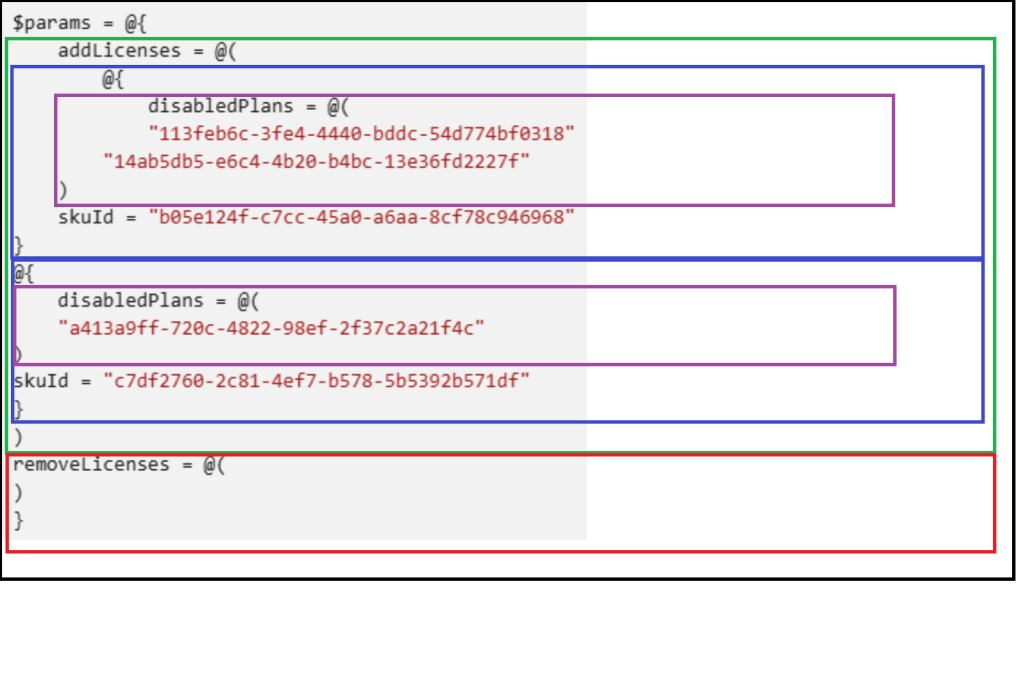
The bodyParameters starts with a hash table that contains two array entries. The add licenses array and the remove licenses array. (Black box in figure below).
The add licenses array is an array of hash tables. (Green Box). Each hash table entry in the array is a combination of an array of plans to disable (Purple Box) and the skuID associated with those plans (Blue Box).
The remove licenses array is an array of skuIDs to remove from the group. (Red Box).
This is what the structure looks like in Microsoft’s sample documentation.
On the current group is the Office 365 A1 for Students License. This license needs to be replaced with the Microsoft 365 E5 licenses with the Information Barries and Microsoft 365 Phone System plans disabled. I also want to add the entire Microsoft 365 Defender for Office 365 (Plan 2) license.
To recap
Remove Licenses
Office 365 A1 for Students = 314c4481-f395-4525-be8b-2ec4bb1e9d91
Add Licenses
Microsoft 365 E5 = 06ebc4ee-1bb5-47dd-8120-11324bc54e06
Disable Microsoft 365 Phone System = 4828c8ec-dc2e-4779-b502-87ac9ce28ab7
Disable Information Barriers = c4801e8a-cb58-4c35-aca6-f2dcc106f287
Microsoft Defender for Office 365 (Plan 2) = 3dd6cf57-d688-4eed-ba52-9e40b5468c3e
To build the body parameters utilize in the set-MGGroupLicenseCommand:
#Establish the body parameters hash table.
$params = @{}

#Build the add licenses array
$addLicenses = @()

#Build the remove licenses array
$removeLicenses = @()

#************************************************************************

#Build the disabled plans for the first license to be added.

$disabledPlans = @()
$disabledPlans += "4828c8ec-dc2e-4779-b502-87ac9ce28ab7"
$disabledPlans += "c4801e8a-cb58-4c35-aca6-f2dcc106f287"

#Set the skuID for the first license.

$skuID = "06ebc4ee-1bb5-47dd-8120-11324bc54e06"

#Build the hash value for the added licenses.

$skuHash = @{"DisabledPlans" = $disabledPlans ; "SkuID" = $skuID}

#Add the skuHash to the array of licenses to add.

$addLicenses += $skuHash

#************************************************************************

#Build the second entry to the add licenses.

#Build the disabled plans for the second license to be added.

$disabledPlans = @()

#Set the skuID for the first license.

$skuID = "3dd6cf57-d688-4eed-ba52-9e40b5468c3e"

#Build the hash value for the added licenses.

$skuHash = @{"DisabledPlans" = $disabledPlans ; "SkuID" = $skuID}

#Add the skuHash to the array of licenses to add.

$addLicenses += $skuHash

#************************************************************************

#***********************
#At this time all licenses to be added have been built and added to the addArray.
#***********************

#Update the licenses to remove with the decomissioned plan.

$removeLicenses += "314c4481-f395-4525-be8b-2ec4bb1e9d91"

#***********************
#Complete the params has table.
#***********************

$params = @{"AddLicenses" = $addLicenses ; "RemoveLicenses" = $removeLicenses}
In some instances, discovering the SKU and PLAN ids utilized in the body parameters configuration can also be challenging. One of the methods I like to use to simplify process is to create a standard user in Microsoft 365 and apply the license template to the user. The license template would be the same as the template I want to assign to the group. The user can then be utilized as a template for completing the body parameters build.
#Obtain the user that has the license template to be applied.

$licenseTemplateUser = get-mgUser -userID licenseTest@domain.onmicrosoft.com -Property AssignedLicenses

#Establish the body parameters hash table.
$params = @{}

#Build the add licenses array
$addLicenses = @()

#Build the remove licenses array
$removeLicenses = @()

#************************************************************************

#Build the licenses to be added.

foreach ($sku in $licenseTemplateUser.AssignedLicenses)
{
    write-host ("Processing skuID: "+$sku.skuID)

    #Set the SKUID

    $skuID = $sku.skuID

    if ($sku.disabledPlans.count -gt 0)
    {
        write-host "The sku has disabled plans - creating disabled plans."

        foreach ($plan in $sku.disabledPlans)
        {
            write-host $plan
            $disabledPlans+=$plan
        }
    }
    else
    {
        $disabledPlans=@()
    }

    #Build the hash for the sku.

    $skuHash = @{"DisabledPlans" = $disabledPlans ; "SkuID" = $skuID}

    #Add the has to the add licenses array.

    $addLicenses += $skuHash
}

#Set any licenses to be removed.

$removeLicenses += "314c4481-f395-4525-be8b-2ec4bb1e9d91"

#***********************
#Complete the params has table.
#***********************

$params = @{"AddLicenses" = $addLicenses ; "RemoveLicenses" = $removeLicenses}
I hope that outlining the structure of the bodyParameters simplifies utilizing graph for group based license administration.
EntraID provides methods for administrators to enable end users to manage and reset their passwords utilizing Microsoft cloud services. This feature is known as Self Service Password Reset.
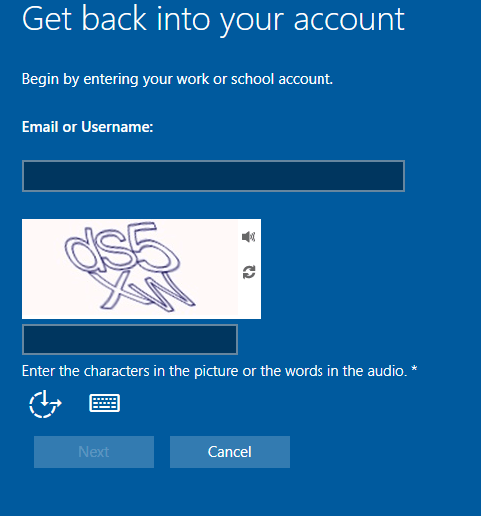
The password reset process starts by requesting the user provide their sign on name and complete a character validation.
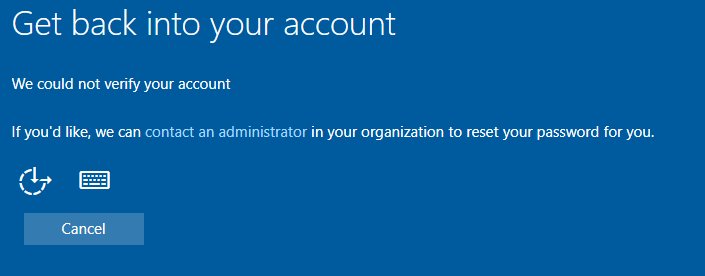
When the form is completed the next button allows the user to proceed with the process. If the account is valid, enabled for self-service password reset, and meets the authentication methods requirements for the feature the process will continue. If for some reason the users account information cannot be validated, for example they are not enabled for self-service password reset or the user has not proofed up authentication methods that would allow for self-service password reset, the following screen is displayed.
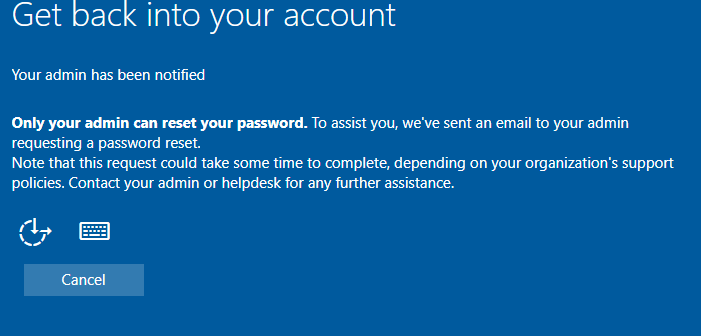
In this dialog the user has the option to “contact an administrator”. When this option is selected the process concludes with the following dialog.
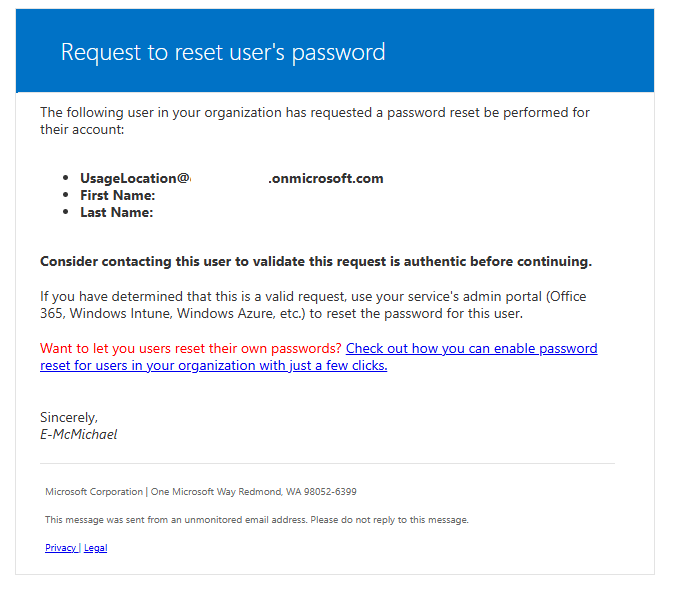
When this option is selected, an email is generated to administrators of the tenant informing them of the request to reset the password. On the surface this email looks highly suspicous.
When the email is received by administrators there are often questions regarding the validity and authenticity. Here are some methods to review the email for ligitimacy.
Review the message header for basic antispam evaluation. For example, errors in the SPF record evaluation or DKIM signing of the message.
spf=pass (sender IP is 40.93.12.1) smtp.mailfrom=microsoftonline.com; dkim=pass (signature was verified) header.d=microsoftonline.com;dmarc=pass action=none header.from=microsoftonline.com;compauth=pass reason=100
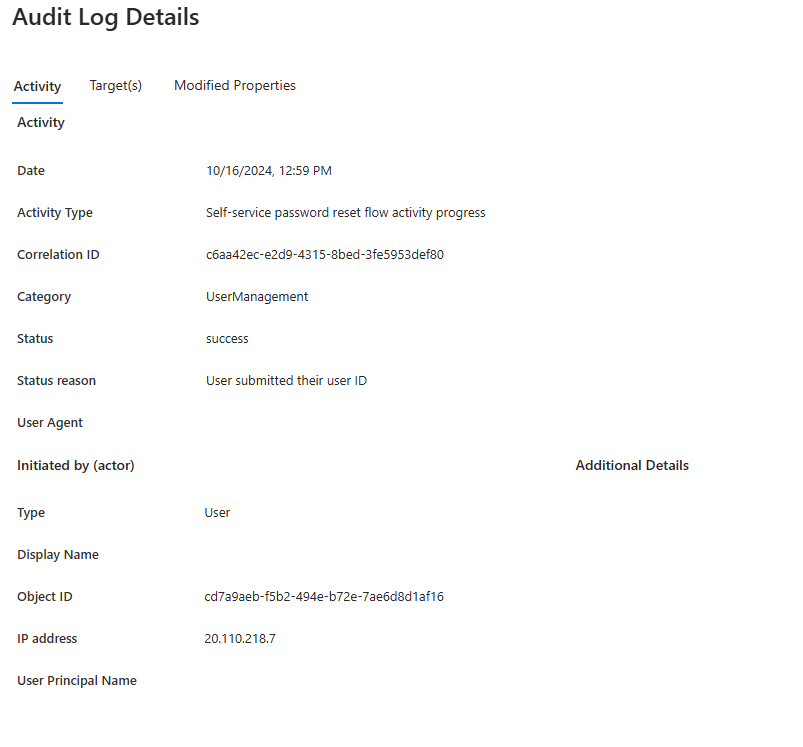
The EntraID audit logs for the user account may also shed light into the validity of this email. When a user enters the password reset process, if the username is valid, entries are generated in the EntraID audit log.
This entry provides information that the user entered the flow and provided a user name.
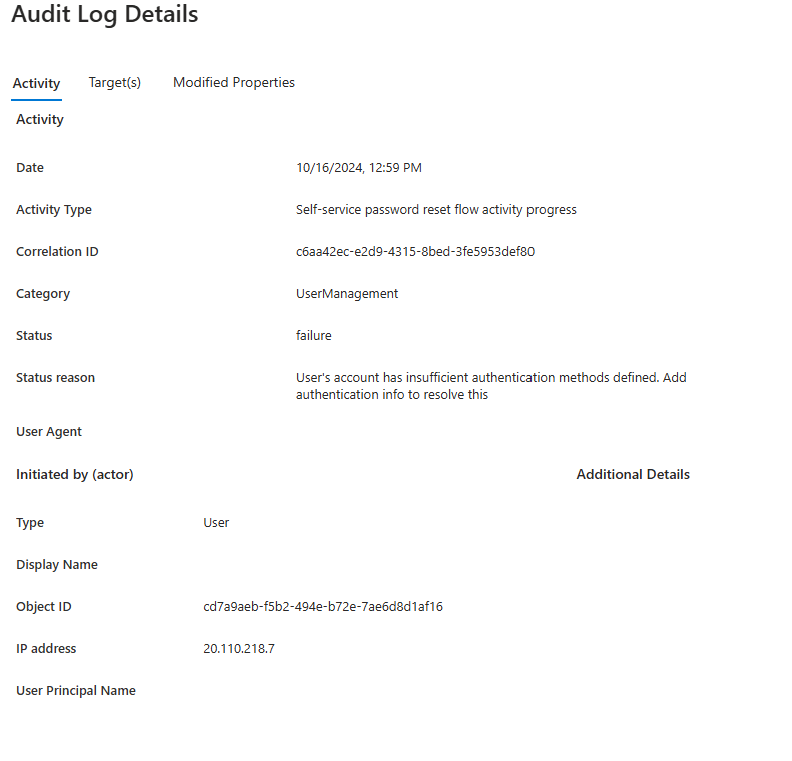
The next event in the audit log shows the source of the contact administrator dialog. In this case the user account had insufficient authentication methods to allow the user to perform their own reset. There could be other failure categories here that lead to the contact administrator dialog – this is just one.
User’s account has insufficient authentication methods defined. Add authentication info to resolve this
User Agent
Type
User
Display Name
Object ID
cd7a9aeb-f5b2-494e-b72e-7ae6d8d1af16
IP address
20.110.218.7
User Principal Name
UPN
The audit log information should be helpful in determining not only if the email received is legitimate but also if the end user themselves triggered the password reset workflow.
If the information in the audit log and the message header checks out the legitimacy of the message maybe verified.
==================
Entire email contents below for parsing.
==================
Request to reset user’s password
The following user in your organization has requested a password reset be performed for their account:
UsageLocation@domain.onmicrosoft.com
First Name:
Last Name:
Consider contacting this user to validate this request is authentic before continuing.
If you have determined that this is a valid request, use your service’s admin portal (Office 365, Windows Intune, Windows Azure, etc.) to reset the password for this user.