When group based license management was available in the EntraID portal administrators had access to a variety of views for reviewing groups with licenses, their associated errors, and reprocessing users. With the move of group based licensing to the Microsoft 365 Administration Center these views have changed.
In the Microsoft 365 Administration Center there is not a single management console that shows all groups where licenses are assigned or a single summary point for group licensing errors. To review groups that assign licenses and their associated errors each SKU (License) is selected and the groups option displayed. A list of errors for each group assigning licenses is present in this view. To review the errors the group must be selected.
In version 1.1.4 of GraphLicenseManager the selected operation “Group Assignment Report” is now available.
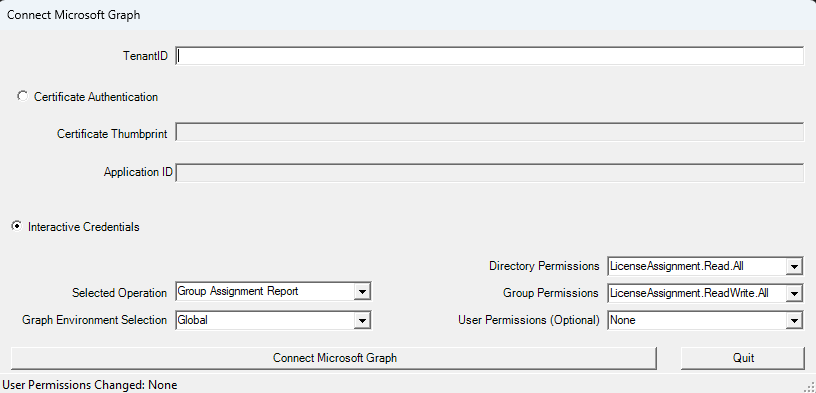
When selecting the option Group Assignment Report the license manager will search EntraID for all groups that apply licenses. Note: This process may take some time to complete. There are no inbox filters for groups with skus assigned and all groups are enumerated. When the search has completed the group information is displayed.
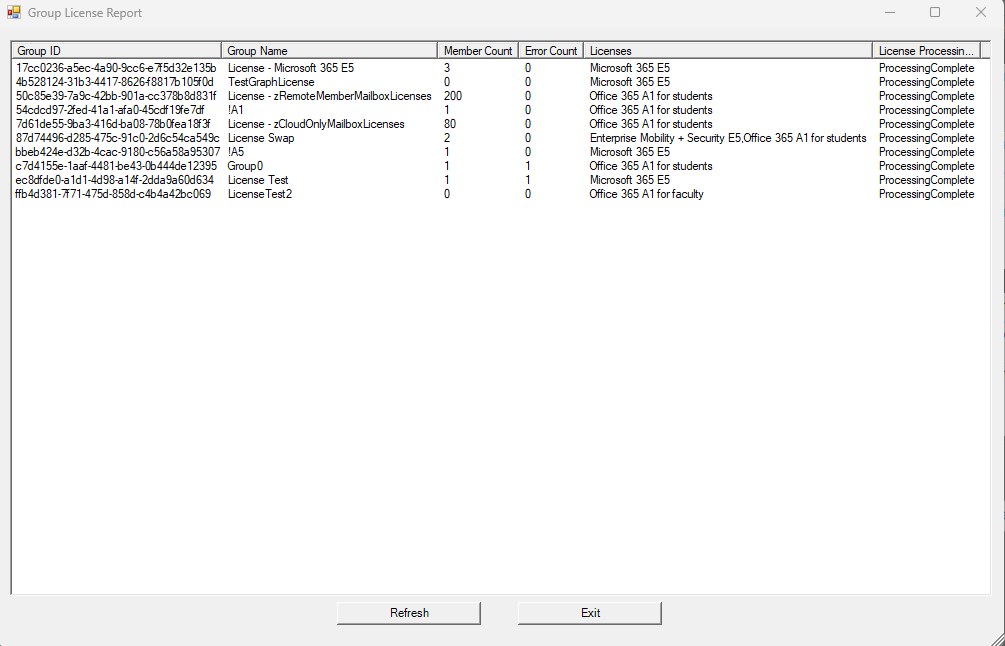
The group summary view lists the group object IDs, display names, member count, any error count if users are in a license assignment error state, the friendly names of any licenses assigned, and what the group processing status is.
Selecting a group from the table enables additional options to Display Group Properties or Manage Licenses.
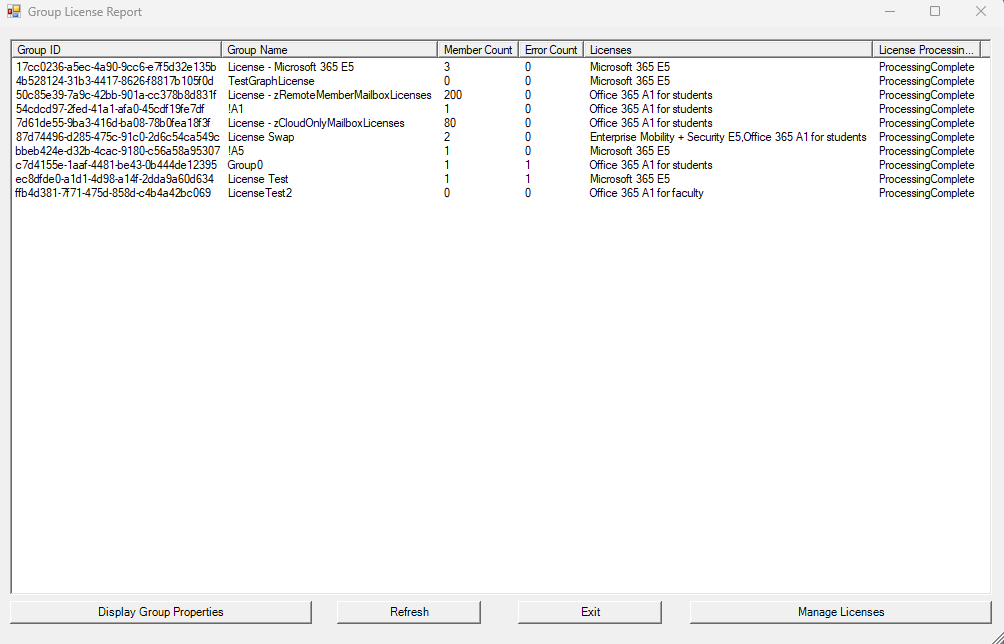
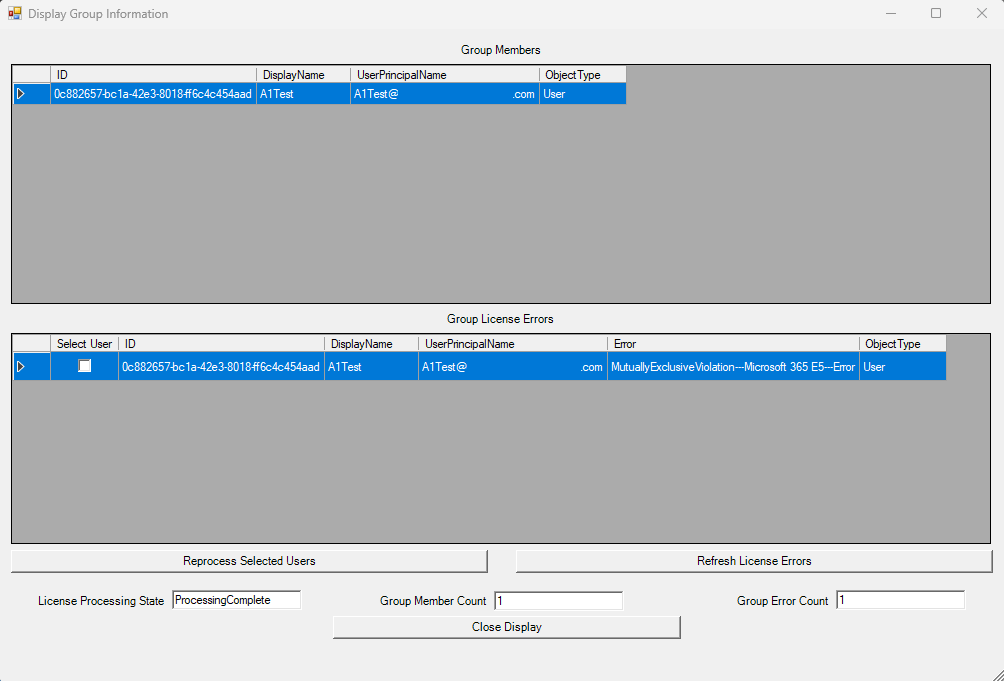
The display group properties selection displays the group membership and any users that are in a license assignment error state. If appropriate user permissions were selected when connecting to the license manager administrators have the ability to reprocess users that are in an error state.
The manage licenses selection displays the license management wizard. This allows you to review the licenses assigned to the group, modify license assignment on the group, and view the overall license utilization status within the organization.
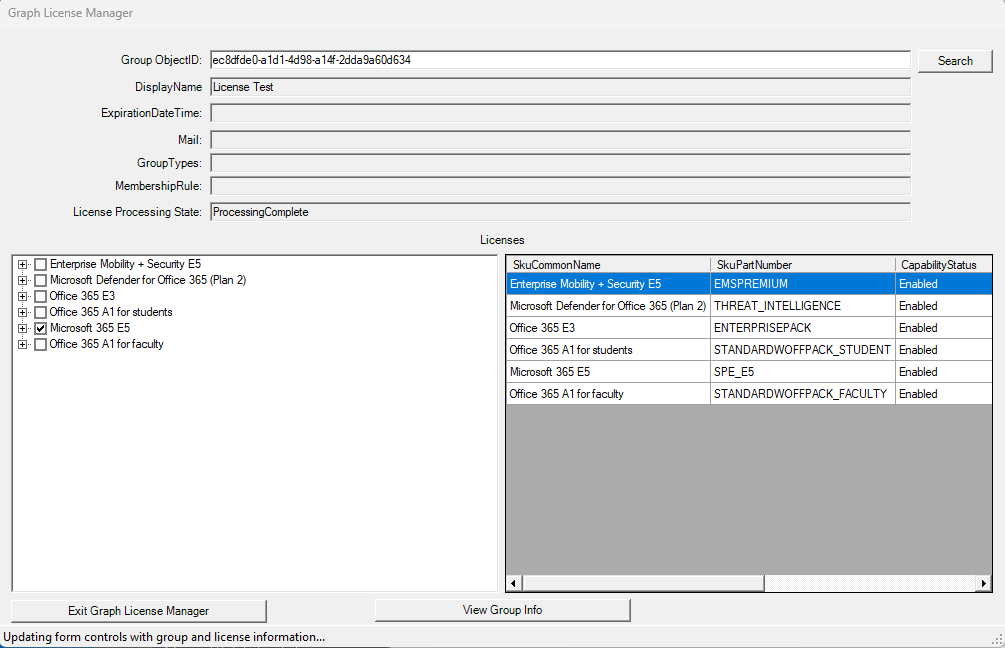
When manage licenses or display group properties is selected, exiting these features returns you to the Group License Report. If changes were made the refresh button will close and re-launch the Group License Report display.
The Group License Report should give administrators a snapshot of all groups that assign licenses, their status, and easily locate groups that have license assignments to modify those assignments or review group properties and reconcile user license assignment errors.
 TIMMCMIC