Category Archives: Uncategorized

Office 365 – Distribution List Migration Version 2.0 – Part 41

Changing email addresses for migrated distribution lists…

When a distribution list is migrated the cloud only list has attributes that are fully managed in Exchange Online. This allows all attributes including the primary SMTP address associated with the group to be changed in Exchange Online.

If the distribution list has been migrated with the -enableHybridMailFlow switch or had enable-hybridMailFlowPostMigration run this results in mail flow objects existing in both Active Directory and Exchange Online. It would be possible for the primary SMTP address to be updated in Exchange Online and hybrid mail flow being broken as a result.

When hybrid mail flow is enabled a dynamic distribution list holds the same primary SMTP address as the migrated distribution list. In order for relay or other Exchange on-premises functions to continue to work the address would need to be updated in both directories. 

Version 2.9.8.26 now enables a command update-HybridMailAddress. This command allows an administrator to specify a new primary SMTP address and alias for a migrated distribution group. The command searches Active Directory to locate the dynamic distribution list created and if found the Exchange Online primary SMTP address is updated. If the primary SMTP address can successfully be updated in Exchange Online the primary SMTP address and mail address of the dynamic distribution list is updated in Active Directory. Changing the alias is optional, and if specified when changing the primary SMTP address the alias is updated in both Exchange Online and Active Directory.

Having a single command ensures that hybrid mail flow works when processing a primary SMTP proxy change.

Office 365 – Distribution List Migration Version 2.0 – Part 40

Offering a new alternative for nested group migrations…

Distribution lists offer administrators the opportunity to nest within each other. As a part of distribution list migrations all child groups must be migrated prior to the parent group being migrated.

In the case of a single migration, if the parent is selected for migration and contains children, the migration will fail and the logs will indicate that a child group was found and must be migrated first.

In the case of multiple migrations, if the parent is attempted first before a child for migration, the parent will be scheduled for retry. After a migration pass has been attempted against each group, the parent distribution lists are retried if the child was included in the migration batch. 

I recently had a customer that presented an interesting scenario. They have a parent distribution list that contains multiple children. The children lists membership is managed by another product that only has on-premises integration. In this customer instance they desired to migrate the parent distribution list but retain the children on premises. The child distribution lists would continue to be managed through their third party system. Both the parent and child distribution lists were synchronized to Office 365 and available in Exchange Online.

They proposed a solution where they would remove the children distribution lists and then migrate the parent. Post migration, in Exchange Online, they would add the children distribution lists back as members. This is not blocked, synchronized distribution lists can be added as members of a cloud only distribution group. 

This obviously is a manual process and could lead to things being missed. Plus, what fun is a manual process when we could easily code a solution to support it 🙂

In version 2.9.8.24 a new switch has been introduced to SINGLE distribution list migrations. The switch is not available in multiple or multiple machine migrations. The switch is “-skipNestedGroupCheck”. When this switch is specified as a part of a migration if a mail enabled child group is found as a member of the distribution list to be migrated the migration is allowed to proceed. Instead of logging an error the mail enabled child distribution list is added as a valid recipient and as long as the recipient can be located in Office 365 the migration will proceed. At the end of the migration the synchronized child distribution lists are added as members of the migrated cloud distribution lists. 

At the conclusion of the migration the mail disabled group remains on premises. The membership of the mail disabled group remains the same. If at a later time a child distribution list is migrated the module already supports reviewing all cloud only distribution groups for membership. This group will be found as a member of the previously migrated group and the group membership should be retained.

Are there any mail flow considerations when doing this? The answer is yes! If you are not utilizing the -enableHybridMailFlow switch on premises Exchange Servers will continue to receive email at all child distribution lists. The parent distribution lists address will no longer be available on premises, therefore any email that relied on the expansion of the parent distribution list would fail.

If -enableHybridMailFlow is utilized the following mail flow route ensures that all group, including the non-migrated child distribution lists, receive the message.

  • The email is received by the on premises Exchange Server (parent@contoso.com).
  • Parent@contoso.com resolves to the dynamic distribution list created by -enableHybridMailFlow.
  • Dynamic distribution list expansion occurs and resolves to the single mail contact parent-migratedByScript@contoso.com
  • The mail contact parent-migratedByScript@contoso.com has a target address parent@contoso.mail.onmicrosoft.com. This address is resolved.
  • Mail flows through the hybrid connector and arrives in Office 365.
  • Parent@contoso.mail.onmicrosoft.com resolves to the migrated distribution list parent@contoso.com.
  • The migrated distribution list parent@contoso.com is expanded and includes child distribution lists.
  • The child distribution lists are now expanded.

I hope this new switch adds some additional flexibility and opens new scenarios for migration!

Office 365: Provisioning Exchange Online mailboxes with only a mail attribute…

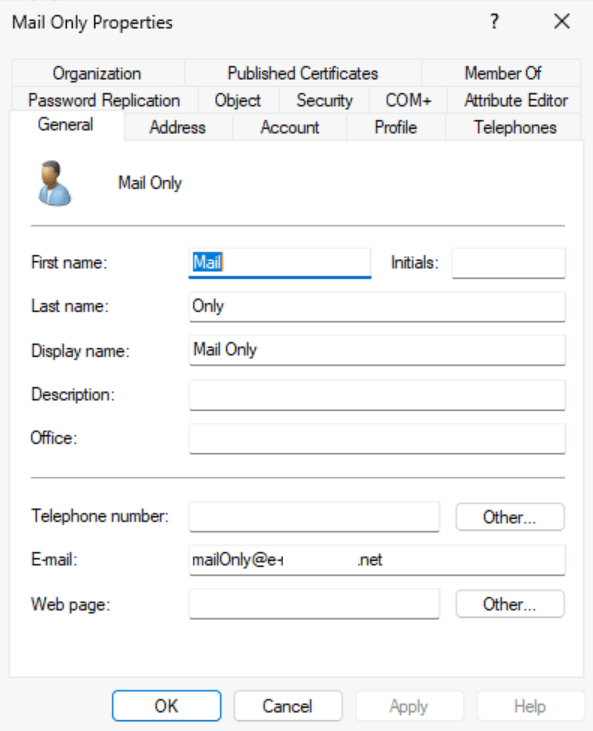
As customers stop deploying Exchange on premises installations recipients are being provisioned without enabling a remote mailbox. A common scenario that I see is where administrators create users but only stamp the windows mail property on the object. 

When an initial synchronization of this user occurs to Entra Active Directory and then Exchange Online the user is not mail enabled. As with all user object synchronized it is represented in Exchange Online as a user. 

PS C:\> Get-User mailonly@e-domain.net


Name RecipientType
---- -------------
eed81dfa-2492-4a9d-a757-d06f4e1d92d7 User

PS C:\> Get-Recipient mailonly@e-domain.net

Write-ErrorMessage : Ex6F9304|Microsoft.Exchange.Configuration.Tasks.ManagementObjectNotFoundException|The operation
couldn't be performed because object 'mailonly@e-domain.net' couldn't be found on
'CY4PR04A10DC003.NAMPR04A010.PROD.OUTLOOK.COM'.
At C:\Users\timmcmic\AppData\Local\Temp\tmpEXO_py0m5z5k.qxt\tmpEXO_py0m5z5k.qxt.psm1:1192 char:13
+ Write-ErrorMessage $ErrorObject
+ ~~~~~~~~~~~~~~~~~~~~~~~~~~~~~~~
+ CategoryInfo : NotSpecified: (:) [Get-Recipient], ManagementObjectNotFoundException
+ FullyQualifiedErrorId : [Server=SJ0PR04MB8325,RequestId=0bf40c30-2584-9980-e501-7659b045e73a,TimeStamp=Tue, 30 J
an 2024 20:36:37 GMT],Write-ErrorMessage

To mail enable the object a license is required that contains an Exchange Online plan. When the license is assigned, the object will be converted from USER to USERMAILBOX. This is confirmed when get-recipient returns a valid user mailbox.

PS C:\> Get-Recipient mailonly@e-domain.net


Name RecipientType
---- -------------
eed81dfa-2492-4a9d-a757-d06f4e1d92d7 UserMailbox

The primary smtp address on the object reflects the mail attribute set in Active Directory.

PS C:\> Get-Recipient mailonly@e-mcmichael.net | fl primarySMTPAddress,emailAddresses


PrimarySmtpAddress : mailOnly@e-domain.net
EmailAddresses : {SMTP:mailOnly@e-domain.net, smtp:mailOnly@timmcmic.domain.com,
SIP:mailonly@e-domain.net}

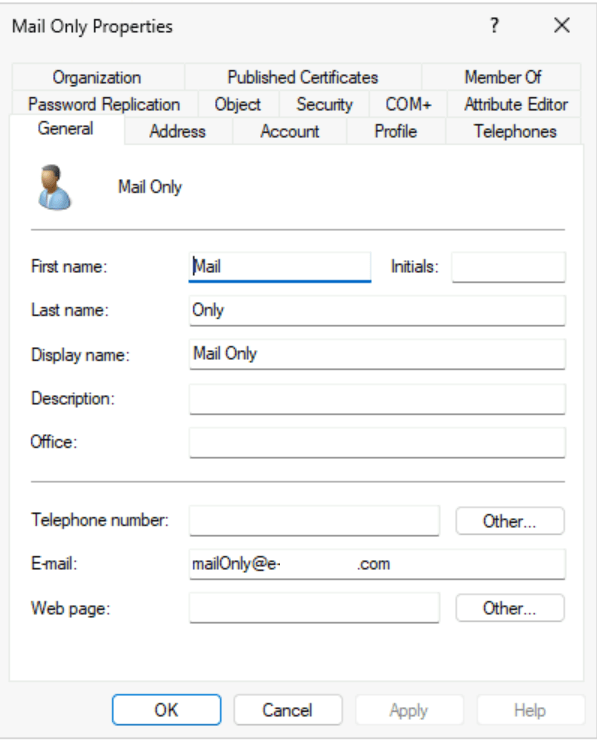
To change the primary SMTP address of the user the mail attribute may be adjusted in Active Directory. In this case the domain is changed from .net to .com.

When the change successfully replicates to Entra Active Directory and then Exchange Online the primary smtp address of the user will be updated to reflect this change.

PS C:\> Get-Recipient mailonly@e-domain.net | fl primarySMTPAddress,emailAddresses


PrimarySmtpAddress : mailOnly@e-domain.com
EmailAddresses : {SMTP:mailOnly@e-domain.com, smtp:MailOnly@e-domain.net,
smtp:mailOnly@domain.onmicrosoft.com, SIP:mailonly@e-domain.net}

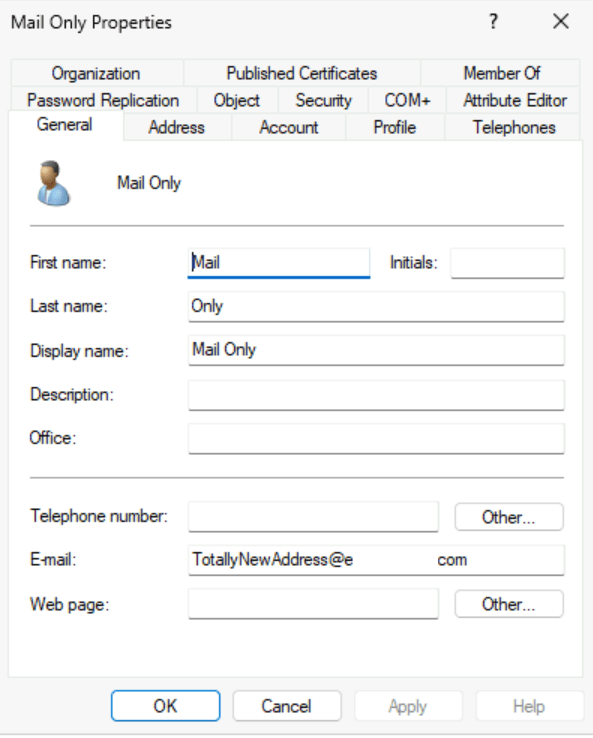
In recent weeks I have spoken with some customers that have opened support cases where updates to the mail attribute is not resulting in a change in Exchange Online. In this example the mail attribute was updated to a completely different address. 

We were able to confirm that the mail address was successfully replicated to Entra Active Directory by Entra Connect. When waiting several hours, it was observed the address did not change in Exchange Online.

PS C:\> Get-Recipient mailonly@e-domain.net | fl primarySMTPAddress,emailAddresses


PrimarySmtpAddress : MailOnly@e-domain.net
EmailAddresses : {SMTP:MailOnly@e-domain.net, smtp:mailOnly@domain.onmicrosoft.com,
SIP:mailonly@e-domain.net}

Why did the address not change? When reviewing the properties of the object in Active Directory it was noted that these users had the proxyAddresses attribute stamped.

Get-ADObject "CN=Mail Only,OU=Users,OU=Objects,DC=home,DC=e-domain,DC=com" -Properties Mail,ProxyAddresses


DistinguishedName : CN=Mail Only,OU=Users,OU=Objects,DC=home,DC=e-domain,DC=com
Mail : TotallyNewAddress@e-domain.com
Name : Mail Only
ObjectClass : user
ObjectGUID : f0bc7fcd-a31e-4f7a-9c71-be9d948c3f6d
ProxyAddresses : {x500:/o=ExchangeLabs/ou=Exchange Administrative Group
(FYDIBOHF23SPDLT)/cn=Recipients/cn=233c7693141f41d2b6ad1a2e24a5bf63-eed81dfa-24}

If the objects in Active Directory are not fully mail enabled, then why is the proxyAddresses populated? When a license is assigned to an object that had only a mail address set an X500 address is generated in Exchange Online. In this installation the Entra Connect configuration had Exchange Hybrid enabled. With this feature enabled the X500 address from Exchange Online is written to Active Directory. Once the proxyAddresses attribute is present on the object this is the attribute that controls the addresses that will be utilized for proxy calc in Entra Active Directory and then subsequently synchronized into Exchange Online. 

For users that had a proxyAddress field stamped this attribute will need to be adjusted in Active Directory in order for the address change to occur in Exchange Online. 

Get-ADObject "CN=Mail Only,OU=Users,OU=Objects,DC=home,DC=e-domain,DC=com" -Properties Mail,ProxyAddresses


DistinguishedName : CN=Mail Only,OU=Users,OU=Objects,DC=home,DC=e-domain,DC=com
Mail : TotallyNewAddress@e-mcmichael.com
Name : Mail Only
ObjectClass : user
ObjectGUID : f0bc7fcd-a31e-4f7a-9c71-be9d948c3f6d
ProxyAddresses : {SMTP:totallyDifferentAddress@e-domain.com, x500:/o=ExchangeLabs/ou=Exchange Administrative
Group (FYDIBOHF23SPDLT)/cn=Recipients/cn=233c7693141f41d2b6ad1a2e24a5bf63-eed81dfa-24}

The get-recipient command verifies that the attribute updated successfully.

PS C:\> Get-Recipient mailonly@e-domain.net | fl primarySMTPAddress,emailAddresses


PrimarySmtpAddress : totallyDifferentAddress@e-domain.com
EmailAddresses : {SMTP:totallyDifferentAddress@e-domain.com, smtp:MailOnly@e-mcmichael.net,
smtp:mailOnly@domain.onmicrosoft.com, SIP:mailonly@e-domain.net}

If the Exchange Hybrid feature remains enabled in Entra Connect you can expect to have to continue to modify the proxyAddresses attribute if address changes are necessary. If your provisioning model does not include fully mail enabled objects, you might consider disabling the Exchange Hybrid feature in Entra Connect. Disabling this feature will not impact users that already have the proxyAddresses attribute set but it will impact new objects where Exchange Online licenses are assigned.

Office 365: Complex Identity Migrations & Microsoft using PowerShell: The Practical 365 Podcast S4 E11Office 365:

Last week I had the privilege of speaking with Steve Goodman and Paul Robichaux hosts of the Practical 365 Podcast.  We discussed identity management and techniques for migrating distribution lists to Office 365.  You can find the podcast here.

Podcast

I want to extend my thanks to both for their time and having me as a guest! 

EntraID: Enabling the cloud display name feature without deleting already synchronized groups…

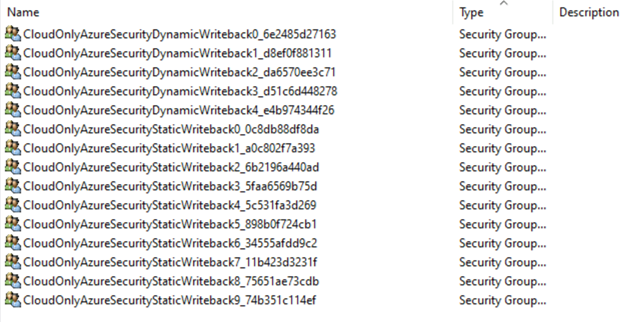
In EntraID Connect group write back may be enabled for your organization. Group writeback allows administrators to create Active Directory entries for cloud only group objects. Group writeback comes in two versions. For the purposes of this post group write V2 is enabled and only a subset of groups is enabled for synchronization.


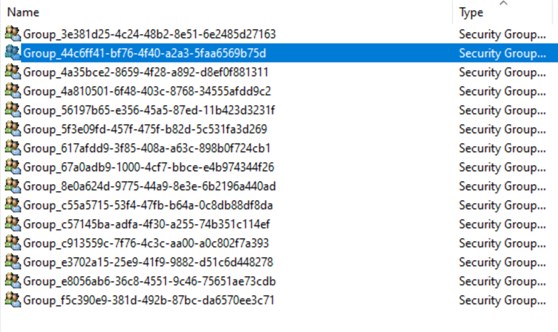
When group write back is enabled groups are written to Active Directory in the format Group_GroupObjectID. This format is not necessarily intuitive to matching the Active Directory object to the EntraID object.


PS C:\Users\timmcmic> Get-MgGroup -GroupId 44c6ff41-bf76-4f40-a2a3-5faa6569b75d


DisplayName Id MailNickname Description GroupTypes

———– — ———— ———– ———-

CloudOnlyAzureSecurityStaticWriteback3 44c6ff41-bf76-4f40-a2a3-5faa6569b75d 731916f2-1 {}


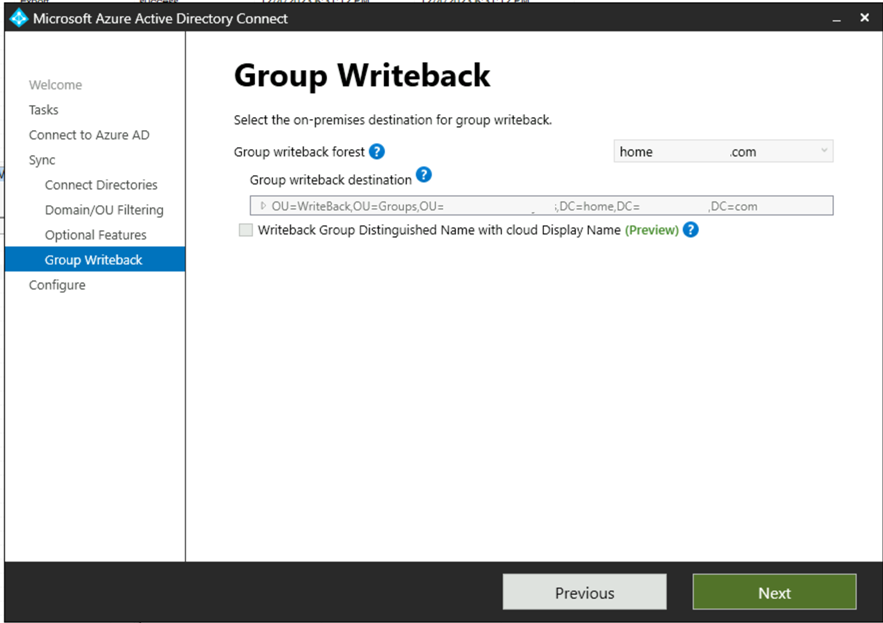
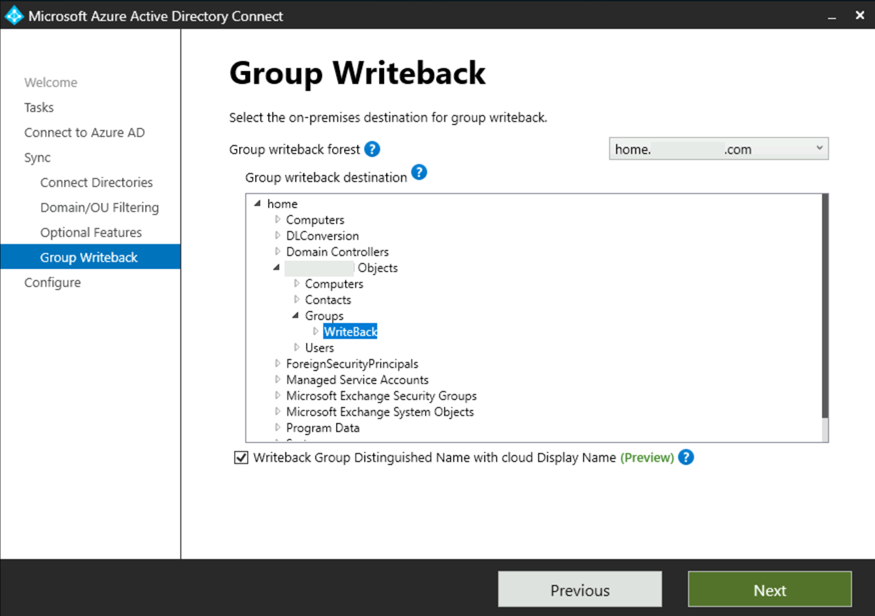
In EntraID Connect administrators now have the option to enable a preview feature “Writeback Group Distinguished Name with cloud Display Name). When enabled this feature will replace the Group_ with the cloud display name of the group. This allows for more intuitive management of groups written back from EntraID.


To enable the feature the Azure AD Connect setup wizard (commonly located on the desktop) is utilized. The checkbox to enable the feature is located on the Group Writeback configuration page.


In this case the feature is currently greyed out and cannot be enabled. This is due to Group Writeback already being enabled. The feature must be enabled at the time that group writeback is enabled. If you disable and re-enable group writeback this can result in any of the groups already written to Active Directory being removed. This could cause potential issues if those groups are nested or utilized to permission on-premises resources or utilized for mail flow. There is a way to perform this conversion without deleting and recreating the groups.


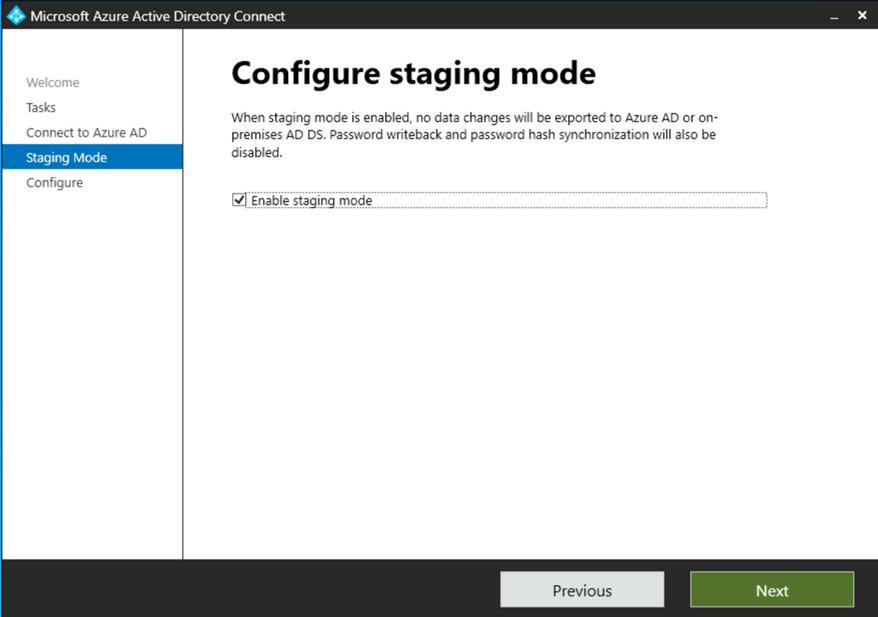
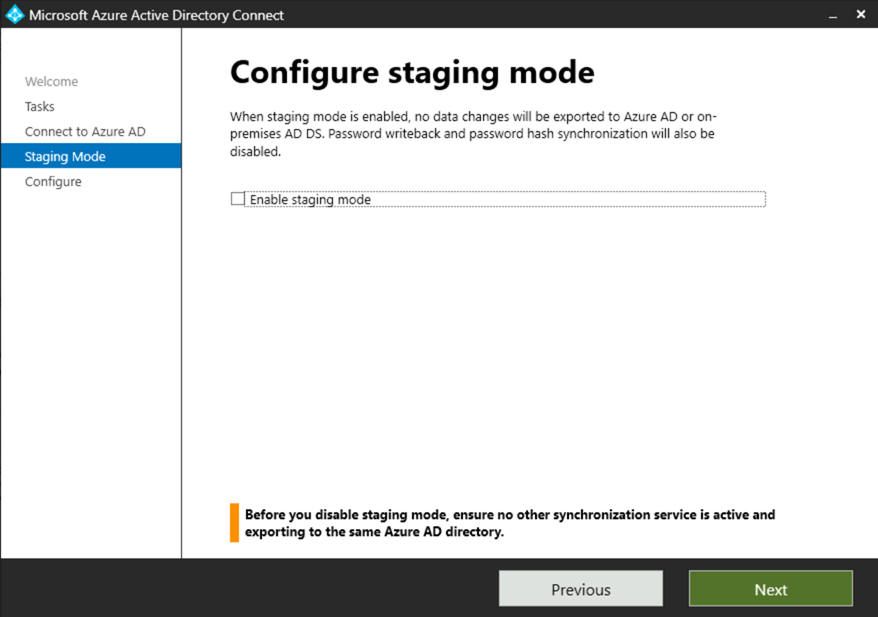
The first step in the process is to enable staging mode on the EntraID Connect Server. Enabling staging mode prevents any changes from being written to either Active Directory for EntraID until have had an opportunity to review the changes. When staging mode is enabled in this step we will also be disabling the synchronization cycle. This will prevent any synchronization operations from occurring while we are in the process of conversion. To enable staging mode:


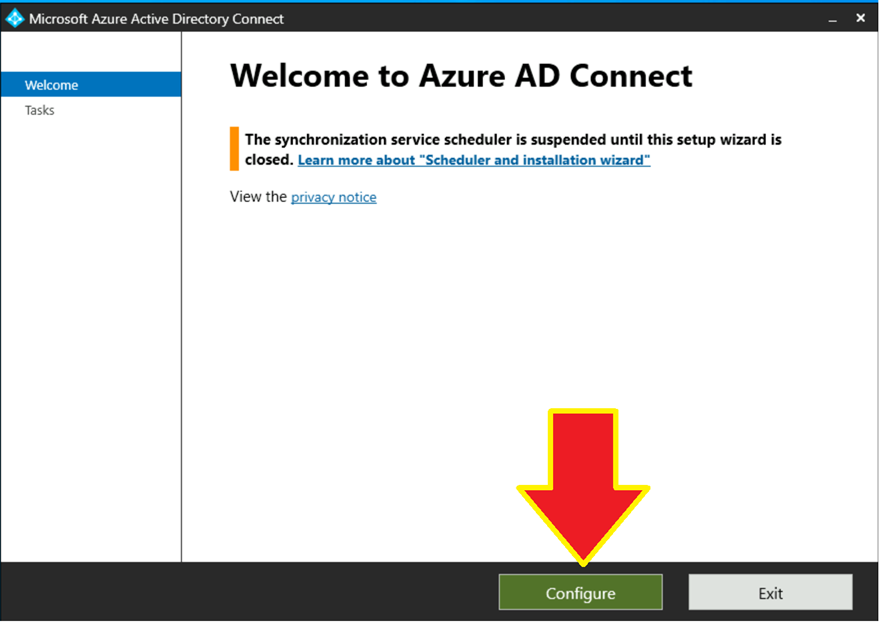
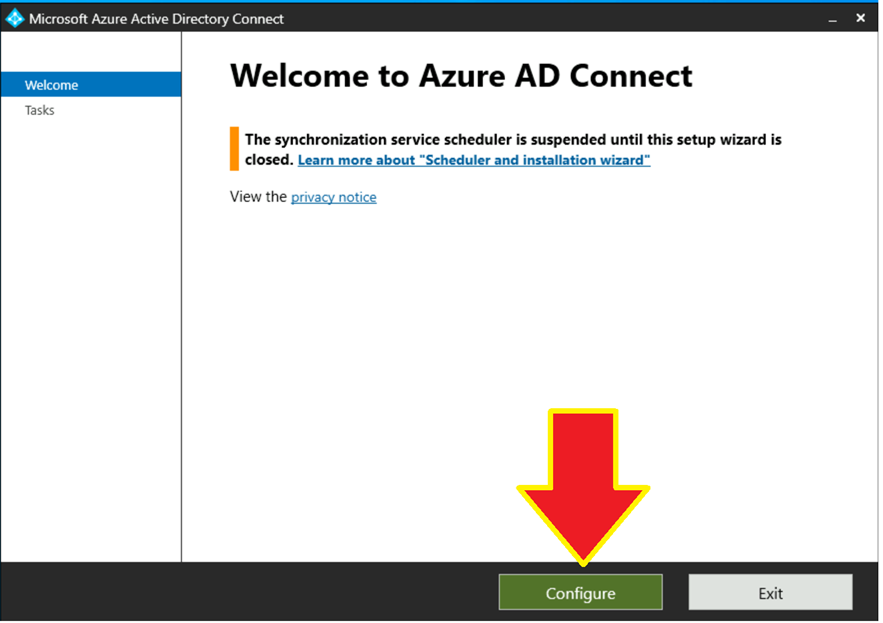
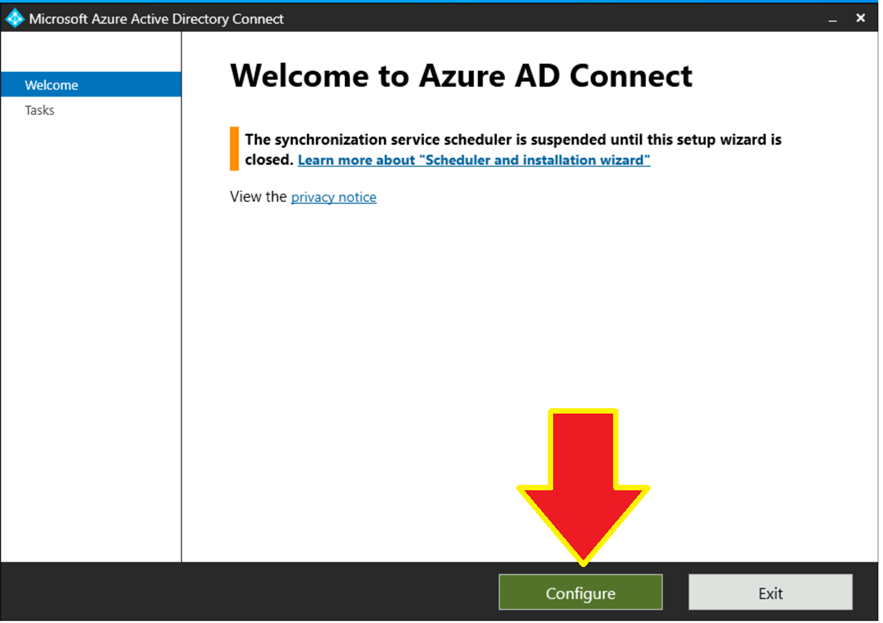
Run the EntraID Connect setup wizard on the desktop of the synchronization server and select configure.


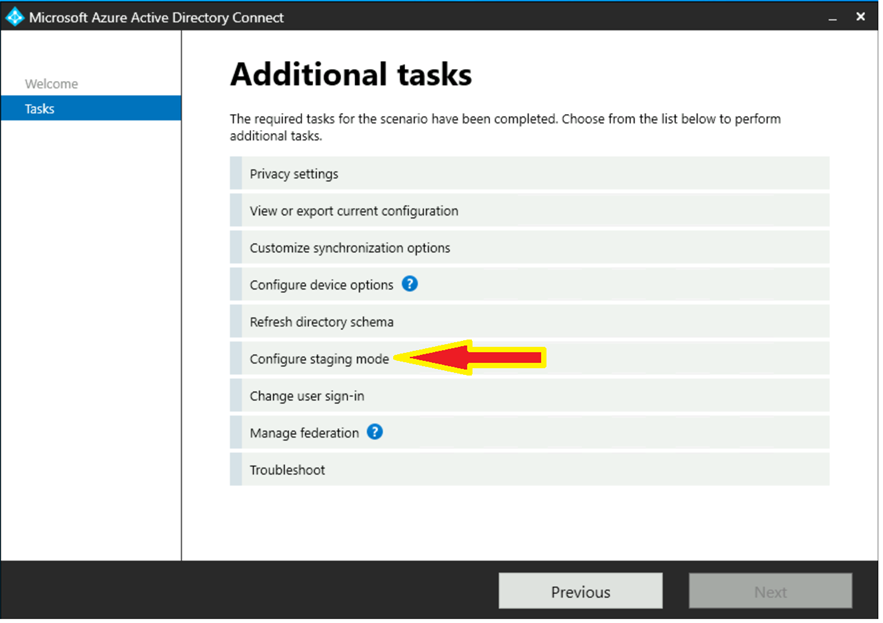
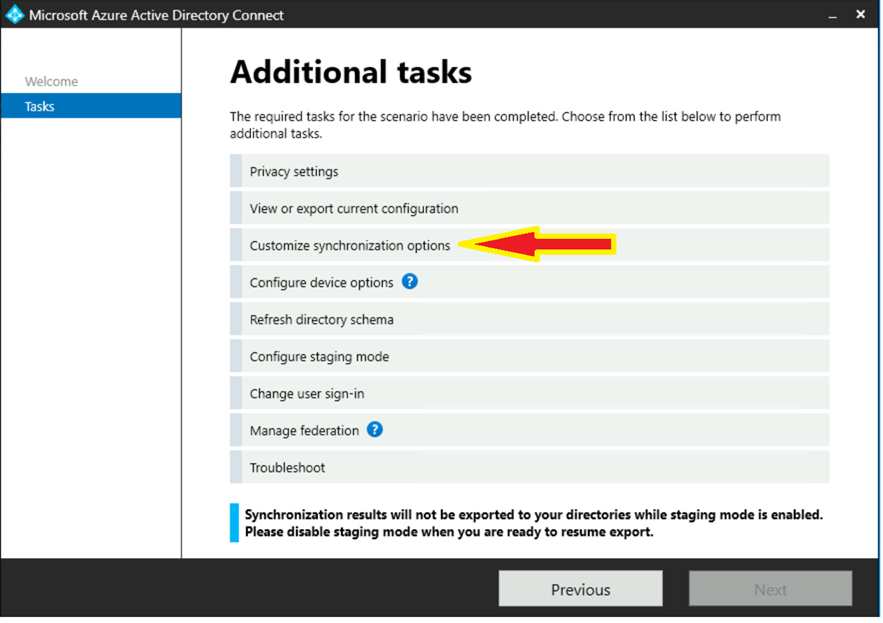
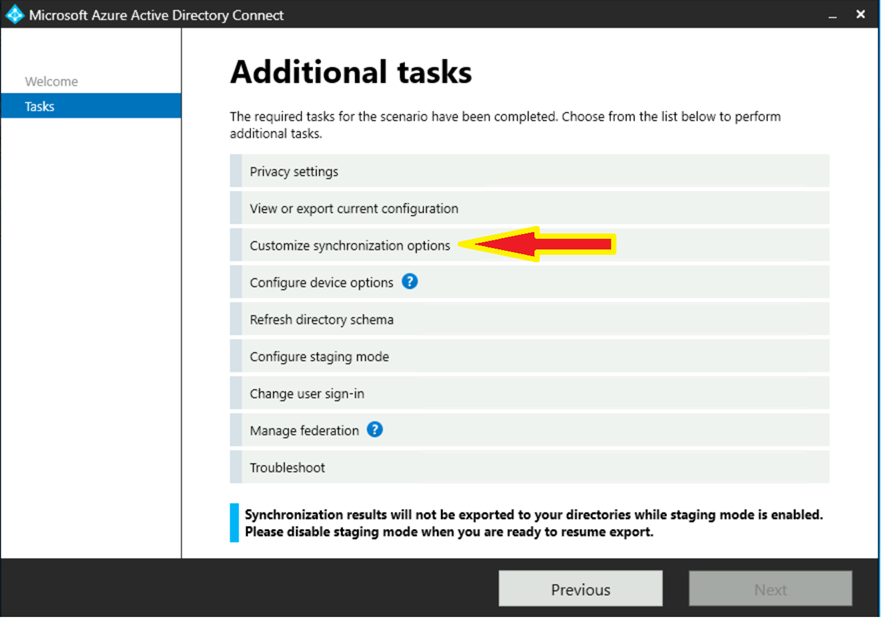
In the configuration options screen select “configure staging mode”.


Follow the in screen prompts to perform authentication. When authentication is complete select “enable staging mode” on the appropriate screen.


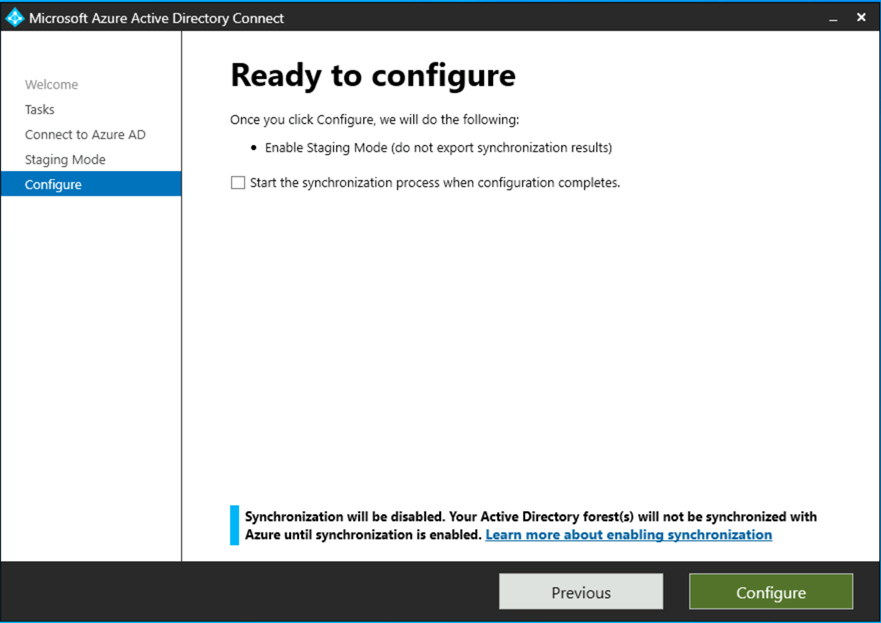
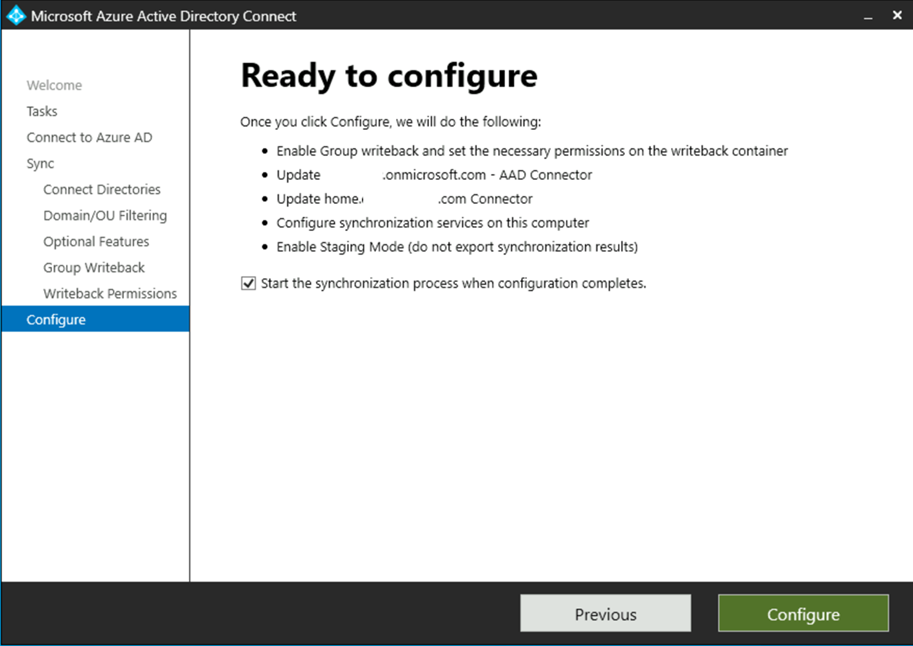
Continue through the wizard until you reach the final step. Prior to click the configure button un-select “start the synchronization process when configure completes”.


At the conclusion of these steps the server has now been placed in staging mode and the synchronization process has been suspended.


At this time group write can be disabled. With the machine in staging mode and the synchronization cycle suspended groups will not be removed from Active Directory. To disable group writeback run the EntraID Connect setup wizard on the desktop of the synchronization server and select configure.


Select the option to “customize synchronization options”.


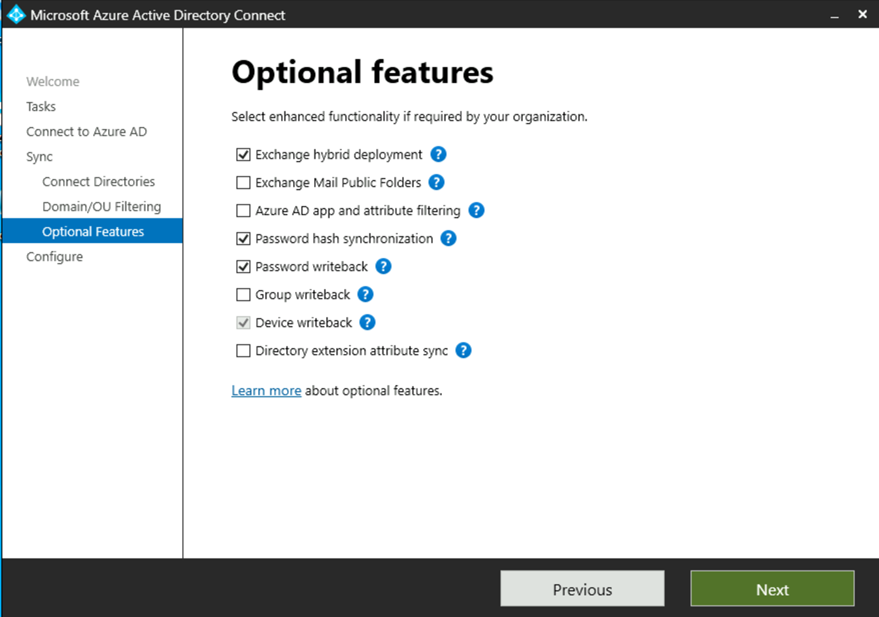
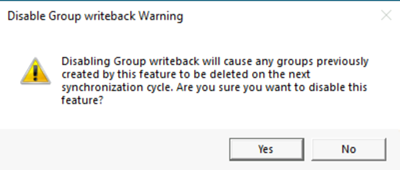
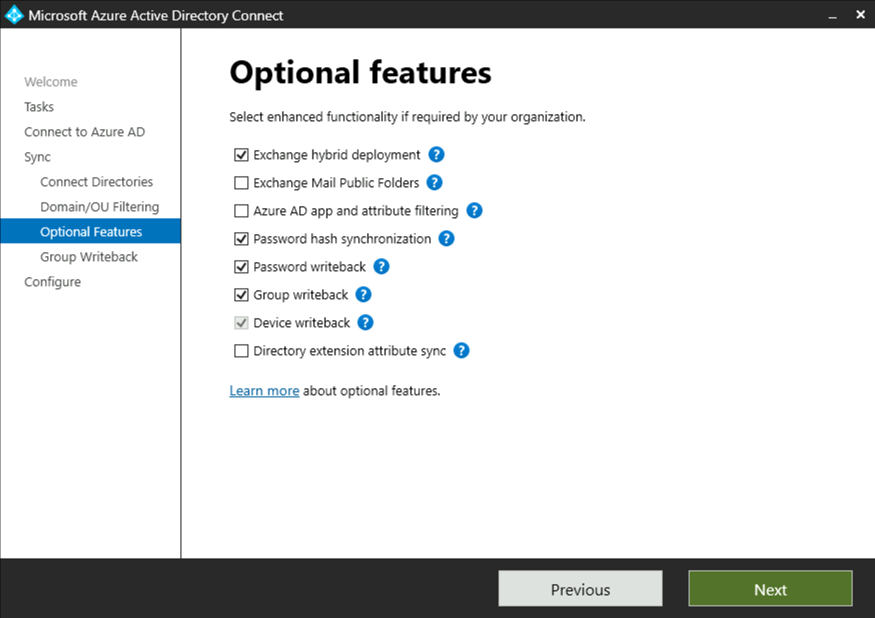
Proceed through the configuration wizard until the optional features page is displayed. On the optional features page de-select Group Writeback. There will be a warning presented indicating that groups already written to Active Directory will be deleted. This will not occur with the machine in staging mode and the synchronization cycle disabled.


Complete the wizard making no further changes. Currently group writeback is disabled, the synchronization cycle remains disabled, and staging mode remains disabled.


At this time group writeback may be re-enabled. To enable group writeback run the EntraID Connect setup wizard on the desktop of the synchronization server and select configure.


Select the option to “customize synchronization options”.


Proceed through the configuration wizard until the optional features page is displayed. On the optional features page select Group Writeback.


Select next to proceed to the group writeback configuration page. On the configuration page select the same organizational unit that the groups were previously written back to. (This is VERY important – the organizational unit must remain the same). Enable the feature “Writeback Group Distinguished Name with cloud Display Name” to utilize friendly names on the existing groups.


Continue through the wizard. On the group writeback permissions page you may select the option to configure with Powershell. The permissions are already configured from being previously enabled. Prior to selecting the configure button and completing the wizard ensure the checkbox to start the synchronization cycle is checked.


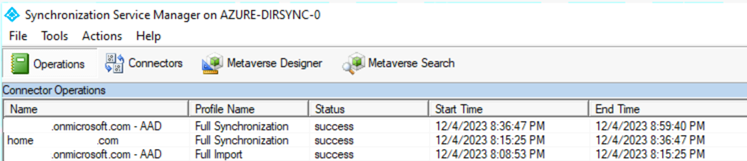
When the wizard has completed a synchronization cycle will begin. Please note that this change will cause a full import operation from Entra ID and a full synchronization operation to occur both in Active Directory and Entra ID. Depending on the size of the environment this could take several hours so please plan accordingly.


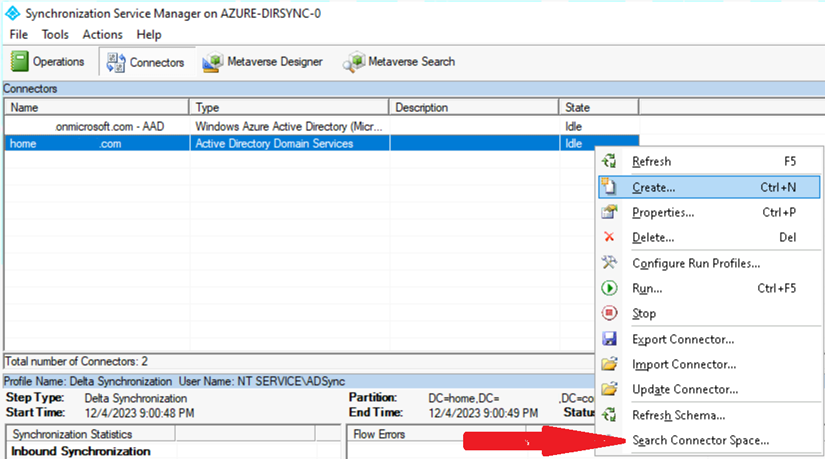
At this time we can validate the success of the change prior to taking the machine out of staging mode. To do so using the synchronization manager on the EntraID Connect server select the connectors button. Right click on the Active Directory Domain Services connector and select “search connector space”.


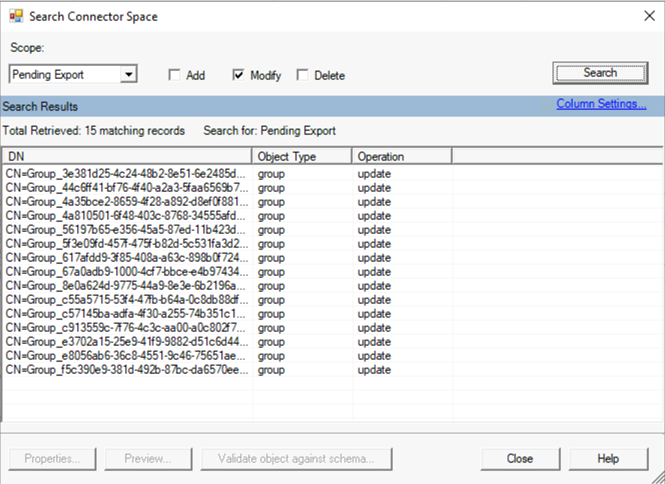
In the search connector space dialog, under the scope drop down, select pending exports. This will enable three options. Select the modify option and select search. This dialog will show all operations that are pending export had the machine not been in staging mode. We should see an entry for each group that was previously written back.


To validate a specific change double click on any of the groups displayed in the search. In the attribute dialog select the preview button. This will enable the attribute preview window. Select the generate preview button. This generates a preview of all calculated attributes. In the left hand pane, under connector updates, expand the connector for Active Directory and select export attribute flow.


Locate the entry where the data source is EscapeDNComponent. The initial value field will be NULL and the final value will display a CN value containing the name of the group. The presence of the name demonstrates that the change was successful.


The final operation is to remove the server from staging mode.


When staging mode is disabled the next delta synchronization cycle will result in the exports writing the updates to Active Directory.


If your environment is configured with both an active server exporting to EntraID and a staging server already you may consider making these changes on the staging server first. This allows the full import and synchronization operations to run without impacting the primary sync server. When the staging server has successfully completed these operations the server roles may be swapped. The process can then be repeated on the new staging server.


Office 365: Changing password length on auto generated passwords…

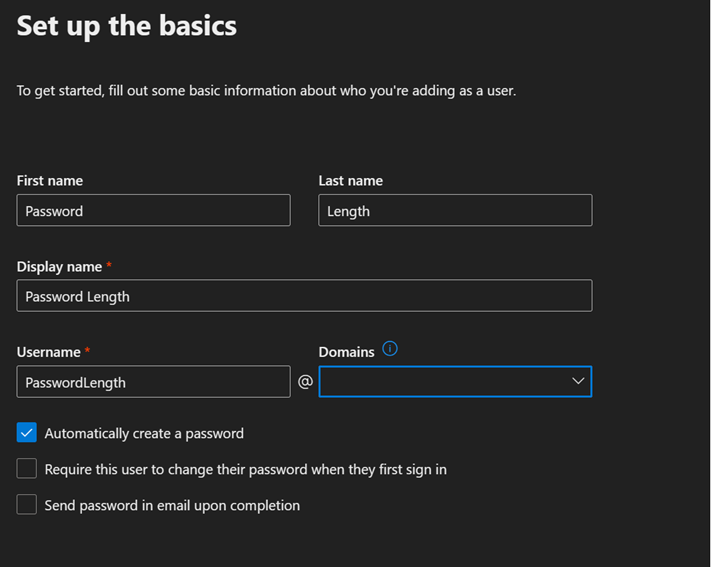
In the Microsoft 365 Admin Center administrators may provision new user accounts. The password for the account created may be auto generated during the account creation.


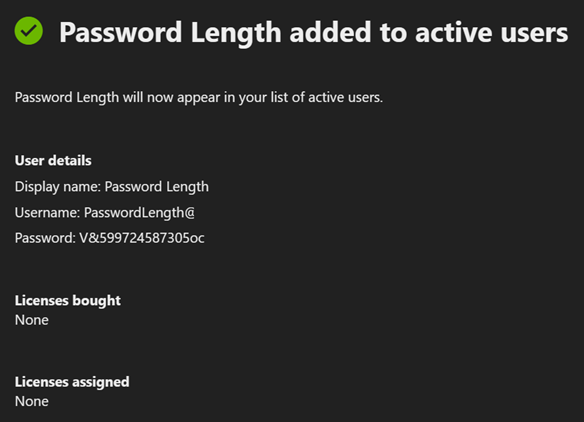
At the conclusion of creating the account the password is displayed along with the relevant account information.


The password generated in this instance is 16-character complex password. In the previous version of the M365 Admin Center the password created was only an 8-character complex password.


The change in password length is due to a migration of the method that users are provisioned within the M365 Admin Center. New versions of the M365 Admin Center utilize graph interfaces to provision user identities. The new graph interfaces utilize a default 16-character complex password. The password length cannot be specified or changed.


As of the time of publishing this post the reset password option on the user account still provides an 8-character complex password. It is expected that as all features are migrated to the new graph interfaces this will also change. When creating account or resetting password if a shorter password length is desired the administrator may specify the option to provide the password rather than letting the password be automatically managed.

EntraID Connect: Export operation DataValidationFailed and CertificateUserIDs

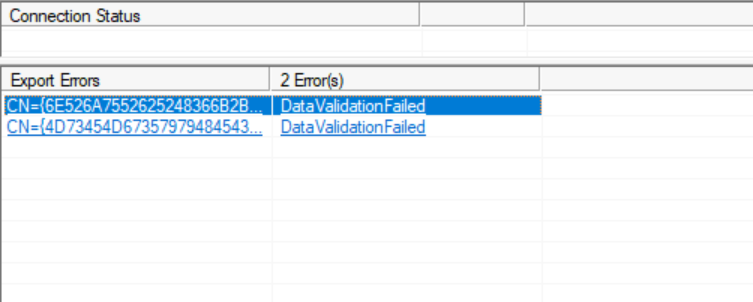
When EntraID Connect exports user attributes to Entra ID validations occur on the data submitted. If the validations fail for any reason a DataValidationFailed error message will be present in EntraID Connect Synchronization Manager. Here is a sample of a DataValidationFailure:


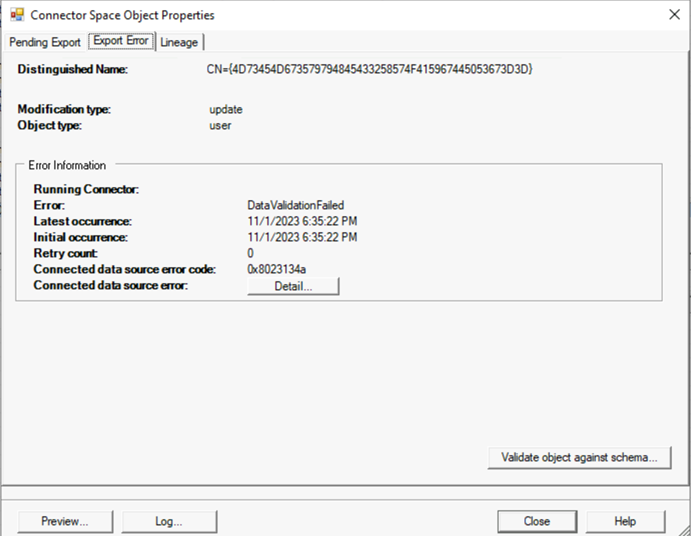
When selecting one of the objects in a DataValidationFailed state and reviewing the export errors tab details regarding the number and timing of failures is present.


When selecting the Details button further information regarding the error is provided.


Unable to update this object in Azure Active Directory, because the attribute [None], is not valid. Update the value in your local directory services.


Tracking Id: 8f0b1067-a691-4832-b9fe-9e18f35d835a

ExtraErrorDetails:

[{“Key”:”ObjectId”,”Value”:[“504bd7a2-78bc-4dd8-a795-be93a7d67bf4”]},{“Key”:”InvalidAttributeName”,”Value”:[“None”]}]


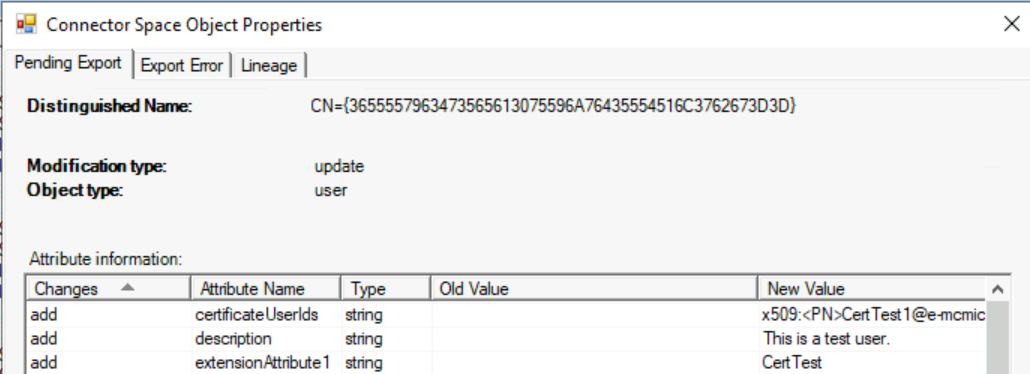
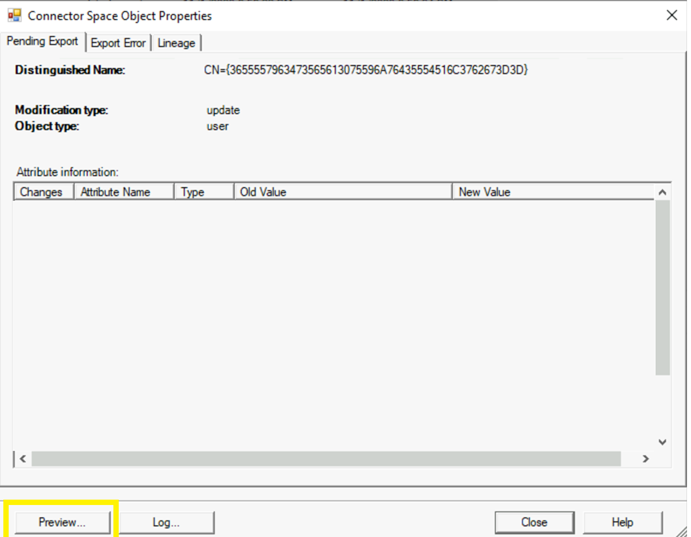
In this instance the details are not extremely helpful. They do not point to a specific attribute that is invalid nor to the data contained within an attribute would have violated the validation rules. How do we isolate where the potential problem lies? On the pending export tab the attributes that are being added or modified may be reviewed. In the case of this user there were three attributes that were being added to Entra ID.


Two of the attributes, description and extensinoAttribute1, are standard attributes synchronized on a user object. The third, certificateUserIds, is not a standard attribute and would be calculated by a custom rule.


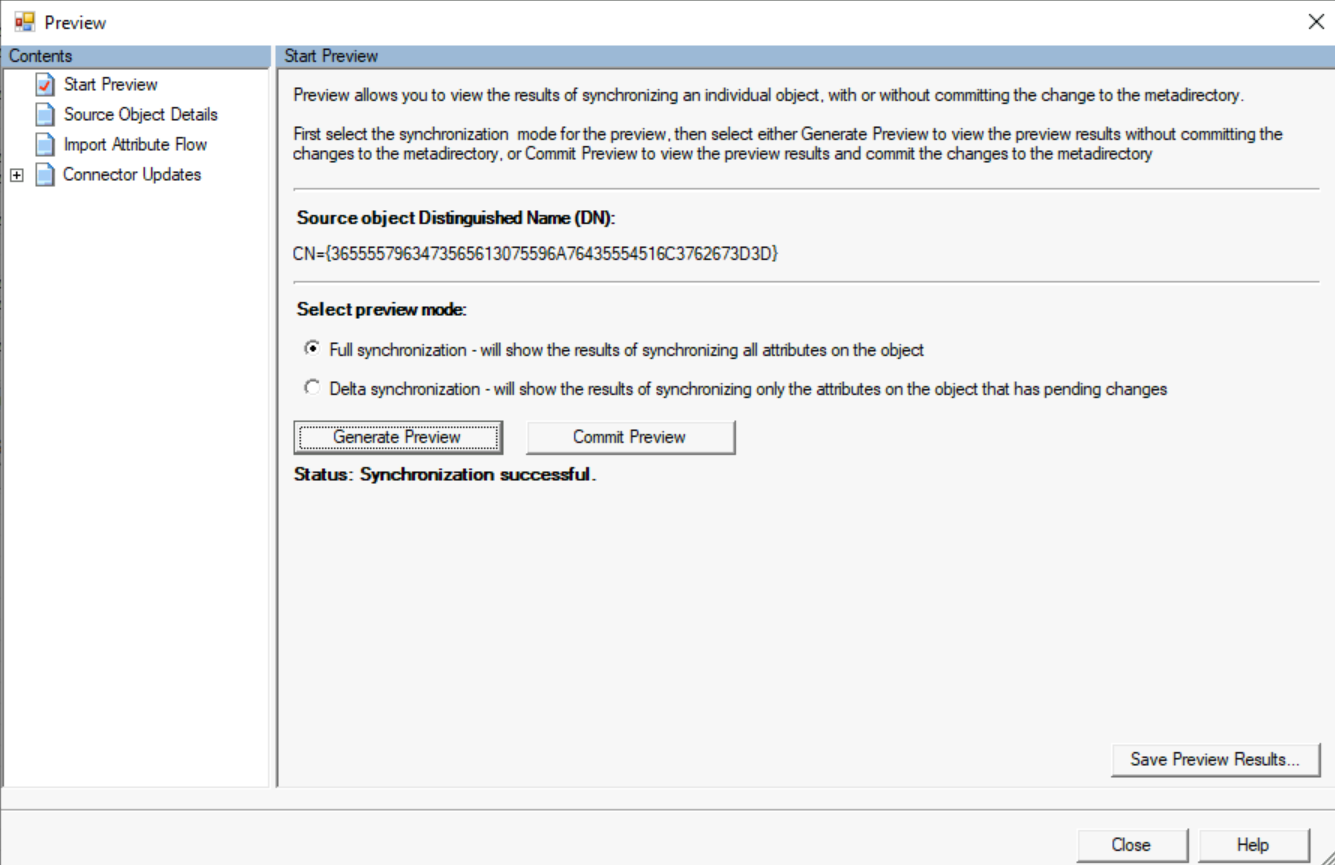
In order to determine how this attribute is being calculated the preview button in the lower left hand corner will allow us to manually execute a synchronization on an object.


When the preview window opens selecting generate preview will run the synchronization operation. In the left hand column, under connector updates will be the attribute representation for the Active Directory connector and the Entra ID connector.


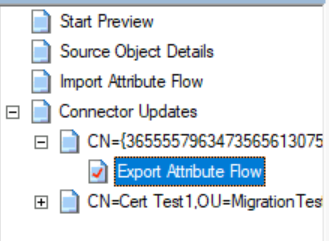
Expanding connector updates will show the Entra ID object (specified by CN=) and the Active Directory object (specified by the distinguished name). Expanding the Entra ID connector and selecting export attribute flow shows the attribute values calculated and the rule responsible for the value.


The rule name is in the left column.


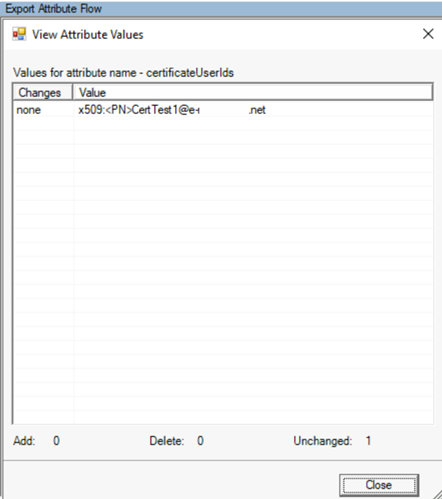
The certificateUserIDs value was calculated by the rule Out to AAD – certificateUserTypes. Selecting the … button allows the review of the initial value and final value. Here are the final calculated values that are being submitted to Entra ID:


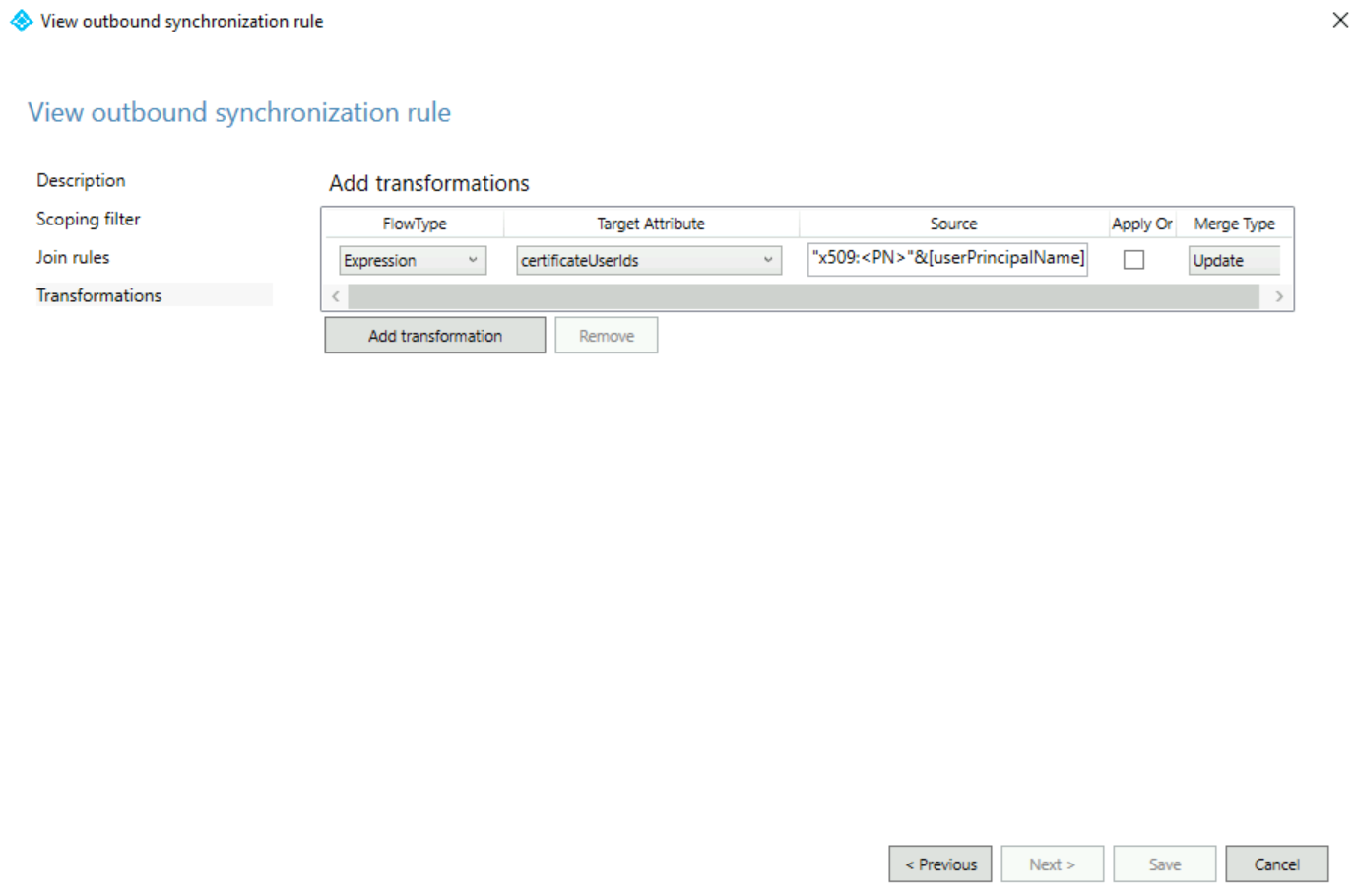
When reviewing the properties of the rule this is the syntax that stamps the value.


x509:<PN>”&[userPrincipalName] is the source expression syntax.


When comparing the value being exported to the rule expression the calculated values match the rule expression. The following article contains the acceptable values for certificateUserIDs:


Certificate user IDs for Microsoft Entra certificate-based authentication | Microsoft Learn


Certificate mapping Field

Examples of values in CertificateUserIds

PrincipalName

“X509:<PN>bob@woodgrove.com”

PrincipalName

“X509:<PN>bob@woodgrove”

RFC822Name

“X509:<RFC822>user@woodgrove.com”

X509SKI

“X509:<SKI>123456789abcdef”

X509SHA1PublicKey

“X509:<SHA1-PUKEY>123456789abcdef”


In this case the desired value is using the PrincipalName formatting. Briefly looking at the two values they look the same and look formatted correctly. There is one very minor difference between the two values – the table details an upper case X in the X509 syntax where the rule is utilizing a lower case x in the x509 syntax. Using the rules editor the expression syntax is updated:


“X509:<PN>”&[userPrincipalName]


Updating the rule will cause full synchronization to be performed on the Entra ID connector. At the conclusion of the synchronization operation the exports are now successful.


In this case the DataValidationFailed was due to the attribute being case sensitive and the expression not including the correct case.


ProxyCalc and User Principal Names

When a recipient is synchronized to Azure Active Directory the proxy addresses that are assigned to the recipient are determined by a process called ProxyCalc. The synchronization process stores the on-premises Active Directory values in shadow values within Azure Active Directory. The ProxyCalc process reads the shadow values and calculates the actual proxy address values visible in Azure Active Directory. At the conclusion of this calculation the values are synchronized into the recipient in Exchange Online. The rules for ProxyCalc may be found in the following article: How the proxyAddresses attribute is populated in Azure AD – Active Directory | Microsoft Learn.


I recently worked on an escalation with a customer that presented an interesting scenario involving ProxyCalc. All users who’s user principal name differed from their primary SMTP address also had a secondary SMTP address in Azure Active Directory of the user principal name. Unlike examples contained within the previously cited document the users were fully provisioned with mail, mailNickName, and proxyAddresses submitted through the synchronization process. In addition, the secondary address appeared regardless of the license status of the user. This seems inconsistent with the scenarios outlined in the cited documentation where adding the UPN as a secondary proxy address appears to occur during licensing scenarios.


The remote mailbox is provisioned in the on-premises Active Directory. The user principal name is different from the primary SMTP address and does not appear in the proxy addresses attribute of the recipient.


[PS] C:\>Get-RemoteMailbox UPNTest | fl userPrincipalName,primarySMTPAddress,emailAddresses


UserPrincipalName : UPNTest@domain.net

PrimarySmtpAddress : UPNTest@domain.com

EmailAddresses : {x500:/o=ExchangeLabs/ou=Exchange Administrative Group

(FYDIBOHF23SPDLT)/cn=Recipients/cn=a0b7e9472d3b4f678b47d62d2908575e-f80c3258-a7,

SMTP:UPNTest@domain.com}


When reviewing the properties of the user in Azure Active Directory the proxy addresses show that the user principal name was added as a secondary address.


PS C:\> Get-MsolUser -UserPrincipalName upntest@domain.net | fl userPrincipalName,ProxyAddresses


UserPrincipalName : UPNTest@domain.net

ProxyAddresses : {smtp:UPNTest@domain.net, smtp:UPNTest@domain.onmicrosoft.com, SMTP:UPNTest@domain.com}


This did confirm that the user principal name was added as a secondary proxy regardless of the licensed status of the user <or> the attributes submitted through the directory synchronization process.

This is by design. The user principal name will always appear as a proxy address on mail recipient. The user principal name cannot be removed from the recipient unless the user principal name is changed on-premises. This essentially reserves this from use on any other mail enabled object.


Office 365 – Distribution List Migration Version 2.0 – Part 39

Implementing improved error handling and error cleanup.

In version 2.9.8.19 new error handling was implemented to improve the clean up experience during migration failures and increase the reliability of migrations.


The first improvement involves implementing error handling in the function that moves on-premises groups between organizational units. The move command is called up to three times in the module. The first call moves the group from the OU that it is currently into the non-sync OU specified in the migration command. It was possible in the original code that if an exception occurred on moving the group to the non-sync OU this would not cause the migration to fail. This in turn created an endless loop in the migration process scanning for the distribution list deletion in Office 365. The migration would neither succeed nor fail. The current code now attempts the move to the non-sync OU and if an exception occurs will retry the operation up to 5 times waiting 5 seconds between each attempt. If the move is not successful in 5 tries the migration is halted. The second call involves moving the group from the non-sync OU back to the sync OU. The code now attempts this operation 1 time and if the move fails a post create error is created alerting the administrator that manual movement is required. Failing this move was an optional task. The last potential call for a move occurs when the migration fails. If the migration fails after moving the group to a non-sync OU the group will remain there until the administrator move the group back to the sync OU. If the migration fails a single attempt at moving the group back to the original OU is performed. If an error is encountered the migration will end as a result of the previous failure.


The second improvement provides some clean up capabilities in response to failure. There are two scenarios that potentially require cleanup after a failed migration. The first scenario is the temporary distribution group created in Office 365. In order to speed operations and limit downtime that the group is unavailable in the cloud operations that potentially take a significant amount of time are performed on a temporary distribution list created in Office 365 as a part of the migration. In previous versions if a failure was encountered after this temporary distribution list was created but before it was renamed as part of migration the group would often be orphaned if a failure occurs. New logic is now implemented that tracks the migration status and if the migration fails between the creation of the temporary distribution list and the renaming / finalizing operation of the migration the temporary distribution list is automatically cleaned up. The second scenario is that failed migrations prior to disabling the distribution list on premises often resulted in the distribution list remaining in the non-sync OU. New is now implemented that tracks the migration status and if a failure occurs prior to disabling the on-premises distribution list an attempt is made to move the list back to the original OU. This should allow the synchronization process to detect the original distribution list and provision the recipient again in the cloud limiting the likelihood of an extended outage pending administrator intervention. It is important to note that the module does not trigger a synchronization in response to this event but rather waits for the current sync cycle to run. If your sync cycles are not default the outage in the cloud may be longer than anticipated.


These changes should hopefully improve the reliability of the migrations and prevent manual cleanup.


Are my users registered for Azure MFA?

Implementing multi-factor authentication as a part of securing your environment is a wise decision. For implementing multi-factor authentication in Azure, I would recommend reviewing the following resources:


Providing a default level of security in Azure Active Directory – Microsoft Entra | Microsoft Learn

Turn on MFA with security defaults or Conditional Access – Microsoft 365 Business Premium | Microsoft Learn

Enable Azure AD Multi-Factor Authentication – Microsoft Entra | Microsoft Learn


I recently worked with a customer that was implementing an organization wide multi-factor authentication conditional access policy. As a part of this implementation, users were advised to register strong authentication methods using Microsoft Authenticator prior to the enablement of the conditional access policy. The goal was to have all end users prepared for policy enablement and not have interactive authentication interrupted by multi-factor registration.


Users were provided instructions that directed to them to access https://myaccount.microsoft.com. Once authentication was successful to my account portal selecting security info directs the users to the location where they can self service register a strong authentication method. At this point users were instructed to add an authentication method utilizing Microsoft Authenticator as the default application for multi-factor authentication. In this example I have two users MFATest1 and MFATest2 that both followed the directions.


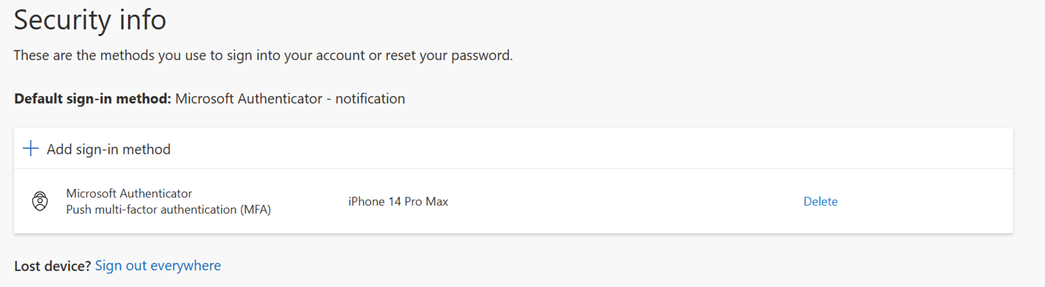
MFATest1
 

MFATest2
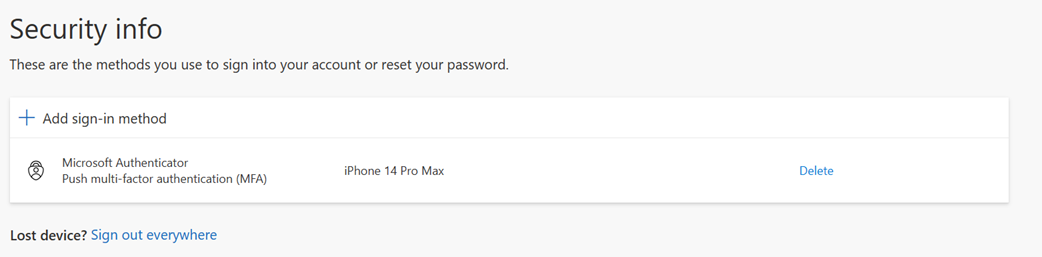
 

In the case of user MFATest1 and MFATest2 each user was showing a Microsoft Authenticator registration with push multi-factor authentication.


In addition to providing end users with instructions on enabling strong authentication methods administrators were creating reports using the Microsoft Graph API. The reports detailed the strong authentication methods enabled for the users. When administratively determining who is enabled for multi-factor authentication capturing the strong authentication methods of the users is often utilized for this purpose.


Here is an example for MFATest1.

Capture the authentication methods for the user.

$mfaTest1=Get-MgBetaUserAuthenticationMethod -UserId mfatest1@domain.com

List the authentication methods for the user.

$mfaTest1

Id


28c10230-6103-485e-b985-444c60001490

a5c2ef35-1db2-49c3-8631-e12a5025859e

List the details of the authentication methods for the user.

PS C:\> $mfatest1 | Select-Object id,additionalProperties -ExpandProperty additionalProperties


Key Value

— —–

@odata.type #microsoft.graph.passwordAuthenticationMethod

createdDateTime 2023-08-08T12:23:33Z

@odata.type #microsoft.graph.microsoftAuthenticatorAuthenticationMethod

displayName iPhone 14 Pro Max

deviceTag SoftwareTokenActivated

phoneAppVersion 6.7.12

clientAppName microsoftAuthenticator


Here is an example for MFATest2

Capture the authentication methods for the user.

$mfaTest2=Get-MgBetaUserAuthenticationMethod -UserId mfatest2@domain.com

List the authentication methods for the user.

$mfaTest2

Id


28c10230-6103-485e-b985-444c60001490

6ce10fca-fb88-4109-95e4-66d27c3e9f6d

List the details of the authentication methods for the user.

PS C:\> $mfatest2 | Select-Object id,additionalProperties -ExpandProperty additionalProperties


Key Value

— —–

@odata.type #microsoft.graph.passwordAuthenticationMethod

createdDateTime 2023-08-08T12:23:33Z

@odata.type #microsoft.graph.microsoftAuthenticatorAuthenticationMethod

displayName iPhone 14 Pro Max

deviceTag SoftwareTokenActivated

phoneAppVersion 6.7.12

clientAppName microsoftAuthenticator


When reviewing a user that has not registered a strong authentication method the additional identifier is missing when listing the authentication method details.


PS C:\> Get-MgBetaUserAuthenticationMethod -UserId 9ee2446b-f4c9-41cb-a73b-66a1937b45bb


Id


28c10230-6103-485e-b985-444c60001490


The identifier 28c10230-6103-485e-b985-444c60001490 is present on all users as all users have a password authentication method.


With the end users showing an MFA capable device and administrative reports indicating users had registered strong authentication methods the conditional access policy requiring multi-factor authentication was enabled. When the policy was enabled some users were experiencing the following dialog when signing in.
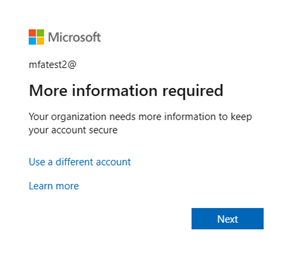


Typically, this dialog is presented to user when MFA registration, self service password reset registration, or combined registration is enabled or required. In this case self service password reset was disabled and the registration was to enroll a device for multi-factor authentication. The user MFATest2 already has a strong authentication method stamped on their account and should not be required to register for multi-factor authentication.


In the Azure Portal we reviewed the authentication methods assigned to the account MFATest2.
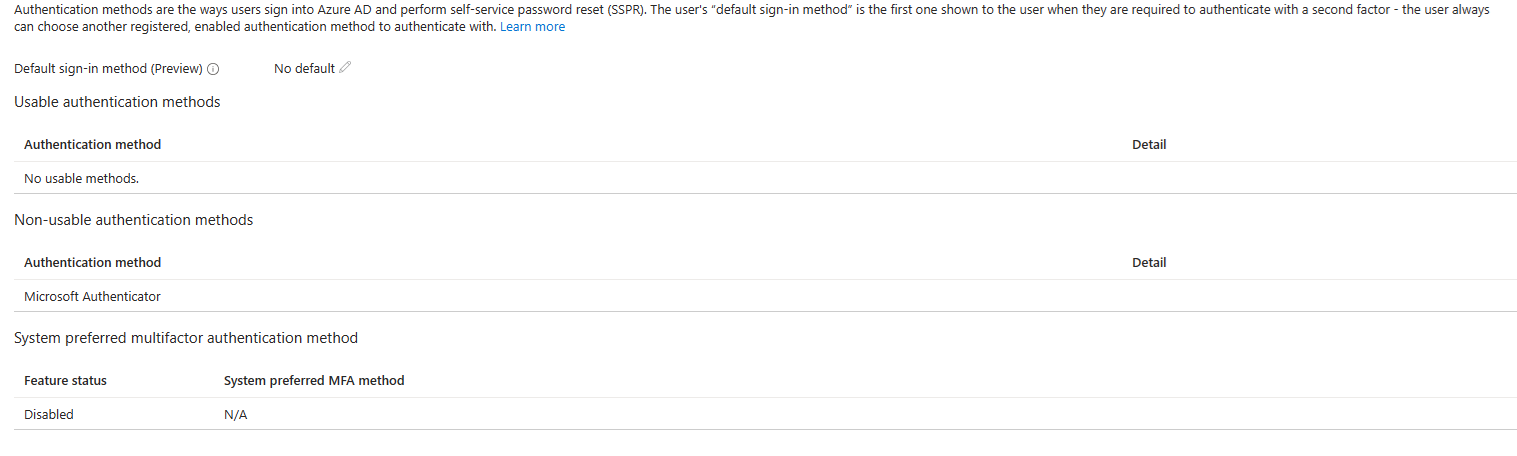


Why is Microsoft Authenticator listed under non-usable authentication methods? Is this the same for other accounts that are working? In this instance account MFATest1 is not showing the same issue. When reviewing the authentication methods assigned to MFATest1 the following is found:
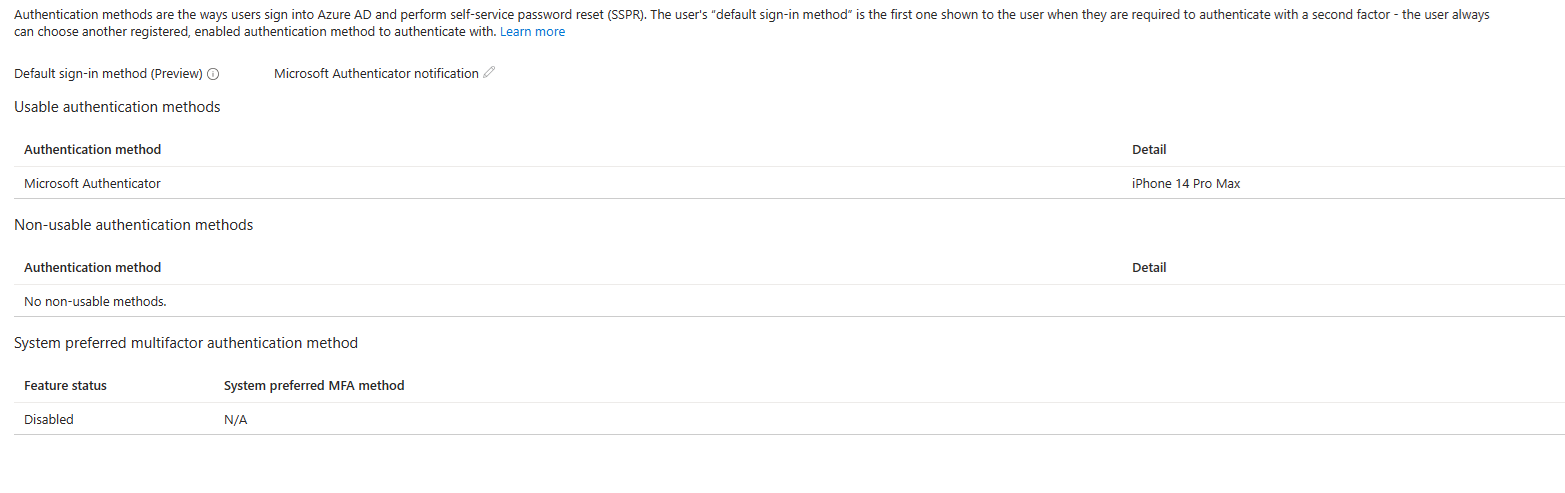
 

In the case of user MFATest1 Microsoft Authenticator is showing as a usable authentication method.


The work to enable multi-factor authentication and register strong authentication methods was performed within the last 30 days. This allows us to query the audit logs in Azure and determine the flow of steps taken. For account MFATest2 this is the audit log flow associated with the addition of a strong authentication method and multi-factor authentication enablement. There are entries for “Azure MFA StringAuthenticationService” with an activity of “Update User”.


8/8/2023, 12:38:54 PM

Core Directory

UserManagement

Update user

Success


MFATest2@domain.com.com

Azure MFA StrongAuthenticationService


When reviewing the properties of the audit log entry the following information is present:


Activity

Date (UTC)

8/8/2023, 12:38 PM

Activity Type

Update user

Correlation ID

c653c0e4-91d1-454d-ade9-dd076c6a975f

Category

UserManagement

Status

success

Status reason

User Agent

Initiated by (actor)

Type

Application

Display Name

Azure MFA StrongAuthenticationService

App ID

Service principal ID

797b413b-1b35-45ad-a30a-11c0eb96fa8f

Service principal name

Additional Details

UserType

Member


Target

Type

User

Id

d1bec8bc-cfcd-4b1a-9038-205b9435a5ae

Display Name

User Principal Name

MFATest2@domain.com


MFATest2@e-mcmichael.com

StrongAuthenticationPhoneAppDetail

[]

[{“DeviceName”:”iPhone 14 Pro Max”,”DeviceToken”:”apns2-41a5642b6047a6ceb39c327a26c9147b4c8b58f7d7f824f879b04e9c23677f19″,”DeviceTag”:”SoftwareTokenActivated”,”PhoneAppVersion”:”6.7.12″,”OathTokenTimeDrift”:0,”DeviceId”:”00000000-0000-0000-0000-000000000000″,”Id”:”6ce10fca-fb88-4109-95e4-66d27c3e9f6d”,”TimeInterval”:0,”AuthenticationType”:3,”NotificationType”:2,”LastAuthenticatedTimestamp”:”2023-08-08T12:38:24.2254241Z”,”AuthenticatorFlavor”:null,”HashFunction”:null,”TenantDeviceId”:null,”SecuredPartitionId”:0,”SecuredKeyId”:0}]

MFATest2@e-mcmichael.com

Included Updated Properties

“StrongAuthenticationPhoneAppDetail”

MFATest2@e-mcmichael.com

TargetId.UserType

“Member”


The information highlighted in red reflects the old value of NULL for strong authentication methods and the new value of the Microsoft Authenticator registration.


For account MFATest1 this is the audit log flow associated with the addition of a strong authentication method and multi-factor authentication enablement. There are entries for “Azure MFA StringAuthenticationService” with an activity of “Update User”. We also see events indicating User started security info registration and user registered security info.


Date (UTC)

Service

Category

Activity

Status

Status reason

Target(s)

Initiated by (actor)

8/8/2023, 12:35:46 PM

Authentication Methods

UserManagement

User registered security info

Success

User registered Authenticator App with Notification and Code

MFA Test1

MFATest1@domain.com

8/8/2023, 12:35:46 PM

Core Directory

UserManagement

Update user

Success


MFATest1@domain.com

MFATest1@domain.com

8/8/2023, 12:35:40 PM

Authentication Methods

UserManagement

User started security info registration

Success

User started the registration for Authenticator App with Notification and Code

MFA Test1

MFATest1@domain.com

8/8/2023, 12:35:33 PM

Core Directory

UserManagement

Update user

Success


MFATest1@domain.com

Azure MFA StrongAuthenticationService


This sequence of events lists extremely important details about the registration of a strong authentication method and then it’s subsequent use for MFA. What we observe in the case of the users that are working:

  1. The strong authentication method is set on the user account. (Account is added in https://myaccount.microsoft.com)


    StrongAuthenticationPhoneAppDetail

    []

    [{“DeviceName”:”iPhone 14 Pro Max”,”DeviceToken”:”apns2-41a5642b6047a6ceb39c327a26c9147b4c8b58f7d7f824f879b04e9c23677f19″,”DeviceTag”:”SoftwareTokenActivated”,”PhoneAppVersion”:”6.7.12″,”OathTokenTimeDrift”:0,”DeviceId”:”00000000-0000-0000-0000-000000000000″,”Id”:”a5c2ef35-1db2-49c3-8631-e12a5025859e”,”TimeInterval”:0,”AuthenticationType”:3,”NotificationType”:2,”LastAuthenticatedTimestamp”:”2023-08-08T12:35:33.183712Z”,”AuthenticatorFlavor”:null,”HashFunction”:null,”TenantDeviceId”:null,”SecuredPartitionId”:0,”SecuredKeyId”:0}]


  1. The user starts security info registration. (The user scans the QR code for adding the account and selects next to begin validation)

    Date (UTC)

    8/8/2023, 12:35 PM

    Activity Type

    User started security info registration

    Correlation ID

    730563f2-3031-4a65-aa00-13fbc17910eb

    Category

    UserManagement

    Status

    success

    Status reason

    User started the registration for Authenticator App with Notification and Code

    User Agent

    Initiated by (actor)

    Type

    User

    Display Name

    Object ID

    d4bf89ba-ef39-4858-99c5-d0a44acfe8d2

    IP address

    N/A

    User Principal Name

    MFATest1@domain.com


  1. The default type is changed to Microsoft Authenticator (The user responds to the MFA prompt on the phone providing the correct number matching code)


MFATest1@e-mcmichael.com

StrongAuthenticationMethod

[]

[{“MethodType”:6,”Default”:true},{“MethodType”:7,”Default”:false}]

MFATest1@e-mcmichael.com

Included Updated Properties

“StrongAuthenticationMethod”

MFATest1@e-mcmichael.com

TargetId.UserType

“Member”


  1. The user finishes registration of security information. (Authenticator is now a usable method for multi-factor authentication)


Activity

Date (UTC)

8/8/2023, 12:35 PM

Activity Type

User registered security info

Correlation ID

faf9110a-7088-49b2-9efe-75cec7aea6af

Category

UserManagement

Status

success

Status reason

User registered Authenticator App with Notification and Code

User Agent

Initiated by (actor)

Type

User

Display Name

Object ID

d4bf89ba-ef39-4858-99c5-d0a44acfe8d2

IP address

N/A

User Principal Name

MFATest1@domain.com


When looking at the Microsoft Authenticator installations on MFATest1 and MFATest2 there are accounts present on the devices.
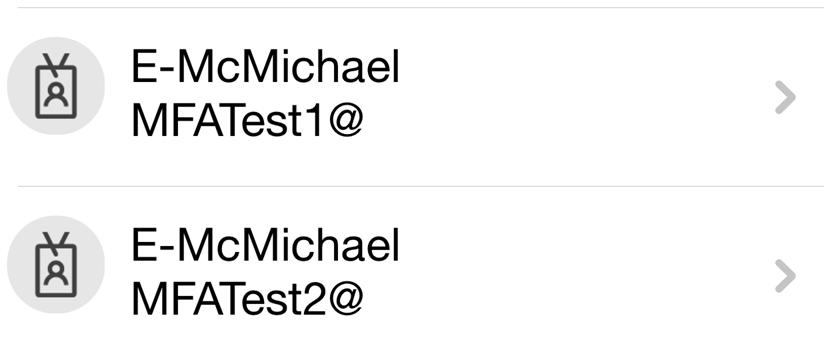


If both users MFATest1 and MFATest2 followed the same directions to register security information and enable multi-factor authentication, then why are we seeing a difference? In the case of MFATest2 the user successfully scanned the QR code and registered the strong authentication method but closed the browser windows before completing the verification. For a strong authentication method to be registered and usable the user must complete the verification by entering the code provided. In the case of MFATest1 the full procedure was followed, and the strong authentication method was added and verified.


This scenario has exposed two particular challenges.

  1. The https://myaccount.microsoft.com page showed that a valid MFA device was registered in both user cases but could only actually be utilized by one of the users.
  2. Administratively the presence of a strong authentication method does not provide insight in the ability to use that method to satisfy multifactor authentication.


Our product engineering team is aware of both scenarios. There are active work items to allow end users to not only see what authentication methods are registered but also provide feedback to the end user regarding their ability to be utilized for multifactor authentication. On the administrative side work continues in our graph and powershell integration to not only display the strong authentication methods but provide the same insight that the Azure portal does when making a determination of the users strong authentication methods and their ability to satisfy multi-factor authentication.


With this scenario there was little that could be done to mitigate the outcome other than ensuring that users followed the directions as published. When configuring conditional access the policy could have been rolled out over time by using group membership thereby lessoning the overall impact to the organization. As our product engineering engagements finish and our interfaces evolve more information allowing the accurate assessment of this situation will be available.