When EntraID Connect exports user attributes to Entra ID validations occur on the data submitted. If the validations fail for any reason a DataValidationFailed error message will be present in EntraID Connect Synchronization Manager. Here is a sample of a DataValidationFailure:
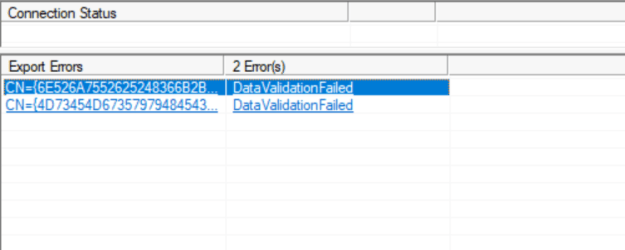
When selecting one of the objects in a DataValidationFailed state and reviewing the export errors tab details regarding the number and timing of failures is present.
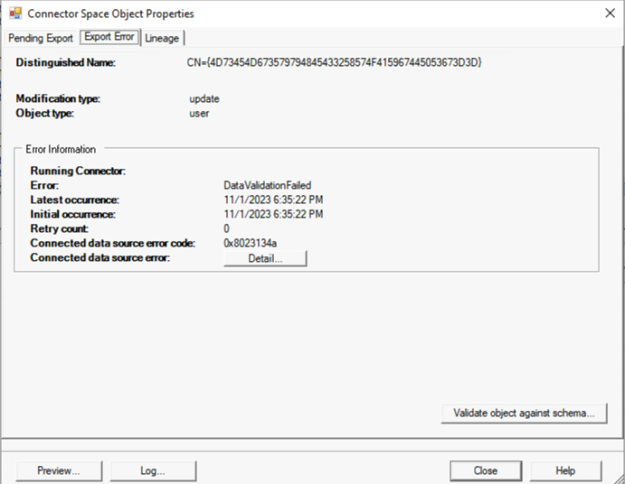
When selecting the Details button further information regarding the error is provided.
Unable to update this object in Azure Active Directory, because the attribute [None], is not valid. Update the value in your local directory services.
Tracking Id: 8f0b1067-a691-4832-b9fe-9e18f35d835a
ExtraErrorDetails:
[{“Key”:”ObjectId”,”Value”:[“504bd7a2-78bc-4dd8-a795-be93a7d67bf4”]},{“Key”:”InvalidAttributeName”,”Value”:[“None”]}]
In this instance the details are not extremely helpful. They do not point to a specific attribute that is invalid nor to the data contained within an attribute would have violated the validation rules. How do we isolate where the potential problem lies? On the pending export tab the attributes that are being added or modified may be reviewed. In the case of this user there were three attributes that were being added to Entra ID.
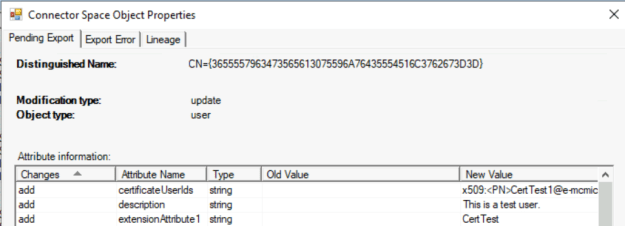
Two of the attributes, description and extensinoAttribute1, are standard attributes synchronized on a user object. The third, certificateUserIds, is not a standard attribute and would be calculated by a custom rule.
In order to determine how this attribute is being calculated the preview button in the lower left hand corner will allow us to manually execute a synchronization on an object.
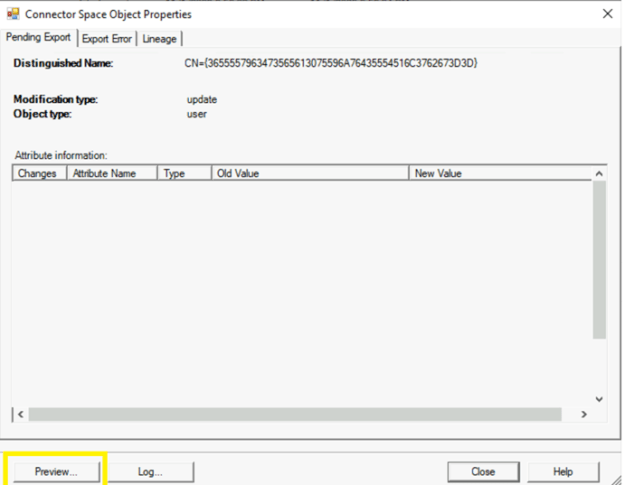
When the preview window opens selecting generate preview will run the synchronization operation. In the left hand column, under connector updates will be the attribute representation for the Active Directory connector and the Entra ID connector.
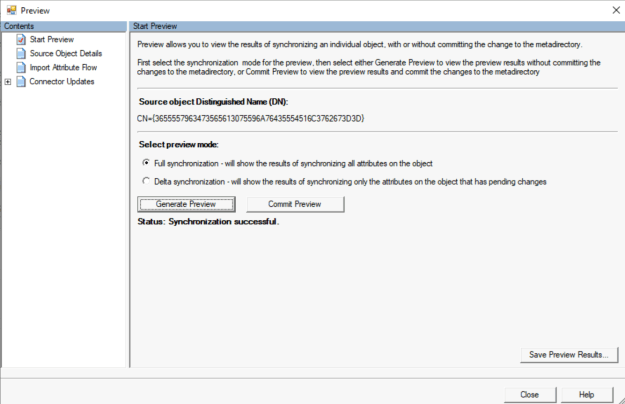
Expanding connector updates will show the Entra ID object (specified by CN=) and the Active Directory object (specified by the distinguished name). Expanding the Entra ID connector and selecting export attribute flow shows the attribute values calculated and the rule responsible for the value.
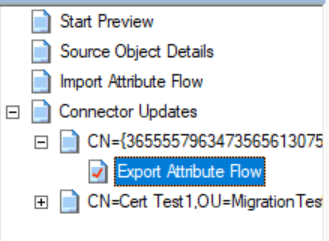
The rule name is in the left column.

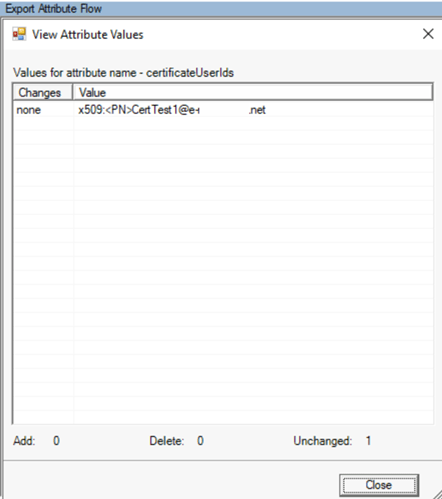
The certificateUserIDs value was calculated by the rule Out to AAD – certificateUserTypes. Selecting the … button allows the review of the initial value and final value. Here are the final calculated values that are being submitted to Entra ID:
When reviewing the properties of the rule this is the syntax that stamps the value.
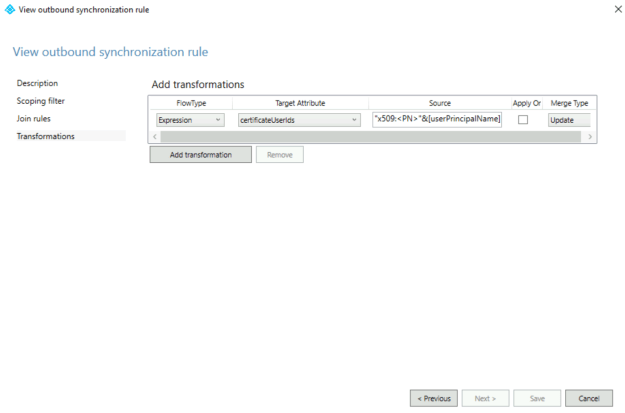
“x509:<PN>”&[userPrincipalName] is the source expression syntax.
When comparing the value being exported to the rule expression the calculated values match the rule expression. The following article contains the acceptable values for certificateUserIDs:
Certificate user IDs for Microsoft Entra certificate-based authentication | Microsoft Learn
|
Certificate mapping Field |
Examples of values in CertificateUserIds |
|
PrincipalName |
“X509:<PN>bob@woodgrove.com” |
|
PrincipalName |
“X509:<PN>bob@woodgrove” |
|
RFC822Name |
“X509:<RFC822>user@woodgrove.com” |
|
X509SKI |
“X509:<SKI>123456789abcdef” |
|
X509SHA1PublicKey |
“X509:<SHA1-PUKEY>123456789abcdef” |
In this case the desired value is using the PrincipalName formatting. Briefly looking at the two values they look the same and look formatted correctly. There is one very minor difference between the two values – the table details an upper case X in the X509 syntax where the rule is utilizing a lower case x in the x509 syntax. Using the rules editor the expression syntax is updated:
“X509:<PN>”&[userPrincipalName]
Updating the rule will cause full synchronization to be performed on the Entra ID connector. At the conclusion of the synchronization operation the exports are now successful.
In this case the DataValidationFailed was due to the attribute being case sensitive and the expression not including the correct case.
 TIMMCMIC