Using M365DomainMgmt to manage password expiration settings…
Microsoft 365 supports enabling password expiration through the Microsoft 365 admin center. Information on managing the password expiration and notifications settings can be found at Set the password expiration policy for your organization – Microsoft 365 admin | Microsoft Learn.
Password Expiration and the Microsoft 365 Admin Center
When using the Microsoft 365 Admin Center to manage password expiration settings the administrator has the option to set password to never expire (recommended) or set the password expiration to a set number of days. The acceptable values for password expiration range from 1 to 730.
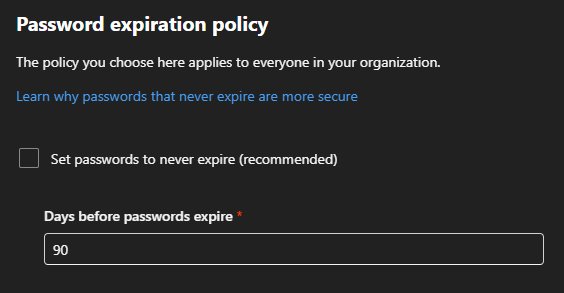
The settings in the administration center do not allow an administrator to adjust the values on a per domain basis even though this is where the password expiration value is stored. For more information on the relationship between password policies, authentication, and domains settings see Domain Authentication, User Settings, and Entra PasswordPolicies | TIMMCMIC.
When an expiration value is adjusted in the Microsoft 365 Admin Center a background process steps through each non-federated root domain and sets the password expiration values as specified in the portal. Note: Microsoft has recently received several escalations from customers indicating that this process is silently failing on larger domain counts. Please validate that the settings were successfully applied when using this feature.
The policy is not reapplied after certain domain settings are adjusted including
- Converting a domain from federated authentication to managed authentication.
- Adding a new domain.
- Promoting a subdomain to a root domain.
Reliably managing password expiration in Microsoft 365
The most reliable method to manage the password expiration settings in Microsoft 365 is the use of Microsoft Graph. To assist in this process the M365DomainMgmt module includes a command Start-M365DomainPasswordExpirationManagement.
This command allows administrators the flexbility to:
- Establish password expiration values on all domains including onmicrosoft.com domains.
- Establish password expiration values on all domains excluding onmicrosoft.com domains.
- Specify a specific domains list to set password expiration values on specific domains.
In addition to options to enable password expiration the command also supports disabling password expiration either on all domains or administrator specified domains.
Installation and Microsoft Graph Prerequisites
See M365DomainMgmt: A PowerShell module for assisting domain management in Microsoft 365 (Part 1) | TIMMCMIC sections “Installing the M365DomainMgmt Module” and “M365DomainMgmt and Microsoft Graph” for instructions on how to install the module and Microsoft Graph authentication prerequisites.
The minimum parameter set to run:
- -LogFolderPath = Specifies the location of where to store log files.
- -msGraphEnvironmentName = Specifies the ms graph environment for domain operations
- -msGraphTenantID = Specifies the tenant ID as the destination of the graph connection
- -enableOrDisable = Specifies if the operation is an enable or disable operation
The optional parameter set to run:
- -msGraphCertificateThumbprint = Specified if using certificate based authentication to a registered application. Must also be utilized with -msGraphApplicationID
- -msGraphClientSecret = Specified if using client secret authentication to a registered application. Must also be utilized with -msGraphApplicationID
- -domainsToModify = A single or comma delimited list of domains to modify (may be a string or array). Cannot be specified when using -allDomains
- -allDomains = Specifies if the operation will be performed against all domains. Cannot be combined with -domainsToModify.
- -includeOnMicrosoftDomains = Specifies if the -allDomains operation should also include onmicrosoft.com domains. (Disabled by default)
- -expirationDays = The password expiration value specified in number of days. This value must be specified when using -enableOrDisable:Enable (Values 14-730)
Using Start-M365DomainPasswordExpirationManagement to Enable Password Expiration
Example 1: Set password expiration to 90 days for all domains including onmicrosoft.com domains in a global tenant using interactive authentication:
Start-M365DomainPasswordExpirationManagement -logFolderPath c:\temp -msGraphEnvironmentName "Global" -msGraphTenantID "Your Azure Tenant ID" -enableOrDisable "Enable" -expirationDays 90 -includeOnMicrosoftDomains:$TRUE -allDomains:$TRUE
Example 2: Set password expiration to 90 days for all domains including onmicrosoft.com domains in a GCC High tenant using interactive authentication:
Start-M365DomainPasswordExpirationManagement -logFolderPath c:\temp -msGraphEnvironmentName "USGov" -msGraphTenantID "Your Azure Tenant ID" -enableOrDisable "Enable" -expirationDays 90 -includeOnMicrosoftDomains:$TRUE -allDomains:$TRUE
Example 3: Set password expiration to 90 days for all domains including onmicrosoft.com domains in a Global tenant using certificate authentication:
Start-M365DomainPasswordExpirationManagement -logFolderPath c:\temp -msGraphEnvironmentName "USGov" -msGraphTenantID "Your Azure Tenant ID" -msGraphCertificateThumbPrint "ThumbPrint" -msGraphApplicationID "Application GUID" -enableOrDisable "Enable" -expirationDays 90 -includeOnMicrosoftDomains:$TRUE -allDomains:$TRUE
Example 4: Set password expiration to 90 days for all domains including onmicrosoft.com domains in a Global tenant using client secret authentication:
Start-M365DomainPasswordExpirationManagement -logFolderPath c:\temp -msGraphEnvironmentName "USGov" -msGraphTenantID "Your Azure Tenant ID" -msGraphClientSecret "ClientSecret" -msGraphApplicationID "Application GUID" -enableOrDisable "Enable" -expirationDays 90 -includeOnMicrosoftDomains:$TRUE -allDomains:$TRUE
Example 5: Set password expiration to 90 days for all domains excluding onmicrosoft.com domains in a Global tenant using interactive authentication:
Start-M365DomainPasswordExpirationManagement -logFolderPath c:\temp -msGraphEnvironmentName "Global" -msGraphTenantID "Your Azure Tenant ID" -enableOrDisable "Enable" -expirationDays 90 -allDomains:$TRUE
Example 6: Set password expiration to 90 days for specific domains in a Global tenant using interactive authentication:
Start-M365DomainPasswordExpirationManagement -logFolderPath c:\temp -msGraphEnvironmentName "Global" -msGraphTenantID "Your Azure Tenant ID" -enableOrDisable "Enable" -expirationDays 90 -domainsToModify "Domain1.com,Domain2.com,Domain3.com"
Example 7: Set password expiration to 90 days for specific domains in a Global tenant using interactive authentication (alternate method):
$domains = @()$domains += "domain1.com"$domains += "domain2.com"$domains += "domain3.com"Start-M365DomainPasswordExpirationManagement -logFolderPath c:\temp -msGraphEnvironmentName "Global" -msGraphTenantID "Your Azure Tenant ID" -enableOrDisable "Enable" -expirationDays 90 -domainsToModify $domains
Using Start-M365DomainPasswordExpirationManagement to Disable Password Expiration
Example 1: Disable for all domains including onmicrosoft.com domains in a global tenant using interactive authentication:
Start-M365DomainPasswordExpirationManagement -logFolderPath c:\temp -msGraphEnvironmentName "Global" -msGraphTenantID "Your Azure Tenant ID" -enableOrDisable "Disable" -includeOnMicrosoftDomains:$TRUE -allDomains:$TRUE
Example 2: Disable password expiration for all domains including onmicrosoft.com domains in a GCC High tenant using interactive authentication:
Start-M365DomainPasswordExpirationManagement -logFolderPath c:\temp -msGraphEnvironmentName "USGov" -msGraphTenantID "Your Azure Tenant ID" -enableOrDisable "Disable" -includeOnMicrosoftDomains:$TRUE -allDomains:$TRUE
Example 3: Disable password expiration for all domains including onmicrosoft.com domains in a Global tenant using certificate authentication:
Start-M365DomainPasswordExpirationManagement -logFolderPath c:\temp -msGraphEnvironmentName "USGov" -msGraphTenantID "Your Azure Tenant ID" -msGraphCertificateThumbPrint "ThumbPrint" -msGraphApplicationID "Application GUID" -enableOrDisable "Disable" -includeOnMicrosoftDomains:$TRUE -allDomains:$TRUE
Example 4: Disable password expiration for all domains including onmicrosoft.com domains in a Global tenant using client secret authentication:
Start-M365DomainPasswordExpirationManagement -logFolderPath c:\temp -msGraphEnvironmentName "USGov" -msGraphTenantID "Your Azure Tenant ID" -msGraphClientSecret "ClientSecret" -msGraphApplicationID "Application GUID" -enableOrDisable "Disable" -includeOnMicrosoftDomains:$TRUE -allDomains:$TRUE
Example 5: Disable password expiration for all domains excluding onmicrosoft.com domains in a Global tenant using interactive authentication:
Start-M365DomainPasswordExpirationManagement -logFolderPath c:\temp -msGraphEnvironmentName "Global" -msGraphTenantID "Your Azure Tenant ID" -enableOrDisable "Disable" -allDomains:$TRUE
Example 6: Disable password expiration for specific domains in a Global tenant using interactive authentication:
Start-M365DomainPasswordExpirationManagement -logFolderPath c:\temp -msGraphEnvironmentName "Global" -msGraphTenantID "Your Azure Tenant ID" -enableOrDisable "Disable" -domainsToModify "Domain1.com,Domain2.com,Domain3.com"
Example 7: Disable password for specific domains in a Global tenant using interactive authentication (alternate method):
$domains = @()$domains += "domain1.com"$domains += "domain2.com"$domains += "domain3.com"Start-M365DomainPasswordExpirationManagement -logFolderPath c:\temp -msGraphEnvironmentName "Global" -msGraphTenantID "Your Azure Tenant ID" -enableOrDisable "Disable" -domainsToModify $domains
Potential Errors
When running the command the following potential errors may occur:
- Specifying a domains list when the -allDomains:$TRUE is specified.
- ERROR: The all domains parameter is set to true and the domains to modify parameter is not empty
- Not specifying an expiration time when -enableOrDisable “Enable” is utilized.
- ERROR: Expiration days must be specified when enabling password expiration.
- Specifying an expiration time when -enableOrDisable “Disable” is utilized.
- ERROR: Expiration days may not be specified when disabling password expiration.
- Not specifying -domainsToModify when -allDomains is not utilized.
- ERROR: The -allDomains is not specified and no administrator specified domains in -domainsToModify – at least one domain must be specified.
- When using -allDomains:$TRUE subdomains are included but error by design.
- ROOT_DOMAIN_EXCEPTION: Expiration cannot be set on a subdomain.
- When using -allDomains:$TRUE federated domains are included by error by design.
- FEDERATED_DOMAIN_EXCEPTION: Password validity cannot be set on domains federated for authentication.
Validating Success
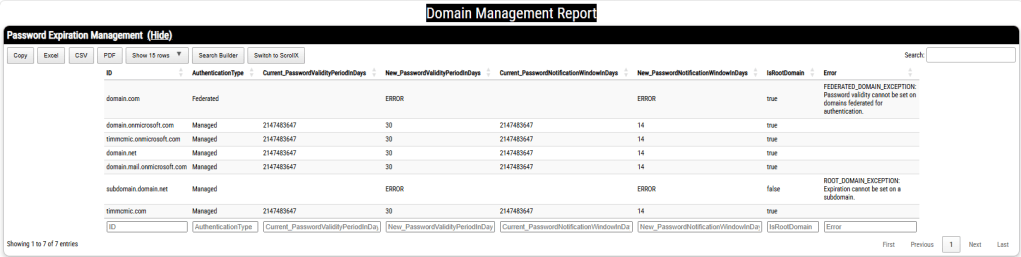
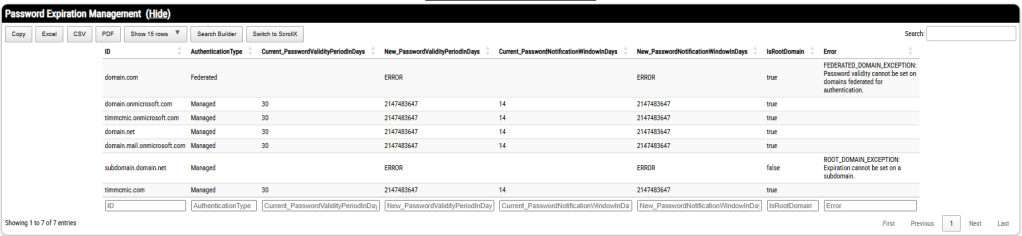
At the conclusion of each operation that is run an HTML file summary is generated for administrator review. The HTML summary includes the domain to be modified, the original value of the expiration period, the new value of the expiration period, and an errors column that demonstrates if any errors occuring during the operation.
Validating Success – Enabling 30 day password expiration on all domains including onmicrosoft.com domains.
Validating Success – Disabling password expiration on all domains including onmicrosoft.com domains.
Validating Success – Enabling 30 day password expiration on specified domains.


