Part 1: Using M365DomainMgmt to add a domain and validate dependencies…
The Microsoft 365 admin center provides administrators the ability to add domains to Microsoft 365 tenants. In some cases the addition operations fail, the validation option fails, or other issues are encountered when adding the domain through this administrative interface.
The M365DomainMgmt PowerShell module provides administrators a wrapper for Microsoft Graph to walk them through the domain addition and verification process. The module provides specific health checking functions when executing to highlight potential issues with adding or verifying the domain and in some cases, self-help options to remediate those issues without contacting Microsoft support.
Installing the M365DomainMgmt Module
To utilize this PowerShell module first install the module from the PowerShell Gallery.
Install-Module M365DomainMgmt
If the module is already installed or to ensure that you are running the latest version you may also run an update from the PowerShell Gallery
Update-Module M365DomainMgmt
M365DomainMgmt and Microsoft Graph
The M365DomainMgmt module depends on Microsoft Graph in order to function. Currently the module supports WAM based interactive authentication, certificate authentication through a registered application id, or client secret authentication through a registered application id. You will need to determine the most appropriate method to connect to Microsoft Graph in order to proceed. The minimum and maximum graph scopes required for domain management is Domain.ReadWrite.All and is requested automatically by the PowerShell module. If using a registered application id where this scope is not consented to prior to execution the module will fail and provide feedback. If using interactive authentication where this scope is not consented to prior to execution the user will be prompted to consent and must have permissions to consent in order to proceed.
An example of how to establish an application ID supporting client secret authentication and the Domain.ReadWrite.All graph scope may be found here: Graph and Client Secret Authentication | TIMMCMIC
In addition to determining the type of graph authentication that will be utilized the module also requires specifying the graph environment for your connection and your entra tenant ID to ensure connections are made to the appropriate tenant.
Starting M365DomainMgmt to Add and Verify a Domain
Example #1: Leverage interactive authentication to a global tenant
Start-M365DomainManagement -logFolderPath c:\temp -msGraphEnvironmentName "Global" -msGraphTenantID "EntraTenantIDAsGUID"
Example #2: Leveraging client secret authentication to a global tenant
Start-M365DomainManagement -logFolderPath c:\temp -msGraphEnvironmentName "Global" -msGraphTenantID "EntraTenantIDAsGUID" -msGraphClientSecret "ClientSecret" -msGraphApplicationID "EntraRegisteredAppID"
Example #3: Leverage certificate authentication to a global tenant
Start-M365DomainManagement -logFolderPath c:\temp -msGraphEnvironmentName "Global" -msGraphTenantID "EntraTenantIDAsGUID" -msGraphCertificateThumbprint "CertificateThumbprint" -msGraphApplicationID "EntraRegisteredAppID"
Example #4: Leveraging client secret authentication to a GCC High tenant
Start-M365DomainManagement -logFolderPath c:\temp -msGraphEnvironmentName "USGov" -msGraphTenantID "EntraTenantIDAsGUID" -msGraphClientSecret "ClientSecret" -msGraphApplicationID "EntraRegisteredAppID"
Example #5: Leverage interactive authentication, specify the domain name and operation to bypass interactive prompts.
Start-M365DomainManagement -logFolderPath c:\temp -msGraphEnvironmentName "Global" -msGraphTenantID "EntraTenantIDAsGUID" -domainName "domain.com" -domainOperation "New"
Example #6: Utilize a custom dns server for external dns queries.
Start-M365DomainManagement -logFolderPath c:\temp -msGraphEnvironmentName "Global" -msGraphTenantID "EntraTenantIDAsGUID" -customDNSServer 1.1.1.1
The Domain Addition Process
The M365DomainMgmt module starts the domain addition process by validating the state and version of dependent PowerShell modules and noting their versions in the log file.
If a domain and domain operation are not specified as a part of the command execution a list of supported operations is provided and the desired operation is selected by number.
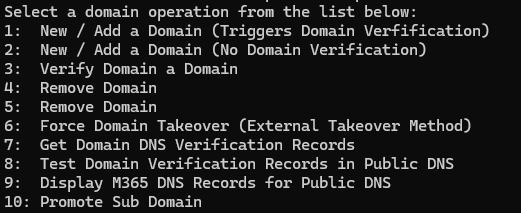
This blog post covers option 1 – New / Add a Domain (Triggers Domain Verification)
If a domain and domain operation are not specified as part of the command execution the administrator is prompted to provide the domain name interactively. Providing the domain name and pressing enter continues the commands progression.

The command progresses by performing the following operations
- Queries the tenant to determine if the domain is present and validated.
- If the domain is validated already the command terminates at this operation and provides administrative feedback
- Queries the tenant to determine if the domain is added already but not validated.
- If the domain is added but not validated the domain addition process is skipped and the command continues to DNS validation.
- The domains status is recorded to the log file and exported to the log directory for retention.
- Queries the tenant to determine if the domain has not been added and adds the domain to the tenant.
- The domains status upon successful addition is recorded to the log file and exported to the log directory for retention.
If the domain has been successfully added to the tenant the next step is providing the administrators with the DNS verification records for domain validation. Each domain added to a Microsoft 365 tenant has unique verification records. Both a TXT record and MX record are supplied for validation but only one record is required in external DNS for validation.

The command assumes that the administrator will be placing these records in external DNS immediately. When the records have been confirmed committed to external DNS pressing enter continues the domain verification operation.
Here is an example of placing the TXT verification record in a GoDaddy DNS hosted domain.

Pressing enter continues the domain verification process. The domain verification process continues by having the module query the DNS servers configured on the host machine for the presence of the DNS text record. If the DNS verification records are not found an error is displayed.

The command sleeps for 5 minutes and checks an additional 30 minutes for the presence of the DNS verification records.

If the DNS verification records are not found within 30 minutes the command errors and provides feedback to the administrator. Note: The amount of time for public DNS records to replicate may not occur within this 30-minute window. The command can be rerun selecting option 1 to repeat the verification process after manually verifying the records are present in external DNS. If internal DNS forwarders or caching prevent discovery of newly created DNS records specifying a -customDNSServer and a known accessible external resolver may allow this test to complete successfully.
With DNS record validation completed the domain verification process is finalized. This process entails:
- Completing the domain verification
- The verified domain state is recorded in the log file and exported to the log directory for retention.
- Microsoft 365 DNS records for service adoption are calculated and provided to the administrator in a table for later creation.
Operation Reporting
The M365DomainMgmt module records all operation and their results to the log file created in the directory specified. The log file directory also contains all exports of Microsoft 365 object states to XML files. To allow the administrator a more accessible method of interpreting results, an HTML file is created that contains all pertinent information to the domain addition and verification process.

DNS Verification Records Section
This section provides the DNS verification records for external DNS.

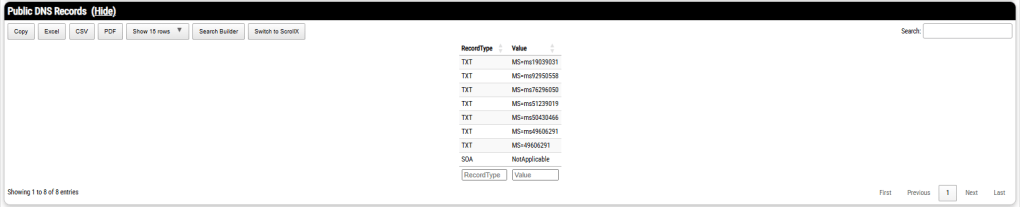
Public DNS Records
This section provides the public DNS records discovered during the last external DNS query. This is the information that was utilized for the evaluation of the dns verification records.
Domain Information Section
This section provides the domain information exported after the domain was successfully found in Microsoft 365 or successfully added to Microsoft 365.

Verified Domain Information Section
This section provides the domain information exported after the domain was successfully verified. This confirms that the domain addition process succeeded and the domain is available for use in Microsoft 365.

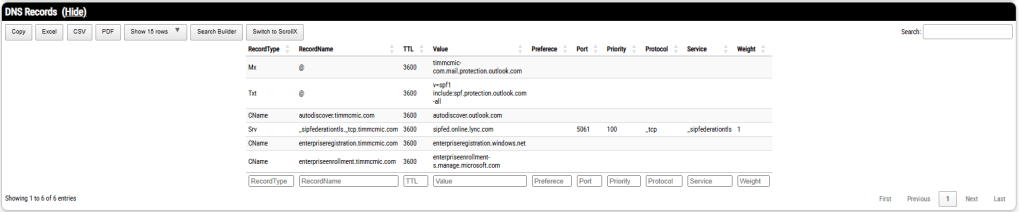
DNS Records Section
This table provides the DNS records from Microsoft 365 that administrators may place in external dns to adopt Microsoft 365 services. Note: Your dns records may vary if you are utilizing third party mx services or if you are in a hybrid environment hosting mailboxes in on premises installations.
Viral Domain Information Section
This list provides domain information regarding unmanaged or viral tenants. This information is helpful in assisting Microsoft support in situations where domain validation does not succeed successfully.

Common Failures
- DNS verification records not in proper format.
- The DNS verification text records follow the format ms=MS#####.
- In some cases, the MS= is missing or the value is placed as MS=######.
- Domain is unmanaged or viral.
- If the viral domain information section shows IsViral=TRUE this means the domain is associated with an unmanaged tenant.
- Admin takeover of an unmanaged directory – Microsoft Entra ID | Microsoft Learn provides options to administratively takeover the domain.
- Domain is registered in a valid tenant.
- A domain can only be registered in one tenant at a time.
- If you are migrating to GCC High you do not have the option to register a domain in a commercial and GCC High tenant at the same time.
- The viral domain information section may show an authentication method of MANAGED or FEDERATED if a domain is registered and valid in another tenant.
- Domain is registered as part of services offered through GoDaddy.
- GoDaddy provides access to Microsoft 365 services for domains purchased through their organization.
- This registers the domain in a valid tenant but abstracts the domain removal and addition process from the administrator.
- Administrators must request that the domain be released from GoDaddy prior to attempting to add it to a standalone tenant.
- The viral domain information section will show a federated authentication provider of https://sso.godaddy.com confirming the domain is registered with a GoDaddy tenant.
I need Microsoft Support
If you require Microsoft Support, you may open a case within the M365 admin center from the tenant where you are attempting to add the domain. If an error is encountered in the domain addition and verification process, a zip file of all diagnostic information is created automatically for you in the log file directory. This zip file contains the basic information that Microsoft Support may utilize to assist in diagnosing the domain addition failure as well as engage our engineering team for analysis should that become necessary.

