Author Archives: TIMMCMIC

Office 365: More information required…

In Azure Active Directory users of Office 365 may be required to enroll in multi-factor authentication and self service password reset. During an interactive logon request users will be prompted to enter the enrollment and configuration process.


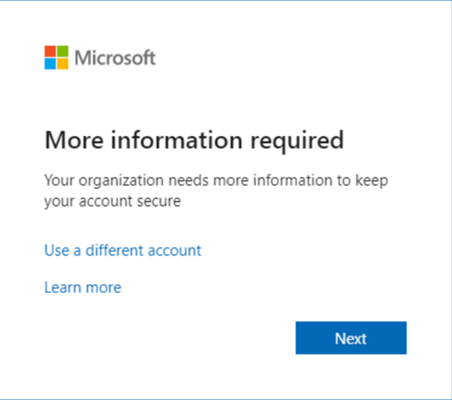
I recently worked with a customer where a user that was fully enrolled in multi-factor authentication was receiving the dialog “More Information Required” and “Your organization needs more information to keep your account secure.”


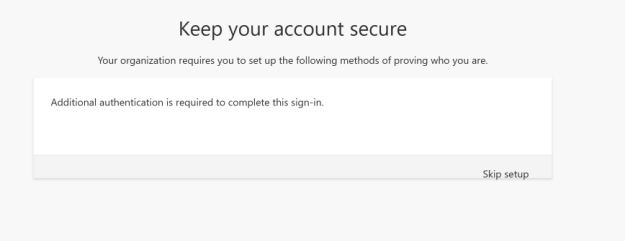
When selecting the next option, the user was prompted with the following dialog. “Additional authentication is required to complete this sign-in.”


This screen is fairly familiar as it is usually seen when performing combined registration for new users enabling multi-factor authentication and self-service password reset. What is odd about this dialog is that it is not presenting what options need to be enabled to complete security registration. The only option to proceed is skip setup. Skipping setup allows the user to authenticate successfully and access the service. If the user ends up in a loop at this stage selecting sign in with another account then selecting the same account already signed in will break this loop. The same dialog sequence is present on any interactive logon that occurs to Office 365.


On the surface there was nothing out of the ordinary with the account in question. The necessary security registrations were present to satisfy multi-factor authentication and the user was able to log in where MFA was required. The one item that did stand out was that the account did have administrator rights. If multi-factor authentication was not an issue the next logical place to review was self-service password reset.


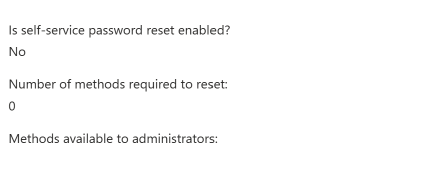
When looking at the self-service password reset settings within the tenant this organization choose to disable SSPR for administrator accounts.

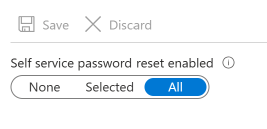
The SSPR policies were applied to all users.


The prompt that is being displayed was due to the conflicting settings between the scope of SSPR application and administrators being excluded from the policy. When the administrator policy has been disabled the self-service password reset settings need to be changed to “selected” and applied to a group that does not include administrator accounts. The other method to mitigate this issue is to migrate from legacy per user MFA and self-service password reset to new authentication policies. The new authentication policies allow more fine-grained control of authentication methods and groups / users are applicable too. How to migrate to the Authentication methods policy – Microsoft Entra | Microsoft Learn


My suggestion in this case was to set up a custom attribute on administrator accounts. Using an Azure dynamic group all users where the custom attribute was not present were added to the group. This group was then selected for targeted self-service password reset application. This removed the all scope and excluded administrators from SSPR application.

Office 365: Distribution List Migrations Version 2.0 – Part 38

Enabling support for migrations with pre-defined name prefix and suffix.

In Azure Active Directory administrators have access to a group naming policy. This allows administrators to enforce a naming policy for Microsoft 365 groups that are created by end users. The group naming policy does not apply to mail enabled distribution or mail enabled security groups. Customers who are considering migrating distribution lists to Office 365 may want to implement something similar for their mail enabled security or distribution groups. The desire was to utilize the migration process to begin implementing this naming convention.


Version 2.9.8.14 implements two new switches that administrators may use to implement a name prefix or suffix during the migration. The prefix switch -dlNamePrefix allows any string to be specified as the name prefix. The suffix switch -dlNameSuffix allows any string to be specified as the name suffix. When using a prefix or suffix this value is appended to not only the distribution group name but also the distribution group display name. This enforces the same name in both directory queries and global address list queries. Generally speaking the name and display name match. If you’re display name does not match the directory name of the group the same names will be preserved but with the prefix.


The directory name assigned to a group may not exceed 64 characters. When specifying a prefix, suffix, or both if the combined string length is greater than 64 characters the migration will fail and the administrator will be informed of an error in the log.


[PS] C:\>$group = Get-DistributionGroup “defdefdefdefdefdefdefdefdefdefdefdefdefdefdefdefdefdefdefdefdefd”

[PS] C:\>$group.name

defdefdefdefdefdefdefdefdefdefdefdefdefdefdefdefdefdefdefdefdefd

[PS] C:\>$group.name.Length

64

[PS] C:\>$group.Alias

defdefdefdefdefdefdefdefdefdefdefdefdefdefdefdefdefdefdefdefdefd

[PS] C:\>$group.Alias.Length

64


In the above example adding any prefix or suffix will cause the migration to fail.


[7/19/2023 2:33:48 PM] – ********************************************************************************

[7/19/2023 2:33:48 PM] – +++++

[7/19/2023 2:33:48 PM] – Pre-requist checks failed. Please refer to the following list of items that require addressing for migration to proceed.

[7/19/2023 2:33:48 PM] – +++++

[7/19/2023 2:33:48 PM] –

[7/19/2023 2:33:48 PM] – =====

[7/19/2023 2:33:48 PM] – Alias:

[7/19/2023 2:33:48 PM] – Name: defdefdefdefdefdefdefdefdefdefdefdefdefdefdefdefdefdefdefdefdefd

[7/19/2023 2:33:48 PM] – PrimarySMTPAddressOrUPN:

[7/19/2023 2:33:48 PM] – RecipientType:

[7/19/2023 2:33:48 PM] – GroupType:

[7/19/2023 2:33:48 PM] – RecipientOrUser:

[7/19/2023 2:33:48 PM] – ExternalDirectoryObjectID:

[7/19/2023 2:33:48 PM] – OnPremADAttribute:

[7/19/2023 2:33:48 PM] – DN:

[7/19/2023 2:33:48 PM] – ParentGroupSMTPAddress:

[7/19/2023 2:33:48 PM] – isAlreadyMigrated: False

[7/19/2023 2:33:48 PM] – isError: True

[7/19/2023 2:33:48 PM] – isErrorMessage: NAME_LENGTH_EXCEPTION: The DL Name plus the prefix and / or suffix exceeds 64 characters. To complete migration wih the prefix and / or suffix the group name must be shortened to prefix + name + suffix to less than 64 characters.

[7/19/2023 2:33:48 PM] – =====

[7/19/2023 2:33:48 PM] – Pre-requist checks failed. Please refer to the previous list of items that require addressing for migration to proceed.

out-logfile : [7/19/2023 2:33:48 PM] – Pre-requist checks failed. Please refer to the previous list of items that require addressing for migration to proceed.

At C:\Repository\DLConversionV2\DLConversionV2.psm1:2904 char:13

+ out-logfile -string “Pre-requist checks failed. Please r …

+ ~~~~~~~~~~~~~~~~~~~~~~~~~~~~~~~~~~~~~~~~~~~~~~~~~~~~~~~~~

+ CategoryInfo : NotSpecified: (:) [Write-Error], WriteErrorException

+ FullyQualifiedErrorId : Microsoft.PowerShell.Commands.WriteErrorException,Out-LogFile


If the name, prefix, and suffix combinations are less than 64 characters the migration is allowed to proceed. The module does not automatically truncate the name or replace characters in order to accommodate a prefix or suffix.


At the conclusion of the migration the Office 365 distribution list will have the prefix and / or suffix added to the name and display name attribute.


PS C:\> Get-DistributionGroup defdefdefdefdefdefdefdefdefdefdefdefdefdefdefdefdefdefdefdefdefd | fl name,displayname


Name : DL-defdefdefdefdefdefdefdefdefdefdefdefdefdefdefdefdefdefdefd-DL

DisplayName : DL-defdefdefdefdefdefdefdefdefdefdefdefdefdefdefdefdefdefdefd-DL


At the conclusion of the migration the group is still retained on premises. The renaming operation occurs with the ! added to the end of the name. The name prefix or suffix is not utilized in the renamed group or any hybrid mail flow objects that are created to satisfy the migration.


[PS] C:\>Get-DynamicDistributionGroup defdefdefdefdefdefdefdefdefdefdefdefdefdefdefdefdefdefdefd | fl name,alias


Name : defdefdefdefdefdefdefdefdefdefdefdefdefdefdefdefdefdefdefd

Alias : defdefdefdefdefdefdefdefdefdefdefdefdefdefdefdefdefdefdefdefdefd


[PS] C:\>Get-MailContact defdefdefdefdefdefdefdefdefdefdefdefdefdefdefde-MigratedByScript | fl name,alias


Name : defdefdefdefdefdefdefdefdefdefdefdefdefde-MigratedByScript

Alias : defdefdefdefdefdefdefdefdefdefdefdefdefdefdefde-MigratedByScript


[PS] C:\>Get-Group defdefdefdefdefdefdefdefdefdefdefdefdefdefdefdefdefdefdefd! | fl name,samaccountname


Name : defdefdefdefdefdefdefdefdefdefdefdefdefdefdefdefdefdefdefd!

SamAccountName : defdefdefdefdefdefdefdefdefdefdefdefdefdefdefdefdefdefdefdefdefd!


By allowing administrators to manage a prefix or suffix during the migration process as groups are created they can match their desired naming conventions moving forward.

Office 365: Graph, Dirsync, and Attribute Modifications

Microsoft Graph can be used to modify and manage properties of objects created in Azure Active Directory. In order for graph to modify and manage properties the object in Office 365 should be a cloud only object. Objects that are synchronized have their source of authority set to on-premises locking out certain attribute sets from modification in the cloud.


I recently worked with a customer that had a custom synchronization solution. This solution utilized Microsoft Graph to manage user properties from a directory they controlled. Each object provision in Azure as a cloud only object. Their application would manage attributes including manager, proxy addresses, and custom attributes. These are the same attributes that are accessible through Exchange Online Powershell.


Due to a misconfiguration directory synchronization was enable. The solution that was utilized to provide the sync interface successfully matched each user in Azure to their corresponding entry in the database. This in turn converted the objects from cloud only to directory synchronized. When this change occurred the graph application that was previously managing the attributes was no longer able to manage them.


Once this misconfiguration was determined the customer disabled directory synchronization. The directory synchronization disablement process can take several hours to complete but was successful in converting all objects back to cloud only. Although the objects were cloud only the subsequent graph updates failed. Specifically, attributes that would typically be set through Exchange Online Powershell interfaces such as custom attributes were failing. Other attributes such as name were successful.


This is a sample error in the graph application.

Operation failed

Error:

Error executing request. An Azure Active Directory call was made to keep object in sync between Azure Active Directory and Exchange Online. However, it failed. Detailed error message: Unable to update the specified properties for on-premises mastered Directory Sync objects or objects currently undergoing migration. DualWrite (Graph) RequestId: 689d3418-cce2-4de1-9d8a-bc8399be91f4 The issue may be transient and please retry a couple of minutes later. If issue persists, please see exception members for more information.


This error is counter intuitive as we have successfully confirmed that directory synchronization was disabled. Why would we receive an error that the object is mastered on-premises? The issue is that the object was cloud only, converted to directory synchronized, and then converted to cloud only. When the conversion process between states occurs there are certain attributes that are attributed to the workloads that they were designed for. In this case extension attributes are not natively available in Azure Active Directory but are there to service Exchange Online. These attributes are added to a hidden attribute set which locks their editing to the platform they are linked to. In this case extension attributes are present for Exchange Online so they can no longer be edited in Azure Active Directory but must be edited in Exchange Online. We were able to demonstrate that the attributes were successfully modified using Exchange Online.


If you have software that depends on utilizing the graph interfaces to manage all users attributes do not convert them to directory synchronized. There are future architectural changes to Azure Active Directory pending which will remove this limitation and allow graph updates to continue for attributes belonging to other workloads if the users are converted between cloud synchronization states.

Office 365: Unable to add and validate a subdomain linked to a viral tenant

In Office 365 end users can sign up for trial subscriptions for service. These services may include PowerBI or Azure Rights Management as an example. The services that users were trialing often required cloud storage or services in order to service the trial. Prior to October 2021 when users signed up for these trials a “viral” or “unmanaged” Office 365 tenant was created on behalf of the trial and the user. The email domain utilized for the trial, if not associated with another Office 365 tenant, would be added to this unmanaged Office 365 instance. After October 2021 this behavior no longer occurs and has been replaced with a one time passcode process. For more information see Email one-time passcode authentication on by default starting October 2021 | Azure updates | Microsoft Azure.


Many administers discover that there exists a viral tenant when they choose to use the domain in the unmanaged tenant within their Office 365 instance. If the domain exists in an unmanaged tenant, it cannot be added and validated to another tenant through the standard domain add process. We have two self-service options that allow administrators to assume ownership of this domain. Admin takeover of an unmanaged directory – Microsoft Entra | Microsoft Learn. In many cases the self-service options are sufficient to allow the administrator to remove the domain and successfully validate it in the tenant of their choice.

Administrators may also test for the existence of a domain registered in Office 365 using the following link:

https://login.microsoftonline.com/common/userrealm/domain.com?api-version=2.1

Administrators replace domain.com with the domain they wish to test. If the domain is not found the following is displayed:


{

“NameSpaceType”: “Unknown”,

“Login”: “domain.com”,

“cloud_instance_name”: “microsoftonline.com”

}


If the domain is found the following information is displayed:


{

“NameSpaceType”: “Managed”,

“Login”: “contoso.com”,

“DomainName”: “contoso.com”,

“FederationBrandName”: “Contoso, Ltd”,

“TenantBrandingInfo”: null,

“cloud_instance_name”: “microsoftonline.com”

}


I recently encountered an interesting scenario where the self service options did not work. The customer that I worked with had a registered domain in their production tenant contoso.com. They also had a subdomain domain.consoto.com that they had previously used for other purposes. This domain had a legitimate external DNS namespace and an MX record pointing to Office 365. In Exchange Online the customer has configured an accepted domain contoso.com and enabled the option to accept email for this domain and all subdomains. In essence email should have been routed correctly into Office 365 and the email addresses at this subdomain functioning.


When the customer chooses to utilize this sub domain they noted that NDRs were generated to these addresses.


451 4.4.4 Mail received as unauthenticated, incoming to a recipient domain configured in a hosted tenant which has no mail-enabled subscriptions. ATTR5 [DM3NAM02FT022.eop-nam02.prod.protection.outlook.com 2023-05-10T16:06:51.301Z 08DB5127CEBAA8D8]


Why did this NDR occur? In this case the customer was relying on the accept mail for all subdomains feature to accept mail into their Exchange Online environment where the subdomains were not verified and added to the tenant explicitly. When mail arrives in Exchange Online, we attempt to attribute the mail to a particular tenant. In this instance the message arrived in Exchange Online due to the MX record pointing to the MX of the customers production tenant and parent domain, but the domain was attributed to the viral tenant. The viral tenant had no mail enable subscriptions, so the message was not delivered.


It was the non-delivery report that started the investigation of the domain and the determination it was registered to a viral tenant. The customer, having researched this began the process of asserting ownership of the domain to their production tenant. In order to assert ownership of the domain you must be able to receive email at the domain or be able to add the domain and validate it forcefully with a DNS entry. This is where things got slightly complicated.


The domain namespace was set to route email to the customers only email solution Exchange Online. Exchange Online was already rejecting the requests. This prevented the customer from using the internal takeover method and simply providing validation and accessing the viral tenant. To use the email option the customer would have had to find another place to route the domain email and subsequently receive it. This was not an option.


This led us to investigate the user of the external admin takeover method. I generally prefer the external takeover method myself as it does not involve accessing the original tenant, cleaning it up, and then removing the domain. The external method essentially just allows us to add the domain, validate it, and move on. If this method exists, why did it not work in this particular instance. In Office 365 when you add a subdomain where the parent domain is registered the domain is automatically validated. The domain has the presence of the RootDomain attribute signifying the parent / child domain relationship exists in Office 365. Attempting to add the domain with new-msolDomain generated an “unknown error”. The error was actually known in that the domain could not be added and automatically validated since it existed in an unmanaged viral tenant. If you are unable to add the domain, you are unable to get the proof of domain ownership, and therefore unable to forcefully takeover the domain.


Add and verify custom domain names – Microsoft Entra | Microsoft Learn


Add subdomains of a custom domain

If you want to add a subdomain name such as ‘europe.contoso.com’ to your organization, you should first add and verify the root domain, such as contoso.com. The subdomain is automatically verified by Azure AD. To see that the subdomain you added is verified, refresh the domain list in the browser.

If you have already added a contoso.com domain to one Azure AD organization, you can also verify the subdomain europe.contoso.com in a different Azure AD organization. When adding the subdomain, you are prompted to add a TXT record in the DNS hosting provider.


The self-service instructions were not going to easily work in this instance. Where there is a will there is a way! In order to self service the takeover of this domain where email could not be received by another solution we needed to use a tenant where the parent / child relationship did not exist. Fortunately for us the customer we were working with had a development tenant where the parent domain contoso.com did not exist (obviously because it existed in their production tenant). We were able to use the development tenant to add the domain, secure the ownership validation, and verify domain ownership forcefully using the external admin takeover method. Once the domain was successfully added to the development tenant it was then removed. Removing the domain freed the domain from all tenants. The customer could then add the domain explicitly to their production tenant where automatic validation was able to succeed, and the domain was added as an automatically verified subdomain of an existing parent domain. We also assume that if necessary, a trial tenant could have been utilized in place of the development tenant for these purposes.


I decided to write this up because it was a first for me. When I saw this in the past the customers I was working with had the ability to receive email at an alternate location for the domain. This allowed us to proceed with the internal admin takeover. The inability to receive email was a unique variable to this scenario. Although there is not necessarily a best practice recommendation, I encourage customers to add the domains to their tenants that they want to ensure are protected from being registered in other tenants. This was more of a relevant recommendation prior to October 2021 when domains would be added to unmanaged tenants but doing so even after ensures that domain ownership has been validated and is locked to the tenant where the domain resides. This may or may not be possible depending on the number of domains that a customer owns as there is an upward limit of 5000 domains.

Office 365: Distribution List Migrations Version 2.0 – Part 35

Improved handling of mailbox folder permissions, full mailbox access permissions, and send as permissions.

Distribution lists are often utilized to provide permissions in Exchange Online. DLConversionV2 allows administrator to audit these permissions for evaluation during the migration. As a part of the migration process the original group is mail disabled and moved to an organizational unit that does not synchronize to Office 365. The results of this operation is that the group is deleted from Azure Active Directory and Exchange Online.


If full mailbox access, send as, or mailbox folder permissions were assigned to the group that was deleted this results in an orphaned SID remaining on the object. The presence of the orphaned SID may result in the Exchange Control Panel failing to enumerate permissions on the object for administrators leveraging these tools for administration. PowerShell is not impacted by this.


Version 2.9.8.7 has new behavior where the original permission is removed, and the new permission is added. This prevents the introduction of orphaned SIDs which result in management tools failing on migrated distribution lists or objects that had dependencies on migrated distribution lists.

Office 365: Generate a mailbox locations report…

In Office 365 recipients may have different mailbox types. A mailbox enabled user may have one or more archive mailboxes or a guest user that you have invited to interact with organization groups may have a component shared mailbox.


I recently participated in an escalation where there was a need to understand how many mailboxes were enabled with archives and how many of those archives had been auto expanded.


Prior to the release of the Exchange Management PowerShell version 3.0 administrators had access to a command called Get-MailboxLocations. In the new PowerShell this command was replaced with Get-MailboxLocation. (Notice the subtle difference). The usage of the command has also changed significantly allowing for the passing of either an identity or user object and allowing the scoping of the command to return either all or specific mailbox types. Information on get-mailboxLocation can be found at: Get-MailboxLocation (ExchangePowerShell) | Microsoft Learn


I have published a sample script to the following location: timmcmic/MailboxLocationsReport (github.com)


To utilize the script an Exchange Management PowerShell session must be opened and authenticated. When running the script, the administrator is presented with six predefined options.

  1. Collect all recipients that can have a mailbox. This covers primary mailboxes, archive mailboxes, auxiliary archive mailboxes, and component shard mailboxes.
  2. Collect all primary mailbox enabled recipients (may or may not have an archive enabled).
  3. Collect all primary mailbox enabled recipients only if an archive is enabled.
  4. Collect all recipients only if an archive is enabled.
  5. Collect all Office 365 / Unified Groups.
  6. Collect all guest recipients.


When the script has concluded a CSV file is generated at the path contained in the script. (This may be adjusted prior to execution.).


#Define user variables – please update as appropriate prior to running code.


[string]$outputFileName = “mailboxLocation.csv”
#Define the CSV file name.

[string]$outputFilePath = “C:\temp\”
#Define the output file path


Here is a sample entry in the csv file.


ExternalDirectoryObjectID

PrimarySMTPAddress

LocationCount

HasPrimaryMailbox

HasMainArchive

HasComponentShard

HasAuxArchive

NumberOfAuxArchives

RecipientType

RecipientTypeDetails

28cd9c67-a21a-4c49-aff1-58b5cbbebfc9

user@domain.com

1

TRUE

FALSE

FALSE

FALSE

0

UserMailbox

UserMailbox


The CSV file can be opened in Excel and the columns filtered if necessary to parse information.

Office 365 – Distribution List Migrations Version 2.0 – Part 34

*IMPORTANT* Preparing for MS Graph Implementations

The DLConversionV2 PowerShell Module has dependencies on Azure Active Directory PowerShell commands. The Azure AD PowerShell commands are started a phased deprecation. The commands are being replaced by Microsoft Graph Commands.


When version 2.9.8 releases to the PowerShell Gallery using Microsoft Graph will be the standard method for querying and capturing information from Azure Active Directory. The necessary Microsoft Graph modules will be installed when either a current build is upgraded, or a new build installed.


When running DLConversionV2 administrators may use either interactive authentication for graph or certificate authentication. Unfortunately, the method of passing non-interactive credentials for authentication from scripts is not available in the Microsoft Graph modules.


DLConversionV2 now has the following switches included to establish the MSGraph session.


#Define Microsoft Graph Parameters

        [Parameter(Mandatory = $false)]

        [ValidateSet(“China”,“Global”,“USGov”,“USGovDod”)]

        [string]$msGraphEnvironmentName=“Global”,

        [Parameter(Mandatory=$true)]

        [string]$msGraphTenantID=“”,

        [Parameter(Mandatory=$false)]

        [string]$msGraphCertificateThumbprint=“”,

        [Parameter(Mandatory=$false)]

        [string]$msGraphApplicationID=“”,


$msGraphEnvironmentName = The specific Office 365 environment if connecting outside of the Global environment.


$msGraphTenantID = The Azure Active Directory / Office 365 tenant ID associated with your tenant. This can be obtained from the Azure Portal -> Azure Active Directory.


$msGraphCertificateThumbprint = The certificate thumbprint assigned to the local user profile and also assigned to the Microsoft Graph application created in Azure AD.


$msGraphApplicationID = The application of the application created in Azure Active Directory for Microsoft Graph.


The above four switches are required to have a migration performed in a non-interactive authenticated session. If performing a single distribution list migration the switches can be omitted at which time an interactive authentication prompt will be presented.


To use Microsoft Graph either the application you are connecting to or the user account you are using has to consent to access and request certain rights. The minimum rights required for the DLConversionV2 module are Group.Read.All and User.Read.All. You may have to work with others in your organization to consent to these rights when connecting to Microsoft Graph.


As most migrations are performed in a non-interactive format I suggest reading the following blog post: Using Certificate-based Authentication with the Microsoft Graph PowerShell SDK | Practical365


The blog post by Tony Redmond presents an easy process for establishing your Azure Active Directory application and implementing certificate authentication for connections to Microsoft Graph. It also provides a simple command structure to test your installation.


I know for many this will break processes that are already in flow. The decision is not taken lightly but is required to allow sufficient time to move forward on supported APIs and continue the development of the modules.


Happy migrating!

Office 365: Enabling mail users results in duplicate proxy address errors

A mail user is a user security principle that is extended with mail attributes. These accounts typically are utilized when there is a need to access Active Directory but email for the account should be sent to another mail system. Mail routing to the foreign mail system occurs by setting the externalEmailAddress property (targetAddress Active Directory property) on the mail user object.


The externalEmailAddress that is defined on the mail user does not have to be external. There are circumstances were administrators may want to define the externalEmailAddress as an internal address assigned to a mailbox. I recently worked with some organizations that were provisioning administrator accounts within Active Directory. The organizations wanted to have the administrator accounts be mail enabled objects, have unique email addresses, and have the email arrive in the primary mailbox assigned to the same administrators standard account. This resulted in the extenralEmailAddress property being an internal address. It was after enabling these accounts with an internal email address that a duplicate proxy address error occurred.


Let us explore the circumstances of this scenario.


In Active Directory an account exists that is synchronized to Azure Active Directory and Exchange Online. Executing get-User in the on-premises Exchange Management Shell shows that the object is a user object.


[PS] C:\>Get-User UserAdmin0


Name RecipientType

—- ————-

User Admin0 User


The same command in Exchange Online confirms that the object is not mail enabled and appears as a user object.


PS C:\> Get-User “User Admin0” | fl Name,RecipientType,DisplayName


Name : 3f15d3d8-4cbd-4457-bb9c-5a5fe58535eb

RecipientType : User

DisplayName : User Admin0


The administrator executes enable-mailUser with an externalEmailAddress that exists on an object within the directory.


[PS] C:\>Enable-MailUser UserAdmin0 -ExternalEmailAddress sharon@domain.com

The proxy address “SMTP:sharon@domain.com” is already being used by the proxy addresses or LegacyExchangeDN of

“home.domain.com/E-McMichael Objects/Users/Sharon User”. Please choose another proxy address.

+ CategoryInfo : NotSpecified: (home.domain…est/User Admin0:ADObjectId) [Enable-MailUser], ProxyAdd

ressExistsException

+ FullyQualifiedErrorId : [Server=Azure-Mail-0,RequestId=eebf023a-54ce-45eb-be36-c0b498bfe065,TimeStamp=3/14/2023

2:33:35 PM] [FailureCategory=Cmdlet-ProxyAddressExistsException] 35F8ADFF,Microsoft.Exchange.Management.RecipientT

asks.EnableMailUser

+ PSComputerName : azure-mail-0.home.domain.com


In this case an error is immediately returned. This is expected and by design. Enable-MailUser expects to set the externalEmailAddress specified as a primary proxy on the account. It is unable to do so since this primary SMTP address already exists on a mailbox object within the directory. To get around this behavior the enable-MailUser command is executed with the -primarySMTPAddress switch. When specifying the primary SMTP address the logic to add the users externalEmailAddress is bypassed.


[PS] C:\>Enable-MailUser UserAdmin0 -ExternalEmailAddress sharon@domain.com -PrimarySmtpAddress useradmin0@domain.com


Name RecipientType

—- ————-

User Admin0 MailUser


A review of the users properties shows a correct proxy address and external email address set based on the command executed.


[PS] C:\>get-mailUser UserAdmin0 | fl emailAddresses,externalEmailAddress


EmailAddresses : {SMTP:useradmin0@domain.com}

ExternalEmailAddress : SMTP:sharon@domain.com


When synchronization has completed an error in the portal is noted indicating that a duplicate proxy address collision exists. This is viewed on the error record of the object using get-msolUser.


The proxy address “SMTP:sharon@domain.com” is already being used by the proxy addresses or LegacyExchangeDN of “Sharon”. Please choose another proxy address.


Reviewing the output of the user on premises does not show a proxyAddress collision. Why then do we have a collision in Office 365? In this instance the user account existed prior to enabling the mail user. When enabling a mail user if the user object does not already have a primary SMTP address assigned the externaEmaillAddress is set as the primary SMTP address. This is very similar to executing the same command on premises and not using -primarySMTPAddress as we demonstrated initially. In summary if the user already exists as a user object in Exchange Online, the user is later mail enabled as a mail user, the externalAddress exists on another object in Exchange Online, the user will enter a validation failure state and the mail user will not provision.


What are some potential solutions to this scenario?


Provision the user and mail user at the same time.


When a new user object is created in Active Directory and immediately mail enabled the synchorinization into the service provisions the object with both a primarySMTPAddress and and externalEmailAddress at the same time. In this instance there is no address collision as the object did not already exist in Exchange Online.


New-MailUser -Name “InitialTest” -DisplayName “InitialTest” -FirstName “Initial” -LastName “Test” -UserPrincipalName “initialtest@domain.com” -ExternalEmailAddress “sharon@domain.com” -OrganizationalUnit “OU=MigrationTest,OU=DLConversion,DC=home,DC=domain.com,DC=com” -PrimarySmtpAddress “initialtest@domain.com”

WARNING: A script or application on the remote computer AZURE-MAIL-0.HOME.domain.com is sending a prompt request.

When you are prompted, enter sensitive information, such as credentials or passwords, only if you trust the remote

computer and the application or script that is requesting the data.


cmdlet New-MailUser at command pipeline position 1

Supply values for the following parameters:

Password: ***********


Name RecipientType

—- ————-

InitialTest MailUser


When synchronization is completed the object will be represented in Exchange Online as a mail user.


PS C:\> Get-MailUser InitialTest | fl emailAddresses,externalEmailAddress


EmailAddresses : {SMTP:initialtest@domain.com, smtp:initialtest@tenant.onmicrosoft.com,

X500:/o=domain Home/ou=Exchange Administrative Group

(FYDIBOHF23SPDLT)/cn=Recipients/cn=05ae6f37202b4fad96247c32875a3565-Initial}

ExternalEmailAddress : SMTP:sharon@domain.com


Provision the existing user account as a mail user with a temporary external email address.

If the user account already exists in Exchange Online as a user the object can be converted to a mail user by specifying a temporary target address that does not exist in Exchange Online. When this occurs Exchange Online will provision a primary SMTP for the object. Once the primary SMTP address has provisioned the target address can be updated on-premises to the desired value. Updating the value does not trigger logic to re-evaluate the primarySMTPAddress since the address is already present.


To being validate that the user object exists in Exchange Online as a USER.


PS C:\> Get-User “User Admin1”


Name RecipientType

—- ————-

50075348-a3e5-4a2d-a142-5ec9fd9a72ee User


Using the Exchange Management tools the object may be mail enabled as a user. An external email address that is temporary is utilized.


[PS] C:\>Enable-MailUser “UserAdmin1” -ExternalEmailAddress totallyNotAnAddress@contoso.com

Name RecipientType

—- ————-

User Admin1 MailUser


Using Exchange Online Powershell the object conversion from user to mail user is validated using get-mailUser. The proxy addresses is populated and the external email address reflects the temporary address specified in the enable command.


PS C:\> Get-MailUser “User Admin1” | fl DisplayName,RecipientType,EmailAddresses,ExternalEmailAddress


DisplayName : User Admin1

RecipientType : MailUser

EmailAddresses : {smtp:UserAdmin1@domain.com, smtp:UserAdmin1@domain.mail.onmicrosoft.com,

smtp:UserAdmin1@timmcmic.onmicrosoft.com, X500:/o=domain Home/ou=Exchange Administrative

Group (FYDIBOHF23SPDLT)/cn=Recipients/cn=328ebabf60834005be26d5a28e4ba850-User Ad…}

ExternalEmailAddress : SMTP:totallyNotAnAddress@contoso.com


Using the Exchange Management Tools the user is mail disabled and re-enabled using the desired external address. This is necessary as set-Mailuser -externalEmailAddress checks for uniqueness of the external address and an error is returned. This disable / enable needs to be done within a single sync cycle.


[PS] C:\>Disable-MailUser UserAdmin1


Confirm

Are you sure you want to perform this action?

Disabling mail user “UserAdmin1” will remove the Exchange properties from the Windows user object.

[Y] Yes [A] Yes to All [N] No [L] No to All [?] Help (default is “Y”): a


[PS] C:\>Enable-MailUser “UserAdmin1” -ExternalEmailAddress sharon@domain.com -PrimarySmtpAddress useradmin1@domain.com


Name RecipientType

—- ————-

User Admin1 MailUser


The change is validated in Exchange Online using get-mailUser.


PS C:\> Get-MailUser “User Admin1” | fl DisplayName,RecipientType,EmailAddresses,ExternalEmailAddress


DisplayName : User Admin1

RecipientType : MailUser

EmailAddresses : {SMTP:useradmin1@domain.com, X500:/o=domain Home/ou=Exchange Administrative Group

(FYDIBOHF23SPDLT)/cn=Recipients/cn=4ced80a1c0b04fe89c04c84fa1e53ca0-User Ad,

smtp:UserAdmin1@timmcmic.onmicrosoft.com}

ExternalEmailAddress : SMTP:sharon@domain.com


If you are comfortable with Active Directory Users and Computers attribute editor an alternative is to locate the object and modify the property directly. The targetAddress attribute of the object holds the externalEmailAddress.
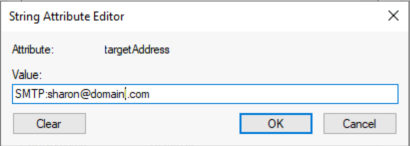


Updating this address in the correct format will result in the same change in Exchange Online without disabling and re-enabling the mail user object.


What if I already have the duplicate proxy failure?

If the duplicate proxy failure already exists the object must be mail disabled and the synchronization allowed to complete. Once the sync has completed the option outlined above to mail enable an existing user account may be performed.


The workarounds described here should allow administrators to create mail user objects where the external email address specified exists in Exchange Online.