Category Archives: Uncategorized

Office 365 – Distribution List Migrations Version 2.0 – Part 7

Enabling hybrid mail flow for migrated distribution lists.

There may be circumstances where mail flow continues through the Exchange on-premises environment. Customers may choose to continue to have their MX records route through Exchange, mailboxes may not have been migrated, or the Exchange solution may be retained as an SMTP relay for internal applications. All of these circumstances may require that mail flow continue to the distribution list even though the group has been migrated to Office 365. Customers may also have chosen to enable centralized mail flow which routes email to the on-premises environment for routing decisions.

Creating a solution that allows for cross-premises mail flow was quite a challenge. First you have to have a method to allow the same SMTP address to exist in the on-premises directory and in the Office 365 directory but on different objects. There has to be a mail object that exists in both directories so that DL membership and other dependencies can be tracked (See Office 365 – Distribution List Migrations Version 2.0 – Part 6). In addition, a method is needed to maintain the nickname cache and allow the recipient to appear in the groups within address book views. Messages that are transferred between on-premises Exchange and Office 365 should be secure and viewed as internal (and not anonymous).

In the distribution list migration module, administrators have the ability to enable hybrid mail flow. Using the -enableHybridMailFlow:$TRUE switch requires the use of an on-premises Exchange server. This is due to the remote PowerShell dependencies with creating objects.

The first step in enabling hybrid mail flow is to mail enable the contact object created through ADSI. This is facilitated by calling the update-recipient cmdlet. In addition to calling update recipient, the external address of the mail contact is set to the unique onmicrosoft.com address assigned to the new distribution list when created in Office 365. This serves as the routing link between on-premises and Office 365. The mail contact cannot share the same email addresses as the migrated group. If it did, when Azure AD Connect replicates the object to Office 365, a proxy address collision would occur. This necessitates using another object to hold the proxy addresses of the migrated distribution list.


[PS] C:\>Get-MailContact TestNewParameter-MigratedByScript | fl name,alias,externalEmailAddress,emailaddresses,customAttribute1,CustomAttribute2


Name         : TestNewParameter-MigratedByScript

Alias         : TestNewParameter-MigratedByScript

ExternalEmailAddress : SMTP:TESTNEWPARAMETER@domain.MAIL.ONMICROSOFT.COM

EmailAddresses : {x500:/o=ExchangeLabs/ou=Exchange Administrative Group (FYDIBOHF23SPDLT)/cn=Recipients/cn=6a14b390befd42e59d155cfdc9a45651-TestNewPara, smtp:TestNewParameter-MigratedByScript@domain.mail.onmicrosoft.com, SMTP:TestNewParameter-MigratedByScript@domain.com}

CustomAttribute1 : MigratedByScript

CustomAttribute2 : TestNewParameter@domain.com


The second step is to create a dynamic distribution group. Why would a dynamic distribution group be created in order to assist with mail flow? First, the dynamic distribution group can never be replicated by Azure AD Connect. This ensures that the object that will hold the SMTP addresses of the migrated distribution list will never collide with the object already created in Office 365 and will never soft match to the existing group. Second, it’s a distribution group by definition. This means that customers who use address book views heavily and look for group filters will still see distribution groups in the view they expect to see them, versus looking for a mail enabled contact that would not be in the same view. The dynamic distribution group is created with the same attributes as the distribution list that was migrated. Name, display name, alias, proxy addresses, and mail attributes all match. Additionally, the legacyExchangeDN of the original group is added as an X500 address of the dynamic distribution list preserving nickname cache. A dynamic distribution list must have a set of filtered criteria for recipients to include. In this case, the criteria are custom attribute 1 “MigratedByScript” and custom attribute 2 “Proxy Address of Migrated Group.” This ensures that the dynamic distribution list has one member: the mail contact that was created in place of the migrated distribution group.


[PS] C:\>Get-DynamicDistributionGroup TestNewParameter | fl name,alias,emailaddresses,*filter*


Name : TestNewParameter

Alias : TestNewParameter

EmailAddresses : {x500:/o=Home/ou=Exchange Administrative Group

(FYDIBOHF23SPDLT)/cn=Recipients/cn=b13dd7a5e1df487f8b250f4c4138986f-TestNew,

smtp:TestNewParameter0@domain.com, smtp:TestNewParameter1@domain.com,

smtp:TestNewParameter2@domain.com, smtp:TestNewParameter3@domain.com,

smtp:TestNewParameter4@domain.com, smtp:TestNewParameter5@domain.com,

smtp:TestNewParameter6@domain.com, smtp:TestNewParameter7@domain.com,

smtp:TestNewParameter8@domain.com, smtp:TestNewParameter9@domain.com,

smtp:TestNewParameter10@domain.com, smtp:TestNewParameter11@domain.com,

smtp:TestNewParameter12@domain.com, smtp:TestNewParameter13@domain.com,

smtp:TestNewParameter14@domain.com…}

RecipientFilter : ((((CustomAttribute1 -eq ‘MigratedByScript’) -and (CustomAttribute2 -eq

‘TestNewParameter@domain.com’) -and (Alias -ne $null))) -and (-not(Name -like

‘SystemMailbox{*’)) -and (-not(Name -like ‘CAS_{*’)) -and (-not(RecipientTypeDetailsValue -eq

‘MailboxPlan’)) -and (-not(RecipientTypeDetailsValue -eq ‘DiscoveryMailbox’)) -and

(-not(RecipientTypeDetailsValue -eq ‘PublicFolderMailbox’)) -and (-not(RecipientTypeDetailsValue

-eq ‘ArbitrationMailbox’)) -and (-not(RecipientTypeDetailsValue -eq ‘AuditLogMailbox’)) -and

(-not(RecipientTypeDetailsValue -eq ‘AuxAuditLogMailbox’)) -and (-not(RecipientTypeDetailsValue

-eq ‘SupervisoryReviewPolicyMailbox’)))

LdapRecipientFilter : (&(extensionAttribute1=MigratedByScript)(extensionAttribute2=TestNewParameter@domain.com)(ma

ilNickname=*)(!(name=SystemMailbox{*))(!(name=CAS_{*))(!(msExchRecipientTypeDetails=16777216))(!(

msExchRecipientTypeDetails=536870912))(!(msExchRecipientTypeDetails=68719476736))(!(msExchRecipie

ntTypeDetails=8388608))(!(msExchRecipientTypeDetails=4398046511104))(!(msExchRecipientTypeDetails

=70368744177664))(!(msExchRecipientTypeDetails=140737488355328)))

RecipientFilterType : Precanned


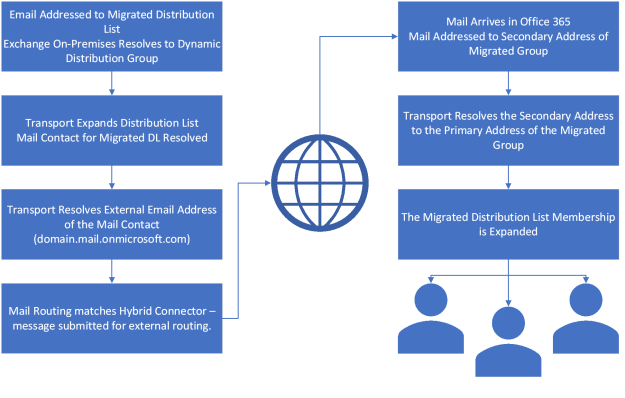
How does this setup facilitate mail flow? Assuming we have an application on-premises that relays through Exchange and sends email to MigratedDL@contoso.com. Originally this was an on-premises distribution list and the membership would have been directly expanded and the message delivered to the recipients based on this expansion. For a migrated distribution list, the message is routed to the dynamic distribution group. When the dynamic group is expanded, there is a single recipient found: the mail contact created. Transport then re-routes the email to the mail contact, which has an external email using the onmicrosoft.com address of the migrated DL. In a hybrid environment, secure connectors are created for the mail.onmicrosoft.com namespace to ensure authentication occurs on cross-premises mail flow. Transport re-routes the message to migratedDL@contoso.mail.onmicrosoft.com. This namespace matches the hybrid connector and is routed to Office 365. Upon arrival in Office 365, the message is evaluated and migratedDL@contoso.mail.onmicrosoft.com is found as a secondary proxy on the group MigratedDL@contoso.com. The address is changed to MigratedDL@contoso.com at which point the group is expanded. The message is then delivered to the expanded group.

Here are sample message tracking events to follow the mail flow.

  • Drop message for on-premises distribution list expansion.

RunspaceId : da80b36e-c62c-41d9-8244-991a146b7075

Timestamp : 4/1/2021 4:19:35 PM

ClientIp :

ClientHostname : server-Mail-0

ServerIp :

ServerHostname :

SourceContext :

ConnectorId :

Source : ROUTING

EventId : DROP

InternalMessageId : 87617332838410

MessageId : 5b55a8f65beb4062b9c7b4376972ba86@domain.com

NetworkMessageId : 8f58f417-29d7-43d4-1a4e-08d8f529f062

Recipients : {MemberTest@domain.com}

RecipientStatus : {[{LED=250 2.1.5 RESOLVER.GRP.Expanded; distribution list

expanded};{MSG=};{FQDN=};{IP=};{LRT=}]}

TotalBytes : 8759

RecipientCount : 1

RelatedRecipientAddress :

Reference :

MessageSubject : Test Routing 2

Sender : TIM@domain.com

ReturnPath : TIM@domain.com

Directionality : Originating

TenantId :

OriginalClientIp :

MessageInfo :

MessageLatency :

MessageLatencyType : None

EventData : {[DeliveryPriority, Normal], [AccountForest, home.domain.com]}

TransportTrafficType : Email

SchemaVersion : 15.02.0792.010

  • Expansion event resolving to the mail enabled migration contact.


RunspaceId : da80b36e-c62c-41d9-8244-991a146b7075

Timestamp : 4/1/2021 4:19:35 PM

ClientIp :

ClientHostname :

ServerIp :

ServerHostname : server-Mail-0

SourceContext : server-DC-0.home.domain.com

ConnectorId :

Source : ROUTING

EventId : EXPAND

InternalMessageId : 87617332838410

MessageId : 5b55a8f65beb4062b9c7b4376972ba86@domain.com

NetworkMessageId : 8f58f417-29d7-43d4-1a4e-08d8f529f062

Recipients : {MemberTest-MigratedByScript@domain.com}

RecipientStatus : {250 2.1.5 RESOLVER.GRP.Expanded; distribution list expanded}

TotalBytes : 7896

RecipientCount : 1

RelatedRecipientAddress : MemberTest@domain.com

Reference :

MessageSubject : Test Routing 2

Sender : TIM@domain.com

ReturnPath : TIM@domain.com

Directionality : Originating

TenantId :

OriginalClientIp :

MessageInfo :

MessageLatency :

MessageLatencyType : None

EventData : {[DeliveryPriority, Normal], [AccountForest, home.domain.com]}

TransportTrafficType : Email

SchemaVersion : 15.02.0792.010


  • Mail enabled contact resolved to target address (which is a secondary address of the migrated distribution list)


RunspaceId : da80b36e-c62c-41d9-8244-991a146b7075

Timestamp : 4/1/2021 4:19:35 PM

ClientIp :

ClientHostname :

ServerIp :

ServerHostname : server-Mail-0

SourceContext :

ConnectorId :

Source : ROUTING

EventId : RESOLVE

InternalMessageId : 87617332838410

MessageId : 5b55a8f65beb4062b9c7b4376972ba86@domain.com

NetworkMessageId : 8f58f417-29d7-43d4-1a4e-08d8f529f062

Recipients : {MEMBERTEST@domain.MAIL.ONMICROSOFT.COM}

RecipientStatus : {}

TotalBytes : 7896

RecipientCount : 1

RelatedRecipientAddress : MemberTest-MigratedByScript@domain.com

Reference :

MessageSubject : Test Routing 2

Sender : TIM@domain.com

ReturnPath : TIM@domain.com

Directionality : Originating

TenantId :

OriginalClientIp :

MessageInfo :

MessageLatency :

MessageLatencyType : None

EventData : {[DeliveryPriority, Normal], [AccountForest, home.domain.com]}

TransportTrafficType : Email

SchemaVersion : 15.02.0792.010


  • Message transferred via the hybrid connector using certificate-based security.


RunspaceId : da80b36e-c62c-41d9-8244-991a146b7075

Timestamp : 4/1/2021 4:19:37 PM

ClientIp : 10.0.0.20

ClientHostname : server-Mail-0

ServerIp :

ServerHostname : domain-mail-onmicrosoft-com.mail.protection.outlook.com

SourceContext : ;250 2.6.0 5b55a8f65beb4062b9c7b4376972ba86@domain.com [InternalId=21801253998737,

Hostname=DM5PR04MB0619.namprd04.prod.outlook.com] 10314 bytes in 0.141, 71.363 KB/sec Queued

mail for delivery;ClientSubmitTime:

ConnectorId : Outbound to Office 365

Source : SMTP

EventId : SENDEXTERNAL

InternalMessageId : 87617332838413

MessageId : 5b55a8f65beb4062b9c7b4376972ba86@domain.com

NetworkMessageId : 8f58f417-29d7-43d4-1a4e-08d8f529f062

Recipients : {MEMBERTEST@domain.MAIL.ONMICROSOFT.COM}

RecipientStatus : {250 2.1.5 Recipient OK}

TotalBytes : 6935

RecipientCount : 1

RelatedRecipientAddress :

Reference :

MessageSubject : Test Routing 2

Sender : TIM@domain.com

ReturnPath : TIM@domain.com

Directionality : Originating

TenantId :

OriginalClientIp :

MessageInfo : 2021-04-01T16:19:34.691Z;SRV=server-Mail-0.home.domain.com:TOTAL-SUB=0.163|SA=0.125|MTSS-

PEN=0.039(MTSSD-PEN=0.038(MTSSDA=0.002|MTSSDC=0.005|SDSSO-PEN=0.019 (SMSC=0.014|MTSSDM-PEN=0.

004)));SRV=server-Mail-0.home.domain.com:TOTAL-HUB=2.232|SMR=0.133(SMRDI=0.005|SMRC=0.127

(SMRCL=0.102|X-SMRCR=0.127))|CAT=0.196(CATOS=0.036(CATSM=0.036(CATSM-Malware

Agent=0.035))|CATRESL=0.020(X-CATRESLX=0.008)|CATORES=0.008(CATRS=0.007(CATRS-Index Routing

Agent=0.006))|CATORT=0.111(CATRT=0.111(CATRT-RMS Encryption Agent=0.002|CATRT-Journal

Agent=0.109))|CATCC=0.008|CATBIF=0.001)|QDE=0.153|SMSC=0.647(X-SMSDR=0.152)|SMS=1.100

MessageLatency : 00:00:02.3930000

MessageLatencyType : EndToEnd

EventData : {[E2ELatency, 2.393], [ExternalSendLatency, 0.492], [ToEntity, Internet], [FromEntity,

Hosted], [MsgRecipCount, 1], [IncludeInSla, True],

[Microsoft.Exchange.Transport.MailRecipient.RequiredTlsAuthLevel, DomainValidation],

[Microsoft.Exchange.Transport.MailRecipient.EffectiveTlsAuthLevel, DomainValidation],

[IsSmtpResponseFromExternalServer, True], [DeliveryPriority, Normal], [AccountForest,

home.domain.com]}

TransportTrafficType : Email

SchemaVersion : 15.02.0792.010

  • The message is received in Office 365 and the distribution group is expanded.


Message Trace ID : 2b83eb1b-af9d-4806-78aa-08d8f529f12b

Message ID : <5b55a8f65beb4062b9c7b4376972ba86@domain.com>

Date : 4/1/2021 4:19:37 PM

Event : Receive

Action :

Detail : Message received by: DM5PR04MB0619.namprd04.prod.outlook.com using TLS1.2 with AES256

Data : <root><MEP Name=”ConnectorId” String=”DM5PR04MB0619\Default DM5PR04MB0619″/><MEP Name=”ClientIP”

String=”2603:10b6:300:116::19″/><MEP Name=”ServerHostName”

String=”DM5PR04MB0619.namprd04.prod.outlook.com”/><MEP name=”FirstForestHop”

String=”DM5PR04MB0619.namprd04.prod.outlook.com”/><MEP Name=”DeliveryPriority”

String=”Normal”/><MEP Name=”ReturnPath” String=”TIM@domain.com”/><MEP Name=”CustomData” Blob=”S

:ProxyHop1=CO1NAM04FT009.mail.protection.outlook.com(10.152.90.137);S:ProxyHop2=MWHPR07CA0009.outloo

k.office365.com(2603:10b6:300:116::19);’S:InboundConnectorData=Name=Inbound from 19df6a88-b887-4e90-

8b47-31d6cfb90aca;ConnectorType=OnPremises;TenantId=f7d9d2a4-dded-4f6f-90a9-5011281137b9′;S:tlsversi

on=SP_PROT_TLS1_2_SERVER;S:tlscipher=CALG_AES_256;S:Oorg=domain.com”/><MEP

Name=”SequenceNumber” Long=”0″/><MEP Name=”RecipientReference” String=””/></root>


Message Trace ID : 2b83eb1b-af9d-4806-78aa-08d8f529f12b

Message ID : <5b55a8f65beb4062b9c7b4376972ba86@domain.com>

Date : 4/1/2021 4:19:37 PM

Event : Resolve

Action :

Detail : The message was resolved to membertest@domain.com.

Data : <root><MEP Name=”ServerHostName” String=”DM5PR04MB0619″/><MEP Name=”SourceContext” String=”Rewrite

to Primary”/><MEP Name=”ReturnPath” String=”TIM@domain.com”/><MEP Name=”SequenceNumber”

Long=”0″/><MEP Name=”RecipientReference” String=””/><MEP Name=”RelatedRecipient”

         String=”membertest@domain.com”/></root>


Message Trace ID : 2b83eb1b-af9d-4806-78aa-08d8f529f12b

Message ID : <5b55a8f65beb4062b9c7b4376972ba86@domain.com>

Date : 4/1/2021 4:19:37 PM

Event : Expand DL

Action :

Detail : The message was sent to a distribution list (DL) that was expanded to the recipients of the DL.

Data : <root><MEP Name=”RcptCount” Integer=”1″/><MEP Name=”ServerHostName” String=”DM5PR04MB0619″/><MEP

Name=”SourceContext” String=”BY5PR04A04DC006.NAMPR04A004.prod.outlook.com”/><MEP Name=”ReturnPath”

String=”TIM@domain.com”/><MEP Name=”ClientName” String=””/><MEP Name=”SequenceNumber”

Long=”0″/><MEP Name=”RecipientStatus” String=”250 2.1.5 RESOLVER.GRP.Expanded; distribution list

         expanded”/><MEP Name=”RecipientReference” String=””/></root>


Message Trace ID : 2b83eb1b-af9d-4806-78aa-08d8f529f12b

Message ID : <5b55a8f65beb4062b9c7b4376972ba86@domain.com>

Date : 4/1/2021 4:19:39 PM

Event : Drop

Action :

Detail : Reason: [{LED=250 2.1.5 RESOLVER.GRP.Expanded; distribution list

expanded};{MSG=};{FQDN=};{IP=};{LRT=}]

Data : <root><MEP Name=”SourceContext” String=””/><MEP Name=”ReturnPath”

String=”TIM@domain.com”/><MEP Name=”ClientName”

String=”DM5PR04MB0619.namprd04.prod.outlook.com”/><MEP Name=”SequenceNumber” Long=”0″/><MEP

Name=”RecipientStatus” String=”[{LED=250 2.1.5 RESOLVER.GRP.Expanded; distribution list


expanded};{MSG=};{FQDN=};{IP=};{LRT=}]”/><MEP Name=”RecipientReference” String=””/></root>


Here is an example of the original group retained, the hybrid mail contact created, and the dynamic distribution group.



Sample Flow:


Office 365 – Distribution List Migrations Version 2.0 – Part 6

How does the module track distribution lists that have been migrated?

Objects in Active Directory may have dependencies on the distribution list (DL) being migrated to Office 365. For example, the DL maybe a member of other groups, it may accept messages from other groups, or may be a manager of other groups. When the DL is migrated, the mail attributes of the group are removed, or the group is deleted. This requires a method to exist to create an object that could replace the mail enabled distribution list. The assumption is also made that other groups will continue to be migrated to Office 365.

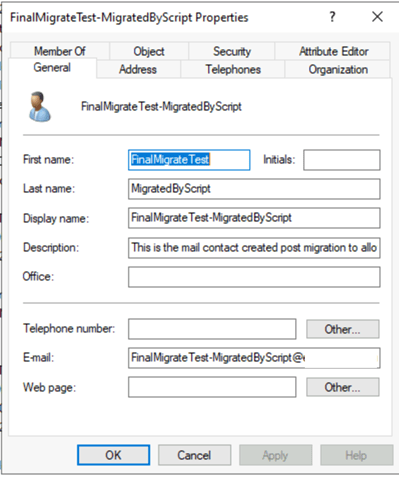
To facilitate tracking of a migrated distribution list a mail contact is created in place of the distribution list. The mail contact is an intentional choice because it allows us to specify an external address for mail routing purposes, because it will not soft match to a migrated distribution group, and because it is not a security principal that could allow for an authentication object within the directory. A mail contact will also replicate to Office 365 and not compete with any of the existing objects. This allows non-migrated distribution groups to still contain migrated lists and maintain accurate mail flow.

The mail contact is created with the name of the distribution list that was migrated plus the test MigratedByScript. There are two custom attributes that are specified. Custom attribute 1 is the text “MigratedByScript” and custom attribute 2 is the original SMTP address of the migrated distribution list. This is what allows the mail contact to act in place of the distribution list. The contact is also hidden from the address list.

Take the following example. The distribution list Parent has a member distribution list Child. Child is migrated to Office 365. The child group is replaced with the mail contact Child-MigratedByScript and added as a member of the Parent distribution group. The administrator runs a migration of the Parent list. When the mail contact Child is encountered, the script recognizes the custom attributes and determines that this was a group that was migrated. Instead of importing the email addresses associated with the mail contact, the script automatically substitutes the email address stored within Custom Attribute 2. When Parent is created in Office 365, the email address for Child is added as a member. The final outcome is that Parent is created with Child as a member.

In the case of a distribution list migration that does not use Exchange on-premises, the contact object created is not a fully mail enabled object. The custom attribute logic does not change. The contact in this case is created through ADSI.

If Exchange is used and hybrid mail flow is enabled, the mail contact is instrumental in enabling this. Hybrid mail flow will be covered in a future post.


Sample Mail Contact


Office 365 – Distribution List Migrations Version 2.0 – Part 5

Gathering advanced dependencies for a group to be migrated…

Distribution lists can have numerous uses throughout an environment, both on-premises and in Office 365. To migrate a distribution list with full fidelity it is necessary to account for some dependencies. Locating these dependencies often goes beyond looking at the attributes of the group itself and requires evaluation of mailboxes and recipients. The ability to do this in a timely fashion can often be challenging, especially when performed in the scope of a single distribution list migration.

The advanced properties that the module attempts to capture are SendAs, Full Mailbox Access, and individual folder permissions. The distribution list migration module v2 offers administrators the ability to scan for some of these dependencies during migration (for small environments) or pre-screen the recipients to capture this information beforehand. Capturing the information beforehand allows for more efficient scanning of point in time files to locate these dependencies.

In the migration planning process, administrators may choose to pre-gather these dependencies. To accomplish this the module contains several functions to trigger data gathering. When used with defaults the gather commands operate on the set of recipients required. Administrators may find that they are only interested in scanning a group of mailboxes. For example, you may only be interested in pre-gathering a set of VIP users or if migrating groups by department only gather data for mailboxes in that department. If that is the case each of the staging functions support the BringYourOwnMailboxes switch <or> BringYourOwnRecipients switch to narrow the evaluation down to a group of mailboxes.

Here are the cmdlets that can be used to pre-gather dependencies.

Start-CollectOnPremSendAs

This cmdlet requires an on-premises Exchange Server in order to gather all recipients of all classes. SendAs rights may apply to any recipient object. Once gathered the recipients are evaluated for AD permissions – extended rights send as. If any extended rights send as are located the user is added to an XML file that will be used for offline scanning. This cmdlet does not filter its queries to a specific group rather it finds all send as rights. The data returned in this file is used to make decisions on overriding the decision to keep the distribution list. If the administrator has decided to retain the distribution group as part of migration you may consider skipping this as the permissions are automatically retained.

Here is a sample of the function performance for 10,100 recipients.


Days : 0

Hours : 10

Minutes : 9

Seconds : 41

Milliseconds : 798

Ticks : 365817987291

TotalDays : 0.423400448253472

TotalHours : 10.1616107580833

TotalMinutes : 609.696645485

TotalSeconds : 36581.7987291

TotalMilliseconds : 36581798.729


The scan took approximately 10 hours to complete. Times could be longer depending on the Active Directory complexity and the location of domain controllers for all domains relative to the workstation where the collection function is run.


Start-CollectOnPremFullMailboxAccess

This cmdlet requires an on-premises Exchange Server in order to gather all mailboxes. Once gathered the mailboxes are evaluated for any permissions of full mailbox access. If any full mailbox access rights are discovered the mailbox Is added to an XML file that will be used for offline scanning. This cmdlet does not filter its queries to a specific group rather it finds all full mailbox rights. The data returned in this file is used to make decisions on overriding the decision to keep the distribution list. If the administrator has decided to retain the distribution group as part of migration you may consider skipping this as the permissions are automatically retained.

Here is a sample of the function performance for 10,080 mailboxes.


Days : 0

Hours : 0

Minutes : 43

Seconds : 56

Milliseconds : 495

Ticks : 26364957391

TotalDays : 0.0305149969803241

TotalHours : 0.732359927527778

TotalMinutes : 43.9415956516667

TotalSeconds : 2636.4957391

TotalMilliseconds : 2636495.7391


The scan took approximately 43 minutes to complete.


Start-CollectOnPremMailboxFolders

This function requires an on-premises Exchange Server to collect all mailbox objects and the folders contained within them. The folders are scoped to default folders and any folder that is user created. When the mailboxes are collected, and the mailbox folders are collected the names of the folders are normalized to use their folder IDs. This is required as folders may contain special characters that prevent accurate analysis via name. With the folders normalized permissions are gathered off the folders. If the permission is not default or anonymous the permission and folder ID are recorded into the XML file for later interpretation. The data returned in this file is used to make decisions on overriding the decision to keep the distribution list. If the administrator has decided to retain the distribution group as part of migration you may consider skipping this as the permissions are automatically retained.

Here is a sample of the function performance for 10,080 mailboxes.


Days : 0

Hours : 10

Minutes : 9

Seconds : 58

Milliseconds : 697

Ticks : 365986971295

TotalDays : 0.423596031591435

TotalHours : 10.1663047581944

TotalMinutes : 609.978285491667

TotalSeconds : 36598.6971295

TotalMilliseconds : 36598697.1295


To complete the folder scan and permissions evaluation took approximately 10 hours. It is important to note that this test was performed in a lab where the majority of mailboxes contained only the default folder set. In addition, all mailboxes were located in the same location where the collection script was executed and all in the same mailbox database. This cmdlet requires that the mailbox be directly accessed which means performance can be highly dependent on the location of where the script is executed verses the mailbox database that contain the mailbox. In addition, performance can also be greatly impacted by the number of folders contained within the mailbox. An archive mailbox is not evaluated.


Start-CollectOffice365FullMailboxAccess

This function iterates through all mailboxes in Office 365 to determine if the full mailbox access right has been set on the mailbox. If a full mailbox access right is found an XML file is updated with the information regarding the access right. The XML file is used as a part of the transition and if the distribution list being migrated was found as having the right the right is reset to the new distribution group created. Use of this function is necessary if full mailbox access rights retention is desired as any full mailbox access rights would be lost when the distribution list is deleted and recreated.


To record full mailbox access permissions on 13,050 mailboxes in Office 365.


Days : 0

Hours : 1

Minutes : 21

Seconds : 14

Milliseconds : 975

Ticks : 48749754067

TotalDays : 0.0564233264664352

TotalHours : 1.35415983519444

TotalMinutes : 81.2495901116667

TotalSeconds : 4874.9754067

TotalMilliseconds : 4874975.4067


The total time was approximate 1 ½ hours.


Start-CollectOffice365MailboxFolders

This function collects all mailbox objects and the folders contained within them. The folders are scoped to default folders and any folder that is user created. When the mailboxes are collected, and the mailbox folders are collected the names of the folders are normalized to use their folder IDs. This is required as folders may contain special characters that prevent accurate analysis via name. With the folders normalized permissions are gathered off the folders. If the permission is not default or anonymous the permission and folder ID are recorded into the XML file for later interpretation. The data returned in this file is used to make decisions on overriding the decision to keep the distribution list. If the administrator has decided to retain the distribution group as part of migration you may consider skipping this as the permissions are automatically retained. An archive mailbox is not evaluated.

To record mailbox folder permissions on 13,050 mailboxes.


Days : 4

Hours : 23

Minutes : 33

Seconds : 48

Milliseconds : 996

Ticks : 4304289967003

TotalDays : 4.98181709143866

TotalHours : 119.563610194528

TotalMinutes : 7173.81661167167

TotalSeconds : 430428.9967003

TotalMilliseconds : 430428996.7003


In total it took approximately 5 days to gather the folders and associated permissions. Using the REST-based commands the estimate is approximately 32 seconds per mailbox (default folder set). The performance of the data capture is largely dependent on the number of mailboxes and the number of folders contained within the mailbox.

Why is there no pre-gather function for Office 365 Send As Rights? The Exchange Online PowerShell commands support filtering on the send as rights. When specifying to retain Office 365 Send As permissions this filter is used as a part of the migration.

As demonstrated by the performance analysis each of these cmdlets could take a long time to complete. Due to the fact that Exchange PowerShell cmdlets are used there could be any number of potential failures that maybe encountered in the data gathering process. Each cmdlet supports a retry switch. The recipients processed are tracked and should the cmdlet fail the retry function determines the last recipient processed and resumes processing from that point forward until completion or the next failure. It is important to note that each function uses the same retry files – please do not mix retries across function as you may miss a set of users.

IMPORTANT: The data gathered is a point in time snapshot. During the migration this point in time snapshot is evaluated. Any permissions that may have changed after the point in time snapshot would be lost.

EXAMPLES:


  • Start-CollectOffice365FullMailboxAccess -logFolderPath c:\temp -exchangeOnlineCredential $cred
    • Collects all full mailbox access permissions from Exchange Online
    • Creates the audit data folder in the path c:\temp
  • Start-CollectOffice365MailboxFolders -logFolderPath c:\temp -retryCollection:$TRUE
    • Collects all mailbox folder permissions from Exchange Online
    • Retry is specified – previously exported permissions are imported, and log files are used to determine where collection should restart from.
  • Sample: Bring your own mailboxes / filter based on attributes.
    • $mailboxes = get-ExoMailbox -resultsize unlimited | where {$_.customAttribute1 -like “*HumanResources*”}
    • $mailboxes | export-csv c:\mailboxesIWant.csv
    • Start-CollectOffice365MailboxFolders -logFolderPath c:\temp -exchangeOnlineCredential $cred -bringYourOwnMailboxes (import-csv -path c:\mailboxesIWant.csv)
    • Command imports the mailbox objects from the CSV file and then uses those as the selection criteria to pull folders from Exchange Online.


Office 365 – Distribution List Migrations Version 2.0 – Part 4

Retaining the original distribution group post migration…

In the Distribution List Migration Module v2, administrators now have the option to retain the original group in the on-premises Active Directory. In v1 of the distribution list migration script, the distribution list post migration was deleted from the Active Directory. This was a self-protection mechanism. The script originally allowed the option to retain the group. This caused several issues:

  • The group was typically stored in an organizational unit that did not synchronize to Azure Active Directory. The groups retained their mail enabled settings. Azure AD Connect soft matches groups in Azure AD through the mail and proxy addresses field. Customers quickly discovered that if you accidentally enabled this organizational unit for synchronization, soft matching would occur, and the distribution list migration would be undone. This would, in worse case, reset the group to a state that could be old and unwanted.
  • The group retained was mail enabled. If an on-premises Exchange solution is used for mail relay, the messages would be expanded to the group on-premises and not to the updated membership and properties of the migrated distribution group.

Deleting the distribution group also had unintended consequences. Many customers have combined security enabled groups with distribution groups. The security groups could have any number of dependencies in the environment, from permissions to on-premises applications, folder shares, or other general security items. A security group is also replicated to Azure Active Directory as a security enabled group. These groups in Office 365 could also be used for the security of applications or the assignment of licenses. In essence there is a catch-22 to keeping the group or removing it.

In this version of the distribution list migration module, I sought to keep a balance between the two options. During the migration, the distribution group is moved to an organizational unit that is not synchronized. This allows Azure AD Connect to trigger the group deletion in Office 365. Upon successful completion of the re-creation of the group – the administrator may choose to delete the original group or retain it.

If the administrator decides to retain the group – the following workflow is followed.

  • The group is moved back to the original organizational unit where it previously resided.
  • All mail enabled attributes of the group are purged through Active Directory PowerShell.
  • The group display name and Windows SAM account name are appended with a !. This randomizes the name from the migrated distribution group without actually changing its ability to be found in the directory.
  • The SID of the group does not change – therefore any permissions applied in either on-premises or Office 365 are retained.
  • The object GUID of the group does not change – therefore the source anchor link to the group in Azure AD is preserved. A duplicate group is not created.

If the administrator chooses to audit for more complex DL dependencies such as SendAS, Full Mailbox Access, or folder permissions and the group is found to have these dependencies, the distribution group retention option is automatically configured. A security group may continue to function for these permissions even if mail disabled – but may not be able to be modified with the Exchange cmdlets.

If the administrator chooses to delete the group, the group is deleted upon confirmation of successful creation in Office 365. If the Active Directory Recycle Bin is enabled, the group may be eligible for recovery for the Recycle Bin duration.

The choice is now yours!

Office 365 – Distribution List Migrations Version 2.0 – Part 3

Using the distribution list migration module v2 for simple migrations

With the Distribution List Migration Module V2 installed and all of the pre-requisites ready you are now ready to try a distribution list migration.

In order to accomplish a migration, you must identify the following resources and have the necessary permissions to perform the migration.

    • (Mandatory) Global catalog server in the domain where the distribution list resides.
      • If all resources for this distribution list are in the same domain as the group, domain administrator rights for the credential specified are required.
      • If the distribution list to be migrated has dependencies in other domains within the forest (for example, the group is a member of groups in other domains), then enterprise administrator rights are required.
      • Remote PowerShell available and configured on the global catalog server referenced. A remote PowerShell session is required for Active Directory PowerShell commands that do not support specifying a server endpoint.
    • (Optional) Identify the Azure Active Directory Connect server that is responsible for synchronizing objects to Office 365.
      • ADSyncAdmin credentials are required in order to perform delta synchronization.
      • The specified account must also have rights to open a remote PowerShell session to the Azure AD Connect server.
      • Typically, the same account used for the global catalog server is used for the Azure AD Connect server.
    • (Optional) Exchange on-premises server in the organization containing the distribution list.
      • Exchange Organization Management rights are required.
      • If Active Directory split permissions are enabled, the account must also have rights to any organizational units where mailbox objects reside that will be included in pre-requisite scans or where hybrid mail flow objects will be created.
      • If the Exchange Server URL specified is part of a load balancer it may be required to enable basic authentication on the PowerShell virtual directory.
      • If the Exchange Server URL specified is a backend server using the installed self-signed certificate Kerberos authentication may be used.
    • (Mandatory) Access to Exchange Online through the Exchange Online Management Module v2.
      • Authentication may be performed either in the context of a user account or through certificate-based authentication.
      • The specified administrator account must have the Exchange Online Management role. (This may be different from using a Global Administrator within Azure, although this is the most common configuration).
      • If certificate authentication will be used, ensure that all pre-requisites are met at the following link: App-only authentication | Microsoft Docs
  • (Mandatory) Access to Azure Active Directory through the Azure Active Directory PowerShell Module.
    • Authentication may be performed either in the context of a user account or through certificate-based authentication.
    • The specified administrator account must have the Global Administrator right.
  • Unrestricted access to domain controllers and global catalog servers in other domains.
    • If the group to be migrated has dependencies in other domains within the Active Directory forest, the workstation or server where the migration is performed may need access to these resources to complete the migration.
    • Administrators do not have control over where changes happen in this domain. The script leverages the ability of the Active Directory PowerShell command to locate the “best” domain controller or global catalog server for the operation.

When the servers are identified, and the required credentials available you can proceed with a distribution list migration. To begin the migration, processing the SMTP address of the group is required. The administrator has the flexibility to decide how to store credentials; for example, in a secure XML file or by specifying them as a part of another command.

Here is an example prompting the administrator for credentials:

$gcCred = get-credential

$adConnectCred = get-credential

$cloudCred = get-credential

$exchangeCred = get-credential

Here is an example of credential reuse:

$gcCred = get-credential

$adConnectCred = $gcCred

$cloudCred = get-credential

$exchangeCred = $gcCred

Here is an example of credentials stored in XML files:

Prepare the credentials:

$cred=get-credential

$cred | export-CLIXML -path c:\credentials\onPrem.xml

$cred=get-credential

$cred | export-CLIXML -path c:\credentials\cloud.xml

Use the credentials:

$gcCred = import-cliXml -path c:\credentials\onPrem.xml

$adConnectCred = $gcCred

$exchangeCred = $gcCred

$cloudCred = import-cliXML -path c:\credentials\cloud.xml

There is a great deal of flexibility in how credentials are specified. If you are not using the script to trigger Azure AD Connect, enable hybrid mail flow, or to use other Exchange-only features (including full mailbox access and send as only) the global catalog credential, Azure Active Directory, and Exchange Online credential are necessary.

The script has several parameters – we will explore what each of them does as part of the migration process.

  • (Required)GroupSMTPAddress
    • This is the primary SMTP address of the group to be migrated.
    • It must match the mail field in Active Directory.
  • (Required)GlobalCatalogServer
    • This is the global catalog server specified in the same domain as the distribution list to be migrated specified as a fully qualified domain name.
  • (Required)ActiveDirectoryCredential
    • This is the credential for connections to the global catalog server <or> other Active Directory resources in the forest.
  • (Optional)ActiveDirectoryAuthenticationMethod
    • This specifies if Kerberos or another authentication method should be utilized when connecting to Active Directory.
    • Default = Kerberos
  • (Optional)AADConnectServer
    • This is the fully qualified domain name of the Azure AD Connect server.
    • If this is specified along with a credential, delta synchronization will be triggered to decrease the time to remove the distribution group from Office 365.
    • If the server is not specified the script will wait for the default sync cycle interval to trigger and for group removal to occur.
  • (Optional)AADConnectCredential
    • Credential used to connect to the Azure AD Connect server to perform delta synchronization.
    • This is required if AADConnectServer is specified.
  • (Optional)AADConnectAuthenticationMethod
    • This specifies if Kerberos or another authentication method should be utilized when connecting to Azure Active Directory Connect.
    • Default = Kerberos
  • (Optional)ExchangeServer
    • This is the fully qualified domain name to the on-premises Exchange Server remote PowerShell directory.
    • This is required if hybrid mail flow objects for the migrated distribution lists are enabled.
  • (Optional)ExchangeCredential
    • This is the credential specified for the Exchange remote PowerShell connection.
    • This is required if an Exchange server is specified.
  • (Optional)ExchangeAuthenticationMethod
    • This is the authentication method to the on-premises Exchange server.
    • Values are Kerberos or Basic, with Basic being the default.
    • This may require enabling Basic Authentication on the Exchange server’s PowerShell virtual directory.
    • Default = Kerberos
  • (Optional)ExchangeOnlineCredential
    • This is the credential that will be used for Exchange Online connectivity.
    • This credential is mandatory if certificate-based authentication is not being used.
  • (Optional)ExchangeOnlineCertificateThumbprint
    • This is the thumbprint of the locally installed certificate that will be used with certificate-based authentication.
    • This is mandatory if an Exchange Online credential is not specified.
  • (Optional)ExchangeOnlineEnvironmentName
    • This is the environment for the Exchange Online remote PowerShell connection.
    • This automatically defaults to the Office 365 commercial environment.
    • This may change for other environments like GCC.
    • This is required if you specify an ExchangeOnlineCertificateThumbprint.
  • (Optional)ExchangeOnlineAppID
    • This is the application ID associated with the application created in Azure for certificate-based authentication.
    • This is required if you specify an ExchangeOnlineCertificateThumbprint.
  • (Optional)AzureADCredential
    • This is the credential that will be used for Azure Active Directory connectivity.
    • This credential is mandatory if certificate-based authentication is not being used.
  • (Optional)AzureEnvironmentName
    • This is the environment for the Azure Active Directory PowerShell connection.
    • This automatically defaults to the Office 365 commercial environment.
    • This may not change for other environments like GCC.
    • This is required if you specify AzureCertificateThumbprint.
  • (Optional)AzureTenantID
    • This is the tenant GUID associated with the Azure Active Directory instance.
    • This is required if you specify AzureCertificateThumbprint.
  • (Optional)AzureAplicationID
    • This is the application ID associated with the application created in Azure for certificate-based authentication.
    • This is required if you specify AzureCertificateThumbprint.
  • (Optional)AzureCertificateThumbprint
    • This is the thumbprint of the locally installed certificate that will be used with certificate-based authentication.
    • This is mandatory if an Azure Active Directory credential is not specified.
  • (Required)LogFolderPath
    • This is the root path where the script will look for audit data (pre-collected dependencies) and store all log / export files associated with the migration.
    • Upon completion this folder is a date/time rename and appended with either success or failure.
  • (Mandatory)DoNotSyncOU
    • This is the organizational unit in Active Directory in the same domain as the distribution list to be migrated that is set to not synchronize through Azure AD Connect.
    • This is mandatory and used to trigger distribution list removal in Office 365.

Above are the basic parameters that can be used as part of a simple distribution list migration. The parameters below offer administrators more advanced options, including tracking additional dependencies in both the on-premises and Office 365 environments.

  • (Optional)RetainOriginalGroup
    • This allows the administrator to retain the group after migration.
    • The default is TRUE.
    • In a future post, the workflow will be outlined as to how the group is retained.
    • If the group is a security group type on premises and retainOriginalGroup is set to false the option is ignored and the group is retained.
  • (Optional)GroupTypeOverride
    • This option allows the administrator to create the migrated distribution group in Office 365 as a type that differs from on-premises.
    • For example, a security enabled group can be changed to a distribution only group in Office 365 by specifying the override value “Distribution.”
    • Values are “Distribution” or “Security.
    • Default is “None.”
  • (Optional)TriggerUpgradeToOffice365Group
    • This option allows administrators to request that the migrated distribution group be automatically converted to a Microsoft 365 Group.
    • This option only triggers the upgrade request; it does not guarantee that the upgrade will occur or be successful as this is an asynchronous process that occurs in the background.
  • (Optional)UseCollectedFullMailboxAccessOnPrem
    • This switch indicates that the administrator has run the pre-collection command to gather all full mailbox access permissions prior to migration.
    • This uses point in time data to increase the efficiency of maintaining additional rights.
    • See documentation on start-collectOnPremFullMailboxAccess.
  • (Optional)useCollectedFullMailboxAccessOffice365
    • This switch indicates that the administrator has run the pre-collection command to gather all full mailbox access permissions prior to migration.
    • This uses point in time data to increase the efficiency of maintaining additional rights.
    • See documentation on start-collectOffice365FullMailboxAccess.
  • (Optional)UseCollectedSendAsOnPrem
    • This switch indicates that the administrator has run the pre-collection command to gather all send as permissions to recipients.
    • This uses point in time data to increase the efficiency of maintaining additional rights.
    • See documentation on start-collectOnPremSendAs.
  • (Optional)UseCollectedFolderPermissionOnPrem
    • This switch indicates that the administrator has run the pre-collection command to gather all mailbox rights on folders.
    • This uses point in time data to increase the efficiency of maintaining additional rights.
    • See documentation on start-collectOnPremMailboxFolders.
  • (Optional)useCollectedFolderPermissionsOffice365
    • This switch indicates that the administrator has run the pre-collection command to gather all mailbox rights on folders.
    • This uses point in time data to increase the efficiency of maintaining additional rights.
    • See documentation on start-collectOffice365MailboxFolders.

With the parameters defined here are some sample migration commands:

  • Simple distribution list migration with delta sync trigger.
    • Start-distributionListMigration -globalCatalogServer server.domain.com -activeDirectoryCredential $cred -groupSMTPAddress group@contoso.com -AADConnectServer aadconnect.domain.consoto.local -aadConnectCredential $cred -azureADCredential $cred -logFolderPath c:\temp -doNotSyncOU “ou=nosync,dc=domain,dc=contoso,dc=local” -exchangeOnlineCredential $cloudCred
  • Simple distribution group migration with no other dependencies.
    • Start-distributionListMigration -globalCatalogServer server.domain.com -activeDirectoryCredential $cred -groupSMTPAddress group@contoso.com -AADConnectServer aadconnect.domain.consoto.local -aadConnectCredential $cred -logFolderPath c:\temp -doNotSyncOU “ou=nosync,dc=domain,dc=contoso,dc=local” -exchangeOnlineCredential $cloudCred -azureADCredential $cloudCred
  • Simple distribution group migration where hybrid mail flow should be maintained.
    • Start-distributionListMigration -globalCatalogServer server.domain.com -activeDirectoryCredential $cred -groupSMTPAddress group@contoso.com -AADConnectServer aadconnect.domain.consoto.local -aadConnectCredential $cred -azureADCredential $cloudCred -logFolderPath c:\temp -doNotSyncOU “ou=nosync,dc=domain,dc=contoso,dc=local” -exchangeOnlineCredential $cloudCred -exchangeServer webmail.contoso.com -exchangeCredential $cred -enableHybridMailFlow:$TRUE
  • Simple distribution group migration where the group will be deleted post migration – delta sync triggered.
    • Start-distributionListMigration -globalCatalogServer server.domain.com -activeDirectoryCredential $cred -groupSMTPAddress group@contoso.com -AADConnectServer aadconnect.domain.consoto.local -aadConnectCredential $cred -logFolderPath c:\temp -dnNotSyncOU “ou=nosync,dc=domain,dc=contoso,dc=local” -exchangeOnlineCredential $cloudCred -azureADCredential $cloudCred -retainOriginalGroup:$FALSE
  • Migrate everything using all data gathered from pre-recorded commands.
    • Start-distributionListMigration -globalCatalogServer server.domain.com -activeDirectoryCredential $cred -groupSMTPAddress group@contoso.com -AADConnectServer aadconnect.domain.consoto.local -aadConnectCredential $cred -logFolderPath c:\temp -dnNotSyncOU “ou=nosync,dc=domain,dc=contoso,dc=local” -exchangeOnlineCredential $cloudCred -azureADCredential $cloudCred -retainOriginalGroup:$FALSE -useCollectedSendAsOnPrem:$TRUE -useCollectedFullMailboxAccessOnPrem:$TRUE -useCollectedFolderPermissionsOnPrem:$TRUE -useCollectedFullMailboxAccessOffice365:$TRUE -useCollectedFolderPermissionsOffice365:$TRUE -retainSendAsOffice365:$TRUE
  • Simple distribution group migration with delta sync and upgrade to Office 365 group.
    • Start-distributionListMigration -globalCatalogServer server.domain.com -activeDirectoryCredential $cred -groupSMTPAddress group@contoso.com -AADConnectServer aadconnect.domain.consoto.local -aadConnectCredential $cred -logFolderPath c:\temp -dnNotSyncOU “ou=nosync,dc=domain,dc=contoso,dc=local” -exchangeOnlineCredential $cloudCred -azureADCredential $cloudCred -triggerUpgradeToOffice365Group:$true
  • Simple distribution list migration with delta sync trigger and exchange certificate authentication.
    • Start-distributionListMigration -globalCatalogServer server.domain.com -activeDirectoryCredential $cred -groupSMTPAddress group@contoso.com -AADConnectServer aadconnect.domain.consoto.local -aadConnectCredential $cred -logFolderPath c:\temp -dnNotSyncOU “ou=nosync,dc=domain,dc=contoso,dc=local” -exchangeOnlineCertificateThumbPrint 7972D7272C95F8D7C7CE26DF2ECE286EE853BDD7 -exchangeOnlineOrganizationName domain.onmicrosoft.com -exchangeOnlineAppID 42726348-e106-4b55-8304-228159d80ddd -azureADCredential $cloudCred

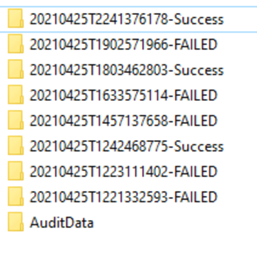
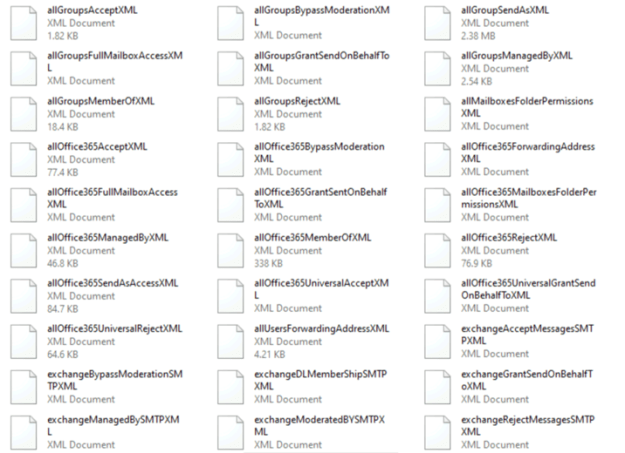
The actions of the script are logged into a log file with the name of the distribution group. Upon success, the folder is renamed with a date/time stamp and appended with success. If a failure is encountered, the folder is renamed with a date/time stamp and appended with failure. Included with the log directory are XML dumps of all dependencies in case the distribution list requires manual recreation. In addition, this could be used to debug failed migration attempts.

  • Sample of log files and folders in the log folder path.


  • Sample of data contained in the success / failure folder.


Happy migrating!


Office 365 – Distribution List Migrations Version 2.0 – Part 1

Introduction to the Distribution List Migration Module version 2.0

In September 2018, I began the process of outlining and implementing a method for administrators to migrate distribution lists to Office 365. The goal was to provide a scripted method that not only dealt with the group and the group’s members – but all the dependencies that may exist on the group. This culminated in the release of the Distribution List Migration script v1.0.

Version 1.0 achieved many of the results that I had sought. Lists were migratable, the source of authority moved to the cloud, and the majority of the dependencies that may have existed on the group were retained in both the on-premises and Office 365 organizations. The script was dependent on an Exchange server existing in the environment – and leveraged many of the list management cmdlets that were available.

Today, I am publishing a PowerShell module for Distribution List migrations. This is the v2 iteration of the ideas first developed in v1. I have taken a great deal of time to address many of the customer concerns and feature requests. Here are some of the highlights:

  • Remove the requirement to have Exchange on-premises in order to perform the migrations.

In v1, it was a requirement to have a basic authenticated remote PowerShell session to an on-premises Exchange server in order to do migrations. This presented a unique challenge for some customers who had completed their migrations and uninstalled their last Exchange server. In v2, I moved all core functions to use LDAP and Active Directory PowerShell cmdlets. This eliminates the requirement to have Exchange on-premises and also increased the speed and performance of the overall migration. To accomplish this task, the script must be run from a machine that has the Active Directory Remote Server Administration Tools installed. This can be a Windows 10 client or a Windows Server 2012 R2 or later server. The script tests for the presence of the appropriate commands and will error if the module’s commands are not found.

  • Uses Exchange Online Management v2 PowerShell to perform Exchange Online operations.

In v1, the script used a basic authentication remote PowerShell session to Exchange Online. Using the legacy connection method relied on basic authentication – which is being replaced by modern authentication. Exchange Online Management v2 allows administrators to use either credentials or a certificate for authentication and it leverages modern authentication. The legacy connection was also prone to underlying disconnects of the HTTPS session, which would often result in the script failing during long duration operations. To compensate, v1 of the script routinely disconnected and reconnected the session after so many operations – resulting in a time delay in the overall migration process. Exchange Online Management v2 will automatically re-establish the session (if the underlying session is closed) when a command is called. The script is now available to GCC customers using modern authentication. Lastly, we can leverage the new Graph-based cmdlets to test for recipients, which provides further performance enhancements.

  • More flexibility with how credentials are provided to the script.

In v1, credentials were recycled across applications (Active Directory / Azure AD Connect / Exchange Online) and were stored in local files. This often highlighted the support boundaries within customer organizations. For example, one group might manage Active Directory but not have rights to the Azure AD Connect server to perform a sync. The script now ingests a set of credentials for each external connection that is made. As of publishing, there are four sets of credentials – Active Directory, Azure AD Connect, Exchange on-premises, and Exchange Online. The administrator can choose to recycle credentials,but it is no longer necessary to do so. The admin also has the flexibility to provide credentials in a manner that suits them, making it no longer required to read them from an XML file.

  • Module has support for multiple Office 365 environments.

The PowerShell module has been extended with options for use in multiple Office 365 environments including commercial, 21vianet, and GCC.

  • Forcing Azure AD Connect sync is no longer required.

In v1, a remote PowerShell session to the Azure AD Connect server was required in order to trigger a delta sync. In customer escalations, there were times where the desire to migrate a distribution list existed but the inability to establish remote PowerShell sessions or possess the necessary permissions to interact with Azure AD Connect were available. It is still HIGHLY RECOMMENDED that you provide an Azure AD Connect server and credentials. If this information is not provided – the script will loop until the standard synchronization cycle runs and the group is naturally removed from Office 365. This can add at maximum 30 minutes to the migration cycle of the distribution group.

  • Modified recipient verification from primary SMTP address to external directory object ID for user object types.

When a user object is synchronized via Azure AD Connect (modern / supported versions) the Azure Active Directory object ID is written back to the user. This flows into Exchange Online as the externalDirectoryObjectID of the recipient. In v1, safety checks to see if a recipient existed were done based on primary SMTP address. This could be somewhat ambiguous and did not necessarily ensure that the intended recipient existed in Office 365. The safety check of a user is now performed against the external directory object ID. This allows us to ensure that the user found in the on-premises directory matches the user found in Office 365.

  • Administrators now have the option to retain the original group.

In v1, the original group was always deleted post migration. This was done on purpose as a safety precaution against un-doing the distribution list migration. In Azure AD Connect, soft matching of groups occurs anytime the email address of the group on-premises matches the email address of the group in Azure Active Directory. In some cases, admins accidentally moved groups back into the sync scope thereby soft matching the original group to the migrated group. (This could be bad, as it rolls back the migration to the previous group state). In some environments, distribution lists were made as security groups – and several on-premises dependencies were introduced because these groups had permissions on any number of objects. This made deleting the group very challenging, and if the group was retained, the same soft match issue still existed. In v2, we allow the admin to retain the group on-premises. In a future post, I’ll highlight the logic that is used to accomplish this workflow.

  • Administrators can now choose the authentication method to Exchange on-premises remote PowerShell.

In v1, Basic Authentication via Exchange Remote PowerShell was required in order for the script to function. In v2, the admin has the option to specify Kerberos as the type of authentication desired. For Kerberos to function, only a single server should be specified in the Exchange server name. If you are using load-balanced Exchange servers, Basic Authentication should still be configured on the remote PowerShell directories and Basic Authentication should be used.

  • Provide administration interfaces to record dependencies on the distribution group including SendAs rights, full mailbox access, and individual folder permissions.

In v1, logic was provided to track distribution list dependencies, including SendAs and full mailbox access. Individual folder permissions were not retained if they were tied to a group. When used in large environments the total migration time of a distribution group was greatly increased due to the lack of filterable properties to track these items. In v2, we provide administrative interfaces to pre-collect this information into point in time copies. This allows admins to plan their migrations and collect this data. Performance is greatly improved by evaluating this data offline and further supports our no-loss migration strategy. In future posts, I’ll outline the usage of the commands.

You can find more information on the module in upcoming blog posts and at the links below.

PowerShell Gallery | DLConversionV2 2.1.3

GitHub – timmcmic/DLConversionV2


Azure Active Directory Connect, inetOrgPersons, and ms-ds-ConsistencyGuid

When installing or upgrading Azure Active Directory Connect administrators are encouraged to upgrade the source anchor attribute from objectGUID to ms-DS-ConsistencyGuid.  For new installations this occurs when the administrator selects allow azure ad connect to manage the source anchor.   If an installation is upgraded or existing the administrator has the option to run the Azure AD Connect setup wizard and change the source anchor to ms-DS-ConsistencyGuid.

For information on source anchor please see the following –> Azure AD Connect: Design concepts | Microsoft Docs

The use of ms-DS-ConsistencyGuid offers administrators the flexibility to adjust the on premise source anchor value should it become necessary.  This is particularly helpful in scenarios where you need to hard match a new on-premises AD object to an existing Azure AD object.  When enabled – the rule sets within Azure AD Connect are adjusted to flow the objectGUID of the object directly to the ms-DS-ConsistencyGUID attribute within the directory.  Other rules dealing with source anchor are updated to either read objectGUID (if ms-DS-ConsistencyGUID is not present) or utilize the populated ms-DS-ConsistencyGUID to establish the immutableID of the object in Azure Active Directory.

In a default installation the rules extension for ms-DS-ConsistencyGuid have been created for objects of USER and GROUP type.  I recently encountered a customer that was a heavy user of inetOrgObjects within their on-premises Active Directory.   What the customer observed was that these object classes did not receive ms-DS-ConsistencyGuid although they were successfully replicated to Azure Active Directory. 

Let’s take a look at why.

When ms-DS-ConsistencyGUID is configured as the source anchor an outbound rule to the local active directory is created.  This rule is responsible for flowing the ms-DS-ConsistencyGUID attribute back to the on premises directory. 

Rules Wizard

The transformations within this rule map the ms-DS-ConsistencyGUID based on the calculated source anchor when the object was imported.  The connector object type of this rule is USER – indicating that it will only flow to objects of the user class.

IIF(IsPresent([cloudSourceAnchor]),IIF(IsPresent([sourceAnchorBinary]),[sourceAnchorBinary],IgnoreThisFlow),IgnoreThisFlow)

The rule indicates that if the cloudSourceAnchor is present (TRUE) then check if sourceAnchorBinary is present (TRUE) if so populate ms-DS-ConsistencyGUID with the value of sourceAnchorBinary.  If either condition is false the flow should be ignored.

In order for this rules to function the following flow happens:

  1. The user is provisioned in active directory.
  2. The ms-DS-ConstencyGUID, if present, is utilized as the source anchor and flowed into the sourceAnchorBinary attribute of the metaverse object.  If ms-DS-ConsistencyGUID is not present the objectGUID is flowed into the sourceAnchorBinary.
    1. This is accomplished through the rule In From AD – User Join
    2. The rule implements the following syntax for sourceAnchorBinary –> IIF(IsPresent([mS-DS-ConsistencyGuid]),[mS-DS-ConsistencyGuid],[objectGUID])
    3. If present ms-DS-ConsistencyGuid (TRUE) use ms-DS-ConsistencyGuid otherwise (FALSE) use objectGUID.
  3. The object is exported to Azure Active Directory.
  4. During the next delta sync cycle the delta import from Azure AD flows the cloudSourceAnchor for the object into the metaverse object.
    1. This is accomplished through the rule In From AAD – User Join.
    2. The rule implements the following syntax for cloudSourceAnchor –> ImportedValue(“sourceAnchor”)
    3. Use the imported value for source anchor as the cloudSourceAnchor.
  5. During the same sync cycle the criteria to stamp ms-DS-ConsistencyGUID is met and the GUID is now written to the attribute in the on premises Active Directory.
  6. During the next delta sync cycle now that the attribute ms-DS-ConsistencyGUID is populated this will serve as the source anchor moving forward.

As you can see the use of ms-DS-ConsistencyGUID requires both the implementation of inbound and outbound rules. 

How does this pertain to an inetOrgPerson?  The use of ms-DS-ConsistencyGUID starts by having a rule that populates it in the on premises active directory.  In this particular instance there is not Out to AD – *ImmutableID rule that operates on the inetOrgPerson.  This means that any rules that read in the inetOrgPerson objects will utilize objectGUID rather than ms-DS-ConsistencyGuid.  Under most circumstances there is no need to alter or change this behavior.  If you are in a situation though where you desire consistency and / or have a need to hard match an inetOrgPerson object, utilizing ms-DS-ConsistencyGUID can be helpful.

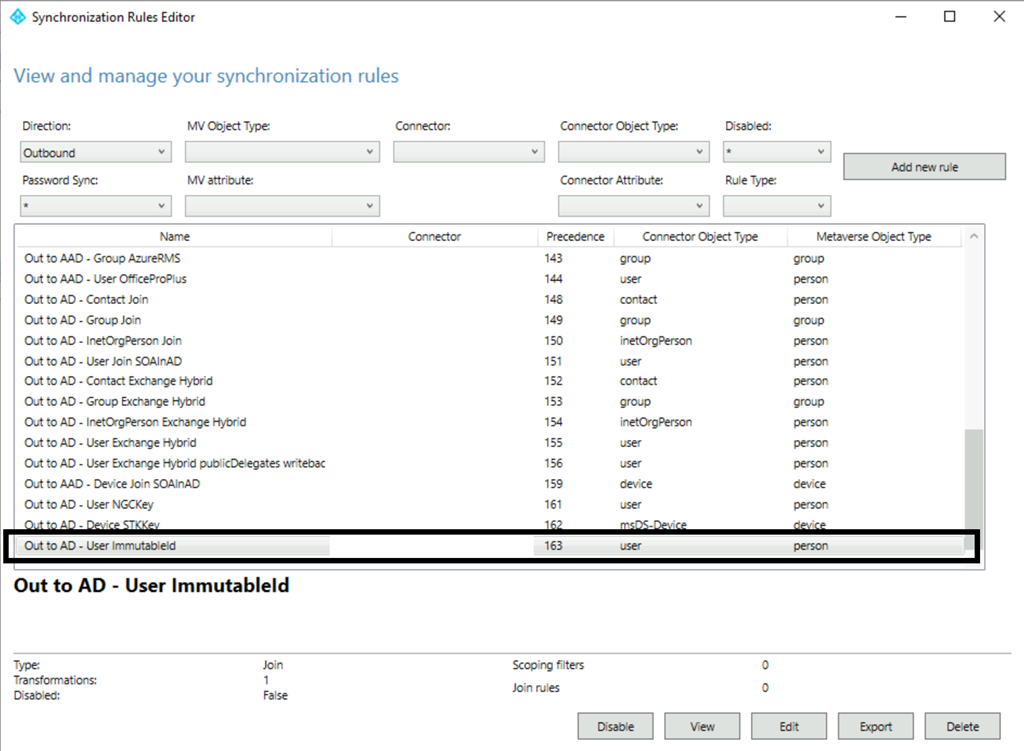
To utilize ms-DS-ConsistencyGUID we must first create a outbound rule to the local active directory that populates the GUID.  From a local active directory standpoint – the attribute set for USER and iNETORGPERSON are almost identical.  With this in mind the easiest solution is to duplicate the rule Out to AD – User ImmutableID. 

To start:

  1. Launch the Azure Active Directory configuration wizard to temporarily suspend all synchronization cycles.
  2. Launch the Azure Active Directory Rules Wizard
  3. In the direction box – select outbound.
  4. Scroll and locate the rule Out to AD – User ImmutableID
  5. Select the edit button
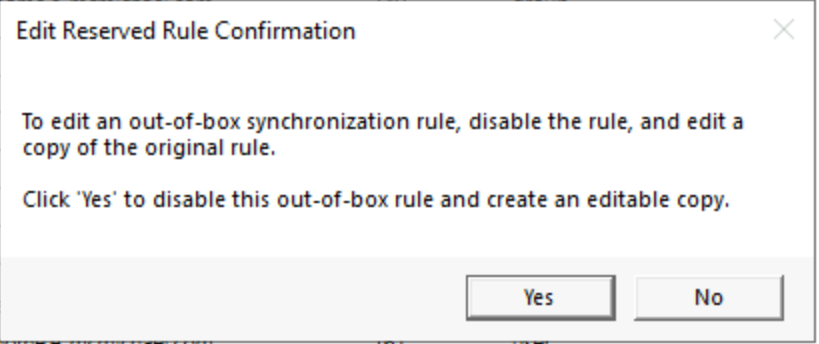
  6. You will be prompted to duplicate the rule and disable the current inbox rule.  For the purposes of this activity say yes.
    1. image
  7. This will clone the rule and bring the new rules wizard up.
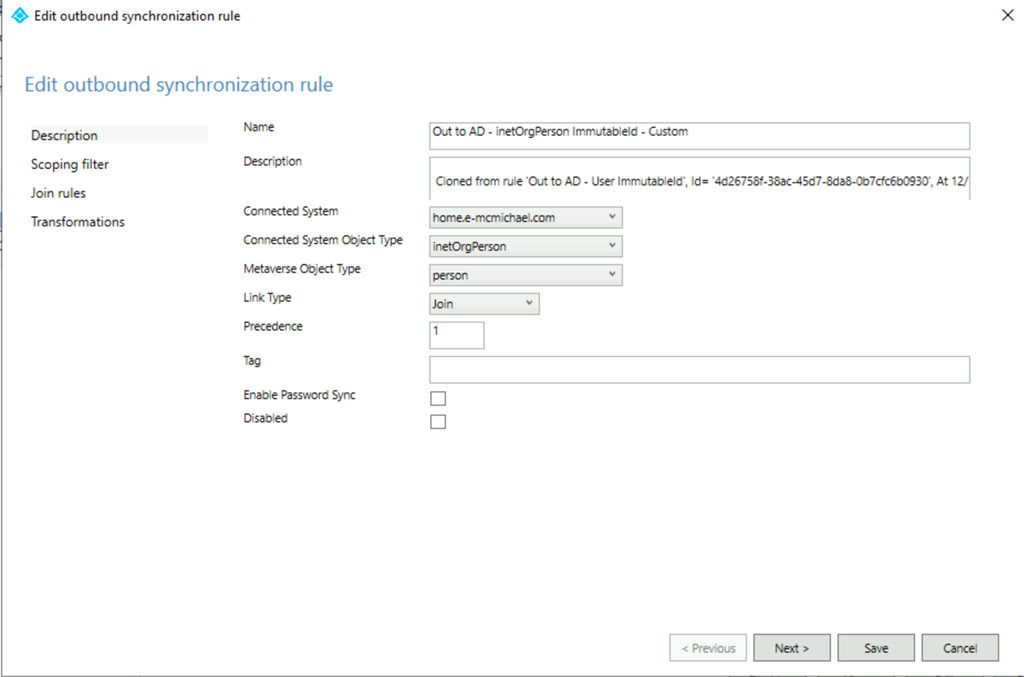
  8. To provision the rule for iNetOrgPersons – make the following adjustments.
    1. Edit the name to Out to AD – inetOrgPerson immutableID Custom.  I recommend you add custom or something additionally identifiable to the rule name to help easily identify the rule.
    2. Change the connected system object type drop down to iNetOrgPerson.
    3. Change the rule precedence to a value of < 99 but > 0.
    4. image
    5. Complete the rules wizard making no further changes.
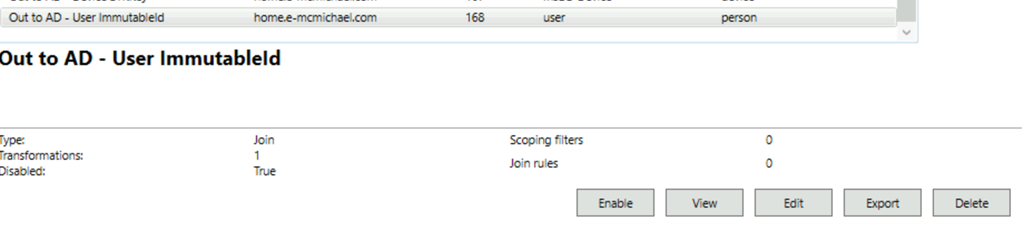
  9. In the rules wizard locate the original rule.  This rule is now DISABLED.  Select the rule and press the enable button to re-enable the rule.
    1. image
    2. image
  10. Exit the Azure AD Connect setup wizard to allow sync cycles to resume.

Following the rules change full imports and syncs will be performed as scheduled by the tool.  Monitor the synchronization cycle to ensure it completes successfully.

Why do we not need any inbound rules customization?  The In from AD – iNetOrgPerson join already implements the same logic as the In From AD – User Join as it pertains to object GUID and ms-DS-ConsistencyGUID.  Therefore it is only necessary to ensure that the ms-DS-ConsistencyGUID is being exported.

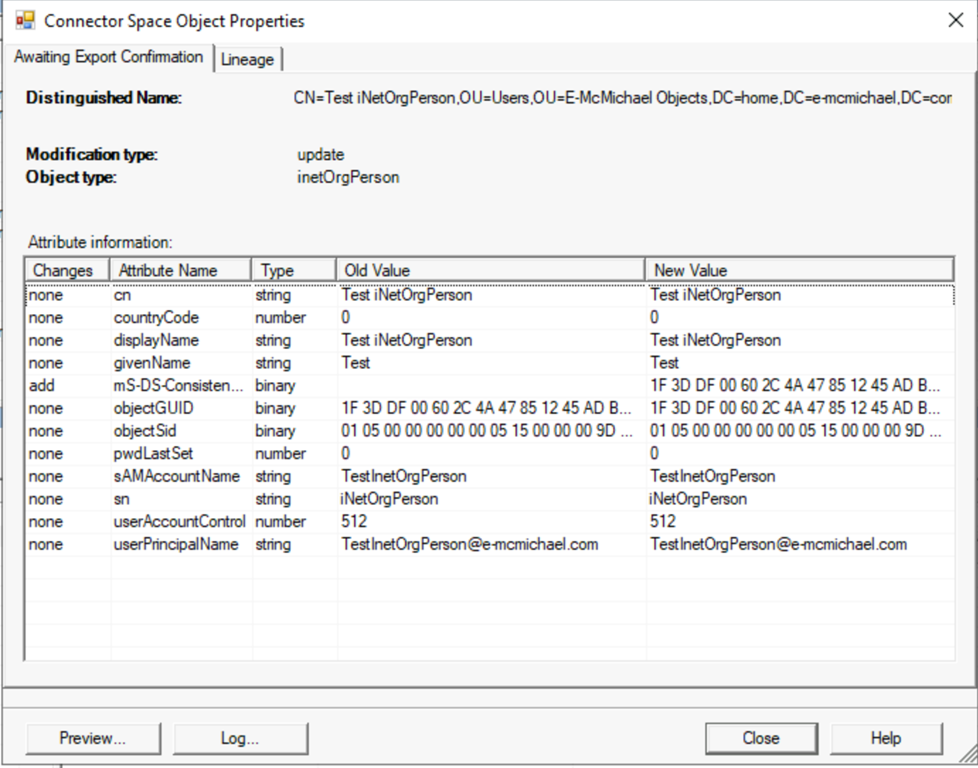
With the new rules in place , when reviewing exports to the local active directory, we should observe ms-DS-ConsistencyGUID being written to the local Active Directory.

image

In addition when reviewing the attribute of the user in Active Directory you should observe that the ms-DS-ConsistencyGUID is now populated.

image

It is important that you document this customization to your environments and ensure that all build documents are updated.  You may consider exporting the new rule you created and keeping the file with your build document. 

Please also note that Microsoft Product Support Services does not assist in the direct customization of rules with Azure AD Connect and there is no guarantee that future versions of AD Connect may cause issues with rule customizations.  Please ensure that you appropriate test all rules changes in environments to ensure appropriate understanding of how they work and what impacts may occur from there use.

Swapping licenses with dynamic groups and group based licensing…

In Azure Active Directory tenants that have purchased Azure AD Premium have access to dynamic azure groups and group based licensing.  When combined, the two technologies offer administrators a great deal of flexibility in managing license assignments without having to manage group membership.  

Azure dynamic groups allow administrators to create groups directly in Azure Active Directory where the membership is calculated off attribute values present in Azure AD.  Unlike Exchange Online dynamic distribution groups which do not have any actual membership, their members are are calculated only at the time that the group is utilized through an LDAP query, Azure dynamic groups have true members.  When an Azure dynamic group is provisioned, the query is utilized to add members to the group.  The groups are represented in other Office 365 applications as groups with static membership, even though the membership may dynamically change in Azure AD as user properties change.  Within Azure AD there is an asynchronous process that runs in the background as users are provisioned or changed which reprocesses the dynamic group membership.

Group based licensing allows administrators to then add licensing templates to each of the groups they provision.  An administrator may add a Office 365 E3 license with a subset of plans to a particular group.  As members are added or removed from the groups – the licenses are subsequently added and removed from the users.  Within Azure AD there is an asynchronous process that runs that is responsible for the initial application of licenses as well as the reprocessing of any failures that may occur.  It is important with group based licensing you do not overlap common plans with different SKUs.  For example, if a user is assigned an Exchange Online Plan 2 through an Office 365 E3 an error will occur if you attempt to assign an Exchange Plan 1 through an Office 365 F3 –> this would cause a collision.  A collision does not occur if multiple groups apply the same items, for example one group may apply an Office 365 E3 with Exchange Online Plan 2 and Team while another group applies an Office 365 E3 with Exchange Online Plan 2 and One Drive for Business.  In this case – the common plan Exchange Online Plan 2 – comes from the same sku Office 365 E3 so there is no collision, and all license would be accumulated and applied. 

When combined – dynamic groups with group based licensing allow administrators great flexibility in applying licenses and plans based off user attributes.  For example, everyone in the main office may get a full E3 license – so creating a dynamic group based off the office attribute would allow this application to occur automatically without managing group membership.  Additionally those members that work in the office and in engineering may have additional licenses applied – a dynamic group based off office and department would allow for a different template to be applied to the groups of users.  As the users attribute change – someone moves from engineering to marketing – their licenses would dynamically change with their attributes relieving the administrators of the responsibility for managing static group membership or directly assigning licenses.

In recent weeks I’ve worked with customers that wanted to use the combination of these two technologies to migrate users licenses either due to renewal or the desire to change the SKUs applied to the users.  For some users – the transition was seamless – for other users the change resulted in a loss of licensing and access to Office 365.  Let’s take a look at how this could happen when the two technologies are combined – and what can be done about it.

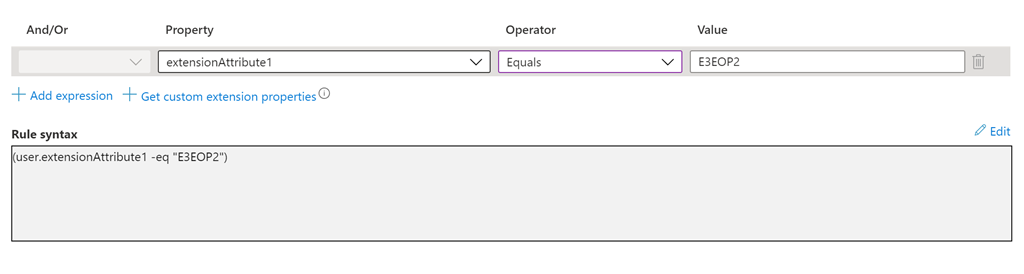
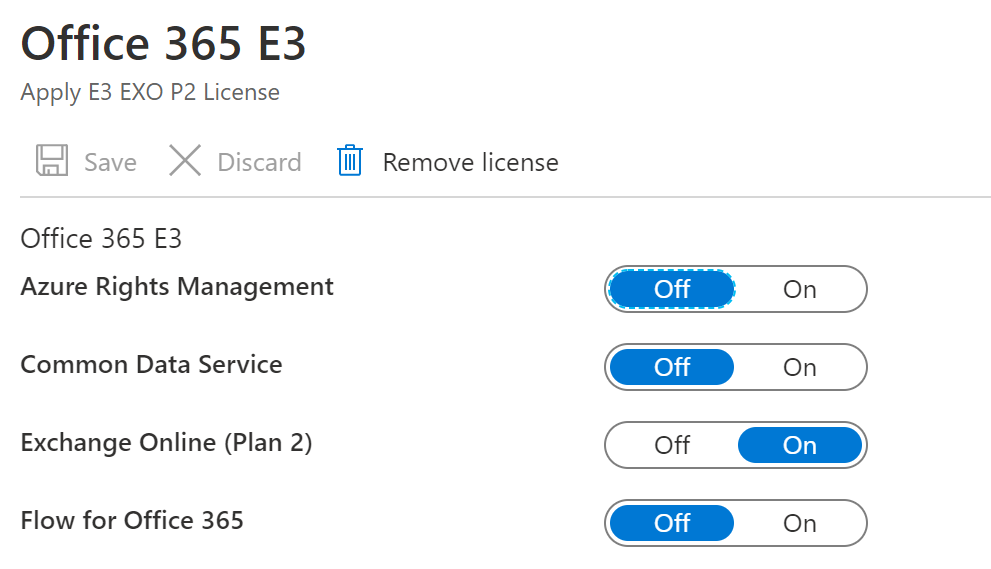
In this example we have two dynamic groups.  The first group “Apply E3 EXO P2” is a dynamic groups where members are based off extensionAttribute1 equaling the value “E3EOP2”.  This group has group based licensing configured and applies the Office 365 E3 with Exchange Online Plan 2 automatically to all members of the group. 

image

image

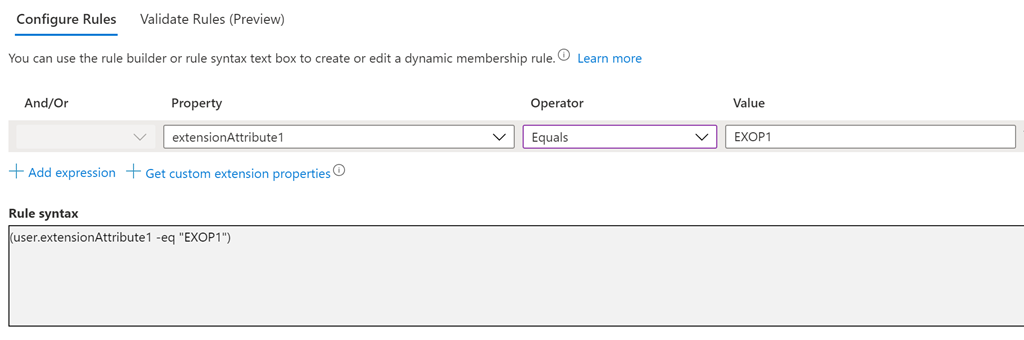
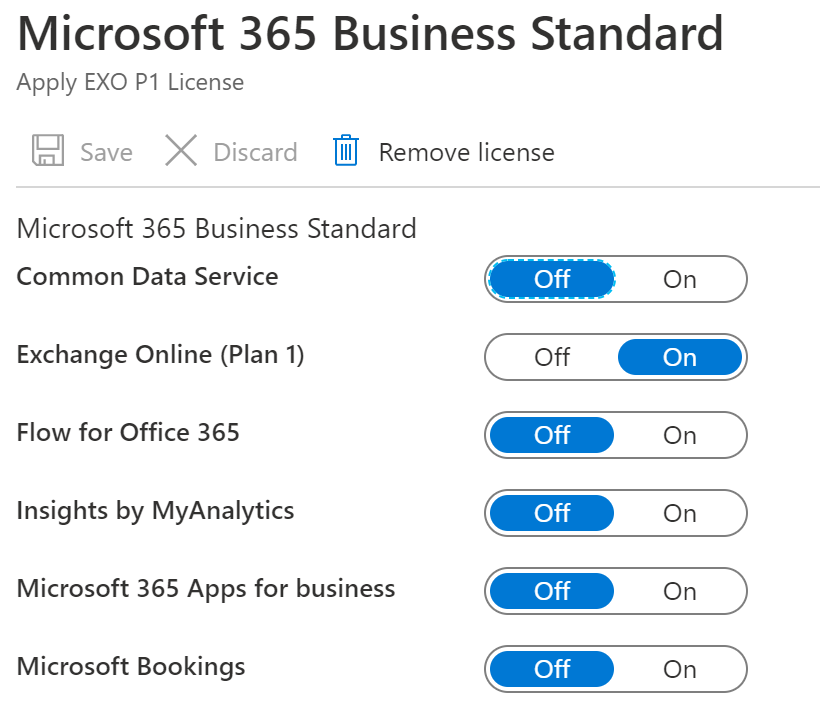
The second group “Apply EXO P1” is a dynamic group where members are based off extensionAttirbute1 equaling the value “EXOP1”.  This group has group based licensing configured and applies the Office 365 E5 with Exchange Online Plan 1 automatically to all members of the group.

image

image

In this customers scenario all of the members started with an Office 365 E3 and Exchange Online Plan 2.  This was accomplished by setting extensionAttribute1 on the users to E3EOP2.  Here is an example:

[PS] C:\>Get-RemoteMailbox -Identity 1 | fl customAttribute1                                                           


CustomAttribute1 : E3EOP2

In Azure AD the dynamic group membership is automatically updated.

PS C:\> Get-AzureADGroupMember -ObjectId 0e9a5089-df1d-42ff-98e7-d1abf44002c5 | Select-Object objectID,userType


ObjectId                             UserType
——–                             ——–
c83a1498-4d48-4bda-a9e3-228b87fd8bdf Member
c2e09366-2b8c-4ac3-92a6-5eb6f4e0fe6b Member
597c1869-3319-4575-9d85-27ba0708b401 Member
0bf733c0-eaea-4486-b4c1-09f753c8a1cf Member
7551cea4-dcf1-4709-99f7-4ef62ae79057 Member
0cc2637d-e391-4f27-8581-963e807971a1 Member
c3d456bb-a8a7-4a5b-848d-197e7743a88d Member
8741d05c-d11d-4769-af01-3da61114073c Member
e50696ed-12fc-4648-a779-7312bf233d9b Member
fbde5d23-6d02-4f3d-9391-02d11d1109e3 Member
184622f1-b7ee-4b22-9929-0cffb5efa10e Member
e9e813b9-455c-473e-a3ab-e563cdf555e9 Member
1c01114c-5502-4659-9617-0f57b4e5cb3e Member
6d5db76d-69a0-4b58-b3d0-51c4e68f18e1 Member
f79bedaf-4a42-49e4-ae03-97323d8b6ff8 Member

This results in 15 users that were dynamically added to the group having the Office 365 E3 license applied.

image

In this particular scenario the customer determined that a subset of users – not the entire list of users – needed to move to Exchange Online Plan 1.  To a accomplish this task the administrator took the subset of users and updated the customAttribute1 to EXOP1.  This is where the issue started.  Remembering that dynamic group membership calculation is asynchronous, and this means that members could be added and removed from the dynamic group in any order.

The desired outcome in this configuration:

  • User configured with E3 through customAttribute1.
  • Customattribute1 is changed to apply Exchange Online Plan 1.
  • Change synchronizes to Azure AD.
  • User is removes from the E3 group and the E3 license is removed.
  • User is added to the Exchange Online Plan 1 group and the Exchange Online Plan 1 license is applied.
  • The user retains access to the services under the new plan guidelines.

For the majority of users that were moved – this was the exact scenario that occured.  The users plans were adjusted without any issue.  There were though several users that experienced a complete loss of their license and subsequently a loss of access to Office 365 resources.

Upon investigation when looking at the Exchange Plan 1 group we noted the following error for a user on the license assignment tab:

image

Why does this user have a conflicting service plan error?  Here is what happened…

  • User configured with E3 through customAttribute1.
  • Customattribute1 is changed to apply Exchange Online Plan 1.
  • Change synchronizes into Azure AD.
  • User is added to the Exchange Online Plan 1 group and an attempt to assign the Exchange Online Plan 1 license was made.
    • The license assignment fails.  Exchange Online Plan 1 conflicts with Exchange Online Plan 2 already assigned.
  • User is removed from the E3 dynamic group and the E3 license is removed.
  • The user has lost access to Office 365.

This is an example of async group processing.  In this particular case the user was added to the Exchange Online Plan 1 group BEFORE being removed from the E3 group.  This caused a conflicting license plan issue.  When a conflict occurs – the user is not immediately re-evaluated again.  The administrator must reprocess the group <or> the user will eventually be re-evaluated – but it could take several hours for the re-evaluation to occur.  It is NOT immediate.  For users that were successful their timing fell in line with expectations – for users that were not successful their processing fell outside of expectations.

With dynamic groups there is no guaranteed control on processing therefore there is no specific way to handle this using them.  Is there a viable workaround?  Yes – with some work license plan changes can occur with group basic licensing that provides consistent results and eliminates the potential loss of licenses.  Let’s outline the plan.

  • In Azure AD we create a new group –> License Transitions.
    • The group type is STATIC membership.
  • On the License Transitions group we apply group based licensing that mirrors the configuration of the E3 group.
    • In this instance it would be the Office 365 E3 and Exchange Online Plan 2.
  • For all users that will be transitioned add them statically to the group.
    • In this case the group will apply the same licenses as the dynamic group.
    • There is no collision since the plans match –> Office 365 E3 with Exchange Online Plan 2.
  • NULL customattribute1 on premises.
    • This will sync into Azure AD and remove the user from the dynamic group for Office 365 E3.
  • On the License Transition group remove the Office 365 E3 license and add the Exchange Online Plan 1 license.
    • This reassigns the users to Exchange Online Plan 1.
  • Change customAttribute1 on premises to the attribute for Exchange Online Plan 1.
    • This will sync into Azure AD and add the user to the Exchange Online Plan 1 dynamic group.
  • When license processing has been validated remove the static group.
    • The user retains the Exchange Online Plan 1 license through the dynamic group.

Let us examine an example of this process.  To start the users are in the expected group with the E3 license applied.

PS C:\> Get-AzureADGroupMember -ObjectId 0e9a5089-df1d-42ff-98e7-d1abf44002c5 | Select-Object objectID,userType


ObjectId                             UserType
——–                             ——–
c83a1498-4d48-4bda-a9e3-228b87fd8bdf Member
c2e09366-2b8c-4ac3-92a6-5eb6f4e0fe6b Member
597c1869-3319-4575-9d85-27ba0708b401 Member
0bf733c0-eaea-4486-b4c1-09f753c8a1cf Member
7551cea4-dcf1-4709-99f7-4ef62ae79057 Member
0cc2637d-e391-4f27-8581-963e807971a1 Member
c3d456bb-a8a7-4a5b-848d-197e7743a88d Member
8741d05c-d11d-4769-af01-3da61114073c Member
e50696ed-12fc-4648-a779-7312bf233d9b Member
fbde5d23-6d02-4f3d-9391-02d11d1109e3 Member
184622f1-b7ee-4b22-9929-0cffb5efa10e Member
e9e813b9-455c-473e-a3ab-e563cdf555e9 Member
1c01114c-5502-4659-9617-0f57b4e5cb3e Member
6d5db76d-69a0-4b58-b3d0-51c4e68f18e1 Member
f79bedaf-4a42-49e4-ae03-97323d8b6ff8 Member

The license processing through the current E3 group is completed with no errors.

image

The static group will be created and the members assigned to the group.

image

image

With the license transition group created the custom attribute will be removed on premises.  The dynamic group membership can be validated to ensure the users in the transition group were removed.

Members of the license transition group:

PS C:\> Get-AzureADGroupMember -ObjectId 3e9c8f36-45b5-4aaa-80c2-467b1a6cc158 | Select-Object objectID


ObjectId
——–
e50696ed-12fc-4648-a779-7312bf233d9b
fbde5d23-6d02-4f3d-9391-02d11d1109e3
184622f1-b7ee-4b22-9929-0cffb5efa10e
e9e813b9-455c-473e-a3ab-e563cdf555e9
1c01114c-5502-4659-9617-0f57b4e5cb3e
6d5db76d-69a0-4b58-b3d0-51c4e68f18e1
f79bedaf-4a42-49e4-ae03-97323d8b6ff8

Members of the E3 dynamic group:

PS C:\> Get-AzureADGroupMember -ObjectId 0e9a5089-df1d-42ff-98e7-d1abf44002c5 | Select-Object objectID


ObjectId
——–
c83a1498-4d48-4bda-a9e3-228b87fd8bdf
c2e09366-2b8c-4ac3-92a6-5eb6f4e0fe6b
597c1869-3319-4575-9d85-27ba0708b401
0bf733c0-eaea-4486-b4c1-09f753c8a1cf
7551cea4-dcf1-4709-99f7-4ef62ae79057
0cc2637d-e391-4f27-8581-963e807971a1
c3d456bb-a8a7-4a5b-848d-197e7743a88d
8741d05c-d11d-4769-af01-3da61114073c

This validates that the users were removed successfully and that there is no overlap.  A quick validation of an individual user shows that licenses are still assigned as expected and the licenses are inherited from the license transition group.

image

With these changes in place the licenses on the license transition group can now be updated.  In this case we will remove the E3 and assign the Business Standard / Exchange Online Plan 1.  When we make the license transition we will select the ASSIGNMENTS button and remove the Office 365 E3 and add the Business Standard in a SINGLE STEP.  If you remove the Office 365 E3 and apply and then subsquently add the Business Standard / Exchange Online Plan 1 and apply this case be interpreted by the system as a de-provision and re-provision rather than a license SWAP.

Changing the licenses puts the group into a pending application state.

image

This is followed by a notification that license assignment is complete if no assignment issues occurred.

image

A quick verification of a user shows that the user is inheriting the business standard license from the license transition group.

image

In this example the dynamic group for Exchange Online Plan 1 shows no membership.  

PS C:\> Get-AzureADGroupMember -ObjectId c505a6d2-8ca3-4408-90f1-d69682cd784a | Select-Object objectID
PS C:\>

The customAttribute1 on premises can now be updated to move the users into the Exchange Online Plan 1 dynamic group.  Using powershell we can validate that the members match the license transition group.

PS C:\> Get-AzureADGroupMember -ObjectId c505a6d2-8ca3-4408-90f1-d69682cd784a | Select-Object objectID


ObjectId
——–
e50696ed-12fc-4648-a779-7312bf233d9b
fbde5d23-6d02-4f3d-9391-02d11d1109e3
184622f1-b7ee-4b22-9929-0cffb5efa10e
e9e813b9-455c-473e-a3ab-e563cdf555e9
1c01114c-5502-4659-9617-0f57b4e5cb3e
6d5db76d-69a0-4b58-b3d0-51c4e68f18e1
f79bedaf-4a42-49e4-ae03-97323d8b6ff8

A quick review of the user shows licenses inherited from both groups a this time.

image

A review of the dynamic group shows that licensing application completed successfully for the Exchange Online Plan 1.

image

To complete the process the licenses can be removed from the license transition group.

image

When the license transition group shows that processing is complete the group should be safe to delete.

image

The final review of the user shows that the licenses are not transition to and applying from the dynamic group only.

image

Although more steps are required – this method allows for a graceful transition to a different plan for the same product while utilizing dynamic groups as the main assignment method pre and post transition.

Office 365: Challenges with Distribution Groups for Migrated Mailboxes and a Script Based Solution ( Script Version 1.0 )

===========================================================================================

Group Migration Script v1.0 –> https://github.com/timmcmic/DLConversion/blob/master/src/DLConversion.ps1

===========================================================================================

Distribution groups are an excellent way to organize multiple recipients under a single address.  Like Exchange Server on-premises, Office 365 supports mail-enabled distribution groups, security groups, and dynamic distribution groups.  When Active Directory and Exchange are used on-premises, distribution groups are typically created in the on-premises Active Directory and Azure Active Directory Connect is used to maintain and replicate the distribution groups to Office 365.

Generally, there are two types of administration models that use distribution groups (which can co-exist or be used exclusively):

1. The first model uses centralized administration for all configuration and membership changes. When a member needs to be added or removed, the help desk or an admin typically processes the request.  When co-existing with Office 365 this type of administration model is very effective.  With all changes originating on premises – Azure AD Connect can easily replicated them into the Azure AD where Office 365 workloads can process them.

2. The second model delegates some or all to the user that owns the distribution group. In this model, Outlook is used for management of the distribution group.  In a hybrid configuration, this model often creates management challenges. Outlook processes the membership changes by modifying membership on the domain controller provided to the user’s mailbox by Active Directory. After the membership change is made, Azure AD Connect pushes the requested changes to Azure AD where Office 365 workloads can process them. Office 365 mailboxes receive their list of domain controllers from Exchange Online, which prevents distribution group synchronized from on-premises from being modified in Office 365. Therefore, anyone whose mailbox has been migrated to Office 365 can no longer managed distribution groups. The same is also true for administrators that attempt to manage the distribution group in Office 365.

When asked how to allow migrated mailboxes to manage distribution groups that are owned by the mailboxes the answer is to migrate the distribution groups to Office 365. For some, this involves manually deleting and recreating the distribution groups. Others have also found scripts to do this, but they don’t always address all the attributes associated with a distribution group and instead focus on simple attributes like proxy addresses, membership, name, etc.

In this post, I’ll show you a script that addresses these concerns and allows you to migrate distribution groups to Office 365 with full fidelity. Before we get into the script, let’s look at some of the challenges encountered when attempting to migrate distribution groups.

Group Membership

Distribution groups created on-premises are managed using AD tools or Exchange management tools. When managing distribution groups with Exchange tools, membership rules are enforced (for example, a member can be added only if the object is mail-enabled). This can include mail contacts, mail users, and mailboxes. Groups and users, both mail-enabled and not, can be added using Exchange tools.  AD tools are more forgiving, though; the administrator can add any valid AD object to the group membership (for example, a contact that is not mail-enabled could be added to the distribution group, although this would have no effect on mail flow).

Exchange Online has a set of rules for objects that are replicated from Azure AD to Exchange Online Active Directory.  If an object is not mail-enabled, it is not represented in Exchange Online AD. This includes any groups that are members of an on-premises distribution group but not mail-enabled.  An exception to this rule is user accounts. User account objects are replicated to Exchange Online even if they are not mail-enabled.

When migrating distribution groups, all objects that are not mail-enabled or users must be filtered out. Here is an example of a distribution group that contains a mix of members.

PS C:\> Get-DistributionGroupMember -Identity Migrate

Name              RecipientType
—-              ————-
Domain Users      Group
Journal Mailbox   UserMailbox
Brian Murphy      MailContact
Timothy McMichael MailUser
Migrate1          MailUniversalSecurityGroup
Migrate2          MailUniversalDistributionGroup
Team Manager      User
Dynamic           DynamicDistributionGroup
Test Contact      Contact

Users and Groups

For users and groups to be members of a distribution group they must exist in Office 365.  There are common scenarios where Organizational Units are intentionally excluded from replication to Azure Active Directory.  Before migrating any distribution groups you must ensure that the members exist in Office 365.  If they don’t, attempts to create the distribution group through automation will fail.  Since it is possible for groups to have other group as members, any type of migration of a group to Office 365 will require removal of the on-premises group. If the groups that are members are not migrated first, their membership in that group would be lost.

Multivalued Attributes

Distribution groups have several multi-valued attributes that require consideration before migrated.  The attributes managedBy, moderatedBy, acceptMessagesOnlyFromSendersOrMembers, grantSendOnBehalfTo, rejectMessagesFromSendersOrMembers, and bypassModerationFromSendersOrMembers, for example, store their member references as distinguished names of objects.  Here is a sample output:

PS C:\> $a=Get-DistributionGroup migrate
PS C:\> $a.managedBy
domain.local/Organization/Users/Officers/Timothy McMichael
domain.local/Organization/Users/Officers/Bill Smith
PS C:\> $a.moderatedBy
domain.local/Organization/Users/Officers/Timothy McMichael
PS C:\> $a.AcceptMessagesOnlyFromSendersOrMembers domain.local/Organization/Users/Officers/Bill Smith
domain.local/ConvertedDL/Migrate1
PS C:\> $a.BypassModerationFromSendersOrMembers
domain.local/ConvertedDL/Migrate1
PS C:\> $a.RejectMessagesFromSendersOrMembers
domain.local/ConvertedDL/Migrate2
PS C:\> $a.GrantSendOnBehalfTo
domain.local/Organization/Users/Officers/Timothy McMichael

If these attributes were extracted as arrays and then used with Office 365, the references would not work because the DNs of the objects stored in Office 365 needs to reference the DN of the object in Exchange Online. 

The managedBy attribute is a shared attribute with Active Directory, and it can be set to a non-mail-enabled user.  In Exchange Online, only a valid recipient object can be entered in the managedBy field.  Thus, before you can convert the distribution group, you must ensure that all members of the managedBy field are Exchange Online recipients.

The remaining multi-valued attributes can only be set via Exchange cmdlets, which ensures that the objects are mail-enabled user objects.

Proxy / Email Addresses

The email addresses field is a multi-valued attribute.  If the proxy addresses are not in use on another object in Exchange Online, they can be moved to the new distribution group.  Note, that it is important to preserve the Reply To functionality.  Migrated distribution groups don’t really change – they have the same name, same proxy addresses, and same members.  But the nickname cache in Outlook uses the distinguished name of the group (which points to on-premises).  If a user were to address an email to the migrated group by selecting the group from nickname cache, the message would NDR.

Other Attributes

Other attributes of a distribution group are mostly text based, allowing them to be exported and imported as text. There are also several Boolean values that can be translated to the equivalent on the new distribution group, including custom attributes.

Group Migration Script

The group migration script described in this post considers all the factors presented above. Executing the script starts by preparing some pre-requisites.

Prerequisites

The first pre-requisite is to establish an Organizational Unit (OU) within Active Directory that is not synchronized to Azure Active Directory. This OU will be where the group objects will be moved during the conversion process. The conversion process in v1 of the script retains the original distribution group.  The distinguished name of this group will need to be recorded as it will be a script variable.

The second pre-requisite involves creating a secure credentials XML file that can be used by the script. The administrator must note the file names and the path where they are stored. These are variables within the script that must be updated, or the administrator can match the files contained in the script.  Create one file for on-premises credentials and one file for cloud credentials. If using XML files is not your preferred method of handling credentials, you can modify the script to prompt for credentials or consider storing credentials using other methods supported by PowerShell.

$cred = get-credential

$cred | export-cliXML –path c:\Scripts\credentials.xml

For on preemies a domain administrator account is required.  This account is required to move groups between OUs, track group membership in future versions, perform inbound and outbound replication from the specified domain controller, and make WinRM powershell connections to the domain controller where these operations will be performed.  The account will also require Exchange Organization Administrator rights in order to perform Exchange Remote Powershell connections and issue Exchange commandlets.

For Office 365 at minimum a Exchange Organization Administrator is required – most commonly a global administrator is utilized.  It is important to note that the account CANNOT utilize multi-factor authentication.  The script manages multiple basic authenticated powershell sessions – and cannot utilize MFA or the modern powershell enabled module for Exchange Online.

One caveat to using these files is that they are signed to the user and machine on which they were created.  Therefore, all admins using the script have to create their own sets of files.

The third pre-requisite is to ensure that the PSLOGGING module from the PowerShell Gallery is installed. This module is necessary to create files that record operations along with clean-up and logging when an error has occurred.

install-module PSLOGGING

The fourth pre-requisite is to configure Basic authentication on a local PowerShell directory.  By default, Basic authentication is not enabled in on-premises, which limits the ability to create a “remote” PowerShell session to on-premises Exchange server. Administrators often work around this by identifying one server where Basic authentication is enabled or by enabling Basic authentication on all PowerShell virtual directories behind a load-balanced name.  Whether a single server or multiple servers are used, it is a requirement to establish an SSL session to the name provided, which means there must be a public certificate installed on the specified endpoint.

Get-PowerShellVirtualDirectory –server <SERVERNAME> | Set-PowerShellVirtualDirectory –basicAuthentication:$TRUE

The last pre-requisite is to review the variables contained within the script for any necessary modifications. Variables that are recommended for the admin to adjust are noted with ###ADMIN### in front of their definition. These variables include PowerShell URLs, paths, and file names.

Script Mechanics

With the pre-requisites covered, let’s dive into the mechanics of how the script works and review the individual functions.

The process starts by gathering the credentials XML files and preparing them for use in subsequent functions. The success or failure of these operations is largely dependent on ensuring the credentials stored in the files are accurate and that the associated variables with the files have been updated successfully.

The script then proceeds to create the necessary PowerShell sessions for operations to be performed.  There are three PowerShell sessions created:

1. The first session is to an on-premises server where commands will operate against on-premises recipient objects.

2. The second session is to Office 365 where Office 365 recipient commands will be executed.

3. The third session is to the Azure AD Connect server, which will be used to invoke synchronization as recipient objects are modified.

To activate the on-premises and Office 365 PowerShell sessions, they must be imported.  When importing remote PowerShell sessions, you can often have the same cmdlets returned in each session.  In this case, there is definite overlap between Exchange and Exchange Online.  To avoid any confusion when importing the Office 365 PowerShell session we append the cmdlets with O365.  This effectively takes a cmdlet like Get-Recipient and makes it Get-O365Recipient. PowerShell is smart enough to detect the correct cmdlet and invoke it within the appropriate session.

After the underlying PowerShell sessions are started, the script exports all properties of the on-premises distribution group and all properties of the Office 365 distribution group to variables for later use.  The Office 365 distribution group should match the on-premises group as the source of authority for the Office 365 group is on-premises.

After the data has been extracted, the script performs a safety check against the distribution group, which reviews the directory synchronization flag of the distribution group in Office 365. If this flag is set to FALSE, it indicates that the distribution group is cloud-only.  If this scenario occurs, the script is automatically ended. The script can only be so smart, and it uses the SMTP address of the on-premises distribution group to locate the replicated copy in Office 365. Because it’s possible for a group in Office 365 and on-premises to share the same address even though they are not directory synchronized, the script must stop because if it continued, the Office 365 group would be removed and replaced with the on-premises group which could have unintended consequences.

After the safety check is complete, the script records and exports the information for the on-premises and Office 365 groups to XML files defined by the administrator. XML output allows us to retain full fidelity of the multivalued attributes in case something goes wrong, or we need to manually correct a failure condition.

The last portion of data collection (membership) and backup then proceeds. Membership is obtained and written to a variable that will be used in later operations. It is also exported to XML file to ensure that we have a copy of the information prior to starting any of the conversion activities.

With all the pertinent information stored within variables and backup XML files, the next step is processing this information. In the previous section, I outlined some of the challenges in working with this data.  There can be non-mail-enabled objects that need to be accounted for – these will not have primary SMTP addresses. There are mail-enabled objects that need to be accounted for but may be stored as distinguished names on certain attributes. Knowing that we need to account for all these differences forces us to develop a method to translate those individual users and recipients to objects that can be located in Exchange Online. To that end, we know that we can locate recipients via their primary SMTP address or a user account through the user principal name. So, the script iterates through all the multi-valued attributes and attempts to normalize the data into references that can be found in Exchange Online. If the object is a recipient class, we record the primarySMTPAddress of the object.  If the object is a non-mail-enabled user, we record the userPrincipalName of the object.  For each multi-valued attribute this culminates in an individual array of references that will allow us to find the objects in Exchange Online.

When the arrays of normalized data have been built we need to validate that the objects can be found in Exchange Online. The script looks for objects in Exchange Online using Get-Recipient and Get-User cmdlets in the Office 365 PowerShell. If the object is found, the recipient or user is valid and is synchronized by Azure AD Connect.  If an object is not found, the process stops and allows the administrator to correct any issues. Groups can also be members of distribution groups, so the script reviews all groups that are members and determines if they have been migrated to Office 365. Assuming all users are found, and all member groups have been migrated, it is safe to proceed with the migration.

The first step in finalizing the migration is to move the distribution group to the OU that does not synchronize. As the script proceeds, Azure AD Connect will see this as a group deletion and eventually remove it from Office 365.  The removal from Azure AD will propagate to Exchange Online Active Directory, resulting in the distribution group becoming deleted.

To ensure that all domain controllers show that the group was moved to the OU, repadmin is used to force replication across all domain controllers in the domain.  If your domain is very large, consider changing this function to a list of domain controllers or to a single domain controller.  You can also comment out the function and just increase the wait time to allow for normal replication to occur.

With domain replication underway/completed, next is to remove the distribution group from Azure AD. This process uses a remote PowerShell session to perform a delta synchronization.  A delta synchronization may already be in progress, so the script is designed to retry every 1 minute until it can assure that at least one delta sync was triggered by the script.  A delta sync can take several minutes to run depending on the size of the environment, and it only removes the group from Azure AD. The forward synchronization process will detect the groups removal from Azure AD and synchronize the change to Exchange Online.  Because there really is no way to monitor progress once the delta synchronization is issued, the script begins issuing calls to Azure AD for the group. If the call is successful, the group still exists, and the script waits 1 minute between attempts, looping until the group is not found (basically, an error occurs locating the group, which confirms the group is no longer in Office 365).

Once the group has been removed the script can now create the new replacement group using the base settings.  Next, all the non-multivalued attributes of the distribution group are set, including email addresses, custom attribute, extension attributes, and other Boolean variables that control mail flow, delivery, etc.  Next, multi-valued attributes are set by using the normalized arrays that were built previously. After all attributes have been addressed, the new distribution group in Office 365 now mirrors the original distribution group on-premises.

The final step is to gather all the settings of the new distribution group and export them to XML, which serves as a record of the operation. At the end of the script, all created PowerShell sessions are removed in preparation for the next migration.

Frequently Asked Questions

Q:  How can I prevent PowerShell sessions from timing out?

A:  There is really no method to prevent the PowerShell settings from timing out.  During testing, we determined that the operation that ran the longest was building the array of normalized SMTP addresses for the distribution group membership.  When the PowerShell session to Office 365 was left open during this process it would often be closed before we were ready to proceed with other portions.  It was also determined that when processing long arrays (for example, adding all the distribution group membership), the session may time out.  To overcome this, we routinely reset the session to Office 365 after portions of the script that took more time to process data.

Q:  Can the script be run in bulk?

A:  It is possible to feed the script a list of proxy addresses for distribution groups to migrate by calling the script multiple times.  The process through would repeat in terms of domain controller replication, Azure AD Connect synchronization, etc.  The original design of the script approached this from the perspective of servicing one-off requests for migration and not necessarily bulk migrations or conversions.

Q:  Is the script efficient?

A:  Efficiency is always relative…is it more efficient then trying to do all of this by hand and manage all the attributes? Certainly. The script must rely on several processes that do not necessarily have any guaranteed timelines.  For example, we can’t predict how long a delta sync or forward sync will take.  Thus, it’s not possible to give you a 100% accurate estimate of how long it takes to migrate a distribution group.  There is also a great deal of logging that occurs during the script which adds some overhead, but given the nature and importance of distribution groups, having the additional information is important.

Q:  What is the largest distribution group size that was tested?

A:  The script was validated using a distribution group with 10,000 members and had a minimum of 10 members in each of the multi-valued attributes.

Q:  How long did it take to migrate a group with 10,000 members?

A:  A little more than 3 hours:

Days              : 0
Hours             : 3
Minutes           : 6
Seconds           : 57
Milliseconds      : 768
Ticks             : 112177687252
TotalDays         : 0.129835286171296
TotalHours        : 3.11604686811111
TotalMinutes      : 186.962812086667
TotalSeconds      : 11217.7687252
TotalMilliseconds : 11217768.7252

Q:  What happens to mail flow during the migration process?

A:  It depends.  The distribution group is maintained on-premises during this entire process.  If messages enter the on-premises environment first and are addressed to the distribution group, you can expect that expansion will occur and message delivery will happen. The group in Office 365 is in flux during the entire migration process.  If the group is missing and a message is received, it may NDR.  If the group has been created but member addition is in-progress, then only some of the members may receive it.  I recommend that you provide warnings to distribution group owners that mail flow will be affected during the transition.

Q:  If the distribution group is a mail-enabled security group, and that group has been assigned permissions to Office 365 workloads, what happens during the conversion?

A:  Permissions would be lost.  The script only works because the group is deleted – and this would be processed by other workloads as a group deletion.

Q:  Do I have to keep the on-premises distribution group post-migration?

A:  It depends.  If messages are processed through the on-premises environment, there needs to be a corresponding mail-enabled object.  We are looking into automating the conversion of the group to a mail contact in a future version of the script to allow for mail flow to continue.

Q:  Dynamic distribution groups are not replicated by Azure Active Directory Connect.  How does the script handle dynamic distribution groups?

A:  Administrators must manually create dynamic distribution groups in Office 365.  The script intentionally does not treat dynamic distribution groups differently then a normal recipient.  In this case we detect a member and record the primary SMTP address.  When we run the recipient test against Office 365 by primary SMTP address – the recipient is returned and the script can proceed.  If the recipient is not found the script will fail.

Sample Invocations

===============================================================================

Attempting to convert the distribution group Migrate without ignoring invalid managers or invalid members.  The group to be converted IS NOT located in Office 365.  An error is generated and the script stops.

PS C:\Scripts> .\ConvertDL.ps1 -dlToConvert Migrate -ignoreInvalidDLMember:$FALSE -ignoreInvalidManagedByMember:$FALSE


     Directory: C:\Scripts


Mode                LastWriteTime         Length Name
—-                ————-         —— —-
-a—-        9/18/2018   7:17 PM              0 DLConversion.log
***************************************************************************************************
Started processing at [09/18/2018 19:17:22].
***************************************************************************************************


Running script version [1.0].


***************************************************************************************************


This function imports the on premises secured credentials file….
The on premises credentials file was imported successfully.


This function imports the Office 365 secured credentials file….
The Office 365 credentials file was imported successfully.


This function creates the powershell session to on premises Exchange….
The powershell session to on premises Exchange was created successfully.


This function creates the powershell session to Office 365….
The powershell session to Office 365 was created successfully.


This function creates the powershell session to AAD Connect….
The powershell session to AAD Connect was created successfully.


This function imports the powershell session to on premises Exchange….
WARNING: The names of some imported commands from the module ‘tmp_y0ib5tyw.pmz’ include unapproved verbs that might make them less discoverable. To find the commands with unapproved verbs, run the Import-Module command again with the Verbose parameter. For a list of approved verbs, type Get-Verb.


Name              : tmp_y0ib5tyw.pmz
Path              : C:\Users\admin.domain\AppData\Local\Temp\tmp_y0ib5tyw.pmz\tmp_y0ib5tyw.pmz.psm1
Description       : Implicit remoting for
https://webmail.domain.com/powershell

Guid              : 1dfe9d4c-8ca2-4de2-aa8c-8e0281af907c
Version           : 1.0
ModuleBase        : C:\Users\admin.domain\AppData\Local\Temp\tmp_y0ib5tyw.pmz
ModuleType        : Script
PrivateData       : {ImplicitRemoting}
AccessMode        : ReadWrite
ExportedAliases   : {}
ExportedCmdlets   : {}
ExportedFunctions : {[Add-ADPermission, Add-ADPermission], [Add-AvailabilityAddressSpace,
                     Add-AvailabilityAddressSpace], [Add-ContentFilterPhrase, Add-ContentFilterPhrase],
                     [Add-DatabaseAvailabilityGroupServer, Add-DatabaseAvailabilityGroupServer]…}
ExportedVariables : {}
NestedModules     : {}


The powershell session to on premises Exchange was imported successfully.


This function imports the powershell session to Office 365….
WARNING: The names of some imported commands from the module ‘tmp_rt1gncnz.op4’ include unapproved verbs that might make them less discoverable. To find the commands with unapproved verbs, run the Import-Module command again with the Verbose parameter. For a list of approved verbs, type Get-Verb.


Name              : tmp_rt1gncnz.op4
Path              : C:\Users\admin.domain\AppData\Local\Temp\tmp_rt1gncnz.op4\tmp_rt1gncnz.op4.psm1
Description       : Implicit remoting for
https://outlook.office365.com/powershell-liveID/

Guid              : f829f0b4-a669-4e18-a789-4afa9e4e9bd0
Version           : 1.0
ModuleBase        : C:\Users\admin.domain\AppData\Local\Temp\tmp_rt1gncnz.op4
ModuleType        : Script
PrivateData       : {ImplicitRemoting}
AccessMode        : ReadWrite
ExportedAliases   : {}
ExportedCmdlets   : {}
ExportedFunctions : {[Add-o365AvailabilityAddressSpace, Add-o365AvailabilityAddressSpace],
                     [Add-o365DistributionGroupMember, Add-o365DistributionGroupMember],
                     [Add-o365MailboxFolderPermission, Add-o365MailboxFolderPermission], [Add-o365MailboxLocation,
                     Add-o365MailboxLocation]…}
ExportedVariables : {}
NestedModules     : {}


The powershell session to Office 365 was imported successfully.


This function collects the on premises distribution list configuration….
The on premises distribution list information was collected successfully.


This function collects the Office 365 distribution list configuration….

The operation couldn’t be performed because object ‘Migrate’ couldn’t be found on
‘CO1PR06A002DC02.NAMPR06A002.prod.outlook.com’.
     + CategoryInfo          : NotSpecified: (:) [Get-DistributionGroup], ManagementObjectNotFoundException
     + FullyQualifiedErrorId : [Server=MWHPR06MB2446,RequestId=bef7d47e-8d2d-4c75-a6d4-40264dee7723,TimeStamp=9/18/2018
7:17:47 PM] [FailureCategory=Cmdlet-ManagementObjectNotFoundException]
F71693B4,Microsoft.Exchange.Management.RecipientTasks.GetDistributionGroup
     + PSComputerName        : outlook.office365.com
The operation couldn’t be performed because object ‘Migrate’ couldn’t be found on
‘CO1PR06A002DC02.NAMPR06A002.prod.outlook.com’.
     + CategoryInfo          : NotSpecified: (:) [Get-DistributionGroup], ManagementObjectNotFoundException
     + FullyQualifiedErrorId : [Server=MWHPR06MB2446,RequestId=bef7d47e-8d2d-4c75-a6d4-40264dee7723,TimeStamp=9/18/2018
     7:17:47 PM] [FailureCategory=Cmdlet-ManagementObjectNotFoundException] F71693B4,Microsoft.Exchange.Management.Rec
   ipientTasks.GetDistributionGroup
     + PSComputerName        : outlook.office365.com


ERROR: The Office 365 distribution list information could not be collected – exiting.
ERROR: The operation couldn’t be performed because object ‘Migrate’ couldn’t be found on ‘CO1PR06A002DC02.NAMPR06A002.prod.outlook.com’.

This function cleans up all powershell sessions….
All powershell sessions have been cleaned up successfully.


***************************************************************************************************
Finished processing at [09/18/2018 19:17:47].
***************************************************************************************************

===============================================================================

===============================================================================

Attempting to convert the distribution group Migrate without ignoring invalid managers or invalid members.  The group contains another distribution or security group that is not mail enabled.  An error is generated and the script stops.

PS C:\Scripts> .\ConvertDL.ps1 -dlToConvert Migrate -ignoreInvalidDLMember:$FALSE -ignoreInvalidManagedByMember:$FALSE


     Directory: C:\Scripts


Mode                LastWriteTime         Length Name
—-                ————-         —— —-
-a—-        9/19/2018   2:11 PM              0 DLConversion.log
***************************************************************************************************
Started processing at [09/19/2018 14:11:07].
***************************************************************************************************


Running script version [1.0].


***************************************************************************************************


This function imports the on premises secured credentials file….
The on premises credentials file was imported successfully.


This function imports the Office 365 secured credentials file….
The Office 365 credentials file was imported successfully.


This function creates the powershell session to on premises Exchange….
The powershell session to on premises Exchange was created successfully.


This function creates the powershell session to Office 365….
The powershell session to Office 365 was created successfully.


This function creates the powershell session to AAD Connect….
The powershell session to AAD Connect was created successfully.


This function imports the powershell session to on premises Exchange….
WARNING: The names of some imported commands from the module ‘tmp_rmsylwqo.1zq’ include unapproved verbs that might
make them less discoverable. To find the commands with unapproved verbs, run the Import-Module command again with the
Verbose parameter. For a list of approved verbs, type Get-Verb.


Name              : tmp_rmsylwqo.1zq
Path              : C:\Users\admin.domain\AppData\Local\Temp\tmp_rmsylwqo.1zq\tmp_rmsylwqo.1zq.psm1
Description       : Implicit remoting for
https://webmail.domain.com/powershell

Guid              : bb38fffd-b692-41c6-bb7f-ac49fe3a006b
Version           : 1.0
ModuleBase        : C:\Users\admin.domain\AppData\Local\Temp\tmp_rmsylwqo.1zq
ModuleType        : Script
PrivateData       : {ImplicitRemoting}
AccessMode        : ReadWrite
ExportedAliases   : {}
ExportedCmdlets   : {}
ExportedFunctions : {[Add-ADPermission, Add-ADPermission], [Add-AvailabilityAddressSpace,
                     Add-AvailabilityAddressSpace], [Add-ContentFilterPhrase, Add-ContentFilterPhrase],
                     [Add-DatabaseAvailabilityGroupServer, Add-DatabaseAvailabilityGroupServer]…}
ExportedVariables : {}
NestedModules     : {}


The powershell session to on premises Exchange was imported successfully.


This function imports the powershell session to Office 365….
WARNING: The names of some imported commands from the module ‘tmp_4korcvyz.ikr’ include unapproved verbs that might
make them less discoverable. To find the commands with unapproved verbs, run the Import-Module command again with the
Verbose parameter. For a list of approved verbs, type Get-Verb.


Name              : tmp_4korcvyz.ikr
Path              : C:\Users\admin.domain\AppData\Local\Temp\tmp_4korcvyz.ikr\tmp_4korcvyz.ikr.psm1
Description       : Implicit remoting for
https://outlook.office365.com/powershell-liveID/

Guid              : 1a019be1-7a24-410f-b38e-37dbcc282021
Version           : 1.0
ModuleBase        : C:\Users\admin.domain\AppData\Local\Temp\tmp_4korcvyz.ikr
ModuleType        : Script
PrivateData       : {ImplicitRemoting}
AccessMode        : ReadWrite
ExportedAliases   : {}
ExportedCmdlets   : {}
ExportedFunctions : {[Add-o365AvailabilityAddressSpace, Add-o365AvailabilityAddressSpace],
                     [Add-o365DistributionGroupMember, Add-o365DistributionGroupMember],
                     [Add-o365MailboxFolderPermission, Add-o365MailboxFolderPermission], [Add-o365MailboxLocation,
                     Add-o365MailboxLocation]…}
ExportedVariables : {}
NestedModules     : {}


The powershell session to Office 365 was imported successfully.


This function collects the on premises distribution list configuration….
The on premises distribution list information was collected successfully.


This function collects the Office 365 distribution list configuration….
The Office 365 distribution list information was collected successfully.


This function validates a cloud DLs saftey to migrate….
The DL is safe to proeced for conversion – source of authority is on-premises.


This function writes the on prmeises distribution list configuration to XML….
The on premises distribution list information was written to XML successfully.


This function writes the Office 365 distribution list configuration to XML….
The Office 365 distribution list information was written to XML successfully.


This function collections the on premises DL membership….
The DL membership was collected successfully.


This function writes the on prmeises distribution list membership configuration to XML….
The on premises distribution list membership information was written to XML successfully.


This function removes the Office 365 powershell sessions….
All powershell sessions have been cleaned up successfully.


Begin processing a DL membership array.
This function builds an array of DL members or multivalued attributes….

ERROR: Domain Users
ERROR: A non-mail enabled or Office 365 object was found in the group.
ERROR: Script invoked without skipping invalid DL Member.
ERROR: The object must be removed or mail enabled.
ERROR: EXITING.

This function cleans up all powershell sessions….
All powershell sessions have been cleaned up successfully.


***************************************************************************************************
Finished processing at [09/19/2018 14:11:55].
***************************************************************************************************

===============================================================================

===============================================================================

Attempting to convert the distribution group Migrate without ignoring invalid managers or invalid members.  The group contains another mail enabled distribution group that has not been migrated to Office 365.  The script automatically stops as all sub groups need to be migrated prior to top level groups.  The script was also run with –ignoreInvalidDLMembers TRUE – all non-mail enabled members or members not represented in Office 365 ar automatically ignored.

PS C:\Scripts> .\ConvertDL.ps1 -dlToConvert Migrate -ignoreInvalidDLMember:$TRUE -ignoreInvalidManagedByMember:$FALSE


     Directory: C:\Scripts


Mode                LastWriteTime         Length Name
—-                ————-         —— —-
-a—-        9/19/2018   2:22 PM              0 DLConversion.log
***************************************************************************************************
Started processing at [09/19/2018 14:22:24].
***************************************************************************************************


Running script version [1.0].


***************************************************************************************************


This function imports the on premises secured credentials file….
The on premises credentials file was imported successfully.


This function imports the Office 365 secured credentials file….
The Office 365 credentials file was imported successfully.


This function creates the powershell session to on premises Exchange….
The powershell session to on premises Exchange was created successfully.


This function creates the powershell session to Office 365….
The powershell session to Office 365 was created successfully.


This function creates the powershell session to AAD Connect….
The powershell session to AAD Connect was created successfully.


This function imports the powershell session to on premises Exchange….
WARNING: The names of some imported commands from the module ‘tmp_b11x0ew3.20l’ include unapproved verbs that might
make them less discoverable. To find the commands with unapproved verbs, run the Import-Module command again with the
Verbose parameter. For a list of approved verbs, type Get-Verb.


Name              : tmp_b11x0ew3.20l
Path              : C:\Users\admin.domain\AppData\Local\Temp\tmp_b11x0ew3.20l\tmp_b11x0ew3.20l.psm1
Description       : Implicit remoting for
https://webmail.domain.com/powershell

Guid              : 3c49dbae-b2af-428e-9be4-94ffc63126a4
Version           : 1.0
ModuleBase        : C:\Users\admin.domain\AppData\Local\Temp\tmp_b11x0ew3.20l
ModuleType        : Script
PrivateData       : {ImplicitRemoting}
AccessMode        : ReadWrite
ExportedAliases   : {}
ExportedCmdlets   : {}
ExportedFunctions : {[Add-ADPermission, Add-ADPermission], [Add-AvailabilityAddressSpace,
                     Add-AvailabilityAddressSpace], [Add-ContentFilterPhrase, Add-ContentFilterPhrase],
                     [Add-DatabaseAvailabilityGroupServer, Add-DatabaseAvailabilityGroupServer]…}
ExportedVariables : {}
NestedModules     : {}


The powershell session to on premises Exchange was imported successfully.


This function imports the powershell session to Office 365….
WARNING: The names of some imported commands from the module ‘tmp_ti245wqn.qju’ include unapproved verbs that might
make them less discoverable. To find the commands with unapproved verbs, run the Import-Module command again with the
Verbose parameter. For a list of approved verbs, type Get-Verb.


Name              : tmp_ti245wqn.qju
Path              : C:\Users\admin.domain\AppData\Local\Temp\tmp_ti245wqn.qju\tmp_ti245wqn.qju.psm1
Description       : Implicit remoting for
https://outlook.office365.com/powershell-liveID/

Guid              : 4c2cf1a7-0042-4595-9025-98728851b5ed
Version           : 1.0
ModuleBase        : C:\Users\admin.domain\AppData\Local\Temp\tmp_ti245wqn.qju
ModuleType        : Script
PrivateData       : {ImplicitRemoting}
AccessMode        : ReadWrite
ExportedAliases   : {}
ExportedCmdlets   : {}
ExportedFunctions : {[Add-o365AvailabilityAddressSpace, Add-o365AvailabilityAddressSpace],
                     [Add-o365DistributionGroupMember, Add-o365DistributionGroupMember],
                     [Add-o365MailboxFolderPermission, Add-o365MailboxFolderPermission], [Add-o365MailboxLocation,
                     Add-o365MailboxLocation]…}
ExportedVariables : {}
NestedModules     : {}


The powershell session to Office 365 was imported successfully.


This function collects the on premises distribution list configuration….
The on premises distribution list information was collected successfully.


This function collects the Office 365 distribution list configuration….
The Office 365 distribution list information was collected successfully.


This function validates a cloud DLs saftey to migrate….
The DL is safe to proeced for conversion – source of authority is on-premises.


This function writes the on prmeises distribution list configuration to XML….
The on premises distribution list information was written to XML successfully.


This function writes the Office 365 distribution list configuration to XML….
The Office 365 distribution list information was written to XML successfully.


This function collections the on premises DL membership….
The DL membership was collected successfully.


This function writes the on prmeises distribution list membership configuration to XML….
The on premises distribution list membership information was written to XML successfully.


This function removes the Office 365 powershell sessions….
All powershell sessions have been cleaned up successfully.


Begin processing a DL membership array.
This function builds an array of DL members or multivalued attributes….
Processing mail enabled DL member:
Journal Mailbox
Processing mail enabled DL member:
Brian Murphy
Processing mail enabled DL member:
Timothy McMichael
Processing mail enabled DL member:
Migrate1
Processing mail enabled DL member:
Migrate2
Processing non-mailenabled DL member:
Team Manager
Processing mail enabled DL member:
Dynamic

The following object was intentionally skipped – object type not replicated to Exchange Online
Test Contact

Processing mail enabled DL member:
NotReplicated
The following SMTP address was added to the array:
journal@domain.org
The following SMTP address was added to the array:
brian@domain.com
The following SMTP address was added to the array:
tmcmichael@domain.org
The following SMTP address was added to the array:
Migrate1@domain.org
The following SMTP address was added to the array:
Migrate2@domain.org
The following SMTP address was added to the array:
teammanager@domain.org
The following SMTP address was added to the array:
Dynamic@domain.org
The following SMTP address was added to the array:
notreplicate@domain.org


The array was built successfully.


This function resets the Office 365 powershell sessions….
This function removes the Office 365 powershell sessions….
All powershell sessions have been cleaned up successfully.


This function creates the powershell session to Office 365….
The powershell session to Office 365 was created successfully.


This function imports the powershell session to Office 365….
WARNING: The names of some imported commands from the module ‘tmp_2cmzyxkm.gbx’ include unapproved verbs that might
make them less discoverable. To find the commands with unapproved verbs, run the Import-Module command again with the
Verbose parameter. For a list of approved verbs, type Get-Verb.


Name              : tmp_2cmzyxkm.gbx
Path              : C:\Users\admin.domain\AppData\Local\Temp\tmp_2cmzyxkm.gbx\tmp_2cmzyxkm.gbx.psm1
Description       : Implicit remoting for
https://outlook.office365.com/powershell-liveID/

Guid              : 455ba332-1b14-49d2-891d-1701e6fdea84
Version           : 1.0
ModuleBase        : C:\Users\admin.domain\AppData\Local\Temp\tmp_2cmzyxkm.gbx
ModuleType        : Script
PrivateData       : {ImplicitRemoting}
AccessMode        : ReadWrite
ExportedAliases   : {}
ExportedCmdlets   : {}
ExportedFunctions : {[Add-o365AvailabilityAddressSpace, Add-o365AvailabilityAddressSpace],
                     [Add-o365DistributionGroupMember, Add-o365DistributionGroupMember],
                     [Add-o365MailboxFolderPermission, Add-o365MailboxFolderPermission], [Add-o365MailboxLocation,
                     Add-o365MailboxLocation]…}
ExportedVariables : {}
NestedModules     : {}


The powershell session to Office 365 was imported successfully.


All Office 365 powershell sessions have been refreshed.


This function validates that all objects in the passed array exist in Office 365….
Testing user in Office 365…
journal@domain.org
The recipients were found in Office 365.


This function validates that all objects in the passed array exist in Office 365….
Testing user in Office 365…
brian@domain.com
The recipients were found in Office 365.


This function validates that all objects in the passed array exist in Office 365….
Testing user in Office 365…
tmcmichael@domain.org
The recipients were found in Office 365.


This function validates that all objects in the passed array exist in Office 365….
Testing user in Office 365…
Migrate1@domain.org
The recipients were found in Office 365.


This function tests to see if any sub groups or groups assigned permissions have been migrated….
Now testing group…
Migrate1@domain.org
False
The recipients were found in Office 365.


This function validates that all objects in the passed array exist in Office 365….
Testing user in Office 365…
Migrate2@domain.org
The recipients were found in Office 365.


This function tests to see if any sub groups or groups assigned permissions have been migrated….
Now testing group…
Migrate2@domain.org
True

ERROR: A distribution list was found as a sub-member or on a multi-valued attribute.
ERROR: The distribution list has not been migrated to Office 365 (DirSync Flag is TRUE)
ERROR: All sub lists or lists with permissions must be migrated before proceeding.
This function cleans up all powershell sessions….
All powershell sessions have been cleaned up successfully.


***************************************************************************************************
Finished processing at [09/19/2018 14:23:08].
***************************************************************************************************

===============================================================================

===============================================================================

Attempting to convert the distribution group Migrate without ignoring invalid managers or invalid members.  The group contains a mailbox recipient that is not represented in Office 365.  Although the ignoreInvalidDLMember is set to $TRUE – since the object should be a valid object present in Office 365 the script stops.  (In this case the user is in an OU that is not synchronized to Office 365).

PS C:\Scripts> .\ConvertDL.ps1 -dlToConvert Migrate -ignoreInvalidDLMember:$TRUE -ignoreInvalidManagedByMember:$FALSE


     Directory: C:\Scripts


Mode                LastWriteTime         Length Name
—-                ————-         —— —-
-a—-        9/19/2018   2:27 PM              0 DLConversion.log
***************************************************************************************************
Started processing at [09/19/2018 14:27:17].
***************************************************************************************************


Running script version [1.0].


***************************************************************************************************


This function imports the on premises secured credentials file….
The on premises credentials file was imported successfully.


This function imports the Office 365 secured credentials file….
The Office 365 credentials file was imported successfully.


This function creates the powershell session to on premises Exchange….
The powershell session to on premises Exchange was created successfully.


This function creates the powershell session to Office 365….
The powershell session to Office 365 was created successfully.


This function creates the powershell session to AAD Connect….
The powershell session to AAD Connect was created successfully.


This function imports the powershell session to on premises Exchange….
WARNING: The names of some imported commands from the module ‘tmp_tvpecjxl.5ga’ include unapproved verbs that might
make them less discoverable. To find the commands with unapproved verbs, run the Import-Module command again with the
Verbose parameter. For a list of approved verbs, type Get-Verb.


Name              : tmp_tvpecjxl.5ga
Path              : C:\Users\admin.domain\AppData\Local\Temp\tmp_tvpecjxl.5ga\tmp_tvpecjxl.5ga.psm1
Description       : Implicit remoting for
https://webmail.domain.com/powershell

Guid              : 0985f143-cf95-4102-87d9-030408dd4bc8
Version           : 1.0
ModuleBase        : C:\Users\admin.domain\AppData\Local\Temp\tmp_tvpecjxl.5ga
ModuleType        : Script
PrivateData       : {ImplicitRemoting}
AccessMode        : ReadWrite
ExportedAliases   : {}
ExportedCmdlets   : {}
ExportedFunctions : {[Add-ADPermission, Add-ADPermission], [Add-AvailabilityAddressSpace,
                     Add-AvailabilityAddressSpace], [Add-ContentFilterPhrase, Add-ContentFilterPhrase],
                     [Add-DatabaseAvailabilityGroupServer, Add-DatabaseAvailabilityGroupServer]…}
ExportedVariables : {}
NestedModules     : {}


The powershell session to on premises Exchange was imported successfully.


This function imports the powershell session to Office 365….
WARNING: The names of some imported commands from the module ‘tmp_i4ivhhbw.2tu’ include unapproved verbs that might
make them less discoverable. To find the commands with unapproved verbs, run the Import-Module command again with the
Verbose parameter. For a list of approved verbs, type Get-Verb.


Name              : tmp_i4ivhhbw.2tu
Path              : C:\Users\admin.domain\AppData\Local\Temp\tmp_i4ivhhbw.2tu\tmp_i4ivhhbw.2tu.psm1
Description       : Implicit remoting for
https://outlook.office365.com/powershell-liveID/

Guid              : 86d813da-91e6-4e12-a369-577d696f60f4
Version           : 1.0
ModuleBase        : C:\Users\admin.domain\AppData\Local\Temp\tmp_i4ivhhbw.2tu
ModuleType        : Script
PrivateData       : {ImplicitRemoting}
AccessMode        : ReadWrite
ExportedAliases   : {}
ExportedCmdlets   : {}
ExportedFunctions : {[Add-o365AvailabilityAddressSpace, Add-o365AvailabilityAddressSpace],
                     [Add-o365DistributionGroupMember, Add-o365DistributionGroupMember],
                     [Add-o365MailboxFolderPermission, Add-o365MailboxFolderPermission], [Add-o365MailboxLocation,
                     Add-o365MailboxLocation]…}
ExportedVariables : {}
NestedModules     : {}


The powershell session to Office 365 was imported successfully.


This function collects the on premises distribution list configuration….
The on premises distribution list information was collected successfully.


This function collects the Office 365 distribution list configuration….
The Office 365 distribution list information was collected successfully.


This function validates a cloud DLs saftey to migrate….
The DL is safe to proeced for conversion – source of authority is on-premises.


This function writes the on prmeises distribution list configuration to XML….
The on premises distribution list information was written to XML successfully.


This function writes the Office 365 distribution list configuration to XML….
The Office 365 distribution list information was written to XML successfully.


This function collections the on premises DL membership….
The DL membership was collected successfully.


This function writes the on prmeises distribution list membership configuration to XML….
The on premises distribution list membership information was written to XML successfully.


This function removes the Office 365 powershell sessions….
All powershell sessions have been cleaned up successfully.


Begin processing a DL membership array.
This function builds an array of DL members or multivalued attributes….
Processing mail enabled DL member:
Journal Mailbox
Processing mail enabled DL member:
Brian Murphy
Processing mail enabled DL member:
Timothy McMichael
Processing mail enabled DL member:
Migrate1
Processing non-mailenabled DL member:
Team Manager
Processing mail enabled DL member:
Dynamic
The following object was intentionally skipped – object type not replicated to Exchange Online
Test Contact
Processing mail enabled DL member:
NotReplicated
The following SMTP address was added to the array:
journal@domain.org
The following SMTP address was added to the array:
brian@domain.com
The following SMTP address was added to the array:
tmcmichael@domain.org
The following SMTP address was added to the array:
Migrate1@domain.org
The following SMTP address was added to the array:
teammanager@domain.org
The following SMTP address was added to the array:
Dynamic@domain.org
The following SMTP address was added to the array:
notreplicate@domain.org


The array was built successfully.


This function resets the Office 365 powershell sessions….
This function removes the Office 365 powershell sessions….
All powershell sessions have been cleaned up successfully.


This function creates the powershell session to Office 365….
The powershell session to Office 365 was created successfully.


This function imports the powershell session to Office 365….
WARNING: The names of some imported commands from the module ‘tmp_rysbip4g.faj’ include unapproved verbs that might
make them less discoverable. To find the commands with unapproved verbs, run the Import-Module command again with the
Verbose parameter. For a list of approved verbs, type Get-Verb.


Name              : tmp_rysbip4g.faj
Path              : C:\Users\admin.domain\AppData\Local\Temp\tmp_rysbip4g.faj\tmp_rysbip4g.faj.psm1
Description       : Implicit remoting for
https://outlook.office365.com/powershell-liveID/

Guid              : 95f11f7e-d775-4d52-8cb5-b4ba67dd7e35
Version           : 1.0
ModuleBase        : C:\Users\admin.domain\AppData\Local\Temp\tmp_rysbip4g.faj
ModuleType        : Script
PrivateData       : {ImplicitRemoting}
AccessMode        : ReadWrite
ExportedAliases   : {}
ExportedCmdlets   : {}
ExportedFunctions : {[Add-o365AvailabilityAddressSpace, Add-o365AvailabilityAddressSpace],
                     [Add-o365DistributionGroupMember, Add-o365DistributionGroupMember],
                     [Add-o365MailboxFolderPermission, Add-o365MailboxFolderPermission], [Add-o365MailboxLocation,
                     Add-o365MailboxLocation]…}
ExportedVariables : {}
NestedModules     : {}


The powershell session to Office 365 was imported successfully.


All Office 365 powershell sessions have been refreshed.


This function validates that all objects in the passed array exist in Office 365….
Testing user in Office 365…
journal@domain.org
The recipients were found in Office 365.


This function validates that all objects in the passed array exist in Office 365….
Testing user in Office 365…
brian@domain.com
The recipients were found in Office 365.


This function validates that all objects in the passed array exist in Office 365….
Testing user in Office 365…
tmcmichael@domain.org
The recipients were found in Office 365.


This function validates that all objects in the passed array exist in Office 365….
Testing user in Office 365…
Migrate1@domain.org
The recipients were found in Office 365.


This function tests to see if any sub groups or groups assigned permissions have been migrated….
Now testing group…
Migrate1@domain.org
False
The recipients were found in Office 365.


This function validates that all objects in the passed array exist in Office 365….
Testing user in Office 365…
teammanager@domain.org
The recipients were found in Office 365.


This function validates that all objects in the passed array exist in Office 365….
Testing user in Office 365…
Dynamic@domain.org
The recipients were found in Office 365.


This function validates that all objects in the passed array exist in Office 365….

Testing user in Office 365…
notreplicate@domain.org


The operation couldn’t be performed because object ‘notreplicate@domain.org’ couldn’t be found on
‘CO1PR06A002DC02.NAMPR06A002.prod.outlook.com’.
     + CategoryInfo          : NotSpecified: (:) [Get-Recipient], ManagementObjectNotFoundException
     + FullyQualifiedErrorId : [Server=MWHPR06MB2446,RequestId=f6a99890-192d-4630-b244-337d6c706c97,TimeStamp=9/19/2018
     2:28:03 PM] [FailureCategory=Cmdlet-ManagementObjectNotFoundException] 5A65645E,Microsoft.Exchange.Management.Rec
   ipientTasks.GetRecipient
     + PSComputerName        : outlook.office365.com


ERROR: The recipients were not found in Office 365 – exiting.
ERROR: The operation couldn’t be performed because object ‘notreplicate@domain.org’ couldn’t be found on ‘CO1PR06A002DC02.NAMPR06A002.prod.outlook.com’.

This function cleans up all powershell sessions….
All powershell sessions have been cleaned up successfully.


***************************************************************************************************
Finished processing at [09/19/2018 14:28:04].
***************************************************************************************************

===============================================================================

===============================================================================

Attempting to convert the distribution group Migrate without ignoring invalid managers or invalid members.  The managed by attribute was set through Active Directory Users and Computers and a non-mail enabled object was selected.  IgnoreInvalidManagedByMember is set to $FALSE – therefore the script ends because managed by cannot be established.  The managedBy recipient would need to be removed or ignoreInvalidManagedByMember set to $TRUE.

PS C:\Scripts> .\ConvertDL.ps1 -dlToConvert Migrate -ignoreInvalidDLMember:$TRUE -ignoreInvalidManagedByMember:$FALSE


     Directory: C:\Scripts


Mode                LastWriteTime         Length Name
—-                ————-         —— —-
-a—-        9/19/2018   2:35 PM              0 DLConversion.log
***************************************************************************************************
Started processing at [09/19/2018 14:35:02].
***************************************************************************************************


Running script version [1.0].


***************************************************************************************************


This function imports the on premises secured credentials file….
The on premises credentials file was imported successfully.


This function imports the Office 365 secured credentials file….
The Office 365 credentials file was imported successfully.


This function creates the powershell session to on premises Exchange….
The powershell session to on premises Exchange was created successfully.


This function creates the powershell session to Office 365….
The powershell session to Office 365 was created successfully.


This function creates the powershell session to AAD Connect….
The powershell session to AAD Connect was created successfully.


This function imports the powershell session to on premises Exchange….
WARNING: The names of some imported commands from the module ‘tmp_u2zod0xm.0jy’ include unapproved verbs that might
make them less discoverable. To find the commands with unapproved verbs, run the Import-Module command again with the
Verbose parameter. For a list of approved verbs, type Get-Verb.


Name              : tmp_u2zod0xm.0jy
Path              : C:\Users\admin.domain\AppData\Local\Temp\tmp_u2zod0xm.0jy\tmp_u2zod0xm.0jy.psm1
Description       : Implicit remoting for
https://webmail.domain.com/powershell

Guid              : 2a209690-a2fd-4d0e-89e9-e52df5c5573e
Version           : 1.0
ModuleBase        : C:\Users\admin.domain\AppData\Local\Temp\tmp_u2zod0xm.0jy
ModuleType        : Script
PrivateData       : {ImplicitRemoting}
AccessMode        : ReadWrite
ExportedAliases   : {}
ExportedCmdlets   : {}
ExportedFunctions : {[Add-ADPermission, Add-ADPermission], [Add-AvailabilityAddressSpace,
                     Add-AvailabilityAddressSpace], [Add-ContentFilterPhrase, Add-ContentFilterPhrase],
                     [Add-DatabaseAvailabilityGroupServer, Add-DatabaseAvailabilityGroupServer]…}
ExportedVariables : {}
NestedModules     : {}


The powershell session to on premises Exchange was imported successfully.


This function imports the powershell session to Office 365….
WARNING: The names of some imported commands from the module ‘tmp_i53fb2xz.uuu’ include unapproved verbs that might
make them less discoverable. To find the commands with unapproved verbs, run the Import-Module command again with the
Verbose parameter. For a list of approved verbs, type Get-Verb.


Name              : tmp_i53fb2xz.uuu
Path              : C:\Users\admin.domain\AppData\Local\Temp\tmp_i53fb2xz.uuu\tmp_i53fb2xz.uuu.psm1
Description       : Implicit remoting for
https://outlook.office365.com/powershell-liveID/

Guid              : 20a82db7-7a4b-4034-95bc-6934f15f4c7b
Version           : 1.0
ModuleBase        : C:\Users\admin.domain\AppData\Local\Temp\tmp_i53fb2xz.uuu
ModuleType        : Script
PrivateData       : {ImplicitRemoting}
AccessMode        : ReadWrite
ExportedAliases   : {}
ExportedCmdlets   : {}
ExportedFunctions : {[Add-o365AvailabilityAddressSpace, Add-o365AvailabilityAddressSpace],
                     [Add-o365DistributionGroupMember, Add-o365DistributionGroupMember],
                     [Add-o365MailboxFolderPermission, Add-o365MailboxFolderPermission], [Add-o365MailboxLocation,
                     Add-o365MailboxLocation]…}
ExportedVariables : {}
NestedModules     : {}


The powershell session to Office 365 was imported successfully.


This function collects the on premises distribution list configuration….
The on premises distribution list information was collected successfully.


This function collects the Office 365 distribution list configuration….
The Office 365 distribution list information was collected successfully.


This function validates a cloud DLs saftey to migrate….
The DL is safe to proeced for conversion – source of authority is on-premises.


This function writes the on prmeises distribution list configuration to XML….
The on premises distribution list information was written to XML successfully.


This function writes the Office 365 distribution list configuration to XML….
The Office 365 distribution list information was written to XML successfully.


This function collections the on premises DL membership….
The DL membership was collected successfully.


This function writes the on prmeises distribution list membership configuration to XML….
The on premises distribution list membership information was written to XML successfully.


This function removes the Office 365 powershell sessions….
All powershell sessions have been cleaned up successfully.


Begin processing a DL membership array.
This function builds an array of DL members or multivalued attributes….
Processing mail enabled DL member:
Journal Mailbox
Processing mail enabled DL member:
Brian Murphy
Processing mail enabled DL member:
Timothy McMichael
Processing mail enabled DL member:
Migrate1
Processing non-mailenabled DL member:
Team Manager
Processing mail enabled DL member:
Dynamic
The following object was intentionally skipped – object type not replicated to Exchange Online
Test Contact
The following SMTP address was added to the array:
journal@domain.org
The following SMTP address was added to the array:
brian@domain.com
The following SMTP address was added to the array:
tmcmichael@domain.org
The following SMTP address was added to the array:
Migrate1@domain.org
The following SMTP address was added to the array:
teammanager@domain.org
The following SMTP address was added to the array:
Dynamic@domain.org


The array was built successfully.


This function resets the Office 365 powershell sessions….
This function removes the Office 365 powershell sessions….
All powershell sessions have been cleaned up successfully.


This function creates the powershell session to Office 365….
The powershell session to Office 365 was created successfully.


This function imports the powershell session to Office 365….
WARNING: The names of some imported commands from the module ‘tmp_l1gyiiem.qhr’ include unapproved verbs that might
make them less discoverable. To find the commands with unapproved verbs, run the Import-Module command again with the
Verbose parameter. For a list of approved verbs, type Get-Verb.


Name              : tmp_l1gyiiem.qhr
Path              : C:\Users\admin.domain\AppData\Local\Temp\tmp_l1gyiiem.qhr\tmp_l1gyiiem.qhr.psm1
Description       : Implicit remoting for
https://outlook.office365.com/powershell-liveID/

Guid              : ffbd7762-080a-48fa-88c0-d7cf5089d656
Version           : 1.0
ModuleBase        : C:\Users\admin.domain\AppData\Local\Temp\tmp_l1gyiiem.qhr
ModuleType        : Script
PrivateData       : {ImplicitRemoting}
AccessMode        : ReadWrite
ExportedAliases   : {}
ExportedCmdlets   : {}
ExportedFunctions : {[Add-o365AvailabilityAddressSpace, Add-o365AvailabilityAddressSpace],
                     [Add-o365DistributionGroupMember, Add-o365DistributionGroupMember],
                     [Add-o365MailboxFolderPermission, Add-o365MailboxFolderPermission], [Add-o365MailboxLocation,
                     Add-o365MailboxLocation]…}
ExportedVariables : {}
NestedModules     : {}


The powershell session to Office 365 was imported successfully.


All Office 365 powershell sessions have been refreshed.


This function validates that all objects in the passed array exist in Office 365….
Testing user in Office 365…
journal@domain.org
The recipients were found in Office 365.


This function validates that all objects in the passed array exist in Office 365….
Testing user in Office 365…
brian@domain.com
The recipients were found in Office 365.


This function validates that all objects in the passed array exist in Office 365….
Testing user in Office 365…
tmcmichael@domain.org
The recipients were found in Office 365.


This function validates that all objects in the passed array exist in Office 365….
Testing user in Office 365…
Migrate1@domain.org
The recipients were found in Office 365.


This function tests to see if any sub groups or groups assigned permissions have been migrated….
Now testing group…
Migrate1@domain.org
False
The recipients were found in Office 365.


This function validates that all objects in the passed array exist in Office 365….
Testing user in Office 365…
teammanager@domain.org
The recipients were found in Office 365.


This function validates that all objects in the passed array exist in Office 365….
Testing user in Office 365…
Dynamic@domain.org
The recipients were found in Office 365.


Begin processing a ManagedBy array.
This function builds an array of DL members or multivalued attributes….
ERROR: domain.local/Users/Test Manager
ERROR: A non-mail enabled or Office 365 object was found in ManagedBy.
ERROR: Script invoked without skipping invalid DL Member.
ERROR: The object must be removed or mail enabled.
ERROR: EXITING.

This function cleans up all powershell sessions….
All powershell sessions have been cleaned up successfully.


***************************************************************************************************
Finished processing at [09/19/2018 14:35:45].
***************************************************************************************************

===============================================================================

===============================================================================

Attempting to convert the distribution group Migrate without ignoring invalid managers or invalid members.  The invoke includes both ignore values – allowing us to skip

PS C:\Scripts> .\ConvertDL.ps1 -dlToConvert Migrate -ignoreInvalidDLMember:$TRUE -ignoreInvalidManagedByMember:$TRUE


     Directory: C:\Scripts


Mode                LastWriteTime         Length Name
—-                ————-         —— —-
-a—-        9/19/2018   2:54 PM              0 DLConversion.log
***************************************************************************************************
Started processing at [09/19/2018 14:54:59].
***************************************************************************************************


Running script version [1.0].


***************************************************************************************************


This function imports the on premises secured credentials file….
The on premises credentials file was imported successfully.


This function imports the Office 365 secured credentials file….
The Office 365 credentials file was imported successfully.


This function creates the powershell session to on premises Exchange….
The powershell session to on premises Exchange was created successfully.


This function creates the powershell session to Office 365….
The powershell session to Office 365 was created successfully.


This function creates the powershell session to AAD Connect….
The powershell session to AAD Connect was created successfully.


This function imports the powershell session to on premises Exchange….
WARNING: The names of some imported commands from the module ‘tmp_nkc0cq2u.nri’ include unapproved verbs that might make them less
discoverable. To find the commands with unapproved verbs, run the Import-Module command again with the Verbose parameter. For a list of
approved verbs, type Get-Verb.


Name              : tmp_nkc0cq2u.nri
Path              : C:\Users\admin.domain\AppData\Local\Temp\tmp_nkc0cq2u.nri\tmp_nkc0cq2u.nri.psm1
Description       : Implicit remoting for
https://webmail.domain.com/powershell

Guid              : 63c5f70a-44fa-47ed-95ef-749afa5a5d44
Version           : 1.0
ModuleBase        : C:\Users\admin.domain\AppData\Local\Temp\tmp_nkc0cq2u.nri
ModuleType        : Script
PrivateData       : {ImplicitRemoting}
AccessMode        : ReadWrite
ExportedAliases   : {}
ExportedCmdlets   : {}
ExportedFunctions : {[Add-ADPermission, Add-ADPermission], [Add-AvailabilityAddressSpace, Add-AvailabilityAddressSpace],
                     [Add-ContentFilterPhrase, Add-ContentFilterPhrase], [Add-DatabaseAvailabilityGroupServer,
                     Add-DatabaseAvailabilityGroupServer]…}
ExportedVariables : {}
NestedModules     : {}


The powershell session to on premises Exchange was imported successfully.


This function imports the powershell session to Office 365….
WARNING: The names of some imported commands from the module ‘tmp_qxckji5q.2cy’ include unapproved verbs that might make them less
discoverable. To find the commands with unapproved verbs, run the Import-Module command again with the Verbose parameter. For a list of
approved verbs, type Get-Verb.


Name              : tmp_qxckji5q.2cy
Path              : C:\Users\admin.domain\AppData\Local\Temp\tmp_qxckji5q.2cy\tmp_qxckji5q.2cy.psm1
Description       : Implicit remoting for
https://outlook.office365.com/powershell-liveID/

Guid              : 4428cefd-6fa1-4ed9-9e49-baae4c962b8d
Version           : 1.0
ModuleBase        : C:\Users\admin.domain\AppData\Local\Temp\tmp_qxckji5q.2cy
ModuleType        : Script
PrivateData       : {ImplicitRemoting}
AccessMode        : ReadWrite
ExportedAliases   : {}
ExportedCmdlets   : {}
ExportedFunctions : {[Add-o365AvailabilityAddressSpace, Add-o365AvailabilityAddressSpace], [Add-o365DistributionGroupMember,
                     Add-o365DistributionGroupMember], [Add-o365MailboxFolderPermission, Add-o365MailboxFolderPermission],
                     [Add-o365MailboxLocation, Add-o365MailboxLocation]…}
ExportedVariables : {}
NestedModules     : {}


The powershell session to Office 365 was imported successfully.


This function collects the on premises distribution list configuration….
The on premises distribution list information was collected successfully.


This function collects the Office 365 distribution list configuration….
The Office 365 distribution list information was collected successfully.


This function validates a cloud DLs saftey to migrate….
The DL is safe to proeced for conversion – source of authority is on-premises.


This function writes the on prmeises distribution list configuration to XML….
The on premises distribution list information was written to XML successfully.


This function writes the Office 365 distribution list configuration to XML….
The Office 365 distribution list information was written to XML successfully.


This function collections the on premises DL membership….
The DL membership was collected successfully.


This function writes the on prmeises distribution list membership configuration to XML….
The on premises distribution list membership information was written to XML successfully.


This function removes the Office 365 powershell sessions….
All powershell sessions have been cleaned up successfully.


Begin processing a DL membership array.
This function builds an array of DL members or multivalued attributes….
Processing mail enabled DL member:
Journal Mailbox
Processing mail enabled DL member:
Brian Murphy
Processing mail enabled DL member:
Timothy McMichael
Processing mail enabled DL member:
Migrate1
Processing non-mailenabled DL member:
Team Manager
Processing mail enabled DL member:
Dynamic

The following object was intentionally skipped – object type not replicated to Exchange Online
Test Contact

The following SMTP address was added to the array:
journal@domain.org
The following SMTP address was added to the array:
brian@domain.com
The following SMTP address was added to the array:
tmcmichael@domain.org
The following SMTP address was added to the array:
Migrate1@domain.org
The following SMTP address was added to the array:
teammanager@domain.org
The following SMTP address was added to the array:
Dynamic@domain.org


The array was built successfully.


This function resets the Office 365 powershell sessions….
This function removes the Office 365 powershell sessions….
All powershell sessions have been cleaned up successfully.


This function creates the powershell session to Office 365….
The powershell session to Office 365 was created successfully.


This function imports the powershell session to Office 365….
WARNING: The names of some imported commands from the module ‘tmp_1qvzwqrs.bux’ include unapproved verbs that might make them less
discoverable. To find the commands with unapproved verbs, run the Import-Module command again with the Verbose parameter. For a list of
approved verbs, type Get-Verb.


Name              : tmp_1qvzwqrs.bux
Path              : C:\Users\admin.domain\AppData\Local\Temp\tmp_1qvzwqrs.bux\tmp_1qvzwqrs.bux.psm1
Description       : Implicit remoting for
https://outlook.office365.com/powershell-liveID/

Guid              : 87c6283a-a172-48b8-b31c-d5b966941fd5
Version           : 1.0
ModuleBase        : C:\Users\admin.domain\AppData\Local\Temp\tmp_1qvzwqrs.bux
ModuleType        : Script
PrivateData       : {ImplicitRemoting}
AccessMode        : ReadWrite
ExportedAliases   : {}
ExportedCmdlets   : {}
ExportedFunctions : {[Add-o365AvailabilityAddressSpace, Add-o365AvailabilityAddressSpace], [Add-o365DistributionGroupMember,
                     Add-o365DistributionGroupMember], [Add-o365MailboxFolderPermission, Add-o365MailboxFolderPermission],
                     [Add-o365MailboxLocation, Add-o365MailboxLocation]…}
ExportedVariables : {}
NestedModules     : {}


The powershell session to Office 365 was imported successfully.


All Office 365 powershell sessions have been refreshed.


This function validates that all objects in the passed array exist in Office 365….
Testing user in Office 365…
journal@domain.org
The recipients were found in Office 365.


This function validates that all objects in the passed array exist in Office 365….
Testing user in Office 365…
brian@domain.com
The recipients were found in Office 365.


This function validates that all objects in the passed array exist in Office 365….
Testing user in Office 365…
tmcmichael@domain.org
The recipients were found in Office 365.


This function validates that all objects in the passed array exist in Office 365….
Testing user in Office 365…
Migrate1@domain.org
The recipients were found in Office 365.


This function tests to see if any sub groups or groups assigned permissions have been migrated….
Now testing group…
Migrate1@domain.org
False
The recipients were found in Office 365.


This function validates that all objects in the passed array exist in Office 365….
Testing user in Office 365…
teammanager@domain.org
The recipients were found in Office 365.


This function validates that all objects in the passed array exist in Office 365….
Testing user in Office 365…
Dynamic@domain.org
The recipients were found in Office 365.


Begin processing a ManagedBy array.
This function builds an array of DL members or multivalued attributes….

The following object was intentionally skipped – object type not replicated to Exchange Online
domain.local/Users/Test Manager

Processing Managed By member:
The following SMTP address was added to the array:
bmoran@domain.org


The array was built successfully.


This function resets the Office 365 powershell sessions….
This function removes the Office 365 powershell sessions….
All powershell sessions have been cleaned up successfully.


This function creates the powershell session to Office 365….
The powershell session to Office 365 was created successfully.


This function imports the powershell session to Office 365….
WARNING: The names of some imported commands from the module ‘tmp_swg5mjit.e3j’ include unapproved verbs that might make them less
discoverable. To find the commands with unapproved verbs, run the Import-Module command again with the Verbose parameter. For a list of
approved verbs, type Get-Verb.


Name              : tmp_swg5mjit.e3j
Path              : C:\Users\admin.domain\AppData\Local\Temp\tmp_swg5mjit.e3j\tmp_swg5mjit.e3j.psm1
Description       : Implicit remoting for
https://outlook.office365.com/powershell-liveID/

Guid              : e769a4d9-fe17-4170-8634-ae2cecc1654c
Version           : 1.0
ModuleBase        : C:\Users\admin.domain\AppData\Local\Temp\tmp_swg5mjit.e3j
ModuleType        : Script
PrivateData       : {ImplicitRemoting}
AccessMode        : ReadWrite
ExportedAliases   : {}
ExportedCmdlets   : {}
ExportedFunctions : {[Add-o365AvailabilityAddressSpace, Add-o365AvailabilityAddressSpace], [Add-o365DistributionGroupMember,
                     Add-o365DistributionGroupMember], [Add-o365MailboxFolderPermission, Add-o365MailboxFolderPermission],
                     [Add-o365MailboxLocation, Add-o365MailboxLocation]…}
ExportedVariables : {}
NestedModules     : {}


The powershell session to Office 365 was imported successfully.


All Office 365 powershell sessions have been refreshed.


This function validates that all objects in the passed array exist in Office 365….
Testing user in Office 365…
bmoran@domain.org
The recipients were found in Office 365.


Begin processing a ModeratedBy array.
This function builds an array of DL members or multivalued attributes….
Processing ModeratedBy, GrantSendOnBehalfTo, AcceptMessagesOnlyFromSendersorMembers, RejectMessagesFromSendersOrMembers, or BypassModerationFromSendersOrMembers member:
The following SMTP address was added to the array:
tmcmichael@domain.org


The array was built successfully.


This function resets the Office 365 powershell sessions….
This function removes the Office 365 powershell sessions….
All powershell sessions have been cleaned up successfully.


This function creates the powershell session to Office 365….
The powershell session to Office 365 was created successfully.


This function imports the powershell session to Office 365….
WARNING: The names of some imported commands from the module ‘tmp_qt1dzaih.egn’ include unapproved verbs that might make them less
discoverable. To find the commands with unapproved verbs, run the Import-Module command again with the Verbose parameter. For a list of
approved verbs, type Get-Verb.


Name              : tmp_qt1dzaih.egn
Path              : C:\Users\admin.domain\AppData\Local\Temp\tmp_qt1dzaih.egn\tmp_qt1dzaih.egn.psm1
Description       : Implicit remoting for
https://outlook.office365.com/powershell-liveID/

Guid              : 086dd663-c6d8-45b9-9836-7745e03dd255
Version           : 1.0
ModuleBase        : C:\Users\admin.domain\AppData\Local\Temp\tmp_qt1dzaih.egn
ModuleType        : Script
PrivateData       : {ImplicitRemoting}
AccessMode        : ReadWrite
ExportedAliases   : {}
ExportedCmdlets   : {}
ExportedFunctions : {[Add-o365AvailabilityAddressSpace, Add-o365AvailabilityAddressSpace], [Add-o365DistributionGroupMember,
                     Add-o365DistributionGroupMember], [Add-o365MailboxFolderPermission, Add-o365MailboxFolderPermission],
                     [Add-o365MailboxLocation, Add-o365MailboxLocation]…}
ExportedVariables : {}
NestedModules     : {}


The powershell session to Office 365 was imported successfully.


All Office 365 powershell sessions have been refreshed.


This function validates that all objects in the passed array exist in Office 365….
Testing user in Office 365…
tmcmichael@domain.org
The recipients were found in Office 365.


Begin processing a GrantSendOnBehalfTo array
This function builds an array of DL members or multivalued attributes….
Processing ModeratedBy, GrantSendOnBehalfTo, AcceptMessagesOnlyFromSendersorMembers, RejectMessagesFromSendersOrMembers, or BypassModerationFromSendersOrMembers member:
The following SMTP address was added to the array:
tmcmichael@domain.org


The array was built successfully.


This function resets the Office 365 powershell sessions….
This function removes the Office 365 powershell sessions….
All powershell sessions have been cleaned up successfully.


This function creates the powershell session to Office 365….
The powershell session to Office 365 was created successfully.


This function imports the powershell session to Office 365….
WARNING: The names of some imported commands from the module ‘tmp_asuxfjkc.4lz’ include unapproved verbs that might make them less
discoverable. To find the commands with unapproved verbs, run the Import-Module command again with the Verbose parameter. For a list of
approved verbs, type Get-Verb.


Name              : tmp_asuxfjkc.4lz
Path              : C:\Users\admin.domain\AppData\Local\Temp\tmp_asuxfjkc.4lz\tmp_asuxfjkc.4lz.psm1
Description       : Implicit remoting for
https://outlook.office365.com/powershell-liveID/

Guid              : 53da7cd1-71c7-4510-aec5-d495c8c08987
Version           : 1.0
ModuleBase        : C:\Users\admin.domain\AppData\Local\Temp\tmp_asuxfjkc.4lz
ModuleType        : Script
PrivateData       : {ImplicitRemoting}
AccessMode        : ReadWrite
ExportedAliases   : {}
ExportedCmdlets   : {}
ExportedFunctions : {[Add-o365AvailabilityAddressSpace, Add-o365AvailabilityAddressSpace], [Add-o365DistributionGroupMember,
                     Add-o365DistributionGroupMember], [Add-o365MailboxFolderPermission, Add-o365MailboxFolderPermission],
                     [Add-o365MailboxLocation, Add-o365MailboxLocation]…}
ExportedVariables : {}
NestedModules     : {}


The powershell session to Office 365 was imported successfully.


All Office 365 powershell sessions have been refreshed.


This function validates that all objects in the passed array exist in Office 365….
Testing user in Office 365…
tmcmichael@domain.org
The recipients were found in Office 365.


Begin processing a AcceptMessagesOnlyFromSendersOrMembers array
This function builds an array of DL members or multivalued attributes….
Processing ModeratedBy, GrantSendOnBehalfTo, AcceptMessagesOnlyFromSendersorMembers, RejectMessagesFromSendersOrMembers, or BypassModerationFromSendersOrMembers member:
The following SMTP address was added to the array:
bmoran@domain.org
The following SMTP address was added to the array:
Migrate1@domain.org


The array was built successfully.


This function resets the Office 365 powershell sessions….
This function removes the Office 365 powershell sessions….
All powershell sessions have been cleaned up successfully.


This function creates the powershell session to Office 365….
The powershell session to Office 365 was created successfully.


This function imports the powershell session to Office 365….
WARNING: The names of some imported commands from the module ‘tmp_v3xtlz25.hej’ include unapproved verbs that might make them less
discoverable. To find the commands with unapproved verbs, run the Import-Module command again with the Verbose parameter. For a list of
approved verbs, type Get-Verb.


Name              : tmp_v3xtlz25.hej
Path              : C:\Users\admin.domain\AppData\Local\Temp\tmp_v3xtlz25.hej\tmp_v3xtlz25.hej.psm1
Description       : Implicit remoting for
https://outlook.office365.com/powershell-liveID/

Guid              : 019f80be-f9d7-4082-bf5b-955c059d170d
Version           : 1.0
ModuleBase        : C:\Users\admin.domain\AppData\Local\Temp\tmp_v3xtlz25.hej
ModuleType        : Script
PrivateData       : {ImplicitRemoting}
AccessMode        : ReadWrite
ExportedAliases   : {}
ExportedCmdlets   : {}
ExportedFunctions : {[Add-o365AvailabilityAddressSpace, Add-o365AvailabilityAddressSpace], [Add-o365DistributionGroupMember,
                     Add-o365DistributionGroupMember], [Add-o365MailboxFolderPermission, Add-o365MailboxFolderPermission],
                     [Add-o365MailboxLocation, Add-o365MailboxLocation]…}
ExportedVariables : {}
NestedModules     : {}


The powershell session to Office 365 was imported successfully.


All Office 365 powershell sessions have been refreshed.


This function validates that all objects in the passed array exist in Office 365….
Testing user in Office 365…
bmoran@domain.org
The recipients were found in Office 365.


This function validates that all objects in the passed array exist in Office 365….
Testing user in Office 365…
Migrate1@domain.org
The recipients were found in Office 365.


This function tests to see if any sub groups or groups assigned permissions have been migrated….
Now testing group…
Migrate1@domain.org
False
The recipients were found in Office 365.


Begin processing RejectMessagesFromSendersOrMembers array
This function builds an array of DL members or multivalued attributes….
Processing ModeratedBy, GrantSendOnBehalfTo, AcceptMessagesOnlyFromSendersorMembers, RejectMessagesFromSendersOrMembers, or BypassModerationFromSendersOrMembers member:
The following SMTP address was added to the array:
Migrate2@domain.org


The array was built successfully.


This function resets the Office 365 powershell sessions….
This function removes the Office 365 powershell sessions….
All powershell sessions have been cleaned up successfully.


This function creates the powershell session to Office 365….
The powershell session to Office 365 was created successfully.


This function imports the powershell session to Office 365….
WARNING: The names of some imported commands from the module ‘tmp_zmxben01.bs4’ include unapproved verbs that might make them less
discoverable. To find the commands with unapproved verbs, run the Import-Module command again with the Verbose parameter. For a list of
approved verbs, type Get-Verb.


Name              : tmp_zmxben01.bs4
Path              : C:\Users\admin.domain\AppData\Local\Temp\tmp_zmxben01.bs4\tmp_zmxben01.bs4.psm1
Description       : Implicit remoting for
https://outlook.office365.com/powershell-liveID/

Guid              : f13bceb8-a02e-4242-aef7-b63f0adb27d6
Version           : 1.0
ModuleBase        : C:\Users\admin.domain\AppData\Local\Temp\tmp_zmxben01.bs4
ModuleType        : Script
PrivateData       : {ImplicitRemoting}
AccessMode        : ReadWrite
ExportedAliases   : {}
ExportedCmdlets   : {}
ExportedFunctions : {[Add-o365AvailabilityAddressSpace, Add-o365AvailabilityAddressSpace], [Add-o365DistributionGroupMember,
                     Add-o365DistributionGroupMember], [Add-o365MailboxFolderPermission, Add-o365MailboxFolderPermission],
                     [Add-o365MailboxLocation, Add-o365MailboxLocation]…}
ExportedVariables : {}
NestedModules     : {}


The powershell session to Office 365 was imported successfully.


All Office 365 powershell sessions have been refreshed.


This function validates that all objects in the passed array exist in Office 365….
Testing user in Office 365…
Migrate2@domain.org
The recipients were found in Office 365.


This function tests to see if any sub groups or groups assigned permissions have been migrated….
Now testing group…
Migrate2@domain.org
False
The recipients were found in Office 365.


Begin processing BypassModerationFromSendersOrMembers array
This function builds an array of DL members or multivalued attributes….
Processing ModeratedBy, GrantSendOnBehalfTo, AcceptMessagesOnlyFromSendersorMembers, RejectMessagesFromSendersOrMembers, or BypassModerationFromSendersOrMembers member:
The following SMTP address was added to the array:
Migrate1@domain.org


The array was built successfully.


This function resets the Office 365 powershell sessions….
This function removes the Office 365 powershell sessions….
All powershell sessions have been cleaned up successfully.


This function creates the powershell session to Office 365….
The powershell session to Office 365 was created successfully.


This function imports the powershell session to Office 365….
WARNING: The names of some imported commands from the module ‘tmp_kqtp23ls.xwx’ include unapproved verbs that might make them less
discoverable. To find the commands with unapproved verbs, run the Import-Module command again with the Verbose parameter. For a list of
approved verbs, type Get-Verb.


Name              : tmp_kqtp23ls.xwx
Path              : C:\Users\admin.domain\AppData\Local\Temp\tmp_kqtp23ls.xwx\tmp_kqtp23ls.xwx.psm1
Description       : Implicit remoting for
https://outlook.office365.com/powershell-liveID/

Guid              : 31e5aaad-348d-4513-bc4c-01e4cdfb5bc9
Version           : 1.0
ModuleBase        : C:\Users\admin.domain\AppData\Local\Temp\tmp_kqtp23ls.xwx
ModuleType        : Script
PrivateData       : {ImplicitRemoting}
AccessMode        : ReadWrite
ExportedAliases   : {}
ExportedCmdlets   : {}
ExportedFunctions : {[Add-o365AvailabilityAddressSpace, Add-o365AvailabilityAddressSpace], [Add-o365DistributionGroupMember,
                     Add-o365DistributionGroupMember], [Add-o365MailboxFolderPermission, Add-o365MailboxFolderPermission],
                     [Add-o365MailboxLocation, Add-o365MailboxLocation]…}
ExportedVariables : {}
NestedModules     : {}


The powershell session to Office 365 was imported successfully.


All Office 365 powershell sessions have been refreshed.


This function validates that all objects in the passed array exist in Office 365….
Testing user in Office 365…
Migrate1@domain.org
The recipients were found in Office 365.


This function tests to see if any sub groups or groups assigned permissions have been migrated….
Now testing group…
Migrate1@domain.org
False
The recipients were found in Office 365.


This function moves group to the non-sync OU
The group has been moved successfully.


Gets active directory domain controllers…
Succesfully obtained domain controllers.


Gets active directory domain…
Succesfully obtained domain.


Replicates the specified domain controller…
Syncing partition: DC=domain,DC=local
CALLBACK MESSAGE: SyncAll Finished.
SyncAll terminated with no errors.


Successfully replicated the domain controller.


Replicates the specified domain controller…
Syncing partition: DC=domain,DC=local
CALLBACK MESSAGE: SyncAll Finished.
SyncAll terminated with no errors.


Successfully replicated the domain controller.


Replicates the specified domain controller…
Syncing partition: DC=domain,DC=local
CALLBACK MESSAGE: SyncAll Finished.
SyncAll terminated with no errors.


Successfully replicated the domain controller.


Invoking AADConnect Delta Sync Remotely
This function triggers the ad connect process to sync changes…


PSComputerName : azure-adconnect.domain.local
RunspaceId     : 764c99c8-6e48-415a-b319-9847cce42922
Result         : Success


The AD Connect instance has been successfully initiated.


This function resets the Office 365 powershell sessions….
This function removes the Office 365 powershell sessions….
All powershell sessions have been cleaned up successfully.


This function creates the powershell session to Office 365….
The powershell session to Office 365 was created successfully.


This function imports the powershell session to Office 365….
WARNING: The names of some imported commands from the module ‘tmp_ffoelvjn.lws’ include unapproved verbs that might make them less
discoverable. To find the commands with unapproved verbs, run the Import-Module command again with the Verbose parameter. For a list of
approved verbs, type Get-Verb.


Name              : tmp_ffoelvjn.lws
Path              : C:\Users\admin.domain\AppData\Local\Temp\tmp_ffoelvjn.lws\tmp_ffoelvjn.lws.psm1
Description       : Implicit remoting for
https://outlook.office365.com/powershell-liveID/

Guid              : 001ce520-4538-4f59-a5d4-710d8097b338
Version           : 1.0
ModuleBase        : C:\Users\admin.domain\AppData\Local\Temp\tmp_ffoelvjn.lws
ModuleType        : Script
PrivateData       : {ImplicitRemoting}
AccessMode        : ReadWrite
ExportedAliases   : {}
ExportedCmdlets   : {}
ExportedFunctions : {[Add-o365AvailabilityAddressSpace, Add-o365AvailabilityAddressSpace], [Add-o365DistributionGroupMember,
                     Add-o365DistributionGroupMember], [Add-o365MailboxFolderPermission, Add-o365MailboxFolderPermission],
                     [Add-o365MailboxLocation, Add-o365MailboxLocation]…}
ExportedVariables : {}
NestedModules     : {}


The powershell session to Office 365 was imported successfully.


All Office 365 powershell sessions have been refreshed.


Wating for original DL deletion from Office 365
The operation couldn’t be performed because object ‘Migrate@domain.org’ couldn’t be found on
‘CO1PR06A002DC03.NAMPR06A002.prod.outlook.com’.
     + CategoryInfo          : NotSpecified: (:) [Get-Recipient], ManagementObjectNotFoundException
     + FullyQualifiedErrorId : [Server=DM6PR06MB4026,RequestId=1f8fe3eb-6b61-4564-be56-c8af5d303a3a,TimeStamp=9/19/2018 3:00:02 PM] [Fail
    ureCategory=Cmdlet-ManagementObjectNotFoundException] 24B7AD96,Microsoft.Exchange.Management.RecipientTasks.GetRecipient
     + PSComputerName        : outlook.office365.com


This function resets the Office 365 powershell sessions….
This function removes the Office 365 powershell sessions….
All powershell sessions have been cleaned up successfully.


This function creates the powershell session to Office 365….
The powershell session to Office 365 was created successfully.


This function imports the powershell session to Office 365….
WARNING: The names of some imported commands from the module ‘tmp_3hao5uao.he4’ include unapproved verbs that might make them less
discoverable. To find the commands with unapproved verbs, run the Import-Module command again with the Verbose parameter. For a list of
approved verbs, type Get-Verb.


Name              : tmp_3hao5uao.he4
Path              : C:\Users\admin.domain\AppData\Local\Temp\tmp_3hao5uao.he4\tmp_3hao5uao.he4.psm1
Description       : Implicit remoting for
https://outlook.office365.com/powershell-liveID/

Guid              : f93cff62-1cce-4d83-bce9-991c54b5127e
Version           : 1.0
ModuleBase        : C:\Users\admin.domain\AppData\Local\Temp\tmp_3hao5uao.he4
ModuleType        : Script
PrivateData       : {ImplicitRemoting}
AccessMode        : ReadWrite
ExportedAliases   : {}
ExportedCmdlets   : {}
ExportedFunctions : {[Add-o365AvailabilityAddressSpace, Add-o365AvailabilityAddressSpace], [Add-o365DistributionGroupMember,
                     Add-o365DistributionGroupMember], [Add-o365MailboxFolderPermission, Add-o365MailboxFolderPermission],
                     [Add-o365MailboxLocation, Add-o365MailboxLocation]…}
ExportedVariables : {}
NestedModules     : {}


The powershell session to Office 365 was imported successfully.


All Office 365 powershell sessions have been refreshed.


This function creates the cloud DL with the minimum settings…
Universal
New! Office 365 Groups are the next generation of distribution lists.
Groups give teams shared tools for collaborating using email, files, a calendar, and more.
You can start right away using the New-UnifiedGroup cmdlet.


RunspaceId                             : 8ca722dd-6bea-470d-9fc9-36dc4c73148c
GroupType                              : Universal
SamAccountName                         : Migrate574691357943970
BypassNestedModerationEnabled          : False
IsDirSynced                            : False
ManagedBy                              : {domainAdmin}
MemberJoinRestriction                  : Closed
MemberDepartRestriction                : Open
MigrationToUnifiedGroupInProgress      : False
ExpansionServer                        :
ReportToManagerEnabled                 : False
ReportToOriginatorEnabled              : True
SendOofMessageToOriginatorEnabled      : False
AcceptMessagesOnlyFrom                 : {}
AcceptMessagesOnlyFromDLMembers        : {}
AcceptMessagesOnlyFromSendersOrMembers : {}
AddressListMembership                  : {\Default Global Address List, \All Recipients(VLV), \Groups(VLV), \All Groups(VLV)…}
AdministrativeUnits                    : {}
Alias                                  : Migrate
ArbitrationMailbox                     : SystemMailbox{bb558c35-97f1-4cb9-8ff7-d53741dc928c}
BypassModerationFromSendersOrMembers   : {}
OrganizationalUnit                     : nampr06a002.prod.outlook.com/Microsoft Exchange Hosted
                                          Organizations/domainSquad.onmicrosoft.com
CustomAttribute1                       :
CustomAttribute10                      :
CustomAttribute11                      :
CustomAttribute12                      :
CustomAttribute13                      :
CustomAttribute14                      :
CustomAttribute15                      :
CustomAttribute2                       :
CustomAttribute3                       :
CustomAttribute4                       :
CustomAttribute5                       :
CustomAttribute6                       :
CustomAttribute7                       :
CustomAttribute8                       :
CustomAttribute9                       :
ExtensionCustomAttribute1              : {}
ExtensionCustomAttribute2              : {}
ExtensionCustomAttribute3              : {}
ExtensionCustomAttribute4              : {}
ExtensionCustomAttribute5              : {}
DisplayName                            : Migrate
EmailAddresses                         : {SMTP:Migrate@domain.org}
GrantSendOnBehalfTo                    : {}
ExternalDirectoryObjectId              : d10bc5bd-01dc-4708-a98a-a9c2294149d6
HiddenFromAddressListsEnabled          : False
LastExchangeChangedTime                :
LegacyExchangeDN                       : /o=ExchangeLabs/ou=Exchange Administrative Group
                                          (FYDIBOHF23SPDLT)/cn=Recipients/cn=002d4cd657784b01bccf8b85e5c35519-Migrate
MaxSendSize                            : Unlimited
MaxReceiveSize                         : Unlimited
ModeratedBy                            : {}
ModerationEnabled                      : False
PoliciesIncluded                       : {}
PoliciesExcluded                       : {{26491cfc-9e50-4857-861b-0cb8df22b5d7}}
EmailAddressPolicyEnabled              : False
PrimarySmtpAddress                     : Migrate@domain.org
RecipientType                          : MailUniversalDistributionGroup
RecipientTypeDetails                   : MailUniversalDistributionGroup
RejectMessagesFrom                     : {}
RejectMessagesFromDLMembers            : {}
RejectMessagesFromSendersOrMembers     : {}
RequireSenderAuthenticationEnabled     : True
SimpleDisplayName                      :
SendModerationNotifications            : Always
UMDtmfMap                              : {emailAddress:6447283, lastNameFirstName:6447283, firstNameLastName:6447283}
WindowsEmailAddress                    : Migrate@domain.org
MailTip                                :
MailTipTranslations                    : {}
Identity                               : Migrate
Id                                     : Migrate
IsValid                                : True
ExchangeVersion                        : 0.10 (14.0.100.0)
Name                                   : Migrate
DistinguishedName                      : CN=Migrate,OU=domainSquad.onmicrosoft.com,OU=Microsoft Exchange Hosted
                                          Organizations,DC=NAMPR06A002,DC=prod,DC=outlook,DC=com
ObjectCategory                         : NAMPR06A002.prod.outlook.com/Configuration/Schema/Group
ObjectClass                            : {top, group}
WhenChanged                            : 9/19/2018 3:00:16 PM
WhenCreated                            : 9/19/2018 3:00:16 PM
WhenChangedUTC                         : 9/19/2018 3:00:16 PM
WhenCreatedUTC                         : 9/19/2018 3:00:16 PM
OrganizationId                         : NAMPR06A002.prod.outlook.com/Microsoft Exchange Hosted
                                          Organizations/domainSquad.onmicrosoft.com – NAMPR06A002.prod.outlook.com/ConfigurationUn
                                          its/domainSquad.onmicrosoft.com/Configuration
Guid                                   : b735426e-9551-4441-a710-803946ea176c
OriginatingServer                      : CO1PR06A002DC02.NAMPR06A002.prod.outlook.com
ObjectState                            : Unchanged


Distribution list created successfully in Exchange Online / Office 365.


This function updates the cloud DL settings to match on premise…
This does not update the multivalued attributes…
Distribution group properties updated successfully.


Processing DL Membership member to Office 365…
journal@domain.org
This function sets the multi-valued attributes
DLMembership
The mutilvalued attribute was updated successfully.
DLMembership


Processing DL Membership member to Office 365…
brian@domain.com
This function sets the multi-valued attributes
DLMembership
The mutilvalued attribute was updated successfully.
DLMembership


Processing DL Membership member to Office 365…
tmcmichael@domain.org
This function sets the multi-valued attributes
DLMembership
The mutilvalued attribute was updated successfully.
DLMembership


Processing DL Membership member to Office 365…
Migrate1@domain.org
This function sets the multi-valued attributes
DLMembership
The mutilvalued attribute was updated successfully.
DLMembership


Processing DL Membership member to Office 365…
teammanager@domain.org
This function sets the multi-valued attributes
DLMembership
The mutilvalued attribute was updated successfully.
DLMembership


Processing DL Membership member to Office 365…
Dynamic@domain.org
This function sets the multi-valued attributes
DLMembership
The mutilvalued attribute was updated successfully.
DLMembership


Processing Bypass Managed By member to Office 365…
bmoran@domain.org
This function sets the multi-valued attributes
ManagedBy
The mutilvalued attribute was updated successfully.
ManagedBy


Processing Moderated By member to Office 365…
tmcmichael@domain.org
This function sets the multi-valued attributes
ModeratedBy
The mutilvalued attribute was updated successfully.
ModeratedBy


Processing Grant Send On Behalf To Array member to Office 365…
tmcmichael@domain.org
This function sets the multi-valued attributes
GrantSendOnBehalfTo
The mutilvalued attribute was updated successfully.
GrantSendOnBehalfTo


Processing Accept Messages Only From Senders Or Members member to Office 365…
bmoran@domain.org
This function sets the multi-valued attributes
AcceptMessagesOnlyFromSendersOrMembers
The mutilvalued attribute was updated successfully.
AcceptMessagesOnlyFromSendersOrMembers


Processing Accept Messages Only From Senders Or Members member to Office 365…
Migrate1@domain.org
This function sets the multi-valued attributes
AcceptMessagesOnlyFromSendersOrMembers
The mutilvalued attribute was updated successfully.
AcceptMessagesOnlyFromSendersOrMembers


Processing Reject Messages From Senders Or Members member to Office 365…
Migrate2@domain.org
This function sets the multi-valued attributes
RejectMessagesFromSendersOrMembers
The mutilvalued attribute was updated successfully.
RejectMessagesFromSendersOrMembers


Processing Bypass Moderation From Senders Or Members member to Office 365…
Migrate1@domain.org
This function sets the multi-valued attributes
BypassModerationFromSendersOrMembers
The mutilvalued attribute was updated successfully.
BypassModerationFromSendersOrMembers


This function resets the Office 365 powershell sessions….
This function removes the Office 365 powershell sessions….
All powershell sessions have been cleaned up successfully.


This function creates the powershell session to Office 365….
The powershell session to Office 365 was created successfully.


This function imports the powershell session to Office 365….
WARNING: The names of some imported commands from the module ‘tmp_w0eyp2oc.n3o’ include unapproved verbs that might make them less
discoverable. To find the commands with unapproved verbs, run the Import-Module command again with the Verbose parameter. For a list of
approved verbs, type Get-Verb.


Name              : tmp_w0eyp2oc.n3o
Path              : C:\Users\admin.domain\AppData\Local\Temp\tmp_w0eyp2oc.n3o\tmp_w0eyp2oc.n3o.psm1
Description       : Implicit remoting for
https://outlook.office365.com/powershell-liveID/

Guid              : 1d8d7722-910f-43e6-ad74-8a8bb4e0a2e8
Version           : 1.0
ModuleBase        : C:\Users\admin.domain\AppData\Local\Temp\tmp_w0eyp2oc.n3o
ModuleType        : Script
PrivateData       : {ImplicitRemoting}
AccessMode        : ReadWrite
ExportedAliases   : {}
ExportedCmdlets   : {}
ExportedFunctions : {[Add-o365AvailabilityAddressSpace, Add-o365AvailabilityAddressSpace], [Add-o365DistributionGroupMember,
                     Add-o365DistributionGroupMember], [Add-o365MailboxFolderPermission, Add-o365MailboxFolderPermission],
                     [Add-o365MailboxLocation, Add-o365MailboxLocation]…}
ExportedVariables : {}
NestedModules     : {}


The powershell session to Office 365 was imported successfully.


All Office 365 powershell sessions have been refreshed.


This function collects the new office 365 distribution list configuration….
The on premises distribution list information was collected successfully.


This function collects the new office 365 distribution list member configuration….
The on premises distribution list information was collected successfully.


This function writes the new Office 365 distribution list configuration to XML….
The on premises distribution list information was written to XML successfully.


This function writes the new Office 365 distribution list membership configuration to XML….
The on premises distribution list information was written to XML successfully.


This function cleans up all powershell sessions….
All powershell sessions have been cleaned up successfully.

===============================================================================

Office 365: Hiding distribution list membership…

There could be several reasons that administrators would want to allow a distribution list to appear in the global address list or receive email but not expose the actual membership to the organization.  For example, there could be certain compliance purposes or confidentiality agreements where exposing group membership is prevented. 

In the on-premises Exchange installations administrators had access to an active directory attribute of a group called hideDLMembership.  When this flag was set to true the clients would not display group membership with the exception of the primary group owner.  We removed the ability to set this directly in the graphical user interface with Exchange 2007.  The ability was further diluted with the introduction with RBAC in Exchange 2010. 

Information on this specific attribute can be found here:  https://docs.microsoft.com/en-us/previous-versions/office/developer/exchange-server-2003/aa487435(v%3Dexchg.65)

In Azure Active Directory Connect the hideDlMembership flag is not included in any of the default rule sets of attributes replicated to Azure Active Directory.  If the rules were capable of being modified and the attribute synchronized – it is not included in the set of attribute forward synchronized into the Exchange Online Active Directory.  This essentially means that administrator who relied on this method no longer have it available to them in Office 365 / Exchange Online.

In working several escalations I have proposed the following solutions to hiding DL membership.

Solution #1:  Hide the distribution list from the global address list.


The hide from address list property can be set on premises for distribution lists synchronized through Azure AD Connect or directly in Exchange Online if a distribution list is created as cloud only.  When the hide from address list flag is set – the distribution list will not appear in any online or offline address book.  When the distribution list is entirely hidden the distribution list membership is also hidden.

The distribution list continues to have smtp proxy addresses.  This allows anyone in possession of the email address to send email directly to it.  The email address for the distribution list can be published and emails successfully sent to it.  This requires the user in the TO:, CC:, or BCC: field to utilize the full smtp address –> DL@contoso.com for example. 

When utilizing the address in any of the recipient fields it will not resolve to a global address entry.  This prevents the user from selecting the + sign next to the distribution list and expanding the distribution groups membership.  The lack of entry in the global address list also prevents the user from locating the address card and reviewing distribution group membership.

The lack of presence of the distribution list in the global address list may prevent certain people from participating in collaboration scenarios if they are unaware of the smtp address for the group.

Solution #2:  Utilize a dynamic distribution group.

In Exchange On-Premises and Exchange Online we have the ability to create dynamic distribution groups.  Dynamic distribution groups are an excellent method to allow group membership to change based on attributes of certain users. 

Dynamic distribution groups are not replicated through Azure Active Directory Connect.  To utilize a dynamic distribution group it must be created directly in Exchange Online.

Dynamic distribution groups utilize properties of the user object to determine group membership.  Therefore there must be some unique attribute of each user object that can be set on premises or directly on the user in Exchange Online.  For example – custom attributes tend to work very well for this purpose as they can be set in both locations and are synchronized through Azure Active Directory Connect. 

If your distribution group needs are complex – it may become particularly challenging to find enough unique attributes across all of the users to create large numbers of dynamic distribution groups.

Dynamic distribution groups give you the benefits of having a global address book entry.  This allows the users to see the distribution group in the global address list, add it to the To: / Cc: / Bcc: line of a message by display name, view the contact card attributes, and have an easier collaboration experience.

When the list is selected users are unable to expand the membership using the + next to the distribution group.  The address book entry also does not expose the individual members of the group.

This distribution list also has standard proxy addresses and can have messages directly addressed to this proxy address.

Solution #3:  Utilize a distribution group hidden from the global address list and a dynamic distribution group.

In this solution we combine the benefits of both Solution #1 and Solution #2 to create a solution that gives us the sum of both. 

For each distribution list we desire to have have the membership hidden we will create a standard distribution or security group.  This groups can be created either on premises and synchronized through Azure AD Connect or created directly in Exchange Online.  It is my recommendation that we utilize attributes that are similar but are not and cannot be the same as the actual distribution group.  This will allow us to create the dynamic distribution groups with the names and email addresses we would like to have in the global address list. 

The membership of the distribution group would be set to the desired members list for the recipients that should receive the messages.  The distribution list will be hidden from the global address list.

Utilizing this group as the basis of this solution gives us the benefits outlined in Solution #1.

The second part of the solution is to combine the hidden distribution list with a dynamic distribution group.  The dynamic distribution group would be created directly in Office 365.  The distribution list would be set to filter off the memberOf and reference the group created directly in the cloud or synchronized from on premises.  When the distribution group is selected from the global address list, added to a recipient line, or have an email addressed directly to the proxy address the list would be expanded to the members of the hidden group.  This results in the messages being delivered to the group members without exposing the group membership.  Administrators get the benefits of Solution #2.

Let us take a look at an example.  We have an education institution that creates distribution groups for each class that is scheduled each semester.  The groups are created in the on-premises active directory and are then mail enabled.  In our example we will utilize the class Biology 101.  The distribution group name is Biology101-Hidden.  (This is the attribute randomization I previously discussed).

[PS] C:\>Get-DistributionGroup Biology101-Hidden


Name              DisplayName       GroupType PrimarySmtpAddress
—-              ———–       ——— ——————
Biology101-Hidden Biology101-Hidden Universal
Biology101-Hidden@domain.com

The distribution group membership is then updated on premises to match the desired recipients.

[PS] C:\>Get-DistributionGroupMember -Identity Biology101-Hidden


Name          RecipientType
—-          ————-
Tim           UserMailbox
Amy           UserMailbox

The distribution group is then hidden from the address list on premises.

[PS] C:\>Set-DistributionGroup Biology101-Hidden -HiddenFromAddressListsEnabled:$TRUE

Azure AD Connect will then replicate the distribution list to Azure AD and then Exchange Online.  The properties of the group can be obtained with Exchange Online Powershell. 

PS C:\> Get-DistributionGroup Biology101-Hidden


Name              DisplayName       GroupType PrimarySmtpAddress
—-              ———–       ——— ——————
Biology101-Hidden Biology101-Hidden Universal
Biology101-Hidden@domain.com

Using outlook web access we can verify the group does not appear in the global address list. 

image

image

With the distribution list provisioned successfully we can move onto creating the dynamic distribution group.  To create the dynamic distribution group we must locate the identity property of the cloud distribution group.  The member of syntax cannot be based off any specific properties of the group on premises – it must be based off the cloud version of the distribution group.  Using Exchange Online Powershell:

PS C:\> $group=Get-DistributionGroup Biology101-Hidden


PS C:\> $group.DistinguishedName

CN=Biology101-Hidden,OU=domain.onmicrosoft.com,OU=Microsoft Exchange Hosted Organizations,DC=NAMPR04A004,DC=prod,DC=outlook,DC=com

The new dynamic distribution group can then be created and utilize this filter.

PS C:\> New-DynamicDistributionGroup Biology101 -RecipientFilter {(MemberOfGroup -eq “CN=Biology101-Hidden,OU=domain.onmicrosoft.com,OU=Microsoft Exchange Hosted Organizations,DC=NAMPR04A004,DC=prod,DC=outlook,DC=com”)}


Name       ManagedBy
—-       ———
Biology101

The recipient filter can be tested using the following syntax.

PS C:\> $filter=Get-DynamicDistributionGroup Biology101


PS C:\> Get-Recipient -RecipientPreviewFilter $filter.RecipientFilter


Name          RecipientType
—-          ————-
Amy           MailUser
Tim           MailUser

With the dynamic distribution group created we can review the presence in the gal using Outlook Web Access.

image

Utilizing the SMTP address or display name successfully resolves the recipient to the global address list entry.

image

A message can be address by either selecting the group or utilizing the groups primary SMTP address.  When the message is addressed and sent it arrives in the inbox of the members.  When the member reviews the message, the TO address appears as the dynamic distribution group.  The name of the hidden DL that provided the membership is not displayed to the recipient. 

image

Solution #3 adds the additional step of provisioning a dynamic distribution group – but combines the benefits of Solution #1 and Solution #2 to achieve hiding DL membership and retaining the collaborative global address list experience.