===========================================================================================
Group Migration Script v1.0 –> https://github.com/timmcmic/DLConversion/blob/master/src/DLConversion.ps1
===========================================================================================
Distribution groups are an excellent way to organize multiple recipients under a single address. Like Exchange Server on-premises, Office 365 supports mail-enabled distribution groups, security groups, and dynamic distribution groups. When Active Directory and Exchange are used on-premises, distribution groups are typically created in the on-premises Active Directory and Azure Active Directory Connect is used to maintain and replicate the distribution groups to Office 365.
Generally, there are two types of administration models that use distribution groups (which can co-exist or be used exclusively):
1. The first model uses centralized administration for all configuration and membership changes. When a member needs to be added or removed, the help desk or an admin typically processes the request. When co-existing with Office 365 this type of administration model is very effective. With all changes originating on premises – Azure AD Connect can easily replicated them into the Azure AD where Office 365 workloads can process them.
2. The second model delegates some or all to the user that owns the distribution group. In this model, Outlook is used for management of the distribution group. In a hybrid configuration, this model often creates management challenges. Outlook processes the membership changes by modifying membership on the domain controller provided to the user’s mailbox by Active Directory. After the membership change is made, Azure AD Connect pushes the requested changes to Azure AD where Office 365 workloads can process them. Office 365 mailboxes receive their list of domain controllers from Exchange Online, which prevents distribution group synchronized from on-premises from being modified in Office 365. Therefore, anyone whose mailbox has been migrated to Office 365 can no longer managed distribution groups. The same is also true for administrators that attempt to manage the distribution group in Office 365.
When asked how to allow migrated mailboxes to manage distribution groups that are owned by the mailboxes the answer is to migrate the distribution groups to Office 365. For some, this involves manually deleting and recreating the distribution groups. Others have also found scripts to do this, but they don’t always address all the attributes associated with a distribution group and instead focus on simple attributes like proxy addresses, membership, name, etc.
In this post, I’ll show you a script that addresses these concerns and allows you to migrate distribution groups to Office 365 with full fidelity. Before we get into the script, let’s look at some of the challenges encountered when attempting to migrate distribution groups.
Group Membership
Distribution groups created on-premises are managed using AD tools or Exchange management tools. When managing distribution groups with Exchange tools, membership rules are enforced (for example, a member can be added only if the object is mail-enabled). This can include mail contacts, mail users, and mailboxes. Groups and users, both mail-enabled and not, can be added using Exchange tools. AD tools are more forgiving, though; the administrator can add any valid AD object to the group membership (for example, a contact that is not mail-enabled could be added to the distribution group, although this would have no effect on mail flow).
Exchange Online has a set of rules for objects that are replicated from Azure AD to Exchange Online Active Directory. If an object is not mail-enabled, it is not represented in Exchange Online AD. This includes any groups that are members of an on-premises distribution group but not mail-enabled. An exception to this rule is user accounts. User account objects are replicated to Exchange Online even if they are not mail-enabled.
When migrating distribution groups, all objects that are not mail-enabled or users must be filtered out. Here is an example of a distribution group that contains a mix of members.
PS C:> Get-DistributionGroupMember -Identity Migrate
Name RecipientType
—- ————-
Domain Users Group
Journal Mailbox UserMailbox
Brian Murphy MailContact
Timothy McMichael MailUser
Migrate1 MailUniversalSecurityGroup
Migrate2 MailUniversalDistributionGroup
Team Manager User
Dynamic DynamicDistributionGroup
Test Contact Contact
Users and Groups
For users and groups to be members of a distribution group they must exist in Office 365. There are common scenarios where Organizational Units are intentionally excluded from replication to Azure Active Directory. Before migrating any distribution groups you must ensure that the members exist in Office 365. If they don’t, attempts to create the distribution group through automation will fail. Since it is possible for groups to have other group as members, any type of migration of a group to Office 365 will require removal of the on-premises group. If the groups that are members are not migrated first, their membership in that group would be lost.
Multivalued Attributes
Distribution groups have several multi-valued attributes that require consideration before migrated. The attributes managedBy, moderatedBy, acceptMessagesOnlyFromSendersOrMembers, grantSendOnBehalfTo, rejectMessagesFromSendersOrMembers, and bypassModerationFromSendersOrMembers, for example, store their member references as distinguished names of objects. Here is a sample output:
PS C:> $a=Get-DistributionGroup migrate
PS C:> $a.managedBy
domain.local/Organization/Users/Officers/Timothy McMichael
domain.local/Organization/Users/Officers/Bill Smith
PS C:> $a.moderatedBy
domain.local/Organization/Users/Officers/Timothy McMichael
PS C:> $a.AcceptMessagesOnlyFromSendersOrMembers domain.local/Organization/Users/Officers/Bill Smith
domain.local/ConvertedDL/Migrate1
PS C:> $a.BypassModerationFromSendersOrMembers
domain.local/ConvertedDL/Migrate1
PS C:> $a.RejectMessagesFromSendersOrMembers
domain.local/ConvertedDL/Migrate2
PS C:> $a.GrantSendOnBehalfTo
domain.local/Organization/Users/Officers/Timothy McMichael
If these attributes were extracted as arrays and then used with Office 365, the references would not work because the DNs of the objects stored in Office 365 needs to reference the DN of the object in Exchange Online.
The managedBy attribute is a shared attribute with Active Directory, and it can be set to a non-mail-enabled user. In Exchange Online, only a valid recipient object can be entered in the managedBy field. Thus, before you can convert the distribution group, you must ensure that all members of the managedBy field are Exchange Online recipients.
The remaining multi-valued attributes can only be set via Exchange cmdlets, which ensures that the objects are mail-enabled user objects.
Proxy / Email Addresses
The email addresses field is a multi-valued attribute. If the proxy addresses are not in use on another object in Exchange Online, they can be moved to the new distribution group. Note, that it is important to preserve the Reply To functionality. Migrated distribution groups don’t really change – they have the same name, same proxy addresses, and same members. But the nickname cache in Outlook uses the distinguished name of the group (which points to on-premises). If a user were to address an email to the migrated group by selecting the group from nickname cache, the message would NDR.
Other Attributes
Other attributes of a distribution group are mostly text based, allowing them to be exported and imported as text. There are also several Boolean values that can be translated to the equivalent on the new distribution group, including custom attributes.
Group Migration Script
The group migration script described in this post considers all the factors presented above. Executing the script starts by preparing some pre-requisites.
Prerequisites
The first pre-requisite is to establish an Organizational Unit (OU) within Active Directory that is not synchronized to Azure Active Directory. This OU will be where the group objects will be moved during the conversion process. The conversion process in v1 of the script retains the original distribution group. The distinguished name of this group will need to be recorded as it will be a script variable.
The second pre-requisite involves creating a secure credentials XML file that can be used by the script. The administrator must note the file names and the path where they are stored. These are variables within the script that must be updated, or the administrator can match the files contained in the script. Create one file for on-premises credentials and one file for cloud credentials. If using XML files is not your preferred method of handling credentials, you can modify the script to prompt for credentials or consider storing credentials using other methods supported by PowerShell.
$cred = get-credential
$cred | export-cliXML –path c:Scriptscredentials.xml
One caveat to using these files is that they are signed to the user and machine on which they were created. Therefore, all admins using the script have to create their own sets of files.
The third pre-requisite is to ensure that the PSLOGGING module from the PowerShell Gallery is installed. This module is necessary to create files that record operations along with clean-up and logging when an error has occurred.
install-module PSLOGGING
The fourth pre-requisite is to configure Basic authentication on a local PowerShell directory. By default, Basic authentication is not enabled in on-premises, which limits the ability to create a “remote” PowerShell session to on-premises Exchange server. Administrators often work around this by identifying one server where Basic authentication is enabled or by enabling Basic authentication on all PowerShell virtual directories behind a load-balanced name. Whether a single server or multiple servers are used, it is a requirement to establish an SSL session to the name provided, which means there must be a public certificate installed on the specified endpoint.
Get-PowerShellVirtualDirectory –server <SERVERNAME> | Set-PowerShellVirtualDirectory –basicAuthentication:$TRUE
The last pre-requisite is to review the variables contained within the script for any necessary modifications. Variables that are recommended for the admin to adjust are noted with ###ADMIN### in front of their definition. These variables include PowerShell URLs, paths, and file names.
Script Mechanics
With the pre-requisites covered, let’s dive into the mechanics of how the script works and review the individual functions.
The process starts by gathering the credentials XML files and preparing them for use in subsequent functions. The success or failure of these operations is largely dependent on ensuring the credentials stored in the files are accurate and that the associated variables with the files have been updated successfully.
The script then proceeds to create the necessary PowerShell sessions for operations to be performed. There are three PowerShell sessions created:
1. The first session is to an on-premises server where commands will operate against on-premises recipient objects.
2. The second session is to Office 365 where Office 365 recipient commands will be executed.
3. The third session is to the Azure AD Connect server, which will be used to invoke synchronization as recipient objects are modified.
To activate the on-premises and Office 365 PowerShell sessions, they must be imported. When importing remote PowerShell sessions, you can often have the same cmdlets returned in each session. In this case, there is definite overlap between Exchange and Exchange Online. To avoid any confusion when importing the Office 365 PowerShell session we append the cmdlets with O365. This effectively takes a cmdlet like Get-Recipient and makes it Get-O365Recipient. PowerShell is smart enough to detect the correct cmdlet and invoke it within the appropriate session.
After the underlying PowerShell sessions are started, the script exports all properties of the on-premises distribution group and all properties of the Office 365 distribution group to variables for later use. The Office 365 distribution group should match the on-premises group as the source of authority for the Office 365 group is on-premises.
After the data has been extracted, the script performs a safety check against the distribution group, which reviews the directory synchronization flag of the distribution group in Office 365. If this flag is set to FALSE, it indicates that the distribution group is cloud-only. If this scenario occurs, the script is automatically ended. The script can only be so smart, and it uses the SMTP address of the on-premises distribution group to locate the replicated copy in Office 365. Because it’s possible for a group in Office 365 and on-premises to share the same address even though they are not directory synchronized, the script must stop because if it continued, the Office 365 group would be removed and replaced with the on-premises group which could have unintended consequences.
After the safety check is complete, the script records and exports the information for the on-premises and Office 365 groups to XML files defined by the administrator. XML output allows us to retain full fidelity of the multivalued attributes in case something goes wrong, or we need to manually correct a failure condition.
The last portion of data collection (membership) and backup then proceeds. Membership is obtained and written to a variable that will be used in later operations. It is also exported to XML file to ensure that we have a copy of the information prior to starting any of the conversion activities.
With all the pertinent information stored within variables and backup XML files, the next step is processing this information. In the previous section, I outlined some of the challenges in working with this data. There can be non-mail-enabled objects that need to be accounted for – these will not have primary SMTP addresses. There are mail-enabled objects that need to be accounted for but may be stored as distinguished names on certain attributes. Knowing that we need to account for all these differences forces us to develop a method to translate those individual users and recipients to objects that can be located in Exchange Online. To that end, we know that we can locate recipients via their primary SMTP address or a user account through the user principal name. So, the script iterates through all the multi-valued attributes and attempts to normalize the data into references that can be found in Exchange Online. If the object is a recipient class, we record the primarySMTPAddress of the object. If the object is a non-mail-enabled user, we record the userPrincipalName of the object. For each multi-valued attribute this culminates in an individual array of references that will allow us to find the objects in Exchange Online.
When the arrays of normalized data have been built we need to validate that the objects can be found in Exchange Online. The script looks for objects in Exchange Online using Get-Recipient and Get-User cmdlets in the Office 365 PowerShell. If the object is found, the recipient or user is valid and is synchronized by Azure AD Connect. If an object is not found, the process stops and allows the administrator to correct any issues. Groups can also be members of distribution groups, so the script reviews all groups that are members and determines if they have been migrated to Office 365. Assuming all users are found, and all member groups have been migrated, it is safe to proceed with the migration.
The first step in finalizing the migration is to move the distribution group to the OU that does not synchronize. As the script proceeds, Azure AD Connect will see this as a group deletion and eventually remove it from Office 365. The removal from Azure AD will propagate to Exchange Online Active Directory, resulting in the distribution group becoming deleted.
To ensure that all domain controllers show that the group was moved to the OU, repadmin is used to force replication across all domain controllers in the domain. If your domain is very large, consider changing this function to a list of domain controllers or to a single domain controller. You can also comment out the function and just increase the wait time to allow for normal replication to occur.
With domain replication underway/completed, next is to remove the distribution group from Azure AD. This process uses a remote PowerShell session to perform a delta synchronization. A delta synchronization may already be in progress, so the script is designed to retry every 1 minute until it can assure that at least one delta sync was triggered by the script. A delta sync can take several minutes to run depending on the size of the environment, and it only removes the group from Azure AD. The forward synchronization process will detect the groups removal from Azure AD and synchronize the change to Exchange Online. Because there really is no way to monitor progress once the delta synchronization is issued, the script begins issuing calls to Azure AD for the group. If the call is successful, the group still exists, and the script waits 1 minute between attempts, looping until the group is not found (basically, an error occurs locating the group, which confirms the group is no longer in Office 365).
Once the group has been removed the script can now create the new replacement group using the base settings. Next, all the non-multivalued attributes of the distribution group are set, including email addresses, custom attribute, extension attributes, and other Boolean variables that control mail flow, delivery, etc. Next, multi-valued attributes are set by using the normalized arrays that were built previously. After all attributes have been addressed, the new distribution group in Office 365 now mirrors the original distribution group on-premises.
The final step is to gather all the settings of the new distribution group and export them to XML, which serves as a record of the operation. At the end of the script, all created PowerShell sessions are removed in preparation for the next migration.
Frequently Asked Questions
Q: How can I prevent PowerShell sessions from timing out?
A: There is really no method to prevent the PowerShell settings from timing out. During testing, we determined that the operation that ran the longest was building the array of normalized SMTP addresses for the distribution group membership. When the PowerShell session to Office 365 was left open during this process it would often be closed before we were ready to proceed with other portions. It was also determined that when processing long arrays (for example, adding all the distribution group membership), the session may time out. To overcome this, we routinely reset the session to Office 365 after portions of the script that took more time to process data.
Q: Can the script be run in bulk?
A: It is possible to feed the script a list of proxy addresses for distribution groups to migrate by calling the script multiple times. The process through would repeat in terms of domain controller replication, Azure AD Connect synchronization, etc. The original design of the script approached this from the perspective of servicing one-off requests for migration and not necessarily bulk migrations or conversions.
Q: Is the script efficient?
A: Efficiency is always relative…is it more efficient then trying to do all of this by hand and manage all the attributes? Certainly. The script must rely on several processes that do not necessarily have any guaranteed timelines. For example, we can’t predict how long a delta sync or forward sync will take. Thus, it’s not possible to give you a 100% accurate estimate of how long it takes to migrate a distribution group. There is also a great deal of logging that occurs during the script which adds some overhead, but given the nature and importance of distribution groups, having the additional information is important.
Q: What is the largest distribution group size that was tested?
A: The script was validated using a distribution group with 10,000 members and had a minimum of 10 members in each of the multi-valued attributes.
Q: How long did it take to migrate a group with 10,000 members?
A: A little more than 3 hours:
Days : 0
Hours : 3
Minutes : 6
Seconds : 57
Milliseconds : 768
Ticks : 112177687252
TotalDays : 0.129835286171296
TotalHours : 3.11604686811111
TotalMinutes : 186.962812086667
TotalSeconds : 11217.7687252
TotalMilliseconds : 11217768.7252
Q: What happens to mail flow during the migration process?
A: It depends. The distribution group is maintained on-premises during this entire process. If messages enter the on-premises environment first and are addressed to the distribution group, you can expect that expansion will occur and message delivery will happen. The group in Office 365 is in flux during the entire migration process. If the group is missing and a message is received, it may NDR. If the group has been created but member addition is in-progress, then only some of the members may receive it. I recommend that you provide warnings to distribution group owners that mail flow will be affected during the transition.
Q: If the distribution group is a mail-enabled security group, and that group has been assigned permissions to Office 365 workloads, what happens during the conversion?
A: Permissions would be lost. The script only works because the group is deleted – and this would be processed by other workloads as a group deletion.
Q: Do I have to keep the on-premises distribution group post-migration?
A: It depends. If messages are processed through the on-premises environment, there needs to be a corresponding mail-enabled object. We are looking into automating the conversion of the group to a mail contact in a future version of the script to allow for mail flow to continue.
Q: Dynamic distribution groups are not replicated by Azure Active Directory Connect. How does the script handle dynamic distribution groups?
A: Administrators must manually create dynamic distribution groups in Office 365. The script intentionally does not treat dynamic distribution groups differently then a normal recipient. In this case we detect a member and record the primary SMTP address. When we run the recipient test against Office 365 by primary SMTP address – the recipient is returned and the script can proceed. If the recipient is not found the script will fail.
Sample Invocations
===============================================================================
Attempting to convert the distribution group Migrate without ignoring invalid managers or invalid members. The group to be converted IS NOT located in Office 365. An error is generated and the script stops.
PS C:Scripts> .ConvertDL.ps1 -dlToConvert Migrate -ignoreInvalidDLMember:$FALSE -ignoreInvalidManagedByMember:$FALSE
Directory: C:Scripts
Mode LastWriteTime Length Name
—- ————- —— —-
-a—- 9/18/2018 7:17 PM 0 DLConversion.log
***************************************************************************************************
Started processing at [09/18/2018 19:17:22].
***************************************************************************************************
Running script version [1.0].
***************************************************************************************************
This function imports the on premises secured credentials file….
The on premises credentials file was imported successfully.
This function imports the Office 365 secured credentials file….
The Office 365 credentials file was imported successfully.
This function creates the powershell session to on premises Exchange….
The powershell session to on premises Exchange was created successfully.
This function creates the powershell session to Office 365….
The powershell session to Office 365 was created successfully.
This function creates the powershell session to AAD Connect….
The powershell session to AAD Connect was created successfully.
This function imports the powershell session to on premises Exchange….
WARNING: The names of some imported commands from the module ‘tmp_y0ib5tyw.pmz’ include unapproved verbs that might make them less discoverable. To find the commands with unapproved verbs, run the Import-Module command again with the Verbose parameter. For a list of approved verbs, type Get-Verb.
Name : tmp_y0ib5tyw.pmz
Path : C:Usersadmin.domainAppDataLocalTemptmp_y0ib5tyw.pmztmp_y0ib5tyw.pmz.psm1
Description : Implicit remoting for https://webmail.domain.com/powershell
Guid : 1dfe9d4c-8ca2-4de2-aa8c-8e0281af907c
Version : 1.0
ModuleBase : C:Usersadmin.domainAppDataLocalTemptmp_y0ib5tyw.pmz
ModuleType : Script
PrivateData : {ImplicitRemoting}
AccessMode : ReadWrite
ExportedAliases : {}
ExportedCmdlets : {}
ExportedFunctions : {[Add-ADPermission, Add-ADPermission], [Add-AvailabilityAddressSpace,
Add-AvailabilityAddressSpace], [Add-ContentFilterPhrase, Add-ContentFilterPhrase],
[Add-DatabaseAvailabilityGroupServer, Add-DatabaseAvailabilityGroupServer]…}
ExportedVariables : {}
NestedModules : {}
The powershell session to on premises Exchange was imported successfully.
This function imports the powershell session to Office 365….
WARNING: The names of some imported commands from the module ‘tmp_rt1gncnz.op4’ include unapproved verbs that might make them less discoverable. To find the commands with unapproved verbs, run the Import-Module command again with the Verbose parameter. For a list of approved verbs, type Get-Verb.
Name : tmp_rt1gncnz.op4
Path : C:Usersadmin.domainAppDataLocalTemptmp_rt1gncnz.op4tmp_rt1gncnz.op4.psm1
Description : Implicit remoting for https://outlook.office365.com/powershell-liveID/
Guid : f829f0b4-a669-4e18-a789-4afa9e4e9bd0
Version : 1.0
ModuleBase : C:Usersadmin.domainAppDataLocalTemptmp_rt1gncnz.op4
ModuleType : Script
PrivateData : {ImplicitRemoting}
AccessMode : ReadWrite
ExportedAliases : {}
ExportedCmdlets : {}
ExportedFunctions : {[Add-o365AvailabilityAddressSpace, Add-o365AvailabilityAddressSpace],
[Add-o365DistributionGroupMember, Add-o365DistributionGroupMember],
[Add-o365MailboxFolderPermission, Add-o365MailboxFolderPermission], [Add-o365MailboxLocation,
Add-o365MailboxLocation]…}
ExportedVariables : {}
NestedModules : {}
The powershell session to Office 365 was imported successfully.
This function collects the on premises distribution list configuration….
The on premises distribution list information was collected successfully.
This function collects the Office 365 distribution list configuration….
The operation couldn’t be performed because object ‘Migrate’ couldn’t be found on
‘CO1PR06A002DC02.NAMPR06A002.prod.outlook.com’.
+ CategoryInfo : NotSpecified: (:) [Get-DistributionGroup], ManagementObjectNotFoundException
+ FullyQualifiedErrorId : [Server=MWHPR06MB2446,RequestId=bef7d47e-8d2d-4c75-a6d4-40264dee7723,TimeStamp=9/18/2018
7:17:47 PM] [FailureCategory=Cmdlet-ManagementObjectNotFoundException]
F71693B4,Microsoft.Exchange.Management.RecipientTasks.GetDistributionGroup
+ PSComputerName : outlook.office365.com
The operation couldn’t be performed because object ‘Migrate’ couldn’t be found on
‘CO1PR06A002DC02.NAMPR06A002.prod.outlook.com’.
+ CategoryInfo : NotSpecified: (:) [Get-DistributionGroup], ManagementObjectNotFoundException
+ FullyQualifiedErrorId : [Server=MWHPR06MB2446,RequestId=bef7d47e-8d2d-4c75-a6d4-40264dee7723,TimeStamp=9/18/2018
7:17:47 PM] [FailureCategory=Cmdlet-ManagementObjectNotFoundException] F71693B4,Microsoft.Exchange.Management.Rec
ipientTasks.GetDistributionGroup
+ PSComputerName : outlook.office365.com
ERROR: The Office 365 distribution list information could not be collected – exiting.
ERROR: The operation couldn’t be performed because object ‘Migrate’ couldn’t be found on ‘CO1PR06A002DC02.NAMPR06A002.prod.outlook.com’.
This function cleans up all powershell sessions….
All powershell sessions have been cleaned up successfully.
***************************************************************************************************
Finished processing at [09/18/2018 19:17:47].
***************************************************************************************************
===============================================================================
===============================================================================
Attempting to convert the distribution group Migrate without ignoring invalid managers or invalid members. The group contains another distribution or security group that is not mail enabled. An error is generated and the script stops.
PS C:Scripts> .ConvertDL.ps1 -dlToConvert Migrate -ignoreInvalidDLMember:$FALSE -ignoreInvalidManagedByMember:$FALSE
Directory: C:Scripts
Mode LastWriteTime Length Name
—- ————- —— —-
-a—- 9/19/2018 2:11 PM 0 DLConversion.log
***************************************************************************************************
Started processing at [09/19/2018 14:11:07].
***************************************************************************************************
Running script version [1.0].
***************************************************************************************************
This function imports the on premises secured credentials file….
The on premises credentials file was imported successfully.
This function imports the Office 365 secured credentials file….
The Office 365 credentials file was imported successfully.
This function creates the powershell session to on premises Exchange….
The powershell session to on premises Exchange was created successfully.
This function creates the powershell session to Office 365….
The powershell session to Office 365 was created successfully.
This function creates the powershell session to AAD Connect….
The powershell session to AAD Connect was created successfully.
This function imports the powershell session to on premises Exchange….
WARNING: The names of some imported commands from the module ‘tmp_rmsylwqo.1zq’ include unapproved verbs that might
make them less discoverable. To find the commands with unapproved verbs, run the Import-Module command again with the
Verbose parameter. For a list of approved verbs, type Get-Verb.
Name : tmp_rmsylwqo.1zq
Path : C:Usersadmin.domainAppDataLocalTemptmp_rmsylwqo.1zqtmp_rmsylwqo.1zq.psm1
Description : Implicit remoting for https://webmail.domain.com/powershell
Guid : bb38fffd-b692-41c6-bb7f-ac49fe3a006b
Version : 1.0
ModuleBase : C:Usersadmin.domainAppDataLocalTemptmp_rmsylwqo.1zq
ModuleType : Script
PrivateData : {ImplicitRemoting}
AccessMode : ReadWrite
ExportedAliases : {}
ExportedCmdlets : {}
ExportedFunctions : {[Add-ADPermission, Add-ADPermission], [Add-AvailabilityAddressSpace,
Add-AvailabilityAddressSpace], [Add-ContentFilterPhrase, Add-ContentFilterPhrase],
[Add-DatabaseAvailabilityGroupServer, Add-DatabaseAvailabilityGroupServer]…}
ExportedVariables : {}
NestedModules : {}
The powershell session to on premises Exchange was imported successfully.
This function imports the powershell session to Office 365….
WARNING: The names of some imported commands from the module ‘tmp_4korcvyz.ikr’ include unapproved verbs that might
make them less discoverable. To find the commands with unapproved verbs, run the Import-Module command again with the
Verbose parameter. For a list of approved verbs, type Get-Verb.
Name : tmp_4korcvyz.ikr
Path : C:Usersadmin.domainAppDataLocalTemptmp_4korcvyz.ikrtmp_4korcvyz.ikr.psm1
Description : Implicit remoting for https://outlook.office365.com/powershell-liveID/
Guid : 1a019be1-7a24-410f-b38e-37dbcc282021
Version : 1.0
ModuleBase : C:Usersadmin.domainAppDataLocalTemptmp_4korcvyz.ikr
ModuleType : Script
PrivateData : {ImplicitRemoting}
AccessMode : ReadWrite
ExportedAliases : {}
ExportedCmdlets : {}
ExportedFunctions : {[Add-o365AvailabilityAddressSpace, Add-o365AvailabilityAddressSpace],
[Add-o365DistributionGroupMember, Add-o365DistributionGroupMember],
[Add-o365MailboxFolderPermission, Add-o365MailboxFolderPermission], [Add-o365MailboxLocation,
Add-o365MailboxLocation]…}
ExportedVariables : {}
NestedModules : {}
The powershell session to Office 365 was imported successfully.
This function collects the on premises distribution list configuration….
The on premises distribution list information was collected successfully.
This function collects the Office 365 distribution list configuration….
The Office 365 distribution list information was collected successfully.
This function validates a cloud DLs saftey to migrate….
The DL is safe to proeced for conversion – source of authority is on-premises.
This function writes the on prmeises distribution list configuration to XML….
The on premises distribution list information was written to XML successfully.
This function writes the Office 365 distribution list configuration to XML….
The Office 365 distribution list information was written to XML successfully.
This function collections the on premises DL membership….
The DL membership was collected successfully.
This function writes the on prmeises distribution list membership configuration to XML….
The on premises distribution list membership information was written to XML successfully.
This function removes the Office 365 powershell sessions….
All powershell sessions have been cleaned up successfully.
Begin processing a DL membership array.
This function builds an array of DL members or multivalued attributes….
ERROR: Domain Users
ERROR: A non-mail enabled or Office 365 object was found in the group.
ERROR: Script invoked without skipping invalid DL Member.
ERROR: The object must be removed or mail enabled.
ERROR: EXITING.
This function cleans up all powershell sessions….
All powershell sessions have been cleaned up successfully.
***************************************************************************************************
Finished processing at [09/19/2018 14:11:55].
***************************************************************************************************
===============================================================================
===============================================================================
Attempting to convert the distribution group Migrate without ignoring invalid managers or invalid members. The group contains another mail enabled distribution group that has not been migrated to Office 365. The script automatically stops as all sub groups need to be migrated prior to top level groups. The script was also run with –ignoreInvalidDLMembers TRUE – all non-mail enabled members or members not represented in Office 365 ar automatically ignored.
PS C:Scripts> .ConvertDL.ps1 -dlToConvert Migrate -ignoreInvalidDLMember:$TRUE -ignoreInvalidManagedByMember:$FALSE
Directory: C:Scripts
Mode LastWriteTime Length Name
—- ————- —— —-
-a—- 9/19/2018 2:22 PM 0 DLConversion.log
***************************************************************************************************
Started processing at [09/19/2018 14:22:24].
***************************************************************************************************
Running script version [1.0].
***************************************************************************************************
This function imports the on premises secured credentials file….
The on premises credentials file was imported successfully.
This function imports the Office 365 secured credentials file….
The Office 365 credentials file was imported successfully.
This function creates the powershell session to on premises Exchange….
The powershell session to on premises Exchange was created successfully.
This function creates the powershell session to Office 365….
The powershell session to Office 365 was created successfully.
This function creates the powershell session to AAD Connect….
The powershell session to AAD Connect was created successfully.
This function imports the powershell session to on premises Exchange….
WARNING: The names of some imported commands from the module ‘tmp_b11x0ew3.20l’ include unapproved verbs that might
make them less discoverable. To find the commands with unapproved verbs, run the Import-Module command again with the
Verbose parameter. For a list of approved verbs, type Get-Verb.
Name : tmp_b11x0ew3.20l
Path : C:Usersadmin.domainAppDataLocalTemptmp_b11x0ew3.20ltmp_b11x0ew3.20l.psm1
Description : Implicit remoting for https://webmail.domain.com/powershell
Guid : 3c49dbae-b2af-428e-9be4-94ffc63126a4
Version : 1.0
ModuleBase : C:Usersadmin.domainAppDataLocalTemptmp_b11x0ew3.20l
ModuleType : Script
PrivateData : {ImplicitRemoting}
AccessMode : ReadWrite
ExportedAliases : {}
ExportedCmdlets : {}
ExportedFunctions : {[Add-ADPermission, Add-ADPermission], [Add-AvailabilityAddressSpace,
Add-AvailabilityAddressSpace], [Add-ContentFilterPhrase, Add-ContentFilterPhrase],
[Add-DatabaseAvailabilityGroupServer, Add-DatabaseAvailabilityGroupServer]…}
ExportedVariables : {}
NestedModules : {}
The powershell session to on premises Exchange was imported successfully.
This function imports the powershell session to Office 365….
WARNING: The names of some imported commands from the module ‘tmp_ti245wqn.qju’ include unapproved verbs that might
make them less discoverable. To find the commands with unapproved verbs, run the Import-Module command again with the
Verbose parameter. For a list of approved verbs, type Get-Verb.
Name : tmp_ti245wqn.qju
Path : C:Usersadmin.domainAppDataLocalTemptmp_ti245wqn.qjutmp_ti245wqn.qju.psm1
Description : Implicit remoting for https://outlook.office365.com/powershell-liveID/
Guid : 4c2cf1a7-0042-4595-9025-98728851b5ed
Version : 1.0
ModuleBase : C:Usersadmin.domainAppDataLocalTemptmp_ti245wqn.qju
ModuleType : Script
PrivateData : {ImplicitRemoting}
AccessMode : ReadWrite
ExportedAliases : {}
ExportedCmdlets : {}
ExportedFunctions : {[Add-o365AvailabilityAddressSpace, Add-o365AvailabilityAddressSpace],
[Add-o365DistributionGroupMember, Add-o365DistributionGroupMember],
[Add-o365MailboxFolderPermission, Add-o365MailboxFolderPermission], [Add-o365MailboxLocation,
Add-o365MailboxLocation]…}
ExportedVariables : {}
NestedModules : {}
The powershell session to Office 365 was imported successfully.
This function collects the on premises distribution list configuration….
The on premises distribution list information was collected successfully.
This function collects the Office 365 distribution list configuration….
The Office 365 distribution list information was collected successfully.
This function validates a cloud DLs saftey to migrate….
The DL is safe to proeced for conversion – source of authority is on-premises.
This function writes the on prmeises distribution list configuration to XML….
The on premises distribution list information was written to XML successfully.
This function writes the Office 365 distribution list configuration to XML….
The Office 365 distribution list information was written to XML successfully.
This function collections the on premises DL membership….
The DL membership was collected successfully.
This function writes the on prmeises distribution list membership configuration to XML….
The on premises distribution list membership information was written to XML successfully.
This function removes the Office 365 powershell sessions….
All powershell sessions have been cleaned up successfully.
Begin processing a DL membership array.
This function builds an array of DL members or multivalued attributes….
Processing mail enabled DL member:
Journal Mailbox
Processing mail enabled DL member:
Brian Murphy
Processing mail enabled DL member:
Timothy McMichael
Processing mail enabled DL member:
Migrate1
Processing mail enabled DL member:
Migrate2
Processing non-mailenabled DL member:
Team Manager
Processing mail enabled DL member:
Dynamic
The following object was intentionally skipped – object type not replicated to Exchange Online
Test Contact
Processing mail enabled DL member:
NotReplicated
The following SMTP address was added to the array:
journal@domain.org
The following SMTP address was added to the array:
brian@domain.com
The following SMTP address was added to the array:
tmcmichael@domain.org
The following SMTP address was added to the array:
Migrate1@domain.org
The following SMTP address was added to the array:
Migrate2@domain.org
The following SMTP address was added to the array:
teammanager@domain.org
The following SMTP address was added to the array:
Dynamic@domain.org
The following SMTP address was added to the array:
notreplicate@domain.org
The array was built successfully.
This function resets the Office 365 powershell sessions….
This function removes the Office 365 powershell sessions….
All powershell sessions have been cleaned up successfully.
This function creates the powershell session to Office 365….
The powershell session to Office 365 was created successfully.
This function imports the powershell session to Office 365….
WARNING: The names of some imported commands from the module ‘tmp_2cmzyxkm.gbx’ include unapproved verbs that might
make them less discoverable. To find the commands with unapproved verbs, run the Import-Module command again with the
Verbose parameter. For a list of approved verbs, type Get-Verb.
Name : tmp_2cmzyxkm.gbx
Path : C:Usersadmin.domainAppDataLocalTemptmp_2cmzyxkm.gbxtmp_2cmzyxkm.gbx.psm1
Description : Implicit remoting for https://outlook.office365.com/powershell-liveID/
Guid : 455ba332-1b14-49d2-891d-1701e6fdea84
Version : 1.0
ModuleBase : C:Usersadmin.domainAppDataLocalTemptmp_2cmzyxkm.gbx
ModuleType : Script
PrivateData : {ImplicitRemoting}
AccessMode : ReadWrite
ExportedAliases : {}
ExportedCmdlets : {}
ExportedFunctions : {[Add-o365AvailabilityAddressSpace, Add-o365AvailabilityAddressSpace],
[Add-o365DistributionGroupMember, Add-o365DistributionGroupMember],
[Add-o365MailboxFolderPermission, Add-o365MailboxFolderPermission], [Add-o365MailboxLocation,
Add-o365MailboxLocation]…}
ExportedVariables : {}
NestedModules : {}
The powershell session to Office 365 was imported successfully.
All Office 365 powershell sessions have been refreshed.
This function validates that all objects in the passed array exist in Office 365….
Testing user in Office 365…
journal@domain.org
The recipients were found in Office 365.
This function validates that all objects in the passed array exist in Office 365….
Testing user in Office 365…
brian@domain.com
The recipients were found in Office 365.
This function validates that all objects in the passed array exist in Office 365….
Testing user in Office 365…
tmcmichael@domain.org
The recipients were found in Office 365.
This function validates that all objects in the passed array exist in Office 365….
Testing user in Office 365…
Migrate1@domain.org
The recipients were found in Office 365.
This function tests to see if any sub groups or groups assigned permissions have been migrated….
Now testing group…
Migrate1@domain.org
False
The recipients were found in Office 365.
This function validates that all objects in the passed array exist in Office 365….
Testing user in Office 365…
Migrate2@domain.org
The recipients were found in Office 365.
This function tests to see if any sub groups or groups assigned permissions have been migrated….
Now testing group…
Migrate2@domain.org
True
ERROR: A distribution list was found as a sub-member or on a multi-valued attribute.
ERROR: The distribution list has not been migrated to Office 365 (DirSync Flag is TRUE)
ERROR: All sub lists or lists with permissions must be migrated before proceeding.
This function cleans up all powershell sessions….
All powershell sessions have been cleaned up successfully.
***************************************************************************************************
Finished processing at [09/19/2018 14:23:08].
***************************************************************************************************
===============================================================================
===============================================================================
Attempting to convert the distribution group Migrate without ignoring invalid managers or invalid members. The group contains a mailbox recipient that is not represented in Office 365. Although the ignoreInvalidDLMember is set to $TRUE – since the object should be a valid object present in Office 365 the script stops. (In this case the user is in an OU that is not synchronized to Office 365).
PS C:Scripts> .ConvertDL.ps1 -dlToConvert Migrate -ignoreInvalidDLMember:$TRUE -ignoreInvalidManagedByMember:$FALSE
Directory: C:Scripts
Mode LastWriteTime Length Name
—- ————- —— —-
-a—- 9/19/2018 2:27 PM 0 DLConversion.log
***************************************************************************************************
Started processing at [09/19/2018 14:27:17].
***************************************************************************************************
Running script version [1.0].
***************************************************************************************************
This function imports the on premises secured credentials file….
The on premises credentials file was imported successfully.
This function imports the Office 365 secured credentials file….
The Office 365 credentials file was imported successfully.
This function creates the powershell session to on premises Exchange….
The powershell session to on premises Exchange was created successfully.
This function creates the powershell session to Office 365….
The powershell session to Office 365 was created successfully.
This function creates the powershell session to AAD Connect….
The powershell session to AAD Connect was created successfully.
This function imports the powershell session to on premises Exchange….
WARNING: The names of some imported commands from the module ‘tmp_tvpecjxl.5ga’ include unapproved verbs that might
make them less discoverable. To find the commands with unapproved verbs, run the Import-Module command again with the
Verbose parameter. For a list of approved verbs, type Get-Verb.
Name : tmp_tvpecjxl.5ga
Path : C:Usersadmin.domainAppDataLocalTemptmp_tvpecjxl.5gatmp_tvpecjxl.5ga.psm1
Description : Implicit remoting for https://webmail.domain.com/powershell
Guid : 0985f143-cf95-4102-87d9-030408dd4bc8
Version : 1.0
ModuleBase : C:Usersadmin.domainAppDataLocalTemptmp_tvpecjxl.5ga
ModuleType : Script
PrivateData : {ImplicitRemoting}
AccessMode : ReadWrite
ExportedAliases : {}
ExportedCmdlets : {}
ExportedFunctions : {[Add-ADPermission, Add-ADPermission], [Add-AvailabilityAddressSpace,
Add-AvailabilityAddressSpace], [Add-ContentFilterPhrase, Add-ContentFilterPhrase],
[Add-DatabaseAvailabilityGroupServer, Add-DatabaseAvailabilityGroupServer]…}
ExportedVariables : {}
NestedModules : {}
The powershell session to on premises Exchange was imported successfully.
This function imports the powershell session to Office 365….
WARNING: The names of some imported commands from the module ‘tmp_i4ivhhbw.2tu’ include unapproved verbs that might
make them less discoverable. To find the commands with unapproved verbs, run the Import-Module command again with the
Verbose parameter. For a list of approved verbs, type Get-Verb.
Name : tmp_i4ivhhbw.2tu
Path : C:Usersadmin.domainAppDataLocalTemptmp_i4ivhhbw.2tutmp_i4ivhhbw.2tu.psm1
Description : Implicit remoting for https://outlook.office365.com/powershell-liveID/
Guid : 86d813da-91e6-4e12-a369-577d696f60f4
Version : 1.0
ModuleBase : C:Usersadmin.domainAppDataLocalTemptmp_i4ivhhbw.2tu
ModuleType : Script
PrivateData : {ImplicitRemoting}
AccessMode : ReadWrite
ExportedAliases : {}
ExportedCmdlets : {}
ExportedFunctions : {[Add-o365AvailabilityAddressSpace, Add-o365AvailabilityAddressSpace],
[Add-o365DistributionGroupMember, Add-o365DistributionGroupMember],
[Add-o365MailboxFolderPermission, Add-o365MailboxFolderPermission], [Add-o365MailboxLocation,
Add-o365MailboxLocation]…}
ExportedVariables : {}
NestedModules : {}
The powershell session to Office 365 was imported successfully.
This function collects the on premises distribution list configuration….
The on premises distribution list information was collected successfully.
This function collects the Office 365 distribution list configuration….
The Office 365 distribution list information was collected successfully.
This function validates a cloud DLs saftey to migrate….
The DL is safe to proeced for conversion – source of authority is on-premises.
This function writes the on prmeises distribution list configuration to XML….
The on premises distribution list information was written to XML successfully.
This function writes the Office 365 distribution list configuration to XML….
The Office 365 distribution list information was written to XML successfully.
This function collections the on premises DL membership….
The DL membership was collected successfully.
This function writes the on prmeises distribution list membership configuration to XML….
The on premises distribution list membership information was written to XML successfully.
This function removes the Office 365 powershell sessions….
All powershell sessions have been cleaned up successfully.
Begin processing a DL membership array.
This function builds an array of DL members or multivalued attributes….
Processing mail enabled DL member:
Journal Mailbox
Processing mail enabled DL member:
Brian Murphy
Processing mail enabled DL member:
Timothy McMichael
Processing mail enabled DL member:
Migrate1
Processing non-mailenabled DL member:
Team Manager
Processing mail enabled DL member:
Dynamic
The following object was intentionally skipped – object type not replicated to Exchange Online
Test Contact
Processing mail enabled DL member:
NotReplicated
The following SMTP address was added to the array:
journal@domain.org
The following SMTP address was added to the array:
brian@domain.com
The following SMTP address was added to the array:
tmcmichael@domain.org
The following SMTP address was added to the array:
Migrate1@domain.org
The following SMTP address was added to the array:
teammanager@domain.org
The following SMTP address was added to the array:
Dynamic@domain.org
The following SMTP address was added to the array:
notreplicate@domain.org
The array was built successfully.
This function resets the Office 365 powershell sessions….
This function removes the Office 365 powershell sessions….
All powershell sessions have been cleaned up successfully.
This function creates the powershell session to Office 365….
The powershell session to Office 365 was created successfully.
This function imports the powershell session to Office 365….
WARNING: The names of some imported commands from the module ‘tmp_rysbip4g.faj’ include unapproved verbs that might
make them less discoverable. To find the commands with unapproved verbs, run the Import-Module command again with the
Verbose parameter. For a list of approved verbs, type Get-Verb.
Name : tmp_rysbip4g.faj
Path : C:Usersadmin.domainAppDataLocalTemptmp_rysbip4g.fajtmp_rysbip4g.faj.psm1
Description : Implicit remoting for https://outlook.office365.com/powershell-liveID/
Guid : 95f11f7e-d775-4d52-8cb5-b4ba67dd7e35
Version : 1.0
ModuleBase : C:Usersadmin.domainAppDataLocalTemptmp_rysbip4g.faj
ModuleType : Script
PrivateData : {ImplicitRemoting}
AccessMode : ReadWrite
ExportedAliases : {}
ExportedCmdlets : {}
ExportedFunctions : {[Add-o365AvailabilityAddressSpace, Add-o365AvailabilityAddressSpace],
[Add-o365DistributionGroupMember, Add-o365DistributionGroupMember],
[Add-o365MailboxFolderPermission, Add-o365MailboxFolderPermission], [Add-o365MailboxLocation,
Add-o365MailboxLocation]…}
ExportedVariables : {}
NestedModules : {}
The powershell session to Office 365 was imported successfully.
All Office 365 powershell sessions have been refreshed.
This function validates that all objects in the passed array exist in Office 365….
Testing user in Office 365…
journal@domain.org
The recipients were found in Office 365.
This function validates that all objects in the passed array exist in Office 365….
Testing user in Office 365…
brian@domain.com
The recipients were found in Office 365.
This function validates that all objects in the passed array exist in Office 365….
Testing user in Office 365…
tmcmichael@domain.org
The recipients were found in Office 365.
This function validates that all objects in the passed array exist in Office 365….
Testing user in Office 365…
Migrate1@domain.org
The recipients were found in Office 365.
This function tests to see if any sub groups or groups assigned permissions have been migrated….
Now testing group…
Migrate1@domain.org
False
The recipients were found in Office 365.
This function validates that all objects in the passed array exist in Office 365….
Testing user in Office 365…
teammanager@domain.org
The recipients were found in Office 365.
This function validates that all objects in the passed array exist in Office 365….
Testing user in Office 365…
Dynamic@domain.org
The recipients were found in Office 365.
This function validates that all objects in the passed array exist in Office 365….
Testing user in Office 365…
notreplicate@domain.org
The operation couldn’t be performed because object ‘notreplicate@domain.org’ couldn’t be found on
‘CO1PR06A002DC02.NAMPR06A002.prod.outlook.com’.
+ CategoryInfo : NotSpecified: (:) [Get-Recipient], ManagementObjectNotFoundException
+ FullyQualifiedErrorId : [Server=MWHPR06MB2446,RequestId=f6a99890-192d-4630-b244-337d6c706c97,TimeStamp=9/19/2018
2:28:03 PM] [FailureCategory=Cmdlet-ManagementObjectNotFoundException] 5A65645E,Microsoft.Exchange.Management.Rec
ipientTasks.GetRecipient
+ PSComputerName : outlook.office365.com
ERROR: The recipients were not found in Office 365 – exiting.
ERROR: The operation couldn’t be performed because object ‘notreplicate@domain.org’ couldn’t be found on ‘CO1PR06A002DC02.NAMPR06A002.prod.outlook.com’.
This function cleans up all powershell sessions….
All powershell sessions have been cleaned up successfully.
***************************************************************************************************
Finished processing at [09/19/2018 14:28:04].
***************************************************************************************************
===============================================================================
===============================================================================
Attempting to convert the distribution group Migrate without ignoring invalid managers or invalid members. The managed by attribute was set through Active Directory Users and Computers and a non-mail enabled object was selected. IgnoreInvalidManagedByMember is set to $FALSE – therefore the script ends because managed by cannot be established. The managedBy recipient would need to be removed or ignoreInvalidManagedByMember set to $TRUE.
PS C:Scripts> .ConvertDL.ps1 -dlToConvert Migrate -ignoreInvalidDLMember:$TRUE -ignoreInvalidManagedByMember:$FALSE
Directory: C:Scripts
Mode LastWriteTime Length Name
—- ————- —— —-
-a—- 9/19/2018 2:35 PM 0 DLConversion.log
***************************************************************************************************
Started processing at [09/19/2018 14:35:02].
***************************************************************************************************
Running script version [1.0].
***************************************************************************************************
This function imports the on premises secured credentials file….
The on premises credentials file was imported successfully.
This function imports the Office 365 secured credentials file….
The Office 365 credentials file was imported successfully.
This function creates the powershell session to on premises Exchange….
The powershell session to on premises Exchange was created successfully.
This function creates the powershell session to Office 365….
The powershell session to Office 365 was created successfully.
This function creates the powershell session to AAD Connect….
The powershell session to AAD Connect was created successfully.
This function imports the powershell session to on premises Exchange….
WARNING: The names of some imported commands from the module ‘tmp_u2zod0xm.0jy’ include unapproved verbs that might
make them less discoverable. To find the commands with unapproved verbs, run the Import-Module command again with the
Verbose parameter. For a list of approved verbs, type Get-Verb.
Name : tmp_u2zod0xm.0jy
Path : C:Usersadmin.domainAppDataLocalTemptmp_u2zod0xm.0jytmp_u2zod0xm.0jy.psm1
Description : Implicit remoting for https://webmail.domain.com/powershell
Guid : 2a209690-a2fd-4d0e-89e9-e52df5c5573e
Version : 1.0
ModuleBase : C:Usersadmin.domainAppDataLocalTemptmp_u2zod0xm.0jy
ModuleType : Script
PrivateData : {ImplicitRemoting}
AccessMode : ReadWrite
ExportedAliases : {}
ExportedCmdlets : {}
ExportedFunctions : {[Add-ADPermission, Add-ADPermission], [Add-AvailabilityAddressSpace,
Add-AvailabilityAddressSpace], [Add-ContentFilterPhrase, Add-ContentFilterPhrase],
[Add-DatabaseAvailabilityGroupServer, Add-DatabaseAvailabilityGroupServer]…}
ExportedVariables : {}
NestedModules : {}
The powershell session to on premises Exchange was imported successfully.
This function imports the powershell session to Office 365….
WARNING: The names of some imported commands from the module ‘tmp_i53fb2xz.uuu’ include unapproved verbs that might
make them less discoverable. To find the commands with unapproved verbs, run the Import-Module command again with the
Verbose parameter. For a list of approved verbs, type Get-Verb.
Name : tmp_i53fb2xz.uuu
Path : C:Usersadmin.domainAppDataLocalTemptmp_i53fb2xz.uuutmp_i53fb2xz.uuu.psm1
Description : Implicit remoting for https://outlook.office365.com/powershell-liveID/
Guid : 20a82db7-7a4b-4034-95bc-6934f15f4c7b
Version : 1.0
ModuleBase : C:Usersadmin.domainAppDataLocalTemptmp_i53fb2xz.uuu
ModuleType : Script
PrivateData : {ImplicitRemoting}
AccessMode : ReadWrite
ExportedAliases : {}
ExportedCmdlets : {}
ExportedFunctions : {[Add-o365AvailabilityAddressSpace, Add-o365AvailabilityAddressSpace],
[Add-o365DistributionGroupMember, Add-o365DistributionGroupMember],
[Add-o365MailboxFolderPermission, Add-o365MailboxFolderPermission], [Add-o365MailboxLocation,
Add-o365MailboxLocation]…}
ExportedVariables : {}
NestedModules : {}
The powershell session to Office 365 was imported successfully.
This function collects the on premises distribution list configuration….
The on premises distribution list information was collected successfully.
This function collects the Office 365 distribution list configuration….
The Office 365 distribution list information was collected successfully.
This function validates a cloud DLs saftey to migrate….
The DL is safe to proeced for conversion – source of authority is on-premises.
This function writes the on prmeises distribution list configuration to XML….
The on premises distribution list information was written to XML successfully.
This function writes the Office 365 distribution list configuration to XML….
The Office 365 distribution list information was written to XML successfully.
This function collections the on premises DL membership….
The DL membership was collected successfully.
This function writes the on prmeises distribution list membership configuration to XML….
The on premises distribution list membership information was written to XML successfully.
This function removes the Office 365 powershell sessions….
All powershell sessions have been cleaned up successfully.
Begin processing a DL membership array.
This function builds an array of DL members or multivalued attributes….
Processing mail enabled DL member:
Journal Mailbox
Processing mail enabled DL member:
Brian Murphy
Processing mail enabled DL member:
Timothy McMichael
Processing mail enabled DL member:
Migrate1
Processing non-mailenabled DL member:
Team Manager
Processing mail enabled DL member:
Dynamic
The following object was intentionally skipped – object type not replicated to Exchange Online
Test Contact
The following SMTP address was added to the array:
journal@domain.org
The following SMTP address was added to the array:
brian@domain.com
The following SMTP address was added to the array:
tmcmichael@domain.org
The following SMTP address was added to the array:
Migrate1@domain.org
The following SMTP address was added to the array:
teammanager@domain.org
The following SMTP address was added to the array:
Dynamic@domain.org
The array was built successfully.
This function resets the Office 365 powershell sessions….
This function removes the Office 365 powershell sessions….
All powershell sessions have been cleaned up successfully.
This function creates the powershell session to Office 365….
The powershell session to Office 365 was created successfully.
This function imports the powershell session to Office 365….
WARNING: The names of some imported commands from the module ‘tmp_l1gyiiem.qhr’ include unapproved verbs that might
make them less discoverable. To find the commands with unapproved verbs, run the Import-Module command again with the
Verbose parameter. For a list of approved verbs, type Get-Verb.
Name : tmp_l1gyiiem.qhr
Path : C:Usersadmin.domainAppDataLocalTemptmp_l1gyiiem.qhrtmp_l1gyiiem.qhr.psm1
Description : Implicit remoting for https://outlook.office365.com/powershell-liveID/
Guid : ffbd7762-080a-48fa-88c0-d7cf5089d656
Version : 1.0
ModuleBase : C:Usersadmin.domainAppDataLocalTemptmp_l1gyiiem.qhr
ModuleType : Script
PrivateData : {ImplicitRemoting}
AccessMode : ReadWrite
ExportedAliases : {}
ExportedCmdlets : {}
ExportedFunctions : {[Add-o365AvailabilityAddressSpace, Add-o365AvailabilityAddressSpace],
[Add-o365DistributionGroupMember, Add-o365DistributionGroupMember],
[Add-o365MailboxFolderPermission, Add-o365MailboxFolderPermission], [Add-o365MailboxLocation,
Add-o365MailboxLocation]…}
ExportedVariables : {}
NestedModules : {}
The powershell session to Office 365 was imported successfully.
All Office 365 powershell sessions have been refreshed.
This function validates that all objects in the passed array exist in Office 365….
Testing user in Office 365…
journal@domain.org
The recipients were found in Office 365.
This function validates that all objects in the passed array exist in Office 365….
Testing user in Office 365…
brian@domain.com
The recipients were found in Office 365.
This function validates that all objects in the passed array exist in Office 365….
Testing user in Office 365…
tmcmichael@domain.org
The recipients were found in Office 365.
This function validates that all objects in the passed array exist in Office 365….
Testing user in Office 365…
Migrate1@domain.org
The recipients were found in Office 365.
This function tests to see if any sub groups or groups assigned permissions have been migrated….
Now testing group…
Migrate1@domain.org
False
The recipients were found in Office 365.
This function validates that all objects in the passed array exist in Office 365….
Testing user in Office 365…
teammanager@domain.org
The recipients were found in Office 365.
This function validates that all objects in the passed array exist in Office 365….
Testing user in Office 365…
Dynamic@domain.org
The recipients were found in Office 365.
Begin processing a ManagedBy array.
This function builds an array of DL members or multivalued attributes….
ERROR: domain.local/Users/Test Manager
ERROR: A non-mail enabled or Office 365 object was found in ManagedBy.
ERROR: Script invoked without skipping invalid DL Member.
ERROR: The object must be removed or mail enabled.
ERROR: EXITING.
This function cleans up all powershell sessions….
All powershell sessions have been cleaned up successfully.
***************************************************************************************************
Finished processing at [09/19/2018 14:35:45].
***************************************************************************************************
===============================================================================
===============================================================================
Attempting to convert the distribution group Migrate without ignoring invalid managers or invalid members. The invoke includes both ignore values – allowing us to skip
PS C:Scripts> .ConvertDL.ps1 -dlToConvert Migrate -ignoreInvalidDLMember:$TRUE -ignoreInvalidManagedByMember:$TRUE
Directory: C:Scripts
Mode LastWriteTime Length Name
—- ————- —— —-
-a—- 9/19/2018 2:54 PM 0 DLConversion.log
***************************************************************************************************
Started processing at [09/19/2018 14:54:59].
***************************************************************************************************
Running script version [1.0].
***************************************************************************************************
This function imports the on premises secured credentials file….
The on premises credentials file was imported successfully.
This function imports the Office 365 secured credentials file….
The Office 365 credentials file was imported successfully.
This function creates the powershell session to on premises Exchange….
The powershell session to on premises Exchange was created successfully.
This function creates the powershell session to Office 365….
The powershell session to Office 365 was created successfully.
This function creates the powershell session to AAD Connect….
The powershell session to AAD Connect was created successfully.
This function imports the powershell session to on premises Exchange….
WARNING: The names of some imported commands from the module ‘tmp_nkc0cq2u.nri’ include unapproved verbs that might make them less
discoverable. To find the commands with unapproved verbs, run the Import-Module command again with the Verbose parameter. For a list of
approved verbs, type Get-Verb.
Name : tmp_nkc0cq2u.nri
Path : C:Usersadmin.domainAppDataLocalTemptmp_nkc0cq2u.nritmp_nkc0cq2u.nri.psm1
Description : Implicit remoting for https://webmail.domain.com/powershell
Guid : 63c5f70a-44fa-47ed-95ef-749afa5a5d44
Version : 1.0
ModuleBase : C:Usersadmin.domainAppDataLocalTemptmp_nkc0cq2u.nri
ModuleType : Script
PrivateData : {ImplicitRemoting}
AccessMode : ReadWrite
ExportedAliases : {}
ExportedCmdlets : {}
ExportedFunctions : {[Add-ADPermission, Add-ADPermission], [Add-AvailabilityAddressSpace, Add-AvailabilityAddressSpace],
[Add-ContentFilterPhrase, Add-ContentFilterPhrase], [Add-DatabaseAvailabilityGroupServer,
Add-DatabaseAvailabilityGroupServer]…}
ExportedVariables : {}
NestedModules : {}
The powershell session to on premises Exchange was imported successfully.
This function imports the powershell session to Office 365….
WARNING: The names of some imported commands from the module ‘tmp_qxckji5q.2cy’ include unapproved verbs that might make them less
discoverable. To find the commands with unapproved verbs, run the Import-Module command again with the Verbose parameter. For a list of
approved verbs, type Get-Verb.
Name : tmp_qxckji5q.2cy
Path : C:Usersadmin.domainAppDataLocalTemptmp_qxckji5q.2cytmp_qxckji5q.2cy.psm1
Description : Implicit remoting for https://outlook.office365.com/powershell-liveID/
Guid : 4428cefd-6fa1-4ed9-9e49-baae4c962b8d
Version : 1.0
ModuleBase : C:Usersadmin.domainAppDataLocalTemptmp_qxckji5q.2cy
ModuleType : Script
PrivateData : {ImplicitRemoting}
AccessMode : ReadWrite
ExportedAliases : {}
ExportedCmdlets : {}
ExportedFunctions : {[Add-o365AvailabilityAddressSpace, Add-o365AvailabilityAddressSpace], [Add-o365DistributionGroupMember,
Add-o365DistributionGroupMember], [Add-o365MailboxFolderPermission, Add-o365MailboxFolderPermission],
[Add-o365MailboxLocation, Add-o365MailboxLocation]…}
ExportedVariables : {}
NestedModules : {}
The powershell session to Office 365 was imported successfully.
This function collects the on premises distribution list configuration….
The on premises distribution list information was collected successfully.
This function collects the Office 365 distribution list configuration….
The Office 365 distribution list information was collected successfully.
This function validates a cloud DLs saftey to migrate….
The DL is safe to proeced for conversion – source of authority is on-premises.
This function writes the on prmeises distribution list configuration to XML….
The on premises distribution list information was written to XML successfully.
This function writes the Office 365 distribution list configuration to XML….
The Office 365 distribution list information was written to XML successfully.
This function collections the on premises DL membership….
The DL membership was collected successfully.
This function writes the on prmeises distribution list membership configuration to XML….
The on premises distribution list membership information was written to XML successfully.
This function removes the Office 365 powershell sessions….
All powershell sessions have been cleaned up successfully.
Begin processing a DL membership array.
This function builds an array of DL members or multivalued attributes….
Processing mail enabled DL member:
Journal Mailbox
Processing mail enabled DL member:
Brian Murphy
Processing mail enabled DL member:
Timothy McMichael
Processing mail enabled DL member:
Migrate1
Processing non-mailenabled DL member:
Team Manager
Processing mail enabled DL member:
Dynamic
The following object was intentionally skipped – object type not replicated to Exchange Online
Test Contact
The following SMTP address was added to the array:
journal@domain.org
The following SMTP address was added to the array:
brian@domain.com
The following SMTP address was added to the array:
tmcmichael@domain.org
The following SMTP address was added to the array:
Migrate1@domain.org
The following SMTP address was added to the array:
teammanager@domain.org
The following SMTP address was added to the array:
Dynamic@domain.org
The array was built successfully.
This function resets the Office 365 powershell sessions….
This function removes the Office 365 powershell sessions….
All powershell sessions have been cleaned up successfully.
This function creates the powershell session to Office 365….
The powershell session to Office 365 was created successfully.
This function imports the powershell session to Office 365….
WARNING: The names of some imported commands from the module ‘tmp_1qvzwqrs.bux’ include unapproved verbs that might make them less
discoverable. To find the commands with unapproved verbs, run the Import-Module command again with the Verbose parameter. For a list of
approved verbs, type Get-Verb.
Name : tmp_1qvzwqrs.bux
Path : C:Usersadmin.domainAppDataLocalTemptmp_1qvzwqrs.buxtmp_1qvzwqrs.bux.psm1
Description : Implicit remoting for https://outlook.office365.com/powershell-liveID/
Guid : 87c6283a-a172-48b8-b31c-d5b966941fd5
Version : 1.0
ModuleBase : C:Usersadmin.domainAppDataLocalTemptmp_1qvzwqrs.bux
ModuleType : Script
PrivateData : {ImplicitRemoting}
AccessMode : ReadWrite
ExportedAliases : {}
ExportedCmdlets : {}
ExportedFunctions : {[Add-o365AvailabilityAddressSpace, Add-o365AvailabilityAddressSpace], [Add-o365DistributionGroupMember,
Add-o365DistributionGroupMember], [Add-o365MailboxFolderPermission, Add-o365MailboxFolderPermission],
[Add-o365MailboxLocation, Add-o365MailboxLocation]…}
ExportedVariables : {}
NestedModules : {}
The powershell session to Office 365 was imported successfully.
All Office 365 powershell sessions have been refreshed.
This function validates that all objects in the passed array exist in Office 365….
Testing user in Office 365…
journal@domain.org
The recipients were found in Office 365.
This function validates that all objects in the passed array exist in Office 365….
Testing user in Office 365…
brian@domain.com
The recipients were found in Office 365.
This function validates that all objects in the passed array exist in Office 365….
Testing user in Office 365…
tmcmichael@domain.org
The recipients were found in Office 365.
This function validates that all objects in the passed array exist in Office 365….
Testing user in Office 365…
Migrate1@domain.org
The recipients were found in Office 365.
This function tests to see if any sub groups or groups assigned permissions have been migrated….
Now testing group…
Migrate1@domain.org
False
The recipients were found in Office 365.
This function validates that all objects in the passed array exist in Office 365….
Testing user in Office 365…
teammanager@domain.org
The recipients were found in Office 365.
This function validates that all objects in the passed array exist in Office 365….
Testing user in Office 365…
Dynamic@domain.org
The recipients were found in Office 365.
Begin processing a ManagedBy array.
This function builds an array of DL members or multivalued attributes….
The following object was intentionally skipped – object type not replicated to Exchange Online
domain.local/Users/Test Manager
Processing Managed By member:
The following SMTP address was added to the array:
bmoran@domain.org
The array was built successfully.
This function resets the Office 365 powershell sessions….
This function removes the Office 365 powershell sessions….
All powershell sessions have been cleaned up successfully.
This function creates the powershell session to Office 365….
The powershell session to Office 365 was created successfully.
This function imports the powershell session to Office 365….
WARNING: The names of some imported commands from the module ‘tmp_swg5mjit.e3j’ include unapproved verbs that might make them less
discoverable. To find the commands with unapproved verbs, run the Import-Module command again with the Verbose parameter. For a list of
approved verbs, type Get-Verb.
Name : tmp_swg5mjit.e3j
Path : C:Usersadmin.domainAppDataLocalTemptmp_swg5mjit.e3jtmp_swg5mjit.e3j.psm1
Description : Implicit remoting for https://outlook.office365.com/powershell-liveID/
Guid : e769a4d9-fe17-4170-8634-ae2cecc1654c
Version : 1.0
ModuleBase : C:Usersadmin.domainAppDataLocalTemptmp_swg5mjit.e3j
ModuleType : Script
PrivateData : {ImplicitRemoting}
AccessMode : ReadWrite
ExportedAliases : {}
ExportedCmdlets : {}
ExportedFunctions : {[Add-o365AvailabilityAddressSpace, Add-o365AvailabilityAddressSpace], [Add-o365DistributionGroupMember,
Add-o365DistributionGroupMember], [Add-o365MailboxFolderPermission, Add-o365MailboxFolderPermission],
[Add-o365MailboxLocation, Add-o365MailboxLocation]…}
ExportedVariables : {}
NestedModules : {}
The powershell session to Office 365 was imported successfully.
All Office 365 powershell sessions have been refreshed.
This function validates that all objects in the passed array exist in Office 365….
Testing user in Office 365…
bmoran@domain.org
The recipients were found in Office 365.
Begin processing a ModeratedBy array.
This function builds an array of DL members or multivalued attributes….
Processing ModeratedBy, GrantSendOnBehalfTo, AcceptMessagesOnlyFromSendersorMembers, RejectMessagesFromSendersOrMembers, or BypassModerationFromSendersOrMembers member:
The following SMTP address was added to the array:
tmcmichael@domain.org
The array was built successfully.
This function resets the Office 365 powershell sessions….
This function removes the Office 365 powershell sessions….
All powershell sessions have been cleaned up successfully.
This function creates the powershell session to Office 365….
The powershell session to Office 365 was created successfully.
This function imports the powershell session to Office 365….
WARNING: The names of some imported commands from the module ‘tmp_qt1dzaih.egn’ include unapproved verbs that might make them less
discoverable. To find the commands with unapproved verbs, run the Import-Module command again with the Verbose parameter. For a list of
approved verbs, type Get-Verb.
Name : tmp_qt1dzaih.egn
Path : C:Usersadmin.domainAppDataLocalTemptmp_qt1dzaih.egntmp_qt1dzaih.egn.psm1
Description : Implicit remoting for https://outlook.office365.com/powershell-liveID/
Guid : 086dd663-c6d8-45b9-9836-7745e03dd255
Version : 1.0
ModuleBase : C:Usersadmin.domainAppDataLocalTemptmp_qt1dzaih.egn
ModuleType : Script
PrivateData : {ImplicitRemoting}
AccessMode : ReadWrite
ExportedAliases : {}
ExportedCmdlets : {}
ExportedFunctions : {[Add-o365AvailabilityAddressSpace, Add-o365AvailabilityAddressSpace], [Add-o365DistributionGroupMember,
Add-o365DistributionGroupMember], [Add-o365MailboxFolderPermission, Add-o365MailboxFolderPermission],
[Add-o365MailboxLocation, Add-o365MailboxLocation]…}
ExportedVariables : {}
NestedModules : {}
The powershell session to Office 365 was imported successfully.
All Office 365 powershell sessions have been refreshed.
This function validates that all objects in the passed array exist in Office 365….
Testing user in Office 365…
tmcmichael@domain.org
The recipients were found in Office 365.
Begin processing a GrantSendOnBehalfTo array
This function builds an array of DL members or multivalued attributes….
Processing ModeratedBy, GrantSendOnBehalfTo, AcceptMessagesOnlyFromSendersorMembers, RejectMessagesFromSendersOrMembers, or BypassModerationFromSendersOrMembers member:
The following SMTP address was added to the array:
tmcmichael@domain.org
The array was built successfully.
This function resets the Office 365 powershell sessions….
This function removes the Office 365 powershell sessions….
All powershell sessions have been cleaned up successfully.
This function creates the powershell session to Office 365….
The powershell session to Office 365 was created successfully.
This function imports the powershell session to Office 365….
WARNING: The names of some imported commands from the module ‘tmp_asuxfjkc.4lz’ include unapproved verbs that might make them less
discoverable. To find the commands with unapproved verbs, run the Import-Module command again with the Verbose parameter. For a list of
approved verbs, type Get-Verb.
Name : tmp_asuxfjkc.4lz
Path : C:Usersadmin.domainAppDataLocalTemptmp_asuxfjkc.4lztmp_asuxfjkc.4lz.psm1
Description : Implicit remoting for https://outlook.office365.com/powershell-liveID/
Guid : 53da7cd1-71c7-4510-aec5-d495c8c08987
Version : 1.0
ModuleBase : C:Usersadmin.domainAppDataLocalTemptmp_asuxfjkc.4lz
ModuleType : Script
PrivateData : {ImplicitRemoting}
AccessMode : ReadWrite
ExportedAliases : {}
ExportedCmdlets : {}
ExportedFunctions : {[Add-o365AvailabilityAddressSpace, Add-o365AvailabilityAddressSpace], [Add-o365DistributionGroupMember,
Add-o365DistributionGroupMember], [Add-o365MailboxFolderPermission, Add-o365MailboxFolderPermission],
[Add-o365MailboxLocation, Add-o365MailboxLocation]…}
ExportedVariables : {}
NestedModules : {}
The powershell session to Office 365 was imported successfully.
All Office 365 powershell sessions have been refreshed.
This function validates that all objects in the passed array exist in Office 365….
Testing user in Office 365…
tmcmichael@domain.org
The recipients were found in Office 365.
Begin processing a AcceptMessagesOnlyFromSendersOrMembers array
This function builds an array of DL members or multivalued attributes….
Processing ModeratedBy, GrantSendOnBehalfTo, AcceptMessagesOnlyFromSendersorMembers, RejectMessagesFromSendersOrMembers, or BypassModerationFromSendersOrMembers member:
Processing ModeratedBy, GrantSendOnBehalfTo, AcceptMessagesOnlyFromSendersorMembers, RejectMessagesFromSendersOrMembers, or BypassModerationFromSendersOrMembers member:
The following SMTP address was added to the array:
bmoran@domain.org
The following SMTP address was added to the array:
Migrate1@domain.org
The array was built successfully.
This function resets the Office 365 powershell sessions….
This function removes the Office 365 powershell sessions….
All powershell sessions have been cleaned up successfully.
This function creates the powershell session to Office 365….
The powershell session to Office 365 was created successfully.
This function imports the powershell session to Office 365….
WARNING: The names of some imported commands from the module ‘tmp_v3xtlz25.hej’ include unapproved verbs that might make them less
discoverable. To find the commands with unapproved verbs, run the Import-Module command again with the Verbose parameter. For a list of
approved verbs, type Get-Verb.
Name : tmp_v3xtlz25.hej
Path : C:Usersadmin.domainAppDataLocalTemptmp_v3xtlz25.hejtmp_v3xtlz25.hej.psm1
Description : Implicit remoting for https://outlook.office365.com/powershell-liveID/
Guid : 019f80be-f9d7-4082-bf5b-955c059d170d
Version : 1.0
ModuleBase : C:Usersadmin.domainAppDataLocalTemptmp_v3xtlz25.hej
ModuleType : Script
PrivateData : {ImplicitRemoting}
AccessMode : ReadWrite
ExportedAliases : {}
ExportedCmdlets : {}
ExportedFunctions : {[Add-o365AvailabilityAddressSpace, Add-o365AvailabilityAddressSpace], [Add-o365DistributionGroupMember,
Add-o365DistributionGroupMember], [Add-o365MailboxFolderPermission, Add-o365MailboxFolderPermission],
[Add-o365MailboxLocation, Add-o365MailboxLocation]…}
ExportedVariables : {}
NestedModules : {}
The powershell session to Office 365 was imported successfully.
All Office 365 powershell sessions have been refreshed.
This function validates that all objects in the passed array exist in Office 365….
Testing user in Office 365…
bmoran@domain.org
The recipients were found in Office 365.
This function validates that all objects in the passed array exist in Office 365….
Testing user in Office 365…
Migrate1@domain.org
The recipients were found in Office 365.
This function tests to see if any sub groups or groups assigned permissions have been migrated….
Now testing group…
Migrate1@domain.org
False
The recipients were found in Office 365.
Begin processing RejectMessagesFromSendersOrMembers array
This function builds an array of DL members or multivalued attributes….
Processing ModeratedBy, GrantSendOnBehalfTo, AcceptMessagesOnlyFromSendersorMembers, RejectMessagesFromSendersOrMembers, or BypassModerationFromSendersOrMembers member:
The following SMTP address was added to the array:
Migrate2@domain.org
The array was built successfully.
This function resets the Office 365 powershell sessions….
This function removes the Office 365 powershell sessions….
All powershell sessions have been cleaned up successfully.
This function creates the powershell session to Office 365….
The powershell session to Office 365 was created successfully.
This function imports the powershell session to Office 365….
WARNING: The names of some imported commands from the module ‘tmp_zmxben01.bs4’ include unapproved verbs that might make them less
discoverable. To find the commands with unapproved verbs, run the Import-Module command again with the Verbose parameter. For a list of
approved verbs, type Get-Verb.
Name : tmp_zmxben01.bs4
Path : C:Usersadmin.domainAppDataLocalTemptmp_zmxben01.bs4tmp_zmxben01.bs4.psm1
Description : Implicit remoting for https://outlook.office365.com/powershell-liveID/
Guid : f13bceb8-a02e-4242-aef7-b63f0adb27d6
Version : 1.0
ModuleBase : C:Usersadmin.domainAppDataLocalTemptmp_zmxben01.bs4
ModuleType : Script
PrivateData : {ImplicitRemoting}
AccessMode : ReadWrite
ExportedAliases : {}
ExportedCmdlets : {}
ExportedFunctions : {[Add-o365AvailabilityAddressSpace, Add-o365AvailabilityAddressSpace], [Add-o365DistributionGroupMember,
Add-o365DistributionGroupMember], [Add-o365MailboxFolderPermission, Add-o365MailboxFolderPermission],
[Add-o365MailboxLocation, Add-o365MailboxLocation]…}
ExportedVariables : {}
NestedModules : {}
The powershell session to Office 365 was imported successfully.
All Office 365 powershell sessions have been refreshed.
This function validates that all objects in the passed array exist in Office 365….
Testing user in Office 365…
Migrate2@domain.org
The recipients were found in Office 365.
This function tests to see if any sub groups or groups assigned permissions have been migrated….
Now testing group…
Migrate2@domain.org
False
The recipients were found in Office 365.
Begin processing BypassModerationFromSendersOrMembers array
This function builds an array of DL members or multivalued attributes….
Processing ModeratedBy, GrantSendOnBehalfTo, AcceptMessagesOnlyFromSendersorMembers, RejectMessagesFromSendersOrMembers, or BypassModerationFromSendersOrMembers member:
The following SMTP address was added to the array:
Migrate1@domain.org
The array was built successfully.
This function resets the Office 365 powershell sessions….
This function removes the Office 365 powershell sessions….
All powershell sessions have been cleaned up successfully.
This function creates the powershell session to Office 365….
The powershell session to Office 365 was created successfully.
This function imports the powershell session to Office 365….
WARNING: The names of some imported commands from the module ‘tmp_kqtp23ls.xwx’ include unapproved verbs that might make them less
discoverable. To find the commands with unapproved verbs, run the Import-Module command again with the Verbose parameter. For a list of
approved verbs, type Get-Verb.
Name : tmp_kqtp23ls.xwx
Path : C:Usersadmin.domainAppDataLocalTemptmp_kqtp23ls.xwxtmp_kqtp23ls.xwx.psm1
Description : Implicit remoting for https://outlook.office365.com/powershell-liveID/
Guid : 31e5aaad-348d-4513-bc4c-01e4cdfb5bc9
Version : 1.0
ModuleBase : C:Usersadmin.domainAppDataLocalTemptmp_kqtp23ls.xwx
ModuleType : Script
PrivateData : {ImplicitRemoting}
AccessMode : ReadWrite
ExportedAliases : {}
ExportedCmdlets : {}
ExportedFunctions : {[Add-o365AvailabilityAddressSpace, Add-o365AvailabilityAddressSpace], [Add-o365DistributionGroupMember,
Add-o365DistributionGroupMember], [Add-o365MailboxFolderPermission, Add-o365MailboxFolderPermission],
[Add-o365MailboxLocation, Add-o365MailboxLocation]…}
ExportedVariables : {}
NestedModules : {}
The powershell session to Office 365 was imported successfully.
All Office 365 powershell sessions have been refreshed.
This function validates that all objects in the passed array exist in Office 365….
Testing user in Office 365…
Migrate1@domain.org
The recipients were found in Office 365.
This function tests to see if any sub groups or groups assigned permissions have been migrated….
Now testing group…
Migrate1@domain.org
False
The recipients were found in Office 365.
This function moves group to the non-sync OU
The group has been moved successfully.
Gets active directory domain controllers…
Succesfully obtained domain controllers.
Gets active directory domain…
Succesfully obtained domain.
Replicates the specified domain controller…
Syncing partition: DC=domain,DC=local
CALLBACK MESSAGE: SyncAll Finished.
SyncAll terminated with no errors.
Successfully replicated the domain controller.
Replicates the specified domain controller…
Syncing partition: DC=domain,DC=local
CALLBACK MESSAGE: SyncAll Finished.
SyncAll terminated with no errors.
Successfully replicated the domain controller.
Replicates the specified domain controller…
Syncing partition: DC=domain,DC=local
CALLBACK MESSAGE: SyncAll Finished.
SyncAll terminated with no errors.
Successfully replicated the domain controller.
Invoking AADConnect Delta Sync Remotely
This function triggers the ad connect process to sync changes…
PSComputerName : azure-adconnect.domain.local
RunspaceId : 764c99c8-6e48-415a-b319-9847cce42922
Result : Success
The AD Connect instance has been successfully initiated.
This function resets the Office 365 powershell sessions….
This function removes the Office 365 powershell sessions….
All powershell sessions have been cleaned up successfully.
This function creates the powershell session to Office 365….
The powershell session to Office 365 was created successfully.
This function imports the powershell session to Office 365….
WARNING: The names of some imported commands from the module ‘tmp_ffoelvjn.lws’ include unapproved verbs that might make them less
discoverable. To find the commands with unapproved verbs, run the Import-Module command again with the Verbose parameter. For a list of
approved verbs, type Get-Verb.
Name : tmp_ffoelvjn.lws
Path : C:Usersadmin.domainAppDataLocalTemptmp_ffoelvjn.lwstmp_ffoelvjn.lws.psm1
Description : Implicit remoting for https://outlook.office365.com/powershell-liveID/
Guid : 001ce520-4538-4f59-a5d4-710d8097b338
Version : 1.0
ModuleBase : C:Usersadmin.domainAppDataLocalTemptmp_ffoelvjn.lws
ModuleType : Script
PrivateData : {ImplicitRemoting}
AccessMode : ReadWrite
ExportedAliases : {}
ExportedCmdlets : {}
ExportedFunctions : {[Add-o365AvailabilityAddressSpace, Add-o365AvailabilityAddressSpace], [Add-o365DistributionGroupMember,
Add-o365DistributionGroupMember], [Add-o365MailboxFolderPermission, Add-o365MailboxFolderPermission],
[Add-o365MailboxLocation, Add-o365MailboxLocation]…}
ExportedVariables : {}
NestedModules : {}
The powershell session to Office 365 was imported successfully.
All Office 365 powershell sessions have been refreshed.
Wating for original DL deletion from Office 365
Wating for original DL deletion from Office 365
Wating for original DL deletion from Office 365
The operation couldn’t be performed because object ‘Migrate@domain.org’ couldn’t be found on
‘CO1PR06A002DC03.NAMPR06A002.prod.outlook.com’.
+ CategoryInfo : NotSpecified: (:) [Get-Recipient], ManagementObjectNotFoundException
+ FullyQualifiedErrorId : [Server=DM6PR06MB4026,RequestId=1f8fe3eb-6b61-4564-be56-c8af5d303a3a,TimeStamp=9/19/2018 3:00:02 PM] [Fail
ureCategory=Cmdlet-ManagementObjectNotFoundException] 24B7AD96,Microsoft.Exchange.Management.RecipientTasks.GetRecipient
+ PSComputerName : outlook.office365.com
This function resets the Office 365 powershell sessions….
This function removes the Office 365 powershell sessions….
All powershell sessions have been cleaned up successfully.
This function creates the powershell session to Office 365….
The powershell session to Office 365 was created successfully.
This function imports the powershell session to Office 365….
WARNING: The names of some imported commands from the module ‘tmp_3hao5uao.he4’ include unapproved verbs that might make them less
discoverable. To find the commands with unapproved verbs, run the Import-Module command again with the Verbose parameter. For a list of
approved verbs, type Get-Verb.
Name : tmp_3hao5uao.he4
Path : C:Usersadmin.domainAppDataLocalTemptmp_3hao5uao.he4tmp_3hao5uao.he4.psm1
Description : Implicit remoting for https://outlook.office365.com/powershell-liveID/
Guid : f93cff62-1cce-4d83-bce9-991c54b5127e
Version : 1.0
ModuleBase : C:Usersadmin.domainAppDataLocalTemptmp_3hao5uao.he4
ModuleType : Script
PrivateData : {ImplicitRemoting}
AccessMode : ReadWrite
ExportedAliases : {}
ExportedCmdlets : {}
ExportedFunctions : {[Add-o365AvailabilityAddressSpace, Add-o365AvailabilityAddressSpace], [Add-o365DistributionGroupMember,
Add-o365DistributionGroupMember], [Add-o365MailboxFolderPermission, Add-o365MailboxFolderPermission],
[Add-o365MailboxLocation, Add-o365MailboxLocation]…}
ExportedVariables : {}
NestedModules : {}
The powershell session to Office 365 was imported successfully.
All Office 365 powershell sessions have been refreshed.
This function creates the cloud DL with the minimum settings…
Universal
New! Office 365 Groups are the next generation of distribution lists.
Groups give teams shared tools for collaborating using email, files, a calendar, and more.
You can start right away using the New-UnifiedGroup cmdlet.
RunspaceId : 8ca722dd-6bea-470d-9fc9-36dc4c73148c
GroupType : Universal
SamAccountName : Migrate574691357943970
BypassNestedModerationEnabled : False
IsDirSynced : False
ManagedBy : {domainAdmin}
MemberJoinRestriction : Closed
MemberDepartRestriction : Open
MigrationToUnifiedGroupInProgress : False
ExpansionServer :
ReportToManagerEnabled : False
ReportToOriginatorEnabled : True
SendOofMessageToOriginatorEnabled : False
AcceptMessagesOnlyFrom : {}
AcceptMessagesOnlyFromDLMembers : {}
AcceptMessagesOnlyFromSendersOrMembers : {}
AddressListMembership : {Default Global Address List, All Recipients(VLV), Groups(VLV), All Groups(VLV)…}
AdministrativeUnits : {}
Alias : Migrate
ArbitrationMailbox : SystemMailbox{bb558c35-97f1-4cb9-8ff7-d53741dc928c}
BypassModerationFromSendersOrMembers : {}
OrganizationalUnit : nampr06a002.prod.outlook.com/Microsoft Exchange Hosted
Organizations/domainSquad.onmicrosoft.com
CustomAttribute1 :
CustomAttribute10 :
CustomAttribute11 :
CustomAttribute12 :
CustomAttribute13 :
CustomAttribute14 :
CustomAttribute15 :
CustomAttribute2 :
CustomAttribute3 :
CustomAttribute4 :
CustomAttribute5 :
CustomAttribute6 :
CustomAttribute7 :
CustomAttribute8 :
CustomAttribute9 :
ExtensionCustomAttribute1 : {}
ExtensionCustomAttribute2 : {}
ExtensionCustomAttribute3 : {}
ExtensionCustomAttribute4 : {}
ExtensionCustomAttribute5 : {}
DisplayName : Migrate
EmailAddresses : {SMTP:Migrate@domain.org}
GrantSendOnBehalfTo : {}
ExternalDirectoryObjectId : d10bc5bd-01dc-4708-a98a-a9c2294149d6
HiddenFromAddressListsEnabled : False
LastExchangeChangedTime :
LegacyExchangeDN : /o=ExchangeLabs/ou=Exchange Administrative Group
(FYDIBOHF23SPDLT)/cn=Recipients/cn=002d4cd657784b01bccf8b85e5c35519-Migrate
MaxSendSize : Unlimited
MaxReceiveSize : Unlimited
ModeratedBy : {}
ModerationEnabled : False
PoliciesIncluded : {}
PoliciesExcluded : {{26491cfc-9e50-4857-861b-0cb8df22b5d7}}
EmailAddressPolicyEnabled : False
PrimarySmtpAddress : Migrate@domain.org
RecipientType : MailUniversalDistributionGroup
RecipientTypeDetails : MailUniversalDistributionGroup
RejectMessagesFrom : {}
RejectMessagesFromDLMembers : {}
RejectMessagesFromSendersOrMembers : {}
RequireSenderAuthenticationEnabled : True
SimpleDisplayName :
SendModerationNotifications : Always
UMDtmfMap : {emailAddress:6447283, lastNameFirstName:6447283, firstNameLastName:6447283}
WindowsEmailAddress : Migrate@domain.org
MailTip :
MailTipTranslations : {}
Identity : Migrate
Id : Migrate
IsValid : True
ExchangeVersion : 0.10 (14.0.100.0)
Name : Migrate
DistinguishedName : CN=Migrate,OU=domainSquad.onmicrosoft.com,OU=Microsoft Exchange Hosted
Organizations,DC=NAMPR06A002,DC=prod,DC=outlook,DC=com
ObjectCategory : NAMPR06A002.prod.outlook.com/Configuration/Schema/Group
ObjectClass : {top, group}
WhenChanged : 9/19/2018 3:00:16 PM
WhenCreated : 9/19/2018 3:00:16 PM
WhenChangedUTC : 9/19/2018 3:00:16 PM
WhenCreatedUTC : 9/19/2018 3:00:16 PM
OrganizationId : NAMPR06A002.prod.outlook.com/Microsoft Exchange Hosted
Organizations/domainSquad.onmicrosoft.com – NAMPR06A002.prod.outlook.com/ConfigurationUn
its/domainSquad.onmicrosoft.com/Configuration
Guid : b735426e-9551-4441-a710-803946ea176c
OriginatingServer : CO1PR06A002DC02.NAMPR06A002.prod.outlook.com
ObjectState : Unchanged
Distribution list created successfully in Exchange Online / Office 365.
This function updates the cloud DL settings to match on premise…
This does not update the multivalued attributes…
Distribution group properties updated successfully.
Processing DL Membership member to Office 365…
journal@domain.org
This function sets the multi-valued attributes
DLMembership
The mutilvalued attribute was updated successfully.
DLMembership
Processing DL Membership member to Office 365…
brian@domain.com
This function sets the multi-valued attributes
DLMembership
The mutilvalued attribute was updated successfully.
DLMembership
Processing DL Membership member to Office 365…
tmcmichael@domain.org
This function sets the multi-valued attributes
DLMembership
The mutilvalued attribute was updated successfully.
DLMembership
Processing DL Membership member to Office 365…
Migrate1@domain.org
This function sets the multi-valued attributes
DLMembership
The mutilvalued attribute was updated successfully.
DLMembership
Processing DL Membership member to Office 365…
teammanager@domain.org
This function sets the multi-valued attributes
DLMembership
The mutilvalued attribute was updated successfully.
DLMembership
Processing DL Membership member to Office 365…
Dynamic@domain.org
This function sets the multi-valued attributes
DLMembership
The mutilvalued attribute was updated successfully.
DLMembership
Processing Bypass Managed By member to Office 365…
bmoran@domain.org
This function sets the multi-valued attributes
ManagedBy
The mutilvalued attribute was updated successfully.
ManagedBy
Processing Moderated By member to Office 365…
tmcmichael@domain.org
This function sets the multi-valued attributes
ModeratedBy
The mutilvalued attribute was updated successfully.
ModeratedBy
Processing Grant Send On Behalf To Array member to Office 365…
tmcmichael@domain.org
This function sets the multi-valued attributes
GrantSendOnBehalfTo
The mutilvalued attribute was updated successfully.
GrantSendOnBehalfTo
Processing Accept Messages Only From Senders Or Members member to Office 365…
bmoran@domain.org
This function sets the multi-valued attributes
AcceptMessagesOnlyFromSendersOrMembers
The mutilvalued attribute was updated successfully.
AcceptMessagesOnlyFromSendersOrMembers
Processing Accept Messages Only From Senders Or Members member to Office 365…
Migrate1@domain.org
This function sets the multi-valued attributes
AcceptMessagesOnlyFromSendersOrMembers
The mutilvalued attribute was updated successfully.
AcceptMessagesOnlyFromSendersOrMembers
Processing Reject Messages From Senders Or Members member to Office 365…
Migrate2@domain.org
This function sets the multi-valued attributes
RejectMessagesFromSendersOrMembers
The mutilvalued attribute was updated successfully.
RejectMessagesFromSendersOrMembers
Processing Bypass Moderation From Senders Or Members member to Office 365…
Migrate1@domain.org
This function sets the multi-valued attributes
BypassModerationFromSendersOrMembers
The mutilvalued attribute was updated successfully.
BypassModerationFromSendersOrMembers
This function resets the Office 365 powershell sessions….
This function removes the Office 365 powershell sessions….
All powershell sessions have been cleaned up successfully.
This function creates the powershell session to Office 365….
The powershell session to Office 365 was created successfully.
This function imports the powershell session to Office 365….
WARNING: The names of some imported commands from the module ‘tmp_w0eyp2oc.n3o’ include unapproved verbs that might make them less
discoverable. To find the commands with unapproved verbs, run the Import-Module command again with the Verbose parameter. For a list of
approved verbs, type Get-Verb.
Name : tmp_w0eyp2oc.n3o
Path : C:Usersadmin.domainAppDataLocalTemptmp_w0eyp2oc.n3otmp_w0eyp2oc.n3o.psm1
Description : Implicit remoting for https://outlook.office365.com/powershell-liveID/
Guid : 1d8d7722-910f-43e6-ad74-8a8bb4e0a2e8
Version : 1.0
ModuleBase : C:Usersadmin.domainAppDataLocalTemptmp_w0eyp2oc.n3o
ModuleType : Script
PrivateData : {ImplicitRemoting}
AccessMode : ReadWrite
ExportedAliases : {}
ExportedCmdlets : {}
ExportedFunctions : {[Add-o365AvailabilityAddressSpace, Add-o365AvailabilityAddressSpace], [Add-o365DistributionGroupMember,
Add-o365DistributionGroupMember], [Add-o365MailboxFolderPermission, Add-o365MailboxFolderPermission],
[Add-o365MailboxLocation, Add-o365MailboxLocation]…}
ExportedVariables : {}
NestedModules : {}
The powershell session to Office 365 was imported successfully.
All Office 365 powershell sessions have been refreshed.
This function collects the new office 365 distribution list configuration….
The on premises distribution list information was collected successfully.
This function collects the new office 365 distribution list member configuration….
The on premises distribution list information was collected successfully.
This function writes the new Office 365 distribution list configuration to XML….
The on premises distribution list information was written to XML successfully.
This function writes the new Office 365 distribution list membership configuration to XML….
The on premises distribution list information was written to XML successfully.
This function cleans up all powershell sessions….
All powershell sessions have been cleaned up successfully.
===============================================================================


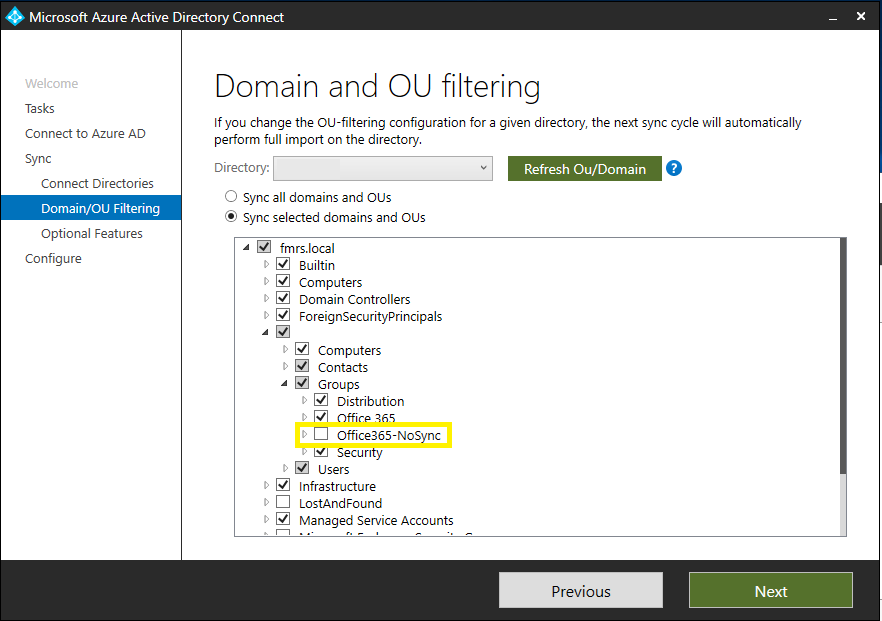
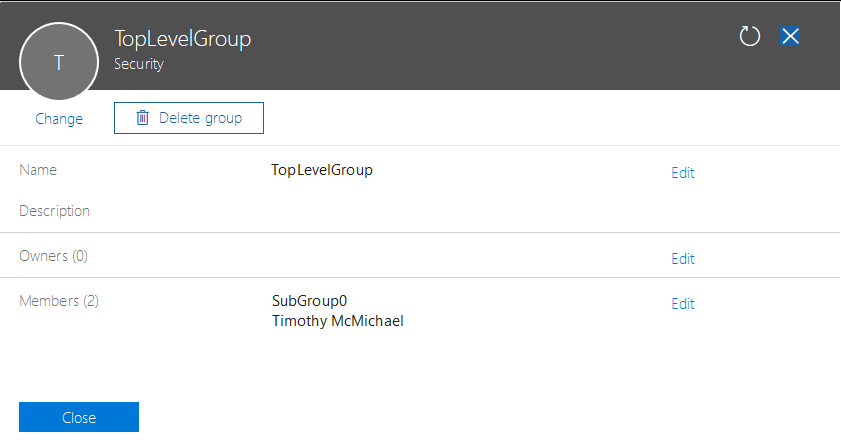
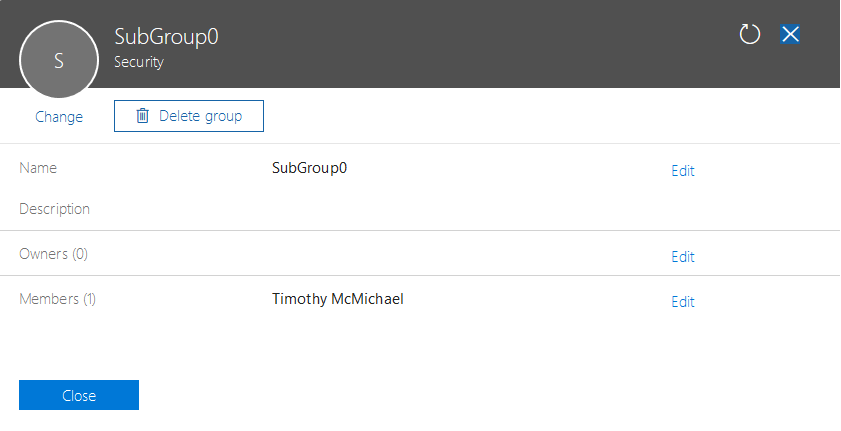



 TIMMCMIC