Office 365: Challenges with Distribution Groups for Migrated Mailboxes and a Script Based Solution ( Script Version 1.0 )

===========================================================================================

Group Migration Script v1.0 –> https://github.com/timmcmic/DLConversion/blob/master/src/DLConversion.ps1

===========================================================================================

Distribution groups are an excellent way to organize multiple recipients under a single address.  Like Exchange Server on-premises, Office 365 supports mail-enabled distribution groups, security groups, and dynamic distribution groups.  When Active Directory and Exchange are used on-premises, distribution groups are typically created in the on-premises Active Directory and Azure Active Directory Connect is used to maintain and replicate the distribution groups to Office 365.

Generally, there are two types of administration models that use distribution groups (which can co-exist or be used exclusively):

1. The first model uses centralized administration for all configuration and membership changes. When a member needs to be added or removed, the help desk or an admin typically processes the request.  When co-existing with Office 365 this type of administration model is very effective.  With all changes originating on premises – Azure AD Connect can easily replicated them into the Azure AD where Office 365 workloads can process them.

2. The second model delegates some or all to the user that owns the distribution group. In this model, Outlook is used for management of the distribution group.  In a hybrid configuration, this model often creates management challenges. Outlook processes the membership changes by modifying membership on the domain controller provided to the user’s mailbox by Active Directory. After the membership change is made, Azure AD Connect pushes the requested changes to Azure AD where Office 365 workloads can process them. Office 365 mailboxes receive their list of domain controllers from Exchange Online, which prevents distribution group synchronized from on-premises from being modified in Office 365. Therefore, anyone whose mailbox has been migrated to Office 365 can no longer managed distribution groups. The same is also true for administrators that attempt to manage the distribution group in Office 365.

When asked how to allow migrated mailboxes to manage distribution groups that are owned by the mailboxes the answer is to migrate the distribution groups to Office 365. For some, this involves manually deleting and recreating the distribution groups. Others have also found scripts to do this, but they don’t always address all the attributes associated with a distribution group and instead focus on simple attributes like proxy addresses, membership, name, etc.

In this post, I’ll show you a script that addresses these concerns and allows you to migrate distribution groups to Office 365 with full fidelity. Before we get into the script, let’s look at some of the challenges encountered when attempting to migrate distribution groups.

Group Membership

Distribution groups created on-premises are managed using AD tools or Exchange management tools. When managing distribution groups with Exchange tools, membership rules are enforced (for example, a member can be added only if the object is mail-enabled). This can include mail contacts, mail users, and mailboxes. Groups and users, both mail-enabled and not, can be added using Exchange tools.  AD tools are more forgiving, though; the administrator can add any valid AD object to the group membership (for example, a contact that is not mail-enabled could be added to the distribution group, although this would have no effect on mail flow).

Exchange Online has a set of rules for objects that are replicated from Azure AD to Exchange Online Active Directory.  If an object is not mail-enabled, it is not represented in Exchange Online AD. This includes any groups that are members of an on-premises distribution group but not mail-enabled.  An exception to this rule is user accounts. User account objects are replicated to Exchange Online even if they are not mail-enabled.

When migrating distribution groups, all objects that are not mail-enabled or users must be filtered out. Here is an example of a distribution group that contains a mix of members.

PS C:\> Get-DistributionGroupMember -Identity Migrate

Name              RecipientType
—-              ————-
Domain Users      Group
Journal Mailbox   UserMailbox
Brian Murphy      MailContact
Timothy McMichael MailUser
Migrate1          MailUniversalSecurityGroup
Migrate2          MailUniversalDistributionGroup
Team Manager      User
Dynamic           DynamicDistributionGroup
Test Contact      Contact

Users and Groups

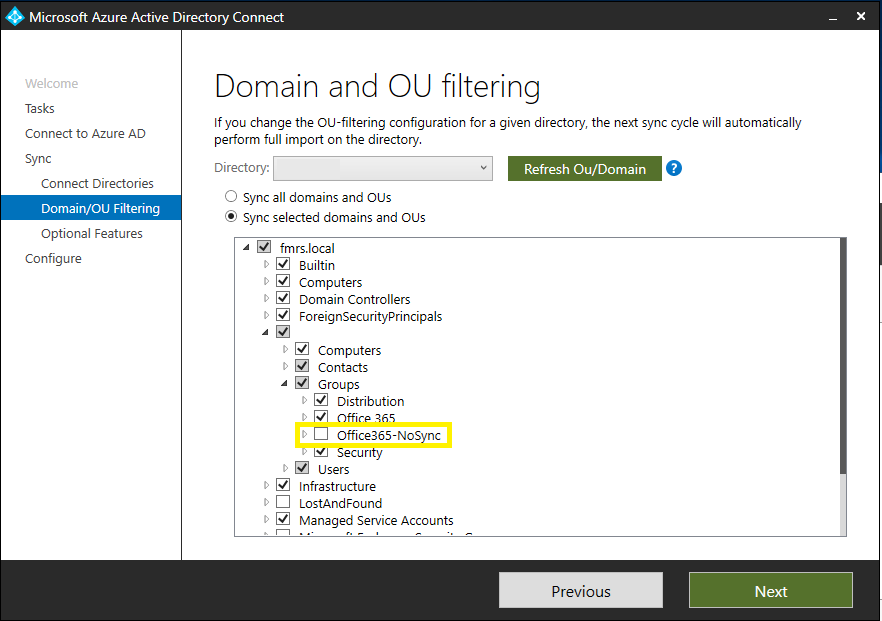
For users and groups to be members of a distribution group they must exist in Office 365.  There are common scenarios where Organizational Units are intentionally excluded from replication to Azure Active Directory.  Before migrating any distribution groups you must ensure that the members exist in Office 365.  If they don’t, attempts to create the distribution group through automation will fail.  Since it is possible for groups to have other group as members, any type of migration of a group to Office 365 will require removal of the on-premises group. If the groups that are members are not migrated first, their membership in that group would be lost.

Multivalued Attributes

Distribution groups have several multi-valued attributes that require consideration before migrated.  The attributes managedBy, moderatedBy, acceptMessagesOnlyFromSendersOrMembers, grantSendOnBehalfTo, rejectMessagesFromSendersOrMembers, and bypassModerationFromSendersOrMembers, for example, store their member references as distinguished names of objects.  Here is a sample output:

PS C:\> $a=Get-DistributionGroup migrate
PS C:\> $a.managedBy
domain.local/Organization/Users/Officers/Timothy McMichael
domain.local/Organization/Users/Officers/Bill Smith
PS C:\> $a.moderatedBy
domain.local/Organization/Users/Officers/Timothy McMichael
PS C:\> $a.AcceptMessagesOnlyFromSendersOrMembers domain.local/Organization/Users/Officers/Bill Smith
domain.local/ConvertedDL/Migrate1
PS C:\> $a.BypassModerationFromSendersOrMembers
domain.local/ConvertedDL/Migrate1
PS C:\> $a.RejectMessagesFromSendersOrMembers
domain.local/ConvertedDL/Migrate2
PS C:\> $a.GrantSendOnBehalfTo
domain.local/Organization/Users/Officers/Timothy McMichael

If these attributes were extracted as arrays and then used with Office 365, the references would not work because the DNs of the objects stored in Office 365 needs to reference the DN of the object in Exchange Online. 

The managedBy attribute is a shared attribute with Active Directory, and it can be set to a non-mail-enabled user.  In Exchange Online, only a valid recipient object can be entered in the managedBy field.  Thus, before you can convert the distribution group, you must ensure that all members of the managedBy field are Exchange Online recipients.

The remaining multi-valued attributes can only be set via Exchange cmdlets, which ensures that the objects are mail-enabled user objects.

Proxy / Email Addresses

The email addresses field is a multi-valued attribute.  If the proxy addresses are not in use on another object in Exchange Online, they can be moved to the new distribution group.  Note, that it is important to preserve the Reply To functionality.  Migrated distribution groups don’t really change – they have the same name, same proxy addresses, and same members.  But the nickname cache in Outlook uses the distinguished name of the group (which points to on-premises).  If a user were to address an email to the migrated group by selecting the group from nickname cache, the message would NDR.

Other Attributes

Other attributes of a distribution group are mostly text based, allowing them to be exported and imported as text. There are also several Boolean values that can be translated to the equivalent on the new distribution group, including custom attributes.

Group Migration Script

The group migration script described in this post considers all the factors presented above. Executing the script starts by preparing some pre-requisites.

Prerequisites

The first pre-requisite is to establish an Organizational Unit (OU) within Active Directory that is not synchronized to Azure Active Directory. This OU will be where the group objects will be moved during the conversion process. The conversion process in v1 of the script retains the original distribution group.  The distinguished name of this group will need to be recorded as it will be a script variable.

The second pre-requisite involves creating a secure credentials XML file that can be used by the script. The administrator must note the file names and the path where they are stored. These are variables within the script that must be updated, or the administrator can match the files contained in the script.  Create one file for on-premises credentials and one file for cloud credentials. If using XML files is not your preferred method of handling credentials, you can modify the script to prompt for credentials or consider storing credentials using other methods supported by PowerShell.

$cred = get-credential

$cred | export-cliXML –path c:\Scripts\credentials.xml

For on preemies a domain administrator account is required.  This account is required to move groups between OUs, track group membership in future versions, perform inbound and outbound replication from the specified domain controller, and make WinRM powershell connections to the domain controller where these operations will be performed.  The account will also require Exchange Organization Administrator rights in order to perform Exchange Remote Powershell connections and issue Exchange commandlets.

For Office 365 at minimum a Exchange Organization Administrator is required – most commonly a global administrator is utilized.  It is important to note that the account CANNOT utilize multi-factor authentication.  The script manages multiple basic authenticated powershell sessions – and cannot utilize MFA or the modern powershell enabled module for Exchange Online.

One caveat to using these files is that they are signed to the user and machine on which they were created.  Therefore, all admins using the script have to create their own sets of files.

The third pre-requisite is to ensure that the PSLOGGING module from the PowerShell Gallery is installed. This module is necessary to create files that record operations along with clean-up and logging when an error has occurred.

install-module PSLOGGING

The fourth pre-requisite is to configure Basic authentication on a local PowerShell directory.  By default, Basic authentication is not enabled in on-premises, which limits the ability to create a “remote” PowerShell session to on-premises Exchange server. Administrators often work around this by identifying one server where Basic authentication is enabled or by enabling Basic authentication on all PowerShell virtual directories behind a load-balanced name.  Whether a single server or multiple servers are used, it is a requirement to establish an SSL session to the name provided, which means there must be a public certificate installed on the specified endpoint.

Get-PowerShellVirtualDirectory –server <SERVERNAME> | Set-PowerShellVirtualDirectory –basicAuthentication:$TRUE

The last pre-requisite is to review the variables contained within the script for any necessary modifications. Variables that are recommended for the admin to adjust are noted with ###ADMIN### in front of their definition. These variables include PowerShell URLs, paths, and file names.

Script Mechanics

With the pre-requisites covered, let’s dive into the mechanics of how the script works and review the individual functions.

The process starts by gathering the credentials XML files and preparing them for use in subsequent functions. The success or failure of these operations is largely dependent on ensuring the credentials stored in the files are accurate and that the associated variables with the files have been updated successfully.

The script then proceeds to create the necessary PowerShell sessions for operations to be performed.  There are three PowerShell sessions created:

1. The first session is to an on-premises server where commands will operate against on-premises recipient objects.

2. The second session is to Office 365 where Office 365 recipient commands will be executed.

3. The third session is to the Azure AD Connect server, which will be used to invoke synchronization as recipient objects are modified.

To activate the on-premises and Office 365 PowerShell sessions, they must be imported.  When importing remote PowerShell sessions, you can often have the same cmdlets returned in each session.  In this case, there is definite overlap between Exchange and Exchange Online.  To avoid any confusion when importing the Office 365 PowerShell session we append the cmdlets with O365.  This effectively takes a cmdlet like Get-Recipient and makes it Get-O365Recipient. PowerShell is smart enough to detect the correct cmdlet and invoke it within the appropriate session.

After the underlying PowerShell sessions are started, the script exports all properties of the on-premises distribution group and all properties of the Office 365 distribution group to variables for later use.  The Office 365 distribution group should match the on-premises group as the source of authority for the Office 365 group is on-premises.

After the data has been extracted, the script performs a safety check against the distribution group, which reviews the directory synchronization flag of the distribution group in Office 365. If this flag is set to FALSE, it indicates that the distribution group is cloud-only.  If this scenario occurs, the script is automatically ended. The script can only be so smart, and it uses the SMTP address of the on-premises distribution group to locate the replicated copy in Office 365. Because it’s possible for a group in Office 365 and on-premises to share the same address even though they are not directory synchronized, the script must stop because if it continued, the Office 365 group would be removed and replaced with the on-premises group which could have unintended consequences.

After the safety check is complete, the script records and exports the information for the on-premises and Office 365 groups to XML files defined by the administrator. XML output allows us to retain full fidelity of the multivalued attributes in case something goes wrong, or we need to manually correct a failure condition.

The last portion of data collection (membership) and backup then proceeds. Membership is obtained and written to a variable that will be used in later operations. It is also exported to XML file to ensure that we have a copy of the information prior to starting any of the conversion activities.

With all the pertinent information stored within variables and backup XML files, the next step is processing this information. In the previous section, I outlined some of the challenges in working with this data.  There can be non-mail-enabled objects that need to be accounted for – these will not have primary SMTP addresses. There are mail-enabled objects that need to be accounted for but may be stored as distinguished names on certain attributes. Knowing that we need to account for all these differences forces us to develop a method to translate those individual users and recipients to objects that can be located in Exchange Online. To that end, we know that we can locate recipients via their primary SMTP address or a user account through the user principal name. So, the script iterates through all the multi-valued attributes and attempts to normalize the data into references that can be found in Exchange Online. If the object is a recipient class, we record the primarySMTPAddress of the object.  If the object is a non-mail-enabled user, we record the userPrincipalName of the object.  For each multi-valued attribute this culminates in an individual array of references that will allow us to find the objects in Exchange Online.

When the arrays of normalized data have been built we need to validate that the objects can be found in Exchange Online. The script looks for objects in Exchange Online using Get-Recipient and Get-User cmdlets in the Office 365 PowerShell. If the object is found, the recipient or user is valid and is synchronized by Azure AD Connect.  If an object is not found, the process stops and allows the administrator to correct any issues. Groups can also be members of distribution groups, so the script reviews all groups that are members and determines if they have been migrated to Office 365. Assuming all users are found, and all member groups have been migrated, it is safe to proceed with the migration.

The first step in finalizing the migration is to move the distribution group to the OU that does not synchronize. As the script proceeds, Azure AD Connect will see this as a group deletion and eventually remove it from Office 365.  The removal from Azure AD will propagate to Exchange Online Active Directory, resulting in the distribution group becoming deleted.

To ensure that all domain controllers show that the group was moved to the OU, repadmin is used to force replication across all domain controllers in the domain.  If your domain is very large, consider changing this function to a list of domain controllers or to a single domain controller.  You can also comment out the function and just increase the wait time to allow for normal replication to occur.

With domain replication underway/completed, next is to remove the distribution group from Azure AD. This process uses a remote PowerShell session to perform a delta synchronization.  A delta synchronization may already be in progress, so the script is designed to retry every 1 minute until it can assure that at least one delta sync was triggered by the script.  A delta sync can take several minutes to run depending on the size of the environment, and it only removes the group from Azure AD. The forward synchronization process will detect the groups removal from Azure AD and synchronize the change to Exchange Online.  Because there really is no way to monitor progress once the delta synchronization is issued, the script begins issuing calls to Azure AD for the group. If the call is successful, the group still exists, and the script waits 1 minute between attempts, looping until the group is not found (basically, an error occurs locating the group, which confirms the group is no longer in Office 365).

Once the group has been removed the script can now create the new replacement group using the base settings.  Next, all the non-multivalued attributes of the distribution group are set, including email addresses, custom attribute, extension attributes, and other Boolean variables that control mail flow, delivery, etc.  Next, multi-valued attributes are set by using the normalized arrays that were built previously. After all attributes have been addressed, the new distribution group in Office 365 now mirrors the original distribution group on-premises.

The final step is to gather all the settings of the new distribution group and export them to XML, which serves as a record of the operation. At the end of the script, all created PowerShell sessions are removed in preparation for the next migration.

Frequently Asked Questions

Q:  How can I prevent PowerShell sessions from timing out?

A:  There is really no method to prevent the PowerShell settings from timing out.  During testing, we determined that the operation that ran the longest was building the array of normalized SMTP addresses for the distribution group membership.  When the PowerShell session to Office 365 was left open during this process it would often be closed before we were ready to proceed with other portions.  It was also determined that when processing long arrays (for example, adding all the distribution group membership), the session may time out.  To overcome this, we routinely reset the session to Office 365 after portions of the script that took more time to process data.

Q:  Can the script be run in bulk?

A:  It is possible to feed the script a list of proxy addresses for distribution groups to migrate by calling the script multiple times.  The process through would repeat in terms of domain controller replication, Azure AD Connect synchronization, etc.  The original design of the script approached this from the perspective of servicing one-off requests for migration and not necessarily bulk migrations or conversions.

Q:  Is the script efficient?

A:  Efficiency is always relative…is it more efficient then trying to do all of this by hand and manage all the attributes? Certainly. The script must rely on several processes that do not necessarily have any guaranteed timelines.  For example, we can’t predict how long a delta sync or forward sync will take.  Thus, it’s not possible to give you a 100% accurate estimate of how long it takes to migrate a distribution group.  There is also a great deal of logging that occurs during the script which adds some overhead, but given the nature and importance of distribution groups, having the additional information is important.

Q:  What is the largest distribution group size that was tested?

A:  The script was validated using a distribution group with 10,000 members and had a minimum of 10 members in each of the multi-valued attributes.

Q:  How long did it take to migrate a group with 10,000 members?

A:  A little more than 3 hours:

Days              : 0
Hours             : 3
Minutes           : 6
Seconds           : 57
Milliseconds      : 768
Ticks             : 112177687252
TotalDays         : 0.129835286171296
TotalHours        : 3.11604686811111
TotalMinutes      : 186.962812086667
TotalSeconds      : 11217.7687252
TotalMilliseconds : 11217768.7252

Q:  What happens to mail flow during the migration process?

A:  It depends.  The distribution group is maintained on-premises during this entire process.  If messages enter the on-premises environment first and are addressed to the distribution group, you can expect that expansion will occur and message delivery will happen. The group in Office 365 is in flux during the entire migration process.  If the group is missing and a message is received, it may NDR.  If the group has been created but member addition is in-progress, then only some of the members may receive it.  I recommend that you provide warnings to distribution group owners that mail flow will be affected during the transition.

Q:  If the distribution group is a mail-enabled security group, and that group has been assigned permissions to Office 365 workloads, what happens during the conversion?

A:  Permissions would be lost.  The script only works because the group is deleted – and this would be processed by other workloads as a group deletion.

Q:  Do I have to keep the on-premises distribution group post-migration?

A:  It depends.  If messages are processed through the on-premises environment, there needs to be a corresponding mail-enabled object.  We are looking into automating the conversion of the group to a mail contact in a future version of the script to allow for mail flow to continue.

Q:  Dynamic distribution groups are not replicated by Azure Active Directory Connect.  How does the script handle dynamic distribution groups?

A:  Administrators must manually create dynamic distribution groups in Office 365.  The script intentionally does not treat dynamic distribution groups differently then a normal recipient.  In this case we detect a member and record the primary SMTP address.  When we run the recipient test against Office 365 by primary SMTP address – the recipient is returned and the script can proceed.  If the recipient is not found the script will fail.

Sample Invocations

===============================================================================

Attempting to convert the distribution group Migrate without ignoring invalid managers or invalid members.  The group to be converted IS NOT located in Office 365.  An error is generated and the script stops.

PS C:\Scripts> .\ConvertDL.ps1 -dlToConvert Migrate -ignoreInvalidDLMember:$FALSE -ignoreInvalidManagedByMember:$FALSE


     Directory: C:\Scripts


Mode                LastWriteTime         Length Name
—-                ————-         —— —-
-a—-        9/18/2018   7:17 PM              0 DLConversion.log
***************************************************************************************************
Started processing at [09/18/2018 19:17:22].
***************************************************************************************************


Running script version [1.0].


***************************************************************************************************


This function imports the on premises secured credentials file….
The on premises credentials file was imported successfully.


This function imports the Office 365 secured credentials file….
The Office 365 credentials file was imported successfully.


This function creates the powershell session to on premises Exchange….
The powershell session to on premises Exchange was created successfully.


This function creates the powershell session to Office 365….
The powershell session to Office 365 was created successfully.


This function creates the powershell session to AAD Connect….
The powershell session to AAD Connect was created successfully.


This function imports the powershell session to on premises Exchange….
WARNING: The names of some imported commands from the module ‘tmp_y0ib5tyw.pmz’ include unapproved verbs that might make them less discoverable. To find the commands with unapproved verbs, run the Import-Module command again with the Verbose parameter. For a list of approved verbs, type Get-Verb.


Name              : tmp_y0ib5tyw.pmz
Path              : C:\Users\admin.domain\AppData\Local\Temp\tmp_y0ib5tyw.pmz\tmp_y0ib5tyw.pmz.psm1
Description       : Implicit remoting for
https://webmail.domain.com/powershell

Guid              : 1dfe9d4c-8ca2-4de2-aa8c-8e0281af907c
Version           : 1.0
ModuleBase        : C:\Users\admin.domain\AppData\Local\Temp\tmp_y0ib5tyw.pmz
ModuleType        : Script
PrivateData       : {ImplicitRemoting}
AccessMode        : ReadWrite
ExportedAliases   : {}
ExportedCmdlets   : {}
ExportedFunctions : {[Add-ADPermission, Add-ADPermission], [Add-AvailabilityAddressSpace,
                     Add-AvailabilityAddressSpace], [Add-ContentFilterPhrase, Add-ContentFilterPhrase],
                     [Add-DatabaseAvailabilityGroupServer, Add-DatabaseAvailabilityGroupServer]…}
ExportedVariables : {}
NestedModules     : {}


The powershell session to on premises Exchange was imported successfully.


This function imports the powershell session to Office 365….
WARNING: The names of some imported commands from the module ‘tmp_rt1gncnz.op4’ include unapproved verbs that might make them less discoverable. To find the commands with unapproved verbs, run the Import-Module command again with the Verbose parameter. For a list of approved verbs, type Get-Verb.


Name              : tmp_rt1gncnz.op4
Path              : C:\Users\admin.domain\AppData\Local\Temp\tmp_rt1gncnz.op4\tmp_rt1gncnz.op4.psm1
Description       : Implicit remoting for
https://outlook.office365.com/powershell-liveID/

Guid              : f829f0b4-a669-4e18-a789-4afa9e4e9bd0
Version           : 1.0
ModuleBase        : C:\Users\admin.domain\AppData\Local\Temp\tmp_rt1gncnz.op4
ModuleType        : Script
PrivateData       : {ImplicitRemoting}
AccessMode        : ReadWrite
ExportedAliases   : {}
ExportedCmdlets   : {}
ExportedFunctions : {[Add-o365AvailabilityAddressSpace, Add-o365AvailabilityAddressSpace],
                     [Add-o365DistributionGroupMember, Add-o365DistributionGroupMember],
                     [Add-o365MailboxFolderPermission, Add-o365MailboxFolderPermission], [Add-o365MailboxLocation,
                     Add-o365MailboxLocation]…}
ExportedVariables : {}
NestedModules     : {}


The powershell session to Office 365 was imported successfully.


This function collects the on premises distribution list configuration….
The on premises distribution list information was collected successfully.


This function collects the Office 365 distribution list configuration….

The operation couldn’t be performed because object ‘Migrate’ couldn’t be found on
‘CO1PR06A002DC02.NAMPR06A002.prod.outlook.com’.
     + CategoryInfo          : NotSpecified: (:) [Get-DistributionGroup], ManagementObjectNotFoundException
     + FullyQualifiedErrorId : [Server=MWHPR06MB2446,RequestId=bef7d47e-8d2d-4c75-a6d4-40264dee7723,TimeStamp=9/18/2018
7:17:47 PM] [FailureCategory=Cmdlet-ManagementObjectNotFoundException]
F71693B4,Microsoft.Exchange.Management.RecipientTasks.GetDistributionGroup
     + PSComputerName        : outlook.office365.com
The operation couldn’t be performed because object ‘Migrate’ couldn’t be found on
‘CO1PR06A002DC02.NAMPR06A002.prod.outlook.com’.
     + CategoryInfo          : NotSpecified: (:) [Get-DistributionGroup], ManagementObjectNotFoundException
     + FullyQualifiedErrorId : [Server=MWHPR06MB2446,RequestId=bef7d47e-8d2d-4c75-a6d4-40264dee7723,TimeStamp=9/18/2018
     7:17:47 PM] [FailureCategory=Cmdlet-ManagementObjectNotFoundException] F71693B4,Microsoft.Exchange.Management.Rec
   ipientTasks.GetDistributionGroup
     + PSComputerName        : outlook.office365.com


ERROR: The Office 365 distribution list information could not be collected – exiting.
ERROR: The operation couldn’t be performed because object ‘Migrate’ couldn’t be found on ‘CO1PR06A002DC02.NAMPR06A002.prod.outlook.com’.

This function cleans up all powershell sessions….
All powershell sessions have been cleaned up successfully.


***************************************************************************************************
Finished processing at [09/18/2018 19:17:47].
***************************************************************************************************

===============================================================================

===============================================================================

Attempting to convert the distribution group Migrate without ignoring invalid managers or invalid members.  The group contains another distribution or security group that is not mail enabled.  An error is generated and the script stops.

PS C:\Scripts> .\ConvertDL.ps1 -dlToConvert Migrate -ignoreInvalidDLMember:$FALSE -ignoreInvalidManagedByMember:$FALSE


     Directory: C:\Scripts


Mode                LastWriteTime         Length Name
—-                ————-         —— —-
-a—-        9/19/2018   2:11 PM              0 DLConversion.log
***************************************************************************************************
Started processing at [09/19/2018 14:11:07].
***************************************************************************************************


Running script version [1.0].


***************************************************************************************************


This function imports the on premises secured credentials file….
The on premises credentials file was imported successfully.


This function imports the Office 365 secured credentials file….
The Office 365 credentials file was imported successfully.


This function creates the powershell session to on premises Exchange….
The powershell session to on premises Exchange was created successfully.


This function creates the powershell session to Office 365….
The powershell session to Office 365 was created successfully.


This function creates the powershell session to AAD Connect….
The powershell session to AAD Connect was created successfully.


This function imports the powershell session to on premises Exchange….
WARNING: The names of some imported commands from the module ‘tmp_rmsylwqo.1zq’ include unapproved verbs that might
make them less discoverable. To find the commands with unapproved verbs, run the Import-Module command again with the
Verbose parameter. For a list of approved verbs, type Get-Verb.


Name              : tmp_rmsylwqo.1zq
Path              : C:\Users\admin.domain\AppData\Local\Temp\tmp_rmsylwqo.1zq\tmp_rmsylwqo.1zq.psm1
Description       : Implicit remoting for
https://webmail.domain.com/powershell

Guid              : bb38fffd-b692-41c6-bb7f-ac49fe3a006b
Version           : 1.0
ModuleBase        : C:\Users\admin.domain\AppData\Local\Temp\tmp_rmsylwqo.1zq
ModuleType        : Script
PrivateData       : {ImplicitRemoting}
AccessMode        : ReadWrite
ExportedAliases   : {}
ExportedCmdlets   : {}
ExportedFunctions : {[Add-ADPermission, Add-ADPermission], [Add-AvailabilityAddressSpace,
                     Add-AvailabilityAddressSpace], [Add-ContentFilterPhrase, Add-ContentFilterPhrase],
                     [Add-DatabaseAvailabilityGroupServer, Add-DatabaseAvailabilityGroupServer]…}
ExportedVariables : {}
NestedModules     : {}


The powershell session to on premises Exchange was imported successfully.


This function imports the powershell session to Office 365….
WARNING: The names of some imported commands from the module ‘tmp_4korcvyz.ikr’ include unapproved verbs that might
make them less discoverable. To find the commands with unapproved verbs, run the Import-Module command again with the
Verbose parameter. For a list of approved verbs, type Get-Verb.


Name              : tmp_4korcvyz.ikr
Path              : C:\Users\admin.domain\AppData\Local\Temp\tmp_4korcvyz.ikr\tmp_4korcvyz.ikr.psm1
Description       : Implicit remoting for
https://outlook.office365.com/powershell-liveID/

Guid              : 1a019be1-7a24-410f-b38e-37dbcc282021
Version           : 1.0
ModuleBase        : C:\Users\admin.domain\AppData\Local\Temp\tmp_4korcvyz.ikr
ModuleType        : Script
PrivateData       : {ImplicitRemoting}
AccessMode        : ReadWrite
ExportedAliases   : {}
ExportedCmdlets   : {}
ExportedFunctions : {[Add-o365AvailabilityAddressSpace, Add-o365AvailabilityAddressSpace],
                     [Add-o365DistributionGroupMember, Add-o365DistributionGroupMember],
                     [Add-o365MailboxFolderPermission, Add-o365MailboxFolderPermission], [Add-o365MailboxLocation,
                     Add-o365MailboxLocation]…}
ExportedVariables : {}
NestedModules     : {}


The powershell session to Office 365 was imported successfully.


This function collects the on premises distribution list configuration….
The on premises distribution list information was collected successfully.


This function collects the Office 365 distribution list configuration….
The Office 365 distribution list information was collected successfully.


This function validates a cloud DLs saftey to migrate….
The DL is safe to proeced for conversion – source of authority is on-premises.


This function writes the on prmeises distribution list configuration to XML….
The on premises distribution list information was written to XML successfully.


This function writes the Office 365 distribution list configuration to XML….
The Office 365 distribution list information was written to XML successfully.


This function collections the on premises DL membership….
The DL membership was collected successfully.


This function writes the on prmeises distribution list membership configuration to XML….
The on premises distribution list membership information was written to XML successfully.


This function removes the Office 365 powershell sessions….
All powershell sessions have been cleaned up successfully.


Begin processing a DL membership array.
This function builds an array of DL members or multivalued attributes….

ERROR: Domain Users
ERROR: A non-mail enabled or Office 365 object was found in the group.
ERROR: Script invoked without skipping invalid DL Member.
ERROR: The object must be removed or mail enabled.
ERROR: EXITING.

This function cleans up all powershell sessions….
All powershell sessions have been cleaned up successfully.


***************************************************************************************************
Finished processing at [09/19/2018 14:11:55].
***************************************************************************************************

===============================================================================

===============================================================================

Attempting to convert the distribution group Migrate without ignoring invalid managers or invalid members.  The group contains another mail enabled distribution group that has not been migrated to Office 365.  The script automatically stops as all sub groups need to be migrated prior to top level groups.  The script was also run with –ignoreInvalidDLMembers TRUE – all non-mail enabled members or members not represented in Office 365 ar automatically ignored.

PS C:\Scripts> .\ConvertDL.ps1 -dlToConvert Migrate -ignoreInvalidDLMember:$TRUE -ignoreInvalidManagedByMember:$FALSE


     Directory: C:\Scripts


Mode                LastWriteTime         Length Name
—-                ————-         —— —-
-a—-        9/19/2018   2:22 PM              0 DLConversion.log
***************************************************************************************************
Started processing at [09/19/2018 14:22:24].
***************************************************************************************************


Running script version [1.0].


***************************************************************************************************


This function imports the on premises secured credentials file….
The on premises credentials file was imported successfully.


This function imports the Office 365 secured credentials file….
The Office 365 credentials file was imported successfully.


This function creates the powershell session to on premises Exchange….
The powershell session to on premises Exchange was created successfully.


This function creates the powershell session to Office 365….
The powershell session to Office 365 was created successfully.


This function creates the powershell session to AAD Connect….
The powershell session to AAD Connect was created successfully.


This function imports the powershell session to on premises Exchange….
WARNING: The names of some imported commands from the module ‘tmp_b11x0ew3.20l’ include unapproved verbs that might
make them less discoverable. To find the commands with unapproved verbs, run the Import-Module command again with the
Verbose parameter. For a list of approved verbs, type Get-Verb.


Name              : tmp_b11x0ew3.20l
Path              : C:\Users\admin.domain\AppData\Local\Temp\tmp_b11x0ew3.20l\tmp_b11x0ew3.20l.psm1
Description       : Implicit remoting for
https://webmail.domain.com/powershell

Guid              : 3c49dbae-b2af-428e-9be4-94ffc63126a4
Version           : 1.0
ModuleBase        : C:\Users\admin.domain\AppData\Local\Temp\tmp_b11x0ew3.20l
ModuleType        : Script
PrivateData       : {ImplicitRemoting}
AccessMode        : ReadWrite
ExportedAliases   : {}
ExportedCmdlets   : {}
ExportedFunctions : {[Add-ADPermission, Add-ADPermission], [Add-AvailabilityAddressSpace,
                     Add-AvailabilityAddressSpace], [Add-ContentFilterPhrase, Add-ContentFilterPhrase],
                     [Add-DatabaseAvailabilityGroupServer, Add-DatabaseAvailabilityGroupServer]…}
ExportedVariables : {}
NestedModules     : {}


The powershell session to on premises Exchange was imported successfully.


This function imports the powershell session to Office 365….
WARNING: The names of some imported commands from the module ‘tmp_ti245wqn.qju’ include unapproved verbs that might
make them less discoverable. To find the commands with unapproved verbs, run the Import-Module command again with the
Verbose parameter. For a list of approved verbs, type Get-Verb.


Name              : tmp_ti245wqn.qju
Path              : C:\Users\admin.domain\AppData\Local\Temp\tmp_ti245wqn.qju\tmp_ti245wqn.qju.psm1
Description       : Implicit remoting for
https://outlook.office365.com/powershell-liveID/

Guid              : 4c2cf1a7-0042-4595-9025-98728851b5ed
Version           : 1.0
ModuleBase        : C:\Users\admin.domain\AppData\Local\Temp\tmp_ti245wqn.qju
ModuleType        : Script
PrivateData       : {ImplicitRemoting}
AccessMode        : ReadWrite
ExportedAliases   : {}
ExportedCmdlets   : {}
ExportedFunctions : {[Add-o365AvailabilityAddressSpace, Add-o365AvailabilityAddressSpace],
                     [Add-o365DistributionGroupMember, Add-o365DistributionGroupMember],
                     [Add-o365MailboxFolderPermission, Add-o365MailboxFolderPermission], [Add-o365MailboxLocation,
                     Add-o365MailboxLocation]…}
ExportedVariables : {}
NestedModules     : {}


The powershell session to Office 365 was imported successfully.


This function collects the on premises distribution list configuration….
The on premises distribution list information was collected successfully.


This function collects the Office 365 distribution list configuration….
The Office 365 distribution list information was collected successfully.


This function validates a cloud DLs saftey to migrate….
The DL is safe to proeced for conversion – source of authority is on-premises.


This function writes the on prmeises distribution list configuration to XML….
The on premises distribution list information was written to XML successfully.


This function writes the Office 365 distribution list configuration to XML….
The Office 365 distribution list information was written to XML successfully.


This function collections the on premises DL membership….
The DL membership was collected successfully.


This function writes the on prmeises distribution list membership configuration to XML….
The on premises distribution list membership information was written to XML successfully.


This function removes the Office 365 powershell sessions….
All powershell sessions have been cleaned up successfully.


Begin processing a DL membership array.
This function builds an array of DL members or multivalued attributes….
Processing mail enabled DL member:
Journal Mailbox
Processing mail enabled DL member:
Brian Murphy
Processing mail enabled DL member:
Timothy McMichael
Processing mail enabled DL member:
Migrate1
Processing mail enabled DL member:
Migrate2
Processing non-mailenabled DL member:
Team Manager
Processing mail enabled DL member:
Dynamic

The following object was intentionally skipped – object type not replicated to Exchange Online
Test Contact

Processing mail enabled DL member:
NotReplicated
The following SMTP address was added to the array:
journal@domain.org
The following SMTP address was added to the array:
brian@domain.com
The following SMTP address was added to the array:
tmcmichael@domain.org
The following SMTP address was added to the array:
Migrate1@domain.org
The following SMTP address was added to the array:
Migrate2@domain.org
The following SMTP address was added to the array:
teammanager@domain.org
The following SMTP address was added to the array:
Dynamic@domain.org
The following SMTP address was added to the array:
notreplicate@domain.org


The array was built successfully.


This function resets the Office 365 powershell sessions….
This function removes the Office 365 powershell sessions….
All powershell sessions have been cleaned up successfully.


This function creates the powershell session to Office 365….
The powershell session to Office 365 was created successfully.


This function imports the powershell session to Office 365….
WARNING: The names of some imported commands from the module ‘tmp_2cmzyxkm.gbx’ include unapproved verbs that might
make them less discoverable. To find the commands with unapproved verbs, run the Import-Module command again with the
Verbose parameter. For a list of approved verbs, type Get-Verb.


Name              : tmp_2cmzyxkm.gbx
Path              : C:\Users\admin.domain\AppData\Local\Temp\tmp_2cmzyxkm.gbx\tmp_2cmzyxkm.gbx.psm1
Description       : Implicit remoting for
https://outlook.office365.com/powershell-liveID/

Guid              : 455ba332-1b14-49d2-891d-1701e6fdea84
Version           : 1.0
ModuleBase        : C:\Users\admin.domain\AppData\Local\Temp\tmp_2cmzyxkm.gbx
ModuleType        : Script
PrivateData       : {ImplicitRemoting}
AccessMode        : ReadWrite
ExportedAliases   : {}
ExportedCmdlets   : {}
ExportedFunctions : {[Add-o365AvailabilityAddressSpace, Add-o365AvailabilityAddressSpace],
                     [Add-o365DistributionGroupMember, Add-o365DistributionGroupMember],
                     [Add-o365MailboxFolderPermission, Add-o365MailboxFolderPermission], [Add-o365MailboxLocation,
                     Add-o365MailboxLocation]…}
ExportedVariables : {}
NestedModules     : {}


The powershell session to Office 365 was imported successfully.


All Office 365 powershell sessions have been refreshed.


This function validates that all objects in the passed array exist in Office 365….
Testing user in Office 365…
journal@domain.org
The recipients were found in Office 365.


This function validates that all objects in the passed array exist in Office 365….
Testing user in Office 365…
brian@domain.com
The recipients were found in Office 365.


This function validates that all objects in the passed array exist in Office 365….
Testing user in Office 365…
tmcmichael@domain.org
The recipients were found in Office 365.


This function validates that all objects in the passed array exist in Office 365….
Testing user in Office 365…
Migrate1@domain.org
The recipients were found in Office 365.


This function tests to see if any sub groups or groups assigned permissions have been migrated….
Now testing group…
Migrate1@domain.org
False
The recipients were found in Office 365.


This function validates that all objects in the passed array exist in Office 365….
Testing user in Office 365…
Migrate2@domain.org
The recipients were found in Office 365.


This function tests to see if any sub groups or groups assigned permissions have been migrated….
Now testing group…
Migrate2@domain.org
True

ERROR: A distribution list was found as a sub-member or on a multi-valued attribute.
ERROR: The distribution list has not been migrated to Office 365 (DirSync Flag is TRUE)
ERROR: All sub lists or lists with permissions must be migrated before proceeding.
This function cleans up all powershell sessions….
All powershell sessions have been cleaned up successfully.


***************************************************************************************************
Finished processing at [09/19/2018 14:23:08].
***************************************************************************************************

===============================================================================

===============================================================================

Attempting to convert the distribution group Migrate without ignoring invalid managers or invalid members.  The group contains a mailbox recipient that is not represented in Office 365.  Although the ignoreInvalidDLMember is set to $TRUE – since the object should be a valid object present in Office 365 the script stops.  (In this case the user is in an OU that is not synchronized to Office 365).

PS C:\Scripts> .\ConvertDL.ps1 -dlToConvert Migrate -ignoreInvalidDLMember:$TRUE -ignoreInvalidManagedByMember:$FALSE


     Directory: C:\Scripts


Mode                LastWriteTime         Length Name
—-                ————-         —— —-
-a—-        9/19/2018   2:27 PM              0 DLConversion.log
***************************************************************************************************
Started processing at [09/19/2018 14:27:17].
***************************************************************************************************


Running script version [1.0].


***************************************************************************************************


This function imports the on premises secured credentials file….
The on premises credentials file was imported successfully.


This function imports the Office 365 secured credentials file….
The Office 365 credentials file was imported successfully.


This function creates the powershell session to on premises Exchange….
The powershell session to on premises Exchange was created successfully.


This function creates the powershell session to Office 365….
The powershell session to Office 365 was created successfully.


This function creates the powershell session to AAD Connect….
The powershell session to AAD Connect was created successfully.


This function imports the powershell session to on premises Exchange….
WARNING: The names of some imported commands from the module ‘tmp_tvpecjxl.5ga’ include unapproved verbs that might
make them less discoverable. To find the commands with unapproved verbs, run the Import-Module command again with the
Verbose parameter. For a list of approved verbs, type Get-Verb.


Name              : tmp_tvpecjxl.5ga
Path              : C:\Users\admin.domain\AppData\Local\Temp\tmp_tvpecjxl.5ga\tmp_tvpecjxl.5ga.psm1
Description       : Implicit remoting for
https://webmail.domain.com/powershell

Guid              : 0985f143-cf95-4102-87d9-030408dd4bc8
Version           : 1.0
ModuleBase        : C:\Users\admin.domain\AppData\Local\Temp\tmp_tvpecjxl.5ga
ModuleType        : Script
PrivateData       : {ImplicitRemoting}
AccessMode        : ReadWrite
ExportedAliases   : {}
ExportedCmdlets   : {}
ExportedFunctions : {[Add-ADPermission, Add-ADPermission], [Add-AvailabilityAddressSpace,
                     Add-AvailabilityAddressSpace], [Add-ContentFilterPhrase, Add-ContentFilterPhrase],
                     [Add-DatabaseAvailabilityGroupServer, Add-DatabaseAvailabilityGroupServer]…}
ExportedVariables : {}
NestedModules     : {}


The powershell session to on premises Exchange was imported successfully.


This function imports the powershell session to Office 365….
WARNING: The names of some imported commands from the module ‘tmp_i4ivhhbw.2tu’ include unapproved verbs that might
make them less discoverable. To find the commands with unapproved verbs, run the Import-Module command again with the
Verbose parameter. For a list of approved verbs, type Get-Verb.


Name              : tmp_i4ivhhbw.2tu
Path              : C:\Users\admin.domain\AppData\Local\Temp\tmp_i4ivhhbw.2tu\tmp_i4ivhhbw.2tu.psm1
Description       : Implicit remoting for
https://outlook.office365.com/powershell-liveID/

Guid              : 86d813da-91e6-4e12-a369-577d696f60f4
Version           : 1.0
ModuleBase        : C:\Users\admin.domain\AppData\Local\Temp\tmp_i4ivhhbw.2tu
ModuleType        : Script
PrivateData       : {ImplicitRemoting}
AccessMode        : ReadWrite
ExportedAliases   : {}
ExportedCmdlets   : {}
ExportedFunctions : {[Add-o365AvailabilityAddressSpace, Add-o365AvailabilityAddressSpace],
                     [Add-o365DistributionGroupMember, Add-o365DistributionGroupMember],
                     [Add-o365MailboxFolderPermission, Add-o365MailboxFolderPermission], [Add-o365MailboxLocation,
                     Add-o365MailboxLocation]…}
ExportedVariables : {}
NestedModules     : {}


The powershell session to Office 365 was imported successfully.


This function collects the on premises distribution list configuration….
The on premises distribution list information was collected successfully.


This function collects the Office 365 distribution list configuration….
The Office 365 distribution list information was collected successfully.


This function validates a cloud DLs saftey to migrate….
The DL is safe to proeced for conversion – source of authority is on-premises.


This function writes the on prmeises distribution list configuration to XML….
The on premises distribution list information was written to XML successfully.


This function writes the Office 365 distribution list configuration to XML….
The Office 365 distribution list information was written to XML successfully.


This function collections the on premises DL membership….
The DL membership was collected successfully.


This function writes the on prmeises distribution list membership configuration to XML….
The on premises distribution list membership information was written to XML successfully.


This function removes the Office 365 powershell sessions….
All powershell sessions have been cleaned up successfully.


Begin processing a DL membership array.
This function builds an array of DL members or multivalued attributes….
Processing mail enabled DL member:
Journal Mailbox
Processing mail enabled DL member:
Brian Murphy
Processing mail enabled DL member:
Timothy McMichael
Processing mail enabled DL member:
Migrate1
Processing non-mailenabled DL member:
Team Manager
Processing mail enabled DL member:
Dynamic
The following object was intentionally skipped – object type not replicated to Exchange Online
Test Contact
Processing mail enabled DL member:
NotReplicated
The following SMTP address was added to the array:
journal@domain.org
The following SMTP address was added to the array:
brian@domain.com
The following SMTP address was added to the array:
tmcmichael@domain.org
The following SMTP address was added to the array:
Migrate1@domain.org
The following SMTP address was added to the array:
teammanager@domain.org
The following SMTP address was added to the array:
Dynamic@domain.org
The following SMTP address was added to the array:
notreplicate@domain.org


The array was built successfully.


This function resets the Office 365 powershell sessions….
This function removes the Office 365 powershell sessions….
All powershell sessions have been cleaned up successfully.


This function creates the powershell session to Office 365….
The powershell session to Office 365 was created successfully.


This function imports the powershell session to Office 365….
WARNING: The names of some imported commands from the module ‘tmp_rysbip4g.faj’ include unapproved verbs that might
make them less discoverable. To find the commands with unapproved verbs, run the Import-Module command again with the
Verbose parameter. For a list of approved verbs, type Get-Verb.


Name              : tmp_rysbip4g.faj
Path              : C:\Users\admin.domain\AppData\Local\Temp\tmp_rysbip4g.faj\tmp_rysbip4g.faj.psm1
Description       : Implicit remoting for
https://outlook.office365.com/powershell-liveID/

Guid              : 95f11f7e-d775-4d52-8cb5-b4ba67dd7e35
Version           : 1.0
ModuleBase        : C:\Users\admin.domain\AppData\Local\Temp\tmp_rysbip4g.faj
ModuleType        : Script
PrivateData       : {ImplicitRemoting}
AccessMode        : ReadWrite
ExportedAliases   : {}
ExportedCmdlets   : {}
ExportedFunctions : {[Add-o365AvailabilityAddressSpace, Add-o365AvailabilityAddressSpace],
                     [Add-o365DistributionGroupMember, Add-o365DistributionGroupMember],
                     [Add-o365MailboxFolderPermission, Add-o365MailboxFolderPermission], [Add-o365MailboxLocation,
                     Add-o365MailboxLocation]…}
ExportedVariables : {}
NestedModules     : {}


The powershell session to Office 365 was imported successfully.


All Office 365 powershell sessions have been refreshed.


This function validates that all objects in the passed array exist in Office 365….
Testing user in Office 365…
journal@domain.org
The recipients were found in Office 365.


This function validates that all objects in the passed array exist in Office 365….
Testing user in Office 365…
brian@domain.com
The recipients were found in Office 365.


This function validates that all objects in the passed array exist in Office 365….
Testing user in Office 365…
tmcmichael@domain.org
The recipients were found in Office 365.


This function validates that all objects in the passed array exist in Office 365….
Testing user in Office 365…
Migrate1@domain.org
The recipients were found in Office 365.


This function tests to see if any sub groups or groups assigned permissions have been migrated….
Now testing group…
Migrate1@domain.org
False
The recipients were found in Office 365.


This function validates that all objects in the passed array exist in Office 365….
Testing user in Office 365…
teammanager@domain.org
The recipients were found in Office 365.


This function validates that all objects in the passed array exist in Office 365….
Testing user in Office 365…
Dynamic@domain.org
The recipients were found in Office 365.


This function validates that all objects in the passed array exist in Office 365….

Testing user in Office 365…
notreplicate@domain.org


The operation couldn’t be performed because object ‘notreplicate@domain.org’ couldn’t be found on
‘CO1PR06A002DC02.NAMPR06A002.prod.outlook.com’.
     + CategoryInfo          : NotSpecified: (:) [Get-Recipient], ManagementObjectNotFoundException
     + FullyQualifiedErrorId : [Server=MWHPR06MB2446,RequestId=f6a99890-192d-4630-b244-337d6c706c97,TimeStamp=9/19/2018
     2:28:03 PM] [FailureCategory=Cmdlet-ManagementObjectNotFoundException] 5A65645E,Microsoft.Exchange.Management.Rec
   ipientTasks.GetRecipient
     + PSComputerName        : outlook.office365.com


ERROR: The recipients were not found in Office 365 – exiting.
ERROR: The operation couldn’t be performed because object ‘notreplicate@domain.org’ couldn’t be found on ‘CO1PR06A002DC02.NAMPR06A002.prod.outlook.com’.

This function cleans up all powershell sessions….
All powershell sessions have been cleaned up successfully.


***************************************************************************************************
Finished processing at [09/19/2018 14:28:04].
***************************************************************************************************

===============================================================================

===============================================================================

Attempting to convert the distribution group Migrate without ignoring invalid managers or invalid members.  The managed by attribute was set through Active Directory Users and Computers and a non-mail enabled object was selected.  IgnoreInvalidManagedByMember is set to $FALSE – therefore the script ends because managed by cannot be established.  The managedBy recipient would need to be removed or ignoreInvalidManagedByMember set to $TRUE.

PS C:\Scripts> .\ConvertDL.ps1 -dlToConvert Migrate -ignoreInvalidDLMember:$TRUE -ignoreInvalidManagedByMember:$FALSE


     Directory: C:\Scripts


Mode                LastWriteTime         Length Name
—-                ————-         —— —-
-a—-        9/19/2018   2:35 PM              0 DLConversion.log
***************************************************************************************************
Started processing at [09/19/2018 14:35:02].
***************************************************************************************************


Running script version [1.0].


***************************************************************************************************


This function imports the on premises secured credentials file….
The on premises credentials file was imported successfully.


This function imports the Office 365 secured credentials file….
The Office 365 credentials file was imported successfully.


This function creates the powershell session to on premises Exchange….
The powershell session to on premises Exchange was created successfully.


This function creates the powershell session to Office 365….
The powershell session to Office 365 was created successfully.


This function creates the powershell session to AAD Connect….
The powershell session to AAD Connect was created successfully.


This function imports the powershell session to on premises Exchange….
WARNING: The names of some imported commands from the module ‘tmp_u2zod0xm.0jy’ include unapproved verbs that might
make them less discoverable. To find the commands with unapproved verbs, run the Import-Module command again with the
Verbose parameter. For a list of approved verbs, type Get-Verb.


Name              : tmp_u2zod0xm.0jy
Path              : C:\Users\admin.domain\AppData\Local\Temp\tmp_u2zod0xm.0jy\tmp_u2zod0xm.0jy.psm1
Description       : Implicit remoting for
https://webmail.domain.com/powershell

Guid              : 2a209690-a2fd-4d0e-89e9-e52df5c5573e
Version           : 1.0
ModuleBase        : C:\Users\admin.domain\AppData\Local\Temp\tmp_u2zod0xm.0jy
ModuleType        : Script
PrivateData       : {ImplicitRemoting}
AccessMode        : ReadWrite
ExportedAliases   : {}
ExportedCmdlets   : {}
ExportedFunctions : {[Add-ADPermission, Add-ADPermission], [Add-AvailabilityAddressSpace,
                     Add-AvailabilityAddressSpace], [Add-ContentFilterPhrase, Add-ContentFilterPhrase],
                     [Add-DatabaseAvailabilityGroupServer, Add-DatabaseAvailabilityGroupServer]…}
ExportedVariables : {}
NestedModules     : {}


The powershell session to on premises Exchange was imported successfully.


This function imports the powershell session to Office 365….
WARNING: The names of some imported commands from the module ‘tmp_i53fb2xz.uuu’ include unapproved verbs that might
make them less discoverable. To find the commands with unapproved verbs, run the Import-Module command again with the
Verbose parameter. For a list of approved verbs, type Get-Verb.


Name              : tmp_i53fb2xz.uuu
Path              : C:\Users\admin.domain\AppData\Local\Temp\tmp_i53fb2xz.uuu\tmp_i53fb2xz.uuu.psm1
Description       : Implicit remoting for
https://outlook.office365.com/powershell-liveID/

Guid              : 20a82db7-7a4b-4034-95bc-6934f15f4c7b
Version           : 1.0
ModuleBase        : C:\Users\admin.domain\AppData\Local\Temp\tmp_i53fb2xz.uuu
ModuleType        : Script
PrivateData       : {ImplicitRemoting}
AccessMode        : ReadWrite
ExportedAliases   : {}
ExportedCmdlets   : {}
ExportedFunctions : {[Add-o365AvailabilityAddressSpace, Add-o365AvailabilityAddressSpace],
                     [Add-o365DistributionGroupMember, Add-o365DistributionGroupMember],
                     [Add-o365MailboxFolderPermission, Add-o365MailboxFolderPermission], [Add-o365MailboxLocation,
                     Add-o365MailboxLocation]…}
ExportedVariables : {}
NestedModules     : {}


The powershell session to Office 365 was imported successfully.


This function collects the on premises distribution list configuration….
The on premises distribution list information was collected successfully.


This function collects the Office 365 distribution list configuration….
The Office 365 distribution list information was collected successfully.


This function validates a cloud DLs saftey to migrate….
The DL is safe to proeced for conversion – source of authority is on-premises.


This function writes the on prmeises distribution list configuration to XML….
The on premises distribution list information was written to XML successfully.


This function writes the Office 365 distribution list configuration to XML….
The Office 365 distribution list information was written to XML successfully.


This function collections the on premises DL membership….
The DL membership was collected successfully.


This function writes the on prmeises distribution list membership configuration to XML….
The on premises distribution list membership information was written to XML successfully.


This function removes the Office 365 powershell sessions….
All powershell sessions have been cleaned up successfully.


Begin processing a DL membership array.
This function builds an array of DL members or multivalued attributes….
Processing mail enabled DL member:
Journal Mailbox
Processing mail enabled DL member:
Brian Murphy
Processing mail enabled DL member:
Timothy McMichael
Processing mail enabled DL member:
Migrate1
Processing non-mailenabled DL member:
Team Manager
Processing mail enabled DL member:
Dynamic
The following object was intentionally skipped – object type not replicated to Exchange Online
Test Contact
The following SMTP address was added to the array:
journal@domain.org
The following SMTP address was added to the array:
brian@domain.com
The following SMTP address was added to the array:
tmcmichael@domain.org
The following SMTP address was added to the array:
Migrate1@domain.org
The following SMTP address was added to the array:
teammanager@domain.org
The following SMTP address was added to the array:
Dynamic@domain.org


The array was built successfully.


This function resets the Office 365 powershell sessions….
This function removes the Office 365 powershell sessions….
All powershell sessions have been cleaned up successfully.


This function creates the powershell session to Office 365….
The powershell session to Office 365 was created successfully.


This function imports the powershell session to Office 365….
WARNING: The names of some imported commands from the module ‘tmp_l1gyiiem.qhr’ include unapproved verbs that might
make them less discoverable. To find the commands with unapproved verbs, run the Import-Module command again with the
Verbose parameter. For a list of approved verbs, type Get-Verb.


Name              : tmp_l1gyiiem.qhr
Path              : C:\Users\admin.domain\AppData\Local\Temp\tmp_l1gyiiem.qhr\tmp_l1gyiiem.qhr.psm1
Description       : Implicit remoting for
https://outlook.office365.com/powershell-liveID/

Guid              : ffbd7762-080a-48fa-88c0-d7cf5089d656
Version           : 1.0
ModuleBase        : C:\Users\admin.domain\AppData\Local\Temp\tmp_l1gyiiem.qhr
ModuleType        : Script
PrivateData       : {ImplicitRemoting}
AccessMode        : ReadWrite
ExportedAliases   : {}
ExportedCmdlets   : {}
ExportedFunctions : {[Add-o365AvailabilityAddressSpace, Add-o365AvailabilityAddressSpace],
                     [Add-o365DistributionGroupMember, Add-o365DistributionGroupMember],
                     [Add-o365MailboxFolderPermission, Add-o365MailboxFolderPermission], [Add-o365MailboxLocation,
                     Add-o365MailboxLocation]…}
ExportedVariables : {}
NestedModules     : {}


The powershell session to Office 365 was imported successfully.


All Office 365 powershell sessions have been refreshed.


This function validates that all objects in the passed array exist in Office 365….
Testing user in Office 365…
journal@domain.org
The recipients were found in Office 365.


This function validates that all objects in the passed array exist in Office 365….
Testing user in Office 365…
brian@domain.com
The recipients were found in Office 365.


This function validates that all objects in the passed array exist in Office 365….
Testing user in Office 365…
tmcmichael@domain.org
The recipients were found in Office 365.


This function validates that all objects in the passed array exist in Office 365….
Testing user in Office 365…
Migrate1@domain.org
The recipients were found in Office 365.


This function tests to see if any sub groups or groups assigned permissions have been migrated….
Now testing group…
Migrate1@domain.org
False
The recipients were found in Office 365.


This function validates that all objects in the passed array exist in Office 365….
Testing user in Office 365…
teammanager@domain.org
The recipients were found in Office 365.


This function validates that all objects in the passed array exist in Office 365….
Testing user in Office 365…
Dynamic@domain.org
The recipients were found in Office 365.


Begin processing a ManagedBy array.
This function builds an array of DL members or multivalued attributes….
ERROR: domain.local/Users/Test Manager
ERROR: A non-mail enabled or Office 365 object was found in ManagedBy.
ERROR: Script invoked without skipping invalid DL Member.
ERROR: The object must be removed or mail enabled.
ERROR: EXITING.

This function cleans up all powershell sessions….
All powershell sessions have been cleaned up successfully.


***************************************************************************************************
Finished processing at [09/19/2018 14:35:45].
***************************************************************************************************

===============================================================================

===============================================================================

Attempting to convert the distribution group Migrate without ignoring invalid managers or invalid members.  The invoke includes both ignore values – allowing us to skip

PS C:\Scripts> .\ConvertDL.ps1 -dlToConvert Migrate -ignoreInvalidDLMember:$TRUE -ignoreInvalidManagedByMember:$TRUE


     Directory: C:\Scripts


Mode                LastWriteTime         Length Name
—-                ————-         —— —-
-a—-        9/19/2018   2:54 PM              0 DLConversion.log
***************************************************************************************************
Started processing at [09/19/2018 14:54:59].
***************************************************************************************************


Running script version [1.0].


***************************************************************************************************


This function imports the on premises secured credentials file….
The on premises credentials file was imported successfully.


This function imports the Office 365 secured credentials file….
The Office 365 credentials file was imported successfully.


This function creates the powershell session to on premises Exchange….
The powershell session to on premises Exchange was created successfully.


This function creates the powershell session to Office 365….
The powershell session to Office 365 was created successfully.


This function creates the powershell session to AAD Connect….
The powershell session to AAD Connect was created successfully.


This function imports the powershell session to on premises Exchange….
WARNING: The names of some imported commands from the module ‘tmp_nkc0cq2u.nri’ include unapproved verbs that might make them less
discoverable. To find the commands with unapproved verbs, run the Import-Module command again with the Verbose parameter. For a list of
approved verbs, type Get-Verb.


Name              : tmp_nkc0cq2u.nri
Path              : C:\Users\admin.domain\AppData\Local\Temp\tmp_nkc0cq2u.nri\tmp_nkc0cq2u.nri.psm1
Description       : Implicit remoting for
https://webmail.domain.com/powershell

Guid              : 63c5f70a-44fa-47ed-95ef-749afa5a5d44
Version           : 1.0
ModuleBase        : C:\Users\admin.domain\AppData\Local\Temp\tmp_nkc0cq2u.nri
ModuleType        : Script
PrivateData       : {ImplicitRemoting}
AccessMode        : ReadWrite
ExportedAliases   : {}
ExportedCmdlets   : {}
ExportedFunctions : {[Add-ADPermission, Add-ADPermission], [Add-AvailabilityAddressSpace, Add-AvailabilityAddressSpace],
                     [Add-ContentFilterPhrase, Add-ContentFilterPhrase], [Add-DatabaseAvailabilityGroupServer,
                     Add-DatabaseAvailabilityGroupServer]…}
ExportedVariables : {}
NestedModules     : {}


The powershell session to on premises Exchange was imported successfully.


This function imports the powershell session to Office 365….
WARNING: The names of some imported commands from the module ‘tmp_qxckji5q.2cy’ include unapproved verbs that might make them less
discoverable. To find the commands with unapproved verbs, run the Import-Module command again with the Verbose parameter. For a list of
approved verbs, type Get-Verb.


Name              : tmp_qxckji5q.2cy
Path              : C:\Users\admin.domain\AppData\Local\Temp\tmp_qxckji5q.2cy\tmp_qxckji5q.2cy.psm1
Description       : Implicit remoting for
https://outlook.office365.com/powershell-liveID/

Guid              : 4428cefd-6fa1-4ed9-9e49-baae4c962b8d
Version           : 1.0
ModuleBase        : C:\Users\admin.domain\AppData\Local\Temp\tmp_qxckji5q.2cy
ModuleType        : Script
PrivateData       : {ImplicitRemoting}
AccessMode        : ReadWrite
ExportedAliases   : {}
ExportedCmdlets   : {}
ExportedFunctions : {[Add-o365AvailabilityAddressSpace, Add-o365AvailabilityAddressSpace], [Add-o365DistributionGroupMember,
                     Add-o365DistributionGroupMember], [Add-o365MailboxFolderPermission, Add-o365MailboxFolderPermission],
                     [Add-o365MailboxLocation, Add-o365MailboxLocation]…}
ExportedVariables : {}
NestedModules     : {}


The powershell session to Office 365 was imported successfully.


This function collects the on premises distribution list configuration….
The on premises distribution list information was collected successfully.


This function collects the Office 365 distribution list configuration….
The Office 365 distribution list information was collected successfully.


This function validates a cloud DLs saftey to migrate….
The DL is safe to proeced for conversion – source of authority is on-premises.


This function writes the on prmeises distribution list configuration to XML….
The on premises distribution list information was written to XML successfully.


This function writes the Office 365 distribution list configuration to XML….
The Office 365 distribution list information was written to XML successfully.


This function collections the on premises DL membership….
The DL membership was collected successfully.


This function writes the on prmeises distribution list membership configuration to XML….
The on premises distribution list membership information was written to XML successfully.


This function removes the Office 365 powershell sessions….
All powershell sessions have been cleaned up successfully.


Begin processing a DL membership array.
This function builds an array of DL members or multivalued attributes….
Processing mail enabled DL member:
Journal Mailbox
Processing mail enabled DL member:
Brian Murphy
Processing mail enabled DL member:
Timothy McMichael
Processing mail enabled DL member:
Migrate1
Processing non-mailenabled DL member:
Team Manager
Processing mail enabled DL member:
Dynamic

The following object was intentionally skipped – object type not replicated to Exchange Online
Test Contact

The following SMTP address was added to the array:
journal@domain.org
The following SMTP address was added to the array:
brian@domain.com
The following SMTP address was added to the array:
tmcmichael@domain.org
The following SMTP address was added to the array:
Migrate1@domain.org
The following SMTP address was added to the array:
teammanager@domain.org
The following SMTP address was added to the array:
Dynamic@domain.org


The array was built successfully.


This function resets the Office 365 powershell sessions….
This function removes the Office 365 powershell sessions….
All powershell sessions have been cleaned up successfully.


This function creates the powershell session to Office 365….
The powershell session to Office 365 was created successfully.


This function imports the powershell session to Office 365….
WARNING: The names of some imported commands from the module ‘tmp_1qvzwqrs.bux’ include unapproved verbs that might make them less
discoverable. To find the commands with unapproved verbs, run the Import-Module command again with the Verbose parameter. For a list of
approved verbs, type Get-Verb.


Name              : tmp_1qvzwqrs.bux
Path              : C:\Users\admin.domain\AppData\Local\Temp\tmp_1qvzwqrs.bux\tmp_1qvzwqrs.bux.psm1
Description       : Implicit remoting for
https://outlook.office365.com/powershell-liveID/

Guid              : 87c6283a-a172-48b8-b31c-d5b966941fd5
Version           : 1.0
ModuleBase        : C:\Users\admin.domain\AppData\Local\Temp\tmp_1qvzwqrs.bux
ModuleType        : Script
PrivateData       : {ImplicitRemoting}
AccessMode        : ReadWrite
ExportedAliases   : {}
ExportedCmdlets   : {}
ExportedFunctions : {[Add-o365AvailabilityAddressSpace, Add-o365AvailabilityAddressSpace], [Add-o365DistributionGroupMember,
                     Add-o365DistributionGroupMember], [Add-o365MailboxFolderPermission, Add-o365MailboxFolderPermission],
                     [Add-o365MailboxLocation, Add-o365MailboxLocation]…}
ExportedVariables : {}
NestedModules     : {}


The powershell session to Office 365 was imported successfully.


All Office 365 powershell sessions have been refreshed.


This function validates that all objects in the passed array exist in Office 365….
Testing user in Office 365…
journal@domain.org
The recipients were found in Office 365.


This function validates that all objects in the passed array exist in Office 365….
Testing user in Office 365…
brian@domain.com
The recipients were found in Office 365.


This function validates that all objects in the passed array exist in Office 365….
Testing user in Office 365…
tmcmichael@domain.org
The recipients were found in Office 365.


This function validates that all objects in the passed array exist in Office 365….
Testing user in Office 365…
Migrate1@domain.org
The recipients were found in Office 365.


This function tests to see if any sub groups or groups assigned permissions have been migrated….
Now testing group…
Migrate1@domain.org
False
The recipients were found in Office 365.


This function validates that all objects in the passed array exist in Office 365….
Testing user in Office 365…
teammanager@domain.org
The recipients were found in Office 365.


This function validates that all objects in the passed array exist in Office 365….
Testing user in Office 365…
Dynamic@domain.org
The recipients were found in Office 365.


Begin processing a ManagedBy array.
This function builds an array of DL members or multivalued attributes….

The following object was intentionally skipped – object type not replicated to Exchange Online
domain.local/Users/Test Manager

Processing Managed By member:
The following SMTP address was added to the array:
bmoran@domain.org


The array was built successfully.


This function resets the Office 365 powershell sessions….
This function removes the Office 365 powershell sessions….
All powershell sessions have been cleaned up successfully.


This function creates the powershell session to Office 365….
The powershell session to Office 365 was created successfully.


This function imports the powershell session to Office 365….
WARNING: The names of some imported commands from the module ‘tmp_swg5mjit.e3j’ include unapproved verbs that might make them less
discoverable. To find the commands with unapproved verbs, run the Import-Module command again with the Verbose parameter. For a list of
approved verbs, type Get-Verb.


Name              : tmp_swg5mjit.e3j
Path              : C:\Users\admin.domain\AppData\Local\Temp\tmp_swg5mjit.e3j\tmp_swg5mjit.e3j.psm1
Description       : Implicit remoting for
https://outlook.office365.com/powershell-liveID/

Guid              : e769a4d9-fe17-4170-8634-ae2cecc1654c
Version           : 1.0
ModuleBase        : C:\Users\admin.domain\AppData\Local\Temp\tmp_swg5mjit.e3j
ModuleType        : Script
PrivateData       : {ImplicitRemoting}
AccessMode        : ReadWrite
ExportedAliases   : {}
ExportedCmdlets   : {}
ExportedFunctions : {[Add-o365AvailabilityAddressSpace, Add-o365AvailabilityAddressSpace], [Add-o365DistributionGroupMember,
                     Add-o365DistributionGroupMember], [Add-o365MailboxFolderPermission, Add-o365MailboxFolderPermission],
                     [Add-o365MailboxLocation, Add-o365MailboxLocation]…}
ExportedVariables : {}
NestedModules     : {}


The powershell session to Office 365 was imported successfully.


All Office 365 powershell sessions have been refreshed.


This function validates that all objects in the passed array exist in Office 365….
Testing user in Office 365…
bmoran@domain.org
The recipients were found in Office 365.


Begin processing a ModeratedBy array.
This function builds an array of DL members or multivalued attributes….
Processing ModeratedBy, GrantSendOnBehalfTo, AcceptMessagesOnlyFromSendersorMembers, RejectMessagesFromSendersOrMembers, or BypassModerationFromSendersOrMembers member:
The following SMTP address was added to the array:
tmcmichael@domain.org


The array was built successfully.


This function resets the Office 365 powershell sessions….
This function removes the Office 365 powershell sessions….
All powershell sessions have been cleaned up successfully.


This function creates the powershell session to Office 365….
The powershell session to Office 365 was created successfully.


This function imports the powershell session to Office 365….
WARNING: The names of some imported commands from the module ‘tmp_qt1dzaih.egn’ include unapproved verbs that might make them less
discoverable. To find the commands with unapproved verbs, run the Import-Module command again with the Verbose parameter. For a list of
approved verbs, type Get-Verb.


Name              : tmp_qt1dzaih.egn
Path              : C:\Users\admin.domain\AppData\Local\Temp\tmp_qt1dzaih.egn\tmp_qt1dzaih.egn.psm1
Description       : Implicit remoting for
https://outlook.office365.com/powershell-liveID/

Guid              : 086dd663-c6d8-45b9-9836-7745e03dd255
Version           : 1.0
ModuleBase        : C:\Users\admin.domain\AppData\Local\Temp\tmp_qt1dzaih.egn
ModuleType        : Script
PrivateData       : {ImplicitRemoting}
AccessMode        : ReadWrite
ExportedAliases   : {}
ExportedCmdlets   : {}
ExportedFunctions : {[Add-o365AvailabilityAddressSpace, Add-o365AvailabilityAddressSpace], [Add-o365DistributionGroupMember,
                     Add-o365DistributionGroupMember], [Add-o365MailboxFolderPermission, Add-o365MailboxFolderPermission],
                     [Add-o365MailboxLocation, Add-o365MailboxLocation]…}
ExportedVariables : {}
NestedModules     : {}


The powershell session to Office 365 was imported successfully.


All Office 365 powershell sessions have been refreshed.


This function validates that all objects in the passed array exist in Office 365….
Testing user in Office 365…
tmcmichael@domain.org
The recipients were found in Office 365.


Begin processing a GrantSendOnBehalfTo array
This function builds an array of DL members or multivalued attributes….
Processing ModeratedBy, GrantSendOnBehalfTo, AcceptMessagesOnlyFromSendersorMembers, RejectMessagesFromSendersOrMembers, or BypassModerationFromSendersOrMembers member:
The following SMTP address was added to the array:
tmcmichael@domain.org


The array was built successfully.


This function resets the Office 365 powershell sessions….
This function removes the Office 365 powershell sessions….
All powershell sessions have been cleaned up successfully.


This function creates the powershell session to Office 365….
The powershell session to Office 365 was created successfully.


This function imports the powershell session to Office 365….
WARNING: The names of some imported commands from the module ‘tmp_asuxfjkc.4lz’ include unapproved verbs that might make them less
discoverable. To find the commands with unapproved verbs, run the Import-Module command again with the Verbose parameter. For a list of
approved verbs, type Get-Verb.


Name              : tmp_asuxfjkc.4lz
Path              : C:\Users\admin.domain\AppData\Local\Temp\tmp_asuxfjkc.4lz\tmp_asuxfjkc.4lz.psm1
Description       : Implicit remoting for
https://outlook.office365.com/powershell-liveID/

Guid              : 53da7cd1-71c7-4510-aec5-d495c8c08987
Version           : 1.0
ModuleBase        : C:\Users\admin.domain\AppData\Local\Temp\tmp_asuxfjkc.4lz
ModuleType        : Script
PrivateData       : {ImplicitRemoting}
AccessMode        : ReadWrite
ExportedAliases   : {}
ExportedCmdlets   : {}
ExportedFunctions : {[Add-o365AvailabilityAddressSpace, Add-o365AvailabilityAddressSpace], [Add-o365DistributionGroupMember,
                     Add-o365DistributionGroupMember], [Add-o365MailboxFolderPermission, Add-o365MailboxFolderPermission],
                     [Add-o365MailboxLocation, Add-o365MailboxLocation]…}
ExportedVariables : {}
NestedModules     : {}


The powershell session to Office 365 was imported successfully.


All Office 365 powershell sessions have been refreshed.


This function validates that all objects in the passed array exist in Office 365….
Testing user in Office 365…
tmcmichael@domain.org
The recipients were found in Office 365.


Begin processing a AcceptMessagesOnlyFromSendersOrMembers array
This function builds an array of DL members or multivalued attributes….
Processing ModeratedBy, GrantSendOnBehalfTo, AcceptMessagesOnlyFromSendersorMembers, RejectMessagesFromSendersOrMembers, or BypassModerationFromSendersOrMembers member:
The following SMTP address was added to the array:
bmoran@domain.org
The following SMTP address was added to the array:
Migrate1@domain.org


The array was built successfully.


This function resets the Office 365 powershell sessions….
This function removes the Office 365 powershell sessions….
All powershell sessions have been cleaned up successfully.


This function creates the powershell session to Office 365….
The powershell session to Office 365 was created successfully.


This function imports the powershell session to Office 365….
WARNING: The names of some imported commands from the module ‘tmp_v3xtlz25.hej’ include unapproved verbs that might make them less
discoverable. To find the commands with unapproved verbs, run the Import-Module command again with the Verbose parameter. For a list of
approved verbs, type Get-Verb.


Name              : tmp_v3xtlz25.hej
Path              : C:\Users\admin.domain\AppData\Local\Temp\tmp_v3xtlz25.hej\tmp_v3xtlz25.hej.psm1
Description       : Implicit remoting for
https://outlook.office365.com/powershell-liveID/

Guid              : 019f80be-f9d7-4082-bf5b-955c059d170d
Version           : 1.0
ModuleBase        : C:\Users\admin.domain\AppData\Local\Temp\tmp_v3xtlz25.hej
ModuleType        : Script
PrivateData       : {ImplicitRemoting}
AccessMode        : ReadWrite
ExportedAliases   : {}
ExportedCmdlets   : {}
ExportedFunctions : {[Add-o365AvailabilityAddressSpace, Add-o365AvailabilityAddressSpace], [Add-o365DistributionGroupMember,
                     Add-o365DistributionGroupMember], [Add-o365MailboxFolderPermission, Add-o365MailboxFolderPermission],
                     [Add-o365MailboxLocation, Add-o365MailboxLocation]…}
ExportedVariables : {}
NestedModules     : {}


The powershell session to Office 365 was imported successfully.


All Office 365 powershell sessions have been refreshed.


This function validates that all objects in the passed array exist in Office 365….
Testing user in Office 365…
bmoran@domain.org
The recipients were found in Office 365.


This function validates that all objects in the passed array exist in Office 365….
Testing user in Office 365…
Migrate1@domain.org
The recipients were found in Office 365.


This function tests to see if any sub groups or groups assigned permissions have been migrated….
Now testing group…
Migrate1@domain.org
False
The recipients were found in Office 365.


Begin processing RejectMessagesFromSendersOrMembers array
This function builds an array of DL members or multivalued attributes….
Processing ModeratedBy, GrantSendOnBehalfTo, AcceptMessagesOnlyFromSendersorMembers, RejectMessagesFromSendersOrMembers, or BypassModerationFromSendersOrMembers member:
The following SMTP address was added to the array:
Migrate2@domain.org


The array was built successfully.


This function resets the Office 365 powershell sessions….
This function removes the Office 365 powershell sessions….
All powershell sessions have been cleaned up successfully.


This function creates the powershell session to Office 365….
The powershell session to Office 365 was created successfully.


This function imports the powershell session to Office 365….
WARNING: The names of some imported commands from the module ‘tmp_zmxben01.bs4’ include unapproved verbs that might make them less
discoverable. To find the commands with unapproved verbs, run the Import-Module command again with the Verbose parameter. For a list of
approved verbs, type Get-Verb.


Name              : tmp_zmxben01.bs4
Path              : C:\Users\admin.domain\AppData\Local\Temp\tmp_zmxben01.bs4\tmp_zmxben01.bs4.psm1
Description       : Implicit remoting for
https://outlook.office365.com/powershell-liveID/

Guid              : f13bceb8-a02e-4242-aef7-b63f0adb27d6
Version           : 1.0
ModuleBase        : C:\Users\admin.domain\AppData\Local\Temp\tmp_zmxben01.bs4
ModuleType        : Script
PrivateData       : {ImplicitRemoting}
AccessMode        : ReadWrite
ExportedAliases   : {}
ExportedCmdlets   : {}
ExportedFunctions : {[Add-o365AvailabilityAddressSpace, Add-o365AvailabilityAddressSpace], [Add-o365DistributionGroupMember,
                     Add-o365DistributionGroupMember], [Add-o365MailboxFolderPermission, Add-o365MailboxFolderPermission],
                     [Add-o365MailboxLocation, Add-o365MailboxLocation]…}
ExportedVariables : {}
NestedModules     : {}


The powershell session to Office 365 was imported successfully.


All Office 365 powershell sessions have been refreshed.


This function validates that all objects in the passed array exist in Office 365….
Testing user in Office 365…
Migrate2@domain.org
The recipients were found in Office 365.


This function tests to see if any sub groups or groups assigned permissions have been migrated….
Now testing group…
Migrate2@domain.org
False
The recipients were found in Office 365.


Begin processing BypassModerationFromSendersOrMembers array
This function builds an array of DL members or multivalued attributes….
Processing ModeratedBy, GrantSendOnBehalfTo, AcceptMessagesOnlyFromSendersorMembers, RejectMessagesFromSendersOrMembers, or BypassModerationFromSendersOrMembers member:
The following SMTP address was added to the array:
Migrate1@domain.org


The array was built successfully.


This function resets the Office 365 powershell sessions….
This function removes the Office 365 powershell sessions….
All powershell sessions have been cleaned up successfully.


This function creates the powershell session to Office 365….
The powershell session to Office 365 was created successfully.


This function imports the powershell session to Office 365….
WARNING: The names of some imported commands from the module ‘tmp_kqtp23ls.xwx’ include unapproved verbs that might make them less
discoverable. To find the commands with unapproved verbs, run the Import-Module command again with the Verbose parameter. For a list of
approved verbs, type Get-Verb.


Name              : tmp_kqtp23ls.xwx
Path              : C:\Users\admin.domain\AppData\Local\Temp\tmp_kqtp23ls.xwx\tmp_kqtp23ls.xwx.psm1
Description       : Implicit remoting for
https://outlook.office365.com/powershell-liveID/

Guid              : 31e5aaad-348d-4513-bc4c-01e4cdfb5bc9
Version           : 1.0
ModuleBase        : C:\Users\admin.domain\AppData\Local\Temp\tmp_kqtp23ls.xwx
ModuleType        : Script
PrivateData       : {ImplicitRemoting}
AccessMode        : ReadWrite
ExportedAliases   : {}
ExportedCmdlets   : {}
ExportedFunctions : {[Add-o365AvailabilityAddressSpace, Add-o365AvailabilityAddressSpace], [Add-o365DistributionGroupMember,
                     Add-o365DistributionGroupMember], [Add-o365MailboxFolderPermission, Add-o365MailboxFolderPermission],
                     [Add-o365MailboxLocation, Add-o365MailboxLocation]…}
ExportedVariables : {}
NestedModules     : {}


The powershell session to Office 365 was imported successfully.


All Office 365 powershell sessions have been refreshed.


This function validates that all objects in the passed array exist in Office 365….
Testing user in Office 365…
Migrate1@domain.org
The recipients were found in Office 365.


This function tests to see if any sub groups or groups assigned permissions have been migrated….
Now testing group…
Migrate1@domain.org
False
The recipients were found in Office 365.


This function moves group to the non-sync OU
The group has been moved successfully.


Gets active directory domain controllers…
Succesfully obtained domain controllers.


Gets active directory domain…
Succesfully obtained domain.


Replicates the specified domain controller…
Syncing partition: DC=domain,DC=local
CALLBACK MESSAGE: SyncAll Finished.
SyncAll terminated with no errors.


Successfully replicated the domain controller.


Replicates the specified domain controller…
Syncing partition: DC=domain,DC=local
CALLBACK MESSAGE: SyncAll Finished.
SyncAll terminated with no errors.


Successfully replicated the domain controller.


Replicates the specified domain controller…
Syncing partition: DC=domain,DC=local
CALLBACK MESSAGE: SyncAll Finished.
SyncAll terminated with no errors.


Successfully replicated the domain controller.


Invoking AADConnect Delta Sync Remotely
This function triggers the ad connect process to sync changes…


PSComputerName : azure-adconnect.domain.local
RunspaceId     : 764c99c8-6e48-415a-b319-9847cce42922
Result         : Success


The AD Connect instance has been successfully initiated.


This function resets the Office 365 powershell sessions….
This function removes the Office 365 powershell sessions….
All powershell sessions have been cleaned up successfully.


This function creates the powershell session to Office 365….
The powershell session to Office 365 was created successfully.


This function imports the powershell session to Office 365….
WARNING: The names of some imported commands from the module ‘tmp_ffoelvjn.lws’ include unapproved verbs that might make them less
discoverable. To find the commands with unapproved verbs, run the Import-Module command again with the Verbose parameter. For a list of
approved verbs, type Get-Verb.


Name              : tmp_ffoelvjn.lws
Path              : C:\Users\admin.domain\AppData\Local\Temp\tmp_ffoelvjn.lws\tmp_ffoelvjn.lws.psm1
Description       : Implicit remoting for
https://outlook.office365.com/powershell-liveID/

Guid              : 001ce520-4538-4f59-a5d4-710d8097b338
Version           : 1.0
ModuleBase        : C:\Users\admin.domain\AppData\Local\Temp\tmp_ffoelvjn.lws
ModuleType        : Script
PrivateData       : {ImplicitRemoting}
AccessMode        : ReadWrite
ExportedAliases   : {}
ExportedCmdlets   : {}
ExportedFunctions : {[Add-o365AvailabilityAddressSpace, Add-o365AvailabilityAddressSpace], [Add-o365DistributionGroupMember,
                     Add-o365DistributionGroupMember], [Add-o365MailboxFolderPermission, Add-o365MailboxFolderPermission],
                     [Add-o365MailboxLocation, Add-o365MailboxLocation]…}
ExportedVariables : {}
NestedModules     : {}


The powershell session to Office 365 was imported successfully.


All Office 365 powershell sessions have been refreshed.


Wating for original DL deletion from Office 365
The operation couldn’t be performed because object ‘Migrate@domain.org’ couldn’t be found on
‘CO1PR06A002DC03.NAMPR06A002.prod.outlook.com’.
     + CategoryInfo          : NotSpecified: (:) [Get-Recipient], ManagementObjectNotFoundException
     + FullyQualifiedErrorId : [Server=DM6PR06MB4026,RequestId=1f8fe3eb-6b61-4564-be56-c8af5d303a3a,TimeStamp=9/19/2018 3:00:02 PM] [Fail
    ureCategory=Cmdlet-ManagementObjectNotFoundException] 24B7AD96,Microsoft.Exchange.Management.RecipientTasks.GetRecipient
     + PSComputerName        : outlook.office365.com


This function resets the Office 365 powershell sessions….
This function removes the Office 365 powershell sessions….
All powershell sessions have been cleaned up successfully.


This function creates the powershell session to Office 365….
The powershell session to Office 365 was created successfully.


This function imports the powershell session to Office 365….
WARNING: The names of some imported commands from the module ‘tmp_3hao5uao.he4’ include unapproved verbs that might make them less
discoverable. To find the commands with unapproved verbs, run the Import-Module command again with the Verbose parameter. For a list of
approved verbs, type Get-Verb.


Name              : tmp_3hao5uao.he4
Path              : C:\Users\admin.domain\AppData\Local\Temp\tmp_3hao5uao.he4\tmp_3hao5uao.he4.psm1
Description       : Implicit remoting for
https://outlook.office365.com/powershell-liveID/

Guid              : f93cff62-1cce-4d83-bce9-991c54b5127e
Version           : 1.0
ModuleBase        : C:\Users\admin.domain\AppData\Local\Temp\tmp_3hao5uao.he4
ModuleType        : Script
PrivateData       : {ImplicitRemoting}
AccessMode        : ReadWrite
ExportedAliases   : {}
ExportedCmdlets   : {}
ExportedFunctions : {[Add-o365AvailabilityAddressSpace, Add-o365AvailabilityAddressSpace], [Add-o365DistributionGroupMember,
                     Add-o365DistributionGroupMember], [Add-o365MailboxFolderPermission, Add-o365MailboxFolderPermission],
                     [Add-o365MailboxLocation, Add-o365MailboxLocation]…}
ExportedVariables : {}
NestedModules     : {}


The powershell session to Office 365 was imported successfully.


All Office 365 powershell sessions have been refreshed.


This function creates the cloud DL with the minimum settings…
Universal
New! Office 365 Groups are the next generation of distribution lists.
Groups give teams shared tools for collaborating using email, files, a calendar, and more.
You can start right away using the New-UnifiedGroup cmdlet.


RunspaceId                             : 8ca722dd-6bea-470d-9fc9-36dc4c73148c
GroupType                              : Universal
SamAccountName                         : Migrate574691357943970
BypassNestedModerationEnabled          : False
IsDirSynced                            : False
ManagedBy                              : {domainAdmin}
MemberJoinRestriction                  : Closed
MemberDepartRestriction                : Open
MigrationToUnifiedGroupInProgress      : False
ExpansionServer                        :
ReportToManagerEnabled                 : False
ReportToOriginatorEnabled              : True
SendOofMessageToOriginatorEnabled      : False
AcceptMessagesOnlyFrom                 : {}
AcceptMessagesOnlyFromDLMembers        : {}
AcceptMessagesOnlyFromSendersOrMembers : {}
AddressListMembership                  : {\Default Global Address List, \All Recipients(VLV), \Groups(VLV), \All Groups(VLV)…}
AdministrativeUnits                    : {}
Alias                                  : Migrate
ArbitrationMailbox                     : SystemMailbox{bb558c35-97f1-4cb9-8ff7-d53741dc928c}
BypassModerationFromSendersOrMembers   : {}
OrganizationalUnit                     : nampr06a002.prod.outlook.com/Microsoft Exchange Hosted
                                          Organizations/domainSquad.onmicrosoft.com
CustomAttribute1                       :
CustomAttribute10                      :
CustomAttribute11                      :
CustomAttribute12                      :
CustomAttribute13                      :
CustomAttribute14                      :
CustomAttribute15                      :
CustomAttribute2                       :
CustomAttribute3                       :
CustomAttribute4                       :
CustomAttribute5                       :
CustomAttribute6                       :
CustomAttribute7                       :
CustomAttribute8                       :
CustomAttribute9                       :
ExtensionCustomAttribute1              : {}
ExtensionCustomAttribute2              : {}
ExtensionCustomAttribute3              : {}
ExtensionCustomAttribute4              : {}
ExtensionCustomAttribute5              : {}
DisplayName                            : Migrate
EmailAddresses                         : {SMTP:Migrate@domain.org}
GrantSendOnBehalfTo                    : {}
ExternalDirectoryObjectId              : d10bc5bd-01dc-4708-a98a-a9c2294149d6
HiddenFromAddressListsEnabled          : False
LastExchangeChangedTime                :
LegacyExchangeDN                       : /o=ExchangeLabs/ou=Exchange Administrative Group
                                          (FYDIBOHF23SPDLT)/cn=Recipients/cn=002d4cd657784b01bccf8b85e5c35519-Migrate
MaxSendSize                            : Unlimited
MaxReceiveSize                         : Unlimited
ModeratedBy                            : {}
ModerationEnabled                      : False
PoliciesIncluded                       : {}
PoliciesExcluded                       : {{26491cfc-9e50-4857-861b-0cb8df22b5d7}}
EmailAddressPolicyEnabled              : False
PrimarySmtpAddress                     : Migrate@domain.org
RecipientType                          : MailUniversalDistributionGroup
RecipientTypeDetails                   : MailUniversalDistributionGroup
RejectMessagesFrom                     : {}
RejectMessagesFromDLMembers            : {}
RejectMessagesFromSendersOrMembers     : {}
RequireSenderAuthenticationEnabled     : True
SimpleDisplayName                      :
SendModerationNotifications            : Always
UMDtmfMap                              : {emailAddress:6447283, lastNameFirstName:6447283, firstNameLastName:6447283}
WindowsEmailAddress                    : Migrate@domain.org
MailTip                                :
MailTipTranslations                    : {}
Identity                               : Migrate
Id                                     : Migrate
IsValid                                : True
ExchangeVersion                        : 0.10 (14.0.100.0)
Name                                   : Migrate
DistinguishedName                      : CN=Migrate,OU=domainSquad.onmicrosoft.com,OU=Microsoft Exchange Hosted
                                          Organizations,DC=NAMPR06A002,DC=prod,DC=outlook,DC=com
ObjectCategory                         : NAMPR06A002.prod.outlook.com/Configuration/Schema/Group
ObjectClass                            : {top, group}
WhenChanged                            : 9/19/2018 3:00:16 PM
WhenCreated                            : 9/19/2018 3:00:16 PM
WhenChangedUTC                         : 9/19/2018 3:00:16 PM
WhenCreatedUTC                         : 9/19/2018 3:00:16 PM
OrganizationId                         : NAMPR06A002.prod.outlook.com/Microsoft Exchange Hosted
                                          Organizations/domainSquad.onmicrosoft.com – NAMPR06A002.prod.outlook.com/ConfigurationUn
                                          its/domainSquad.onmicrosoft.com/Configuration
Guid                                   : b735426e-9551-4441-a710-803946ea176c
OriginatingServer                      : CO1PR06A002DC02.NAMPR06A002.prod.outlook.com
ObjectState                            : Unchanged


Distribution list created successfully in Exchange Online / Office 365.


This function updates the cloud DL settings to match on premise…
This does not update the multivalued attributes…
Distribution group properties updated successfully.


Processing DL Membership member to Office 365…
journal@domain.org
This function sets the multi-valued attributes
DLMembership
The mutilvalued attribute was updated successfully.
DLMembership


Processing DL Membership member to Office 365…
brian@domain.com
This function sets the multi-valued attributes
DLMembership
The mutilvalued attribute was updated successfully.
DLMembership


Processing DL Membership member to Office 365…
tmcmichael@domain.org
This function sets the multi-valued attributes
DLMembership
The mutilvalued attribute was updated successfully.
DLMembership


Processing DL Membership member to Office 365…
Migrate1@domain.org
This function sets the multi-valued attributes
DLMembership
The mutilvalued attribute was updated successfully.
DLMembership


Processing DL Membership member to Office 365…
teammanager@domain.org
This function sets the multi-valued attributes
DLMembership
The mutilvalued attribute was updated successfully.
DLMembership


Processing DL Membership member to Office 365…
Dynamic@domain.org
This function sets the multi-valued attributes
DLMembership
The mutilvalued attribute was updated successfully.
DLMembership


Processing Bypass Managed By member to Office 365…
bmoran@domain.org
This function sets the multi-valued attributes
ManagedBy
The mutilvalued attribute was updated successfully.
ManagedBy


Processing Moderated By member to Office 365…
tmcmichael@domain.org
This function sets the multi-valued attributes
ModeratedBy
The mutilvalued attribute was updated successfully.
ModeratedBy


Processing Grant Send On Behalf To Array member to Office 365…
tmcmichael@domain.org
This function sets the multi-valued attributes
GrantSendOnBehalfTo
The mutilvalued attribute was updated successfully.
GrantSendOnBehalfTo


Processing Accept Messages Only From Senders Or Members member to Office 365…
bmoran@domain.org
This function sets the multi-valued attributes
AcceptMessagesOnlyFromSendersOrMembers
The mutilvalued attribute was updated successfully.
AcceptMessagesOnlyFromSendersOrMembers


Processing Accept Messages Only From Senders Or Members member to Office 365…
Migrate1@domain.org
This function sets the multi-valued attributes
AcceptMessagesOnlyFromSendersOrMembers
The mutilvalued attribute was updated successfully.
AcceptMessagesOnlyFromSendersOrMembers


Processing Reject Messages From Senders Or Members member to Office 365…
Migrate2@domain.org
This function sets the multi-valued attributes
RejectMessagesFromSendersOrMembers
The mutilvalued attribute was updated successfully.
RejectMessagesFromSendersOrMembers


Processing Bypass Moderation From Senders Or Members member to Office 365…
Migrate1@domain.org
This function sets the multi-valued attributes
BypassModerationFromSendersOrMembers
The mutilvalued attribute was updated successfully.
BypassModerationFromSendersOrMembers


This function resets the Office 365 powershell sessions….
This function removes the Office 365 powershell sessions….
All powershell sessions have been cleaned up successfully.


This function creates the powershell session to Office 365….
The powershell session to Office 365 was created successfully.


This function imports the powershell session to Office 365….
WARNING: The names of some imported commands from the module ‘tmp_w0eyp2oc.n3o’ include unapproved verbs that might make them less
discoverable. To find the commands with unapproved verbs, run the Import-Module command again with the Verbose parameter. For a list of
approved verbs, type Get-Verb.


Name              : tmp_w0eyp2oc.n3o
Path              : C:\Users\admin.domain\AppData\Local\Temp\tmp_w0eyp2oc.n3o\tmp_w0eyp2oc.n3o.psm1
Description       : Implicit remoting for
https://outlook.office365.com/powershell-liveID/

Guid              : 1d8d7722-910f-43e6-ad74-8a8bb4e0a2e8
Version           : 1.0
ModuleBase        : C:\Users\admin.domain\AppData\Local\Temp\tmp_w0eyp2oc.n3o
ModuleType        : Script
PrivateData       : {ImplicitRemoting}
AccessMode        : ReadWrite
ExportedAliases   : {}
ExportedCmdlets   : {}
ExportedFunctions : {[Add-o365AvailabilityAddressSpace, Add-o365AvailabilityAddressSpace], [Add-o365DistributionGroupMember,
                     Add-o365DistributionGroupMember], [Add-o365MailboxFolderPermission, Add-o365MailboxFolderPermission],
                     [Add-o365MailboxLocation, Add-o365MailboxLocation]…}
ExportedVariables : {}
NestedModules     : {}


The powershell session to Office 365 was imported successfully.


All Office 365 powershell sessions have been refreshed.


This function collects the new office 365 distribution list configuration….
The on premises distribution list information was collected successfully.


This function collects the new office 365 distribution list member configuration….
The on premises distribution list information was collected successfully.


This function writes the new Office 365 distribution list configuration to XML….
The on premises distribution list information was written to XML successfully.


This function writes the new Office 365 distribution list membership configuration to XML….
The on premises distribution list information was written to XML successfully.


This function cleans up all powershell sessions….
All powershell sessions have been cleaned up successfully.

===============================================================================
Office 365: Hiding distribution list membership…

There could be several reasons that administrators would want to allow a distribution list to appear in the global address list or receive email but not expose the actual membership to the organization.  For example, there could be certain compliance purposes or confidentiality agreements where exposing group membership is prevented. 

In the on-premises Exchange installations administrators had access to an active directory attribute of a group called hideDLMembership.  When this flag was set to true the clients would not display group membership with the exception of the primary group owner.  We removed the ability to set this directly in the graphical user interface with Exchange 2007.  The ability was further diluted with the introduction with RBAC in Exchange 2010. 

Information on this specific attribute can be found here:  https://docs.microsoft.com/en-us/previous-versions/office/developer/exchange-server-2003/aa487435(v%3Dexchg.65)

In Azure Active Directory Connect the hideDlMembership flag is not included in any of the default rule sets of attributes replicated to Azure Active Directory.  If the rules were capable of being modified and the attribute synchronized – it is not included in the set of attribute forward synchronized into the Exchange Online Active Directory.  This essentially means that administrator who relied on this method no longer have it available to them in Office 365 / Exchange Online.

In working several escalations I have proposed the following solutions to hiding DL membership.

Solution #1:  Hide the distribution list from the global address list.


The hide from address list property can be set on premises for distribution lists synchronized through Azure AD Connect or directly in Exchange Online if a distribution list is created as cloud only.  When the hide from address list flag is set – the distribution list will not appear in any online or offline address book.  When the distribution list is entirely hidden the distribution list membership is also hidden.

The distribution list continues to have smtp proxy addresses.  This allows anyone in possession of the email address to send email directly to it.  The email address for the distribution list can be published and emails successfully sent to it.  This requires the user in the TO:, CC:, or BCC: field to utilize the full smtp address –> DL@contoso.com for example. 

When utilizing the address in any of the recipient fields it will not resolve to a global address entry.  This prevents the user from selecting the + sign next to the distribution list and expanding the distribution groups membership.  The lack of entry in the global address list also prevents the user from locating the address card and reviewing distribution group membership.

The lack of presence of the distribution list in the global address list may prevent certain people from participating in collaboration scenarios if they are unaware of the smtp address for the group.

Solution #2:  Utilize a dynamic distribution group.

In Exchange On-Premises and Exchange Online we have the ability to create dynamic distribution groups.  Dynamic distribution groups are an excellent method to allow group membership to change based on attributes of certain users. 

Dynamic distribution groups are not replicated through Azure Active Directory Connect.  To utilize a dynamic distribution group it must be created directly in Exchange Online.

Dynamic distribution groups utilize properties of the user object to determine group membership.  Therefore there must be some unique attribute of each user object that can be set on premises or directly on the user in Exchange Online.  For example – custom attributes tend to work very well for this purpose as they can be set in both locations and are synchronized through Azure Active Directory Connect. 

If your distribution group needs are complex – it may become particularly challenging to find enough unique attributes across all of the users to create large numbers of dynamic distribution groups.

Dynamic distribution groups give you the benefits of having a global address book entry.  This allows the users to see the distribution group in the global address list, add it to the To: / Cc: / Bcc: line of a message by display name, view the contact card attributes, and have an easier collaboration experience.

When the list is selected users are unable to expand the membership using the + next to the distribution group.  The address book entry also does not expose the individual members of the group.

This distribution list also has standard proxy addresses and can have messages directly addressed to this proxy address.

Solution #3:  Utilize a distribution group hidden from the global address list and a dynamic distribution group.

In this solution we combine the benefits of both Solution #1 and Solution #2 to create a solution that gives us the sum of both. 

For each distribution list we desire to have have the membership hidden we will create a standard distribution or security group.  This groups can be created either on premises and synchronized through Azure AD Connect or created directly in Exchange Online.  It is my recommendation that we utilize attributes that are similar but are not and cannot be the same as the actual distribution group.  This will allow us to create the dynamic distribution groups with the names and email addresses we would like to have in the global address list. 

The membership of the distribution group would be set to the desired members list for the recipients that should receive the messages.  The distribution list will be hidden from the global address list.

Utilizing this group as the basis of this solution gives us the benefits outlined in Solution #1.

The second part of the solution is to combine the hidden distribution list with a dynamic distribution group.  The dynamic distribution group would be created directly in Office 365.  The distribution list would be set to filter off the memberOf and reference the group created directly in the cloud or synchronized from on premises.  When the distribution group is selected from the global address list, added to a recipient line, or have an email addressed directly to the proxy address the list would be expanded to the members of the hidden group.  This results in the messages being delivered to the group members without exposing the group membership.  Administrators get the benefits of Solution #2.

Let us take a look at an example.  We have an education institution that creates distribution groups for each class that is scheduled each semester.  The groups are created in the on-premises active directory and are then mail enabled.  In our example we will utilize the class Biology 101.  The distribution group name is Biology101-Hidden.  (This is the attribute randomization I previously discussed).

[PS] C:\>Get-DistributionGroup Biology101-Hidden


Name              DisplayName       GroupType PrimarySmtpAddress
—-              ———–       ——— ——————
Biology101-Hidden Biology101-Hidden Universal
Biology101-Hidden@domain.com

The distribution group membership is then updated on premises to match the desired recipients.

[PS] C:\>Get-DistributionGroupMember -Identity Biology101-Hidden


Name          RecipientType
—-          ————-
Tim           UserMailbox
Amy           UserMailbox

The distribution group is then hidden from the address list on premises.

[PS] C:\>Set-DistributionGroup Biology101-Hidden -HiddenFromAddressListsEnabled:$TRUE

Azure AD Connect will then replicate the distribution list to Azure AD and then Exchange Online.  The properties of the group can be obtained with Exchange Online Powershell. 

PS C:\> Get-DistributionGroup Biology101-Hidden


Name              DisplayName       GroupType PrimarySmtpAddress
—-              ———–       ——— ——————
Biology101-Hidden Biology101-Hidden Universal
Biology101-Hidden@domain.com

Using outlook web access we can verify the group does not appear in the global address list. 

image

image

With the distribution list provisioned successfully we can move onto creating the dynamic distribution group.  To create the dynamic distribution group we must locate the identity property of the cloud distribution group.  The member of syntax cannot be based off any specific properties of the group on premises – it must be based off the cloud version of the distribution group.  Using Exchange Online Powershell:

PS C:\> $group=Get-DistributionGroup Biology101-Hidden


PS C:\> $group.DistinguishedName

CN=Biology101-Hidden,OU=domain.onmicrosoft.com,OU=Microsoft Exchange Hosted Organizations,DC=NAMPR04A004,DC=prod,DC=outlook,DC=com

The new dynamic distribution group can then be created and utilize this filter.

PS C:\> New-DynamicDistributionGroup Biology101 -RecipientFilter {(MemberOfGroup -eq “CN=Biology101-Hidden,OU=domain.onmicrosoft.com,OU=Microsoft Exchange Hosted Organizations,DC=NAMPR04A004,DC=prod,DC=outlook,DC=com”)}


Name       ManagedBy
—-       ———
Biology101

The recipient filter can be tested using the following syntax.

PS C:\> $filter=Get-DynamicDistributionGroup Biology101


PS C:\> Get-Recipient -RecipientPreviewFilter $filter.RecipientFilter


Name          RecipientType
—-          ————-
Amy           MailUser
Tim           MailUser

With the dynamic distribution group created we can review the presence in the gal using Outlook Web Access.

image

Utilizing the SMTP address or display name successfully resolves the recipient to the global address list entry.

image

A message can be address by either selecting the group or utilizing the groups primary SMTP address.  When the message is addressed and sent it arrives in the inbox of the members.  When the member reviews the message, the TO address appears as the dynamic distribution group.  The name of the hidden DL that provided the membership is not displayed to the recipient. 

image

Solution #3 adds the additional step of provisioning a dynamic distribution group – but combines the benefits of Solution #1 and Solution #2 to achieve hiding DL membership and retaining the collaborative global address list experience.

Office 365: Challenges with Distribution Groups for Migrated Mailboxes and a Script Based Solution ( Script Version 1.4 )

In script version 1.3 we began the introduction of logic that allowed administrators to convert the distribution group to a mail enabled contact post migration.  It was extremely simplistic in that the function utilized retained as many attributes of the distribution list, deleted the distribution list, and created a mail enabled contact utilizing the retained attributes.  On the surface this functionality worked well for preserving mail flow and allowing an object to be represented in the global address list. 

The simplistic logic introduced several potential issues.

  • The deleted distribution list could be members of other distribution lists or groups.
  • The deleted distribution list could have exceptions on other groups – for example managedBy, AcceptMessagesOnlyFromSendersOrMembers, RejectMessagesFromSendersOrMembers, etc.
  • When the distribution list is deleted all of the other dependencies on that list are lost.

In addition to the concerns of what is lost when deleting the distribution group this version also attempts to address a concern brought forth by a customer utilizing the script for migration.  In version 1.4 the default behavior was to move the distribution group to an organizational unit that does not synchronize through Azure Active Directory Connect.  This method is utilized to ensure that the group object on premises does not collide with the group object created directly in Office 365.  In this customers instance the organizational unit that was intentionally excluded from synchronization was accidentally selected for synchronization.  When the groups were detected – Azure Active Directory Connect soft matches the on-premises group to the migrated group and changes the source of authority to on-premises.  In addition any changes that were processed directly in the cloud were overwritten with old data retained on-premises.

With the background what changed in version 1.4.

Changing default convert to contact logic:

In prior versions the conversion to contact was optional.  It continues to be optional but the default behavior has changed.  Instead of moving the group to the non-sync OU and leaving it – it is now deleted and converted to a mail enabled contact by default.

Changing domain controller logic:

In prior versions a specific domain controller was not specified by the administrator for directory operations.  Using the Exchange Management Shell logic – a domain controller local to the connected Exchange Server was utilized.  In multi-site environments it was possible that the endpoint processing the Exchange commands and the Azure Active Directory Connect server would be utilizing different sets of domain controller.  The scripts logic for dealing with this was to perform a global Active Directory replication which was inefficient.  The script now requires the administrator to specify a specific domain controller for operations.  Inbound and outbound replication is triggered from this specific domain controller.  The domain controller specified should be in the same site as the Azure Active Directory Connect Server.  When utilizing a domain controller in the same site as the ADConnect server we cut down on overall time waiting for ADConnect to replicate the distribution group removal from Office 365.

Tracking migrated distribution group settings for on-premises objects:

To facilitate a lossless migration new logic was implemented to track permissions and settings of the migrated group.  Specifically we do the following:

  • Record all distribution lists where the migrated distribution group has managedBy rights.
  • Record all distribution lists where the migrated distribution group has BypassModerationFromSendersOrMembers rights.
  • Record all distribution lists where the migrated distribution list has AcceptMessagesFromSendersOrMembers rights.
  • Record all distribution lists where the migrated distribution lists has RejectMessagesFromSendersOrMembers rights.
  • Record all groups in the Active Directory where the migrated distribution list is a member.

It should be noted that this process does introduce some inefficiency into the overall scripts.  Unfortunately BypassModerationFromSendersOrMembers is not a filterable property of get-distributionGroup.  This requires scanning all distribution groups in the organization in order to determine if the migrated DL has this right.  Depending on the number of on-premises distribution group this could add significant time to the migration process.

Changed the convert to mail enabled contact logic:

In order to facilitate changing the distribution list to a mail enabled contact several logic items needed to change.  The first logic change that needed to occur was provisioning the mail enabled contact.  When the on-premises distribution list is deleted a mail enabled contact is created in the original OU where the distribution list originally resided.  The script utilizes a name prefix specified in the script by the administrator, and is appended to the distribution groups name, to create  random contact name.  The remote routing address on the contact is set to the *.onmicrosoft.com email address of the migrated distribution list.  When a mail enabled contact is created the remote routing address is added as a proxy address to the proxy addresses attribute.  This causes proxy address collisions with the migrated distribution list since the object is created in a synchronized OU.  The script removes these email addresses from the proxy addresses attribute to prevent any collision – they are not required to be present.  The last customizations to the mail enabled contact are to set custom attribute 1 of the object to a migration string for easy location and customer attribute 2 to the original primary SMTP address.  This is required to retain mail flow from on premises to Office 365.  The mail contact is replicated to ensure that group membership and distribution list rights settings can be retained from on-premises to Office 365. 

The second logic change that need to occur was preserving an object on premises that allowed for cross premises mail flow.  The object needed to not replicate or have the ability to replicate and be soft matched to the migrated group in the event of an accident.  A dynamic distribution group is the perfect object.  A dynamic distribution list can be created, will appear in the global address list, but in no way can be replicated to Exchange Online.  The script provisions a dynamic distribution group in the organizational unit specified for converted distribution groups.  The settings of the original distribution group are preserved on the dynamic distribution group.  These include name, alias, and proxy addresses.   In addition the X500 address of the migrated distribution list is stamped on the dynamic distribution group to ensure that reply to and nickname functionality works.  The dynamic distribution list is scoped to look for mail enabled contacts in the distribution groups original organizational unit where custom attribute 2 equals the original primary SMTP address.  I will outline the mail flow scenarios later in the article.

The third logic change was to change how membership lists were built during the migration process.  A function of the script is to scan all settings of the DL to be migrated and convert attributes lists into primary SMTP address lists.  In the case of the mail enabled contact we do not want to include it as the member where we should be adding another migrated DL.  The script looks at each object and if it is a mail enabled contact where custom attribute 1 is the migration string – the recorded SMTP address to the array is custom attribute 2 which is the original DLs primary SMTP address.  This ensures that when attributes are reset within Office 365 the migrated group is added back with permissions or membership and not the mail enabled contact that also exists.

The forth logic change was to preserve group membership.  Distribution groups can be nested into any number of other security and distribution groups in the organization.  If we simply deleted the original distribution list this membership would be lost.  The script will go through and reset the mail enabled contact to be members of the groups that the migrated DL was originally a member of.  In the case of security groups on premises this DOES NOT preserve permissions as a mail enabled contact is not a security context for shares or other resources.  Retaining the membership also ensures that as other distribution lists are migrated the membership can be converted and retained in Office 365.

The fifth logic change is to handle any other settings that the migrated distribution list could have on other distribution groups.  These include managedBy, BypassModerationFromSendersOrMembers, AcceptMessagesFromSendersOrMembers, and RejectMessagesFromSendersOrMembers.  The script tracks arrays of all of these settings and then steps through the remaining groups on premises to add the mail enabled contact to the lists.  This allows the contact to be detected when future distribution list migrations occur and for the group permission to be added to those lists in Office 365 post migration. 

On-Premises Mail Flow:

To ensure full migrated group access to on premises the script has implemented logic that changes the message flow.  Here is how messages will flow after the DL migration has completed.

  • Message enters receive connector to on-premises Exchange Server.  Sample address migratedDL@contoso.com.
  • Transport matches the address migratedDL@contoso.com to the script created dynamic distribution group migratedDL@contoso.com.
  • Transport expands the distribution group searching for a mail enabled contact in the migrated distribution lists original organizational unit where custom attribute 2 equals the primary SMTP address.
  • The mail enabled contact is located and has a remote routing address of migratedDL@mail.domain.onmicrosoft.com.  The email is then converted to migratedDL@mail.contoso.onmicrosoft.com.
  • The message is transferred through the hybrid connector to Office 365.
  • The message arrives in Office 365 addressed to migratedDL@mail.contoso.onmicrosoft.com.  The message address is converted to migratedDL@contoso.com.
  • The message delivers to the migrated distribution list where it is expanded and sent to the recipients.

Script Performance:

I wanted to provide some sample script performance values.  In this test we have the following:

  • A distribution list to migrate that has 10,000 members comprised of mailboxes, remote mailboxes, mail enabled users, and mail enabled contacts.
  • The distribution list is a member of 10,000 other groups within the Active Directory.
  • The distribution list to be migrated is set as managedBy to 5,000 other distribution groups.
  • The distribution list to be migrated is set as BypassModerationFromSendersOrMembers to 5,000 other distribution groups.
  • The distribution list to be migrated is set as AcceptMessagesFromSendersOrMembers on 5,000 other distribution groups.
  • The distribution list to be migrated is set as RejectMessagesFromSendersOrMembers on 5,000 other distribution groups.

Here is the performance statistics given those values.

Days              : 0

Hours             : 6

Minutes           : 19

Seconds           : 32

Milliseconds      : 34

Ticks             : 227720349894

TotalDays         : 0.263565219784722

TotalHours        : 6.32556527483333

TotalMinutes      : 379.53391649

TotalSeconds      : 22772.0349894

TotalMilliseconds : 22772034.9894

The distribution list took short of 7 hours to migrate in that configuration.

A more reasonable test was performed with the following characteristics:

  • A distribution list to migrate that has 1,000 members
    comprised of mailboxes, remote mailboxes, mail enabled users, and mail enabled
    contacts.
  • The distribution list is a member of 1,000 other groups
    within the Active Directory.
  • The distribution list to be migrated is set as managedBy to 100 other distribution groups.
  • The distribution list to be migrated is set as
    BypassModerationFromSendersOrMembers to 100 other distribution
    groups.
  • The distribution list to be migrated is set as
    AcceptMessagesFromSendersOrMembers on 100 other distribution
    groups.
  • The distribution list to be migrated is set as
    RejectMessagesFromSendersOrMembers on 100 other distribution
    groups.

Days              : 0

Hours             : 0

Minutes           : 21

Seconds           : 58

Milliseconds      : 822

Ticks             : 13188223153

TotalDays         : 0.0152641471678241

TotalHours        : 0.366339532027778

TotalMinutes      : 21.9803719216667

TotalSeconds      : 1318.8223153

TotalMilliseconds : 1318822.3153

In this instance the distribution group took 21 minutes to finalize and sync. 

For factors affecting overall time please review the additional blog posts on prior script revisions.

Happy migrating!

Office 365: Tracking last run times of the managed folder assistance / exchange life cycle.

In Office 365 the managed folder assistance is responsible for applying data retention policies to mailbox items.  For example, if you have a policy to purge items older that 90 days from deleted items – the managed folder assistant will process this information.

A question that sometimes arises is how can I track the last time the managed folder assistant processed a given mailbox.  Administrators of Exchange Online actually have an interface into this information.  Within the Exchange Online Management Shell there is a commandlet Export-MailboxDiagnosticLogs.  This commandlet will extract the details of the mailbox folder assistant process.  Here is an example:

PS C:\> Export-MailboxDiagnosticLogs -Identity tmcmichael -ExtendedProperties > c:\temp\output.txt

RunspaceId  : 1290130b-c3af-49c2-a42c-b9dd98ed702d
MailboxLog  : <Properties>
                 <MailboxTable>
                   <Property>
                     <Name>DatabaseSchemaVersion</Name>
                     <Value>65543</Value>
                   </Property>
                   <Property>
                     <Name>StorageQuotaLimit</Name>
                     <Value>51380224</Value>
                   </Property>
                   <Property>
                     <Name>NormalMessageSize64</Name>
                     <Value>437365777</Value>
                   </Property>
                   <Property>
                     <Name>SystemMessageSize</Name>
                     <Value>93908012</Value>
                   </Property>
                   <Property>
                     <Name>TotalPages</Name>
                     <Value>41405</Value>
                   </Property>
                   <Property>
                     <Name>PersistableTenantPartitionHint</Name>
                     <Value>0xA8ECFDEE5058A54CA1600716F2D8496E</Value>
                   </Property>
                   <Property>
                     <Name>IsContentIndexingEnabled</Name>
                     <Value>True</Value>
                   </Property>
                   <Property>
                     <Name>ProhibitReceiveQuota</Name>
                     <Value>52428800</Value>
                   </Property>

………………………..

                  <Property>
                     <Name>DisplayName</Name>
                     <Value>Timothy McMichael</Value>
                   </Property>
                   <Property>
                     <Name>StoreEntryId</Name>
                     <Value>0x000000001B55FA20AA6611CD9BC800AA002FC45A09004800534E36505230364D42343132352E6E616D70726430
               362E70726F642E6F75746C6F6F6B2E636F6D0012252C7D0E254B40AA6BABAF0A40F1FE7110C9033B684947B56544938EFF582F</V
               alue>
                   </Property>
                 </MailboxTable>
               </Properties>
LogName     : ExtendedProperties
Identity    : Timothy McMichael
IsValid     : True
ObjectState : Unchanged

The output above is abbreviated as it is quite large.  One of the fields contained within the XML output is the ELCLastSuccessTimestamp.  Here is an example.

<Property>
                    <Name>ELCLastSuccessTimestamp</Name>
                    <Value>2/13/2019 12:20:18 PM</Value>
</Property>

In this example the last time the mailbox folder assistant processed the given mailbox was on 2/13 at 12:20.  The commandlet itself is excellent for extracting single mailbox data.  What happens if we want to generate a report for multiple mailboxes?

If the need arises to query multiple mailboxes the following code can be utilized.

$mailboxes = get-mailbox -resultsize unlimited


$mailboxes |


% { $exportPath = “c:\temp\”+$_.alias+”.xml” ;


    $exportPath ;
    
     $xml = Export-MailboxDiagnosticLogs -ExtendedProperties -Identity $_.alias ;
    
     $xml | Export-Clixml -Path $exportPath ;
    
     $mailboxIdentity = ([Xml]$xml.MailboxLog).Properties.MailboxTable.Property | where { $_.Name -eq ‘DisplayName’ } ;
    
     $mailboxIdentity.value ; $elcLastSuccessTimestamp = ([Xml]$xml.MailboxLog).Properties.MailboxTable.Property | where { $_.Name -eq ‘ELCLastSuccessTimestamp’ } ;
    
     $elcLastSuccessTimestamp.value ; $object = new-object -TypeName PSObject ;
    
     $object | Add-Member -MemberType NoteProperty -Name DisplayName -Value $mailboxIdentity.value ;
    
     $object | add-member -memberType NoteProperty -name “Alias” -value $_.alias ;
    
     $object | add-member -memberType NoteProperty -name “PrimarySMTPAddress” -value $_.primarySMTPAddress ;
    
     $object | Add-Member -MemberType NoteProperty -Name ELCLastSuccessTimestamp -Value $elcLastSuccessTimestamp.value ;
    
     $object | Export-Csv -Path c:\temp\output.csv -Append ; start-sleep -Milliseconds 500
   }

In the first command we gather all of the mailboxes in the organization.  If your organization is large it is recommended to batch this to smaller numbers of mailboxes by performing a filter on the get-mailbox.  We then take the list of mailboxes and move it into a loop – where we process each mailbox by pulling the diagnostic logging.  With the diagnostic log pulled we extract pertinent information such as display name and last run time.  This is intentionally pulled from the XML to validate we are aligning the output to the correct export data.  An object is then built containing the information from the XML output and from the mailbox output stored in the array.  These objects are then exported to a CSV file.  The CSV file can be manipulated in excel.

Here is a sample CSV file:

#TYPE System.Management.Automation.PSCustomObject
“DisplayName”,”Alias”,”PrimarySMTPAddress”,”ELCLastSuccessTimestamp”
“Alert Mailbox”,”alert”,”alert@domain.org”,”2/12/2019 10:11:34 PM”
“AH”,”a-alias”,”a-alias@domain.org”,”2/12/2019 11:55:21 PM”
“BM”,”b-alias”,”b-alias@domain.org”,”2/13/2019 9:07:35 AM”

In the output directory specified the XML is retained in case further analysis is necessary.

This method utilizing powershell allows us to interrogate multiple mailboxes and determine the last time the managed folder assistant processed the mailbox.

Office 365: Dynamic distribution lists created by email domains.

Dynamic distribution lists offer excellent mechanisms to email groups of users based on their attribute rather than maintaining manual group membership.  One request I often receive is how can we create a distribution list for everyone that has their primary SMTP address within a certain domain.

By their initial design a dynamic distribution list supports a recipient filter property.  The recipient filter property allows administrators to specify a query of objects to ensure those objects are included in the dynamic distribution list.  With this in mind many administrators will attempt to utilize the recipient filter in attempts to filter a domain to create the dynamic distribution list.  Here is an example:

PS C:> New-DynamicDistributionGroup -Name TestDynamicDL -RecipientFilter {PrimarySMTPAddress -like ‘*.consoto.com’}
Wildcards cannot be used as the first character. Please revise the filter criteria.
     + CategoryInfo          : NotSpecified: (:) [], TaskArgumentException
     + FullyQualifiedErrorId : [Server=MWHPR06MB2446,RequestId=c6124483-2c49-4542-a783-4177dbe9119e,TimeStamp=1/29/2019
     3:10:33 PM] [FailureCategory=Cmdlet-TaskArgumentException] AE6DCA3
     + PSComputerName        : ps.outlook.com

In the recipient filter the wildcard character cannot be the first character.  This effectively prevents us from querying everyone regardless of alias that contains the domain specified. 

Without the ability to lead off with a wild card character we need to be more creative in how we approach this solution.  I find the easiest and most common recommendation is to utilize a custom attribute that is not being utilized for another purpose.  In an environment where directory synchronization is available the custom attributes are sourced from on premises Active Directory.  Administrators have easy access to the custom attributes through the on-premises Exchange Management Shell.  Utilizing powershell administrators could craft a script that would find all objects with a given primary SMTP address where the designated custom attribute is not set to the predetermaned value.  The custom attribute can then be updated.  The script to perform these operations could be scheduled.  Here is an example:

#Gather all remote mailboxes where the primary SMTP address is *domain.com and where the custom attribute 10 is not already the domain attribute.

PS C:> $mailboxes = Invoke-Command { Get-RemoteMailbox -ResultSize unlimited | where { $_.primarySMTPAddress -like “*domain.org” -and $_.customAttribute10 -ne “DOMAIN” } }

#Iterate through the array and set the custom attribute.

PS C:> $mailboxes | % { Set-RemoteMailbox -identity $_.primarySMTPAddress -CustomAttribute10 “DOMAIN” }

#Iterate through all mailboxes where the custom attribute 10 is set to the defined value and where the primary smtp address is not at the designated domain.

#These are users whos primary SMTP address changed form the designated domain.

PS C:> $mailboxes = Invoke-Command { Get-RemoteMailbox -ResultSize unlimited | where { $_.primarySMTPAddress -notlike “*domain.org” -and $_.customAttribute10 -eq “DOMAIN” } }

#Iterate through the array and NULL the custom attribute.

PS C:> $mailboxes | % { Set-RemoteMailbox -identity $_.primarySMTPAddress -CustomAttribute10 $NULL }

There are some advantages to this approach.

  • The script can be scheduled eliminating administrator intervention.
  • The script pulls the smallest number of objects to be changed with each iteration through filtering.
  • The script utilizes custom attributes which are included in the default replication set with AD Connect.
  • The script changes the on premises value to match the replicated cloud value – ensuring that it is visually easy to determine how the values are derived.

There are some dis-advantages to this approach.

  • Distribution list membership is only updated / modified after the script has executed leading to delays in group membership delays in Office 365.

An alternate approach is to utilize the Azure Active Directory Connect synchronization rules to populate the designated custom attribute.  Using the ad connect rules editor we can create a low priority inbound rule.  The rule type would be a join, operate on a user object in the local active directory, and translate to a person object in Office 365.  We will transform the specified custom attribute using an expression searching for a field that contains a value.  Let us take a look at how this would operate.

The first item to look at is what attribute will be base the filter off of.  If we perform a metaverse search and locate a reference member, we can review the attributes of the user.  In our instance the mail attribute reflects the primary SMTP address of the user. 

image

Having identified the mail attribute as containing the information we want to filter on – we can begin creating the rule to modify the custom attribute.   The synchronization rule editor is utilized for this operation.

The first step is to ensure that we have the direction is set correctly.  In our instance the direction will be INBOUND. 

image

The second step is to select the “Add New Rule” button.  This launches the create inbound synchronization rule editor.

image

The third step is to establish the properties on the description page.  I recommend a name field that accurate describes what the rule is going to do.  I also recommend that we supply an accurate description that allows future administrators to understand what has changed.  The connected system will be the local active directory.  The connected system object type is “User”.  The metaverse object type is “Person”.  The link type is Join.  The precedence should be lower than any of the default rules.  In this case default rules begin at 100, so we will select a precedence of 50. 

image

The forth step is to review a scoping filter.  In this case there are no scopes that will be defined. 

image

The fifth step is to review join rules.  In this case there will be no join rules.

image

The last step is to create the transformation that will stamp the customer attribute 10.  To begin this process select the add transformation button.  Under flow type – select expression in the drop down menu.  Under target attribute – select the target custom attribute desired.  In this example extensionAttribute10.  The source will be based off supported functions for expressions in transformation.  In this case the following syntax:

IIF(InStr([mail],”fortmillems.org”)>0,”DOMAINA”,””)

If the substring of the domain exists in the mail attribute the position within the string is returned otherwise 0.  If the position is returned stamp DOMAINA otherwise stamp nothing.

image

There are some benefits to this approach:

  • There are no scheduled tasks or scripts involved.
  • The user is immediately added as a member of the dynamic DL upon replication.

There are some disadvantages to this approach:

  • I generally discourage rule modification in AD Connect unless absolutely necessary.  Modifying rules can have un-intended consequences, rule changes must be tracked, and build documentation prepared to ensure that any future builds of AD Connect have the same rules.  IE – this can often introduce complications to installations.
  • The on premises attribute no longer matches the cloud attribute for the custom attribute – since the attribute was transformed via a rule in AD Connect.  This sometimes leads to confusion as to the source of values and how to handle future modifications.
  • Modifying the rule set requires that a full ad connect sync cycle be initiated – which may cause outages in the overall sync cycle depending on the size and number of objects to be resynchronized.
  • The proposed rule only works if there’s a single domain in question.

What happens if there are multiple domains.  If there are multiple domains in play the rule expression must be modified.  A switch statement must be utilized.  The switch statement evaluates the mail attribute for each of the mail domains – and stamps the custom attribute with a value.  As with an IIF statement there must be one results returned that is true.  In this sample I set anyone without a domain that we’re interested in making a dynamic distribution group to NODOMAIN.  Here is the example expression:

Switch(InStr([mail],”domainA.org”)>0,”DOMAINA”,InStr([mail],”domainB.com”)>0,”DOMAINB”,True,”NODOMAIN”)

You could also have the custom attribute stamped with NULL if there was not a matching domain.

Switch(InStr([mail],”domainA.org”)>0,”DOMAINA”,InStr([mail],”domainB.com”)>0,”DOMAINB”,True,””)

These are some example methods to utilize on premises attributes to provision dynamic distribution lists in Office 365 based on email domain.

Office 365: Challenges with Distribution Groups for Migrated Mailboxes and a Script Based Solution ( Script Version 1.1 )

===========================================================================================

Group Migration Script v1.1 –> https://github.com/timmcmic/DLConversion/blob/master/src/DLConversion.ps1

===========================================================================================

In script version 1.1 we introduced a new feature to control how the group is provisioned in Office 365.  When a group is create on-premises the group type can be established as either distribution or security.  The group type can be dynamically changed through Active Directory Users and Computers by changing the group type on the groups properties.

image

By changing the radio button to security the group type will change from mail universal distribution to mail universal security.

The same process is not available to administrators in Office 365.  When a distribution list is provisioned in Office 365 the group type selected is persisted.  If the group is created as a mail distribution group it can only be converted to a mail security group if deleted and recreated.  This would essentially prevent administrators from applying security rights to a group in the future. 

In version 1.0 of the script and the default settings in versions 1.1 the group type is retained.  If conversion of a mail enabled security group is selected the new group created in Office 365 is also created as a mail enabled security group.  The same is true for just a mail enabled distribution group.  In the past there have been conditions where this may not be the desired outcome.  For example – in the past security groups may have been provisioned but the desire is not to carry them forward as security groups in Office 365. 

Version 1.1 of the script implements a switch –GroupTypeOverride.  The administrator may specify a value of “DISTRIBUTION” or “SECURITY”.  This value will override the group type specified when creating the Office 365 distribution group.  In essence a security group on-premises may now be created as a distribution group in Office 365.

Here is an example of command execution:

ConvertDL.ps1 -dlToConvert Migrate -ignoreInvalidDLMember:$TRUE -ignoreInvalidManagedByMember:$TRUE -groupTypeOverride:”DISTRIBUTION”

Office 365: Challenges with Distribution Groups for Migrated Mailboxes and a Script Based Solution ( Script Version 1.0 )

===========================================================================================

Group Migration Script v1.0 –> https://github.com/timmcmic/DLConversion/blob/master/src/DLConversion.ps1

===========================================================================================

Distribution groups are an excellent way to organize multiple recipients under a single address.  Like Exchange Server on-premises, Office 365 supports mail-enabled distribution groups, security groups, and dynamic distribution groups.  When Active Directory and Exchange are used on-premises, distribution groups are typically created in the on-premises Active Directory and Azure Active Directory Connect is used to maintain and replicate the distribution groups to Office 365.

Generally, there are two types of administration models that use distribution groups (which can co-exist or be used exclusively):

1. The first model uses centralized administration for all configuration and membership changes. When a member needs to be added or removed, the help desk or an admin typically processes the request.  When co-existing with Office 365 this type of administration model is very effective.  With all changes originating on premises – Azure AD Connect can easily replicated them into the Azure AD where Office 365 workloads can process them.

2. The second model delegates some or all to the user that owns the distribution group. In this model, Outlook is used for management of the distribution group.  In a hybrid configuration, this model often creates management challenges. Outlook processes the membership changes by modifying membership on the domain controller provided to the user’s mailbox by Active Directory. After the membership change is made, Azure AD Connect pushes the requested changes to Azure AD where Office 365 workloads can process them. Office 365 mailboxes receive their list of domain controllers from Exchange Online, which prevents distribution group synchronized from on-premises from being modified in Office 365. Therefore, anyone whose mailbox has been migrated to Office 365 can no longer managed distribution groups. The same is also true for administrators that attempt to manage the distribution group in Office 365.

When asked how to allow migrated mailboxes to manage distribution groups that are owned by the mailboxes the answer is to migrate the distribution groups to Office 365. For some, this involves manually deleting and recreating the distribution groups. Others have also found scripts to do this, but they don’t always address all the attributes associated with a distribution group and instead focus on simple attributes like proxy addresses, membership, name, etc.

In this post, I’ll show you a script that addresses these concerns and allows you to migrate distribution groups to Office 365 with full fidelity. Before we get into the script, let’s look at some of the challenges encountered when attempting to migrate distribution groups.

Group Membership

Distribution groups created on-premises are managed using AD tools or Exchange management tools. When managing distribution groups with Exchange tools, membership rules are enforced (for example, a member can be added only if the object is mail-enabled). This can include mail contacts, mail users, and mailboxes. Groups and users, both mail-enabled and not, can be added using Exchange tools.  AD tools are more forgiving, though; the administrator can add any valid AD object to the group membership (for example, a contact that is not mail-enabled could be added to the distribution group, although this would have no effect on mail flow).

Exchange Online has a set of rules for objects that are replicated from Azure AD to Exchange Online Active Directory.  If an object is not mail-enabled, it is not represented in Exchange Online AD. This includes any groups that are members of an on-premises distribution group but not mail-enabled.  An exception to this rule is user accounts. User account objects are replicated to Exchange Online even if they are not mail-enabled.

When migrating distribution groups, all objects that are not mail-enabled or users must be filtered out. Here is an example of a distribution group that contains a mix of members.

PS C:> Get-DistributionGroupMember -Identity Migrate

Name              RecipientType
—-              ————-
Domain Users      Group
Journal Mailbox   UserMailbox
Brian Murphy      MailContact
Timothy McMichael MailUser
Migrate1          MailUniversalSecurityGroup
Migrate2          MailUniversalDistributionGroup
Team Manager      User
Dynamic           DynamicDistributionGroup
Test Contact      Contact

Users and Groups

For users and groups to be members of a distribution group they must exist in Office 365.  There are common scenarios where Organizational Units are intentionally excluded from replication to Azure Active Directory.  Before migrating any distribution groups you must ensure that the members exist in Office 365.  If they don’t, attempts to create the distribution group through automation will fail.  Since it is possible for groups to have other group as members, any type of migration of a group to Office 365 will require removal of the on-premises group. If the groups that are members are not migrated first, their membership in that group would be lost.

Multivalued Attributes

Distribution groups have several multi-valued attributes that require consideration before migrated.  The attributes managedBy, moderatedBy, acceptMessagesOnlyFromSendersOrMembers, grantSendOnBehalfTo, rejectMessagesFromSendersOrMembers, and bypassModerationFromSendersOrMembers, for example, store their member references as distinguished names of objects.  Here is a sample output:

PS C:> $a=Get-DistributionGroup migrate
PS C:> $a.managedBy
domain.local/Organization/Users/Officers/Timothy McMichael
domain.local/Organization/Users/Officers/Bill Smith
PS C:> $a.moderatedBy
domain.local/Organization/Users/Officers/Timothy McMichael
PS C:> $a.AcceptMessagesOnlyFromSendersOrMembers domain.local/Organization/Users/Officers/Bill Smith
domain.local/ConvertedDL/Migrate1
PS C:> $a.BypassModerationFromSendersOrMembers
domain.local/ConvertedDL/Migrate1
PS C:> $a.RejectMessagesFromSendersOrMembers
domain.local/ConvertedDL/Migrate2
PS C:> $a.GrantSendOnBehalfTo
domain.local/Organization/Users/Officers/Timothy McMichael

If these attributes were extracted as arrays and then used with Office 365, the references would not work because the DNs of the objects stored in Office 365 needs to reference the DN of the object in Exchange Online. 

The managedBy attribute is a shared attribute with Active Directory, and it can be set to a non-mail-enabled user.  In Exchange Online, only a valid recipient object can be entered in the managedBy field.  Thus, before you can convert the distribution group, you must ensure that all members of the managedBy field are Exchange Online recipients.

The remaining multi-valued attributes can only be set via Exchange cmdlets, which ensures that the objects are mail-enabled user objects.

Proxy / Email Addresses

The email addresses field is a multi-valued attribute.  If the proxy addresses are not in use on another object in Exchange Online, they can be moved to the new distribution group.  Note, that it is important to preserve the Reply To functionality.  Migrated distribution groups don’t really change – they have the same name, same proxy addresses, and same members.  But the nickname cache in Outlook uses the distinguished name of the group (which points to on-premises).  If a user were to address an email to the migrated group by selecting the group from nickname cache, the message would NDR.

Other Attributes

Other attributes of a distribution group are mostly text based, allowing them to be exported and imported as text. There are also several Boolean values that can be translated to the equivalent on the new distribution group, including custom attributes.

Group Migration Script

The group migration script described in this post considers all the factors presented above. Executing the script starts by preparing some pre-requisites.

Prerequisites

The first pre-requisite is to establish an Organizational Unit (OU) within Active Directory that is not synchronized to Azure Active Directory. This OU will be where the group objects will be moved during the conversion process. The conversion process in v1 of the script retains the original distribution group.  The distinguished name of this group will need to be recorded as it will be a script variable.

The second pre-requisite involves creating a secure credentials XML file that can be used by the script. The administrator must note the file names and the path where they are stored. These are variables within the script that must be updated, or the administrator can match the files contained in the script.  Create one file for on-premises credentials and one file for cloud credentials. If using XML files is not your preferred method of handling credentials, you can modify the script to prompt for credentials or consider storing credentials using other methods supported by PowerShell.

$cred = get-credential

$cred | export-cliXML –path c:Scriptscredentials.xml

One caveat to using these files is that they are signed to the user and machine on which they were created.  Therefore, all admins using the script have to create their own sets of files.

The third pre-requisite is to ensure that the PSLOGGING module from the PowerShell Gallery is installed. This module is necessary to create files that record operations along with clean-up and logging when an error has occurred.

install-module PSLOGGING

The fourth pre-requisite is to configure Basic authentication on a local PowerShell directory.  By default, Basic authentication is not enabled in on-premises, which limits the ability to create a “remote” PowerShell session to on-premises Exchange server. Administrators often work around this by identifying one server where Basic authentication is enabled or by enabling Basic authentication on all PowerShell virtual directories behind a load-balanced name.  Whether a single server or multiple servers are used, it is a requirement to establish an SSL session to the name provided, which means there must be a public certificate installed on the specified endpoint.

Get-PowerShellVirtualDirectory –server <SERVERNAME> | Set-PowerShellVirtualDirectory –basicAuthentication:$TRUE

The last pre-requisite is to review the variables contained within the script for any necessary modifications. Variables that are recommended for the admin to adjust are noted with ###ADMIN### in front of their definition. These variables include PowerShell URLs, paths, and file names.

Script Mechanics

With the pre-requisites covered, let’s dive into the mechanics of how the script works and review the individual functions.

The process starts by gathering the credentials XML files and preparing them for use in subsequent functions. The success or failure of these operations is largely dependent on ensuring the credentials stored in the files are accurate and that the associated variables with the files have been updated successfully.

The script then proceeds to create the necessary PowerShell sessions for operations to be performed.  There are three PowerShell sessions created:

1. The first session is to an on-premises server where commands will operate against on-premises recipient objects.

2. The second session is to Office 365 where Office 365 recipient commands will be executed.

3. The third session is to the Azure AD Connect server, which will be used to invoke synchronization as recipient objects are modified.

To activate the on-premises and Office 365 PowerShell sessions, they must be imported.  When importing remote PowerShell sessions, you can often have the same cmdlets returned in each session.  In this case, there is definite overlap between Exchange and Exchange Online.  To avoid any confusion when importing the Office 365 PowerShell session we append the cmdlets with O365.  This effectively takes a cmdlet like Get-Recipient and makes it Get-O365Recipient. PowerShell is smart enough to detect the correct cmdlet and invoke it within the appropriate session.

After the underlying PowerShell sessions are started, the script exports all properties of the on-premises distribution group and all properties of the Office 365 distribution group to variables for later use.  The Office 365 distribution group should match the on-premises group as the source of authority for the Office 365 group is on-premises.

After the data has been extracted, the script performs a safety check against the distribution group, which reviews the directory synchronization flag of the distribution group in Office 365. If this flag is set to FALSE, it indicates that the distribution group is cloud-only.  If this scenario occurs, the script is automatically ended. The script can only be so smart, and it uses the SMTP address of the on-premises distribution group to locate the replicated copy in Office 365. Because it’s possible for a group in Office 365 and on-premises to share the same address even though they are not directory synchronized, the script must stop because if it continued, the Office 365 group would be removed and replaced with the on-premises group which could have unintended consequences.

After the safety check is complete, the script records and exports the information for the on-premises and Office 365 groups to XML files defined by the administrator. XML output allows us to retain full fidelity of the multivalued attributes in case something goes wrong, or we need to manually correct a failure condition.

The last portion of data collection (membership) and backup then proceeds. Membership is obtained and written to a variable that will be used in later operations. It is also exported to XML file to ensure that we have a copy of the information prior to starting any of the conversion activities.

With all the pertinent information stored within variables and backup XML files, the next step is processing this information. In the previous section, I outlined some of the challenges in working with this data.  There can be non-mail-enabled objects that need to be accounted for – these will not have primary SMTP addresses. There are mail-enabled objects that need to be accounted for but may be stored as distinguished names on certain attributes. Knowing that we need to account for all these differences forces us to develop a method to translate those individual users and recipients to objects that can be located in Exchange Online. To that end, we know that we can locate recipients via their primary SMTP address or a user account through the user principal name. So, the script iterates through all the multi-valued attributes and attempts to normalize the data into references that can be found in Exchange Online. If the object is a recipient class, we record the primarySMTPAddress of the object.  If the object is a non-mail-enabled user, we record the userPrincipalName of the object.  For each multi-valued attribute this culminates in an individual array of references that will allow us to find the objects in Exchange Online.

When the arrays of normalized data have been built we need to validate that the objects can be found in Exchange Online. The script looks for objects in Exchange Online using Get-Recipient and Get-User cmdlets in the Office 365 PowerShell. If the object is found, the recipient or user is valid and is synchronized by Azure AD Connect.  If an object is not found, the process stops and allows the administrator to correct any issues. Groups can also be members of distribution groups, so the script reviews all groups that are members and determines if they have been migrated to Office 365. Assuming all users are found, and all member groups have been migrated, it is safe to proceed with the migration.

The first step in finalizing the migration is to move the distribution group to the OU that does not synchronize. As the script proceeds, Azure AD Connect will see this as a group deletion and eventually remove it from Office 365.  The removal from Azure AD will propagate to Exchange Online Active Directory, resulting in the distribution group becoming deleted.

To ensure that all domain controllers show that the group was moved to the OU, repadmin is used to force replication across all domain controllers in the domain.  If your domain is very large, consider changing this function to a list of domain controllers or to a single domain controller.  You can also comment out the function and just increase the wait time to allow for normal replication to occur.

With domain replication underway/completed, next is to remove the distribution group from Azure AD. This process uses a remote PowerShell session to perform a delta synchronization.  A delta synchronization may already be in progress, so the script is designed to retry every 1 minute until it can assure that at least one delta sync was triggered by the script.  A delta sync can take several minutes to run depending on the size of the environment, and it only removes the group from Azure AD. The forward synchronization process will detect the groups removal from Azure AD and synchronize the change to Exchange Online.  Because there really is no way to monitor progress once the delta synchronization is issued, the script begins issuing calls to Azure AD for the group. If the call is successful, the group still exists, and the script waits 1 minute between attempts, looping until the group is not found (basically, an error occurs locating the group, which confirms the group is no longer in Office 365).

Once the group has been removed the script can now create the new replacement group using the base settings.  Next, all the non-multivalued attributes of the distribution group are set, including email addresses, custom attribute, extension attributes, and other Boolean variables that control mail flow, delivery, etc.  Next, multi-valued attributes are set by using the normalized arrays that were built previously. After all attributes have been addressed, the new distribution group in Office 365 now mirrors the original distribution group on-premises.

The final step is to gather all the settings of the new distribution group and export them to XML, which serves as a record of the operation. At the end of the script, all created PowerShell sessions are removed in preparation for the next migration.

Frequently Asked Questions

Q:  How can I prevent PowerShell sessions from timing out?

A:  There is really no method to prevent the PowerShell settings from timing out.  During testing, we determined that the operation that ran the longest was building the array of normalized SMTP addresses for the distribution group membership.  When the PowerShell session to Office 365 was left open during this process it would often be closed before we were ready to proceed with other portions.  It was also determined that when processing long arrays (for example, adding all the distribution group membership), the session may time out.  To overcome this, we routinely reset the session to Office 365 after portions of the script that took more time to process data.

Q:  Can the script be run in bulk?

A:  It is possible to feed the script a list of proxy addresses for distribution groups to migrate by calling the script multiple times.  The process through would repeat in terms of domain controller replication, Azure AD Connect synchronization, etc.  The original design of the script approached this from the perspective of servicing one-off requests for migration and not necessarily bulk migrations or conversions.

Q:  Is the script efficient?

A:  Efficiency is always relative…is it more efficient then trying to do all of this by hand and manage all the attributes? Certainly. The script must rely on several processes that do not necessarily have any guaranteed timelines.  For example, we can’t predict how long a delta sync or forward sync will take.  Thus, it’s not possible to give you a 100% accurate estimate of how long it takes to migrate a distribution group.  There is also a great deal of logging that occurs during the script which adds some overhead, but given the nature and importance of distribution groups, having the additional information is important.

Q:  What is the largest distribution group size that was tested?

A:  The script was validated using a distribution group with 10,000 members and had a minimum of 10 members in each of the multi-valued attributes.

Q:  How long did it take to migrate a group with 10,000 members?

A:  A little more than 3 hours:

Days              : 0
Hours             : 3
Minutes           : 6
Seconds           : 57
Milliseconds      : 768
Ticks             : 112177687252
TotalDays         : 0.129835286171296
TotalHours        : 3.11604686811111
TotalMinutes      : 186.962812086667
TotalSeconds      : 11217.7687252
TotalMilliseconds : 11217768.7252

Q:  What happens to mail flow during the migration process?

A:  It depends.  The distribution group is maintained on-premises during this entire process.  If messages enter the on-premises environment first and are addressed to the distribution group, you can expect that expansion will occur and message delivery will happen. The group in Office 365 is in flux during the entire migration process.  If the group is missing and a message is received, it may NDR.  If the group has been created but member addition is in-progress, then only some of the members may receive it.  I recommend that you provide warnings to distribution group owners that mail flow will be affected during the transition.

Q:  If the distribution group is a mail-enabled security group, and that group has been assigned permissions to Office 365 workloads, what happens during the conversion?

A:  Permissions would be lost.  The script only works because the group is deleted – and this would be processed by other workloads as a group deletion.

Q:  Do I have to keep the on-premises distribution group post-migration?

A:  It depends.  If messages are processed through the on-premises environment, there needs to be a corresponding mail-enabled object.  We are looking into automating the conversion of the group to a mail contact in a future version of the script to allow for mail flow to continue.

Q:  Dynamic distribution groups are not replicated by Azure Active Directory Connect.  How does the script handle dynamic distribution groups?

A:  Administrators must manually create dynamic distribution groups in Office 365.  The script intentionally does not treat dynamic distribution groups differently then a normal recipient.  In this case we detect a member and record the primary SMTP address.  When we run the recipient test against Office 365 by primary SMTP address – the recipient is returned and the script can proceed.  If the recipient is not found the script will fail.

Sample Invocations

===============================================================================

Attempting to convert the distribution group Migrate without ignoring invalid managers or invalid members.  The group to be converted IS NOT located in Office 365.  An error is generated and the script stops.

PS C:Scripts> .ConvertDL.ps1 -dlToConvert Migrate -ignoreInvalidDLMember:$FALSE -ignoreInvalidManagedByMember:$FALSE


     Directory: C:Scripts


Mode                LastWriteTime         Length Name
—-                ————-         —— —-
-a—-        9/18/2018   7:17 PM              0 DLConversion.log
***************************************************************************************************
Started processing at [09/18/2018 19:17:22].
***************************************************************************************************


Running script version [1.0].


***************************************************************************************************


This function imports the on premises secured credentials file….
The on premises credentials file was imported successfully.


This function imports the Office 365 secured credentials file….
The Office 365 credentials file was imported successfully.


This function creates the powershell session to on premises Exchange….
The powershell session to on premises Exchange was created successfully.


This function creates the powershell session to Office 365….
The powershell session to Office 365 was created successfully.


This function creates the powershell session to AAD Connect….
The powershell session to AAD Connect was created successfully.


This function imports the powershell session to on premises Exchange….
WARNING: The names of some imported commands from the module ‘tmp_y0ib5tyw.pmz’ include unapproved verbs that might make them less discoverable. To find the commands with unapproved verbs, run the Import-Module command again with the Verbose parameter. For a list of approved verbs, type Get-Verb.


Name              : tmp_y0ib5tyw.pmz
Path              : C:Usersadmin.domainAppDataLocalTemptmp_y0ib5tyw.pmztmp_y0ib5tyw.pmz.psm1
Description       : Implicit remoting for
https://webmail.domain.com/powershell

Guid              : 1dfe9d4c-8ca2-4de2-aa8c-8e0281af907c
Version           : 1.0
ModuleBase        : C:Usersadmin.domainAppDataLocalTemptmp_y0ib5tyw.pmz
ModuleType        : Script
PrivateData       : {ImplicitRemoting}
AccessMode        : ReadWrite
ExportedAliases   : {}
ExportedCmdlets   : {}
ExportedFunctions : {[Add-ADPermission, Add-ADPermission], [Add-AvailabilityAddressSpace,
                     Add-AvailabilityAddressSpace], [Add-ContentFilterPhrase, Add-ContentFilterPhrase],
                     [Add-DatabaseAvailabilityGroupServer, Add-DatabaseAvailabilityGroupServer]…}
ExportedVariables : {}
NestedModules     : {}


The powershell session to on premises Exchange was imported successfully.


This function imports the powershell session to Office 365….
WARNING: The names of some imported commands from the module ‘tmp_rt1gncnz.op4’ include unapproved verbs that might make them less discoverable. To find the commands with unapproved verbs, run the Import-Module command again with the Verbose parameter. For a list of approved verbs, type Get-Verb.


Name              : tmp_rt1gncnz.op4
Path              : C:Usersadmin.domainAppDataLocalTemptmp_rt1gncnz.op4tmp_rt1gncnz.op4.psm1
Description       : Implicit remoting for
https://outlook.office365.com/powershell-liveID/

Guid              : f829f0b4-a669-4e18-a789-4afa9e4e9bd0
Version           : 1.0
ModuleBase        : C:Usersadmin.domainAppDataLocalTemptmp_rt1gncnz.op4
ModuleType        : Script
PrivateData       : {ImplicitRemoting}
AccessMode        : ReadWrite
ExportedAliases   : {}
ExportedCmdlets   : {}
ExportedFunctions : {[Add-o365AvailabilityAddressSpace, Add-o365AvailabilityAddressSpace],
                     [Add-o365DistributionGroupMember, Add-o365DistributionGroupMember],
                     [Add-o365MailboxFolderPermission, Add-o365MailboxFolderPermission], [Add-o365MailboxLocation,
                     Add-o365MailboxLocation]…}
ExportedVariables : {}
NestedModules     : {}


The powershell session to Office 365 was imported successfully.


This function collects the on premises distribution list configuration….
The on premises distribution list information was collected successfully.


This function collects the Office 365 distribution list configuration….

The operation couldn’t be performed because object ‘Migrate’ couldn’t be found on
‘CO1PR06A002DC02.NAMPR06A002.prod.outlook.com’.
     + CategoryInfo          : NotSpecified: (:) [Get-DistributionGroup], ManagementObjectNotFoundException
     + FullyQualifiedErrorId : [Server=MWHPR06MB2446,RequestId=bef7d47e-8d2d-4c75-a6d4-40264dee7723,TimeStamp=9/18/2018
7:17:47 PM] [FailureCategory=Cmdlet-ManagementObjectNotFoundException]
F71693B4,Microsoft.Exchange.Management.RecipientTasks.GetDistributionGroup
     + PSComputerName        : outlook.office365.com
The operation couldn’t be performed because object ‘Migrate’ couldn’t be found on
‘CO1PR06A002DC02.NAMPR06A002.prod.outlook.com’.
     + CategoryInfo          : NotSpecified: (:) [Get-DistributionGroup], ManagementObjectNotFoundException
     + FullyQualifiedErrorId : [Server=MWHPR06MB2446,RequestId=bef7d47e-8d2d-4c75-a6d4-40264dee7723,TimeStamp=9/18/2018
     7:17:47 PM] [FailureCategory=Cmdlet-ManagementObjectNotFoundException] F71693B4,Microsoft.Exchange.Management.Rec
   ipientTasks.GetDistributionGroup
     + PSComputerName        : outlook.office365.com


ERROR: The Office 365 distribution list information could not be collected – exiting.
ERROR: The operation couldn’t be performed because object ‘Migrate’ couldn’t be found on ‘CO1PR06A002DC02.NAMPR06A002.prod.outlook.com’.

This function cleans up all powershell sessions….
All powershell sessions have been cleaned up successfully.


***************************************************************************************************
Finished processing at [09/18/2018 19:17:47].
***************************************************************************************************

===============================================================================

===============================================================================

Attempting to convert the distribution group Migrate without ignoring invalid managers or invalid members.  The group contains another distribution or security group that is not mail enabled.  An error is generated and the script stops.

PS C:Scripts> .ConvertDL.ps1 -dlToConvert Migrate -ignoreInvalidDLMember:$FALSE -ignoreInvalidManagedByMember:$FALSE


     Directory: C:Scripts


Mode                LastWriteTime         Length Name
—-                ————-         —— —-
-a—-        9/19/2018   2:11 PM              0 DLConversion.log
***************************************************************************************************
Started processing at [09/19/2018 14:11:07].
***************************************************************************************************


Running script version [1.0].


***************************************************************************************************


This function imports the on premises secured credentials file….
The on premises credentials file was imported successfully.


This function imports the Office 365 secured credentials file….
The Office 365 credentials file was imported successfully.


This function creates the powershell session to on premises Exchange….
The powershell session to on premises Exchange was created successfully.


This function creates the powershell session to Office 365….
The powershell session to Office 365 was created successfully.


This function creates the powershell session to AAD Connect….
The powershell session to AAD Connect was created successfully.


This function imports the powershell session to on premises Exchange….
WARNING: The names of some imported commands from the module ‘tmp_rmsylwqo.1zq’ include unapproved verbs that might
make them less discoverable. To find the commands with unapproved verbs, run the Import-Module command again with the
Verbose parameter. For a list of approved verbs, type Get-Verb.


Name              : tmp_rmsylwqo.1zq
Path              : C:Usersadmin.domainAppDataLocalTemptmp_rmsylwqo.1zqtmp_rmsylwqo.1zq.psm1
Description       : Implicit remoting for
https://webmail.domain.com/powershell

Guid              : bb38fffd-b692-41c6-bb7f-ac49fe3a006b
Version           : 1.0
ModuleBase        : C:Usersadmin.domainAppDataLocalTemptmp_rmsylwqo.1zq
ModuleType        : Script
PrivateData       : {ImplicitRemoting}
AccessMode        : ReadWrite
ExportedAliases   : {}
ExportedCmdlets   : {}
ExportedFunctions : {[Add-ADPermission, Add-ADPermission], [Add-AvailabilityAddressSpace,
                     Add-AvailabilityAddressSpace], [Add-ContentFilterPhrase, Add-ContentFilterPhrase],
                     [Add-DatabaseAvailabilityGroupServer, Add-DatabaseAvailabilityGroupServer]…}
ExportedVariables : {}
NestedModules     : {}


The powershell session to on premises Exchange was imported successfully.


This function imports the powershell session to Office 365….
WARNING: The names of some imported commands from the module ‘tmp_4korcvyz.ikr’ include unapproved verbs that might
make them less discoverable. To find the commands with unapproved verbs, run the Import-Module command again with the
Verbose parameter. For a list of approved verbs, type Get-Verb.


Name              : tmp_4korcvyz.ikr
Path              : C:Usersadmin.domainAppDataLocalTemptmp_4korcvyz.ikrtmp_4korcvyz.ikr.psm1
Description       : Implicit remoting for
https://outlook.office365.com/powershell-liveID/

Guid              : 1a019be1-7a24-410f-b38e-37dbcc282021
Version           : 1.0
ModuleBase        : C:Usersadmin.domainAppDataLocalTemptmp_4korcvyz.ikr
ModuleType        : Script
PrivateData       : {ImplicitRemoting}
AccessMode        : ReadWrite
ExportedAliases   : {}
ExportedCmdlets   : {}
ExportedFunctions : {[Add-o365AvailabilityAddressSpace, Add-o365AvailabilityAddressSpace],
                     [Add-o365DistributionGroupMember, Add-o365DistributionGroupMember],
                     [Add-o365MailboxFolderPermission, Add-o365MailboxFolderPermission], [Add-o365MailboxLocation,
                     Add-o365MailboxLocation]…}
ExportedVariables : {}
NestedModules     : {}


The powershell session to Office 365 was imported successfully.


This function collects the on premises distribution list configuration….
The on premises distribution list information was collected successfully.


This function collects the Office 365 distribution list configuration….
The Office 365 distribution list information was collected successfully.


This function validates a cloud DLs saftey to migrate….
The DL is safe to proeced for conversion – source of authority is on-premises.


This function writes the on prmeises distribution list configuration to XML….
The on premises distribution list information was written to XML successfully.


This function writes the Office 365 distribution list configuration to XML….
The Office 365 distribution list information was written to XML successfully.


This function collections the on premises DL membership….
The DL membership was collected successfully.


This function writes the on prmeises distribution list membership configuration to XML….
The on premises distribution list membership information was written to XML successfully.


This function removes the Office 365 powershell sessions….
All powershell sessions have been cleaned up successfully.


Begin processing a DL membership array.
This function builds an array of DL members or multivalued attributes….

ERROR: Domain Users
ERROR: A non-mail enabled or Office 365 object was found in the group.
ERROR: Script invoked without skipping invalid DL Member.
ERROR: The object must be removed or mail enabled.
ERROR: EXITING.

This function cleans up all powershell sessions….
All powershell sessions have been cleaned up successfully.


***************************************************************************************************
Finished processing at [09/19/2018 14:11:55].
***************************************************************************************************

===============================================================================

===============================================================================

Attempting to convert the distribution group Migrate without ignoring invalid managers or invalid members.  The group contains another mail enabled distribution group that has not been migrated to Office 365.  The script automatically stops as all sub groups need to be migrated prior to top level groups.  The script was also run with –ignoreInvalidDLMembers TRUE – all non-mail enabled members or members not represented in Office 365 ar automatically ignored.

PS C:Scripts> .ConvertDL.ps1 -dlToConvert Migrate -ignoreInvalidDLMember:$TRUE -ignoreInvalidManagedByMember:$FALSE


     Directory: C:Scripts


Mode                LastWriteTime         Length Name
—-                ————-         —— —-
-a—-        9/19/2018   2:22 PM              0 DLConversion.log
***************************************************************************************************
Started processing at [09/19/2018 14:22:24].
***************************************************************************************************


Running script version [1.0].


***************************************************************************************************


This function imports the on premises secured credentials file….
The on premises credentials file was imported successfully.


This function imports the Office 365 secured credentials file….
The Office 365 credentials file was imported successfully.


This function creates the powershell session to on premises Exchange….
The powershell session to on premises Exchange was created successfully.


This function creates the powershell session to Office 365….
The powershell session to Office 365 was created successfully.


This function creates the powershell session to AAD Connect….
The powershell session to AAD Connect was created successfully.


This function imports the powershell session to on premises Exchange….
WARNING: The names of some imported commands from the module ‘tmp_b11x0ew3.20l’ include unapproved verbs that might
make them less discoverable. To find the commands with unapproved verbs, run the Import-Module command again with the
Verbose parameter. For a list of approved verbs, type Get-Verb.


Name              : tmp_b11x0ew3.20l
Path              : C:Usersadmin.domainAppDataLocalTemptmp_b11x0ew3.20ltmp_b11x0ew3.20l.psm1
Description       : Implicit remoting for
https://webmail.domain.com/powershell

Guid              : 3c49dbae-b2af-428e-9be4-94ffc63126a4
Version           : 1.0
ModuleBase        : C:Usersadmin.domainAppDataLocalTemptmp_b11x0ew3.20l
ModuleType        : Script
PrivateData       : {ImplicitRemoting}
AccessMode        : ReadWrite
ExportedAliases   : {}
ExportedCmdlets   : {}
ExportedFunctions : {[Add-ADPermission, Add-ADPermission], [Add-AvailabilityAddressSpace,
                     Add-AvailabilityAddressSpace], [Add-ContentFilterPhrase, Add-ContentFilterPhrase],
                     [Add-DatabaseAvailabilityGroupServer, Add-DatabaseAvailabilityGroupServer]…}
ExportedVariables : {}
NestedModules     : {}


The powershell session to on premises Exchange was imported successfully.


This function imports the powershell session to Office 365….
WARNING: The names of some imported commands from the module ‘tmp_ti245wqn.qju’ include unapproved verbs that might
make them less discoverable. To find the commands with unapproved verbs, run the Import-Module command again with the
Verbose parameter. For a list of approved verbs, type Get-Verb.


Name              : tmp_ti245wqn.qju
Path              : C:Usersadmin.domainAppDataLocalTemptmp_ti245wqn.qjutmp_ti245wqn.qju.psm1
Description       : Implicit remoting for
https://outlook.office365.com/powershell-liveID/

Guid              : 4c2cf1a7-0042-4595-9025-98728851b5ed
Version           : 1.0
ModuleBase        : C:Usersadmin.domainAppDataLocalTemptmp_ti245wqn.qju
ModuleType        : Script
PrivateData       : {ImplicitRemoting}
AccessMode        : ReadWrite
ExportedAliases   : {}
ExportedCmdlets   : {}
ExportedFunctions : {[Add-o365AvailabilityAddressSpace, Add-o365AvailabilityAddressSpace],
                     [Add-o365DistributionGroupMember, Add-o365DistributionGroupMember],
                     [Add-o365MailboxFolderPermission, Add-o365MailboxFolderPermission], [Add-o365MailboxLocation,
                     Add-o365MailboxLocation]…}
ExportedVariables : {}
NestedModules     : {}


The powershell session to Office 365 was imported successfully.


This function collects the on premises distribution list configuration….
The on premises distribution list information was collected successfully.


This function collects the Office 365 distribution list configuration….
The Office 365 distribution list information was collected successfully.


This function validates a cloud DLs saftey to migrate….
The DL is safe to proeced for conversion – source of authority is on-premises.


This function writes the on prmeises distribution list configuration to XML….
The on premises distribution list information was written to XML successfully.


This function writes the Office 365 distribution list configuration to XML….
The Office 365 distribution list information was written to XML successfully.


This function collections the on premises DL membership….
The DL membership was collected successfully.


This function writes the on prmeises distribution list membership configuration to XML….
The on premises distribution list membership information was written to XML successfully.


This function removes the Office 365 powershell sessions….
All powershell sessions have been cleaned up successfully.


Begin processing a DL membership array.
This function builds an array of DL members or multivalued attributes….
Processing mail enabled DL member:
Journal Mailbox
Processing mail enabled DL member:
Brian Murphy
Processing mail enabled DL member:
Timothy McMichael
Processing mail enabled DL member:
Migrate1
Processing mail enabled DL member:
Migrate2
Processing non-mailenabled DL member:
Team Manager
Processing mail enabled DL member:
Dynamic

The following object was intentionally skipped – object type not replicated to Exchange Online
Test Contact

Processing mail enabled DL member:
NotReplicated
The following SMTP address was added to the array:
journal@domain.org
The following SMTP address was added to the array:
brian@domain.com
The following SMTP address was added to the array:
tmcmichael@domain.org
The following SMTP address was added to the array:
Migrate1@domain.org
The following SMTP address was added to the array:
Migrate2@domain.org
The following SMTP address was added to the array:
teammanager@domain.org
The following SMTP address was added to the array:
Dynamic@domain.org
The following SMTP address was added to the array:
notreplicate@domain.org


The array was built successfully.


This function resets the Office 365 powershell sessions….
This function removes the Office 365 powershell sessions….
All powershell sessions have been cleaned up successfully.


This function creates the powershell session to Office 365….
The powershell session to Office 365 was created successfully.


This function imports the powershell session to Office 365….
WARNING: The names of some imported commands from the module ‘tmp_2cmzyxkm.gbx’ include unapproved verbs that might
make them less discoverable. To find the commands with unapproved verbs, run the Import-Module command again with the
Verbose parameter. For a list of approved verbs, type Get-Verb.


Name              : tmp_2cmzyxkm.gbx
Path              : C:Usersadmin.domainAppDataLocalTemptmp_2cmzyxkm.gbxtmp_2cmzyxkm.gbx.psm1
Description       : Implicit remoting for
https://outlook.office365.com/powershell-liveID/

Guid              : 455ba332-1b14-49d2-891d-1701e6fdea84
Version           : 1.0
ModuleBase        : C:Usersadmin.domainAppDataLocalTemptmp_2cmzyxkm.gbx
ModuleType        : Script
PrivateData       : {ImplicitRemoting}
AccessMode        : ReadWrite
ExportedAliases   : {}
ExportedCmdlets   : {}
ExportedFunctions : {[Add-o365AvailabilityAddressSpace, Add-o365AvailabilityAddressSpace],
                     [Add-o365DistributionGroupMember, Add-o365DistributionGroupMember],
                     [Add-o365MailboxFolderPermission, Add-o365MailboxFolderPermission], [Add-o365MailboxLocation,
                     Add-o365MailboxLocation]…}
ExportedVariables : {}
NestedModules     : {}


The powershell session to Office 365 was imported successfully.


All Office 365 powershell sessions have been refreshed.


This function validates that all objects in the passed array exist in Office 365….
Testing user in Office 365…
journal@domain.org
The recipients were found in Office 365.


This function validates that all objects in the passed array exist in Office 365….
Testing user in Office 365…
brian@domain.com
The recipients were found in Office 365.


This function validates that all objects in the passed array exist in Office 365….
Testing user in Office 365…
tmcmichael@domain.org
The recipients were found in Office 365.


This function validates that all objects in the passed array exist in Office 365….
Testing user in Office 365…
Migrate1@domain.org
The recipients were found in Office 365.


This function tests to see if any sub groups or groups assigned permissions have been migrated….
Now testing group…
Migrate1@domain.org
False
The recipients were found in Office 365.


This function validates that all objects in the passed array exist in Office 365….
Testing user in Office 365…
Migrate2@domain.org
The recipients were found in Office 365.


This function tests to see if any sub groups or groups assigned permissions have been migrated….
Now testing group…
Migrate2@domain.org
True

ERROR: A distribution list was found as a sub-member or on a multi-valued attribute.
ERROR: The distribution list has not been migrated to Office 365 (DirSync Flag is TRUE)
ERROR: All sub lists or lists with permissions must be migrated before proceeding.
This function cleans up all powershell sessions….
All powershell sessions have been cleaned up successfully.


***************************************************************************************************
Finished processing at [09/19/2018 14:23:08].
***************************************************************************************************

===============================================================================

===============================================================================

Attempting to convert the distribution group Migrate without ignoring invalid managers or invalid members.  The group contains a mailbox recipient that is not represented in Office 365.  Although the ignoreInvalidDLMember is set to $TRUE – since the object should be a valid object present in Office 365 the script stops.  (In this case the user is in an OU that is not synchronized to Office 365).

PS C:Scripts> .ConvertDL.ps1 -dlToConvert Migrate -ignoreInvalidDLMember:$TRUE -ignoreInvalidManagedByMember:$FALSE


     Directory: C:Scripts


Mode                LastWriteTime         Length Name
—-                ————-         —— —-
-a—-        9/19/2018   2:27 PM              0 DLConversion.log
***************************************************************************************************
Started processing at [09/19/2018 14:27:17].
***************************************************************************************************


Running script version [1.0].


***************************************************************************************************


This function imports the on premises secured credentials file….
The on premises credentials file was imported successfully.


This function imports the Office 365 secured credentials file….
The Office 365 credentials file was imported successfully.


This function creates the powershell session to on premises Exchange….
The powershell session to on premises Exchange was created successfully.


This function creates the powershell session to Office 365….
The powershell session to Office 365 was created successfully.


This function creates the powershell session to AAD Connect….
The powershell session to AAD Connect was created successfully.


This function imports the powershell session to on premises Exchange….
WARNING: The names of some imported commands from the module ‘tmp_tvpecjxl.5ga’ include unapproved verbs that might
make them less discoverable. To find the commands with unapproved verbs, run the Import-Module command again with the
Verbose parameter. For a list of approved verbs, type Get-Verb.


Name              : tmp_tvpecjxl.5ga
Path              : C:Usersadmin.domainAppDataLocalTemptmp_tvpecjxl.5gatmp_tvpecjxl.5ga.psm1
Description       : Implicit remoting for
https://webmail.domain.com/powershell

Guid              : 0985f143-cf95-4102-87d9-030408dd4bc8
Version           : 1.0
ModuleBase        : C:Usersadmin.domainAppDataLocalTemptmp_tvpecjxl.5ga
ModuleType        : Script
PrivateData       : {ImplicitRemoting}
AccessMode        : ReadWrite
ExportedAliases   : {}
ExportedCmdlets   : {}
ExportedFunctions : {[Add-ADPermission, Add-ADPermission], [Add-AvailabilityAddressSpace,
                     Add-AvailabilityAddressSpace], [Add-ContentFilterPhrase, Add-ContentFilterPhrase],
                     [Add-DatabaseAvailabilityGroupServer, Add-DatabaseAvailabilityGroupServer]…}
ExportedVariables : {}
NestedModules     : {}


The powershell session to on premises Exchange was imported successfully.


This function imports the powershell session to Office 365….
WARNING: The names of some imported commands from the module ‘tmp_i4ivhhbw.2tu’ include unapproved verbs that might
make them less discoverable. To find the commands with unapproved verbs, run the Import-Module command again with the
Verbose parameter. For a list of approved verbs, type Get-Verb.


Name              : tmp_i4ivhhbw.2tu
Path              : C:Usersadmin.domainAppDataLocalTemptmp_i4ivhhbw.2tutmp_i4ivhhbw.2tu.psm1
Description       : Implicit remoting for
https://outlook.office365.com/powershell-liveID/

Guid              : 86d813da-91e6-4e12-a369-577d696f60f4
Version           : 1.0
ModuleBase        : C:Usersadmin.domainAppDataLocalTemptmp_i4ivhhbw.2tu
ModuleType        : Script
PrivateData       : {ImplicitRemoting}
AccessMode        : ReadWrite
ExportedAliases   : {}
ExportedCmdlets   : {}
ExportedFunctions : {[Add-o365AvailabilityAddressSpace, Add-o365AvailabilityAddressSpace],
                     [Add-o365DistributionGroupMember, Add-o365DistributionGroupMember],
                     [Add-o365MailboxFolderPermission, Add-o365MailboxFolderPermission], [Add-o365MailboxLocation,
                     Add-o365MailboxLocation]…}
ExportedVariables : {}
NestedModules     : {}


The powershell session to Office 365 was imported successfully.


This function collects the on premises distribution list configuration….
The on premises distribution list information was collected successfully.


This function collects the Office 365 distribution list configuration….
The Office 365 distribution list information was collected successfully.


This function validates a cloud DLs saftey to migrate….
The DL is safe to proeced for conversion – source of authority is on-premises.


This function writes the on prmeises distribution list configuration to XML….
The on premises distribution list information was written to XML successfully.


This function writes the Office 365 distribution list configuration to XML….
The Office 365 distribution list information was written to XML successfully.


This function collections the on premises DL membership….
The DL membership was collected successfully.


This function writes the on prmeises distribution list membership configuration to XML….
The on premises distribution list membership information was written to XML successfully.


This function removes the Office 365 powershell sessions….
All powershell sessions have been cleaned up successfully.


Begin processing a DL membership array.
This function builds an array of DL members or multivalued attributes….
Processing mail enabled DL member:
Journal Mailbox
Processing mail enabled DL member:
Brian Murphy
Processing mail enabled DL member:
Timothy McMichael
Processing mail enabled DL member:
Migrate1
Processing non-mailenabled DL member:
Team Manager
Processing mail enabled DL member:
Dynamic
The following object was intentionally skipped – object type not replicated to Exchange Online
Test Contact
Processing mail enabled DL member:
NotReplicated
The following SMTP address was added to the array:
journal@domain.org
The following SMTP address was added to the array:
brian@domain.com
The following SMTP address was added to the array:
tmcmichael@domain.org
The following SMTP address was added to the array:
Migrate1@domain.org
The following SMTP address was added to the array:
teammanager@domain.org
The following SMTP address was added to the array:
Dynamic@domain.org
The following SMTP address was added to the array:
notreplicate@domain.org


The array was built successfully.


This function resets the Office 365 powershell sessions….
This function removes the Office 365 powershell sessions….
All powershell sessions have been cleaned up successfully.


This function creates the powershell session to Office 365….
The powershell session to Office 365 was created successfully.


This function imports the powershell session to Office 365….
WARNING: The names of some imported commands from the module ‘tmp_rysbip4g.faj’ include unapproved verbs that might
make them less discoverable. To find the commands with unapproved verbs, run the Import-Module command again with the
Verbose parameter. For a list of approved verbs, type Get-Verb.


Name              : tmp_rysbip4g.faj
Path              : C:Usersadmin.domainAppDataLocalTemptmp_rysbip4g.fajtmp_rysbip4g.faj.psm1
Description       : Implicit remoting for
https://outlook.office365.com/powershell-liveID/

Guid              : 95f11f7e-d775-4d52-8cb5-b4ba67dd7e35
Version           : 1.0
ModuleBase        : C:Usersadmin.domainAppDataLocalTemptmp_rysbip4g.faj
ModuleType        : Script
PrivateData       : {ImplicitRemoting}
AccessMode        : ReadWrite
ExportedAliases   : {}
ExportedCmdlets   : {}
ExportedFunctions : {[Add-o365AvailabilityAddressSpace, Add-o365AvailabilityAddressSpace],
                     [Add-o365DistributionGroupMember, Add-o365DistributionGroupMember],
                     [Add-o365MailboxFolderPermission, Add-o365MailboxFolderPermission], [Add-o365MailboxLocation,
                     Add-o365MailboxLocation]…}
ExportedVariables : {}
NestedModules     : {}


The powershell session to Office 365 was imported successfully.


All Office 365 powershell sessions have been refreshed.


This function validates that all objects in the passed array exist in Office 365….
Testing user in Office 365…
journal@domain.org
The recipients were found in Office 365.


This function validates that all objects in the passed array exist in Office 365….
Testing user in Office 365…
brian@domain.com
The recipients were found in Office 365.


This function validates that all objects in the passed array exist in Office 365….
Testing user in Office 365…
tmcmichael@domain.org
The recipients were found in Office 365.


This function validates that all objects in the passed array exist in Office 365….
Testing user in Office 365…
Migrate1@domain.org
The recipients were found in Office 365.


This function tests to see if any sub groups or groups assigned permissions have been migrated….
Now testing group…
Migrate1@domain.org
False
The recipients were found in Office 365.


This function validates that all objects in the passed array exist in Office 365….
Testing user in Office 365…
teammanager@domain.org
The recipients were found in Office 365.


This function validates that all objects in the passed array exist in Office 365….
Testing user in Office 365…
Dynamic@domain.org
The recipients were found in Office 365.


This function validates that all objects in the passed array exist in Office 365….

Testing user in Office 365…
notreplicate@domain.org


The operation couldn’t be performed because object ‘notreplicate@domain.org’ couldn’t be found on
‘CO1PR06A002DC02.NAMPR06A002.prod.outlook.com’.
     + CategoryInfo          : NotSpecified: (:) [Get-Recipient], ManagementObjectNotFoundException
     + FullyQualifiedErrorId : [Server=MWHPR06MB2446,RequestId=f6a99890-192d-4630-b244-337d6c706c97,TimeStamp=9/19/2018
     2:28:03 PM] [FailureCategory=Cmdlet-ManagementObjectNotFoundException] 5A65645E,Microsoft.Exchange.Management.Rec
   ipientTasks.GetRecipient
     + PSComputerName        : outlook.office365.com


ERROR: The recipients were not found in Office 365 – exiting.
ERROR: The operation couldn’t be performed because object ‘notreplicate@domain.org’ couldn’t be found on ‘CO1PR06A002DC02.NAMPR06A002.prod.outlook.com’.

This function cleans up all powershell sessions….
All powershell sessions have been cleaned up successfully.


***************************************************************************************************
Finished processing at [09/19/2018 14:28:04].
***************************************************************************************************

===============================================================================

===============================================================================

Attempting to convert the distribution group Migrate without ignoring invalid managers or invalid members.  The managed by attribute was set through Active Directory Users and Computers and a non-mail enabled object was selected.  IgnoreInvalidManagedByMember is set to $FALSE – therefore the script ends because managed by cannot be established.  The managedBy recipient would need to be removed or ignoreInvalidManagedByMember set to $TRUE.

PS C:Scripts> .ConvertDL.ps1 -dlToConvert Migrate -ignoreInvalidDLMember:$TRUE -ignoreInvalidManagedByMember:$FALSE


     Directory: C:Scripts


Mode                LastWriteTime         Length Name
—-                ————-         —— —-
-a—-        9/19/2018   2:35 PM              0 DLConversion.log
***************************************************************************************************
Started processing at [09/19/2018 14:35:02].
***************************************************************************************************


Running script version [1.0].


***************************************************************************************************


This function imports the on premises secured credentials file….
The on premises credentials file was imported successfully.


This function imports the Office 365 secured credentials file….
The Office 365 credentials file was imported successfully.


This function creates the powershell session to on premises Exchange….
The powershell session to on premises Exchange was created successfully.


This function creates the powershell session to Office 365….
The powershell session to Office 365 was created successfully.


This function creates the powershell session to AAD Connect….
The powershell session to AAD Connect was created successfully.


This function imports the powershell session to on premises Exchange….
WARNING: The names of some imported commands from the module ‘tmp_u2zod0xm.0jy’ include unapproved verbs that might
make them less discoverable. To find the commands with unapproved verbs, run the Import-Module command again with the
Verbose parameter. For a list of approved verbs, type Get-Verb.


Name              : tmp_u2zod0xm.0jy
Path              : C:Usersadmin.domainAppDataLocalTemptmp_u2zod0xm.0jytmp_u2zod0xm.0jy.psm1
Description       : Implicit remoting for
https://webmail.domain.com/powershell

Guid              : 2a209690-a2fd-4d0e-89e9-e52df5c5573e
Version           : 1.0
ModuleBase        : C:Usersadmin.domainAppDataLocalTemptmp_u2zod0xm.0jy
ModuleType        : Script
PrivateData       : {ImplicitRemoting}
AccessMode        : ReadWrite
ExportedAliases   : {}
ExportedCmdlets   : {}
ExportedFunctions : {[Add-ADPermission, Add-ADPermission], [Add-AvailabilityAddressSpace,
                     Add-AvailabilityAddressSpace], [Add-ContentFilterPhrase, Add-ContentFilterPhrase],
                     [Add-DatabaseAvailabilityGroupServer, Add-DatabaseAvailabilityGroupServer]…}
ExportedVariables : {}
NestedModules     : {}


The powershell session to on premises Exchange was imported successfully.


This function imports the powershell session to Office 365….
WARNING: The names of some imported commands from the module ‘tmp_i53fb2xz.uuu’ include unapproved verbs that might
make them less discoverable. To find the commands with unapproved verbs, run the Import-Module command again with the
Verbose parameter. For a list of approved verbs, type Get-Verb.


Name              : tmp_i53fb2xz.uuu
Path              : C:Usersadmin.domainAppDataLocalTemptmp_i53fb2xz.uuutmp_i53fb2xz.uuu.psm1
Description       : Implicit remoting for
https://outlook.office365.com/powershell-liveID/

Guid              : 20a82db7-7a4b-4034-95bc-6934f15f4c7b
Version           : 1.0
ModuleBase        : C:Usersadmin.domainAppDataLocalTemptmp_i53fb2xz.uuu
ModuleType        : Script
PrivateData       : {ImplicitRemoting}
AccessMode        : ReadWrite
ExportedAliases   : {}
ExportedCmdlets   : {}
ExportedFunctions : {[Add-o365AvailabilityAddressSpace, Add-o365AvailabilityAddressSpace],
                     [Add-o365DistributionGroupMember, Add-o365DistributionGroupMember],
                     [Add-o365MailboxFolderPermission, Add-o365MailboxFolderPermission], [Add-o365MailboxLocation,
                     Add-o365MailboxLocation]…}
ExportedVariables : {}
NestedModules     : {}


The powershell session to Office 365 was imported successfully.


This function collects the on premises distribution list configuration….
The on premises distribution list information was collected successfully.


This function collects the Office 365 distribution list configuration….
The Office 365 distribution list information was collected successfully.


This function validates a cloud DLs saftey to migrate….
The DL is safe to proeced for conversion – source of authority is on-premises.


This function writes the on prmeises distribution list configuration to XML….
The on premises distribution list information was written to XML successfully.


This function writes the Office 365 distribution list configuration to XML….
The Office 365 distribution list information was written to XML successfully.


This function collections the on premises DL membership….
The DL membership was collected successfully.


This function writes the on prmeises distribution list membership configuration to XML….
The on premises distribution list membership information was written to XML successfully.


This function removes the Office 365 powershell sessions….
All powershell sessions have been cleaned up successfully.


Begin processing a DL membership array.
This function builds an array of DL members or multivalued attributes….
Processing mail enabled DL member:
Journal Mailbox
Processing mail enabled DL member:
Brian Murphy
Processing mail enabled DL member:
Timothy McMichael
Processing mail enabled DL member:
Migrate1
Processing non-mailenabled DL member:
Team Manager
Processing mail enabled DL member:
Dynamic
The following object was intentionally skipped – object type not replicated to Exchange Online
Test Contact
The following SMTP address was added to the array:
journal@domain.org
The following SMTP address was added to the array:
brian@domain.com
The following SMTP address was added to the array:
tmcmichael@domain.org
The following SMTP address was added to the array:
Migrate1@domain.org
The following SMTP address was added to the array:
teammanager@domain.org
The following SMTP address was added to the array:
Dynamic@domain.org


The array was built successfully.


This function resets the Office 365 powershell sessions….
This function removes the Office 365 powershell sessions….
All powershell sessions have been cleaned up successfully.


This function creates the powershell session to Office 365….
The powershell session to Office 365 was created successfully.


This function imports the powershell session to Office 365….
WARNING: The names of some imported commands from the module ‘tmp_l1gyiiem.qhr’ include unapproved verbs that might
make them less discoverable. To find the commands with unapproved verbs, run the Import-Module command again with the
Verbose parameter. For a list of approved verbs, type Get-Verb.


Name              : tmp_l1gyiiem.qhr
Path              : C:Usersadmin.domainAppDataLocalTemptmp_l1gyiiem.qhrtmp_l1gyiiem.qhr.psm1
Description       : Implicit remoting for
https://outlook.office365.com/powershell-liveID/

Guid              : ffbd7762-080a-48fa-88c0-d7cf5089d656
Version           : 1.0
ModuleBase        : C:Usersadmin.domainAppDataLocalTemptmp_l1gyiiem.qhr
ModuleType        : Script
PrivateData       : {ImplicitRemoting}
AccessMode        : ReadWrite
ExportedAliases   : {}
ExportedCmdlets   : {}
ExportedFunctions : {[Add-o365AvailabilityAddressSpace, Add-o365AvailabilityAddressSpace],
                     [Add-o365DistributionGroupMember, Add-o365DistributionGroupMember],
                     [Add-o365MailboxFolderPermission, Add-o365MailboxFolderPermission], [Add-o365MailboxLocation,
                     Add-o365MailboxLocation]…}
ExportedVariables : {}
NestedModules     : {}


The powershell session to Office 365 was imported successfully.


All Office 365 powershell sessions have been refreshed.


This function validates that all objects in the passed array exist in Office 365….
Testing user in Office 365…
journal@domain.org
The recipients were found in Office 365.


This function validates that all objects in the passed array exist in Office 365….
Testing user in Office 365…
brian@domain.com
The recipients were found in Office 365.


This function validates that all objects in the passed array exist in Office 365….
Testing user in Office 365…
tmcmichael@domain.org
The recipients were found in Office 365.


This function validates that all objects in the passed array exist in Office 365….
Testing user in Office 365…
Migrate1@domain.org
The recipients were found in Office 365.


This function tests to see if any sub groups or groups assigned permissions have been migrated….
Now testing group…
Migrate1@domain.org
False
The recipients were found in Office 365.


This function validates that all objects in the passed array exist in Office 365….
Testing user in Office 365…
teammanager@domain.org
The recipients were found in Office 365.


This function validates that all objects in the passed array exist in Office 365….
Testing user in Office 365…
Dynamic@domain.org
The recipients were found in Office 365.


Begin processing a ManagedBy array.
This function builds an array of DL members or multivalued attributes….
ERROR: domain.local/Users/Test Manager
ERROR: A non-mail enabled or Office 365 object was found in ManagedBy.
ERROR: Script invoked without skipping invalid DL Member.
ERROR: The object must be removed or mail enabled.
ERROR: EXITING.

This function cleans up all powershell sessions….
All powershell sessions have been cleaned up successfully.


***************************************************************************************************
Finished processing at [09/19/2018 14:35:45].
***************************************************************************************************

===============================================================================

===============================================================================

Attempting to convert the distribution group Migrate without ignoring invalid managers or invalid members.  The invoke includes both ignore values – allowing us to skip

PS C:Scripts> .ConvertDL.ps1 -dlToConvert Migrate -ignoreInvalidDLMember:$TRUE -ignoreInvalidManagedByMember:$TRUE


     Directory: C:Scripts


Mode                LastWriteTime         Length Name
—-                ————-         —— —-
-a—-        9/19/2018   2:54 PM              0 DLConversion.log
***************************************************************************************************
Started processing at [09/19/2018 14:54:59].
***************************************************************************************************


Running script version [1.0].


***************************************************************************************************


This function imports the on premises secured credentials file….
The on premises credentials file was imported successfully.


This function imports the Office 365 secured credentials file….
The Office 365 credentials file was imported successfully.


This function creates the powershell session to on premises Exchange….
The powershell session to on premises Exchange was created successfully.


This function creates the powershell session to Office 365….
The powershell session to Office 365 was created successfully.


This function creates the powershell session to AAD Connect….
The powershell session to AAD Connect was created successfully.


This function imports the powershell session to on premises Exchange….
WARNING: The names of some imported commands from the module ‘tmp_nkc0cq2u.nri’ include unapproved verbs that might make them less
discoverable. To find the commands with unapproved verbs, run the Import-Module command again with the Verbose parameter. For a list of
approved verbs, type Get-Verb.


Name              : tmp_nkc0cq2u.nri
Path              : C:Usersadmin.domainAppDataLocalTemptmp_nkc0cq2u.nritmp_nkc0cq2u.nri.psm1
Description       : Implicit remoting for
https://webmail.domain.com/powershell

Guid              : 63c5f70a-44fa-47ed-95ef-749afa5a5d44
Version           : 1.0
ModuleBase        : C:Usersadmin.domainAppDataLocalTemptmp_nkc0cq2u.nri
ModuleType        : Script
PrivateData       : {ImplicitRemoting}
AccessMode        : ReadWrite
ExportedAliases   : {}
ExportedCmdlets   : {}
ExportedFunctions : {[Add-ADPermission, Add-ADPermission], [Add-AvailabilityAddressSpace, Add-AvailabilityAddressSpace],
                     [Add-ContentFilterPhrase, Add-ContentFilterPhrase], [Add-DatabaseAvailabilityGroupServer,
                     Add-DatabaseAvailabilityGroupServer]…}
ExportedVariables : {}
NestedModules     : {}


The powershell session to on premises Exchange was imported successfully.


This function imports the powershell session to Office 365….
WARNING: The names of some imported commands from the module ‘tmp_qxckji5q.2cy’ include unapproved verbs that might make them less
discoverable. To find the commands with unapproved verbs, run the Import-Module command again with the Verbose parameter. For a list of
approved verbs, type Get-Verb.


Name              : tmp_qxckji5q.2cy
Path              : C:Usersadmin.domainAppDataLocalTemptmp_qxckji5q.2cytmp_qxckji5q.2cy.psm1
Description       : Implicit remoting for
https://outlook.office365.com/powershell-liveID/

Guid              : 4428cefd-6fa1-4ed9-9e49-baae4c962b8d
Version           : 1.0
ModuleBase        : C:Usersadmin.domainAppDataLocalTemptmp_qxckji5q.2cy
ModuleType        : Script
PrivateData       : {ImplicitRemoting}
AccessMode        : ReadWrite
ExportedAliases   : {}
ExportedCmdlets   : {}
ExportedFunctions : {[Add-o365AvailabilityAddressSpace, Add-o365AvailabilityAddressSpace], [Add-o365DistributionGroupMember,
                     Add-o365DistributionGroupMember], [Add-o365MailboxFolderPermission, Add-o365MailboxFolderPermission],
                     [Add-o365MailboxLocation, Add-o365MailboxLocation]…}
ExportedVariables : {}
NestedModules     : {}


The powershell session to Office 365 was imported successfully.


This function collects the on premises distribution list configuration….
The on premises distribution list information was collected successfully.


This function collects the Office 365 distribution list configuration….
The Office 365 distribution list information was collected successfully.


This function validates a cloud DLs saftey to migrate….
The DL is safe to proeced for conversion – source of authority is on-premises.


This function writes the on prmeises distribution list configuration to XML….
The on premises distribution list information was written to XML successfully.


This function writes the Office 365 distribution list configuration to XML….
The Office 365 distribution list information was written to XML successfully.


This function collections the on premises DL membership….
The DL membership was collected successfully.


This function writes the on prmeises distribution list membership configuration to XML….
The on premises distribution list membership information was written to XML successfully.


This function removes the Office 365 powershell sessions….
All powershell sessions have been cleaned up successfully.


Begin processing a DL membership array.
This function builds an array of DL members or multivalued attributes….
Processing mail enabled DL member:
Journal Mailbox
Processing mail enabled DL member:
Brian Murphy
Processing mail enabled DL member:
Timothy McMichael
Processing mail enabled DL member:
Migrate1
Processing non-mailenabled DL member:
Team Manager
Processing mail enabled DL member:
Dynamic

The following object was intentionally skipped – object type not replicated to Exchange Online
Test Contact

The following SMTP address was added to the array:
journal@domain.org
The following SMTP address was added to the array:
brian@domain.com
The following SMTP address was added to the array:
tmcmichael@domain.org
The following SMTP address was added to the array:
Migrate1@domain.org
The following SMTP address was added to the array:
teammanager@domain.org
The following SMTP address was added to the array:
Dynamic@domain.org


The array was built successfully.


This function resets the Office 365 powershell sessions….
This function removes the Office 365 powershell sessions….
All powershell sessions have been cleaned up successfully.


This function creates the powershell session to Office 365….
The powershell session to Office 365 was created successfully.


This function imports the powershell session to Office 365….
WARNING: The names of some imported commands from the module ‘tmp_1qvzwqrs.bux’ include unapproved verbs that might make them less
discoverable. To find the commands with unapproved verbs, run the Import-Module command again with the Verbose parameter. For a list of
approved verbs, type Get-Verb.


Name              : tmp_1qvzwqrs.bux
Path              : C:Usersadmin.domainAppDataLocalTemptmp_1qvzwqrs.buxtmp_1qvzwqrs.bux.psm1
Description       : Implicit remoting for
https://outlook.office365.com/powershell-liveID/

Guid              : 87c6283a-a172-48b8-b31c-d5b966941fd5
Version           : 1.0
ModuleBase        : C:Usersadmin.domainAppDataLocalTemptmp_1qvzwqrs.bux
ModuleType        : Script
PrivateData       : {ImplicitRemoting}
AccessMode        : ReadWrite
ExportedAliases   : {}
ExportedCmdlets   : {}
ExportedFunctions : {[Add-o365AvailabilityAddressSpace, Add-o365AvailabilityAddressSpace], [Add-o365DistributionGroupMember,
                     Add-o365DistributionGroupMember], [Add-o365MailboxFolderPermission, Add-o365MailboxFolderPermission],
                     [Add-o365MailboxLocation, Add-o365MailboxLocation]…}
ExportedVariables : {}
NestedModules     : {}


The powershell session to Office 365 was imported successfully.


All Office 365 powershell sessions have been refreshed.


This function validates that all objects in the passed array exist in Office 365….
Testing user in Office 365…
journal@domain.org
The recipients were found in Office 365.


This function validates that all objects in the passed array exist in Office 365….
Testing user in Office 365…
brian@domain.com
The recipients were found in Office 365.


This function validates that all objects in the passed array exist in Office 365….
Testing user in Office 365…
tmcmichael@domain.org
The recipients were found in Office 365.


This function validates that all objects in the passed array exist in Office 365….
Testing user in Office 365…
Migrate1@domain.org
The recipients were found in Office 365.


This function tests to see if any sub groups or groups assigned permissions have been migrated….
Now testing group…
Migrate1@domain.org
False
The recipients were found in Office 365.


This function validates that all objects in the passed array exist in Office 365….
Testing user in Office 365…
teammanager@domain.org
The recipients were found in Office 365.


This function validates that all objects in the passed array exist in Office 365….
Testing user in Office 365…
Dynamic@domain.org
The recipients were found in Office 365.


Begin processing a ManagedBy array.
This function builds an array of DL members or multivalued attributes….

The following object was intentionally skipped – object type not replicated to Exchange Online
domain.local/Users/Test Manager

Processing Managed By member:
The following SMTP address was added to the array:
bmoran@domain.org


The array was built successfully.


This function resets the Office 365 powershell sessions….
This function removes the Office 365 powershell sessions….
All powershell sessions have been cleaned up successfully.


This function creates the powershell session to Office 365….
The powershell session to Office 365 was created successfully.


This function imports the powershell session to Office 365….
WARNING: The names of some imported commands from the module ‘tmp_swg5mjit.e3j’ include unapproved verbs that might make them less
discoverable. To find the commands with unapproved verbs, run the Import-Module command again with the Verbose parameter. For a list of
approved verbs, type Get-Verb.


Name              : tmp_swg5mjit.e3j
Path              : C:Usersadmin.domainAppDataLocalTemptmp_swg5mjit.e3jtmp_swg5mjit.e3j.psm1
Description       : Implicit remoting for
https://outlook.office365.com/powershell-liveID/

Guid              : e769a4d9-fe17-4170-8634-ae2cecc1654c
Version           : 1.0
ModuleBase        : C:Usersadmin.domainAppDataLocalTemptmp_swg5mjit.e3j
ModuleType        : Script
PrivateData       : {ImplicitRemoting}
AccessMode        : ReadWrite
ExportedAliases   : {}
ExportedCmdlets   : {}
ExportedFunctions : {[Add-o365AvailabilityAddressSpace, Add-o365AvailabilityAddressSpace], [Add-o365DistributionGroupMember,
                     Add-o365DistributionGroupMember], [Add-o365MailboxFolderPermission, Add-o365MailboxFolderPermission],
                     [Add-o365MailboxLocation, Add-o365MailboxLocation]…}
ExportedVariables : {}
NestedModules     : {}


The powershell session to Office 365 was imported successfully.


All Office 365 powershell sessions have been refreshed.


This function validates that all objects in the passed array exist in Office 365….
Testing user in Office 365…
bmoran@domain.org
The recipients were found in Office 365.


Begin processing a ModeratedBy array.
This function builds an array of DL members or multivalued attributes….
Processing ModeratedBy, GrantSendOnBehalfTo, AcceptMessagesOnlyFromSendersorMembers, RejectMessagesFromSendersOrMembers, or BypassModerationFromSendersOrMembers member:
The following SMTP address was added to the array:
tmcmichael@domain.org


The array was built successfully.


This function resets the Office 365 powershell sessions….
This function removes the Office 365 powershell sessions….
All powershell sessions have been cleaned up successfully.


This function creates the powershell session to Office 365….
The powershell session to Office 365 was created successfully.


This function imports the powershell session to Office 365….
WARNING: The names of some imported commands from the module ‘tmp_qt1dzaih.egn’ include unapproved verbs that might make them less
discoverable. To find the commands with unapproved verbs, run the Import-Module command again with the Verbose parameter. For a list of
approved verbs, type Get-Verb.


Name              : tmp_qt1dzaih.egn
Path              : C:Usersadmin.domainAppDataLocalTemptmp_qt1dzaih.egntmp_qt1dzaih.egn.psm1
Description       : Implicit remoting for
https://outlook.office365.com/powershell-liveID/

Guid              : 086dd663-c6d8-45b9-9836-7745e03dd255
Version           : 1.0
ModuleBase        : C:Usersadmin.domainAppDataLocalTemptmp_qt1dzaih.egn
ModuleType        : Script
PrivateData       : {ImplicitRemoting}
AccessMode        : ReadWrite
ExportedAliases   : {}
ExportedCmdlets   : {}
ExportedFunctions : {[Add-o365AvailabilityAddressSpace, Add-o365AvailabilityAddressSpace], [Add-o365DistributionGroupMember,
                     Add-o365DistributionGroupMember], [Add-o365MailboxFolderPermission, Add-o365MailboxFolderPermission],
                     [Add-o365MailboxLocation, Add-o365MailboxLocation]…}
ExportedVariables : {}
NestedModules     : {}


The powershell session to Office 365 was imported successfully.


All Office 365 powershell sessions have been refreshed.


This function validates that all objects in the passed array exist in Office 365….
Testing user in Office 365…
tmcmichael@domain.org
The recipients were found in Office 365.


Begin processing a GrantSendOnBehalfTo array
This function builds an array of DL members or multivalued attributes….
Processing ModeratedBy, GrantSendOnBehalfTo, AcceptMessagesOnlyFromSendersorMembers, RejectMessagesFromSendersOrMembers, or BypassModerationFromSendersOrMembers member:
The following SMTP address was added to the array:
tmcmichael@domain.org


The array was built successfully.


This function resets the Office 365 powershell sessions….
This function removes the Office 365 powershell sessions….
All powershell sessions have been cleaned up successfully.


This function creates the powershell session to Office 365….
The powershell session to Office 365 was created successfully.


This function imports the powershell session to Office 365….
WARNING: The names of some imported commands from the module ‘tmp_asuxfjkc.4lz’ include unapproved verbs that might make them less
discoverable. To find the commands with unapproved verbs, run the Import-Module command again with the Verbose parameter. For a list of
approved verbs, type Get-Verb.


Name              : tmp_asuxfjkc.4lz
Path              : C:Usersadmin.domainAppDataLocalTemptmp_asuxfjkc.4lztmp_asuxfjkc.4lz.psm1
Description       : Implicit remoting for
https://outlook.office365.com/powershell-liveID/

Guid              : 53da7cd1-71c7-4510-aec5-d495c8c08987
Version           : 1.0
ModuleBase        : C:Usersadmin.domainAppDataLocalTemptmp_asuxfjkc.4lz
ModuleType        : Script
PrivateData       : {ImplicitRemoting}
AccessMode        : ReadWrite
ExportedAliases   : {}
ExportedCmdlets   : {}
ExportedFunctions : {[Add-o365AvailabilityAddressSpace, Add-o365AvailabilityAddressSpace], [Add-o365DistributionGroupMember,
                     Add-o365DistributionGroupMember], [Add-o365MailboxFolderPermission, Add-o365MailboxFolderPermission],
                     [Add-o365MailboxLocation, Add-o365MailboxLocation]…}
ExportedVariables : {}
NestedModules     : {}


The powershell session to Office 365 was imported successfully.


All Office 365 powershell sessions have been refreshed.


This function validates that all objects in the passed array exist in Office 365….
Testing user in Office 365…
tmcmichael@domain.org
The recipients were found in Office 365.


Begin processing a AcceptMessagesOnlyFromSendersOrMembers array
This function builds an array of DL members or multivalued attributes….
Processing ModeratedBy, GrantSendOnBehalfTo, AcceptMessagesOnlyFromSendersorMembers, RejectMessagesFromSendersOrMembers, or BypassModerationFromSendersOrMembers member:
The following SMTP address was added to the array:
bmoran@domain.org
The following SMTP address was added to the array:
Migrate1@domain.org


The array was built successfully.


This function resets the Office 365 powershell sessions….
This function removes the Office 365 powershell sessions….
All powershell sessions have been cleaned up successfully.


This function creates the powershell session to Office 365….
The powershell session to Office 365 was created successfully.


This function imports the powershell session to Office 365….
WARNING: The names of some imported commands from the module ‘tmp_v3xtlz25.hej’ include unapproved verbs that might make them less
discoverable. To find the commands with unapproved verbs, run the Import-Module command again with the Verbose parameter. For a list of
approved verbs, type Get-Verb.


Name              : tmp_v3xtlz25.hej
Path              : C:Usersadmin.domainAppDataLocalTemptmp_v3xtlz25.hejtmp_v3xtlz25.hej.psm1
Description       : Implicit remoting for
https://outlook.office365.com/powershell-liveID/

Guid              : 019f80be-f9d7-4082-bf5b-955c059d170d
Version           : 1.0
ModuleBase        : C:Usersadmin.domainAppDataLocalTemptmp_v3xtlz25.hej
ModuleType        : Script
PrivateData       : {ImplicitRemoting}
AccessMode        : ReadWrite
ExportedAliases   : {}
ExportedCmdlets   : {}
ExportedFunctions : {[Add-o365AvailabilityAddressSpace, Add-o365AvailabilityAddressSpace], [Add-o365DistributionGroupMember,
                     Add-o365DistributionGroupMember], [Add-o365MailboxFolderPermission, Add-o365MailboxFolderPermission],
                     [Add-o365MailboxLocation, Add-o365MailboxLocation]…}
ExportedVariables : {}
NestedModules     : {}


The powershell session to Office 365 was imported successfully.


All Office 365 powershell sessions have been refreshed.


This function validates that all objects in the passed array exist in Office 365….
Testing user in Office 365…
bmoran@domain.org
The recipients were found in Office 365.


This function validates that all objects in the passed array exist in Office 365….
Testing user in Office 365…
Migrate1@domain.org
The recipients were found in Office 365.


This function tests to see if any sub groups or groups assigned permissions have been migrated….
Now testing group…
Migrate1@domain.org
False
The recipients were found in Office 365.


Begin processing RejectMessagesFromSendersOrMembers array
This function builds an array of DL members or multivalued attributes….
Processing ModeratedBy, GrantSendOnBehalfTo, AcceptMessagesOnlyFromSendersorMembers, RejectMessagesFromSendersOrMembers, or BypassModerationFromSendersOrMembers member:
The following SMTP address was added to the array:
Migrate2@domain.org


The array was built successfully.


This function resets the Office 365 powershell sessions….
This function removes the Office 365 powershell sessions….
All powershell sessions have been cleaned up successfully.


This function creates the powershell session to Office 365….
The powershell session to Office 365 was created successfully.


This function imports the powershell session to Office 365….
WARNING: The names of some imported commands from the module ‘tmp_zmxben01.bs4’ include unapproved verbs that might make them less
discoverable. To find the commands with unapproved verbs, run the Import-Module command again with the Verbose parameter. For a list of
approved verbs, type Get-Verb.


Name              : tmp_zmxben01.bs4
Path              : C:Usersadmin.domainAppDataLocalTemptmp_zmxben01.bs4tmp_zmxben01.bs4.psm1
Description       : Implicit remoting for
https://outlook.office365.com/powershell-liveID/

Guid              : f13bceb8-a02e-4242-aef7-b63f0adb27d6
Version           : 1.0
ModuleBase        : C:Usersadmin.domainAppDataLocalTemptmp_zmxben01.bs4
ModuleType        : Script
PrivateData       : {ImplicitRemoting}
AccessMode        : ReadWrite
ExportedAliases   : {}
ExportedCmdlets   : {}
ExportedFunctions : {[Add-o365AvailabilityAddressSpace, Add-o365AvailabilityAddressSpace], [Add-o365DistributionGroupMember,
                     Add-o365DistributionGroupMember], [Add-o365MailboxFolderPermission, Add-o365MailboxFolderPermission],
                     [Add-o365MailboxLocation, Add-o365MailboxLocation]…}
ExportedVariables : {}
NestedModules     : {}


The powershell session to Office 365 was imported successfully.


All Office 365 powershell sessions have been refreshed.


This function validates that all objects in the passed array exist in Office 365….
Testing user in Office 365…
Migrate2@domain.org
The recipients were found in Office 365.


This function tests to see if any sub groups or groups assigned permissions have been migrated….
Now testing group…
Migrate2@domain.org
False
The recipients were found in Office 365.


Begin processing BypassModerationFromSendersOrMembers array
This function builds an array of DL members or multivalued attributes….
Processing ModeratedBy, GrantSendOnBehalfTo, AcceptMessagesOnlyFromSendersorMembers, RejectMessagesFromSendersOrMembers, or BypassModerationFromSendersOrMembers member:
The following SMTP address was added to the array:
Migrate1@domain.org


The array was built successfully.


This function resets the Office 365 powershell sessions….
This function removes the Office 365 powershell sessions….
All powershell sessions have been cleaned up successfully.


This function creates the powershell session to Office 365….
The powershell session to Office 365 was created successfully.


This function imports the powershell session to Office 365….
WARNING: The names of some imported commands from the module ‘tmp_kqtp23ls.xwx’ include unapproved verbs that might make them less
discoverable. To find the commands with unapproved verbs, run the Import-Module command again with the Verbose parameter. For a list of
approved verbs, type Get-Verb.


Name              : tmp_kqtp23ls.xwx
Path              : C:Usersadmin.domainAppDataLocalTemptmp_kqtp23ls.xwxtmp_kqtp23ls.xwx.psm1
Description       : Implicit remoting for
https://outlook.office365.com/powershell-liveID/

Guid              : 31e5aaad-348d-4513-bc4c-01e4cdfb5bc9
Version           : 1.0
ModuleBase        : C:Usersadmin.domainAppDataLocalTemptmp_kqtp23ls.xwx
ModuleType        : Script
PrivateData       : {ImplicitRemoting}
AccessMode        : ReadWrite
ExportedAliases   : {}
ExportedCmdlets   : {}
ExportedFunctions : {[Add-o365AvailabilityAddressSpace, Add-o365AvailabilityAddressSpace], [Add-o365DistributionGroupMember,
                     Add-o365DistributionGroupMember], [Add-o365MailboxFolderPermission, Add-o365MailboxFolderPermission],
                     [Add-o365MailboxLocation, Add-o365MailboxLocation]…}
ExportedVariables : {}
NestedModules     : {}


The powershell session to Office 365 was imported successfully.


All Office 365 powershell sessions have been refreshed.


This function validates that all objects in the passed array exist in Office 365….
Testing user in Office 365…
Migrate1@domain.org
The recipients were found in Office 365.


This function tests to see if any sub groups or groups assigned permissions have been migrated….
Now testing group…
Migrate1@domain.org
False
The recipients were found in Office 365.


This function moves group to the non-sync OU
The group has been moved successfully.


Gets active directory domain controllers…
Succesfully obtained domain controllers.


Gets active directory domain…
Succesfully obtained domain.


Replicates the specified domain controller…
Syncing partition: DC=domain,DC=local
CALLBACK MESSAGE: SyncAll Finished.
SyncAll terminated with no errors.


Successfully replicated the domain controller.


Replicates the specified domain controller…
Syncing partition: DC=domain,DC=local
CALLBACK MESSAGE: SyncAll Finished.
SyncAll terminated with no errors.


Successfully replicated the domain controller.


Replicates the specified domain controller…
Syncing partition: DC=domain,DC=local
CALLBACK MESSAGE: SyncAll Finished.
SyncAll terminated with no errors.


Successfully replicated the domain controller.


Invoking AADConnect Delta Sync Remotely
This function triggers the ad connect process to sync changes…


PSComputerName : azure-adconnect.domain.local
RunspaceId     : 764c99c8-6e48-415a-b319-9847cce42922
Result         : Success


The AD Connect instance has been successfully initiated.


This function resets the Office 365 powershell sessions….
This function removes the Office 365 powershell sessions….
All powershell sessions have been cleaned up successfully.


This function creates the powershell session to Office 365….
The powershell session to Office 365 was created successfully.


This function imports the powershell session to Office 365….
WARNING: The names of some imported commands from the module ‘tmp_ffoelvjn.lws’ include unapproved verbs that might make them less
discoverable. To find the commands with unapproved verbs, run the Import-Module command again with the Verbose parameter. For a list of
approved verbs, type Get-Verb.


Name              : tmp_ffoelvjn.lws
Path              : C:Usersadmin.domainAppDataLocalTemptmp_ffoelvjn.lwstmp_ffoelvjn.lws.psm1
Description       : Implicit remoting for
https://outlook.office365.com/powershell-liveID/

Guid              : 001ce520-4538-4f59-a5d4-710d8097b338
Version           : 1.0
ModuleBase        : C:Usersadmin.domainAppDataLocalTemptmp_ffoelvjn.lws
ModuleType        : Script
PrivateData       : {ImplicitRemoting}
AccessMode        : ReadWrite
ExportedAliases   : {}
ExportedCmdlets   : {}
ExportedFunctions : {[Add-o365AvailabilityAddressSpace, Add-o365AvailabilityAddressSpace], [Add-o365DistributionGroupMember,
                     Add-o365DistributionGroupMember], [Add-o365MailboxFolderPermission, Add-o365MailboxFolderPermission],
                     [Add-o365MailboxLocation, Add-o365MailboxLocation]…}
ExportedVariables : {}
NestedModules     : {}


The powershell session to Office 365 was imported successfully.


All Office 365 powershell sessions have been refreshed.


Wating for original DL deletion from Office 365
The operation couldn’t be performed because object ‘Migrate@domain.org’ couldn’t be found on
‘CO1PR06A002DC03.NAMPR06A002.prod.outlook.com’.
     + CategoryInfo          : NotSpecified: (:) [Get-Recipient], ManagementObjectNotFoundException
     + FullyQualifiedErrorId : [Server=DM6PR06MB4026,RequestId=1f8fe3eb-6b61-4564-be56-c8af5d303a3a,TimeStamp=9/19/2018 3:00:02 PM] [Fail
    ureCategory=Cmdlet-ManagementObjectNotFoundException] 24B7AD96,Microsoft.Exchange.Management.RecipientTasks.GetRecipient
     + PSComputerName        : outlook.office365.com


This function resets the Office 365 powershell sessions….
This function removes the Office 365 powershell sessions….
All powershell sessions have been cleaned up successfully.


This function creates the powershell session to Office 365….
The powershell session to Office 365 was created successfully.


This function imports the powershell session to Office 365….
WARNING: The names of some imported commands from the module ‘tmp_3hao5uao.he4’ include unapproved verbs that might make them less
discoverable. To find the commands with unapproved verbs, run the Import-Module command again with the Verbose parameter. For a list of
approved verbs, type Get-Verb.


Name              : tmp_3hao5uao.he4
Path              : C:Usersadmin.domainAppDataLocalTemptmp_3hao5uao.he4tmp_3hao5uao.he4.psm1
Description       : Implicit remoting for
https://outlook.office365.com/powershell-liveID/

Guid              : f93cff62-1cce-4d83-bce9-991c54b5127e
Version           : 1.0
ModuleBase        : C:Usersadmin.domainAppDataLocalTemptmp_3hao5uao.he4
ModuleType        : Script
PrivateData       : {ImplicitRemoting}
AccessMode        : ReadWrite
ExportedAliases   : {}
ExportedCmdlets   : {}
ExportedFunctions : {[Add-o365AvailabilityAddressSpace, Add-o365AvailabilityAddressSpace], [Add-o365DistributionGroupMember,
                     Add-o365DistributionGroupMember], [Add-o365MailboxFolderPermission, Add-o365MailboxFolderPermission],
                     [Add-o365MailboxLocation, Add-o365MailboxLocation]…}
ExportedVariables : {}
NestedModules     : {}


The powershell session to Office 365 was imported successfully.


All Office 365 powershell sessions have been refreshed.


This function creates the cloud DL with the minimum settings…
Universal
New! Office 365 Groups are the next generation of distribution lists.
Groups give teams shared tools for collaborating using email, files, a calendar, and more.
You can start right away using the New-UnifiedGroup cmdlet.


RunspaceId                             : 8ca722dd-6bea-470d-9fc9-36dc4c73148c
GroupType                              : Universal
SamAccountName                         : Migrate574691357943970
BypassNestedModerationEnabled          : False
IsDirSynced                            : False
ManagedBy                              : {domainAdmin}
MemberJoinRestriction                  : Closed
MemberDepartRestriction                : Open
MigrationToUnifiedGroupInProgress      : False
ExpansionServer                        :
ReportToManagerEnabled                 : False
ReportToOriginatorEnabled              : True
SendOofMessageToOriginatorEnabled      : False
AcceptMessagesOnlyFrom                 : {}
AcceptMessagesOnlyFromDLMembers        : {}
AcceptMessagesOnlyFromSendersOrMembers : {}
AddressListMembership                  : {Default Global Address List, All Recipients(VLV), Groups(VLV), All Groups(VLV)…}
AdministrativeUnits                    : {}
Alias                                  : Migrate
ArbitrationMailbox                     : SystemMailbox{bb558c35-97f1-4cb9-8ff7-d53741dc928c}
BypassModerationFromSendersOrMembers   : {}
OrganizationalUnit                     : nampr06a002.prod.outlook.com/Microsoft Exchange Hosted
                                          Organizations/domainSquad.onmicrosoft.com
CustomAttribute1                       :
CustomAttribute10                      :
CustomAttribute11                      :
CustomAttribute12                      :
CustomAttribute13                      :
CustomAttribute14                      :
CustomAttribute15                      :
CustomAttribute2                       :
CustomAttribute3                       :
CustomAttribute4                       :
CustomAttribute5                       :
CustomAttribute6                       :
CustomAttribute7                       :
CustomAttribute8                       :
CustomAttribute9                       :
ExtensionCustomAttribute1              : {}
ExtensionCustomAttribute2              : {}
ExtensionCustomAttribute3              : {}
ExtensionCustomAttribute4              : {}
ExtensionCustomAttribute5              : {}
DisplayName                            : Migrate
EmailAddresses                         : {SMTP:Migrate@domain.org}
GrantSendOnBehalfTo                    : {}
ExternalDirectoryObjectId              : d10bc5bd-01dc-4708-a98a-a9c2294149d6
HiddenFromAddressListsEnabled          : False
LastExchangeChangedTime                :
LegacyExchangeDN                       : /o=ExchangeLabs/ou=Exchange Administrative Group
                                          (FYDIBOHF23SPDLT)/cn=Recipients/cn=002d4cd657784b01bccf8b85e5c35519-Migrate
MaxSendSize                            : Unlimited
MaxReceiveSize                         : Unlimited
ModeratedBy                            : {}
ModerationEnabled                      : False
PoliciesIncluded                       : {}
PoliciesExcluded                       : {{26491cfc-9e50-4857-861b-0cb8df22b5d7}}
EmailAddressPolicyEnabled              : False
PrimarySmtpAddress                     : Migrate@domain.org
RecipientType                          : MailUniversalDistributionGroup
RecipientTypeDetails                   : MailUniversalDistributionGroup
RejectMessagesFrom                     : {}
RejectMessagesFromDLMembers            : {}
RejectMessagesFromSendersOrMembers     : {}
RequireSenderAuthenticationEnabled     : True
SimpleDisplayName                      :
SendModerationNotifications            : Always
UMDtmfMap                              : {emailAddress:6447283, lastNameFirstName:6447283, firstNameLastName:6447283}
WindowsEmailAddress                    : Migrate@domain.org
MailTip                                :
MailTipTranslations                    : {}
Identity                               : Migrate
Id                                     : Migrate
IsValid                                : True
ExchangeVersion                        : 0.10 (14.0.100.0)
Name                                   : Migrate
DistinguishedName                      : CN=Migrate,OU=domainSquad.onmicrosoft.com,OU=Microsoft Exchange Hosted
                                          Organizations,DC=NAMPR06A002,DC=prod,DC=outlook,DC=com
ObjectCategory                         : NAMPR06A002.prod.outlook.com/Configuration/Schema/Group
ObjectClass                            : {top, group}
WhenChanged                            : 9/19/2018 3:00:16 PM
WhenCreated                            : 9/19/2018 3:00:16 PM
WhenChangedUTC                         : 9/19/2018 3:00:16 PM
WhenCreatedUTC                         : 9/19/2018 3:00:16 PM
OrganizationId                         : NAMPR06A002.prod.outlook.com/Microsoft Exchange Hosted
                                          Organizations/domainSquad.onmicrosoft.com – NAMPR06A002.prod.outlook.com/ConfigurationUn
                                          its/domainSquad.onmicrosoft.com/Configuration
Guid                                   : b735426e-9551-4441-a710-803946ea176c
OriginatingServer                      : CO1PR06A002DC02.NAMPR06A002.prod.outlook.com
ObjectState                            : Unchanged


Distribution list created successfully in Exchange Online / Office 365.


This function updates the cloud DL settings to match on premise…
This does not update the multivalued attributes…
Distribution group properties updated successfully.


Processing DL Membership member to Office 365…
journal@domain.org
This function sets the multi-valued attributes
DLMembership
The mutilvalued attribute was updated successfully.
DLMembership


Processing DL Membership member to Office 365…
brian@domain.com
This function sets the multi-valued attributes
DLMembership
The mutilvalued attribute was updated successfully.
DLMembership


Processing DL Membership member to Office 365…
tmcmichael@domain.org
This function sets the multi-valued attributes
DLMembership
The mutilvalued attribute was updated successfully.
DLMembership


Processing DL Membership member to Office 365…
Migrate1@domain.org
This function sets the multi-valued attributes
DLMembership
The mutilvalued attribute was updated successfully.
DLMembership


Processing DL Membership member to Office 365…
teammanager@domain.org
This function sets the multi-valued attributes
DLMembership
The mutilvalued attribute was updated successfully.
DLMembership


Processing DL Membership member to Office 365…
Dynamic@domain.org
This function sets the multi-valued attributes
DLMembership
The mutilvalued attribute was updated successfully.
DLMembership


Processing Bypass Managed By member to Office 365…
bmoran@domain.org
This function sets the multi-valued attributes
ManagedBy
The mutilvalued attribute was updated successfully.
ManagedBy


Processing Moderated By member to Office 365…
tmcmichael@domain.org
This function sets the multi-valued attributes
ModeratedBy
The mutilvalued attribute was updated successfully.
ModeratedBy


Processing Grant Send On Behalf To Array member to Office 365…
tmcmichael@domain.org
This function sets the multi-valued attributes
GrantSendOnBehalfTo
The mutilvalued attribute was updated successfully.
GrantSendOnBehalfTo


Processing Accept Messages Only From Senders Or Members member to Office 365…
bmoran@domain.org
This function sets the multi-valued attributes
AcceptMessagesOnlyFromSendersOrMembers
The mutilvalued attribute was updated successfully.
AcceptMessagesOnlyFromSendersOrMembers


Processing Accept Messages Only From Senders Or Members member to Office 365…
Migrate1@domain.org
This function sets the multi-valued attributes
AcceptMessagesOnlyFromSendersOrMembers
The mutilvalued attribute was updated successfully.
AcceptMessagesOnlyFromSendersOrMembers


Processing Reject Messages From Senders Or Members member to Office 365…
Migrate2@domain.org
This function sets the multi-valued attributes
RejectMessagesFromSendersOrMembers
The mutilvalued attribute was updated successfully.
RejectMessagesFromSendersOrMembers


Processing Bypass Moderation From Senders Or Members member to Office 365…
Migrate1@domain.org
This function sets the multi-valued attributes
BypassModerationFromSendersOrMembers
The mutilvalued attribute was updated successfully.
BypassModerationFromSendersOrMembers


This function resets the Office 365 powershell sessions….
This function removes the Office 365 powershell sessions….
All powershell sessions have been cleaned up successfully.


This function creates the powershell session to Office 365….
The powershell session to Office 365 was created successfully.


This function imports the powershell session to Office 365….
WARNING: The names of some imported commands from the module ‘tmp_w0eyp2oc.n3o’ include unapproved verbs that might make them less
discoverable. To find the commands with unapproved verbs, run the Import-Module command again with the Verbose parameter. For a list of
approved verbs, type Get-Verb.


Name              : tmp_w0eyp2oc.n3o
Path              : C:Usersadmin.domainAppDataLocalTemptmp_w0eyp2oc.n3otmp_w0eyp2oc.n3o.psm1
Description       : Implicit remoting for
https://outlook.office365.com/powershell-liveID/

Guid              : 1d8d7722-910f-43e6-ad74-8a8bb4e0a2e8
Version           : 1.0
ModuleBase        : C:Usersadmin.domainAppDataLocalTemptmp_w0eyp2oc.n3o
ModuleType        : Script
PrivateData       : {ImplicitRemoting}
AccessMode        : ReadWrite
ExportedAliases   : {}
ExportedCmdlets   : {}
ExportedFunctions : {[Add-o365AvailabilityAddressSpace, Add-o365AvailabilityAddressSpace], [Add-o365DistributionGroupMember,
                     Add-o365DistributionGroupMember], [Add-o365MailboxFolderPermission, Add-o365MailboxFolderPermission],
                     [Add-o365MailboxLocation, Add-o365MailboxLocation]…}
ExportedVariables : {}
NestedModules     : {}


The powershell session to Office 365 was imported successfully.


All Office 365 powershell sessions have been refreshed.


This function collects the new office 365 distribution list configuration….
The on premises distribution list information was collected successfully.


This function collects the new office 365 distribution list member configuration….
The on premises distribution list information was collected successfully.


This function writes the new Office 365 distribution list configuration to XML….
The on premises distribution list information was written to XML successfully.


This function writes the new Office 365 distribution list membership configuration to XML….
The on premises distribution list information was written to XML successfully.


This function cleans up all powershell sessions….
All powershell sessions have been cleaned up successfully.

===============================================================================
Office 365: Stale Information in the Offline Address Book and Individual Contact Cards

In Office 365 an Exchange related object can be replicated from the on premises Active Directory to Azure Active Directory and then forward synchronized into the Exchange Online Active Directory.  In most cases the objects synchronized into the Exchange Online Active Directory represent mail enabled objects.  User accounts are unique in that they are replicated into Exchange Online regardless of their mail enabled status.  The user accounts residing in the Exchange Online Active Directory can be seen with the get-user command.

Let us take a look at an example.  An on premises a remote mailbox object is created –> Direct Report. When running get-user against the on-premises account a MAILUSER is returned.  This is expected for a remote mailbox.

[PS] C:>Get-User DirectReport


Name          RecipientType
—-          ————-
Direct Report MailUser

An on premises account is created –> Team Manager.  Team Manager is not a mail enabled object.  When running get-user against the on-premises account a USER object is returned.  This is expected for a user object that is not mail enabled.

[PS] C:>Get-User TeamManager


Name         RecipientType
—-         ————-
Team Manager User

In this particular instance DIRECTREPORT has been assigned the MANAGER TEAM MANAGER.

[PS] C:>Get-User DirectReport | fl name,manager


Name    : Direct Report
Manager : domain.local/Users/Team Manager

Using get-user in Office 365 for the remote mailbox we can see that it is listed as a USERMAILBOX.  This is expected for a remote mailbox object.

PS C:> Get-User DIRECTREPORT


Name          RecipientType
—-          ————-
Direct Report UserMailbox

The TEAMMANAGER account remains as a USER object in Exchange Online.

PS C:> get-user “Team Manager”


Name         RecipientType
—-         ————-
Team Manager User

As previously highlighted the objects represented in Exchange Online Active Directory also have a representation in Azure Active Directory.  The link between the objects can be seen on the user objects ExternalDirectoryObjectID. 

PS C:> Get-User “Team Manager” | fl externalDirectoryObjectID


ExternalDirectoryObjectId : b3343293-8837-492b-88e6-08c4c4ec5099

Using the external directory object ID the get-MSOLUser command can be utilized to find a corresponding object. 

PS C:> Get-MsolUser -ObjectId b3343293-8837-492b-88e6-08c4c4ec5099


UserPrincipalName           DisplayName  isLicensed
—————–           ———–  ———-
teammanager@domain.org      Team Manager False

The end conclusion is that a valid user object in Exchange Online Active Directory is also represented by a valid object in Azure Active Directory (and potentially on-premises Active Directory if sourced on premises).

The Offline Address Book and individual contact cards displaying information like manager and direct reports.  These types of settings are not limited to recipients – but also include user objects as in this scenario.  Pulling the contact card for a manager shows the direct reports and pulling a direct report shows the manager.  This information is based from the user settings exposed through get-user.

I recently worked on an escalation where some users individual contact cards were not correct.  Some users were showing direct reports that no longer existed in the company and the same with manager attributes.  How did we determine the users were not available?

To begin the investigation we started by narrowing down where the direct report could be seen within the clients.    In this case a manager was reporting that a direct report that left the company was still showing on the users contact card.  The direct report – Bill James (bjames@domain.com) was confirmed be on the contact card in Outlook Web Access, Outlook Online Mode, and Outlook Cached Mode.  What this tells us is that this is not an issue with the build of the Offline Address Book – as online mode clients always display information directly from the directory.

Azure AD Connect is utilized in the environment to synchronize objects from the on premises Active Directory to Azure Active Directory.  Since the source of objects was on premises we verified that the account could not be found. 

[PS] C:>get-user bjames@domain.com
The operation couldn’t be performed because object ‘bjames@domain.com’ couldn’t be found on ‘Azure-Dc.fmrs.local’.
     + CategoryInfo          : NotSpecified: (:) [Get-User], ManagementObjectNotFoundException
     + FullyQualifiedErrorId : [Server=AZURE-MBX,RequestId=25a34a91-9c7f-46df-a40e-399809d5e318,TimeStamp=9/10/2018 3:4
    4:58 PM] [FailureCategory=Cmdlet-ManagementObjectNotFoundException] 6BDE9D0,Microsoft.Exchange.Management.Recipien
   tTasks.GetUser
     + PSComputerName        : azure-mbx.domain.local

This output validated that the object was not found in the on-premises Active Directory.

The next phase of the investigation was to determine if the object resided in Azure Active Directory.  Is it possible that a delete from on-premises was not processed into the directory that is the source of information for other workloads.

PS C:> Get-MsolUser -SearchString bjames
PS C:>

In this particular instance nothing was returned.  For good measure we also looked at deleted objects.

PS C:> Get-MsolUser -SearchString bjames -ReturnDeletedUsers
PS C:>

This confims that the user account is not present in Azure Active Directory.

The last step of the investigation is to review the Exchange Online Active Directory. 

PS C:> get-user “Bill James”

Name         RecipientType
—-         ————-
Bill James   User


In this particular instance a user object is found in Exchange Online.  When reviewing the recipient type we can see that the recipient is of class USER.  If the recipient does not exist on premises and does not exist in Azure Active Directory then why does it exist in Exchange Online Active Directory.  Does the object have an external directory object ID? 

PS C:> Get-User “Bill James” | fl externalDirectoryObjectID

ExternalDirectoryObjectId : b1583093-3345-324a-7ae6-09b45e6a1b33


In this example the user does have an external directory object ID.  This means we should be able to locate the object in Azure Active Directory.

PS C:> Get-MsolUser -ObjectId b1583093-3345-324a-7ae6-09b45e6a1b33
Get-MsolUser : User Not Found.  User: b1583093-3345-324a-7ae6-09b45e6a1b33.
At line:1 char:1
+ Get-MsolUser -ObjectId b1583093-3345-324a-7ae6-09b45e6a1b33
+ ~~~~~~~~~~~~~~~~~~~~~~~~~~~~~~~~~~~~~~~~~~~~~~~~~~~~~~~~~~~
     + CategoryInfo          : OperationStopped: (:) [Get-MsolUser], MicrosoftOnlineException
     + FullyQualifiedErrorId : Microsoft.Online.Administration.Automation.UserNotFoundException,Microsoft.Online.Admini
    stration.Automation.GetUser

The user object still cannot be found in Azure Active Directory.

In this particular example the Exchange Online Active Directory account was orphaned.  The account was removed from Azure Active Directory but the account still exists in the Exchange Online Active Directory which results in the associated contact card displays.

How does one resolve this particular issue.  To resolve this issue a support case needs to be opened with Office 365 support.  There can be several reasons that an account is orphaned that does not pertain to missing a deletion notification – and support can work with customers to identify these causes or escalate to our product engineering groups.

If you’re interested in identifying potentially orphaned accounts in bulk – we can utilize the following procedure.

  • Gather all objects of TYPE user and export the userprincipalName and externalDirectoryObjectID (if not NULL).
    • $users=invoke-command {Get-User -ResultSize unlimited | where {$_.externalDirectoryObjectID -ne $NULL} | select-object userPrincipalName,ExternalDirectoryObjectID}
    • $users | export-CSV –path c:TempUsersWithExternalDirectoryObjectID.csv
  • Scan all user objects for errors locating an external directory object ID in Azure Active Directory.
    • $users | % { $error.clear() ; get-msolUser –objectID $_.externalDirectoryObjectID ; if ( $error –ne $NULL ) { $row = new-object psobject ; $row | add-member –memberType NoteProperty –value $_.externalDirectoryObjectID –name “Name”  $data += $row }}
    • $data | export-csv –path c:tempPotentiallyOrphanedUsers.csv
  • Scan all objects not found in Azure Active Directory to determine deleted status.  If deleted user is not orphaned.  If not found user if orphaned.
    • $users | import-csv c:tempPotentiallyOrphanedUsers.csv.
    • $users | % { $error.clear() ; get-msolUser –objectID $_.externalDirectoryObjectID –returnDeletedUsers; if ( $error –ne $NULL ) { $row = new-object psobject ; $row | add-member –memberType NoteProperty –value $_.externalDirectoryObjectID –name “Name”  $data += $row }}
    • $data | export-csv –path c:tempOrphanedUsers.csv

This data can be provided to Office 365 support to assist in reconciliation and remediation.

Office 365: A different approach to handling Office 365 group mail flow…

In Exchange Online an Office 365 Group ( Unified Group / Modern Group ) allows for a new level of team collaboration.  Office 365 Groups are created directly in Exchange Online and Azure Active Directory.  This makes them cloud only objects.  The membership and attributes of these objects are maintained directly in Office 365.

There are legitimate scenarios where on premises applications must be able to send email to the Office 365 groups.  By default an Office 365 Group does not write back to on premises Active Directory and therefore is not a valid recipient for Exchange on-premises.  To compensate for this Azure Active Directory Connect has a group writeback feature.  The group writeback feature allows Office 365 groups to be represented in the on-premises Active Directory.  The group membership cannot be managed using the on-premises Active Directory – any changes are overwritten by Azure Active Directory Connect. 

When a group is written back to the on-premises active directory they are not mail enabled by default.  Administrators must execute the update-recipient command in order to have the objects represented in the on-premises global address list and for full transport functionality.  In some cases this can be an interesting task.  There is another option to establish mail flow and have the object appear in the on-premises global address list.

Utilizing a mail contact…

The process starts by provisioning the Office 365 Group in either Exchange Online or in Azure Active Directory.  When the group is provisioned the mail enabled attributes are created – of particular interest to us are the email addresses stamped on the group.

The group must be updated with an email address that includes domain.mail.onmicrosoft.com.

PS C:> Set-UnifiedGroup Officers -emailaddresses:@{add=officers@domain.mail.onmicrosoft.com}

With the new email address present we can gather the attributes that we will use in future commands into a variable.

PS C:> $group=Get-UnifiedGroup -Identity Officers


PS C:> $group.EmailAddresses
smtp:officers@fortmillrescuesquad.mail.onmicrosoft.com
SMTP:Officers@fortmillems.org
smtp:Officers@fortmillrescue.com
SPO:SPO_8bd244fb-60f3-4710-a1ef-40bc7ef584ff@SPO_eefdeca8-5850-4ca5-a160-0716f2d8496e
smtp:Officers@FortMillRescueSquad.onmicrosoft.com


PS C:> $group.DisplayName
Officers

PS C:> $group.name
Officers_7ccca570b9

PS C:> $group.alias
Officers

As with most mail enabled objects in Office 365 this group has a primary email address at the vanity domain @domain.org and a secondary email address at the tenant domain @domain.mail.onmicrosoft.com.  I have also noted the other attributes that we will utilize later. 

The next step is to locate or create an Organizational Unit in the on-premises Active Directory to store the on-premises objects we will associated with these groups.  An important configuration step here is that the OU must NOT be included in objects that are replicated by Azure Active Directory Connect to Azure Active Directory.  This is performed through the Azure Active Directory Connect configuration wizard. 

image

The last step of the process is to provision mail enabled contacts within the non-sync OU.  The mail enabled contacts will:

  • Have a primary email address matching the primary email address of the mail enabled group in Office 365.
  • Have an external email address matching the tenant specific email address.
  • Any number of secondary addresses as necessary.
  • Note – the primary and secondary email addresses may be defined automatically by the on-premises recipient policies and match the Office 365 Group depending on the configuration of the on-premises recipient policies.

In this example I will utilize powershell to create the mail enabled contact and the values previously gathered above.

[PS] C:>New-MailContact -DisplayName “Officers” -Name “Officers_7ccca570b9” -ExternalEmailAddress “officers@domain.mail.onmicrosoft.com” -Alias “Officers” -PrimarySmtpAddress “officers@domain.org” -OrganizationalUnit “domain.local/TopLevelOU/Contacts/Office365-NoSync”


Name                      Alias                                          RecipientType
—-                      —–                                          ————-
Officers_7ccca570b9       Officers                                       MailContact

The contact creation can be verified with get-mailcontact and reviewing the individual attributes set.

[PS] C:>$contact=get-mailContact Officers_7ccca570b9


[PS] C:>$contact.displayName
Officers


[PS] C:>$contact.name
Officers_7ccca570b9


[PS] C:>$contact.ExternalEmailAddress


SmtpAddress        : officers@domain.mail.onmicrosoft.com
AddressString      : officers@domain.mail.onmicrosoft.com
ProxyAddressString : SMTP:officers@domain.mail.onmicrosoft.com
Prefix             : SMTP
IsPrimaryAddress   : True
PrefixString       : SMTP


[PS] C:>$contact.Alias
Officers


[PS] C:>$contact.PrimarySmtpAddress


Length         : 25
Local          : officers
Domain         : domain.org
Address        : officers@domain.org
IsUTF8         : False
IsValidAddress : True


[PS] C:>$contact.OrganizationalUnit
domain.local/TopLevelOU/Groups/Office365-NoSync

The mail contact will appear in the on premises global address list.

image

When the contact is selected as a mail target the email will be received at address@domain.org and will forward to address@domain.onmicrosoft.com.  Here is an example from the on-premises message tracking logs.

[PS] C:>Get-MessageTrackingLog -MessageId c652db0a537848d4bf43c6d435bbb79e@domain.org


Timestamp              EventId          Source        Sender                Recipients            MessageSubject
———              ——-          ——        ——                ———-            ————–
8/21/2018 8:23:03 PM   HAREDIRECTFAIL   SMTP          Administrator@OOOO… {officers@OOOOOOOO… Test New Contact
8/21/2018 8:23:03 PM   RECEIVE          SMTP          Administrator@OOOO… {officers@OOOOOOOO… Test New Contact
8/21/2018 8:23:17 PM   RESOLVE          ROUTING       Administrator@OOOO… {officers@OOOOOOOO… Test New Contact
8/21/2018 8:23:22 PM   AGENTINFO        AGENT         Administrator@OOOO… {officers@OOOOOOOO… Test New Contact
8/21/2018 8:23:25 PM   TRANSFER         ROUTING       Administrator@OOOO… {officers@OOOOOOOO… Test New Contact
8/21/2018 8:23:29 PM   SENDEXTERNAL     SMTP          Administrator@OOOO… {officers@OOOOOOOO… Test New Contact
8/21/2018 8:22:58 PM   RECEIVE          STOREDRIVER   Administrator@OOOO… {officers@OOOOOOOO… Test New Contact
8/21/2018 8:23:06 PM   SUBMIT           STOREDRIVER   Administrator@OOOO… {officers@OOOOOOOO… Test New Contact


The Exchange Online message tracking logs show the inbound transmission to Office 365.

PS C:> Get-MessageTrace -RecipientAddress officers@domain.mail.onmicrosoft.com


Received             Sender Address                Recipient Address                                 Subject
——–             ————–                —————–                                 ——-
8/21/2018 8:23:28 PM Administrator@domain.org      officers@domain.mail.onmicrosoft.com              Test New Contact


When the full message headers are pulled from the message delivered to the group we can additionally validate that the authentication source is internal.  The messages are trusted.

26
X-MS-Exchange-Organization-AuthAs
Internal

When using this process the contact on-premises shows as a mail enabled contact.  It will not show as a distribution group – which may impact some peoples abilities to locate within the global address list – for example someone who selects all lists in the address book drop down.  If you prefer – you could utilize a distribution list with a single member to achieve the same results. 

Utilizing a distribution group…

The same pre-requisites must be followed.  We need to add the additional email address to the unified group, capture the values for the group, and have a prepared organizational unit not synchronized.  The process only deviates in how we create the relationship between the on-premises groups and the Office 365 Groups.

The steps of this process include provisioning a distribution group and a mail enabled contacts within the non-sync OU.

The distribution list will:

  • Have a primary email address matching the primary email address of the mail enabled group in Office 365.
  • Contain a mail enable contact with an external email address matching the domain.mail.onmicrosoft.com address of the Office 365 Group.
  • Any number of secondary addresses as necessary.
  • Note – the primary and secondary email addresses may be defined automatically by the on-premises recipient policies and match the Office 365 Group depending on the configuration of the on-premises recipient policies.

The mail enabled contact will:

  • Have an external email address matching the domain.mail.onmicrosoft.com address of the Office 365 Group.
  • Be a recipient hidden from the global address list.

In this example I will utilize powershell to create the mail enabled group and the values previously gathered above.

[PS] C:>New-DistributionGroup -DisplayName “Officers” -Name “Officers_7cca570b9” -Alias “Officers” -PrimarySmtpAddress
“officers@domain.org” -OrganizationalUnit “domain.local/TopLevelOU/Groups/Office365-NoSync”


Name               DisplayName GroupType PrimarySmtpAddress
—-               ———– ——— ——————
Officers_7cca570b9 Officers    Universal
officers@domain.org

Using powershell the mail enabled contact will be created.  To avoid any attribute collisions “–contact” was added to the end of each parameter.

[PS] C:>New-MailContact -DisplayName “Officers-Contact” -Name “Officers_7ccca570b9-Contact” -ExternalEmailAddress “officers@domain.mail.onmicrosoft.com” -Alias “Officers-Contact” -PrimarySmtpAddress “officers-contact@domain.org” –OrganizatisonalUnit “domain.local/TopLevelOU/Contacts/Office365-NoSync”


Name                      Alias                                          RecipientType
—-                      —–                                          ————-
Officers_7ccca570b9-Conta Officers-Contact                               MailContact
ct

The mail contact can then be hidden from the address list preventing users from locating it rather than the group created.

[PS] C:>Set-MailContact Officers_7cca570b9-contact -HiddenFromAddressListsEnabled:$TRUE

With the mail contact provisioned it can be added to the distribution group as a member. 

[PS] C:>Add-DistributionGroupMember -Identity Officers_7cca570b9 -Member Officers_7cca570b9-contact


[PS] C:>Get-DistributionGroupMember -Identity Officers_7cca570b9


Name                       RecipientType
—-                       ————-
Officers_7cca570b9-contact MailContact

Here is an example of the message tracking log on-premises.  The distribution list expansion and redirect to the external recipient can be reviewed.

[PS] C:>Get-MessageTrackingLog -MessageId “4d19cf9cae67475cb4b41e011f28031d@domain.org”


Timestamp              EventId          Source        Sender                Recipients            MessageSubject
———              ——-          ——        ——                ———-            ————–
8/22/2018 2:08:05 PM   HAREDIRECTFAIL   SMTP          Administrator@OOOO… {officers@OOOOOOOO… Distribution Grou…
8/22/2018 2:08:05 PM   RECEIVE          SMTP          Administrator@OOOO… {officers@OOOOOOOO… Distribution Grou…
8/22/2018 2:08:05 PM   EXPAND           ROUTING       Administrator@OOOO… {officers-contact@… Distribution Grou…
8/22/2018 2:08:05 PM   RESOLVE          ROUTING       Administrator@OOOO… {officers@OOOOOOOO… Distribution Grou…
8/22/2018 2:08:06 PM   AGENTINFO        AGENT         Administrator@OOOO… {officers@OOOOOOOO… Distribution Grou…
8/22/2018 2:08:06 PM   TRANSFER         ROUTING       Administrator@OOOO… {officers@OOOOOOOO… Distribution Grou…
8/22/2018 2:08:06 PM   DROP             ROUTING       Administrator@OOOO… {officers@OOOOOOOO… Distribution Grou…
8/22/2018 2:08:06 PM   TRANSFER         ROUTING       Administrator@OOOO… {officers@OOOOOOOO… Distribution Grou…
8/22/2018 2:08:07 PM   SENDEXTERNAL     SMTP          Administrator@OOOO… {officers@OOOOOOOO… Distribution Grou…
8/22/2018 2:08:05 PM   RECEIVE          STOREDRIVER   Administrator@OOOO… {officers@OOOOOOOO… Distribution Grou…
8/22/2018 2:08:05 PM   SUBMIT           STOREDRIVER   Administrator@OOOO… {officers@OOOOOOOO… Distribution Grou…

A message trace in Office 365 confirms receipt of the message to the Office 365 Group.

PS C:> Get-MessageTrace -RecipientAddress officers@fortmillrescuesquad.mail.onmicrosoft.com


Received             Sender Address                Recipient Address                                 Subject
——–             ————–                —————–                                 ——-
8/22/2018 2:08:06 PM Administrator@domain.org      officers@domain.mail.onmicrosoft.com              Distribution Gr…


When the full message headers are pulled from the message delivered to the group we can additionally validate that the authentication source is internal.  The messages are trusted.

26
X-MS-Exchange-Organization-AuthAs
Internal

Utilizing this method the on premises object appears as a mail enabled distribution group with a single member.  It will appear in the global address list as a group object and you can apply many of the same group properties – such as moderation and authentication – should it be required.

Senders and authentication…

The steps provided above yield email that arrives in Office 365 Groups as internal.  This considers the message to be trusted and authenticated.  In the testing performed above an on-premises mailbox was utilized as the source of the messages.  In many cases administrators are considering this plan or group writeback to allow the on premises organization to receive internet email as the primary MX and route to the Office 365 Groups <or> to allow internal applications to relay to Office 365 Groups.

When messages do not originate in the context of an authenticated user the connector status is utilized to determine the security of a message.  When the MX record points to an on premises server – it should be directed to a connector that has anonymous rights only.  This connector will not elevate messages received to an internal status.  In this test I utilized telnet to send an email through a connector where only the anonymous rights are present.  The header shows an authentication status of Anonymous.

24
X-MS-Exchange-Organization-AuthAs
Anonymous

When trusted internal applications require the ability to send securely to Office 365 Groups a connector can be leveraged that utilizes the externally secured permissions.  I have written a document here that some may find helpful.  https://blogs.technet.microsoft.com/timmcmic/2018/04/22/office-365-trusting-application-emails-sent-through-internal-relay/  In this test I utilized an MFP to send an email through a connector where the externally secured rights were applied and restrictions were in placed based on source IP address.  The header shows an authentication status of Internal.

25
X-MS-Exchange-Organization-AuthAs
Internal

This information can be useful in understanding how rights are applied to distribution groups and the security of inbound mail flow.

Office 365: Unable to modify group membership in the Office 365 portal…

In Office 365 cloud only groups can have their membership managed through the Office 365 portal or through the Azure Active Directory powershell commands.  As with on premises Active Directory multiple group types can be created and managed.  You can also create direct user membership in groups as well as nested group membership.  I recently had an interesting experience with a customer attempting to manage nested group membership.

There is a top level group in our example called TopLevelGroup.  The group contained two members – an individual user account and another nested group.

PS C:> Get-MsolGroupMember -GroupObjectId a988084b-8642-4406-b25d-8687b8c509e7


GroupMemberType EmailAddress               DisplayName
————— ————               ———–
User            tmcmichael@domain.com      Timothy McMichael
Group                                      SubGroup0

image

The group membership is consistent in both powershell and the portal.

There is a sub group in our example called SubGroup0.  The groups contains a single member – an individual user account.

PS C:> Get-MsolGroupMember -GroupObjectId 8966d905-c966-4d2e-89ea-a151f1534252


GroupMemberType EmailAddress               DisplayName
————— ————               ———–
User            tmcmichael@domain.com      Timothy McMichael

image

The group membership is consistent in both powershell and the portal.

Through the course of administration the individual user account was accidentally removed from the top level group. 

PS C:> Get-MsolGroupMember -GroupObjectId a988084b-8642-4406-b25d-8687b8c509e7


GroupMemberType EmailAddress DisplayName
————— ———— ———–
Group                        SubGroup0

When the accidental deletion was discovered the administrator attempted to add the user back to the top level group.  To perform this operation the administrator selected the group within the portal – selected the edit members option – and the add members operation button.  This presented the administrator with the list of users to add to the group.  Using the search operation the user was located.  When the user was found it was noted that the user already had a checkbox next to them and the save button was greyed out.  The user could not be added through the portal interface.

image

You can also attempt to modify the groups that an individual is a member of through the individual user properties.  The user is located under active users and is selected for properties.  Under Group Membership select the edit option then the add memberships button.  This brings up the group search option.  When searching for the group the same behavior is noted.  The group already has the checkbox selected as if the user is a member. 

image

Why is this occurring?  The portal is actually displaying the group membership based on expanding all subgroup members.  In this case the individual user account continues to be a member of the subgroup.  Since it is a member of the subgroup the portal expands it as a member of the top level group.  If this is the case – how do I get the user to be a direct member of the top level group if that is the desire?  In order to perform this operation powershell must be utilized.  Here is an example…

Get the object ID of the individual user.

PS C:> get-msoluser -UserPrincipalName tmcmichael@domain.com | select-object objectID


ObjectId
——–
61425db0-7812-49dd-b6aa-1a732bdec569


Get the object ID of the top level group.


PS C:> Get-MsolGroup -SearchString TopLevelGroup | select-object objectID


ObjectId
——–
a988084b-8642-4406-b25d-8687b8c509e7


Add the user to the top level group.


PS C:> Add-MsolGroupMember -GroupObjectId a988084b-8642-4406-b25d-8687b8c509e7 -GroupMemberType User -GroupMemberObjectId 61425db0-7812-49dd-b6aa-1a732bdec569

Validate the group membership is correct.

PS C:> Get-MsolGroupMember -GroupObjectId a988084b-8642-4406-b25d-8687b8c509e7


GroupMemberType EmailAddress               DisplayName
————— ————               ———–
User            tmcmichael@domain.com      Timothy McMichael
Group                                      SubGroup0

Using these steps the user can be restored back as a member to the top level group.