Author Archives: TIMMCMIC

DNS Errors and Warnings in the Office 365 Portal


The Office 365 portal often offers information regarding the status and health of your services. 


The DNS checks are not performed on each administrator logon to the portal.  The checks are performed by our Azure DNS infrastructure determining the Source of Authority (SOA) records for the registered domains.  This will return the list of name servers responsible for hosting the domain.  You can utilize NSLookup to determine the same for your domain.


C:>nslookup
Default Server:  internalDNSServer.internal.contoso.com
Address:  10.10.1.10

> set type=soa
> contoso.com
Server:  internalDNSServer.internal.contoso.com
Address:  10.10.1.10

Non-authoritative answer:
contoso.com

        primary name server = ns29.domaincontrol.com
        responsible mail addr = dns.jomax.net
        serial  = 2017100901
        refresh = 28800 (8 hours)
        retry   = 7200 (2 hours)
        expire  = 604800 (7 days)
        default TTL = 600 (10 mins)

ns29.domaincontrol.com  internet address = 216.69.185.15
ns29.domaincontrol.com  AAAA IPv6 address = 2607:f208:206::f


In this example only a single SOA server is returned – ns29.domaincontrol.com.  When the list of SOA servers has been determined we will begin a DNS query against each of those servers.  The DNS library utilized for this operation allows for a 12 second timeout before the next server in the list is attempted.  If all servers fail and timeout – the DNS error will be reported in the portal.


Once a responding SOA server has been determined – the DNS query issued against the server is based off of the domain capabilities of the domain in Office 365.  With previous revisions of our management portal administrators could add a domain and select the capabilities.  For example, the domain contoso.org will only serve email – therefore that would be the only capability in the portal.  With the current portal when a domain is registered it is automatically registered for all services.  We do not provide a method to only enable or disable selected services at this time.  You can utilize the get-msolDomain command to view the capabilities associated with a given domain.


PS C:> Get-MsolDomain -DomainName contoso.org| fl

ExtensionData      : System.Runtime.Serialization.ExtensionDataObject
Authentication     : Managed
Capabilities       : Email, OfficeCommunicationsOnline, OrgIdAuthentication, Intune
IsDefault          : True
IsInitial          : False
Name               : contoso.org
RootDomain         :
Status             : Verified
VerificationMethod : DnsRecord


In this example we will query the SOA server for all records associated with all of the services provided.  If the capabilities were just EMAIL for example, we would only query for the email records necessary for the service.  Mobile device management and Skype for Business would not be queried even though the records are provided through the portal.


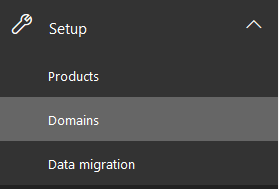
You can observe this health reporting by accessing setup –> Domains.


image


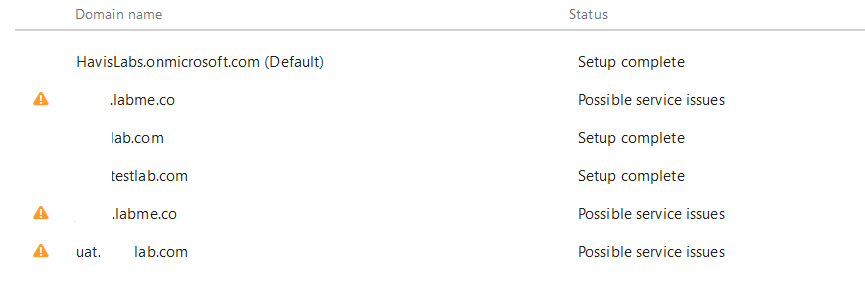
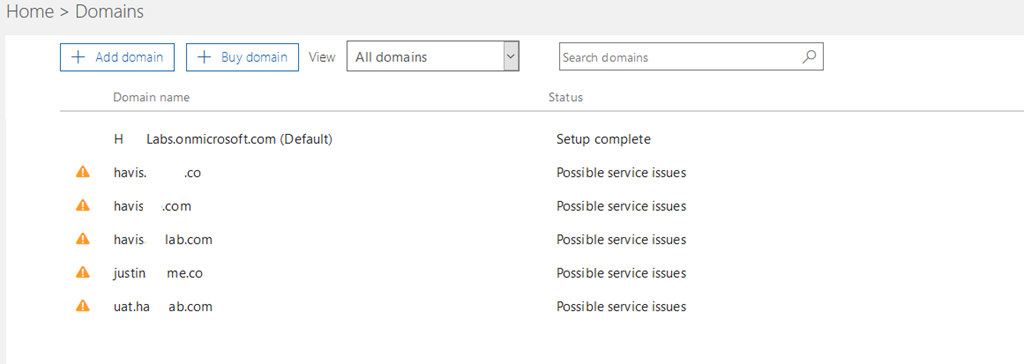
Your domains will be listed and domains that are currently flagged for issues display a warning symbol and are flagged for possible service issues.


image


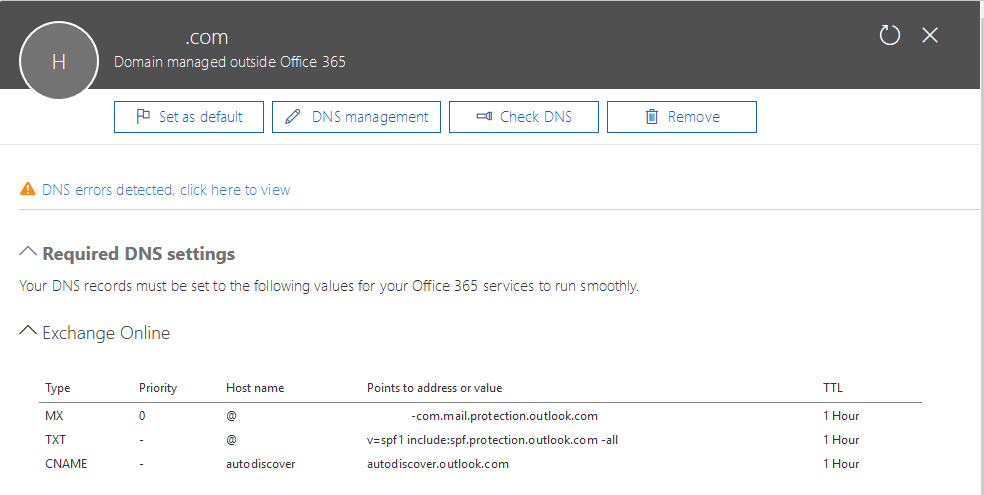
To review the individual issues identified the domain can selected in the previous screen.  The next screen displays the individual DNS associated with the domain selected.


image


With the DNS records displayed we can select DNS Errors detected, click here to view.


image


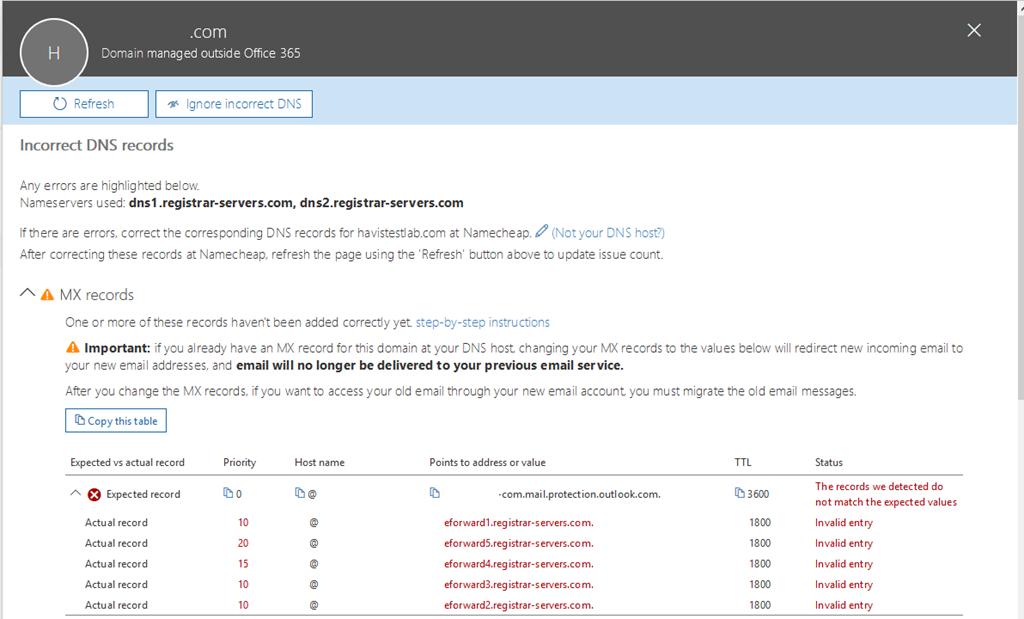
With this option selected we will see the individual DNS errors that were detected for the domain selected.  Here is a sample for the MX records.


image


In this example our health logic has queried DNS and determined that the MX record provisioned for your domain is not the MX record found in the DNS registrations. 


There are situations where this is perfectly acceptable.  The DNS health checking mechanism does not know the specifics of your installation and any customizations that may be present.  For example, it is not uncommon in a hybrid configuration to have your autodiscover record pointing to an on premises Exchange environment.  This would trigger a health check failure on the CNAME records as autodiscover does not point to the Office 365 service.  It is also not uncommon to have inbound mail flow for your MX record point to a solution other than Office 365 – for example a third party gateway device <or> an on premises email environment.  This would produce a DNS health check failure on the MX record similar to the errors seen above.


When the health check has found an error it is important that the records be manually reviewed and an understanding of any discrepancies explained.  If they are due to customizations the errors can be safely ignored.  If they are due to legitimate DNS errors it would be recommended to fix the discrepancies as soon as possible to prevent any forms of service outage.


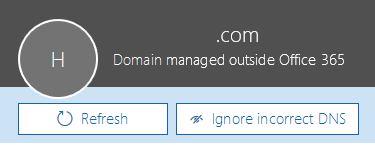
If you analysis has determined that the DNS errors are benign you can discontinue warning about them by selecting the ignore incorrect dns button.  This is found on the same page where the individual DNS record errors are displayed.


image


If the administrator has selected the ignore incorrect dns option the domain will no longer appear with a warning symbol on the domains page and the status will show setup complete verses possible service issues.


image


It is important to note that the ignore function is only good for the current administrator session.  DNS is evaluated on every administrator logon – therefore the DNS errors may appear on the next logon even if ignored.  This is a departure from previous versions of the portal where the ignore function would ignore DNS errors for up to 7 days before the status was reset and tested again.


If at a later time you decide you want to have DNS re-evaluated for any reason you can select the specific domain and utilize the CHECK DNS button to initiate a DNS health check.  This will issue an immediate re-evaluation of the DNS records associated with the domain. 


image


With an understanding of your DNS implementation and a review of the service issues identified administrators and make an accurate determination if the errors are safe to ignore or if actionable steps need to be taken.


What happens when I keep getting recurring errors but everything is established to my satisfaction?  Unfortunately the only remedy is to ignore the errors in the portal once an understanding of why the domain has been flagged has been established.

Configure Auto Reply for a Mailbox

Administrators can view and configure auto reply settings for an Exchange Online mailbox using the Set-MailboxAutoReplyConfiguration and Get-MailboxAutoReplyConfiguration PowerShell cmdlets.


Using Set-MailboxAutoReplyConfiguration, you can schedule an automated reply to start at a specific time.  For example, to create a scheduled auto reply that starts at 6:00 pm Eastern Daylight Time (EDT) on August 16 and ends at 6:00 pm EDT on August 17, I would run the following command: 


Set-MailboxAutoReplyConfiguration -Identity tmcmichael -AutoReplyState Scheduled -StartTime “18:00 8/16/2017” –EndTime “18:00 8/17/2017”


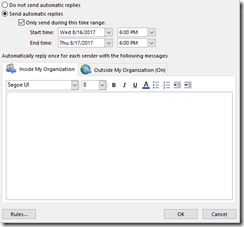
When the command has completed successfully, you can verify the settings in Outlook, as shown below. 


image


Interestingly, Outlook indicates a start and end time of 2:00 pm, not 18:00 (6:00 pm).  Get-MailboxAutoReplyConfiguration also shows 2:00 pm as the configured start/stop times.


PS C:> Get-MailboxAutoReplyConfiguration -Identity tmcmichael

RunspaceId                       : 1a9aa7f0-e144-4b66-b799-ef1bb329a4c5
AutoDeclineFutureRequestsWhenOOF : False
AutoReplyState                   : Scheduled
CreateOOFEvent                   : False
DeclineAllEventsForScheduledOOF  : False
DeclineEventsForScheduledOOF     : False
EventsToDeleteIDs                :
EndTime                          : 8/17/2017 2:00:00 PM
ExternalAudience                 : All
ExternalMessage                  :
InternalMessage                  :
DeclineMeetingMessage            :
OOFEventSubject                  :
StartTime                        : 8/16/2017 2:00:00 PM
MailboxOwnerId                   : Timothy McMichael
Identity                         : Timothy McMichael
IsValid                          : True
ObjectState                      : Unchanged


Both Outlook and the PowerShell output are correct. This is because Set-MailboxAutoReplyConfiguration uses the time zone on the Exchange server.  All Exchange Online servers use GMT for their time zone settings. 18:00 GMT is 14:00 EDT.


So how do I get the auto reply to start and stop at 6:00pm?  The easiest way is to simply convert the desired time to GMT.  In my example, the user is in EDT which is GMT-4.  Since I want to have the auto reply start and stop at 18:00 EDT, I add 4 hours to get the time in GMT (in this case, 22:00 GMT):


Set-MailboxAutoReplyConfiguration -Identity tmcmichael -AutoReplyState Scheduled -StartTime “22:00 8/16/2017” –EndTime “22:00 8/17/2017”


Outlook now shows 6:00pm: 


image


And so does Get-MailboxAutoReplyConfiguration: 


PS C:> Get-MailboxAutoReplyConfiguration -Identity tmcmichael

RunspaceId                       : 1a9aa7f0-e144-4b66-b799-ef1bb329a4c5
AutoDeclineFutureRequestsWhenOOF : False
AutoReplyState                   : Scheduled
CreateOOFEvent                   : False
DeclineAllEventsForScheduledOOF  : False
DeclineEventsForScheduledOOF     : False
EventsToDeleteIDs                :
EndTime                          : 8/17/2017 6:00:00 PM
ExternalAudience                 : All
ExternalMessage                  :
InternalMessage                  :
DeclineMeetingMessage            :
OOFEventSubject                  :
StartTime                        : 8/16/2017 6:00:00 PM
MailboxOwnerId                   : Timothy McMichael
Identity                         : Timothy McMichael
IsValid                          : True
ObjectState                      : Unchanged


One last note…Get-MailboxAutoReplyConfiguration will always show the time converted to the time zone of the machine used to run the command.  In this example, the management session was established from a machine in EDT, thereby displaying the time in EDT.  If the machine was in Mountain Standard Time (MST) the time would be converted to MST.

Office 365: Clutter Enabled and Outlook Web Access

As most administrators are aware the clutter feature of Office 365 has been automatically enabled within their tenants.  End users manage the clutter feature through Outlook Web Access.  For example – https://support.office.com/en-us/article/Turn-off-Clutter-in-Outlook-a9c72a77-1bc4-40e6-ba6d-103c1d1aba4c?ui=en-US&rs=en-US&ad=US


Recently a customer presented with a tenant where clutter was not automatically enabled for them.  The users were not recently migrated, had well over 1,000 items so initial usage patterns could be analyzed, yet reviewing get-clutter showed the option as disabled.


PS C:> Get-Clutter -Identity ALIAS

RunspaceId      : e1028943-b6dd-44b6-ae1e-36fc1f6aea67
IsEnabled       : False
MailboxIdentity : CN=Tim McMichael,OU=domain.onmicrosoft.com,OU=Microsoft Exchange Hosted
                  Organizations,DC=NAMPR06A002,DC=prod,DC=outlook,DC=com
Identity        :
IsValid         : True
ObjectState     : New


Initially we believed that an anomaly had occurred and that a tenant was missed in the enablement process.  When reviewing the situation further – we noted that Outlook Web Access was disabled on the users.


PS C:> Get-CASMailbox ALIAS | Fl name,OwaEnabled

Name       : Tim McMichael
OWAEnabled : FALSE


When Outlook Web Access is disabled – the end user has no ability to manage the clutter service.  OWA is the only interface to access the clutter settings of a mailbox by the end user.  If OWA is disabled at the time that clutter would have normally been automatically enabled we will not enable clutter.  If OWA is disabled after clutter has been enabled we will not disable clutter. 


With OWA access being blocked, and the user being prevented from managing this setting themselves, the decision was made to not automatically enable clutter in this scenario.

Exchange – No log files can be truncated.

In Exchange 2007 we introduced the ability to perform passive replica backups of an Exchange database.  In conjunction with this change we introduced a new method of determining when log files can be truncated.  Starting with Exchange 2007 log files are either truncated through the Information Store service or through the replication service.


The information store service method of log truncation handles databases that do not have passive copies.  This is true for all versions of Exchange never than Exchange 2007. 


The replication service method of log truncation handles databases that have passive copies.  This may be Cluster Continuous Replication in Exchange 2007 or Database Availability Groups in Exchange 2010 and Exchange 2013.  Some customers have reported that during backup operations log files do not truncate.  The reason for the lack of truncation may vary, but the following event is noted and often attributed to the log truncation failure.


Log Name:      Application
Source:        ESE
Date:          8/22/2015 12:08:14 AM
Event ID:      225
Task Category: ShadowCopy
Level:         Information
Keywords:      Classic
User:          N/A
Computer:      MBX-1.domain.com
Description:
Information Store – DAG-DB0 (1444) DAG-DB0: No log files can be truncated. 

For more information, click http://www.microsoft.com/contentredirect.asp.
Event Xml:
<Event xmlns="http://schemas.microsoft.com/win/2004/08/events/event">
  <System>
    <Provider Name="ESE" />
    <EventID Qualifiers="0">225</EventID>
    <Level>4</Level>
    <Task>16</Task>
    <Keywords>0x80000000000000</Keywords>
    <TimeCreated SystemTime="2015-08-22T04:08:14.000000000Z" />
    <EventRecordID>6500729</EventRecordID>
    <Channel>Application</Channel>
    <Computer>MBX-1.domain.com</Computer>
    <Security />
  </System>
  <EventData>
    <Data>Information Store – DAG-DB0</Data>
    <Data>1444</Data>
    <Data>DAG-DB0: </Data>
  </EventData>
</Event>


When a database has a passive copy and a backup is performed, a do not truncate flag is passed into the information store service.  This is by design since the information store processes no longer handle truncation.  This invokes the event ID 225 to be logged via the ESE / information store process indicating that no log files will be truncated.  When reviewing further events after the 225 the following event is logged:


Log Name:      Application
Source:        MSExchangeRepl
Date:          8/23/2015 12:05:15 AM
Event ID:      2046
Task Category: Exchange VSS Writer
Level:         Information
Keywords:      Classic
User:          N/A
Computer:      MBX-1.domain.com
Description:
The Microsoft Exchange Replication service VSS Writer instance 293bac52-7e3a-4600-8c21-784e6dc2d0c9 has successfully completed the backup of database 'DAG-DB0'. 

Database log truncation has been requested for this database. Log truncation will occur on the active copy after the next log generation is created. Log truncation will occur automatically on the passive copies after that log file is copied.
Event Xml:
<Event xmlns="http://schemas.microsoft.com/win/2004/08/events/event">
  <System>
    <Provider Name="MSExchangeRepl" />
    <EventID Qualifiers="16388">2046</EventID>
    <Level>4</Level>
    <Task>2</Task>
    <Keywords>0x80000000000000</Keywords>
    <TimeCreated SystemTime="2015-08-23T04:05:15.000000000Z" />
    <EventRecordID>6514781</EventRecordID>
    <Channel>Application</Channel>
    <Computer>MBX-1.domain.com</Computer>
    <Security />
  </System>
  <EventData>
    <Data>293bac52-7e3a-4600-8c21-784e6dc2d0c9</Data>
    <Data>DAG-DB0</Data>
  </EventData>
</Event>


This event comes from the replication service VSS writer and confirms that log truncation will occur if all pre-requisites are meant.


The ESE 225 event can be safely ignored and is not an indication of the potential success or failure of log truncation for replicated databases.

Office 365 / Exchange Online – Disable One Drive for Business Integration

Exchange Online has been extended to take advantage of One Drive for Business as a location to access or store email attachments.  Users of Outlook Web Access may notice that they have the ability to now attach files from One Drive for Business (ODFB) when composing a new message.


image 


image


In addition to the ability to attach files directly from ODFB when a user attaches a file from a local source, for example their laptop, and that attachment is over the allowable size limit the user may choose to store the attachment directly on ODFB. 


image


When the file has been successfully uploaded to ODFB the message recipient receives an email with a link to the file.


image 


There could arise a need for administrators to disable this functionality for any number of reasons.  It is important to remember that ODFB is derived from storage in SharePoint.  Administrators may disable ODFB integration not only in Exchange Online but also in other areas – for example the quick access items.  To disable ODFB the administrator must access the portal and select SharePoint administration.


image


This will take administrators to the SharePoint admin center.  The ODFB settings can be accessed by selecting the settings option.


image


In the settings option, “Top of Navigation Bar User Experience” is the “One Drive for Business” options.  By default the show option is selected.  To hide one drive as well as disable integration select the hide option. 


image


In the lower right hand corner is the OK option.  This commits the setting.


image


When the setting has been committed it can take several minutes for it to become hidden in the tenant.  The administrator can verify success by verifying that the one drive settings are no longer present when attaching a file or attempting to attach a file over the size limit.


image


image


It is important to note that when ODFB has been hidden – it is hidden from all areas within Office 365.  There are no options to de-integrate ODFB from Outlook Web Access while maintaining access to it from the quick access area or from within Office applications.

Exchange and Office 365: Mail Forwarding

Exchange Server and Office 365 offer many different options for forwarding messages to different recipients. Some of these options exist for users and others are for administrators. Administrators can also control how forwarding is handled within the organization.


The forwarding options available to clients and administrators are described below. Each of these methods has both pros and cons when implemented:


  • Users can create a forwarding rule within Outlook or Outlook Web App
  • An administrator can create a client rule for forwarding
  • An administrator can set the ForwardingSMTPAddress parameter on a mailbox
  • Users can set the ForwardingSMTPAddress parameter on a mailbox
  • An administrator can set the ForwardingAddress parameter on a mailbox


In this post, I’m going to review each of these methods, the pros and cons, and the administrator controls in place for these options.


Forwarding rule within Outlook and Outlook Web App:


Users can create Inbox rules in both Outlook and Outlook Web App (OWA). One of the options is a rule to forward messages to a different recipient, which can be an internal or external recipient. In the example below, a rule has been created that forwards all messages received in the mailbox to an external recipient.


image


Client-side rules allow a great deal of flexibility when establishing forwarding. For example, say you want to forward emails to another internal or external recipient based on who sent the messages. The rules wizard allows this level of granularity. From an administrative standpoint client-side rules can also be helpful since they can be managed by the user. This obviates the need for administrators to be involved in the day-to-day management of these rules.


Client-side rules though are not immediately obvious to administrators. This may cause issues in environments that want to control where their data is stored and how it is transmitted. No specific permissions are required for users to create rules and there exists no method to limit this type of rule. Messages received by the destination mailbox look like forwarded messages; they have the same presentation as if the end-user selected the forward option on the message and specified the recipient.


image


Message tracking also confirms that the sender is the mailbox with the forwarding rule enabled and the recipient is the address specified on the forwarding rule.


image 


This may cause issues in message handling, as subsequent replies would go to the mailbox the message was forwarded from rather than the original sender of the message.


When a message is forwarded by a client-side rule an additional header is added to the message: X-MS-Exchange-Organization-AutoForwarded. When the value of this header is set to TRUE this signifies the message was created by auto-forwarding.


Forwarding rule created by the administrator:


In Exchange 2010 and Exchange 2013, administrators have the New-InboxRule cmdlet, which allows them to create client-side rules within a mailbox. To create a forwarding rule that matches the previous rules wizard example you would run a command similar to the following:


PS C:> New-InboxRule -Name ForwardSharon -Mailbox 2148 -ForwardTo:SHARON@domain.com

Name                          Enabled                       Priority                      RuleIdentity
—-                          ——-                       ——–                      ————
ForwardSharon                 True                          1                             11219471045587107842


When using the Outlook client and viewing the rules in this mailbox, the administrator-created rule is present.


image


This rule has the same considerations and outcomes as a rule created by a user in Outlook; the only difference is that an administrator added it to the mailbox.


Forwarding using the forwardingSMTPAddress parameter of a mailbox created by the administrator:


Each mailbox has a parameter named forwardingSMTPAddress. This parameter is set by the administrator using Set-Mailbox. Any SMTP address can be specified in this parameter.


PS C:> Set-Mailbox 2148 -ForwardingSmtpAddress sharon@domain.com


PS C:> Get-Mailbox 2148 | fl name,forwardingSMTPAddress,delivertomailboxandforward

Name                       : Tim McMichael
ForwardingSmtpAddress      : smtp:sharon@domain.com
DeliverToMailboxAndForward : False


When this type of forwarding is used, the user has no control and the forwarding process must be administratively managed. In addition, there is no granularity with this implementation; all messages for the mailbox are forwarded to the specified SMTP address. Because the field allows any SMTP address to be specified there is no need to create a mail-enabled object within your directory to establish this type of forwarding.


Messaging handling is also different with this type of forwarding. When the message arrives in the destination mailbox it appears as if it was sent directly to this mailbox.  The TO field of the message reflects the original recipient, and the FROM field reflects the original sender. The message does not appear as forwarded. 


image


Message tracking shows that the sender of the message is the original sender and the recipient is the forwarding address.


image


This allows the recipient to reply to the message and have the message sent directly to the original sender. It is important to understand this behavior in scenarios where compliance or journaling is used, as subsequent replies will bypass the original organization thereby bypassing journaling and compliance processes.


The message header also has appended the X-MS-Exchange-Organization-AutoForwarded header. When the value of this header is set to TRUE, in indicates that the message was created by auto-forwarding.


Forwarding using the forwardingSMTPAddress parameter of a mailbox created by the user:


Individual users may set the forwardingSMTPAddress parameter by using Outlook Web Access.  When logged into Outlook Web Access access to this feature is available under options.


image


When the options menu is displayed selecting accounts –> forwarding will present the dialog to establish a forwarding address.  Note:  As the options pane may be subject to modification this setting may move to different areas within options.


image


In the forwarding dialog the user may select to enable forwarding and enter any SMTP address.


image


When reviewing the settings of the user via powershell we can observe that the forwardingSMTPAddress property is set. 


Get-Mailbox <ALIAS>| fl name,*forwarding*

Name                  : <NAME>
ForwardingAddress     :
ForwardingSmtpAddress : smtp:bob@contoso.com


The user setting the forwarding address has the same considerations and concerns as if the administrator had set the property.


Forwarding using the forwardingAddress parameter of a mailbox:


The forwardingAddress parameter of a mailbox is also managed by an administrator using Set-Mailbox. Unlike forwardingSMTPAddress, the forwarding address parameter must be an object that is defined within the directory. Attempting to set this value to an object not within the directory returns an error.


PS C:> Set-Mailbox 2148 -ForwardingAddress sharon@domain.com
Couldn't find object "sharon@domain.com". Please make sure that it was spelled correctly or specify a different
object.
    + CategoryInfo          : NotSpecified: (:) [Set-Mailbox], ManagementObjectNotFoundException
    + FullyQualifiedErrorId : [Server=BN1PR06MB101,RequestId=3374349c-1924-43b2-bb21-d2243774a1d4,TimeStamp=7/20/2014
   5:37:29 PM] [FailureCategory=Cmdlet-ManagementObjectNotFoundException] F2A1EE0E,Microsoft.Exchange.Management.Reci
  pientTasks.SetMailbox
    + PSComputerName        : pod51043psh.outlook.com


The forwarding address parameter can be another mailbox-enabled object, a mail-enabled user, or a mail contact.  In this example, I have created a mail contact for my external recipient. 


PS C:> New-MailContact -Name Sharon -ExternalEmailAddress sharon@domain.com

Name                      Alias                                          RecipientType
—-                      —–                                          ————-
Sharon                    Sharon                                         MailContact


I then enabled the forwardingAddress parameter on the mail contact.


PS C:> Set-Mailbox 2148 -ForwardingAddress Sharon


The setting was validated with Get-Mailbox.


PS C:> Get-Mailbox 2148 | fl name,forwardingAddress,delivertomailboxandforward

Name                       : Tim McMichael
ForwardingAddress          : Sharon
DeliverToMailboxAndForward : False


Similar to the fowardingSMTPAdderss parameter the forwardingAddress parameter must be managed by the administrator. The end-user has no control over this specific parameter and the end-user will not know that forwarding is enabled. Unlike client rules, the use of the forwardingAddress parameter applies to all messages received to the destination mailbox; there is no way to allow this function to work on specific messages.


Messaging handling is also similar to using the fowardingSMTPAddress parameter. The message arrives in the destination mailbox as if it was addressed directly to that mailbox. The TO address shows the original recipient and the FROM address shows the original sender. 


image


This allows the forwarded recipient to reply to the message and have it returned directly to the original sender. Messaging tracking also shows that the sender is the original sender and the recipient is the address configured for forwarding.


image


It is important to understand this behavior in scenarios where compliance or journaling is used as subsequent replies will bypass the original organization thereby bypassing journaling and compliance processes.


In this scenario the X-MS-Exchange-Organization-AutoForwarded header is not stamped on the message.


Autoforwarding and delivertoandforward:


Each mailbox also has a parameter called deliverToAndForward. This allows the administrator to specify if the message should also be delivered to the mailbox where forwarding is enabled. This setting applies ONLY to forwarding that is configured by using the forwardingAddress or forwardingSMTPAddress parameters. Client-side rules are unaware of this setting.


Autoforwarding and remoteDomains:


Within Exchange and Office 365, administrators can create remote domains. By default, every tenant leverages the ‘*’ domain. When a specific remote domain does not exist, the ‘*’ remote domain setting are applied to the message.


A property of a remote domain is autoForwardEnabled property. This allows administrators to define if auto-forwarding is allowed on messages destined to the domain specified.


PS C:> Get-RemoteDomain  | fl name,domainname,autoForwardEnabled

Name               : Default
DomainName         : *
AutoForwardEnabled : True


By default auto-forwarding is allowed to all domains. Administrators can use the remote domain settings to control how forwarding outside their organization is handled. Please note: this does not change how forwarding is handled within the organization.


In this example, I am creating a specific remote domain rule and have disabled auto-forwarding. 


PS C:> New-RemoteDomain -Name ExternalDomain -DomainName domain.com

Name                           DomainName                                   AllowedOOFType
—-                           ———-                                   ————–
ExternalDomain                 domain.com                                   External


PS C:> Set-RemoteDomain -Identity ExternalDomain -AutoForwardEnabled:$FALSE


The settings can be verified with get-remoteDomain:


PS C:> Get-RemoteDomain ExternalDomain | fl domainname,autoforwardenabled

DomainName         : domain.com
AutoForwardEnabled : False


To test this feature I set the forwardingAddress on the mailbox to a recipient in the domain.com domain. When a message is addressed to the mailbox where forwarding is enabled, it never makes it to the destination. The same behavior would occur if a client-side forwarding rule is used.


When a client-side rule or the forwardingSMTPAddress is used, the mail flow process stamps the X-MS-Exchange-Organization-AutoForwarded to TRUE. This header is not viewable on a message as the transport header firewall removes it. When the message is processed by the Transport service, if the remote domain specifically blocks auto-forwarding and the auto-forward header is present and set to TRUE, the message is turfed, and no NDR is generated. If no form of journaling is present and the deliverToAndForward setting of the mailbox is set to FALSE, the message is effectively lost.


When looking at message tracking we can see that the message failed to reach its destination. The message delivery status is NONE and no send events are noted.


image


Using the same remote domain, the mailbox is configured with a forwardingAddress instead. The mail contact used as the forwardingAddress object has an external email address in domain.com. When sending a message to the mailbox where forwarding is enabled, the mail is successfully delivered. This is also confirmed by message tracking.


image


In this example, the transport process does not use the X-MS-Exchange-Organization-AutoForwarded but instead adds the forwarded address as a recipient during a different stage of message processing. As the message traverses the transport stack it is not detected as a forwarded message and is therefore allowed to arrive at desired recipient.


Utilizing the forwardingAddress scenario is an excellent way for an administrator to bypass forwarding settings on remote domains while controlling when message forwarding is allowed.


We routinely receive requests on how to enable granular message forwarding or only allow specific users to use auto-forwarding capabilities. Unfortunately, with the forwarding settings being tied to remote domains it is very difficult to enable forwarding for only a subset of users or where granular forwarding on messages attributes is desired. To allow clients to create auto-forwarding rules would mean the remote domain would have to allow auto-forwarding for everyone. Administrators can attempt to discover and remove auto-forwarding rules using Get-InboxRule. 


In my experience, in most scenarios forwarding is disallowed on remote domains and enabling of forwarding is restricted to administrator configuration using the forwardingAddress parameter.
Office 365: Manage distribution groups that I own…

In Office 365 Outlook Web Access allows for individuals to manage distribution groups that the own.  Originally the distribution groups option was found by selecting the GEAR in the upper right hand corner and selecting the options menu.


image


When selecting options the subsequent dialog has a GROUPS feature where individual users can manage the distribution groups they own.


image


In the current release of Outlook Web Access ( May 2015 ) when selecting the options button a new set of options is displayed.  The groups option is not a top level option or sub-option.


image


How does an individual access the groups option to manage the groups they own?  In this new options dialog is the OTHER selection.  When selecting OTHER the following is displayed:


image


The OTHER –> GO TO EARLIER VERSION presents the original dialog to the user.  This restores access to the groups function.


image


Using this new path individuals can access the functions to manage distribution groups they own.

Office 365: Bulk update email addresses

In Office 365 there may be a need to perform a bulk update to email addresses across accounts.  The accepted domain may need updating as new domains are added or the email address prefix may be changing. 


In an on-premises environment the bulk modification of email addresses can be performed through adjustments in the recipient update service and recipient policies.  When directory synchronization is used with Office 365 this is still a viable method – as proxy addresses is sourced on premises.  (Note:  If no on premises server exists proxy addresses must then be manually modified in the Active Directory).  As the proxy addresses are changed on premises the directory synchronization process will replication the changes into Office 365.


If mailbox and user accounts are created directly in Office 365 then administrators must adjust the email addresses in Office 365.  Within Office 365 there is no recipient update service or recipient policies that can be adjusted to perform these modifications in bulk.  Each email address modification must occur directly on the user.  If a small number of users are involved in the change then using the Exchange portal may be the easiest method to process the change.  When the change must occur over a bulk of users then it may be helpful to script these changes.


In this scripting example the desire is to change the email address from alias@acceptedDomain.com to firstInitial.lastName@acceptedDomain.com.  To begin the list of mailboxes that require the change need to be parsed into a variable.  To gather the recipients we will use the get-recipient command.  The get-recipient command returns the list of proxy addresses on the users which will be helpful in further script steps.  The command in this example should only return recipients that are mailboxes. 


#Get a list of recipients.  Command may be further scoped as necessary to include only a subset of mailboxes.

$recipients=get-recipient –resultSize:UNLIMITED –recipientType:USERMAILBOX


With the recipients extracted we must now iterate through them.  In this iteration we will collect the email addresses off the user into a variable.  We will then construct the new email addresses for the user by first converting the primary proxy address of the user signified with SMTP: to a secondary address signified by smtp:.  The new email address will then be constructed, set as primary, and added to the list of email addresses.  The list of email addresses is then committed to the mailbox.


#Iterate through the list of mailboxes

$recipients | foreach {

#Extract email addresses to a variable

$emailAddress = $_.emailAddresses

#Convert exist primary proxy address to a secondary email address

$newEmailAddress = $emailAddress.replace(“SMTP”,”smtp”)

#Construct the new email address, set it as primary, and add it to the list of existing email addresses.

#The use of SMTP: signifies primary email address.

#Substring is utilized to extract the first initial of the users first name.

$newEmailAddress=$newEmailAddress + (“SMTP:” + ($_.firstName).substring(0,1) + “.” + $_.lastName + “@acceptedDomain.com”)

#Commit the new set of email addresses to the mailbox.

set-mailbox –identity $_.alias –emailAddresses $newEmailAddress

}


When constructing the new email addresses different variations may be utilized.  The current primary SMTP address must always be converted to secondary prior to creating new primary addresses.  For example, if firstName.lastName was the desired email address the following syntax could be used:


$newEmailAddress=$newEmailAddress+ (“SMTP:” + $_.firstName + “.” + $_.lastName + “@acceptedDomain.com”)


The script blocks used here can be combined into a single *.ps1 file. 


A special thanks to Matt Byrd for assisting in the final syntax.

Exchange 2010 / Exchange 2013 – Determining the repair count of a database.

On the EHLO blog we recently announced a support change for databases that have been repaired.  The updated policy can be found here – https://aka.ms/m6o4vl.


A question that has been asked after reading this policy is whether or not the repair count can be determined while the database is online.  The answer is – it depends.  Get-MailboxDatabase –status does not currently support returning the repair count of a database.  We are currently exploring options in Exchange 2013 of adding this functionality to get-mailboxDatabase.  In the meantime – how can an administrator determine the database repair count?  For the purposes of this blog we will be focusing on Exchange 2010 and newer.  If you are still on a version of Exchange less than Exchange 2010 you probably need to be less worried about the repair count on your database and more focused on getting that migration done.


Our preferred method of checking the repair count would be to suspend a passive copy of a database in a database availability group and perform the eseutil /mh operation.  When a passive copy is suspended log replay stops and active locks against the database are released allowing this to work. 


suspend-mailboxDatabaseCopy –identity <DBNAME><SERVERNAME>


For example:  Suspend-MailboxDatabaseCopy DAG-DB0MBX-1


Using get-mailboxdatabasecopystatus we can verify the database is successfully suspended. 


[PS] C:>Get-MailboxDatabaseCopyStatus DAG-DB0MBX-1

Name             Status          CopyQueue ReplayQueue LastInspectedLogTime   ContentIndex
                                 Length    Length                             State
—-             ——          ——— ———– ——————–   ————
DAG-DB0MBX-1    Suspended       0         0           5/6/2015 12:54:27 PM   Suspended


With the database suspended and locks released an administrative command prompt can be utilized to dump the header of the database with eseutil. 


PS C:ExchangeDatabasesDAG-DB0DAG-DB0.db> eseutil /mh .DAG-DB0.edb


Extensible Storage Engine Utilities for Microsoft(R) Exchange Server
Version 15.00
Copyright (C) Microsoft Corporation. All Rights Reserved.

Initiating FILE DUMP mode…
         Database: .DAG-DB0.edb

……

    Repair Count: 0
     Repair Date: 00/00/1900 00:00:00.000
Old Repair Count: 0

……

  Last checksum finish Date: 04/28/2015 11:21:24.442
Current checksum start Date: 00/00/1900 00:00:00.000
      Current checksum page: 0

Operation completed successfully in 0.125 seconds.


When this operation is completed the database can be resumed with resume-mailboxdatabasecopy and validated with get-mailboxdatabasecopystatus.


Resume-MailboxDatabaseCopy DAG-DB0MBX-1


[PS] C:>Get-MailboxDatabaseCopyStatus DAG-DB0MBX-1

Name               Status          CopyQueue ReplayQueue LastInspectedLogTime   ContentIndex
                                   Length    Length                             State
—-               ——          ——— ———– ——————–   ————
DAG-DB0MBX-1      Healthy         0         0           5/6/2015 1:29:31 PM    Healthy


Bonus:  If using Exchange 2007 with cluster continuous replication (CCR) you should be able to use a very similar process.


What happens when I have only a single copy database – for example public folder databases or in single server shops.  Fear not – there is a way to do this without dismounting the database.  The ESEUTIL command has been extended with a function /vss.  The /vss extension invokes a VSS copy of the database file and then performs the specified eseutil command.  This can be used against any active or passive database copy without dismounting or suspending.


In this example DAG-DB3 is mounted on server MBX-1. 


[PS] C:>Get-MailboxDatabaseCopyStatus DAG-DB2MBX-1

Name               Status          CopyQueue ReplayQueue LastInspectedLogTime   ContentIndex
                                   Length    Length                             State
—-               ——          ——— ———– ——————–   ————
DAG-DB2MBX-1      Mounted         0         0                                  Healthy


Using an administrative command prompt and navigating to the database directory the eseutil command is issued.


PS C:ExchangeDatabasesDAG-DB3DAG-DB3.db> eseutil /mh /vss .DAG-DB3.edb

Extensible Storage Engine Utilities for Microsoft(R) Exchange Server
Version 15.00
Copyright (C) Microsoft Corporation. All Rights Reserved.

Initializing VSS subsystem…

Initiating FILE DUMP mode…
         Database: \?GLOBALROOTDeviceHarddiskVolumeShadowCopy283DAG-DB3.dbDAG-DB3.edb

DATABASE HEADER:
Checksum Information:
Expected Checksum: 0x3d36a729
  Actual Checksum: 0x3d36a72

……

    Repair Count: 0
     Repair Date: 00/00/1900 00:00:00.000
Old Repair Count: 0

……

  Last checksum finish Date: 04/30/2015 22:37:58.860
Current checksum start Date: 00/00/1900 00:00:00.000
      Current checksum page: 0

Operation completed successfully in 2.516 seconds.


The passive database copy for DAG-DB2 resides on MBX-2


[PS] C:>Get-MailboxDatabaseCopyStatus DAG-DB2MBX-2

Name                  Status          CopyQueue ReplayQueue LastInspectedLogTime   ContentIndex
                                      Length    Length                             State
—-                  ——          ——— ———– ——————–   ————
DAG-DB2MBX-2         Healthy         0         0           5/6/2015 2:06:10 PM    Healthy


Using an administrative command prompt and navigating to the database directory the eseutil command is issued.


PS C:ExchangeDatabasesDAG-DB3DAG-DB3.db> eseutil /mh /vss .DAG-DB3.edb

Extensible Storage Engine Utilities for Microsoft(R) Exchange Server
Version 15.00
Copyright (C) Microsoft Corporation. All Rights Reserved.

Initializing VSS subsystem…

Initiating FILE DUMP mode…
         Database: \?GLOBALROOTDeviceHarddiskVolumeShadowCopy127DAG-DB3.dbDAG-DB3.edb

DATABASE HEADER:
Checksum Information:
Expected Checksum: 0x3b39abb6
  Actual Checksum: 0x3b39abb6

……

    Repair Count: 0
     Repair Date: 00/00/1900 00:00:00.000
Old Repair Count: 0

……

  Last checksum finish Date: 02/11/2015 05:55:51.971
Current checksum start Date: 03/11/2015 05:10:50.540
      Current checksum page: 297568

Operation completed successfully in 2.172 seconds.


The ESEUTIL /vss option is an excellent method to determine the repair count without taking your database offline.


What if you are running Exchange 2007 or older?  Unfortunately you will have to dismount your databases to make this determination.

My Exchange 2013 DAG has gone commando…

Introduction


When running Exchange 2013 on Windows Server 2012 R2, administrators can create a DAG without an administrative access point (which we recommend, by the way). Windows 2012 R2 is the only product dependency for this configuration, making it available to the majority of deployments.  In this post I’d like to take a look at some of the common questions and scenarios that arise from the choice to use this configuration. 


What is a DAG without an administrative access point?


A DAG without an administrative access point is a DAG whose underlying cluster does not have a cluster name object or associated IP addresses. 


Why deploy a DAG without an administrative access point?


A DAG without an administrative access point reduces complexity:


  • There is no need to pre-stage a computer account object. DAGs without administrative access points do not have computer accounts and are not represented in the directory.
  • There is no need to provision permissions. This especially beneficial for customers with administration delegated to different groups, as provisioning permissions can be a complicated procedure.


DAGs without administrative access points also provide benefits in the long run, such as immunity from issues related to the accidental or other loss of the DAG’s computer account. When a traditional DAG is configured, its cluster name object (computer account) is actively in use and must be retained within the directory.  Based on years of experience working on customer support issues, I can tell you it is not uncommon to experience conditions where the computer account is lost.  I’ve had cases where the account has been accidentally deleted by the administrator, or when the DAG’s cluster network name resource was left in a failed state for too long, allowing the computer account to be reclaimed as unused.  When this happens, if the computer account cannot be restored from Active Directory’s dumpster or some form of backup, the DAG may have to be torn down and recreated (all server removed and re-added; data is not lost, but there is downtime).


Similarly, DAGs with administrative access points require multiple IP address(es) for the DAG’s cluster (one for each subnet on the MAPI network).  As the default cluster group moves between nodes the Cluster service will activate the appropriate IP address. A DAG with an administrative access point requires healthy and stable name resolution to allow the cluster group to change owners, which has been challenging in some customer environments (for example, dynamic DNS is not available).


Furthermore, there are operational benefits. A DAG without a cluster administrative access point has a cluster group with only one resource: the File Share Witness Resource. No cluster IP addresses, and no cluster Network Name resource. Few things in the cluster group means fewer things that can fail. Which in turn translates into fewer alerts, events, etc., and a reduction of information flowing into monitoring systems.


How does an administrator deploy a DAG without an administrative access point?


There are two ways to create a DAG without an administrative access point; using the Exchange Admin Center, or using the Exchange Management Shell. Below is an example of how to create a DAG without an administrative access point using the Shell (wrapped for readability):


New-DatabaseAvailabilityGroup -Name MyDAG -WitnessServer FSW1 -WitnessDirectory C:MyDAG -DatabaseAvailabilityGroupIpAddresses ([System.Net.IPAddress])::None


For more information, see New-DatabaseAvailabilityGroup.


In the Exchange Admin Center, you give the DAG an IP address of 255.255.255.255 while creating the DAG. For more information, see Create a Database Availability Group.


How does an administrator manage the underling cluster of a DAG without an administrative access point?


You really shouldn’t. Really. In most cases, it is not necessary to manage or even look at the underlying Cluster service. The DAG’s integration with the Cluster service enables the Exchange cmdlets to provide the majority of information necessary.


When deploying a DAG without an administrative access point, the Failover Cluster Manager tool cannot be used to connect to or manage the cluster.  A logical side effect of not having a Network Name or IP addresses means that the DAG’s cluster is no longer a networked computer (or what we used to call a virtual server or virtual computer object). Even though you still give the DAG a name, that name is not used on the network.


image


Therefore, to manage the cluster for a DAG without an administrative access point, you must use PowerShell, and you must connect to and run cmdlets against individual nodes. The cluster PowerShell commands are available after importing the failover cluster module (after running Import-Module FailoverClusters)


Some commands that administrators may find helpful…


Determine cluster properties:


PS C:> Get-Cluster -Name MBX-1 | select *

Domain                                  : domain.com
Name                                    : DAG
AddEvictDelay                           : 60
AdministrativeAccessPoint               : None
BackupInProgress                        : 0
ClusSvcHangTimeout                      : 60
ClusSvcRegroupOpeningTimeout            : 5
ClusSvcRegroupPruningTimeout            : 5
ClusSvcRegroupStageTimeout              : 5
ClusSvcRegroupTickInMilliseconds        : 300
ClusterGroupWaitDelay                   : 120
MinimumNeverPreemptPriority             : 3000
MinimumPreemptorPriority                : 1
ClusterEnforcedAntiAffinity             : 0
ClusterLogLevel                         : 3
ClusterLogSize                          : 300
CrossSubnetDelay                        : 1000
CrossSubnetThreshold                    : 5
DefaultNetworkRole                      : 2
Description                             :
FixQuorum                               : 0
WitnessDynamicWeight                    : 0
HangRecoveryAction                      : 3
IgnorePersistentStateOnStartup          : 0
LogResourceControls                     : 0
PlumbAllCrossSubnetRoutes               : 0
PreventQuorum                           : 0
QuorumArbitrationTimeMax                : 90
RequestReplyTimeout                     : 60
RootMemoryReserved                      : 4294967295
RouteHistoryLength                      : 10
SameSubnetDelay                         : 1000
SameSubnetThreshold                     : 5
SecurityLevel                           : 1
SharedVolumeCompatibleFilters           : {}
SharedVolumeIncompatibleFilters         : {}
SharedVolumesRoot                       : C:ClusterStorage
SharedVolumeSecurityDescriptor          : {1, 0, 4, 128…}
ShutdownTimeoutInMinutes                : 20
DrainOnShutdown                         : 1
SharedVolumeVssWriterOperationTimeout   : 1800
NetftIPSecEnabled                       : 1
LowerQuorumPriorityNodeId               : 0
UseClientAccessNetworksForSharedVolumes : 0
BlockCacheSize                          : 0
WitnessDatabaseWriteTimeout             : 300
WitnessRestartInterval                  : 15
RecentEventsResetTime                   : 6/18/2014 5:07:16 PM
EnableSharedVolumes                     : Enabled
DynamicQuorum                           : 1
CsvBalancer                             : 1
DatabaseReadWriteMode                   : 0
MessageBufferLength                     : 50
Id                                      : 7a4613f4-67e7-406d-b528-5a1af207108a


Determine the nodes in the cluster and node state:


PS C:> Get-ClusterNode -Cluster MBX-1

Name                 ID    State
—-                 —    —–
MBX-1                2     Up
MBX-2                1     Up
MBX-3                3     Up
MBX-4                4     Up


Gather individual node properties:


PS C:> Get-ClusterNode -Cluster MBX-1 -Name MBX-1 | select *

Cluster            : DAG
State              : Up
Id                 : 2
Name               : MBX-1
NodeName           : MBX-1
NodeHighestVersion : 533888
NodeLowestVersion  : 533888
MajorVersion       : 6
MinorVersion       : 3
BuildNumber        : 9600
CSDVersion         :
NodeInstanceID     : 00000002-0000-0000-0000-000000000002
Description        :
DrainStatus        : NotInitiated
DrainTarget        : 4294967295
DynamicWeight      : 1
NodeWeight         : 1
NeedsPreventQuorum : 0


Gather cluster network states:


PS C:> Get-ClusterNetwork -Cluster MBX-1

Name                                                                                                              State
—-                                                                                                              —–
Cluster Network 1                                                                                                    Up
Cluster Network 2                                                                                                    Up
Cluster Network 3                                                                                                    Up
Cluster Network 4                                                                                                    Up
Cluster Network 5                                                                                                    Up
Cluster Network 6                                                                                                    Up
Cluster Network 7                                                                                                    Up


Gather cluster network properties:


PS C:> Get-ClusterNetwork -Name "Cluster Network 1" -Cluster MBX-1 | select *

Cluster           : DAG
State             : Up
Name              : Cluster Network 1
Ipv6Addresses     : {}
Ipv6PrefixLengths : {}
Ipv4Addresses     : {192.168.0.0}
Ipv4PrefixLengths : {24}
Address           : 192.168.0.0
AddressMask       : 255.255.255.0
Description       :
Role              : 3
AutoMetric        : True
Metric            : 70080
Id                : 74f02724-c877-409e-98e0-54aa48e7ac27


Gather cluster interface properties:


PS C:> Get-ClusterNetworkInterface -Cluster MBX-1 -Node MBX-1

Name                          Node                          Network                                               State
—-                          —-                          ——-                                               —–
MBX-1 – LAN-CLUSTER-A         MBX-1                         Cluster Network 4                                        Up
MBX-1 – LAN-CLUSTER-B         MBX-1                         Cluster Network 2                                        Up
MBX-1 – LAN-iSCSI-A           MBX-1                         Cluster Network 7                                        Up
MBX-1 – LAN-iSCSI-B           MBX-1                         Cluster Network 6                                        Up
MBX-1 – LAN-REPL-A            MBX-1                         Cluster Network 5                                        Up
MBX-1 – LAN-REPL-B            MBX-1                         Cluster Network 3                                        Up
MBX-1 – LAN-TEAM              MBX-1                         Cluster Network 1                                        Up


Gather individual cluster network interface properties:


PS C:> Get-ClusterNetworkInterface -Cluster MBX-1 -Name "MBX-1 – LAN-TEAM" | select *

Cluster       : DAG
Network       : Cluster Network 1
State         : Up
Name          : MBX-1 – LAN-TEAM
Node          : MBX-1
Adapter       : Microsoft Network Adapter Multiplexor Driver
AdapterId     : A4CDB166-4903-4BC7-9ADF-6C89BD157FF2
DhcpEnabled   : 0
Ipv6Addresses : {}
Ipv4Addresses : {192.168.0.13}
Address       : 192.168.0.13
Description   :
Id            : aee48b12-e414-424d-8997-fc0b21e0c05f


Gather the cluster quorum status configuration:


PS C:> Get-ClusterQuorum -Cluster MBX-1 | fl

Cluster        : DAG
QuorumResource : File Share Witness (\dc-0.domain.comDAG.domain.com)
QuorumType     : NodeAndFileShareMajority


Gather the cluster group status:


PS C:> Get-ClusterGroup -Cluster MBX-1

Name                                    OwnerNode                               State
—-                                    ———                               —–
Available Storage                       MBX-2                                   Offline
Cluster Group                           MBX-2                                   Online


Move the cluster group between nodes:


PS C:> Move-ClusterGroup -Cluster MBX-1 -Name "Cluster Group" -Node MBX-2

Name                                    OwnerNode                               State
—-                                    ———                               —–
Cluster Group                           MBX-2                                   Online


Gather the cluster logs:


Get-ClusterLog –cluster MBX-1


Gather the cluster resource state:


PS C:> Get-ClusterResource -Cluster MBX-1 | fl

Name         : File Share Witness (\dc-0.domain.comDAG.domain.com)
State        : Online
OwnerGroup   : Cluster Group
ResourceType : File Share Witness


How does a DAG without an administrative access point determine the primary active manager (PAM) of the DAG?


The same exact way as always. It is a common myth that the state of the cluster core resources – specifically the name and IP addresses – determined the state of the primary active manager. The node that owns the default cluster group holds the PAM role. DAGs without an administrative access point still have a default cluster group and this group still has an owner.


Cluster Group:


PS C:> Get-ClusterGroup -Cluster MBX-1

Name                                    OwnerNode                               State
—-                                    ———                               —–
Available Storage                       MBX-2                                   Offline
Cluster Group                           MBX-2                                   Online


Primary Active Manager:


[PS] C:>Get-DatabaseAvailabilityGroup -Identity DAG -status | fl name,primaryActiveManager

Name                 : DAG
PrimaryActiveManager : MBX-2


Arbitrating the cluster group between nodes will demote the current owner to a standby active manager ( SAM ) while promoting the server receiving the group to a primary active manager ( PAM ).


PS C:> Move-ClusterGroup -Name "Cluster Group" -Node MBX-1 -Cluster MBX-1

Name                                    OwnerNode                               State
—-                                    ———                               —–
Cluster Group                           MBX-1                                   Online


[PS] C:>Get-DatabaseAvailabilityGroup -Identity DAG -status | fl name,primaryActiveManager

Name                 : DAG
PrimaryActiveManager : MBX-1


Are there any considerations when deploying a DAG without an administrative access point?


As part of Exchange’s preferred architecture, it is preferred that DAGs be deployed without an administrative access points. Exchange has no dependencies on the cluster name or cluster IP addresses. There are some third party products that integrate with Exchange 2013 that don’t support this configuration, though.  So check with your application vendor to see if it is supported and if not consider switching applications