Author Archives: TIMMCMIC

Office 365: Bulk enabling auditing on Exchange Online Mailboxes

Auditing of mailbox operations are not enabled by default in Exchange Online.  It is the responsibility of the administrator to choose which mailboxes should have auditing enabled and then subsequently enable auditing on the mailboxes.  We have documented the process of enabling auditing on mailboxes in bulk at the following link:


https://support.office.com/en-us/article/Enable-mailbox-auditing-in-Office-365-aaca8987-5b62-458b-9882-c28476a66918


I recently had a customer inquire if there were alternatives to having the client process the majority of this work.  It is possible to invoke commands and allow for service processing – the issue is that the commands must be basic.  For example, you cannot craft an invocation command that would attempt to filter users <or> implement a sleep during each set as the invocation syntax would be too large and complex.  For example…


PS C:> Invoke-Command -Session (Get-PSSession) -ScriptBlock {Get-Mailbox -ResultSize unlimited -RecipientTypeDetails UserMailbox | where{$_.auditingEnabled -ne $FALSE} | Set-Mailbox -AuditEnabled:$TRUE -Verbose}
The syntax is not supported by this runspace. This can occur if the runspace is in no-language mode.
    + CategoryInfo          : ParserError: (Get-Mailbox -Re…:$TRUE -Verbose:String) [], ParseException
    + FullyQualifiedErrorId : ScriptsNotAllowed
    + PSComputerName        : ps.outlook.com


PS C:> Invoke-Command -Session (Get-PSSession) -ScriptBlock {Get-Mailbox -ResultSize unlimited -RecipientTypeDetails UserMailbox | Set-Mailbox -AuditEnabled:$TRUE -Verbose;Start-Sleep -Milliseconds 500}
The syntax is not supported by this runspace. This can occur if the runspace is in no-language mode.
    + CategoryInfo          : ParserError: (Get-Mailbox -Re…illiseconds 500:String) [], ParseException
    + FullyQualifiedErrorId : ScriptsNotAllowed
    + PSComputerName        : ps.outlook.com


Depending on the tenants size the following command may work – shifting the processing logic from the client to the service.


Invoke-Command -Session (Get-PSSession) -ScriptBlock {Get-Mailbox -ResultSize unlimited -RecipientTypeDetails UserMailbox | Set-Mailbox -AuditEnabled:$TRUE -Verbose}


If any throttling is encountered you may have to refer to the commands as outlined within the support article.


*Thanks to Matt Byrd for reviewing and commenting on these methods.

Office 365: Messages from external senders are originating directly on Office 365 servers….

Today I had an interesting case come across my desk.  A customer wanted to enforce that all external messages came through their third party cloud gateway.  In an effort to prevent bypassing the gateway and having mail traffic come directly into Office 365 the customer wanted to craft a transport rule to catch and quarantine these messages.  The rule was created as follows:


Execute the rule on any sender that is external to the organization.  Perform the action quarantine on the message.  (In this instance though the rule just audited because the customer was testing – an awesome idea by the way).  The rule should fire except when the submitting IP address is a dedicated IP address provided by the third party cloud gateway.


In most of all instances the rule looked like it was firing perfectly.  Messages that were submitted directly to Office 365 bypassing the primary MX record were captured when an external sender was involved.  When reviewing some messages that were captured by the rule the customer noticed something odd – a handful of the messages were sourced from and delivered to Office 365 servers.  There were no external servers involved in the transmission.  How did an external sender manage to submit messages sourced on Office 365 servers and destined to Office 365 servers.  Let’s take a look.


The first thing we did was gather a sample message header from Outlook.  Using http://www.testexchangeconnectivity.com and the message header analyzer we had the message header parsed.  The first thing we looked at were the transmission hops. 

Hop↓
Submitting host
Receiving host
Time
Delay
Type⇒

1
CY4PR0501MB3908.namprd05.prod.outlook.com ([::1])
CY4PR0501MB3908.namprd05.prod.outlook.com ([fe80::70ad:f6a:5ede:2b92%13])
‎10‎/‎13‎/‎2017‎ ‎4‎:‎27‎:‎46‎ ‎PM

Microsoft SMTP Server

2
CY4PR0501MB3908.namprd05.prod.outlook.com (52.132.100.162)
DM5PR05MB2938.namprd05.prod.outlook.com (10.168.176.138)
‎10‎/‎13‎/‎2017‎ ‎4‎:‎27‎:‎46‎ ‎PM

0 seconds

Microsoft SMTP Server (version=TLS1_2, cipher=TLS_ECDHE_RSA_WITH_AES_256_CBC_SHA384_P256)

3
DM5PR05MB2938.namprd05.prod.outlook.com (10.168.176.138)
BY1PR0501MB1223.namprd05.prod.outlook.com (10.160.104.150)
‎10‎/‎13‎/‎2017‎ ‎4‎:‎27‎:‎47‎ ‎PM

1 second

Microsoft SMTP Server (version=TLS1_2, cipher=TLS_ECDHE_RSA_WITH_AES_256_CBC_SHA384_P256)

4
BY1PR0501MB1223.namprd05.prod.outlook.com (10.160.104.150)
BN3PR0501MB1220.namprd05.prod.outlook.com (10.160.113.28)
‎10‎/‎13‎/‎2017‎ ‎4‎:‎27‎:‎47‎ ‎PM

0 seconds

Microsoft SMTP Server (version=TLS1_2, cipher=TLS_ECDHE_RSA_WITH_AES_256_CBC_SHA384_P256)


In this instance the situation was exactly as the customer described.  The first hop was an Office 365 server and the last hop was an Office 365 server.  The rule had fired on a message that did not originate through an external mail system.


The next header entry reviewed were the recipients.  The from header shows externaluser@externaldomain.com and the recipient is internalUser@office365domain.com.  This validated that the sender was external matching the transport rule apply to for messages originating from senders external to the organization.


So far the conditions for the rule to fire seem to be accurate –> the sender is validated as external, the message did not come from a third party gateway IP address, therefore action should be taken.  We still don’t know why though – why did a message that is seemingly completely external originate from an Office 365 server?


As we move through the header investigation we see additional entries that leads us to a conclusion that not everything is as it appears.  There were custom X headers that were added by the third party gateway.  If the message had originated directly on Office 365 why would there be custome headers stamped by the third party gateway?  This would seemingly indicate that the message passed through this third party gateway where actions were performed.  For example X-ThirdParty-Virus-Version and X-ThirdParty-Spam-Details were present in the header. 


Continuing to move through the header we note the presence of X-MS-Exchange-Parent-Message-ID.  This message id has the following value < numberString@google.com >.  This reinforces that the message was generated externally – it has an encapsulated original message ID from a remote mail system.  The message ID of this message is < fa80351799674b019521923f47ee0125@CY4PR0501MB3908.namprd05.prod.outlook.com >.  The message ID being an Office 365 message ID continues to reinforce that this message was generated within Office 365. 


Then we come to the following message headers that really crack this case wide open. 


X-MS-Exchange-Generated-Message-Source: Mailbox Rules Agent

X-MS-Exchange-Inbox-Rules-Loop:  recipient@office365domain.com


In this instance this message was actually generated within Office 365 and the message was actually from an external sender.  The reason it was generated is that the recipient listed in X-MS-Exchange-Inbox-Rules-Loop had an Outlook inbox redirect rule established.  The redirect rule creates a new message within Office 365, retains the original message headers including the from address, but changes the to recipient to the specified recipient.  We were able to track the forwarding rule down using this post – https://blogs.technet.microsoft.com/timmcmic/2015/04/19/office-365-determine-accounts-that-have-forwarding-enabled/.  When using this post and the recipient specified in the header the inbox rule containing the TO recipient was located and validated.  This confirms the message was redirected.


In this instance the rule did exactly what it was supposed to.  The sender was external, the recipient was internal, and the message did not originate from one of the IP addresses provided by the third party gateway. 

Office 365: DNS health checks and the Office 365 Portal

In recent weeks I have worked on several escalations regarding the DNS health checks in the Office 365 portal.  In August I published some guidance on how to review and handle these errors.  That article has since been updated to reflect new information and new portal behavior.  Please check out https://blogs.technet.microsoft.com/timmcmic/2017/08/15/dns-errors-and-warnings-in-the-office-365-portal/ for updated information.

Office 365: Who can receive the weekly digest email…

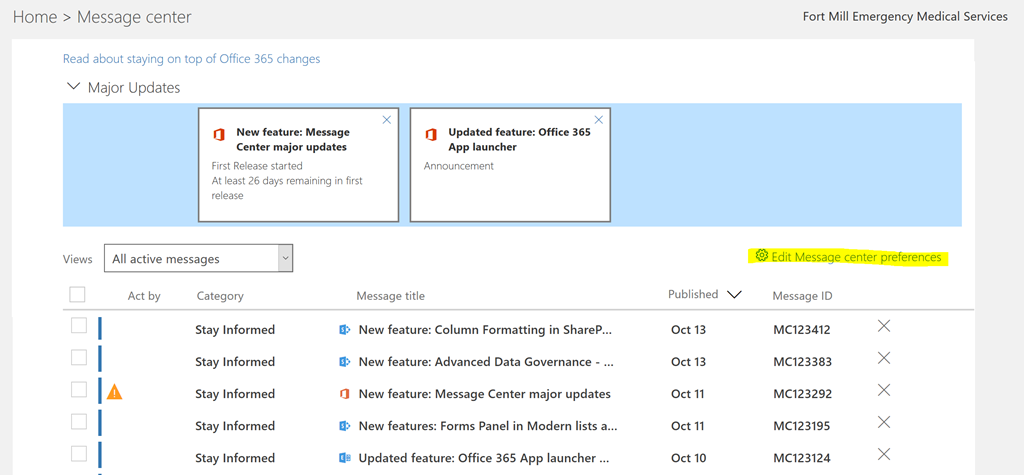
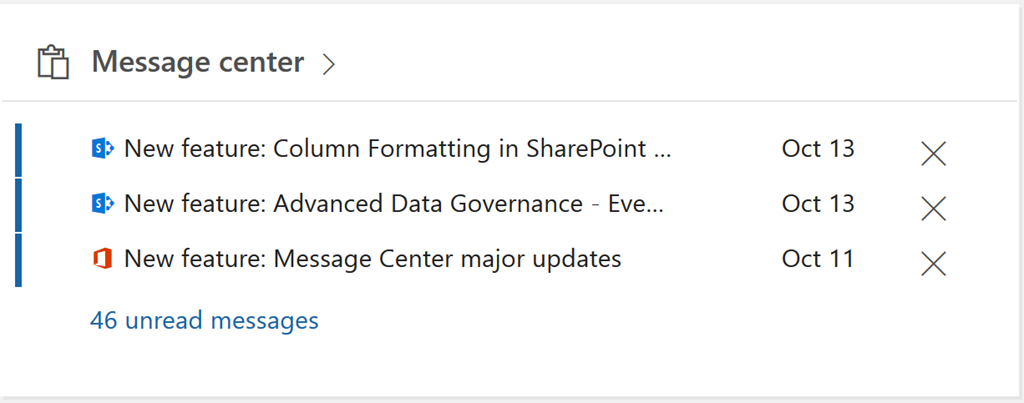
In Office 365 we provide administrators the ability to access important information about the service via the message center.  At https://portal.office.com on the main administration page the message center option appears in the center view.


image


When selecting the message center option the administrator is presented with a list of notifications, announcements, and other messages regarding Office 365.


image


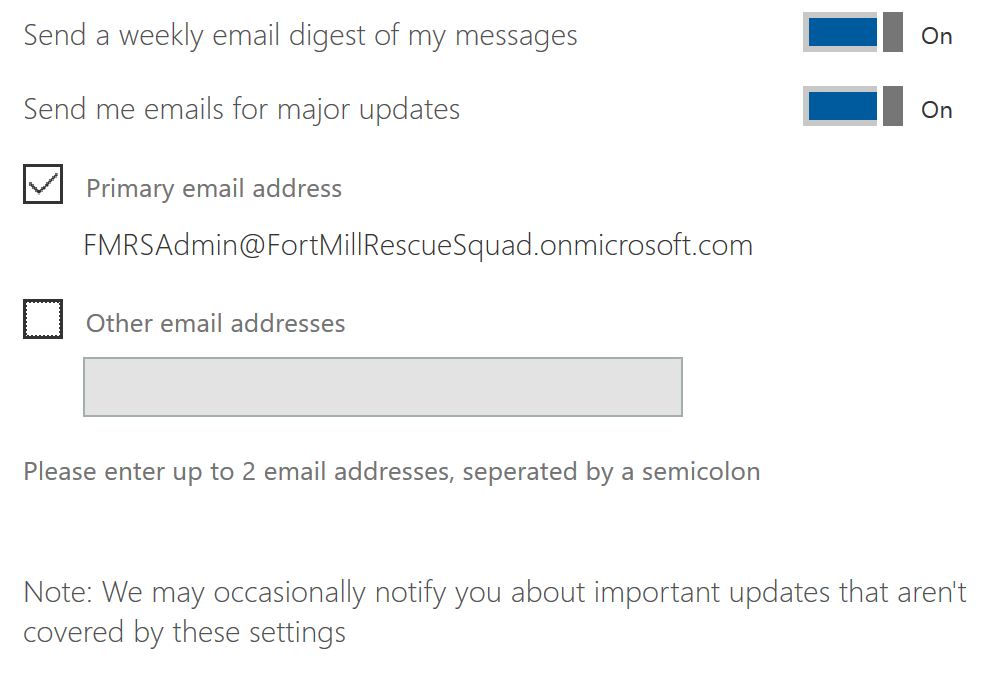
One of the options at the top right of the list is an option to edit message center preferences. 


image


image


When editing message center preferences administrators can include or exclude difference services.  They can also signup for a weekly digest email to be sent using the email options at the bottom of the preferences selections. 


image


I recently had a customer inquire about how the weekly digest email could be provided to accounts that did not have administrator rights within Office 365.  For example – maybe you have a help desk group where receiving Office 365 notifications and announcements would be helpful but providing administrator rights in the Office 365 portal is not necessary.


One of the message center preferences allows the administrator to provide additional email addresses where the notifications can be sent.  The field allows for up to two email addresses to be specified.  My proposed solution to this was to specify a distribution list.  This would allow the administrator to add and remove members dynamically who they determined should receive these notifications without requiring any additional administrator access be provided within Office 365.  Let’s take a look at an example.


To being a distribution list was created – Office365Notification@contoso.com.  


PS C:> Get-DistributionGroup Office365notification@contoso.com

Name                  DisplayName           GroupType PrimarySmtpAddress
—-                  ———–           ——— ——————
Office365Notification Office365Notification Universal Office365Notification@contoso.com


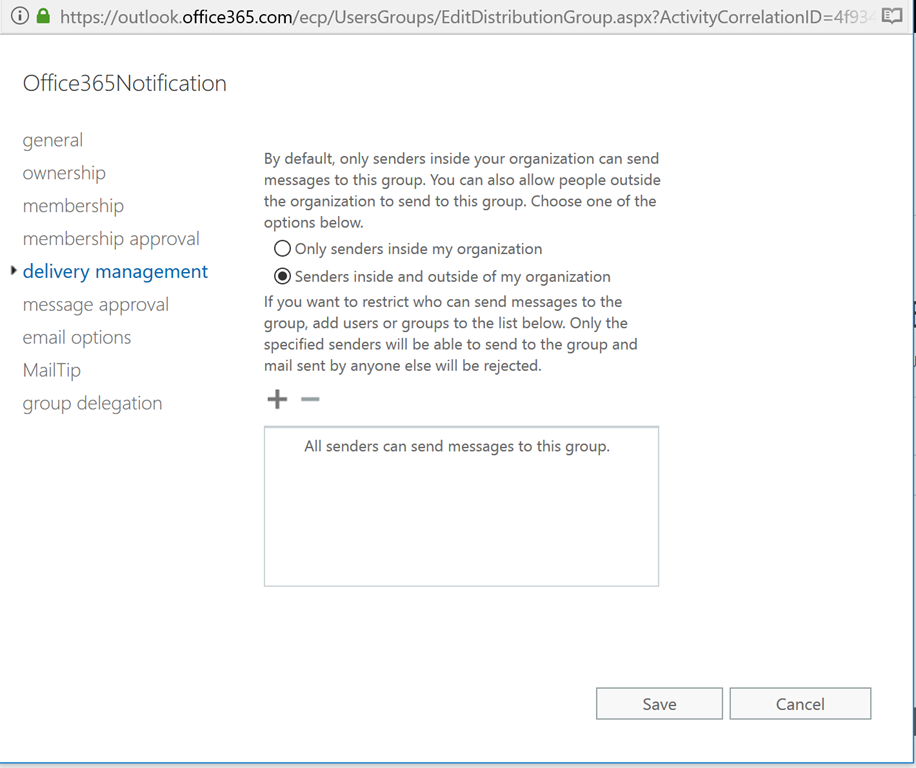
An important setting of the distribution list is to allow external emails to be delivered to the group.  The Office 365 Weekly Digest emails are technically external to the tenant and therefore this setting needs to be allowed in order for the group to receive messages.


Set-DistributionGroup Office365notification@contoso.com -RequireSenderAuthenticationEnabled:$FALSE


PS C:> Get-DistributionGroup office365notification@contoso.com | select-object name,requiresenderauthenticationenabled

Name                  RequireSenderAuthenticationEnabled
—-                  ———————————-
Office365Notification                              False


The ability to create this distribution group and adjust the settings is also available within the Office 365 Portal –> Exchange Administration Console. 


image


Once the group has been successfully created and the authentication settings modified you can add members to the group that you desire to receive notifications.  The members can be any recipient object within Exchange Online (including external mail enabled contacts etc). 


PS C:> Add-DistributionGroupMember -Identity Office365Notification@contoso.com -Member tmcmichael@cotoso.com


PS C:> Get-DistributionGroupMember -Identity Office365Notification@fortmillrescue.com

Name              RecipientType
—-              ————-
ContosoAdmin      UserMailbox
Timothy McMichael UserMailbox
Contact Mailbox   UserMailbox
Laurie Hays       UserMailbox


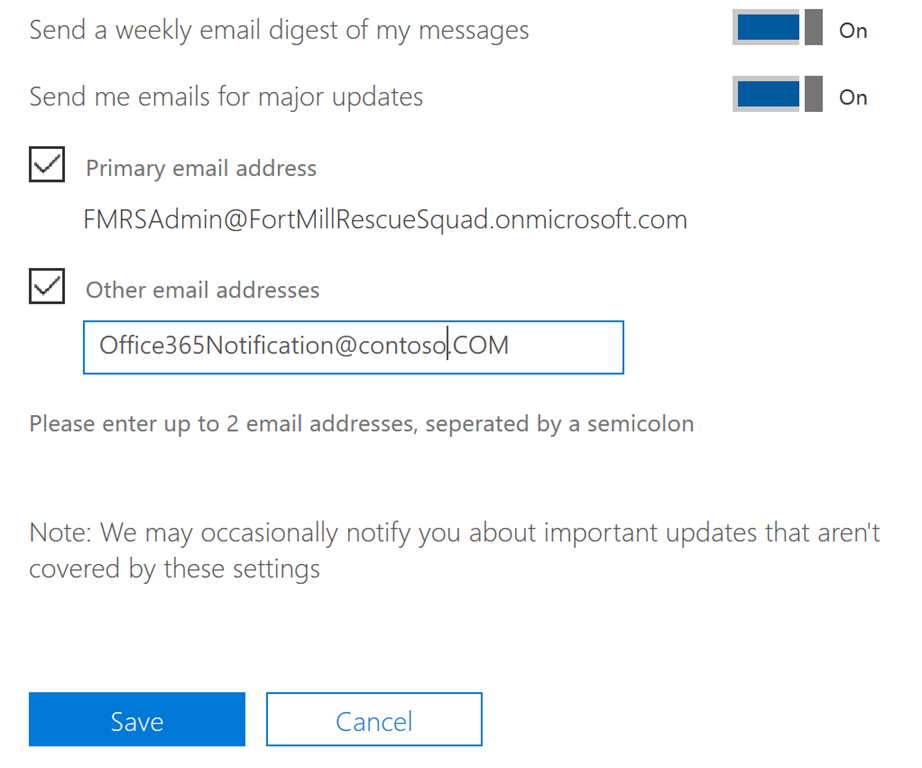
With the distribution group created, the security settings adjusted, and the members added you can now configure the notification settings for the group.  In this example I have taken a global administrator account and selected the message center preferences.  Under the weekly digest email settings I have selected the option for an additional recipient and specified the primary SMTP address of the notifications group that I created.


image


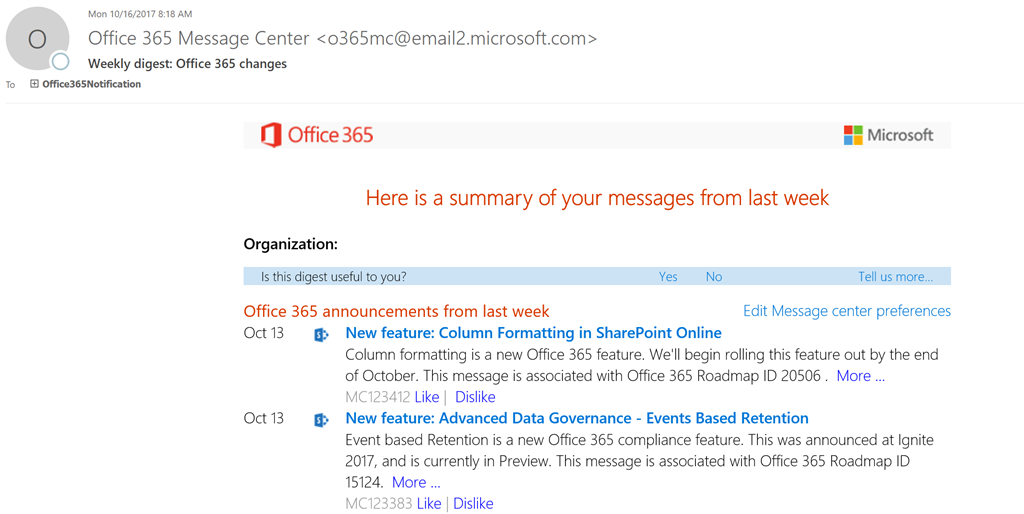
When this setting has been successfully applied members of the groups should start receiving the weekly digest email.  The weekly digest email will appear from an Office 365 service address to the primary SMTP address of the distribution list.  Here is an example of the email successfully sent to the distribution list and received by the member.


image


Using the distribution list method administrators and supply the weekly digest email to parties where it would be helpful to have the information but administration rights are not required.

Exchange, Cluster, and Network Thresholds

Cluster failures due to transient cluster communications problems can often lead to databases failing over between nodes or nodes being removed from cluster membership.  For many administrators the occasional network hiccups that can drive up the likely hood of this occurring is a fact of life.  It is definitely more prevalent when cluster nodes are geographically dispersed.


On occasion there are recommendations to change the cluster network thresholds that determine if a node is alive or failed.  A blog post that I’ve referenced for an explanation and guidance on this is published here:


https://blogs.msdn.microsoft.com/clustering/2012/11/21/tuning-failover-cluster-network-thresholds/


I’m not sure if I’ve missed it or if Elden recently updated it but I noticed that there are new values listed in the table for Windows 2016 based clusters.  I also noticed the following paragraph issuing what I thought was updated guidance on cluster network thresholds.


“To be more tolerant of transient failures it is recommended on Win2008 / Win2008 R2 / Win2012 / Win2012 R2 to increase the SameSubnetThreshold and CrossSubnetThreshold values to the higher Win2016 values.  Note:  If the Hyper-V role is installed on a Windows Server 2012 R2 Failover Cluster, the SameSubnetThreshold default will automatically be increased to 10 and the CrossSubnetThreshold default will automatically be increased to 20.  After installing the following hotfix the default heartbeat values will be increased on Windows Server 2012 R2 to the Windows Server 2016 values.”  This is a hotfix available that will do this for you.  https://support.microsoft.com/en-us/help/3153887/fine-tuning-failover-cluster-network-thresholds-in-windows-server-2012


If changing these values or considering changing them I encourage you to book mark Elden’s blog and reference it for guidance.

Office 365: Upgrading legacy distribution lists to Office 365 Groups

Office 365 groups are the recommended replacement for legacy distribution groups in Office 365.  You can learn more about Office 365 groups at the following link:  https://support.office.com/en-us/article/Learn-about-Office-365-Groups-b565caa1-5c40-40ef-9915-60fdb2d97fa2


In an effort to assist in the adoption of Office 365 groups we now offer administrators the opportunity to upgrade legacy groups to Office 365 groups.  The option exists both in the Exchange Control Panel, Outlook Web Access, and through Powershell.  There are certain perquisites that legacy groups must meet prior to being eligible for upgrade to Office 365 groups.  For information on methods to upgrade groups please review the following https://support.office.com/en-us/article/Upgrade-distribution-lists-to-Office-365-Groups-in-Outlook-787d7a75-e201-46f3-a242-f698162ff09f.  For information on pre-requisites for upgrading distribution lists reference the following https://support.office.com/en-us/article/Upgrade-distribution-lists-to-Office-365-Groups-in-Outlook-787d7a75-e201-46f3-a242-f698162ff09f#bkmk_which.


In this example we will review the upgrade process.  In my test tenant I have created 15,000 distribution groups.


PS C:> $groups=Get-DistributionGroup -ResultSize unlimited | where {$_.name -like “*TestDL*”}
PS C:> $groups.Count
15001


Name        DisplayName GroupType PrimarySmtpAddress                       
—-        ———– ——— ——————                       
TestDL      TestDL      Universal TestDL@contoso.onmicrosoft.com
TestDL0     TestDL0     Universal TestDL0@contoso.com               
TestDL1     TestDL1     Universal TestDL1@contoso.com               
TestDL10    TestDL10    Universal TestDL10@contoso.com              
TestDL100   TestDL100   Universal TestDL100@contoso.com             
TestDL1000  TestDL1000  Universal TestDL1000@contoso.com            
TestDL10000 TestDL10000 Universal TestDL10000@contoso.com           
TestDL10001 TestDL10001 Universal TestDL10001@contoso.com           
TestDL10002 TestDL10002 Universal TestDL10002@contoso.com           
TestDL10003 TestDL10003 Universal TestDL10003@contoso.com           
TestDL10004 TestDL10004 Universal TestDL10004@contoso.com           
TestDL10005 TestDL10005 Universal TestDL10005@contoso.com           
TestDL10006 TestDL10006 Universal TestDL10006@contoso.com           
TestDL10007 TestDL10007 Universal TestDL10007@contoso.com           
TestDL10008 TestDL10008 Universal TestDL10008@contoso.com           
TestDL10009 TestDL10009 Universal TestDL10009@contoso.com           
…….
…….
…….
……. 
TestDL9993  TestDL9993  Universal TestDL9993@contoso.com            
TestDL9994  TestDL9994  Universal TestDL9994@contoso.com            
TestDL9995  TestDL9995  Universal TestDL9995@contoso.com            
TestDL9996  TestDL9996  Universal TestDL9996@contoso.com            
TestDL9997  TestDL9997  Universal TestDL9997@contoso.com            
TestDL9998  TestDL9998  Universal TestDL9998@contoso.com            
TestDL9999  TestDL9999  Universal TestDL9999@contoso.com


Using the Exchange Control Panel we will select the option to upgrade distribution lists to Office 365 groups.  You can select the GET STARTED option in UPGRADE DISTRIBUTION GROUPS or select the new upgrade icon in the group creation toolbar.


image


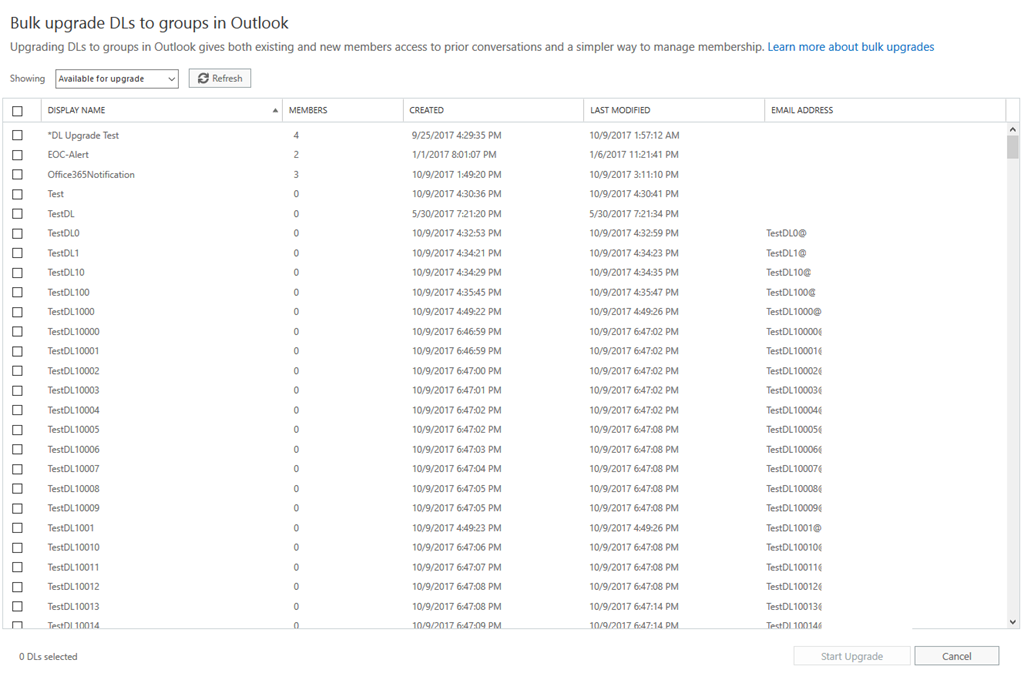
When the upgrade option is selected a new window is presented to select distribution groups for upgrade. 


image


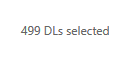
If we select all of the distribution lists for upgrade at once we can observe the number of upgrade operations that will occur in the lower left corner of the wizard.


image


In this instance only 499 distribution lists are selected but there are over 15,000 distribution lists that are eligible for upgrade.  Why does this occur?


In the Exchange Control Panel the upgrade wizard performs a discover of distribution lists that is limited at 10,000 distribution groups.  The service then performs eligibility checks against the 10,000 distribution lists that are selected and displays up to 499 eligible groups found within that group of 10,000.   It is possible that the picker could display less than 499 – for example if out of the 10,000 we found only 200 that were eligible the wizard would only display 200.  This means that there are distribution groups that could be eligible for upgrade that the picker will not display.


If the picker does not display the group for upgrade how does the group get upgraded?  The first step is to reference the links previously posted in this blog.  Administrators should execute the scripts attached to verify that the group has no upgrade blockers present.  If the group has no upgrade blockers present, and the group does not appear in the wizard for upgrade, Powershell must be utilized to perform the upgrade.  The commands are documented in the articles previously linked in this blog.  Here is an example:


Validate that the group exists as a universal group (legacy distribution list):


PS C:> $group=Get-DistributionGroup -Identity TestDL1001
PS C:> $group.GroupType
Universal


Queue the upgrade of the distribution list to an Office 365 group.


PS C:> Upgrade-DistributionGroup -DlIdentities $group.PrimarySmtpAddress

RunspaceId                      : 237b2e62-0770-4ba6-96f5-72a8dc6b5284
dlIdentity                      : TestDL1001@contoso.com
ErrorReason                     :
ExternalDirectoryObjectId       : dfa719d9-7507-4c7b-8e36-e07bad106975
SuccessfullySubmittedForUpgrade : True
Identity                        :
IsValid                         : True
ObjectState                     : Changed


When the group has been upgraded the get-distributionList command will no longer function.  The group is no longer a legacy group.


PS C:> $group=Get-DistributionGroup -Identity TestDL1001
The current operation is not supported on GroupMailbox.
    + CategoryInfo          : NotSpecified: (TestDL1001:String) [Get-DistributionGroup], RecipientTaskException
    + FullyQualifiedErrorId : [Server=BY1PR0601MB1402,RequestId=37473f52-d39a-4ef6-a3b5-ac8e2a744139,TimeStamp=10/10/2
   017 2:15:49 PM] [FailureCategory=Cmdlet-RecipientTaskException] 9034E99D,Microsoft.Exchange.Management.RecipientTa
  sks.GetDistributionGroup
    + PSComputerName        : ps.outlook.com


The properties of the group can now be viewed with get-UnifiedGroup:


PS C:> Get-UnifiedGroup TestDL1001

Name                      Alias                ServerName       AccessType
—-                      —–                ———-       ———-
TestDL1001_cc0807653c     TestDL1001           by1pr0601mb1402  Private


A legacy distribution group can also be updated using the new-UnifiedGroup command.  In this example we will create a distribution group with new-distributionGroup.


PS C:> New-DistributionGroup TestDL
New! Office 365 Groups are the next generation of distribution lists.
Groups give teams shared tools for collaborating using email, files, a calendar, and more.
You can start right away using the New-UnifiedGroup cmdlet.

Name   DisplayName GroupType PrimarySmtpAddress
—-   ———– ——— ——————
TestDL TestDL      Universal TestDL@domain.onmicrosoft.com

The upgrade can then be performed with the new-unifiedGroup command.


PS C:> $group=Get-DistributionGroup TestDL
PS C:> New-UnifiedGroup -DlIdentity $group.PrimarySmtpAddress

Name                      Alias                ServerName       AccessType
—-                      —–                ———-       ———-
TestDL_1521da9ce5         TestDL               by1pr0601mb1402  Private


This is the process that can be utilized to upgrade a legacy distribution list that does not appear in the upgrade wizard.

Office 365: Converting a remote mailbox to a mail user…

In Office 365 it may become necessary to change recipient types for on premises accounts.  In this scenario contoso.com provided a mailbox within their Office 365 tenant for a user.  A decision was made to host the users mailbox within a different mail system but authentication would still occur against the contoso.com domain.  The desire was to retain the original active directory account provisioned for the user and have the user appear in the global address list with routing information to the new mail system.


Let’s take a look at this example. 


In the contoso.com directory a user account was provisioned.


PS C:> Get-ADUser testcontoso | fl

DistinguishedName : CN=Test Contoso,OU=Users,OU=UsersOU,DC=contoso,DC=local
Enabled           : True
GivenName         : Test
Name              : Test Contoso
ObjectClass       : user
ObjectGUID        : a89d3274-747d-4f10-8fa6-68ea419656d1
SamAccountName    : TestContoso
SID               : S-1-5-21-2774288044-2073832935-89463056-1298
Surname           : Contoso
UserPrincipalName :
TestContoso@contoso.com


The user was enabled for a remote mailbox using the command enable-remotemailbox.  Once the object is replicated through directory synchronization a new remote mailbox will be created within Office 365.


[PS] C:>Enable-RemoteMailbox -Identity TestContoso -RemoteRoutingAddress testcontoso@contoso.mail.onmicrosoft.com

Name                 RecipientTypeDetails         RemoteRecipientType
—-                 ——————–         ——————-
Test Contoso         RemoteUserMailbox            ProvisionMailbox


We can verify the account creation in Azure Active Directory with get-msolUser.


PS D:> Get-MsolUser -UserPrincipalName testcontoso@contoso.com

UserPrincipalName              DisplayName  isLicensed
—————–              ———–  ———-
TestContoso@contoso.com        Test Contoso False


The final step in provisioning is verification of the Exchange Online Account.  This can be performed with get-recipient.


PS D:> Get-Recipient TestContoso

Name         RecipientType
—-         ————-
Test Contoso UserMailbox


When reviewing the object on premises there are active directory attributes that in conjunction with directory synchronization control how the object is created and provisioned in the service.  For this example we are particularly interested in an attribute msExchRemoteRecipientType.  For a remote mailbox that was provisioned using on premises commands enable-remoteMailbox the remote recipient type should be a value of 1. 


msExchRemoteRecipientType: 1;


In our example the value is 1.  A good reference for recipient display types https://blogs.technet.microsoft.com/johnbai/2013/09/11/o365-exchange-and-ad-how-msexchrecipientdisplaytype-and-msexchangerecipienttypedetails-relate-to-your-on-premises/.


1               

0x1         

ProvisionedMailbox (Cloud MBX)


Now that we have established how the user and mailbox were provisioned we can review the conversion process.  In our example we want to convert the user from a REMOTE MAILBOX to a MAIL USER.  (A mail user is an active directory account that is extended with an email address outside the organization for the purposes of allowing authentication to the directory, allowing the user to appear in the global address list, and having messages sent from the source mail system to the remote mail system.).


The process starts by disabling the remote mailbox.  This is accomplished utilizing the disable-remoteMailbox command.


[PS] C:>Disable-RemoteMailbox TestContoso -Confirm:$FALSE


This process removes the Exchange attributes from on premises and adjusts the remote recipient type.  In this case the remote recipient type is adjusted to 8. 


msExchRemoteRecipientType: 8;


8               

0x8            

DeprovisionMailbox

At this stage the user account still exists in on premises Active Directory and still exists in Azure Active Directory.  We have not deleted nor modified further the account. 


To enable the account as a mail user we will use the enable-mailUser command.


[PS] C:>Enable-MailUser TestContoso -ExternalEmailAddress test@contoso.com

Name                                     RecipientType
—-                                     ————-
Test Contoso                             MailUser


Using the get-recipient command we can validate the attribute set on premises – specifically the email addresses and target address.


[PS] C:>Get-Recipient TestContoso | Select-Object EmailAddresses,ExternalEmailAddress,PrimarySMTPAddress | fl

EmailAddresses       : {smtp:TestContoso@contoso.mail.onmicrosoft.com,
                       smtp:TestContoso@contoso.org, smtp:TestContoso@contoso.com,
                       SMTP:test@external.com}
ExternalEmailAddress : SMTP:test@external.com
PrimarySmtpAddress   : test@external.com


In the case of a mail enabled contact the primary SMTP address, external SMTP address, and primary email address in the proxy addresses signified by SMTP: should all match.  This is one of the few cases where a primary proxy address will reflect an external non-owned address.


We can verify the same information in Exchange Online using get-recipient.


PS D:> Get-Recipient TestContoso | Select-Object RecipientType,EmailAddresses,ExternalEmailAddress,PrimarySMTPAddress | fl

RecipientType        : MailUser
EmailAddresses       : {X500:/o=contoso/ou=Exchange Administrative Group (FYDIBOHF23SPDLT)/cn=Recipients/cn=84d0cea822fe44509f4382fdaed37ab5-Test Co, SMTP:TestContoso@contoso.onmicrosoft.com,
                       smtp:TestContoso@contoso.mail.onmicrosoft.com, smtp:TestContoso@contoso.com, smtp:TestContoso@contoso.org}
ExternalEmailAddress : SMTP:test@external.com
PrimarySmtpAddress   : TestContoso@contoso.onmicrosoft.com


This output confirms that a mail user object has been provisioned in the service but the addresses do not match on premises?  Why?


In this instance the provisioning process is confused by the presence of the remote recipient type on premises.  A typical mail user does not have a remote recipient type set.   In this instance the mail user will work, but any attempts to search via SMTP address or information displayed on contact cards may not be consistent with expectations.  For example, the contact in the on premises GAL would show a primary proxy of the external address while the Exchange Online GAL would show a primary proxy of the internal address.  Although this display is not the same – we will route messages correctly to the external recipient since the external email address is properly set.


How do we fix this issue?


In order to correct this condition the remote recipient type needs to be cleared.  Using Active Directory Users and Computers ensure advanced features is enabled (view –> advanced features).  Locate the user account on premises and select properties. 


image


Select the EDIT button –> CLEAR –> OK.  This will revert the entry to NOT SET.  The apply button will commit the change to the directory.  Directory replication and directory synchronization will apply the change to Azure Active Directory and Exchange Online.


image


When changes have replicated successfully we can use get-recipient to validate the changes in Exchange Online.  The primary proxy address listed in SMTP addresses and signified with SMTP: matches the primarysmtpaddress field.  The fix was successful.


PS D:> Get-Recipient TestContoso | Select-Object RecipientType,EmailAddresses,ExternalEmailAddress,PrimarySMTPAddress | fl

RecipientType        : MailUser
EmailAddresses       : {smtp:TestContoso@contoso.onmicrosoft.com, SMTP:test@external.com, X500:/o=contoso/ou=Exchange Administrative Group
                       (FYDIBOHF23SPDLT)/cn=Recipients/cn=84d0cea822fe44509f4382fdaed37ab5-Test Co, smtp:TestContoso@contoso.mail.onmicrosoft.com, smtp:TestContoso@contoso.com,
                       smtp:TestContoso@contoso.org}
ExternalEmailAddress : SMTP:test@external.com
PrimarySmtpAddress   : test@external.com


This is the process that can be utilized to convert a remote mailbox to a mail user.

Office 365: Fatal error RecipientNotFoundPermanentException has occurred

In Office 365 administrators may experience almost immediate failures of migrations to Office 365.  The error is typically in the following format:


Error: Cannot find a recipient that has mailbox GUID ‘MAILBOX-GUID’.


The migration log shows the following information at the end of the log regarding the failure exception””:


9/11/2017 9:13:58 PM [DM5PR04MB0988] Fatal error RecipientNotFoundPermanentException has occurred.


The error itself is quite misleading at casual glance.  The recipient can be located on premises as well as in Office 365.  If the recipient can easily be located – why is the migration failing with this error?


Further review of the migration log shows entries similar to the following:


9/11/2017 9:13:54 PM [DM5PR04MB0988] Content from the Shard mailbox (Mailbox Guid: MAILBOX-GUID, Database Guid: DATABSE-GUID) will be merged into the target mailbox.


The GUID listed in MAILBOX-GUID for the SHARD mailbox matches the MAILBOX-GUID in the error.  We cannot locate the SHARD mailbox.  What is a SHARD mailbox?


In Office 365 on premises mailbox are represented by mail user objects.  It is possible that you have migrated mailboxes to Office 365 and these users are collaborating with users that have not yet been migrated.  The services they are collaborating on may store data within the Exchange Online mailbox.  A user that has not been migrated – being a mail user object – typically does not have a mailbox to store data in.  In order to facilitate this collaboration we create a special mailbox known as the SHARD mailbox.  The administrator can view SHARD mailboxes using the get-MailboxLocations commandlet.  IT IS PEFECTLY NORMAL FOR A MAIL USER NOT YET MIGRATED TO HAVE A SINGLE COMPONENTSHARED MAILBOX TO FACILITATE COLLABORATION.


Get-MailboxLocations –identity ALIAS


RunspaceId                    : d075c233-05d4-4b41-9c2d-3fbc930d593f
Id                            : GUIDGUID
MailboxGuid                   : GUID
DatabaseLocation              : NAMPR06DG007-db108
MailboxLocationType           : ComponentShared
OwnerId                       : NAME
TenantGuid                    : GUID
MailboxMoveBatchName          :
MailboxMoveStatus             : None
MailboxMoveFlags              : None
RawExternalEmailAddress       :
MigrationDryRun               : False
OptInUser                     : False
IsMigratedConsumerMailbox     : False
IsPremiumConsumerMailbox      : False
PrimaryMailboxSource          : None
MailboxProvisioningConstraint :
SiloName                      :
Identity                      : GUIDGUID
IsValid                       : True
ObjectState                   : New


When the administrator provisions a migration to Office 365 for a user with a SHARD mailbox the migration process attempts to locate the mailbox in the defined database.  As a post migration activity we will merge the contents of the SHARD mailbox into the primary mailbox that was migrated.  The SHARD mailbox is then decommissioned as it is no longer necessary.  The error we are receiving in this case  is the result of the migration process being unable to locate the SHARD mailbox.


In order to correct this condition administrators should open a support ticket and work with product support services.


*Updated 11/20/2017


An update to this blog post contained a script that could be used to identity duplicate shard mailboxes.  The migration process now handles this condition – the post was reverted to the original information which may require product support services.

Office 365: Users have both a cloud and on premises mailbox.

In Office 365 our provisioning logic generally prevents the existence of a mailbox on premises and in the service.  You can imagine the confusion of cloud messages delivering to a mailbox in the cloud and on premises messages delivering to a mailbox on premises.


When a mailbox is provisioned on premises the azure active directory synchronization process is responsible for synchronizing the attributes into Azure AD and Office 365.  One of the attributes synchronized from on premises to Azure AD is the ExchangeGUID.  Here is an example of a test account on premises.


[PS] D:>Get-Recipient RecipientTest | fl name,recipienttype,exchangeGuid

Name          : Recipient Test
RecipientType : UserMailbox
ExchangeGuid  : f20047a9-3fd1-4906-8d98-188feacdd5b7


When AAD Connect has completed a synchronization cycle the same can be verified on the mail user object created in the service.  Any on premises mailbox should be represented by a mail user object within the service.


PS C:> Get-Recipient RecipientTest | fl name,recipienttype,exchangeguid,skuAssigned

Name          : Recipient Test
RecipientType : MailUser
ExchangeGuid  : f20047a9-3fd1-4906-8d98-188feacdd5b7

SKUAssigned   :


In most cases the mail user object is originally unlicensed.  The presence of the immutableID value demonstrates a link to an on premises active directory account.


PS C:> Get-MsolUser -UserPrincipalName recipienttest@domain.com | fl displayName,userprincipalname,immutablid,isLicensed,Licenses

DisplayName       : Recipient Test
UserPrincipalName : RecipientTest@domain.com
ImmutableId       : XSLPV65jKEqTyWafMqX8LA==
IsLicensed        : False
Licenses          : {}


In this example we will assign an Exchange Online license via the portal.


image


The license assignment can be validated with get-MSOLUser.


PS C:> Get-MsolUser -UserPrincipalName recipienttest@DOMAIN.com | fl displayName,userprincipalname,immutablid,isLicensed,Licenses


DisplayName       : Recipient Test
UserPrincipalName : RecipientTest@domain.com
ImmutableId       : XSLPV65jKEqTyWafMqX8LA==
IsLicensed        : True
Licenses          : {ORGANIZATION:STANDARDWOFFPACK}


The replication of the license status can be validated with get-recipient and reviewing the skuAssigned.  In this case the object continues to be retained as a mail user with a SKUAssigned.


PS C:> Get-Recipient RecipientTest | fl name,recipienttype,exchangeguid,skuAssigned

Name          : Recipient Test
RecipientType : MailUser
ExchangeGuid  : f20047a9-3fd1-4906-8d98-188feacdd5b7
SKUAssigned   : True


The presence of the ExchangeGUID and license has signified to the provisioning process that a mailbox object should not be provisioned.  This test has concluded as expected.


If the presence of an ExchangeGUID + a license signifies that no mailbox should be provisioned how is it possible that a mailbox could be provisioned in both locations?  Let us take a look at an example presented by a customer I recently worked with…


In this instance I have created a CLOUD ONLY account.  The account has been provisioned with a UPN that matches an on premises UPN suffix and no licenses.


PS C:> Get-MsolUser -UserPrincipalName testDuplicate@DOMAIN.com | fl displayName,userPrincipalName,isLicensed,Licenses

DisplayName       : Test Duplicate
UserPrincipalName : TestDuplicate@DOMAIN.com
IsLicensed        : False
Licenses          : {}


When a license is assigned via the portal that contains an Exchange Online option – mailbox object would be provisioned in Exchange Online.  This is the expected behavior – no ExchangeGUID is replicated from on premises.  In addition the immutableID is not populated demonstrating no link to an on premises AD account (therefore a cloud only account).


PS C:> Get-MsolUser -UserPrincipalName testDuplicate@domain.com | fl displayName,userPrincipalName,immutableID,isLicensed,Licenses

DisplayName       : Test Duplicate
UserPrincipalName : TestDuplicate@domain.com
ImmutableId       :
IsLicensed        : True
Licenses          : {ORGANIZATION:STANDARDWOFFPACK}


PS C:> Get-Recipient TestDuplicate | fl name,recipienttype,exchangeguid,skuAssigned

Name          : TestDuplicate
RecipientType : UserMailbox
ExchangeGuid  : 9e58304a-ed80-416a-8eac-f2e769056e52
SKUAssigned   : True


At this point everything looks to be working as expected.  Here is where the issue could come into existence.  The customer I worked with was testing Office 365.  In this instance they took and intentionally mirrored some key on premises accounts prior to having directory synchronization enabled in their tenant.  That is to say that the customer created cloud only accounts for testing that utilized the same on premises user principal name and same proxy addresses as accounts on premises.  Using our example this is the on premises account representation.


[PS] D:>Get-Recipient TestDuplicate | fl name,recipienttype,exchangeGuid

Name          : Test Duplicate
RecipientType : UserMailbox
ExchangeGuid  : 064e1a94-3199-49a7-9cb3-3ce3412424d6


In this example you will note that the ExchangeGUID of the mailbox on premises does not match the ExchangeGUID of the account within the service.  This is to be expected since there is no directory sync relationship


At this time the customer has decided to enabled directory synchronization on the accounts.  In preparation for this the licenses on the accounts were removed.


PS C:> Get-MsolUser -UserPrincipalName testDuplicate@domain.com | fl displayName,userPrincipalName,immutableID,
isLicensed,Licenses

DisplayName       : Test Duplicate
UserPrincipalName : TestDuplicate@domain.com
ImmutableId       :
IsLicensed        : False
Licenses          : {}


The license change replicates into Exchange Online resulting in the associated mailbox no longer being valid.


PS C:> Get-Recipient TestDuplicate | fl name,recipienttype,exchangeguid,skuAssigned
The operation couldn’t be performed because object ‘TestDuplicate’ couldn’t be found on
‘CO1PR06A002DC01.NAMPR06A002.prod.outlook.com’.
    + CategoryInfo          : NotSpecified: (:) [Get-Recipient], ManagementObjectNotFoundException
    + FullyQualifiedErrorId : [Server=BY1PR0601MB1402,RequestId=5faf2d1c-dc9a-4fd7-8395-db766ca0cf0b,TimeStamp=9/10/20
   17 3:53:46 PM] [FailureCategory=Cmdlet-ManagementObjectNotFoundException] 10E01848,Microsoft.Exchange.Management.R
  ecipientTasks.GetRecipient
    + PSComputerName        : ps.outlook.com


It was at this time that a very important and often overlooked attribute was set.  Although the license was removed rendering the Exchange Online mailbox inaccessible the users representation within the Exchange Online Active Directory was not removed.  This can be seen with the get-user command.


PS C:> Get-User TestDuplicate

Name          RecipientType
—-          ————-
TestDuplicate User


An attribute of the user object within the Exchange Online Active Directory is the previous recipient type.  In this case the license removal resulted in this attribute being populated as user mailbox – as the previous recipient type for the linked account was mailbox.


PS C:> Get-User TestDuplicate | fl name,recipienttype,previousrecipienttypedetails

Name                         : TestDuplicate
RecipientType                : User
PreviousRecipientTypeDetails : UserMailbox


Prior to the existence of previous recipient type details the provisioning process, when handling license additions and removals, would attempt to guess at what the previous recipient type was.  This could lead to mailbox reconnect issues, wrong object provisioning, and other miscellaneous issues when provisioning accounts after license removal and addition.  The previous recipient type details no exists to track the status of the recipient in Exchange Online.  Administrators do not have access to modify the previous recipient display type.


In our case the administrator is now proceeding with the process of soft matching cloud only accounts to accounts that exist on premises.   The following is after a directory sync cycle where soft matching occurred.  We can now verify that the immutableID field is stamped indicating the account is linked to an on premises active directory account.


PS C:> Get-MsolUser -UserPrincipalName testDuplicate@domain.com | fl displayName,userPrincipalName,immutableID,isLicensed,Licenses

DisplayName       : Test Duplicate
UserPrincipalName : TestDuplicate@domain.com
ImmutableId       : YcQouGWUS0Ww3XyDegtu6g==
IsLicensed        : False
Licenses          : {}


With the directory synchronization cycle completed the administrator then assigned licenses to the accounts. 


PS C:> Get-MsolUser -UserPrincipalName testDuplicate@domain.com | fl displayName,userPrincipalName,immutableID,
isLicensed,Licenses

DisplayName       : Test Duplicate
UserPrincipalName : TestDuplicate@domain.com
ImmutableId       : YcQouGWUS0Ww3XyDegtu6g==
IsLicensed        : True
Licenses          : {ORGANIZATION:STANDARDWOFFPACK}


When the license status replicates to Exchange Online an appropriate recipient object will be provisioned.


PS C:> Get-Mailbox TestDuplicate | fl name,recipientType,exchangeGUID,skuAssigned

Name          : Test Duplicate
RecipientType : UserMailbox
ExchangeGuid  : 17d89853-ec3e-4bb3-9bf8-a7d022818fb0
SKUAssigned   : True


In this example a recipientType of user mailbox has been provisioned.  This is NOT the expected recipient type.  In this example we should have expected a mail user object to be created.  Why did this occur?  Although the on prmises ExchnageGUID is populated and replicated by directory synchronization the users previous recipient type was user mailbox.  The provisioning process ignores the presence of the replicated ExchangeGUID and creates in this instance a new blank mailbox for the user within Exchange Online since the previous recipient display is stamped.


ExchangeGuid  CLOUD : 17d89853-ec3e-4bb3-9bf8-a7d022818fb0

ExchangeGuid  ON PREMISES : 064e1a94-3199-49a7-9cb3-3ce3412424d6


If the licenses is removed from the account the object reverts to a mail user object with the matching Exchange GUID on premises.


PS C:> Get-Recipient TestDuplicate | fl name,recipienttype,exchangeguid,skuAssigned

Name          : Test Duplicate
RecipientType : MailUser
ExchangeGuid  : 064e1a94-3199-49a7-9cb3-3ce3412424d6

SKUAssigned   : False


ExchangeGuid  CLOUD : 064e1a94-3199-49a7-9cb3-3ce3412424d6

ExchangeGuid  ON PREMISES : 064e1a94-3199-49a7-9cb3-3ce3412424d6


The combination of previous recipient display type as user mailbox and a license triggers the mailbox provisioning process even if ExchangeGUID is stamped.  This can lead to a condition where an on premises mailbox and Exchange Online mailbox exist at the same time.
Handling Migrations – StalledDueToTarget_MdbFull or TargetDatabaseFullPermanentException

When an administrator provisions a migration batch to Office 365 and adds users, objects known as migration users are created, which you can view using Get-MigrationUser. When migration users and the corresponding move requests (Get-MoveRequest) are created an Exchange Online mailbox database is assigned to each mailbox that will be migrated.  Exchange Online uses an algorithm to review available databases within the service and subsequently select the best target database. Among other data points, one of the criteria considered in the algorithm is the amount of available free space the database file is allowed to consume.


Some customers have recently reported that during the mailbox finalization process, the mailbox move may stall with the following error: StalledDueToTarget_MDBFull or TargetDatabaseFullPermanentException.


Why does this stall occur?


As mailbox data is migrated into the database space within the database file. Exchange Online servers cap the size of mailbox database files to ensure that sufficient free space exists in the database to process mail and client transactions, and to prevent a single database file from consuming more disk space than expected.


StalledDueToTarget_MDBFull is our way of notifying the administrator that we have reached the threshold for the minimum free space remaining in the database, or that the database file has reached its maximum allowable size. 


TargetDatabaseFullPermanentException is similar in nature.  Often the move reports will include space information regarding the state of the target database.  Here is an example:


Message           : Target database GUID cannot be used:
                    Current database file size: 1464986501120
                    Current space available inside database: 1743781888
                    Allowed database growth percentage: 90
                    Maximum database file size limit: 1622722691784
                    Is database excluded from provisioning: ‘False’.


The service will allow a database to grow to 90% space utilization.  The reserve ensures that users already utilizing the database are safe and further database operations would not impact the stability of the service.  In this case 146498956501120 / 1622722691784 = 90.2% (therefore greater than the 90% limit imposed).


How does the administrator handle this scenario?


There are three options available for an administrator to deal with this scenario.


The first option is to do nothing.  Within Exchange Online, there are service processes that dynamically move mailboxes to redistribute load across multiple databases. Exchange Online is aware of pending migrations and in the background, redistributes mailboxes to allow the free space to decline below the stalled threshold.  When the free space has increased to a level that would safely allow for migrations to complete – the stall condition will be resolved, and the migration will complete. This could take several hours or days between when the stall is first encountered and when free space is below the threshold to allow for continued moves.


The second option that may help is to lower the amount of time between the initial synchronization of the mailbox and the finalization of the mailbox move.  In most customer engagements there were several days to weeks between the initial synchronization of the mailbox and when the administrator issued the finalization of the mailbox move.  The stall is then encountered in the incremental synchronization process that attempts to finalize the move and copy the remaining data.  When shortening the time between the initial synchronization and the finalization, you decrease the likelihood that the space has been consumed by other migration and client activity, thereby increasing the success rate of mailbox move finalizations. 


The third option is to delete and recreate the move.  In this case, all previously migrated data is deleted, and the migration starts over again.  This can be time-consuming and does not guarantee that you will not see this issue again should you have a longer delay between initial synchronization and finalization.