In Azure Active Directory administrators have the ability to create accounts in two types. They can create user accounts that are members or guests. Typically when I am speaking with customers regarding guest accounts it is usually in the context of B2B invited guest accounts created directly in Office 365 or Azure Active Directory.
Guest accounts also serve a purpose in regard to conditional access. Administrators may configure conditional access policies to only require certain conditions be applied to accessing our cloud services when the user type is a guest. For example administrators may want to force MFA to be applied to guest and external accounts but not in other conditions. (Require MFA for guest users with Conditional Access – Azure Active Directory – Microsoft Entra | Microsoft Learn)
Guest accounts are no just limited to accounts created in our cloud services. Azure Active Directory Connect has the ability to provision the user type for synced accounts. In a default implementation the user type for all synchronized accounts to Azure Active Directory is Member. There could be certain circumstances where you would like a population of your synchronized accounts to appear as guests in Azure AD. This may be to simply filter out those users who might not have a direct relationship to your organization or for the purposes of applying different conditional access policies to synchronized accounts.
The implementation of guest accounts for synchronized objects require the implementation of custom synchronization rules. The rules modify the Azure AD attribute userType and submits the value Guest. This results in a guest user object being provisioned in Azure AD. The following article describes some scenarios and rule examples for creating guest accounts. (Azure AD Connect sync: Make a change to the default configuration – Microsoft Entra | Microsoft Learn)
I recently worked on an escalation with a customer where they were leveraging rules to provision guest accounts in Azure. What we were observing is that after the guest accounts were provisioned a validation error would result in the objects in Azure AD. This would essentially imply that there was a failure on the account where other services may have issues provisioning or using that account. Let’s examine a demonstration of this issue and how we resolved it.
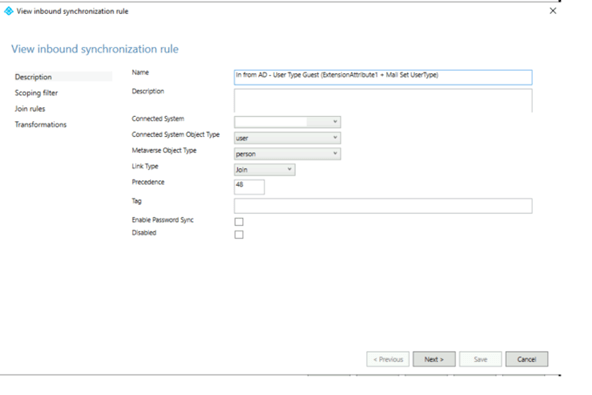
In Azure Active Directory Connect a new rule was created to provision the accounts user type. The rule was given a name that made sense and outlined what the rule should accomplish. I also retained the cloned rules name so that it was apparent what the basis of the rule is for. (I highlight this not because it is required but after supporting many of these installations and attempting to reverse engineer what others were trying to accomplish the little things can be really helpful). The basis for this rule was the disabled rule In from AD – User Type.
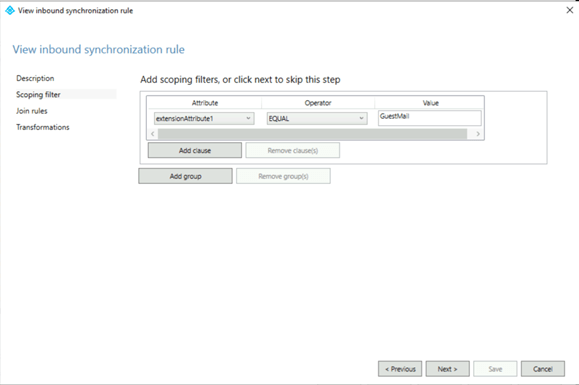
The scoping filter is where we defined the objects where the rule should apply. In this instance we used an attribute that was already defined in the Azure AD Connect schema extensionAttribute1. If you use a custom attribute or an attribute that is not included in the default attribute sync set you may need to alter the attributes imported on the Active Directory connector. In this instance if extensionAttribute1 = GuestMail the user will be included in this rule.
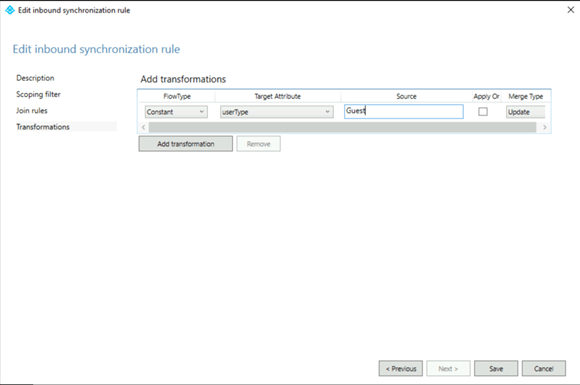
The join rules will remain unmodified. The final settings are to define what attributes will be transformed. On the transformation tab we will statically define the attribute UserType with the value Guest.
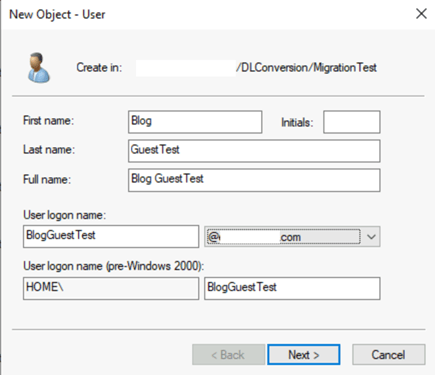
In the customers environment accounts were being provisioned in the following manner.
- The account is created in the local active directory.
- The accounts have a valid user principal name registered in the Office 365 tenant.
- The mail address of the object was the users external email address.
- The necessary attributes to provision the account as a guest were set.
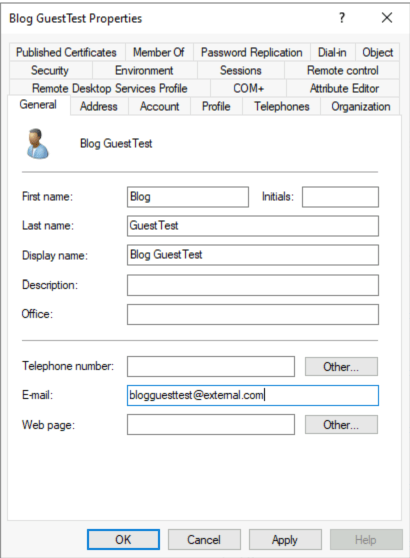
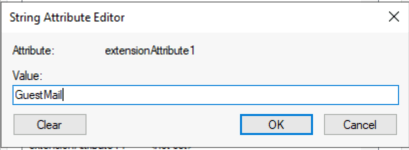
In this demonstration the user account is created in the same manner with extensionAttribute1 set to “GuestMail”.
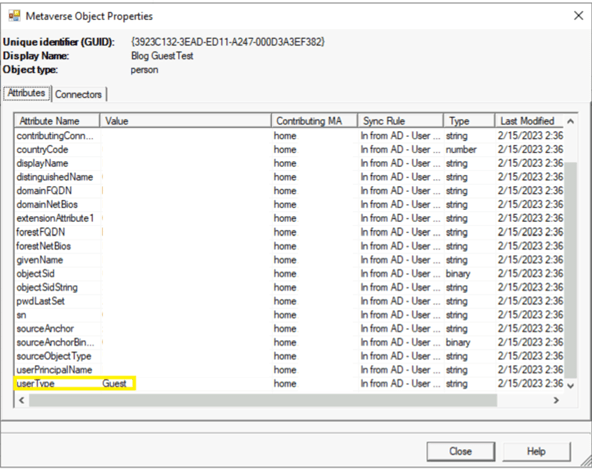
To validate the successful application of this rule a metaverse search in the Azure AD Connect Synchronization Manager can be performed. The search demonstrates the calculated attributes and shows that user type is set to Guest.
At the completion of the synchronization cycle and subsequent export the user will be created in Azure AD. Using get-AzureADUser the attributes for this object can be reviewed.
Get-AzureADUser -SearchString BlogGuestTest | fl objectType,DirSyncEnabled,DisplayName,Mail,MailNickName,ProxyAddresses,UserPrincipalName
ObjectType : User
DirSyncEnabled : True
DisplayName : Blog GuestTest
Mail : blogguesttest@external.com
MailNickName : blogguesttest
ProxyAddresses : {SMTP:blogguesttest@external.com}
UserPrincipalName : BlogGuestTest@registeredDomain.com
UserType : Guest
The outcome is as expected, and a synchronized guest account is now present in Azure AD. The Azure AD object is not the only object that is provisioned as a result of this synchronization. When a guest account is created in Azure AD and the email address is not a registered accepted domain in Exchange Online the Exchange Online provisioning process provisions a guest mail user object. The guest mail user has an external email address set to match the mail attribute synchronized from Azure AD and will appear in the global address list by default. Using get-Recipient in the Exchange Online Management PowerShell the attributes of this object can be reviewed.
PS C:\> Get-Recipient blogguesttest | fl DisplayName,Alias,PrimarySMTPAddress,EmailAddresses,RecipientType,RecipientTypeDetails
DisplayName : Blog GuestTest
Alias : blogguesttest
PrimarySmtpAddress : blogguesttest@external.com
EmailAddresses : {SMTP:blogguesttest@external.com}
RecipientType : MailUser
RecipientTypeDetails : GuestMailUser
It is common in Azure AD Connect installations with Exchange Online to enable a feature called Exchange Hybrid Deployment. When this feature is enabled certain attributes from Exchange Online are written back to Active Directory. This feature is not required when migrating to Exchange Online or co-existing in an Exchange On-Premises to Exchange Online deployment but is most commonly enabled in these scenarios. It is the enablement of this feature combined with synchronizing guest accounts that have external email addresses that ultimately leads to the validation failures. Let’s observe why this happens.
With Exchange Hybrid Deployment enabled in Azure AD Connect one of the attributes written back is the proxyAddresses attribute. When an object is provisioned in Exchange Online an attribute cloudLegacyExchangeDN is written to Azure AD. The hybrid rules take this value from Azure AD and append X500: to it. This combined value is then written to the proxyAddresses attribute in Active Directory. This is where our issue begins. When the user was provisioned the proxyAddresses attribute in Active Directory was NULL. Now this attribute has a value stamped in it.
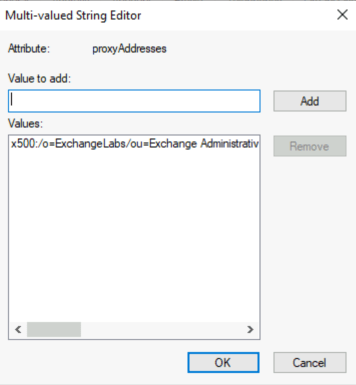
When attribute are written back through Azure AD Connect the next import cycle re-imports these values. With a fully mail enabled object that already has proxy addresses this causes the X500 address to be added to the values already present and the newly updated proxy addresses attribute written to Azure AD. In this example proxy addresses were originally NULL and now has a value. This results in the importation of only the X500 address and then the X500 address written to Azure AD. This is a sample from the export operation in the synchronization manager.

Using get-AzureADUser and reviewing the users properties demonstrates the results of this change.
PS C:\> Get-AzureADUser -SearchString BlogGuestTest | fl objectType,DirSyncEnabled,DisplayName,Mail,MailNickName,ProxyAddresses,UserPrincipalName,UserType
ObjectType : User
DirSyncEnabled : True
DisplayName : Blog GuestTest
Mail :
MailNickName : blogguesttest
ProxyAddresses : {x500:/o=ExchangeLabs/ou=Exchange Administrative Group
(FYDIBOHF23SPDLT)/cn=Recipients/cn=7997929e49124a90b9c061b619c58fd8-53a5ba8b-2e}
UserPrincipalName : BlogGuestTest@registeredDomain.com
UserType : Guest
The proxy addresses of the user object have changed from the SMTP address previously determined by mail to only the X500 address written back to the Active Directory. Technically this is by design as the Active Directory is the source of authority for this attribute when the object is directory synchronized.
The object will now appear in the portal with a validation failure. Using get-AzureADUser the provisioning error is now present on the object.
ProvisioningErrors : {class ProvisioningError {
ErrorDetail: <ServiceInstance Name=”exchange/NAMPRD04-001-01″
xmlns=”http://schemas.microsoft.com/online/error/2010/07″>
<ObjectErrors>
<ErrorRecord>
<ErrorCode>ExFD1C0C</ErrorCode>
<ErrorParameters>
<ErrorParameter>53a5ba8b-2e31-450b-a5cc-5adbbe393a2d</ErrorParameter>
</ErrorParameters>
<ErrorDescription>The mailbox 53a5ba8b-2e31-450b-a5cc-5adbbe393a2d doesn’t have
a SMTP e-mail address.</ErrorDescription>
</ErrorRecord>
</ObjectErrors>
<LinkErrors />
</ServiceInstance>
Resolved: false
Service: exchange
Timestamp: 2/15/2023 3:44:19 PM
}
}
In this instance the error text displayed is exactly what the issue is. The object as synchronized from the Active Directory does not have an SMTP address. The error is essentially expected in this configuration.
What are the options to clear the validation failure?
The first option is to evaluate the need to keep the feature Exchange Hybrid Deployment enabled in Azure AD Connect. This feature is what triggers the issue to occur. If this feature was not enabled proxy addresses would not be written to the Active Directory and subsequently imported into Azure Active Directory overwriting the calculated values between Azure AD and Exchange Online. You will want to carefully consider this as a solution as it could have impacts if mail flow is still processed through the Exchange on-premises installation or if you intend to have the ability to migrate mailboxes back to the Exchange On-Premises installation. This will also not fix objects that are in this state as the proxy addresses attribute has already been stamped and processed in the metaverse.
The second option is to provision the objects with the proxy addresses stamped. This can be used to prevent the issue from occurring as well as to rectify the issue once it occurs. To fix this issue the administrator would manually stamp SMTP:MAIL where mail is the Active Directory mail field. In our example the proxy addresses attribute would have the added address SMTP:blogguesttest@external.com added. When this is added to the proxy addresses field it will be submitted to Azure AD and the validation error will eventually clear now that the object has a defined proxy address. This may require manual administrator intervention or a change in the user provisioning process in Active Directory. In addition it requires that the Exchange on-premises schema be present in Active Directory. The proxyAddresses field is added by the Exchange on-premises schema updates.
The last option is more complicated and requires the addition of an additional transformation to the guest rule in Azure AD Connect. This transformation calculates the proxy addresses for the administrator when the user is evaluated and synced by Azure AD Connect. Here is a sample of the updated rule.
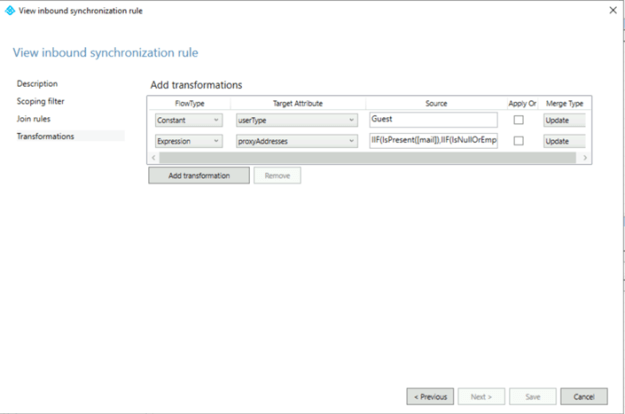
This is the source rule crafted to correct this issue.
IIF(IsPresent([mail]),IIF(IsNullOrEmpty([proxyAddresses]),NULL,RemoveDuplicates(Split(“SMTP:” & LCase([mail]) & “,” & LCase(Join([proxyAddresses],”,”)), “,”))) ,NULL)
The rule sets out to do the following:
- Operate if the mail attribute is present.
- Take the mail attribute for the user and convert it to a primary SMTP address by adding SMTP: to the value.
-
Take any existing proxy addresses that exist on the object, convert them to lower case, and join them to the calculated mail value.
- This ensures that none of the existing addresses can be accidentally interpreted as an additional primary proxy address.
- Write the entire calculated mult-valued attribute to the proxy addresses field in Azure AD.
The rule syntax is structured as follows:
-
If the mail field on the object is present:
-
Value True
-
If the proxy addresses field is null or empty
-
Value False
- Make the mail field lower case.
- Add SMTP: to the mail filed.
- Join all addresses in the proxy addresses field with “,”
- Take all addresses field and make the lower case.
- Split the concatenated strings of addresses by the delimiter “,”. This creates a multi valued attribute.
- Remove all duplicates from the list.
-
Value True
- Do nothing / NULL
-
-
-
Value False
- No nothing / NULL
-
This rule structure automatically populates the proxy addresses field without administrator intervention beyond updating the rule. It also ensures that addresses that were written back are included in the proxy addresses submitted as well as any manually set proxy addresses that may exist in the proxy addresses attribute.
Here is an example of this rules application after the transformation has been updated.
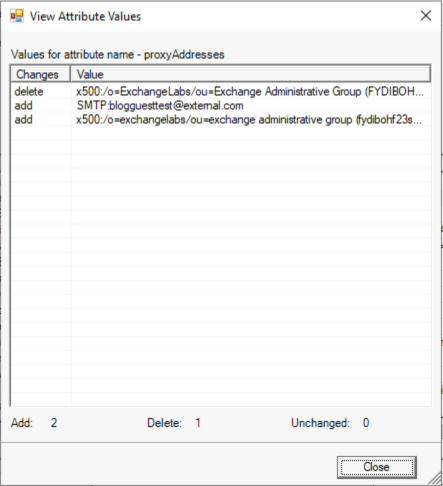
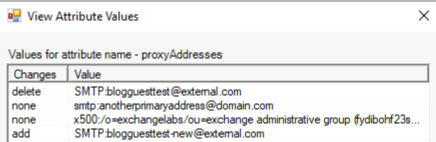
If the administrator adds an additional proxy address as primary to the proxyAddresses attribute transformation application adds the address as a secondary proxyAddress.
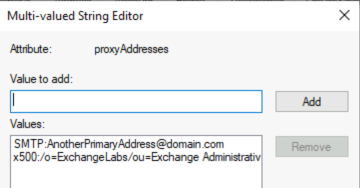
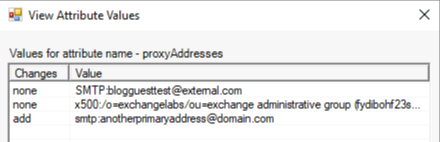
If the administrator changes the mail address to a new external address the proxyAddress transformation coverts the primary SMTP address for the object. Note: It does not retain the original external email address as a proxy address as that would not typically occur on a mail user object.

Implementation of these options should allow the seamless provisioning of guest accounts in Azure AD from a synchronized Active Directory account where the mail field is set to an external address.
 TIMMCMIC
When adding the transformation rule for IIF(IsPresent([mail]),IIF(IsNullOrEmpty([proxyAddresses]),NULL,RemoveDuplicates(Split(“SMTP:” & LCase([mail]) & “,” & LCase(Join([proxyAddresses],”,”)), “,”))) ,NULL), I keep receving the following error” Invalid character ” encountered in expression …at index 86
LikeLike
Awesome, great post, solved our issue.
LikeLike