When installing or upgrading Azure Active Directory Connect administrators are encouraged to upgrade the source anchor attribute from objectGUID to ms-DS-ConsistencyGuid. For new installations this occurs when the administrator selects allow azure ad connect to manage the source anchor. If an installation is upgraded or existing the administrator has the option to run the Azure AD Connect setup wizard and change the source anchor to ms-DS-ConsistencyGuid.
For information on source anchor please see the following –> Azure AD Connect: Design concepts | Microsoft Docs
The use of ms-DS-ConsistencyGuid offers administrators the flexibility to adjust the on premise source anchor value should it become necessary. This is particularly helpful in scenarios where you need to hard match a new on-premises AD object to an existing Azure AD object. When enabled – the rule sets within Azure AD Connect are adjusted to flow the objectGUID of the object directly to the ms-DS-ConsistencyGUID attribute within the directory. Other rules dealing with source anchor are updated to either read objectGUID (if ms-DS-ConsistencyGUID is not present) or utilize the populated ms-DS-ConsistencyGUID to establish the immutableID of the object in Azure Active Directory.
In a default installation the rules extension for ms-DS-ConsistencyGuid have been created for objects of USER and GROUP type. I recently encountered a customer that was a heavy user of inetOrgObjects within their on-premises Active Directory. What the customer observed was that these object classes did not receive ms-DS-ConsistencyGuid although they were successfully replicated to Azure Active Directory.
Let’s take a look at why.
When ms-DS-ConsistencyGUID is configured as the source anchor an outbound rule to the local active directory is created. This rule is responsible for flowing the ms-DS-ConsistencyGUID attribute back to the on premises directory.
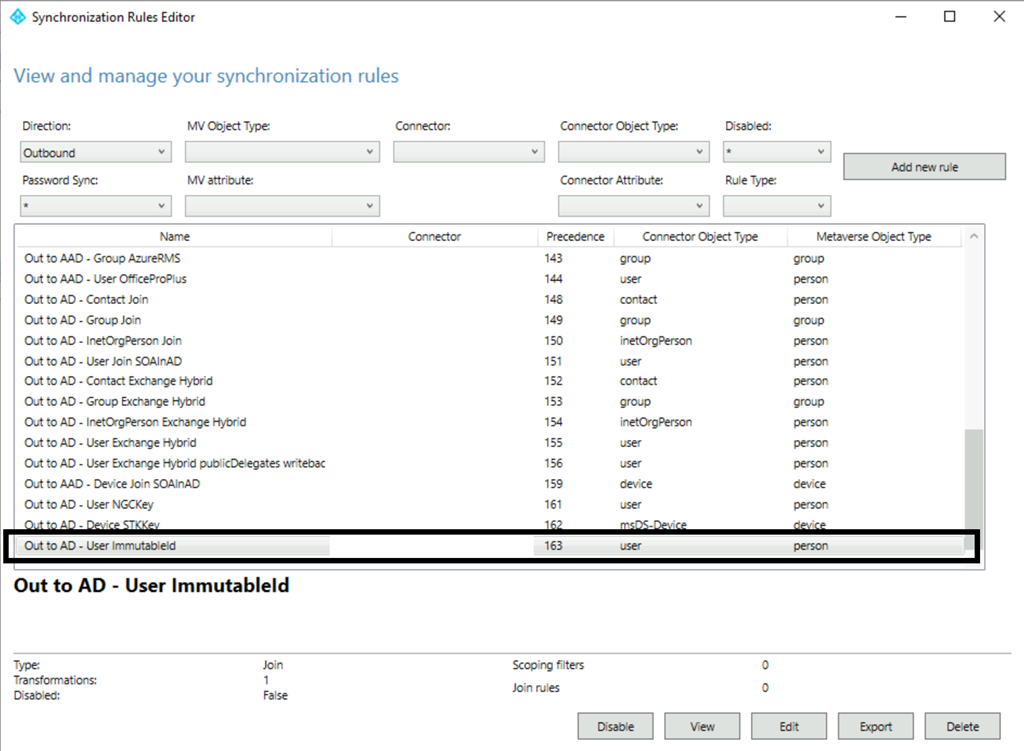
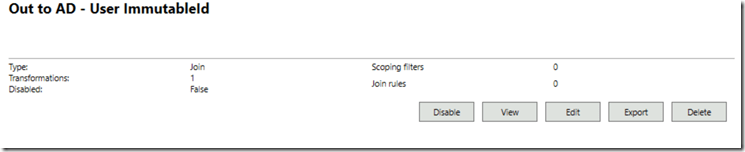
The transformations within this rule map the ms-DS-ConsistencyGUID based on the calculated source anchor when the object was imported. The connector object type of this rule is USER – indicating that it will only flow to objects of the user class.
IIF(IsPresent([cloudSourceAnchor]),IIF(IsPresent([sourceAnchorBinary]),[sourceAnchorBinary],IgnoreThisFlow),IgnoreThisFlow)
The rule indicates that if the cloudSourceAnchor is present (TRUE) then check if sourceAnchorBinary is present (TRUE) if so populate ms-DS-ConsistencyGUID with the value of sourceAnchorBinary. If either condition is false the flow should be ignored.
In order for this rules to function the following flow happens:
- The user is provisioned in active directory.
- The ms-DS-ConstencyGUID, if present, is utilized as the source anchor and flowed into the sourceAnchorBinary attribute of the metaverse object. If ms-DS-ConsistencyGUID is not present the objectGUID is flowed into the sourceAnchorBinary.
- This is accomplished through the rule In From AD – User Join
- The rule implements the following syntax for sourceAnchorBinary –> IIF(IsPresent([mS-DS-ConsistencyGuid]),[mS-DS-ConsistencyGuid],[objectGUID])
- If present ms-DS-ConsistencyGuid (TRUE) use ms-DS-ConsistencyGuid otherwise (FALSE) use objectGUID.
- The object is exported to Azure Active Directory.
- During the next delta sync cycle the delta import from Azure AD flows the cloudSourceAnchor for the object into the metaverse object.
- This is accomplished through the rule In From AAD – User Join.
- The rule implements the following syntax for cloudSourceAnchor –> ImportedValue(“sourceAnchor”)
- Use the imported value for source anchor as the cloudSourceAnchor.
- During the same sync cycle the criteria to stamp ms-DS-ConsistencyGUID is met and the GUID is now written to the attribute in the on premises Active Directory.
- During the next delta sync cycle now that the attribute ms-DS-ConsistencyGUID is populated this will serve as the source anchor moving forward.
As you can see the use of ms-DS-ConsistencyGUID requires both the implementation of inbound and outbound rules.
How does this pertain to an inetOrgPerson? The use of ms-DS-ConsistencyGUID starts by having a rule that populates it in the on premises active directory. In this particular instance there is not Out to AD – *ImmutableID rule that operates on the inetOrgPerson. This means that any rules that read in the inetOrgPerson objects will utilize objectGUID rather than ms-DS-ConsistencyGuid. Under most circumstances there is no need to alter or change this behavior. If you are in a situation though where you desire consistency and / or have a need to hard match an inetOrgPerson object, utilizing ms-DS-ConsistencyGUID can be helpful.
To utilize ms-DS-ConsistencyGUID we must first create a outbound rule to the local active directory that populates the GUID. From a local active directory standpoint – the attribute set for USER and iNETORGPERSON are almost identical. With this in mind the easiest solution is to duplicate the rule Out to AD – User ImmutableID.
To start:
- Launch the Azure Active Directory configuration wizard to temporarily suspend all synchronization cycles.
- Launch the Azure Active Directory Rules Wizard
- In the direction box – select outbound.
- Scroll and locate the rule Out to AD – User ImmutableID
- Select the edit button
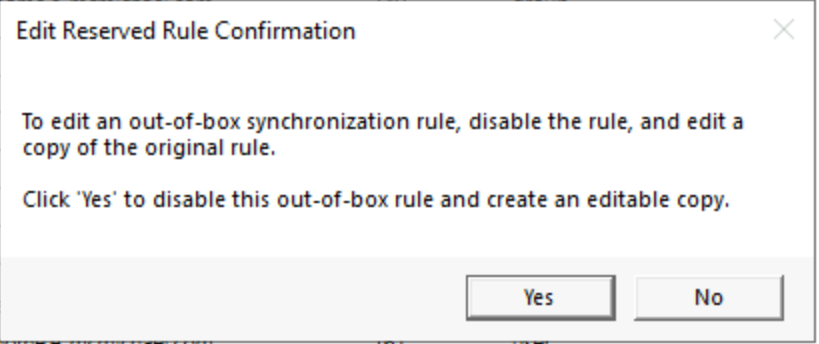
- You will be prompted to duplicate the rule and disable the current inbox rule. For the purposes of this activity say yes.
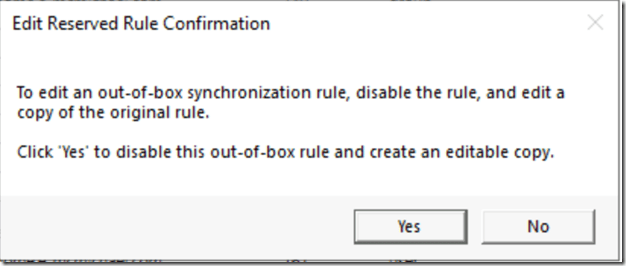
- This will clone the rule and bring the new rules wizard up.
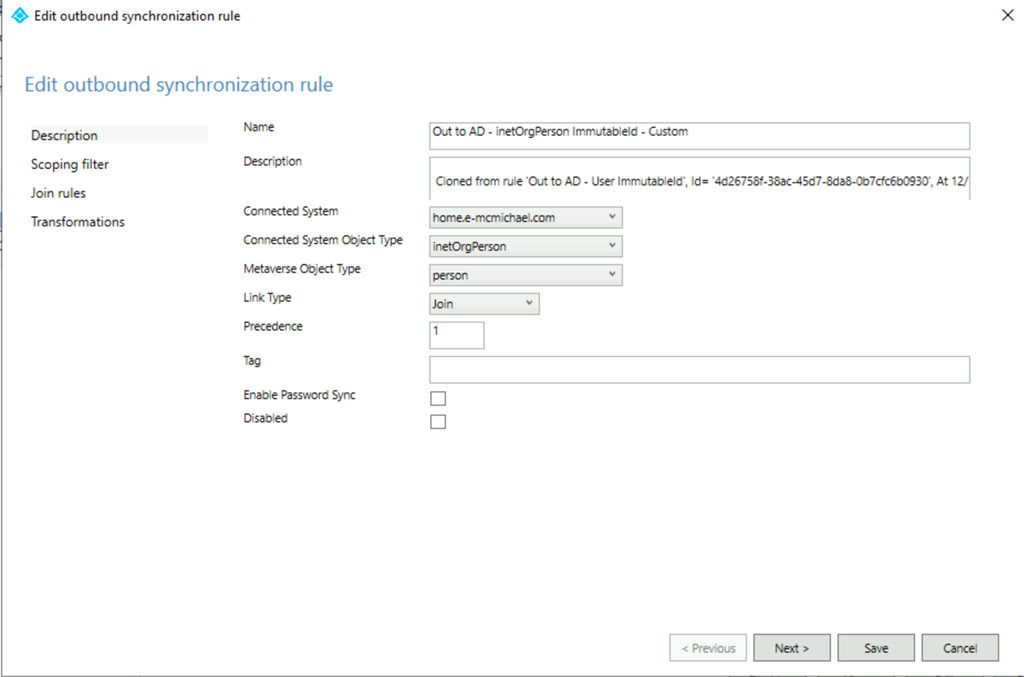
- To provision the rule for iNetOrgPersons – make the following adjustments.
- Edit the name to Out to AD – inetOrgPerson immutableID Custom. I recommend you add custom or something additionally identifiable to the rule name to help easily identify the rule.
- Change the connected system object type drop down to iNetOrgPerson.
- Change the rule precedence to a value of < 99 but > 0.
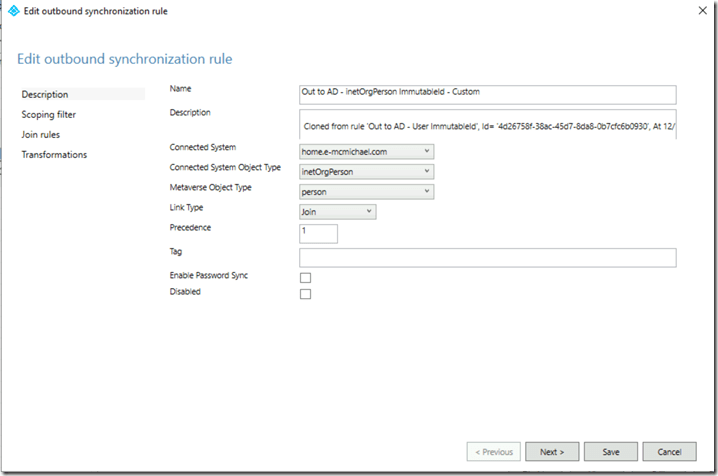
- Complete the rules wizard making no further changes.
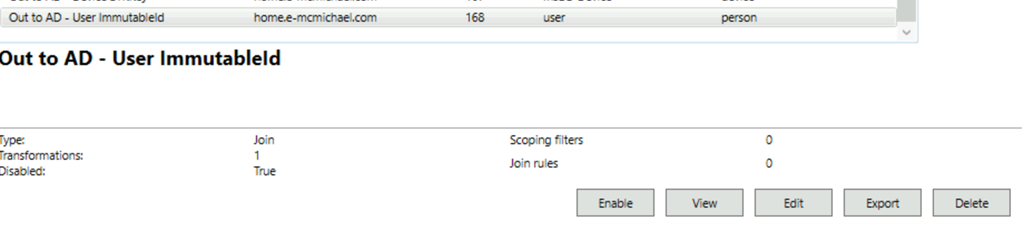
- In the rules wizard locate the original rule. This rule is now DISABLED. Select the rule and press the enable button to re-enable the rule.
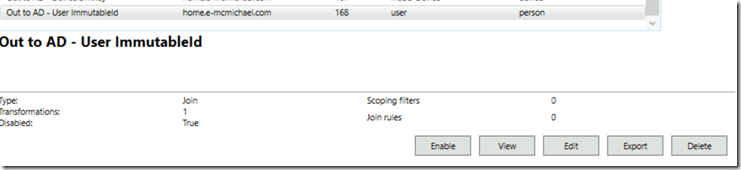
- Exit the Azure AD Connect setup wizard to allow sync cycles to resume.

Following the rules change full imports and syncs will be performed as scheduled by the tool. Monitor the synchronization cycle to ensure it completes successfully.
Why do we not need any inbound rules customization? The In from AD – iNetOrgPerson join already implements the same logic as the In From AD – User Join as it pertains to object GUID and ms-DS-ConsistencyGUID. Therefore it is only necessary to ensure that the ms-DS-ConsistencyGUID is being exported.
With the new rules in place , when reviewing exports to the local active directory, we should observe ms-DS-ConsistencyGUID being written to the local Active Directory.
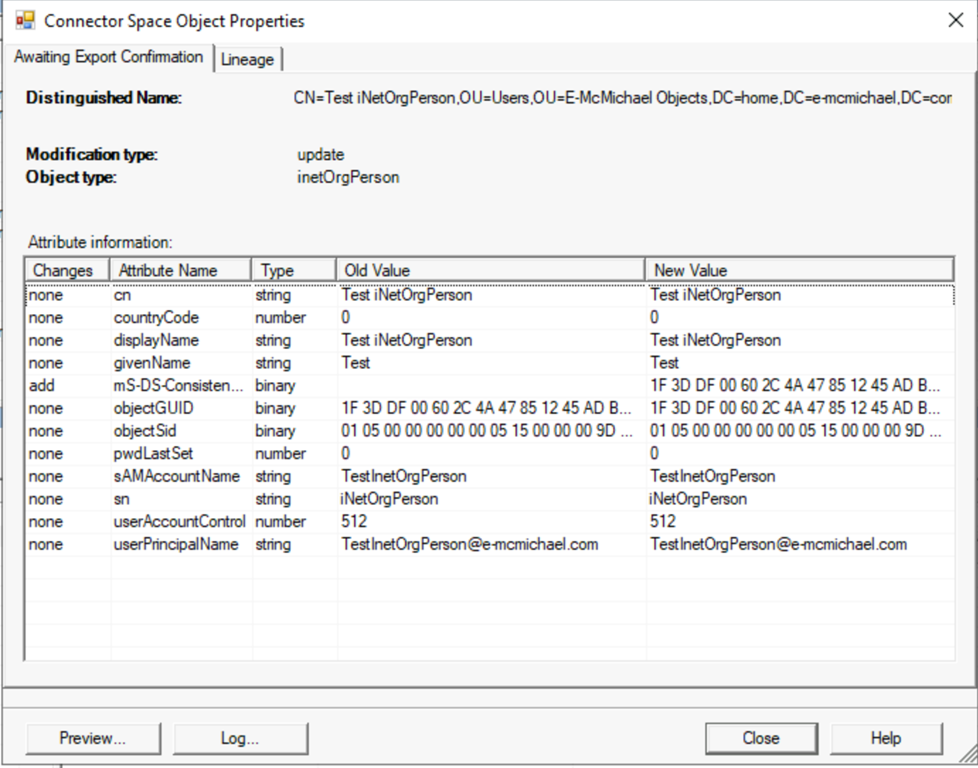
In addition when reviewing the attribute of the user in Active Directory you should observe that the ms-DS-ConsistencyGUID is now populated.

It is important that you document this customization to your environments and ensure that all build documents are updated. You may consider exporting the new rule you created and keeping the file with your build document.
Please also note that Microsoft Product Support Services does not assist in the direct customization of rules with Azure AD Connect and there is no guarantee that future versions of AD Connect may cause issues with rule customizations. Please ensure that you appropriate test all rules changes in environments to ensure appropriate understanding of how they work and what impacts may occur from there use.
 TIMMCMIC
Have you seen the ms-dsconsistencyguid being populated on synced groups objects? I’m on AADConnect 1.5.45 and it’s not being set for groups. It is however being set for the user objects. Should there be an ‘Out to AD – Group ImmutableID’ rule created as you described for the inetperson, but for groups objects?
LikeLike
Rich:
Thanks for posting a question. Groups do not have an ms-ds-consistencyGuid.
Tim
LikeLike