Category Archives: Uncategorized

Office 365 – Distribution List Migration Version 2.0 – Part 19

New handling of distribution group creation during migration to eliminate ambiguous references.

On occasion recipients in Office 365 may share the same attributes even though they reference different objects. For example, it is possible to have multiple distribution lists where the names are different but the aliases assigned are the same.


PS C:\Users\timmcmic> Set-DistributionGroup “Blog Post Test” -Alias BlogPostTest

PS C:\Users\timmcmic> Set-DistributionGroup “Blog Post Test 2” -Alias BlogPostTest

PS C:\Users\timmcmic> Get-DistributionGroup BlogPostTest


Name DisplayName GroupType PrimarySmtpAddress

—- ———– ——— ——————

Blog Post Test Blog Post Test Universal BlogPostTest@domain.onmicrosoft.com

Blog Post Test 2 Blog Post Test 2 Universal BlogPostTest2@domain.onmicrosoft.com


In the previous example there are two distinct groups that share the same alias. Typically, the alias would be defined based on name and administratively controlled. As the adoption of Office 365 groups and Microsoft Teams increases so does the self-service creation of these recipient objects. This may inadvertently create alias overlap between new and existing objects. In some cases, it also results in the failure of recipient commandlets that gather information on these objects.


PS C:\Users\timmcmic> Set-UnifiedGroup “Blog Post Test Unified” -Alias BlogPostTest

PS C:\Users\timmcmic> Get-DistributionGroup BlogPostTest

The current operation is not supported on GroupMailbox.

+ CategoryInfo : NotSpecified: (BlogPostTest:String) [Get-DistributionGroup], RecipientTaskException

+ FullyQualifiedErrorId : [Server=BN8PR04MB6356,RequestId=ad99972d-51df-4eb1-980f-a8513bbc7817,TimeStamp=3/28/2022

3:01:32 AM] [FailureCategory=Cmdlet-RecipientTaskException] 1A51386,Microsoft.Exchange.Management.RecipientTasks.

GetDistributionGroup

+ PSComputerName : outlook.office365.com


This created some unique issues in distribution group migrations. Once the distribution group deletion was detected the script automatically creates the new group in Office 365. Originally the group was created with the same name as the migrated group. To ensure the success of future commands the alias of the group was utilized as this was assumed to be unique. As evident in the previous examples this is not guaranteed to be unique and may lead to ambiguous references as to which object we are attempting to manage and modify. Originally the only way to satisfy the migration was to eliminate the object collisions by changing the groups name, alias, or other attribute causing an ambiguous return.


DLConversionV2 has subsequently been modified to handle these scenarios. Once the DL deletion is detected the new distribution group is created by returning to the calling code as an object. When assigning a create operation to a variable, the attributes resulting from the objects creation are stored within the variable. This is very important as it gives us access to attributes that ensure a unique reference for future operations. In this instance the new groups external directory object ID is now known. The external directory object ID is the GUID of the mirrored group object created in Azure Active Directory. Set and get commands will accept the external directory object ID as a named reference since it is unique across both Azure Active Directory and Exchange Online. The example below shows groups that possess the same alias but unique external directory object ids.


PS C:\Users\timmcmic> Get-DistributionGroup BlogPostTest | fl alias,externalDirectoryObjectID


Alias : BlogPostTest

ExternalDirectoryObjectId : beea5779-64ed-4f78-8845-54ad8082594a


Alias : BlogPostTest

ExternalDirectoryObjectId : 7229fdb0-6ac2-4091-b129-4995c432b1fd


The new group created initial name is a combination of a file date time and random number. This ensures a unique name in bulk migration scenarios. Once the group creation is successfully confirmed the subsequent set operations will rename this temporary group to match the on-premises groups. The set operations are no longer passed an alias or primary SMTP address but rather the external directory object ID of the group created for migration. This ensures that a unique object is found, and all subsequent operations performed on that object. In the log you may see references to group smtp address that have a GUID instead of an actual SMTP address.


Using specific references increases the occurrence of successful migrations by eliminating ambiguity in the migration process. Happy migrating!

Office 365 – Distribution List Migration Version 2.0 – Part 18

New handling of recipient restrictions assigned to the migrated distribution group.

There are several restriction types that can exist on a distribution or Office 365 group. These restrictions include attributes such as accept messages from senders or members, reject messages from senders or members, or bypass moderation from senders or members amongst others. The utilization of these attribute are not restricted to just distribution groups. For example, mailboxes may have accept or reject message restrictions applied to them and these restrictions may be based on a group.


I recently worked with a customer who had provisioned conference room mailboxes directly in Office 365. They choose to restrict who could book the conference room by establishing accept messages only from restrictions on the conference room mailbox. They established the restriction using a distribution group and would subsequently add and remove members as necessary to allow or block the booking of the conference room. Here is an example of sample restriction:


PS C:\Users\timmcmic> Get-Mailbox 9f888d86-da1e-466b-bbf7-5b333a148373 | fl *accept*


AcceptMessagesOnlyFrom : {}

AcceptMessagesOnlyFromDLMembers : {aTestGroup19, aTestGroup20}

AcceptMessagesOnlyFromSendersOrMembers : {aTestGroup19, aTestGroup20}


When a distribution group with these restrictions were migrated, the restrictions were subsequently lost. In previous revisions the DLConversionV2 module would record only restrictions on other groups. If the group being migrated had accept messages from senders or members rights to another distribution group these permissions would be preserved. The recording and reinstating of permissions on other recipients was not performed.


The DLConversionV2 module now records restrictions across all recipient classes. The module will now replace the restrictions on both found groups and other recipient objects as part of the migration. Happy migrating!

Office 365 – Distribution List Migration Version 2.0 – Part 17

I need assistance with the migration module, have a suggestion, or want to request a feature?

A frequent question that I get posted to the blog or via email is how I can get assistance migrating my distribution lists. The easiest and simplest way is to head over to GitHub and locate the DLConversionV2 project.


timmcmic/DLConversionV2 (github.com)


On the GitHub site you can create issues for the module. For each issue posted I receive a notification and can post responses and request information through the issues conversation. When a resolution is found the issue can be documented and closed. Your issue does not have to be something broken – it could be questions on use, questions on migration strategies, or requesting assistance with errors encountered. You can also post an issue requesting a feature be added to the module that may help you or others with your migration!


Are you enjoying the DLConversionV2 PowerShell module? If so, let my manager know. Thomas Roughley (Tim’s Manager) appreciates the feedback and it helps demonstrate the value of this effort to the community. Your comments are always appreciated!

Office 365 – Distribution List Migration Version 2.0 – Part 16

Mail flow issues with centralized mail transport enabled and migrated distribution groups.

When establishing a hybrid installation with Exchange Online administrators could enable centralized mail flow. For information on routing scenarios and centralized mail transport please see the following – Transport routing in Exchange hybrid deployments | Microsoft Docs.


When migrating distribution groups to Office 365 having centralized mail transport enabled may result in messages to internal users appearing to come from external. In order for this to happen the messages must have originated from the on-premises organization originally and one or more recipients must still reside in the on-premises organization.


Let us examine a sample scenario where this may apply.


  • A distribution list is migrated to Exchange Online.
  • A device on-premises is configured to relay email through the on-premises organization.
  • A user scans a document on the device and addresses it to the migrated distribution list.
  • The on-premises Exchange organization receives the email and matches it to the dynamic distribution group for the migrated distribution list.
  • The dynamic distribution group is expanded to the single recipient mail contact for the migrated distribution list.
  • The mail contact has a target address matching a connector (mail.onmicrosoft.com) and the email is sent to Office 365 through the hybrid connector.
  • The email reaches Office 365 where the mail.onmicrosoft.com address is matched to the migrated distribution group.
  • The migrated distribution group is expanded and on-premises mailboxes are members of the group.
  • Exchange Online delivers the messages to Office 365 mailboxes.
  • Exchange Online sends the messages to the on-premises mailboxes via MX based routing.
  • The public MX record refers to the on-premises Exchange organization.
  • A transport rule in the on-premises Exchange organization marks the messages with subject EXTERNAL.
  • The messages are delivered to the on-premises mailboxes.


In this instance Exchange Online routed the messages as if they were destined for the internet even if they were destined for an internal domain. It would appear on the surface as if the connectors or centralized routing was bypassed. This is by design. The original message originated through the on-premises organization already. In normal distribution list terms, the on-premises recipients would have been included in the on-premises expansion and the message delivered. In this case they were not since the expansion occurred in Office 365. The message had already traversed the on-premises organization therefore transport does not send it back down the hybrid connector but rather uses MX based routing to deliver the messages. This is a side effect of migrating distribution groups with centralized mail transport enabled.


Are there any creative workarounds to ensuring that this does not happen? Honestly after spending several days trying transport rules with this or that I simply did not come up with a solution that worked. The transport rules generally fired after addresses were reviewed or expansion was preformed which eliminated a lot of the predicates that would be required to make this work. There was not, in my opinion, a satisfactory combination of rules that allowed this to work as expected. For many customers this is not an issue as most if not all of their mailboxes have been migrated to Exchange Online. For some other questions they had no idea why they had centralized mail transport enabled and it was not necessary. Disabling centralized mail transport is certainly a good way to deal with this.


What I did do is add an additional switch to the migration command to call this scenario out. There is new code in updated modules which pulls all outbound connectors from Exchange Online. If any connector is found to have the RouteAllMessagesViaOnPremsies set to TRUE, the migration will fail unless the -overrideCentralizedMailTransportEnabled switch is specified and set to $TRUE. This is not necessarily a fix but is a logged acknowledgement that centralized mail transport is present and that it could have unattended mail flow side effects depending on the distribution lists being migrated.

Office 365 – Distribution List Migration Version 2.0 – Part 15

Enabling migration support for non-synchronized groups.

In standard hybrid implementations distribution groups are synchronized from Active Directory to Azure Active Directory / Exchange Online. When performing a distribution list migration, a pre-requisite check existed in previous versions that validated the list was present in Exchange Online and that the directory synchronization flag is set to TRUE.


I recently worked with a customer that was performing a multiple Exchange organization consolidation to a single Office 365 tenant. This is not necessarily uncommon and each of these consolidation efforts can have their own unique considerations.


In this particular design there was a “main” forest where a full Active Directory synchronization was being performed to Azure Active Directory. In each of there “remote” forests Azure Active Directory Connect was only synchronizing organizational units that contained mailbox and contact objects. Organizational units containing groups were not synchronized as a part of their design and consolidation.


Generally, the answer to having distribution groups represented in Exchange Online would be to alter the ADConnect installation and include all organizational units where mail enabled objects are stored. In this instance that solution would have met with the goal of satisfying that the distribution list be present in Exchange Online but since the ultimate goal was to remove the “remote” forests this should not block migration.


New builds of Distribution List Migration Version 2 now include the ability to override the pre-requisite that the group be present in Exchange Online. There are, however, other pre-requisites. For example:

  • All recipients referenced by the group must be present in Exchange Online.
  • The group must be fully mail enabled and have all the standard attributes of a mail enabled group. Partially mail enabled groups cannot be migrated.
  • There can be no other mail enabled object in Office 365 sharing the same proxy address.


Here is an example of how this could be utilized to move groups that are not synchronized from Active Directory.


The distribution group is a mail enabled security group in Active Directory.

PS] C:\>Get-DistributionGroup aNoSyncGroup


Name DisplayName GroupType PrimarySmtpAddress

—- ———– ——— ——————

aNoSyncGroup aNoSyncGroup Universal, SecurityEnabled aNoSyncGroup@domain.com


The group does not exist in Exchange Online.


Get-EXORecipient aNoSyncGroup

Get-EXORecipient : Error while querying REST service. HttpStatusCode=404

ErrorMessage={“error”:{“code”:”NotFound”,”message”:”Error executing request. “,”details”:[{“code”:”Context”,”target”:””

,”message”:”Ex6F9304|Microsoft.Exchange.Configuration.Tasks.ManagementObjectNotFoundException|The operation couldn’t

be performed because object ‘aNoSyncGroup’ couldn’t be found on

‘DM6PR04A04DC002.NAMPR04A004.prod.outlook.com’.”}],”innererror”:{“message”:”Error executing request.

“,”type”:”Microsoft.Exchange.Admin.OData.Core.ODataServiceException”}}}}

At line:1 char:1

+ Get-EXORecipient aNoSyncGroup

+ ~~~~~~~~~~~~~~~~~~~~~~~~~~~~~

+ CategoryInfo : ProtocolError: (:) [Get-EXORecipient], RestClientException

+ FullyQualifiedErrorId : An error occurred while processing this request.,Microsoft.Exchange.Management.RestApiCl

ient.GetExoRecipient


If an attempt was made to migrate the distribution list without the skip option, the following error would occur.


out-logFile : The operation couldn’t be performed because object ‘anosyncgroup@domain.com’ couldn’t be found on ‘BY5PR04A04DC002.NAMPR04A004.prod.outlook.com’.

At C:\Program Files\WindowsPowerShell\Modules\DLConversionV2\2.5.12\DLConversionV2.psm1:1248 char:13

+ out-logFile -string $_ -isError:$TRUE

+ ~~~~~~~~~~~~~~~~~~~~~~~~~~~~~~~~~~~~~

+ CategoryInfo : NotSpecified: (:) [Write-Error], WriteErrorException

+ FullyQualifiedErrorId : Microsoft.PowerShell.Commands.WriteErrorException,Out-LogFile


To migrate a group that is not synchronized the same process is utilized with the addition of the allowNonSyncedGroups switch. Here is an example:


Start-DistributionListMigration -groupSMTPAddress anosyncgroup@e-mcmichael.com -globalCatalogServer azure-dc-0.domain.domain.com -activeDirectoryCredential $cred -logFolderPath c:\temp -exchangeServer webmail.domain.com -exchangeCredential $cred -exchangeOnlineCredential $cred -useCollectedFullMailboxAccessOnPrem:$TRUE -useCollectedFullMailboxAccessOffice365:$TRUE -useCollectedSendAsOnPrem:$TRUE -useCollectedFolderPermissionsOnPrem:$TRUE -useCollectedFolderPermissionsOffice365:$TRUE -enableHybridMailflow:$TRUE -dnNoSyncOU “OU=DoNotSync,OU=MigrationTest,OU=DLConversion,DC=home,DC=e-mcmichael,DC=com” –allowNonSyncedGroup:$TRUE


Using this switch bypasses a check for the group in Office 365 and performs the migration. The same rules for standard migration apply and all dependencies will be validated and health checked prior to re-creating the group in Office 365.


[3/8/2022 5:04:32 PM] – Success – renaming directory.

[3/8/2022 5:04:32 PM] – 20220308T1704323903-anosyncgroup-Success

[3/8/2022 5:04:32 PM] – c:\temp\DLMigration\


The addition of this feature should allow for adoption in more scenarios where organization consolidations are occurring.

Office 365 – Distribution List Migration Version 2.0 – Part 14

Enabling hybrid mail flow post group migration.

When migrating a distribution group to Office 365 administrators have the ability to enable hybrid mail flow. Enabling hybrid mail flow uses on premises Exchange to provision objects that allow relay through the Exchange organization to the migrated object in Office 365.


In general, I encourage the enablement of hybrid mail flow anytime your Exchange organization is acting as an on-premises relay for applications or you still have mailboxes in the on premises organization that need to send email to distribution lists. If you are specifically aware of what distribution lists are in use by applications, you can enable it specifically for just those distribution lists.


Originally enabling hybrid mail flow was an option that needed to be enabled at the time of migration. If the option was not utilized then provisioning of the objects was a manual process. Newer version of Distribution List Migration 2.0 now allow administrators to enable hybrid mail flow after the group has been successfully migrated. The new commandlet is enable-hybridMailFlowPostMigration.


Here is an example:


$onPremCred = get-credential

$cloudCred = get-credential

enable-hybridMailFlowPostMigration -groupSMTPAdress testGroup@contoso.com -globalCatalogServer gc.domain.com -activeDirectoryCredential $onPremCred -logFolderPath c:\temp -exchangeServer webmail.contoso.com -exchangeCredential $onPremCred -exchangeOnlineCredential $cloudCred -OU OU=MigrationTest,OU=DLConversion,DC=domain,DC=domain,DC=com


In this example credentials are stored in different variables. The commandlet is invoked specifying the group, domain controller, exchange server on premises, and the associated credentials. The OU specified in this command is where to create the routing contact and dynamic distribution group if the routing contact cannot be located. By default, the routing contact should be present and the dynamic distribution list will automatically be created in the same organizational unit.


When completed the dynamic distribution group required to satisfy hybrid mail flow is now available.

Office 365 – Distribution List Migration Version 2.0 – Part 13

Enabling support for partially mail enabled distribution groups.

Mail enabled distribution and mail enabled security groups are extensions of the native Active Directory distribution and security groups. Mail enablement is the process of extending the group with Exchange specific attributes that allow the group to be utilized for mail flow.


In typical installations Exchange on-premises is utilized to mail enable the distribution groups. Azure Active Directory Connect then replicates the group with the extended attributes into Azure where a forward synchronization process creates the distribution group in Exchange Online. If you are using this module you are most likely familiar with the source of authority of attributes and how Azure AD Connect maintains these attributes between both directories.


I recently worked with a customer that was experiencing several migration failures. When reviewing the log files provided the script was failing in multiple locations each referencing missing attributes. In each instance the group was found in Office 365 and was mail enabled.


Here is a typical mail enabled distribution group from Active Directory when mail enabled through Exchange. The highlighted entries were created through the enablement process.


Getting 1 entries:

Dn: CN=aFullGroup,OU=MigrationTest,OU=DLConversion,DC=domain,DC=domain,DC=com

cn: aFullGroup;

displayName: aFullGroup;

distinguishedName: CN=aFullGroup,OU=MigrationTest,OU=DLConversion,DC=domain,DC=domain,DC=com;

dSCorePropagationData: 0x0 = ( );

groupType: 0x8 = ( UNIVERSAL_GROUP );

instanceType: 0x4 = ( WRITE );

legacyExchangeDN: /o=domain domain/ou=Exchange Administrative Group (FYDIBOHF23SPDLT)/cn=Recipients/cn=a6034f00a6fa44fb8d42c41bcc3886f3-aFullGr;

mail: aFullGroup@domain.com;

mailNickname: aFullGroup;

msExchPoliciesIncluded (2): 11c1f0d3-7114-4275-ab8b-fc0db18d2164; {26491cfc-9e50-4857-861b-0cb8df22b5d7};

msExchRecipientDisplayType: 1;

msExchRequireAuthToSendTo: TRUE;

msExchUMDtmfMap (3): emailAddress:2385547687; lastNameFirstName:2385547687; firstNameLastName:2385547687;

msExchVersion: 44220983382016;

name: aFullGroup;

objectCategory: CN=Group,CN=Schema,CN=Configuration,DC=domain,DC=domain,DC=com;

objectClass (2): top; group;

objectGUID: e5eaef5e-72d2-42ab-bea5-748a3fe99cee;

objectSid: S-1-5-21-278042269-1514808692-1118015945-72208;

proxyAddresses (2): smtp:aFullGroup@domain.mail.onmicrosoft.com; SMTP:aFullGroup@domain.com;

reportToOriginator: TRUE;

sAMAccountName: aFullGroup;

sAMAccountType: 268435457 = ( NON_SECURITY_GROUP_OBJECT );

showInAddressBook (5): CN=Groups(VLV),CN=All System Address Lists,CN=Address Lists Container,CN=domain domain,CN=Microsoft Exchange,CN=Services,CN=Configuration,DC=domain,DC=domain,DC=com; CN=All Groups(VLV),CN=All System Address Lists,CN=Address Lists Container,CN=domain domain,CN=Microsoft Exchange,CN=Services,CN=Configuration,DC=domain,DC=domain,DC=com; CN=All Recipients(VLV),CN=All System Address Lists,CN=Address Lists Container,CN=domain domain,CN=Microsoft Exchange,CN=Services,CN=Configuration,DC=domain,DC=domain,DC=com; CN=Default Global Address List,CN=All Global Address Lists,CN=Address Lists Container,CN=domain domain,CN=Microsoft Exchange,CN=Services,CN=Configuration,DC=domain,DC=domain,DC=com; CN=All Distribution Lists,CN=All Address Lists,CN=Address Lists Container,CN=domain domain,CN=Microsoft Exchange,CN=Services,CN=Configuration,DC=domain,DC=domain,DC=com;

uSNChanged: 35656522;

uSNCreated: 35656507;

whenChanged: 3/7/2022 2:26:06 PM Coordinated Universal Time;

whenCreated: 3/7/2022 2:25:36 PM Coordinated Universal Time;


———–


When reviewing the attributes of the groups where migrations were attempted the following attributes are present. The group is not fully mail enabled.


Expanding base ‘CN=aPartialGroup,OU=MigrationTest,OU=DLConversion,DC=domain,DC=domain,DC=com’…

Getting 1 entries:

Dn: CN=aPartialGroup,OU=MigrationTest,OU=DLConversion,DC=domain,DC=domain,DC=com

cn: aPartialGroup;

distinguishedName: CN=aPartialGroup,OU=MigrationTest,OU=DLConversion,DC=domain,DC=domain,DC=com;

dSCorePropagationData: 0x0 = ( );

groupType: 0x80000008 = ( UNIVERSAL_GROUP | SECURITY_ENABLED );

instanceType: 0x4 = ( WRITE );

mail: aPartialGroup@domain.com;

msExchHideFromAddressLists: TRUE;

name: aPartialGroup;

objectCategory: CN=Group,CN=Schema,CN=Configuration,DC=domain,DC=domain,DC=com;

objectClass (2): top; group;

objectGUID: 9f7376f9-4799-4bc6-a8e3-26ce045954ad;

objectSid: S-1-5-21-278042269-1514808692-1118015945-72209;

sAMAccountName: aPartialGroup;

sAMAccountType: 268435456 = ( GROUP_OBJECT );

uSNChanged: 33678207;

uSNCreated: 33678197;

whenChanged: 3/7/2022 2:34:29 PM Coordinated Universal Time;

whenCreated: 3/7/2022 2:33:38 PM Coordinated Universal Time;


———–


The group with partial attributes does appear in Exchange Online as a valid distribution group.


PS C:\Users\timmcmic> Get-DistributionGroup apartialgroup | select name,primarySMTPAddress


Name PrimarySmtpAddress

—- ——————

aPartialGroup aPartialGroup@domain.com


The Azure proxy calculation process and the Exchange Online forward synchronization process do not necessarily require a full attribute set in order to mail enable an object that is synchronized. In this instance the combination of the mail field plus msExchHiddenFromAddressLists were enough attributes to have the group represented as a distribution list in Exchange Online. This customer had written a custom distribution list provisioning on-premises to account for the decommissioning of Exchange which accounted for the partial attribute set being present in Active Directory.


To allow for the seamless migrations of these partial distribution groups a code has been adjusted to account for the missing on-premises attributes. The new code requires that the group be found in Active Directory and Exchange Online. For each attribute that is used or calculated, if the attribute is not present in the Active Directory the value from Exchange Online is utilized.

Here is a sample in the log file where the alias from Office 365 was substituted in place of the mailNickname attribute from Active Directory.

[3/7/2022 8:59:16 PM] – On premises group does not have alias / mail nick name -> using Office 365 value.


Using attributes that exist on the Office 365 object allow us to account for non-standard provisioning scenarios and scenarios where not all the expected attributes are present.


Office 365 – Distribution List Migration Version 2.0 – Part 12

Announcing multiple migration machine support

Over the course of its development, the Distribution List Migration v2 has continued to add support for more than one distribution list operation. In version 2.4, these capabilities were extended from running a bulk migration on a single machine to running a bulk migration across multiple machines.

The purpose of migrating distribution lists across multiple machines allows us to:

  • Use more than one authentication account for Office 365 operations (eliminates throttling concerns);
  • Use more than one authentication account for on-premises operations including Active Directory and Exchange;
  • Have up to 25 simultaneous migrations running at a single time; and
  • Centrally track migrations happening across multiple migration endpoints.

The module accomplishes multiple machine migrations by leveraging the single host bulk migration process previously released. The administrator designates a single machine to execute the migration. If this machine is also included in the list of migration endpoints, multiple migrations will be performed on that host. If the server executing the migrations is not included on the list of machines to execute migrations, the machine acts as a controller and remotely creates the multiple migration jobs on the remote hosts. The script supports up to 5 hosts performing the migrations (in the event that a controller is used this does not count as a migration host).

To support these types of migrations, the script makes several changes to the commands used to invoke the script. In this section I’ll review the changes and then look at a sample command.

  • Array of group is supplied to the groups rather than a single email address.

    When invoking a multi-machine migration, the assumption is that multiple groups will be migrated. The group SMTP addresses allows the administrator to provide an array of SMTP addresses for migration. The list of addresses is divided evenly between each host with any extra being added to the last host used for migrations. In this example 202 smtp addresses are provided in the array of addresses. If the administrator specifies 5 hosts then 40 migrations are scheduled on hosts 1-4 with host 5 having 42 migrations scheduled.

    To create the list of groups I recommend using a text file and listing the groups of addresses to be migrated. This text file can then be imported into a variable for use in the command.

    Sample Group Text File saved as c:\info\groups.txt

    DistributionList1@contoso.com

    DistributionList2@contoso.com

    DistributionList3@contoso.com


    DistributionList105@contoso.com

    $groups = get-content c:\info\groups.txt

  • Array of migration hosts is supplied. This list represents the machines that will perform the migration tasks. The list has the fully qualified domain name of each host. Each host is required to have the same pre-requisites as a single machine. Please review the single machine migration prerequisites. To create the list of migration hosts I recommend using a text file and listing the fully qualified domain names on each line. This test file can then be imported into a variable for use in the command.

    Sample Group Text File save as c:\info\machines.txt

    Azure-Mig-0.domain.com

    Azure-Mig-1.domain.com

    Azure-Mig-2.domain.com

    Azure-Mig-3.domain.com

    Azure-Mig-4.domain.com

    $machines = get-content c:\info\machines.txt

  • Each set of credentials is now an array of credentials. The administrator may specify one or more credentials to be used during the migration. It is a requirement that a credential be supplied for each migration host even if the same credential is used across all hosts. If using more than 3 migration machines multiple Exchange Online credentials will be required in order to avoid PowerShell throttling. In testing multiple credentials were not required for Active Directory, Azure AD Connect, or Exchange on-premises but the script does allow for these. Specific testing should occur to ensure that Active Directory Web Services which is used for the module to perform remote Active Directory calls is not overloaded when using a single account. If Active Directory timeouts or errors occur in the logs consider using more than one administrator.

    The following example shows how multiple credentials may be captured.

    $creds=@() #Create empty array of credentials

    $creds+=get-credential #Request a set of credentials interactively. Repeat once for each host. Specify the same or different credentials

    The following example shows how multiple credentials may be captured from credentials stored within XML files on the migration controller.

    $creds=@() #Create empty array of credentials

    $cred1 = import-clixml c:\info\cred1.xml

    $cred2 = import-clixml c:\info\cred2.xml

    $cred3 = import-clixml c:\info\cred3.xml

    $creds+=$cred1

    $creds+=$cred2

    $creds+=$cred3

    As a reminder it is required to specify a credentials array that contains one set of credentials for each migration host even if the credentials are the same.

  • The administrator specifies a remote drive letter to use for centralized log file storage.

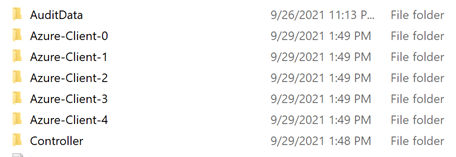
    On the migration controller the log directory is automatically shared out. Permissions are restricted to each account specified in the credentials array for Active Directory and each hosts machine account performing migrations. The shared directory serves as the centralized logging location for all of the hosts performing migrations. Each host creates an individual folder in this directory. On the migration hosts themselves the specified drive letter is automatically mapped on the host to the centralized share. The log directory is updated to force logging operations to occur on the network share. This allows information for multiple migrations to be aggregated in a single location for success and error analysis. The mapped drive is removed at the conclusion of the migration operation. The share on the migration controller is maintained.


  • If the administrator has selected to pre-collect data such as folder permissions or send as rights, the pre-collection files must be in the AuditData folder in the logging directory of the migration controller. For example, if c:\temp is used as the log folder patch on the migration controller the AuditData folder must be at c:\temp\AuditData. The script automatically creates a sub directory for each migration host and copies the AuditData folder to it to avoid file contention when attempting to import the data for analysis.

    An administrator may invoke a migration by using the sample command:

    Start-MultipleMachineDistributionListMigration -groupSMTPAddresses $groups -globalCatalogServer GC.domain.com -activeDirectoryCredential $creds -aadconnectServer adconnect.domain.com -aadConnectCredential $creds -exchangeServer webmail.domain.com -exchangeCredential $creds -exchangeOnlineCredential $creds -logFolderPath c:\temp -remoteDriveLetter S -servers $machines -enableHybridMailFlow:$TRUE

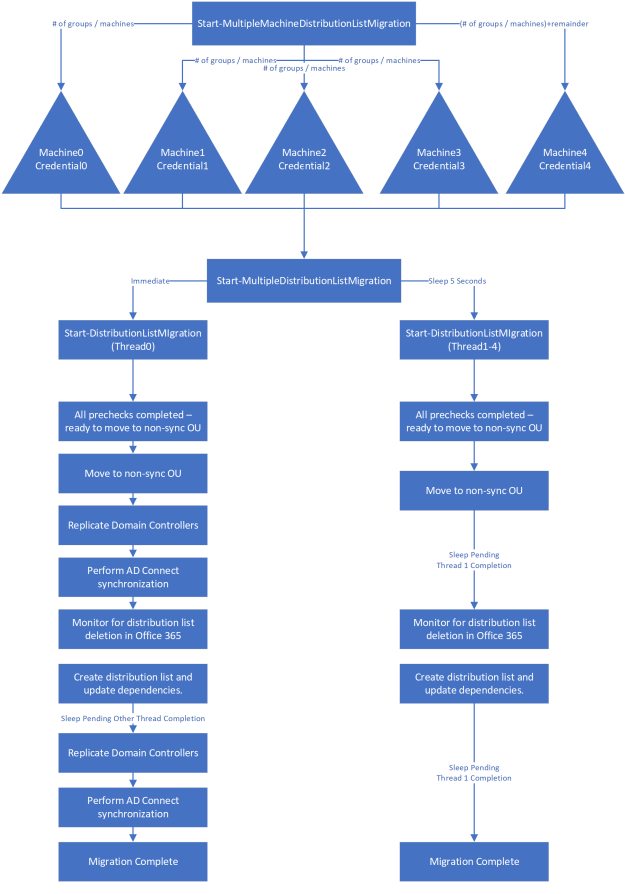
    The following shows a sample flow diagram of multiple machine migrations.


The logs for the controller are stored on the migration controller in the log file directory. The controller log keeps the summary of the PowerShell jobs dispatched and at the end of the migration will scan all individual migration folders for success or failure. The administrator may then review the individual migration logs contained in each servers directory to troubleshoot any issues.

Happy migrating!

Office 365 – Distribution List Migration Version 2.0 – Part 11

Improvements in Error Handling in version 2.4.8.x

One of the core goals of version 2 of the Distribution List Migration module is to provide a full fidelity migration. The script incorporates a great deal of error checking to validate necessary dependencies, to track process, and to terminate on critical errors. In some instances, this error handling may have been slightly aggressive.

For example:

  • During recipient validation, the script immediately failed when encountering “recipient not present” in Office 365. If a member of the distribution list was not present in Office 365 the script would immediately fail (and indicate that the user was not present). The issue is that if multiple users are not present and the administrator continues to migrate the same distribution group, the module fails multiple times. In the latest version, the script now performs all prerequisite checks up front and ends after all checks have completed. At the end of the log file there is a section that lists all encountered issues so the admin can take bulk actions as appropriate and then attempt the distribution list migration.


  • After the Office 365 distribution list is successfully created, an attempt to add a proxy address or a member fails. After the distribution list is created in Office 365, the module attempts to mirror the full settings of the on-premises group. This includes resetting all single and multi-valued attributes. If during the distribution list migration, a user was also deleted that was a member of the group, the migration would immediately fail when attempting to add that user. This subsequently would fail all future operations from occurring and require the administrator to perform the rest of the migration manually. The module now attempts to perform operations in bulk, and if an error is encountered the script then attempts each operation individually. For example, if the group contained 300 users update-DistributionGroupMembership is called to attempt to add everyone at one time. If the bulk add fails the module then iterates through each member attempting the add. If an error is encountered the failure is recorded and the module proceeds with the migration. The migration will be marked in a failed state and the summary status at the end of the log file will show all the dependencies that failed. This allows the administrator to evaluate each dependency and make any manual adjustments as required.


  • When completing the migration, the module attempts to reset all on-premises dependencies. When the migration is complete it may become necessary to update resources on premises with the migrated group information. For example, if the migrated distribution list was a member of another distribution group the module automatically adds the mail routing contact to the on-premises distribution list. If the operation to address any of these dependencies failed the entire module would have failed. As with other functions the module now tracks the failures and generates an error report for administrator review.

Here is sample of the log summary section that the administrator could review for a potential manual fix. Each of the errors generated should contain information regarding the object modified, the attribute failed, and a brief description of why the operation failed.

+++++

[10/4/2021 9:23:03 PM] – ++++++++++

[10/4/2021 9:23:03 PM] – MIGRATION ERRORS OCCURED – REFER TO LIST BELOW FOR ERRORS

[10/4/2021 9:23:03 PM] – ++++++++++

[10/4/2021 9:23:03 PM] – +++++

[10/4/2021 9:23:03 PM] –

[10/4/2021 9:23:03 PM] – =====

[10/4/2021 9:23:03 PM] – Distinguished Name: CN=TestErrorHandingCloud,OU=domain.onmicrosoft.com,OU=Microsoft Exchange Hosted Organizations,DC=NAMPR04A004,DC=prod,DC=outlook,DC=com

[10/4/2021 9:23:03 PM] – Primary SMTP Address: TestErrorHandingCloud@domain.onmicrosoft.com

[10/4/2021 9:23:03 PM] – Alias: TestErrorHandingCloud

[10/4/2021 9:23:03 PM] – Display Name: TestErrorHandingCloud

[10/4/2021 9:23:03 PM] – Attribute in Error: Distribution List AcceptMessagesOnlyFromSendersOrMembers

[10/4/2021 9:23:03 PM] – Error Message: Unable to add mail routing contact to Office 365 distribution group. Manual add required.

[10/4/2021 9:23:03 PM] – =====

[10/4/2021 9:23:03 PM] – =====

[10/4/2021 9:23:03 PM] – Distinguished Name: CN=TestErrorHandingCloud,OU=domain.onmicrosoft.com,OU=Microsoft Exchange Hosted Organizations,DC=NAMPR04A004,DC=prod,DC=outlook,DC=com

[10/4/2021 9:23:03 PM] – Primary SMTP Address: TestErrorHandingCloud@domain.onmicrosoft.com

[10/4/2021 9:23:03 PM] – Alias: TestErrorHandingCloud

[10/4/2021 9:23:03 PM] – Display Name: TestErrorHandingCloud

[10/4/2021 9:23:03 PM] – Attribute in Error: Distribution List BypassModerationFromSendersOrMembers

[10/4/2021 9:23:03 PM] – Error Message: Unable to add mail routing contact to Office 365 distribution group. Manual add required.

[10/4/2021 9:23:03 PM] – =====

[10/4/2021 9:23:03 PM] – =====

[10/4/2021 9:23:03 PM] – Distinguished Name: CN=TestErrorHandingCloud,OU=domain.onmicrosoft.com,OU=Microsoft Exchange Hosted Organizations,DC=NAMPR04A004,DC=prod,DC=outlook,DC=com

[10/4/2021 9:23:03 PM] – Primary SMTP Address: TestErrorHandingCloud@domain.onmicrosoft.com

[10/4/2021 9:23:03 PM] – Alias: TestErrorHandingCloud

[10/4/2021 9:23:03 PM] – Display Name: TestErrorHandingCloud

[10/4/2021 9:23:03 PM] – Attribute in Error: Distribution List GrantSendOnBehalfTo

[10/4/2021 9:23:03 PM] – Error Message: Unable to add mail routing contact to Office 365 distribution group. Manual add required.

[10/4/2021 9:23:03 PM] – =====

[10/4/2021 9:23:03 PM] – =====

[10/4/2021 9:23:03 PM] – Distinguished Name: CN=TestErrorHandingCloud,OU=domain.onmicrosoft.com,OU=Microsoft Exchange Hosted Organizations,DC=NAMPR04A004,DC=prod,DC=outlook,DC=com

[10/4/2021 9:23:03 PM] – Primary SMTP Address: TestErrorHandingCloud@domain.onmicrosoft.com

[10/4/2021 9:23:03 PM] – Alias: TestErrorHandingCloud

[10/4/2021 9:23:03 PM] – Display Name: TestErrorHandingCloud

[10/4/2021 9:23:03 PM] – Attribute in Error: Distribution List ManagedBy

[10/4/2021 9:23:03 PM] – Error Message: Unable to add mail routing contact to Office 365 distribution group. Manual add required.

[10/4/2021 9:23:04 PM] – =====

[10/4/2021 9:23:04 PM] – =====

[10/4/2021 9:23:04 PM] – Distinguished Name: CN=TestErrorHandlingDynamic,OU=domain.onmicrosoft.com,OU=Microsoft Exchange Hosted Organizations,DC=NAMPR04A004,DC=prod,DC=outlook,DC=com

[10/4/2021 9:23:04 PM] – Primary SMTP Address: TestErrorHandlingDynamic@domain.onmicrosoft.com

[10/4/2021 9:23:04 PM] – Alias: TestErrorHandlingDynamic

[10/4/2021 9:23:04 PM] – Display Name: TestErrorHandlingDynamic

[10/4/2021 9:23:04 PM] – Attribute in Error: Distribution List AcceptMessagesFromSendersOrMembers

[10/4/2021 9:23:04 PM] – Error Message: Unable to add mail routing contact to Office 365 dynamic distribution group. Manual add required.

[10/4/2021 9:23:04 PM] – =====

[10/4/2021 9:23:04 PM] – =====

[10/4/2021 9:23:04 PM] – Distinguished Name: CN=TestErrorHandlingDynamic,OU=domain.onmicrosoft.com,OU=Microsoft Exchange Hosted Organizations,DC=NAMPR04A004,DC=prod,DC=outlook,DC=com

[10/4/2021 9:23:04 PM] – Primary SMTP Address: TestErrorHandlingDynamic@domain.onmicrosoft.com

[10/4/2021 9:23:04 PM] – Alias: TestErrorHandlingDynamic

[10/4/2021 9:23:04 PM] – Display Name: TestErrorHandlingDynamic

[10/4/2021 9:23:04 PM] – Attribute in Error: Distribution List BypassModerationFromSendersOrMembers

[10/4/2021 9:23:04 PM] – Error Message: Unable to add mail routing contact to Office 365 dynamic distribution group. Manual add required.

[10/4/2021 9:23:04 PM] – =====

[10/4/2021 9:23:04 PM] – =====

[10/4/2021 9:23:04 PM] – Distinguished Name: CN=TestErrorHandlingDynamic,OU=domain.onmicrosoft.com,OU=Microsoft Exchange Hosted Organizations,DC=NAMPR04A004,DC=prod,DC=outlook,DC=com

[10/4/2021 9:23:04 PM] – Primary SMTP Address: TestErrorHandlingDynamic@domain.onmicrosoft.com

[10/4/2021 9:23:04 PM] – Alias: TestErrorHandlingDynamic

[10/4/2021 9:23:04 PM] – Display Name: TestErrorHandlingDynamic

[10/4/2021 9:23:04 PM] – Attribute in Error: Distribution List GrantSendOnBehalfTo

[10/4/2021 9:23:04 PM] – Error Message: Unable to add mail routing contact to Office 365 dynamic distribution group. Manual add required.

[10/4/2021 9:23:04 PM] – =====

[10/4/2021 9:23:04 PM] – =====

[10/4/2021 9:23:04 PM] – Distinguished Name: CN=TestErrorHandlingUniversal_791e15e2-2633-4391-a80e-4cbdb935c027,OU=domain.onmicrosoft.com,OU=Microsoft Exchange Hosted Organizations,DC=NAMPR04A004,DC=prod,DC=outlook,DC=com

[10/4/2021 9:23:04 PM] – Primary SMTP Address: TestErrorHandlingUniversal@domain.onmicrosoft.com

[10/4/2021 9:23:04 PM] – Alias: TestErrorHandlingUniversal

[10/4/2021 9:23:04 PM] – Display Name: TestErrorHandlingUniversal

[10/4/2021 9:23:04 PM] – Attribute in Error: Distribution List AcceptMessagesOnlyFromSendersOrMembers

[10/4/2021 9:23:04 PM] – Error Message: Unable to add mail routing contact to Office 365 univeral modern distribution group. Manual add required.

[10/4/2021 9:23:04 PM] – =====

[10/4/2021 9:23:04 PM] – =====

[10/4/2021 9:23:04 PM] – Distinguished Name: CN=TestErrorHandlingUniversal_791e15e2-2633-4391-a80e-4cbdb935c027,OU=domain.onmicrosoft.com,OU=Microsoft Exchange Hosted Organizations,DC=NAMPR04A004,DC=prod,DC=outlook,DC=com

[10/4/2021 9:23:04 PM] – Primary SMTP Address: TestErrorHandlingUniversal@domain.onmicrosoft.com

[10/4/2021 9:23:04 PM] – Alias: TestErrorHandlingUniversal

[10/4/2021 9:23:04 PM] – Display Name: TestErrorHandlingUniversal

[10/4/2021 9:23:04 PM] – Attribute in Error: Distribution List GrantSendOnBehalfTo

[10/4/2021 9:23:04 PM] – Error Message: Unable to add mail routing contact to Office 365 universal modern distribution group. Manual add required.

[10/4/2021 9:23:04 PM] – =====

[10/4/2021 9:23:04 PM] – =====

[10/4/2021 9:23:04 PM] – Distinguished Name: CN=TestErrorHandingCloud,OU=domain.onmicrosoft.com,OU=Microsoft Exchange Hosted Organizations,DC=NAMPR04A004,DC=prod,DC=outlook,DC=com

[10/4/2021 9:23:04 PM] – Primary SMTP Address: TestErrorHandingCloud@domain.onmicrosoft.com

[10/4/2021 9:23:04 PM] – Alias: TestErrorHandingCloud

[10/4/2021 9:23:04 PM] – Display Name: TestErrorHandingCloud

[10/4/2021 9:23:04 PM] – Attribute in Error: Distribution List Membership

[10/4/2021 9:23:04 PM] – Error Message: Unable to add mail routing contact to Office 365 distribution group. Manual add required.

[10/4/2021 9:23:04 PM] – =====

[10/4/2021 9:23:04 PM] –

[10/4/2021 9:23:04 PM] – +++++

[10/4/2021 9:23:04 PM] – ++++++++++

[10/4/2021 9:23:04 PM] – Errors were encountered in the distribution list creation process requireing administrator review.

[10/4/2021 9:23:04 PM] – Although the migration may have been successful – manual actions may need to be taken to full complete the migration.

[10/4/2021 9:23:04 PM] – ++++++++++


If there are critical operations that should still trigger a failure (for example, failure to create the distribution list in Office 365) a hard stop will still occur. But by aggregating minor errors, migration can proceed while flagging issues for administrator review at a later time.

Office 365 – Distribution List Migration Version 2.0 – Part 10

Improvements and code fixes in version 2.4.

This week, version 2.4 of the Distribution Migration Version 2 module was released to the PowerShell gallery. This release includes several quality improvements based on customer feedback. I want to personally thank those of you who provided feedback.

Here are some of the highlights in this release.

Corrected retention of sender authentication required

In prior versions of the module, the migration failed to retain the require sender authentication setting of the on-premises distribution group. When using Exchange Management Shell, the sender authentication value is displayed as false while the actual Active Directory attribute may be NULL. The only time the sender authentication attribute is not NULL is when the property has been explicitly set on the group to either TRUE of FALSE. Correct code was introduced that automatically interprets NULL as FALSE (the default value) or retains the customizations if the property has been set on the group.


Corrected a code condition leading to the abnormal termination of the start-collect functions

When administrators would use the pre-collection functions to gather recipient permissions, the commands would abnormally stop and terminate their associated PowerShell sessions. This issue is now fixed, and PowerShell sessions are terminated only at the conclusion of collection.


When using enable hybrid mail flow the search for the routing contact may fail if the distinguished name contains escape characters / special characters

Some distribution lists contain special characters (for example, # in the name of the list). When the distinguished name of the group is provisioned these characters become \# in the distinguished name. To locate objects during migration, get-ADObject is used to filter objects based on the distinguished name value. Unfortunately, this is extremely literal, and the search is performed for \# rather than replacing the character with just #. This routinely resulted in the search for the mail contact failing when using the enable hybrid mail flow option. The mail address of the contact is the original address including -MigratedByScript. This creates an easy query to find the object based on mail address rather than distinguished name. Modifications were made to calculate the mail address and locate it by this address rather than distinguished name.


Migrations failing with group cannot be found in local Active Directory when using bulk migrations.

In migration examples for bulk migrations the input file examples are a list of email addresses with each line terminating in a new line character. In some instances, these lists are generated from Exchange. For example:

Get-distributionGroup MigrateTest* | select-object PrimarySMTPAddress | out-file c:\groups.txt.

When the file is created there was often an additional space at the end of the line before the new line. When the file was imported, the query against Active Directory would occur with the address including the space, resulting in “object not found.” The script now checks all user input strings to ensure that any trailing or leading spaces are removed.


Migrations would fail when creating the Office 365 distribution list of a proxy address contained a domain not present in Office 365

It is possible (depending on implementation) that an accepted domain exists on-premises but was not added to the Office 365 tenant where the distribution list is being migrated. Earlier versions did not test for accepted domain creation and if the group to be migrated contained one of these accepted domains, attempts to update the proxy addresses failed. The code now checks all accepted domains on the group being migrated, and if none are found in Office 365, it skips the group and logs the event. This allows the administrator to evaluate if the proxy address should be functional in Office 365 or removed from on-premises to allow the migration to proceed.


Improved handling if the group is a co-manager of another object

ManagedBy is a single valued attribute in Active Directory. It is possible in Exchange to establish multiple managers of a group. When multiple managers are specified – the first manager is placed in the managedBy attribute, and the remaining are added to the msExchCoManagedBy attribute. Prior to version 2.4, the co-managed attribute of other objects was not filtered. The new version filters for co-managers and ensures that the mail contact used to track migrated resources is replaced on that list thereby preserving managed by for migrations of other lists.


Handling other managed-by scenarios that do not involve groups

The managed by attribute also applies to machine accounts within Active Directory. It is possible to specify a security group as a manager of a computer object. The script looks at the managed by backlink and attempts to update all objects with the mail contact that was migrated. In this instance, this will not work for machine accounts (especially machine accounts that are domain controllers). The script now filters all objects out of the managed by list that are not groups. If a found object is not a group, the retain group override is automatically set to TRUE, ensuring that the original group is kept. This ensures that any security permissions assigned to the group are not lost in this known case.


Improved handling of send as permissions

On a distribution list, send as permissions are an extension of the Active Directory access control list (ACL) entry sendAs. This right is assigned as an ACL entry within the directory. As with many ACLS, when a user or object is added with permissions, the SID of the object is added to the ACL. Tools that manage Active Directory convert the ACL into a display name (usually domain\samAccountName for display purposes). If the user on the ACL is deleted, there is no process that removes these entries from the ACL. This means that the entry is orphaned and the domain\samAccountName no longer resolves to the SID; therefore, the SID is displayed as the entry. The script originally assumed that the identity reference was always in the format of domain\samAccountName. When the script encountered a SID, it was unable to locate the AD configuration for that object (since it was deleted). Windows SIDs start with S-1-5. The script now looks at the identity references on the access control list and if a SID is discovered, it is ignored. It is safe to ignore the SID since the ACL was not valid anyway due to the account not being present in the directory.