Category Archives: Uncategorized

Office 365: Start-ManagedFolderAssistant in Office 365

In Office 365 administrators can invoke the managed folder assistant by using the start-ManagedFolderAssistance command.


PS C:> Start-ManagedFolderAssistant tmcmichael@domain.com


This week I had a customer present with an issue where the invocation of the managed folder assistance was failing with a generic RPC error.


“The call to Mailbox Assistance Service on server: ‘NAME’ failed.  Error from RPC is –2147220989”


When this error is encountered subsequent retries of the same command can be successful.


The error can sometimes occur as portions of mailboxes are being initialized within the service.  For example – if a secondary archive is being provisioned off a main archive.


As a potential workaround to this issue the primary mailbox GUID can be specified in the start-ManagedFolderAssistant command. 


get-mailboxLocation –user tmcmichael@domain.com | fl mailboxGuid,mailboxLocationType


MailboxGuid         : aace1f4e-5181-4855-a0c7-466f1fe2f1d1

MailboxLocationType : Primary

MailboxGuid         : c2098d94-d55b-4a06-9b52-d485c54e9a19

MailboxLocationType : MainArchive


This command will dump the mailbox types and GUID of all mailboxes associated with a user.


From the list we can locate the primary mailbox and the mailbox GUID.  Using this mailbox GUID we can invoke the managed folder assistance.


PS C:> Start-ManagedFolderAssistant aace1f4e-5181-4855-a0c7-466f1fe2f1d1


When utilizing the GUID we can minimize the change that any initialization process does not cause the command to fail.

Office 365: Troubleshooting distribution lists and distribution list membership…

In Office 365 administrators may discover issues with distribution lists and distribution list membership.  In this article I wanted to walk through some of the common issues that I have seen and how we worked through them. 

When working with distribution lists and distribution list membership we must review the locations where this information is stored.  The information in this post starts assumes distribution lists that are source on premises. 

Any distribution list analysis starts with looking at the distribution list on premises and its membership.  This is then picked up by AAD Connect where an entry is placed into the metaverse.  The list and its membership is then exported to Azure Active Directory.  Once in Azure Active Directory the list is made available through a synchronization process into the individual workloads such as Exchange Online.  By looking for data at each of these points we can identify the issues with our distribution lists and memberships and implement corrective action.

Symptom Scenario #1:  My distribution list is not present in Exchange Online.


Scenario Summary:  The distribution list is not within an organizational unit synchronized by  Azure AD Connect.

In this scenario a user has reported that a distribution list is not available to them in Exchange Online.  It has been confirmed that the group does not appear in the global address list in any client.  Starting our analysis in Exchange Online we attempt to pull properties of the distribution list.

PS C:> Get-Recipient TestUsers
The operation couldn’t be performed because object ‘TestUsers’ couldn’t be found on ‘CO1PR06A002DC02.NAMPR06A002.prod.outlook.com’.
    + CategoryInfo          : NotSpecified: (:) [Get-Recipient], ManagementObjectNotFoundException
    + FullyQualifiedErrorId : [Server=BY1PR0601MB1402,RequestId=756ebc52-32b4-49af-9825-4c024e435f47,TimeStamp=11/12/2017 7:55:46 PM] [FailureCategory=Cmdlet-ManagementObjectNotFoundException] 47F81C4,Microsoft.Exchange.Management.RecipientTasks.GetRecipient
    + PSComputerName        : ps.outlook.com

This error confirms no recipient exists in Exchange Online.  Knowing that distribution lists within Exchange Online have to be represented in Azure Active Directory we can attempt to search there. 

PS C:> Get-MsolGroup -SearchString TestUsers
PS C:>

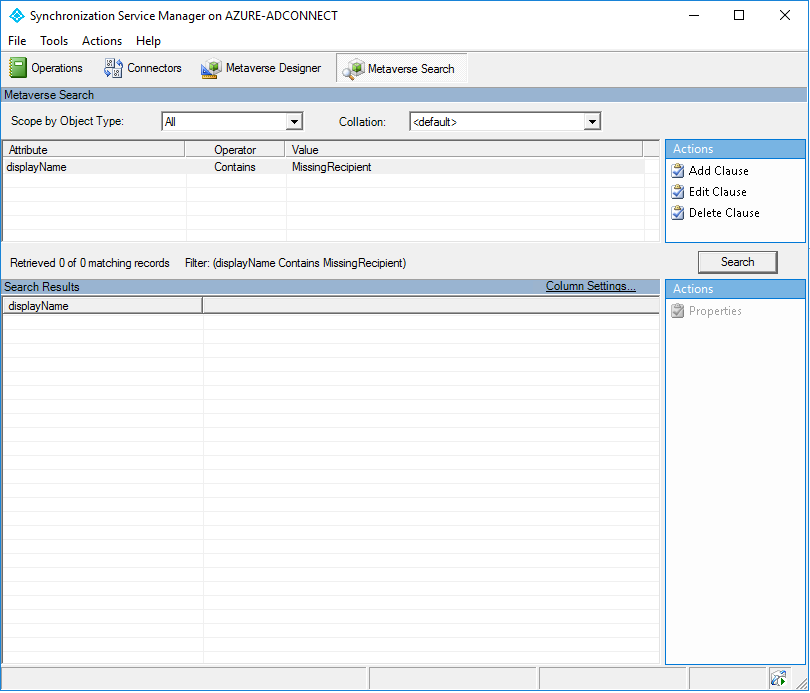
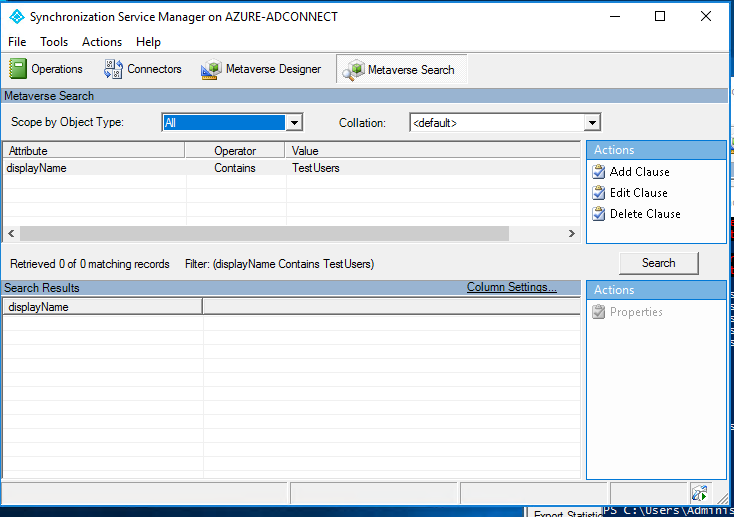
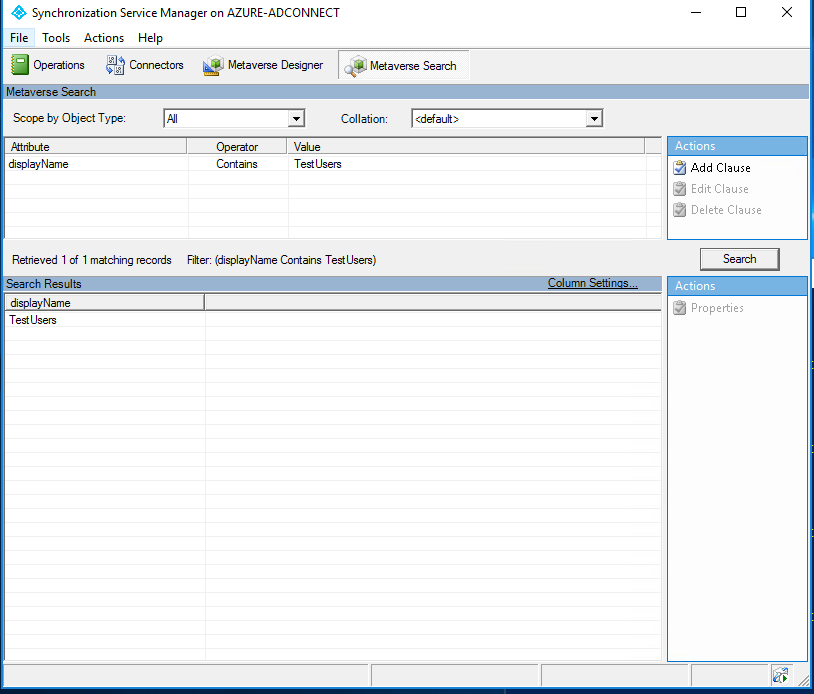
In this case the lack of any returned object indicates that the group does not exist within Azure Active Directory.  This would imply either an issue with Azure Active Directory Connect <or> the on premises object.  We can utilize the synchronization services manager installed with AAD Connect to perform a metaverse search.  In this case we are searching for the missing distribution list.
image

The group does not exist in the metaverse.  If the group has not been processed by AAD Connect – it will not be available in Azure Active Directory or Exchange Online.  Continuing to back track through we can review the Exchange options on the local group. 

[PS] C:>Get-Recipient TestUsers

Name      RecipientType
—-      ————-
TestUsers MailUniversalDistributionGroup

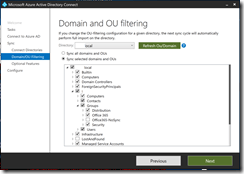
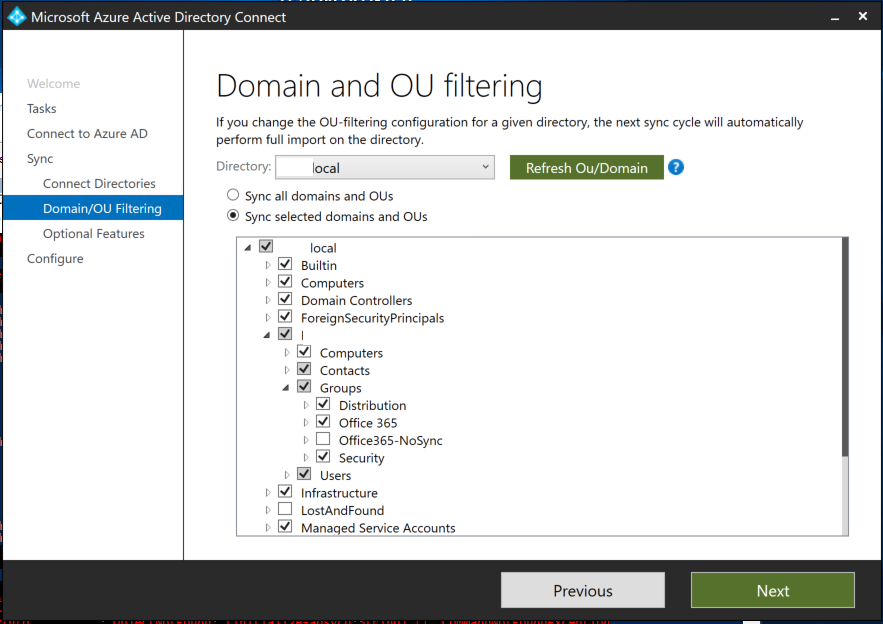
The group is present in on premises Exchange and is a valid recipient.   If the group is present and valid in Exchange On Premises – why is it not being processed by AAD Connect.  One of the most common reasons for this is that the group is not within the sync scope of AAD Connect.  We can launch the configuration wizard for AAD Connect using the short cut on the desktop of the AAD Connect server.  When validating domain / ou filtering in this instance it is observed that “sync selected domains and OUs” is the option.  We can expand the different organizational units to determine what is and what is not within sync scope.  Here is an example.
image

Using get-Group we can dump the organizational unit that the group is stored in. 

[PS] C:>Get-Group TestUsers | Select-Object organizationalUnit

OrganizationalUnit
——————
contoso.local/Contoso/Groups/Office365-NoSync

In this instance the group does exist in an organizational unit that is not included in sync scope.  If we move the group to an OU that is within sync scope it should eventually become available to us within Office 365.  For example:

[PS] C:>Get-Group TestUsers | Select-Object organizationalUnit

OrganizationalUnit
——————
contoso.local/Consoto/Groups/Distribution

When a delta synchronization has completed the group should now be found within the AAD Connect metaverse.
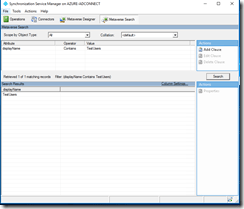
image

When the export has completed successfully the group should be visible in Azure AD. 

PS C:> Get-MsolGroup -SearchString TestUsers

ObjectId                               DisplayName                GroupType                  Description
——–                               ———–                ———                  ———–
81e58cc5-9f48-41d3-a9d3-b500c8ebc6dc   TestUsers                  DistributionList

And finally the group should be available within Exchange Online.

PS C:> Get-Recipient TestUsers

Name      RecipientType
—-      ————-
TestUsers MailUniversalDistributionGroup

In this situation and scenario our group failed to be represented in Exchange Online because it was not in an organizational unit covered by the AAD Connect sync scope.  Moving it to an appropriate organizational unit or adding the organization unit to be within sync scope would correct this condition.

Symptom Scenario #2:  A member of my distribution list did not receive an email.


Scenario Summary:  The user does not exist in Azure AD or Exchange Online but is a member of the distribution list on premises.  The user does not exist in Office 365 because it resides in an organization unit not synchronized to Office 365.

In this scenario a user has reported that a member of this distribution list has not received an email that they sent.  Using a similar method as the first scenario we will start by reviewing the properties of the distribution list in Exchange Online.  In this case the missing user is MissingRecipient@contoso.com.  Using get-recipient we can verify that the distribution list is present within the service.

PS C:> Get-Recipient TestUsers

Name      RecipientType
—-      ————-
TestUsers MailUniversalDistributionGroup

The distribution list membership can also then be validated in Exchange Online.

PS C:> Get-DistributionGroupMember -Identity TestUsers | ft

Name              RecipientType
—-              ————-
Timothy McMichael UserMailbox
Bill Moran        UserMailbox

This output confirms that the recipient is not a member of the distribution group in Exchange Online.

In order for a recipient to be a member of a distribution list it too must be represented in Exchange Online.  Using get-recipient we can determine if the missing user is also in Exchange Online.

PS C:> Get-Recipient MissingRecipient
The operation couldn’t be performed because object ‘MissingRecipient’ couldn’t be found on ‘CO1PR06A002DC02.NAMPR06A002.prod.outlook.com’.
    + CategoryInfo          : NotSpecified: (:) [Get-Recipient], ManagementObjectNotFoundException
    + FullyQualifiedErrorId : [Server=BY1PR0601MB1402,RequestId=8f7fdfd1-274a-4622-b3a6-b45aff678120,TimeStamp=11/12/2017 9:20:24 PM] [FailureCategory=Cmdlet-ManagementObjectNotFoundException] 5DAE93AD,Microsoft.Exchange.Management.RecipientTasks.GetRecipient
    + PSComputerName        : ps.outlook.com

The output of this command confirms the recipient is not available in Exchange Online.   Knowing that the source of information in this scenario is Azure AD we can continue our investigation there.

The group in this instance is successfully found in Azure AD.

PS C:> Get-MsolGroup -SearchString TestUsers

ObjectId                               DisplayName                GroupType                  Description
——–                               ———–                ———                  ———–
81e58cc5-9f48-41d3-a9d3-b500c8ebc6dc   TestUsers                  DistributionList

Using the object ID of the group we can determine the group membership within Azure AD.

PS C:> Get-MsolGroupMember -GroupObjectId 81e58cc5-9f48-41d3-a9d3-b500c8ebc6dc

GroupMemberType EmailAddress               DisplayName
————— ————               ———–
User            tmcmichael@contoso.org     Timothy McMichael
User            bmoran@contoso.org         Bill Moran

This confirms that the representation of the group in Exchange Online matches that of Azure AD.  Does the recipient exist in azure AD?

PS C:> Get-MsolUser -SearchString MissingRecipient
PS C:>

In this case the lack of any return suggests that the object is not within Azure AD.  This would indicate either an issue with Azure AD Connect <or> with the on premises user object. 

Using the synchronization service manager we can perform am metaverse search for the object. 
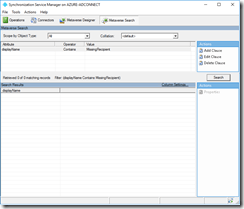
image

The user does not exist in the metaverse.  If the user has not been processed by AAD Connect – it will not be available in Azure Active Directory or Exchange Online.  Continuing to back track through we can review the Exchange options on the local user. 

[PS] C:>Get-Recipient MissingRecipient

Name              RecipientType
—-              ————-
Missing Recipient UserMailbox

The recipient on premises is valid.  Is it a member of the given group?

[PS] C:>Get-DistributionGroupMember -Identity TestUsers | ft

Name              RecipientType
—-              ————-
Timothy McMichael MailUser
Bill Moran        MailUser
Missing Recipient UserMailbox

In this case the user is a member of the distribution list on premises.  Looking at the properties of the user – is there any reason it would not be processed via AD connect?

[PS] C:>Get-User MissingRecipient | Select-Object organizationalUnit

OrganizationalUnit
——————
contoso.local/Contoso/Users/Office365-NoSync

Very similar to the issue in scenario #1 this user is in an organizational unit not covered under the synchronization scope of Azure AD Connect.  The user therefore is not replicate to Azure AD and is then not available in Exchange Online.  Regardless of the membership of the distribution list on premises if the object is not available in Azure AD it will not be eligible to be a member of the distribution group in Exchange Online.

To fix this we will move the user to an organizational unit covered under the AD Connect synchronization scope.

[PS] C:>Get-User MissingRecipient | Select-Object organizationalUnit

OrganizationalUnit
——————
contoso.local/Contoso/Users/Members

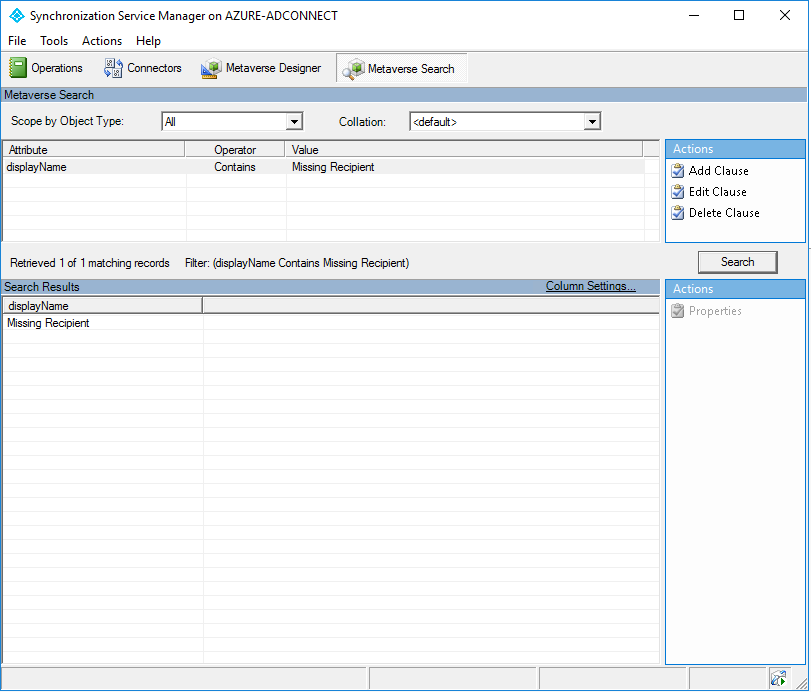
When the next delta synchronization cycle processes the user should be able to be located in the metaverse.
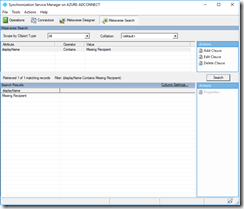
image

Once the user has been successfully exported it should be able to be located in Azure AD.

PS C:> Get-MsolUser -SearchString MissingRecipient

UserPrincipalName                DisplayName       isLicensed
—————–                ———–       ———-
MissingRecipient@contoso.org     Missing Recipient False

The user should now show as a member of the group in Azure AD.

PS C:> Get-MsolGroupMember -GroupObjectId 81e58cc5-9f48-41d3-a9d3-b500c8ebc6dc

GroupMemberType EmailAddress                     DisplayName
————— ————                     ———–
User            tmcmichael@contoso.org           Timothy McMichael
User            bmoran@contoso.org               Bill Moran
User            MissingRecipient@contoso.org     Missing Recipient

With the Azure AD object now appearing as expected the recipient and list should be reconciled in Exchange Online. 

PS C:> Get-Recipient MissingRecipient

Name              RecipientType
—-              ————-
Missing Recipient MailUser


PS C:> Get-DistributionGroupMember -Identity TestUsers | ft

Name              RecipientType
—-              ————-
Timothy McMichael UserMailbox
Bill Moran        UserMailbox
Missing Recipient MailUser

The missing user is now corrected and the distribution list will function as expected.

In this instance the user failed to be a member of the distribution group because the user on premises was not in the AD Connect organizational unit synchronization scope.

Symptom Scenario #3:  A member of my distribution list did not receive an email.


Scenario Summary:  The distribution list is a security group on premises allowed to contain non-mail enabled objects.  In this instance the user is not a mail enabled object, and therefore is not seen as a recipient during DL expansion in Office 365.

In this symptom scenario a user reports that a distribution list member did not receive an email addressed to the list.  As we have in other scenarios we will begin the analysis by looking at the Exchange Online group and validating it is present.

PS C:> Get-Recipient TestUsers

Name      RecipientType
—-      ————-
TestUsers MailUniversalDistributionGroup

The membership of the group can also be validated in Exchange Online.

PS C:> Get-DistributionGroupMember -Identity TestUsers | ft

Name              RecipientType
—-              ————-
Timothy McMichael UserMailbox
Bill Moran        UserMailbox
Missing Recipient MailUser
NoMailbox User    User

In this instance the user that did not receive the email NoMailbox User.  It is interesting to note in this stage that the recipient type is User.   Running get-recipient we can determine that the user, although they appear in the distribution list, are not appearing as a recipient.

PS C:> Get-Recipient NoMailboxUser
The operation couldn’t be performed because object ‘NoMailboxUser’ couldn’t be found on ‘CO1PR06A002DC02.NAMPR06A002.prod.outlook.com’.
    + CategoryInfo          : NotSpecified: (:) [Get-Recipient], ManagementObjectNotFoundException
    + FullyQualifiedErrorId : [Server=BY1PR0601MB1402,RequestId=756ebc52-32b4-49af-9825-4c024e435f47,TimeStamp=11/12/2017 9:57:40 PM] [FailureCategory=Cmdlet-ManagementObjectNotFoundException]CBC02122,Microsoft.Exchange.Management.RecipientTasks.GetRecipient
    + PSComputerName        : ps.outlook.com

In this instance since the Exchange Online information is accurate the Azure AD information should also be accurate. 

PS C:> Get-MsolUser -SearchString NoMailbox

UserPrincipalName             DisplayName    isLicensed
—————–             ———–    ———-
NoMailboxUser@contoso.org     NoMailbox User False

PS C:> Get-MsolGroupMember -GroupObjectId 81e58cc5-9f48-41d3-a9d3-b500c8ebc6dc

GroupMemberType EmailAddress                     DisplayName
————— ————                     ———–
User            tmcmichael@contoso.org           Timothy McMichael
User            bmoran@contoso.org               Bill Moran
User            MissingRecipient@contoso.org     Missing Recipient
User            NoMailboxUser@contoso.org        NoMailbox User

Knowing that the Azure AD information is accurate there is no indication that an AD Connect problem exists.  Why though is the recipient only showing as a user?  Is it a valid recipient on premises?  We can validate this with get-recipient.

[PS] C:>Get-Recipient NoMailboxUser
The operation couldn’t be performed because object ‘NoMailboxUser’ couldn’t be found on ‘Azure-Dc.domain.local’.
    + CategoryInfo          : NotSpecified: (:) [Get-Recipient], ManagementObjectNotFoundException
    + FullyQualifiedErrorId : [Server=AZURE-MBX,RequestId=b0e9dc63-f0b5-41d4-86bb-df31adfa0a4e,TimeStamp=11/12/2017 10:06:12 PM] [FailureCategory=Cmdlet-ManagementObjectNotFoundException] 34C958E5,Microsoft.Exchange.Management.RecipientTasks.GetRecipient
    + PSComputerName        : azure-mbx.fmrs.local

In this case the recipient is not a mail enabled object.  The group in question is a security group and therefore can contain non-recipient objects.  When replicated into Azure AD and subsequently into Exchange Online the users will appear as group members but only as a USER – not an Exchange recipient type.  Mail enabling the object as a mailbox, remote mailbox, or mail user should rectify the issue.

PS C:> Get-Recipient NoMailboxUser

Name           RecipientType
—-           ————-
NoMailbox User MailUser


PS C:> Get-DistributionGroupMember -Identity TestUsers | ft

Name              RecipientType
—-              ————-
Timothy McMichael UserMailbox
Bill Moran        UserMailbox
Missing Recipient MailUser
NoMailbox User    MailUser

The recipient will now receive email addressed to the distribution list.

Symptom Scenario #4:  The Exchange Online distribution group membership is incorrect.


Scenario Summary:  The distribution list membership on premises and within Azure Active Directory is correct.  The membership is not correct within Exchange Online.

In this scenario an administrator has discovered that the membership of the distribution list within Exchange Online is not accurate.  As with our other scenarios we will begin our investigation in Exchange Online.

The first step is to determine if the distribution list is present in Exchange Online.

PS C:> Get-Recipient TestUsers

Name      RecipientType
—-      ————-
TestUsers MailUniversalDistributionGroup

In this example the distribution list is present in Exchange Online.  The next step is to review the membership of the distribution list.

PS C:> Get-DistributionGroupMember -Identity TestUsers | ft

Name              RecipientType
—-              ————-
Timothy McMichael UserMailbox
Bill Moran        UserMailbox
Missing Recipient MailUser

The Exchange Online distribution list contains three members.  The next step is to review the membership of the distribution list in Azure Active Directory.

PS C:> Get-MsolGroup -SearchString TestUsers

ObjectId                               DisplayName                GroupType                  Description
——–                               ———–                ———                  ———–
81e58cc5-9f48-41d3-a9d3-b500c8ebc6dc   TestUsers                  DistributionList


PS C:> Get-MsolGroupMember -GroupObjectId 81e58cc5-9f48-41d3-a9d3-b500c8ebc6dc

GroupMemberType EmailAddress                     DisplayName
————— ————                     ———–
User            tmcmichael@contoso.org           Timothy McMichael
User            bmoran@contoso.org               Bill Moran
User            MissingRecipient@contoso.org     Missing Recipient
User            MissingUser@contoso.org          Missing User


In this instance the membership of the group within Azure Active Directory is 4 members where the membership in Exchange Online is 3 members.  This clearly indicates a difference between the information replicated from Azure AD to Exchange Online.

As we have discovered in our previous examples the last thing we need to know is does the recipient exist in Exchange Online.  If the recipient is mail enabled in Exchange Online – it should be eligible to be a member of the distribution list in Exchange Online.

PS C:> Get-Recipient MissingUser

Name           RecipientType
—-           ————-
Missing User   MailUser

In this instance the recipient is valid within Exchange Online.

To correct this condition a support case should be opened with product support services.  Product support services has methods to assist customers in resynchronizing membership between Azure AD and Exchange Online.
Office 365: Office 365 Groups and External / Guest Accounts

In support you often have interesting cases come across your desk – and sometimes the questions and situations presented are odd.  On occasion you look at some of them and are like that’s impossible…and that’s what happened here.

In this escalation, the customer was reporting that when they would remove a user from an Office 365 Group (Unified Group) and add a different user – the original user they removed would come back to group membership but the new user was not added.  That’s interesting – a user that was removed successfully would automatically just reappear in the group when a completely different user was added.  Turns out – it actually happened.  Let’s take a look.

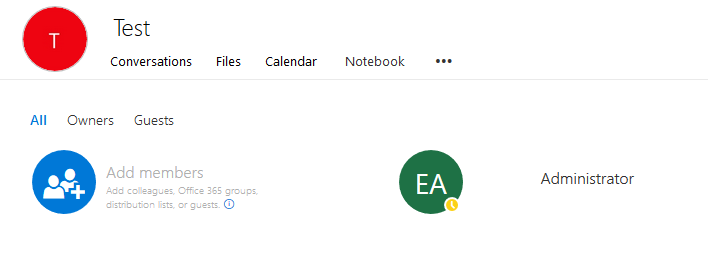
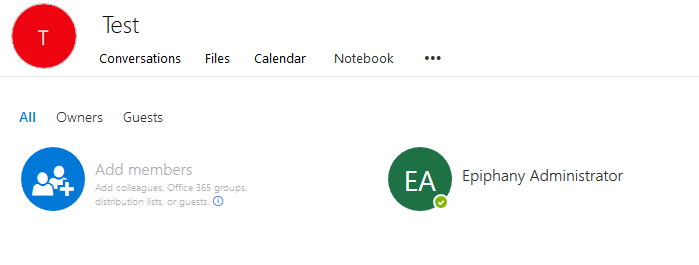
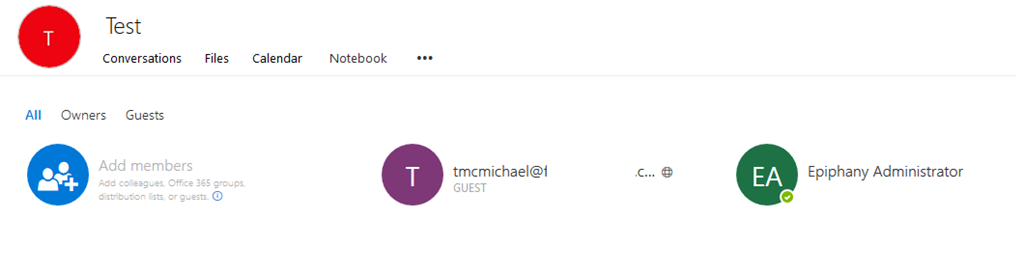
I have a test tenant TenantA.onmicrosoft.com.  In this tenant, I create an Office 365 Group named Test.  By default, the group membership contains the group owner and this is reflected in Outlook Web Access.

image

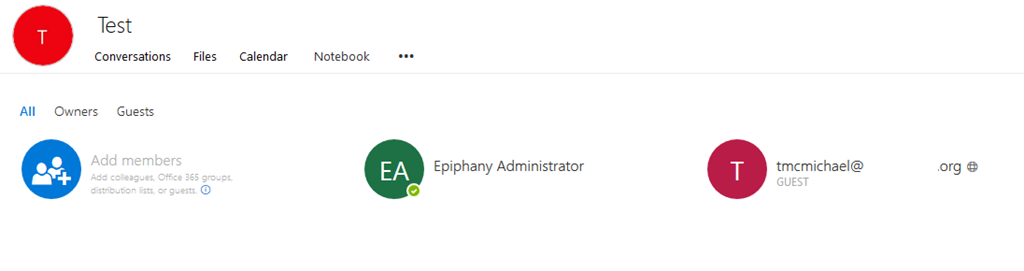
Guest access is enabled for the tenant and a guest account is added.  In this case, the guest account is tmcmichael@domainA.org.  The new guest member is reflected in Outlook Web Access.

image

When a guest account is added to an Office 365 Group and guest account object is first provisioned in Azure Active Directory.  We can see the guest account with Get-MsolUser.

PS C:Userstimmcmic> Get-MsolUser -SearchString tmcmichael


UserPrincipalName                                                        DisplayName                isLicensed
—————–                                                        ———–                ———-
tmcmichael_domainA.org#EXT#@tenantA.onmicrosoft.com                      tmcmichael@domainA.org     False

Through a forward synchronization process the guest account is then replicated into Exchange Online as a mail user object.  We can see the mail user object with Get-Recipient.

PS C:Userstimmcmic> Get-Recipient tmcmichael*


Name                            RecipientType
—-                            ————-
tmcmichael_domainA.org#EXT#     MailUser


At this time, I will remove the account tmcmichael@domainA.org from the Office 365 Group and save the changes.

image

Although the user was removed from the group – and does not exist in any other group or guest arrangement – the account remains in Azure Active Directory and Exchange Online.

PS C:Userstimmcmic> Get-MsolUser -SearchString tmcmichael

UserPrincipalName                                                        DisplayName                isLicensed
—————–                                                        ———–                ———-
tmcmichael_domainA.org#EXT#@tenantA.onmicrosoft.com                      tmcmichael@domainA.org     False


PS C:Userstimmcmic> Get-Recipient tmcmichael*

Name                            RecipientType
—-                            ————-
tmcmichael_domainA.org#EXT#     MailUser


With the user removed, I will now invite the new user that I wish to grant guest access.  In this instance tmcmichael@domainB.com.

image

The user was added successfully and when refreshing group membership – the user vanishes and the original user appears in the group!  What happened?

image

In this instance, both DomainA.org and DomainB.com both belong to tenantB.onmicrosoft.com.  In tenantB.onmicrosoft.com the recipient TMcMichael has proxy addresses assigned at both TMcMichael@domainA.org and TMcMichael@domainB.com.

PS C:Userstimmcmic> $a=Get-MsolUser -SearchString tmcmichael

PS C:Userstimmcmic> $a.ProxyAddresses

smtp:tmcmichael@domainB.com

smtp:tmcmichael@aaa

SMTP:tmcmichael@domainA.org

smtp:tmcmichael@aaa.org
smtp:tmcmichael@aaa.mail.onmicrosoft.com
smtp:tmcmichael@aaa.onmicrosoft.com
smtp:director@aaa.com
smtp:2148@aaa.com

A guest account receives a link to access the group – with the link providing them the permissions to access the group and group data.  In this case, there is no difference between tmcmichael@domainA.org and tmcmichael@domainB.com.  When tmcmichael@domainB.com is added, Azure Active Directory resolves this address and determines that it belongs to the same object that has tmcmichael@domainA.org.  When this occurs, no new guest account is created, the original guest account and mail user are retained, and the membership is updated in Exchange Online.  With the original mail user object being retained, upon refresh the GUI displays the attributes of that mail user, presenting the appearance that the user that we removed was added again and that the user we wanted added did not add.

At this time our product engineering group is investigating alternate ways to handle this as reverting to the same object and failing to show the desired addition causes confusion within the UI.  If you find this confusing and you desire to fix it – the only method to fix this is to remove the guest account from Azure Active Directory and start over.  This will force a new guest account to provision.  Removing the guest account would subsequently remove any access that original account would have via links or emails to all Office 365 properties – you may want to proceed with caution.

Office 365: ADConnect synchronization interval changed automatically…

In Azure AD Connect, the default synchronization interval is set to 30 minutes during installation.  In the majority of cases, 30 minutes is an appropriate balance between getting changes to Office 365 in a timely fashion, keeping the export set small enough to be effectively transmitted, and not overloading the on premises directories or Azure Active Directory. 


The configuration of the Azure AD Connect synchronization schedule can be viewed using Get-ADSyncScheduler


PS C:> Get-ADSyncScheduler

AllowedSyncCycleInterval            : 00:30:00
CurrentlyEffectiveSyncCycleInterval : 00:30:00
CustomizedSyncCycleInterval         :
NextSyncCyclePolicyType             : Delta
NextSyncCycleStartTimeInUTC         : 1/23/2018 2:58:30 PM
PurgeRunHistoryInterval             : 7.00:00:00
SyncCycleEnabled                    : True
MaintenanceEnabled                  : True
StagingModeEnabled                  : False
SchedulerSuspended                  : False
SyncCycleInProgress                 : False


Administrators may adjust the synchronization interval using Set-ADSyncScheduler.  When administrators adjust the schedule manually this is reflected in the CustomizedSyncCycleInterval. 


PS C:> Set-ADSyncScheduler -CustomizedSyncCycleInterval 02:00:00
WARNING: The sync interval you provided will only become effective after a sync cycle.You can choose to wait for the
automatic sync cycle to happen in next 30.00 minutes, or you can manually start a sync cyle by running
Start-ADSyncSyncCycle cmdlet.


PS C:> Get-ADSyncScheduler

AllowedSyncCycleInterval            : 00:30:00
CurrentlyEffectiveSyncCycleInterval : 00:30:00
CustomizedSyncCycleInterval         : 02:00:00
NextSyncCyclePolicyType             : Delta
NextSyncCycleStartTimeInUTC         : 1/23/2018 2:58:30 PM
PurgeRunHistoryInterval             : 7.00:00:00
SyncCycleEnabled                    : True
MaintenanceEnabled                  : True
StagingModeEnabled                  : False
SchedulerSuspended                  : False
SyncCycleInProgress                 : False


When a synchronization cycle is administratively configured the value that is configured must be greater than the AllowedSyncCycleInterval.  In our example, the AllowedSyncCycleInterval is 30 minutes, therefore any customization must be greater than 30 minutes or it will be ignored.  A customized schedule cannot be created less than the AllowedSyncCycleInterval.


PS C:> Set-ADSyncScheduler -CustomizedSyncCycleInterval 00:15:00

The value for the customized sync interval is lower than the allowed value.
Requested new interval = 00:15:00  Allowed interval = 00:30:00
Scheduler will still run at the allowed sync interval even after successful execution of this cmdlet.

Are you sure you want to continue?
[Y] Yes  [N] No  [S] Suspend  [?] Help (default is “Y”): y
WARNING: The sync interval you provided will only become effective after a sync cycle.You can choose to wait for the
automatic sync cycle to happen in next 30.00 minutes, or you can manually start a sync cyle by running
Start-ADSyncSyncCycle cmdlet.


In recent days, some customers have reported that the AllowedSyncCycleInterval was set to 2 hours even though the default should be 30 minutes.  Here is an example…


AllowedSyncCycleInterval            : 02:00:00
CurrentlyEffectiveSyncCycleInterval : 02:00:00

CustomizedSyncCycleInterval         :
NextSyncCyclePolicyType             : Delta
NextSyncCycleStartTimeInUTC         :
PurgeRunHistoryInterval             : 7.00:00:00
SyncCycleEnabled                    : True
MaintenanceEnabled                  : True
StagingModeEnabled                  : False
SchedulerSuspended                  : False
SyncCycleInProgress                 : False


The AllowedSyncCycleInterval is not administratively configured.  If this value is not administratively configured then how did the value automatically change? 


Azure AD Connect is a client of Azure Active Directory.  The AllowedSyncCycleInterval is determined through the clients connection with Azure Active Directory.  There could be some instances where this value may change.  For example, if an Azure AD replication partition becomes behind the service may back off the synchronization interval of Azure AD Connect.  In this instance, the value was adjusted through the server side policies controlling sync intervals.  When any service issues are rectified, the value automatically reverted to default.


The effective sync cycle is determined as a combination of the AllowedSyncCycle and the CustomerizedSyncCycle.  For example if the CustomerizedSyncCycle is greater than AllowedSyncCycle, the CustomizedSyncCycle will take precedence.  In this instance, most customers noted that the AllowedSyncCycle was greater than the default and any attempts to set CustomerizedSyncCycle to default were ignored since the value was lower than allowed.


When the allowed changes, you are encouraged to open a case with customer support services for review and confirmation.  Should the administrator require synchronization at intervals lower than the allowed, it would have to be accomplished through manual synchronization. 


Information regarding the AD Connect sync scheduler and manual synchronization can be found here – https://docs.microsoft.com/en-us/azure/active-directory/connect/active-directory-aadconnectsync-feature-scheduler.

Office 365: Office 365 Groups and domain removals…

When customers desire to move a domain from one tenant to another or decommission a domain within a tenant all dependencies on that domain must be removed.  The domain removal process relies on the information contained within Azure Active Directory in order to determine if a domain is safe to be removed.  One of the most common dependencies are email addresses on mail enabled objects.  The removal of the email address dependencies may occur either on premises and be replicated through Azure AD Connect or directly in Exchange Online. 


When Office 365 groups are utilized in the environment we have to take a different approach to domain removals.  Proxy addresses for Office 365 groups are managed directly in Exchange Online.   This includes the addition, removal, or adjustment of these proxy addresses.  When a proxy address is modified on an Office 365 group in Exchange Online – this change does not back sync to Azure Active Directory.  Therefore when administrators attempt to process a domain removal they are presented with errors indicating that groups with a  domain dependency exist. 


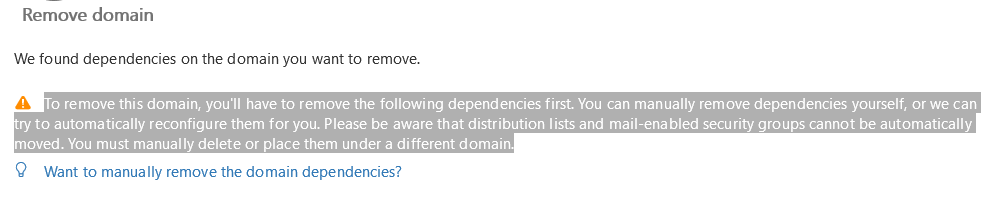
To remove this domain, you’ll have to remove the following dependencies first. You can manually remove dependencies yourself, or we can try to automatically reconfigure them for you. Please be aware that distribution lists and mail-enabled security groups cannot be automatically moved. You must manually delete or place them under a different domain.


image


If address removal does not sync to Azure Active Directory, and Azure Active Directory is the source of domain removals, then how do we process a domain removal when Office 365 Groups are utilized.  Let’s review a typical scenario.


I have an Office 365 Group TestDomainRemove0. 


PS C:> Get-UnifiedGroup TestDomainRemove0

Name                      Alias                ServerName       AccessType
—-                      —–                ———-       ———-
TestDomainRemove0_cfd5… TestDomainRemove0    dm5pr06mb2377    Public


The proxy addresses on the group can be verified using the following command:


PS C:> $addresses=Get-UnifiedGroup TestDomainRemove0
PS C:> $addresses.EmailAddresses
smtp:TestDomainRemove0@domain2.org
smtp:TestDomainRemove0@domain.com
smtp:TestDomainRemove0@domain.onmicrosoft.com
SMTP:TestDomainRemove0@domain.org


Post configuration I added several other email addresses to the Office 365 Group using powershell. 


As with many mail enabled objects the Exchange Online Object is mirrored by a corresponding object in Azure Active Directory.  Using the get-MSOLGroup command we can locate the group.


PS C:> Get-MsolGroup -SearchString TestDomainRemove0

ObjectId                               DisplayName                GroupType                  Description
——–                               ———–                ———                  ———–
992878ca-89e5-43fd-a2bf-3c9eb4d6feba   TestDomainRemove0          DistributionList


The original primary email address stamped on the group is now present on the object in Azure AD.  NOTE that none of the additional addresses I added are present in Azure Active Directory.


PS C:> $msolAddresses.EmailAddress
TestDomainRemove0@domain.org


This example highlights the core issues at this time –> proxy address changes DO NOT propagate from Exchange Online to Azure Active Directory. 


OPTION #1:  Delete the group in Exchange Online.


In option 1 we are not worried about retaining any of the data associated with the Office 365 Group.  Therefore we can remove the address dependency by removing the group.  The group can be removed using the remove-unifiedGroup command. 


Remove-UnifiedGroup TestDomainRemove4 -Confirm:$FALSE


When removing the group in Exchange Online this operation should successfully synchronize into Azure Active Directory.  Using the get-msolGroup command and finding no group returned to the query confirms this.


PS C:> Get-MsolGroup -SearchString TestDomainRemove4
PS C:>


Removing the group has successfully removed the dependency on the address.  The removal operation is not reversible.  THE DATA IS NOT RECOVERABLE ONCE THE REMOVAL HAS SUCCEEDED.


Option #2:  Delete the group in Azure Active Directory using Azure Active Directory Shell v1 (Microsoft Online Services Shell).


In option 2 we are not removing the group in Exchange Online but rather removing it through Azure Active Directory using the MSOL commands provided in the v1 Azure Active Directory powershell.  In order to prevent any administrative mistakes I prefer to search for the group first and locate it’s object id.


PS C:> Get-MsolGroup -SearchString TestDomainRemove2

ObjectId                               DisplayName                GroupType                  Description
——–                               ———–                ———                  ———–
d6e64513-f601-4731-9e17-a1160c022f46   TestDomainRemove2          DistributionList


When the object ID has been located it can be combined with the Remove-MSOLGroup command to remove the group from Azure Active Directory.

PS C:> Remove-MsolGroup -ObjectId d6e64513-f601-4731-9e17-a1160c022f46 –Force


The group removal will replicate into Exchange Online.


PS C:> Get-UnifiedGroup TestDomainRemove2
The operation couldn’t be performed because object ‘TestDomainRemove2’ couldn’t be found on
‘CO1PR06A002DC06.NAMPR06A002.prod.outlook.com’.
    + CategoryInfo          : NotSpecified: (:) [Get-UnifiedGroup], ManagementObjectNotFoundException
    + FullyQualifiedErrorId : [Server=BY1PR0601MB1402,RequestId=687793e0-65a9-43b0-a4db-ed34f4a2eb89,TimeStamp=1/17/20
   18 4:08:52 PM] [FailureCategory=Cmdlet-ManagementObjectNotFoundException] 7FF5681F,Microsoft.Exchange.Management.R
  ecipientTasks.GetUnifiedGroup
    + PSComputerName        : ps.outlook.com


Removing the group has successfully removed the dependency on the address.  The removal operation is not reversible.  THE DATA IS NOT RECOVERABLE ONCE THE REMOVAL HAS SUCCEEDED.


When considering options both Option 1 and Option 2 do not provide any form of data preservation.  In many cases it is desired to retain the original data until it can be migrated or it has been determined after the domain removal that it is no longer necessary.  There are also other cases where the domain removal is not tied to the deletion or migration of data – it’s simply just being administratively removed.  Are there any options that allow us to preserve the data.


Option #3:  Remove and restore the groups using Azure Active Directory Shell v2 Preview:


In order to restore Office 365 Groups the Azure Active Directory Preview modules must be utilized.  These modules can be installed online using an administrator initiated powershell session.


PS C:> Install-Module AzureADPreview

Untrusted repository
You are installing the modules from an untrusted repository. If you trust this repository, change its
InstallationPolicy value by running the Set-PSRepository cmdlet. Are you sure you want to install the modules from
‘PSGallery’?
[Y] Yes  [A] Yes to All  [N] No  [L] No to All  [S] Suspend  [?] Help (default is “N”): y


Once the powershell module has been installed a connection to Azure Active Directory can be established.


PS C:> Connect-AzureAD -Credential $cred

Account                                       Environment TenantId                             TenantDomain    AccountT
                                                                                                               ype
——-                                       ———– ——–                             ————    ——–
account@domain.onmicrosoft.com                AzureCloud  eefdeca8-5850-4ca5-a160-0716f2d8496e domain.org      User


In order to perform a recoverable deletion of a group we need the object IDs of the groups to be removed.  I find that it’s less likely to make a mistake of the object IDs are obtained from Exchange Online. 


PS C:> Get-UnifiedGroup | where{$_.name -like “TestDomain*”} | Select-Object name,externalDirectoryObjectID

Name                         ExternalDirectoryObjectId
—-                         ————————-
TestDomainRemove0_cfd54e2557 992878ca-89e5-43fd-a2bf-3c9eb4d6feba
TestDomainRemove1_d49d89822c 931c9e3b-3f27-4304-b13b-a3289d6b2b42


The external directory object ID attribute represents the GUID of the object in Azure AD.  Using these object IDs we can remove the groups from Azure Active Directory.


PS C:> Remove-AzureADMSGroup -Id 992878ca-89e5-43fd-a2bf-3c9eb4d6feba -Verbose
PS C:> Remove-AzureADMSGroup -Id 931c9e3b-3f27-4304-b13b-a3289d6b2b42 –Verbose


The above command removes from the group Azure Active Directory and places the group in a soft deleted state. 


PS C:> Get-AzureADMSDeletedDirectoryObject -Id 992878ca-89e5-43fd-a2bf-3c9eb4d6feba

Id                                   DisplayName       Description
—                                   ———–       ———–
992878ca-89e5-43fd-a2bf-3c9eb4d6feba TestDomainRemove0


The group deletion will propagate into Exchange Online and the other Office 365 properties that offer group services.


PS C:> Get-UnifiedGroup TestDomainRemove0
The operation couldn’t be performed because object ‘TestDomainRemove0’ couldn’t be found on
‘CO1PR06A002DC06.NAMPR06A002.prod.outlook.com’.
    + CategoryInfo          : NotSpecified: (:) [Get-UnifiedGroup], ManagementObjectNotFoundException
    + FullyQualifiedErrorId : [Server=BY1PR0601MB1402,RequestId=d041eaa4-b364-4848-a144-2727b01a367d,TimeStamp=1/17/20
   18 4:24:43 PM] [FailureCategory=Cmdlet-ManagementObjectNotFoundException] 7FF5681D,Microsoft.Exchange.Management.R
  ecipientTasks.GetUnifiedGroup
    + PSComputerName        : ps.outlook.com


When the Office 365 Groups are in a soft deleted state their proxy addresses do not count against the domain removal dependency.  Assuming that all other pre-requisites were met the domain should now remove without issue.  When the domain removal has proceeded successfully the groups can be restored.  The restoration starts in Azure Active Directory.


PS C:> Restore-AzureADMSDeletedDirectoryObject -Id 992878ca-89e5-43fd-a2bf-3c9eb4d6feba

Id                                   DisplayName       Description
—                                   ———–       ———–
992878ca-89e5-43fd-a2bf-3c9eb4d6feba TestDomainRemove0

PS C:> Restore-AzureADMSDeletedDirectoryObject -Id 931c9e3b-3f27-4304-b13b-a3289d6b2b42

Id                                   DisplayName       Description
—                                   ———–       ———–
931c9e3b-3f27-4304-b13b-a3289d6b2b42 TestDomainRemove1


When the groups have been restored the restored objects can be viewed in Azure Active Directory.


PS C:> Get-AzureADMSGroup -Id 992878ca-89e5-43fd-a2bf-3c9eb4d6feba

Id                                   DisplayName       Description
—                                   ———–       ———–
992878ca-89e5-43fd-a2bf-3c9eb4d6feba TestDomainRemove0


The restoration will propagate into Exchange Online and the other related Office 365 properties where group services are offered.


PS C:> Get-UnifiedGroup TestDomainRemove0

Name                      Alias                ServerName       AccessType
—-                      —–                ———-       ———-
TestDomainRemove0_cfd5… TestDomainRemove0    dm5pr06mb2377    Public


Using this method the domain dependencies were removed and the restoration process retained the data associated with the groups after domain removal.

Office 365: Organization Queue Quota Exceeded

In Office 365 there are several throttling limits that administrators may encounter that impact mail flow.  One of these throttling limits is Organization Queue Quota Exceeded.


When organizations send a large amount of mail through the service – either by relay or direct submission – and the service is unable to relay (mail is deferred for some reason, transient failure, 4yz smtp response code, connectivity issues, etc) the mails are queued for delivery and retried until expiry in 48hrs.  For example maybe a large number of emails are addressed to a domain with a valid MX record but no one is answering at that name the messages will remain in queue.  As queues start to reach certain thresholds across our transport environment – we will begin to defer newly submitted mail with Queue Quota exceeded (Sender Queue quota if mail in our queues are from a specific sender, or Organization if there are multiple senders)


This throttling will continue to occur until the queues begin to drain.  The drain of queues may occur either through delivery of the messages to their intended targets or as the messages expire in the service.  In some cases it may be necessary to consult with product support services to help identify this condition and provide remediation. 


The throttling limits are in place to ensure that mail queued for one tenant do not start impacting on mail deliveries process for all other tenants on the shared server infrastructure.


The way to resolve during such an incident is to identify the bad mail (typically storm /large amount of auto-generated mail) which is getting stuck in queues in our service. Then resolve the reason for it being queued – address delivery issue or stop auto-generated mail from the source if it was sent to invalid recipients. The service will auto-recover and start allowing new mail to be submitted.  In some cases it maybe necessary to consult with product support services on the resolution.

Office 365: Enabling and creating a distribution list for first release users.

I had a customer present an inquiry to us on the management and communication of release release settings and changes.  The customers goal was to:


  • Manage first release settings through PowerShell to enable and disable users in bulk.
  • Create a mail enabled security group for mail distribution and permissions to other applications in the service.
  • Create a method to add and remove users to the distribution group based on their first release settings.


The challenges here were immediately noted.  At this time first release settings cannot be managed through the azure ad PowerShell either version 1 or version 2.  Our only options are to manage the user addition through the portal GUI.  In addition to managing powershell settings the ability to create mail enabled security groups is only available within the Exchange Online portal – you cannot at this time use Exchange Online PowerShell to provision a mail enabled security group.  Even though there are some challenges present I believe they are not insurmountable – let us take a look….


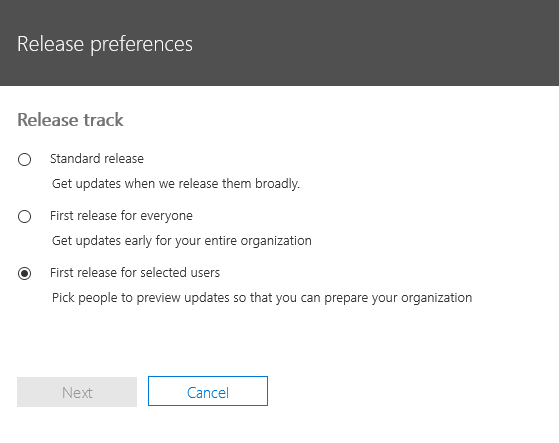
To begin we must ensure that the first release settings of the tenant are established correctly.  You can utilize this reference for first release settings in Office 365.  https://support.office.com/en-us/article/Set-up-the-Standard-or-First-Release-options-in-Office-365-3B3ADFA4-1777-4FF0-B606-FB8732101F47.  In our instance we are going to enable the first release option only on a subset of users chosen.  This will allow us to control who sees first release options while letting the other user population on standard release. 


image


Please note that it may take a while for the portal wizard to complete this transformation.


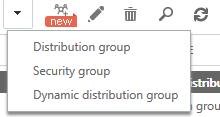
The next step is the process is the creation of the mail enabled security group.  Logging into the Exchange Online portal we can select the groups management option.  Here we will find the option to create a mail enabled security group.  I am recommending that this group be a cloud only group and have assigned a domain.onmicrosoft.com address – although this concept could be modified for a group that has directory synchronization.  A cloud only group will allow us to modify and manage membership directly through Office 365.  If the group is sourced on premises you would have to modify where you execute the group management commands to occur on premises.


clip_image002


In our example I am creating a mail enabled security group called FirstRelease.


PS C:> Get-DistributionGroup FirstRelease

Name         DisplayName  GroupType                  PrimarySmtpAddress                             
—-         ———–  ———                  ——————                             
FirstRelease FirstRelease Universal, SecurityEnabled FirstRelease@contoso.onmicrosoft.com


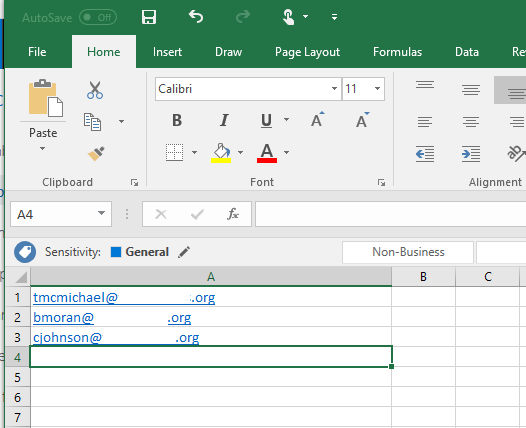
With the first release settings adjusted and the mail enabled security group in place we can begin the process of populating the first release settings for our first user set.  The first release settings allow for a BULK ADD option utilize a CSV file.  The CSV file contains a list of user principal names where we want to apply the first release settings to.  The CSV file row has no header – the first entry is the first user to add.


image


With the CSV file created and populated with the initial user set the portal can be utilized to load the file.  Under our first release settings we can select ACTIONS –> + BULK ADD.


clip_image002[4]


The BULK ADD wizard will start.


clip_image002[6]


The browse button can be utilized to select and locate the CSV file to import.


clip_image002[8]


Once the CSV file has been selected the verify option can be utilized to identity any potential errors.


clip_image002[10]


With conformation that no errors have been found the next button will complete the changes.


clip_image002[12]


The wizard in this case has updated three users to have first release applied.


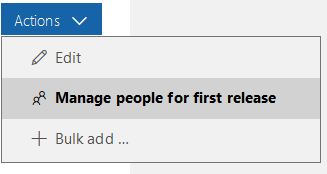
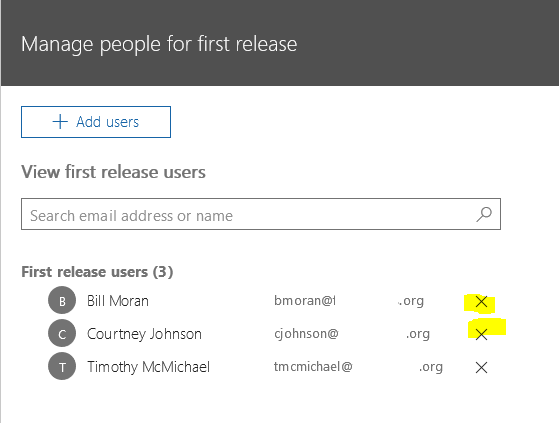
It is important to note at this point that there is no BULK REMOVE option.  If you need to remove users it must be done via the portal and selecting ACTIONS –> MANAGE PEOPLE FOR FIRST RELEASE.  Users can be removed from the first release option by selecting the X next to their name.


image


image


clip_image002[16]


It may take sometime for the first release settings to provision to users.  I recommend allowing an hour to ensure that the changes are appropriately applied and replicated prior to proceeding. 


With the first release settings established on the users the initial distribution list population can begin.  The files created in this process will be important to the maintenance process I will outline below.


To begin the distribution list population we will create a file of all users with the first release setting set and their objectIDs. 


PS C:> $firstReleaseUsers=Get-MsolUser -All | where {$_.releasetrack -eq “StagedRolloutOne”} | Select-Object userPrincipalName,objectID

PS C:> $firstReleaseUsers

UserPrincipalName          ObjectId                           
—————–          ——–                           
bmoran@contoso.org         2f7416c5-682c-46b4-b8f8-40b8ee03079e
cjohnson@contoso.org       3b5a9963-7fa1-4094-8a0b-f4219d8ecfe0
tmcmichael@contoso.org     61425db0-7812-49dd-b6aa-1a732bdec569


The users proxy addresses are then gathered from their objectIDs.  Using this method we can remove any ambiguity about the recipients class – for example mailbox within the service verses a mailbox that has yet to be migrated (mail user).


PS C:> $firstReleaseSMTP=$firstReleaseUsers | % { $recipientID=$_.objectID.toString() ; Get-Recipient -Identity $recipientID } | Select-Object primarySMTPAddress


PS C:> $firstReleaseSMTP

PrimarySmtpAddress       
——————       
bmoran@domain.org   
cjohnson@domain.org 
tmcmichael@domain.org


With the list of proxy addresses we should have the appropriate recipients to add to the distribution list.


PS C:> $firstReleaseSMTP | % { Add-DistributionGroupMember -Identity FirstRelease@domain.onmicrosoft.com -Member $_.primarySMTPAddress -Verbose }

VERBOSE: Adding distribution group member “bmoran@domain.org” on distribution group “FirstRelease@domain.onmicrosoft.com”.
VERBOSE: Adding distribution group member “cjohnson@domain.org” on distribution group “FirstRelease@domain.onmicrosoft.com”.
VERBOSE: Adding distribution group member “tmcmichael@domain.org” on distribution group “FirstRelease@domain.onmicrosoft.com”.


The new distribution list has now been populated with our first set of first release users.


PS C:> Get-DistributionGroupMember -Identity FirstRelease@domain.onmicrosoft.com

Name              RecipientType
—-              ————-
Timothy McMichael UserMailbox 
Bill Moran        UserMailbox 
Courtney Johnson  UserMailbox


The final step of this process is to establish the list of proxy addresses that served as the original population of the distribution list.  This CSV file will service as the basis of comparison for automated management moving forward. 


$firstReleaseSMTP | Export-Csv -Path z:FirstReleaseMembers.CSV

The CSV file should be populated with the addresses previously contained in the variable.


image


==========================================================================================================================


I am going to make an assumption that the list of first release users will change over time.  What I wanted to try to address here was a method where we could automate the updating of the distribution list associated with first release.  We have already covered that the first release settings in the portal for removing users can only be done manually – we cannot utilize a CSV file to remove a user.  The bulk add option could be utilized if multiple additions were required.  The script outlined below will:


  • Take a CSV file that represents the users that were previously first released enabled and digest it.
  • Take a CSV file that represents the newly enabled and currently enabled users and digest it.
  • Remove the users from the distribution group that were removed.
  • Add the users to the distribution group that were removed.
  • Save the updated user state to the CSV file that will serve as comparison moving forward.


In the example above we had bmoran and cjohnson that were enabled for first release.  They currently exist in the FirstReleaseMembers.csv file that was populated from the initial load of the distribution group above.  Using the portal we will remove bmoran and cjohnson.  We will then add Heather and Ray.  This should generate the following actions in the script:


  • Remove two users.
  • Add two users.


Let’s take a look.


Here is the distribution group membership before modifying the list and running the script.


PS C:> Get-DistributionGroupMember -Identity FirstRelease@domain.onmicrosoft.com

Name              RecipientType
—-              ————-
Timothy McMichael UserMailbox 
Bill Moran        UserMailbox 
Courtney Johnson  UserMailbox


Here is the distribution list membership after running the script.


PS C:> Get-DistributionGroupMember -Identity FirstRelease@domain.onmicrosoft.com

Name              RecipientType
—-              ————-
Timothy McMichael UserMailbox 
Ray Bleau         UserMailbox 
Heather Egner     UserMailbox 

In this case the distribution list now reflects the updates that were performed via the portal. 


==========================================================================================================================


The script can be found below for your reference.


#===========================================================
#
# Script to automate some management of first release.
#
# Timothy McMichael
# Microsoft
#
# The script assumes that a CSV file of users was initially created to load the first release settings.
# Once the intial first release settings are loaded – the script will dump first release users and compare to previous.
# The users are then added to a distribution list for communications purposes and colloaboration on first release settings.
#
#===========================================================

#Set the variables to their values.

$firstReleaseOriginalPath=”z:” #Path where the original users CSV file is stored.
$firstReleaseNewPath=”z:” #Path where the new users CSV file is stored.
$firstReleaseOriginalFile=”FirstReleaseMembers.csv” #File name for the original users CSV file.
$firstReleaseNewFile=”FirstReleaseNewMembers.csv” #File name for the updated users CSV file.
$firstReleaseOriginalCSV=$firstReleaseOriginalPath+$firstReleaseOriginalFile #Full file path to original users CSV file.
$firstReleaseNewCSV=$firstReleaseNewPath+$firstReleaseNewFile #Full path to the updated users CSV File.
$logFilePath=”z:” #Path where the log file for the script should go.
$logFileName=”ChangeLog.txt” #Name of log file for the script.
$logFile=$logFilePath+$logFileName #Full path of log file.
$firstReleaseDistributionGroupName=”FirstRelease@domain.onmicrosoft.com” #Name of distribution group expressed as primary SMTP address of the group.
$currentDate=get-date #Variable of current date.
$currentDate=$currentDate.tostring(‘MM-dd-yyyy_hh-mm-ss’) #Current date converted to a formate usable for file names.
$firstReleaseOriginalCSVRename=($currentDate+”_Original.csv”) #New file name to rename the original file to to preserve information.


#Begin creation of log file and write out all initial variable states

Add-Content -Path $logFile -Value “=======================================================================================”
Add-Content -Path $logFile -Value $currentDate
Add-Content -Path $logFile -Value (“First Release Original Path: “+$firstReleaseOriginalPath)
Add-Content -Path $logFile -Value (“First Release New Path: “+$firstReleaseNewPath)
Add-Content -Path $logFile -Value (“First Release Original File Name: “+$firstReleaseOriginalFile)
Add-Content -Path $logFile -Value (“First Release New File Name: “+$firstReleaseNewFile)
Add-Content -Path $logFile -Value (“First Release Original CSV: “+$firstReleaseOriginalCSV)
Add-Content -Path $logFile -Value (“First Release New CSV: “+$firstReleaseNewCSV)
Add-Content -Path $logFile -Value (“Log File Path: “+$logFilePath)
Add-Content -Path $logfile -Value (“Log File Name: “+$logFileName)
add-content -Path $logFile -Value (“Log File: “+$logFile)

#Begin Processing by capturing all users that are now enabled for first release.
#Users with release track StagedRolloutOne are enabled for first release.

$firstReleaseUsers = Get-msolUser -all | where {$_.releaseTrack -eq “StagedRolloutOne”} | select-object userprincipalName,ObjectID

Add-Content -Path $logFile -Value “+++++++++++++++++++++++++++++++++++++++++++”
Add-Content -Path $logFile -Value “The following users were returned as enabled for first release:”
Add-Content -Path $logFile -Value $firstReleaseUsers
Add-Content -Path $logFile -Value “+++++++++++++++++++++++++++++++++++++++++++”

#Capture the SMTP addresses of all users that are now enabled for first release.

$firstReleaseSMTP = $firstReleaseUsers | % { $recipientID=$_.objectID.tostring() ; get-recipient -Identity $recipientID } | Select-Object primarySMTPAddress

#Export the SMTP addresses of all users that are now enabled for first release.

$firstReleaseSMTP | Export-Csv -Path $firstReleaseNewCSV

Add-Content -Path $logFile -Value “+++++++++++++++++++++++++++++++++++++++++++”
Add-Content -Path $logFile -Value “The following users were returned as enabled for first release (proxy addresses):”
Add-Content -Path $logFile -Value $firstReleaseSMTP
Add-Content -Path $logFile -Value “+++++++++++++++++++++++++++++++++++++++++++”

#Import the CSV files generated into working variables.

$firstReleaseOriginalSMTP=Import-Csv -Path $firstReleaseOriginalCSV
$firstReleaseNewSMTP=import-csv -Path $firstReleaseNewCSV

#Perform file compares.
#For each user removed compare-object will log side indicator <= as it appears int he left file not the right file.
#For each user added compare-object will log side indicator => as it appears in the right file not the left file.

$firstReleaseChanges=Compare-Object $firstReleaseOriginalSMTP $firstReleaseNewSMTP -Property PrimarySMTPAddress –includeEqual

Add-Content -Path $logFile -Value “+++++++++++++++++++++++++++++++++++++++++++”
Add-Content -Path $logFile -Value “The following is the change matrix: “
Add-Content -Path $logFile -Value $firstReleaseChanges
Add-Content -Path $logFile -Value “+++++++++++++++++++++++++++++++++++++++++++”

$firstReleasedRemoved = $firstreleasechanges | where {$_.sideindicator -eq “<=”}

Add-Content -Path $logFile -Value “+++++++++++++++++++++++++++++++++++++++++++”
Add-Content -Path $logFile -Value “The following users are to be removed: “
Add-Content -Path $logFile -Value $firstReleasedRemoved
Add-Content -Path $logFile -Value “+++++++++++++++++++++++++++++++++++++++++++”

$firstReleasedAdded = $firstreleasechanges | where {$_.sideindicator -eq “=>”}

Add-Content -Path $logFile -Value “+++++++++++++++++++++++++++++++++++++++++++”
Add-Content -Path $logFile -Value “The following users are to be added: “
Add-Content -Path $logFile -Value $firstReleasedAdded
Add-Content -Path $logFile -Value “+++++++++++++++++++++++++++++++++++++++++++”

#Record distribution group members.

$members=Get-DistributionGroupMember -Identity $firstReleaseDistributionGroupName
Add-Content -Path $logFile -Value “+++++++++++++++++++++++++++++++++++++++++++”
Add-Content -Path $logFile -Value $members
Add-Content -Path $logFile -Value “+++++++++++++++++++++++++++++++++++++++++++”

#Begin processing the distribution list removes.

Add-Content -Path $logFile -Value “+++++++++++++++++++++++++++++++++++++++++++”
Add-Content -Path $logFile -Value “BEGIN REMOVING USERS: “
$firstReleasedRemoved | % { Remove-DistributionGroupMember -Identity $firstReleaseDistributionGroupName -Member $_.primarySMTPAddress -Confirm:$FALSE -Verbose ; Add-Content -path $logFile -Value (“Removed User: “+$_.primarySMTPAddress) }
Add-Content -Path $logFile -Value “+++++++++++++++++++++++++++++++++++++++++++”

#Begin processing the distribution list adds.

Add-Content -Path $logFile -Value “+++++++++++++++++++++++++++++++++++++++++++”
Add-Content -Path $logFile -Value “BEGIN REMOVING USERS: “
$firstReleasedAdded | % { Add-DistributionGroupMember -Identity $firstReleaseDistributionGroupName -Member $_.primarySMTPAddress -Confirm:$FALSE -Verbose ; Add-Content -path $logFile -Value (“Added User: “+$_.primarySMTPAddress) }
Add-Content -Path $logFile -Value “+++++++++++++++++++++++++++++++++++++++++++”

#Record distribution group members.

$members=Get-DistributionGroupMember -Identity $firstReleaseDistributionGroupName
Add-Content -Path $logFile -Value “+++++++++++++++++++++++++++++++++++++++++++”
Add-Content -Path $logFile -Value $members
Add-Content -Path $logFile -Value “+++++++++++++++++++++++++++++++++++++++++++”

Rename-Item $firstReleaseOriginalCSV -NewName $firstReleaseOriginalCSVRename
Rename-Item $firstReleaseNewCSV -NewName $firstReleaseOriginalFile

#===========================================================


==========================================================================================================================

Office 365: Domain verification by email validation…

In Office 365 domain verification was traditionally only available through DNS record validation.  When adding a domain to Office 365 a domain verification text record or mx record was provided.  This record would be added to your external DNS provider and after replication and global availability our queries would detect the presence of the record.  When the record was detected the domain would be verified.


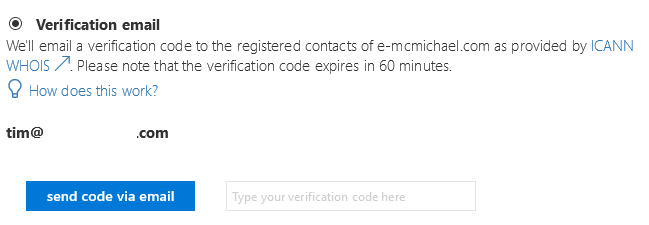
A new validation experience is available to administrators in the portal.  We now allow domain validation to occur by receiving a validation code via email.  This option is present on the “verify domain” tab when adding a new domain to Office 365.


image


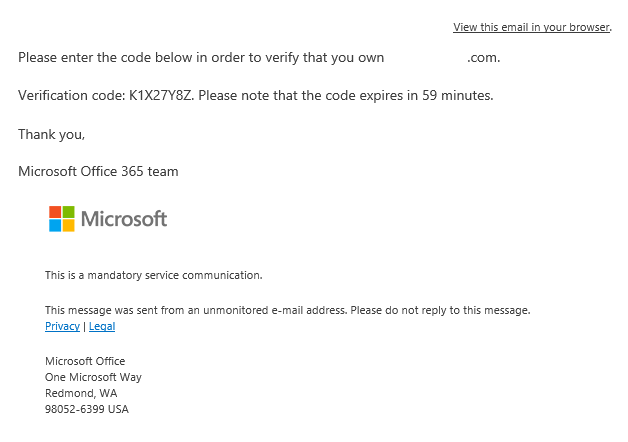
To determine the email address that is utilized for the verification code we leverage the registered contact on the domain as provided by ICANN WHOIS.  If the address displayed is accurate selecting send code via email will generate the validation email.  Here is a sample email received.


image


When the validation email has been received the code can be provided in the portal and the domain validated.


In order to generate the email address displayed Microsoft has worked with third party providers to query the ICANN WHOIS information.  The query occurs against a cached copy of this information.  If administrators have recently transferred domain ownership or updated domain information – it is very possible that the email address we have access to in cache is not valid or out of date. 


If the email address provided in the portal is incorrect – what are the options?  The exact caching period is not disclosed – in theory one option would be to wait and continue until the portal displays the correct information.  If you have access to the email address defined in the portal you can obtain the validation code.  The last option is to select a different method of verification as we will not be able to force a cache update in order to service the verification email if the address is incorrect.

Office 365: Create a report of distribution group usage…

Occasionally we receive customer requests for generation of report data.  Today I received a request where the customer wanted to generate a report of distribution list utilization.  In essence they wanted to understand which distribution lists in their environment were in use.  It sounds like the goal would be to eventually clean up those distribution lists that were not actually being utilized while retaining distribution lists that are in use.


I’m all in favor of a clean GAL – I work with plenty of customers who still seem to have objects around from Exchange 4.0 – so anything I can do to help with the cleanup effort I’m all for.


We do not have a precanned report that allows you to analyze distribution list utilization.  So any form of analysis would force us to get creative.  My idea for solving this particular question was to utilize the message tracking logs.  Since the live message tracking logs contain the last three days worth of message tracing events within Office 365 – we could potentially scan the logs for recipients that were distribution lists and see what we find.  A historical search would probably not be particularly useful since the number of searches were throttled.


In full disclosure I ran this in my lab – which only has a few distribution lists and a few message tracking events.  Your success in a larger environment may vary.


The first step is to gather the groups into a variable.


$groups=Get-DistributionGroup -ResultSize unlimited


This should result in the $groups variable containing a list of groups to process.


$groups

Name                  DisplayName           GroupType PrimarySmtpAddress
—-                  ———–           ——— ——————
All                   All                   Universal All@contoso.com
Board Members         Board Members         Universal Board@contoso.com
Employees             Employees             Universal Employees@contoso.com
EOC-Alert             EOC-Alert             Universal EOC-Alert@contoso.com
TestDL                MigratedDl-TestDL     Universal MigratedDl_8cace652-98f1-4ca9-a2d9-f30f29abffe1_@domain
Office365Notification Office365Notification Universal Office365Notification@contoso.com


Once we have the groups in a variable we can begin the process of searching the message tracking logs. 


PS C:> $groups | %{Get-MessageTrace -RecipientAddress $_.primarysmtpaddress ; write-host (“Processed Group:  ” + $_.primarySMTPAddress) ; Start-Sleep -Milliseconds 500} | export-csv -Path C:Tempoutput.csv –Append


Note that I have incorporated a sleep into our get command to help throttle the request for message tracing data and hopefully relieve some stress on our powershell throttling budget.  In addition I have utilize the append parameter with the CSV file.  I did this assuming that you’d run this maybe once a week for a month to gather some relevant data over 30 days.  This allows that data to be appended to the CSV file.  The write host will provide output to the console on the group being processed to provide some form of process tracking.


PS C:> $groups | %{Get-MessageTrace -RecipientAddress $_.primarysmtpaddress -Verbose; write-host (“Processed Group:  ” + $_.primarySMTPAddress) ; Start-Sleep -Milliseconds 500} | export-csv -Path C:Tempoutput.csv -Append
Processing Group + All@contoso.com
Processing Group + Board@contoso.com
Processing Group + Employees@contoso.com
Processing Group + EOC-Alert@contoso.com
Processing Group + MigratedDl_8cace652-98f1-4ca9-a2d9-f30f29abffe1_@contoso.onmicrosoft.com
Processing Group + Office365Notification@contoso.com


Opening the CSV file in notepad we can validate that information is contained for each of the recipients.


#TYPE Deserialized.Microsoft.Exchange.Management.FfoReporting.MessageTrace
“PSComputerName”,”RunspaceId”,”PSShowComputerName”,”Organization”,”MessageId”,”Received”,”SenderAddress”,”RecipientAddress”,”Subject”,”Status”,”ToIP”,”FromIP”,”Size”,”MessageTraceId”,”StartDate”,”EndDate”,”Index”
“ps.outlook.com”,”e55f3262-ed9d-4d6a-8894-6754f34dc22b”,”False”,”contoso.onmicrosoft.com”,”<FEA02074-3006-4AEA-A0E2-43D47593713B@contoso.com>”,”11/6/2017 2:52:00 PM”,”bmoran@contoso.com.org”,”all@contoso.com.org”,”Tuesday & Wednesday Night Driver”,”Expanded”,,”74.126.52.144″,”19398″,”7731ffda-9297-461a-a0e3-08d52525ef68″,”11/5/2017 1:00:27 AM”,”11/7/2017 1:00:27 AM”,”0″
“ps.outlook.com”,”e55f3262-ed9d-4d6a-8894-6754f34dc22b”,”False”,”contoso.onmicrosoft.com”,”<BN6PR06MB3491B192326AE8CFC6BAC738C3530@BN6PR06MB3491.namprd06.prod.outlook.com>”,”11/5/2017 8:16:40 PM”,”tmcmichael@contoso.com.org”,”all@contoso.com.org”,”Monday, Tuesday, and Wednesday”,”Expanded”,,”2001:4898:8010:1::1ef”,”37249″,”067dc5b4-c38f-4c29-2a1b-08d5248a200a”,”11/5/2017 1:00:27 AM”,”11/7/2017 1:00:27 AM”,”1″
“ps.outlook.com”,”e55f3262-ed9d-4d6a-8894-6754f34dc22b”,”False”,”contoso.onmicrosoft.com”,”<CAPq5dUQaYMxzSZuryF6-T9P0aBipxkWEj0CfzeEd6Wv-O8gQkA@mail.gmail.com>”,”11/6/2017 3:59:42 PM”,”brian@contoso.com”,”board@contoso.com.org”,”Board Meeting Reminder at Station 1″,”Expanded”,,”209.85.128.180″,”31479″,”9eeb9375-7128-452c-0909-08d5252f646a”,”11/5/2017 1:00:28 AM”,”11/7/2017 1:00:28 AM”,”0″


Now that we have the information regarding the DLs that have been sent to – it would be helpful if this data was in a more usable format.


We can import the CSV file into a working variable.


$data=Import-Csv -Path C:Tempoutput.csv


The variable now holds the data to manipulate moving forward.


PS C:> $data

PSComputerName   : ps.outlook.com
RunspaceId       : e55f3262-ed9d-4d6a-8894-6754f34dc22b
Organization     : contoso.onmicrosoft.com
MessageId        : <FEA02074-3006-4AEA-A0E2-43D47593713B@contoso.com>
Received         : 11/6/2017 2:52:00 PM
SenderAddress    : bmoran@contoso.com
RecipientAddress : all@contoso.com
Subject          : Tuesday & Wednesday Night Driver
Status           : Expanded
ToIP             :
FromIP           : 74.126.52.144
Size             : 19398
MessageTraceId   : 7731ffda-9297-461a-a0e3-08d52525ef68
StartDate        : 11/5/2017 1:00:27 AM
EndDate          : 11/7/2017 1:00:27 AM
Index            : 0

PSComputerName   : ps.outlook.com
RunspaceId       : e55f3262-ed9d-4d6a-8894-6754f34dc22b
Organization     : contoso.onmicrosoft.com
MessageId        : <BN6PR06MB3491B192326AE8CFC6BAC738C3530@BN6PR06MB3491.namprd06.prod.outlook.com>
Received         : 11/5/2017 8:16:40 PM
SenderAddress    : tmcmichael@contoso.com
RecipientAddress : all@contoso.com
Subject          : Monday, Tuesday, and Wednesday
Status           : Expanded
ToIP             :
FromIP           : 2001:4898:8010:1::1ef
Size             : 37249
MessageTraceId   : 067dc5b4-c38f-4c29-2a1b-08d5248a200a
StartDate        : 11/5/2017 1:00:27 AM
EndDate          : 11/7/2017 1:00:27 AM
Index            : 1


With the data in a variable – we can utilize the sort method to generate a list of the unique recipients found.


PS C:> $data | select-object recipientaddress -Unique

RecipientAddress
—————-
all@contoso.org
board@contoso.org
eoc-alert@contoso.org
office365notification@contoso.org


This data can also be exported to CSV file for further analysis using the export-csv command.


This may serve as a method to attempt to report on the distribution lists that are in use within an Office 365 tenant.  You can also use the same process for modern groups by replacing get-distributionGroup with get-unifiedGroup.


======================


Edited 11/11/2017


Syntax of powershell command for searching message tracking logs updated.  Processing group was changed to processed group – since the notification comes after the group was processed.  Corrected syntax in write-host so that it displayed feedback accurately.


======================

Office 365: Mail flow delays through third party SPAM gateways…

This week I had a customer present with an interesting issue.  They have a partner company they work with that users a third party spam filtering gateway prior to allowing mail into their on premises environment.  They were observing that emails to this partner company were often delayed.  When engaging with the partner company it was determined that their mail was being greylisted by the third party device.  The reason for the grey listing was due to the fact that the server advertised in the EHLO did not match the name of the server making the underlying connection.


It is not uncommon that the server name listed in the EHLO string does not match the server that is making the underlying outbound connection.  If we were to compare this to on premises concepts I would have a series of servers that act as my mail bridgeheads.  These servers would be subscribed to an outbound send connector – and that send connector would have a fully qualified domain name on it.  Regardless of which outbound bridge head was utilized it would always connect to the remote host and advertise the same EHLO name that would apply to the group through the send connector configuration.


In Office 365 we have a very similar concept.  Our array of bridgeheads each have individual server names and publically routable IP addresses assigned to them.  The names also are available in reverse DNS such that performing a reverse DNS query against the connections IP address would return the name of the individual bridge head making the connection.  When the individual bridgehead connects to a remote SMTP service it issues an EHLO command that represents a namespace that is assigned to a group of servers.  This namespace is resolvable also and also has it’s own corresponding DNS entries.  Let’s take a look at a sample.


I have addressed an email to a user at hotmail.com.  The bridge head that has picked up the connection is NAM01BR5.protection.outlook.com with IP address 192.168.200.1.  When connecting to the MX record for hotmail.com an EHLO is issued.  In this case EHLO NAM01.protection.outlook.com 172.16.16.1.  Notice that NAM01.protection.outlook.com is not NAM01BR5.protection.outlook.com.  In this case the third party gateway performs a reverse DNS lookup on the connecting IP address 192.168.200.1 and discovers that the host connecting is NAM01BR5 and not NAM01.  When this discover is made the solution determines that a SPAM rule has been violated – and bans the connection for 15 minutes then allowing the mail to go through.


Given that it is not uncommon that the EHLO domain advertised does not match the underlying connection this type of checking may be slightly aggressive.  Unfortunately on the Office 365 side the administrator cannot control this therefore all of their email will be delayed by 15 minutes until the third party addresses this configuration.