Author Archives: TIMMCMIC

Office 365 – Distribution List Migration Version 2.0 – Part 11

Improvements in Error Handling in version 2.4.8.x

One of the core goals of version 2 of the Distribution List Migration module is to provide a full fidelity migration. The script incorporates a great deal of error checking to validate necessary dependencies, to track process, and to terminate on critical errors. In some instances, this error handling may have been slightly aggressive.

For example:

  • During recipient validation, the script immediately failed when encountering “recipient not present” in Office 365. If a member of the distribution list was not present in Office 365 the script would immediately fail (and indicate that the user was not present). The issue is that if multiple users are not present and the administrator continues to migrate the same distribution group, the module fails multiple times. In the latest version, the script now performs all prerequisite checks up front and ends after all checks have completed. At the end of the log file there is a section that lists all encountered issues so the admin can take bulk actions as appropriate and then attempt the distribution list migration.


  • After the Office 365 distribution list is successfully created, an attempt to add a proxy address or a member fails. After the distribution list is created in Office 365, the module attempts to mirror the full settings of the on-premises group. This includes resetting all single and multi-valued attributes. If during the distribution list migration, a user was also deleted that was a member of the group, the migration would immediately fail when attempting to add that user. This subsequently would fail all future operations from occurring and require the administrator to perform the rest of the migration manually. The module now attempts to perform operations in bulk, and if an error is encountered the script then attempts each operation individually. For example, if the group contained 300 users update-DistributionGroupMembership is called to attempt to add everyone at one time. If the bulk add fails the module then iterates through each member attempting the add. If an error is encountered the failure is recorded and the module proceeds with the migration. The migration will be marked in a failed state and the summary status at the end of the log file will show all the dependencies that failed. This allows the administrator to evaluate each dependency and make any manual adjustments as required.


  • When completing the migration, the module attempts to reset all on-premises dependencies. When the migration is complete it may become necessary to update resources on premises with the migrated group information. For example, if the migrated distribution list was a member of another distribution group the module automatically adds the mail routing contact to the on-premises distribution list. If the operation to address any of these dependencies failed the entire module would have failed. As with other functions the module now tracks the failures and generates an error report for administrator review.

Here is sample of the log summary section that the administrator could review for a potential manual fix. Each of the errors generated should contain information regarding the object modified, the attribute failed, and a brief description of why the operation failed.

+++++

[10/4/2021 9:23:03 PM] – ++++++++++

[10/4/2021 9:23:03 PM] – MIGRATION ERRORS OCCURED – REFER TO LIST BELOW FOR ERRORS

[10/4/2021 9:23:03 PM] – ++++++++++

[10/4/2021 9:23:03 PM] – +++++

[10/4/2021 9:23:03 PM] –

[10/4/2021 9:23:03 PM] – =====

[10/4/2021 9:23:03 PM] – Distinguished Name: CN=TestErrorHandingCloud,OU=domain.onmicrosoft.com,OU=Microsoft Exchange Hosted Organizations,DC=NAMPR04A004,DC=prod,DC=outlook,DC=com

[10/4/2021 9:23:03 PM] – Primary SMTP Address: TestErrorHandingCloud@domain.onmicrosoft.com

[10/4/2021 9:23:03 PM] – Alias: TestErrorHandingCloud

[10/4/2021 9:23:03 PM] – Display Name: TestErrorHandingCloud

[10/4/2021 9:23:03 PM] – Attribute in Error: Distribution List AcceptMessagesOnlyFromSendersOrMembers

[10/4/2021 9:23:03 PM] – Error Message: Unable to add mail routing contact to Office 365 distribution group. Manual add required.

[10/4/2021 9:23:03 PM] – =====

[10/4/2021 9:23:03 PM] – =====

[10/4/2021 9:23:03 PM] – Distinguished Name: CN=TestErrorHandingCloud,OU=domain.onmicrosoft.com,OU=Microsoft Exchange Hosted Organizations,DC=NAMPR04A004,DC=prod,DC=outlook,DC=com

[10/4/2021 9:23:03 PM] – Primary SMTP Address: TestErrorHandingCloud@domain.onmicrosoft.com

[10/4/2021 9:23:03 PM] – Alias: TestErrorHandingCloud

[10/4/2021 9:23:03 PM] – Display Name: TestErrorHandingCloud

[10/4/2021 9:23:03 PM] – Attribute in Error: Distribution List BypassModerationFromSendersOrMembers

[10/4/2021 9:23:03 PM] – Error Message: Unable to add mail routing contact to Office 365 distribution group. Manual add required.

[10/4/2021 9:23:03 PM] – =====

[10/4/2021 9:23:03 PM] – =====

[10/4/2021 9:23:03 PM] – Distinguished Name: CN=TestErrorHandingCloud,OU=domain.onmicrosoft.com,OU=Microsoft Exchange Hosted Organizations,DC=NAMPR04A004,DC=prod,DC=outlook,DC=com

[10/4/2021 9:23:03 PM] – Primary SMTP Address: TestErrorHandingCloud@domain.onmicrosoft.com

[10/4/2021 9:23:03 PM] – Alias: TestErrorHandingCloud

[10/4/2021 9:23:03 PM] – Display Name: TestErrorHandingCloud

[10/4/2021 9:23:03 PM] – Attribute in Error: Distribution List GrantSendOnBehalfTo

[10/4/2021 9:23:03 PM] – Error Message: Unable to add mail routing contact to Office 365 distribution group. Manual add required.

[10/4/2021 9:23:03 PM] – =====

[10/4/2021 9:23:03 PM] – =====

[10/4/2021 9:23:03 PM] – Distinguished Name: CN=TestErrorHandingCloud,OU=domain.onmicrosoft.com,OU=Microsoft Exchange Hosted Organizations,DC=NAMPR04A004,DC=prod,DC=outlook,DC=com

[10/4/2021 9:23:03 PM] – Primary SMTP Address: TestErrorHandingCloud@domain.onmicrosoft.com

[10/4/2021 9:23:03 PM] – Alias: TestErrorHandingCloud

[10/4/2021 9:23:03 PM] – Display Name: TestErrorHandingCloud

[10/4/2021 9:23:03 PM] – Attribute in Error: Distribution List ManagedBy

[10/4/2021 9:23:03 PM] – Error Message: Unable to add mail routing contact to Office 365 distribution group. Manual add required.

[10/4/2021 9:23:04 PM] – =====

[10/4/2021 9:23:04 PM] – =====

[10/4/2021 9:23:04 PM] – Distinguished Name: CN=TestErrorHandlingDynamic,OU=domain.onmicrosoft.com,OU=Microsoft Exchange Hosted Organizations,DC=NAMPR04A004,DC=prod,DC=outlook,DC=com

[10/4/2021 9:23:04 PM] – Primary SMTP Address: TestErrorHandlingDynamic@domain.onmicrosoft.com

[10/4/2021 9:23:04 PM] – Alias: TestErrorHandlingDynamic

[10/4/2021 9:23:04 PM] – Display Name: TestErrorHandlingDynamic

[10/4/2021 9:23:04 PM] – Attribute in Error: Distribution List AcceptMessagesFromSendersOrMembers

[10/4/2021 9:23:04 PM] – Error Message: Unable to add mail routing contact to Office 365 dynamic distribution group. Manual add required.

[10/4/2021 9:23:04 PM] – =====

[10/4/2021 9:23:04 PM] – =====

[10/4/2021 9:23:04 PM] – Distinguished Name: CN=TestErrorHandlingDynamic,OU=domain.onmicrosoft.com,OU=Microsoft Exchange Hosted Organizations,DC=NAMPR04A004,DC=prod,DC=outlook,DC=com

[10/4/2021 9:23:04 PM] – Primary SMTP Address: TestErrorHandlingDynamic@domain.onmicrosoft.com

[10/4/2021 9:23:04 PM] – Alias: TestErrorHandlingDynamic

[10/4/2021 9:23:04 PM] – Display Name: TestErrorHandlingDynamic

[10/4/2021 9:23:04 PM] – Attribute in Error: Distribution List BypassModerationFromSendersOrMembers

[10/4/2021 9:23:04 PM] – Error Message: Unable to add mail routing contact to Office 365 dynamic distribution group. Manual add required.

[10/4/2021 9:23:04 PM] – =====

[10/4/2021 9:23:04 PM] – =====

[10/4/2021 9:23:04 PM] – Distinguished Name: CN=TestErrorHandlingDynamic,OU=domain.onmicrosoft.com,OU=Microsoft Exchange Hosted Organizations,DC=NAMPR04A004,DC=prod,DC=outlook,DC=com

[10/4/2021 9:23:04 PM] – Primary SMTP Address: TestErrorHandlingDynamic@domain.onmicrosoft.com

[10/4/2021 9:23:04 PM] – Alias: TestErrorHandlingDynamic

[10/4/2021 9:23:04 PM] – Display Name: TestErrorHandlingDynamic

[10/4/2021 9:23:04 PM] – Attribute in Error: Distribution List GrantSendOnBehalfTo

[10/4/2021 9:23:04 PM] – Error Message: Unable to add mail routing contact to Office 365 dynamic distribution group. Manual add required.

[10/4/2021 9:23:04 PM] – =====

[10/4/2021 9:23:04 PM] – =====

[10/4/2021 9:23:04 PM] – Distinguished Name: CN=TestErrorHandlingUniversal_791e15e2-2633-4391-a80e-4cbdb935c027,OU=domain.onmicrosoft.com,OU=Microsoft Exchange Hosted Organizations,DC=NAMPR04A004,DC=prod,DC=outlook,DC=com

[10/4/2021 9:23:04 PM] – Primary SMTP Address: TestErrorHandlingUniversal@domain.onmicrosoft.com

[10/4/2021 9:23:04 PM] – Alias: TestErrorHandlingUniversal

[10/4/2021 9:23:04 PM] – Display Name: TestErrorHandlingUniversal

[10/4/2021 9:23:04 PM] – Attribute in Error: Distribution List AcceptMessagesOnlyFromSendersOrMembers

[10/4/2021 9:23:04 PM] – Error Message: Unable to add mail routing contact to Office 365 univeral modern distribution group. Manual add required.

[10/4/2021 9:23:04 PM] – =====

[10/4/2021 9:23:04 PM] – =====

[10/4/2021 9:23:04 PM] – Distinguished Name: CN=TestErrorHandlingUniversal_791e15e2-2633-4391-a80e-4cbdb935c027,OU=domain.onmicrosoft.com,OU=Microsoft Exchange Hosted Organizations,DC=NAMPR04A004,DC=prod,DC=outlook,DC=com

[10/4/2021 9:23:04 PM] – Primary SMTP Address: TestErrorHandlingUniversal@domain.onmicrosoft.com

[10/4/2021 9:23:04 PM] – Alias: TestErrorHandlingUniversal

[10/4/2021 9:23:04 PM] – Display Name: TestErrorHandlingUniversal

[10/4/2021 9:23:04 PM] – Attribute in Error: Distribution List GrantSendOnBehalfTo

[10/4/2021 9:23:04 PM] – Error Message: Unable to add mail routing contact to Office 365 universal modern distribution group. Manual add required.

[10/4/2021 9:23:04 PM] – =====

[10/4/2021 9:23:04 PM] – =====

[10/4/2021 9:23:04 PM] – Distinguished Name: CN=TestErrorHandingCloud,OU=domain.onmicrosoft.com,OU=Microsoft Exchange Hosted Organizations,DC=NAMPR04A004,DC=prod,DC=outlook,DC=com

[10/4/2021 9:23:04 PM] – Primary SMTP Address: TestErrorHandingCloud@domain.onmicrosoft.com

[10/4/2021 9:23:04 PM] – Alias: TestErrorHandingCloud

[10/4/2021 9:23:04 PM] – Display Name: TestErrorHandingCloud

[10/4/2021 9:23:04 PM] – Attribute in Error: Distribution List Membership

[10/4/2021 9:23:04 PM] – Error Message: Unable to add mail routing contact to Office 365 distribution group. Manual add required.

[10/4/2021 9:23:04 PM] – =====

[10/4/2021 9:23:04 PM] –

[10/4/2021 9:23:04 PM] – +++++

[10/4/2021 9:23:04 PM] – ++++++++++

[10/4/2021 9:23:04 PM] – Errors were encountered in the distribution list creation process requireing administrator review.

[10/4/2021 9:23:04 PM] – Although the migration may have been successful – manual actions may need to be taken to full complete the migration.

[10/4/2021 9:23:04 PM] – ++++++++++


If there are critical operations that should still trigger a failure (for example, failure to create the distribution list in Office 365) a hard stop will still occur. But by aggregating minor errors, migration can proceed while flagging issues for administrator review at a later time.

Office 365 – Distribution List Migration Version 2.0 – Part 10

Improvements and code fixes in version 2.4.

This week, version 2.4 of the Distribution Migration Version 2 module was released to the PowerShell gallery. This release includes several quality improvements based on customer feedback. I want to personally thank those of you who provided feedback.

Here are some of the highlights in this release.

Corrected retention of sender authentication required

In prior versions of the module, the migration failed to retain the require sender authentication setting of the on-premises distribution group. When using Exchange Management Shell, the sender authentication value is displayed as false while the actual Active Directory attribute may be NULL. The only time the sender authentication attribute is not NULL is when the property has been explicitly set on the group to either TRUE of FALSE. Correct code was introduced that automatically interprets NULL as FALSE (the default value) or retains the customizations if the property has been set on the group.


Corrected a code condition leading to the abnormal termination of the start-collect functions

When administrators would use the pre-collection functions to gather recipient permissions, the commands would abnormally stop and terminate their associated PowerShell sessions. This issue is now fixed, and PowerShell sessions are terminated only at the conclusion of collection.


When using enable hybrid mail flow the search for the routing contact may fail if the distinguished name contains escape characters / special characters

Some distribution lists contain special characters (for example, # in the name of the list). When the distinguished name of the group is provisioned these characters become \# in the distinguished name. To locate objects during migration, get-ADObject is used to filter objects based on the distinguished name value. Unfortunately, this is extremely literal, and the search is performed for \# rather than replacing the character with just #. This routinely resulted in the search for the mail contact failing when using the enable hybrid mail flow option. The mail address of the contact is the original address including -MigratedByScript. This creates an easy query to find the object based on mail address rather than distinguished name. Modifications were made to calculate the mail address and locate it by this address rather than distinguished name.


Migrations failing with group cannot be found in local Active Directory when using bulk migrations.

In migration examples for bulk migrations the input file examples are a list of email addresses with each line terminating in a new line character. In some instances, these lists are generated from Exchange. For example:

Get-distributionGroup MigrateTest* | select-object PrimarySMTPAddress | out-file c:\groups.txt.

When the file is created there was often an additional space at the end of the line before the new line. When the file was imported, the query against Active Directory would occur with the address including the space, resulting in “object not found.” The script now checks all user input strings to ensure that any trailing or leading spaces are removed.


Migrations would fail when creating the Office 365 distribution list of a proxy address contained a domain not present in Office 365

It is possible (depending on implementation) that an accepted domain exists on-premises but was not added to the Office 365 tenant where the distribution list is being migrated. Earlier versions did not test for accepted domain creation and if the group to be migrated contained one of these accepted domains, attempts to update the proxy addresses failed. The code now checks all accepted domains on the group being migrated, and if none are found in Office 365, it skips the group and logs the event. This allows the administrator to evaluate if the proxy address should be functional in Office 365 or removed from on-premises to allow the migration to proceed.


Improved handling if the group is a co-manager of another object

ManagedBy is a single valued attribute in Active Directory. It is possible in Exchange to establish multiple managers of a group. When multiple managers are specified – the first manager is placed in the managedBy attribute, and the remaining are added to the msExchCoManagedBy attribute. Prior to version 2.4, the co-managed attribute of other objects was not filtered. The new version filters for co-managers and ensures that the mail contact used to track migrated resources is replaced on that list thereby preserving managed by for migrations of other lists.


Handling other managed-by scenarios that do not involve groups

The managed by attribute also applies to machine accounts within Active Directory. It is possible to specify a security group as a manager of a computer object. The script looks at the managed by backlink and attempts to update all objects with the mail contact that was migrated. In this instance, this will not work for machine accounts (especially machine accounts that are domain controllers). The script now filters all objects out of the managed by list that are not groups. If a found object is not a group, the retain group override is automatically set to TRUE, ensuring that the original group is kept. This ensures that any security permissions assigned to the group are not lost in this known case.


Improved handling of send as permissions

On a distribution list, send as permissions are an extension of the Active Directory access control list (ACL) entry sendAs. This right is assigned as an ACL entry within the directory. As with many ACLS, when a user or object is added with permissions, the SID of the object is added to the ACL. Tools that manage Active Directory convert the ACL into a display name (usually domain\samAccountName for display purposes). If the user on the ACL is deleted, there is no process that removes these entries from the ACL. This means that the entry is orphaned and the domain\samAccountName no longer resolves to the SID; therefore, the SID is displayed as the entry. The script originally assumed that the identity reference was always in the format of domain\samAccountName. When the script encountered a SID, it was unable to locate the AD configuration for that object (since it was deleted). Windows SIDs start with S-1-5. The script now looks at the identity references on the access control list and if a SID is discovered, it is ignored. It is safe to ignore the SID since the ACL was not valid anyway due to the account not being present in the directory.

Office 365 – Distribution List Migrations Version 2.0 – Part 9

A common request from customers using the distribution list migration module is the ability to batch migrations together. When doing multiple individual distribution list migrations each thread invokes Active Directory replication and Azure Active Directory Connect operations separately. We’re thrilled to announce that version 2.3.4, can now perform multiple batched distribution list migrations!

Originally, the main functions of the module worked on a single object, and of course PowerShell is not known for being easily multi-threaded. This presented challenges when creating a module that allows both for single distribution list migrations and multiple distribution list migrations. To overcome these challenges, we added a controller function that is responsible for collecting the primary parameters and SMTP addresses to be processed. The controller then breaks the list of SMTP addresses into groups of no more than five simultaneous migrations (we chose five to manage memory overhead on the host and to prevent overloading or throttling).

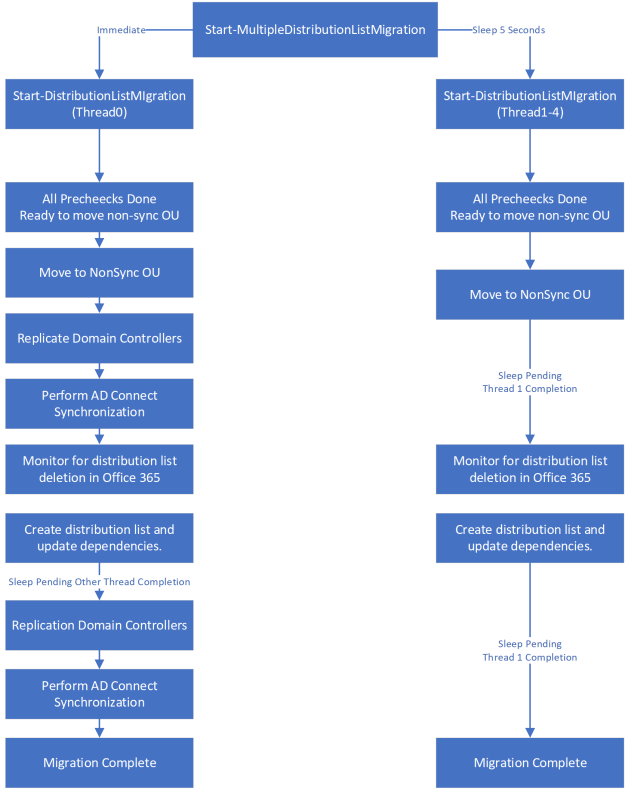
The controller uses PowerShell jobs, and each job provisioned is a single instance of the distribution list migration. In an effort to ensure repeated directory replication and Azure replication does not occur, we added new code that monitors a central file directory for status files. Each thread writes status files to the directory when the migration process reaches certain points. When all threads have acknowledged reaching the designated points in the migration flow, the controller script continues with certain functions. For example, during the migration, distribution lists need to move to an organizational unit (OU) that does not sync. This process deletes the distribution list from Office 365. We would not want a small list moved earlier than others, as this can result in the distribution list being unavailable for a longer period of time. Therefore, the threads wait until all are ready to move to the non-syncing OU, at which time the migration process moves all groups. The following flow chart shows an example of thread coordination between individual migration instances.

The controller is also responsible for monitoring job completion. Job completion does not mean the distribution group successfully migrated; it means the job attached to the individual migration is not in a running state. For example, if the migration fails for any reason, the process considers the job as failed. If the migration completes successfully, the process considers the job as completed. When the controller detects that all provisioned threads are no longer running, the process deletes the jobs. If more than five distribution lists are in the array, the controller continues to provision jobs in batches of no more than five until all jobs have been attempted.

When running individual migrations, administrators can choose to keep folder permissions or Send As rights, and the discovery of these permissions can occur during the migration. This can be a long and memory-intensive process. If an admin wants to scan for and retain options like full mailbox access, folder permissions, and Send As rights, you must first run the collection scripts. The collection scripts create offline files that can be imported and scanned as a part of the bulk migration process. The script does not support live collection of this data as a part of each individual migration.

How do I perform a multi-distribution list migration?

The first step to performing a migration of multiple distribution lists is building the list of distribution lists to be migrated. For ease of testing, I created a text file and saved it as bulk.txt. The text file contains the SMTP address of each group to be migrated, which is then imported into a variable.

For example:

TestGroup0@contoso.com
TestGroup1@contoso.com
TestGroup2@contoso.com
TestGroup3@contoso.com
TestGroup4@contoso.com
TestGroup5@contoso.com
TestGroup6@contoso.com
TestGroup7@contoso.com

$groups = get-content c:\data\bulk.txt

With the groups stored in a variable, I can define the rest of the variables for migration, including machine names, permissions, and file storage locations. The following command is used to invoke a sample multi-distribution list migration.

Sample command for performing pre-collection:

Start-MultipleDistributionListMigration -groupSMTPAddresses $groups -globalCatalogServer GC.domain.com -activeDirectoryCredential $onpremcred -logFolderPath c:\temp -aadConnectServer aadConnect.domain.com -aadConnectCredential $onpremcred -exchangeServer exchange.domain.com -exchangeCredential $onpremcred -exchangeOnlineCredential $cloudCred –azureADCredential $cloudCred -useCollectedFullMailboxAccessOnPrem:$TRUE -useCollectedFullMailboxAccessOffice365:$TRUE -useCollectedSendAsOnPrem:$TRUE -useCollectedFolderPermissionsOnPrem:$TRUE -useCollectedFolderPermissionsOffice365:$TRUE -triggerUpgradeToOffice365Group:$TRUE -enableHybridMailflow:$TRUE -dnNoSyncOU “OU=DoNotSync,DC=domain,DC=com”

Sample command for performing migration and enabling hybrid mail flow for the group:

Start-MultipleDistributionListMigration -groupSMTPAddresses $groups -globalCatalogServer GC.domain.com -activeDirectoryCredential $onpremcred -logFolderPath c:\temp -aadConnectServer aadConnect.domain.com -aadConnectCredential $onpremcred -exchangeServer exchange.domain.com -exchangeCredential $onpremcred -exchangeOnlineCredential $cloudCred –azureADCredential $cloudCred  -enableHybridMailflow:$TRUE -dnNoSyncOU “OU=DoNotSync,DC=domain,DC=com”

Sample command for performing migration:

Start-MultipleDistributionListMigration -groupSMTPAddresses $groups -globalCatalogServer GC.domain.com -activeDirectoryCredential $onpremcred -logFolderPath c:\temp -aadConnectServer aadConnect.domain.com -aadConnectCredential $onpremcred -exchangeOnlineCredential $cloudCred –azureADCredential $cloudCred -dnNoSyncOU “OU=DoNotSync,DC=domain,DC=com”

The log directory specified in the above command serves as the location for the storage of all logs and thread tracking files. In the specified directory is the Master directory which contains the log file associated with the controller responsible for provisioning the jobs and monitoring job status. Each thread has a separate thread folder created with the thread number. It is in this folder that the individual threads create a logging directory for each distribution list being migrated. This is where administrators may locate the folders for each migration indicating success or failure of the individual distribution lists. The status directory created in this folder is where each thread logs the thread status as each migration progresses. A file created in this directory indicates that the individual threads migration have reached a pre-determined location in code and are waiting for all other threads to remember the same place. The audit data directory may also exist if pre-collection was performed. This is the fixed directory where the offline storage files are located and will be read during the migration process.

In summary, this change now allows administrators to migrate distribution lists faster and with the same efficiency as individual migrations.

Office 365 – Distribution List Migration Version 2.0 – Part 8

Over the last several weeks, I have had the pleasure of speaking with multiple customers that have tested and deployed the Distribution List Migration Module V2. The feedback I received has been very helpful and based on it, I’ve made several changes and improvements to the module. I want to take an opportunity to explore some of the changes I made.

Improved migration experience for versions of Exchange older than Exchange 2016

The Exchange 2016 schema added some attributes to Active Directory that may be stamped on distribution lists. These attributes do not exist in the Exchange 2010 or Exchange 2013 schema. My original code defined the group of Active Directory attributes to be cleared based on Exchange 2016. For older versions of Exchange (or when an Exchange server was specified for use during the migration) distribution lists would be disabled using Disable-DistributionGroup. This proved on several occasions to be unreliable and resulted in a failure to disable the distribution group. New code was introduced that scans Active Directory for the schema version of Exchange in use – and adjusts the Active Directory attributes to be cleared accordingly. To ensure a more reliable experience disabling the distribution group, Active Directory PowerShell commands using the appropriate Exchange version attributes are used to disable the group.

Elimination of pro-active sleeps in response to occasional timing failures

During testing, it was noted that attempts to gather information for newly created objects would often fail when the object was created and then immediately queried. For example, when the new distribution list is created in Office 365, the code would immediately search for it, and in almost all circumstances, it would not be found, resulting in an error. Earlier versions of the module handled this by implementing proactive sleeps in between the creation and recording functions. In some cases, the sleep was not long enough and in other cases it was unnecessary, but either way they increased the overall migration time. The sleeps have been eliminated and replaced with a retry logic that allows the migration to immediately proceed if the sleep is not required.

Enhanced retry logic to handle expected failures and retry operations before hard failing the migration

New logic was introduced surrounding main functions within the script to allow the script to retry operations in the event a single function call fails. For example, if the script tries to locate an object in the directory immediately after creation and fails, a sleep is invoked. The script then tries for a pre-designated number of times to retry the operation before considering the operation as failed. This has improved the migration efficiency and success in larger environments where there may be additional factors outside the migration that caused commands to fail.

Improved sleep status

When a sleep was invoked a single line was written to the screen. Depending on the duration this could give the appearance that the script was hung or not proceeding. A new sleep function was introduced to provide a count down of the sleep operation so that visual feedback is available to the administrator.


Improved handling of multi-valued attributes

There are several multi-valued attributes that exist on a distribution group. For example, membership, accept messages from, and reject messages from. In older versions of the module, logic was used to step through each individual member and add them to their respective multi-valued attribute. For example, if there were 100 members, each member was evaluated individually and added to the group. New logic was introduced in newer versions that pre-creates the arrays of users to add and then adds them to their respective multi-valued attributes in a single operation. This improves the efficiency of the script. It also acts as a reset operation for the value, so when the group is created and the administrator creating it is automatically added as a member or manager, these are overwritten with only the values that existed on the on-premises group.

Improved memory utilization

In order to perform evaluations and recording of object permissions such as Send As and Full Mailbox Access the script has to discover and record all recipients either on-premises or in Office 365. Older versions of the module used large get commands to record the set of objects for evaluation by other functions. PowerShell by default returns all attributes with a given object which resulted in a significant amount of overhead for recording recipients, even though all that was required for future evaluation as the recipients identity and primary SMTP address. The module continues to utilize broad get commands but scopes the objects return values to just those necessary for further evaluation. By comparison, in older versions of the module for 10,000 Exchange Online recipients, a single migration took roughly 1.5 GB of memory. With the scoped changes, the same 10,000 recipients now consume only around 300 MB of memory for a single migration.

Improved status for collection and audit commands

The PowerShell module contains several functions to allow administrators to pre-audit data that is expensive to get during an interactive migration. For example, collecting all Send As permissions for all objects in Office 365 and storing them for evaluation during each distribution list migration. The collection commands use the PowerShell status function to keep the administrator notified of progress. The status function now includes the recipient number currently being processed, as well as the total number of expected recipients to process in the notification (e.g., “processing mailbox 100 of 499“). This small improvement allows for a better understanding of collection status.

Improved performance for collection and audit commands

The collection and audit commands are documented and expected to be long-running commands due to the nature of evaluating each object. Performance improvements were introduced to the Exchange Online Management Shell v2 command that’s used to do work that takes advantage of root hints. This prevents the command endpoint from having to proxy the command to another location. This has produced almost a fourfold improvement in data collection and resulted in no retry operations for the duration of the collection. Processing around 13,000 Exchange Online recipients for mailbox folder permissions now takes approximately 19 hours; in previous releases, it took over two days.

New handling for dynamic distribution groups

As with standard distribution groups, dynamic distribution groups in both Exchange Online and Exchange on-premises can have restrictions set on them. For example, accept messages from, reject messages from, and managed by. Updated versions of the module now evaluate dynamic distribution groups in both environments and track any dependencies that need to be replaced by the migrated distribution group.


Office 365: Guest accounts do not appear in the global address list.

In Azure Active Directory administrators may invite external parties through the B2B Guest Invitation process. A common method of inviting guests is to utilize Azure PowerShell to create the invitation. For more information on utilizing PowerShell to perform these invitations see the following.


New-AzureADMSInvitation (AzureAD) | Microsoft Docs


The invitation process allows an administrator to specify an account type as either member or guest using the switch -InvitedUserType. In the default invitation the type of account is guest.


I recently had a customer who was performing bulk provisioning of guest accounts. Their expectation is that post acceptance and account creation the user would appear in the Exchange Online global address list. These users were not appearing in the global address list. This is by design. The Exchange Online provisioning process only adds users to the global address list if the guest account type is member. In this instance the account type would need to be changed to member or the invitation removed and resent specifying the member type. Only administrators can issue invitations that contain the invited user type. End users performing invitations through related services can only invite guest type accounts.

Azure Conditional Access Policies and Exchange Active Sync

Azure conditional access policies provide a broad range of settings that administrators can utilize to enforce protections in their environment. It is common to see policies that attempt to control mobile device access to Exchange Online – and apply to a common protocol Exchange Active Sync.


I recently worked an interesting escalation where a customer was reporting a behavior I had not previously noticed. In this case the customer created a policy that applied to mobile devices and Exchange Active Sync – the policy contained a set of criteria to block access. The specifics of the overall policy did not matter – just that it contained a block action and applied to Exchange Active Sync.


When we reviewed the sign on events for a particular user – we discovered the following:

  • The sign on was successful.
  • Conditional access failed due to meeting a policy where a block was applied.


Here is a sample logon from the sign on logs we were able to gather from the customer.


Date:2021-06-21 02:30:18

User:UPN

User Name:NAME

Application:Office 365 Exchange Online

Status:Success (0)

Is Interactive:True

IP address:IPAddress

Client App:Exchange ActiveSync

Device ID:N/A

Device OS:Android

Device Browser:N/A

Location:El Progreso, Yoro, HN

Correlation Id:af236446-b0f4-47e5-9b00-ddbcce28baba

Conditional Access:failure

Request Id:73ceb107-3015-496e-9715-1882316c7301

MFA Required:No

Risk State:none

Risk Level (aggregate):none

Risk Level (real-time):none

Risk Detail:none

Risk Event Types:N/A

Alternate SignIn Name:UPN


Naturally this lead to the question of how a sign on could be “success” and conditional access “failed”. Typically when conditional access encounters a policy that applies with a block action – the sign on is “failed” and conditional access is “failed”. The expectation in this instance was that the sign on would be blocked in Azure Active Directory – this information seems to contradict that expectation.


In this particular instance what we were observing is expected. When a conditional access policy applies to Exchange Active Sync and contains a block action – Azure Active Directory does not block the access. In this instance a good user name and password was passed so an access token was granted. When the conditional access policy was evaluated and a determination that a block should occur was made – the overall request was tagged with a blocked action. Unlike other conditions where Azure Active Directory performs the block – the request is forwarded to Exchange Online tagged with the blocked action. Azure AD relies on Exchange Online to process the block and prevent the device from accessing any data.


Why is this by design? When it comes to mobile devices Azure Active Directory and Exchange Online share some overlap. In Exchange Online you also have the concept of approved devices, quarantined devices, and other device policies. By passing the flags into Exchange Online this allows Exchange Online to evaluate the device and any policies that may exist there. For example, repeated bad logon attempts or bad user name / passwords may result in the device being quarantined in Exchange Online.


Ultimately this issue was discovered because the user was flagged in Cloud App Security. Cloud App Security was identifying a successful logon from a location where logons were not desired. In this instance – that’s correct. The logon was successful and did occur from a location the user was prevented access.


In the long term a change is being evaluate to more accurately reflect the conditions. The anticipated change will log a failure for the sign on when the protocol is Exchange Active Sync and the conditional access status is failed. This should allow for more accurate reporting and less ambiguity about the outcome of the sign on operation from an Azure Active Directory standpoint.

Azure Active Directory, SAML Application, and persistent timeouts.

For the last several days I’ve been working with a customer that had a third party SAML application published in Azure Active Directory. They were engaging us to look at what appeared to be an odd behavior in the sign on / authentication experience of the user.

In this particular scenario the application was browser based and being accessed through the third party site. The third party site was configured for SAML based authentication to Azure. During the session the user would utilize the applications sign out functionality. The expectation at this time was that the user would be able to reopen the connection to the third party application and not be redirected for authentication. In testing this appeared to be true – a user was not prompted for credentials again in the first day. If the user came back after 72 hours they were re-prompted for credentials.

Our original working assumption was that the reason for the authentication was how the token lifetime was being interpreted. Using fiddler we observed the following scenario:

  • User accesses an internal company portal and selects the application.
  • The user is redirected to the third party applications website and selects to sign on.
  • The sign on request is redirected to Azure via login.microsoftonline.com.
  • The request does not come with an existing authentication cookie. The request is redirected to the federation endpoint on-premises.
  • The user authenticates to the forms based authentication endpoint in the federated on-premises solution.
  • The token is returned to login.microsoftonline.com.
  • The authentication session is returned to the third party.


We can see in the federation return that the persistent authentication cookies were set. Here is a sample cookie from fiddler.


Set-Cookie: ESTSAUTHPERSISTENT=0.ASkARErL9Yw2dU2I89hHRJ_-smKmQ_mBm_pHo39NBcMffS8pABo.AgABAAQAAAD–DLA3VO7QrddgJg7WevrAgDs_wQA9P_SAKceI10neWuC-T3WHd5fGMRQVB9AyIBljUtpDvE14VkEpbtaaiI0m3HGAtAyeBD9aMwnK6QPi3ZVWoKrQQyuxbxxi4bJLAgaXlvn5PXZmtkE349poyoDJww5kkRVlHRvzcj57or9hSCo5XRafA8kSRZGKjR9sK4qzOCattU2WVUEsFfR836mQtE6ngGog_FFtVh6lv2q-7mCo0EvRINEAL5bjgLHVNYwLAoQEhV25DuYLC8pUdt3CbjUkPpoEqSVwYp-a43hR0ka_B68pNy82eDLVcqbguaPOsSDX9lGHbgO2HlEi0alDiULSQ68N–zuVEKzTlI4wGyPdS-YQR1DwTgmrNRlshyGcG5uNVnibvxscLAQA9qwNOcOXBHLFNV3EUeIQqBLj0CThVIKEJ4-Kc2waT1rRV3f3Z_OxalNM4A7RAx_XZc0no7hTqReWbdBmSGLXXa2m7d3c9wrd_7toV3Iv0uOtU0n86zkqw; domain=.login.microsoftonline.com; expires=Sun, 22-Aug-2021 14:14:07 GMT; path=/; secure; HttpOnly; SameSite=None


The date highlighted in red was 90 days from the date of the request. This leads us to reasonably believe that the federated solution is returning a token for the full expected validity period.


The next step was looking at any legacy token issuance policies. In this case the Azure tenant had no custom token issuance policies so there would be no intentional override of the token lifetimes.


Following the review of token issuance policies we dug deeper into the sign on logs. A review of the individual sign on showed nothing out of the ordinary. There were no conditional access policies that would have impacted token lifetime.


At this point it remained a mystery as to why the users were re-prompted for authentication. Remember – the symptoms we were investigation were users were only re-prompted for authentication after 72 hours.


Collecting further information our engineering teams were engaged to review the sign on logs. This is when the scenario unfolded further. Our engineering team returned with an answer this was by design. The azure session associated with the authentication expired after 24 hours of inactivity. I thought the timeout only occurred at 72 hours? With further work we discovered that after the initial logon the second test of access was being performed within 24 hours. In this case the tenant was configured to not display the keep me signed in dialog on sign on. The keep me signed in dialog is a decision offered to the user that sets a persistence value for the session (not the authentication token). When persistence is disabled – the session is configured with a rolling 24 hour expiration. In this case the test was performed within the 24 hours – which reset the last session access time and added 24 more hours. Testing was discontinued and we returned greater than 24 hours after the test at which time the user was re-prompted for authentication. To review the scenario:


  • User accesses an internal company portal and selects the application.
  • The user is redirected to the third party applications website and selects to sign on.
  • The sign on request is redirected to Azure via login.microsoftonline.com.
  • The request does not come with an existing authentication cookie. The request is redirected to the federation endpoint on-premises.
  • The user authenticates to the forms based authentication endpoint in the federated on-premises solution.
  • The token is returned to login.microsoftonline.com.
  • The authentication session is returned to the third party.
  • Within 24 hours the user repeats the test.
  • User accesses an internal company portal and selects the application.
  • The user is redirected to the third party applications website and selects to sign on.
  • The sign on request is redirected to Azure via login.microsoftonline.com.
  • A valid authentication token exists and the session is valid.
  • The user is not re-prompted for credentials.
  • User access an internal company portal and selects the application two days later.
  • The user is redirected to the third party applications website and selects to sign on.
  • The sign on request is redirected to Azure via login.microsoftonline.com.
  • The request comes with an existing authentication token – the associated session in Azure is now invalid. The request is redirected to the federation endpoint on-premises.
  • The user authenticates to the forms based authentication endpoint in the federated on-premises solution.
  • The token is returned to login.microsoftonline.com.
  • The authentication session is returned to the third party.


In the end the desire is that the user not be re-prompted and to understand the authentication flow in play here. If you desired to control this – how would this be controlled.


The first step would be to create a conditional access policy that applies to this application and includes any scoping filters desired. In this policy you can override the persistence flag and set the connection to be persisted. This eliminates the 24 hour session timeout and places the session on a rolling 90 day expiration. This coincides with the default token time issued – and would result in the user being prompted after 90 days. If you wanted to control this even further – you would also add sign on frequency and specify a number of days or hours. The sign on frequency would override the 90 day rolling session – by invaliding authentication at the designated time. This would force the user to re-authenticate. The authentication experience would differ in overall experience depending on the single sign on state of the federation configuration.


For more information see:

Azure Active Directory Smart Lockout and Bad Password Attempts

Azure Active Directory allows administrators to gate bad password attempts through the use of smart lockout. For information on the application of this feature see:

Prevent attacks using smart lockout – Azure Active Directory | Microsoft Docs

Mitigate credential attacks – Azure AD B2C | Microsoft Docs

I recently worked an interesting escalation where the customer established a smart lockout was configured to trigger block actions at 5 bad password attempts. As the customer was testing this solution they discovered that they were able to, on occasion, pass more than 5 bad password attempts before the user was locked out.

We were able to prove this by initiating a test and reviewing the sign on logs. The sign on logs showed rapid bad password attempts that in this instance locked the account out at 8 attempts.

Why was the actor allowed to pass 8 bad passwords when the lockout is 5? Each azure data center processes the bad passwords and lockout counts independently.

Each Azure AD data center tracks lockout independently. A user has (threshold_limit * datacenter_count) number of attempts, if the user hits each data center.”


In this instance the collective number of attempts reached a limit where smart lockout was engaged. This does not mean that smart lockout did not work – it just worked as designed in the current implementation. Our engineering groups indicated that they’re continuing to refine this process to account for multi-datacenter processing.

Azure Active Directory and Duplicate Proxy Addresses with Guest Accounts

In Azure Active Directory administrators and end users can invite external parties to access their resources through guest accounts. When a resource is accessed a guest account is provisioned in the tenant that shared the source.

Here is a sample of a guest account provisioned as the result of accessing a one drive sharing link.


PS C:\> Get-AzureADUser -ObjectId 2812ee91-3822-4b0e-b650-f9d57a4ac5bd | fl


ExtensionProperty : {[odata.metadata, https://graph.windows.net/f7d9d2a4-dded-4f6f-90a9-5011281137b9/$meta

data#directoryObjects/@Element], [odata.type, Microsoft.DirectoryServices.User],

[createdDateTime, 6/14/2021 2:31:01 PM], [employeeId, ]…}

DeletionTimestamp :

ObjectId : 2812ee91-3822-4b0e-b650-f9d57a4ac5bd

ObjectType : User

AccountEnabled : True

AgeGroup :

AssignedLicenses : {}

AssignedPlans : {}

City :

CompanyName :

ConsentProvidedForMinor :

Country :

CreationType :

Department :

DirSyncEnabled :

DisplayName : Timothy McMichael

FacsimileTelephoneNumber :

GivenName :

IsCompromised :

ImmutableId :

JobTitle :

LastDirSyncTime :

LegalAgeGroupClassification :

Mail : tmcmichael@domain.org

MailNickName : tmcmichael_domain.org#EXT#

Mobile :

OnPremisesSecurityIdentifier :

OtherMails : {tmcmichael@domain.org}

PasswordPolicies :

PasswordProfile : class PasswordProfile {

Password:

ForceChangePasswordNextLogin: True

EnforceChangePasswordPolicy: False

}


PhysicalDeliveryOfficeName :

PostalCode :

PreferredLanguage :

ProvisionedPlans : {}

ProvisioningErrors : {}

ProxyAddresses : {SMTP:tmcmichael@domain.org}

RefreshTokensValidFromDateTime : 6/14/2021 2:31:01 PM

ShowInAddressList : False

SignInNames : {}

SipProxyAddress :

State :

StreetAddress :

Surname :

TelephoneNumber :

UsageLocation :

UserPrincipalName : tmcmichael_domain.org#EXT#@tenant.onmicrosoft.com

UserState :

UserStateChangedOn :

UserType : Guest


When reviewing the attributes in Azure Active Directory mail enabled attribute are present and populated. These include:

ProxyAddresses : {SMTP:tmcmichael@domain.org}

MailNickName : tmcmichael_domain.org#EXT#

Mail : tmcmichael@domain.org


With the mail enabled attribute present the forward synchronization process creates a mail enabled contact in Exchange Online. Here is an example of the mail enabled contact:


PS C:\> Get-Recipient 2812ee91-3822-4b0e-b650-f9d57a4ac5bd | fl


RunspaceId : 4cab3762-6d2a-4c7d-8d12-bdf8ccd840ee

Identity : tmcmichael_domain.org#EXT#

Alias : tmcmichael_domain.org#EXT#

ArchiveGuid : 00000000-0000-0000-0000-000000000000

AuthenticationType : Managed

City :

Notes :

Company :

CountryOrRegion :

PostalCode :

CustomAttribute1 :

CustomAttribute2 :

CustomAttribute3 :

CustomAttribute4 :

CustomAttribute5 :

CustomAttribute6 :

CustomAttribute7 :

CustomAttribute8 :

CustomAttribute9 :

CustomAttribute10 :

CustomAttribute11 :

CustomAttribute12 :

CustomAttribute13 :

CustomAttribute14 :

CustomAttribute15 :

ExtensionCustomAttribute1 : {}

ExtensionCustomAttribute2 : {}

ExtensionCustomAttribute3 : {}

ExtensionCustomAttribute4 : {}

ExtensionCustomAttribute5 : {}

Database :

ArchiveDatabase :

DatabaseName :

Department :

ExternalDirectoryObjectId : 2812ee91-3822-4b0e-b650-f9d57a4ac5bd

ManagedFolderMailboxPolicy :

EmailAddresses : {SMTP:tmcmichael@domain.org}

ExpansionServer :

ExternalEmailAddress : SMTP:tmcmichael@domain.org

DisplayName : Timothy McMichael

FirstName :

HiddenFromAddressListsEnabled : True

EmailAddressPolicyEnabled : False

LastName :

ResourceType :

ManagedBy : {}

Manager :

ActiveSyncMailboxPolicy : Default

ActiveSyncMailboxPolicyIsDefaulted : True

Name : tmcmichael_domain.org#EXT#

Office :

ObjectCategory : NAMPR04A004.prod.outlook.com/Configuration/Schema/Person

OrganizationalUnit : nampr04a004.prod.outlook.com/Microsoft Exchange Hosted

Organizations/tenant.onmicrosoft.com

Phone :

PoliciesIncluded : {}

PoliciesExcluded : {{26491cfc-9e50-4857-861b-0cb8df22b5d7}}

PrimarySmtpAddress : tmcmichael@domain.org

RecipientType : MailUser

RecipientTypeDetails : GuestMailUser

SamAccountName : $RQ7JB1-DC52DJT8HKE5

ServerLegacyDN :

ServerName :

StateOrProvince :

StorageGroupName :

Title :

UMEnabled : False

UMMailboxPolicy :

UMRecipientDialPlanId :

WindowsLiveID : tmcmichael_domain.org#EXT#@tenant.onmicrosoft.com

HasActiveSyncDevicePartnership : False

AddressListMembership : {\All Recipients(VLV), \All Mail Users(VLV)}

OwaMailboxPolicy :

AddressBookPolicy :

InformationBarrierSegments : {}

SharingPolicy :

RetentionPolicy :

ShouldUseDefaultRetentionPolicy : False

MailboxMoveTargetMDB :

MailboxMoveSourceMDB :

MailboxMoveFlags : None

MailboxMoveRemoteHostName :

MailboxMoveBatchName :

MailboxMoveStatus : None

MailboxRelease :

ArchiveRelease :

IsValidSecurityPrincipal : True

LitigationHoldEnabled : False

Capabilities : {}

ArchiveState : None

SKUAssigned :

WhenMailboxCreated :

UsageLocation :

ExchangeGuid : 00000000-0000-0000-0000-000000000000

ArchiveStatus : None

SafeSendersHash :

SafeRecipientsHash :

BlockedSendersHash :

WhenSoftDeleted :

UnifiedGroupSKU :

ExchangeVersion : 1.1 (15.0.0.0)

DistinguishedName : CN=tmcmichael_domain.org\#EXT\#,OU=tenant.onmicrosoft.com,OU=Microsoft

Exchange Hosted Organizations,DC=NAMPR04A004,DC=prod,DC=outlook,DC=com

ObjectClass : {top, person, organizationalPerson, user}

WhenChanged : 6/14/2021 10:37:40 AM

WhenCreated : 6/14/2021 10:37:19 AM

WhenChangedUTC : 6/14/2021 2:37:40 PM

WhenCreatedUTC : 6/14/2021 2:37:19 PM

ExchangeObjectId : ec0d0393-c684-418f-aae3-a84b7de2af0b

OrganizationId : NAMPR04A004.prod.outlook.com/Microsoft Exchange Hosted

Organizations/tenant.onmicrosoft.com – NAMPR04A004.prod.outlook.com/Configurat

ionUnits/tenant.onmicrosoft.com/Configuration

Id : tmcmichael_domain.org#EXT#

Guid : ec0d0393-c684-418f-aae3-a84b7de2af0b

OriginatingServer : BN6PR04A04DC001.NAMPR04A004.prod.outlook.com

IsValid : True

ObjectState : Unchanged


Over the course of time guest users may have a need to access on premises resources of business processes may move to create mail contacts on premises for the users. In this example we will provision a mail user for this resource to provide access to not only on premises Active Directory resources but also Azure Active Directory resources. The object will be mail enabled so that it appears in the global address list.


Here is an example of the mail users attributes.


[PS] C:\>Get-MailUser TimExternal | FL


RunspaceId : 2825f621-657b-4e98-99b2-27b9d1c233a1

DeliverToMailboxAndForward : False

ExchangeGuid : 00000000-0000-0000-0000-000000000000

MailboxContainerGuid :

AggregatedMailboxGuids : {}

ArchiveGuid : 00000000-0000-0000-0000-000000000000

ArchiveName : {}

ArchiveQuota : Unlimited

ArchiveWarningQuota : Unlimited

ProhibitSendQuota : Unlimited

ProhibitSendReceiveQuota : Unlimited

IssueWarningQuota : Unlimited

ForwardingAddress :

ArchiveDatabase :

ArchiveStatus : None

DisabledArchiveDatabase :

DisabledArchiveGuid : 00000000-0000-0000-0000-000000000000

MailboxProvisioningConstraint :

MailboxRegion :

MailboxRegionLastUpdateTime :

MailboxProvisioningPreferences : {}

ExchangeUserAccountControl : None

ExternalEmailAddress : SMTP:tmcmichael@domain.org

UsePreferMessageFormat : False

JournalArchiveAddress :

MessageFormat : Mime

MessageBodyFormat : TextAndHtml

MacAttachmentFormat : BinHex

ProtocolSettings : {}

RecipientLimits : Unlimited

SamAccountName : TimExternal

UseMapiRichTextFormat : UseDefaultSettings

UserPrincipalName : TimExternal@tenant.com

WindowsLiveID :

MicrosoftOnlineServicesID :

MailboxMoveTargetMDB :

MailboxMoveSourceMDB :

MailboxMoveFlags : None

MailboxMoveRemoteHostName :

MailboxMoveBatchName :

MailboxMoveStatus : None

MailboxRelease :

ArchiveRelease :

ImmutableId :

PersistedCapabilities : {}

SKUAssigned :

ResetPasswordOnNextLogon : True

WhenMailboxCreated :

LitigationHoldEnabled : False

SingleItemRecoveryEnabled : False

ComplianceTagHoldApplied : False

DelayHoldApplied : False

RetentionHoldEnabled : False

EndDateForRetentionHold :

StartDateForRetentionHold :

RetentionComment :

RetentionUrl :

LitigationHoldDate :

LitigationHoldOwner :

RetainDeletedItemsFor : 14.00:00:00

CalendarVersionStoreDisabled : False

UsageLocation :

MailboxLocations : {}

IsSoftDeletedByRemove : False

IsSoftDeletedByDisable : False

WhenSoftDeleted :

InPlaceHolds : {}

RecoverableItemsQuota : Unlimited

RecoverableItemsWarningQuota : Unlimited

UserCertificate : {}

UserSMimeCertificate : {}

AccountDisabled : False

StsRefreshTokensValidFrom :

DataEncryptionPolicy :

OtherMail :

GuestInfo :

Extensions : {}

HasPicture : False

HasSpokenName : False

IsDirSynced : False

AcceptMessagesOnlyFrom : {}

AcceptMessagesOnlyFromDLMembers : {}

AcceptMessagesOnlyFromSendersOrMembers : {}

AddressListMembership : {\All Mail Users(VLV), \All Recipients(VLV), \Default Global Address List,

\All Users}

AdministrativeUnits : {}

Alias : TimExternal

ArbitrationMailbox :

BypassModerationFromSendersOrMembers : {}

OrganizationalUnit : home.tenant.com/tenant Objects/Users

CustomAttribute1 :

CustomAttribute10 :

CustomAttribute11 :

CustomAttribute12 :

CustomAttribute13 :

CustomAttribute14 :

CustomAttribute15 :

CustomAttribute2 :

CustomAttribute3 :

CustomAttribute4 :

CustomAttribute5 :

CustomAttribute6 :

CustomAttribute7 :

CustomAttribute8 :

CustomAttribute9 :

ExtensionCustomAttribute1 : {}

ExtensionCustomAttribute2 : {}

ExtensionCustomAttribute3 : {}

ExtensionCustomAttribute4 : {}

ExtensionCustomAttribute5 : {}

DisplayName : Tim McMichael (External)

EmailAddresses : {smtp:TimExternal@tenant.mail.onmicrosoft.com,

smtp:TimExternal@tenant.com, SMTP:tmcmichael@domain.org}

GrantSendOnBehalfTo : {}

ExternalDirectoryObjectId :

HiddenFromAddressListsEnabled : False

LastExchangeChangedTime :

LegacyExchangeDN : /o=tenant Home/ou=Exchange Administrative Group

(FYDIBOHF23SPDLT)/cn=Recipients/cn=be4631edc3bf4500986d9811e33d368c-Tim McM

MaxSendSize : Unlimited

MaxReceiveSize : Unlimited

ModeratedBy : {}

ModerationEnabled : False

PoliciesIncluded : {11c1f0d3-7114-4275-ab8b-fc0db18d2164, {26491cfc-9e50-4857-861b-0cb8df22b5d7}}

PoliciesExcluded : {}

EmailAddressPolicyEnabled : True

PrimarySmtpAddress : tmcmichael@domain.org

RecipientType : MailUser

RecipientTypeDetails : MailUser

RejectMessagesFrom : {}

RejectMessagesFromDLMembers : {}

RejectMessagesFromSendersOrMembers : {}

RequireSenderAuthenticationEnabled : False

SimpleDisplayName :

SendModerationNotifications : Always

UMDtmfMap : {emailAddress:8626424235, lastNameFirstName:62642423539837625846,

firstNameLastName:84662642423539837625}

WindowsEmailAddress : tmcmichael@domain.org

MailTip :

MailTipTranslations : {}

Identity : home.tenant.com/tenant Objects/Users/Tim McMichael (External)

IsValid : True

ExchangeVersion : 0.10 (14.0.100.0)

Name : Tim McMichael (External)

DistinguishedName : CN=Tim McMichael (External),OU=Users,OU=tenant

Objects,DC=home,DC=tenant,DC=com

Guid : c39606b7-ef2d-45c4-a877-869454b686fa

ObjectCategory : home.tenant.com/Configuration/Schema/Person

ObjectClass : {top, person, organizationalPerson, user}

WhenChanged : 6/14/2021 2:56:38 PM

WhenCreated : 6/14/2021 2:56:19 PM

WhenChangedUTC : 6/14/2021 2:56:38 PM

WhenCreatedUTC : 6/14/2021 2:56:19 PM

OrganizationId :

Id : home.tenant.com/tenant Objects/Users/Tim McMichael (External)

OriginatingServer : Azure-DC-0.home.tenant.com

ObjectState : Changed


Azure AD Connect is responsible for replicating the new mail user from on-premises Active Directory to Azure Active Directory. When synchronization is successful the following synchronization error may be noted.


PS C:\> (Get-AzureADUser -SearchString timexternal@tenant.com).provisioningErrors | fl


ErrorDetail : <ServiceInstance Name=”exchange/NAMPRD04-001-01″

xmlns=”http://schemas.microsoft.com/online/error/2010/07″&gt;

<ObjectErrors>

<ErrorRecord>

<ErrorCode>ExFEBFF0</ErrorCode>

<ErrorParameters>

<ErrorParameter>Enable-MailUser</ErrorParameter>

</ErrorParameters>

<ErrorDescription>The execution of cmdlet Enable-MailUser failed.</ErrorDescription>

</ErrorRecord>

<ErrorRecord>

<ErrorCode>Ex1472D1</ErrorCode>

<ErrorParameters />

<ErrorDescription>The proxy address “SMTP:tmcmichael@domain.org” is already being used by the

proxy addresses or LegacyExchangeDN of “tmcmichael_domain.org#EXT#”. Please choose another proxy

address.</ErrorDescription>

</ErrorRecord>

</ObjectErrors>

<LinkErrors />

</ServiceInstance>

Resolved : false

Service : exchange

Timestamp : 6/14/2021 3:02:39 PM


As the error indicates – the proxy address assigned to the mail user on-premsies now collides with the proxy address of the guest account in Azure AD.

To resolve this issue we must decide which of the two objects will be removed. In most cases – the guest account is removed so that the full provisioning process may occur on the mail users from on premises.


remove-AzureADUser -ObjectId 2812ee91-3822-4b0e-b650-f9d57a4ac5bd


Once the object with the duplicate attributes is removed a reprovision of the object can be triggered. This should force re-evaluation of the object.


Redo-MsolProvisionUser -ObjectId (Get-MsolUser -UserPrincipalName onPremUPN).objectid


When completed the administrator may validate that the provisioning errors are cleared by running the following command and verifying no returned errors.


(Get-AzureADUser -SearchString onPremUPN).provisioningErrors | fl


Azure AD Connect: Sync Error 113

In Azure Active Directory a popular feature is leveraging groups in order to assign license to users. In many cases customers apply group based licenses to groups that are synchronized from Active Directory on premises. This allows administrators the flexibility maintain group membership in a centralized directory and the flexibility to assign licenses without a second operation in a different directory.

To establish group based licenses – a licensing policy is assigned to the group within Azure Active Directory. The following is an example:

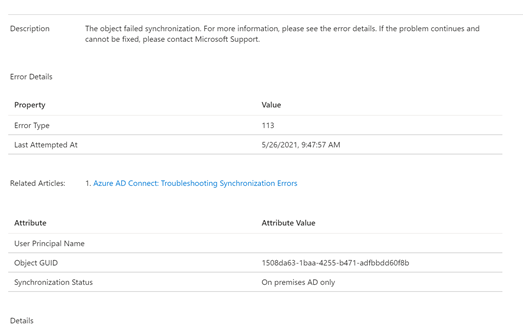
I have recently had customer open cases for synchronization errors. These errors are viewable in the portal and may come in an email summary of directory synchronization errors that are detected. This is sample error from the azure portal.


In this case the error is 113 and simply shows the object GUID of the object in the on premises directory.

When a sync error is listed in the Azure Portal and there is no additional information – a good place to look is the Azure Active Directory Connect server. In many cases the health agent on the server is sending up errors encountered in the sync or export process. In this particular example when reviewing the export to Azure Active Directory the same error is noted.


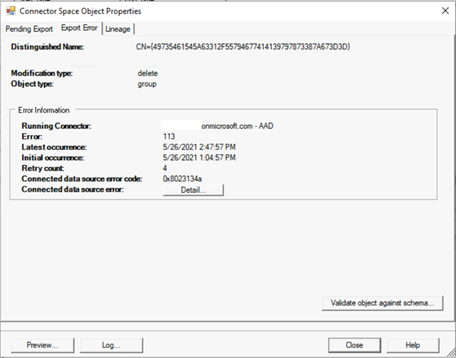
When selecting group from the export errors section the administrator has access to the export errors tab.


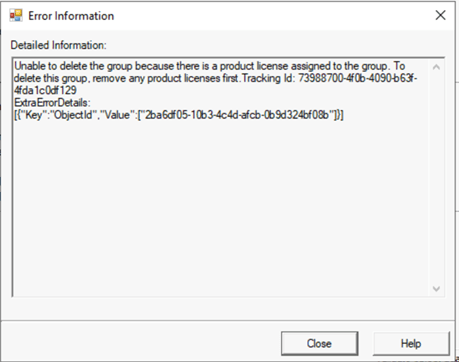
The first thing that is noticed is that the operation that is generating the error is a Delete operation. We already know that it is a group based on the previous information from Azure Active Directory and the sync error. Click on the details tab we discover the full information regarding the failure.


Unable to delete the group because there is a product license assigned to the group. To delete this group, remove any product licenses first.


Tracking Id: 73988700-4f0b-4090-b63f-4fda1c0df129

ExtraErrorDetails:

[{“Key”:”ObjectId”,”Value”:[“2ba6df05-10b3-4c4d-afcb-0b9d324bf08b”]}]


The error text pinpoints the exact issue – a deletion is being attempted on a group that has group based licenses applied. The delete operation is blocked and an error is logged. This makes sense – imagine what problem could occur if we allowed a group to be deleted that had license applied – and resulted in those licenses being removed.

To correct this condition the administrator must remove the licenses from the group. Once the licenses are removed from the group the next sync cycle will successfully delete the group. The error 113 will clear after the next health submission update.