Author Archives: TIMMCMIC

Office 365: The mystery of mobile phone…

In the last few weeks I have worked several escalations from customers inquiring about inconsistencies with the mobile phone attribute.  In almost all cases inconsistencies were noticed in the Exchange Online contact card where mobile phone listed did not match on premises.

When directory synchronization is enabled on an Office 365 tenant a set of attributes are locked with a source of authority flag establishing on premises as the SOA.  The implications here are that changes to these attributes should only be accepted through the Azure Active Directory Synchronization software.  Administrators and end users can see this behavior when attempting to change – for example – first name.

PS C:> Set-MsolUser -UserPrincipalName tim.mcmichael@domain.com -FirstName Test
Set-MsolUser : Unable to update parameter. Parameter name: FIRSTNAME.
At line:1 char:1
+ Set-MsolUser -UserPrincipalName tim.mcmichael@domain.com -FirstName  …
+ ~~~~~~~~~~~~~~~~~~~~~~~~~~~~~~~~~~~~~~~~~~~~~~~~~~~~~~~~~~~~~~~~~~~~~
     + CategoryInfo          : OperationStopped: (:) [Set-MsolUser], MicrosoftOnlineException
     + FullyQualifiedErrorId : Microsoft.Online.Administration.Automation.PropertyNotSettableException,Microsoft.Online.Administration.Automation.SetUser

As with other attributes mobile phone is initially setup with the expectation that it will be provided through the Azure Active Directory Synchronization software.  Let us review a sample user:

The remote mailbox object is provisioned on-premises and a mobile number set.

[PS] C:>Get-User testmobile | fl *mobile*


MobilePhone : 8035551212

The recipient is successfully replicated to Azure Active Directory and the mobile number from on premises is retained.

PS C:> Get-MsolUser -UserPrincipalName testmobile@fortmillems.org | fl *mobile*


AlternateMobilePhones : {}

MobilePhone           : 8035551212

At anytime the mobile number may change on premises to a different value.

[PS] C:>Set-User testmobile -MobilePhone 9991112222
[PS] C:>Get-User testmobile | fl *mobile*


MobilePhone : 9991112222

The recipient is again successfully replicated to Azure Active Directory and the mobile number from on premises is again retained.

PS C:> Get-MsolUser -UserPrincipalName testmobile@domain.com | fl *mobile*


AlternateMobilePhones : {}

MobilePhone           : 9991112222

In Office 365 there are several self service options for attributes.  For example users can enroll themselves in Multi-Factor Authentication or potentially manage some of their personal attributes.  One of these attribute is mobile phone.  This allows the end user to set their own mobile phone number.  In addition administrators have access to user attribute both via the portal and powershell where mobile phone can also be adjusted. 

PS C:> Get-MsolUser -UserPrincipalName testmobile@domain.com | fl *mobile*


AlternateMobilePhones : {}

MobilePhone           : 1234567890

So wait – mobile phone was previously accepted from on premises when directory synchronization was enabled but is now also taking updates from Azure Active Directory directly?  That’s correct – mobile phone is a unique attribute.  When directory synchronization is enabled mobile phone will continue to be populated from on premises through the sync process.  Although this occurs – the mobile phone can be updated through any number of cloud interfaces.   What happens now if the mobile number changes on premises.

[PS] C:>Set-User testmobile -MobilePhone 0987654321
[PS] C:>Get-User testmobile | fl *mobile*


MobilePhone : 0987654321

Synchronization is now allowed to complete and reviewing the attributes of mobile number in Azure Active Directory we note the attribute HAS NOT updated.

PS C:> Get-MsolUser -UserPrincipalName testmobile@domain.com | fl *mobile*


AlternateMobilePhones : {}

MobilePhone           : 1234567890

This is by design.  When the mobile phone number was adjusted in Azure Active Directory the source of authority was changed from on premises to Azure Active Directory.  When Azure Active Directory Sync pushes any changes of the mobile attribute from on premises to Office 365 – Azure Active Directory ignores the change. 

So what about Exchange Online – what will display in the users contact card.  Exchange Online takes all of the information as provided by Azure Active Directory.  Regardless where the source of authority lies – the value stamped on the object in Azure Active Directory will be the value of the attribute on the mail enabled object in Exchange Online and what will subsequently appear in the global address list.  Here is a sample get-user from Exchange Online:

PS C:> Get-User testMobile | fl *mobile*


MobilePhone : 1234567890

If you have mobile phone attributes that you need populated from on premises to Office 365 and are encountering this issue a support case can be utilized to discuss options with product support services.

Office 365: Unable to locate an Azure Active Directory user for an Exchange Online Mailbox

In order for an Exchange Online mailbox to exist in Office 365 it must be attached to an Azure Active Directory object.  In Exchange Online we record the object ID for the Azure Active Directory account as the external directory object id of the mailbox.

PS C:> Get-Mailbox tmcmichael | fl name,externalDirectoryObjectID


Name                      : Timothy McMichael
ExternalDirectoryObjectId : 61425db0-7812-49dd-b6aa-1a732bdec569

Using the external directory object ID we can locate the Azure Active Directory account that the mailbox is linked to.

PS C:> Get-MsolUser -ObjectId 61425db0-7812-49dd-b6aa-1a732bdec569


UserPrincipalName          DisplayName       isLicensed
—————–          ———–       ———-
tmcmichael@domain.org      Timothy McMichael True

I recently had a customer that presented with the inability to locate the Azure Active Directory Object for an associated mailbox. 

Using get-mailbox the mailbox object was successfully located:

PS C:> Get-Mailbox contact | fl name,externalDirectoryObjectID


Name                      : Contact Mailbox
ExternalDirectoryObjectId : 3959607e-8c53-4413-9d39-1af548b00819

When using get-msolUser the Azure Active Directory account could not be successfully located.

PS C:> Get-MsolUser -ObjectId 3959607e-8c53-4413-9d39-1af548b00819
Get-MsolUser : User Not Found.  User: 3959607e-8c53-4413-9d39-1af548b00819.
At line:1 char:1
+ Get-MsolUser -ObjectId 3959607e-8c53-4413-9d39-1af548b00818
+ ~~~~~~~~~~~~~~~~~~~~~~~~~~~~~~~~~~~~~~~~~~~~~~~~~~~~~~~~~~~
     + CategoryInfo          : OperationStopped: (:) [Get-MsolUser], MicrosoftOnlineException
     + FullyQualifiedErrorId : Microsoft.Online.Administration.Automation.UserNotFoundException,Microsoft.Online.Administration.Automation.GetUser

If the mailbox object was a valid object – why can an Azure Active Directory account not be located.

In this particular instance we discovered that the mailbox was set as the JournalingReportNDRTo.

PS C:> Get-TransportConfig | fl JournalingReportNdrTo


JournalingReportNdrTo : contact@domain.com

When a mailbox is specified as the journalingReportNDRTo recipient the mailbox cannot be deprovisioned.  In this particular instance we suspect that the Azure Active Directory Account was removed and subsequently purged.  When the object is purged from Azure Active Directory the associated Exchange Online Mailbox should enter a soft deleted state.  In this instance the mailbox was not soft deleted because of an external dependency.

Office 365: Mail disable an on premises security group…

Administrators may enable security groups on premises as distribution groups. 

[PS] C:>Get-DistributionGroup BlogSecurityGroup


Name              DisplayName       GroupType                  PrimarySmtpAddress
—-              ———–       ———                  ——————
BlogSecurityGroup BlogSecurityGroup Universal, SecurityEnabled
BlogSecurityGroup@domain.org

Azure Active Directory Connect will provision these groups and they will appear as mail enabled objects in Exchange Online.

PS C:> Get-DistributionGroup BlogSecurityGroup


Name              DisplayName       GroupType                  PrimarySmtpAddress
—-              ———–       ———                  ——————
BlogSecurityGroup BlogSecurityGroup Universal, SecurityEnabled
BlogSecurityGroup@domain.org

There may be requirements to remove the mail enabled attributes of the group.  This is done on premises through disable-distributiongroup.

[PS] C:>Disable-DistributionGroup BlogSecurityGroup


Confirm
Are you sure you want to perform this action?
Disabling distribution group “BlogSecurityGroup” will remove the Exchange properties from the Windows group object.

When the distribution group has been disabled it still appears in Exchange Online as a mail enabled group.  In this instance with a proxy address that defaults to the default onmicrosoft.com domain.

PS C:> Get-DistributionGroup BlogSecurityGroup


Name              DisplayName       GroupType                  PrimarySmtpAddress
—-              ———–       ———                  ——————
BlogSecurityGroup BlogSecurityGroup Universal, SecurityEnabled BlogSecurityGroup@domain.onmicrosoft.com

If the group must be completely removed from Exchange Online – the associated MSOL object must be removed.

PS C:> Get-MsolGroup -SearchString BlogSecurityGroup


ObjectId                               DisplayName                GroupType                  Description
——–                               ———–                ———                  ———–
c2d0b7df-f0d5-4f0a-9470-edfa56e4910e   BlogSecurityGroup          MailEnabledSecurity


PS C:> Get-MsolGroup -SearchString BlogSecurityGroup | Remove-MsolGroup


Confirm
Continue with this operation?
[Y] Yes  [N] No  [S] Suspend  [?] Help (default is “Y”): y

Exchange Online will receive notification that the group has been removed and fully clean up the associated distribution group object.

PS C:> Get-DistributionGroup BlogSecurityGroup
The operation couldn’t be performed because object ‘BlogSecurityGroup’ couldn’t be found on
‘CO1PR06A002DC01.NAMPR06A002.prod.outlook.com’.
     + CategoryInfo          : NotSpecified: (:) [Get-DistributionGroup], ManagementObjectNotFoundException
     + FullyQualifiedErrorId : [Server=DM6PR06MB4026,RequestId=62703e0c-3437-49b9-9b84-be6253159d2e,TimeStamp=4/29/2018
     6:18:49 PM] [FailureCategory=Cmdlet-ManagementObjectNotFoundException] FC078746,Microsoft.Exchange.Management.RecipientTasks.GetDistributionGroup
     + PSComputerName        : ps.outlook.com

If the group still exists on premises Azure AD Connect will recreate it as a security enabled group during the next synchronization cycle.

Office 365: Resetting a migrated users Azure Active Directory account….

In certain support circumstances it may become necessary to hard delete an Azure Active Directory account.  When the user has a mailbox that has been migrated to Exchange Online additional steps may be required to restore mailbox access.

It is important to note that hard deleting an account should not be a common place operation.  There can potentially be significant impacts to the other services that are linked to an account – for example Sharepoint Online site ownerships / permissions and One Drive for Business files. 

When a mailbox is migrated to Exchange Online the on premises mailbox GUID is preserved in Office 365.  If the original Azure Active Directory account is hard deleted – the Exchange Online mailbox will be set to an inactive status.  The Azure Active Directory account will be provisioned as a remote mailbox but continues to have the Exchange GUID of the mailbox on premises.  If a license is assigned to the new account – a mailbox is not provisioned due to the presence of the on premises Exchange GUID.  The assumption is that the mailbox needs to be migrated again.

Let’s take a look at an example.

In this example there is an on premises mailbox.  This can be validated with get-recipient and noting the recipientType is UserMailbox.

[PS] C:>Get-Recipient BlogTest


Name      RecipientType
—-      ————-
Blog Test UserMailbox

The ExchangeGUID is stamped on the mailbox when created on premises and is utilized to create the link between the Active Directory object and the mailbox object within the database.

[PS] C:>Get-Mailbox BlogTest | Select-Object exchangeGuid


ExchangeGuid
————
3155cca2-d022-4cbe-8f93-e3ecfc98894d

In Office 365 an on premises mailbox is represented as a mail user object.  This can be validated with get-recipient and noting the recipientType is MailUser.

PS C:> Get-Recipient BlogTest


Name      RecipientType
—-      ————-
Blog Test MailUser

The same exchangeGUID found on premises is stamped on the mail user object in Office 365.

PS C:> Get-Recipient BlogTest | Select-Object exchangeGUID


ExchangeGuid
————
3155cca2-d022-4cbe-8f93-e3ecfc98894d

When the mailbox is successfully migrated to Office 365 a conversion of the object on premises occurs to a remote mailbox type.

[PS] C:>Get-RemoteMailbox BlogTest


Name         RecipientTypeDetails                    RemoteRecipientType
—-         ——————–                    ——————-
Blog Test    RemoteUserMailbox                       Migrated

The recipient in Office 365 is now a user mailbox object.

PS C:> Get-Recipient BlogTest


Name      RecipientType
—-      ————-
Blog Test UserMailbox

The GUIDs continue to remain the same.

[PS] C:>Get-RemoteMailbox BlogTest | Select-Object exchangeGUID


ExchangeGuid
————
3155cca2-d022-4cbe-8f93-e3ecfc98894d


PS C:> Get-Mailbox BlogTest | Select-Object exchangeGUID


ExchangeGuid
————
3155cca2-d022-4cbe-8f93-e3ecfc98894d

This represents the standard account creation and migration process.

At this time through a support engagement it is determined that the associated Azure Active Directory account needs to be hard deleted.  This is accomplished through the remove-msolUser command.

PS C:> Remove-MsolUser -UserPrincipalName blogtest@domain.org


Confirm
Continue with this operation?
[Y] Yes  [N] No  [S] Suspend  [?] Help (default is “Y”): y


PS C:> Remove-MsolUser -UserPrincipalName blogtest@domain.org -RemoveFromRecycleBin


Confirm
Continue with this operation?
[Y] Yes  [N] No  [S] Suspend  [?] Help (default is “Y”): y

When the Azure Active Directory account is removed the associated Exchange Online mailbox is also removed.

PS C:> Get-Mailbox BlogTest
The operation couldn’t be performed because object ‘BlogTest’ couldn’t be found on
‘CO1PR06A002DC01.NAMPR06A002.prod.outlook.com’.
     + CategoryInfo          : NotSpecified: (:) [Get-Mailbox], ManagementObjectNotFoundException
     + FullyQualifiedErrorId : [Server=DM6PR06MB4026,RequestId=0bfe62ac-6691-43d8-99e6-5ae8358796b5,TimeStamp=4/29/2018
     3:37:40 PM] [FailureCategory=Cmdlet-ManagementObjectNotFoundException] CEDE4B18,Microsoft.Exchange.Management.RecipientTasks.GetMailbox
     + PSComputerName        : ps.outlook.com

When the next Azure Active Directory Connect cycle runs the same account will be provisioned as a new object in Azure Active Directory.

PS C:> Get-MsolUser -UserPrincipalName blogtest@domain.org


UserPrincipalName        DisplayName isLicensed
—————–        ———– ———-
blogtest@domain.org      Blog Test   False

The provisioning of the new account is detected by Exchange Online and a mail user object is provisioned.

PS C:> Get-Recipient BlogTest


Name     RecipientType
—-     ————-
BlogTest MailUser

In this instance the object is a remote mailbox / migrated user.  It would be expected that a mailbox object would appear in Exchange Online – but the object is a mail user. 

When reviewing the properties of the Azure Active Directory object validation errors exist and an error is noted on the account in the portal.

PS C:> Get-MsolUser -UserPrincipalName blogtest@domain.org | Select-Object validationStatus


ValidationStatus
—————-
            Error

image

Why does the validation error exist?  When a mailbox has been migrated to Office 365 the ExchangeGUID continues to remain on the object on premises.  This was visible in the previous commands we executed.  Although the recipient type is remote mailbox – the presence of an ExchangeGUID on premises prevents a mailbox from being provisioned.  The service assumes there is still a mailbox to be migrated.

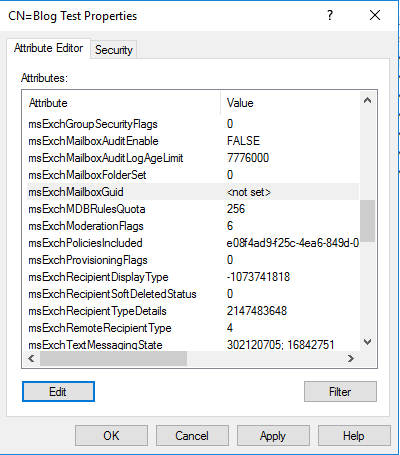
If this is the case – how do we get the blank mailbox that we were looking for to provision?  The exchangeGUID can be removed on premises.  This can be accomplished by using ADSIEdit and locating the account to be modified.

image

image

At the next Azure Active Directory Connect synchronization cycle the exchangeGUID will be cleared from the object in Office 365.  When the object is completed synchronization the Exchange Online object remains a mail user but the exchangeGUID is now null.

PS C:> Get-Recipient BlogTest | fl recipientType,skuassigned,exchangeGUID


RecipientType : MailUser
SKUAssigned   :
ExchangeGuid  : 00000000-0000-0000-0000-000000000000

At this time a license can be assigned to the user.

PS C:> Get-MsolUser -UserPrincipalName blogtest@domain.org | Select-Object isLicensed,Licenses


IsLicensed Licenses
———- ——–
       True {Organization:STANDARDWOFFPACK}

When the license assignment successfully provisions to Exchange Online the mail user is converted to a user mailbox – a new mailbox has been provisioned.

PS C:> Get-Recipient BlogTest | fl recipientType,skuassigned,exchangeGUID


RecipientType : UserMailbox
SKUAssigned   : True
ExchangeGuid  : ec78d8ce-fee9-40e7-b8a6-d0628a22c527

The original mailbox can now be merged into the new mailbox to preserve any data delivered to the original mailbox.

Office 365: Trusting application emails sent through internal relay…

In todays connected environments there are several applications that send email through designated internal relay servers.  The messages may originate from application servers that generate notifications, scans from multifunction printers, or other network connected devices.  An excellent target for internal relay servers are the hybrid servers implemented for Office 365 integration or any Exchange 2010 or newer server. 

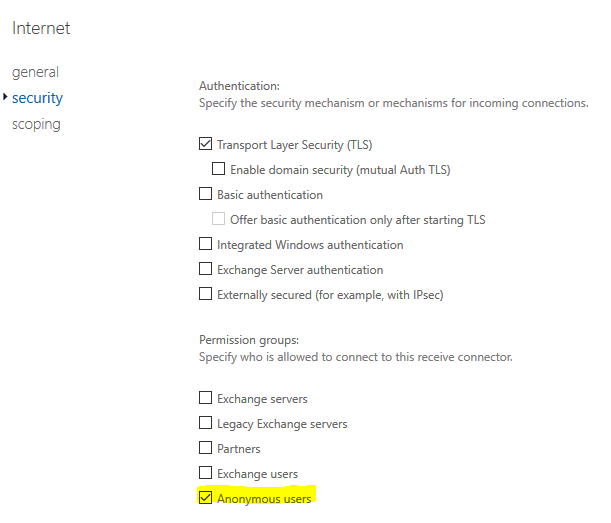
In some installations a connector is created that allows for anonymous access.  This is definitely the case when the Exchange server receives email from the internet.

image

In many cases the internet or anonymous connector is what is utilized for internal relay applications.  This works for accepting and sending email within the environment – but there are several limitations.  Any email that is received through only the anonymous permission is considered not authenticated.  Here are some implications:

  • Sender addresses are not resolved to email addresses in the global address list.
  • Email to distribution lists requiring authentication will not be processed.
  • Message limits of the on premises organization are applied to the messages relayed.

In this example telnet was utilized to submit a message through the anonymous connector.  The message header indicates the message was received as anonymous.

21
X-MS-Exchange-Organization-AuthAs
Anonymous

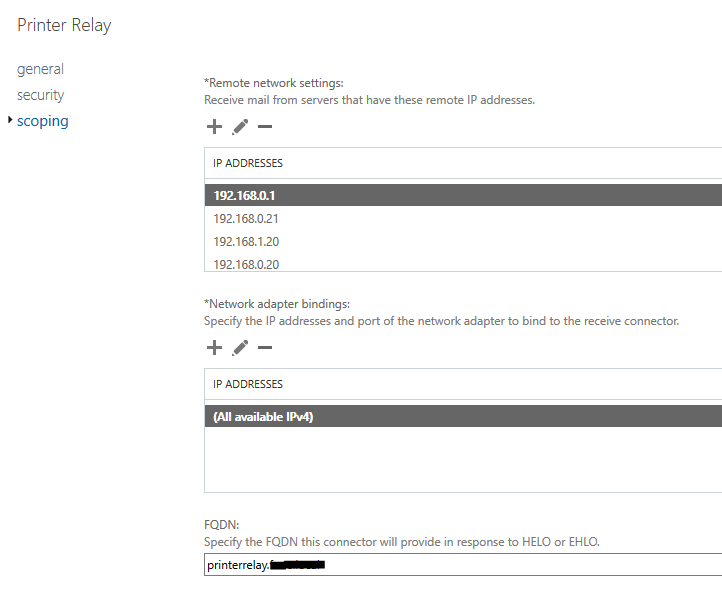
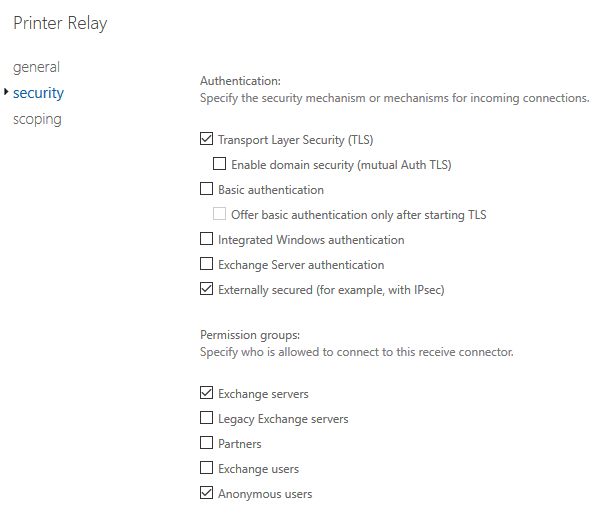
In order for internal applications to reliably deliver email it may be necessary to trust these messages.  The messages must come from an authenticated source.  To allow this to occur a receive connector can be created the implements the following:

  • IP restrictions to the sending applications or devices.
  • Authentication using “Externally Secured”.

image

image

Exchange by default will always utilize the most restrictive connector.  When the device connects and the IP address is within scope of the connector the externally secured permissions will be applied.  When the connector with externally secured is selected this results in the authentication settings for the email being set as INTERNAL.  

In this example telnet was utilized to submit a message through the externally secured connector.  The message header indicates the message was received as internal.

19
X-MS-Exchange-Organization-AuthAs
Internal

For more information on the connector security settings please review the following article –> https://technet.microsoft.com/en-us/library/mt668454(v=exchg.160).aspx

Office 365: Detecting and preventing duplicate mailboxes between On-Premises and Exchange Online

In Office 365 when licenses are assigned to a user a mailbox should not be provisioned if the user has a mailbox on premises.  Our provisioning logic looks to see if there is a replicated Exchange GUID to make a determination on the type of object that should be provisioned.  The one exception of this is if the account has a previousRecipientDisplayTypeDetails of UserMailbox.  In all cases if this recipient type is a UserMailbox a mailbox will be provisioned.  This can lead to duplicate mailboxes between Office 365 and on premises Exchange.

I detail some of these situations in the following blog posts:

https://blogs.technet.microsoft.com/timmcmic/2017/09/10/office-365-users-have-both-a-cloud-and-on-premises-mailbox/

https://blogs.technet.microsoft.com/timmcmic/2018/04/09/office-365-licensing-mail-users-results-in-mailbox-objects/

To being identifying users that might have the probability of having a duplicate mailbox created we must first pull all mail users that have a populated Exchange GUID.  If a mail user has an Exchange GUID – it should match the on premise mailbox. 

$mailUsers=Get-MailUser -ResultSize unlimited | where {$_.exchangeGUID -notlike “*00000*”}
$mailUsers


Name                                     RecipientType
—-                                     ————-
Journal Mailbox                          MailUser
TestCloud0                               MailUser
TestCloud1                               MailUser
TestCloud2                               MailUser
TestCloud3                               MailUser
TestCloud4                               MailUser

The second step is to trim the list down further to those mail users that have a previousRecipientDisplayTypeDetails of UserMailbox. 

$users=$mailUsers | % {get-user $_.alias | where {$_.PreviousRecipientTypeDetails -eq “UserMailbox”}}
$users


Name       RecipientType
—-       ————-
TestCloud0 MailUser
TestCloud1 MailUser
TestCloud2 MailUser
TestCloud3 MailUser
TestCloud4 MailUser

The array of users created above should reflect all mail users where the Exchange GUID is populated and the previous recipient type details are UserMailbox.

We now support resetting the users previousRecipientTypeDetails through the set-user command.  IMPORTANT NOTE:  When resetting these values if there is any data in the cloud mailbox that you wish to have recovered DO NOT proceed with these instructions.  Continuing to follow these instructions will result in the inability to recover data.  Using a loop we are able to move through the array of users and clear the previous recipient type details. 

To reset the previousRecipientTypeDetails…

$users | % {Set-User -Identity $_.samAccountName -PermanentlyClearPreviousMailboxInfo -Confirm:$FALSE -Verbose}


VERBOSE: Delete all existing information about user “TestC505571820778136”?. This operation will clear existing values
from Previous home MDB and Previous Mailbox GUID of the user. After deletion, reconnecting to the previous mailbox that
  existed in the cloud will not be possible and any content it had will be unrecoverable PERMANENTLY. Do you want to
continue?
VERBOSE: Delete all existing information about user “Test56390-1214024844”?. This operation will clear existing values
from Previous home MDB and Previous Mailbox GUID of the user. After deletion, reconnecting to the previous mailbox that
  existed in the cloud will not be possible and any content it had will be unrecoverable PERMANENTLY. Do you want to
continue?
VERBOSE: Delete all existing information about user “TestCl56390595684140”?. This operation will clear existing values
from Previous home MDB and Previous Mailbox GUID of the user. After deletion, reconnecting to the previous mailbox that
  existed in the cloud will not be possible and any content it had will be unrecoverable PERMANENTLY. Do you want to
continue?
VERBOSE: Delete all existing information about user “TestCl50043487409662”?. This operation will clear existing values
from Previous home MDB and Previous Mailbox GUID of the user. After deletion, reconnecting to the previous mailbox that
  existed in the cloud will not be possible and any content it had will be unrecoverable PERMANENTLY. Do you want to
continue?
VERBOSE: Delete all existing information about user “Test58465-1005051264”?. This operation will clear existing values
from Previous home MDB and Previous Mailbox GUID of the user. After deletion, reconnecting to the previous mailbox that
  existed in the cloud will not be possible and any content it had will be unrecoverable PERMANENTLY. Do you want to
continue?

Using powershell to validate that our changes were successful by restarting the discover process outlined above.

$mailUsers=Get-MailUser -ResultSize unlimited | where {$_.exchangeGUID -notlike “*00000*”}
$users=$mailUsers | % {get-user $_.alias | where {$_.PreviousRecipientTypeDetails -eq “UserMailbox”}}
$users
$users.count
0

With the users array count being zero there are no mail users left with a previous recipient display type of user mailbox.  With this value cleared – should a license be assigned to the user a mailbox will not be generated in Exchange Online.

Office 365: Internal forwarding and remote domains…

In Office 365 I often encourage customers to control user forwarding through the user of remote domains.  You can find two of my blog posts on this topic here:

https://blogs.technet.microsoft.com/timmcmic/2015/06/08/exchange-and-office-365-mail-forwarding-2/

https://blogs.technet.microsoft.com/timmcmic/2015/04/19/office-365-determine-accounts-that-have-forwarding-enabled/

In a default installation a remote domain is defined in the service only for the * domain.

PS C:> Get-RemoteDomain

Name                           DomainName                                   AllowedOOFType
—-                           ———-                                   ————–
Default                        *                                            External

The auto forwarding property can be adjusted to FALSE which prevents autoforwarding from succeeding even if configured by the end user.

PS C:> Get-RemoteDomain | Select-Object AutoForwardEnabled

AutoForwardEnabled
——————
              False

I recently had a customer present with an issue where forwarding was not working.  In this particular instance forwarding was not working when a mailbox in the service created a rule or was using forwarding SMTP address to a user that was not yet migrated.  The recipients mailbox was located on premises in the same organization.  Let us take a look at an example…

In Office 365 I have changed the forwarding SMTP address to be a proxy address of an object that has not yet been migrated.  The forwarding smtp address property is treated in the same manner as an inbox rule setting a forwarding or redirect address.  (For a details explanation of the different forwarding methods see my previously mentions posts).

Set-Mailbox Contact -ForwardingSmtpAddress journal@contoso.com


When the forwarding address as been set all emails directed to this mailbox should also be redirected to the forwarding address.

To test the forwarding using an external mailbox outside the organization I addressed an email to the mailbox where forwarding was enabled.  Using message tracing I traced the message and noted that the status now shows as FAILED.

PS C:> Get-MessageTrace -RecipientAddress journal@contoso.com -SenderAddress timmcmic@microsoft.com

Received            Sender Address         Recipient Address       Subject Status
——–            ————–         —————–       ——- ——
4/9/2018 2:41:08 PM timmcmic@microsoft.com journal@contoso.com     Test    Failed

Using get-messageTraceDetail we can review the full path of the message including any drops.

PS C:> $trace=Get-MessageTrace -RecipientAddress journal@contoso.com -SenderAddress timmcmic@microsoft.com | Get-MessageTraceDetail
PS C:> $trace

Date                   Event                Detail
—-                   —–                ——
4/9/2018 2:41:11 PM    Journal              Message was journaled. Journal report was sent to journal@contoso.co
4/9/2018 2:41:11 PM    Drop                 Reason: [{LED=250 2.1.5 RESOLVER.MSGTYPE.AF; handled AutoForward address…
4/9/2018 2:41:11 PM    Spam Diagnostics

In this instance we can see two drop events have occurred.  We can review the specific details of one of the drop events.

PS C:> $trace[1].detail
Reason: [{LED=250 2.1.5 RESOLVER.MSGTYPE.AF; handled AutoForward addressed to external recipient};{MSG=};{FQDN=};{IP=};{LRT=}]

This is interesting – the message trace details seem to indicate that the message was dropped to an external recipient.  Why?

In this case the message is leaving the office 365 organization and therefore is considered external even though the message is destined to the on premises organization.  Due to transport seeing the forwarding recipient as external – and the remote domain * being the only domain defined and having auto forwarding disabled – the message is turfed.

How can we fix this?

We can fix this by defining a remote domain for the internal namespace.

PS C:> New-RemoteDomain -DomainName contoso.com -Name “Contoso Remote Domain”

Name                           DomainName                                   AllowedOOFType
—-                           ———-                                   ————–
Contoso Remote Domain          contoso.com                                  External


set-remoteDomain –identity “Contoso Remote Domain” –isInternal:$TRUE

PS C:> Get-RemoteDomain “Contoso Remote Domain” | fl autoForwardEnabled

AutoForwardEnabled : True

The entire process can be retested after allowing time for replication.  In this instance we will observe that the forwarded message is now delivered.

PS C:> Get-MessageTrace -RecipientAddress journal@contoso.com -SenderAddress timmcmic@microsoft.com  | where{$_.status -like “Delivered”}

Received            Sender Address         Recipient Address       Subject Status
——–            ————–         —————–       ——- ——
4/9/2018 3:06:30 PM timmcmic@microsoft.com journal@contoso.com     Test    Delivered

PS C:> $trace=Get-MessageTrace -RecipientAddress journal@contoso.org -SenderAddress timmcmic@microsoft.com  | where{$_.status -like “Delivered”} | get-messageTraceDetail
PS C:> $trace

Date                   Event                Detail
—-                   —–                ——
4/9/2018 3:06:33 PM    Journal              Message was journaled. Journal report was sent to journal@contoso.co…
4/9/2018 3:06:34 PM    Send external        Message sent to mail.contoso.com at IPAddress using TLS1.2 w…
4/9/2018 3:06:33 PM    Spam Diagnostics

The new remote domain settings are being applied as expected.

Office 365: Licensing mail users results in mailbox objects.

In Office 365 we allow administrators to create mail user objects.  A mail user object is a security principal in the local active directory that also has an external email address assigned.  The user will appear in the global address list as a recipient and when selected the messages sent to the external email address assigned to the user.


In recent weeks I have worked with customers that have begun the process of implementing automated license assignment or implementing group based licensing.  In the process of doing so their mail user objects were included within the licensing scope applied.  When the Exchange Online license was applied – the mail user objects were converted to mailbox objects causing interruptions in mail flow.


Here is an example of a mail user created on premises.


[PS] C:>Get-MailUser TestAssigned

Name                                     RecipientType
—-                                     ————-
Test Assigned                            MailUser


When Azure AD Connect has replicated the object it will be represented in Exchange Online as a mail user object.


PS C:> Get-MailUser TestAssigned

Name                                     RecipientType
—-                                     ————-
Test Assigned                            MailUser


When the mail user account is initially provisioned the account is not licensed.


PS C:> Get-MsolUser -UserPrincipalName testassigned@domain.com

UserPrincipalName            DisplayName   isLicensed
—————–            ———–   ———-
TestAssigned@domain.com      Test Assigned False


Using the Office 365 Portal an Exchange Online license can be assigned to the mail user account.


PS C:> Get-MsolUser -UserPrincipalName testassigned@domain.com

UserPrincipalName            DisplayName   isLicensed
—————–            ———–   ———-
TestAssigned@domain.com      Test Assigned True


Post license assigned the object is converted to a mailbox object within Exchange Online.


PS C:> Get-Mailbox testassigned

Name                      Alias                ServerName       ProhibitSendQuota
—-                      —–                ———-       —————–
Test Assigned             TestAssigned         cy1pr0601mb1626  49.5 GB (53,150,220,288 bytes
)


The external email address property of the mail user is not preserved – all email will now be delivered to the mailbox that was provisioned.


This is considered by design.  In Exchange Online the only objects that will not provision a mailbox when a license is assigned is an on premises mailbox.  This is denoted in Exchange Online by a user object that is replicated with an Exchange Guid.  (Note:  There is one exception to this – information can be found here:  https://blogs.technet.microsoft.com/timmcmic/2017/09/10/office-365-users-have-both-a-cloud-and-on-premises-mailbox/)


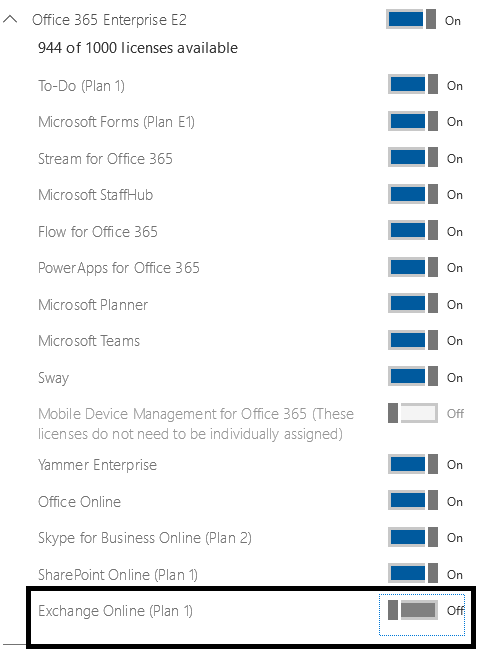
To correct the condition the license can be removed through the Office 365 Portal (or though any means that can remove the Exchange Online sku).


PS C:> Get-MsolUser -UserPrincipalName testassigned@domain.com

UserPrincipalName            DisplayName   isLicensed
—————–            ———–   ———-
TestAssigned@domain.com      Test Assigned False


This will result in the object converting back to a mail user object and the external email address being applicable again.


PS C:> Get-MailUser testassigned

Name                                     RecipientType
—-                                     ————-
Test Assigned                            MailUser


In order to preserve mail user functionality Exchange Plans should not be assigned when licenses are assigned to these recipient objects.

Office 365: Adding a cloud only distribution group as a member of a distribution group on premises…

Today I spoke with a customer that had a unique situation – at least for me.  They have started to create distribution lists that reside in Office 365.  They still had distribution lists that were synchronized from on premises.  The customer wanted to add the cloud only distribution list as a member of the distribution list synchronized from on premises. 

Natively this functionality is not possible since cloud only distribution lists are not synchronized from the cloud to on premises.  (One could arguable use Office 365 Groups and group back sync – but that could get complicated).  To fulfill this request I believe we can utilize a mailbox and forwarding.  Let’s take a look.

On premises we have a DL called OnPremisesDL.

[PS] C:Windowssystem32>Get-DistributionGroup OnPremisesDL


Name         DisplayName  GroupType PrimarySmtpAddress
—-         ———–  ——— ——————
OnPremisesDL OnPremisesDL Universal
OnPremisesDL@domain.org


In the cloud we have a DL called CloudDL.

PS C:Userstimmcmic> Get-DistributionGroup CloudDL


Name    DisplayName GroupType PrimarySmtpAddress
—-    ———– ——— ——————
CloudDL CloudDL     Universal
CloudDL@domain.onmicrosoft.com

My initial thoughts were to utilize a shared mailbox for this purpose.  Our new-remoteMailbox does not have the ability to provision a shared mailbox remotely – and the mailbox must exist as an object both in the cloud and on premises.  To accomplish this we will create the shared mailbox on premises and migrate it to Office 365.

[PS] C:Windowssystem32>New-Mailbox -Shared -Name CloudDL-Forward


Name                      Alias                ServerName       ProhibitSendQuota
—-                      —–                ———-       —————–
CloudDL-Forward           CloudDL-Forward      azure-mbx        Unlimited


With the mailbox created it can be migrated to Office 365 which will preserve the shared status and convert it to a remote shared mailbox.

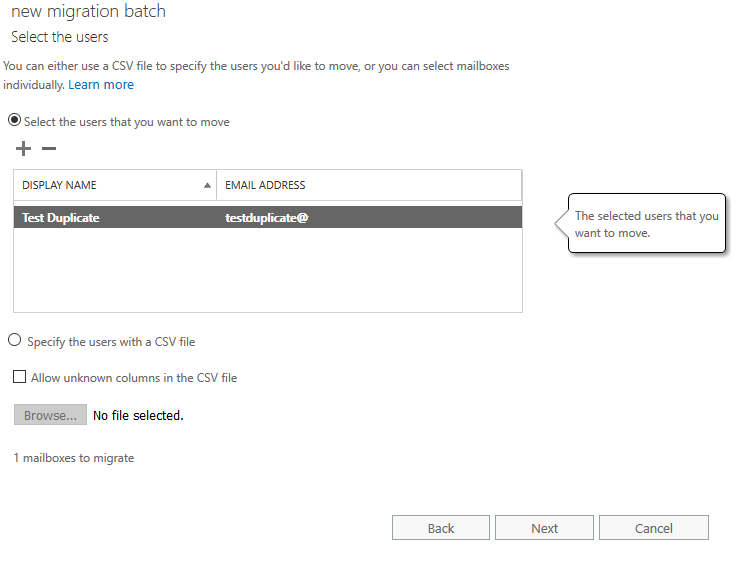
image

image

Post migrating the mailbox to Office 365 we can set the appropriate properties to allow forwarding.  My first recommendation is to hide the mailbox from the distribution list.   This command is executed on premises.

[PS] C:Windowssystem32>Set-RemoteMailbox CloudDL-Forward -HiddenFromAddressListsEnabled:$TRUE
[PS] C:Windowssystem32>

My second recommendation is to enable forwarding using the forwarding SMTP address property and prevent delivery to the shared mailbox.  The forwarding address utilized should match the cloud distribution lists primary SMTP address.  This command is executed in Office 365. 

[PS] C:Windowssystem32>Set-Mailbox CloudDL-Forward -ForwardingSMTPAddress CloudDL@domain.onmicrosoft.com -DeliverToMailboxAndForward:$FALSE
[PS] C:Windowssystem32>

Hiding the mailbox from the address list will prevent users from accidentally selecting it in a name search or when browsing the address list.  The forwarding SMTP address parameter will allow transport to send all messages to the cloud DL preserving the from address as the original sender.  The deliver to mailbox and forward parameter set to false will prevent the delivery of the message to the shared mailbox.  This essentially serves as a forwarder that exists as both an object on premises and within the cloud.

In order for the messages to route to the on premises distribution list and then deliver to the cloud distribution list our mailbox must be a member of the on premises distribution list.

[PS] C:Windowssystem32>Add-DistributionGroupMember -Identity OnPremisesDL -Member CloudDL-Forward
[PS] C:Windowssystem32>

When this has completely synchronized to the on premises environment a test can be performed.  Using an outlook profile we will email the onpremisesDL@domain.com.  The email should arrive in the mailbox of user@domain.com since user@domain.com is a member of CloudDL@domain.onmicrosoft.com

image

The test email was successfully received to the mailbox that is a member of CloudDL.  Note the to address is the on premises distribution list.

Office 365: SPAM detection and reverse DNS lookups.

In Office 365 support we occasionally receive requests to review non-deliverable reports.  In some instances the non-deliverable reports are generated by remote mail systems antispam technologies – specific reverse DNS looksups.


What is a reverse DNS lookup.  Let’s take a look.


An email is addressed from an Office 365 mailbox to a remote mail system.  Our outbound gateways connect to the remote mail system to begin the SMTP transmission.  Here is a sample header:


Hop↓
Submitting host
Receiving host
Time
Delay
Type⇒

1
BY2PR0501MB1848.namprd05.prod.outlook.com ([10.163.155.153])
2/7/2018, 2:02:41 PM

mapi

2
BY2PR0501MB1848.namprd05.prod.outlook.com (10.163.155.153)
BY2PR0501MB1816.namprd05.prod.outlook.com (10.163.155.146)
2/7/2018, 2:02:41 PM

0 seconds

Microsoft SMTP Server (version=TLS1_2, cipher=TLS_ECDHE_RSA_WITH_AES_256_CBC_SHA384_P256)

3
NAM01-SN1-obe.outbound.protection.outlook.com (104.47.32.55)
DM3NAM06FT011.mail.protection.outlook.com (10.152.109.1)
2/7/2018, 2:02:43 PM

2 seconds

Microsoft SMTP Server (version=TLS1_2, cipher=TLS_ECDHE_RSA_WITH_AES_128_CBC_SHA256_P256)


In this case NAM01-SN1-obe.outbound.protection.outlook.com is the server initiating the connection to the receiving gateway.  This server identifies itself in that transmission as NAM01-SN1-obe.outbound.protection.outlook.com and the public IP address associated – in this instance 104.47.32.55.


When a reverse DNS lookup is performed – the IP address of the connection is utilized to return the hostname assigned by the ISP hosting the reverse dns namespace.   Here is an example from nslookup:


C:>nslookup
Default Server:  UnKnown
Address:  192.168.1.254

> server 8.8.8.8
Default Server:  google-public-dns-a.google.com
Address:  8.8.8.8

> set type=ptr
> 104.47.32.55
Server:  google-public-dns-a.google.com
Address:  8.8.8.8

Non-authoritative answer:
55.32.47.104.in-addr.arpa       name = mail-sn1nam01on0055.outbound.protection.outlook.com


In this case the reverse DNS lookup for IP address 104.47.32.55 is mail-sn1nam01on0055.outbound.protection.outlook.com.


At one time in the antispam world a protection that was often utilized was to compare the connecting host name to the reverse DNS name.  If the names matched the host was considered valid.  In the case of Office 365 the reverse dns record may not match the name of the host initiating the connection.  As you can see here NAM01-SN1-obe.outbound.protection.outlook.com is not equal to mail-sn1nam01on0055.outbound.protection.outlook.com.  There is no requirement within the mail flow RFCs that the connecting host name or the name provided within the connections EHLO request must match a reverse DNS lookup of the connecting IP address. 


In the case of the NDRS presented from the customer the NDR is due to antispam on the receiving servers blocking connections from servers that do not pass a successful reverse DNS check. 


Unfortunately from the Office 365 standpoint there is little that can be done.  Reverse DNS looks ups are largely unreliable in todays transport environments to feed antispam decisions and have arguably been replaced by more reliable technologies like SPF and DKIM.  Administrators experiencing these types of NDRs should engage with the third party blocking the messages and request whitelisting for their domains.


You can find some more specific and detailed information regarding server naming conventions and Office 365 here –> https://blogs.msdn.microsoft.com/tzink/2016/07/15/the-outbound-ip-and-helo-format-for-office-365/